## Page Guide
- **Use Cases**: Suitable for TCP long-connection device access, private-protocol device online identification, heartbeat keepalive, and raw packet debugging.
- **Prerequisites**: The backend TCP service is enabled, the device number is determined, and the registration packet, heartbeat packet, and data packet formats are agreed upon.
- **Operation Path**: Enable the TCP service → the device sends the registration packet → maintain the heartbeat → report data → view status in real time on the frontend.
- **Acceptance Criteria**: Device online logs are normal, the frontend device status updates in real time, and the simulated client can complete registration, heartbeat, and data reporting.
## Enable TCP Service
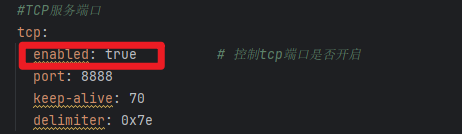
TCP service is controlled in `application.yml`.
::: tip
Set `tcp.enabled` to start the TCP server and allow device connections.
:::
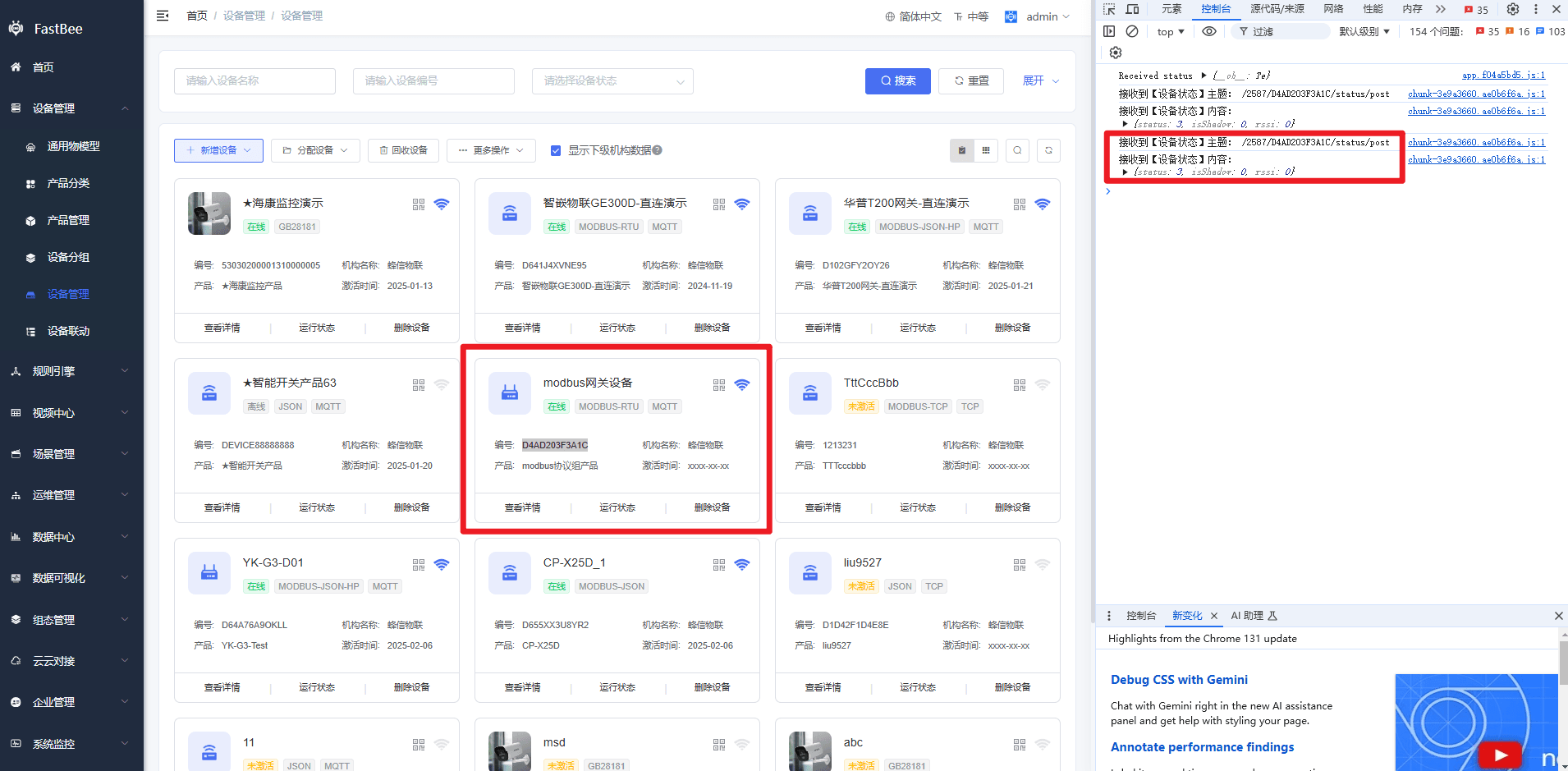
`openws` works with the TCP service and pushes device messages to the frontend for real-time updates.
 ## TCP Device Connection
### Registration Packet
TCP devices must be identified after connection. Therefore, the first packet reported by a TCP client is the registration packet.
Example:
```text
7e80D4AD203F3A1C7e
```
Packet meaning:
```text
7e: packet header and tail
80: registration packet identifier
D4AD203F3A1C: device number
```
After the client sends the registration packet, the platform updates the device status to online.
### Heartbeat Packet
TCP devices must send heartbeat packets to keep the long connection alive. If `keep-alive` is `70s`, heartbeat interval should be lower than 70 seconds.
Example:
```text
7e817e
```
`7e` is the packet header and tail, and `81` is the heartbeat identifier. Heartbeat packets usually only maintain the long connection and do not carry business meaning.
### Special Mixed Packets
Some devices periodically report registration, heartbeat, and data in one packet. This is also supported as long as the packet contains enough information to identify the device and parse data.
## TCP Simulation Client Test
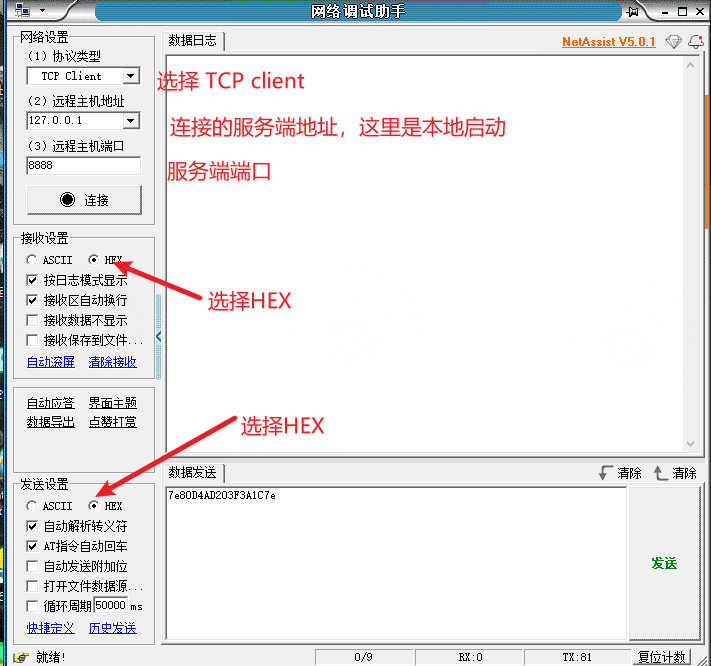
The simulation client is located in the project as shown below.
 ### Simulate Client Online
Configure the client, connect to the TCP server, and send the registration packet:
```text
7e80D4AD203F3A1C7e
```
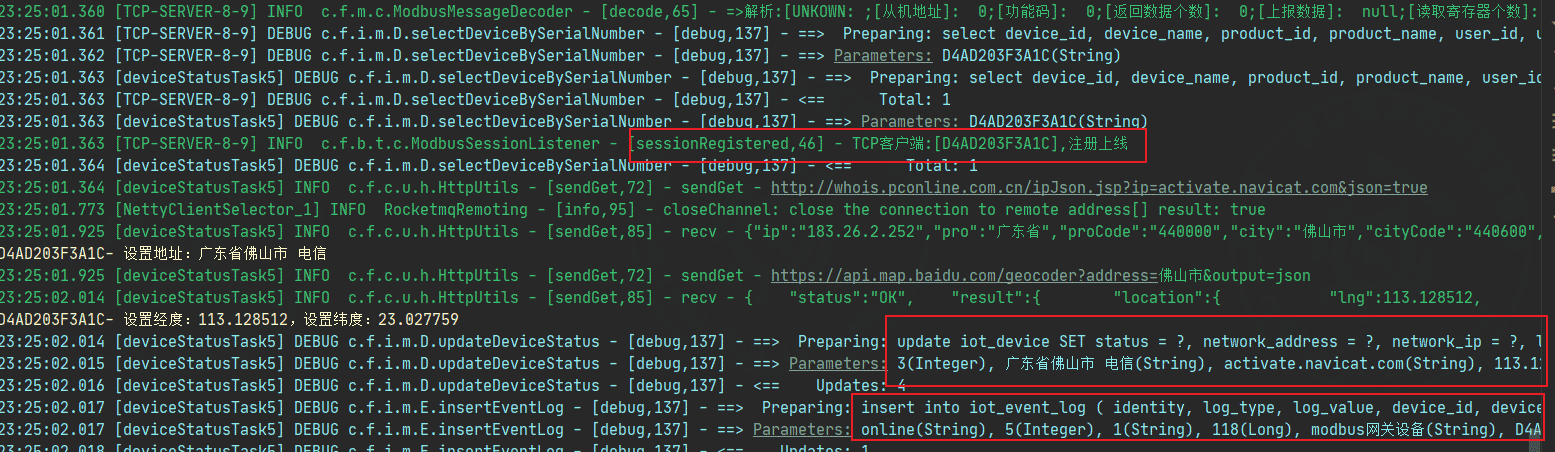
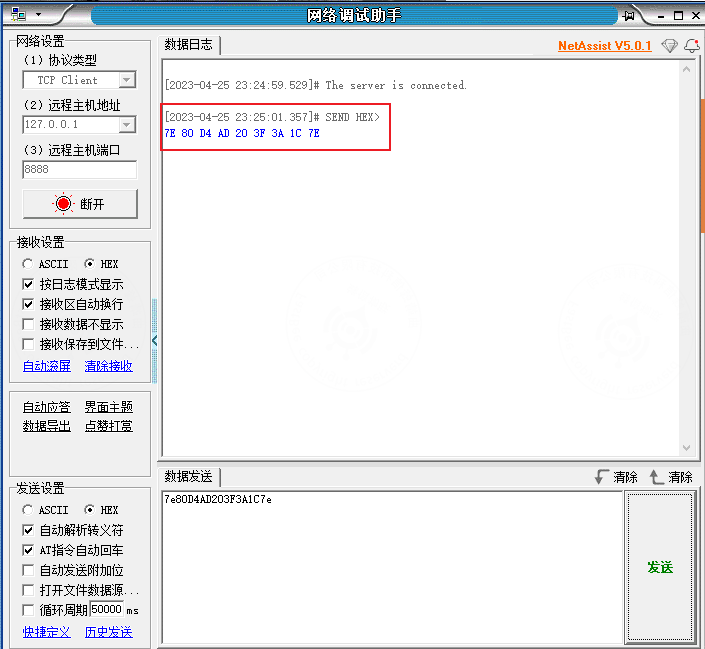 The local service log should show:
* TCP client online.
* TCP device status updated.
* Device event record created.
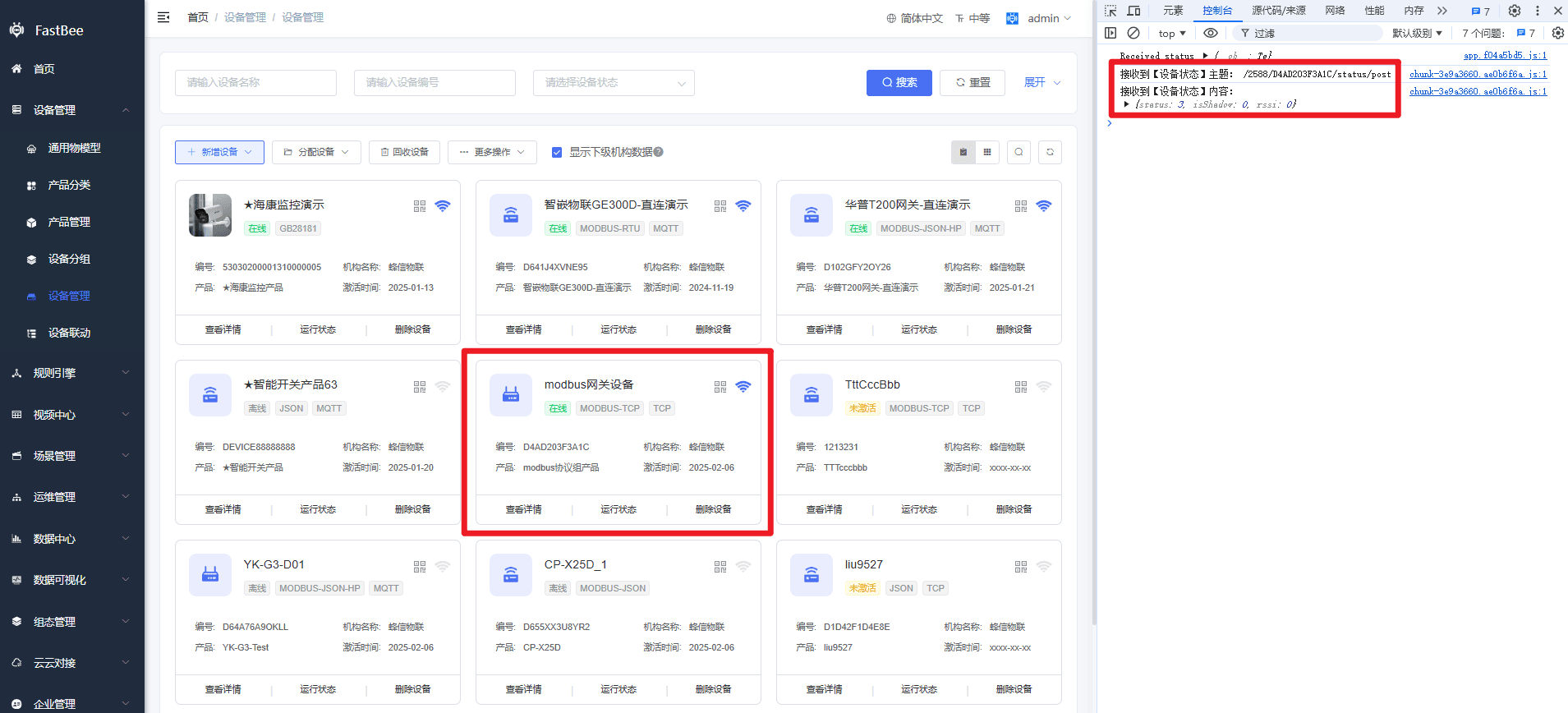
 The frontend receives a WebSocket push message and updates the online status in real time.
 ### Simulate Power-Off Or Disconnect
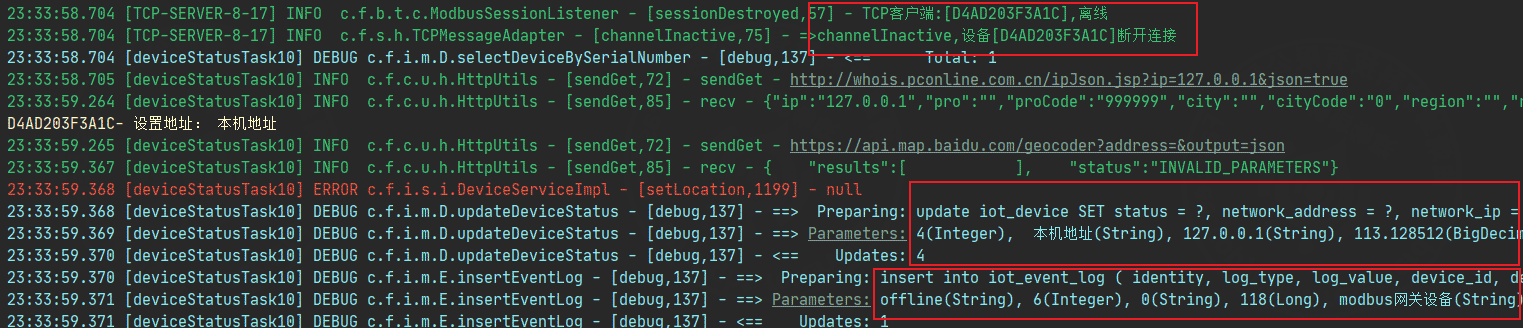
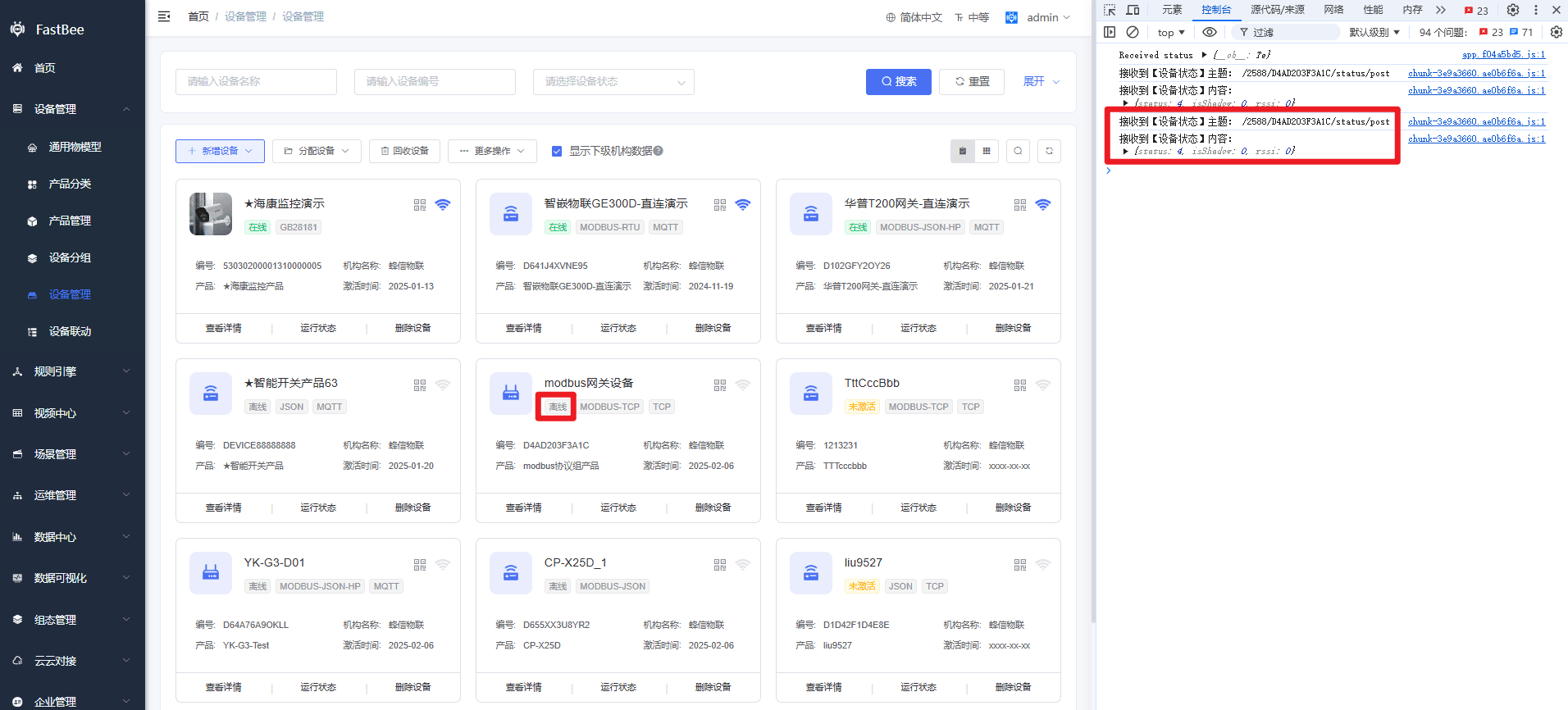
If the device is powered off, the platform waits for heartbeat timeout. If the TCP connection is disconnected actively, the status is reported in real time.
 ## Frontend Configuration
Create a product, choose TCP as the transport protocol, and select a communication protocol such as JSON or Modbus RTU.
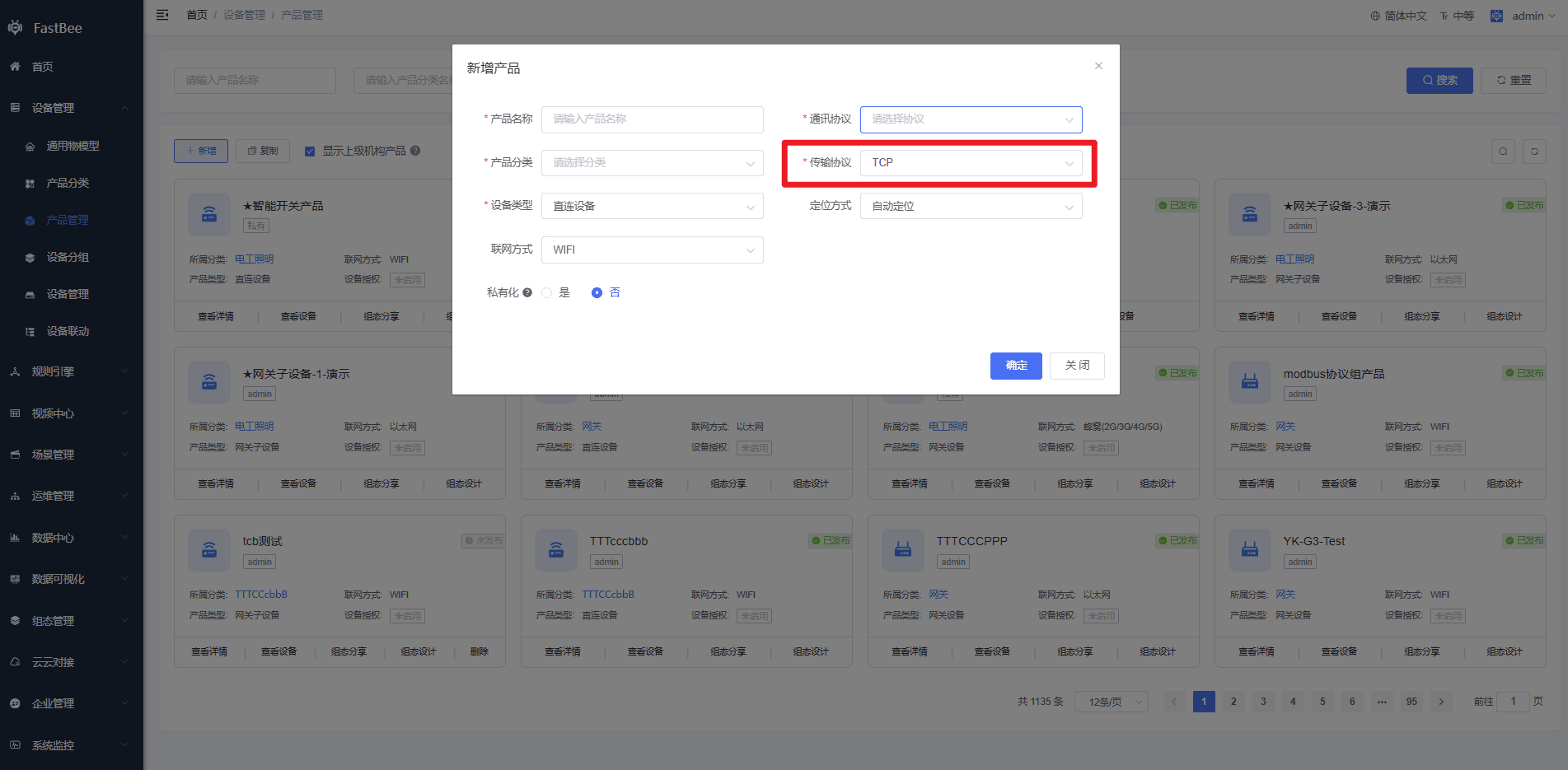 After the product is created, select the product and create a device under it.
## TCP + Modbus
When cloud polling is enabled, the simulator can show read commands delivered from the platform.
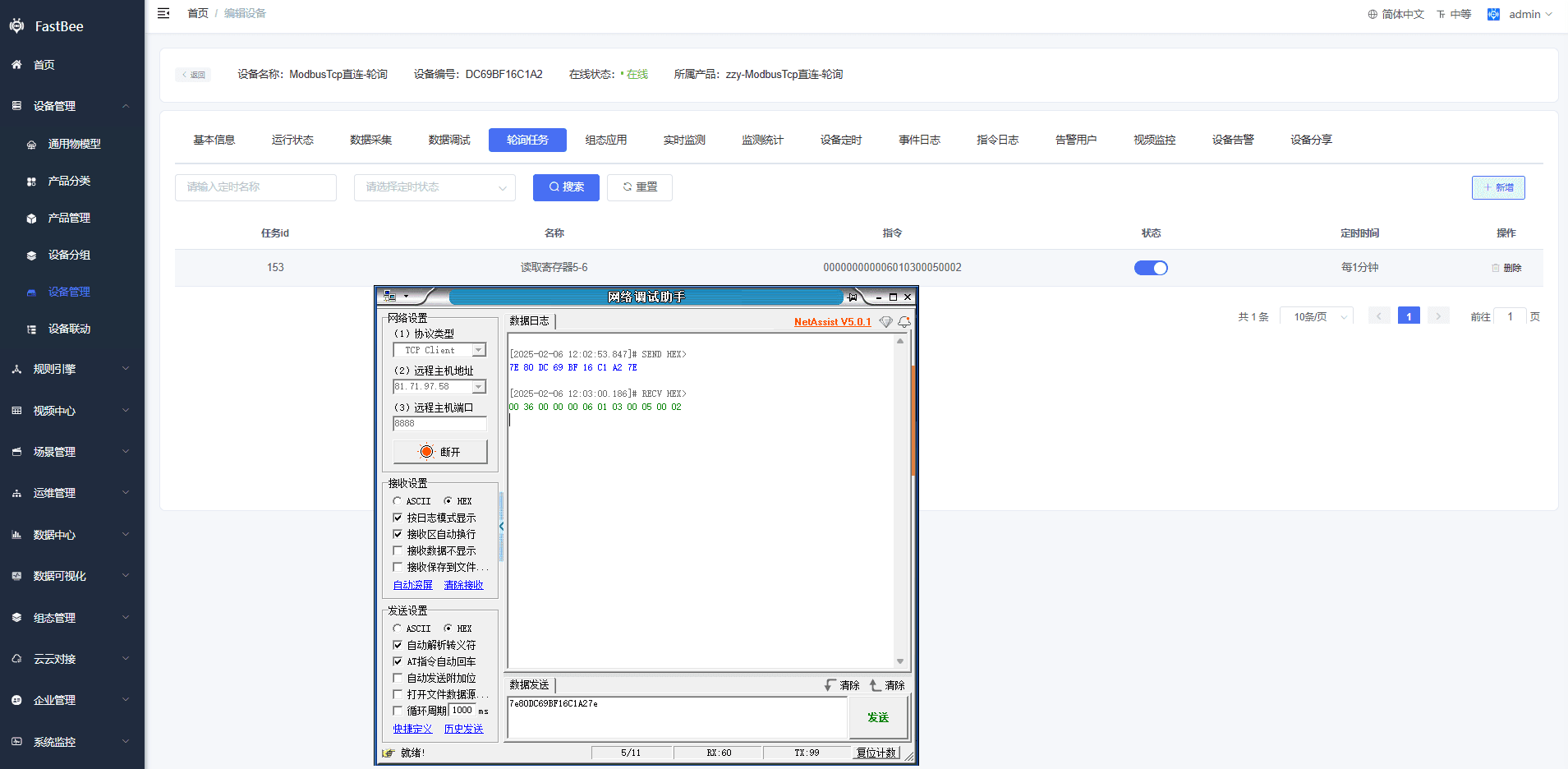 FastBee currently supports cloud-side Modbus polling for data collection. For detailed configuration, refer to the MQTT + Modbus polling guide.
## TCP + JSON
For JSON protocol devices, define the protocol according to the device vendor packet format, then map fields to the FastBee thing model. The common flow is:
1. Device connects to the TCP server.
2. Device sends a registration packet.
3. Device reports JSON monitoring data.
4. The protocol parser extracts device status and measurements.
5. The platform stores data and optionally replies with command or parameter configuration.
Integration checks:
* Confirm packet boundary rules.
* Confirm registration and heartbeat identifiers.
* Confirm whether the device uses short connection or long connection.
* Confirm JSON field names, data types, and unit conversion.
* Confirm reply packet format when the device requires an acknowledgment.