## Page Guide
- **Use Cases**: Suitable for connecting GB28181 cameras, NVRs, DVRs, and IPC devices to the video monitoring platform.
- **Prerequisites**: The SIP service, media server, public IP, ports, security group, and device-side platform access parameters are prepared.
- **Configuration Path**: Add a monitoring product → configure SIP → configure the media server → create devices → fill in access information on the device side.
- **Acceptance Criteria**: The device registers and comes online, channel IDs are correct, live and on-demand streaming play properly, and media server hook callbacks work normally.
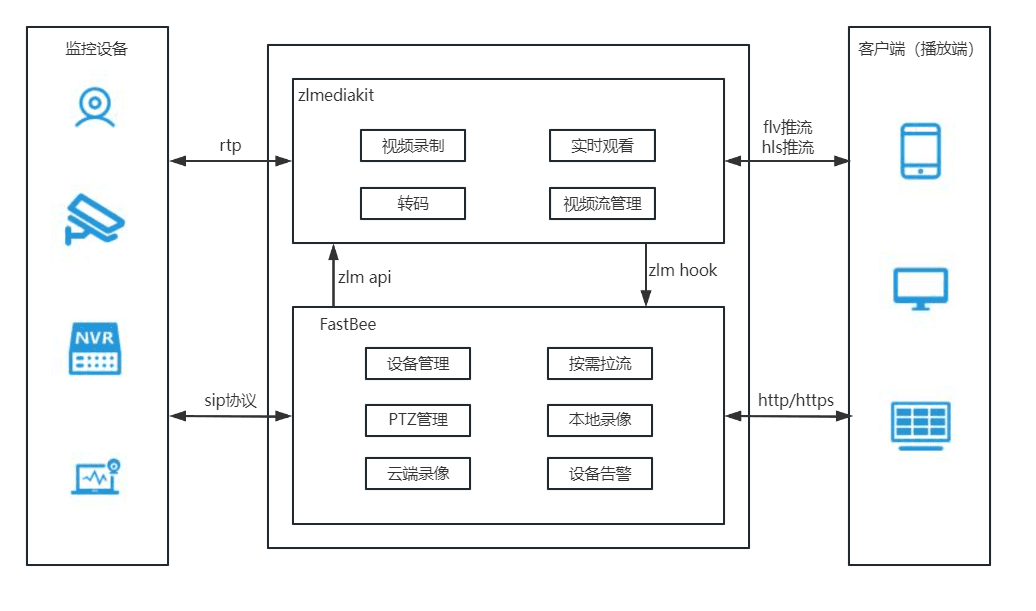
## Monitoring Platform Architecture
## Deployment Steps
### Open Server Ports
Open the following ports in the server firewall and cloud security group:
* `5061:5061`: SIP TCP port.
* `5061:5061/udp`: SIP UDP port.
* `8082`: media server HTTP API.
* `8443`: media server HTTPS API.
* `554:554`: RTSP stream port.
* `1935:1935`: RTMP stream port.
* `8000:8000`: RTC port.
* `30000-30500:30000-30500`: RTP TCP stream ports.
* `30000-30500:30000-30500/udp`: RTP UDP stream ports.
::: warning
These ports must be opened. Otherwise, device registration, playback, and live streaming may fail.
:::
### Configure SIP And Record Service
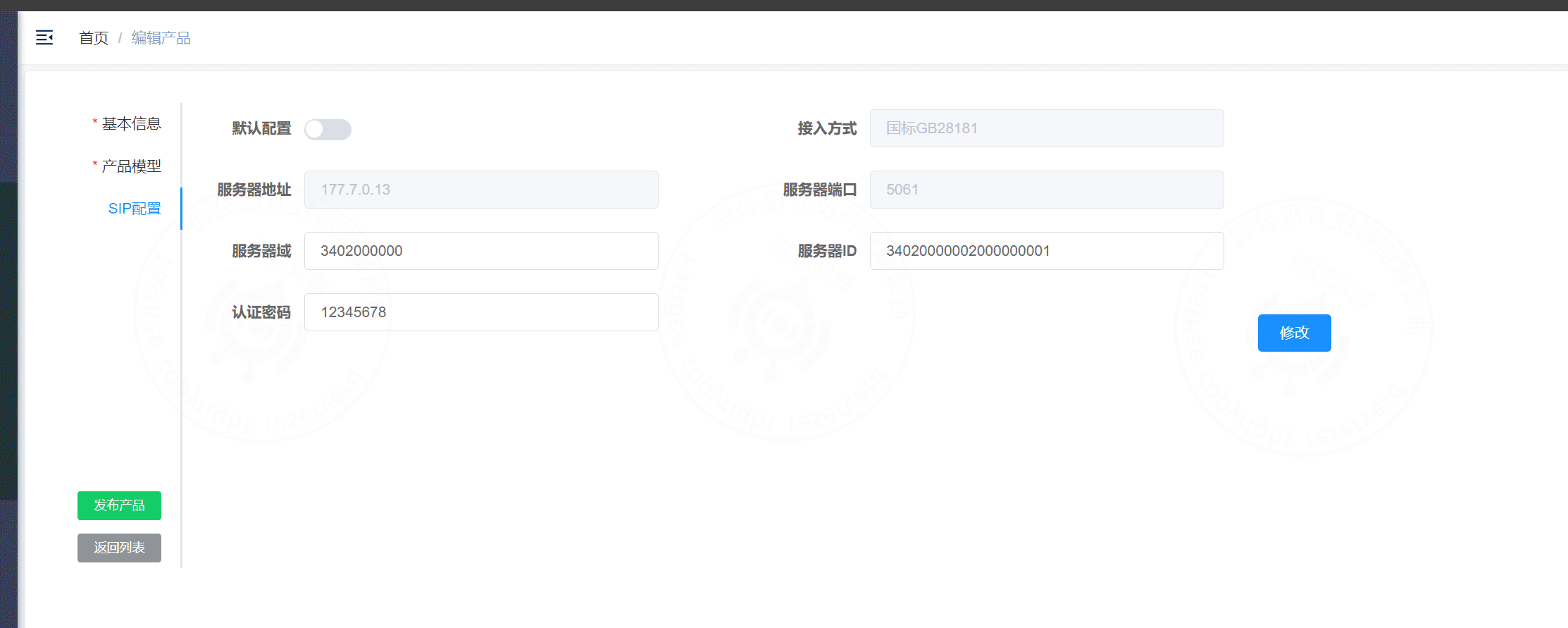
SIP configuration is located in `fastbee-admin/src/main/resources/application-prod.yml`.
```yml
sip:
enabled: true
ip: 177.7.0.13
port: 5061
domain: 3402000000
id: 34020000002000000001
password: 12345678
```
For Docker deployment, keep the default configuration when possible. For Windows testing, use the internal IP of the local network adapter.
Record service configuration is located in `fastbee-record/src/main/resources/application-prod.yml`.
```yml
server:
port: 18081
servlet:
context-path: /
ssl:
enabled: false
key-store: classpath:fastbee.online.jks
key-store-password: fastbee
key-store-type: JKS
```
### Copy JAR And Certificate Files
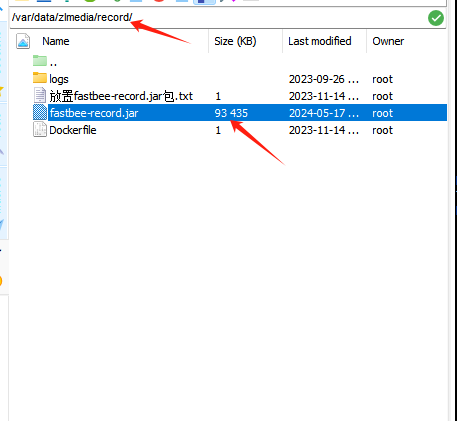
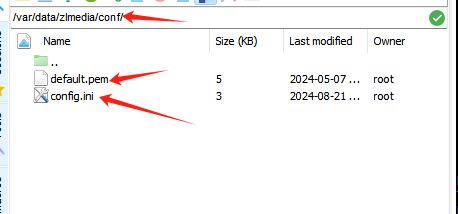
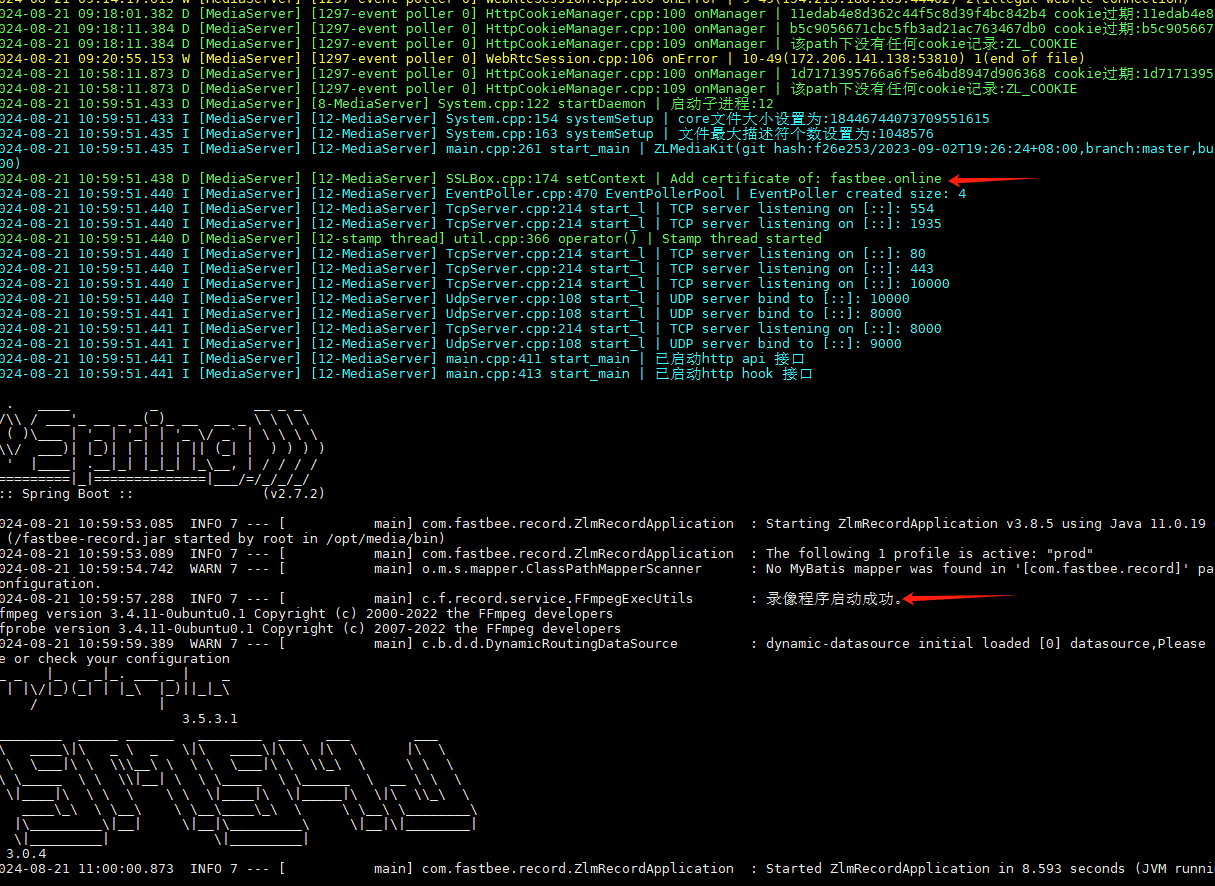
Copy the JAR package and HTTPS certificates to the Docker deployment directory, then start the services.
References:
* [ZLMediaKit image](https://hub.docker.com/layers/zlmediakit/zlmediakit/master/images/sha256-7ee971b6724ab6344d983d94453006196d2c5242ce3bcae178e87902508a4fef?context=explore)
* [Enable HTTPS for ZLMediaKit](https://github.com/ZLMediaKit/ZLMediaKit/wiki/%E6%80%8E%E4%B9%88%E5%BC%80%E5%90%AFhttps%E7%9B%B8%E5%85%B3%E5%8A%9F%E8%83%BD)
* `docker/data` contains a `docker-compose.yml` file for one-click environment startup.
## Platform Configuration
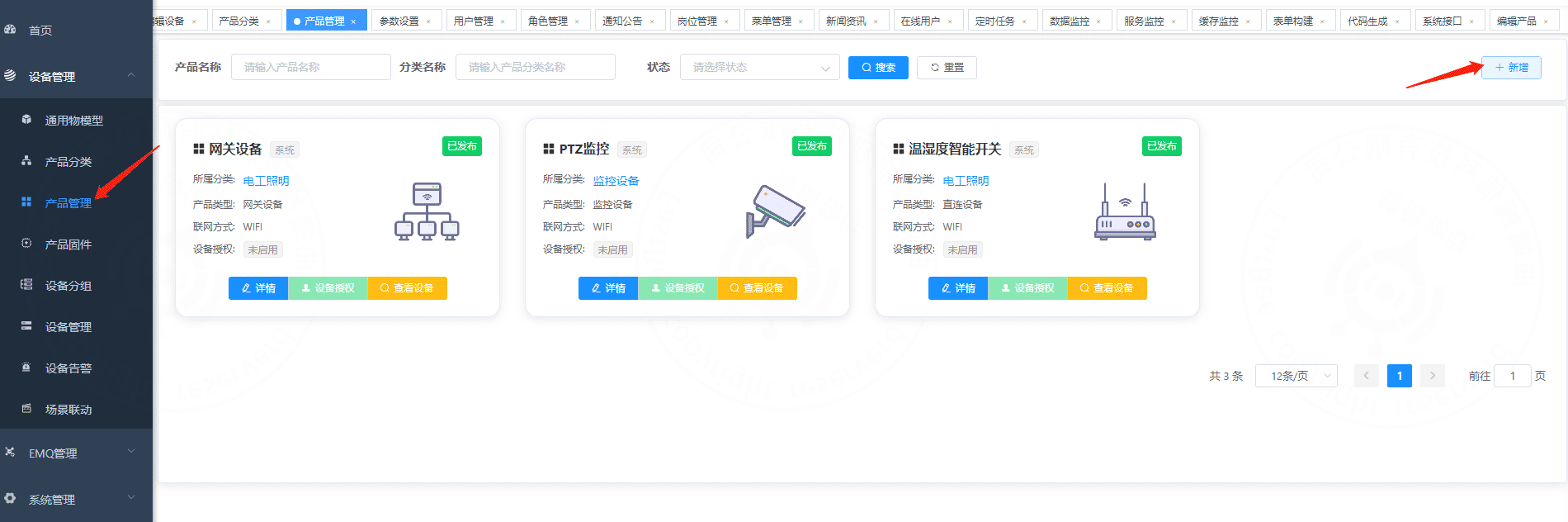
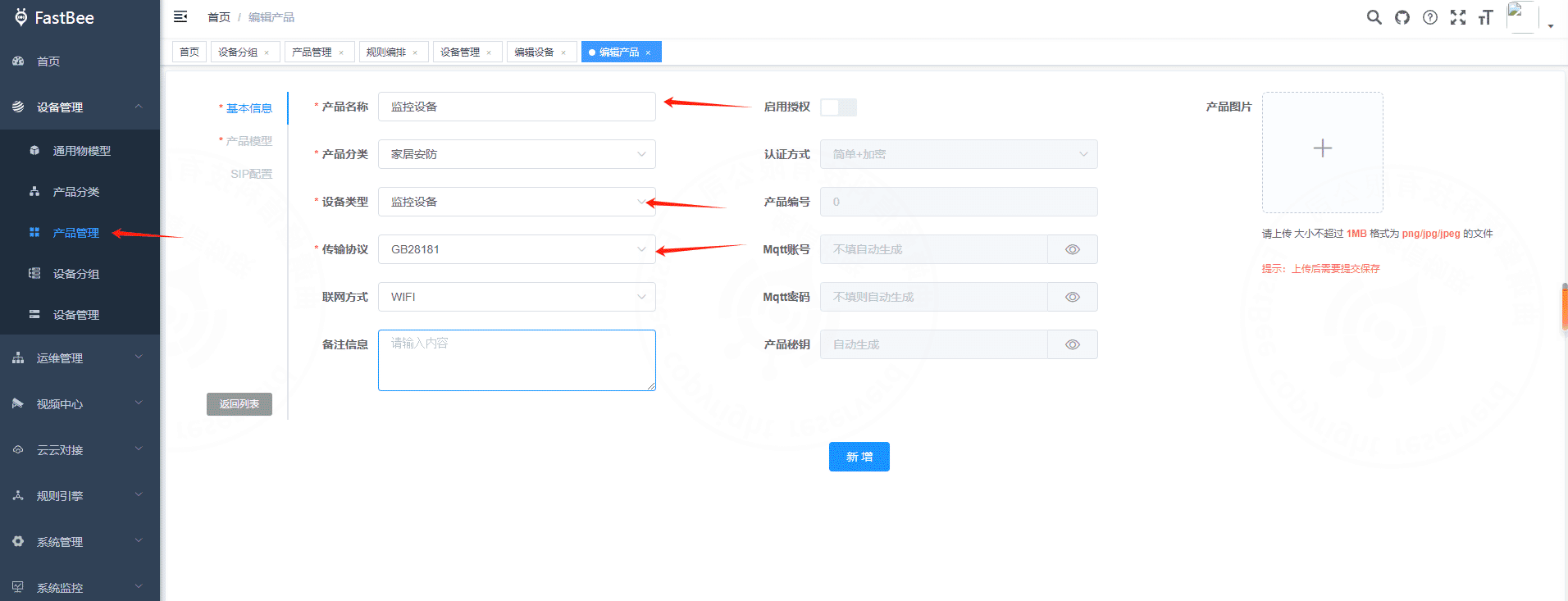
### Create A Video Product
Create a product and select the video device type.
 ### Update SIP Configuration
After the product is created, you can update the SIP configuration. The default values come from the Java `application-prod.yml`.
 ### Create Media Server Configuration
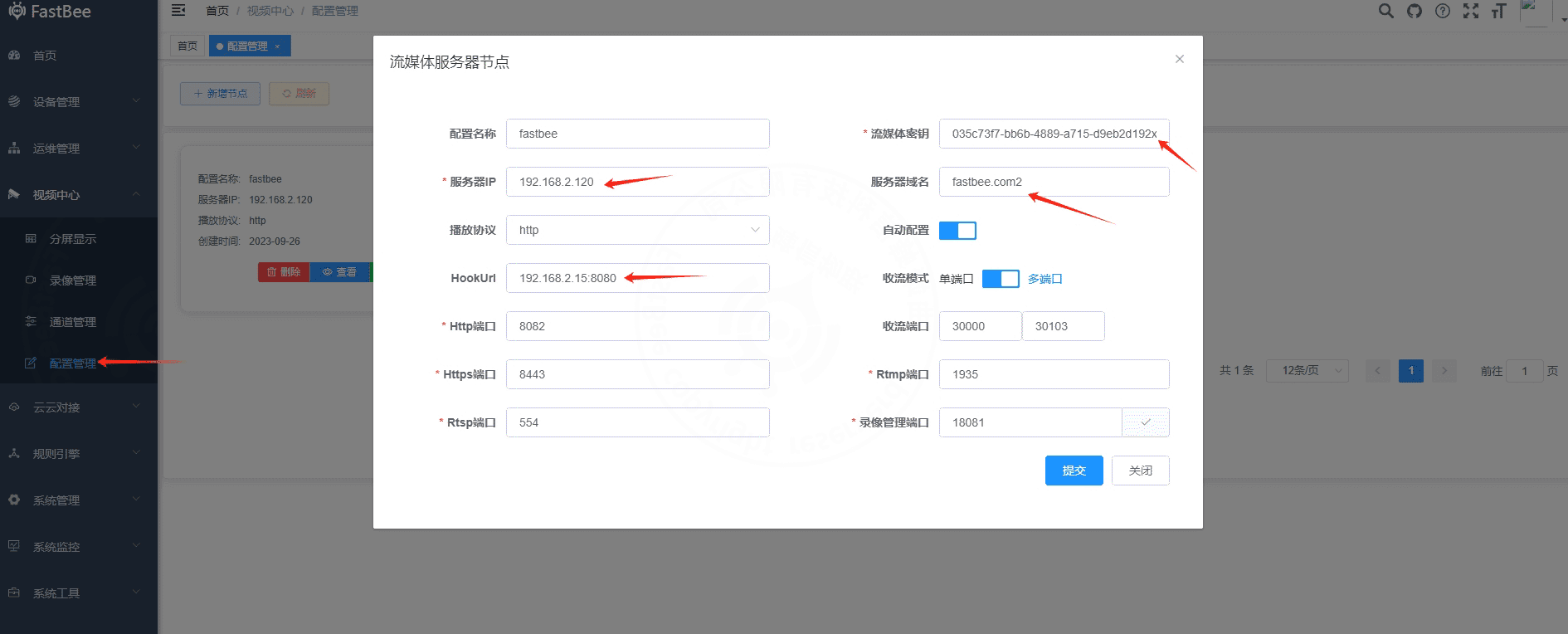
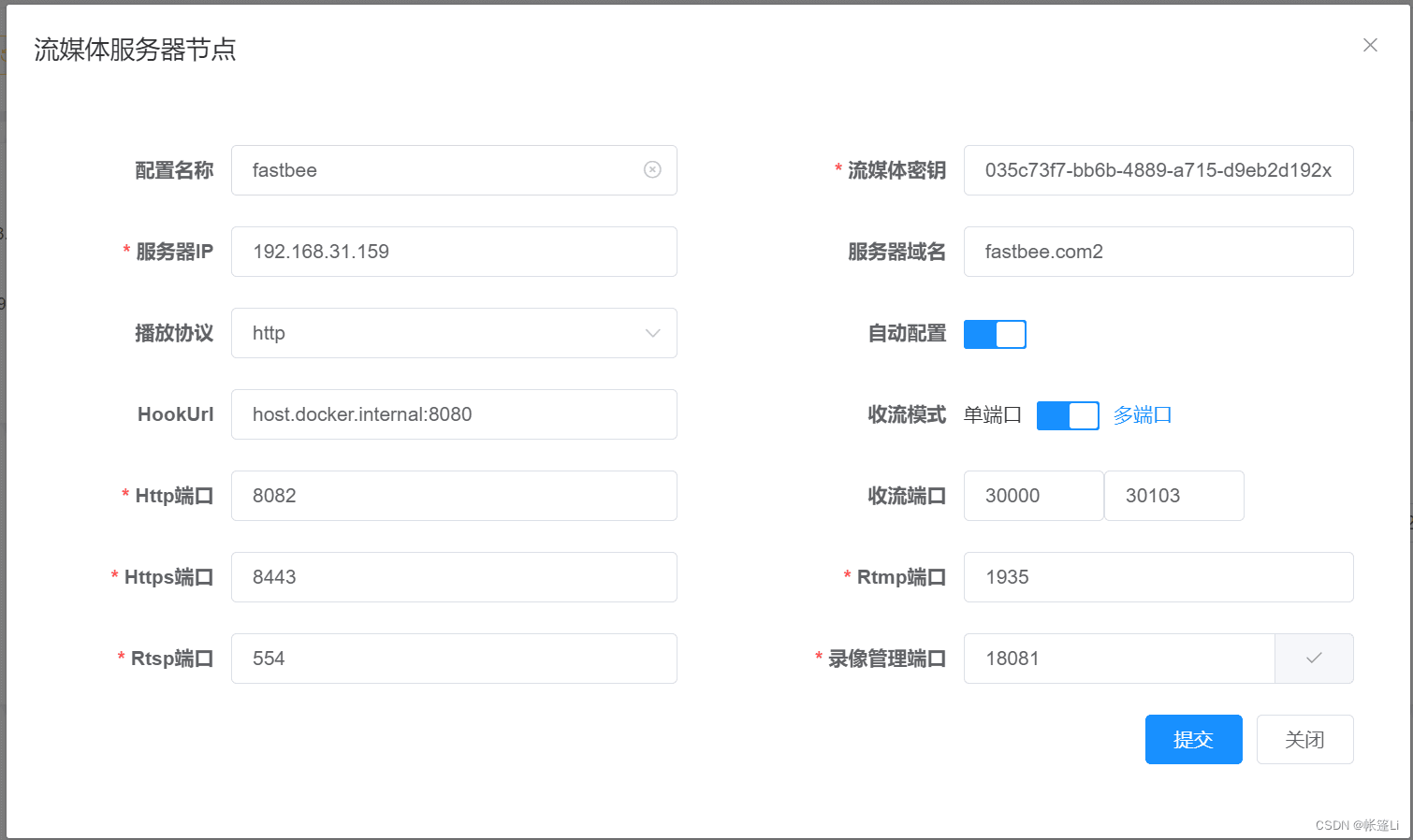
Go to **Video Center -> Video Configuration** and create a media server configuration.
* Server IP: public IP of the deployment server. HTTP is the default playback protocol.
* Server secret: HTTP API authentication secret. It must match `api.secret` in `zlmedia/conf/config.ini`.
* Server domain: required when HTTPS playback is used. Update `zlmedia/conf/default.pem` accordingly.
* Hook URL: Java service callback API. The default is `java:8080`; adjust it according to your deployment.
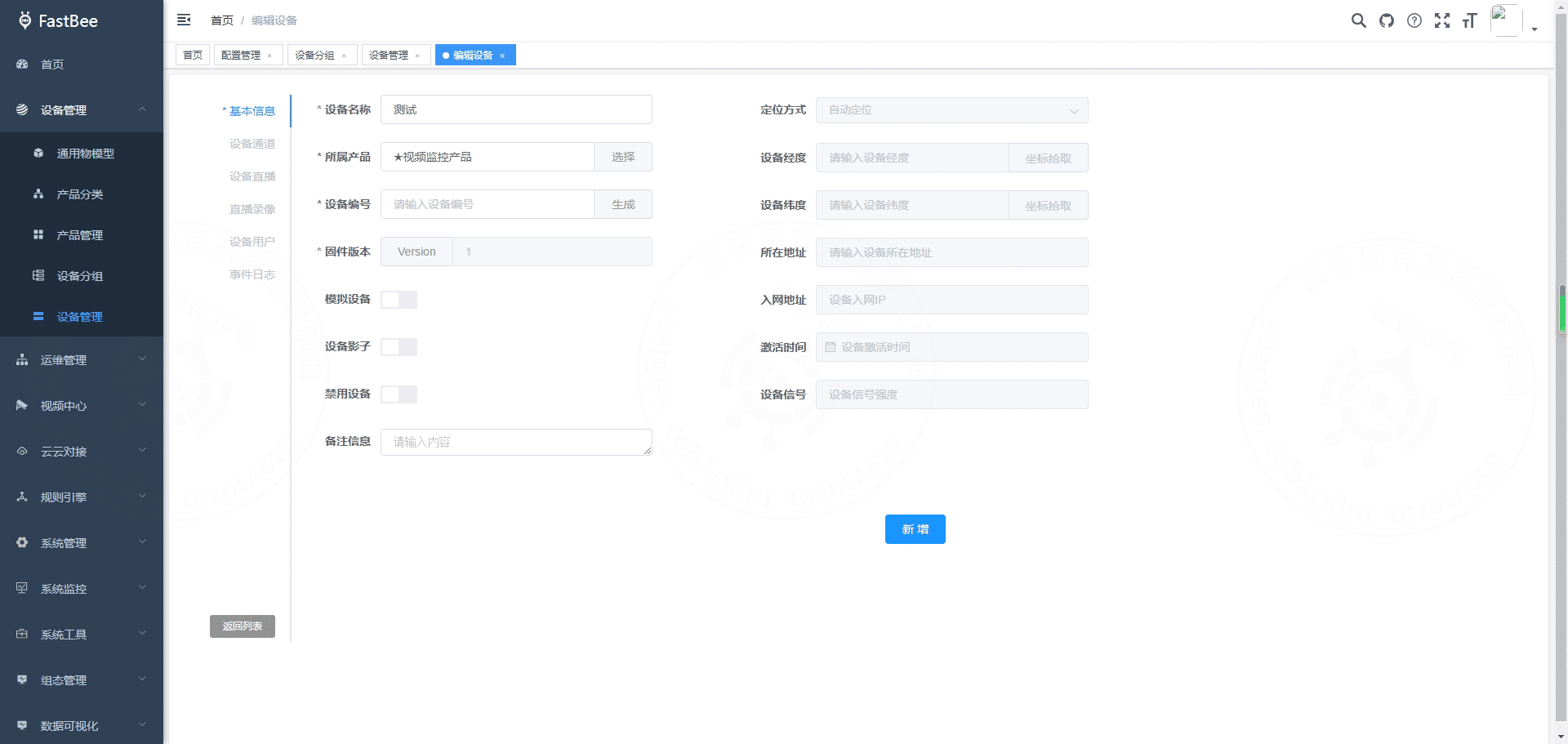
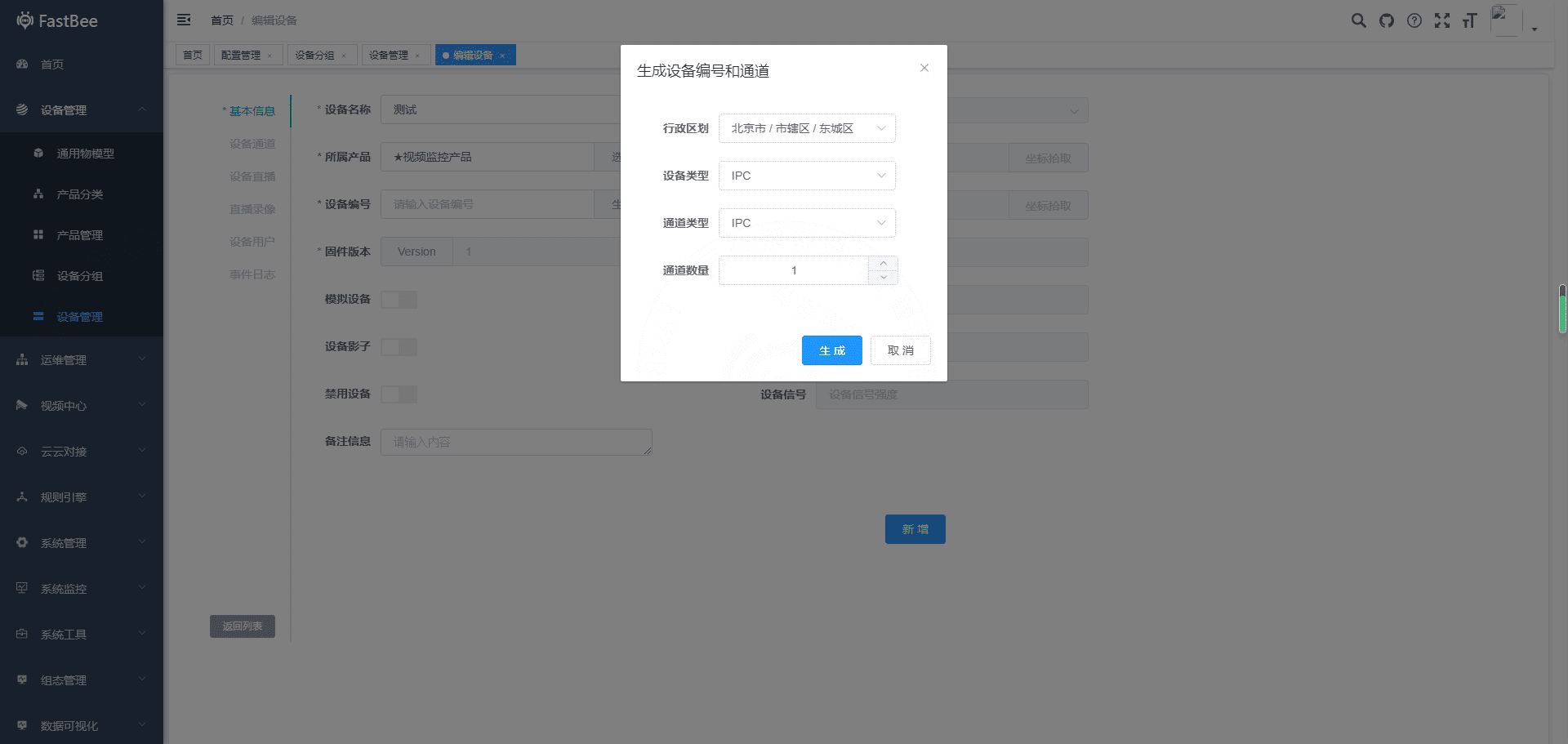
 ### Create Device And Channel IDs
Create a video device and generate device ID and channel ID.
* Camera: device type `IPC`, channel type `IPC`.
* NVR: device type `NVR`, channel type `NVR`.
* NVR + IPC: device type `NVR`, channel type `IPC`.
* DVR + IPC: device type `DVR`, channel type `IPC`.
 ### Fill Device-Side SIP Information
Fill the generated product SIP configuration and device identifiers into the camera or NVR.
Common field mapping:
* Server ID = SIP server ID.
* Server domain = SIP domain.
* Deployment public IP = SIP server address.
* Server port = SIP server port.
* Authentication password = registration password.
* Device ID = SIP username or device number.
* Channel ID = video channel ID.
## Non-Docker Deployment
For split-service deployment:
* Ensure all required service ports are open.
* Configure the Java SIP IP according to the local network interface.
* Configure the ZLMediaKit `hook` API callback address in `conf/config.ini`.
* In FastBee, update media server IP, domain, stream secret, and related settings.
## Windows Debug Environment
### Start ZLMediaKit With Docker
Use the Docker script under the Docker directory to start ZLMediaKit.
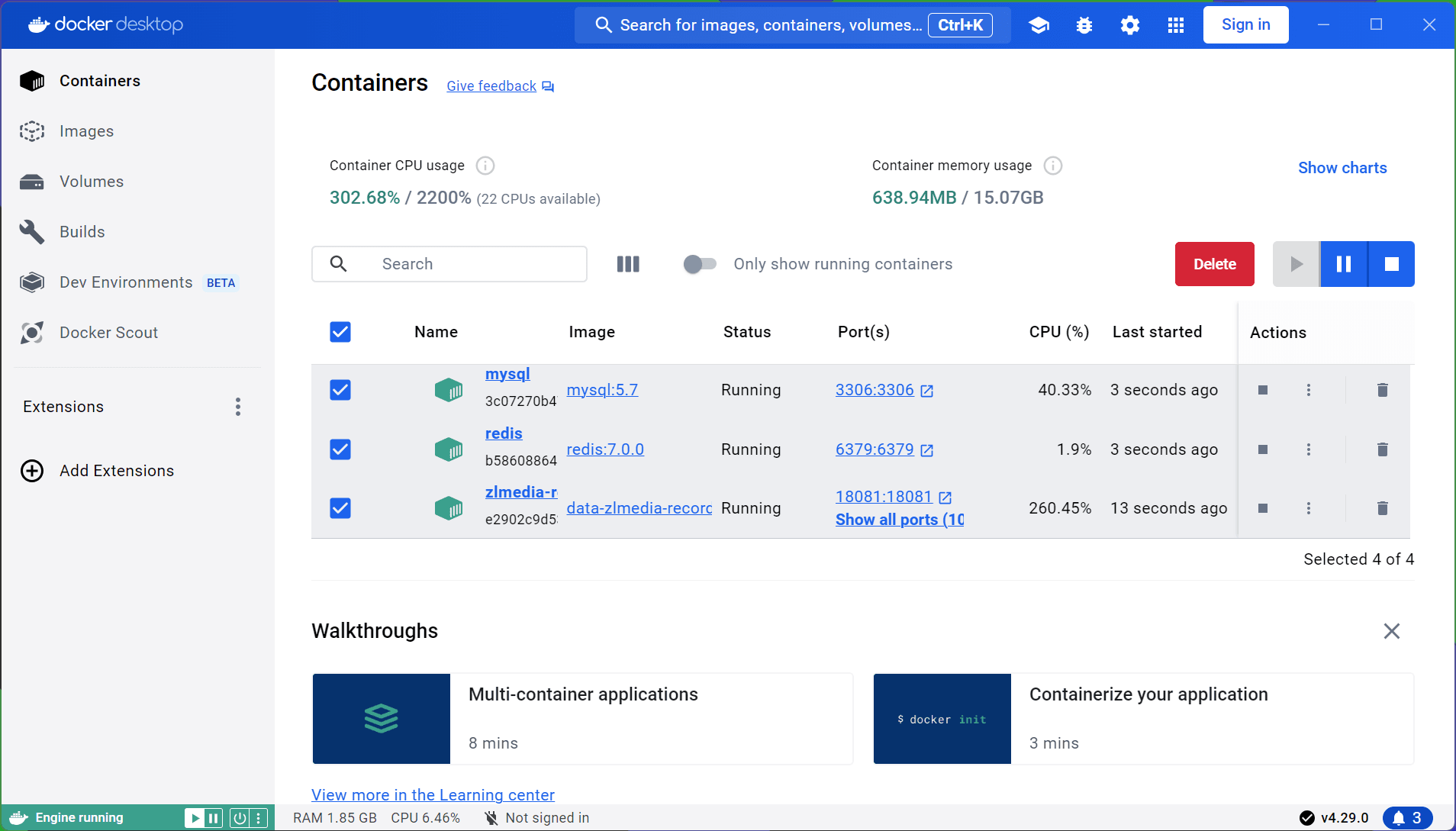
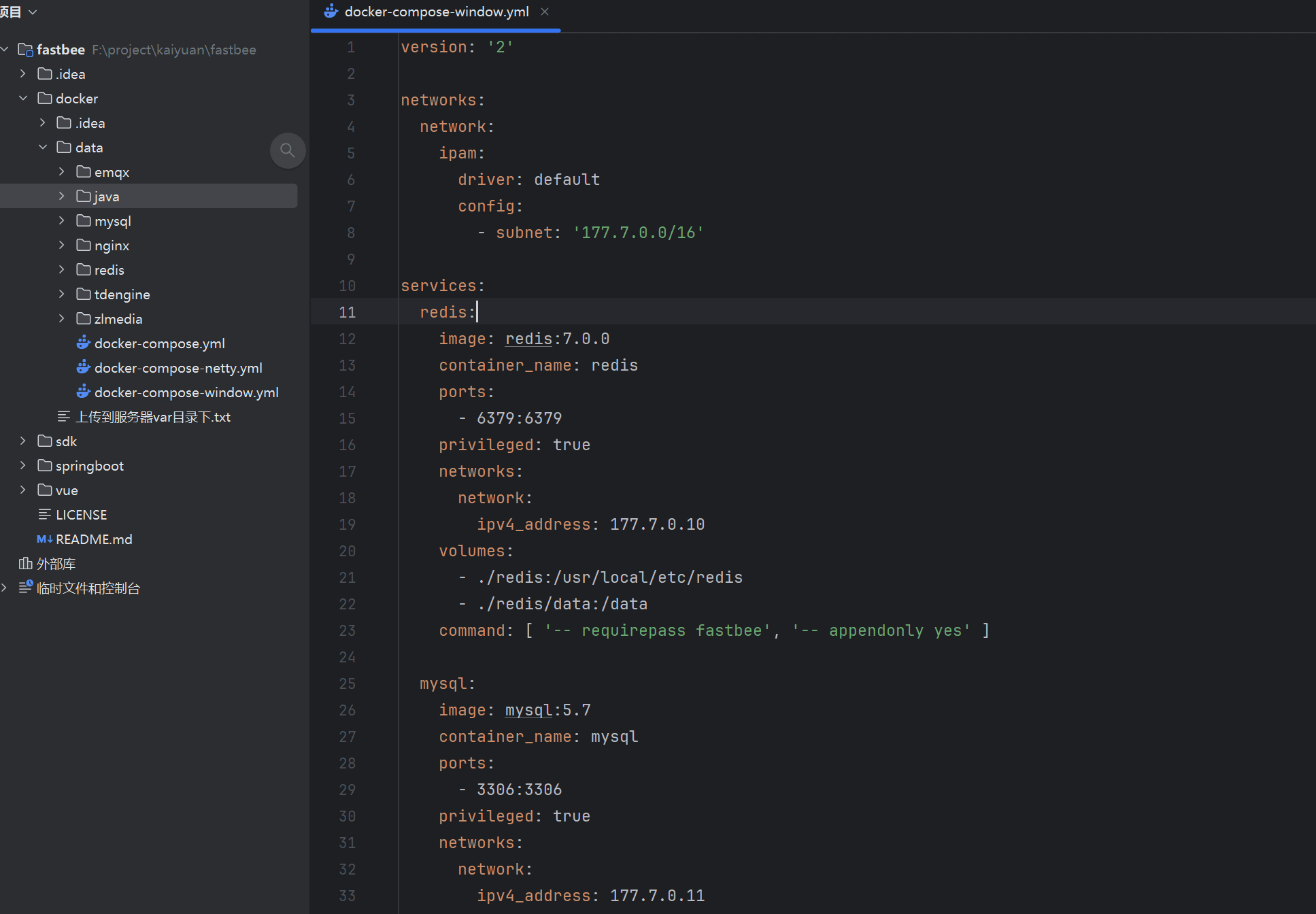 Run:
```sh
docker-compose -f docker-compose-window.yml up -d
```
 ### Update SIP Configuration
Check the local network adapter IP and update the Java SIP configuration.
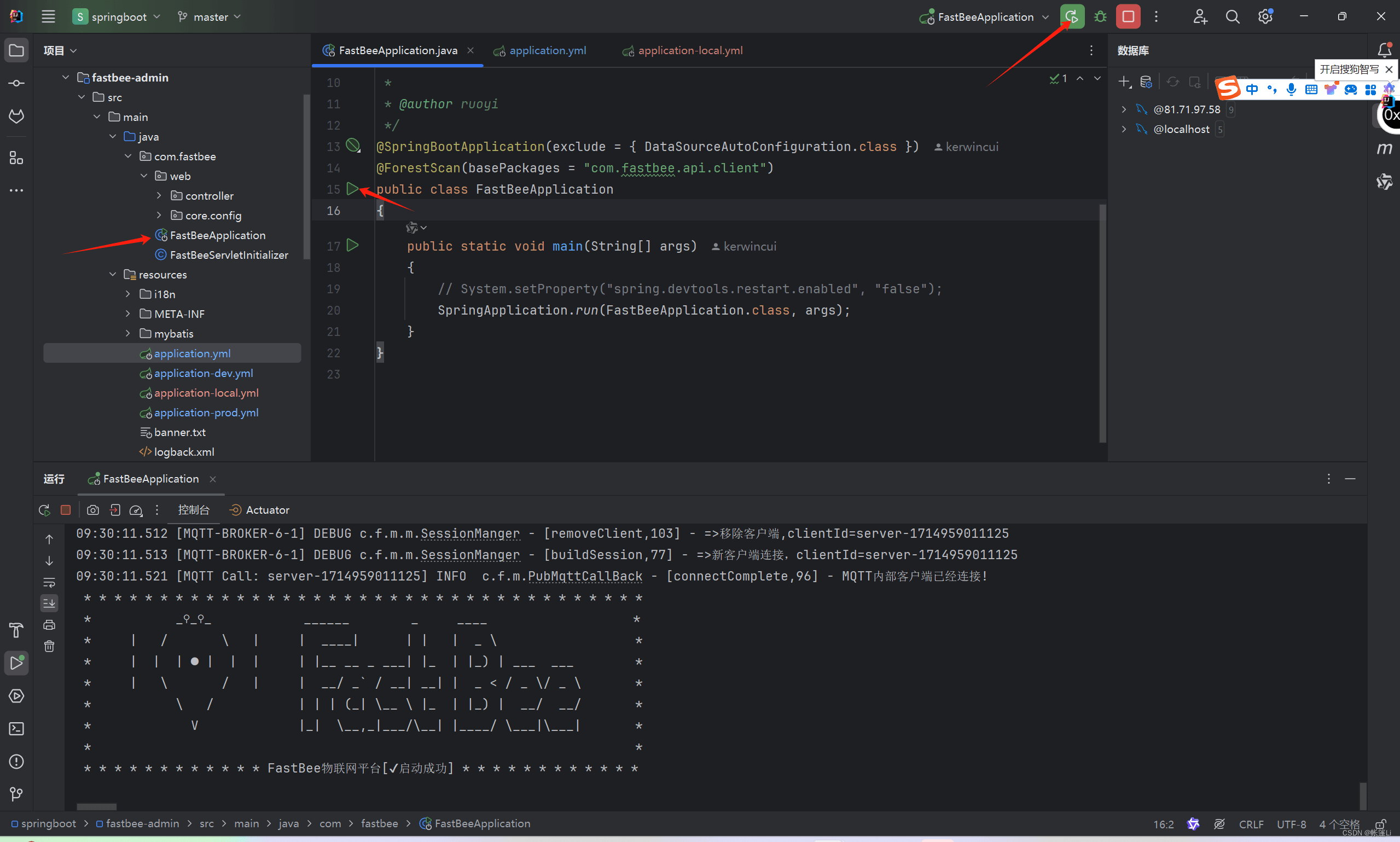
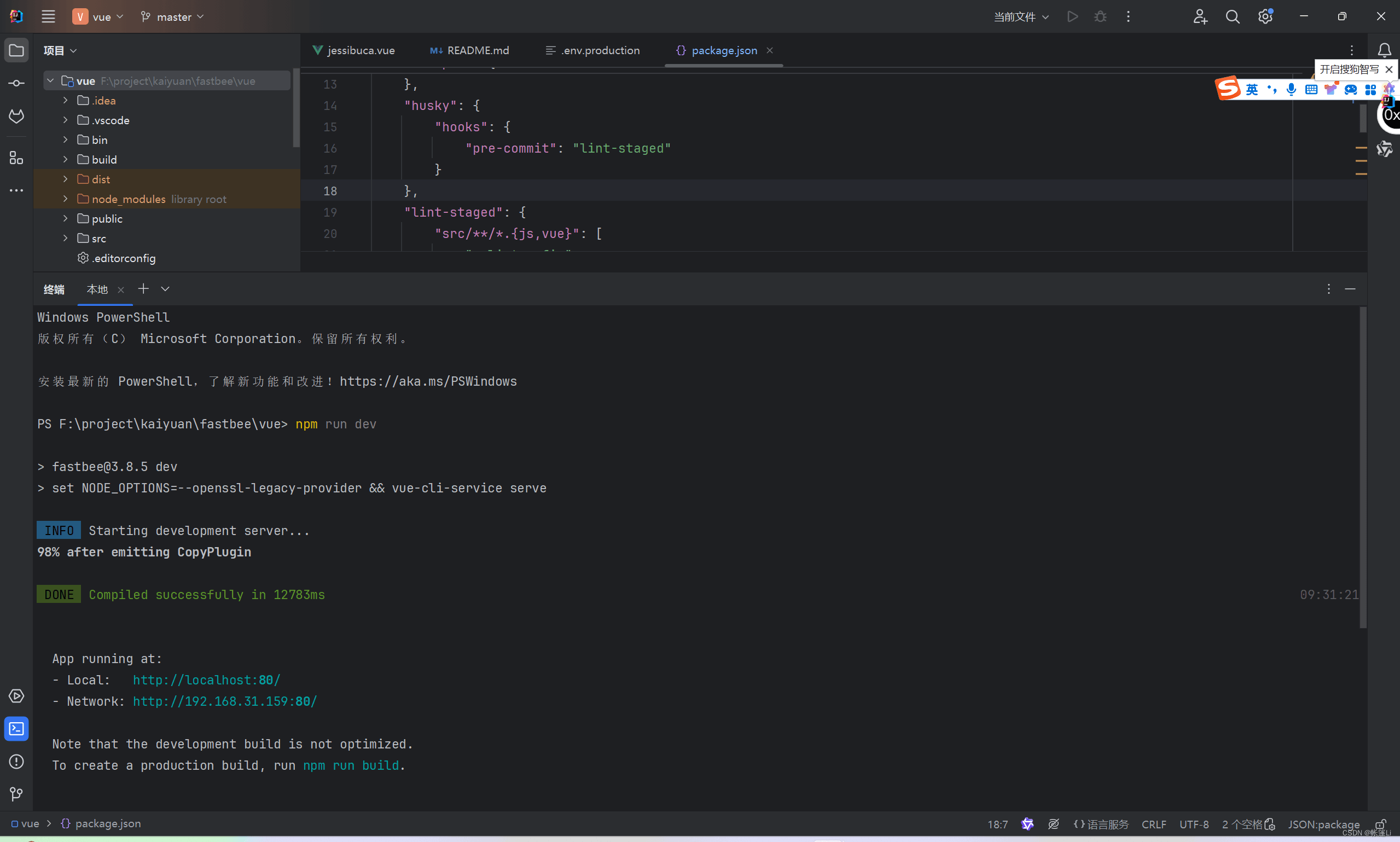
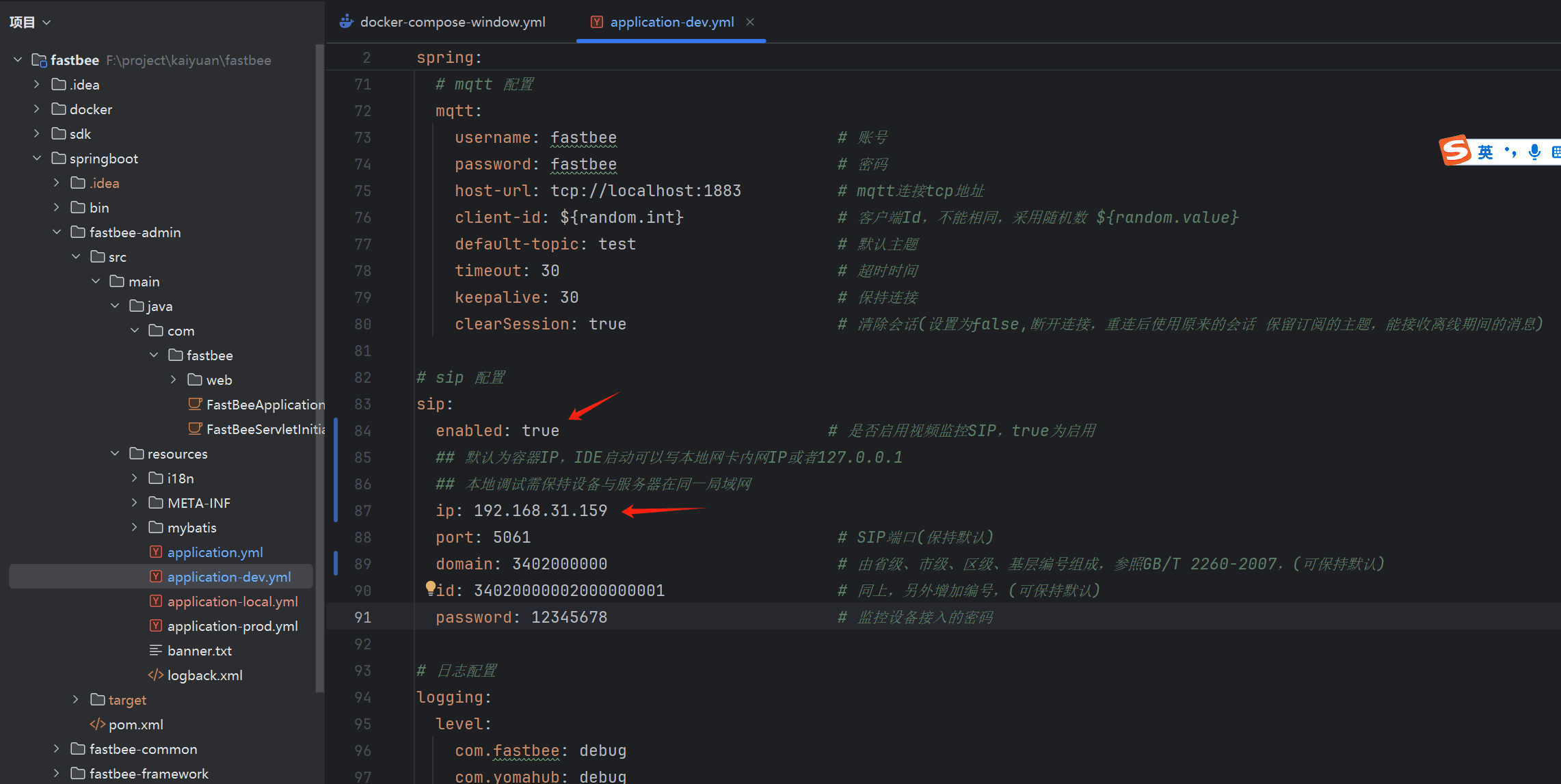 Start the backend `FastBeeApplication` and frontend development service.
 ### Add Media Server In FastBee
Create a media server and set the LAN IP, for example `192.168.31.159`.
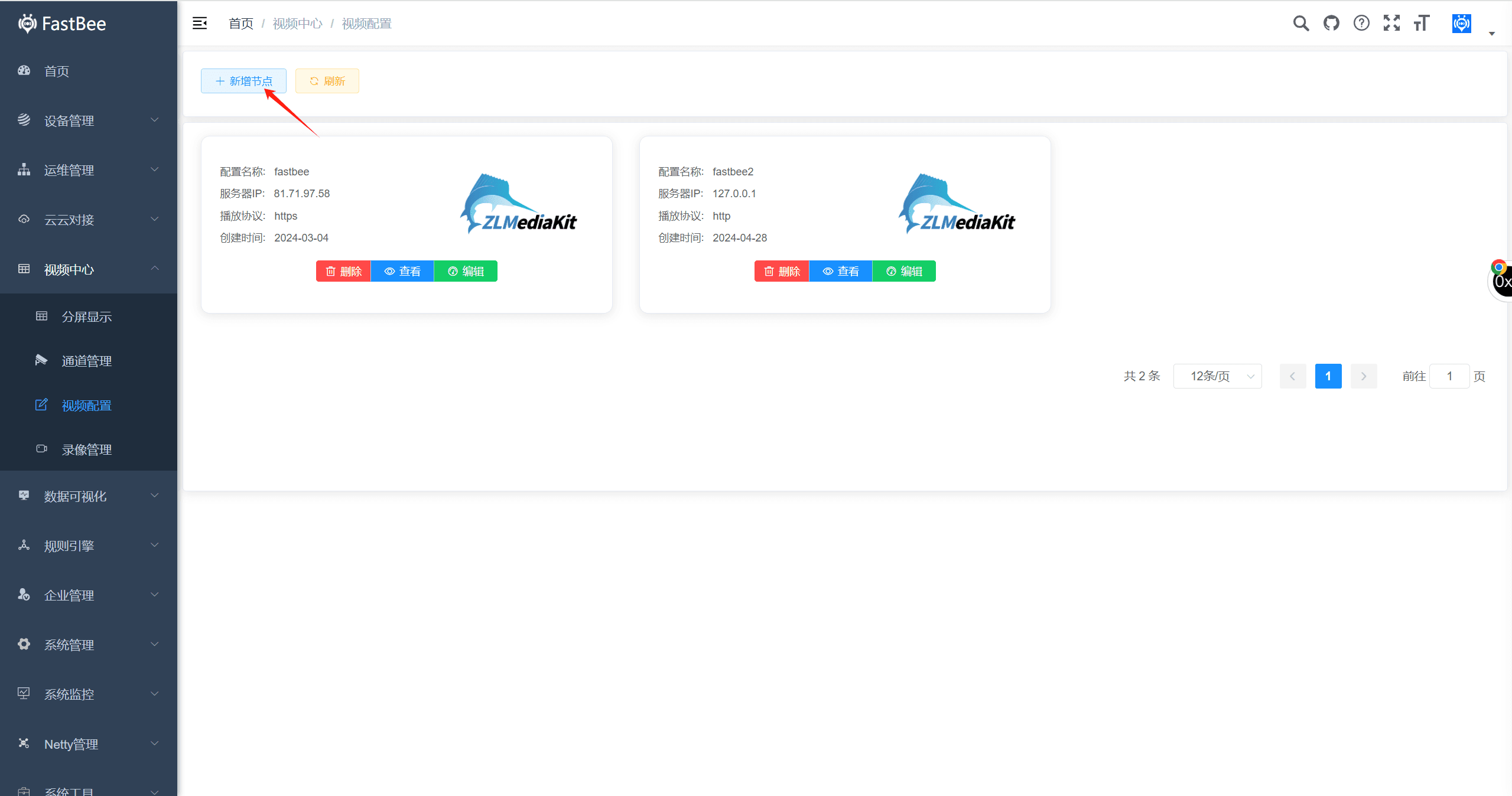
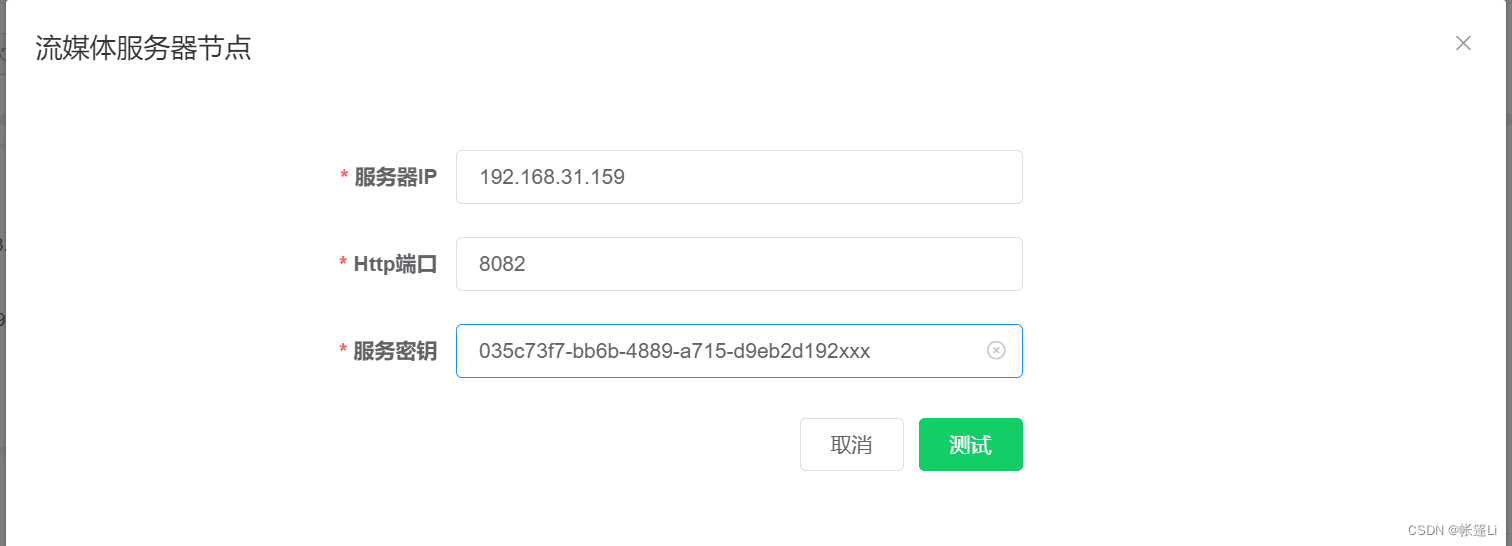 Set `HookUrl` to:
```text
host.docker.internal:8080
```
 ## GB28181 Live Streaming Flow
### FastBee Interaction Flow
```mermaid
%%{init: {"theme": "base", "themeVariables": {"background": "transparent", "primaryColor": "#edf4ff", "primaryTextColor": "#1f2937", "primaryBorderColor": "#536dfe", "lineColor": "#334155", "textColor": "#1f2937", "actorBkg": "#edf4ff", "actorBorder": "#536dfe", "actorTextColor": "#1f2937", "signalColor": "#334155", "signalTextColor": "#1f2937", "sequenceNumberColor": "#1f2937", "activationBkgColor": "#dbeafe", "activationBorderColor": "#536dfe", "noteBkgColor": "#fff7ed", "noteTextColor": "#1f2937", "noteBorderColor": "#f59e0b"}}}%%
sequenceDiagram
autonumber
participant D as Device
participant F as FastBee
participant Z as ZLMediaKit
participant P as Player
F->>Z: Call openRtpServer
Z-->>F: Return RTP port
F->>D: INVITE with SDP
D-->>F: 100 Trying
D-->>F: 200 OK with SDP
F->>D: ACK
D->>Z: Push RTP stream
Z-->>F: onPublish / onStreamChanged Hook
P->>Z: Pull FLV live stream
Z-->>F: onPlay Hook
```
Flow summary:
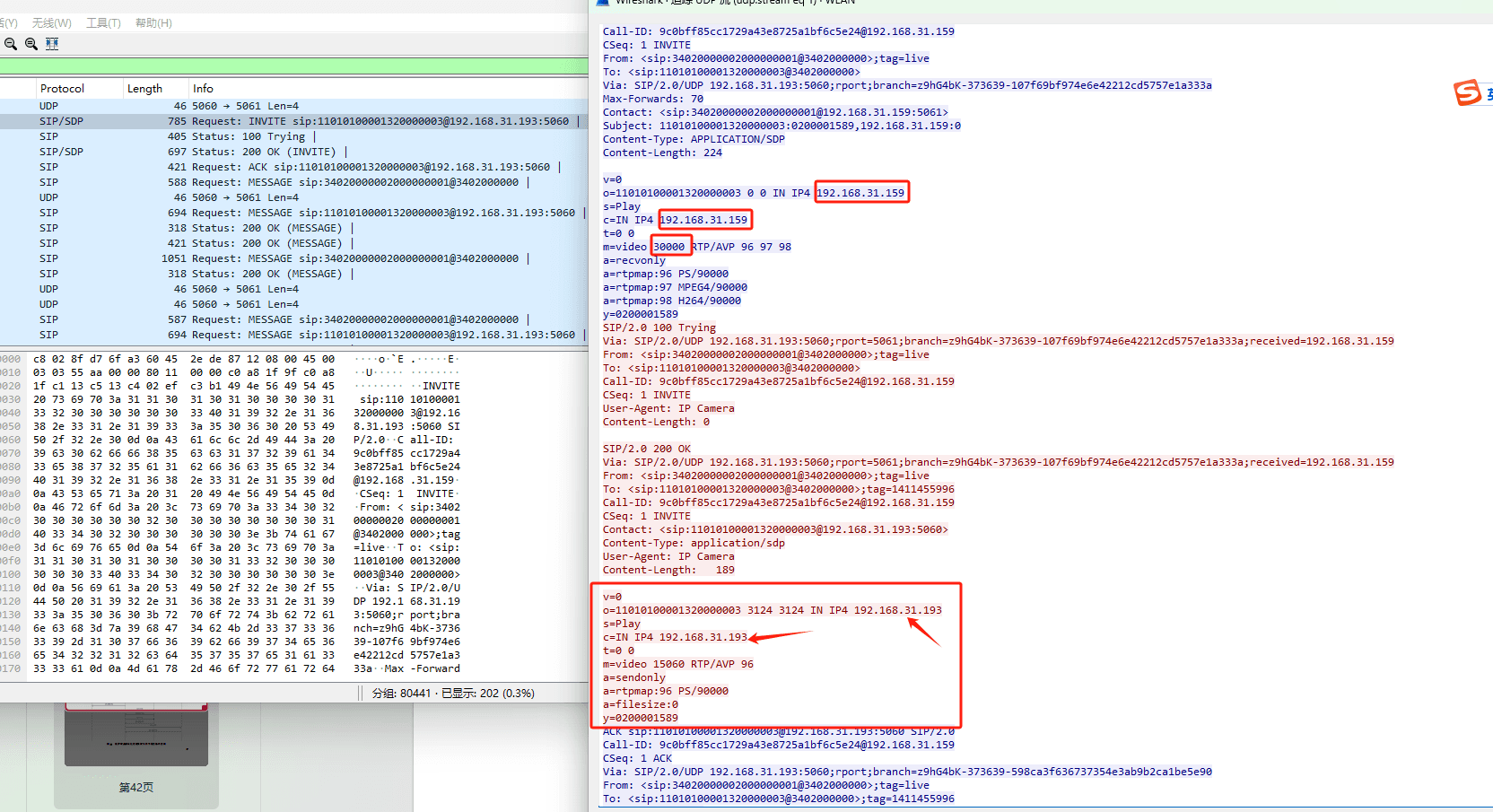
1. FastBee calls ZLMediaKit `/index/api/openRtpServer` to create an RTP server and obtains the RTP port.
2. FastBee SIP server sends an `Invite` message to the device. The SDP `s` field is `Play`.
3. The device responds with `100 Trying` and `200 OK`, including SDP information such as stream IP, port, media format, and SSRC.
4. FastBee sends `ACK` to complete the Invite session.
5. The device pushes stream data to the RTP server created by ZLMediaKit.
6. ZLMediaKit sends `onPublish` and `onStreamChanged` callbacks to FastBee.
7. The player pulls the configured playback stream.
8. ZLMediaKit sends `onPlay` callbacks for playback authentication and tracking.
Common failure points:
* SIP packets do not follow the standard protocol format.
* ZLMediaKit ports or HTTPS certificates are configured incorrectly.
* Device-to-server SIP or RTP network connectivity is blocked.
* Hook API is wrong. In Docker it is commonly `java:8080`; when Java runs in IDE and ZLMediaKit runs in local Docker, it is commonly `host.docker.internal:8080`.
Packet capture:
 ### Standard GB28181 Live Protocol Flow
```mermaid
%%{init: {"theme": "base", "themeVariables": {"background": "transparent", "primaryColor": "#edf4ff", "primaryTextColor": "#1f2937", "primaryBorderColor": "#536dfe", "lineColor": "#334155", "textColor": "#1f2937", "actorBkg": "#edf4ff", "actorBorder": "#536dfe", "actorTextColor": "#1f2937", "signalColor": "#334155", "signalTextColor": "#1f2937", "sequenceNumberColor": "#1f2937", "activationBkgColor": "#dbeafe", "activationBorderColor": "#536dfe", "noteBkgColor": "#fff7ed", "noteTextColor": "#1f2937", "noteBorderColor": "#f59e0b"}}}%%
sequenceDiagram
autonumber
participant R as Media Receiver
participant S as SIP Server
participant M as Media Server
participant T as Media Sender
R->>S: INVITE with SDP
S->>M: INVITE
M-->>S: 200 OK with SDP
S->>T: INVITE with SDP
T-->>S: 200 OK with SDP
S->>M: ACK with SDP
S->>T: ACK
T-->>M: Live media stream
S->>M: INVITE with SDP
M-->>S: 200 OK with SDP
S-->>R: 200 OK with SDP
R->>S: ACK
S->>M: ACK
M-->>R: Live media stream
R->>S: BYE
S-->>R: 200 OK
S->>M: BYE for receive session
M-->>S: 200 OK
S->>M: BYE for relay session
M-->>S: 200 OK
S->>T: BYE
T-->>S: 200 OK
```
The standard flow includes Invite, 200 OK, ACK, media server negotiation, SSRC delivery, and media stream establishment. When troubleshooting, compare FastBee SIP messages, media server responses, device replies, and RTP stream behavior against this flow.