## 1. Configure the OSS client
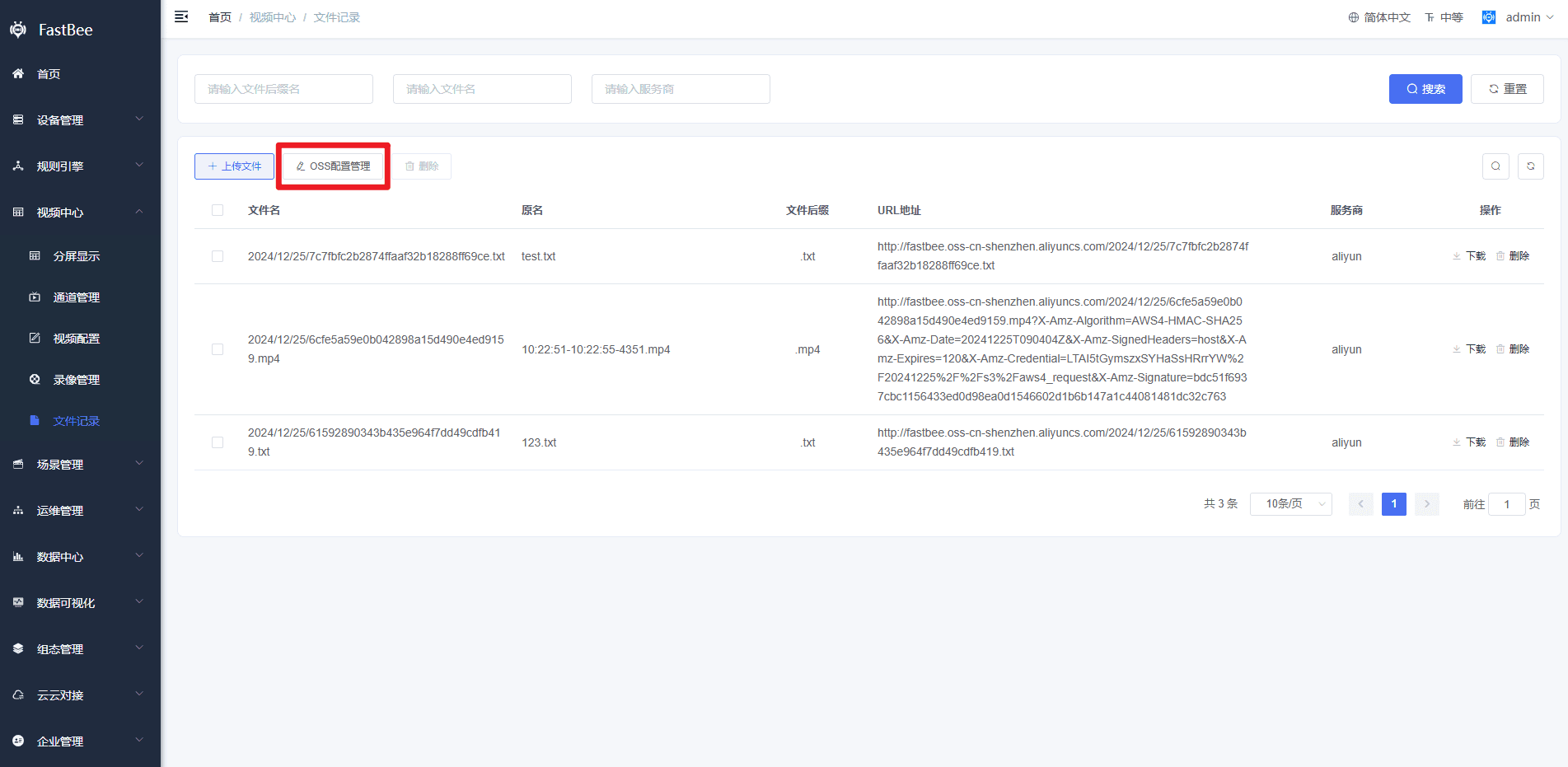
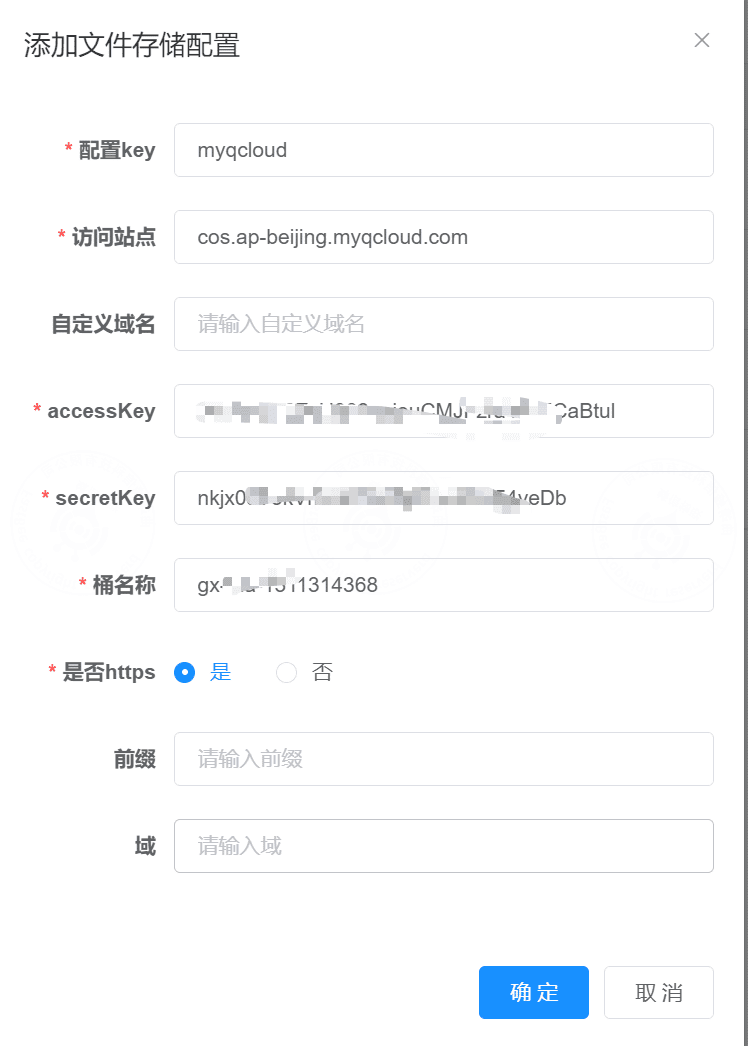
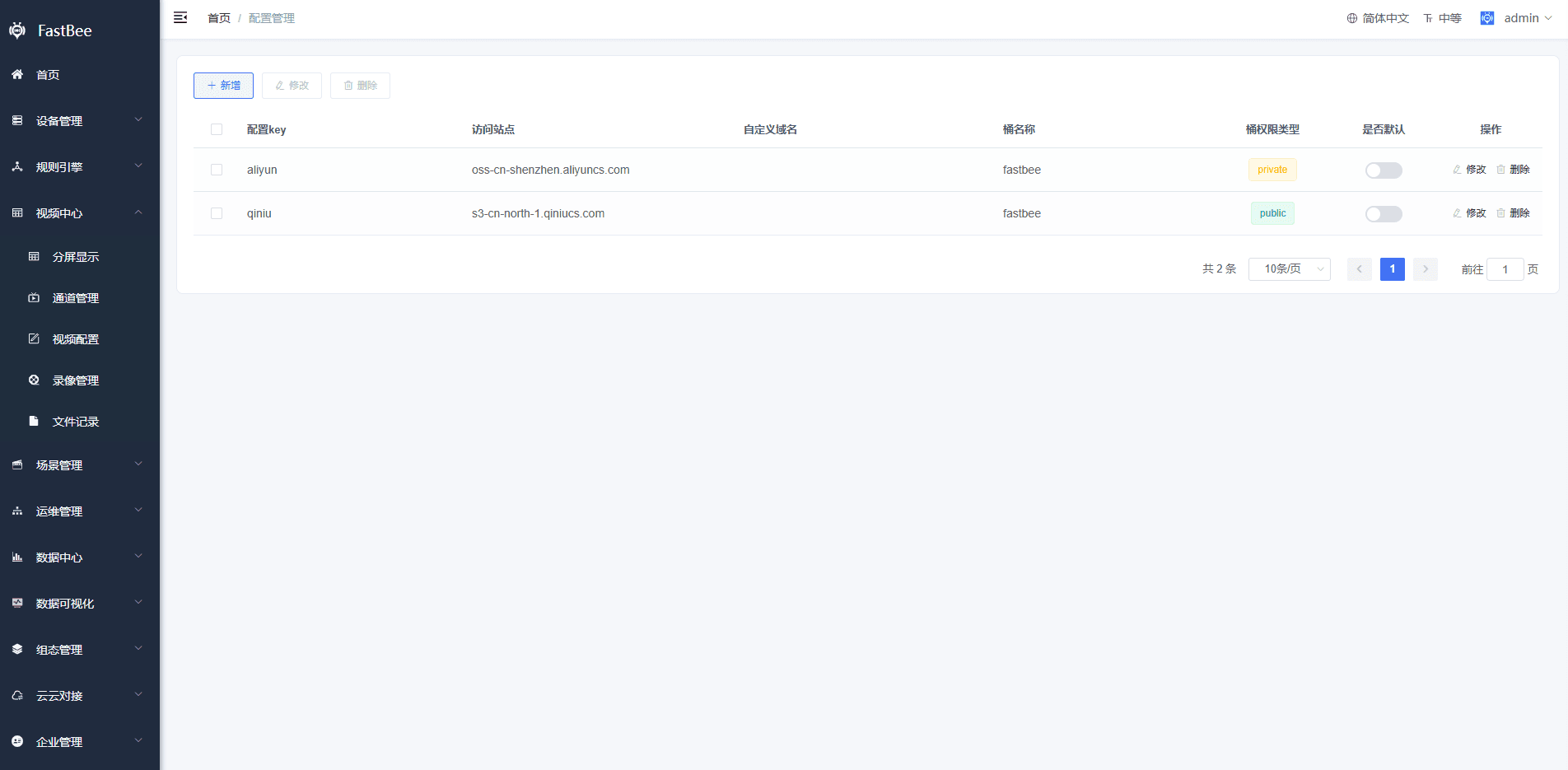
### 1.1 Fill in OSS configuration in FastBee
::: tip
Prepare the OSS service before filling in the configuration. For Tencent Cloud COS, see [Prepare COS service](#_2-1-prepare-cos-service).
:::
```text
Config key: qiniu / aliyun / qcloud
Cloud platform used for file storage.
Access endpoint:
View it in the storage bucket created on the cloud platform.
Qiniu example: s3-cn-north-1.qiniucs.com
Tencent Cloud example: cos.ap-beijing.myqcloud.com
Alibaba Cloud example: oss-cn-beijing.aliyuncs.com
Custom domain:
Optional.
accessKey:
Access Key, Access Key ID, or equivalent credential created on the cloud platform.
secretKey:
Secret Key, Secret, Secret Access Key, or equivalent credential created on the cloud platform.
Bucket name:
Storage bucket created on the cloud platform.
```
 ### 1.2 Test the configuration
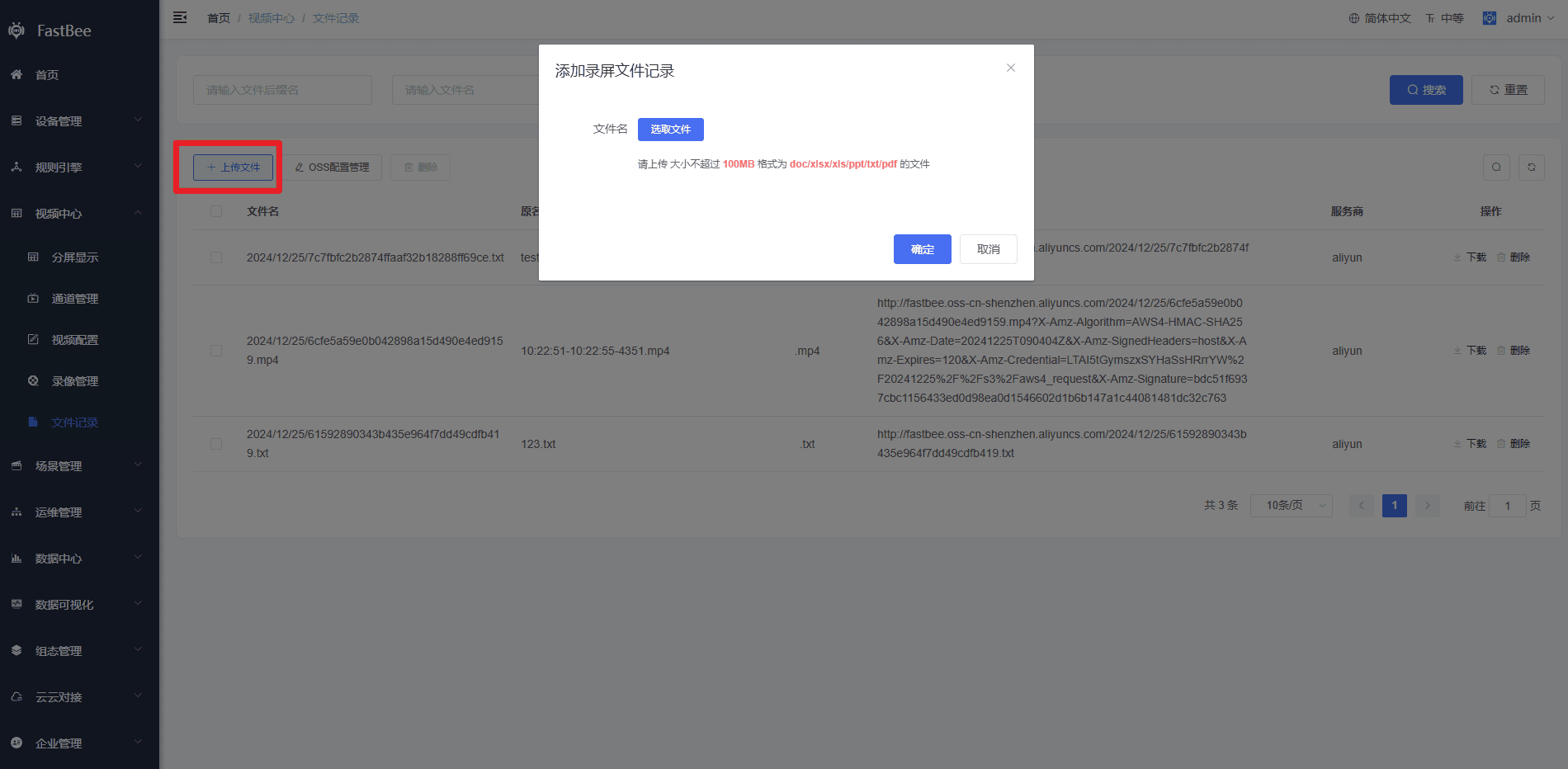
After configuration is complete, use the test upload function to check whether file upload succeeds.
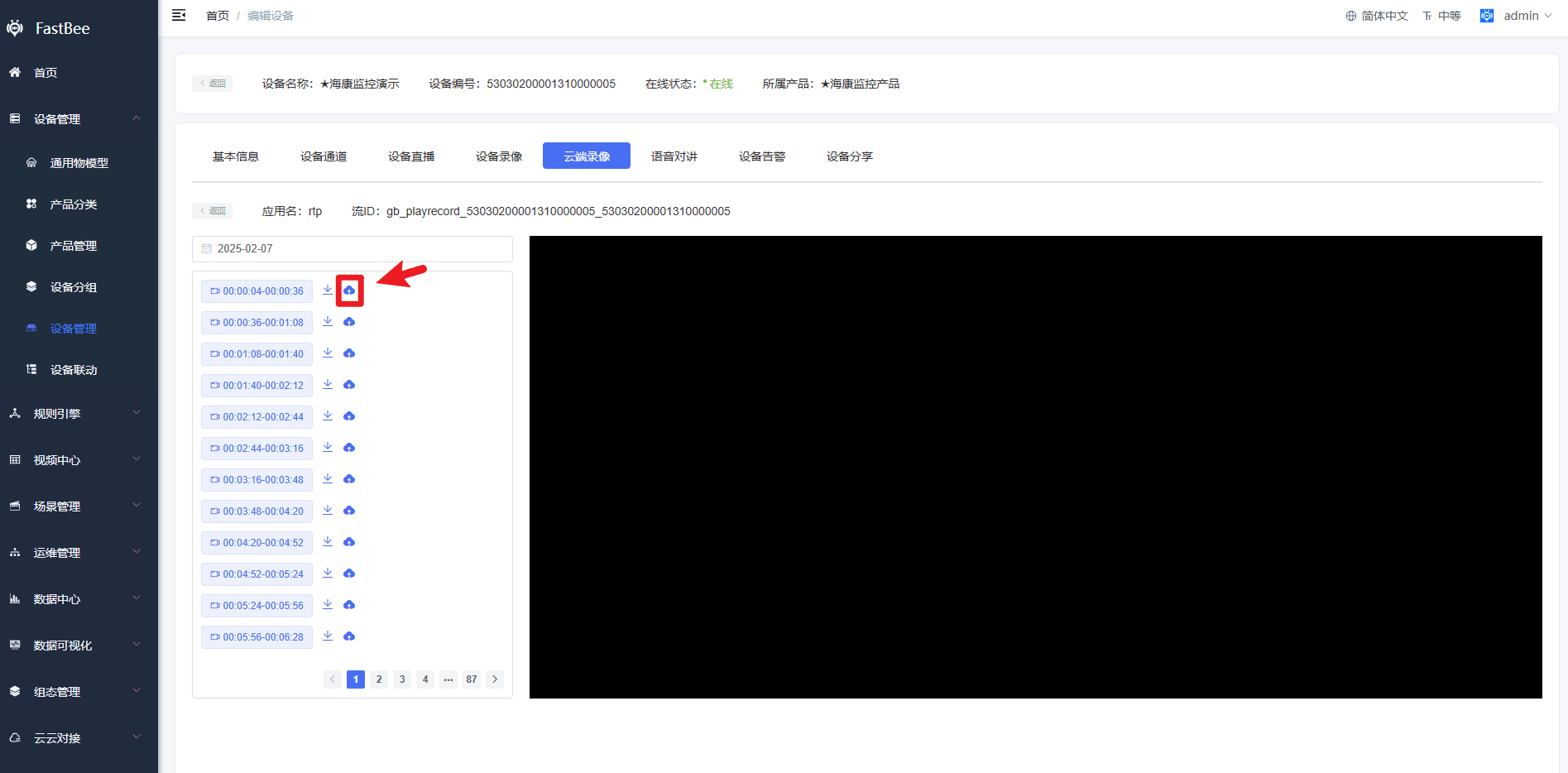
 ### 1.3 Store monitoring recordings in the cloud
After the upload test succeeds, monitoring recordings can be stored in the cloud.
::: tip
After OSS is configured successfully, enable recording upload for the monitoring device. Otherwise, recordings will not be uploaded to the cloud.
:::
 ## 2. Tencent Cloud configuration
### 2.1 Prepare COS service
1. Register a Tencent Cloud account: `https://cloud.tencent.com/register?s_url=https%3A%2F%2Fcloud.tencent.com%2F`
2. Complete real-name verification: `https://cloud.tencent.com/login?s_url=https%3A%2F%2Fconsole.cloud.tencent.com%2Fdeveloper`
3. Activate COS service: `https://cloud.tencent.com/login?s_url=https%3A%2F%2Fconsole.cloud.tencent.com%2Fcos5`
4. Prepare `APPID` and access keys. Open API key management in the access management console, then record `APPID`, `SecretId`, and `SecretKey`.
API key management page:
```text
https://console.cloud.tencent.cn/cam/capi
```
 5. Create a bucket. See the Tencent Cloud documentation for creating a bucket: `https://cloud.tencent.cn/document/product/436/13309`.
### 2.2 Configure COS in the application
| Common field name | Description |
| --- | --- |
| Provider / Service Provider / Storage Provider | Select the storage provider used by the application. If an option such as S3 compatible storage is available, prefer that option. If only Amazon Web Services / AWS / Amazon S3 is available, select it and fill in the COS endpoint in the endpoint field. If no provider option exists but the application states that S3 or S3-compatible storage is supported, continue with endpoint configuration. |
| Endpoint / Custom Endpoint / Server URL | Fill in the COS service address, such as `cos..myqcloud.com` or `https://cos..myqcloud.com`. Whether `https://` is required depends on the application. `` is the COS region. The application can create or select only buckets in the region specified by the endpoint. For example, if the bucket is in Guangzhou, use `cos.ap-guangzhou.myqcloud.com`. |
| Access Key / Access Key ID | Fill in the `SecretId` recorded in step 4. |
| Secret Key / Secret / Secret Access Key | Fill in the `SecretKey` recorded in step 4. |
| Region | Select Default, Auto, or Automatic. |
| Bucket | Select or enter an existing bucket name in the format ``, such as `examplebucket-1250000000`. `BucketName` is the name entered when the bucket was created, and `APPID` is the value recorded in step 4. Buckets are limited to the endpoint region. If a new bucket is created from the application, its name must also follow the `` format. |
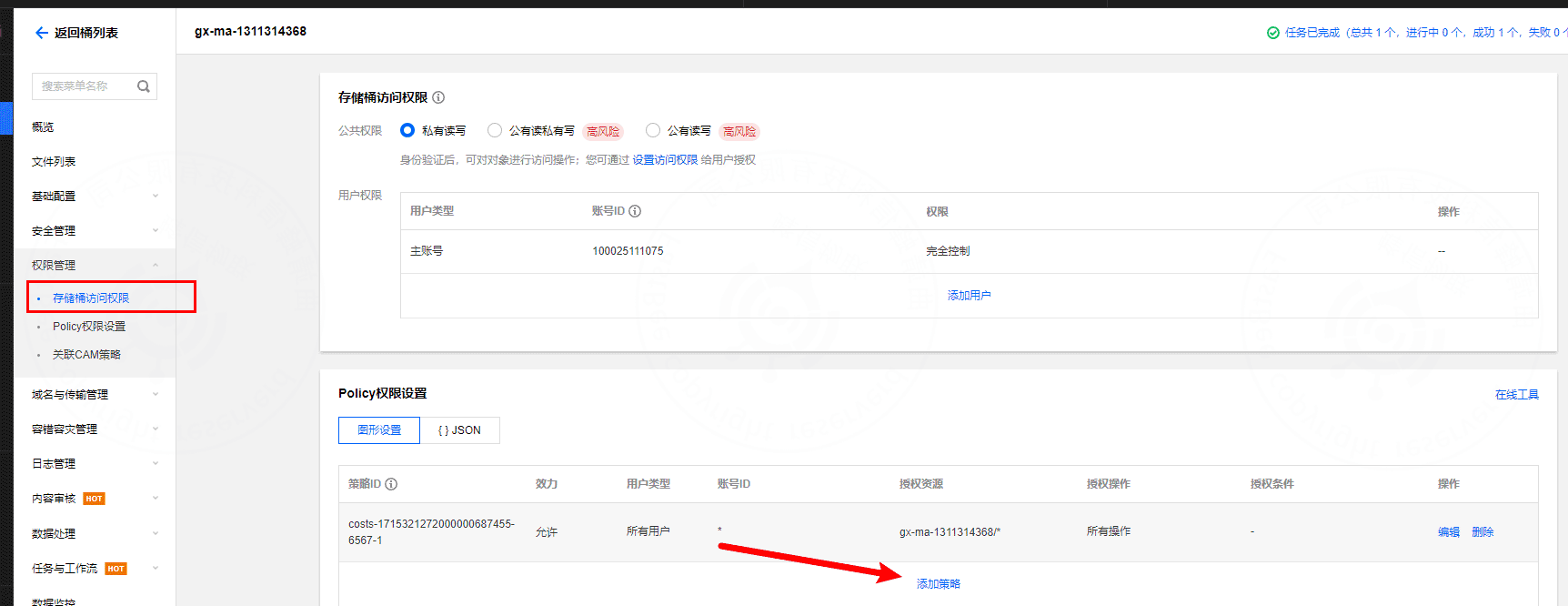
### 2.3 Add read/write policy to the bucket
 ## 3. Qiniu Cloud configuration
### 3.1 Prepare Qiniu Cloud service
1. Register a Qiniu Cloud account and complete real-name verification: `https://portal.qiniu.com/signup?ref=www.qiniu.com`.
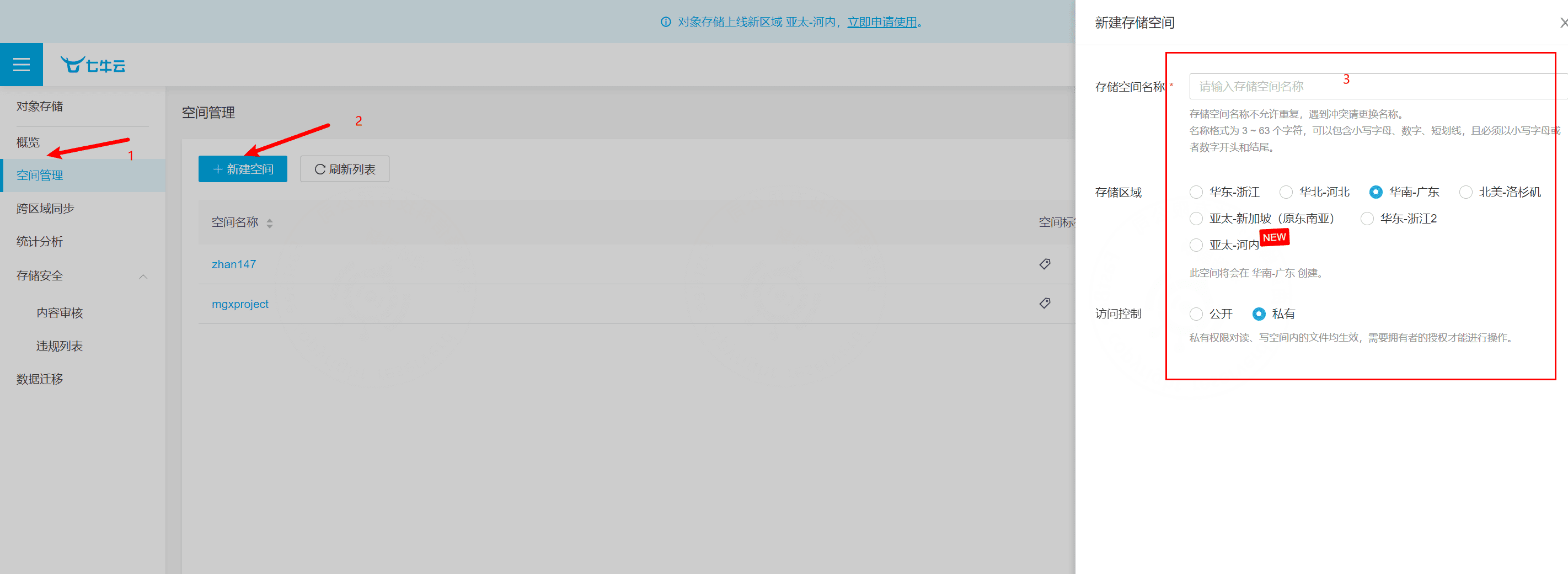
2. Create a storage space. Log in to the Qiniu Cloud console, select Object Storage Kodo, and create a new storage space.
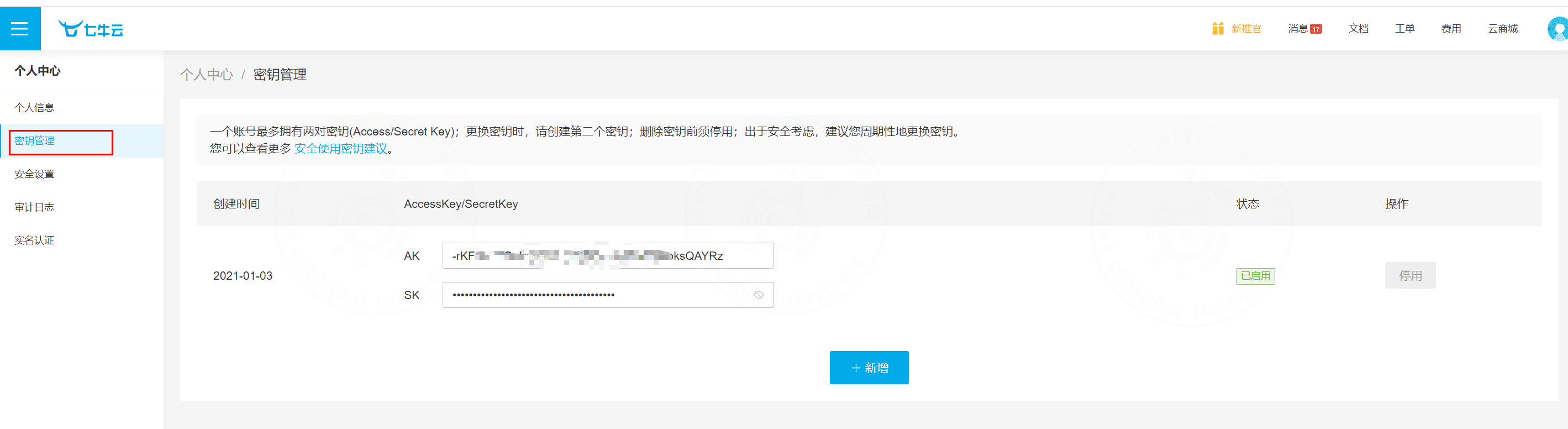
 3. Obtain `AccessKey` and `SecretKey` from Qiniu Cloud key management. These keys are used for API signature authentication.
 ## 4. Alibaba Cloud configuration
### 4.1 Prepare Alibaba Cloud service
1. Create an Alibaba Cloud account and complete real-name verification: `https://account.aliyun.com/login/login.htm?oauth_callback=https%3A%2F%2Fsme.aliyun.com%2Factivity%2Fhuanxin%3Futm_content%3Dse_1017005267`
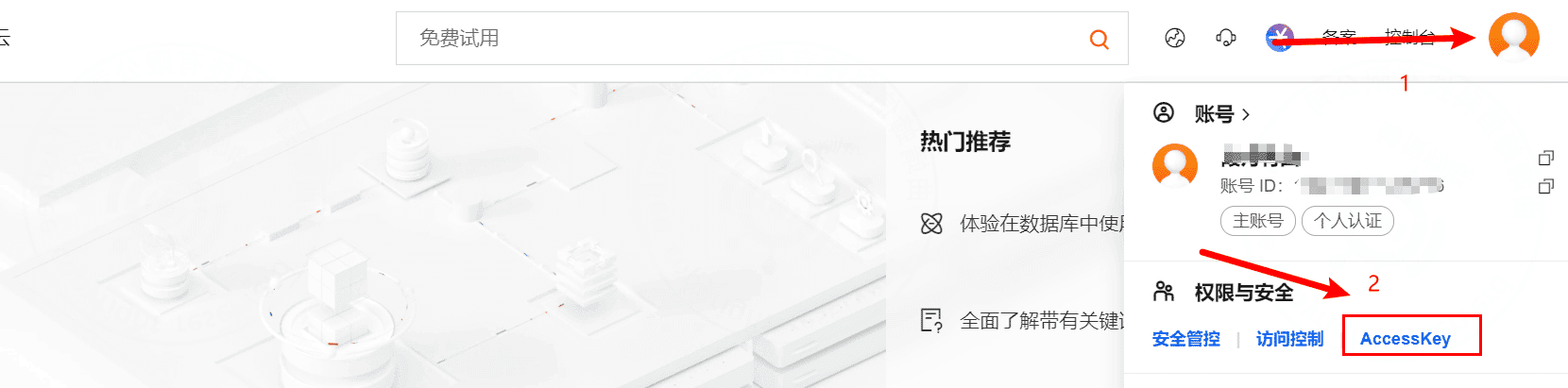
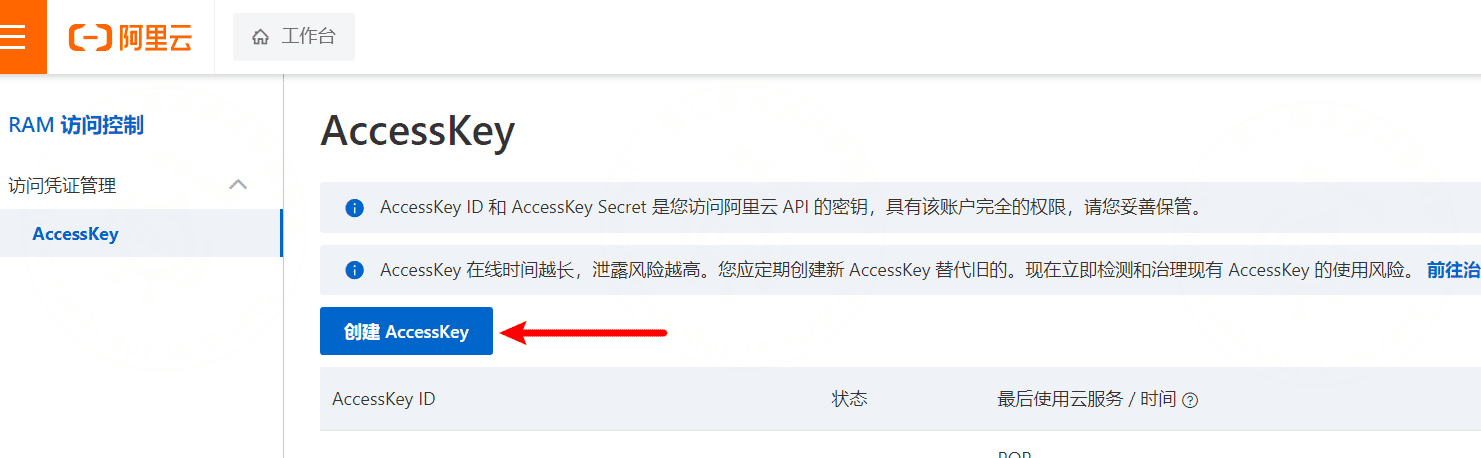
2. Create an AccessKey in the Alibaba Cloud console.
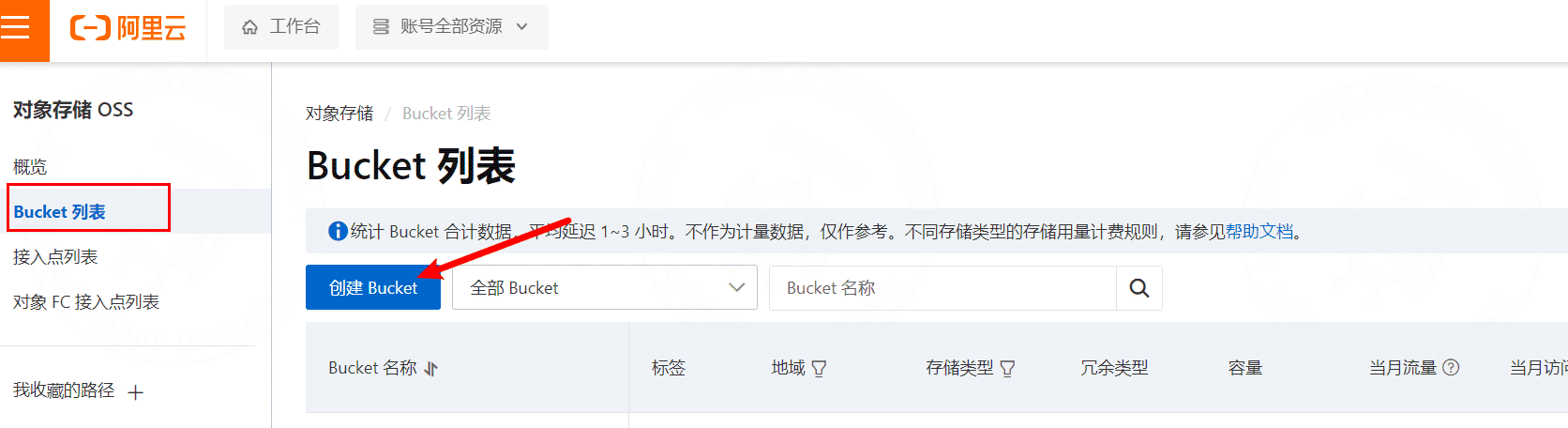
 3. Create an OSS bucket. Log in to the Alibaba Cloud console, open Object Storage Service, and create a bucket.
 ## 5. Acceptance Checklist
| Item | Expected Result |
| --- | --- |
| Upload test | A test file can be uploaded successfully from FastBee. |
| Access domain | Uploaded files can be accessed through the configured domain or endpoint. |
| Recording upload | Video recording files can be uploaded after recording upload is enabled. |
| Permission | Bucket policy allows required read/write operations and blocks unnecessary public write access. |
| Size and lifecycle | Storage lifecycle and capacity policy match the project requirement. |
## 6. FAQ
### Test upload fails
Check the AccessKey, SecretKey, bucket name, region, endpoint, provider type, and server network.
### Upload succeeds but access returns 403
Check the bucket read permission, object ACL, custom domain binding, CDN origin configuration, and hotlink protection settings.
### Cloud recording not uploaded
Check whether recording is enabled on the monitoring device, whether the recording service is running, whether the ZLM hook works, and whether the OSS configuration is enabled.
### File URL is an internal address
In production, configure a custom domain that is publicly accessible, so that frontend users are not blocked by internal addresses.
## 7. Development Entry
| Type | Path Or API | Description |
| --- | --- | --- |
| Frontend page | `vue3/src/views/system/oss` | OSS configuration page. |
| Backend module | `springboot/fastbee-plugs/fastbee-oss` | OSS configuration, upload, and download. |
| Backend API | `/oss/config`, `/oss/detail` | OSS configuration and file details. |
| Database tables | `oss_config`, `oss_detail` | Storage configuration and file records. |
| Recording service | `springboot/fastbee-record` | Source of cloud recording uploads. |