## 1. Preparation and Connection
### 1.1. Prepare Authentication Information
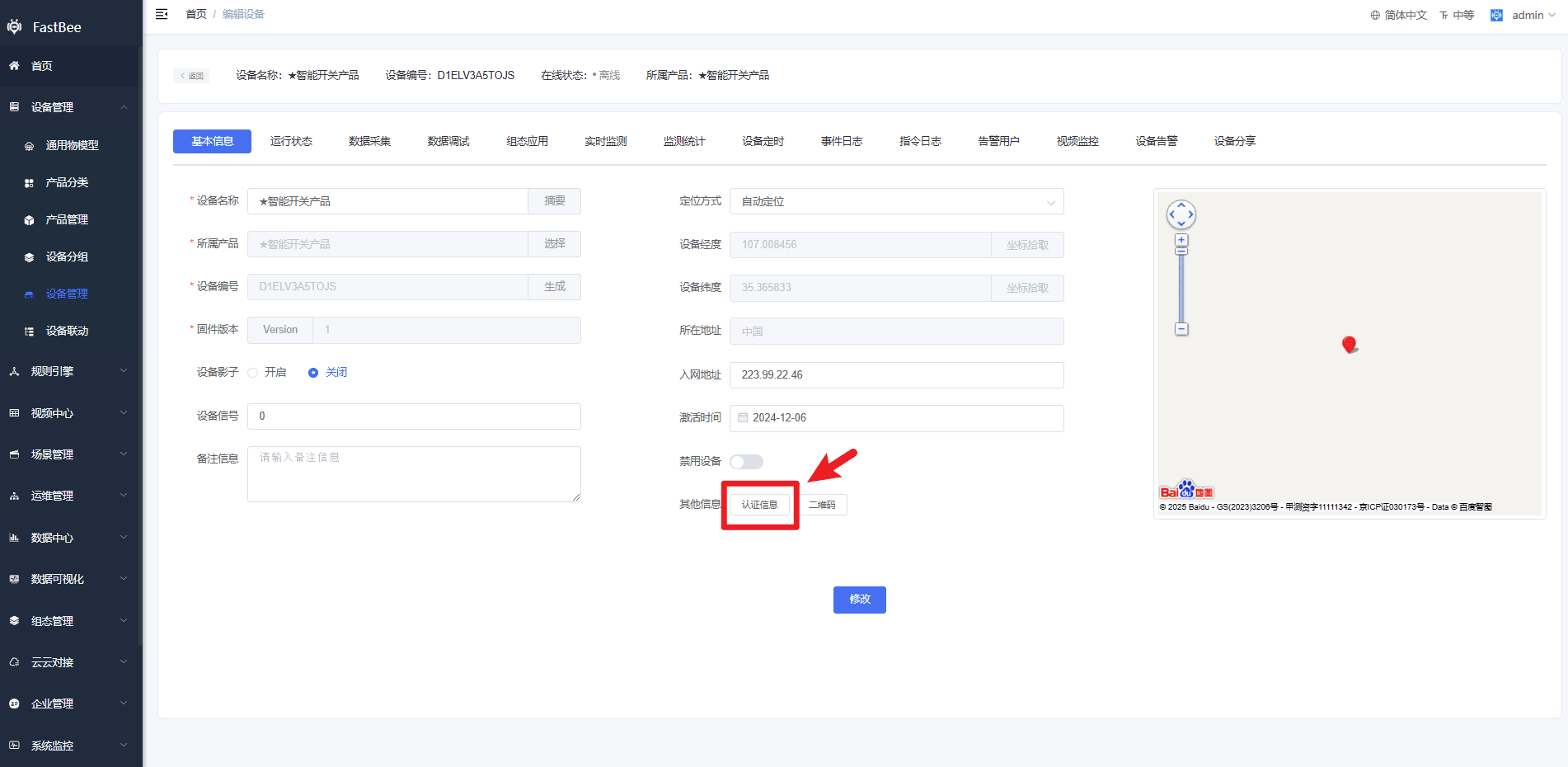
Download and install the MQTTX tool. Create and publish an MQTT product in FastBee, prepare a device, and record the product ID, device number, MQTT username, MQTT password, and user ID from the product and device details. If device authorization is enabled for the product, also obtain the device authorization code.
 ### 1.2. Configure the MQTTX Connection
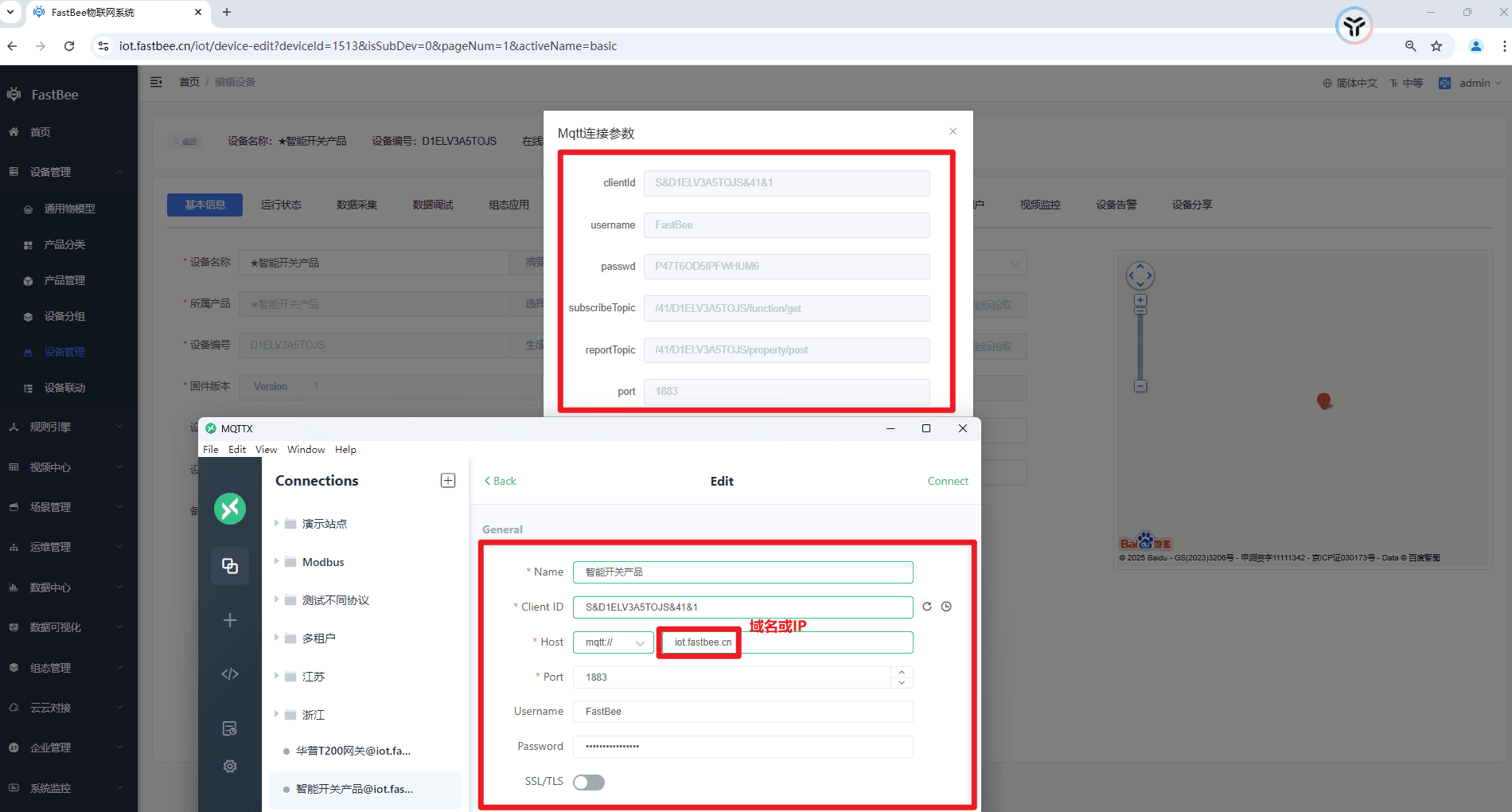
Create a connection in MQTTX and complete the following fields. Simple authentication is convenient for initial testing; use encrypted authentication in production.
| MQTTX field | Value |
| --- | --- |
| Host | IP address or domain name of the FastBee server |
| Port | `1883` |
| Client ID | `S&deviceNumber&productId&userId` |
| Username | MQTT username from the product details |
| Password | MQTT password from the product details; when device authorization is enabled, use `mqttPassword&deviceAuthorizationCode` |
```text
Client ID: S&D68329VL588&2&1
Username: fastbee
Password: PHYFED93WSFF1DAS
```
After the connection succeeds, the device status changes to online in the device details. See [MQTT Device Access](https://www.fastbee.cn/doc/en/business/v2/link/mqtt.html) for the complete authentication and encryption rules.
## 2. Device Reporting Flow
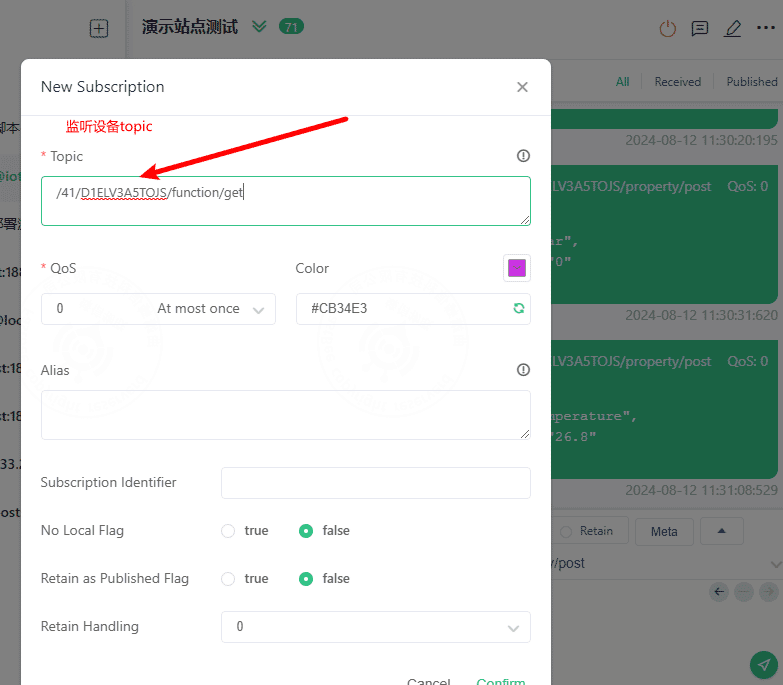
### 2.1. Subscribe to the Platform Command Topic
Add a subscription in MQTTX, replacing `{productId}` and `{deviceNum}` with the actual product ID and device number:
```text
/{productId}/{deviceNum}/function/get
```
### 2.2. Report Device Information and Properties
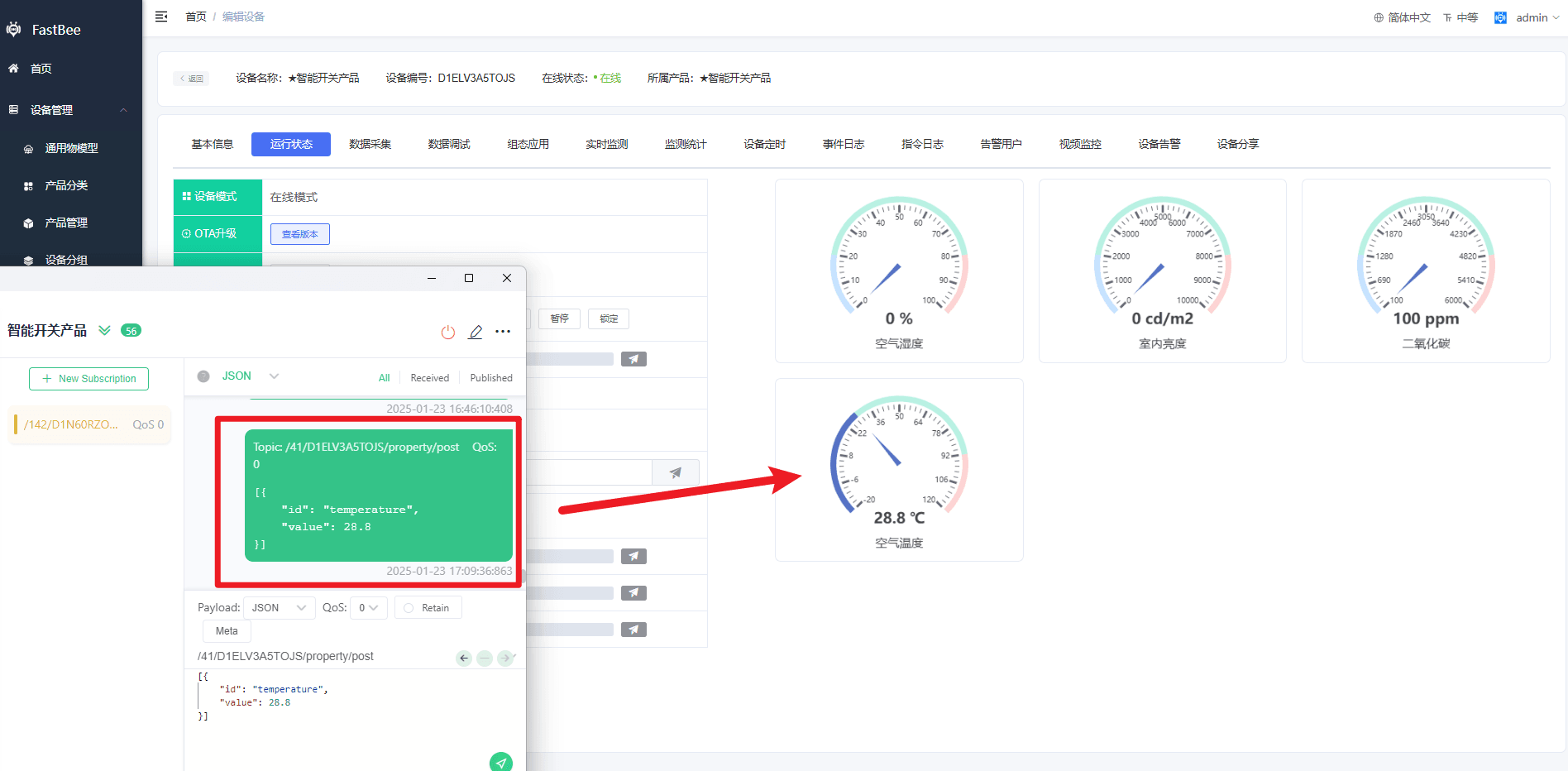
Publish device information to `/info/post`, then publish property data to `/property/post`. The examples below use product ID `2` and device number `D68329VL588`; replace them with your own values.
```text
/2/D68329VL588/info/post
```
```json
{
"rssi": -43,
"firmwareVersion": 1.0,
"status": 3,
"userId": 1,
"summary": {
"name": "FastBee MQTT Demo",
"type": "mqttx"
}
}
```
Property reporting topic:
```text
/2/D68329VL588/property/post
```
```json
[
{
"id": "temperature",
"value": "26.5",
"remark": "MQTTX simulated reporting"
}
]
```
The `id` must exactly match a Thing Model identifier in the product. After publishing, open the device details and confirm that the runtime state and device logs have updated.
 ## 3. Platform Command Issuing
### 3.1. Configure the Receiving Topic
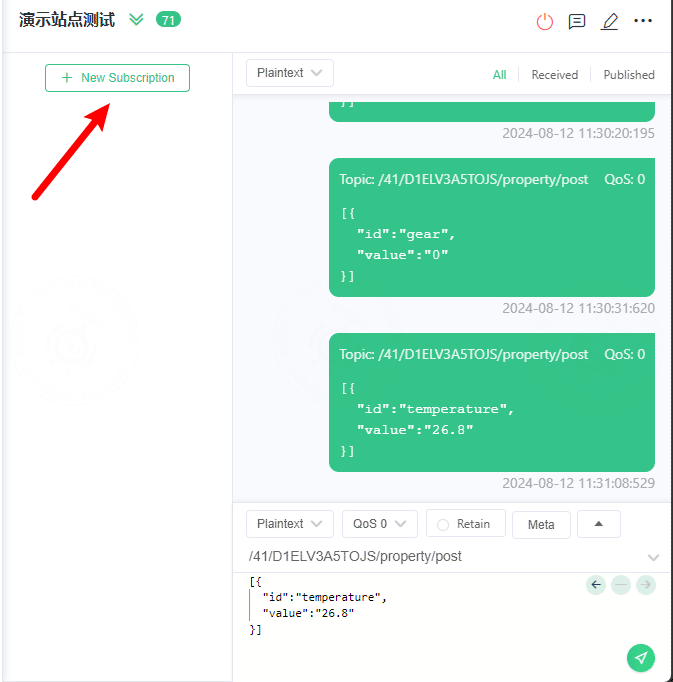
Confirm that MQTTX has subscribed to `/{productId}/{deviceNum}/function/get` and that the device remains online.
 ### 3.2. Issue a Command and Verify the Result
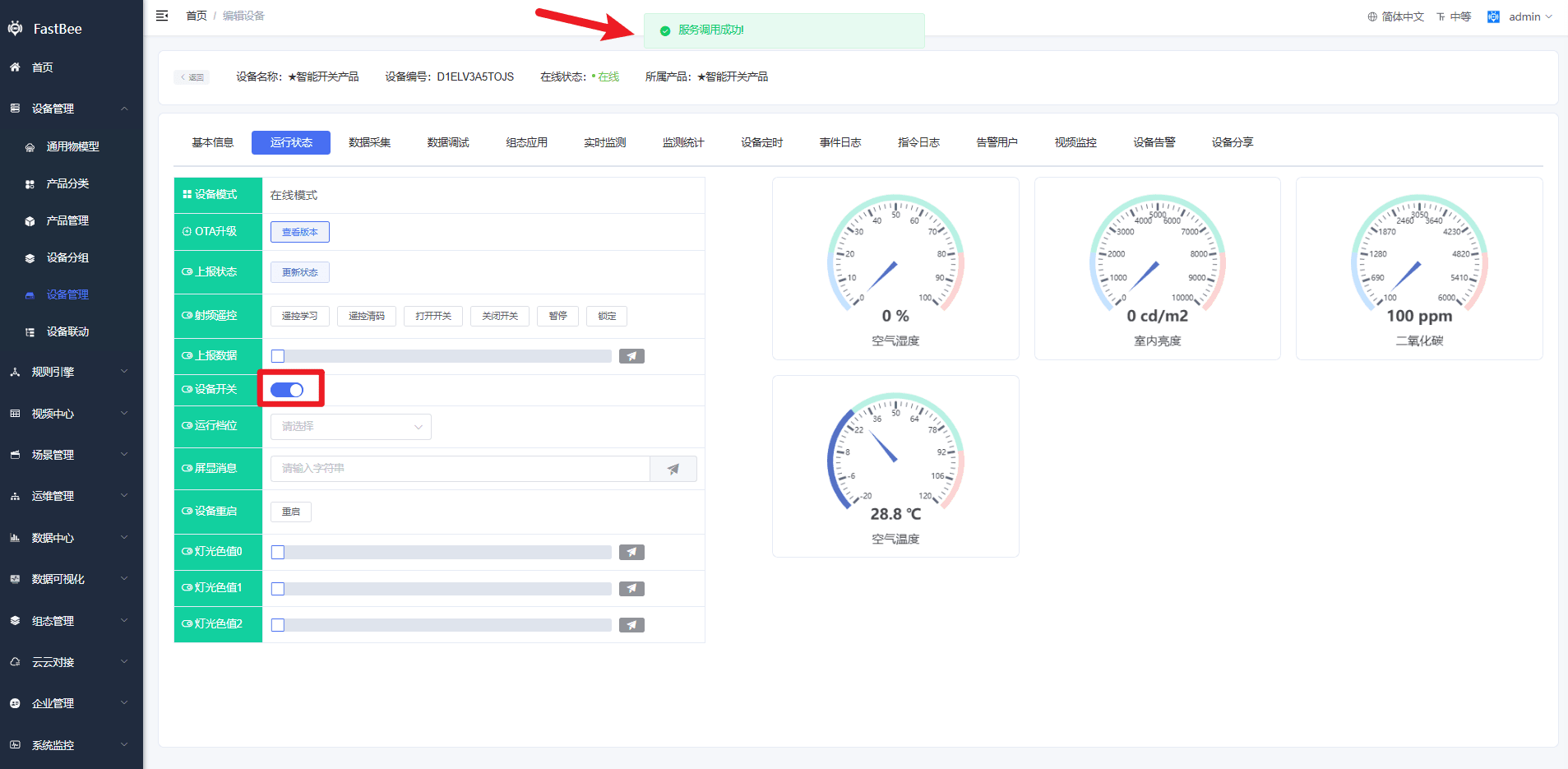
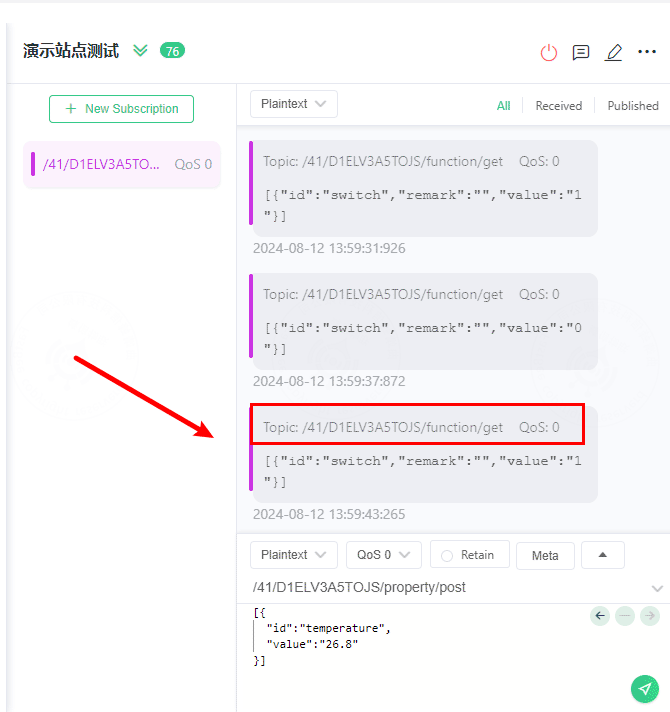
In the device details, select a writable property or callable function and send a command. MQTTX should receive a message similar to the following:
```json
[
{
"id": "switch",
"value": "0",
"remark": "Platform command"
}
]
```
After simulating execution on the device, report the latest state through `/{productId}/{deviceNum}/property/post`. Finally, check both the platform command and the device response in the device details and logs to complete the verification loop.
 For the complete workflow starting with product creation, see [Product-to-Device End-to-End Flow](https://www.fastbee.cn/doc/en/business/v2/start/product-device-flow.html).
## 4. FAQ
### 4.1. Why cannot MQTTX connect?
Check that the product is published, the device is not disabled, the Client ID uses the correct product ID and user ID, the credentials belong to the same product, and port `1883` is open on the server. When device authorization is enabled, the password must also include the device authorization code.
### 4.2. Why is data missing when the device is online?
Check the product ID and device number in the reporting topic, the JSON array format, and whether `id` exactly matches the Thing Model identifier. After changing the Thing Model, also confirm that the product has been republished and the device inherits the latest model.
### 4.3. Why does MQTTX not receive platform commands?
Confirm that the subscription topic is `/{productId}/{deviceNum}/function/get`, the device is still online, and the selected target is a writable property or callable function.