## 1. Alert Configuration
### 1.1 Overview
Preset the alert content generated by device alerts, and use it together with **Scene Linkage and Message Notification**. When the data reported by a device meets the conditions preset in the scene linkage, an alert log is automatically triggered and a message notification is sent.
### 1.2 Alert Configuration Items
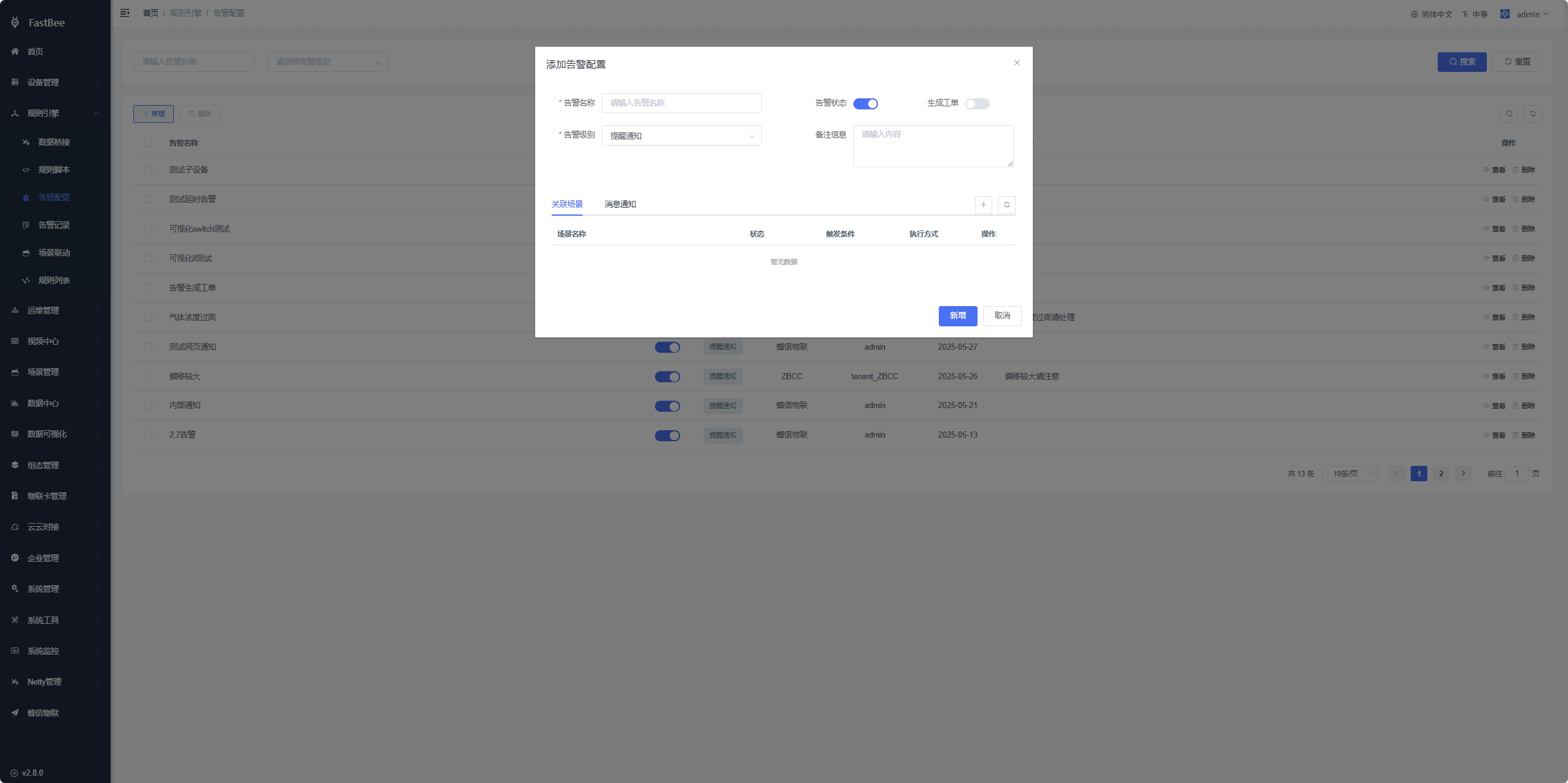
* Alert Name: required, a custom alert name
* Alert Level: required, 1 = Reminder notification, 2 = Minor issue, 3 = Critical warning; choose according to the actual situation. The data comes from the dictionary type **iot\_alert\_level**, which you can adjust yourself
* Alert Status: required, whether to enable; enabled by default
* Generate Work Order: required, whether to enable; disabled by default. When enabled, work orders are generated automatically. For work order usage, refer to the Work Order Management documentation
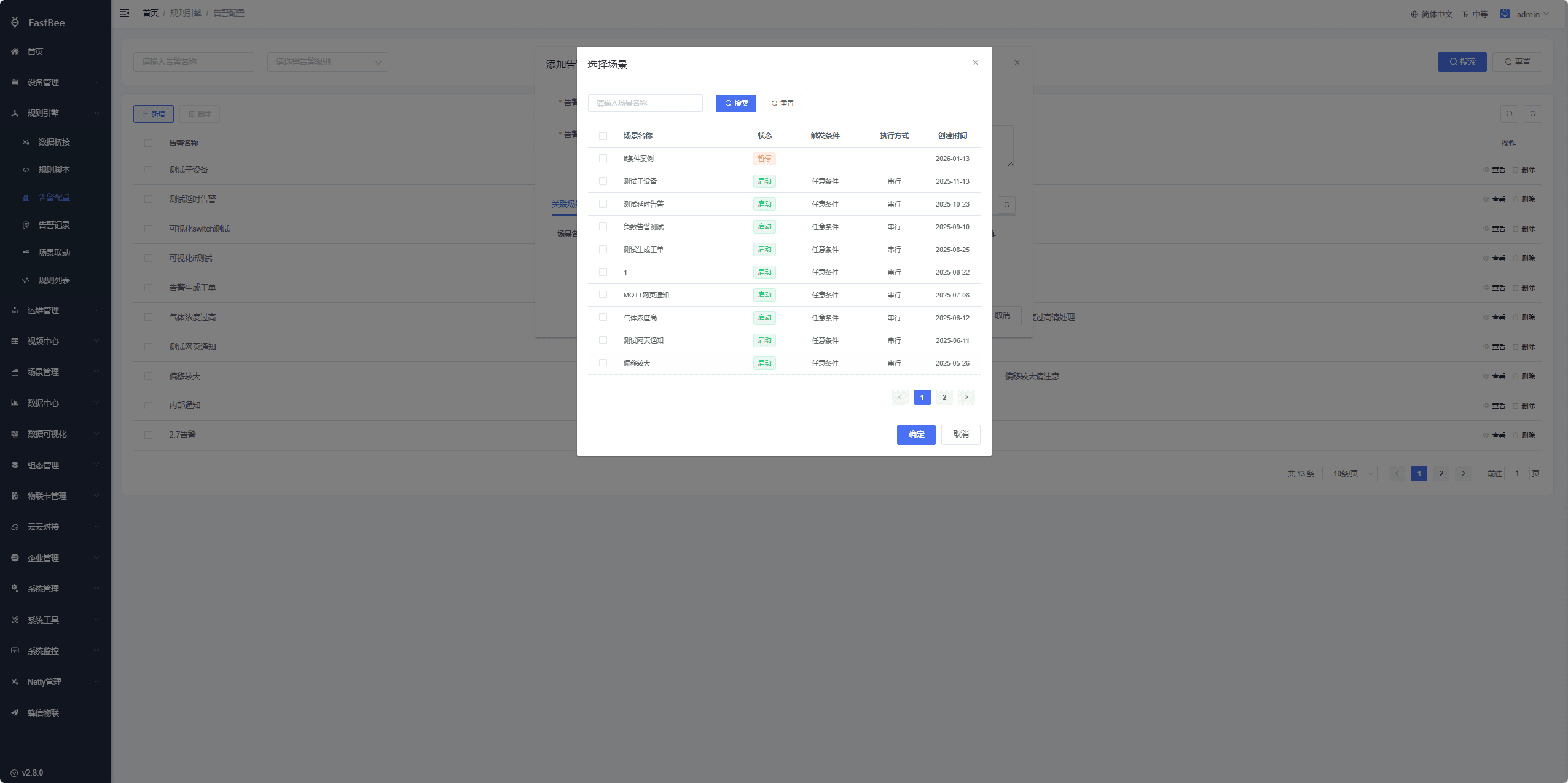
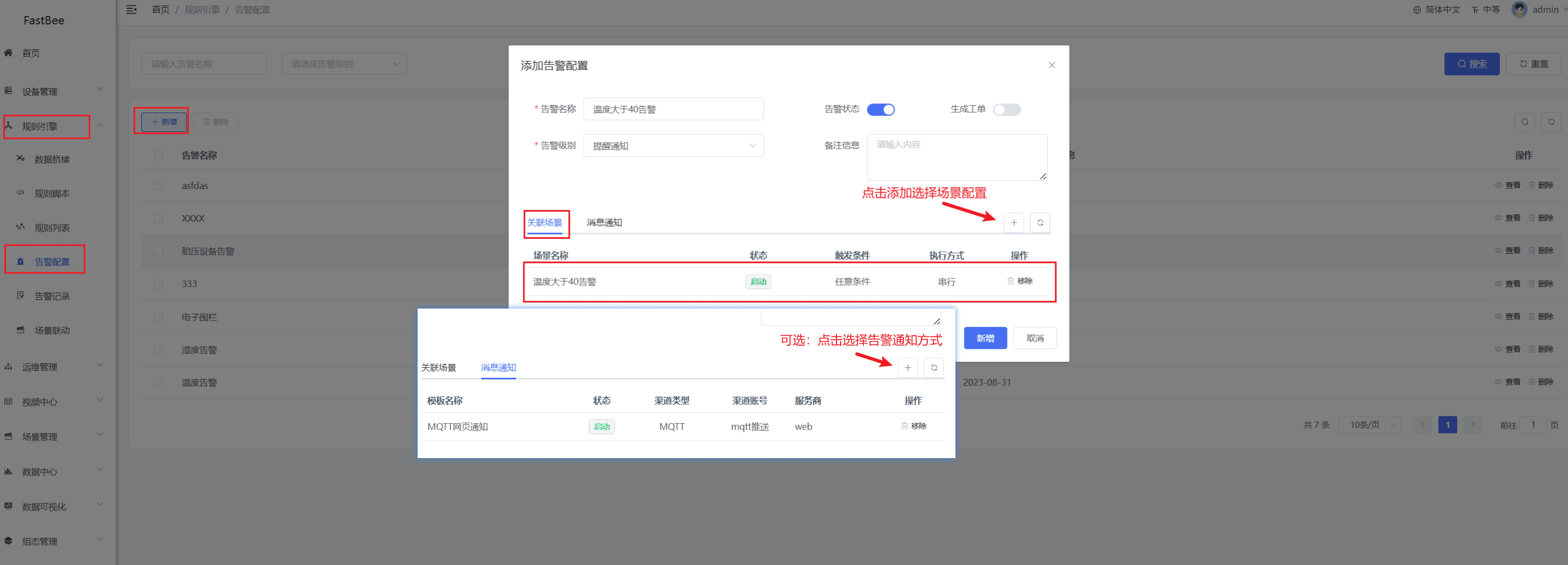
* Associated Scene: required. You can associate scene linkages whose execution action has **Alarm execution** checked; when the scene linkage is triggered, the current alert is triggered at the same time
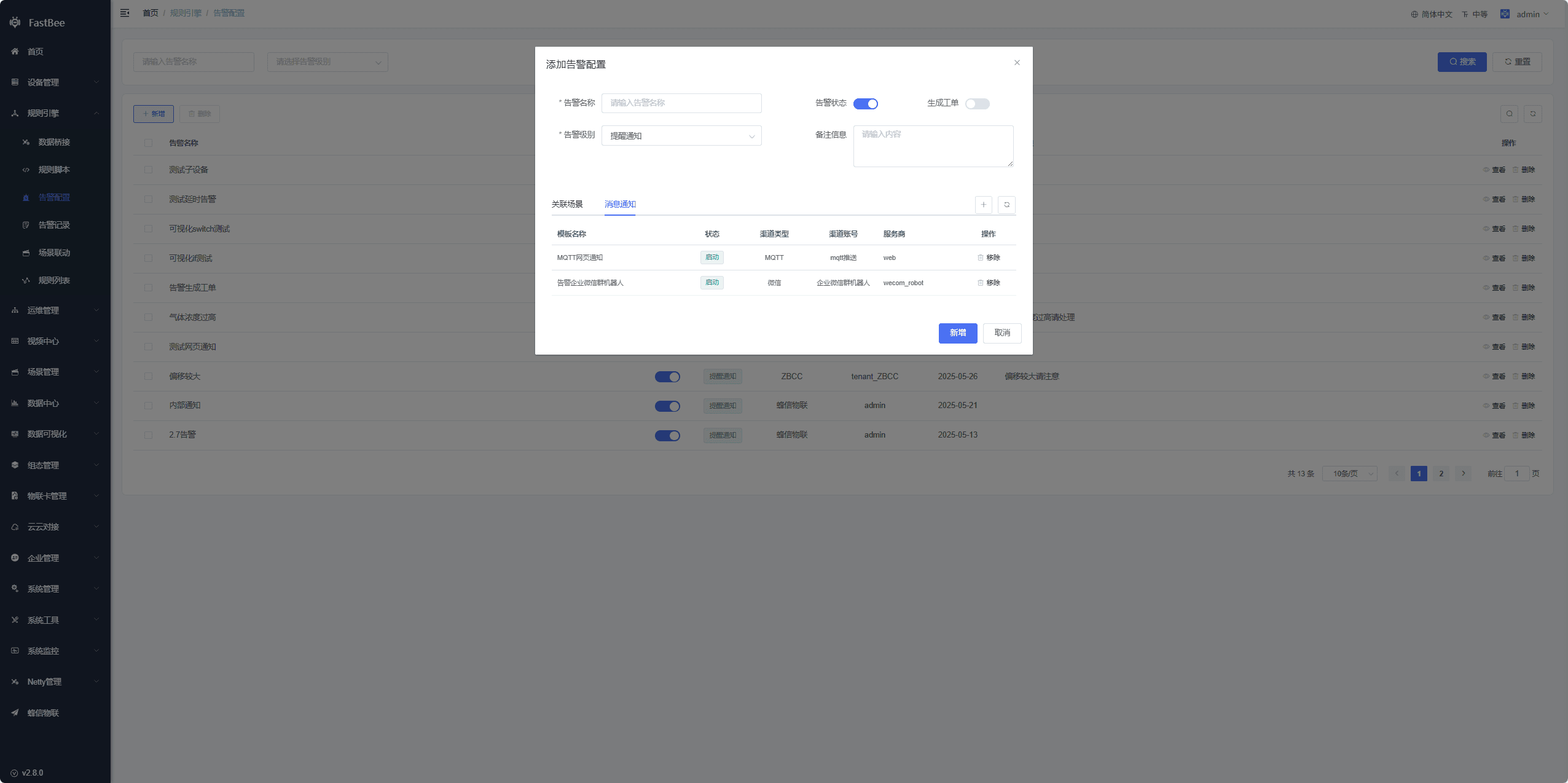
* Message Notification: optional. Associate the corresponding message notification; when the alert is triggered, the message notification is triggered at the same time
* Remarks: optional
 ### 1.3 Associated Scene
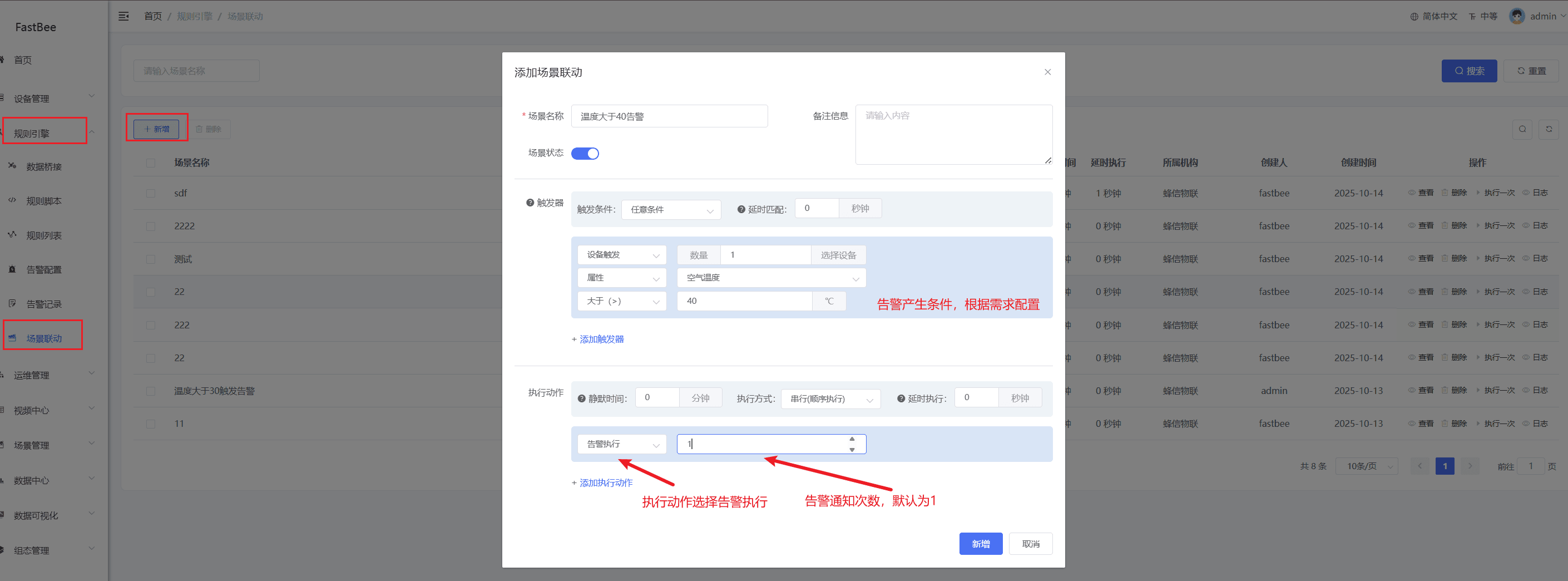
First configure a scene linkage under the Rule Engine - Scene Linkage menu, and configure **Alarm execution** as the execution action of the scene linkage. For configuration, refer to the Scene Linkage documentation.
::: tip
The count to the right of Scene Linkage - Execution Action - Alarm execution is the threshold for **unhandled alert records**. Message notifications are only sent when the number of unhandled alert records is below that count.
:::
 ### 1.4 Alert Notification Users
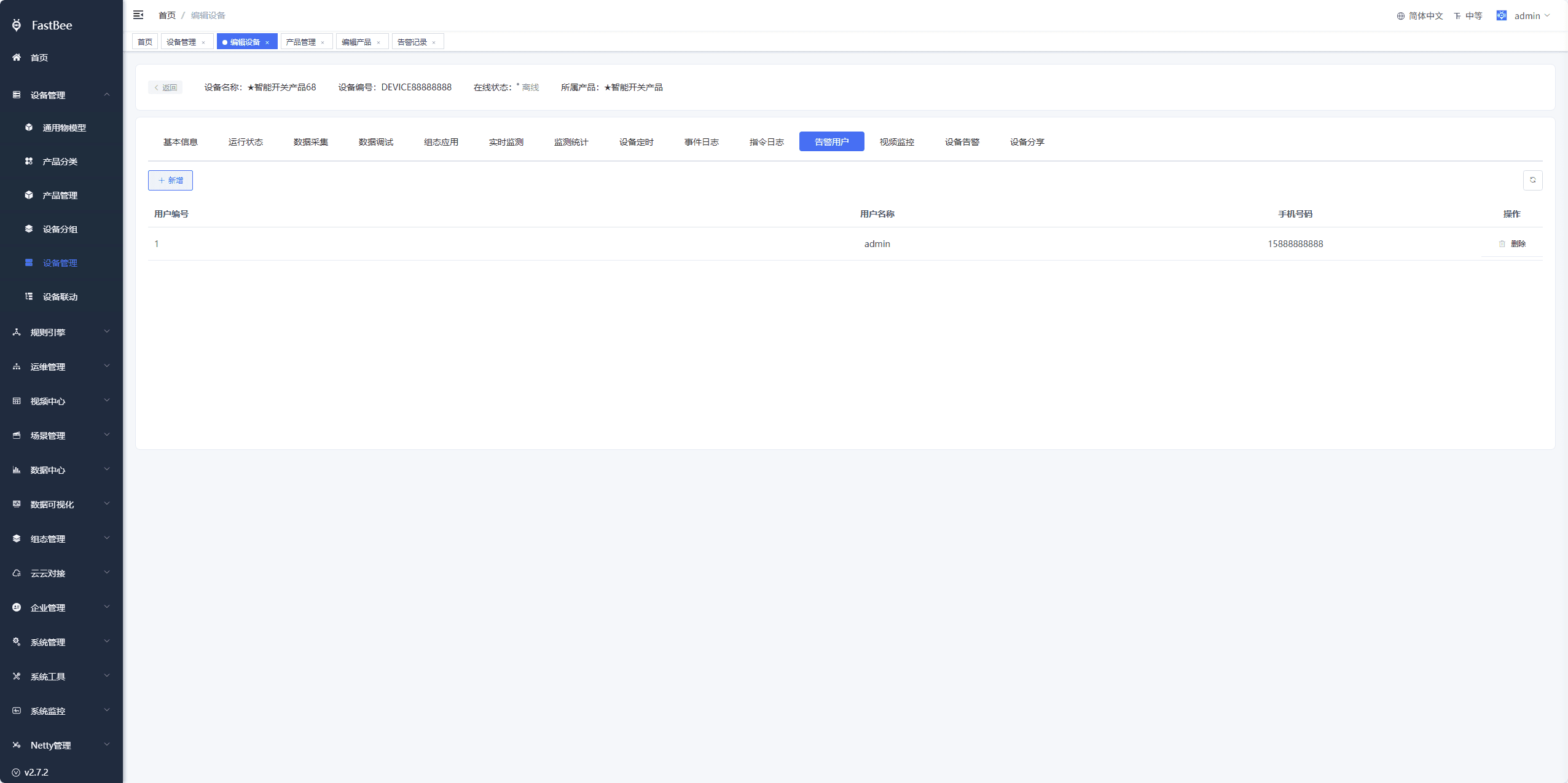
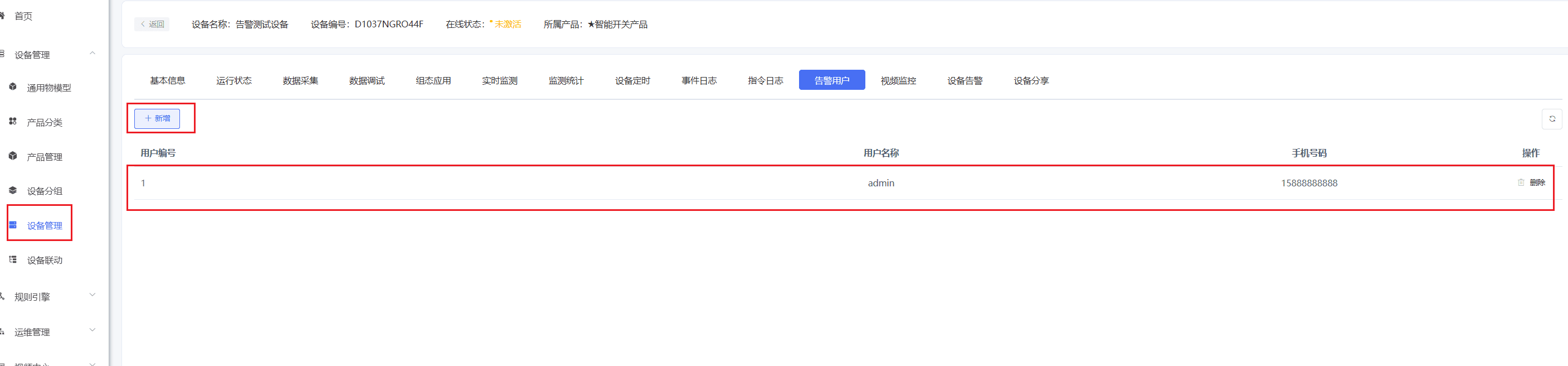
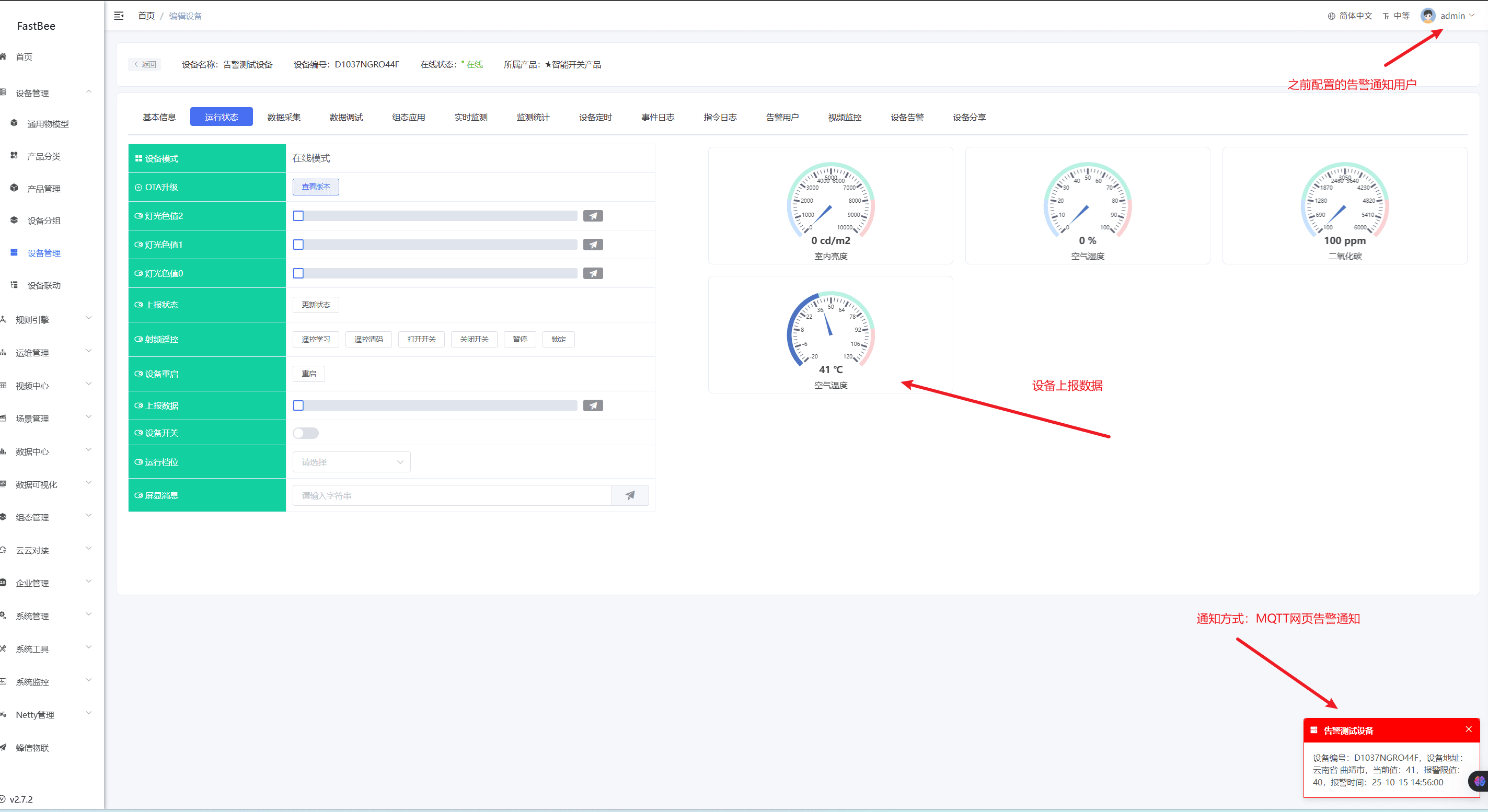
Configure under Device Management - Device Details - Alert Users; select the users who need to be notified of device alerts.
 ### 1.5 Associated Message Notification
First configure message notifications under Operations Management - Notification Channels and Notification Templates; refer to the Message Notification documentation. After configuration, associate the message notification in the alert configuration.
 ## 2. Alert Test
1. Add a scene linkage
 2. Add an alert configuration, and associate the scene and message notification
 3. Add alert users to the device
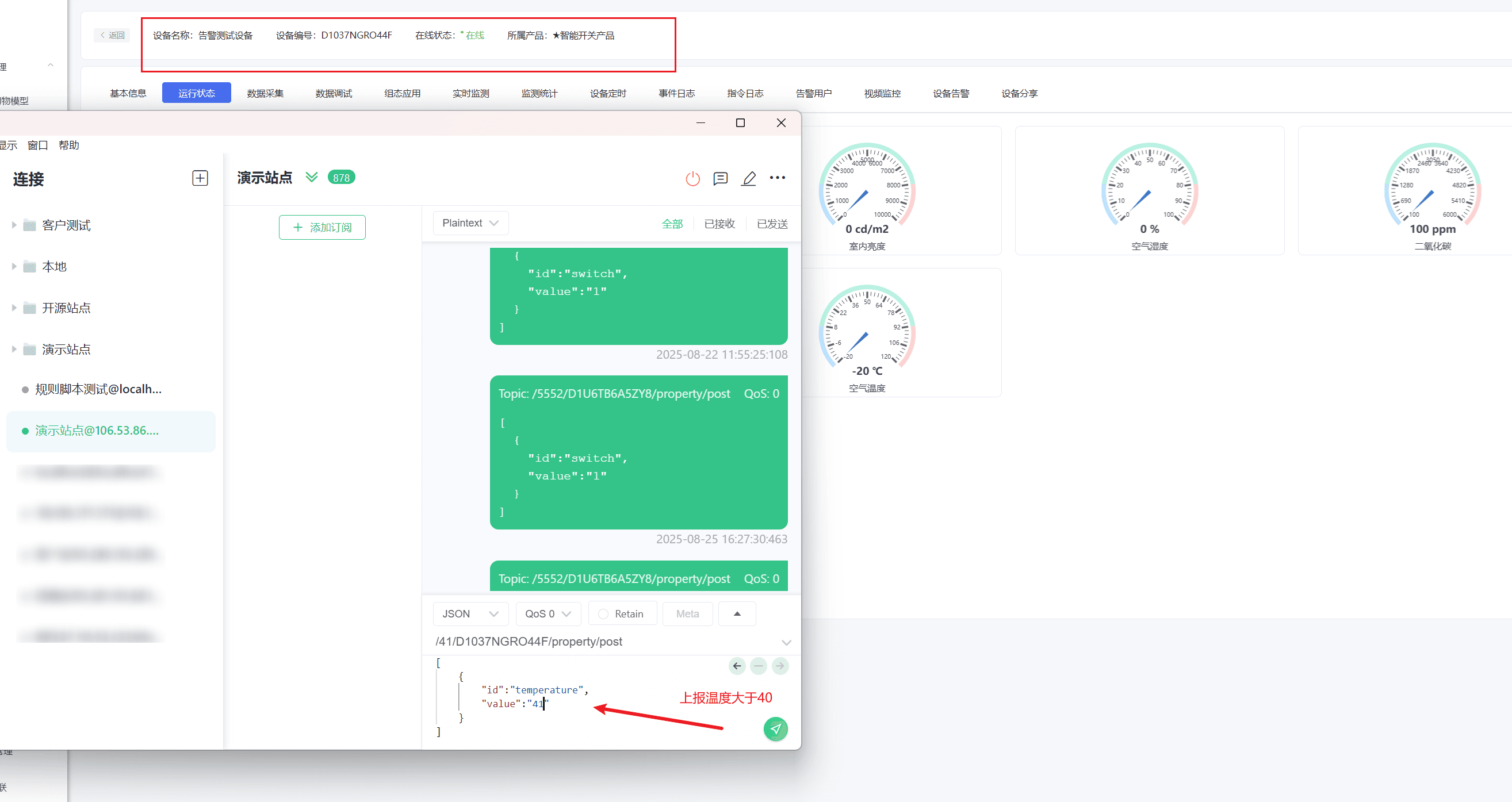
 4. Use MQTTX to simulate device reporting for testing
 ## 3. Alert Records
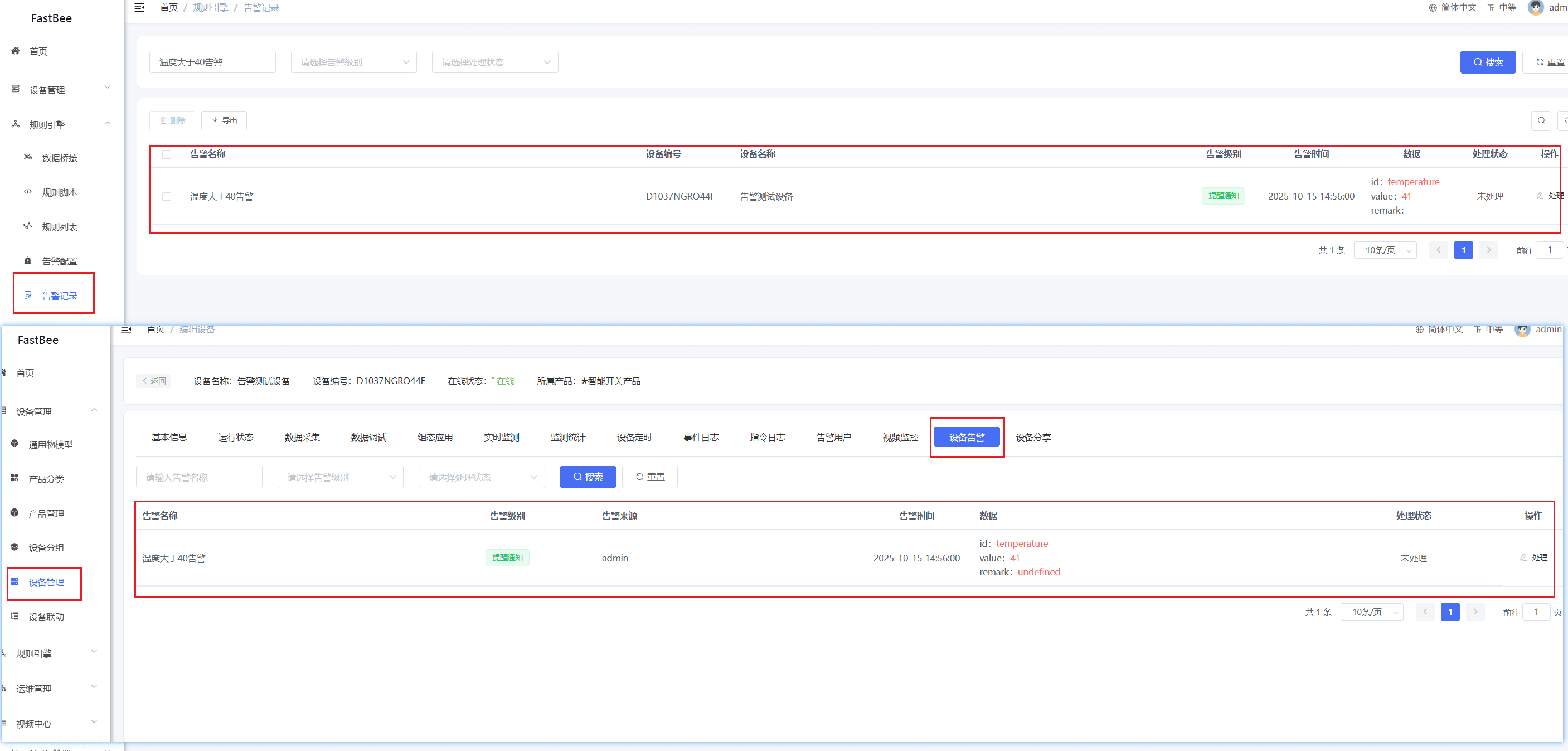
Alert records can be viewed under Device Details - Device Alerts or Rule Engine - Alert Records.
 ## 4. Result Verification
After the alert configuration is complete, it is recommended to verify in the following order:
| Acceptance Item | Expected Behavior |
| --- | --- |
| Scene triggering | After the device reports data that meets the conditions, the associated scene can execute |
| Alert generation | The corresponding alert appears in the alert records |
| Notification delivery | The associated notification channel receives the message |
| Work order generation | When Generate Work Order is enabled, a new work order appears in Work Order Management |
| Alert users | The alert users configured in the device details can receive notifications |
| Recovery handling | After the alert is handled or recovered, the status changes correctly |
## 5. FAQ
### No alert after the device reports data
Check whether the Thing Model identifier, scene trigger conditions, scene status, alert configuration status, and the reported device value meet the conditions.
### Alert generated but no notification
Check whether a message notification is associated, whether the notification channel is enabled, whether the template variables are correct, and whether alert notification users are configured.
### Too many duplicate alerts
Check the alarm execution count configuration in the scene linkage, the alert recovery conditions, the device reporting frequency, and the rule debounce strategy.
### Notification received but no work order
Check whether Generate Work Order is enabled in the alert configuration, and whether the work order type and contact are complete.
## 6. Secondary Development Entry Points
| Type | Path or API | Description |
| --- | --- | --- |
| Frontend pages | `vue3/src/views/iot/alert` | Alert configuration and records pages |
| Backend API | `/iot/alert` | Alert configuration, records, and handling APIs |
| Scene API | `/scene/model`, `/scene/modelData` | Scene trigger source |
| Notification API | `/notify`, `/notify/channel`, `/notify/template` | Alert notification |
| Work order API | `/iot/workOrder` | Work orders generated by alerts |