

Scene linkage
Page Guide
Use CasesSuitable for configuring device condition triggers, scheduled triggers, alarm linkage, and cross-device automation actions.
PrerequisitesThe device or product Thing Model has been published, and the trigger conditions, action targets, silent period, and execution mode have been designed.
Operation PathCreate linkage → Configure triggers → Configure actions → Set silence/delay/serial-parallel → Enable and verify.
Acceptance CriteriaActions execute when trigger conditions are hit, alarms or device commands arrive, and linkage logs match the actual state.
Scene Linkage
Scene Linkage lets you define rules for linkage between devices either by configuring directly on the page or in a visual way. For visual configuration, refer to the Rule Editor documentation.
The page-based configuration interface is as follows: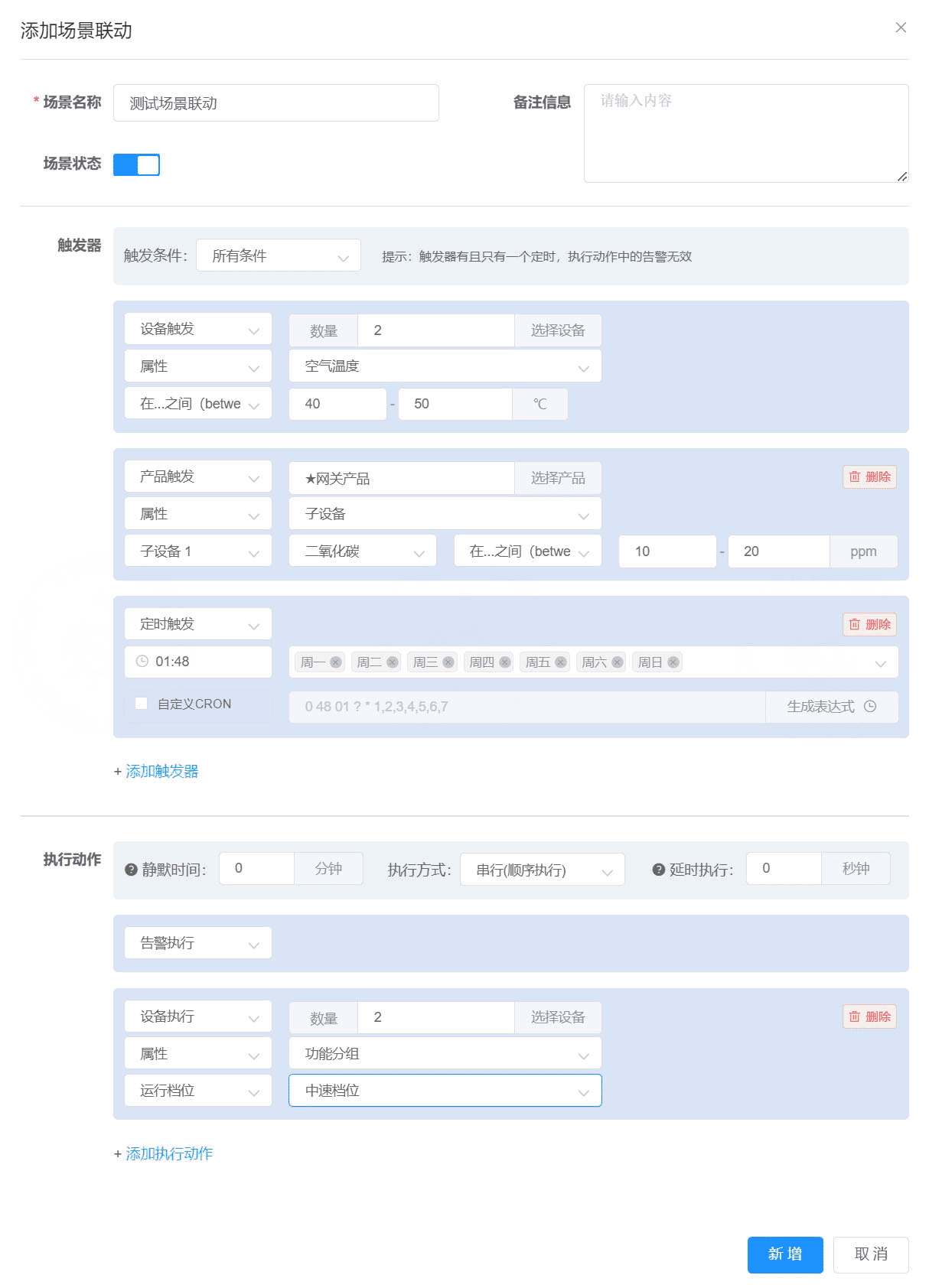
The visual configuration interface is as follows: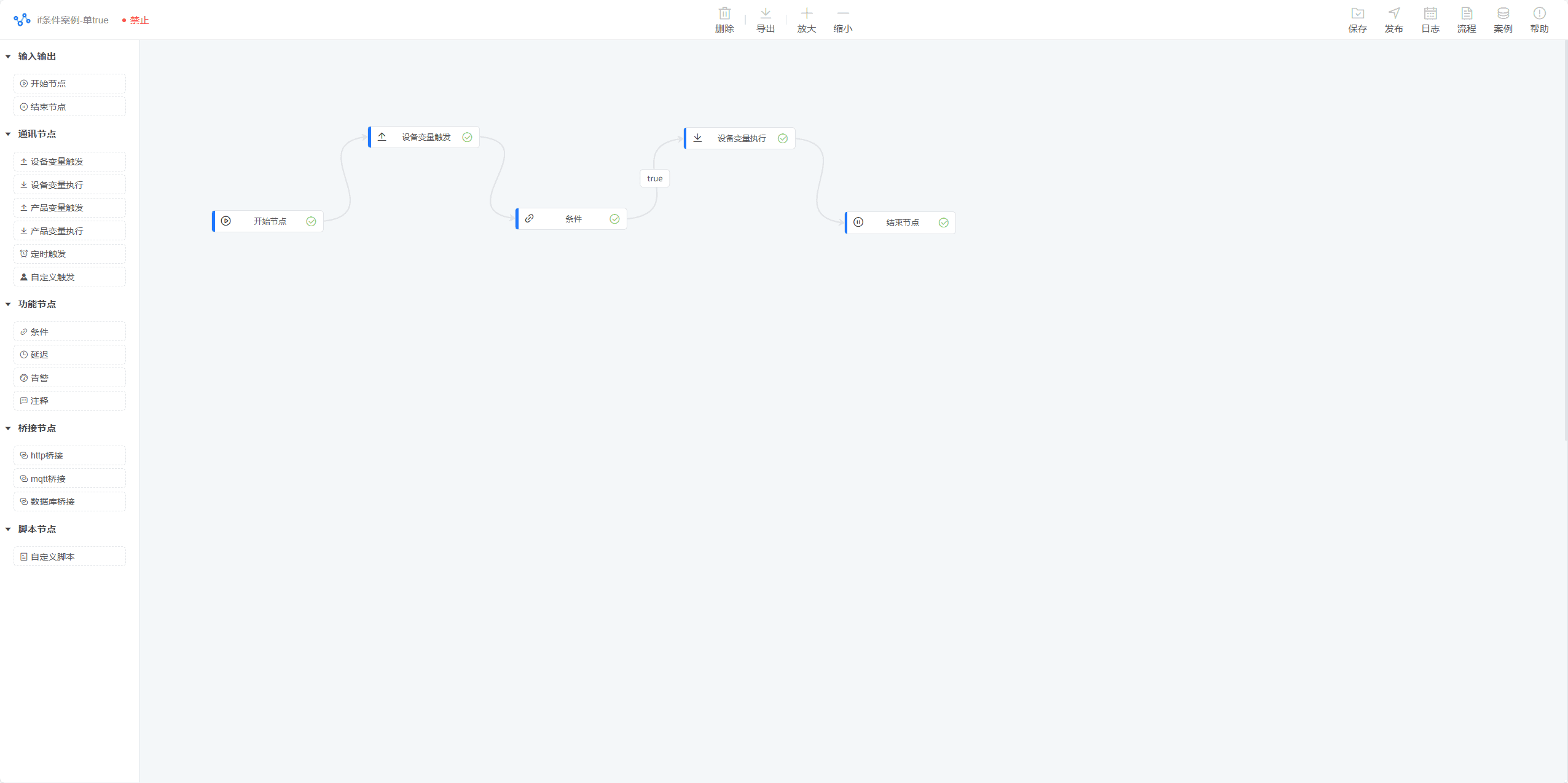
Configuration Notes:
- Trigger condition: All conditions, Any condition, Not satisfied. "All conditions" requires every trigger to be satisfied before the action executes; "Any condition" executes when one of them is satisfied; "Not satisfied" can only contain one trigger.
- Trigger type: Device trigger, Product trigger, Scheduled trigger. Device trigger lets you specify one or more devices; with Product trigger, all devices under the product match the rule; Scheduled trigger runs once on a schedule using a cron expression.
- Action type: Device execution, Product execution, Alarm execution. Device execution lets you specify one or more devices; with Product execution, all devices under the product execute the action; with Alarm execution, the alarm configurations matching this scene are queried and message notifications are sent.
- Silent period: the action executes only once within the specified time range, in minutes.
- Execution mode: Serial, Parallel. In serial mode, actions execute in order; in parallel mode, actions execute together.
- Delayed execution: delays the action, limited to 90 seconds. If the server stops unexpectedly within the specified time range, the action will not be executed after a restart.
Custom Trigger Conditions
When the common judgment conditions cannot evaluate your trigger condition, you can use a custom trigger condition, which executes the trigger action by obtaining the trigger ID in code.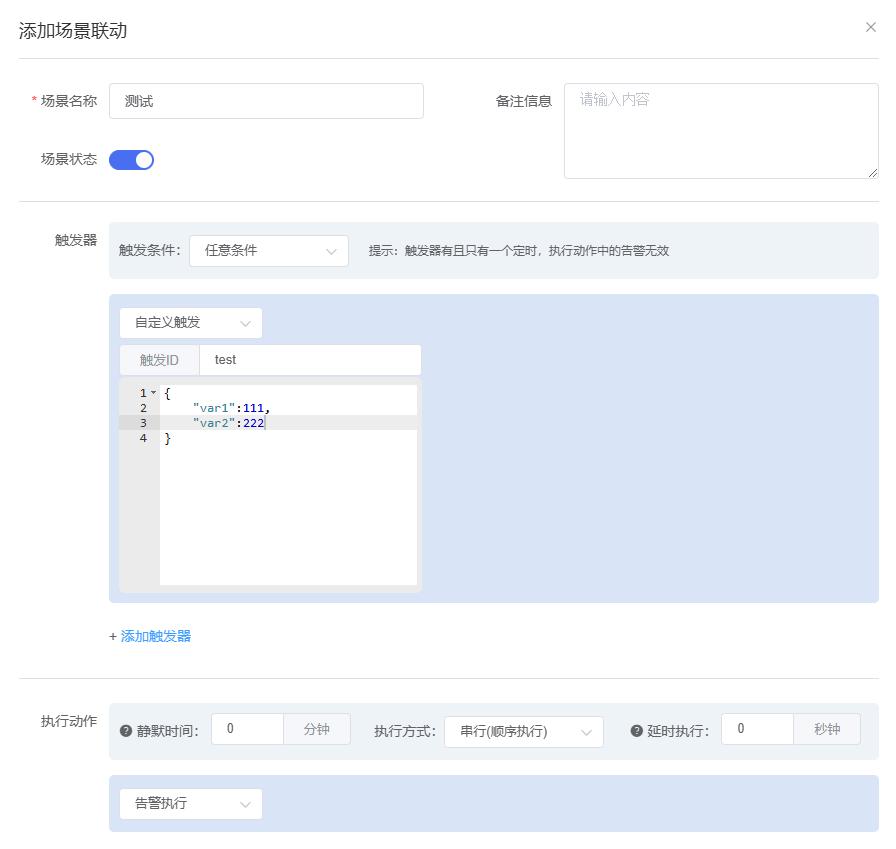
Configuration Notes:
- Trigger ID: used as the id value of the trigger script, for users to query this trigger condition.
- Trigger parameters: used as the value of the trigger script, serving as parameters and judgment conditions. It is a JSON-format string, e.g. {"key1":"value1","key2":"value2"}.
Using in Code:
Taking a scheduled check of device report logs as an example, the scheduled job passes in the trigger ID and the cycle parameter.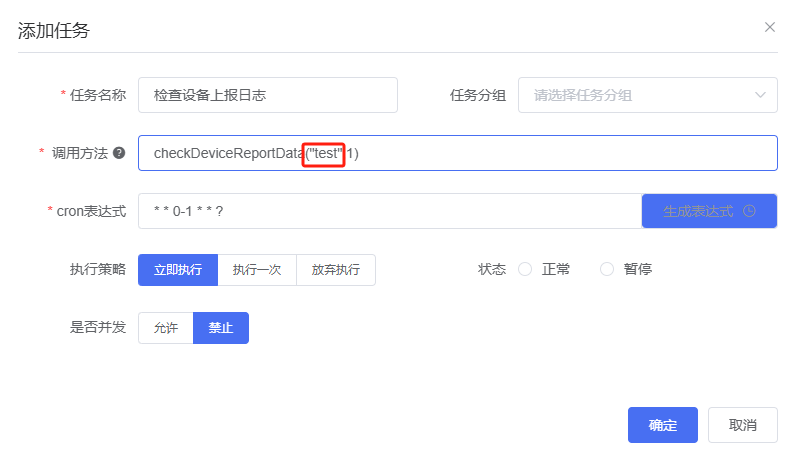
java
// The checkDeviceReportData function in DeviceJob.java

// Query device report logs for the specified cycle (in minutes)
public void checkDeviceReportData(String TriggerId, Integer cycle) {
    Calendar calendar = Calendar.getInstance();
    Date now = new Date();
    calendar.setTime(now);
    calendar.add(Calendar.MINUTE, -cycle);
    // Query device report logs for the specified cycle (in minutes)
    deviceLogService.selectDeviceReportData(calendar.getTime(), now).forEach(item -> {
        // Get the list of properties with no reports
        if (!item.getUnReportList().isEmpty()) {
            item.getUnReportList().forEach(s -> {
                // Pass in the trigger ID, device serial number, and the property ID with no reports, then execute the alarm
                alertPush(TriggerId, item.getSerialNumber(), s);
            });
        }
    });


    // Part of the code omitted.....
    // Get the alarm scene ID
    SceneScript triggerScript = new SceneScript();
    SceneScript alertlog = new SceneScript();
    // Set the trigger ID to filter by
    triggerScript.setId(TriggerId);
    // Get the script list
    List<SceneScript> list = sceneScriptService.selectSceneScriptList(triggerScript);
    if (!list.isEmpty()) {
        triggerScript = list.get(0);
        alertlog.setId(identity);
        alertlog.setValue("No data reported");
        // Get the scene ID corresponding to the script
        alertlog.setSceneId(triggerScript.getSceneId());
    } else {
        return;
    }
    // Custom trigger action logic, or get the scene action script and execute the corresponding action
    // Execute the alarm action
}提示
- Only when a newly created scene contains an Alarm execution can alarm configurations be associated with that scene. When the trigger conditions are met, alarm SMS/voice/email messages and WeChat/DingTalk notifications are sent, depending on the alarm configuration. Refer to the Alarm Configuration documentation.
- An alarm log is generated when an alarm is triggered; please handle alarm logs promptly, or configure alarm recovery handling.
- The count to the right of the action "Alarm execution" is the threshold for unhandled alarm records; message notifications are only sent when the number of unhandled alarm records is below that count.