Arduino Development

提示
This article introduces how to use the Arduino tool to develop firmware code for the ESP8266 development board, flash the firmware to the board, and connect the board to the FastBee platform.
1. Arduino Introduction
Arduino is an open-source electronics prototyping platform that includes hardware (various models of Arduino boards) and software (the Arduino IDE). The following is a detailed introduction to Arduino:
- Development history: Arduino was born at the Ivrea Interaction Design Institute, an art and design school in Italy, and was initiated by Massimo Banzi and others. Since the first Arduino board was released in 2005, Arduino has grown into one of the most popular open-source hardware platforms in the field.
- Hardware composition: An Arduino board mainly consists of a microcontroller (MCU), input/output pins (I/O Pins), a power connector, a USB interface, and a voltage regulator circuit.
- Programming language: Arduino uses a simplified version based on the C/C++ programming language and provides a rich set of library functions, making code easier to write and understand.
- Development environment: The Arduino IDE is developed based on the Processing IDE. It is extremely easy for beginners to master while offering sufficient flexibility.
- Advantages: Arduino is cross-platform, simple and clear, open, and fast-evolving. It supports the three major operating systems — Windows, Macintosh OS X, and Linux — and its programming environment is beginner-friendly.
- Application areas: Arduino can be applied to robotics projects, drones, robotic arms, smart home systems, and many other fields. By connecting various sensors and actuators, Arduino can interact with the environment to complete all kinds of interesting projects.
In short, Arduino is a powerful and easy-to-use open-source electronics prototyping platform, suitable for artists, designers, hobbyists, and anyone interested in developing interactive installations or interactive development environments.
2. ESP8266 Introduction
The ESP8266 is a low-cost, high-performance Wi-Fi chip solution developed by Espressif Systems, widely used in IoT and embedded development. The following is a detailed introduction to the ESP8266:
- Development history: Since its launch, the ESP8266 has quickly gained wide recognition among IoT developers thanks to its powerful features and exceptional cost-effectiveness. It supports multiple working modes, such as STA (station mode), AP (access point mode), and STA+AP hybrid mode, providing flexible network connectivity for devices.
- Hardware composition: The ESP8266 module integrates key components such as an antenna switch balun and a power management converter, so a complete Wi-Fi function can be achieved with minimal external circuitry. It also supports multiple interface standards, such as SDIO 2.0, SPI, and UART, making it easy to connect and communicate with various microcontrollers.
- Programming language: The ESP8266 can be programmed via AT commands and Lua scripts. AT commands are a text-based command language used to control the module's various functions, while Lua is a lightweight programming language suitable for resource-constrained environments.
- Development environment: The ESP8266 development environment is relatively simple — you only need a serial debugging tool to communicate with the module and to flash and debug code. In addition, many third-party development tools and libraries are available, such as the Arduino IDE and AiThinker IDE, which provide rich APIs and example code to help developers get started quickly.
- Advantages: The ESP8266 features high integration, low power consumption, ease of programming, and low cost. It integrates a TCP/IP protocol stack and can connect directly to Wi-Fi networks without additional external chips; its power consumption is also very low, making it suitable for battery-powered scenarios. In addition, the ESP8266 is relatively inexpensive and can be deployed at scale in IoT products.
- Application areas: The ESP8266 is widely used in the IoT field, including but not limited to smart homes, smart vehicles, industrial automation, and smart agriculture. Combined with various sensors and actuators, the ESP8266 can implement remote monitoring, data collection, device control, and other functions, bringing great convenience to people's lives and work.
In short, the ESP8266 is a powerful and easy-to-use Wi-Fi module suitable for various IoT and embedded development scenarios.
3. Setting Up the Development Environment
1. Prepare the Tools
- ESP8266 series development board
- USB-to-TTL module (integrated on some development boards)
- A computer with the Arduino development tool installed
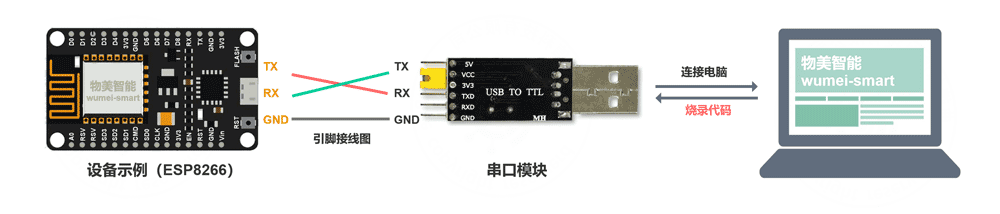
There are many ESP8266 development boards and corresponding products available; you can find and purchase them on Taobao. A commonly used USB-to-TTL cable is, for example, the CH340 module, which is mainly used to connect the device to the computer for flashing code. When wiring, connect TX to RX, RX to TX, GND to GND, and connect the GPIO0 pin to the GDN pin to pull it low and enter flashing mode. The latest version of the Arduino development tool can be downloaded from the official website.
2. Arduino Development Environment
提示
Installation failures may be caused by network issues and may require a VPN; you can find free accelerators online.
2.1 Install the Board
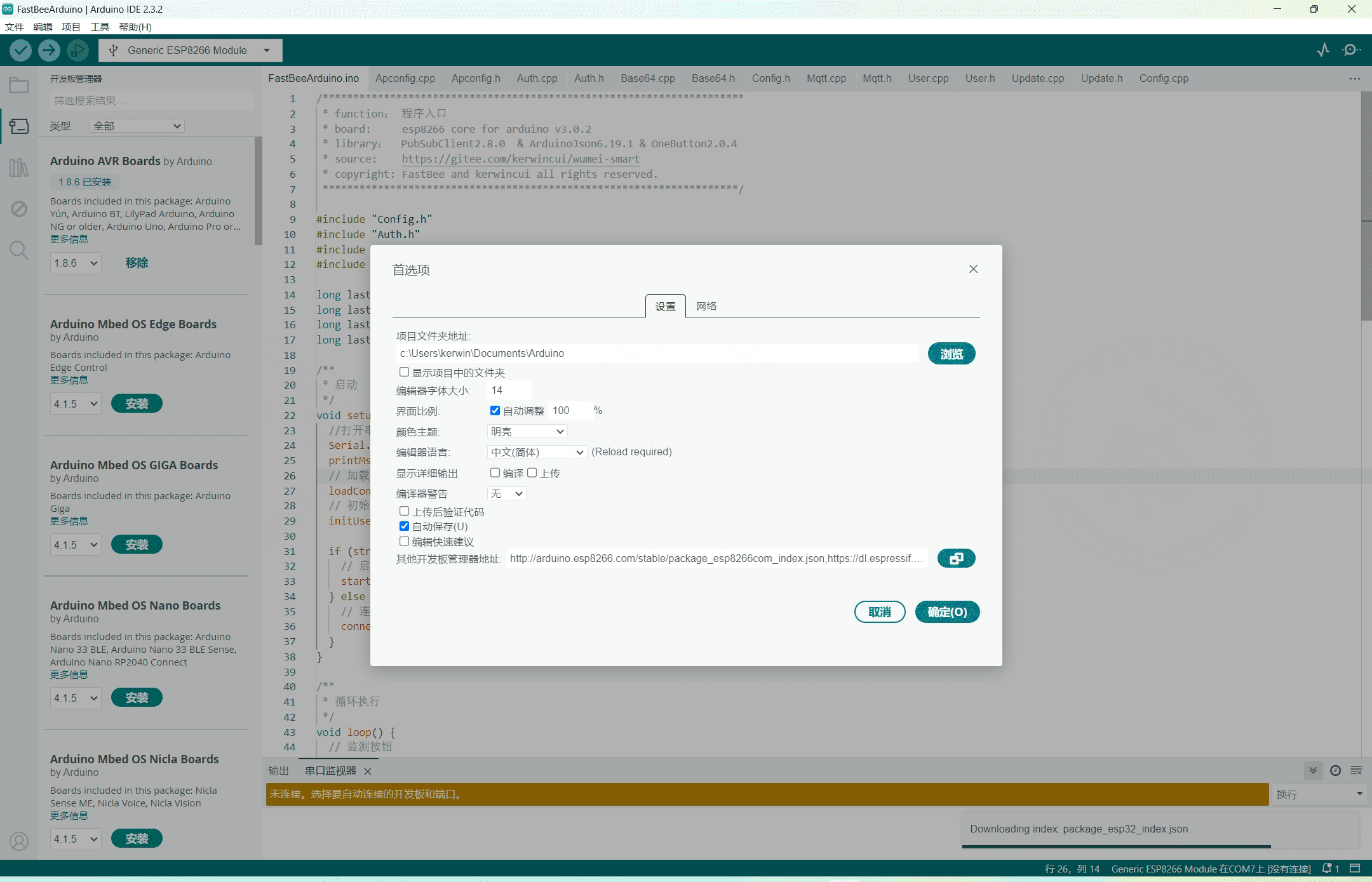
First, you need to configure the Arduino Core for ESP8266. It provides support for the ESP8266 chip in the Arduino environment, allowing you to write code with Arduino libraries and functions and run it directly on the ESP8266; it is a plugin for developing ESP8266 on the Arduino platform. In the Arduino development tool, open File -> Preferences -> Additional Board Manager URLs and add http://arduino.esp8266.com/stable/package_esp8266com_index.json.
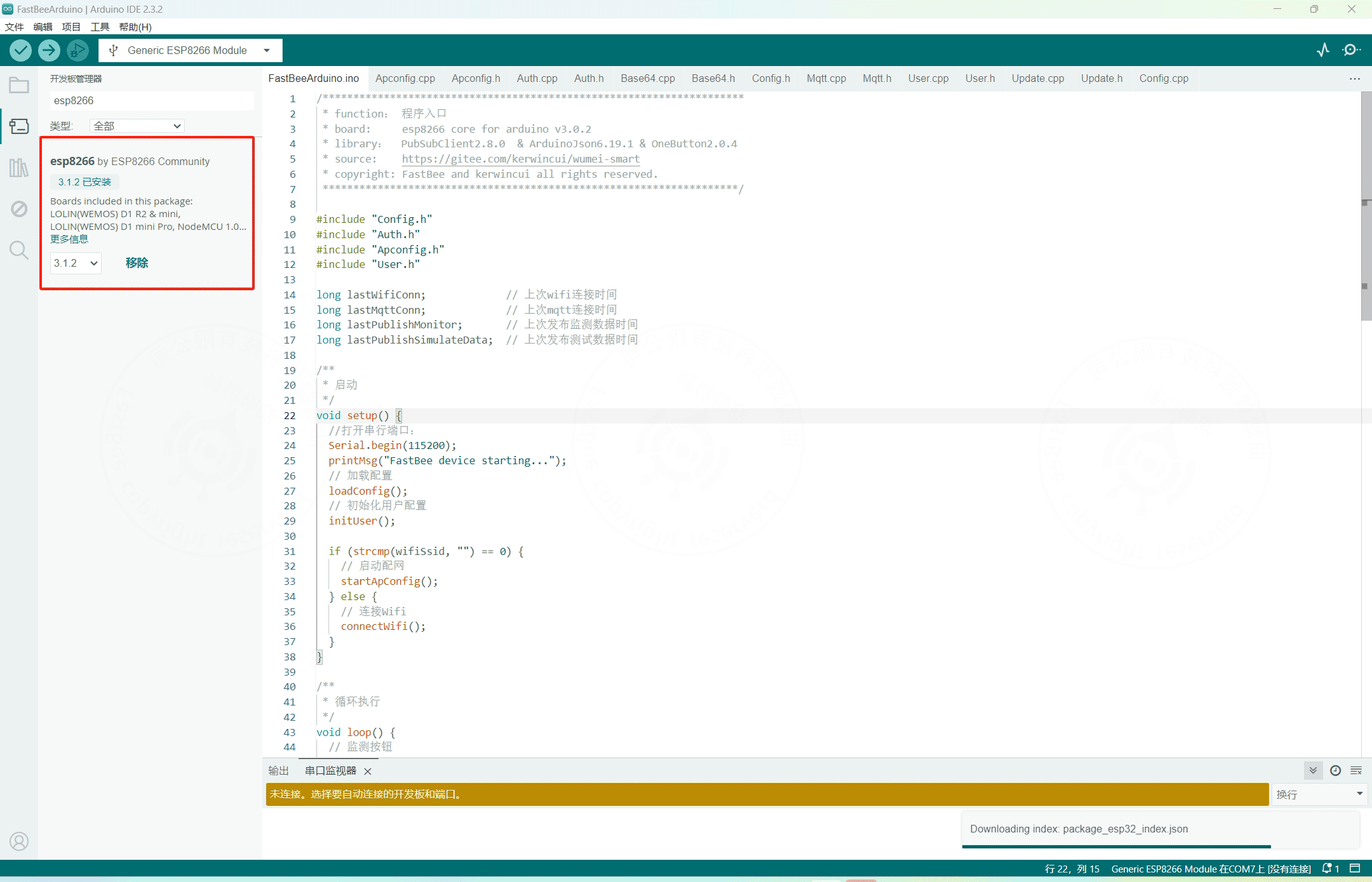
Then install the ESP8266 board: open Tools -> Board -> Board Manager, search for "esp8266 community" and install it.
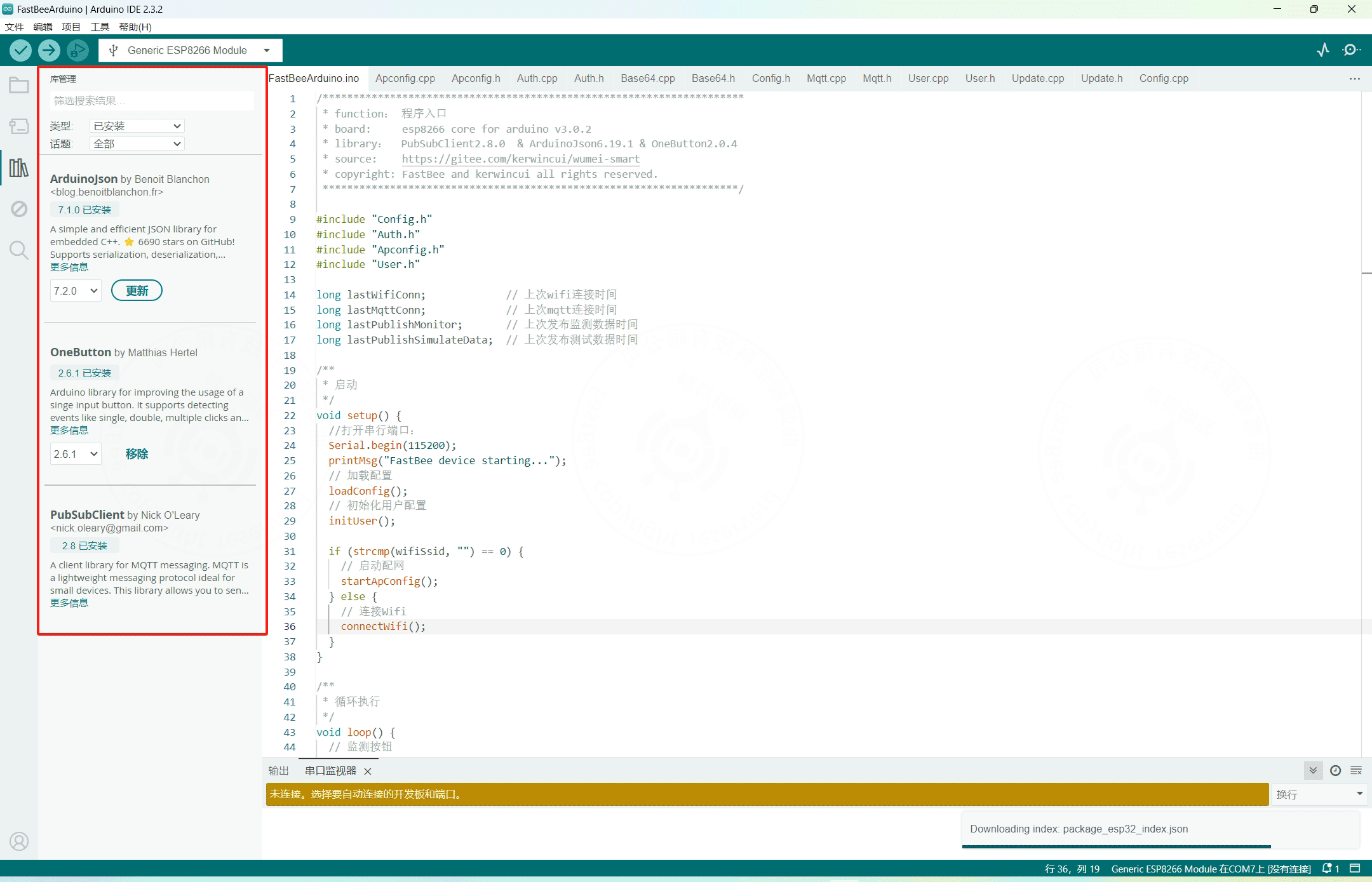
2.2 Install the Libraries Open Tools -> Manage Libraries, then search for and install PubSubClient, ArduinoJson, and OneButton; try to keep the versions consistent:
- ArduinoJson 7.2.0
- OneButton 2.6.1
- PubSubClient 2.8.0
2.3 Arduino Structure
Configure initialization parameters in the setup method, such as IO pin modes, serial baud rate, and MQTT connection information. The code in the loop method runs repeatedly and holds the business logic, such as listening for messages.
void setup(){
    // Write initialization code here; it runs only once
}

void loop(){
    // Write code that runs repeatedly
}4. FastBee Firmware Code
1. Firmware Code Overview
When using this SDK, you mainly modify the configuration information in Config.cpp, and implement custom functions in User.cpp according to the product Thing Model.
├───FastBeeArduino.h   #Program entry
├───Apconfig.cpp       #Device network provisioning
├───Apconfig.h
├───Auth.cpp           #Device authentication
├───Auth.h
├───Base64.cpp         #Base64 encoding and decoding
├───Base64.h
├───Config.cpp         #Global configuration information (adjust according to server information and device features)
├───Config.h
├───Mqtt.cpp           #Device interaction
├───Mqtt.h
├───User.cpp           #User-defined functions (adjust according to device features)
├───User.h
├───Update.cpp         #OTA upgrade
├───Update.hImplemented features:
- Wi-Fi connection, MQTT connection, device encryption authentication, device network provisioning, publishing device information, subscribing to device upgrades, getting the current device time via HTTP and MQTT
- Publishing and subscribing to the Thing Model (properties, functions, events)
- Real-time monitoring and simulated reporting of monitoring data
- User-defined functions: relay on/off
- OTA upgrade
- Flash the Code
- Hardware: after connecting the device and the computer with the USB-to-TTL module, connect GPIO0 to GND and pull it low so the device enters flashing mode. Some development boards integrate a USB serial module; press the button to enter flashing mode directly.
- Software: select the corresponding port and board, click the upload button, and start compiling and flashing the firmware.
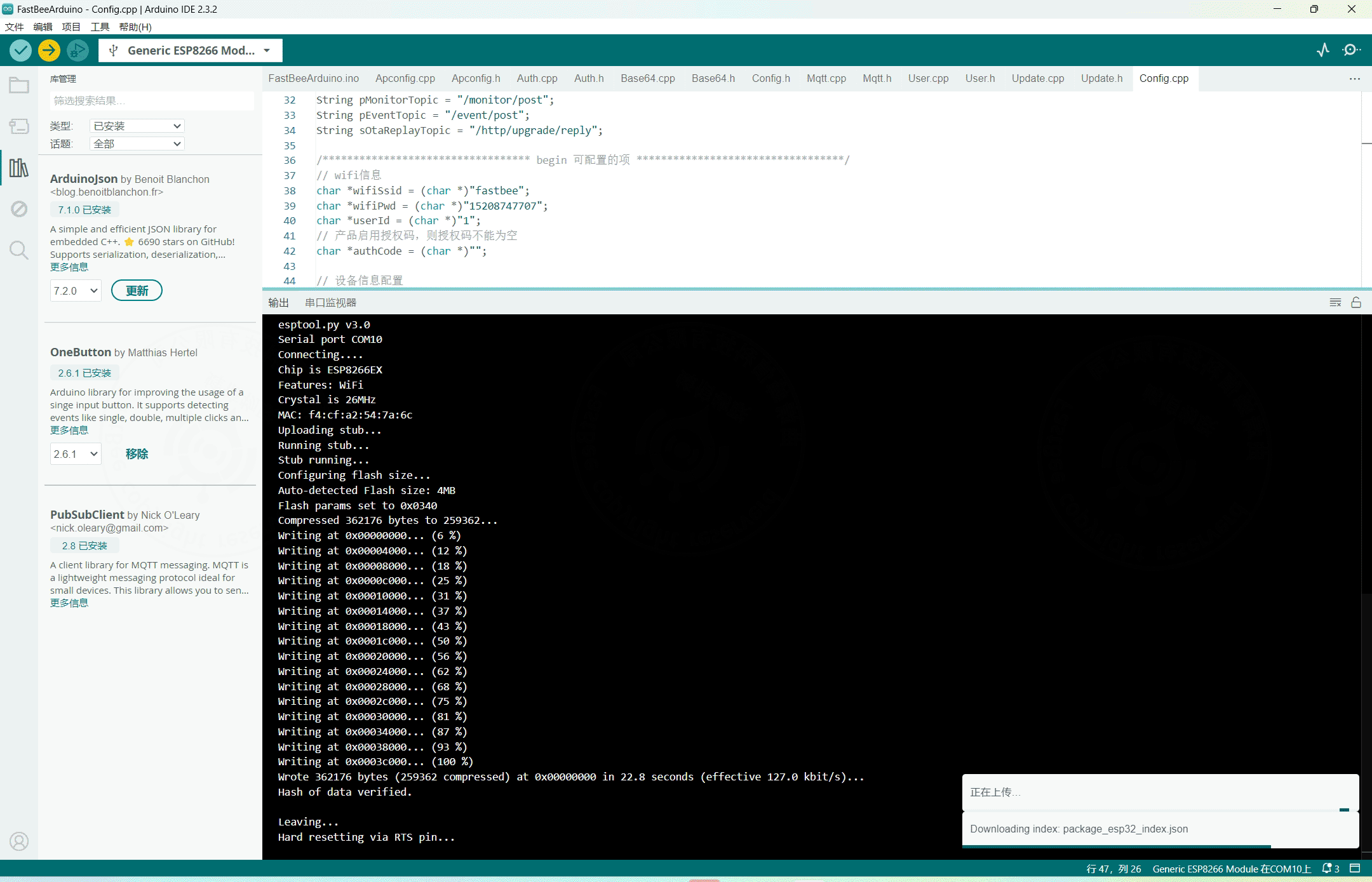
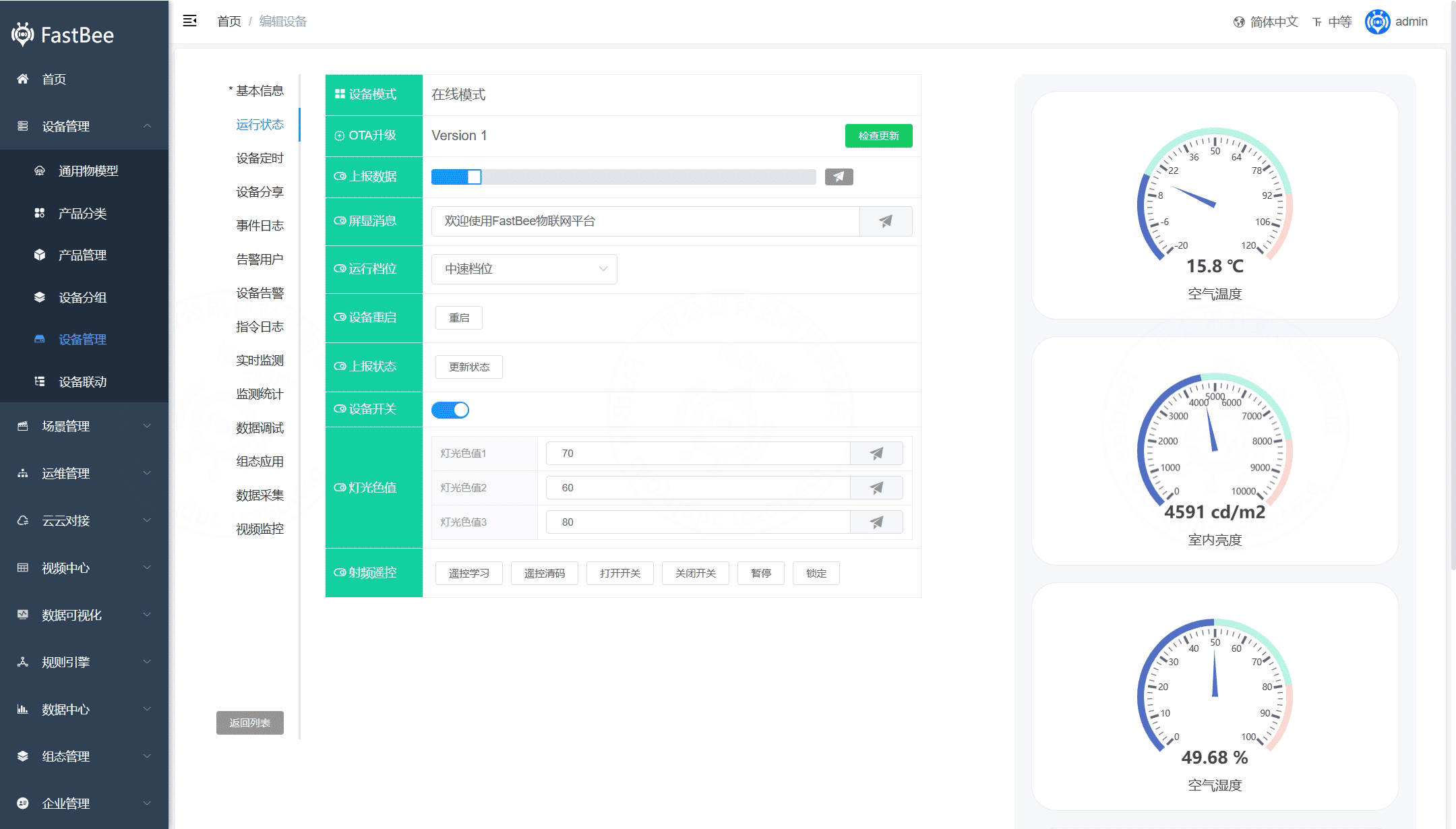
After flashing is complete, restart the device. The corresponding device is automatically created in the FastBee device list, and you can view monitoring data and control the device on the device details page.