

Network packet capture
提示
If there is one must-learn tool for network programming, I would say packet capture is definitely one of them. As the most important method in GB/T 28181 debugging, if you are really interested in it, or you want system problems to be solved as quickly as possible, then you must learn packet capture.
1. Choosing a Packet Capture Tool
1. Wireshark
On systems with a graphical interface, such as Windows or Linux distributions like Ubuntu and openSUSE, I generally use Wireshark directly for packet capture, which also makes it convenient to inspect the contents.
2. Tcpdump
On command-line systems, such as Linux servers, I generally use Tcpdump for packet capture. No extra installation is needed since the system usually ships with it. The captured files can be opened with Wireshark to view the contents conveniently in a graphical interface.
3. Tool Installation
Wireshark is very easy to install — just follow the prompts step by step. On Linux you need to sort out permissions; if you use a graphical Linux distribution like I do, refer to the steps below. Windows users can skip this part.
# 1. Add the wireshark user group
sudo groupadd wireshark
# 2. Change dumpcap to the wireshark user group
sudo chgrp wireshark /usr/bin/dumpcap
# 3. Allow the wireshark user group to use dumpcap with root privileges
sudo chmod 4755 /usr/bin/dumpcap
# 4. Add the user who needs it to the wireshark user group
sudo gpasswd -a $USER wiresharktcpdump usually comes pre-installed on Linux, so no installation is needed. You can verify it like this; if the version information is displayed, it is already installed.
tcpdump --version2. Starting Packet Capture
1. Using Wireshark
With 28181, you generally only care about SIP and RTP packets, so I usually filter for sip and rtp directly — just type sip or rtp in the input box. If there are many device sources, you can also add IP and port filtering: (sip or rtp )and udp.port==5061. You can look up the detailed filter rules yourself; here are some commonly used ones for reference.
- Filter only SIP:
sip- Capture only RTP data:
rtp- Default mode:
sip or rtp- Filter by IP:
sip and ip.addr==192.168.x.x- Filter by port:
sip and udp.port==5061After entering the command to start capturing, you can perform operations such as live preview or playback. When finished, go back to Wireshark and click the red stop button. To save the file, click File -> Export Specified Packets to export the filtered data, or use File -> Save As to save the unfiltered data.
2. Using tcpdump
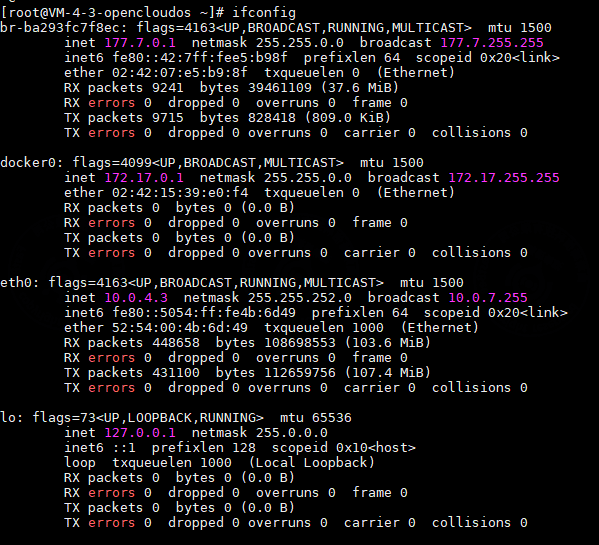
For server packet capture, to get sufficiently complete data, I generally capture the network interface data directly without filtering, as follows: To capture from a network interface you first need the interface name. On Linux I usually use ifconfig or ip addr to get the network interface information, as shown below:
sudo tcpdump -i eth0 -w sip.pcap
The command line will stay at this position. You can now perform operations such as live preview or playback. When finished, go back to the command line and press Ctrl+C to end it. You will get sip.pcap in the current directory; download this file to an operating system with a graphical interface and you can view it with Wireshark. For more operations, refer to:
Advanced filtering (Chinese)>>