

Wap2App package
1. Deploy H5
- Use HBuilderX to package the project into an H5 page, and deploy the H5 page to your own server.
2. Creating a Wap2App Project
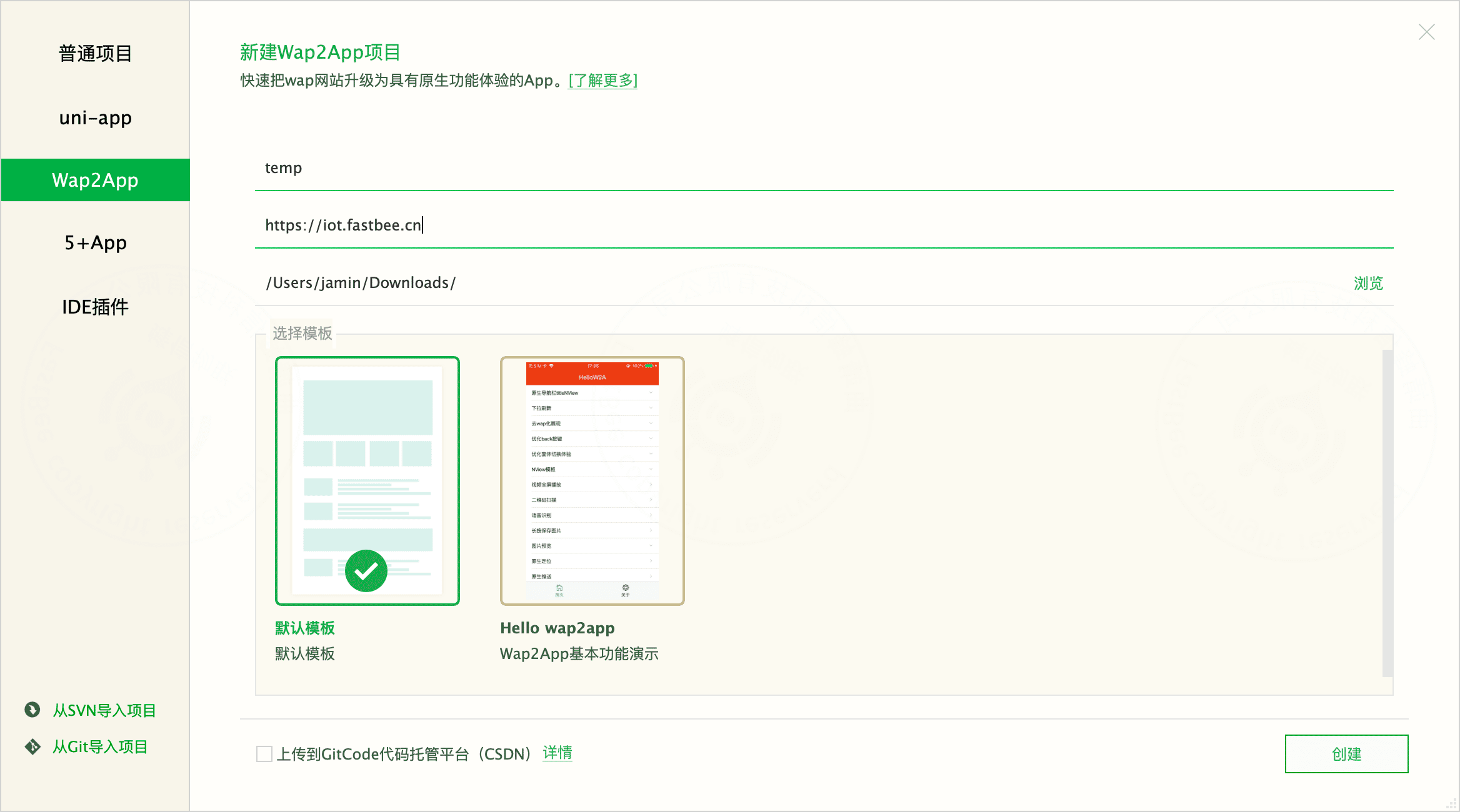
- In HBuilderX, choose File - New - Project to create a Wap2App project. Customize the project name, set the wap site home page address to the H5 deployment address, and select the default template.
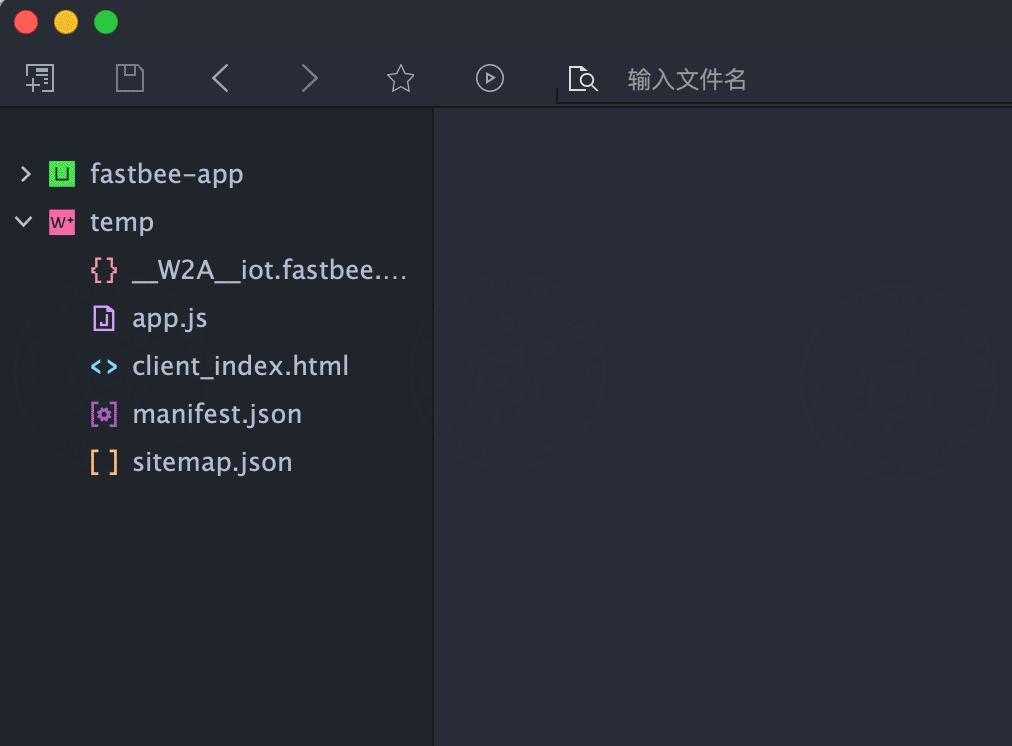
- After the project is created, the default project structure is as follows:
3. Configuring the App Icon and Launch Image
- App icon: the app icon is the icon shown on the phone's home screen after the App is installed. Configure it as follows: double-click to open the manifest.json file, then click the "Icon Configuration" tab at the bottom.
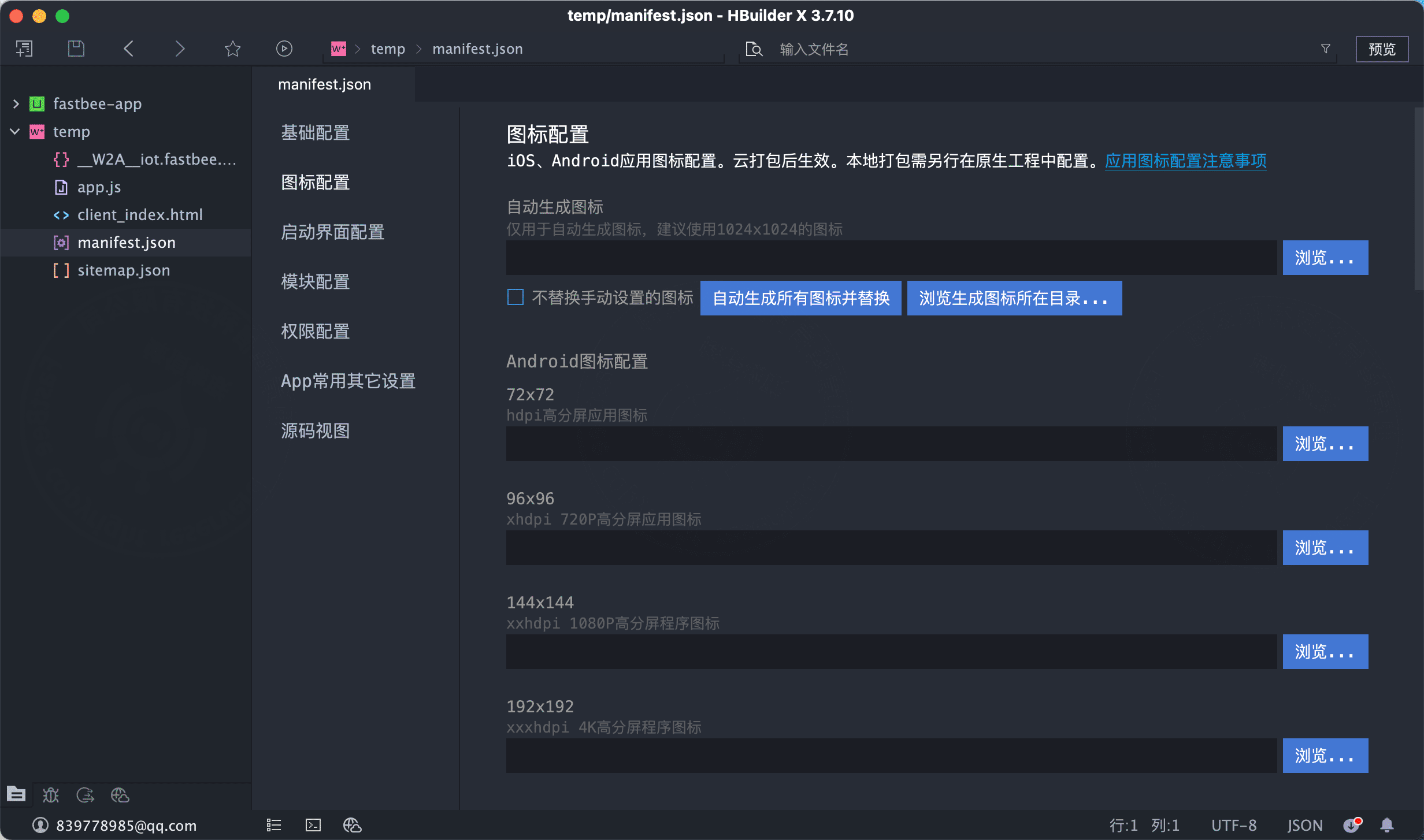
It is recommended to configure a large 1024*1024 icon, then automatically generate and replace icons of various resolutions.
- Launch image: the launch image is the welcome image shown between tapping the desktop icon and entering the app's home page. Configure it as follows.
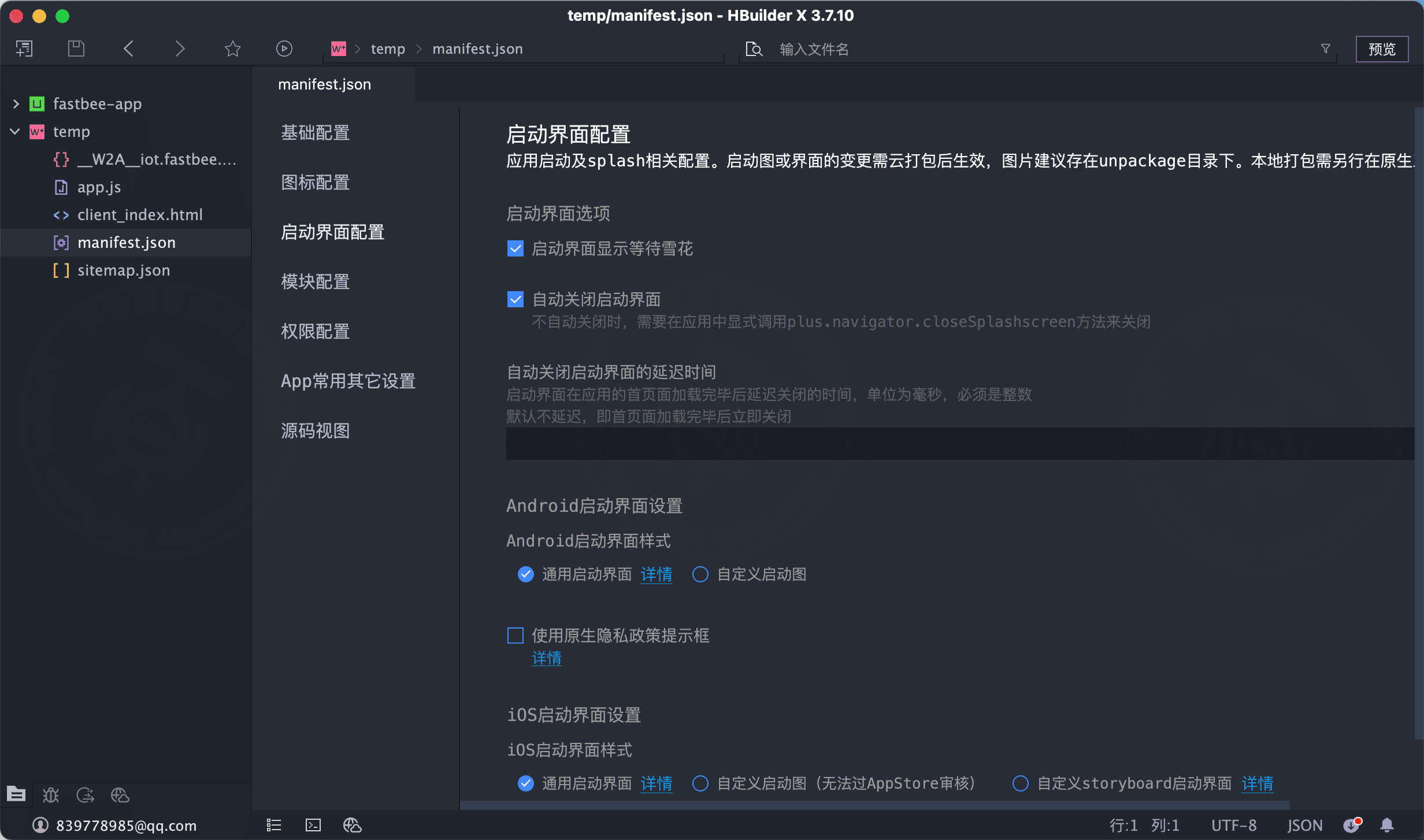
Configure launch images of different resolutions as needed. For example, if you only generate an Android package, you only need to configure the Android launch images.
4. App Publishing
A wap2app project can be packaged into an ipa installation package for the iOS platform or an apk installation package for the Android platform.
In HBuilder, click the "Release" menu at the top, then click "Native App - Cloud Packaging", as shown below:
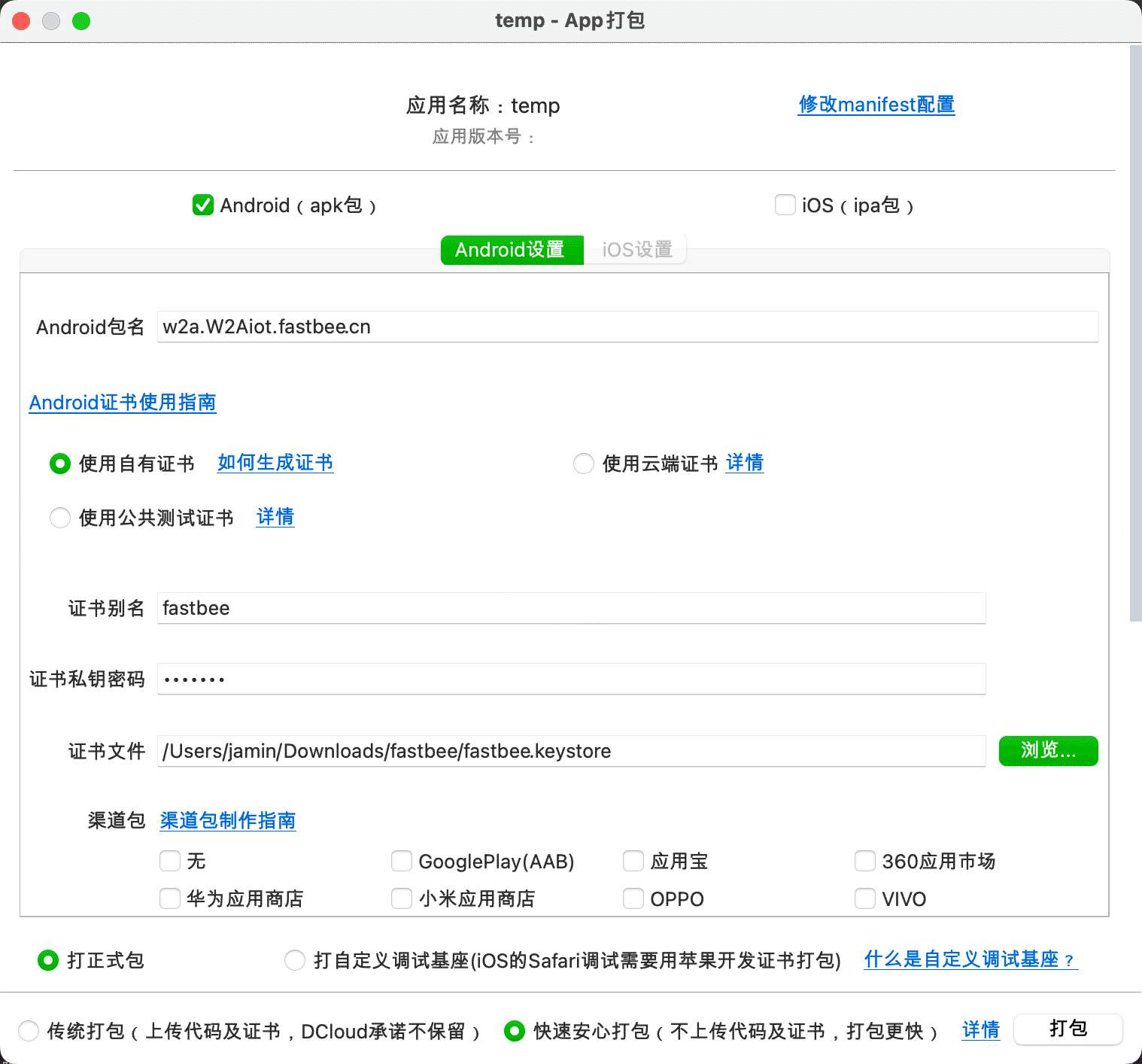
Select the platform to package for and the packaging certificate (packaging for iOS requires an iOS certificate), then click the "Package" button to submit the cloud packaging job. When packaging is complete, the installation package is downloaded automatically; install it on a phone to try it out.
It is recommended to use your own certificate to avoid strange problems during packaging.