

Monitoring Overview
The FMQ Monitoring Overview is used to view cluster health, ingestion rates, event bus, rules, and scheduling resources. When an anomaly is found, you can enter the corresponding detail page to continue troubleshooting.
Preparation
| Item | Description |
|---|---|
| Entry point | FMQ console > Monitoring > Monitoring Overview |
| Page path | /monitor/overview |
| Required permission | Monitoring view permission |
| Estimated time | 8 minutes |
Reading Order
First confirm the monitoring scope and sampling time, then review the receive/send rates, online devices, event bus and rule engine, nodes and thread pools, and the scheduling center and recent anomalies in order.
Statistical Conventions
Before interpreting a metric, check its current value, unit, sampling time, and whether the scope is per node or per protocol. For rates, counts, and backlogs, draw conclusions from related metrics within the same sampling window and their continuous changes, not from a single point value.
Procedure
1. Confirm the Monitoring Scope and Overall Health
- Enter Monitoring Overview and check the monitoring scope at the top of the page.
- Confirm whether the current view is cluster-aggregated or single-node, and verify the node count.
- Check whether the sampling time advances with continuous sampling, then prioritize troubleshooting by module and alert level.

The top of the page shows overall health and the sampling time; the section below shows the monitoring scope and node count.
| Field / Unit | How to Read | Anomaly Signal | First Checkpoint |
|---|---|---|---|
| Monitoring scope (current value) | Confirm whether it is cluster-aggregated or single-node before interpreting other metrics. | Scope is empty, node count is missing, or does not match the current node | Refresh and verify the node selection, then enter the link details. |
| Sampling time (time) | Judge data freshness by whether continuous sampling advances. | Time unchanged for a long period or clearly behind | Check the monitoring API and node heartbeats. |
| Overall health status (status/count) | The modules of concern and alert levels determine troubleshooting priority. | Modules requiring attention or P1/P2 alerts appear | Open the corresponding detail page first, by alert level. |
Data Sources and Normality Criteria
| Field | Data Direction / Source | Normality Criterion |
|---|---|---|
| Monitoring scope | The scope of the monitoring API and the node aggregation level | The page shows a clear current aggregation scope, consistent with the conventions of related metrics. |
| Sampling time | Timestamp of the monitoring sampling API | The page shows a clear latest sampling time, consistent with the conventions of related metrics. |
| Overall health status | Monitoring overview health aggregator | The page shows a clear count of modules requiring attention and a lightweight alert summary, consistent with the conventions of related metrics. |
Expected result: The current monitoring scope is clear, the sampling time keeps updating, and the overall health and alert information can be used to choose the next troubleshooting entry point.
2. Check the Receive and Send Rates
- Locate the Receive / Send Rate area and verify the values and the
messages/sunit. - Compare the receive rate with the send rate to see whether downstream processing keeps up.
- In the Global Receive/Send Rate Trend, look for spikes, dips, gaps, and curve divergence; widen the time window and enter the link monitoring details when needed.
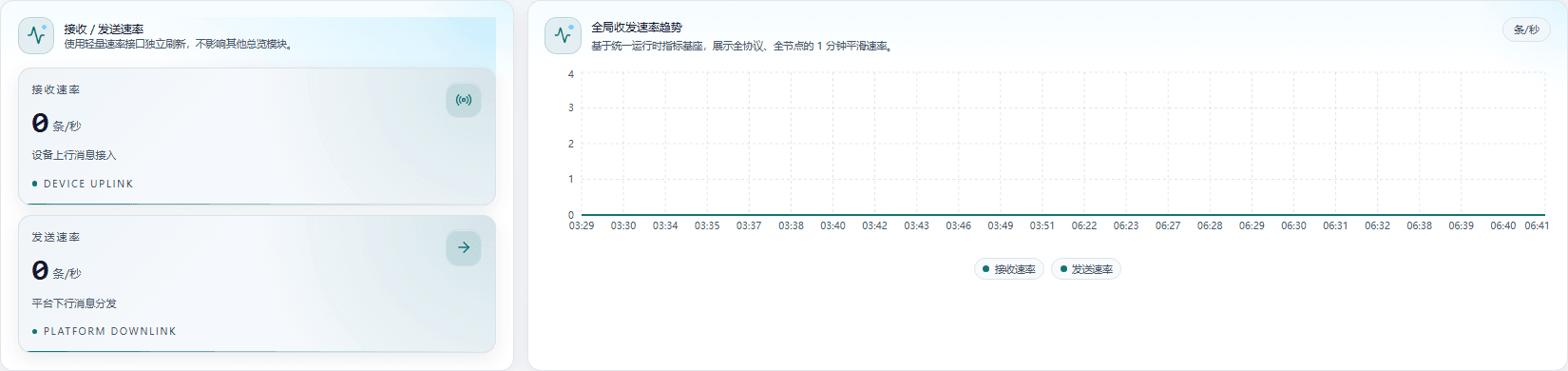
The left side shows the current receive and send rates; the right side shows the global receive/send rate trend.
| Field / Unit | How to Read | Anomaly Signal | First Checkpoint |
|---|---|---|---|
| Receive rate (messages/s) | Compare together with the send rate and the trend. | Stays at 0, drops suddenly, or is inconsistent with the trend | Check online devices and access listeners first. |
| Send rate (messages/s) | The gap with the receive rate reflects whether downstream processing keeps up. | Receive has values while send is 0 or persistently lags behind | Check rule actions, connectors, and downstream backlogs. |
| Global receive/send rate trend (messages/s) | Look for spikes, dips, gaps, and divergence of the receive/send curves; do not judge from a single point. | Trend gaps, long flat periods, or a widening receive/send gap | Widen the time window and go to the link monitoring details. |
Data Sources and Normality Criteria
| Field | Data Direction / Source | Normality Criterion |
|---|---|---|
| Receive rate | DEVICE UPLINK rate API | The page shows a clear rate of device uplink messages entering FMQ, consistent with the conventions of related metrics. |
| Send rate | PLATFORM DOWNLINK rate API | The page shows a clear rate at which FMQ distributes messages to the platform/downstream, consistent with the conventions of related metrics. |
| Global receive/send rate trend | 1-minute trend from the unified runtime metrics foundation | The page shows clear smoothed receive/send curves across all protocols and all nodes over a period of time, consistent with the conventions of related metrics. |
Expected result: The current rates and the trend corroborate each other; if the receive rate has values while the send rate persistently lags behind, continue checking rule actions, connectors, and downstream backlogs.
3. Verify Online Devices and Per-Protocol Breakdown
- Check the Online Devices total and the MQTT, TCP, UDP, and MODBUS breakdowns.
- Compare changes in the total with the per-protocol breakdowns to locate the anomalous entry point.
- If the number of abnormal devices rises, click View Details, troubleshoot by
deviceId, and cross-check against recent abnormal events.
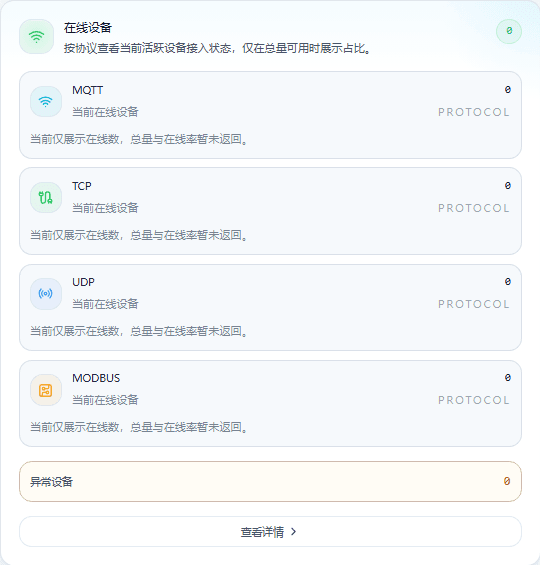
View active devices by protocol, and enter the details from the abnormal devices area.
| Field / Unit | How to Read | Anomaly Signal | First Checkpoint |
|---|---|---|---|
| Online devices (devices) | The total should explain the combined change of the per-protocol breakdowns. | Total drops suddenly, is 0, or does not match the breakdowns | Check MQTT, TCP, UDP, and Modbus one by one. |
| MQTT (devices) | Compare with the total online count to locate changes at the MQTT entry point. | Breakdown drops suddenly or its share is abnormal | Check the MQTT listener, sessions, and authentication. |
| TCP (devices) | Used to identify connection-oriented TCP entry activity. | Breakdown stays at 0 or drops suddenly | Check the TCP listener and connection establishment logs. |
| UDP (devices) | Used to identify whether the connectionless UDP entry is still active. | No activity for a long time, or inconsistent with message traffic | Check the UDP listener and device uplink messages. |
| MODBUS (devices) | Explain Modbus activity together with the scheduled task count and device status. | Breakdown does not match scheduled tasks or device status | Enter the Modbus scheduling center and verify the tasks. |
| Abnormal devices (devices) | Abnormal devices should corroborate the per-protocol breakdowns and recent abnormal events. | Count rising, or abnormal devices that cannot be located | Click View Details and troubleshoot by deviceId. |
Data Sources and Normality Criteria
| Field | Data Direction / Source | Normality Criterion |
|---|---|---|
| Online devices | Device session/online status snapshot | The page shows a clear current total of active devices, consistent with the conventions of related metrics. |
| MQTT | MQTT session snapshot | The page shows a clear breakdown of MQTT active devices, consistent with the conventions of related metrics. |
| TCP | TCP session snapshot | The page shows a clear breakdown of TCP active devices, consistent with the conventions of related metrics. |
| UDP | UDP runtime snapshot | The page shows a clear breakdown of UDP active devices, consistent with the conventions of related metrics. |
| MODBUS | Modbus session and scheduling snapshot | The page shows a clear breakdown of Modbus active devices, consistent with the conventions of related metrics. |
| Abnormal devices | Device status aggregation API | The page shows a clear count of devices identified as abnormal by the page, consistent with the conventions of related metrics. |
Expected result: Changes in the total online devices and the per-protocol breakdowns can explain each other; abnormal devices can be further located through the details and event information.
4. Check the Event Bus and Rule Engine
- Check the health status of the Disruptor Event Bus and the results of the lightweight checks.
- Compare enqueued and consumed events, and judge processing pressure together with average latency, current backlog, peak backlog, and discarded or failed counts.
- In the Rule Engine, compare rule hits, execution successes, execution failures, and downstream backlog within the same window.
- When an anomaly is found, continue troubleshooting from the View Details entry of the corresponding area.
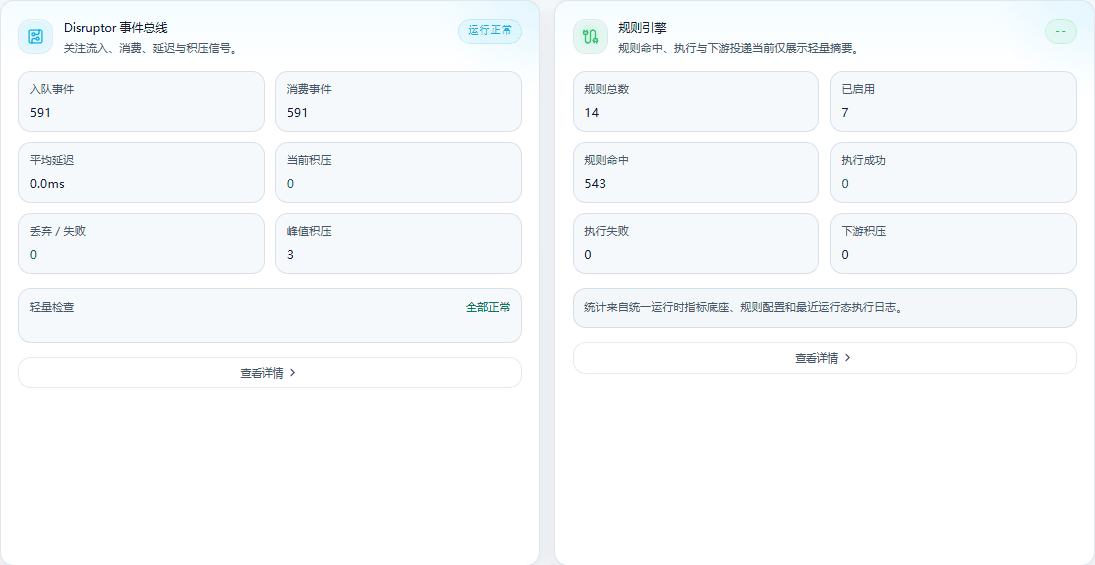
The left side shows the event bus and the right side shows the rule engine; each provides a runtime summary and a detail entry.
| Field / Unit | How to Read | Anomaly Signal | First Checkpoint |
|---|---|---|---|
| Disruptor event bus (status) | Check the health status first, then compare enqueue, consumption, latency, and backlog. | Status is abnormal or a lightweight check fails | Check consumer threads and event tracing. |
| Enqueued events (messages/window) | Compare with consumed events to judge whether production and consumption are balanced. | Enqueue persistently exceeds consumption, or the current backlog grows | Check consumer threads and thread pools first, then enter the link details. |
| Consumed events (messages/window) | Consumption should grow in step with enqueue. | Consumption stalls, or the gap with enqueue widens | Check consumer exceptions, thread pools, and rejection counts. |
| Average latency (ms) | Judge jointly with the current backlog within the same sampling window. | Latency rises continuously or exceeds the runtime baseline | Check consumer processing time, GC, and thread pools. |
| Current backlog (messages) | Directly reflects the current event processing pressure. | Grows continuously or approaches queue capacity | Reduce downstream pressure and check the consumers. |
| Discarded / Failed (messages) | A non-zero value means events were not processed reliably. | Count keeps increasing | Open event tracing to view failure reasons and retries. |
| Peak backlog (messages) | Identifies short burst pressure; do not look only at the current backlog. | Peak rises window by window | Review the traffic trend and adjust consumer resources. |
| Lightweight check (status) | Only when all checks pass can the basic event link be observed further. | A failure or check timeout occurs | Review event bus exceptions and node resources. |
| Rule engine (status/count) | Compare hits, successes, failures, and downstream backlog within the same window. | Failures grow or a downstream backlog appears | Enter the rule and connector details. |
| Total rules (rules) | Compare with the enabled count to confirm configuration loaded completely. | Total drops abnormally or is 0 | Verify the rule release version and synchronization status. |
| Enabled (rules) | The enabled count determines the range of rules that can actually be hit. | Enabled count does not match the expected version | Check rule switches and release records. |
| Rule hits (times/window) | Together with execution success/failure, shows the completion of rule actions. | Hits increase but executions do not change | Check rule action triggers. |
| Execution success (times/window) | Successes should explain the executable portion of hits. | Stays at 0 for a long time or clearly lags behind hits | Check the action executor and downstream dependencies. |
| Execution failure (times/window) | Failures directly reflect action processing errors. | Failures keep growing | Review failure stacks, retries, and connector status. |
| Downstream backlog (messages) | Together with the send rate and execution successes, judges delivery bottlenecks. | Backlog keeps increasing | Check connector availability and downstream rate limiting. |
Data Sources and Normality Criteria
| Field | Data Direction / Source | Normality Criterion |
|---|---|---|
| Disruptor event bus | Disruptor runtime snapshot | The page shows a clear event bus health summary, consistent with the conventions of related metrics. |
| Enqueued events | Event bus inbound counter | The page shows a clear count of events entering the Disruptor ring buffer, consistent with the conventions of related metrics. |
| Consumed events | Event bus consumption counter | The page shows a clear count of events consumed from the Disruptor queue, consistent with the conventions of related metrics. |
| Average latency | Disruptor latency statistics | The page shows a clear average time from event enqueue to consumption, consistent with the conventions of related metrics. |
| Current backlog | Disruptor queue depth snapshot | The page shows a clear count of events not yet consumed, consistent with the conventions of related metrics. |
| Discarded / Failed | Event bus failure counter | The page shows a clear cumulative count of events discarded or failed in processing, consistent with the conventions of related metrics. |
| Peak backlog | Disruptor peak statistics | The page shows a clear maximum event backlog within the sampling window, consistent with the conventions of related metrics. |
| Lightweight check | Runtime health probe | The page shows clear fast health check results for the event bus, consistent with the conventions of related metrics. |
| Rule engine | Summary of rule configuration, runtime state, and execution logs | The page shows a clear summary of rule hits, executions, and downstream delivery, consistent with the conventions of related metrics. |
| Total rules | Rule configuration snapshot | The page shows a clear total of loaded rules, consistent with the conventions of related metrics. |
| Enabled | Rule configuration enablement status | The page shows a clear count of currently enabled rules, consistent with the conventions of related metrics. |
| Rule hits | Rule execution counter | The page shows a clear count of successful rule condition matches, consistent with the conventions of related metrics. |
| Execution success | Success count from rule execution logs | The page shows a clear count of successfully completed rule actions, consistent with the conventions of related metrics. |
| Execution failure | Failure count from rule execution logs | The page shows a clear count of failed rule actions, consistent with the conventions of related metrics. |
| Downstream backlog | Rule downstream queue snapshot | The page shows a clear count of rule actions waiting for downstream delivery, consistent with the conventions of related metrics. |
Rule Hits vs. Execution Results
A rule hit does not mean the rule action has completed successfully. If hits increase while execution results do not change, check the rule action triggers; if failures or downstream backlog keep increasing, continue checking the executor, connectors, and downstream dependencies.
Expected result: You can distinguish event consumption pressure, rule action failures, and downstream delivery bottlenecks, and choose the corresponding detail entry.
5. Check Node and Thread Pool Resources
- Verify online status, CPU, memory, and task counts node by node.
- Compare resource usage between nodes and judge from continuous changes whether there is resource saturation or imbalance.
- In Thread Pool Resources, look first at high-risk pools, the highest queue watermark, and cumulative rejections.
- Based on the Top 3 risk pools and the
pool,module, androlelabels, enter the task and thread pool details of the corresponding module.
Public Edition Screenshot Notice
The original screenshots contain actual node addresses and are not shown in the public edition. Verify against the following fields in your own FMQ console; the textual descriptions are fully preserved.
| Field / Unit | How to Read | Anomaly Signal | First Checkpoint |
|---|---|---|---|
| Cluster nodes (nodes) | Verify online status, CPU, memory, and task count node by node. | Node missing, offline, or resource imbalance | Enter the node details and verify cluster synchronization. |
| Node status (status) | All target nodes should remain ONLINE for cluster-scope interpretation. | OFFLINE appears or status flaps | Check node heartbeats, network, and cluster events. |
| CPU (%) | Compare across nodes and judge resource saturation together with task counts. | Persistently above baseline or a single node significantly higher | Check thread pools, scheduled tasks, and process load. |
| Memory (%) | Watch the trend rather than a single peak to identify continuous growth. | Continuous growth, approaching the limit, or imbalance between nodes | Check long-lived sessions, caches, and GC. |
| Tasks (tasks) | Interpret the load together with CPU, thread pool queues, and scheduling completions. | Tasks pile up while completions do not increase | Check the scheduler and execution threads. |
| Thread pool resources (pools/percentage) | Look first at high-risk pools, the highest watermark, and cumulative rejections. | Risk pools appear or rejections grow | Enter the thread pool and task details. |
| Total pools (pools) | Compare with enabled modules to confirm the collection scope is complete. | Total pool count changes suddenly or is 0 | Check the thread pool collector and module status. |
| High-risk pools (pools) | Non-zero means at least one pool needs priority handling. | Count increases or stays non-zero | Locate the specific thread pool by pool/module labels. |
| Highest queue watermark (%) | Together with cumulative rejections, judges whether the pool is near overload. | Watermark keeps rising or approaches capacity | Check submission rate, queue capacity, and consumers. |
| Cumulative rejections (times) | A non-zero value or increment means submissions have been rejected. | Count keeps increasing | Look first at the highest queue watermark and caller burst traffic. |
| Top 3 risk pools (pool name/score) | Determine the first objects to troubleshoot by the pool, module, and role labels. | Specific risk pools appear or the ranking fluctuates | Enter the task and thread pool details of the corresponding module. |
Data Sources and Normality Criteria
| Field | Data Direction / Source | Normality Criterion |
|---|---|---|
| Cluster nodes | Cluster runtime node snapshot | The page shows a clear list of cluster nodes and their runtime snapshots, consistent with the conventions of related metrics. |
| Node status | Cluster membership and heartbeat snapshot | The page shows a clear current ONLINE/OFFLINE status of each node, consistent with the conventions of related metrics. |
| CPU | Node process runtime snapshot | The page shows a clear node CPU usage, consistent with the conventions of related metrics. |
| Memory | Node process runtime snapshot | The page shows a clear node process memory usage, consistent with the conventions of related metrics. |
| Tasks | Node scheduling/running task snapshot | The page shows a clear count of the node's current task load, consistent with the conventions of related metrics. |
| Thread pool resources | Local process thread pool snapshot | The page shows a clear summary of thread pool counts, risk pools, and queue watermarks, consistent with the conventions of related metrics. |
| Total pools | Thread pool registry snapshot | The page shows a clear total of collected thread pools, consistent with the conventions of related metrics. |
| High-risk pools | Thread pool risk assessment result | The page shows a clear count of thread pools reaching the risk threshold, consistent with the conventions of related metrics. |
| Highest queue watermark | Thread pool queue capacity and current length | The page shows a clear highest queue occupancy ratio among all thread pools, consistent with the conventions of related metrics. |
| Cumulative rejections | Thread pool rejection counter | The page shows a clear cumulative count of tasks rejected by thread pools, consistent with the conventions of related metrics. |
| Top 3 risk pools | Thread pool risk ranking snapshot | The page shows the three thread pools with the highest risk scores, consistent with the conventions of related metrics. |
Expected result: Node status and resource differences can be explained, and thread pool risks can be located to a specific pool or module; when a node goes offline, a watermark stays high, or rejections grow, enter the details to continue checking.
6. Check the Scheduling Center and Recent Anomalies
- In the Scheduling Center, look first at the total task count and execution completions, then at health polls, abnormal or circuit-broken tasks, retries, and tasks pending rescheduling.
- Observe the thread pool, time wheel, and queue depth separately to judge whether there is a resource bottleneck.
- In Recent Abnormal Events, build the troubleshooting context from time, level, type, and summary.
- Handle P1 and P2 events first; enter the link details and keep the event time and source.
Public Edition Screenshot Notice
The original screenshots contain actual node addresses and are not shown in the public edition. Verify against the following fields in your own FMQ console; the textual descriptions are fully preserved.
| Field / Unit | How to Read | Anomaly Signal | First Checkpoint |
|---|---|---|---|
| Scheduling center (tasks/status) | Look first at total tasks and completions, then at anomalies, retries, and resource status. | Abnormal/circuit-broken or pending-rescheduling counts grow | Enter the Modbus scheduling runtime state. |
| Total tasks (tasks) | Pair with execution completions and pending rescheduling to judge progress. | Total missing, drops sharply, or does not match the released configuration | Verify product parameters and the effective version. |
| Execution completions (tasks/window) | Completions should grow steadily with total tasks and health polls. | Total tasks exist but completions stall | Check device responses and execution threads. |
| Health polls (times/window) | Confirms the scheduler is still running periodically. | Stays at 0 for a long time or stops growing | Check scheduling threads, the time wheel, and node status. |
| Abnormal / Circuit-broken (tasks) | Non-zero means protection mechanisms have intervened; correlate with recent anomalies. | Count increases or stays non-zero | Review the specific tasks, device status, and circuit-breaking reasons. |
| Retry scheduling (tasks) | Together with execution failures and pending rescheduling, judges recovery pressure. | Retry volume keeps increasing | Check failure reasons, backoff, and device reachability. |
| Pending rescheduling (tasks) | Non-zero means tasks have not yet returned to their normal cycle. | Queue keeps growing | Check circuit breaking, retries, and device responses. |
| Resource status (status/percentage) | Observe the thread pool, time wheel, and queue depth separately. | Any resource reaches a high watermark or is unavailable | Resolve the resource bottleneck first, then look at task anomalies. |
| Thread pool (threads/percentage) | Together with scheduled task completions and queue depth, judges execution capacity. | High occupancy, rejections, or threads unavailable | Check the scheduling thread pool configuration and execution time. |
| Time wheel (percentage/ticks) | Used to judge whether timed tasks leave the wheel on schedule. | Time wheel at a high watermark or tasks delayed | Check scheduling periods, node clock, and task accumulation. |
| Queue depth (messages) | Jointly with pending rescheduling and execution completions, judges queuing pressure. | Depth keeps increasing | Check consumer threads, device responses, and rate limiting. |
| Recent abnormal events (events) | Build the troubleshooting context from time, level, type, and summary. | P1/P2 recur or events stop updating | Open the link details and keep the event time and source. |
| Latest anomaly time (time) | Sort by time to identify whether the fault is persistent. | Dense repetition within the same period | Correlate node, protocol, and task logs. |
| Latest anomaly level (P1/P2/P3) | Handle P1/P2 first, then reminder-level events. | High-level events keep appearing | Escalate by level and preserve evidence. |
| Latest anomaly type (type) | The type selects the troubleshooting entry of the corresponding module. | The same type recurs | Enter the session, rule, or connector details by type. |
| Latest anomaly summary (text) | The summary should combine with time, level, and type into a traceable event. | Summary missing, truncated, or inconsistent with the type | Go back to the original event and link tracing. |
Data Sources and Normality Criteria
| Field | Data Direction / Source | Normality Criterion |
|---|---|---|
| Scheduling center | Modbus scheduling KPI and SessionScheduler snapshot | The page shows a clear summary of scheduled tasks, retries, and resources, consistent with the conventions of related metrics. |
| Total tasks | Scheduling runtime task snapshot | The page shows a clear current total of scheduled tasks, consistent with the conventions of related metrics. |
| Execution completions | SessionScheduler completion count | The page shows a clear count of scheduled tasks completed within the sampling window, consistent with the conventions of related metrics. |
| Health polls | Scheduling health check counter | The page shows a clear count of completed scheduling health polls, consistent with the conventions of related metrics. |
| Abnormal / Circuit-broken | Scheduling anomaly and circuit-breaking counts | The page shows a clear count of tasks that entered abnormal or circuit-breaking protection, consistent with the conventions of related metrics. |
| Retry scheduling | Scheduling retry queue snapshot | The page shows a clear count of tasks scheduled for retry, consistent with the conventions of related metrics. |
| Pending rescheduling | Scheduling pending queue | The page shows a clear count of tasks waiting to re-enter the scheduling queue, consistent with the conventions of related metrics. |
| Resource status | SessionScheduler resource snapshot | The page shows a clear summary of scheduling thread pool, time wheel, and queue resources, consistent with the conventions of related metrics. |
| Thread pool | SessionScheduler thread pool snapshot | The page shows a clear occupancy status of the scheduling-dedicated thread pool, consistent with the conventions of related metrics. |
| Time wheel | SessionScheduler time wheel snapshot | The page shows a clear occupancy or delay of time wheel scheduling resources, consistent with the conventions of related metrics. |
| Queue depth | Scheduling queue snapshot | The page shows a clear current depth of the scheduling pending-execution queue, consistent with the conventions of related metrics. |
| Recent abnormal events | Abnormal event API | The page shows a clear set of recently returned real alert/abnormal events, consistent with the conventions of related metrics. |
| Latest anomaly time | Abnormal event record timestamp | The page shows a clear occurrence time of abnormal events, consistent with the conventions of related metrics. |
| Latest anomaly level | Abnormal event level field | The page shows a clear severity level of abnormal events, consistent with the conventions of related metrics. |
| Latest anomaly type | Abnormal event type/source field | The page shows a clear abnormal source type, such as SESSION, consistent with the conventions of related metrics. |
| Latest anomaly summary | Abnormal event message/summary field | The page shows a clear readable summary of abnormal events, consistent with the conventions of related metrics. |
Expected result: You can correlate task progress, resource pressure, and recent anomalies, and determine the troubleshooting order by event level and source.
Troubleshooting Order
- Verify the scope and data freshness first. Confirm the node selection is correct and the sampling time is still updating; if abnormal, check the monitoring API and node heartbeats.
- Then check the device and access layer. When receive/send rates drop suddenly or a device breakdown is abnormal, check the corresponding listeners, sessions, and device messages.
- Correlate events with rule processing. Check whether consumption stalls, whether rules fail to execute, and whether connectors or downstream systems have backlogs.
- Check resources and scheduling. Locate bottlenecks by combining node load, thread pool risks, queue watermarks, retries, and circuit breaking.
- Preserve the anomaly context. Record the event time, level, source type, and summary before entering the corresponding detail or tracing entry.
Scope of Operations
This document is for read-only inspection of the Monitoring Overview. The first checkpoints in the tables are used to determine troubleshooting entries; they do not include the complete procedures for modifying listener, rule, thread pool, or scheduling configurations.
Screenshot Notice
The screenshots come from the original manual. The values, sampling times, and abnormal events only represent the state at the time of capture; they do not represent current runtime results and are not fixed thresholds or acceptance baselines.
FastBee · FMQ Monitoring · Original manual date: 2026.09