

Video troubleshooting
提示
If you run into an unresolved issue or bug, please submit an Issue in the FastBee repository.
1. Device cannot register
Check the following items:
- Make sure the monitoring device and the platform can reach each other over the network. If the camera is in a dedicated monitoring intranet, it may not be able to communicate with the platform.
- If the network is reachable, carefully verify every platform access parameter configured on the device. Any incorrect value can prevent registration. After modifying parameters, click Save on the device configuration page.
- Some SIM cards have regional or destination-platform restrictions. If the device uses a dedicated SIM card, ask the device provider to remove the restriction.
2. Device has no channels
The device is registered, but no channel appears under it. This usually happens when connecting an NVR.
Open the platform access configuration page of the monitoring device. A video channel list is usually available near the bottom of the page. Add video channel numbers there.
Channel requirements:
- The channel number can be customized.
- It must be a 20-digit number.
- It must comply with GB/T 28181 coding rules.
- It must be unique.
Example channel numbers:
34020000001320000001
34020000001320000002
...3. Video starts slowly, freezes, or disconnects
Common cause: the video bitrate is too high, or the bandwidth between the device and platform is too low. Video packets cannot be uploaded smoothly or are lost during transmission.
Recommended handling:
- Reduce the video bitrate in the device audio/video configuration.
- If the device supports main/sub stream selection, use the sub stream.
- For wired or Wi-Fi transmission, set the bitrate below
1500 kbps. - For 4G transmission, set the bitrate below
800 kbps. - Check whether the playback computer has enough network bandwidth.
4. Video device status is not updated
Symptoms:
- The device still shows inactive.
- Channel ID shows unused.
Troubleshooting checklist:
- Check whether the Java SIP service is enabled and running.
- Check whether UDP port
5061is allowed by the server security group. - Check whether UDP port
5061is listening.
# Windows
netstat -p udp -ano | find "5061"

# Linux
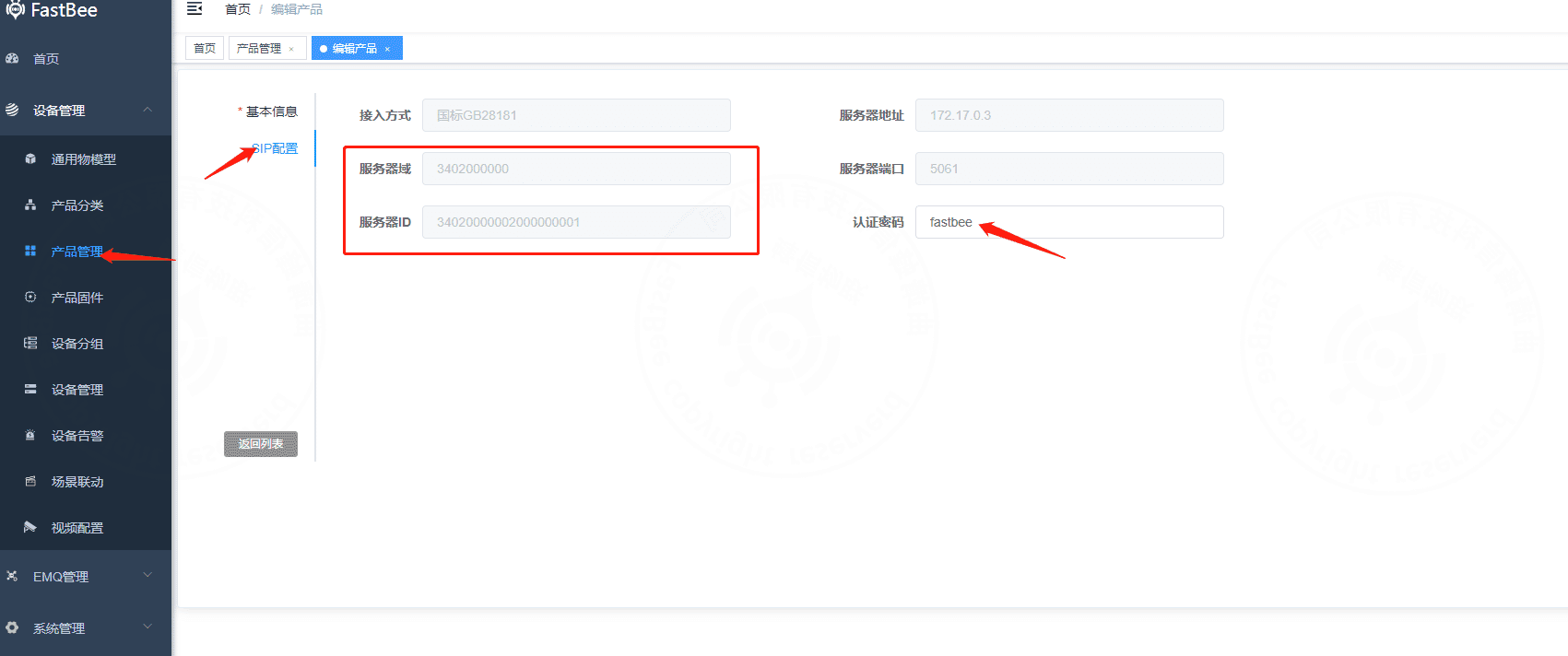
netstat -nlup | grep 5061- Check whether device information is filled in correctly. Server domain, server ID, and authentication password must be consistent with the product configuration.
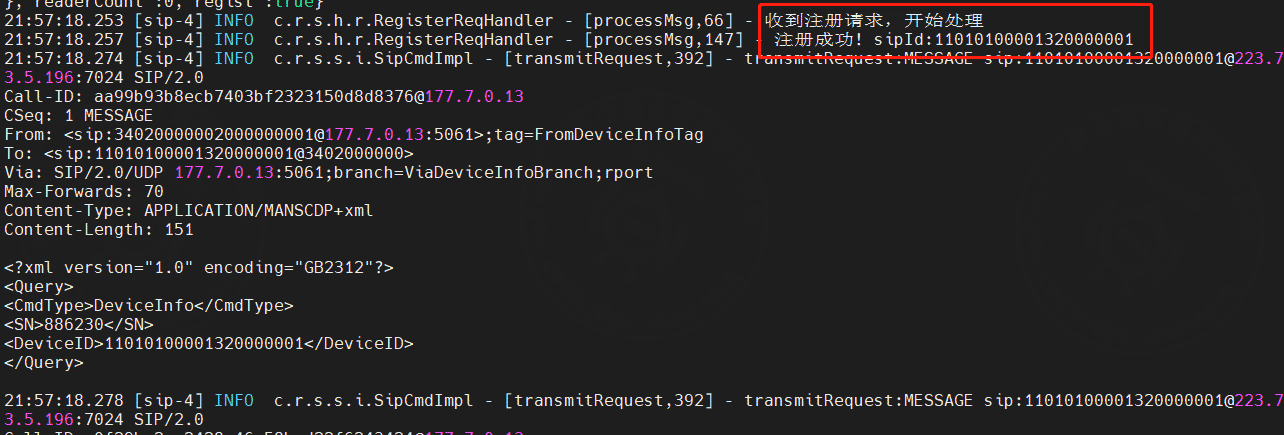
- Check whether Java has SIP registration logs.
- Capture packets and check whether UDP packets reach port
5061. - Check whether the device publishes information to MQTT topic
/{productId}/{deviceId}/info/post. - Check whether the EMQX
emqx_auth_httpauthentication plugin is enabled.
Start with the docker-compose environment and complete one registration flow with the default configuration first. After the flow is clear, adjust the configuration as needed.


5. Live video has no image
Troubleshooting checklist:
- Check whether the streaming server IP is set to the public IP of the deployment server, and update the server domain name when needed.

- Check whether UDP ports
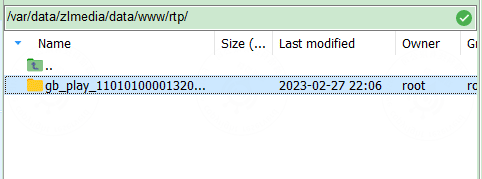
30000-30500are allowed by the server security group for RTP streaming. - Check whether pushed stream files exist under
zlmedia/data/www/rtp.
- If the page shows
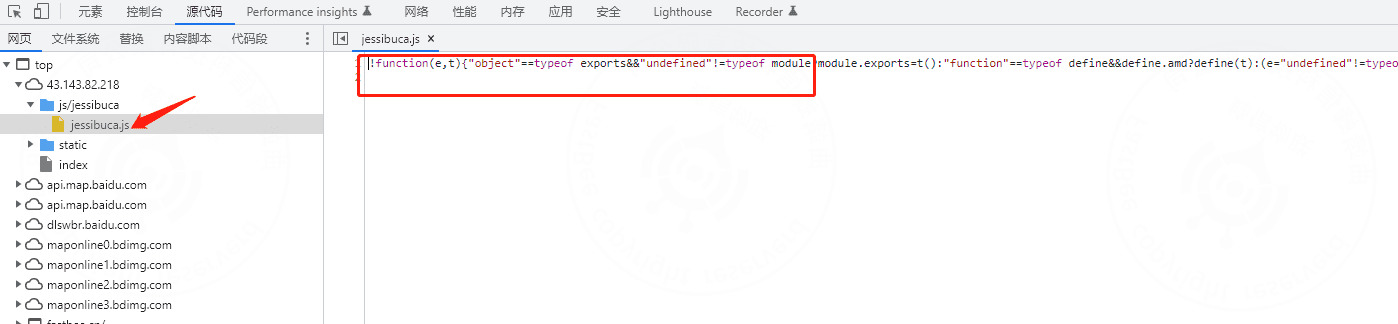
window.Jessibuca is not a constructor, force-refresh the page withCtrl + F5. - Check whether the player JavaScript file is loaded correctly.
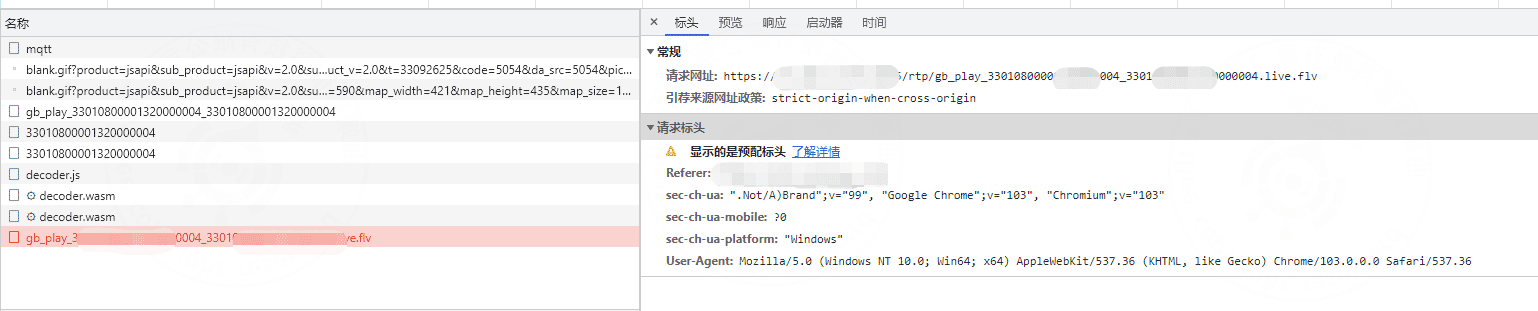
- If the playback URL uses HTTPS, modify the playback protocol and replace the certificate in the streaming service. See Enable HTTPS features in ZLMediaKit.
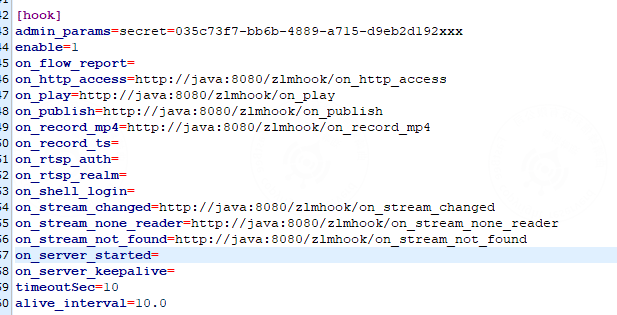
- Check whether the hook configuration in
zlmedia/conf/config.iniis correct and can call the Java hook API.
For intranet debugging, make sure the following network paths are reachable:
- Device -> ZLMediaKit streaming server:
30000-30500/udpRTP push ports. - Device -> Java service:
5061/udpSIP port. - ZLMediaKit -> Java service: Java hook API on port
8080. - Java service -> ZLMediaKit streaming server: HTTP API on port
8082. - Frontend player -> ZLMediaKit streaming server: HTTP port
8082or HTTPS port8443.
Use the official Docker image:
zlmediakit/zlmediakit:masterThe Docker image has been updated. Replace it with the latest image when troubleshooting.
Confirm that the playback URL format is correct and that the browser can open the HTTP or HTTPS address.
https://domain:8443/rtp/{streamId}.live.flv
http://server-ip:8082/rtp/{streamId}.live.flv