

MQTT Client Access and Data Flow
Use a real MQTTX client and the FMQ client details to complete MQTT access, scheduled uplink reporting, detail statistics, recent messages, the full RabbitMQ message flow, platform downlink delivery, actual receipt in MQTTX, offline records, reconnection, and cleanup.
Page Guide
How to Read
Confirm the entry point, permissions, and target object first, then complete the operations in numbered order. Each step includes the expected result; detailed fields and options are collected in expandable reference tables.
Screenshot Notes
The screenshots come from the original operations manual. The public edition hides real node addresses, connection addresses, and credentials; the statuses, times, and data in the examples do not represent the current production environment.
Before You Start
| Item | Description |
|---|---|
| What you can do | Complete device access, uplink, client detail statistics, platform downlink delivery, device receipt, disconnect/reconnect, and cleanup by protocol. |
| Where to enter | After logging in to the FMQ console, go to Devices → Clients. |
| Required permissions | Client viewing and test command permissions. |
| Estimated time | 45 minutes |
Procedure
1. Open the MQTT Clients Page
Location: FMQ Clients page
Go to Devices → Clients, and use the protocol filter and refresh to view the unified MQTT, TCP, and UDP client list.
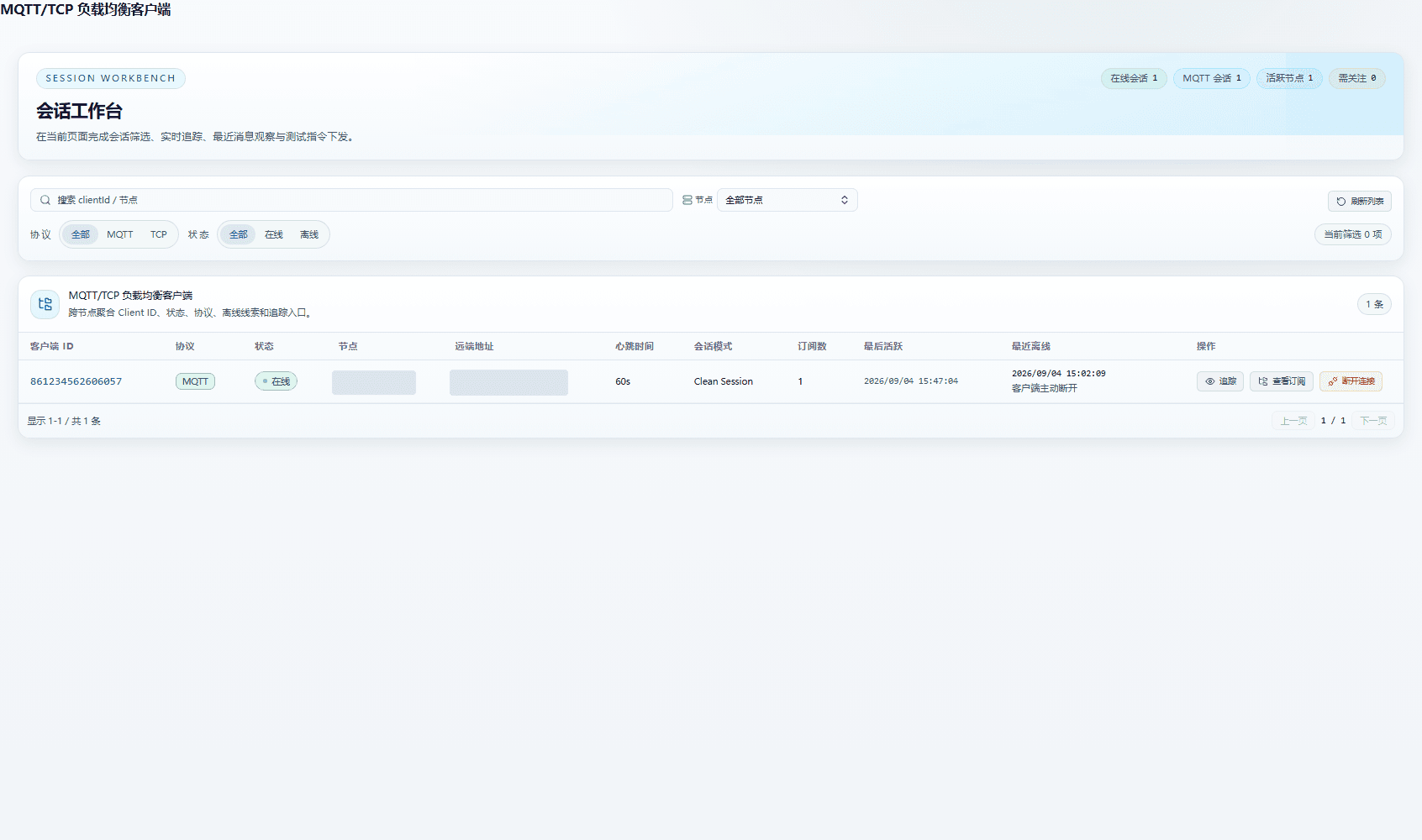
Figure: Screenshot of an individual area from the real platform or device GUI.
Field Descriptions
| Field / Control | Description |
|---|---|
| Client List | View MQTT, TCP, and UDP client sessions in one place; use filters and search to locate the device first. |
2. Review the Client List Fields
Location: FMQ Clients page
Check Client ID, Protocol, Status, Node, Remote Address, Heartbeat Time, Session Mode, Subscription Count, Last Active, and Last Offline.

Figure: Screenshot of an individual area from the real platform or device GUI.
Field Descriptions
| Field / Control | Description |
|---|---|
| Client ID | The device's unique identifier, used to pinpoint a single device. |
| Protocol | The MQTT, TCP, or UDP protocol used by the device for access. |
| Status | Whether the current session is online, offline, or in another running state. |
| Node | The cluster server node the device currently belongs to. |
| Remote Address | The address and port the device uses to connect to the platform. |
| Heartbeat Time | The device's most recent heartbeat or keep-alive time. |
| Session Mode | The connection mode currently used by the session. |
| Subscription Count | The number of topics the MQTT session currently subscribes to. |
| Last Active | The most recent time data was sent or received. |
| Last Offline | The most recent offline time and reason. |
3. Operate a Client Row
Location: FMQ Clients page
On the target row, find the Trace, View Subscriptions, and Disconnect entries; Trace opens the real-time details.

Figure: Screenshot of an individual area from the real platform or device GUI.
Field Descriptions
| Field / Control | Description |
|---|---|
| Search | Narrow results by clientId, sessionId, remote address, or node. |
| Node Filter | View only sessions on a specified cluster node. |
| Protocol Filter | View only MQTT, TCP, or UDP sessions. |
| Status Filter | Filter by online or offline status. |
| Refresh List | Re-read the current runtime sessions. |
| Pagination | Browse more session records. |
| Trace | Enable detail collection for the current session. |
| View Subscriptions | Open the MQTT topic subscription details. |
| Disconnect | Actively end the device session and generate an offline record. |
4. View the Trace Details Overview
Location: FMQ Clients page
Open tracing for the target client and check Connection Status, Node, Established Time, Last Active, bytes written/read, message counts, failure counts, subscription count, and average latency.
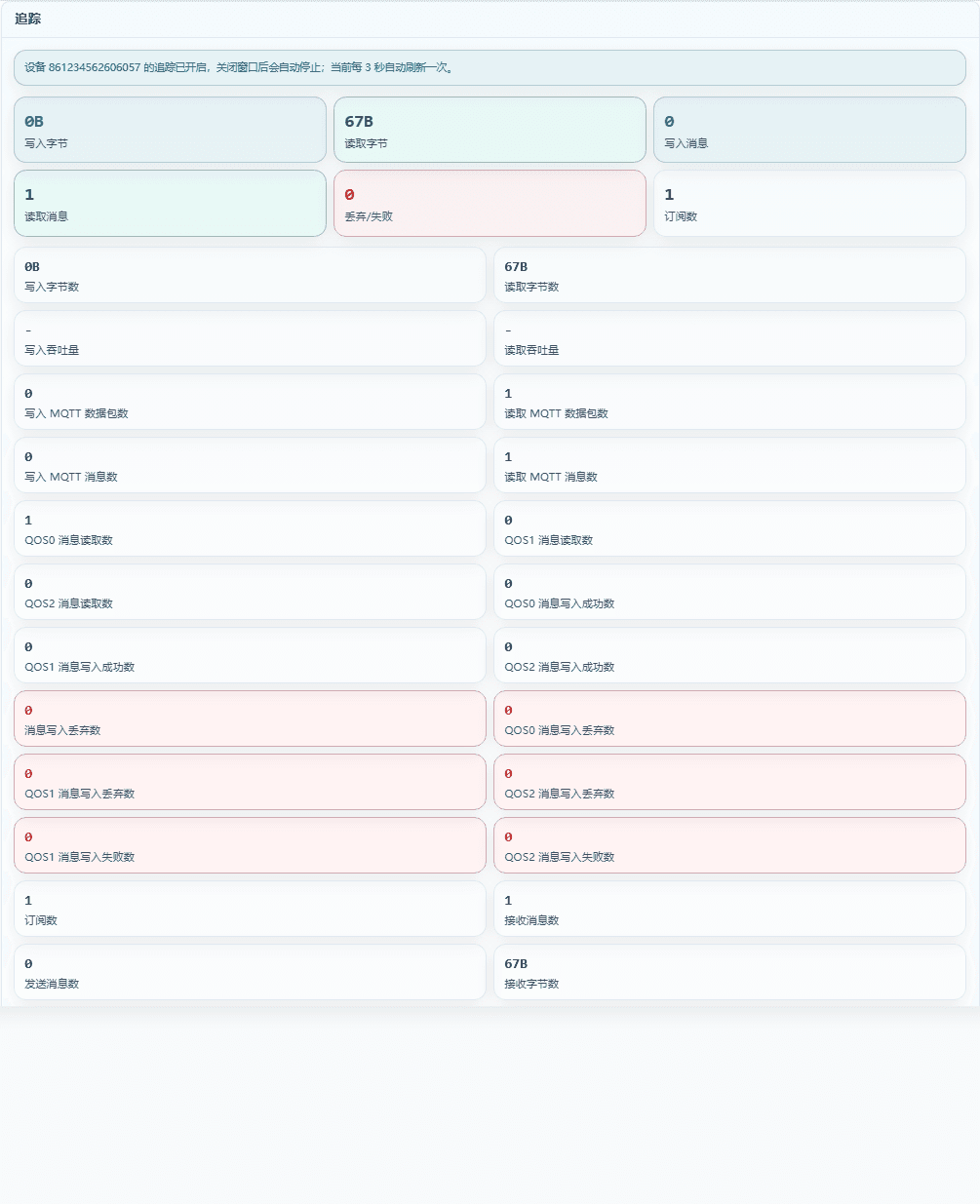
Figure: Screenshot of an individual area from the real platform or device GUI.
Field Descriptions
| Field / Control | Description |
|---|---|
| Connection Status | Whether the current device connection is valid. |
| Node | The cluster node where the session resides. |
| Established Time | When this session was established. |
| Last Active | The most recent activity time. |
| Bytes Written | Cumulative bytes sent from the platform to the device. |
| Bytes Read | Cumulative bytes read by the platform from the device. |
| Messages Written | Number of messages sent from the platform to the device. |
| Messages Read | Number of messages read by the platform from the device. |
| Dropped/Failed | Number of messages dropped or failed to send. |
| Subscription Count | Current number of subscriptions. |
| Average Latency | Average message processing time; shown only when provided by the page. |
5. View Subscribed Topics
Location: FMQ Clients page
Open the Subscribed Topics tab and check the actual downlink topics, QoS, Node, NL, RAP, and RH.

Figure: Screenshot of an individual area from the real platform or device GUI.
Field Descriptions
| Field / Control | Description |
|---|---|
| Topic | The topic address from which the device receives downlink messages. |
| QoS | The topic's quality of service level. |
| Node | The runtime node the subscription belongs to. |
| NL | Whether local publish loopback is disabled. |
| RAP | Whether the original publish flag is preserved. |
| RH | Retained message handling policy. |
6. Send Scheduled Uplink Data from MQTTX
Location: MQTTX
Keep MQTTX connected to mqtt.example.com:1883 and confirm that the uplink JSON to /861234562606057/property/post contains temperature, humidity, and voltage.
Public Edition Screenshot Notes
The screenshots contain the original test broker address; the public edition replaces it with an example domain. The procedure and field descriptions are preserved in full.
7. View Recent Messages
Location: FMQ Clients page
Open the Recent Messages tab and view the time, topic, direction, message ID, size, and payload of real-time uplink messages in JSON, raw text, or HEX.
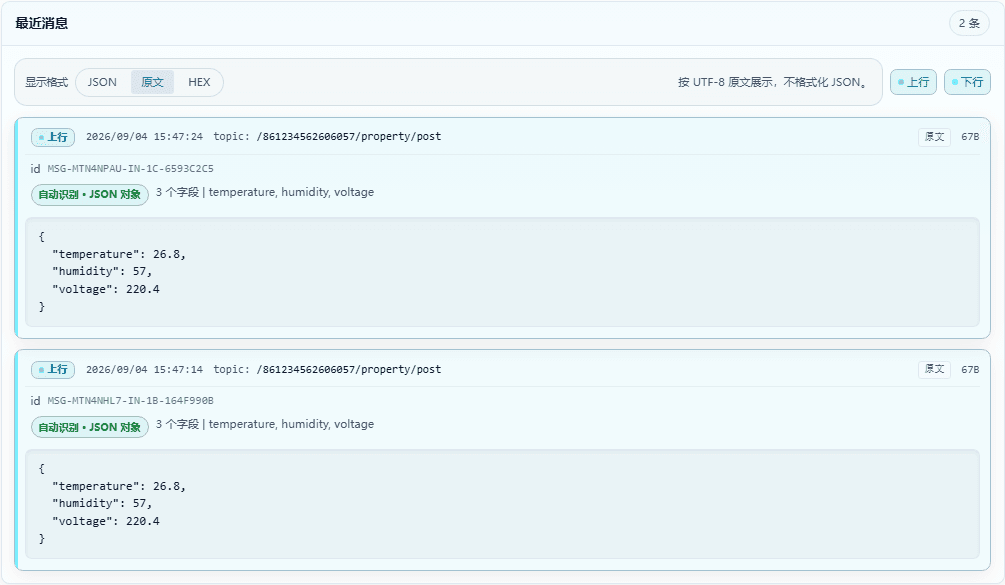
Figure: Screenshot of an individual area from the real platform or device GUI.
Field Descriptions
| Field / Control | Description |
|---|---|
| Display Format | JSON, raw text, or HEX reading mode. |
| Uplink/Downlink | Distinguishes device reporting from platform delivery. |
| Time | When the message entered the detail records. |
| Topic/Address | The source topic or network address of the message. |
| Message ID | A unique identifier associated with one packet. |
| Payload Format | The encoding type of the raw packet. |
| Payload Size | The number of bytes occupied by the packet. |
| Field Recognition | JSON object and a summary of its fields. |
8. View the Full Message Flow
Location: FMQ Clients page
Open Message Flow and expand the process view to check the source topic, RabbitMQ queue, Alink JSON, rule processing, connector, and timeline.

Figure: Screenshot of an individual area from the real platform or device GUI.
Field Descriptions
| Field / Control | Description |
|---|---|
| Source Topic/Address | Where the device uplink enters the platform. |
| Direction | Uplink or downlink direction. |
| Processing Node | Event bus and protocol processing locations. |
| Alink Message | The business message assembled uniformly by the platform. |
| Rule Processing | Whether a rule matched and executed an action. |
| Connector | The reporting egress such as RabbitMQ/Kafka. |
| Process | Expandable timeline from access to reporting. |
9. View Recent Exceptions
Location: FMQ Clients page
Open the Recent Exceptions tab, which lists connection, parsing, routing, delivery, and timeout exceptions; this time the page shows a real empty state.

Figure: Screenshot of an individual area from the real platform or device GUI.
Field Descriptions
| Field / Control | Description |
|---|---|
| Exception Time | When the exception occurred, used for comparison against device actions. |
| Exception Type | Categories such as connection, parsing, routing, delivery, or timeout. |
| Exception Message | The specific exception information recorded by the platform. |
| Empty State | When there are no records, the current session has produced no detail exceptions. |
10. Fill In and Send a Test Command
Location: FMQ Clients page
On the Send Test Command page, enter /861234562606057/function/get, select JSON and QoS 0, review the descriptions of the Retain/Format/Send controls, and send {"command":"get"}.
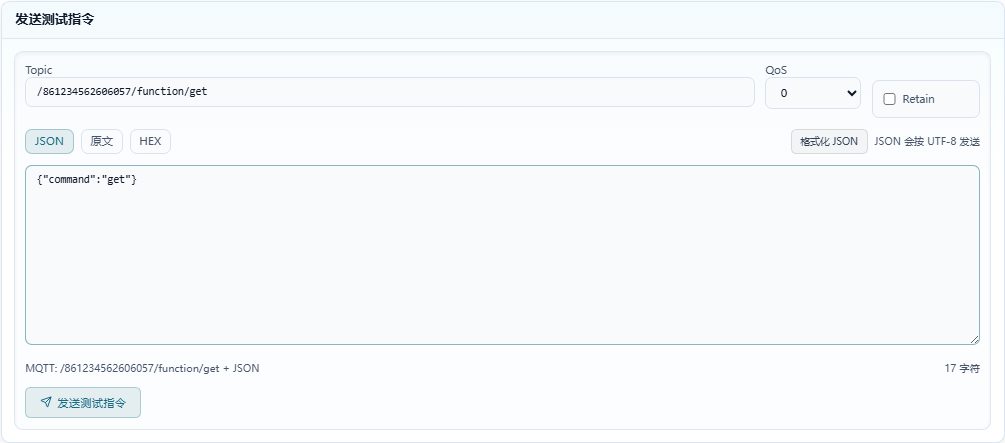
Figure: Screenshot of an individual area from the real platform or device GUI.
Field Descriptions
| Field / Control | Description |
|---|---|
| Topic | MQTT downlink topic; TCP/UDP use the current session target. |
| QoS | Select quality of service level 0, 1, or 2. |
| Retain | Controls whether the message is retained. |
| Payload Type | Select JSON, raw text, or HEX. |
| Format | Format the JSON message body into a readable structure. |
| Message Body | Enter the content to send to the device. |
| Send Test Command | Submit the platform downlink and wait for actual receipt on the device GUI. |
11. Check Actual Downlink Receipt in MQTTX
Location: MQTTX
Return to MQTTX, confirm the subscription to /861234562606057/function/get, and check the topic, payload, and receive time of the message delivered by the platform.
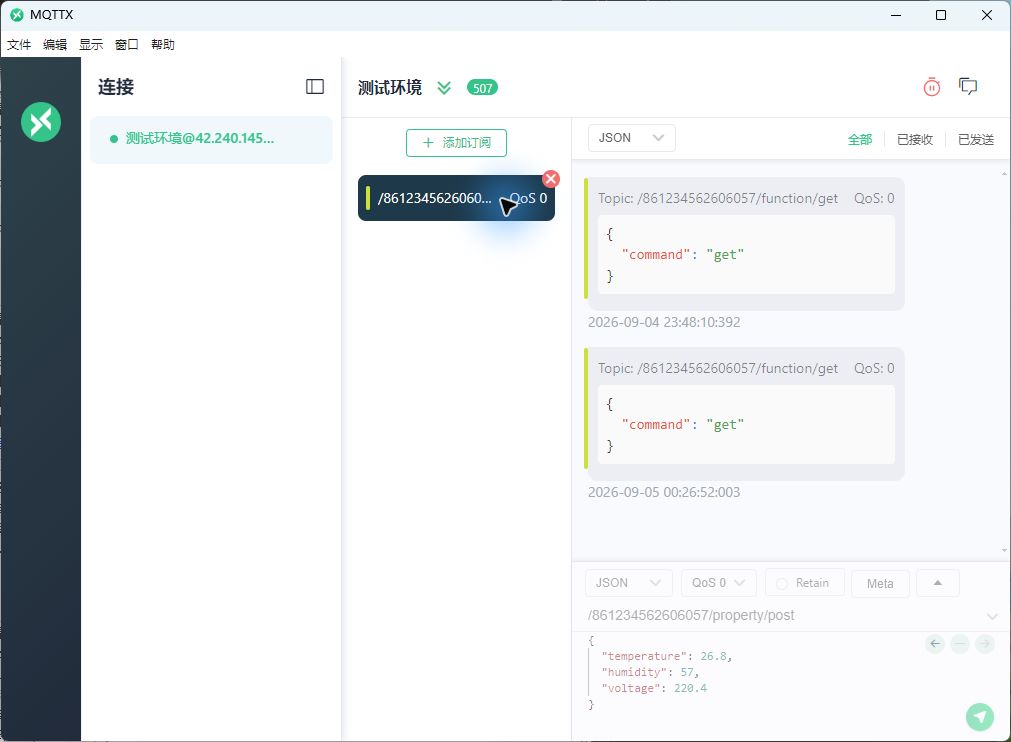
Figure: MQTTX device GUI screenshot: the downlink subscription topic and the device-side message area are preserved.
12. View Recent Offline Records
Location: FMQ Clients page
Open the Recent Offline Records tab, check the time and reason, and distinguish CLIENT_DISCONNECT, CONNECTION_CLOSED, timeout, or session replacement.
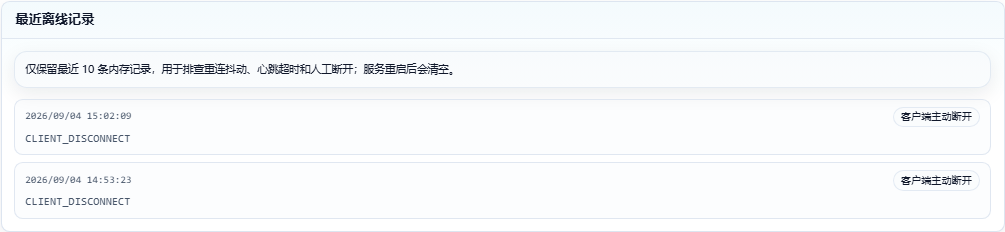
Figure: Screenshot of an individual area from the real platform or device GUI.
Field Descriptions
| Field / Control | Description |
|---|---|
| Offline Time | When the session went offline. |
| Offline Reason | Reasons such as manual disconnection, heartbeat timeout, channel closure, session replacement, or UDP timeout. |
| Last 10 Records | The page keeps at most the ten most recent in-memory records. |
| Cleared on Restart | These records are cleared after a service restart. |
13. Confirm Online Status After Reconnection
Location: FMQ Clients page
Refresh the client list and overview, and confirm that the MQTTX session is still online and that Last Active and the send/receive statistics keep updating.
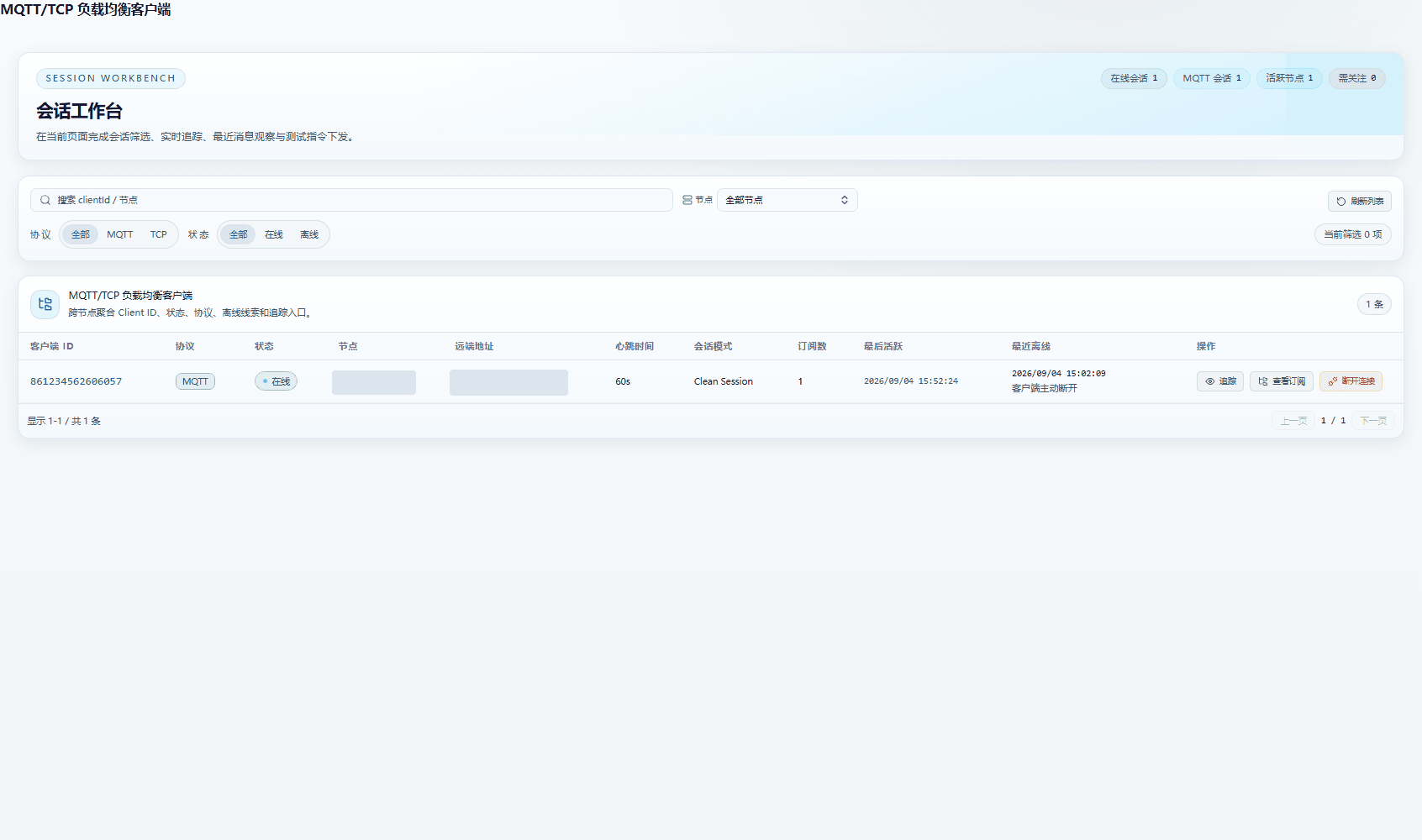
Figure: Screenshot of an individual area from the real platform or device GUI.
14. Clean Up This Manual's Evidence
Location: FMQ Clients page
Confirm that no temporary MQTTX connections or platform resources were created; stop this trace and refresh the list, keeping the user's original MQTTX connections.
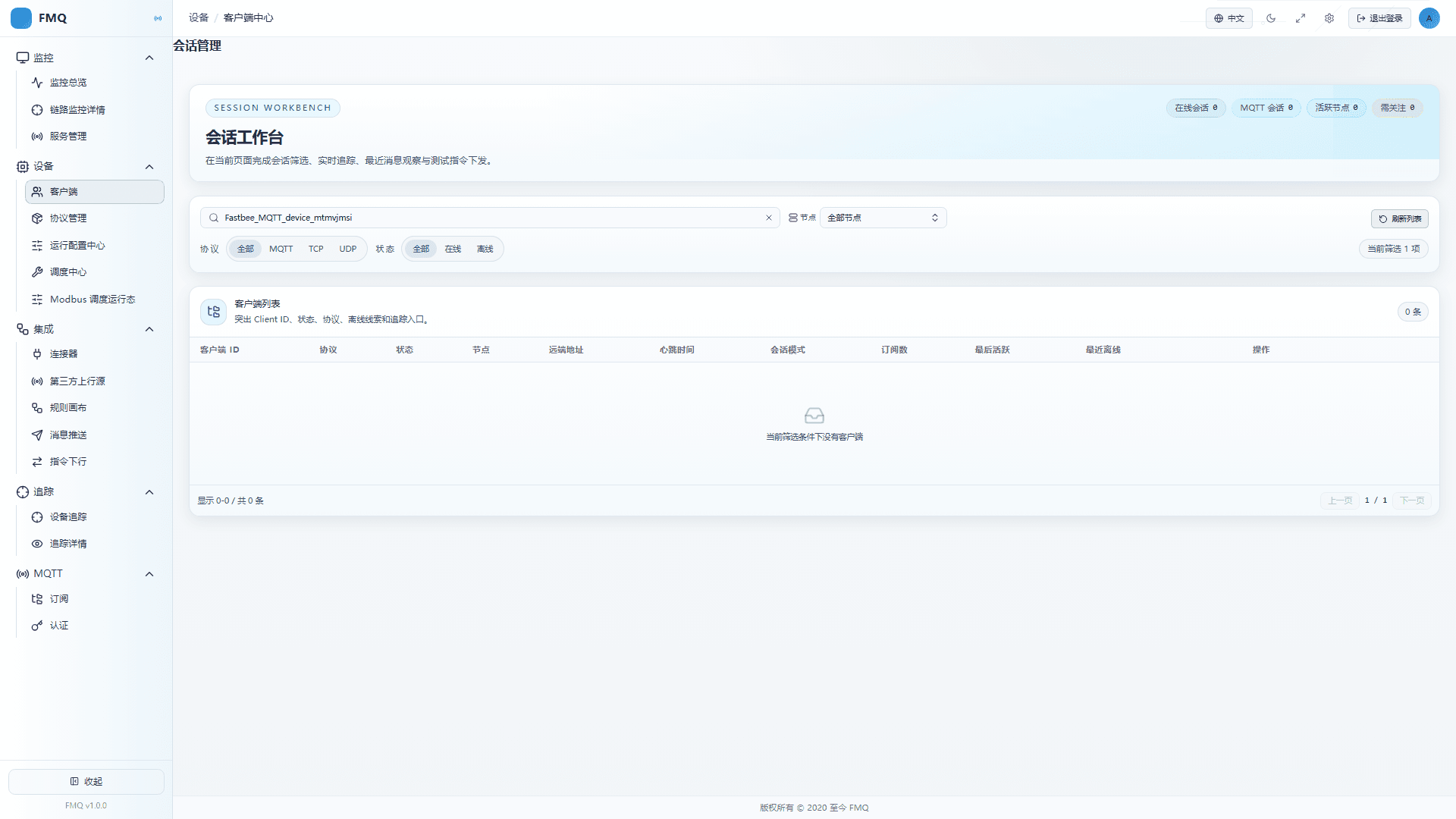
Figure: Screenshot of an individual area from the real platform or device GUI.
Client Page Field Reference
The following explains page fields in the reading order of the client list and detail tabs; areas not applicable to a protocol are explicitly marked, and technical logs are not treated as page fields.
Full Reference
| Field / Unit | Plain Meaning | Data Direction / Source | Normal Check | Abnormal Signals and First Checkpoint |
|---|---|---|---|---|
| Client List Purpose | ||||
| Client List (page field) | View MQTT, TCP, and UDP client sessions in one place; use filters and search to locate the device first. | FMQ MQTT Clients page | The field is readable on the real page and consistent with the current session identity. | The field is missing, stops updating, or is inconsistent with device actions. First checkpoint: refresh the details and return to the corresponding tab to check session status, protocol port, and device GUI. |
| Client List Key Fields | ||||
| Client ID (page field) | The device's unique identifier, used to pinpoint a single device. | FMQ MQTT Clients page | The field is readable on the real page and consistent with the current session identity. | The field is missing, stops updating, or is inconsistent with device actions. First checkpoint: refresh the details and return to the corresponding tab to check session status, protocol port, and device GUI. |
| Protocol (page field) | The MQTT, TCP, or UDP protocol used by the device for access. | FMQ MQTT Clients page | The field is readable on the real page and consistent with the current session identity. | The field is missing, stops updating, or is inconsistent with device actions. First checkpoint: refresh the details and return to the corresponding tab to check session status, protocol port, and device GUI. |
| Status (page field) | Whether the current session is online, offline, or in another running state. | FMQ MQTT Clients page | The field is readable on the real page and consistent with the current session identity. | The field is missing, stops updating, or is inconsistent with device actions. First checkpoint: refresh the details and return to the corresponding tab to check session status, protocol port, and device GUI. |
| Node (page field) | The cluster server node the device currently belongs to. | FMQ MQTT Clients page | The field is readable on the real page and consistent with the current session identity. | The field is missing, stops updating, or is inconsistent with device actions. First checkpoint: refresh the details and return to the corresponding tab to check session status, protocol port, and device GUI. |
| Remote Address (page field) | The address and port the device uses to connect to the platform. | FMQ MQTT Clients page | The field is readable on the real page and consistent with the current session identity. | The field is missing, stops updating, or is inconsistent with device actions. First checkpoint: refresh the details and return to the corresponding tab to check session status, protocol port, and device GUI. |
| Heartbeat Time (page field) | The device's most recent heartbeat or keep-alive time. | FMQ MQTT Clients page | The field is readable on the real page and consistent with the current session identity. | The field is missing, stops updating, or is inconsistent with device actions. First checkpoint: refresh the details and return to the corresponding tab to check session status, protocol port, and device GUI. |
| Session Mode (page field) | The connection mode currently used by the session. | FMQ MQTT Clients page | The field is readable on the real page and consistent with the current session identity. | The field is missing, stops updating, or is inconsistent with device actions. First checkpoint: refresh the details and return to the corresponding tab to check session status, protocol port, and device GUI. |
| Subscription Count (page field) | The number of topics the MQTT session currently subscribes to. | FMQ MQTT Clients page | The field is readable on the real page and consistent with the current session identity. | The field is missing, stops updating, or is inconsistent with device actions. First checkpoint: refresh the details and return to the corresponding tab to check session status, protocol port, and device GUI. |
| Last Active (page field) | The most recent time data was sent or received. | FMQ MQTT Clients page | The field is readable on the real page and consistent with the current session identity. | The field is missing, stops updating, or is inconsistent with device actions. First checkpoint: refresh the details and return to the corresponding tab to check session status, protocol port, and device GUI. |
| Last Offline (page field) | The most recent offline time and reason. | FMQ MQTT Clients page | The field is readable on the real page and consistent with the current session identity. | The field is missing, stops updating, or is inconsistent with device actions. First checkpoint: refresh the details and return to the corresponding tab to check session status, protocol port, and device GUI. |
| Client List Operations | ||||
| Search (page field) | Narrow results by clientId, sessionId, remote address, or node. | FMQ MQTT Clients page | The field is readable on the real page and consistent with the current session identity. | The field is missing, stops updating, or is inconsistent with device actions. First checkpoint: refresh the details and return to the corresponding tab to check session status, protocol port, and device GUI. |
| Node Filter (page field) | View only sessions on a specified cluster node. | FMQ MQTT Clients page | The field is readable on the real page and consistent with the current session identity. | The field is missing, stops updating, or is inconsistent with device actions. First checkpoint: refresh the details and return to the corresponding tab to check session status, protocol port, and device GUI. |
| Protocol Filter (page field) | View only MQTT, TCP, or UDP sessions. | FMQ MQTT Clients page | The field is readable on the real page and consistent with the current session identity. | The field is missing, stops updating, or is inconsistent with device actions. First checkpoint: refresh the details and return to the corresponding tab to check session status, protocol port, and device GUI. |
| Status Filter (page field) | Filter by online or offline status. | FMQ MQTT Clients page | The field is readable on the real page and consistent with the current session identity. | The field is missing, stops updating, or is inconsistent with device actions. First checkpoint: refresh the details and return to the corresponding tab to check session status, protocol port, and device GUI. |
| Refresh List (page field) | Re-read the current runtime sessions. | FMQ MQTT Clients page | The field is readable on the real page and consistent with the current session identity. | The field is missing, stops updating, or is inconsistent with device actions. First checkpoint: refresh the details and return to the corresponding tab to check session status, protocol port, and device GUI. |
| Pagination (page field) | Browse more session records. | FMQ MQTT Clients page | The field is readable on the real page and consistent with the current session identity. | The field is missing, stops updating, or is inconsistent with device actions. First checkpoint: refresh the details and return to the corresponding tab to check session status, protocol port, and device GUI. |
| Trace (page field) | Enable detail collection for the current session. | FMQ MQTT Clients page | The field is readable on the real page and consistent with the current session identity. | The field is missing, stops updating, or is inconsistent with device actions. First checkpoint: refresh the details and return to the corresponding tab to check session status, protocol port, and device GUI. |
| View Subscriptions (page field) | Open the MQTT topic subscription details. | FMQ MQTT Clients page | The field is readable on the real page and consistent with the current session identity. | The field is missing, stops updating, or is inconsistent with device actions. First checkpoint: refresh the details and return to the corresponding tab to check session status, protocol port, and device GUI. |
| Disconnect (page field) | Actively end the device session and generate an offline record. | FMQ MQTT Clients page | The field is readable on the real page and consistent with the current session identity. | The field is missing, stops updating, or is inconsistent with device actions. First checkpoint: refresh the details and return to the corresponding tab to check session status, protocol port, and device GUI. |
| Trace Details Overview | ||||
| Connection Status (page field) | Whether the current device connection is valid. | FMQ MQTT Clients page | The field is readable on the real page and consistent with the current session identity. | The field is missing, stops updating, or is inconsistent with device actions. First checkpoint: refresh the details and return to the corresponding tab to check session status, protocol port, and device GUI. |
| Node (page field) | The cluster node where the session resides. | FMQ MQTT Clients page | The field is readable on the real page and consistent with the current session identity. | The field is missing, stops updating, or is inconsistent with device actions. First checkpoint: refresh the details and return to the corresponding tab to check session status, protocol port, and device GUI. |
| Established Time (page field) | When this session was established. | FMQ MQTT Clients page | The field is readable on the real page and consistent with the current session identity. | The field is missing, stops updating, or is inconsistent with device actions. First checkpoint: refresh the details and return to the corresponding tab to check session status, protocol port, and device GUI. |
| Last Active (page field) | The most recent activity time. | FMQ MQTT Clients page | The field is readable on the real page and consistent with the current session identity. | The field is missing, stops updating, or is inconsistent with device actions. First checkpoint: refresh the details and return to the corresponding tab to check session status, protocol port, and device GUI. |
| Bytes Written (page field) | Cumulative bytes sent from the platform to the device. | FMQ MQTT Clients page | The field is readable on the real page and consistent with the current session identity. | The field is missing, stops updating, or is inconsistent with device actions. First checkpoint: refresh the details and return to the corresponding tab to check session status, protocol port, and device GUI. |
| Bytes Read (page field) | Cumulative bytes read by the platform from the device. | FMQ MQTT Clients page | The field is readable on the real page and consistent with the current session identity. | The field is missing, stops updating, or is inconsistent with device actions. First checkpoint: refresh the details and return to the corresponding tab to check session status, protocol port, and device GUI. |
| Messages Written (page field) | Number of messages sent from the platform to the device. | FMQ MQTT Clients page | The field is readable on the real page and consistent with the current session identity. | The field is missing, stops updating, or is inconsistent with device actions. First checkpoint: refresh the details and return to the corresponding tab to check session status, protocol port, and device GUI. |
| Messages Read (page field) | Number of messages read by the platform from the device. | FMQ MQTT Clients page | The field is readable on the real page and consistent with the current session identity. | The field is missing, stops updating, or is inconsistent with device actions. First checkpoint: refresh the details and return to the corresponding tab to check session status, protocol port, and device GUI. |
| Dropped/Failed (page field) | Number of messages dropped or failed to send. | FMQ MQTT Clients page | The field is readable on the real page and consistent with the current session identity. | The field is missing, stops updating, or is inconsistent with device actions. First checkpoint: refresh the details and return to the corresponding tab to check session status, protocol port, and device GUI. |
| Subscription Count (page field) | Current number of subscriptions. | FMQ MQTT Clients page | The field is readable on the real page and consistent with the current session identity. | The field is missing, stops updating, or is inconsistent with device actions. First checkpoint: refresh the details and return to the corresponding tab to check session status, protocol port, and device GUI. |
| Average Latency (page field) | Average message processing time; shown only when provided by the page. | FMQ MQTT Clients page | The field is readable on the real page and consistent with the current session identity. | The field is missing, stops updating, or is inconsistent with device actions. First checkpoint: refresh the details and return to the corresponding tab to check session status, protocol port, and device GUI. |
| Subscribed Topics | ||||
| Topic (page field) | The topic address from which the device receives downlink messages. | FMQ MQTT Clients page | The field is readable on the real page and consistent with the current session identity. | The field is missing, stops updating, or is inconsistent with device actions. First checkpoint: refresh the details and return to the corresponding tab to check session status, protocol port, and device GUI. |
| QoS (page field) | The topic's quality of service level. | FMQ MQTT Clients page | The field is readable on the real page and consistent with the current session identity. | The field is missing, stops updating, or is inconsistent with device actions. First checkpoint: refresh the details and return to the corresponding tab to check session status, protocol port, and device GUI. |
| Node (page field) | The runtime node the subscription belongs to. | FMQ MQTT Clients page | The field is readable on the real page and consistent with the current session identity. | The field is missing, stops updating, or is inconsistent with device actions. First checkpoint: refresh the details and return to the corresponding tab to check session status, protocol port, and device GUI. |
| NL (page field) | Whether local publish loopback is disabled. | FMQ MQTT Clients page | The field is readable on the real page and consistent with the current session identity. | The field is missing, stops updating, or is inconsistent with device actions. First checkpoint: refresh the details and return to the corresponding tab to check session status, protocol port, and device GUI. |
| RAP (page field) | Whether the original publish flag is preserved. | FMQ MQTT Clients page | The field is readable on the real page and consistent with the current session identity. | The field is missing, stops updating, or is inconsistent with device actions. First checkpoint: refresh the details and return to the corresponding tab to check session status, protocol port, and device GUI. |
| RH (page field) | Retained message handling policy. | FMQ MQTT Clients page | The field is readable on the real page and consistent with the current session identity. | The field is missing, stops updating, or is inconsistent with device actions. First checkpoint: refresh the details and return to the corresponding tab to check session status, protocol port, and device GUI. |
| Recent Messages | ||||
| Display Format (page field) | JSON, raw text, or HEX reading mode. | FMQ MQTT Clients page | The field is readable on the real page and consistent with the current session identity. | The field is missing, stops updating, or is inconsistent with device actions. First checkpoint: refresh the details and return to the corresponding tab to check session status, protocol port, and device GUI. |
| Uplink/Downlink (page field) | Distinguishes device reporting from platform delivery. | FMQ MQTT Clients page | The field is readable on the real page and consistent with the current session identity. | The field is missing, stops updating, or is inconsistent with device actions. First checkpoint: refresh the details and return to the corresponding tab to check session status, protocol port, and device GUI. |
| Time (page field) | When the message entered the detail records. | FMQ MQTT Clients page | The field is readable on the real page and consistent with the current session identity. | The field is missing, stops updating, or is inconsistent with device actions. First checkpoint: refresh the details and return to the corresponding tab to check session status, protocol port, and device GUI. |
| Topic/Address (page field) | The source topic or network address of the message. | FMQ MQTT Clients page | The field is readable on the real page and consistent with the current session identity. | The field is missing, stops updating, or is inconsistent with device actions. First checkpoint: refresh the details and return to the corresponding tab to check session status, protocol port, and device GUI. |
| Message ID (page field) | A unique identifier associated with one packet. | FMQ MQTT Clients page | The field is readable on the real page and consistent with the current session identity. | The field is missing, stops updating, or is inconsistent with device actions. First checkpoint: refresh the details and return to the corresponding tab to check session status, protocol port, and device GUI. |
| Payload Format (page field) | The encoding type of the raw packet. | FMQ MQTT Clients page | The field is readable on the real page and consistent with the current session identity. | The field is missing, stops updating, or is inconsistent with device actions. First checkpoint: refresh the details and return to the corresponding tab to check session status, protocol port, and device GUI. |
| Payload Size (page field) | The number of bytes occupied by the packet. | FMQ MQTT Clients page | The field is readable on the real page and consistent with the current session identity. | The field is missing, stops updating, or is inconsistent with device actions. First checkpoint: refresh the details and return to the corresponding tab to check session status, protocol port, and device GUI. |
| Field Recognition (page field) | JSON object and a summary of its fields. | FMQ MQTT Clients page | The field is readable on the real page and consistent with the current session identity. | The field is missing, stops updating, or is inconsistent with device actions. First checkpoint: refresh the details and return to the corresponding tab to check session status, protocol port, and device GUI. |
| Message Flow | ||||
| Source Topic/Address (page field) | Where the device uplink enters the platform. | Device ↔ FMQ ↔ Upstream | The field is readable on the real page and consistent with the current session identity. | The field is missing, stops updating, or is inconsistent with device actions. First checkpoint: refresh the details and return to the corresponding tab to check session status, protocol port, and device GUI. |
| Direction (page field) | Uplink or downlink direction. | Device ↔ FMQ ↔ Upstream | The field is readable on the real page and consistent with the current session identity. | The field is missing, stops updating, or is inconsistent with device actions. First checkpoint: refresh the details and return to the corresponding tab to check session status, protocol port, and device GUI. |
| Processing Node (page field) | Event bus and protocol processing locations. | Device ↔ FMQ ↔ Upstream | The field is readable on the real page and consistent with the current session identity. | The field is missing, stops updating, or is inconsistent with device actions. First checkpoint: refresh the details and return to the corresponding tab to check session status, protocol port, and device GUI. |
| Alink Message (page field) | The business message assembled uniformly by the platform. | Device ↔ FMQ ↔ Upstream | The field is readable on the real page and consistent with the current session identity. | The field is missing, stops updating, or is inconsistent with device actions. First checkpoint: refresh the details and return to the corresponding tab to check session status, protocol port, and device GUI. |
| Rule Processing (page field) | Whether a rule matched and executed an action. | Device ↔ FMQ ↔ Upstream | The field is readable on the real page and consistent with the current session identity. | The field is missing, stops updating, or is inconsistent with device actions. First checkpoint: refresh the details and return to the corresponding tab to check session status, protocol port, and device GUI. |
| Connector (page field) | The reporting egress such as RabbitMQ/Kafka. | Device ↔ FMQ ↔ Upstream | The field is readable on the real page and consistent with the current session identity. | The field is missing, stops updating, or is inconsistent with device actions. First checkpoint: refresh the details and return to the corresponding tab to check session status, protocol port, and device GUI. |
| Process (page field) | Expandable timeline from access to reporting. | Device ↔ FMQ ↔ Upstream | The field is readable on the real page and consistent with the current session identity. | The field is missing, stops updating, or is inconsistent with device actions. First checkpoint: refresh the details and return to the corresponding tab to check session status, protocol port, and device GUI. |
| Send Test Command | ||||
| Topic (page field) | MQTT downlink topic; TCP/UDP use the current session target. | FMQ MQTT Clients page | The field is readable on the real page and consistent with the current session identity. | The field is missing, stops updating, or is inconsistent with device actions. First checkpoint: refresh the details and return to the corresponding tab to check session status, protocol port, and device GUI. |
| QoS (page field) | Select quality of service level 0, 1, or 2. | FMQ MQTT Clients page | The field is readable on the real page and consistent with the current session identity. | The field is missing, stops updating, or is inconsistent with device actions. First checkpoint: refresh the details and return to the corresponding tab to check session status, protocol port, and device GUI. |
| Retain (page field) | Controls whether the message is retained. | FMQ MQTT Clients page | The field is readable on the real page and consistent with the current session identity. | The field is missing, stops updating, or is inconsistent with device actions. First checkpoint: refresh the details and return to the corresponding tab to check session status, protocol port, and device GUI. |
| Payload Type (page field) | Select JSON, raw text, or HEX. | FMQ MQTT Clients page | The field is readable on the real page and consistent with the current session identity. | The field is missing, stops updating, or is inconsistent with device actions. First checkpoint: refresh the details and return to the corresponding tab to check session status, protocol port, and device GUI. |
| Format (page field) | Format the JSON message body into a readable structure. | FMQ MQTT Clients page | The field is readable on the real page and consistent with the current session identity. | The field is missing, stops updating, or is inconsistent with device actions. First checkpoint: refresh the details and return to the corresponding tab to check session status, protocol port, and device GUI. |
| Message Body (page field) | Enter the content to send to the device. | FMQ MQTT Clients page | The field is readable on the real page and consistent with the current session identity. | The field is missing, stops updating, or is inconsistent with device actions. First checkpoint: refresh the details and return to the corresponding tab to check session status, protocol port, and device GUI. |
| Send Test Command (page field) | Submit the platform downlink and wait for actual receipt on the device GUI. | FMQ MQTT Clients page | The field is readable on the real page and consistent with the current session identity. | The field is missing, stops updating, or is inconsistent with device actions. First checkpoint: refresh the details and return to the corresponding tab to check session status, protocol port, and device GUI. |
| Recent Exceptions | ||||
| Exception Time (page field) | When the exception occurred, used for comparison against device actions. | FMQ MQTT Clients page | The field is readable on the real page and consistent with the current session identity. | The field is missing, stops updating, or is inconsistent with device actions. First checkpoint: refresh the details and return to the corresponding tab to check session status, protocol port, and device GUI. |
| Exception Type (page field) | Categories such as connection, parsing, routing, delivery, or timeout. | FMQ MQTT Clients page | The field is readable on the real page and consistent with the current session identity. | The field is missing, stops updating, or is inconsistent with device actions. First checkpoint: refresh the details and return to the corresponding tab to check session status, protocol port, and device GUI. |
| Exception Message (page field) | The specific exception information recorded by the platform. | FMQ MQTT Clients page | The field is readable on the real page and consistent with the current session identity. | The field is missing, stops updating, or is inconsistent with device actions. First checkpoint: refresh the details and return to the corresponding tab to check session status, protocol port, and device GUI. |
| Empty State (page field) | When there are no records, the current session has produced no detail exceptions. | FMQ MQTT Clients page | The field is readable on the real page and consistent with the current session identity. | The field is missing, stops updating, or is inconsistent with device actions. First checkpoint: refresh the details and return to the corresponding tab to check session status, protocol port, and device GUI. |
| Recent Offline Records | ||||
| Offline Time (page field) | When the session went offline. | FMQ MQTT Clients page | The field is readable on the real page and consistent with the current session identity. | The field is missing, stops updating, or is inconsistent with device actions. First checkpoint: refresh the details and return to the corresponding tab to check session status, protocol port, and device GUI. |
| Offline Reason (page field) | Reasons such as manual disconnection, heartbeat timeout, channel closure, session replacement, or UDP timeout. | FMQ MQTT Clients page | The field is readable on the real page and consistent with the current session identity. | The field is missing, stops updating, or is inconsistent with device actions. First checkpoint: refresh the details and return to the corresponding tab to check session status, protocol port, and device GUI. |
| Last 10 Records (page field) | The page keeps at most the ten most recent in-memory records. | FMQ MQTT Clients page | The field is readable on the real page and consistent with the current session identity. | The field is missing, stops updating, or is inconsistent with device actions. First checkpoint: refresh the details and return to the corresponding tab to check session status, protocol port, and device GUI. |
| Cleared on Restart (page field) | These records are cleared after a service restart. | FMQ MQTT Clients page | The field is readable on the real page and consistent with the current session identity. | The field is missing, stops updating, or is inconsistent with device actions. First checkpoint: refresh the details and return to the corresponding tab to check session status, protocol port, and device GUI. |
Client List and Details
Full Reference
| Field/Control | Purpose | Default/Recommended/Example | Option Details | Effect and Impact | Effective Conditions |
|---|---|---|---|---|---|
| Required Client Search | Filter the list by client ID, session ID, remote address, or node. | Default: empty; Recommended: enter the target Client ID; Example: fill in according to the current environment | N/A | Narrow the list scope to locate the target device. | Scope: current page filter; Publish: not required · Restart: not required · Reconnect: not required |
| Required Node Filter | Filter sessions by FMQ cluster node. | Default: all nodes; Recommended: select by the node in details; Example: current node | All nodes: do not restrict the runtime node; find the target among client sessions on all nodes. Current node: view only the node the console is currently connected to; narrows the result scope for checking node attribution. | Show only clients on the specified node. | Scope: current page filter; Publish: not required · Restart: not required · Reconnect: not required |
| Required Refresh List | Re-read the current runtime client list. | Default: —; Recommended: refresh after status changes; Example: refresh list | N/A | Show the latest online status, node, and activity time. | Scope: current page data; Publish: not required · Restart: not required · Reconnect: not required |
| Required Protocol Filter | Select the MQTT, TCP, or UDP client protocol. | Default: All; Recommended: MQTT; Example: MQTT | N/A | Show only sessions of the selected protocol. | Scope: current page filter; Publish: not required · Restart: not required · Reconnect: not required |
| Required Status Filter | Filter sessions by online or offline status. | Default: All; Recommended: Online; Example: Online | N/A | Quickly confirm whether a device is still online. | Scope: current page filter; Publish: not required · Restart: not required · Reconnect: not required |
| Required Pagination | Switch between multiple pages of client results. | Default: page 1; Recommended: page through results; Example: next page | N/A | View other sessions under the current filter conditions. | Scope: current page data; Publish: not required · Restart: not required · Reconnect: not required |
| Required Trace | Enable device-level tracing, recent messages, and message flow collection for the current client. | Default: off; Recommended: enable before opening details; Example: trace | N/A | The details page starts showing send/receive statistics, payload, and the processing chain. | Scope: current client session; Publish: not required · Restart: not required · Reconnect: not required |
| Required Open Details | Open the target client details drawer. | Default: —; Recommended: open after confirming the target row; Example: open details | N/A | View overview, subscriptions, messages, flow, delivery, exceptions, and offline records. | Scope: current page; Publish: not required · Restart: not required · Reconnect: not required |
| Required Disconnect | Actively close the current client's runtime session. | Default: —; Recommended: use only during recovery or cleanup; Example: disconnect | N/A | The device goes offline and an offline record is generated. | Scope: current runtime session; Publish: not required · Restart: not required · Reconnect: required |
| Required Refresh Details | Re-read the current client details and trace snapshot. | Default: —; Recommended: refresh after uplink or downlink; Example: refresh details | N/A | Update fields such as bytes, messages, exceptions, and last active. | Scope: current client details; Publish: not required · Restart: not required · Reconnect: not required |
| Required Overview | View connection status and send/receive monitoring metrics. | Default: Overview; Recommended: view first; Example: Overview | N/A | Determine whether the session is established and whether there is uplink/downlink activity. | Scope: current client details; Publish: not required · Restart: not required · Reconnect: not required |
| Required Subscribed Topics | View MQTT subscribed topics with their QoS and attributes. | Default: Subscribed Topics; Recommended: check in MQTT scenarios; Example: Subscribed Topics | N/A | Confirm the device can receive downlink topics. | Scope: current client details; Publish: not required · Restart: not required · Reconnect: not required |
| Required Global Subscriptions Page | Jump to the global subscriptions page. | Default: —; Recommended: use when cross-client queries are needed; Example: Global Subscriptions page | N/A | Extend from a single client's subscriptions to global topic search. | Scope: Global Subscriptions page; Publish: not required · Restart: not required · Reconnect: not required |
| Required Recent Messages | View messages recently received and sent by the current session. | Default: Recent Messages; Recommended: view after device uplink; Example: Recent Messages | N/A | Check real-time direction, time, topic, size, and payload. | Scope: current client details; Publish: not required · Restart: not required · Reconnect: not required |
| Required JSON / Raw / HEX | Switch the message payload display between JSON, raw text, or HEX. | Default: JSON; Recommended: JSON first, HEX when abnormal; Example: HEX | N/A | Read message content by readability or raw byte needs. | Scope: current page display; Publish: not required · Restart: not required · Reconnect: not required |
| Required Message Flow | View how a message is processed through the protocol, event bus, rules, and connectors. | Default: Message Flow; Recommended: view after an uplink message; Example: Message Flow | N/A | Locate at which processing stage a message succeeded or stalled. | Scope: current client details; Publish: not required · Restart: not required · Reconnect: not required |
| Required Send Test Command | Open the platform downlink test command form. | Default: Send Test Command; Recommended: use after confirming the subscription or session target; Example: Send Test Command | N/A | Prepare a verifiable downlink message for the current device. | Scope: current client session; Publish: not required · Restart: not required · Reconnect: not required |
| Required Payload Type | Choose to send the downlink message as JSON, raw text, or HEX. | Default: JSON; Recommended: select by device protocol; Example: JSON | N/A | Determines how the platform validates and encodes the message body. | Scope: current downlink request; Publish: not required · Restart: not required · Reconnect: not required |
| Required Format | Format the JSON message body. | Default: —; Recommended: click before sending; Example: format JSON | N/A | Organize compact JSON into a readable structure for review. | Scope: current downlink request; Publish: not required · Restart: not required · Reconnect: not required |
| Required Send Test Command | Submit the current downlink test command. | Default: —; Recommended: send after checking parameters; Example: Send Test Command | N/A | The platform sends the message to the target client and waits for actual receipt verification on the device GUI. | Scope: current device session; Publish: not required · Restart: not required · Reconnect: not required |
| Required Recent Exceptions | View exceptions recently recorded for the current client. | Default: Recent Exceptions; Recommended: view when troubleshooting exceptions; Example: Recent Exceptions | N/A | Locate connection, parsing, routing, or timeout problems by time and type. | Scope: current client details; Publish: not required · Restart: not required · Reconnect: not required |
| Required Recent Offline Records | View the current client's recent offline times and reasons. | Default: Recent Offline Records; Recommended: view after disconnect or reconnect; Example: Recent Offline Records | N/A | Determine manual disconnection, timeout, connection closure, or session replacement. | Scope: current client details; Publish: not required · Restart: not required · Reconnect: not required |
| Required Close Details | Close the client details drawer. | Default: —; Recommended: close after finishing checks; Example: close details | N/A | End the current details view; the page stops trace collection for this window. | Scope: current page; Publish: not required · Restart: not required · Reconnect: not required |
FAQ
How do I check whether an MQTT device is online on FastBee?
Log in to the FMQ console, go to Devices → Clients, use the protocol filter to show only MQTT, then locate the device by searching for its Client ID; judge whether the session is still working by combining the online status with the last active time.
How do I confirm the device really received a command delivered by the platform?
On the Send Test Command page in the client details, fill in the downlink topic, QoS, and message body and send it; then return to MQTTX to check the actual received message, payload, and receive time on the corresponding subscribed topic — if all three match, receipt is confirmed.
How long are the recent offline records in the client details retained?
At most the last 10 in-memory records are kept; they are cleared after a service restart. Offline reasons distinguish manual disconnection, heartbeat timeout, channel closure, or session replacement.
How do I trace the complete flow of an MQTT uplink message inside the platform?
First enable tracing on the client row; after the device reports uplink data, open the Message Flow tab in the details and check the source topic, RabbitMQ queue, Alink message, rule processing, and connector section by section; you can also expand the timeline from access to reporting.
Production Operation Notice
Screenshots and examples illustrate operation locations and judgment methods; they do not represent current production status. For operations involving publishing, starting/stopping, rebinding, retrying, or deletion, first confirm the target environment, impact scope, and recovery plan, and have authorized personnel perform them.
FastBee · FMQ Operations Manual