

UDP Client Access and Data Flow
Use a real UDP device GUI to complete access, uplink, client detail statistics, platform downlink delivery, device receipt, disconnect/reconnect, and cleanup.
Page Guide
How to Read
Confirm the entry point, permissions, and target object first, then complete the operations in numbered order. Each step includes the expected result; detailed fields and options are collected in expandable reference tables.
Screenshot Notes
The screenshots come from the original operations manual. The public edition hides real node addresses, connection addresses, and credentials; the statuses, times, and data in the examples do not represent the current production environment.
Before You Start
| Item | Description |
|---|---|
| What you can do | Complete device access, uplink, client detail statistics, platform downlink delivery, device receipt, disconnect/reconnect, and cleanup by protocol. |
| Where to enter | After logging in to the FMQ console, go to Devices → Clients. |
| Required permissions | Client viewing and test command permissions. |
| Completion result | Confirm each protocol's data closed loop through the real device GUI and the client details. |
Procedure
1. Open the UDP Clients Page
Location: Devices → Clients
After logging in, go to Devices → Clients, click the protocol filter, and use the search box to locate this device session.
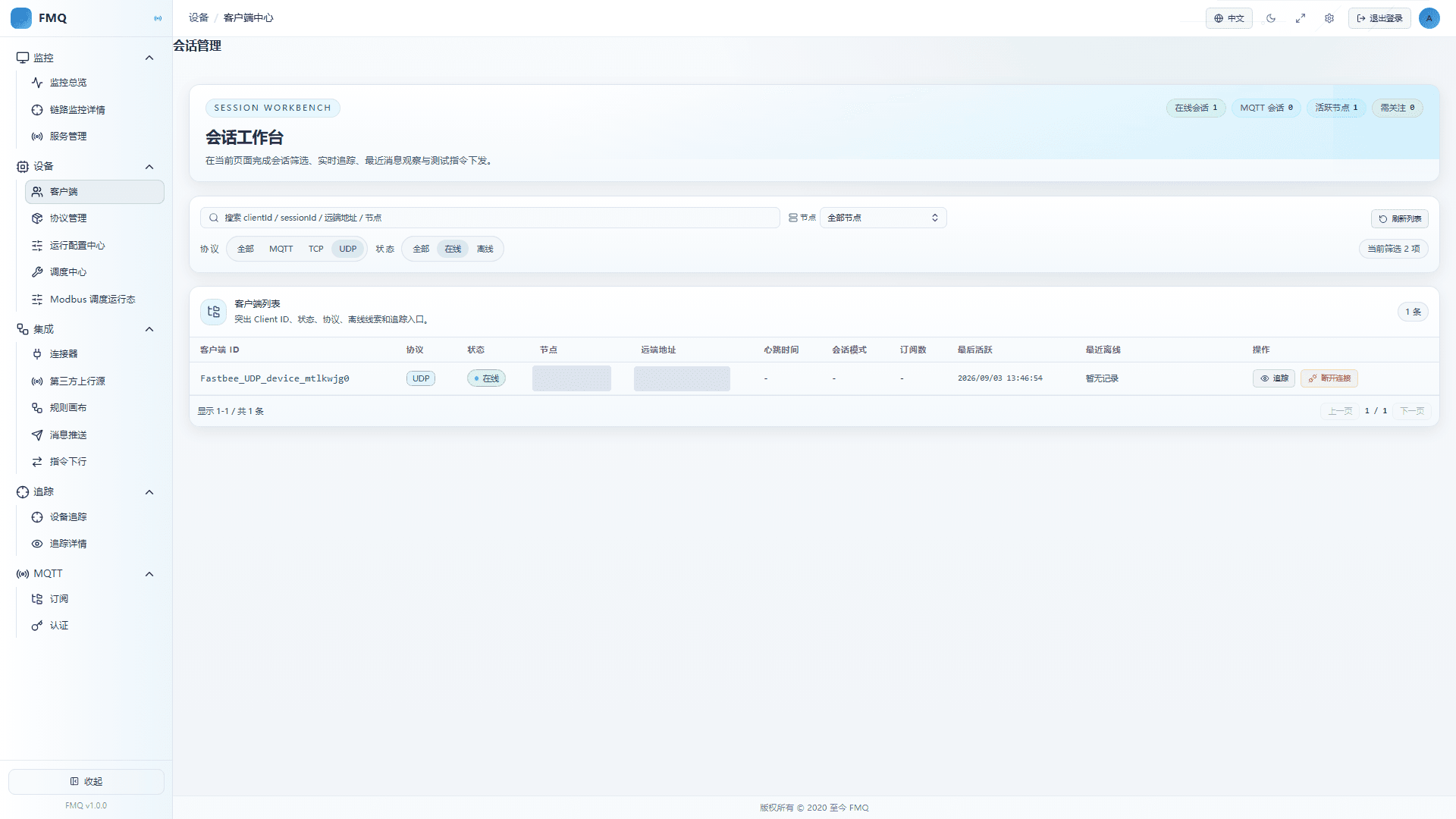
Figure: ① The protocol filter and search are used to locate the current device; the list shows protocol, status, node, remote address, last active, and operation entries.
Screenshot Highlights
| Marker | Parameter | Required | Recommended Value / Example | Parameter Purpose |
|---|---|---|---|---|
| P1 | Node Filter | Required | Operate according to the current protocol session; example: Node Filter | Node Filter is used to complete locating, observing, or status operations on the current client page; the page or device GUI shows the real result corresponding to the operation. |
| P2 | Client Search | Required | Operate according to the current protocol session; example: Client Search | Client Search is used to complete locating, observing, or status operations on the current client page; the page or device GUI shows the real result corresponding to the operation. |
2. Locate the Target UDP Session
Location: Devices → Clients
Enter the device Client ID in the search box, confirm the online row, then click Trace or click the row directly to open the details.
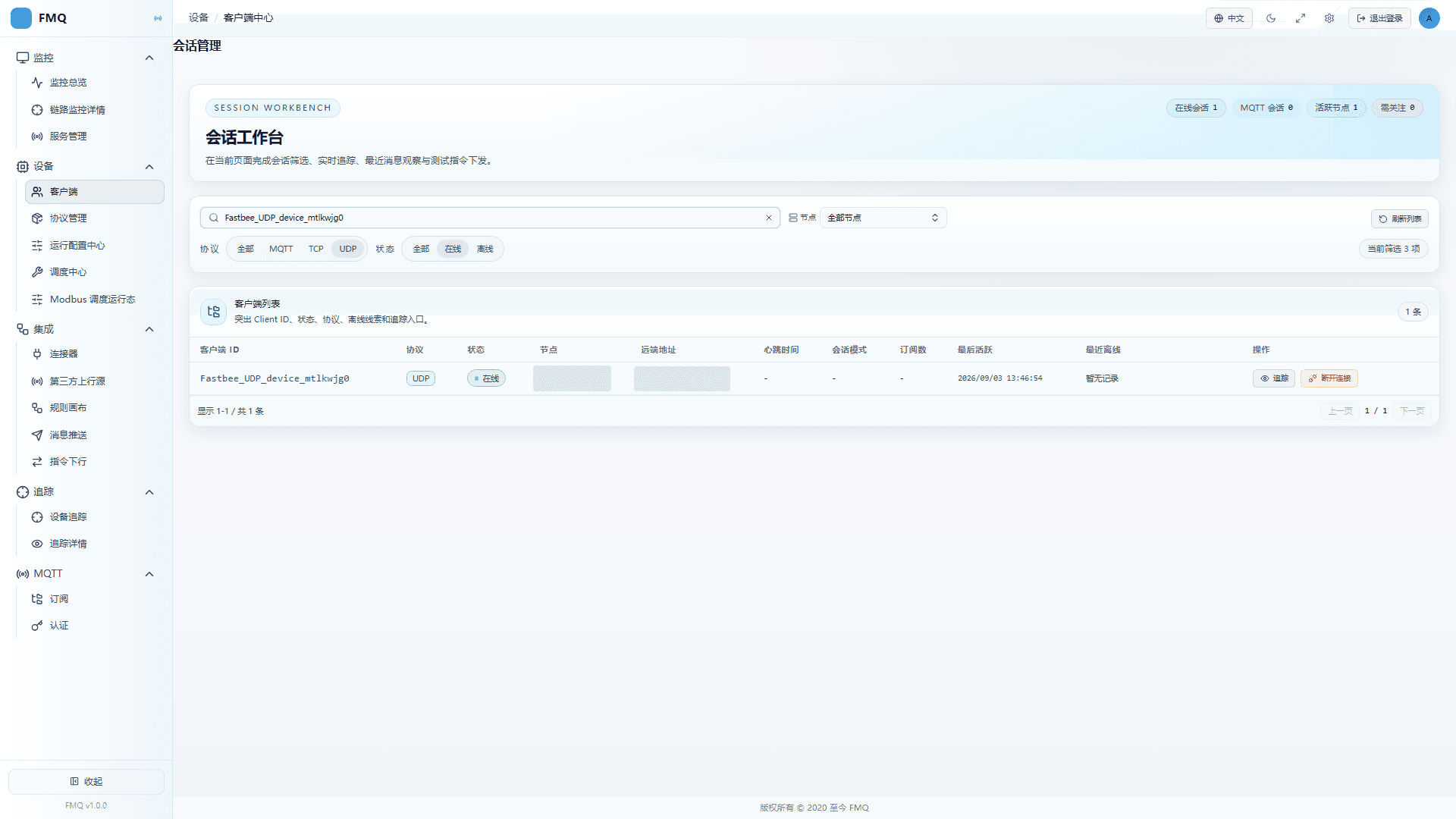
Figure: ① Client ID is the locating key for a single device; ② judge whether the session is still working by combining online status with the last active time.
Screenshot Highlights
| Marker | Parameter | Required | Recommended Value / Example | Parameter Purpose |
|---|---|---|---|---|
| P1 | Client Search | Required | Operate according to the current protocol session; example: Client Search | Client Search is used to complete locating, observing, or status operations on the current client page; the page or device GUI shows the real result corresponding to the operation. |
3. Open UDP Details and Enable Collection
Location: Devices → Clients
Open the client details, confirm that Trace, Recent Messages, and Message Flow are enabled, then open the Overview, Subscriptions, Recent Messages, Message Flow, Recent Exceptions, and Recent Offline Records tabs in turn.
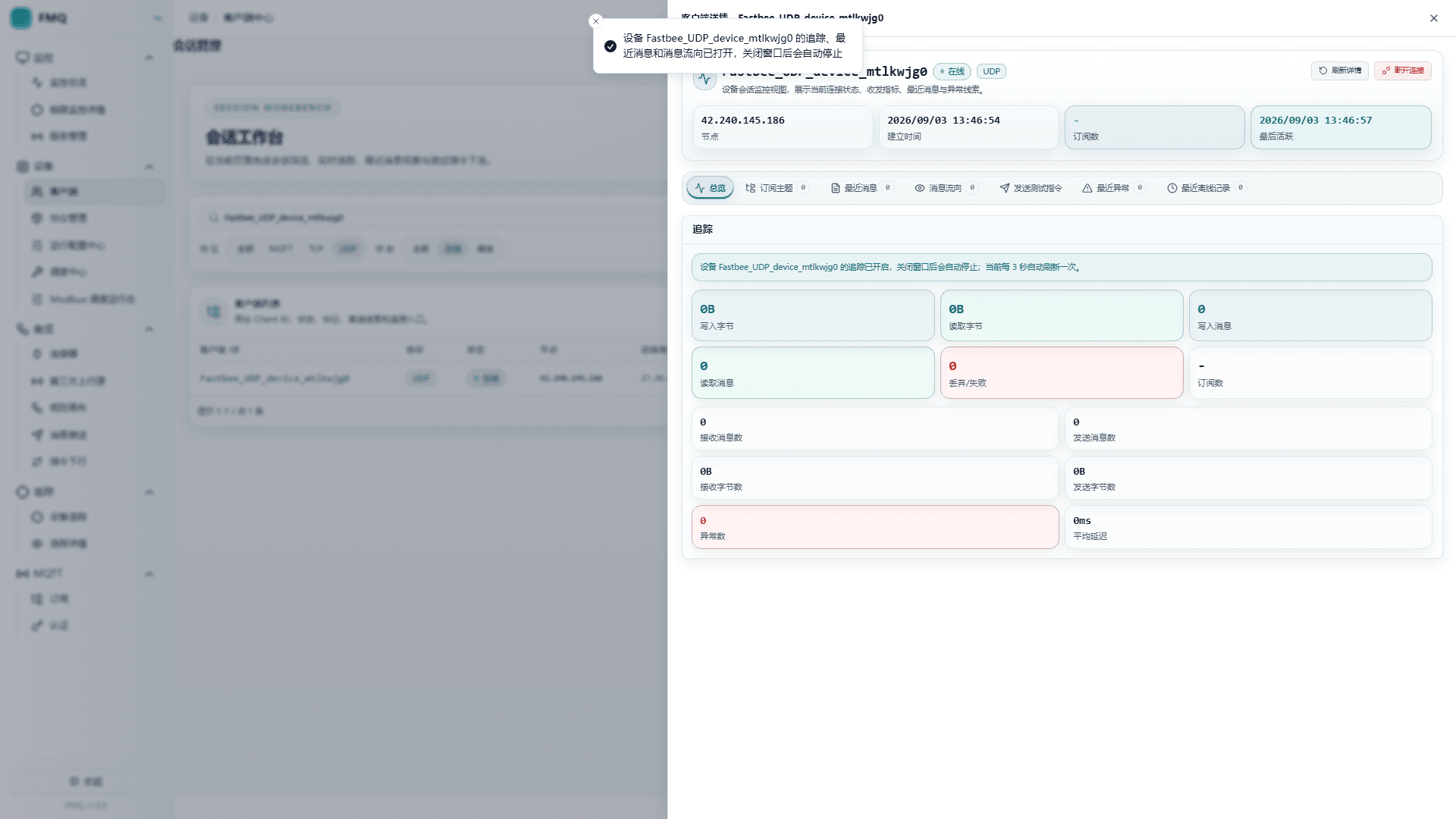
Figure: ① The details overview first confirms status and node; ② only after trace collection is enabled do subsequent uplink messages enter the statistics and Recent Messages.
4. UDP Device GUI Sends Uplink Data
Location: LinkPilot protocol debugging workbench
In LinkPilot's real protocol workbench, keep the session connected and send a valid JSON uplink packet containing the device identity and a temperature value.
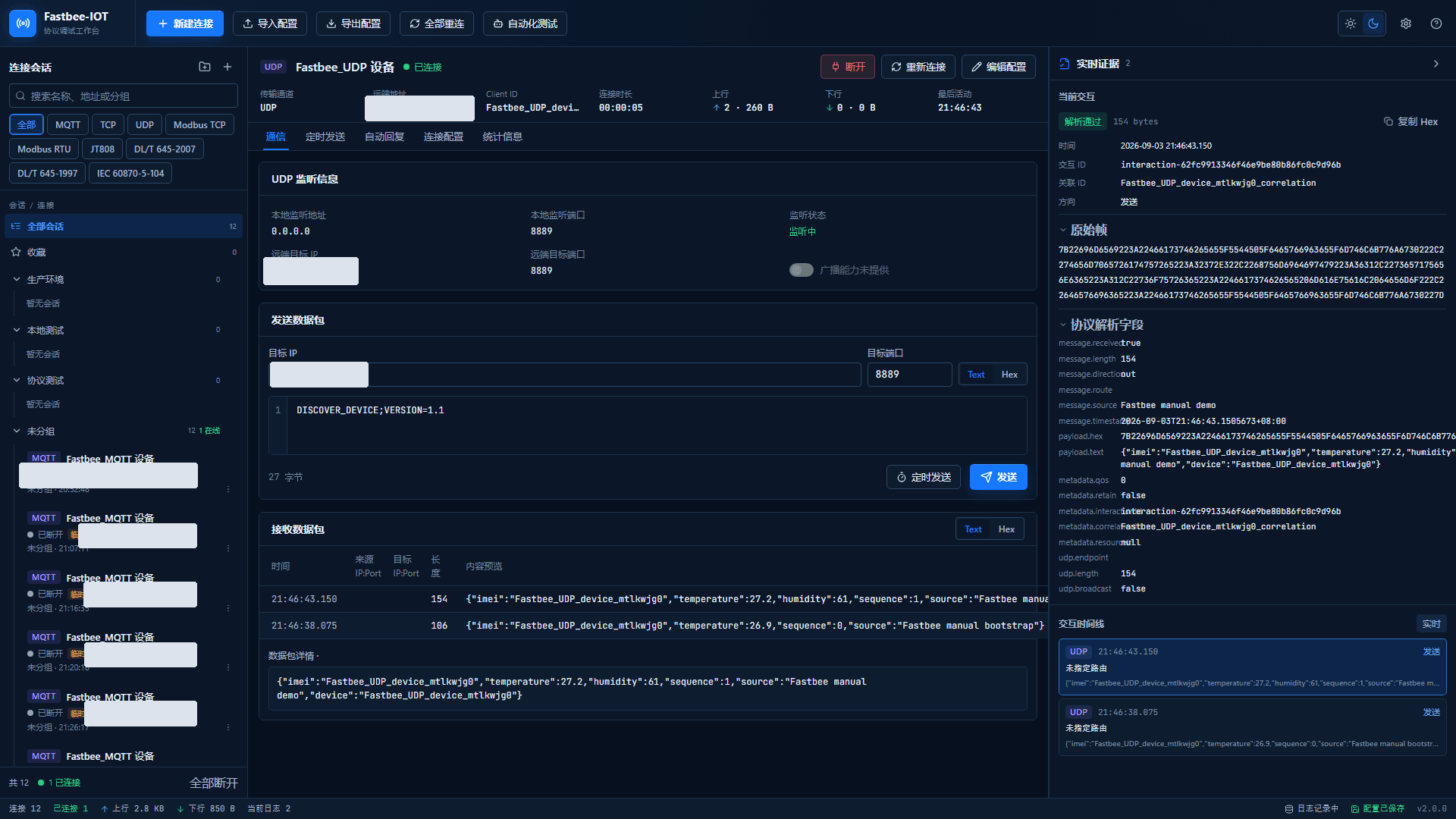
Figure: ① LinkPilot shows the session connected; ② the communication timeline records this device uplink frame; ③ the protocol ports are MQTT 1883, TCP 8888, or UDP 8889.
5. View UDP Detail Statistics and the Reporting Flow
Location: Devices → Clients
In the overview, view bytes read/written, uplink/downlink message counts, error counts, and average latency; in Recent Messages, check direction, time, topic or address, and payload preview; then view Message Flow, Recent Exceptions, and Recent Offline Records.
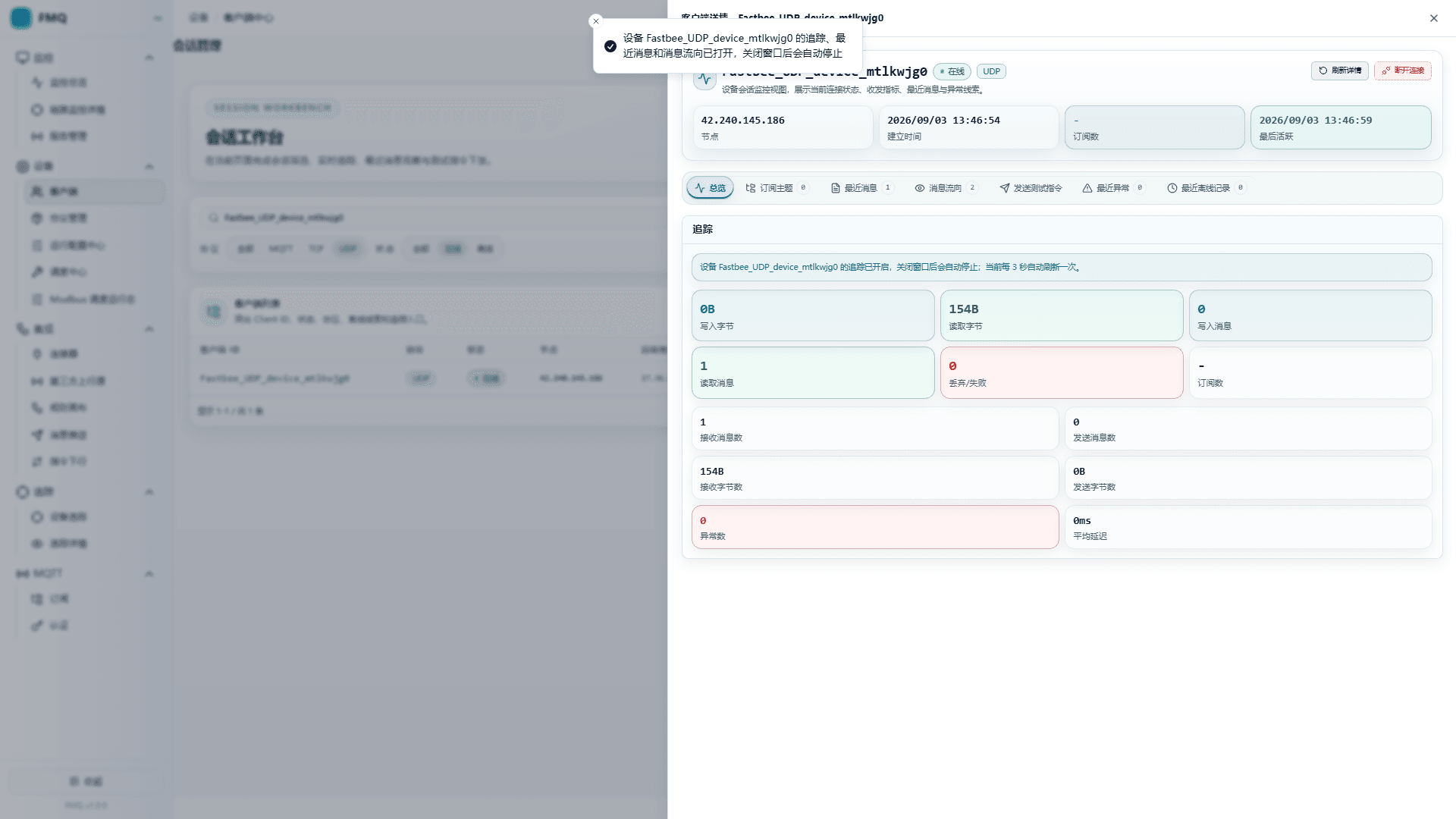
Figure: ① The bytes read/message counts prove device data entered the client details; ② Recent Messages checks the uplink direction and payload; the Message Flow, Exceptions, and Offline tabs are used for further troubleshooting.
6. Platform Delivers a Command to the UDP Device and Confirms Actual Receipt
Location: LinkPilot protocol debugging workbench
On the Send Test Command page, fill in the JSON payload; for MQTT, select Topic, QoS, and Retain, while TCP/UDP use the current session target; click Send Test Command. Then return to the LinkPilot GUI to view the downlink frame actually received by the device.
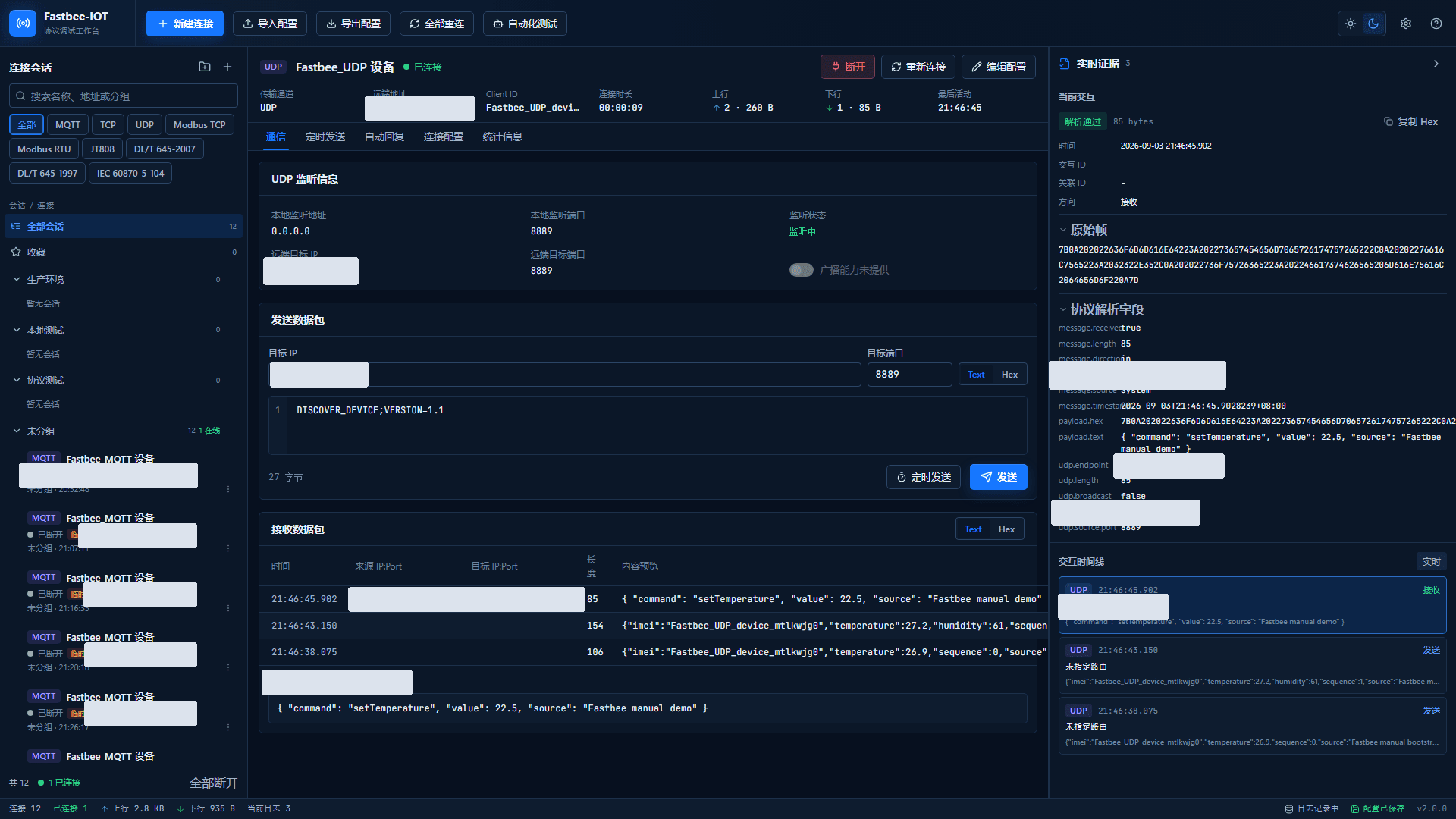
Figure: ① The LinkPilot timeline shows the platform downlink actually reaching the device; ② MQTT downlink uses the 1883 connection and subscribed topic; ③ TCP/UDP show the raw bytes received by the session.
7. Disconnect the UDP Device and Observe Offline Status
Location: LinkPilot protocol debugging workbench
Actively disconnect the session in the LinkPilot GUI, return to the FMQ client list, refresh, and view the offline status, last offline time, and reason.
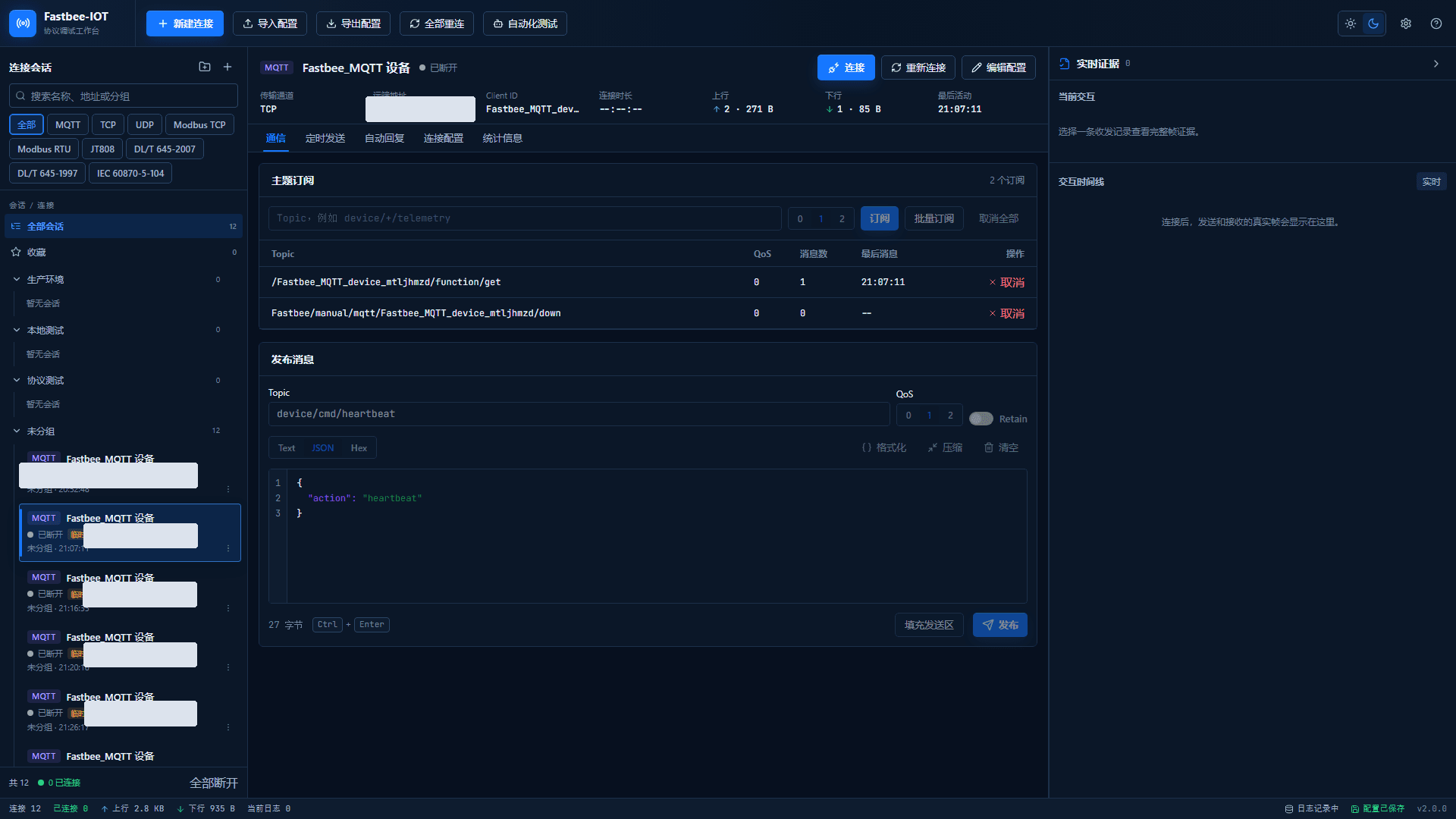
Figure: ① The session status changes to disconnected; ② the disconnect action leaves a record in the real GUI's interaction timeline.
8. Reconnect the UDP Device and Confirm Recovery
Location: LinkPilot protocol debugging workbench
Perform the reconnect action in the LinkPilot GUI, return to the platform, refresh the client details, and confirm that the online status and last active time update again.
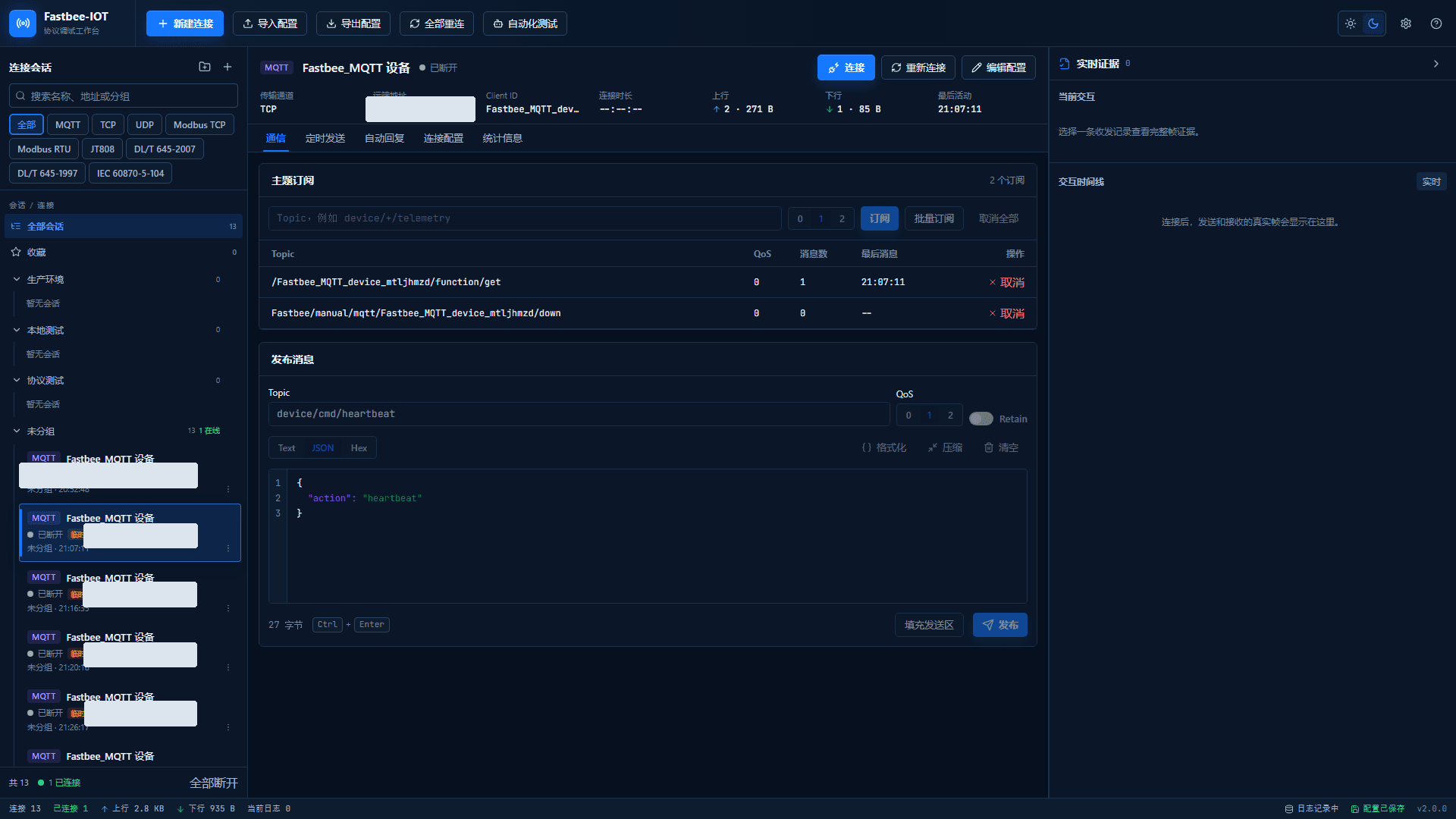
Figure: ① After reconnection the GUI shows connected, and the connection information retains the current protocol port 8889.
9. Clean Up the Temporary UDP Session
Location: Devices → Clients
Delete the LinkPilot temporary session, return to the FMQ client list, search by Client ID, refresh, and confirm the current filter result is empty.
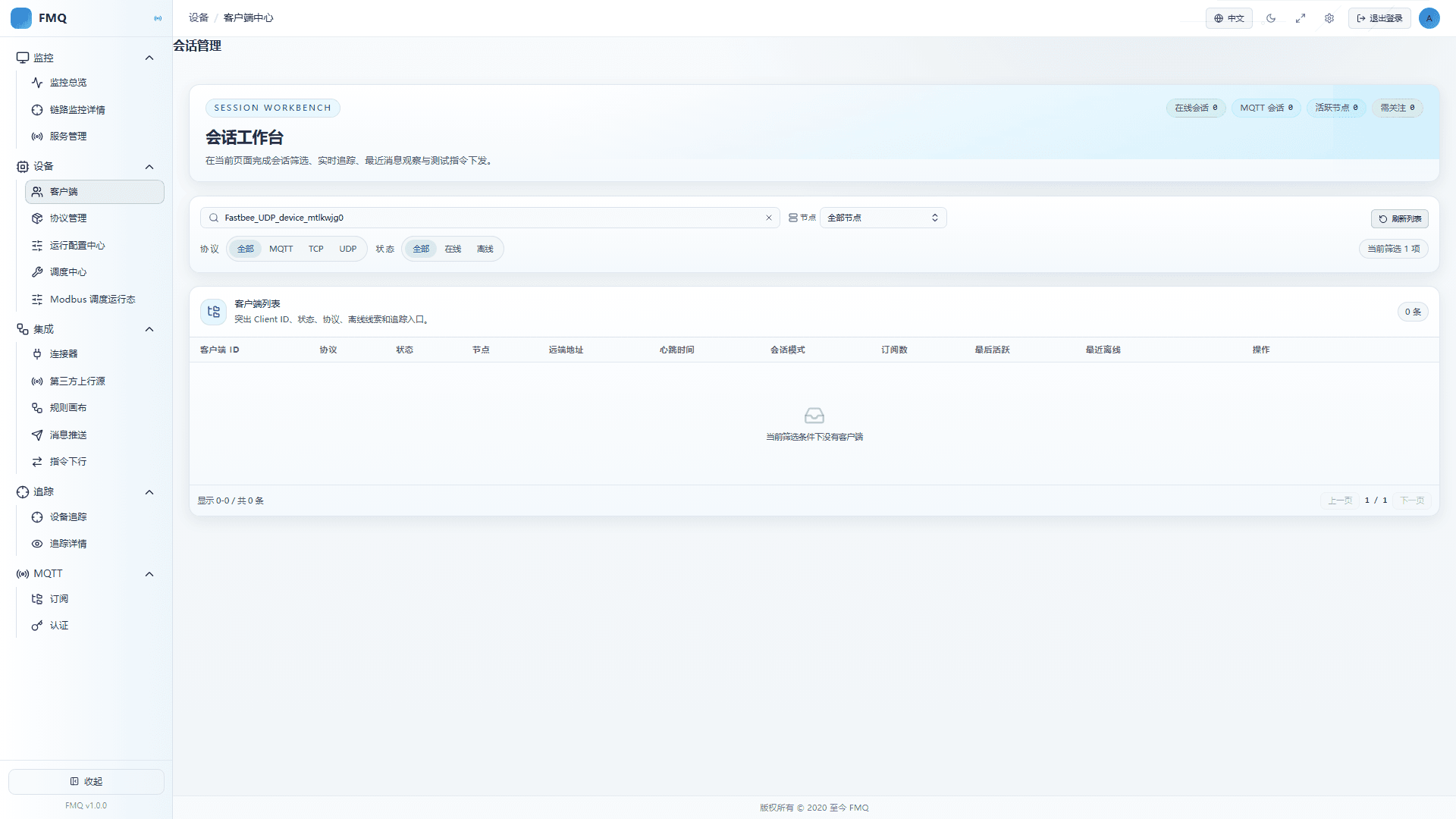
Figure: ① Refresh the list; ② the current Client ID no longer appears, which means the temporary session has been cleaned up.
Screenshot Highlights
| Marker | Parameter | Required | Recommended Value / Example | Parameter Purpose |
|---|---|---|---|---|
| P1 | Client Search | Required | Operate according to the current protocol session; example: Client Search | Client Search is used to complete locating, observing, or status operations on the current client page; the page or device GUI shows the real result corresponding to the operation. |
Client List and Details
Full Reference
| Field/Control | Purpose | Default/Recommended/Example | Option Details | Effect and Impact | Effective Conditions |
|---|---|---|---|---|---|
| Required Client Search | Client Search is used to complete locating, observing, or status operations on the current client page. | Default: current page state; Recommended: operate according to the current protocol session; Example: Client Search | N/A | The page or device GUI shows the real result corresponding to the operation. | Scope: current protocol session; Publish: not required · Restart: not required · Reconnect: not required |
| Required Node Filter | Node Filter is used to complete locating, observing, or status operations on the current client page. | Default: current page state; Recommended: operate according to the current protocol session; Example: Node Filter | All nodes: do not restrict the runtime node; find the target among client sessions on all nodes. Current node: view only the node the console is currently connected to; narrows the result scope for checking node attribution. | The page or device GUI shows the real result corresponding to the operation. | Scope: current protocol session; Publish: not required · Restart: not required · Reconnect: not required |
| Required Refresh List | Refresh List is used to complete locating, observing, or status operations on the current client page. | Default: current page state; Recommended: operate according to the current protocol session; Example: Refresh List | N/A | The page or device GUI shows the real result corresponding to the operation. | Scope: current protocol session; Publish: not required · Restart: not required · Reconnect: not required |
| Required Protocol Filter | Protocol Filter is used to complete locating, observing, or status operations on the current client page. | Default: current page state; Recommended: operate according to the current protocol session; Example: Protocol Filter | N/A | The page or device GUI shows the real result corresponding to the operation. | Scope: current protocol session; Publish: not required · Restart: not required · Reconnect: not required |
| Required Status Filter | Status Filter is used to complete locating, observing, or status operations on the current client page. | Default: current page state; Recommended: operate according to the current protocol session; Example: Status Filter | N/A | The page or device GUI shows the real result corresponding to the operation. | Scope: current protocol session; Publish: not required · Restart: not required · Reconnect: not required |
| Required Pagination | Pagination is used to complete locating, observing, or status operations on the current client page. | Default: current page state; Recommended: operate according to the current protocol session; Example: Pagination | N/A | The page or device GUI shows the real result corresponding to the operation. | Scope: current protocol session; Publish: not required · Restart: not required · Reconnect: not required |
| Required Trace | Trace is used to complete locating, observing, or status operations on the current client page. | Default: current page state; Recommended: operate according to the current protocol session; Example: Trace | N/A | The page or device GUI shows the real result corresponding to the operation. | Scope: current protocol session; Publish: not required · Restart: not required · Reconnect: not required |
| Required Open Details | Open Details is used to complete locating, observing, or status operations on the current client page. | Default: current page state; Recommended: operate according to the current protocol session; Example: Open Details | N/A | The page or device GUI shows the real result corresponding to the operation. | Scope: current protocol session; Publish: not required · Restart: not required · Reconnect: not required |
| Required Disconnect | Disconnect is used to complete locating, observing, or status operations on the current client page. | Default: current page state; Recommended: operate according to the current protocol session; Example: Disconnect | N/A | The page or device GUI shows the real result corresponding to the operation. | Scope: current protocol session; Publish: not required · Restart: not required · Reconnect: required |
| Required Refresh Details | Refresh Details is used to complete locating, observing, or status operations on the current client page. | Default: current page state; Recommended: operate according to the current protocol session; Example: Refresh Details | N/A | The page or device GUI shows the real result corresponding to the operation. | Scope: current protocol session; Publish: not required · Restart: not required · Reconnect: not required |
| Required Overview | Overview is used to complete locating, observing, or status operations on the current client page. | Default: current page state; Recommended: operate according to the current protocol session; Example: Overview | N/A | The page or device GUI shows the real result corresponding to the operation. | Scope: current protocol session; Publish: not required · Restart: not required · Reconnect: not required |
| Required Subscribed Topics | Subscribed Topics is used to complete locating, observing, or status operations on the current client page. | Default: current page state; Recommended: operate according to the current protocol session; Example: Subscribed Topics | N/A | The page or device GUI shows the real result corresponding to the operation. | Scope: current protocol session; Publish: not required · Restart: not required · Reconnect: not required |
| Required Recent Messages | Recent Messages is used to complete locating, observing, or status operations on the current client page. | Default: current page state; Recommended: operate according to the current protocol session; Example: Recent Messages | N/A | The page or device GUI shows the real result corresponding to the operation. | Scope: current protocol session; Publish: not required · Restart: not required · Reconnect: not required |
| Required JSON / Raw / HEX | JSON / Raw / HEX is used to complete locating, observing, or status operations on the current client page. | Default: current page state; Recommended: operate according to the current protocol session; Example: JSON / Raw / HEX | N/A | The page or device GUI shows the real result corresponding to the operation. | Scope: current protocol session; Publish: not required · Restart: not required · Reconnect: not required |
| Required Message Flow | Message Flow is used to complete locating, observing, or status operations on the current client page. | Default: current page state; Recommended: operate according to the current protocol session; Example: Message Flow | N/A | The page or device GUI shows the real result corresponding to the operation. | Scope: current protocol session; Publish: not required · Restart: not required · Reconnect: not required |
| Required Send Test Command | Send Test Command is used to complete locating, observing, or status operations on the current client page. | Default: current page state; Recommended: operate according to the current protocol session; Example: Send Test Command | N/A | The page or device GUI shows the real result corresponding to the operation. | Scope: current protocol session; Publish: not required · Restart: not required · Reconnect: not required |
| Required Payload Type | Payload Type is used to complete locating, observing, or status operations on the current client page. | Default: current page state; Recommended: operate according to the current protocol session; Example: Payload Type | N/A | The page or device GUI shows the real result corresponding to the operation. | Scope: current protocol session; Publish: not required · Restart: not required · Reconnect: not required |
| Required Format | Format is used to complete locating, observing, or status operations on the current client page. | Default: current page state; Recommended: operate according to the current protocol session; Example: Format | N/A | The page or device GUI shows the real result corresponding to the operation. | Scope: current protocol session; Publish: not required · Restart: not required · Reconnect: not required |
| Required Send Test Command | Send Test Command is used to complete locating, observing, or status operations on the current client page. | Default: current page state; Recommended: operate according to the current protocol session; Example: Send Test Command | N/A | The page or device GUI shows the real result corresponding to the operation. | Scope: current protocol session; Publish: not required · Restart: not required · Reconnect: not required |
| Required Recent Exceptions | Recent Exceptions is used to complete locating, observing, or status operations on the current client page. | Default: current page state; Recommended: operate according to the current protocol session; Example: Recent Exceptions | N/A | The page or device GUI shows the real result corresponding to the operation. | Scope: current protocol session; Publish: not required · Restart: not required · Reconnect: not required |
| Required Recent Offline Records | Recent Offline Records is used to complete locating, observing, or status operations on the current client page. | Default: current page state; Recommended: operate according to the current protocol session; Example: Recent Offline Records | N/A | The page or device GUI shows the real result corresponding to the operation. | Scope: current protocol session; Publish: not required · Restart: not required · Reconnect: not required |
| Required Close Details | Close Details is used to complete locating, observing, or status operations on the current client page. | Default: current page state; Recommended: operate according to the current protocol session; Example: Close Details | N/A | The page or device GUI shows the real result corresponding to the operation. | Scope: current protocol session; Publish: not required · Restart: not required · Reconnect: not required |
Result Verification
UDP client closed loop completed
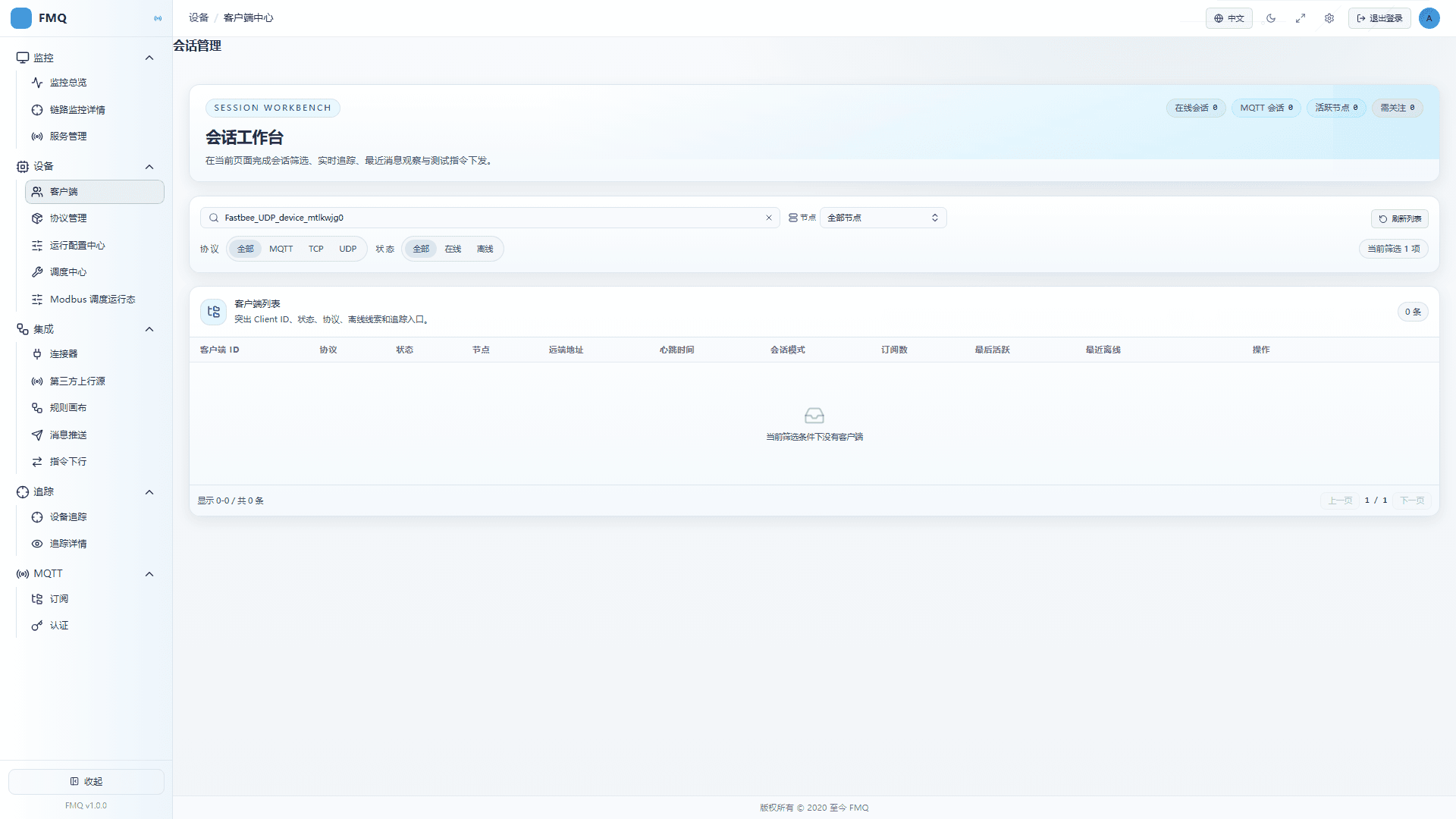
Disconnected state observed on the UDP platform
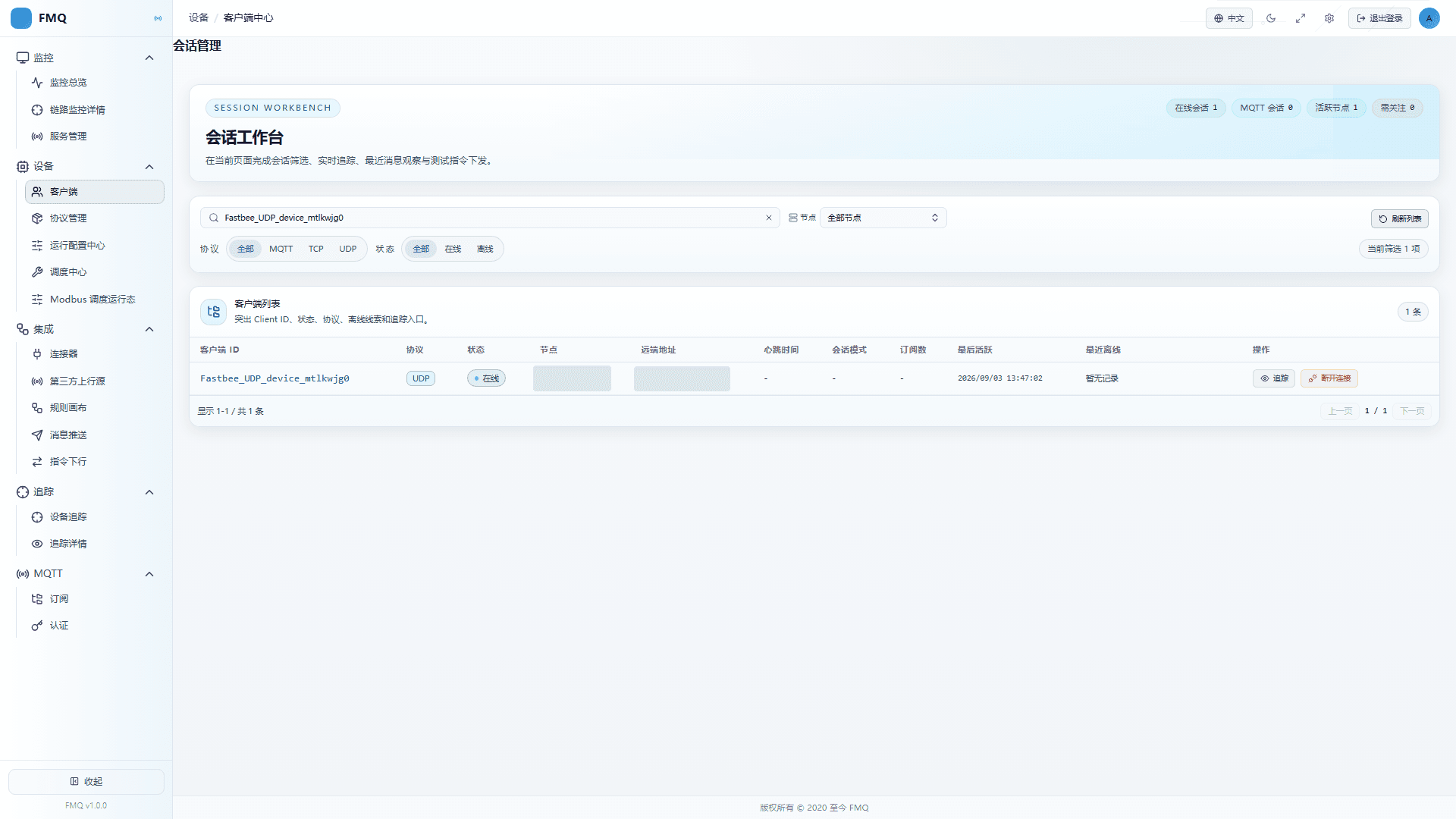
FAQ
How does a UDP device complete a full access verification on FastBee?
Go to Devices → Clients, locate the UDP session, and enable tracing; use LinkPilot (UDP port 8889) to send uplink JSON and verify it in the detail statistics and Recent Messages; then deliver from the platform and confirm actual receipt on the device GUI; finally verify disconnection and reconnection.
Do UDP downlink commands need a Topic like MQTT?
No. TCP/UDP test commands directly use the current session target; only MQTT requires Topic, QoS, and Retain.
After a UDP device goes offline, how do I confirm the reason and recover?
Refresh the client list to view the offline status and Recent Offline Records (UDP timeout is one possible reason), then perform reconnect in LinkPilot and return to the platform to confirm that the online status and last active time update again.
Production Operation Notice
Screenshots and examples illustrate operation locations and judgment methods; they do not represent current production status. For operations involving publishing, starting/stopping, rebinding, retrying, or deletion, first confirm the target environment, impact scope, and recovery plan, and have authorized personnel perform them.
FastBee · FMQ Operations Manual