

MQTT×RabbitMQ×JSON from Zero to One
Start from RabbitMQ resources, FMQ connectors, and the platform product and device; send the JSON only once, and verify both the manual branch and the platform main path.
Page Guide
How to Read
Complete resource preparation, platform configuration, device connection, the single report, and dual-branch verification in order. Every step gives a completion sign and the first troubleshooting point.
About the Screenshots
Screenshots come from real operations. In the public version, test batches, real node addresses, and temporary resource names have been replaced with generic examples; statuses, times, and data in the screenshots do not represent the current production environment.
Before You Start
| Item | Description |
|---|---|
| What you can do | Start from the account, queues, and product; send only one JSON message and verify both branches. |
| Where to start | RabbitMQ console → FMQ → platform device access |
| Required permissions | Practice resource management, product/device, and runtime plan permissions |
| Estimated time | 40 minutes |
Production Operation Notice
This manual includes administrative operations such as creating RabbitMQ resources, adjusting the FMQ runtime plan, and disabling test rules. Practice in an isolated environment first; in production, record the original configuration, limit the work to a maintenance window, and have an authorized administrator perform it.
System Architecture
This verification is completed by five components working together: the device or FMQX reports JSON over MQTT; FMQ handles access, parsing, and forwarding; RabbitMQ holds the platform consumption queue and the manual check queue separately; FastBee consumes the platform queue and writes device history; and the console publishes product, device, and runtime plan configurations. FMQX is FastBee's own client tool, distinct from the third-party MQTTX.
| Data or Configuration Direction | Components Involved | Description |
|---|---|---|
| Device data | Device / FMQX → FMQ → RabbitMQ | The same JSON enters two independent branches. |
| Platform main path | RabbitMQ platform space → FastBee consumption service | The platform consumes the property queue and writes device history. |
| Manual check branch | RabbitMQ manual space → practice queue | Used only to view payloads; not a platform consumption source. |
| Configuration publishing | FastBee console → FMQ | Publish the product, device, and runtime plan first, then verify messaging. |
Access Flow
- Prepare RabbitMQ's two virtual hosts, the business account, exchanges, queues, and bindings.
- Create the JSON product, the temperature property, and the device on the platform, and publish the runtime configuration.
- Create the platform main-path connector and the manual push connector in FMQ, each pointing to its corresponding virtual host.
- On the platform, select the same platform main-path connector, connect and enable it, and wait for all nodes to apply.
- The device sends only one JSON message; then verify the result in FMQ, RabbitMQ, and device history against the same time window.
1. Set Up RabbitMQ Resources
Use existing services. Platform: platform management address; FMQ: FMQ management address; RabbitMQ: RabbitMQ management address.
The same device report splits into two paths: the manual queue in the manual branch space is for viewing payloads; the platform queue in the platform main-path space is for writing history. The two spaces must be kept separate.
1. Create the Platform-Managed Business Space
Operation path: RabbitMQ → Admin → Virtual Hosts → Add a new virtual host
Add the platform main-path space in Virtual Hosts. This space serves the platform main path only; the manual space is created separately later.

Figure: Create a dedicated RabbitMQ business space.
Values and Verification for This Step
| Configuration Item | Values and Verification | Completion Sign |
|---|---|---|
| Values and verification for this step | Name=platform main-path space; Default Queue Type=Classic | The list shows the platform main-path space with status running. |
Completion sign: The list shows the platform main-path space with status running.
First troubleshooting point: Choosing the wrong virtual host scatters subsequent resources.
2. Create the Business Account
Operation path: RabbitMQ → Admin → Users → Add a user
Add the business account and set the management tag.
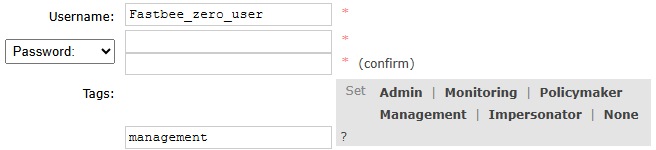
Figure: Create the business account for FMQ and the platform.
Values and Verification for This Step
| Configuration Item | Values and Verification | Completion Sign |
|---|---|---|
| Values and verification for this step | Username=business account; Tags=management; Password and confirmation are entered on site and not copied into the manual | The new account appears in the user list, without using guest or a shared administrator password. |
Completion sign: The new account appears in the user list, without using guest or a shared administrator password.
First troubleshooting point: The management tag does not equal virtual host permissions.
3. Grant Permissions on the Platform-Managed Business Space
Operation path: Admin → Users → business account → Set permission
Select the platform main-path space, fill in the configure, write, and read permissions respectively, and submit the authorization.
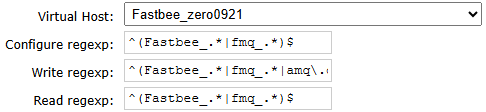
Figure: Grant permissions on the platform main path and default exchange.
Values and Verification for This Step
| Configuration Item | Values and Verification | Completion Sign |
|---|---|---|
| Values and verification for this step | Virtual host=platform main-path space; Configure, Read=^(demo_.|fmq_.)$; Write=^(demo_.|fmq_.|amq.default)$ | The platform main path can write to the default exchange and read queues. |
Completion sign: The platform main path can write to the default exchange and read queues.
First troubleshooting point: Write must additionally allow the default exchange amq.default; do not authorize only the demo_ and fmq_ resources.
4. Create a Separate Space for Manual Forwarding
Operation path: RabbitMQ → Admin → Virtual Hosts → Add a new virtual host
Add a separate manual practice space.
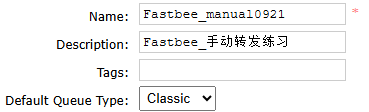
Figure: Create a separate space for manual forwarding.
Values and Verification for This Step
| Configuration Item | Values and Verification | Completion Sign |
|---|---|---|
| Values and verification for this step | Name=manual branch space; Default Queue Type=Classic | The new space is isolated from the managed channel. |
Completion sign: The new space is isolated from the managed channel.
First troubleshooting point: Do not select the platform-managed space (the platform main-path space).
5. Grant Permissions to the Manual Forwarding Account
Operation path: Admin → Users → business account → Set permission
Grant the manual space permissions to the same business account.
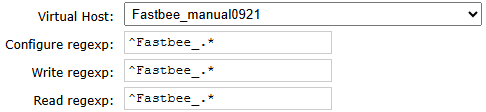
Figure: Grant permissions to the manual forwarding account.
Values and Verification for This Step
| Configuration Item | Values and Verification | Completion Sign |
|---|---|---|
| Values and verification for this step | User=business account; Virtual host=manual branch space; Configure, Write, Read=^demo_.* | Authorization for the new space succeeded. |
Completion sign: Authorization for the new space succeeded.
First troubleshooting point: The same user needs permissions on both virtual hosts separately.
6. Create the Exchange for Manual Forwarding
Operation path: Exchanges → Add a new exchange
Switch to the manual space and add an exchange.
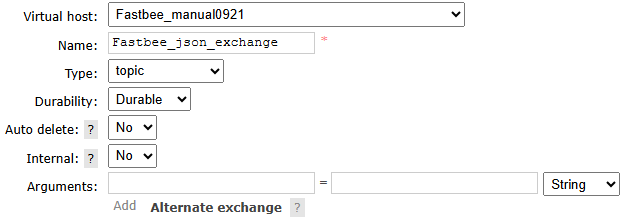
Figure: Create the exchange for manual forwarding.
Values and Verification for This Step
| Configuration Item | Values and Verification | Completion Sign |
|---|---|---|
| Values and verification for this step | Virtual host=manual branch space; Name=json_exchange; Type=topic; Durable=true; Auto delete=false | The exchange is created in the manual space. |
Completion sign: The exchange is created in the manual space.
First troubleshooting point: The exchange type must match the manual connector's automatic declaration.
7. Create the Queue That Receives Forwarded Messages
Operation path: Queues and Streams → Add a new queue
Add a durable queue in the manual space.
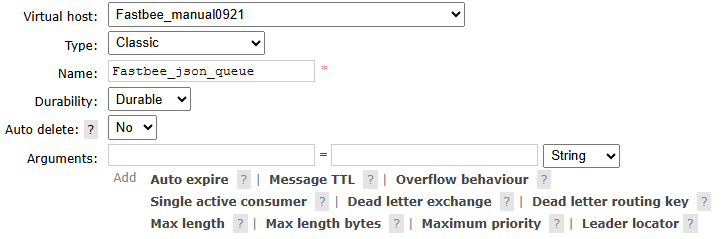
Figure: Create the queue that receives forwarded messages.
Values and Verification for This Step
| Configuration Item | Values and Verification | Completion Sign |
|---|---|---|
| Values and verification for this step | Virtual host=manual branch space; Name=json_queue; Type=Classic; Durable=true | The queue is created with 0 initial messages. |
Completion sign: The queue is created with 0 initial messages.
First troubleshooting point: Do not reuse a queue with the same name in the platform virtual host as the manual result.
8. Bind the Exchange to the Queue
Operation path: json_queue → Bindings → Add binding
Open the manual queue and add an exchange binding under Bindings.

Figure: Bind the exchange to the queue.
Values and Verification for This Step
| Configuration Item | Values and Verification | Completion Sign |
|---|---|---|
| Values and verification for this step | Virtual host=manual branch space; Exchange=json_exchange; Queue=json_queue; Routing key=fastbee.demo.property | The binding row contains the exchange and the routing key. |
Completion sign: The binding row contains the exchange and the routing key.
First troubleshooting point: The exchange and queue with the same names must also be in the correct virtual host.
9. Confirm the Binding Succeeded
Operation path: manual queue → Bindings
Check the exchange and routing key in the binding list.

Figure: Confirm the binding succeeded.
Values and Verification for This Step
| Configuration Item | Values and Verification | Completion Sign |
|---|---|---|
| Values and verification for this step | Virtual host=manual branch space; Exchange=json_exchange; Queue=json_queue; Routing key=fastbee.demo.property | The forwarding key can route into the practice queue. |
Completion sign: The forwarding key can route into the practice queue.
First troubleshooting point: The exchange and queue with the same names must also be in the correct virtual host.
2. Create the Product and Temperature Model
10. Create a JSON Product
Operation path: Device Management → Product Management → Add
Create a product, fill in the following parameters, and save.
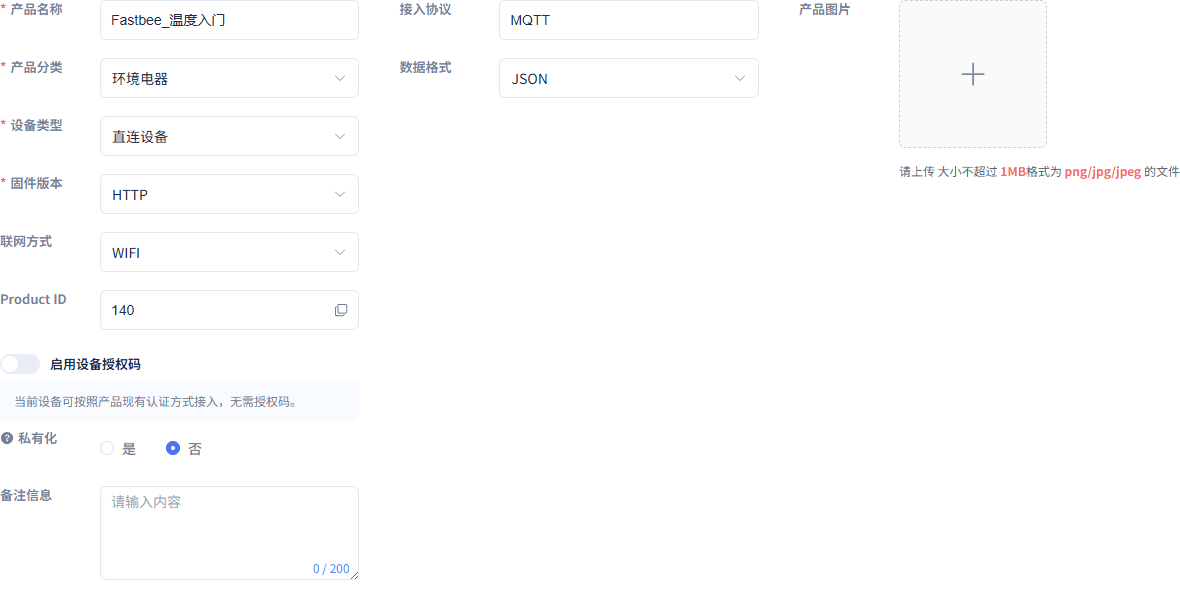
Figure: Create a JSON product.
Values and Verification for This Step
| Configuration Item | Values and Verification | Completion Sign |
|---|---|---|
| Values and verification for this step | Product Name=Temperature Demo Product; Product Category=Environmental Appliances; Device Type=Direct Device; Access Protocol=MQTT; Data Format=JSON; Firmware Version=HTTP; Network Mode=WIFI; Product ID=140 | The new product is unreleased, with data format JSON. |
Completion sign: The new product is unreleased, with data format JSON.
First troubleshooting point: JSON does not equal ALINK_JSON.
11. Define and Verify the temperature Property
Operation path: Product Details → Model Definition
Enter the Thing Model, add the temperature property, check history storage, then save and verify the list.

Figure: Confirm the temperature field and history storage.
Values and Verification for This Step
| Configuration Item | Values and Verification | Completion Sign |
|---|---|---|
| Values and verification for this step | Model Name=Temperature; Translation=Temperature; Model Identifier=temperature; Category=Property; Type=Integer; Range=-40~125; Unit=℃; Step=1; History Storage=Checked | The field name matches the JSON key, and history storage is enabled. |
Completion sign: The field name matches the JSON key, and history storage is enabled.
First troubleshooting point: Without history storage checked, history records cannot prove persistence.
12. Release the Product
Operation path: Product Details → Release Product
Click Release Product and confirm.
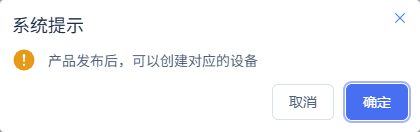
Figure: Release the product.
Values and Verification for This Step
| Configuration Item | Values and Verification | Completion Sign |
|---|---|---|
| Values and verification for this step | Confirm after clicking Release Product; product 140 this time | The product status becomes Released, and devices can be created. |
Completion sign: The product status becomes Released, and devices can be created.
First troubleshooting point: A released product does not mean the nodes have applied it.
13. Publish the Product Runtime Configuration
Operation path: Product Details → Runtime Publish
Validate the runtime configuration; after it passes, confirm publishing and wait for node receipts.
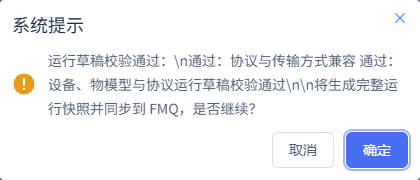
Figure: Have FMQ load the product configuration.
Values and Verification for This Step
| Configuration Item | Values and Verification | Completion Sign |
|---|---|---|
| Values and verification for this step | After validation passes, confirm publishing and wait for all nodes to apply | The runtime status is effective, and all nodes applied successfully. |
Completion sign: The runtime status is effective, and all nodes applied successfully.
First troubleshooting point: Use node receipts to prove effectiveness.
3. Configure RabbitMQ in FMQ
FMQ → Integration → Connectors → New Connector. First create the platform main-path connector for platform consumption and fill it in per the table below; create the separate manual push connector later when you need to view messages manually.
FMQ: How to Fill In the Connector
| Field | Platform Consumption | Manual Payload Viewing |
|---|---|---|
| Name / Capability / Type | JSON Message Push / Message Push / RabbitMQ | Manual Message Push / Message Push / RabbitMQ |
| Host / Port | RabbitMQ service address / 5672 | Same as left |
| Username / Password | business account / enter on site | Same as left |
| Virtual Host | platform main-path space | manual branch space |
| Default Exchange | Leave empty; use the platform default exchange | json_exchange |
| Publish Confirm | Yes | As required by the receiver |
The platform main path only needs a queue target and must not use the manual branch's self-created exchange; the manual branch must use a different virtual host. After saving, click parameter validation, confirm the connection is reachable, then continue with platform access.
14. Create a RabbitMQ Connector
Operation path: FMQ → Integration → Connectors → New Connector
Create a message push connector, select RabbitMQ, and fill in the connection parameters.
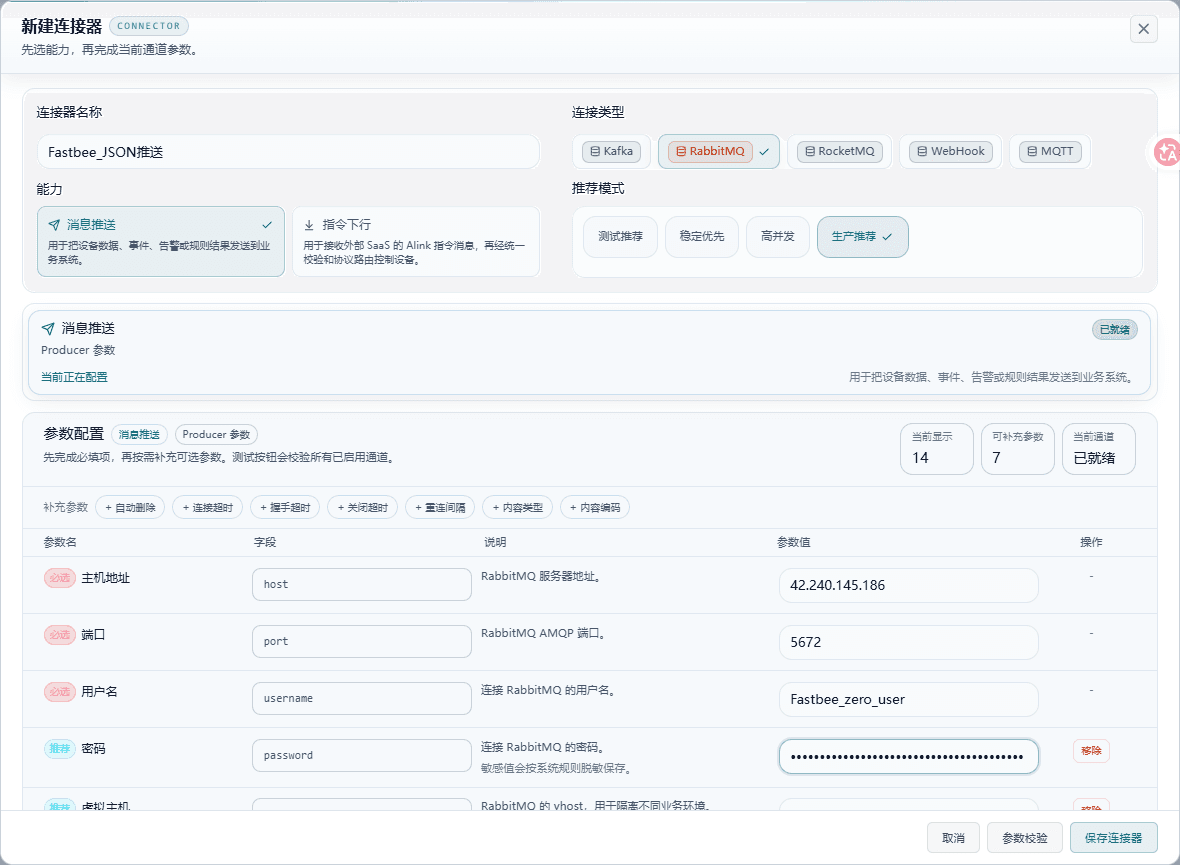
Figure: Create a dedicated RabbitMQ connector.
Values and Verification for This Step
| Configuration Item | Values and Verification | Completion Sign |
|---|---|---|
| Values and verification for this step | Name=JSON Message Push; Capability=Message Push; Type=RabbitMQ; Host=runtime service address; Port=5672; Account=business account; password entered on site | The dedicated connector appears after saving. |
Completion sign: The dedicated connector appears after saving.
First troubleshooting point: The main-path connector's Exchange must be left empty; the messaging port 5672 must not be filled with the management port 15672.
15. Use the Default Exchange for the Main-Path Connector
Operation path: FMQ → Integration → Connectors → JSON Message Push → Edit
Fill in the platform main-path space, clear the default exchange, and save the configuration.
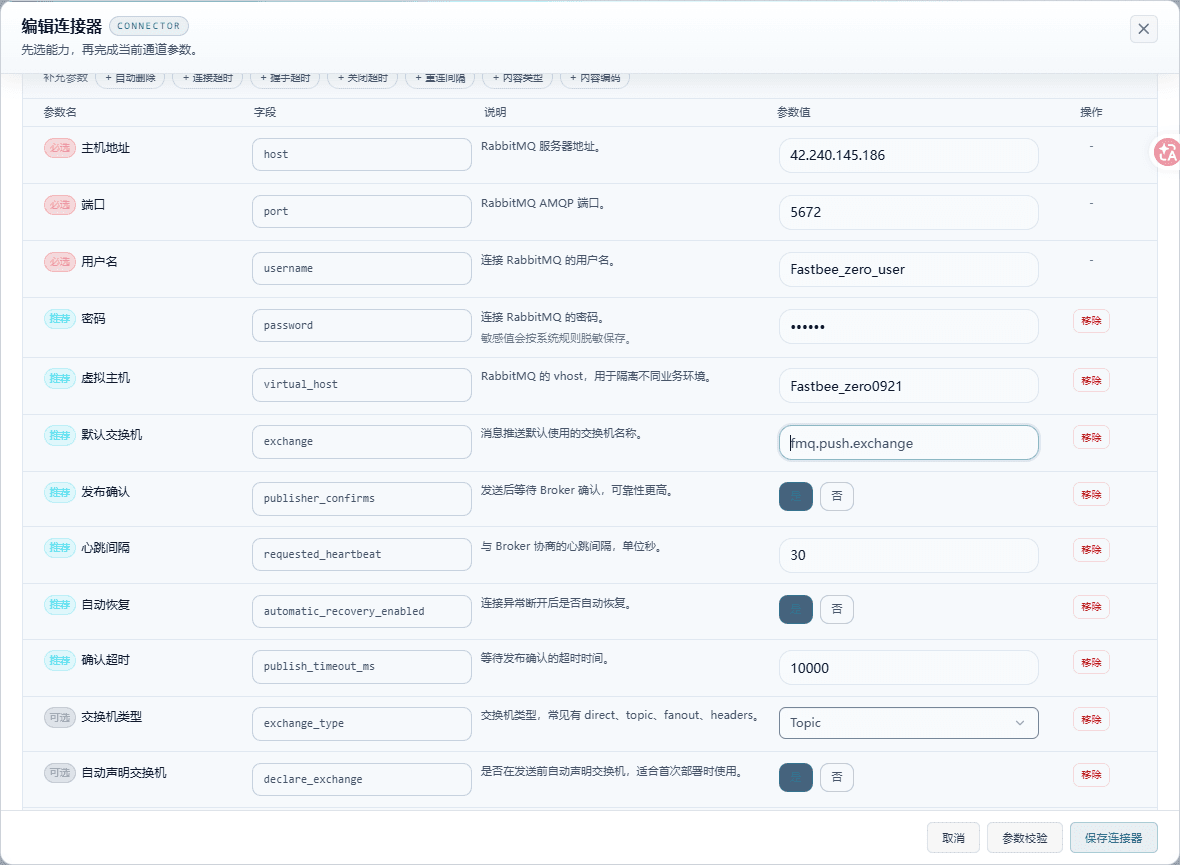
Figure: Main path uses the default exchange.
Values and Verification for This Step
| Configuration Item | Values and Verification | Completion Sign |
|---|---|---|
| Values and verification for this step | Virtual host=platform main-path space; Default exchange=leave empty; Publish confirm=Yes; the grayed-out fmq.push.exchange is a placeholder hint, not a value to enter | The default exchange is empty, and the virtual host is the platform main-path space. |
Completion sign: The default exchange is empty, and the virtual host is the platform main-path space.
First troubleshooting point: The managed action only has queue; do not fill in a self-created exchange.
16. Save and Verify the Main-Path Connection
Operation path: FMQ → Integration → Connectors → JSON Message Push
Check the current configuration and run parameter validation.
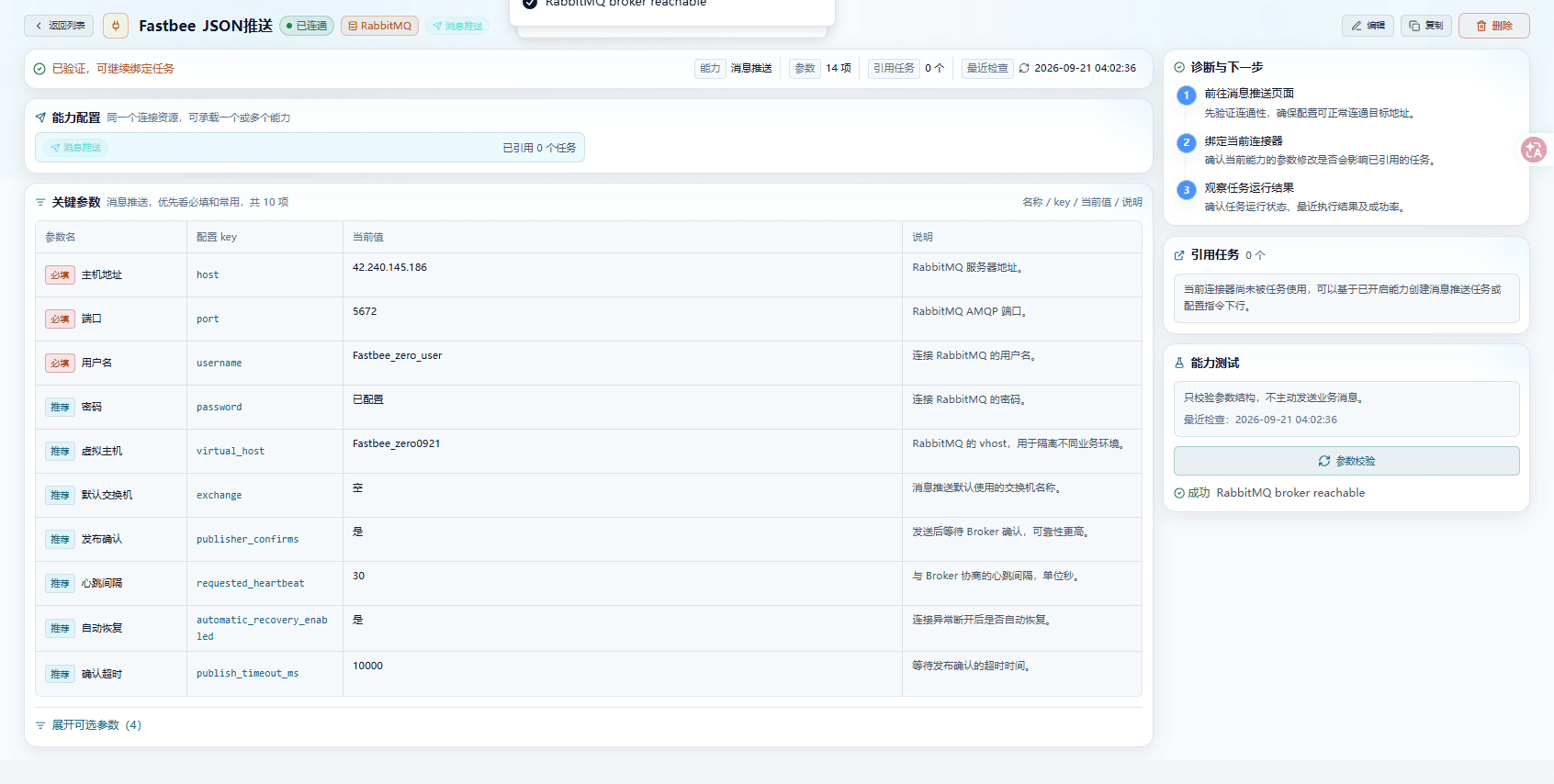
Figure: Main path with empty Exchange saved and connected.
Values and Verification for This Step
| Configuration Item | Values and Verification | Completion Sign |
|---|---|---|
| Values and verification for this step | Default exchange current value=empty; parameter validation result=RabbitMQ broker reachable | The current value shows "empty", and parameter validation shows RabbitMQ broker reachable. |
Completion sign: The current value shows "empty", and parameter validation shows RabbitMQ broker reachable.
First troubleshooting point: A successful connection still needs the subsequent proof that 75 is persisted; it does not mean business delivery passed.
17. Create the Manual Push Connector
Operation path: FMQ → Integration → Connectors → Manual Message Push → Edit
Create a separate manual push connector, fill in the manual space and exchange, and save.
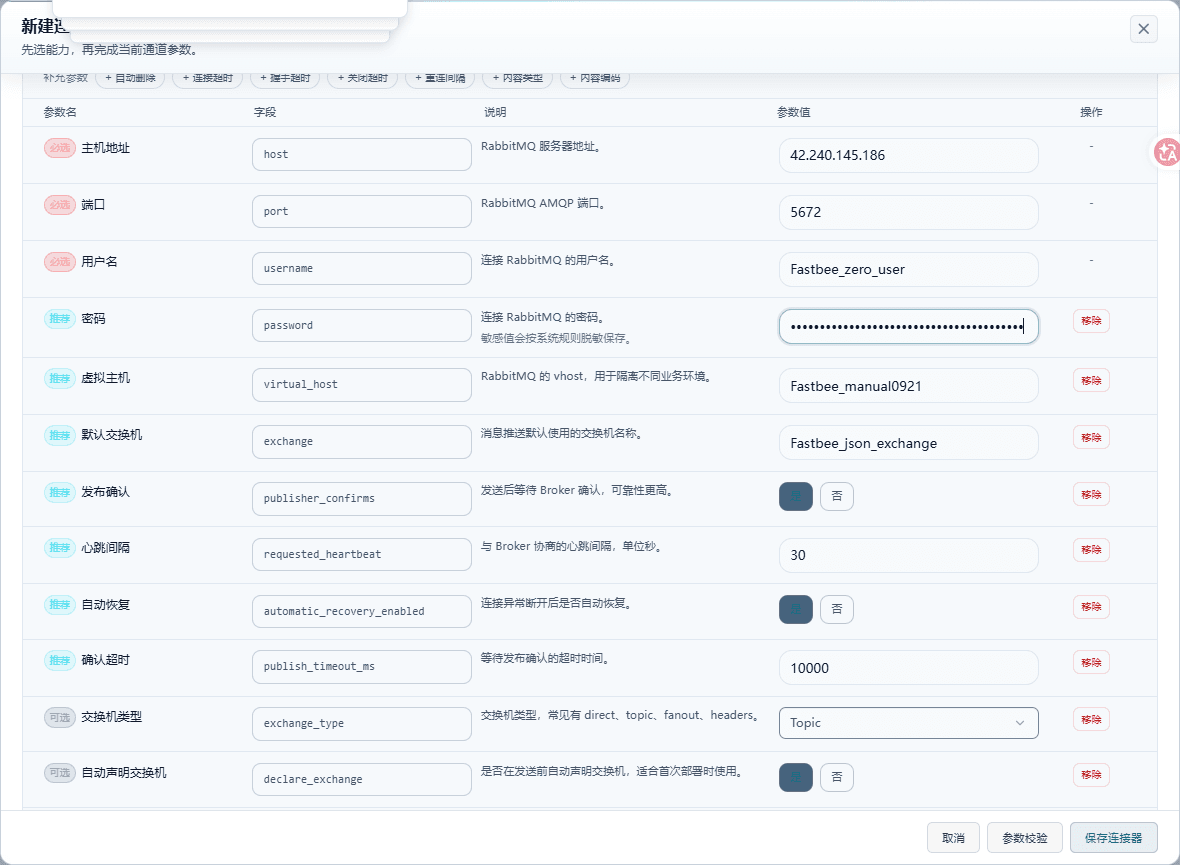
Figure: Manual forwarding uses a separate virtual host.
Values and Verification for This Step
| Configuration Item | Values and Verification | Completion Sign |
|---|---|---|
| Values and verification for this step | Name=Manual Message Push; RabbitMQ=RabbitMQ service address and port; Username=business account; Virtual host=manual branch space; Default exchange=json_exchange; password entered on site | The form's virtual host is the manual branch space, and the exchange is json_exchange. |
Completion sign: The form's virtual host is the manual branch space, and the exchange is json_exchange.
First troubleshooting point: The manual branch and the platform main path must use different virtual hosts.
18. Confirm the Manual Connector Is Reachable
Operation path: FMQ → Integration → Connectors → Manual Message Push
Run parameter validation and verify the manual connector.
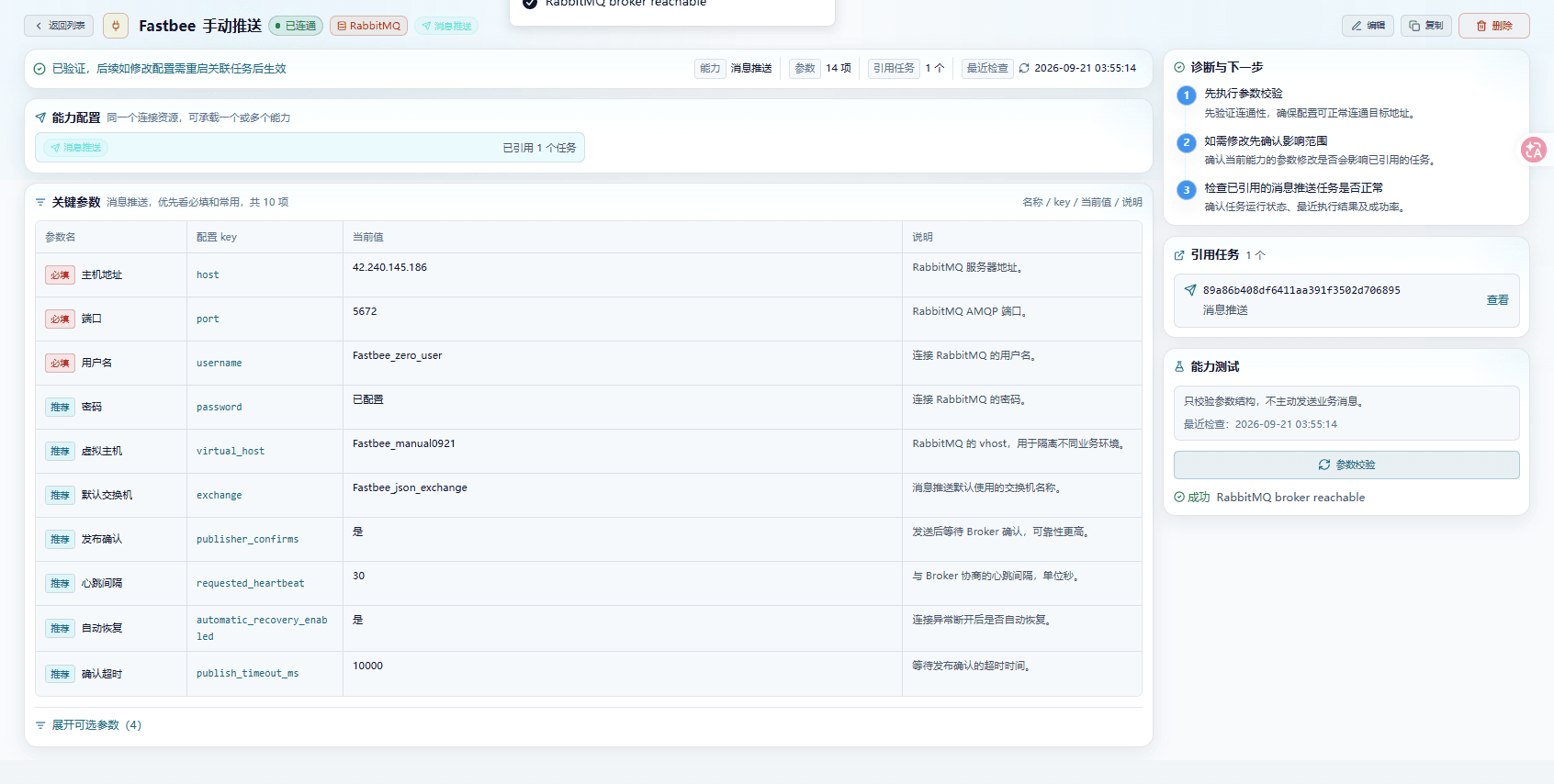
Figure: Manual connector connected.
Values and Verification for This Step
| Configuration Item | Values and Verification | Completion Sign |
|---|---|---|
| Values and verification for this step | Connector=Manual Message Push; Virtual host=manual branch space; Default exchange=json_exchange | The connector is saved, and parameter validation succeeded. |
Completion sign: The connector is saved, and parameter validation succeeded.
First troubleshooting point: This only proves the connection is reachable; the queue payload is verified later.
4. Create the Device and Prepare Authentication
19. Create the Thermometer Device
Operation path: Device Access Wizard → Create Device
Select the released product, fill in the device parameters, and save.
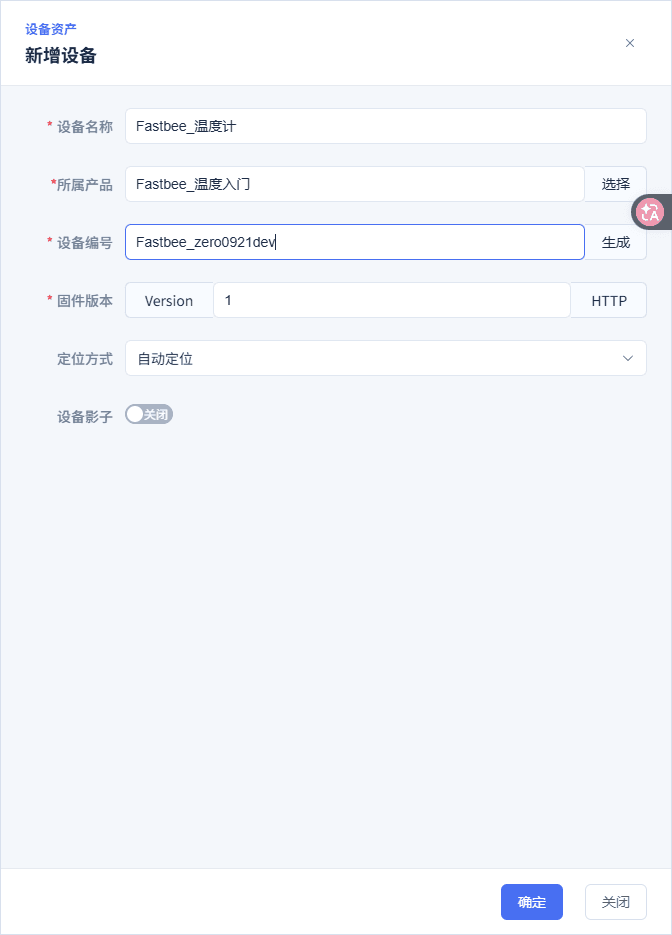
Figure: Create a thermometer.
Values and Verification for This Step
| Configuration Item | Values and Verification | Completion Sign |
|---|---|---|
| Values and verification for this step | Device Name=Temperature Demo Product; Product=Temperature Demo Product; Device Number=demo-device-number; Firmware Version=1; Positioning=Auto; Device Shadow=Off | The wizard shows this device and its connection parameters. |
Completion sign: The wizard shows this device and its connection parameters.
First troubleshooting point: A different device number causes topic and authentication mismatches.
5. Configure Manual Message Push
The rule event clientId uses the normalized device number demo-device-number; the MQTT connection Client ID is S&demo-device-number&140&1 — do not mix the two up.
20. Create the Task and Scope It to This Device
Operation path: FMQ → Integration → Message Push → New Task
Create a property report task and scope it to this device in the filter conditions.
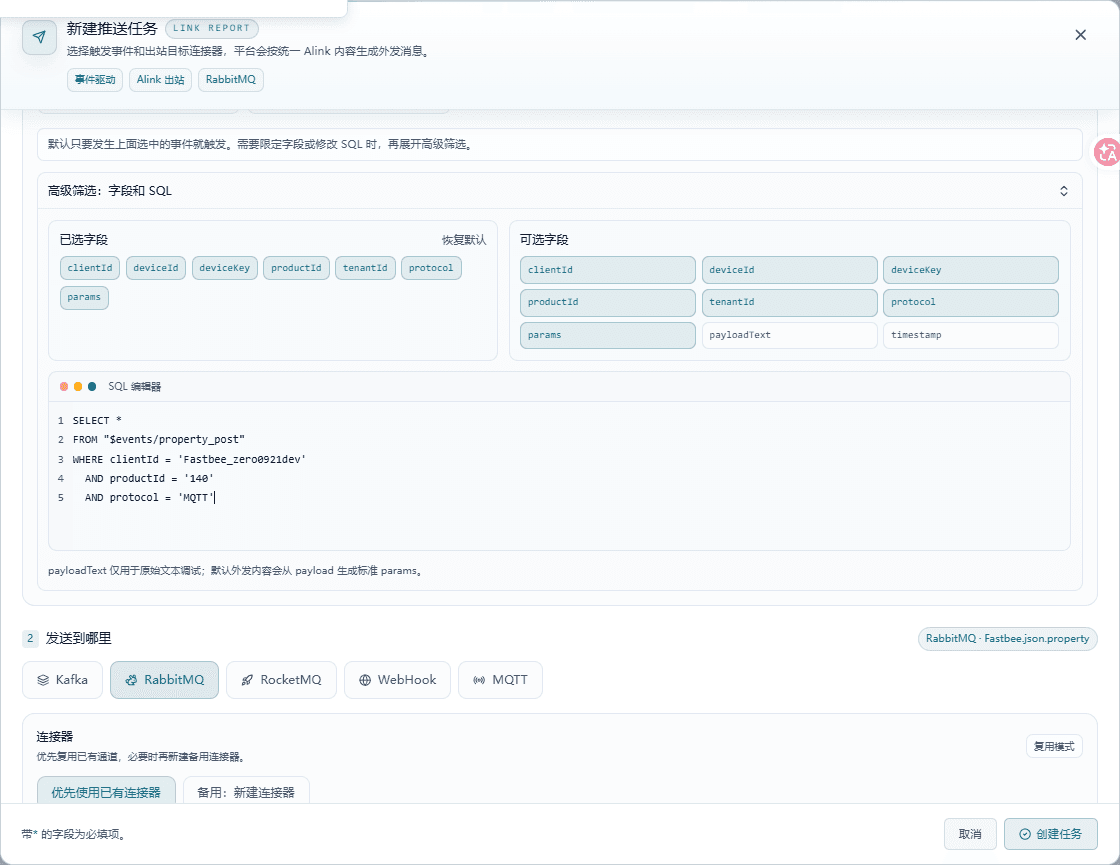
Figure: Precisely scope to this product and device.
Values and Verification for This Step
| Configuration Item | Values and Verification | Completion Sign |
|---|---|---|
| Values and verification for this step | Task Name=JSON Forwarding Task; Enabled=On; Event=Property Report; clientId=demo-device-number; productId=140; protocol=MQTT | The SQL restricts to this device's clientId, product 140, and the MQTT protocol. |
Completion sign: The SQL restricts to this device's clientId, product 140, and the MQTT protocol.
First troubleshooting point: Use the normalized device number here, not the MQTT connection's S&... Client ID.
21. Specify the Manual Branch Target
Operation path: FMQ → Integration → Message Push → New Task
Select the manual connector, fill in the target exchange and routing key, and save.
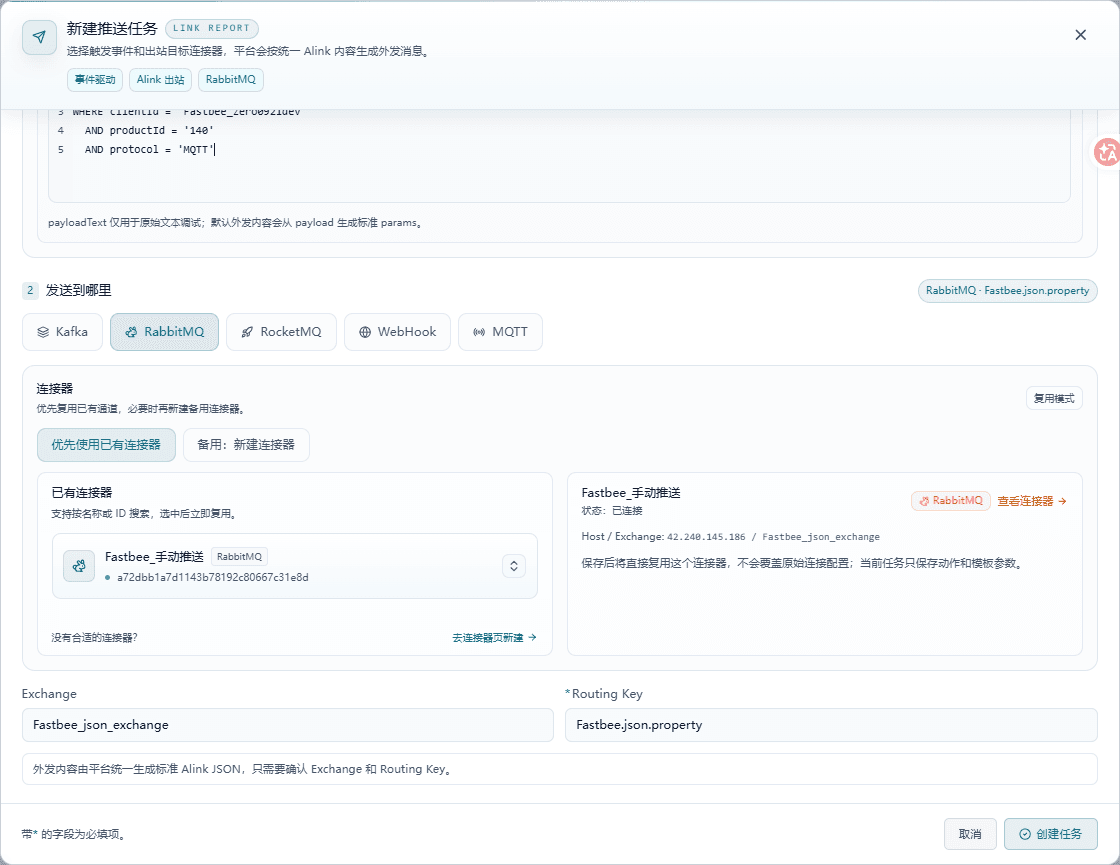
Figure: Bind the dedicated manual push connector.
Values and Verification for This Step
| Configuration Item | Values and Verification | Completion Sign |
|---|---|---|
| Values and verification for this step | Connector=Manual Message Push; Virtual host=manual branch space; Exchange=json_exchange; Routing Key=fastbee.demo.property | Manual Message Push is selected, and the exchange and routing key match the manual queue binding. |
Completion sign: Manual Message Push is selected, and the exchange and routing key match the manual queue binding.
First troubleshooting point: Do not mistakenly select the platform-managed connector JSON Message Push.
22. Confirm the Manual Task Is Enabled
Operation path: FMQ → Integration → Message Push → JSON Forwarding Task
Open the task details and confirm the task is enabled with the correct target.
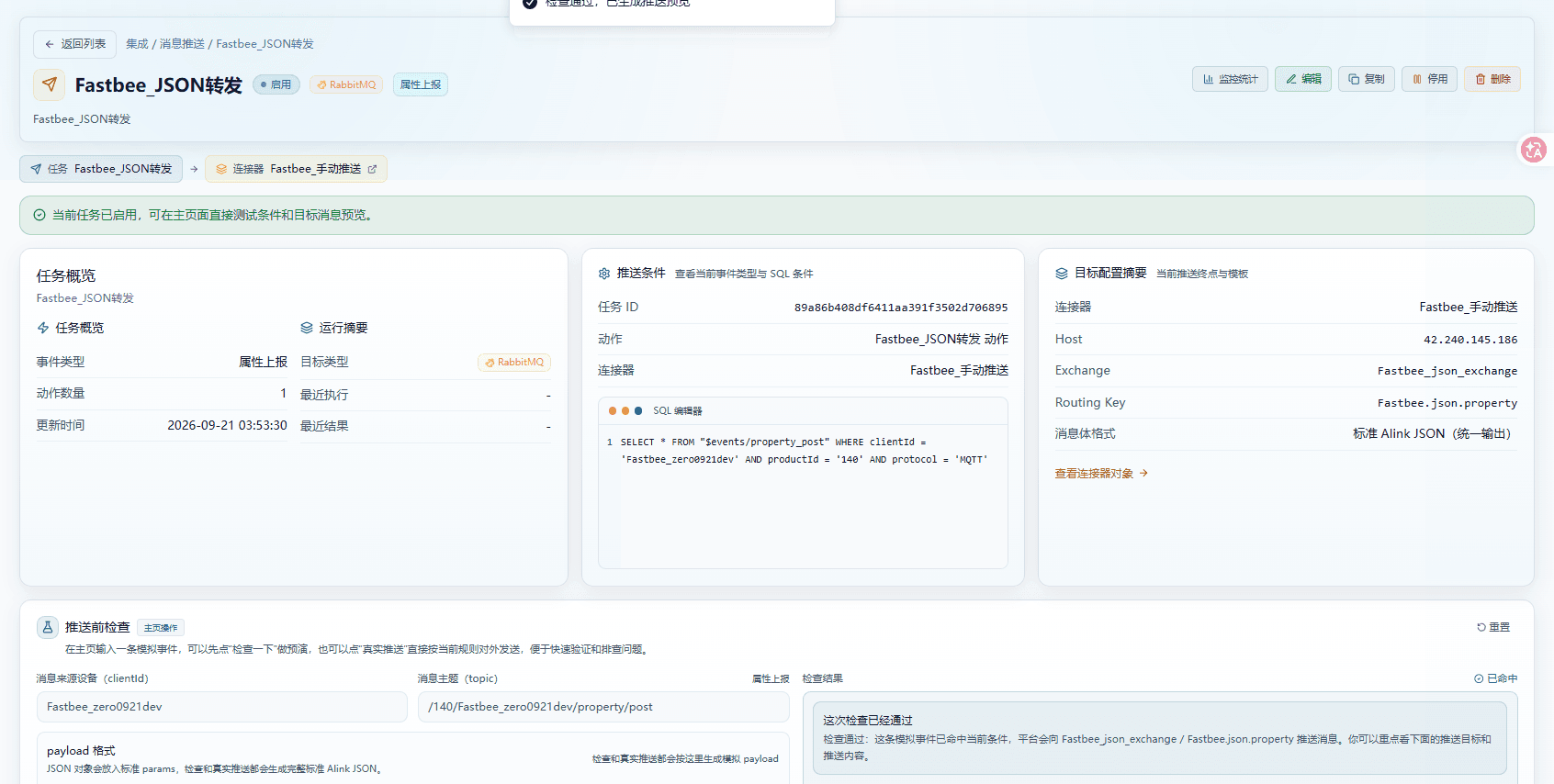
Figure: Rule saved and enabled.
Values and Verification for This Step
| Configuration Item | Values and Verification | Completion Sign |
|---|---|---|
| Values and verification for this step | Task=JSON Forwarding Task; Status=Enabled; Event=Property Report; Connector=Manual Message Push | The page shows Enabled and Property Report, and the target connector is Manual Message Push. |
Completion sign: The page shows Enabled and Property Report, and the target connector is Manual Message Push.
First troubleshooting point: Check this step's device, target resources, time window, and page error feedback first.
6. Connect RabbitMQ in wumei
wumei only needs to select the platform main-path connector already saved in FMQ; do not re-enter the RabbitMQ host, account, password, or virtual host on this page. Once the access plan takes effect, the platform creates fixed queues and switches consumers; merely saving the FMQ connector does not mean wumei has switched.
The managed main path uses the default exchange: leave Exchange empty for JSON Message Push; the main-path user's Write permission must also allow amq.default. If you see missing config host=true routingKey=false queue=true, check Exchange first; if you see write access to exchange amq.default refused, check whether the Write expression is ^(demo_.*|fmq_.*|amq.default)$. The manual connector still uses json_exchange and a different virtual host.
23. Connect the New Connector to the Platform
Operation path: Operations Management → FMQ Runtime Channel → JSON Message Push → Connect and Enable
Select the platform main-path connector, click Connect and Enable, and confirm replacing the current test plan.
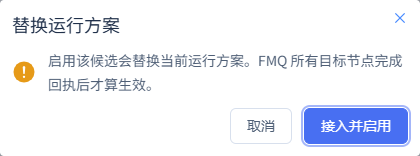
Figure: Connect the RabbitMQ configuration to FastBee.
Values and Verification for This Step
| Configuration Item | Values and Verification | Completion Sign |
|---|---|---|
| Values and verification for this step | Candidate=JSON Message Push; click Connect and Enable and confirm the test-environment replacement | The new plan is active, 2/2 nodes. |
Completion sign: The new plan is active, 2/2 nodes.
First troubleshooting point: Record the original plan before replacing it, and restore it after acceptance.
24. Wait for All Nodes to Apply
Operation path: FMQ Runtime Channel → Current Runtime Plan
Wait for all nodes to finish applying, and verify the current plan.

Figure: Confirm the platform receiving plan is active.
Values and Verification for This Step
| Configuration Item | Values and Verification | Completion Sign |
|---|---|---|
| Values and verification for this step | Plan=JSON Message Push; subject to the final published version after the default-exchange fix; node configuration applied=2/2 | All nodes have applied the correct main-path configuration. |
Completion sign: All nodes have applied the correct main-path configuration.
First troubleshooting point: Wait for all target nodes; do not look only at submission success.
25. Confirm the Queue the Platform Actually Consumes
Operation path: Platform → FMQ Runtime Channel → Five-Route Message Mapping
Expand the uplink/downlink message mapping and verify the platform's fixed queues.
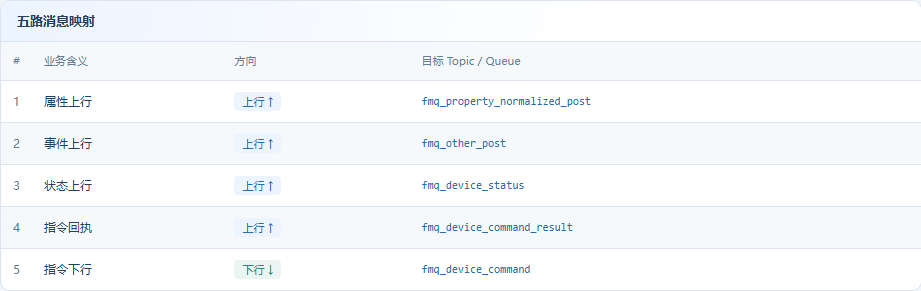
Figure: Confirm the five-route queues used by the platform.
Values and Verification for This Step
| Configuration Item | Values and Verification | Completion Sign |
|---|---|---|
| Values and verification for this step | Managed virtual host=platform main-path space; platform property queue=fmq_property_normalized_post; the manual branch lives in manual branch space / json_queue | The platform property uplink target for this round is clear, and the manual and managed branches are not mixed up. |
Completion sign: The platform property uplink target for this round is clear, and the manual and managed branches are not mixed up.
First troubleshooting point: The two branches belong to two virtual hosts; the manual queue is not read by platform consumers.
wumei: Select the Same Connector to Connect
| Action | What to Verify |
|---|---|
| Open the page | FastBee → Operations Management → FMQ Runtime Channel. |
| Select the connector | Find "JSON Message Push" in the connection candidates and confirm it is a RabbitMQ connector that is enabled. |
| Connect and enable | Click "Connect and Enable", confirm the test-environment replacement, and wait for nodes to apply. |
| Wait for activation | Current Runtime Plan shows "JSON Message Push", and all nodes show applied. |
| Later changes | If FMQ connector parameters are saved again, return to the current runtime channel to re-confirm synchronization and wait for node receipts. |
7. Connect the Device and Enable Tracing
26. Copy the Device's Own MQTT Parameters
Operation path: Device Access Wizard → Device Online → MQTT
Open the Device Access Wizard and copy this device's connection authentication parameters and report topic.
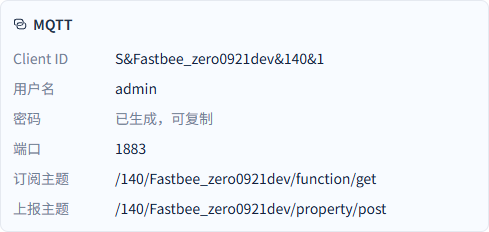
Figure: Copy the device's own MQTT parameters.
Values and Verification for This Step
| Configuration Item | Values and Verification | Completion Sign |
|---|---|---|
| Values and verification for this step | Client ID, username, password, port, report topic | The device parameters and the RabbitMQ account are used separately. |
Completion sign: The device parameters and the RabbitMQ account are used separately.
First troubleshooting point: Check this step's device, target resources, time window, and page error feedback first.
27. Configure and Connect the MQTT Device
Operation path: FMQX → New Connection → MQTT
Fill the wizard parameters into FMQX, paste the password on site, and connect the device.
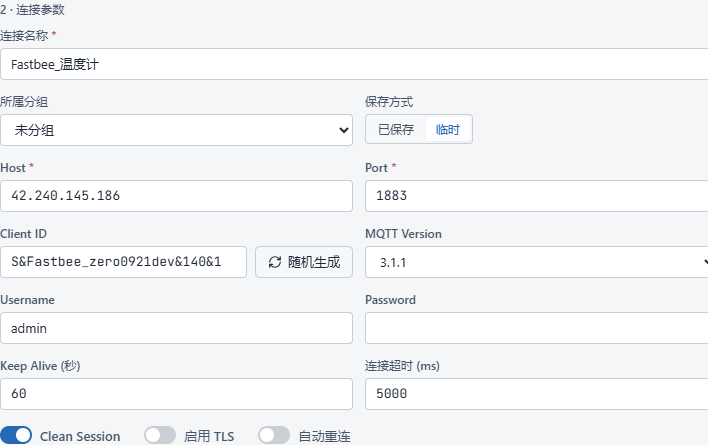
Figure: Configure the MQTT client.
Values and Verification for This Step
| Configuration Item | Values and Verification | Completion Sign |
|---|---|---|
| Values and verification for this step | Host=runtime service address; Port=1883; Client ID=S&demo-device-number&140&1; Username=admin; password copied from the wizard; MQTT=3.1.1; TLS=Off | The device connects successfully. |
Completion sign: The device connects successfully.
First troubleshooting point: Use the authentication from this wizard; the empty password in the screenshot only shows the configuration — the actual connection requires the generated password.
28. Start This Verification Round Before Sending
Operation path: Device Access Wizard → Start Verification
First in FMQ, open "Clients → demo-device-number → Details", enable real-time tracing, and keep the details drawer open — closing the drawer stops tracing. Then click Start Verification in the platform Device Access Wizard. Keep both windows open before proceeding to the next send step.
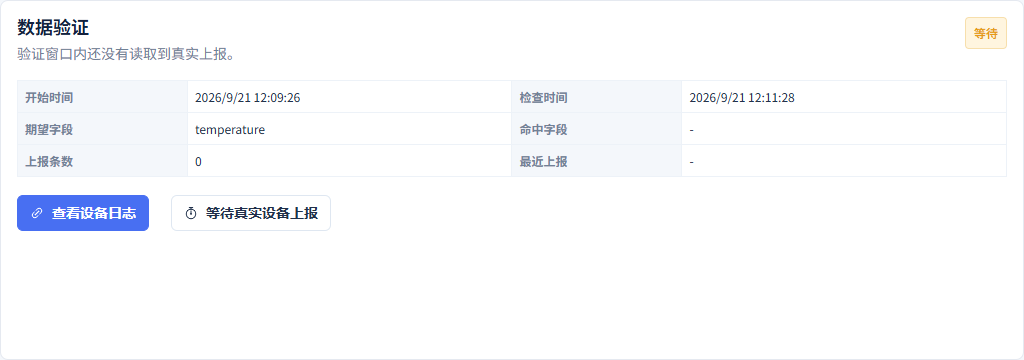
Figure: Start this verification round before sending.
Values and Verification for This Step
| Configuration Item | Values and Verification | Completion Sign |
|---|---|---|
| Values and verification for this step | Start time, report count, expected fields | Only verify new data after the window. |
Completion sign: Only verify new data after the window.
First troubleshooting point: Check this step's device, target resources, time window, and page error feedback first.
8. Send the JSON Only Once
Report Topic for This Round
/product-id/device-number/property/postThe JSON Sent Only Once
{"temperature":75}29. Send Only One Temperature JSON
Operation path: FMQX → Publish Message
Fill in the report topic and payload, confirm the parameters, and click Send only once.
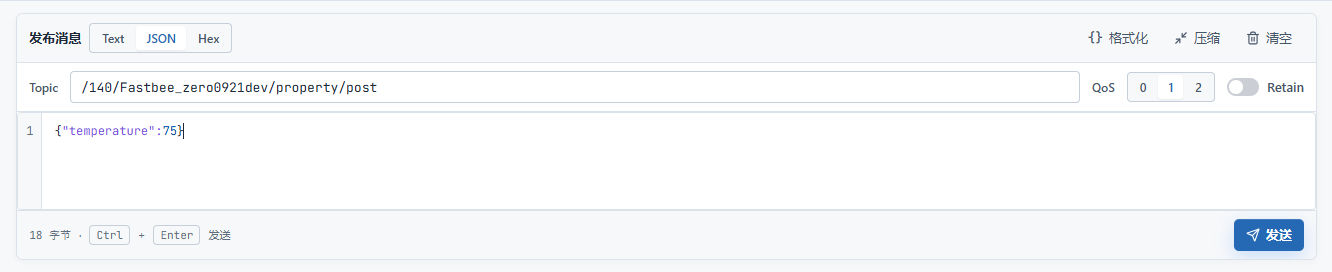
Figure: Send only one temperature JSON.
Values and Verification for This Step
| Configuration Item | Values and Verification | Completion Sign |
|---|---|---|
| Values and verification for this step | Topic, QoS, JSON, Send | The same test message can be verified in FMQ, RabbitMQ, and the platform. |
Completion sign: The same test message can be verified in FMQ, RabbitMQ, and the platform.
First troubleshooting point: Check this step's device, target resources, time window, and page error feedback first.
9. Verify Both Branches
30. Find the Same Original Message in FMQ
Operation path: FMQ → This Device's Message Tracing → Recent Messages
Return to the FMQ real-time tracing that was enabled before sending, and open the original content of this uplink message.
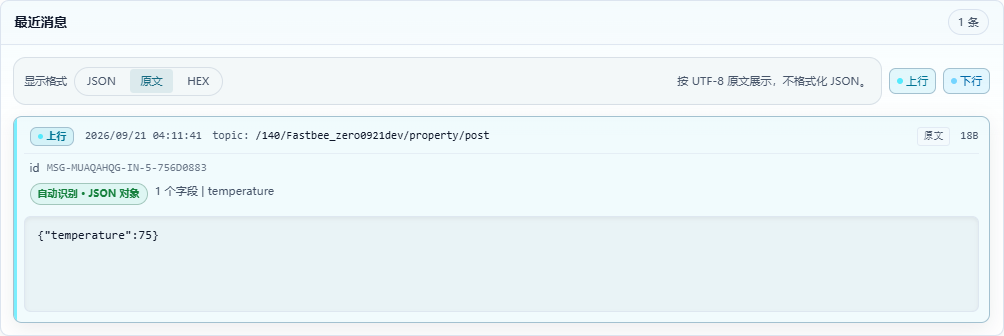
Figure: The single original uplink of 75.
Values and Verification for This Step
| Configuration Item | Values and Verification | Completion Sign |
|---|---|---|
| Values and verification for this step | Device=demo-device-number; Topic=/product-id/device-number/property/post; original message= | The original 75 message and its topic are displayed, and the message time matches the send time. |
Completion sign: The original 75 message and its topic are displayed, and the message time matches the send time.
First troubleshooting point: FMQ tracing uses UTC; 04:11:41 corresponds to 12:11:41 platform local time.
31. Verify Manual Branch Forwarding
Operation path: FMQ → This Message Tracing → Message Flow
View the manual forwarding record in this message flow.
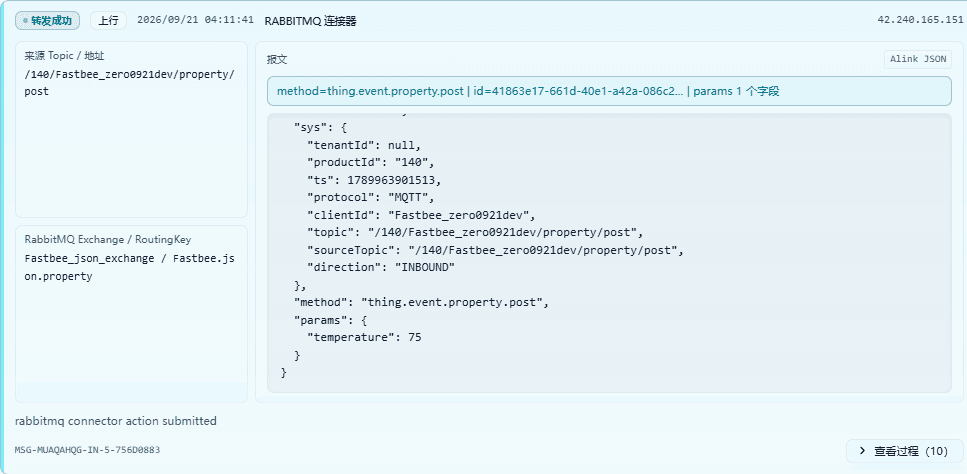
Figure: Manual rule forwards 75 to the dedicated RabbitMQ.
Values and Verification for This Step
| Configuration Item | Values and Verification | Completion Sign |
|---|---|---|
| Values and verification for this step | Exchange=json_exchange; Routing Key=fastbee.demo.property; standard Alink params.temperature=75 | The record shows forwarding succeeded, and the target matches the manual task. |
Completion sign: The record shows forwarding succeeded, and the target matches the manual task.
First troubleshooting point: This branch is for RabbitMQ payload checks, not a platform consumption source.
32. Verify Platform Main-Path Forwarding
Operation path: FMQ → This Message Tracing → Message Flow
View the platform main-path forwarding record in this message flow.
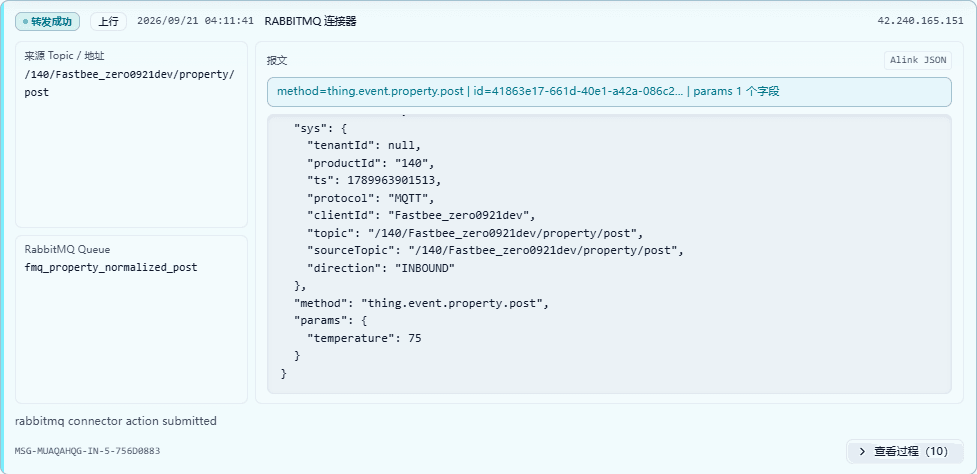
Figure: Main path submits 75 to the platform property queue.
Values and Verification for This Step
| Configuration Item | Values and Verification | Completion Sign |
|---|---|---|
| Values and verification for this step | Queue=fmq_property_normalized_post; params.temperature=75 | The record shows forwarding succeeded, and the queue is the platform property uplink target. |
Completion sign: The record shows forwarding succeeded, and the queue is the platform property uplink target.
First troubleshooting point: Do not treat the main path's fixed queue and the manual queue as one chain.
33. Read One Message from the Practice Queue
Operation path: manual space → json_queue → Get messages
Switch to the manual space, open the practice queue, expand Get messages, and read one message with the following parameters.

Figure: Read one message from the practice queue.
Values and Verification for This Step
| Configuration Item | Values and Verification | Completion Sign |
|---|---|---|
| Values and verification for this step | Ack mode, Messages | The payload is displayed, and the message is retained. |
Completion sign: The payload is displayed, and the message is retained.
First troubleshooting point: Check this step's device, target resources, time window, and page error feedback first.
34. Read the 75 Payload in RabbitMQ
Operation path: manual space → practice queue → Get messages → message payload
View the read result, and scroll the payload horizontally to the right end to verify the temperature value.

Figure: Verify 75 in the RabbitMQ payload.
Values and Verification for This Step
| Configuration Item | Values and Verification | Completion Sign |
|---|---|---|
| Values and verification for this step | manual branch space / json_queue; Get messages=1; Ack Mode=Nack message requeue true; scroll horizontally to the right end of the payload to view params.temperature=75 | The same business value arrived in the practice queue. |
Completion sign: The same business value arrived in the practice queue.
First troubleshooting point: The manual branch's cumulative publish=3 includes two troubleshooting attempts; the final 75 window delta is 1 — do not use the cumulative 3 to deny this round's single send.
35. Confirm the Platform Has Finished Consuming
Operation path: Device Report Diagnostics → Processing Result
Return to the platform runtime channel and check this round's consumption completion.
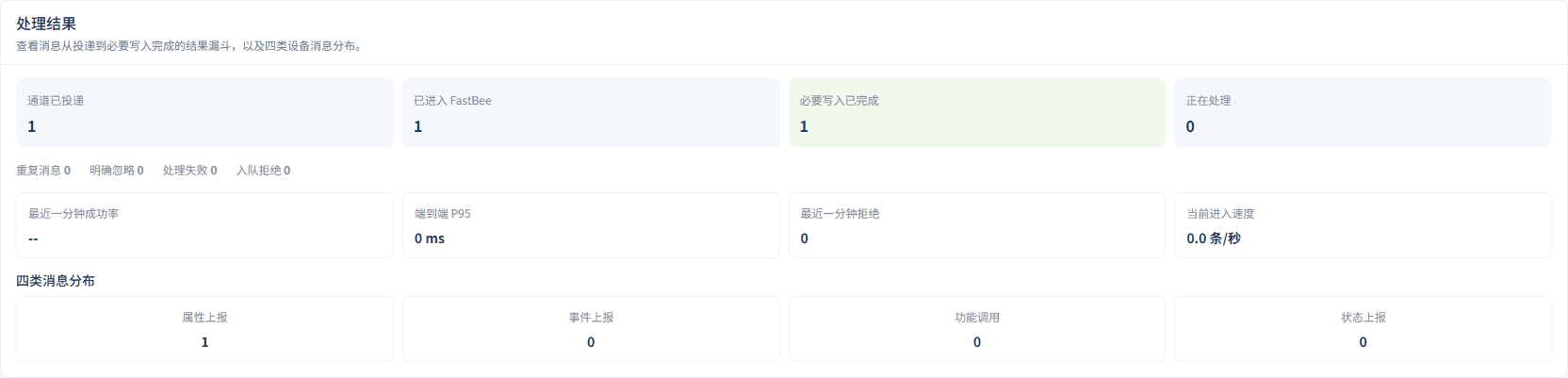
Figure: Confirm FastBee has finished processing.
Values and Verification for This Step
| Configuration Item | Values and Verification | Completion Sign |
|---|---|---|
| Values and verification for this step | Channel delivered=1; entered FastBee=1; required writes completed=1; processing failed=0; property reports=1 | Platform processing completed successfully. |
Completion sign: Platform processing completed successfully.
First troubleshooting point: Verify with actual completion counters and subsequent history; direction demo animations cannot prove persistence.
36. Verify the Device History Value and Timestamp
Operation path: Data Center → History Records → this device → Temperature
Open this device's history data and verify the property, value, and time.

Figure: Find 75 in the platform history records.
Values and Verification for This Step
| Configuration Item | Values and Verification | Completion Sign |
|---|---|---|
| Values and verification for this step | Device=demo-device-number; Temperature=75; Update time=2026-09-21 12:11:41 | This round's data has been written to history. |
Completion sign: This round's data has been written to history.
First troubleshooting point: Check device, property, and time range; the correlationId and the RabbitMQ payload id match in this batch's evidence.
10. Wrap Up After the Test Exercise (Optional)
Only for this test exercise: restore the original plan and disable the practice rules; the first formal connection does not need this step and should keep the verified configuration.
37. Restore the Original Plan After the Exercise
Operation path: FMQ Runtime Channel → Original Runtime Plan → Connect and Enable
Restore the original plan only when the test exercise ends, and wait for all nodes to apply. Skip this step for the first formal connection.

Figure: Restore the original plan after the exercise.
Values and Verification for This Step
| Configuration Item | Values and Verification | Completion Sign |
|---|---|---|
| Values and verification for this step | Only for this test exercise: restore the original plan (the original production runtime plan); publish v14; nodes APPLIED 2/2; keep the verified configuration for the first formal connection | The receiving configuration from before the test is restored. |
Completion sign: The receiving configuration from before the test is restored.
First troubleshooting point: The first formal connection does not need the restore; keep the just-verified access plan.
38. Stop Manual Forwarding After the Test
Operation path: FMQ → Message Push → JSON Forwarding Task
Disable the manual task only when the test exercise ends, and keep the configuration. Skip this step for the first formal connection.
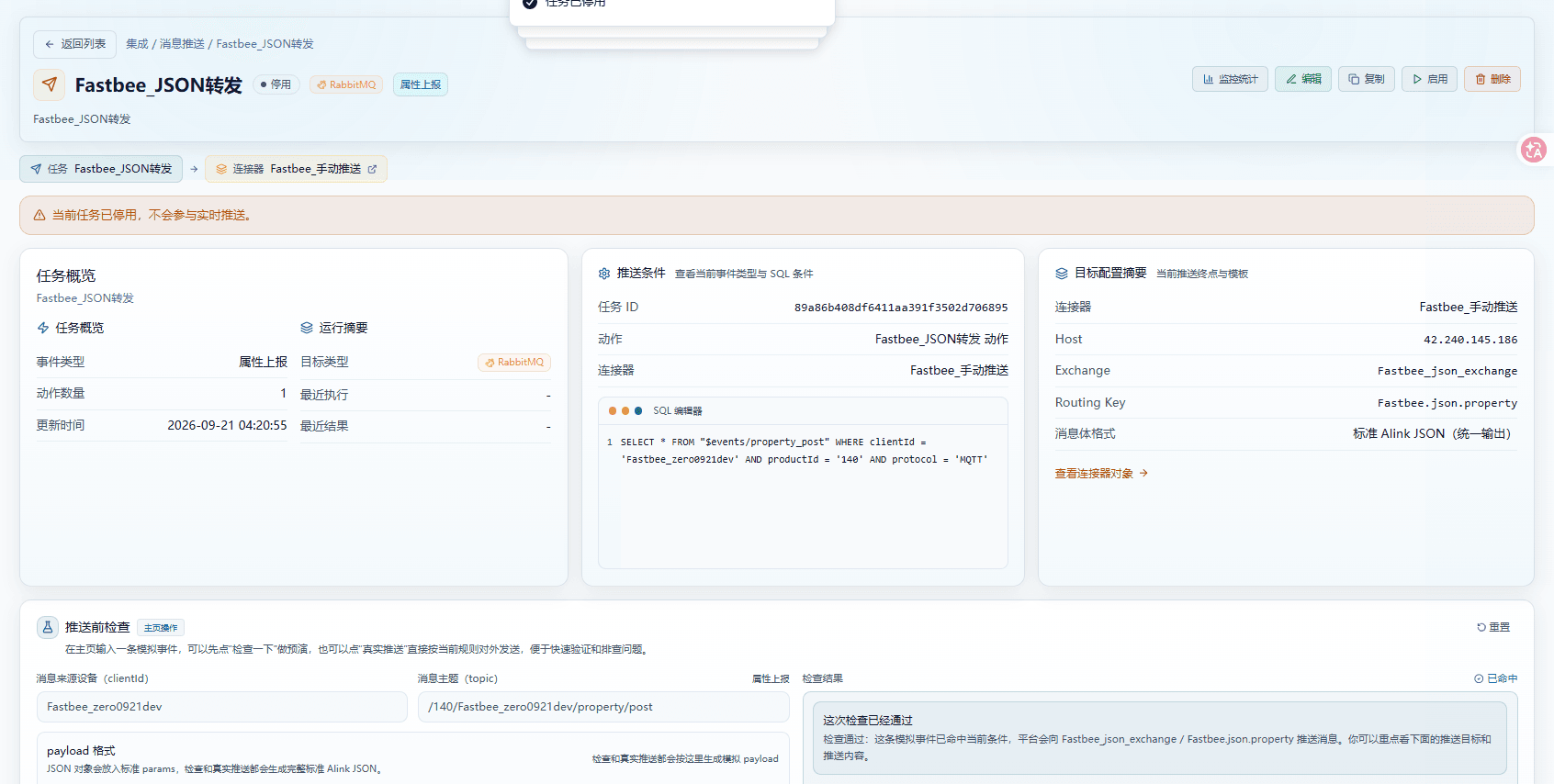
Figure: Stop manual forwarding after the test.
Values and Verification for This Step
| Configuration Item | Values and Verification | Completion Sign |
|---|---|---|
| Values and verification for this step | Only for this test exercise: disable the JSON Forwarding Task; keep the connector and rule configuration | The manual rule for this batch stops matching; other rules are unchanged. |
Completion sign: The manual rule for this batch stops matching; other rules are unchanged.
First troubleshooting point: The first formal connection does not need disabling; keep the verified rules.
Quick Reference for This Round's Values
| Field | Example Value | Purpose |
|---|---|---|
| Report topic for this round | /product-id/device-number/property/post | Copy from the Device Access Wizard; never guess. |
| Single-send JSON | {"temperature":75} | Send only once so the three locations can be verified against the same time window. |
| Manual payload-check queue | manual branch space / json_queue | View the original or forwarded payload. |
| Platform-consumed property queue | platform main-path space / fmq_property_normalized_post | Confirm platform consumption and history writes. |
Post-Completion Checks
- The manual branch can read this round's JSON payload, and the Topic, device identity, and send time match.
- The platform main path has consumed the same report, and the device history value matches the sent content.
- After the test, the original runtime plan has been restored as appropriate, and the rules used only for practice have been disabled.
- No passwords, tokens, or other sensitive credentials remain in documents, screenshots, or exported files.
FAQ
What is the final result this guide verifies?
Send the JSON message {"temperature":75} only once, then verify that the same message enters two independent branches: the manual branch queue can read the original payload, and the platform main path has consumed the same report with the device history value matching the sent content.
Why do the manual branch and platform main path need two RabbitMQ spaces?
The same device report splits into two paths: the queue in the manual branch space is only for viewing payloads, while the queue in the platform main-path space is consumed by the platform and written to device history. The two spaces must be kept separate to prevent manual checks and platform consumption from interfering with each other.
What cleanup is needed after the exercise?
Restore the original runtime plan, disable the manual forwarding task used only for practice, and confirm that no passwords, tokens, or other sensitive credentials remain in documents, screenshots, or exported files.