

MQTT Authentication
Understand the authentication methods, configure device signature or WebHook, and use MQTTX to distinguish authentication decisions from real connections.
Page Guide
How to Read This Page
First confirm the entry point, permissions, and target object, then complete the numbered operations in order. Each step includes the expected result; detailed fields and options are collected in expandable reference tables.
Screenshot Notes
The screenshots come from the original operations manual. The public version hides real node addresses, connection addresses, and credentials; the statuses, times, and data in the examples do not represent the current production environment.
Before You Start
| Item | Description |
|---|---|
| What you can do | Configure MQTT CONNECT authentication and verify it with MQTTX. |
| Where to enter | MQTT → Client Authentication |
| Required permission | MQTT authentication configuration permission |
| Estimated time | 25 minutes |
What MQTT Authentication Is
MQTT authentication happens when the client sends CONNECT and decides whether that client may establish a session. Passing authentication only means it can connect; it does not mean a Topic has been subscribed, nor that business data has been reported.
Authentication List and Daily Operations
| Configuration Item | Purpose & Usage Advice | Effect & Recovery |
|---|---|---|
| Create Authentication Method | Only one entry can be created for the same authentication backend; if a configuration already exists, enter its details to continue editing; when to use: only one entry can be created for the same authentication backend; if a configuration already exists, enter its details to continue editing. | Participates in MQTT CONNECT decisions only when the authentication configuration is enabled and the filter matches; on failure: restore the original configuration or regenerate the device-side login information and reconnect. |
| Enabled Status | When enabled and the filter matches, it participates in authenticating new connections; disable it for maintenance or rollback; how to choose: when enabled and the filter matches, it participates in authenticating new connections; disable it for maintenance or rollback; where the value comes from: from the current access plan and device-side implementation; recommendation: keep the current value. | Participates in MQTT CONNECT decisions only when the authentication configuration is enabled and the filter matches; scope of impact: the current MQTT authentication policy; takes effect after: rebinding or reconnecting; if misconfigured: directly enabling an unverified full-scope policy may affect existing devices; recovery: first run a canary rollout with Client{regex}; on anomalies, immediately disable it or restore the original filter. |
| Configure | Enter details to modify parameters, generate signing credentials, and run authentication debugging; when to use: enter details to modify parameters, generate signing credentials, and run authentication debugging. | Participates in MQTT CONNECT decisions only when the authentication configuration is enabled and the filter matches; on failure: restore the original configuration or regenerate the device-side login information and reconnect. |
| Delete | Delete an authentication configuration only after confirming it is no longer used; when to use: delete an authentication configuration only after confirming it is no longer used. | Participates in MQTT CONNECT decisions only when the authentication configuration is enabled and the filter matches; on failure: record the configuration before deleting; if deleted by mistake, it must be recreated and verified. |
| Connectivity Status | Device signature authentication does not depend on external connectivity; WebHook status only shows that the HTTP client is usable and cannot replace a real MQTTX connection; how to read: device signature authentication does not depend on external connectivity; WebHook status only shows that the HTTP client is usable and cannot replace a real MQTTX connection. | Data source: from the current access plan and device-side implementation; participates in MQTT CONNECT decisions only when the authentication configuration is enabled and the filter matches. |
How to Choose Among the Three Current Authentication Methods
When devices can securely store the salt and compute digests locally, prefer device signature authentication; when you already have a compatible Redis account store, reuse Redis; when you must query device status, tenant, or business permissions in wumei-smart, use WebHook authentication.
- Device signature: computed locally by FMQ, with a short chain and no dependency on external authentication services.
- Redis: reuses existing account data; confirm the key-value structure and network reachability first.
- WebHook: the external system makes the final decision; the URL and return-code contract must be confirmed first.
Authentication Methods and Match Scope
| Configuration Item | Purpose & Usage Advice | Effect & Recovery |
|---|---|---|
| Required Authentication Backend | Choose device signature authentication when devices can sign locally; choose Redis when a compatible Redis account store already exists; choose WebHook when wumei-smart or a unified identity service must make the decision; how to choose: choose device signature authentication when devices can sign locally; choose Redis when a compatible Redis account store already exists; choose WebHook when wumei-smart or a unified identity service must make the decision; where the value comes from: from the current access plan and device-side implementation; recommendation: keep the current value. Device signature authentication: FMQ computes the expected password locally; no dependency on external authentication services. Redis: reads authentication information from existing Redis data according to configured rules; depends on Redis reachability and key-value structure. HTTP service (WebHook): POSTs the connection information to an external service; HTTP 200 allows, other statuses deny. | Participates in MQTT CONNECT decisions only when the authentication configuration is enabled and the filter matches; scope of impact: the current MQTT authentication policy; takes effect after: rebinding or reconnecting; if misconfigured: inconsistent values between the platform and the device side cause connections to be rejected; recovery: restore the original configuration or regenerate the device-side login information and reconnect. |
| Filter | Limits which clientId or username uses the current policy. For canary demos, prefer Client{^FastBee_auth_demo$}; how to choose: limits which clientId or username uses the current policy. For canary demos, prefer Client{^FastBee_auth_demo$}; where the value comes from: device naming conventions or canary lists; recommendation: keep the current value; example: Client{^device-.*}. | Participates in MQTT CONNECT decisions only when the authentication configuration is enabled and the filter matches; scope of impact: the current MQTT authentication policy; takes effect after: rebinding or reconnecting; if misconfigured: inconsistent values between the platform and the device side cause connections to be rejected; recovery: restore the original configuration or regenerate the device-side login information and reconnect. |
Configuring Device Signature Authentication
1. Confirm the Authentication List and Current Status
Location: MQTT → Client Authentication
First review the existing authentication methods, enabled status, and connectivity status, then decide whether to create a new policy or configure an existing one.
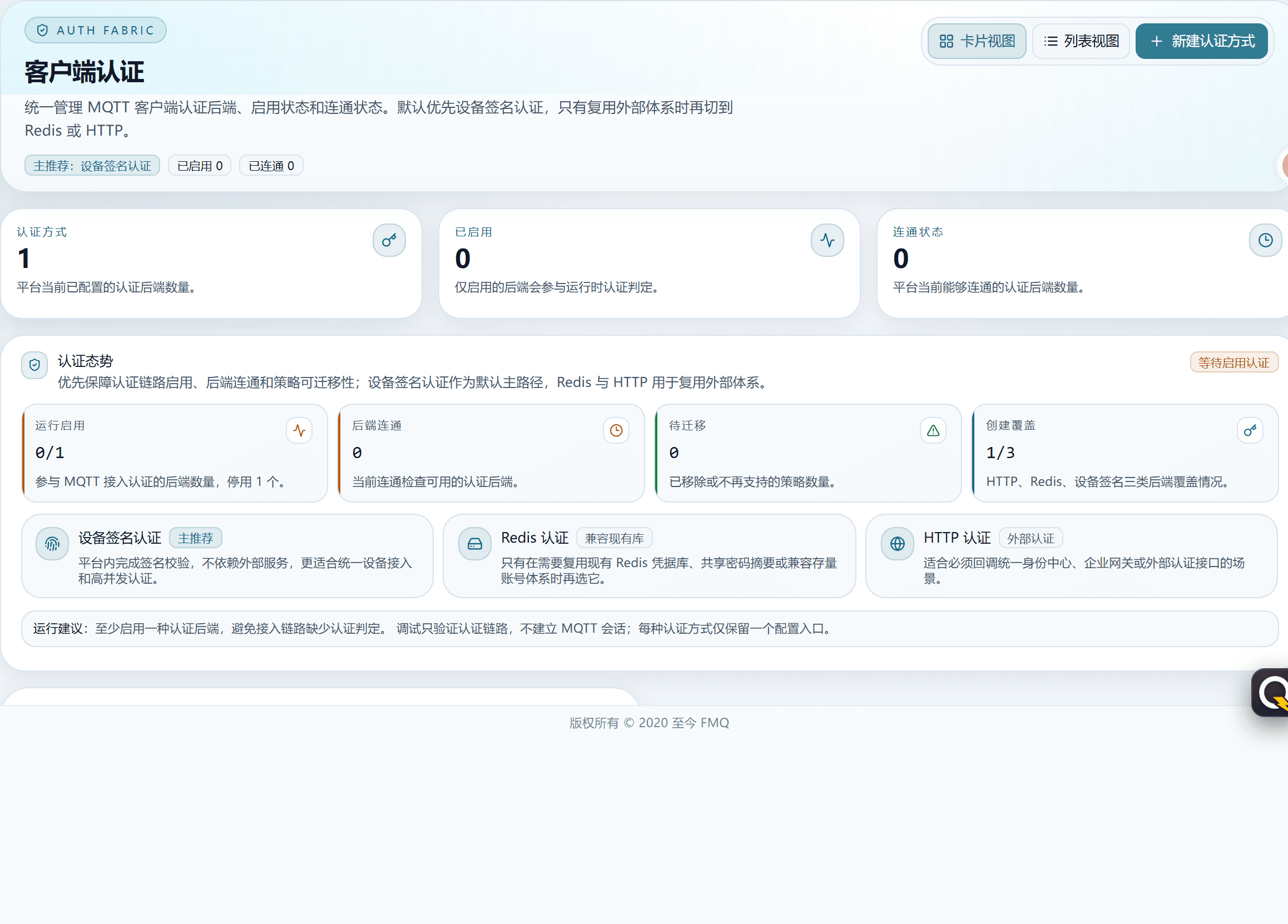
Figure: First confirm the existing methods, enabled status, and connectivity status.
2. Select Device Signature Authentication and Limit the Scope
Location: Client Authentication → Create Authentication Method
Select device signature authentication; for the first verification, use a filter to limit the test clientId so other devices are not affected.

Figure: Choose device signature authentication when devices can compute digests locally.
Field Descriptions
| Field / Control | Description |
|---|---|
| Authentication Backend | Choose device signature authentication when devices can sign locally; choose Redis when a compatible Redis account store already exists; choose WebHook when wumei-smart or a unified identity service must make the decision; participates in MQTT CONNECT decisions only when the authentication configuration is enabled and the filter matches. Required · Source: from the current access plan and device-side implementation. Choice: choose device signature authentication when devices can sign locally; choose Redis when a compatible Redis account store already exists; choose WebHook when wumei-smart or a unified identity service must make the decision. Recommendation: fill in per the implementation plan · Example: fill in according to the actual environment |
| Filter | Limits which clientId or username uses the current policy. For canary demos, prefer Client{^FastBee_auth_demo$}; participates in MQTT CONNECT decisions only when the authentication configuration is enabled and the filter matches. Optional · Source: device naming conventions or canary lists. Choice: limits which clientId or username uses the current policy. For canary demos, prefer Client{^FastBee_auth_demo$}. Recommendation: fill in per the implementation plan · Example: Client |
3. Verify the Algorithm, Salt Position, and Fixed Salt
Location: Client Authentication → Configure
Confirm that all three items match the device-side implementation; screenshots and manuals do not show real salt values.
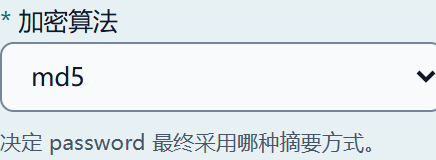
Figure: The algorithm, salt position, and device side must match; real salt values never appear in screenshots.
Field Descriptions
| Field / Control | Description |
|---|---|
| Encryption Algorithm | The device side and FMQ must match. New projects should prefer SHA-256; built-in signing supports plain, MD5, SHA-1, SHA-256, SHA-512; participates in MQTT CONNECT decisions only when the authentication configuration is enabled and the filter matches. Required · Source: from the current access plan and device-side implementation. Choice: the device side and FMQ must match. New projects should prefer SHA-256; built-in signing supports plain, MD5, SHA-1, SHA-256, SHA-512. Recommendation: sha256 · Example: fill in according to the actual environment |
| Salt Position | Determines whether the fixed salt is placed before or after clientId+username, or does not participate in the calculation; participates in MQTT CONNECT decisions only when the authentication configuration is enabled and the filter matches. Required · Source: from the current access plan and device-side implementation. Choice: determines whether the fixed salt is placed before or after clientId+username, or does not participate in the calculation. Recommendation: suffix · Example: fill in according to the actual environment |
| Fixed Salt | Required for non-plain algorithms and must be distributed to the device secure area through a secure channel; it must not appear in logs, screenshots, or customer manuals; participates in MQTT CONNECT decisions only when the authentication configuration is enabled and the filter matches. Optional · Source: security configuration center or device secure storage. Choice: required for non-plain algorithms and must be distributed to the device secure area through a secure channel; it must not appear in logs, screenshots, or customer manuals. Recommendation: fill in per the integration materials · Example: sensitive value not shown |
4. Save and Enable Only for the Test Identity
Location: Client Authentication → Configure
Save the rule with the test filter first, then enable it; restore the original state after verification.
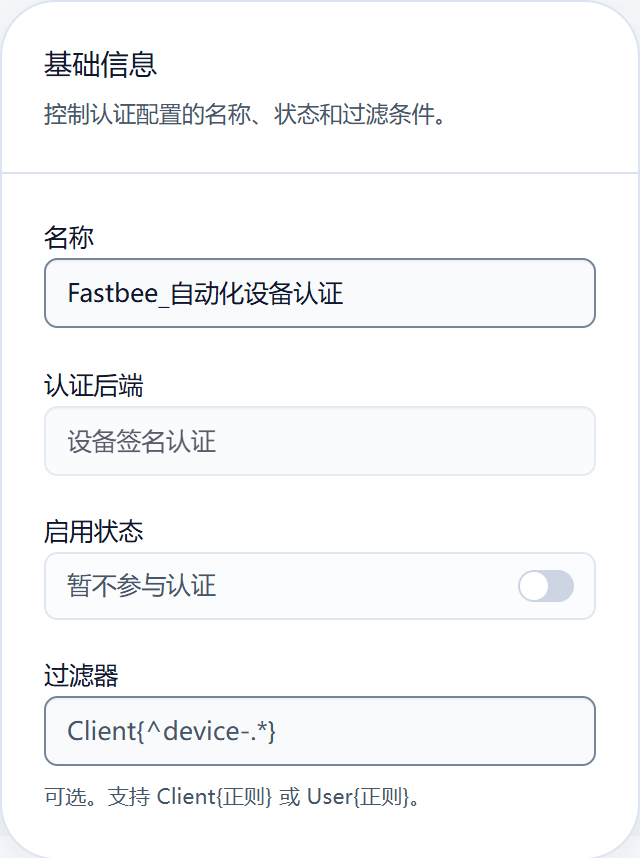
Figure: The filter only matches this test's Client ID; restore the original state after verification.
Field Descriptions
| Field / Control | Description |
|---|---|
| Filter | Limits which clientId or username uses the current policy. For canary demos, prefer Client{^FastBee_auth_demo$}; participates in MQTT CONNECT decisions only when the authentication configuration is enabled and the filter matches. Optional · Source: device naming conventions or canary lists. Choice: limits which clientId or username uses the current policy. For canary demos, prefer Client{^FastBee_auth_demo$}. Recommendation: fill in per the implementation plan · Example: Client |
| Enabled Status | When enabled and the filter matches, it participates in authenticating new connections; disable it for maintenance or rollback; participates in MQTT CONNECT decisions only when the authentication configuration is enabled and the filter matches. Optional · Source: from the current access plan and device-side implementation. Choice: when enabled and the filter matches, it participates in authenticating new connections; disable it for maintenance or rollback. Recommendation: fill in per the implementation plan · Example: fill in according to the actual environment |
5. Generate the MQTT Login Information for This Run
Location: Client Authentication → Configure → Generate Device Access Parameters
Enter the test clientId; when username is left empty it defaults to the clientId; after generation, only copy and use it—do not show the password in screenshots.

Figure: Enter the device number to generate login parameters; the screenshot does not show the password or the signing plaintext.
6. Verify the Authentication Decision with Debugging First
Location: Client Authentication → Configure → Debug
Enter the same test device number and run debugging; passing only means the authentication decision succeeded, not that an MQTT session has been established.
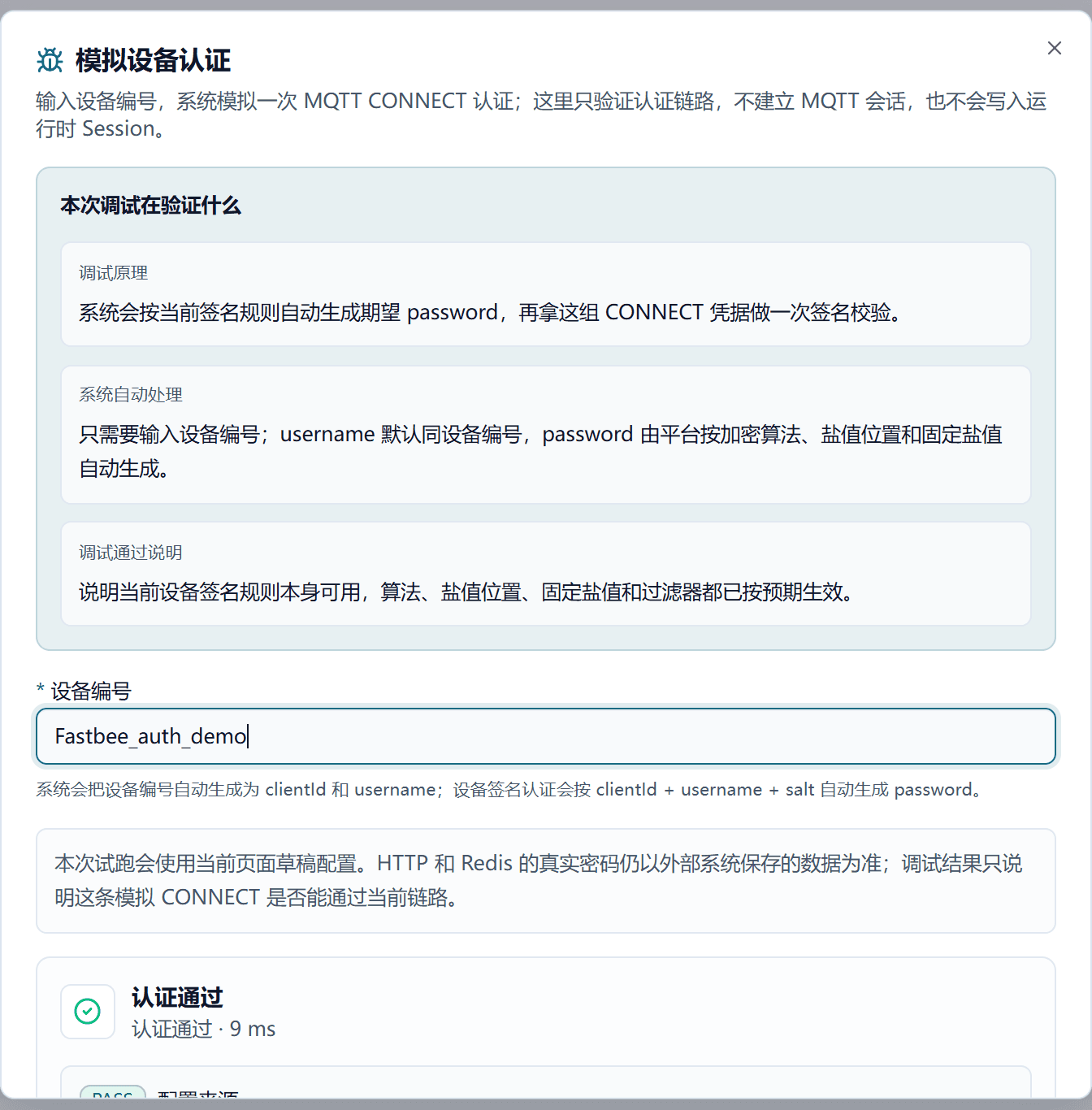
Figure: Debugging only verifies the authentication decision; it does not establish an MQTT session.
Device Signature Authentication Parameters
| Configuration Item | Purpose & Usage Advice | Effect & Recovery |
|---|---|---|
| Required Encryption Algorithm | The device side and FMQ must match. New projects should prefer SHA-256; built-in signing supports plain, MD5, SHA-1, SHA-256, SHA-512; how to choose: the device side and FMQ must match. New projects should prefer SHA-256; built-in signing supports plain, MD5, SHA-1, SHA-256, SHA-512; where the value comes from: from the current access plan and device-side implementation; recommendation: sha256. PLAIN: uses plain to generate the MQTT password; after modification the original password immediately becomes invalid. MD5: uses md5 to generate the MQTT password; after modification the original password immediately becomes invalid. SHA1: uses sha1 to generate the MQTT password; after modification the original password immediately becomes invalid. SHA256: uses sha256 to generate the MQTT password; after modification the original password immediately becomes invalid. SHA512: uses sha512 to generate the MQTT password; after modification the original password immediately becomes invalid. | Participates in MQTT CONNECT decisions only when the authentication configuration is enabled and the filter matches; scope of impact: the current MQTT authentication policy; takes effect after: rebinding or reconnecting; if misconfigured: inconsistent values between the platform and the device side cause connections to be rejected; recovery: restore the original configuration or regenerate the device-side login information and reconnect. |
| Required Salt Position | Determines whether the fixed salt is placed before or after clientId+username, or does not participate in the calculation; how to choose: determines whether the fixed salt is placed before or after clientId+username, or does not participate in the calculation; where the value comes from: from the current access plan and device-side implementation; recommendation: suffix. Prefix: salt + clientId + username; the device side must concatenate in the same order. Suffix: clientId + username + salt; the device side must concatenate in the same order. Disabled: clientId + username; the fixed salt does not participate in the calculation. | Participates in MQTT CONNECT decisions only when the authentication configuration is enabled and the filter matches; scope of impact: the current MQTT authentication policy; takes effect after: rebinding or reconnecting; if misconfigured: inconsistent values between the platform and the device side cause connections to be rejected; recovery: restore the original configuration or regenerate the device-side login information and reconnect. |
| Fixed Salt | Required for non-plain algorithms and must be distributed to the device secure area through a secure channel; it must not appear in logs, screenshots, or customer manuals; how to choose: required for non-plain algorithms and must be distributed to the device secure area through a secure channel; it must not appear in logs, screenshots, or customer manuals; where the value comes from: security configuration center or device secure storage; recommendation: follow the deployment or integration materials; example: sensitive value not shown. | Participates in MQTT CONNECT decisions only when the authentication configuration is enabled and the filter matches; scope of impact: the current MQTT authentication policy; takes effect after: rebinding or reconnecting; if misconfigured: inconsistent values between the platform and the device side cause connections to be rejected; recovery: restore the original configuration or regenerate the device-side login information and reconnect. |
| Generate Device Access Parameters | Generates clientId, username, and password according to the current algorithm, salt position, and salt; when username is left empty it defaults to the clientId; when to use: generates clientId, username, and password according to the current algorithm, salt position, and salt; when username is left empty it defaults to the clientId. | Participates in MQTT CONNECT decisions only when the authentication configuration is enabled and the filter matches; on failure: restore the original configuration or regenerate the device-side login information and reconnect. |
| Debug | Runs one authentication decision with the current page's draft parameters; passing does not establish an MQTT session; when to use: runs one authentication decision with the current page's draft parameters; passing does not establish an MQTT session. | Participates in MQTT CONNECT decisions only when the authentication configuration is enabled and the filter matches; on failure: restore the original configuration or regenerate the device-side login information and reconnect. |
| Save | Saves the current draft parameters; during canary verification, first keep the filter that matches only the test Client ID, then enable it; when to use: saves the current draft parameters; during canary verification, first keep the filter that matches only the test Client ID, then enable it. | Participates in MQTT CONNECT decisions only when the authentication configuration is enabled and the filter matches; on failure: restore the original filter and enabled status. |
Generating Login Information on the Device Side
The device side must use exactly the same clientId, username, algorithm, salt position, and fixed salt as FMQ. Python can use hashlib; the C example uses OpenSSL EVP; when an embedded project swaps the crypto library, the UTF-8 encoding and concatenation order must not change.
- prefix: HASH(salt + clientId + username)
- suffix: HASH(clientId + username + salt)
- disable: HASH(clientId + username)
"""Generate the MQTT CONNECT password according to the FMQ device signature authentication rules."""

from __future__ import annotations

import hashlib


def mqtt_password(
    client_id: str,
    username: str | None,
    salt: str,
    algorithm: str = "sha256",
    salt_position: str = "suffix",
) -> str:
    if not client_id:
        raise ValueError("client_id cannot be empty")

    user = client_id if username is None else username
    raw = client_id + user
    if salt_position == "prefix":
        raw = salt + raw
    elif salt_position == "suffix":
        raw = raw + salt
    elif salt_position != "disable":
        raise ValueError("salt_position must be prefix, suffix, or disable")

    name = algorithm.lower()
    if name == "plain":
        return raw
    if name not in {"md5", "sha1", "sha256", "sha512"}:
        raise ValueError("FMQ built-in signing does not support this algorithm")
    return hashlib.new(name, raw.encode("utf-8")).hexdigest()


if __name__ == "__main__":
    # The fixed salt should be read from device secure storage; do not hard-code it in source code or logs.
    client_id = "your-device-id"
    username = client_id
    salt = "read-from-secure-storage"
    mqtt_connect_credential = mqtt_password(client_id, username, salt, "sha256", "suffix")
# Hand mqtt_connect_credential directly to the MQTT client; do not output it to logs or the console./* Generate the MQTT CONNECT password according to the FMQ device signature authentication rules; the example uses OpenSSL EVP. */
#include <openssl/evp.h>
#include <stdio.h>
#include <stdlib.h>
#include <string.h>
static const EVP_MD *select_digest(const char *name) {
if (strcmp(name, "md5") == 0) return EVP_md5();
if (strcmp(name, "sha1") == 0) return EVP_sha1();
if (strcmp(name, "sha256") == 0) return EVP_sha256();
if (strcmp(name, "sha512") == 0) return EVP_sha512();
return NULL;
}
int fmq_mqtt_password(char *out, size_t out_size,
const char *client_id, const char *username,
const char *salt, const char *algorithm,
const char *salt_position) {
if (!out || !client_id || !*client_id || !salt || !algorithm || !salt_position) return 0;
if (!username) username = client_id;
size_t raw_size = strlen(client_id) + strlen(username) + strlen(salt) + 1;
char *raw = calloc(raw_size, 1);
if (!raw) return 0;
if (strcmp(salt_position, "prefix") == 0)
snprintf(raw, raw_size, "%s%s%s", salt, client_id, username);
else if (strcmp(salt_position, "suffix") == 0)
snprintf(raw, raw_size, "%s%s%s", client_id, username, salt);
else if (strcmp(salt_position, "disable") == 0)
snprintf(raw, raw_size, "%s%s", client_id, username);
else { free(raw); return 0; }
if (strcmp(algorithm, "plain") == 0) {
int written = snprintf(out, out_size, "%s", raw);
int ok = written >= 0 && (size_t)written < out_size;
free(raw);
return ok;
}
const EVP_MD *md = select_digest(algorithm);
unsigned char digest[EVP_MAX_MD_SIZE];
unsigned int digest_len = 0;
int ok = md && EVP_Digest(raw, strlen(raw), digest, &digest_len, md, NULL) == 1;
free(raw);
if (!ok || out_size < (size_t)digest_len * 2 + 1) return 0;
for (unsigned int i = 0; i < digest_len; ++i) sprintf(out + i * 2, "%02x", digest[i]);
out[digest_len * 2] = '\0';
return 1;
}
/* The fixed salt should be read from device secure storage; do not hard-code it in firmware, logs, or manual screenshots. */Device-side Generation Approaches
| Configuration Item | Purpose & Usage Advice | Effect & Recovery |
|---|---|---|
| Signing Plaintext | First concatenate clientId, username, and salt according to the salt position, then output the hexadecimal digest with the configured algorithm; how to read: first concatenate clientId, username, and salt according to the salt position, then output the hexadecimal digest with the configured algorithm. | Data source: from the current access plan and device-side implementation; participates in MQTT CONNECT decisions only when the authentication configuration is enabled and the filter matches. |
| Python | Use the standard library hashlib: hashlib.new(algorithm, raw.encode('utf-8')).hexdigest(). The complete example is maintained with the working draft; how to read: use the standard library hashlib: hashlib.new(algorithm, raw.encode('utf-8')).hexdigest(). The complete example is maintained with the working draft. | Data source: from the current access plan and device-side implementation; participates in MQTT CONNECT decisions only when the authentication configuration is enabled and the filter matches. |
| C Language | First concatenate the UTF-8 bytes in the same order, then call OpenSSL EVP_Digest; embedded projects can replace it with the chip SDK's MD5/SHA interfaces; how to read: first concatenate the UTF-8 bytes in the same order, then call OpenSSL EVP_Digest; embedded projects can replace it with the chip SDK's MD5/SHA interfaces. | Data source: from the current access plan and device-side implementation; participates in MQTT CONNECT decisions only when the authentication configuration is enabled and the filter matches. |
| Salt Custody | Keep the fixed salt in device secure storage or controlled configuration; do not hard-code it into public source code and do not output it to logs; how to read: keep the fixed salt in device secure storage or controlled configuration; do not hard-code it into public source code and do not output it to logs. | Data source: from the current access plan and device-side implementation; participates in MQTT CONNECT decisions only when the authentication configuration is enabled and the filter matches. |
Full MQTTX Authentication Demo
7. Confirm Rejection with a Wrong Password
Location: MQTTX → New Connection
Keep the address, clientId, and username unchanged; connect with a wrong password first to confirm the authentication policy is actually in effect.

Figure: The same identity with a wrong password should be rejected.
Field Descriptions
| Field / Control | Description |
|---|---|
| Client ID | Must exactly match the clientId used when generating the password; participates in MQTT CONNECT decisions only when the authentication configuration is enabled and the filter matches. Required · Source: device identifier or this isolated test identity. Choice: must exactly match the clientId used when generating the password. Recommendation: fill in per the integration materials · Example: FastBee_auth_demo |
| Username | Must match the username used when generating the password; in this demo it is the same as the Client ID; participates in MQTT CONNECT decisions only when the authentication configuration is enabled and the filter matches. Required · Source: device login convention. Choice: must match the username used when generating the password; in this demo it is the same as the Client ID. Recommendation: fill in per the integration materials · Example: FastBee_auth_demo |
| Password | Generated by the device side or the platform generator under the current rules; it should remain masked in MQTTX; participates in MQTT CONNECT decisions only when the authentication configuration is enabled and the filter matches. Required · Source: device-side signing result; does not appear in manuals. Choice: generated by the device side or the platform generator under the current rules; it should remain masked in MQTTX. Recommendation: fill in per the integration materials · Example: sensitive value not shown |
8. Switch Back to the Correct Password to Establish the MQTT Session
Location: MQTTX → Connection Configuration
Replace the password with the value generated by the device side under the same rules, reconnect, and confirm the status is Connected.

Figure: After correcting the password, MQTTX shows Connected.
Field Descriptions
| Field / Control | Description |
|---|---|
| Client ID | Must exactly match the clientId used when generating the password; participates in MQTT CONNECT decisions only when the authentication configuration is enabled and the filter matches. Required · Source: device identifier or this isolated test identity. Choice: must exactly match the clientId used when generating the password. Recommendation: fill in per the integration materials · Example: FastBee_auth_demo |
| Username | Must match the username used when generating the password; in this demo it is the same as the Client ID; participates in MQTT CONNECT decisions only when the authentication configuration is enabled and the filter matches. Required · Source: device login convention. Choice: must match the username used when generating the password; in this demo it is the same as the Client ID. Recommendation: fill in per the integration materials · Example: FastBee_auth_demo |
| Password | Generated by the device side or the platform generator under the current rules; it should remain masked in MQTTX; participates in MQTT CONNECT decisions only when the authentication configuration is enabled and the filter matches. Required · Source: device-side signing result; does not appear in manuals. Choice: generated by the device side or the platform generator under the current rules; it should remain masked in MQTTX. Recommendation: fill in per the integration materials · Example: sensitive value not shown |
MQTTX Connection Parameters
| Configuration Item | Purpose & Usage Advice | Effect & Recovery |
|---|---|---|
| Required Client ID | Must exactly match the clientId used when generating the password; how to choose: must exactly match the clientId used when generating the password; where the value comes from: device identifier or this isolated test identity; recommendation: follow the deployment or integration materials; example: FastBee_auth_demo. | Participates in MQTT CONNECT decisions only when the authentication configuration is enabled and the filter matches; scope of impact: the current MQTT authentication policy; takes effect after: rebinding or reconnecting; if misconfigured: inconsistent values between the platform and the device side cause connections to be rejected; recovery: restore the original configuration or regenerate the device-side login information and reconnect. |
| Required Username | Must match the username used when generating the password; in this demo it is the same as the Client ID; how to choose: must match the username used when generating the password; in this demo it is the same as the Client ID; where the value comes from: device login convention; recommendation: follow the deployment or integration materials; example: FastBee_auth_demo. | Participates in MQTT CONNECT decisions only when the authentication configuration is enabled and the filter matches; scope of impact: the current MQTT authentication policy; takes effect after: rebinding or reconnecting; if misconfigured: inconsistent values between the platform and the device side cause connections to be rejected; recovery: restore the original configuration or regenerate the device-side login information and reconnect. |
| Required Password | Generated by the device side or the platform generator under the current rules; it should remain masked in MQTTX; how to choose: generated by the device side or the platform generator under the current rules; it should remain masked in MQTTX; where the value comes from: device-side signing result; does not appear in manuals; recommendation: follow the deployment or integration materials; example: sensitive value not shown. | Participates in MQTT CONNECT decisions only when the authentication configuration is enabled and the filter matches; scope of impact: the current MQTT authentication policy; takes effect after: rebinding or reconnecting; if misconfigured: inconsistent values between the platform and the device side cause connections to be rejected; recovery: restore the original configuration or regenerate the device-side login information and reconnect. |
| Connect | Initiates a real MQTT CONNECT to FMQ; a wrong password should be rejected and a correct password should establish a session; when to use: initiates a real MQTT CONNECT to FMQ; a wrong password should be rejected and a correct password should establish a session. | Participates in MQTT CONNECT decisions only when the authentication configuration is enabled and the filter matches; on failure: restore the original configuration or regenerate the device-side login information and reconnect. |
WebHook Authentication
The WebHook address must be provided by the wumei-smart owner. FMQ always POSTs JSON; allow returns HTTP 200, deny returns 401/403. The current runtime does not read allow/deny in the response body. The current deployment has not yet obtained a compatible URL, so this section only explains the configuration method and the interface contract, and does not claim a completed MQTTX authentication loop.
Interface Reference
WebHook Address and Timeout
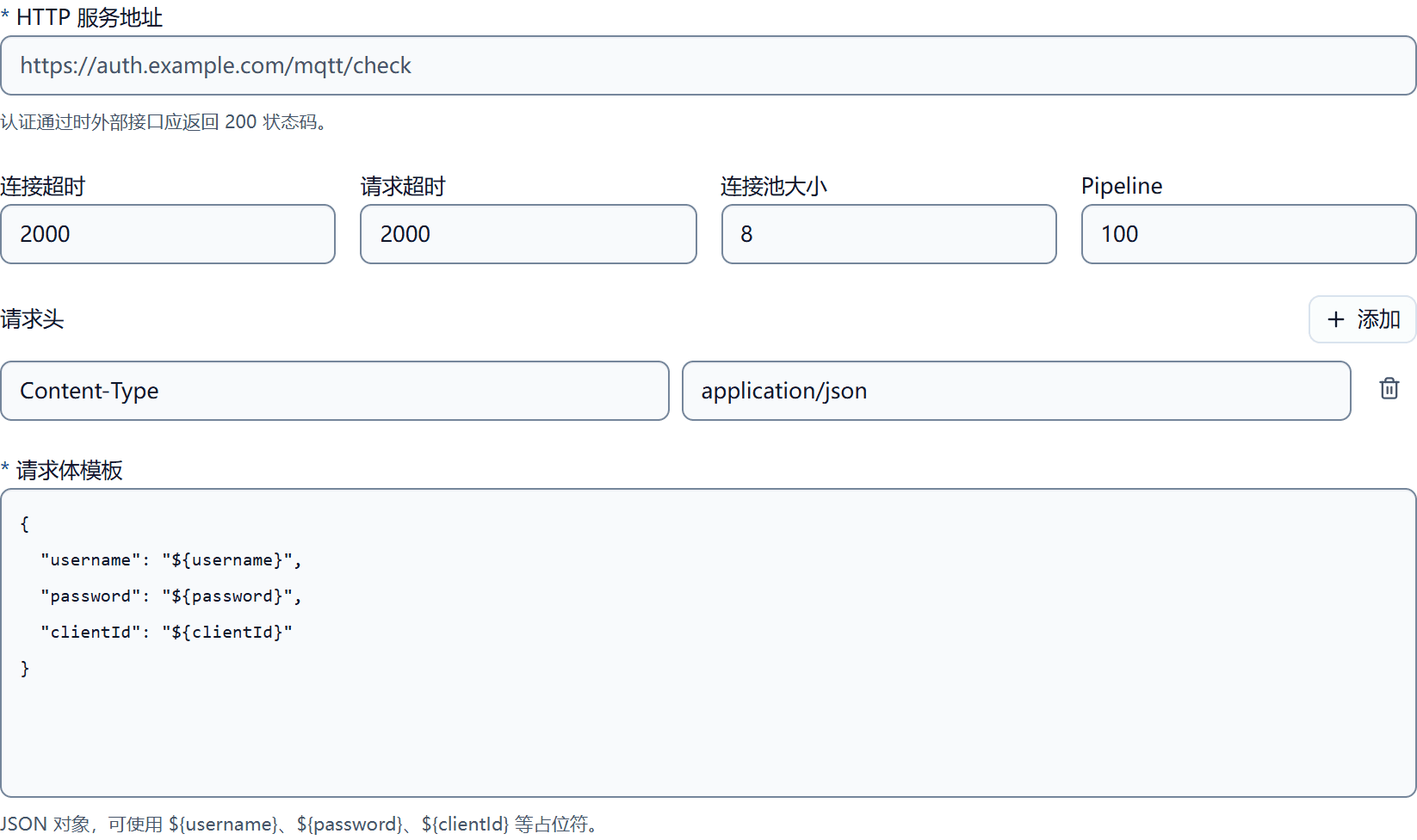
Figure: The URL is provided by wumei-smart and must be reachable from the FMQ running node.
WebHook Request Template
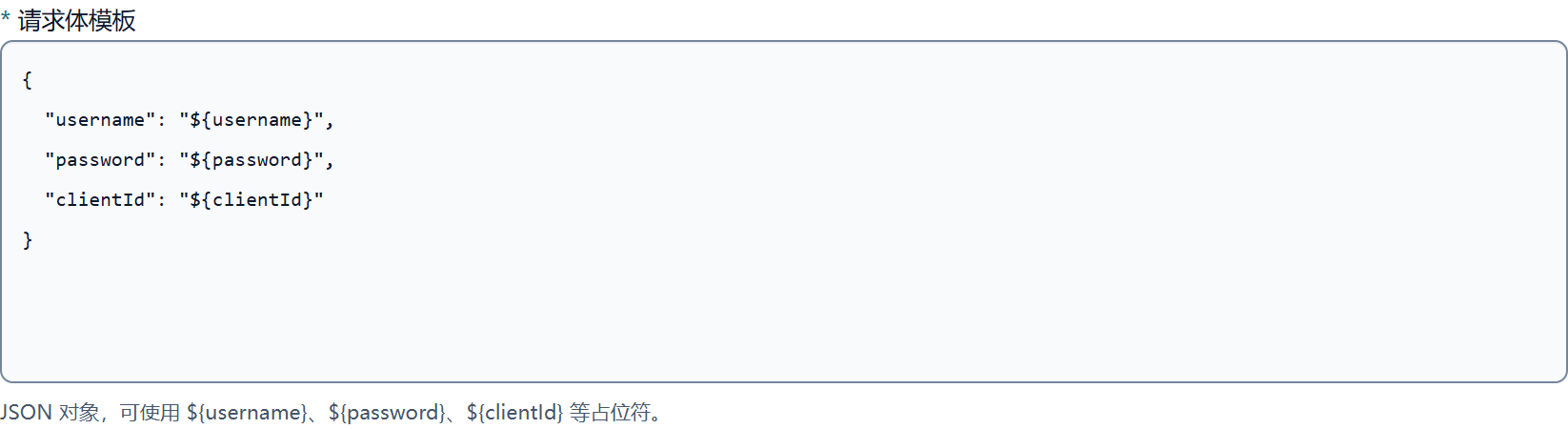
Figure: FMQ always POSTs JSON; 200 allows, 401/403 denies.
WebHook Authentication Parameters
| Configuration Item | Purpose & Usage Advice | Effect & Recovery |
|---|---|---|
| Required HTTP Service Address | Provided by the wumei-smart owner and must be reachable from the FMQ running node; how to choose: provided by the wumei-smart owner and must be reachable from the FMQ running node; where the value comes from: wumei-smart implementation or interface owner; recommendation: follow the deployment or integration materials; example: https://wumei.example.com/iot/mqtt/auth. | Participates in MQTT CONNECT decisions only when the authentication configuration is enabled and the filter matches; scope of impact: the current MQTT authentication policy; takes effect after: rebinding or reconnecting; if misconfigured: inconsistent values between the platform and the device side cause connections to be rejected; recovery: restore the original configuration or regenerate the device-side login information and reconnect. |
| Connection Timeout | The time allowed to establish an HTTP connection. Start with 2000 ms, then adjust based on real network latency; how to choose: the time allowed to establish an HTTP connection. Start with 2000 ms, then adjust based on real network latency; where the value comes from: from the current access plan and device-side implementation; recommendation: 2000 ms. | Participates in MQTT CONNECT decisions only when the authentication configuration is enabled and the filter matches; scope of impact: the current MQTT authentication policy; takes effect after: rebinding or reconnecting; if misconfigured: inconsistent values between the platform and the device side cause connections to be rejected; recovery: restore the original configuration or regenerate the device-side login information and reconnect. |
| Request Timeout | The maximum time to wait for the external authentication result; too large a value lengthens MQTT CONNECT; how to choose: the maximum time to wait for the external authentication result; too large a value lengthens MQTT CONNECT; where the value comes from: from the current access plan and device-side implementation; recommendation: 2000 ms. | Participates in MQTT CONNECT decisions only when the authentication configuration is enabled and the filter matches; scope of impact: the current MQTT authentication policy; takes effect after: rebinding or reconnecting; if misconfigured: inconsistent values between the platform and the device side cause connections to be rejected; recovery: restore the original configuration or regenerate the device-side login information and reconnect. |
| Connection Pool Size | Limits the number of reusable HTTP connections; adjust based on peak authentication concurrency and stress-test results; how to choose: limits the number of reusable HTTP connections; adjust based on peak authentication concurrency and stress-test results; where the value comes from: from the current access plan and device-side implementation; recommendation: 8. | Participates in MQTT CONNECT decisions only when the authentication configuration is enabled and the filter matches; scope of impact: the current MQTT authentication policy; takes effect after: rebinding or reconnecting; if misconfigured: inconsistent values between the platform and the device side cause connections to be rejected; recovery: restore the original configuration or regenerate the device-side login information and reconnect. |
| Pipeline | Controls the concurrency parameters of external authentication requests; keep the default value and then stress test; how to choose: controls the concurrency parameters of external authentication requests; keep the default value and then stress test; where the value comes from: from the current access plan and device-side implementation; recommendation: 100. | Participates in MQTT CONNECT decisions only when the authentication configuration is enabled and the filter matches; scope of impact: the current MQTT authentication policy; takes effect after: rebinding or reconnecting; if misconfigured: inconsistent values between the platform and the device side cause connections to be rejected; recovery: restore the original configuration or regenerate the device-side login information and reconnect. |
| Request Headers | The default Content-Type is application/json; authentication headers must be filled in through controlled configuration and must not appear in manuals; how to choose: the default Content-Type is application/json; authentication headers must be filled in through controlled configuration and must not appear in manuals; where the value comes from: wumei-smart interface contract; recommendation: follow the deployment or integration materials; example: Content-Type: application/json. | Participates in MQTT CONNECT decisions only when the authentication configuration is enabled and the filter matches; scope of impact: the current MQTT authentication policy; takes effect after: rebinding or reconnecting; if misconfigured: inconsistent values between the platform and the device side cause connections to be rejected; recovery: restore the original configuration or regenerate the device-side login information and reconnect. |
| Required Request Body Template | Placeholders such as clientId, username, and password can be used; the default template already covers the three MQTT CONNECT credentials; how to choose: placeholders such as clientId, username, and password can be used; the default template already covers the three MQTT CONNECT credentials; where the value comes from: from the current access plan and device-side implementation; recommendation: keep the current value; example: { clientId, username, password }. | Participates in MQTT CONNECT decisions only when the authentication configuration is enabled and the filter matches; scope of impact: the current MQTT authentication policy; takes effect after: rebinding or reconnecting; if misconfigured: inconsistent values between the platform and the device side cause connections to be rejected; recovery: restore the original configuration or regenerate the device-side login information and reconnect. |
| Return Code Convention | FMQ always uses POST; HTTP 200 means allow and 401/403 means deny. The current runtime does not read allow/deny in the response body; how to read: FMQ always uses POST; HTTP 200 means allow and 401/403 means deny. The current runtime does not read allow/deny in the response body. | Data source: from the current access plan and device-side implementation; participates in MQTT CONNECT decisions only when the authentication configuration is enabled and the filter matches. |
Result Assessment and Troubleshooting
Reference Table
| Symptom | Possible Cause | Where to Check First | How to Recover |
|---|---|---|---|
| Debugging passed but the MQTTX connection failed | The policy is not enabled, the filter does not match, or the three MQTTX credentials differ from generation time. | Check the enabled status, filter, clientId, username, and generation time. | Regenerate the password and reconnect with consistent inputs. |
| Devices fail after changing the salt or algorithm | The original password has become invalid. | Compare the device side with FMQ's current rules. | Update devices in a canary rollout first, then expand; restore the original rules if necessary. |
| WebHook returned allow but it is still abnormal | The external interface only returns the result in the response body. | Check the real HTTP status code. | Allow returns 200; deny returns 401/403. |
| WebHook timeout | The URL is unreachable or the external service is unstable. | From the FMQ running node, check reachability and response time. | Retry after the external service recovers; do not blindly increase the timeout. |
FAQ
What MQTT authentication methods does FastBee offer, and how do I choose?
Three: device signature authentication is computed locally by FMQ with a short chain—prefer it when devices can securely store the salt and compute digests locally; reuse Redis when a compatible Redis account store already exists; use WebHook authentication when an external system such as wumei-smart must judge device status, tenant, or business permissions.
Does passing MQTT authentication mean device data has been reported?
No. Authentication happens when the client sends CONNECT and only decides whether that client may establish a session; passing authentication means neither that a Topic has been subscribed nor that business data has been reported.
What should I do if authentication debugging passes but the MQTTX connection fails?
Usually the policy is not enabled, the filter does not match, or the Client ID, Username, and Password in MQTTX differ from generation time; after checking the enabled status and filter, regenerate the password and reconnect with consistent inputs.
What is the return-code convention for WebHook authentication?
FMQ always calls the external service with POST JSON; HTTP 200 means allow and 401/403 means deny; the current runtime does not read the allow/deny fields in the response body.
Production Operation Notice
Screenshots and examples illustrate operation locations and judgment methods; they do not represent the current production state. When publishing, enabling/disabling, rebinding, retrying, or deleting, first confirm the target environment, scope of impact, and recovery plan, and have authorized personnel perform the operation.
FastBee IoT (FastBee) · FMQ Operations Manual