

MQTT Subscriptions
Use MQTTX to establish subscriptions, query runtime relationships in FMQ, and judge whether messages are delivered through real publishing and actual receipt.
Page Guide
How to Read This Page
First confirm the entry point, permissions, and target object, then complete the numbered operations in order. Each step includes the expected result; detailed fields and options are collected in expandable reference tables.
Screenshot Notes
The screenshots come from the original operations manual. The public version hides real node addresses, connection addresses, and credentials; the statuses, times, and data in the examples do not represent the current production environment.
Before You Start
| Item | Description |
|---|---|
| What you can do | Query subscription relationships and verify real MQTTX send/receive. |
| Where to enter | MQTT → Subscriptions |
| Required permission | MQTT runtime monitoring view permission |
| Estimated time | 20 minutes |
What the MQTT Subscriptions Page Does
This page only queries runtime subscription relationships that already exist. Subscriptions are established by MQTTX or devices sending SUBSCRIBE and cannot be created on the FMQ page. Finding a record does not mean a message was delivered—you must actually receive a new message with MQTTX.
Understanding Page Statistics and Results
1. Understand the Subscriptions Page First
Location: MQTT → Subscriptions
Confirm this is a runtime query page; first look at the four statistics, the filter area, and the result list.
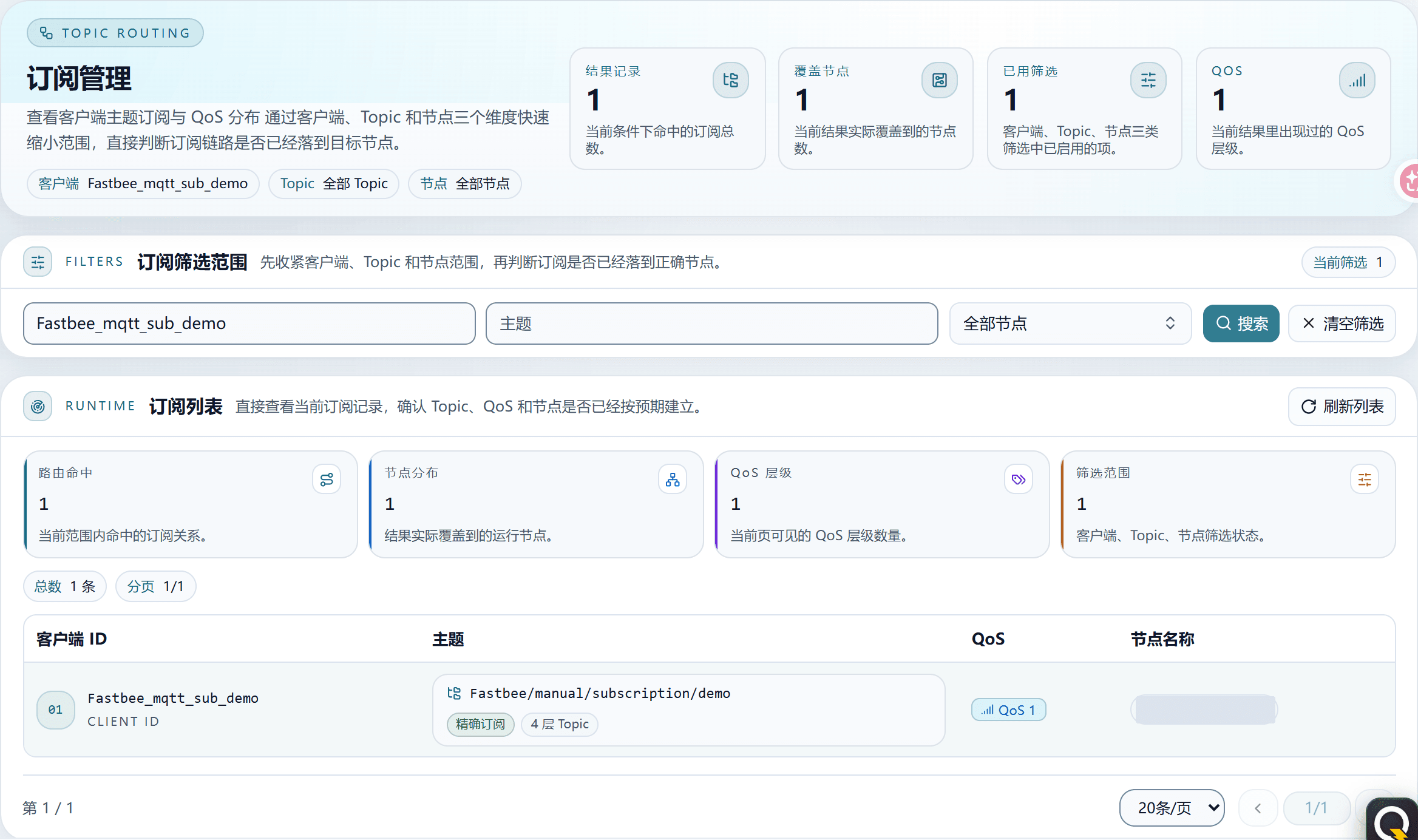
Figure: This is a runtime query page; subscriptions are not created inside the platform.
2. Query by Client ID
Location: MQTT → Subscriptions → Filter Scope
Enter the full Client ID from MQTTX; when unsure about the node, keep All and click Query.

Figure: Enter the full Client ID and click Query.
Field Descriptions
| Field / Control | Description |
|---|---|
| Client ID | Prefer copying the full value from the MQTTX connection configuration; used to locate who established the subscription; only changes the query scope or the current MQTTX connection and does not modify product master data. Optional · Source: MQTTX connection configuration or Client Center. Choice: prefer copying the full value from the MQTTX connection configuration; used to locate who established the subscription. Recommendation: fill in per the integration materials · Example: FastBee_mqtt_sub_demo |
| Node | Select All when you do not know which node the client connected to; specify a node only when troubleshooting single-node differences; only changes the query scope or the current MQTTX connection and does not modify product master data. Optional · Source: subscription results or Client Center. Choice: select All when you do not know which node the client connected to; specify a node only when troubleshooting single-node differences. Recommendation: fill in per the integration materials · Example: fill in according to the actual environment |
3. Check the Subscription Result Rows
Location: MQTT → Subscriptions → Subscription List
Check Client ID, Topic, QoS, and node column by column; finding a row only proves the subscription relationship exists.

Figure: The four columns Client ID, Topic, QoS, and node together confirm the subscription relationship.
Subscription Page Fields and Operations
| Configuration Item | Purpose & Usage Advice | Effect & Recovery |
|---|---|---|
| Total Subscriptions | The number of subscription relationships matching the current filter conditions; how to read: the number of subscription relationships matching the current filter conditions. | Data source: from MQTTX connection information or FMQ's current runtime state; only changes the query scope or the current MQTTX connection and does not modify product master data. |
| Covered Nodes | The number of FMQ nodes actually appearing on the current returned page, not the total number of cluster nodes; how to read: the number of FMQ nodes actually appearing on the current returned page, not the total number of cluster nodes. | Data source: from MQTTX connection information or FMQ's current runtime state; only changes the query scope or the current MQTTX connection and does not modify product master data. |
| Filters Applied | How many of the three condition types—Client ID, Topic, and node—are currently filled in, not the number of matches; how to read: how many of the three condition types—Client ID, Topic, and node—are currently filled in, not the number of matches. | Data source: from MQTTX connection information or FMQ's current runtime state; only changes the query scope or the current MQTTX connection and does not modify product master data. |
| QoS Levels | How many QoS values appear on the current returned page, not a success rate; how to read: how many QoS values appear on the current returned page, not a success rate. | Data source: from MQTTX connection information or FMQ's current runtime state; only changes the query scope or the current MQTTX connection and does not modify product master data. |
| Client ID | Prefer copying the full value from the MQTTX connection configuration; used to locate who established the subscription; how to choose: prefer copying the full value from the MQTTX connection configuration; used to locate who established the subscription; where the value comes from: MQTTX connection configuration or Client Center; recommendation: follow the deployment or integration materials; example: FastBee_mqtt_sub_demo. | Only changes the query scope or the current MQTTX connection and does not modify product master data; scope of impact: the current query or test session; takes effect after: confirm per the field description after saving; if misconfigured: overly narrow filters or inconsistent Topics can make it look like there is no data; recovery: loosen the filters and re-verify with a new message. |
| Topic | Used to narrow the topic scope. Start with the full Topic; if nothing is found, clear it to rule out overly narrow filtering; how to choose: used to narrow the topic scope. Start with the full Topic; if nothing is found, clear it to rule out overly narrow filtering; where the value comes from: MQTTX subscription configuration; recommendation: follow the deployment or integration materials; example: FastBee/manual/subscription/demo. | Only changes the query scope or the current MQTTX connection and does not modify product master data; scope of impact: the current query or test session; takes effect after: confirm per the field description after saving; if misconfigured: overly narrow filters or inconsistent Topics can make it look like there is no data; recovery: loosen the filters and re-verify with a new message. |
| Node | Select All when you do not know which node the client connected to; specify a node only when troubleshooting single-node differences; how to choose: select All when you do not know which node the client connected to; specify a node only when troubleshooting single-node differences; where the value comes from: subscription results or Client Center; recommendation: follow the deployment or integration materials. All nodes: no restriction on running nodes; queries relationships returned from all nodes. Specified node: queries only the selected running node; used to locate single-node differences. | Only changes the query scope or the current MQTTX connection and does not modify product master data; scope of impact: the current query or test session; takes effect after: confirm per the field description after saving; if misconfigured: overly narrow filters or inconsistent Topics can make it look like there is no data; recovery: loosen the filters and re-verify with a new message. |
| Query | Click after changing filter conditions to re-request subscription relationships with the current input; when to use: click after changing filter conditions to re-request subscription relationships with the current input. | Only changes the query scope or the current MQTTX connection and does not modify product master data; on failure: loosen the filters and re-verify with a new message. |
| Refresh List | Re-reads the current runtime state after MQTTX newly subscribes, unsubscribes, disconnects, or reconnects; when to use: re-reads the current runtime state after MQTTX newly subscribes, unsubscribes, disconnects, or reconnects. | Only changes the query scope or the current MQTTX connection and does not modify product master data; on failure: loosen the filters and re-verify with a new message. |
| All Subscriptions / Clear Filters | When there are no results, first loosen the conditions to rule out empty results caused by filtering; when to use: when there are no results, first loosen the conditions to rule out empty results caused by filtering. | Only changes the query scope or the current MQTTX connection and does not modify product master data; on failure: loosen the filters and re-verify with a new message. |
| Open Client Center | If there are still no results, check whether the client is online and whether it actually sent SUBSCRIBE; when to use: if there are still no results, check whether the client is online and whether it actually sent SUBSCRIBE. | Only changes the query scope or the current MQTTX connection and does not modify product master data; on failure: loosen the filters and re-verify with a new message. |
| Client ID Column | The identity of the MQTT client that initiated the subscription; how to read: the identity of the MQTT client that initiated the subscription. | Data source: from MQTTX connection information or FMQ's current runtime state; only changes the query scope or the current MQTTX connection and does not modify product master data. |
| Topic Column | The topic the client subscribed to, or a topic filter with +/#; how to read: the topic the client subscribed to, or a topic filter with +/#. | Data source: from MQTTX connection information or FMQ's current runtime state; only changes the query scope or the current MQTTX connection and does not modify product master data. |
| QoS Column | The quality-of-service level used by this subscription request; how to read: the quality-of-service level used by this subscription request. | Data source: from MQTTX connection information or FMQ's current runtime state; only changes the query scope or the current MQTTX connection and does not modify product master data. |
| Node Column | The FMQ node holding this runtime subscription relationship; how to read: the FMQ node holding this runtime subscription relationship. | Data source: from MQTTX connection information or FMQ's current runtime state; only changes the query scope or the current MQTTX connection and does not modify product master data. |
| Page Size | When there are many records, switch between 20 or 50 entries; how to choose: when there are many records, switch between 20 or 50 entries; where the value comes from: from MQTTX connection information or FMQ's current runtime state; recommendation: keep the current value. 20 entries: default density; at most 20 entries per page. 50 entries: view more results at once; at most 50 entries per page. | Only changes the query scope or the current MQTTX connection and does not modify product master data; scope of impact: the current query or test session; takes effect after: confirm per the field description after saving; if misconfigured: overly narrow filters or inconsistent Topics can make it look like there is no data; recovery: loosen the filters and re-verify with a new message. |
| Previous Page / Next Page | Page through when the total exceeds one page; the page display starts at 1, while front-end requests use page numbers starting at 0; when to use: page through when the total exceeds one page; the page display starts at 1, while front-end requests use page numbers starting at 0. | Only changes the query scope or the current MQTTX connection and does not modify product master data; on failure: loosen the filters and re-verify with a new message. |
MQTTX Subscription and Actual Message Receipt
4. Establish a Test Connection with MQTTX
Location: MQTTX → New Connection
Fill in the FMQ MQTT address, port, and a unique Client ID; after connecting, only confirm that the session is established.
Public Version Screenshot Notes
The screenshots contain the original test Broker address, which the public version replaces with an example domain. The operation method and field descriptions are fully preserved.
Field Descriptions
| Field / Control | Description |
|---|---|
| Broker Address | Fill in the FMQ MQTT data entry, not the management page address; only changes the query scope or the current MQTTX connection and does not modify product master data. Required · Source: FMQ service management or the deployment inventory. Choice: fill in the FMQ MQTT data entry, not the management page address. Recommendation: fill in per the integration materials · Example: mqtt.example.com |
| Port | The current plain MQTT TCP entry is 1883; the actual value depends on the deployment; only changes the query scope or the current MQTTX connection and does not modify product master data. Required · Source: FMQ service management or the deployment inventory. Choice: the current plain MQTT TCP entry is 1883; the actual value depends on the deployment. Recommendation: fill in per the integration materials · Example: 1883 |
| Client ID | This demo uses a unique FastBee_-prefixed identity, kept consistent with the platform query conditions; only changes the query scope or the current MQTTX connection and does not modify product master data. Required · Source: created by implementers per the resource naming convention. Choice: this demo uses a unique FastBee_-prefixed identity, kept consistent with the platform query conditions. Recommendation: fill in per the integration materials · Example: FastBee_mqtt_sub_demo |
5. Subscribe to the Test Topic in MQTTX
Location: MQTTX → Subscribe
Subscribe to the test Topic with QoS 1; this step sends SUBSCRIBE to FMQ.
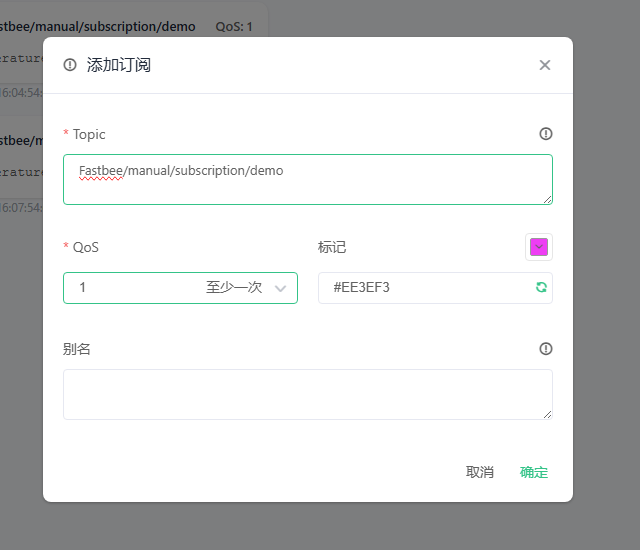
Figure: The subscribed Topic and QoS 1 are clearly visible.
Field Descriptions
| Field / Control | Description |
|---|---|
| Subscription Topic | Subscription, platform query, and publishing must point to the same topic; only changes the query scope or the current MQTTX connection and does not modify product master data. Required · Source: business Topic conventions. Choice: subscription, platform query, and publishing must point to the same topic. Recommendation: fill in per the integration materials · Example: FastBee/manual/subscription/demo |
| QoS | The demo uses QoS 1, at-least-once delivery; the page list should show the same value; only changes the query scope or the current MQTTX connection and does not modify product master data. Required · Source: from MQTTX connection information or FMQ's current runtime state. Choice: the demo uses QoS 1, at-least-once delivery; the page list should show the same value. Recommendation: 1 · Example: fill in according to the actual environment |
6. Publish and Confirm Actual Receipt in MQTTX
Location: MQTTX → Publish and Message List
Publish a new JSON to the same Topic and check Topic, Payload, and receipt time in the receive area.
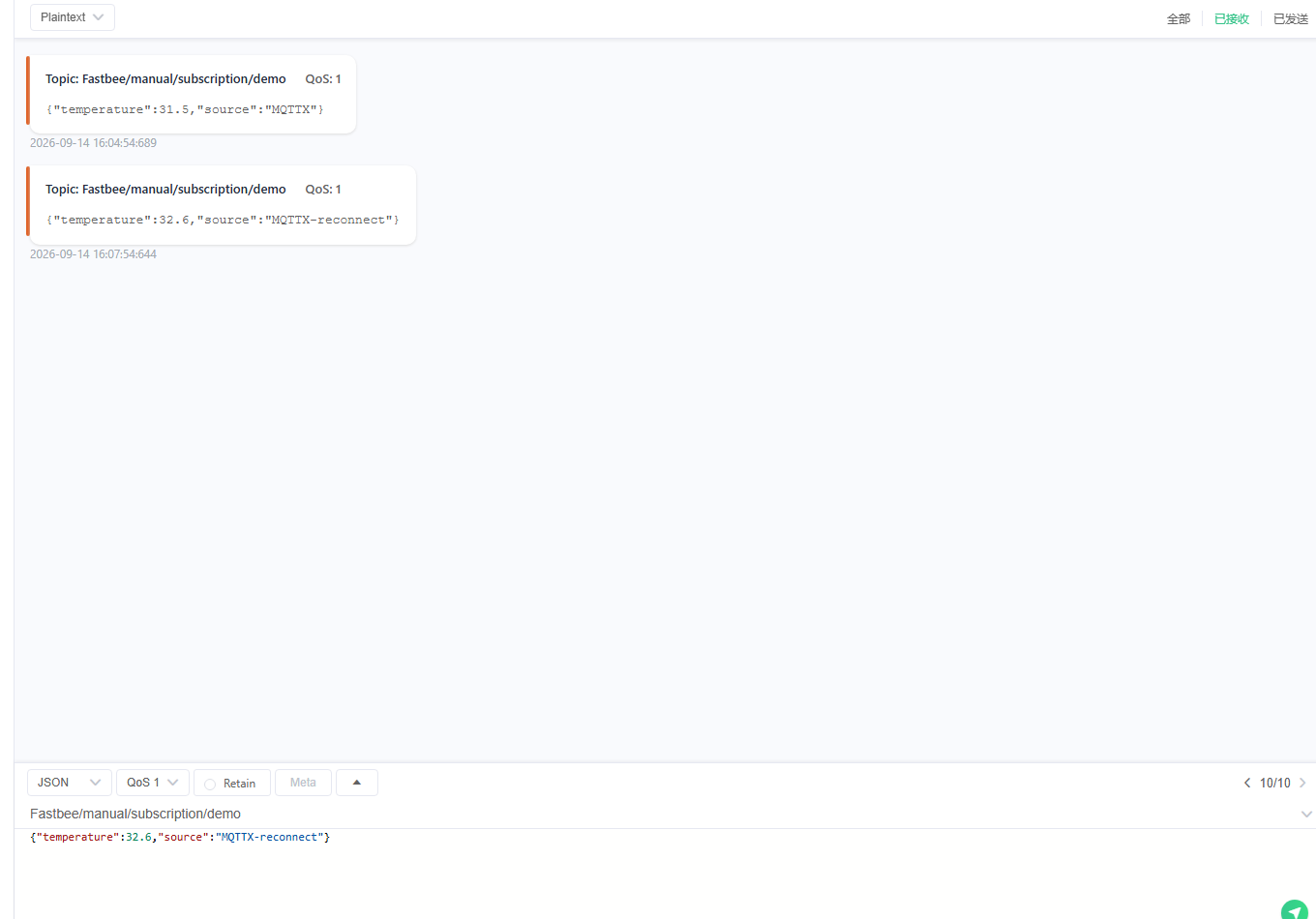
Figure: The new Payload on the same Topic and the receipt time prove message delivery.
Field Descriptions
| Field / Control | Description |
|---|---|
| Subscription Topic | Subscription, platform query, and publishing must point to the same topic; only changes the query scope or the current MQTTX connection and does not modify product master data. Required · Source: business Topic conventions. Choice: subscription, platform query, and publishing must point to the same topic. Recommendation: fill in per the integration materials · Example: FastBee/manual/subscription/demo |
| Payload | Publish an easily recognizable new JSON and check its content and time in the MQTTX receive area; only changes the query scope or the current MQTTX connection and does not modify product master data. Required · Source: this demo's data. Choice: publish an easily recognizable new JSON and check its content and time in the MQTTX receive area. Recommendation: fill in per the integration materials · Example: |
MQTTX Subscription and Send/Receive Parameters
| Configuration Item | Purpose & Usage Advice | Effect & Recovery |
|---|---|---|
| Required Broker Address | Fill in the FMQ MQTT data entry, not the management page address; how to choose: fill in the FMQ MQTT data entry, not the management page address; where the value comes from: FMQ service management or the deployment inventory; recommendation: follow the deployment or integration materials; example: mqtt.example.com. | Only changes the query scope or the current MQTTX connection and does not modify product master data; scope of impact: the current query or test session; takes effect after: confirm per the field description after saving; if misconfigured: overly narrow filters or inconsistent Topics can make it look like there is no data; recovery: loosen the filters and re-verify with a new message. |
| Required Port | The current plain MQTT TCP entry is 1883; the actual value depends on the deployment; how to choose: the current plain MQTT TCP entry is 1883; the actual value depends on the deployment; where the value comes from: FMQ service management or the deployment inventory; recommendation: follow the deployment or integration materials; example: 1883. | Only changes the query scope or the current MQTTX connection and does not modify product master data; scope of impact: the current query or test session; takes effect after: confirm per the field description after saving; if misconfigured: overly narrow filters or inconsistent Topics can make it look like there is no data; recovery: loosen the filters and re-verify with a new message. |
| Required Client ID | This demo uses a unique FastBee_-prefixed identity, kept consistent with the platform query conditions; how to choose: this demo uses a unique FastBee_-prefixed identity, kept consistent with the platform query conditions; where the value comes from: created by implementers per the resource naming convention; recommendation: follow the deployment or integration materials; example: FastBee_mqtt_sub_demo. | Only changes the query scope or the current MQTTX connection and does not modify product master data; scope of impact: the current query or test session; takes effect after: confirm per the field description after saving; if misconfigured: overly narrow filters or inconsistent Topics can make it look like there is no data; recovery: loosen the filters and re-verify with a new message. |
| Required Subscription Topic | Subscription, platform query, and publishing must point to the same topic; how to choose: subscription, platform query, and publishing must point to the same topic; where the value comes from: business Topic conventions; recommendation: follow the deployment or integration materials; example: FastBee/manual/subscription/demo. | Only changes the query scope or the current MQTTX connection and does not modify product master data; scope of impact: the current query or test session; takes effect after: confirm per the field description after saving; if misconfigured: overly narrow filters or inconsistent Topics can make it look like there is no data; recovery: loosen the filters and re-verify with a new message. |
| Required QoS | The demo uses QoS 1, at-least-once delivery; the page list should show the same value; how to choose: the demo uses QoS 1, at-least-once delivery; the page list should show the same value; where the value comes from: from MQTTX connection information or FMQ's current runtime state; recommendation: 1. QoS 0: at most once; no retransmission. QoS 1: at least once; duplicates possible, business must be idempotent. QoS 2: exactly once; more handshakes. | Only changes the query scope or the current MQTTX connection and does not modify product master data; scope of impact: the current query or test session; takes effect after: confirm per the field description after saving; if misconfigured: overly narrow filters or inconsistent Topics can make it look like there is no data; recovery: loosen the filters and re-verify with a new message. |
| Required Payload | Publish an easily recognizable new JSON and check its content and time in the MQTTX receive area; how to choose: publish an easily recognizable new JSON and check its content and time in the MQTTX receive area; where the value comes from: this demo's data; recommendation: follow the deployment or integration materials; example: { temperature: 31.5, source: MQTTX }. | Only changes the query scope or the current MQTTX connection and does not modify product master data; scope of impact: the current query or test session; takes effect after: confirm per the field description after saving; if misconfigured: overly narrow filters or inconsistent Topics can make it look like there is no data; recovery: loosen the filters and re-verify with a new message. |
| Connection Status | Connected only proves the MQTT session exists, not that anything is subscribed; how to read: connected only proves the MQTT session exists, not that anything is subscribed. | Data source: from MQTTX connection information or FMQ's current runtime state; only changes the query scope or the current MQTTX connection and does not modify product master data. |
| Receive Records | Only when Topic, Payload, and receipt time all match does it prove the matching message was delivered to MQTTX; how to read: only when Topic, Payload, and receipt time all match does it prove the matching message was delivered to MQTTX. | Data source: from MQTTX connection information or FMQ's current runtime state; only changes the query scope or the current MQTTX connection and does not modify product master data. |
How to Judge After Disconnect and Reconnect
7. Actively Disconnect MQTTX
Location: MQTTX → Current Connection
Actively disconnect and record the disconnect time; do not treat historical platform rows as online status.
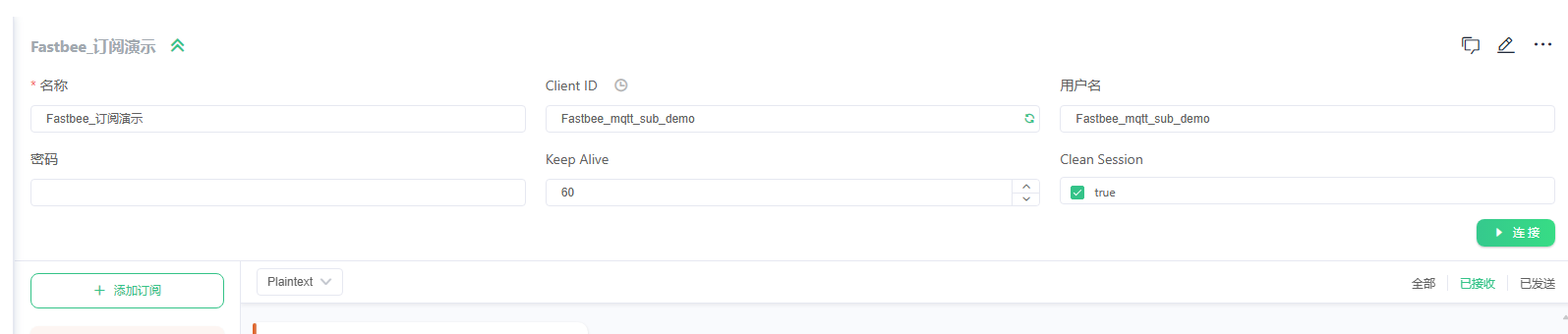
Figure: Record the disconnected state; do not treat historical platform rows as online evidence.
8. Refresh to See the Subscription Status After Disconnect
Location: MQTT → Subscriptions
Click Refresh and query the same Client ID again; judge whether the record still exists in combination with the session configuration.
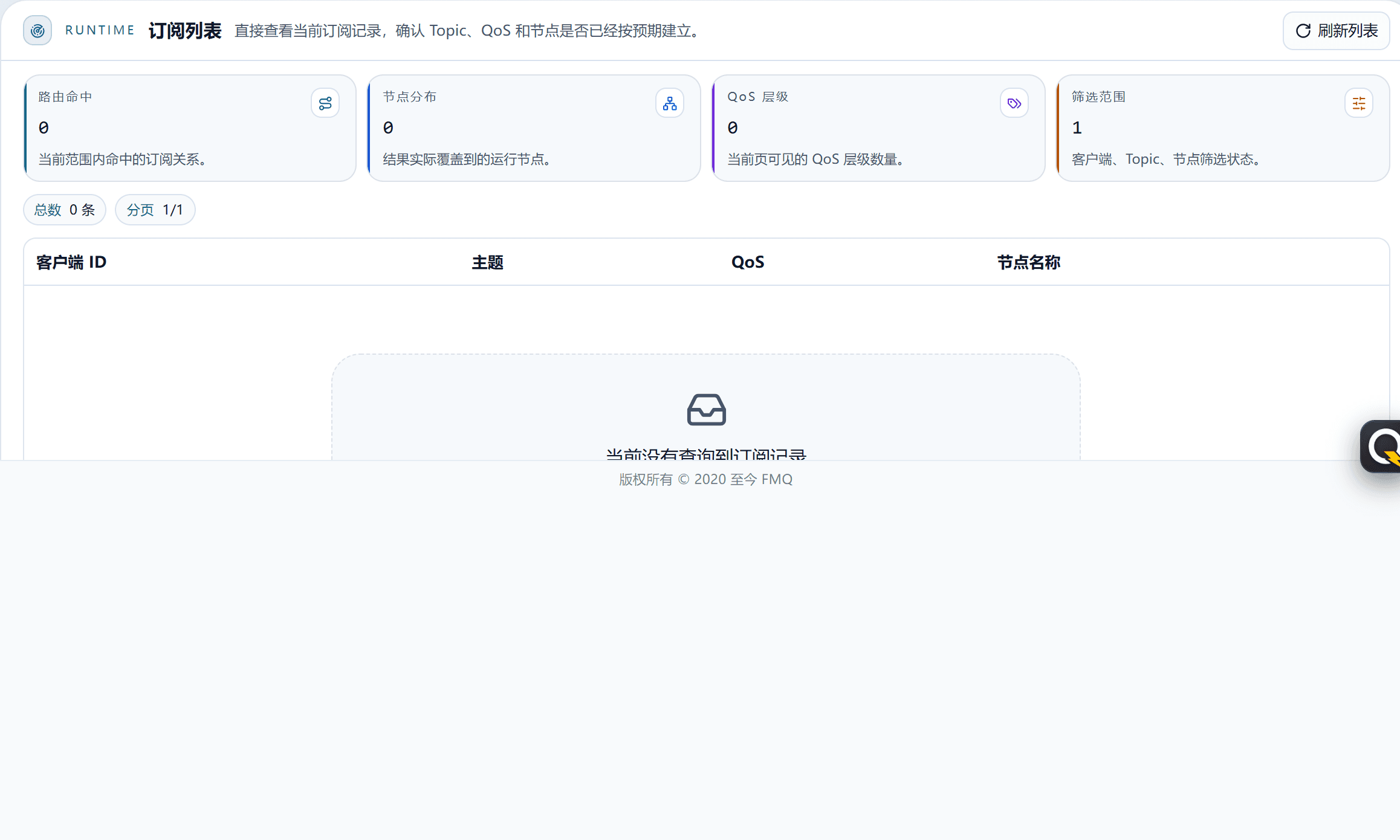
Figure: After refreshing, interpret whether the subscription record still exists in combination with the session configuration.
Field Descriptions
| Field / Control | Description |
|---|---|
| Client ID | Prefer copying the full value from the MQTTX connection configuration; used to locate who established the subscription; only changes the query scope or the current MQTTX connection and does not modify product master data. Optional · Source: MQTTX connection configuration or Client Center. Choice: prefer copying the full value from the MQTTX connection configuration; used to locate who established the subscription. Recommendation: fill in per the integration materials · Example: FastBee_mqtt_sub_demo |
9. Reconnect, Resubscribe, and Send a New Message
Location: MQTTX → Current Connection
Reconnect and confirm the subscription, then publish a new message with a different time to avoid treating old records as recovery evidence.
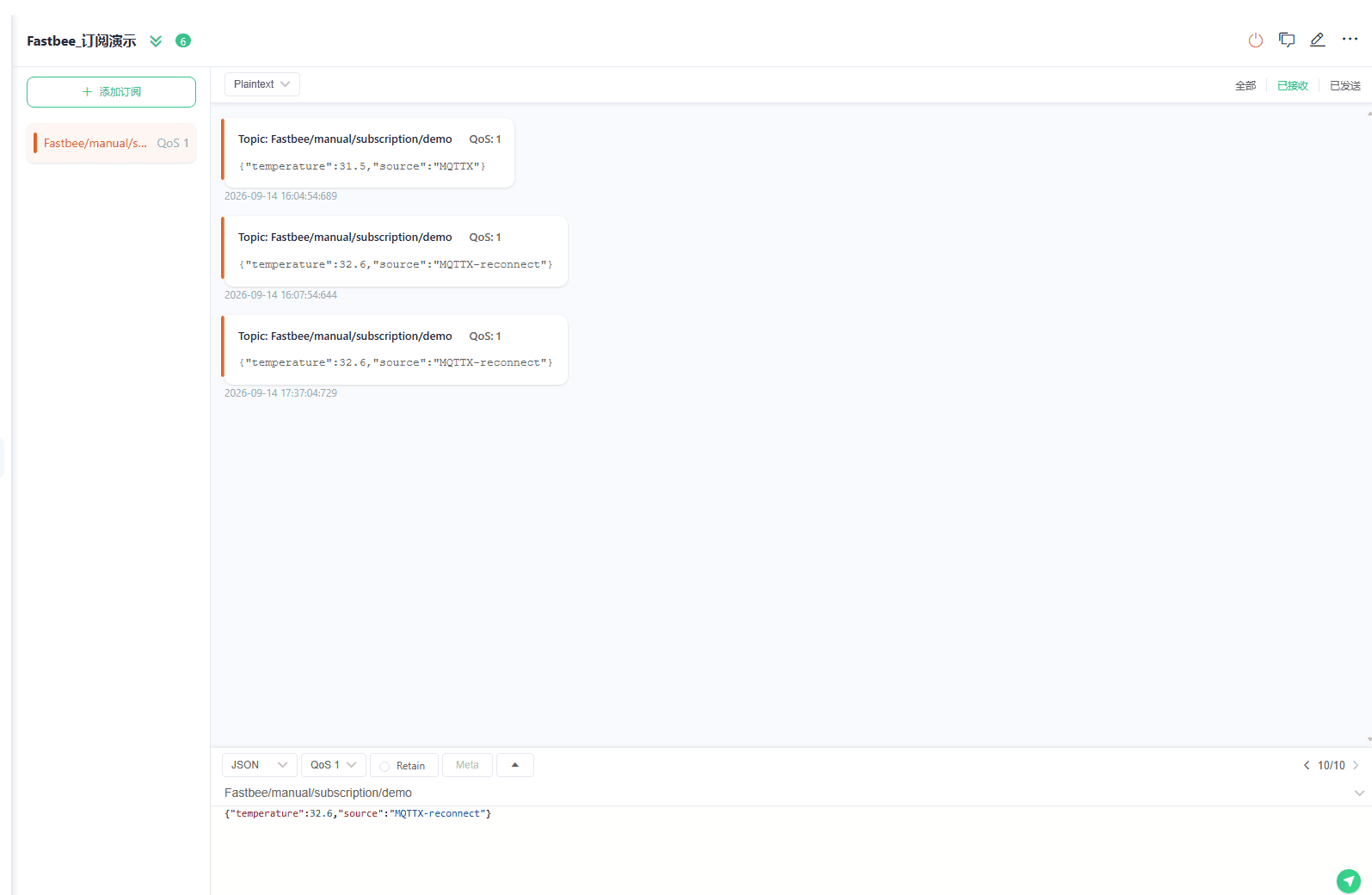
Figure: Reconnected, resubscribed, and received a new message with a different time.
Field Descriptions
| Field / Control | Description |
|---|---|
| Subscription Topic | Subscription, platform query, and publishing must point to the same topic; only changes the query scope or the current MQTTX connection and does not modify product master data. Required · Source: business Topic conventions. Choice: subscription, platform query, and publishing must point to the same topic. Recommendation: fill in per the integration materials · Example: FastBee/manual/subscription/demo |
10. Confirm the Subscription Relationship on the Platform Again
Location: MQTT → Subscriptions
After refreshing, find the same Client ID, Topic, QoS, and node again; together with MQTTX's new actual receipt, this completes the recovery judgment.
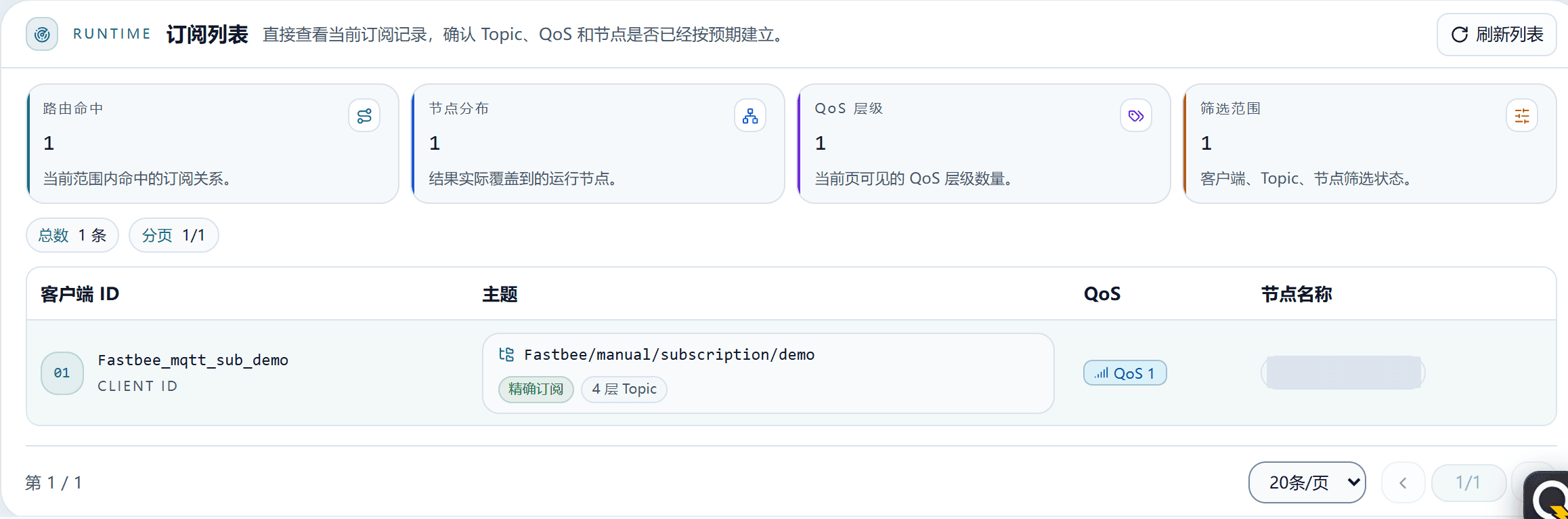
Figure: The platform finds the same subscription relationship again.
When to Use Query, Refresh, and Pagination
After changing filter items, click Query; Refresh re-reads the current state. For first-time location, prefer filling in only the full Client ID and keep the node as All. When nothing is found, first clear Topic and node, then go to Client Center to confirm the client is online.
- Query: applies the current filter conditions.
- Refresh: re-reads the runtime state.
- Pagination: used when the total exceeds one page; do not treat current-page statistics as global statistics.
FAQ
Reference Table
| Symptom | Possible Cause | Where to Check First | How to Recover |
|---|---|---|---|
| MQTTX is connected but the page shows no subscription | The client only connected without sending SUBSCRIBE. | Check whether the target subscription exists in MQTTX. | Resubscribe and go back to FMQ to refresh. |
| The page shows a subscription but MQTTX receives nothing | The published Topic does not match, the client has disconnected, or you only looked at old messages. | Check the Topic, connection status, and receipt time. | Publish a new message to the exactly matching Topic. |
| The query result is empty | The filter conditions are too narrow. | Clear Topic and node, keeping only the Client ID. | Query again; if it is still empty, go to Client Center to check the online status. |
| Old records are still visible after reconnecting | The list alone cannot prove the client is online. | Refresh and check the current MQTTX connection. | Resubscribe and send a new message; use the new receipt time as recovery evidence. |
Production Operation Notice
Screenshots and examples illustrate operation locations and judgment methods; they do not represent the current production state. When publishing, enabling/disabling, rebinding, retrying, or deleting, first confirm the target environment, scope of impact, and recovery plan, and have authorized personnel perform the operation.
FastBee IoT (FastBee) · FMQ Operations Manual