

ESP32-C3 Smart Switch Panel Example
Case Overview
This example covers 1/2/3-gang neutral-live smart switch panels based on ESP32-C3. Based on the user's three-gang panel photos and ESP32C3.ino, three physical buttons are bound to three relay channels: a short press after release toggles the corresponding channel, and outputs can also be controlled and viewed from the FastBee web UI.
Materials verified; physical device pending verification. The photos are hardware reference images provided by the user, not photos of this deployment or test; this page does not mean the panel has been flashed with FastBee, load-tested, or long-term-stability accepted. Relay software state is also not the actual feedback of contacts or lamps.
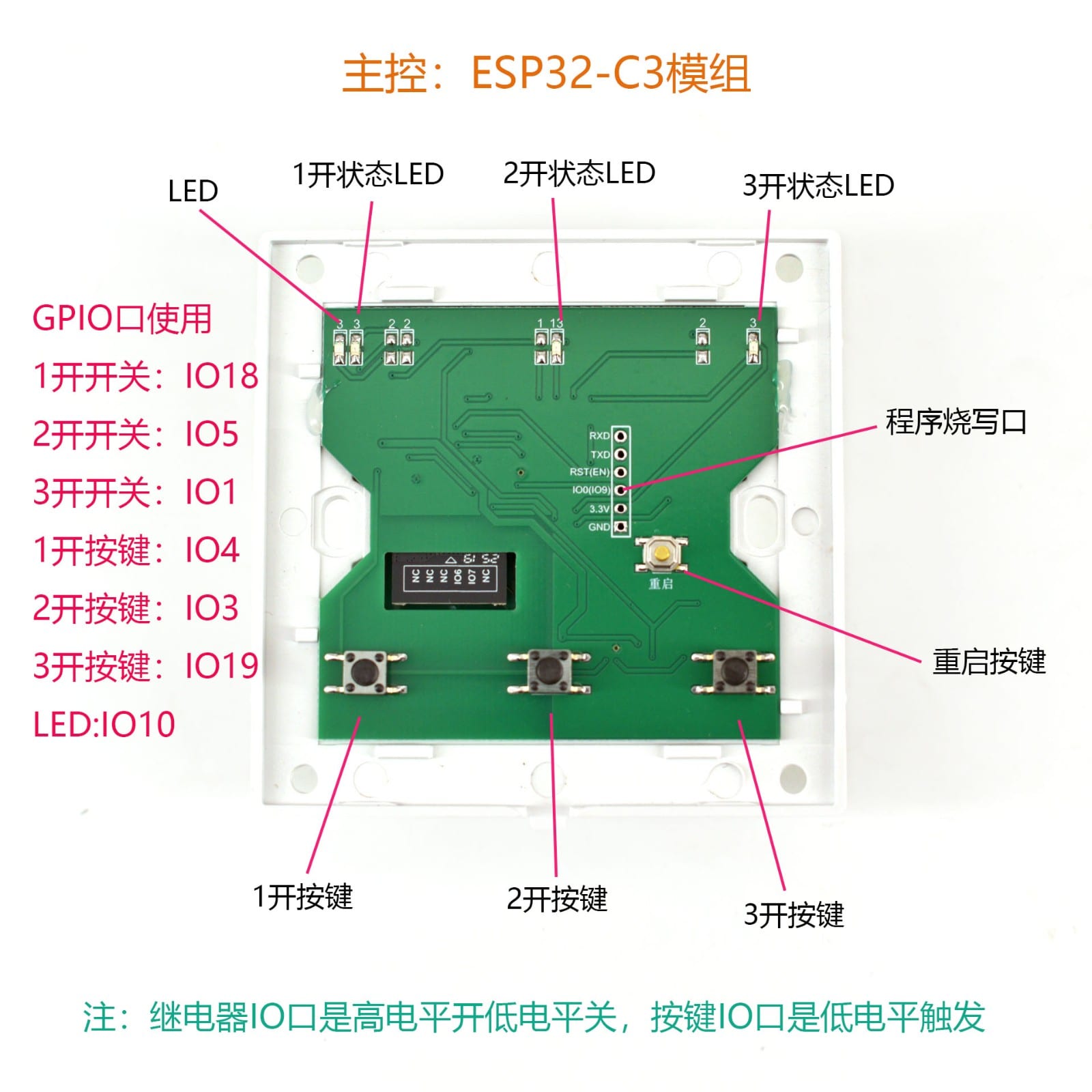
Figure 1: the user's provided "Basic Display.jpg", kept as-is. The "1-gang/2-gang/3-gang" labels in the image mark channel positions; the purchased 1-gang or 2-gang models may not have the other channels' components soldered — only configure channels that actually exist.
Hardware Preparation and Firmware Selection
| Item | Preparation and checks |
|---|---|
| Panel | ESP32-C3 neutral-live version; verify the model, board revision, number of gangs (1/2/3), and terminal silkscreen |
| Firmware | After actually confirming 4MB Flash and no PSRAM, choose esp32c3-F4R0; do not infer capacity from appearance |
| Download and logging | Verify the board's actual definitions of RXD, TXD, RST(EN), download-mode pins, 3.3V, and GND; use a vendor-confirmed UART download/logging method |
| Config tool | A browser on the same LAN; keep a backup of the current network, auth, MQTT, and other peripheral configs |
| Test conditions | Confirm board-level power supply and isolation first, then check buttons, outputs, and states under allowed conditions; load tests are recorded separately |
On this panel, GPIO18 and GPIO19 are used for relay channel 1 and button channel 3 respectively, while they are also the D- and D+ pins of the ESP32-C3 native USB Serial/JTAG. Download, logging, and buttons/relays cannot share these two lines at the same time. First verify the USB multiplexing, console configuration, and already-configured peripherals; do not force a save by disabling conflict checks. See Espressif's built-in USB/JTAG notes.
esp32c3-F4R0 is a 4MB single-app partition target without A/B OTA. Use artifacts matching the target for both firmware and filesystem; see the Flashing Tutorial and Partition Layout.
This example is different hardware from the C3 Temperature/Humidity example. In the four-device tests, COM4's existing public config is for DHT11, LED, and OLED; do not treat COM4 as this switch panel just because it is also a C3, and do not overlay this page's relay pins onto COM4. A dedicated test config must be established after confirming the actual panel identity and wiring, and managed separately from the four-device configs.
Pins and Polarity
The table below is cross-checked between the original photos and the original code; it does not borrow the LED or BOOT button definitions of other C3 dev boards.
| Channel/purpose | Button input | Relay output | Behavior |
|---|---|---|---|
| Channel 1 | GPIO4, internal pull-up | GPIO18 | Button active LOW; relay HIGH on, LOW off, initialized off |
| Channel 2 | GPIO3, internal pull-up | GPIO5 | Same as above |
| Channel 3 | GPIO19, internal pull-up | GPIO1 | Same as above |
| Standalone status LED | — | GPIO10 | The example writes LOW with a comment saying lit; polarity still needs measurement on this board |
GPIO10 is a standalone status LED and must not be equated with the three switch status lights in the photo; the materials give no separate GPIO for each of the three status lights, so no guessed outputs are added for them.
Wiring
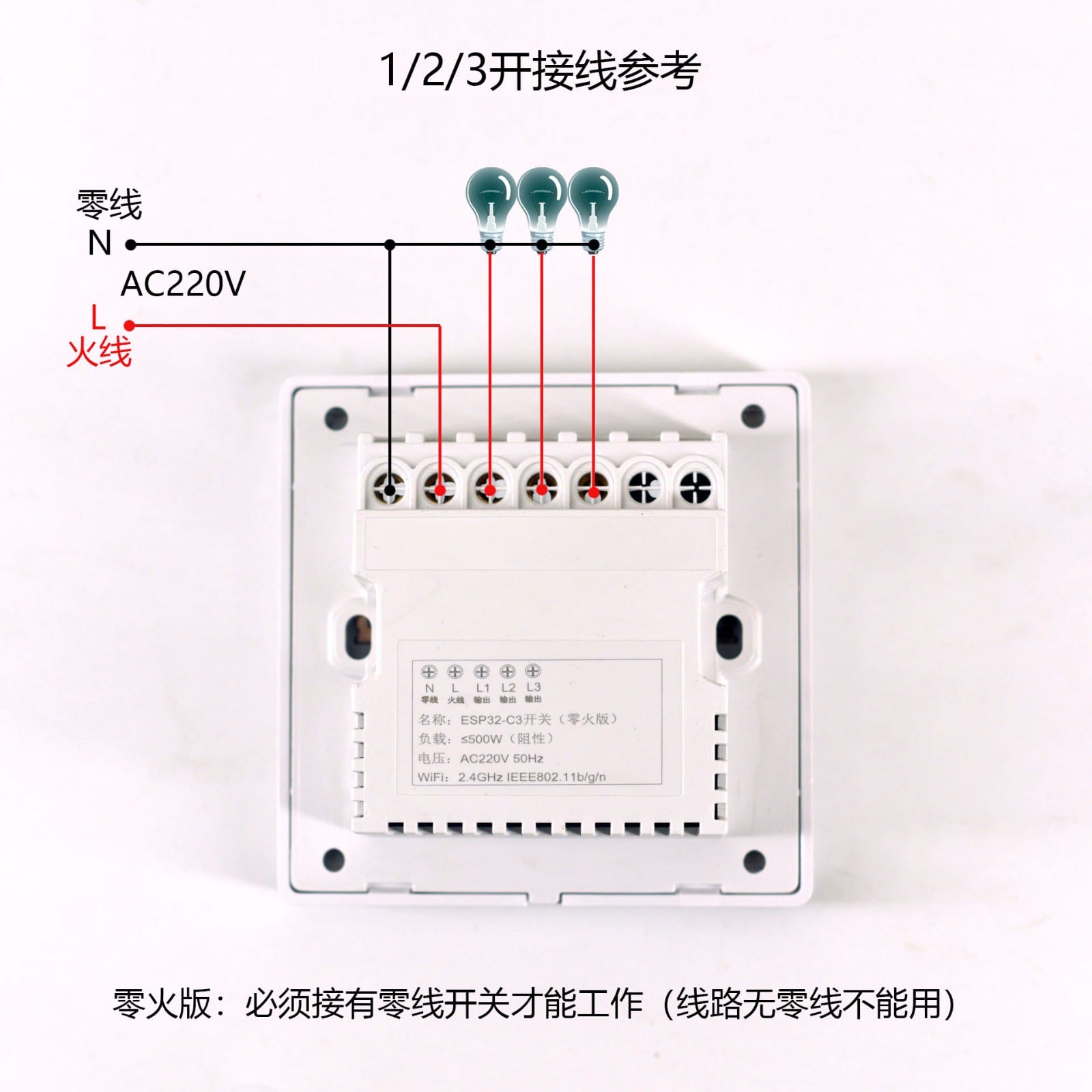
Figure 2: the user's provided "Wiring Reference.jpg", kept as-is. N is the neutral wire, L is the live input, and L1/L2/L3 are the controlled outputs for the corresponding loads; this model requires a neutral wire and must not be used as a no-neutral switch. Actual wiring follows the physical silkscreen and this model's manual.
Mains wiring must be done by qualified personnel after power-off and voltage verification. When the isolation method is unverified, do not connect the computer's USB/UART debugging while mains is energized; the 3.3V marking in the photo is not a confirmed safe power-injection point. Obtain the board-level power, isolation, and download-wiring documentation first — do not guess whether the low-voltage ground is isolated from mains.
The AC220V and load labels in the image are reference markings only; they cannot be used to infer per-channel or whole-device contact ratings, isolation levels, inductive/capacitive load capability, or load-test results. Low-voltage logic checks of buttons and mains-load acceptance are recorded separately.
Original Arduino Example
Download the original ESP32C3.ino. The file is kept as-is, sourced from the user's "ESP32 button-controlled relay ArduinoIDE example/ESP32C3" materials.
The example needs the Arduino ESP32 development environment and the OneButton library; the original file does not pin a library version — record the version used when reproducing. It is a standalone button demo without FastBee web, MQTT, config persistence, or a rule engine, and must not be overlaid into the FastBee project's main loop.
OneButton button4(4, true),button3(3, true), andbutton19(19, true)define three active-low buttons, andsetup()sets the corresponding GPIOs toINPUT_PULLUP.- Three
attachClickcallbacks read, invert, and write back GPIO4 → GPIO18, GPIO3 → GPIO5, and GPIO19 → GPIO1 respectively. setup()writes GPIO18, 5, and 1 LOW so the relays initialize off; GPIO10 is also written LOW, but the original comment says the status LED is lit.loop()keeps calling the threetick()calls to advance the button state machine, with no blocking waits added to the example loop. The callback means the click recognized by the library, not one toggle per press and release edge.
Writing LOW at initialization only describes the setting after software starts running; it does not prove there is no pulse during reset, download, or the power-on instant — that part must be measured on the actual output and load.
FastBee Web Configuration
1. Backup and Preparation
Complete network provisioning per the Quick Start and log in with the actual STA address. Export the local config first, enable developer mode in Advanced Config with the current password, then check existing GPIO usage in "Peripheral Configuration". This case only adds verified channels; do not import another board's full config and do not change the local network or platform credentials. Keep rules disabled on first configuration, verify inputs and outputs, then enable them one by one.
2. Create Managed Buttons and Relays
In "Peripheral Configuration", add two peripherals for each actually existing channel. The three-gang model uses the following IDs; keep only the corresponding rows for 1-gang/2-gang models:
| Button ID | Type / pin | Output ID | Type / pin |
|---|---|---|---|
panel_btn1 | GPIO digital input pull-up (type: 13) / 4 | panel_relay1 | GPIO digital output (type: 12) / 18 |
panel_btn2 | GPIO digital input pull-up (type: 13) / 3 | panel_relay2 | GPIO digital output (type: 12) / 5 |
panel_btn3 | GPIO digital input pull-up (type: 13) / 19 | panel_relay3 | GPIO digital output (type: 12) / 1 |
For the buttons, set "Input electrical mode" to "Internal pull-up" (params.inputMode: 2), leave "Invert logic" unchecked (params.invertLogic: false), and start the debounce time at 50ms (params.debounceMs: 50), recording the final value after measurement. Active-low is determined by the pull-up button type and the actual pressed level; no extra inversion is needed for it.
For the relays, choose native GPIO with initial state "Low level" (params.initialState: 0); this board is active-high — on is HIGH and off is LOW. Keep them as ordinary managed outputs: do not set passive output and do not enable PWM. The following shows the channel-1 fields as an illustration — it is not a directly importable config package:
{
  "peripherals": [
    {"id":"panel_btn1","name":"Panel Button 1","type":13,"enabled":false,"pins":[4],"params":{"inputMode":2,"invertLogic":false,"debounceMs":50}},
    {"id":"panel_relay1","name":"Panel Relay 1","type":12,"enabled":false,"pins":[18],"params":{"initialState":0,"passive":false,"invertLogic":false}}
  ]
}Save through the page and check the preflight result; resolve conflicts first on pin occupation, board mismatch, or resource rejection. Do not bypass FastBee peripheral management with bare digitalWrite() callbacks.
The standalone status LED is optional: only add an ordinary digital output after confirming GPIO10 has no other use. If the board is verified as lit-LOW, distinguish "low level" from "off"; do not include it in the three relays' switching rules.
3. Configure Single-Click Linkage
Go to "PeriphExec" and create one rule per channel: trigger type "Event Trigger", event "Button Click", explicitly selecting that channel's button as the trigger peripheral; action "Toggle", target the corresponding relay, and leave action parameters empty.
| Rule | Trigger peripheral triggerPeriphId | Event eventId | Action target targetPeriphId |
|---|---|---|---|
| Channel 1 click toggle | panel_btn1 | button_click | panel_relay1 |
| Channel 2 click toggle | panel_btn2 | button_click | panel_relay2 |
| Channel 3 click toggle | panel_btn3 | button_click | panel_relay3 |
The corresponding real rule fields are triggerType: 4, actionType: 30, actionValue: "", useReceivedValue: false. The channel-1 core configuration is illustrated below; the complete rule is saved by the page — do not import the fragment as a config package:
{
  "triggers": [{"triggerType":4,"triggerPeriphId":"panel_btn1","eventId":"button_click"}],
  "actions": [{"targetPeriphId":"panel_relay1","actionType":30,"actionValue":"","useReceivedValue":false,"syncDelayMs":0,"execMode":0}]
}Current FastBee source judges a complete short press at post-debounce release: when the button has no double-click rule, a short-press release emits the single click immediately; only after a double-click rule is configured does it wait for the default 300ms multi-click window. This example configures single click only. Holding for 2 seconds counts as a long press, and the release no longer emits this example's single click; holding continuously does not toggle periodically either. It matches OneButton's "single-click callback toggles" goal, but the long-press threshold and multi-click recognition timing are not guaranteed to be identical to an unpinned OneButton version.
Do not bind button_press, button_release, or generic level changes to toggle the same channel at the same time, or one press-release may produce two actions. The verification basis is the firmware's PeriphExecScheduler.cpp, PeripheralExecution.h, and the current web form; rapid repeated presses and hold behavior still must be verified after actual deployment.
4. Web Manual Control and State Sync
Click "Execute once" on the corresponding rule row in "PeriphExec" to manually toggle a relay from the web without simulating button events. First read back the initial LOW, execute once and check HIGH, execute once more and check LOW, and verify the actual channel. When an explicit on/off action is needed, the action types are "High level" (actionType: 0) and "Low level" (actionType: 1) respectively; do not use inverted high/low actions to control this board. The enable/disable buttons in "Peripheral Configuration" control the peripheral lifecycle, not the relay on/off buttons.
Physical button rules and web control must point to the same panel_relayN, with state updated by the same managed output. Re-read the peripheral state after operations; for debugging you can use the authenticated read-only endpoint GET /api/peripherals/read?id=panel_relay1, with endpoint requirements in the API Reference. Then test "web off → button click on" and "button off → web on". The initial state in config is not the real-time state, and a UI success message is not the actual contact closing; when the display does not update, check request errors, SSE/polling recovery, and logs — do not judge success from stale values.
Local button rules do not depend on MQTT or a permanently open browser. Whether control still works during a network outage, state sync after reconnect, and config retention after restart need the acceptance below.
First Checks and Acceptance
All items start as pending verification; perform them only when the actual panel, power supply, and load conditions are confirmed. Record the chip/MAC, board revision, firmware/web summary, config export, test time, observer, and anomalies; public reports must not contain network or MQTT keys.
| Item | Operation and expectation | Current evidence |
|---|---|---|
| Identity and mapping | Confirm the actual panel and channel count; the three buttons, web outputs, and physical channels correspond one-to-one | Materials verified; physical device pending |
| Single short press | Perform at least 10 complete press-release cycles per channel; each toggles only the corresponding channel once | Pending verification |
| Hold and rapid presses | Short-press release takes effect; holding over 2 seconds does not repeatedly switch; test rapid presses within debounce capability and record intervals | Pending verification |
| Default off | Initializes off after cold boot, reset, and software restart; measure whether abnormal pulses occur at startup | Pending verification |
| Web sync | Alternate control from desktop/mobile, then press physical buttons; readback matches the actual channel with no permanent loading or stale-value misreports | Pending verification |
| Config recovery | Pins/rules remain correct after save, re-read, and restart; network and auth not overwritten | Pending verification |
| Offline control | Local short press still works after network disconnect; the web shows the actual state after reconnect | Pending verification |
| Load and long-term | Under qualified conditions, run separate real-load and continuous-operation checks, recording temperature rise, resets, lost events, and network anomalies | Pending verification |
Troubleshooting
| Symptom | Check direction |
|---|---|
| One button press switches twice | Whether press/release/click are bound at the same time or duplicate rules exist; check debounce and actual event logs |
| No switch on long-press release | This example uses the complete short-press event; reaching 2 seconds in FastBee takes the long-press path — not a default fault |
| Channel 1/3 abnormal or USB disappears | Check the USB multiplexing of GPIO18/19 and the download/logging method; do not force sharing |
| Pressing channel 1 switches another load | Match GPIO4→18, GPIO3→5, GPIO19→1 and the target peripheral IDs against the physical terminals |
| All buttons ineffective | Whether the rule is enabled, the trigger peripheral is filled, the input is pull-up, and readings change with press/release |
| Switch direction reversed | Relay is HIGH on, LOW off; check whether an inverted action was misused; judge the GPIO10 LED separately |
| Load flickers at restart | Software initial LOW does not cover early startup; stop loaded debugging and check hardware bias and startup waveforms |
| Page opens but the lamp does not light | Check software readback, relay contacts, and load separately; do not treat UI state as physical feedback |
| Save rejected | Check the pin/resource preflight hints and the actual board type; do not delete protections or apply another C3's config |