

Device Log
Overview: The device log module provides runtime diagnostics for memory, WiFi, MQTT and system events when logging is active. HealthMonitor samples heap state periodically, degrades optional services under pressure and records warnings.
Overview
The device log page is used to view system runtime logs, helping diagnose issues and monitor device status. Supports different log levels and real-time log streaming.
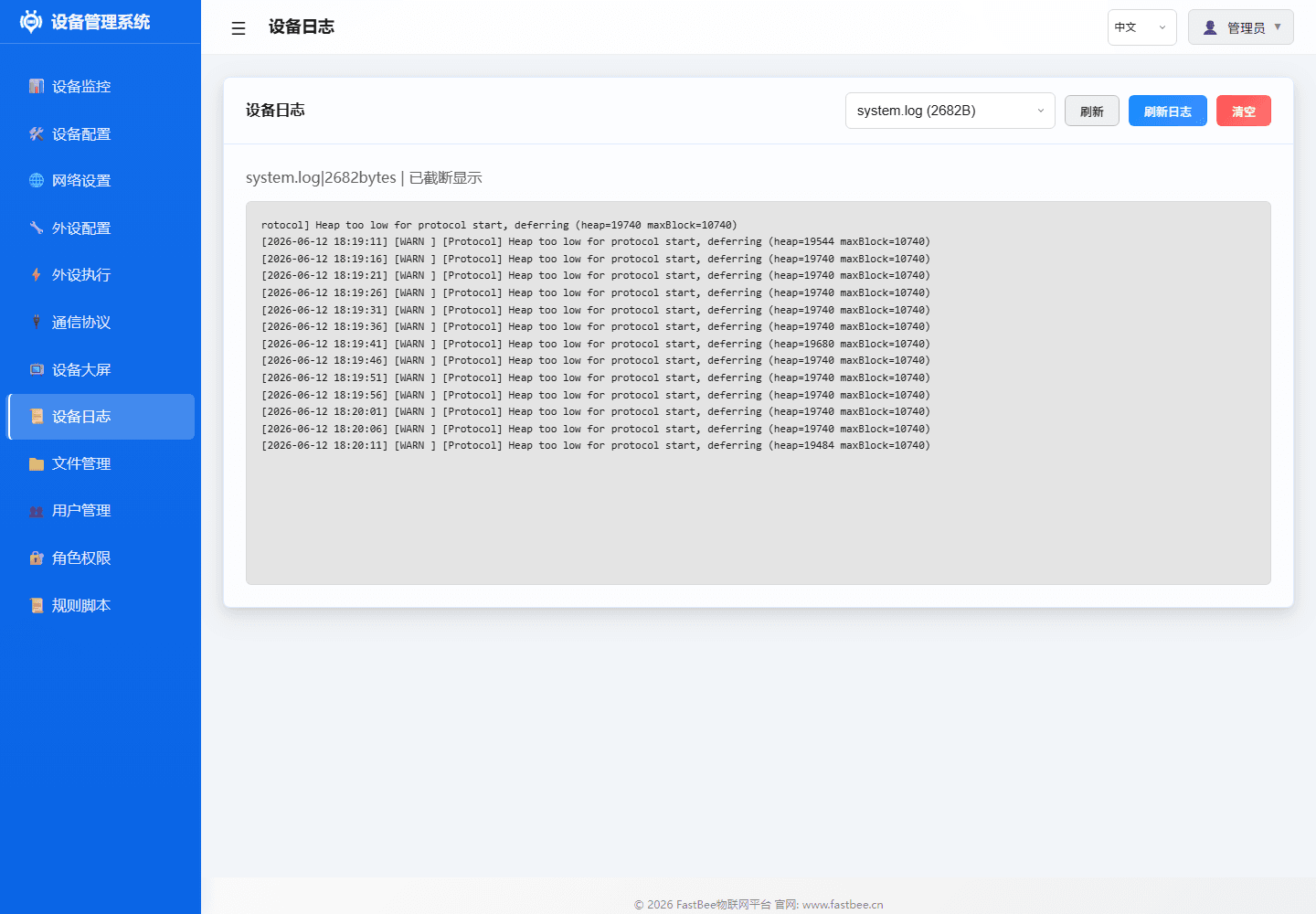
When troubleshooting, prioritize observing startup, network, MQTT, peripheral initialization, and memory alert related logs; after changing log level, remember to switch back to an appropriate level for field operation.
Usage
- Enter Device Log page
- View real-time log output
- Filter logs by level
- Clear historical logs
Parameters
Log Levels
| Level | Description | Example |
|---|---|---|
| ERROR | Error information | Peripheral initialization failure, memory insufficient |
| WARNING | Warning information | Weak WiFi signal, sensor read timeout |
| INFO | General information | Device boot, WiFi connected |
| DEBUG | Debug information | GPIO status changes, rule execution details |
Log Format
[Timestamp] [Level] [Module] MessageExample:
[12:30:45] [INFO] [WiFi] Connected to SSID: MyRouter, IP: 192.168.1.100
[12:30:46] [INFO] [MQTT] Connected to broker
[12:31:00] [DEBUG] [PeriphExec] Rule "LED Flash" triggered
[12:31:05] [WARNING] [Sensor] DHT11 read timeoutConfiguration
Change Log Level
Set log level in Device Configuration:
- ERROR: Only display errors (recommended for production)
- INFO: Display normal operation information (default)
- DEBUG: Display all detailed information (for debugging)
Troubleshooting
| Issue | Possible Cause | Solution |
|---|---|---|
| Log refreshing too fast | Too many DEBUG messages | Switch to INFO or WARNING level |
| No logs visible | WebSocket not connected | Refresh page |
| Incorrect log time | NTP not synchronized | Check network and NTP configuration |
| Memory interrupts | Log buffer full | Clear periodically or reduce log level |