

Waveshare ESP32-S3 4-inch Touchscreen Example
Case Overview
This example uses the Waveshare ESP32-S3-Touch-LCD-4 Rev4 to consolidate FastBee's local data and control entries onto a 4-inch touchscreen. The browser edits layouts and data bindings, while the ESP32-S3 handles display, touch processing, collection, and execution. Daily viewing and local control do not require a permanently open browser; network data such as weather still needs connectivity.
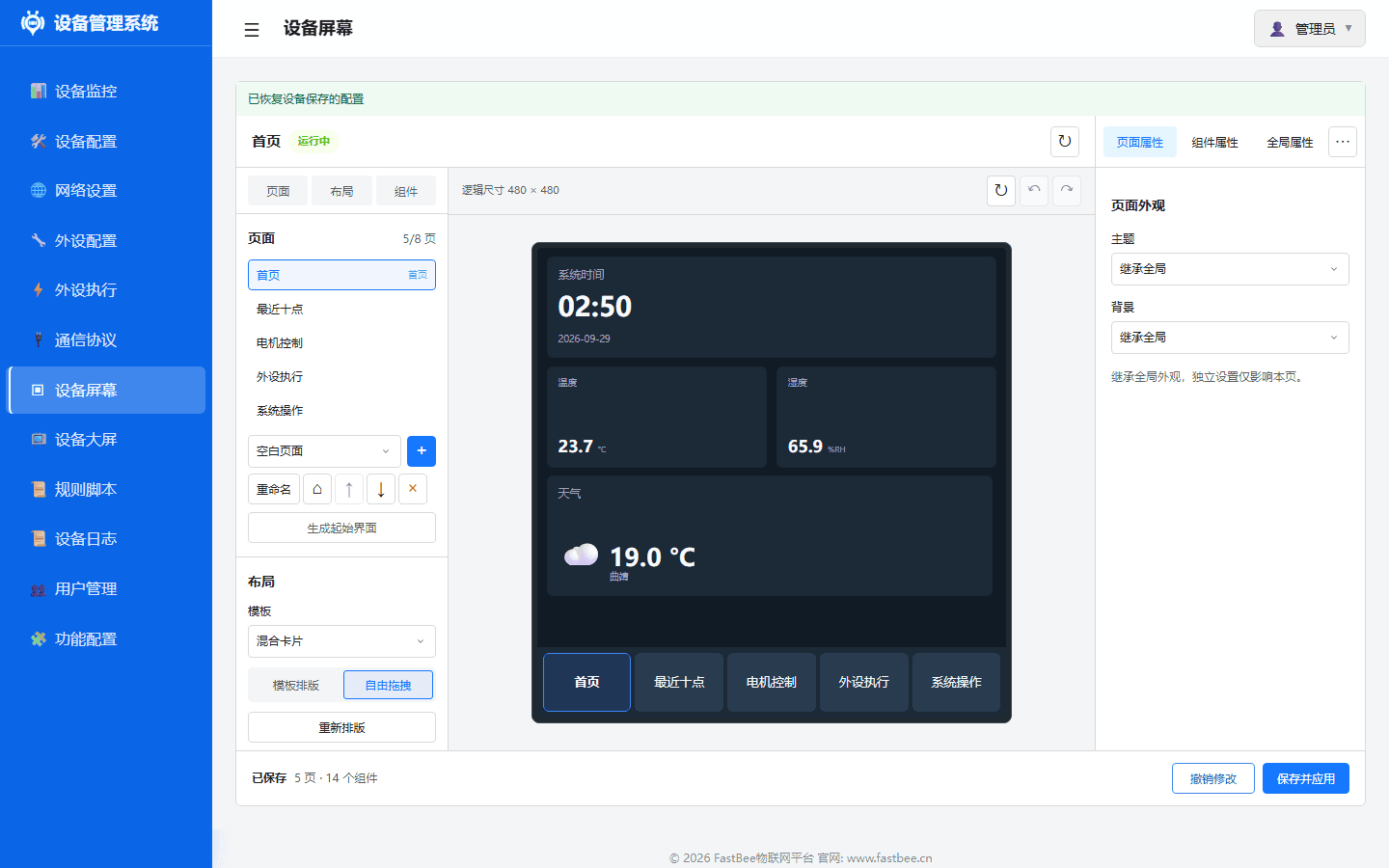
Figure 1: a web-editor screenshot taken after connecting to the device. The images below are all web pages showing layouts and configuration entries, not photos of the physical panel, and do not mean the current version has passed physical or long-term-stability acceptance. Page names, values, and dates vary with the actual configuration.
| Page example | Content | Data or action source |
|---|---|---|
| Home | Time, temperature/humidity, weather | System time, sensor collection, Seniverse weather service |
| Recent records | Temperature, humidity, and other trends | Data sources with recording enabled |
| Device control | Relay switching actions, motor control | Configured devices and rules permitted to execute |
| System operations | Brightness, auto screen-off, touch beep | Display peripheral capabilities and screen global settings |
These pages can be added, removed, and rearranged. The system does not fix motor models, slave addresses, or sensors; other supported peripherals can also be integrated via configuration.
The current runtime config entry is merged into the firmware repository at docs/device-test-configs/com8-com9-esp32s3-touch/; the legacy board directory keeps its description only, and no complete JSON is assumed under it. Verify the actual directory and target device before importing, and do not copy historical network credentials.
Hardware Preparation
| Item | This example's configuration |
|---|---|
| Main board | Waveshare ESP32-S3-Touch-LCD-4, Rev4 / CH32 expansion-control version |
| Build environment | esp32s3-F16R8, 16MB Flash, 8MB PSRAM |
| Display | 4-inch, 480 x 480, RGB interface, ST7701 initialization config |
| Touch | GT911, I2C interface; used as single-touch in this example |
| Onboard control | CH32V003, handling display reset, backlight, and buzzer signals |
| Optional sensor | SHT30, for home-page temperature/humidity and history curves |
| Optional control devices | GPIO relays, Modbus relays, stepper-motor drivers, etc. |
This example is not the Waveshare 6-channel relay board. Different revisions of the same-named series may differ in display, expansion IO, and pins — verify the silkscreen and the vendor hardware documentation. The touchscreen itself works over RGB/I2C, is not a Modbus slave, and has no A/B interface for touch use.
Interface Configuration for This Example
| Purpose | Parameters | Notes |
|---|---|---|
| Shared I2C | SDA GPIO15, SCL GPIO7, 100kHz | Touch, CH32, and SHT30 share the same bus configuration |
| CH32 | Address 0x24 | Uses the control mask from the board configuration; do not borrow other expansion-chip configs |
| GT911 | Initialization probe 0x5D / 0x14 | Address depends on reset/INT timing and is initialized by the touch backend |
| SHT30 | Address 0x44 | Example sampling period is 10 seconds; do not add its data component when not connected |
| External RS485 | UART TX GPIO43, RX GPIO44; example 9600, 8-N-1 | Wire and configure per the actual transceiver and slave manual; it is not the touch bus |
The full RGB data pins and control parameters use this board's config file; hand-filling them item by item is not recommended. The pins above belong to this board example and are not a generic ESP32-S3 wiring convention.
Configuration Steps
1. Prepare Firmware and the Board Config
Use the esp32s3-F16R8 firmware that includes RGB and GT911 support and matches this board. Hardware notes are in the FastBee-Arduino source repository at docs/waveshare-esp32s3-touch-lcd4/.
| File | Purpose |
|---|---|
peripherals.json | Display, touch, shared I2C, sensor, and UART parameters |
screen_panel.json | Screen global settings, pages, and component bindings |
periph_exec.json | Collection and restricted control rules |
protocol.json | Optional Modbus devices and register mappings |
rgb-build-contract.json | RGB compile-buffer and configuration consistency requirements |
This example directory does not ship features.json; the runtime switches for screen and sensors are set and saved in the web "Feature Config".
The RGB in this example runs at 12MHz with bufferLines=16, which must match the firmware's 16-line double bounce-buffer contract. A generic firmware's environment name being the same does not mean the same RGB build parameters were used; prepare the image per the build notes in the example directory. For flashing, see Flashing and Testing.
For existing devices, back up the config first and keep your own network, login, and platform connection parameters. Public examples contain no field credentials and must not overwrite another device's config. Apply the layout through the import and save entries of "Device Screen"; verify peripherals and protocols on their respective configuration pages.
2. Network and Enable the Screen
- Complete first-time provisioning per the Quick Start, and access the web via the address shown in the serial log or router.
- In "Feature Config", confirm the Device Screen is compiled and enabled; when adding SHT30, also enable the corresponding I2C sensor capability. Save per the page prompts and restart.
- In "Peripheral Configuration", verify this board's display peripherals: RGB / ST7701, GT911, 480 x 480, CH32 control, and I2C parameters. The example display peripheral ID is
panel_display. - Enter "Device Screen", select that display peripheral in the global properties, and confirm the device runtime state; for changes that need a restart to apply, check again after restarting.
The board example uses backlightActiveHigh=false. If you switch to another screen, set it per the actual backlight circuit; do not take this value as the default polarity for all screens.
3. Edit the Home Page, Page Order, and Components
- Add a page on the left, choose a template or a blank layout, and set the home page as the default page.
- Add a "Clock" and two "Value" components from the component library, binding temperature and humidity sources respectively. If collection is not configured yet, complete the collection rules first — do not substitute fixed numbers for live data.
- Select a component and fill in title, unit, and size in the property panel; in free layout, drag to move and drag corners to resize.
- The page list can be drag-sorted or adjusted with the move-up/move-down buttons. Components drag within the canvas to change position; "Reflow" rearranges this page's components per the template.
- Click "Save and Apply" and confirm the saved version and the device's applied state. Reload to verify the layout; unsaved drafts do not appear on the physical panel directly.
The web "Device Screen" is the entry for editing the physical panel; the "Device Dashboard" is a different display interface in the browser. Control previews on the editing canvas do not send real motor or relay actions.
4. Add Weather and Trends
The weather component uses the shared Seniverse weather configuration. Fill in your own API Key, city, and update period in the weather properties and update on demand after saving; do not put the Key in public screenshots. When offline or on service failure, keep the last valid value and show a stale state — do not treat missing values as 0.
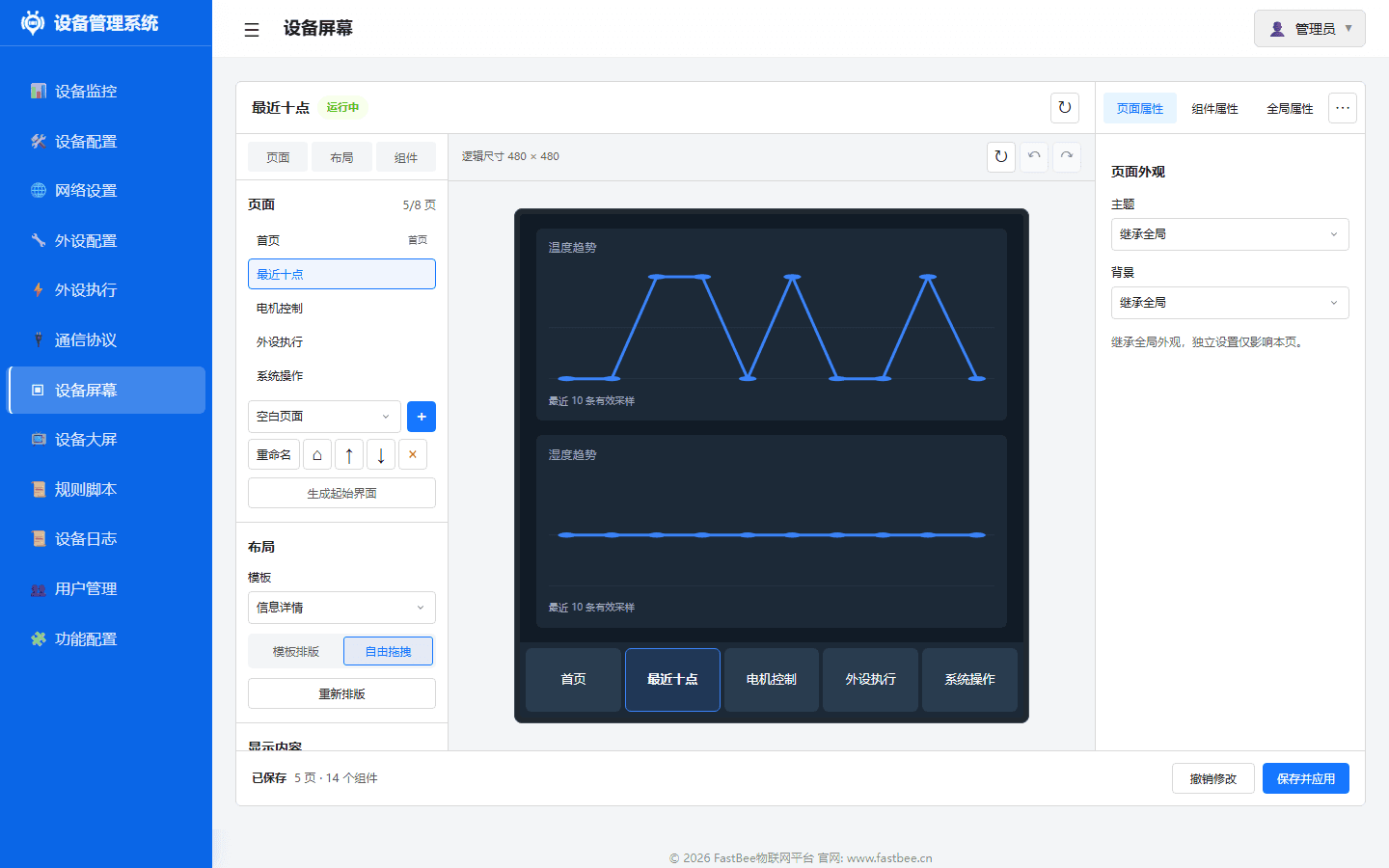
Figure 2: configure independent trend components for different sources. Do not expect a curve when there are no sampling records; a single record shows as one point.
Trend components must bind real value sources and have recording enabled for the corresponding source in "Recent Records"; data produced by execution rules should also enable that rule's recording option. Each source shows at most ten valid records, and gaps are not filled with fabricated data.
5. Set Brightness and Auto Screen-Off
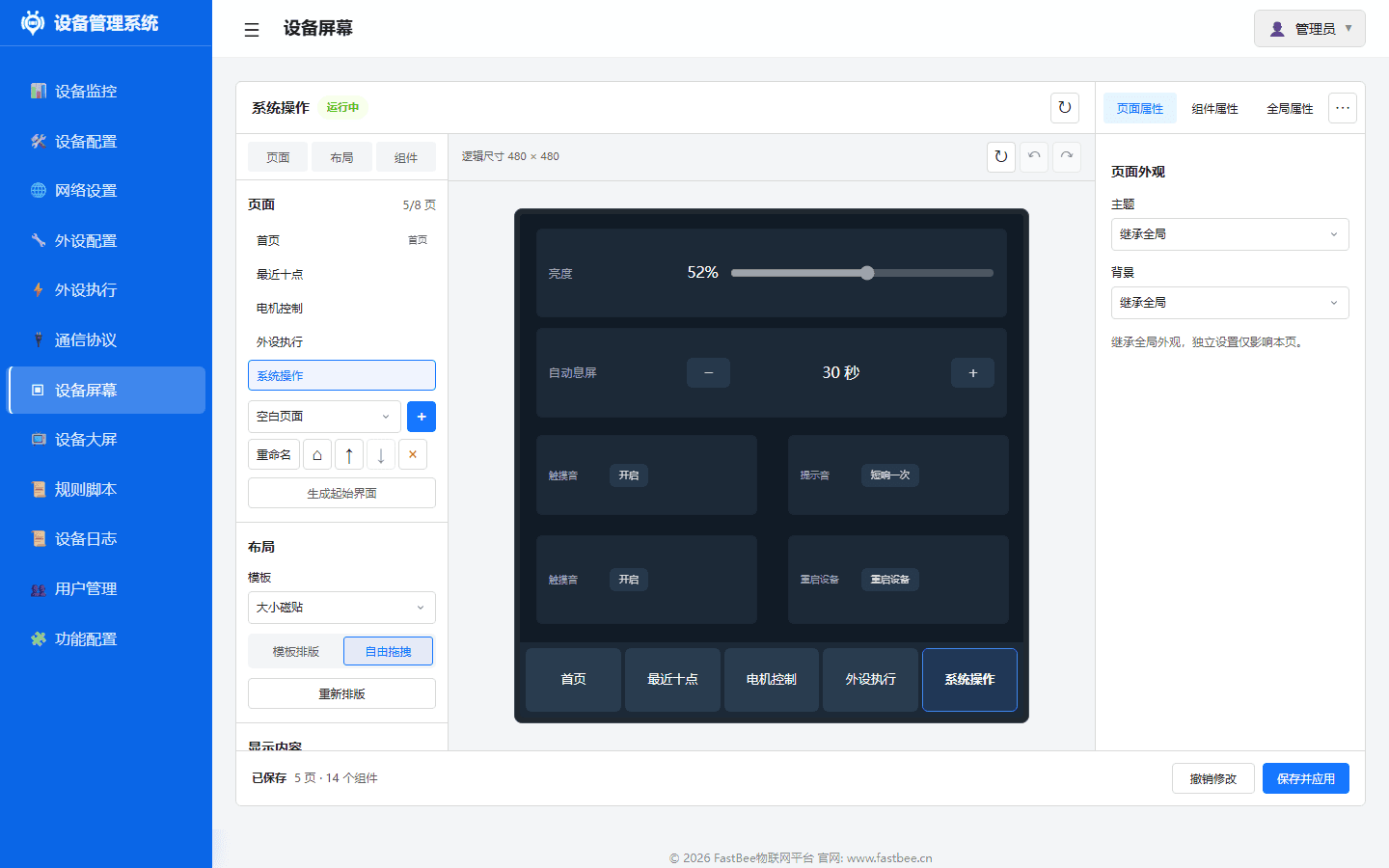
Figure 3: system-operations page example. Specific controls depend on the layout and display-peripheral capabilities; unneeded components can be removed.
Set the default brightness, auto screen-off, and touch beep in "Global Properties", then "Save and Apply". When auto screen-off is off or set to "Never", the screen does not turn off on idle; when enabled, it acts at the set time. Physical pages can also add brightness and screen-off system components.
Logical brightness 0% keeps the minimum visible brightness; only an explicit screen-off action turns off the backlight. The first touch after screen-off only wakes the screen and does not also execute the control button at that position. When touch is not ready, auto screen-off does not engage, to avoid an unwakeable black screen.
Connecting Relays, Motors, and Other Devices
The screen reuses the peripheral, protocol, and rule layers; no specific device is hard-coded in the UI. Make device communication and action mapping work first, then bind screen components.
| Device | Configuration order | Panel components |
|---|---|---|
| GPIO relay | Configure pin and active level, and establish explicit on/off rules | Two "Execute once" buttons |
| Modbus relay | Configure the slave, function codes, and coils/registers per the manual, with fixed on/off rules | Two "Execute once" buttons |
| Adjustable-value device | Establish a supported received-value rule with minimum, maximum, step, and precision | Value control or slider |
| Stepper motor | Configure driver commands, speed/pulse readback, action permission, and travel parameters | Dedicated motor component |
Control rules must be enabled and allow Device Screen control before the editor can select the corresponding control source. After changing a rule's target or action, re-verify the binding. An ordinary relay action rule is not automatically a boolean switch; choose components by the actually supported control types.
The motor component provides a row of forward, stop, and reverse buttons plus parameter controls. Stop needs no re-confirmation, while start is still subject to communication, parameter, and travel-state checks. Slide-table soft limits should use verified pulses/mm, origin, and safety margin; a nominal 30cm must not be taken directly as the pulse boundary. A command acknowledgment also does not mean the physical motion is complete.
For detailed configuration, continue with Modbus Relay, Modbus Stepper Motor, and PeriphExec Management.
First Boot and Checks
First flash, restart recovery, and power-cycle must be checked separately. Seeing a picture only does not mean GT911 is already outputting touch coordinates; an operable web preview also cannot replace physical touch checks.
| Check | Operation and expectation |
|---|---|
| Cold boot | Power off and on, wait for the display to run; check touchReady and touchError in the runtime state |
| Tap | Tap the home page and other bottom-bar pages, confirming a single navigation per tap and correct hit positions |
| Swipe | Swipe left/right in read-only card areas to change pages; dragging the brightness slider should adjust brightness |
| Screen-off and wake | Screen turns off at the set idle time; first touch wakes it, and a second touch after release operates |
| Config recovery | Save the layout, restart, and verify the home page, page order, and brightness/screen-off settings |
| Data updates | Check that sampling times and trend records advance, not just the value at one moment |
If the picture is normal at first power-on but taps and swipes do not respond, first record touchReady, touchError, the firmware version, and boot logs to distinguish touch-initialization failure from no coordinate reporting; also verify the shared I2C and reset/INT configuration of the GT911 and CH32. Do not attribute touch failures to Modbus A/B wiring.
When the touch backend initialization fails, the current implementation keeps the display and retries periodically; a successful initialization still must be verified with real taps and swipes. A fixed firmware should be retested across multiple power-cycle boots, network connections, and page refreshes — long-term stability cannot be declared from a single software restart or short observation.