

Device Configuration
Overview: Device configuration manages device basic information and system-level settings, including device name, firmware info, NTP time sync, debug options, etc. Configuration files are stored in LittleFS
/config/device.json, supporting modification via Web interface or API, and batch backup/restore via configuration import/export.
Overview
The device configuration page manages device basic information and system-level settings, including device name, firmware info, NTP time sync, debug options, etc.
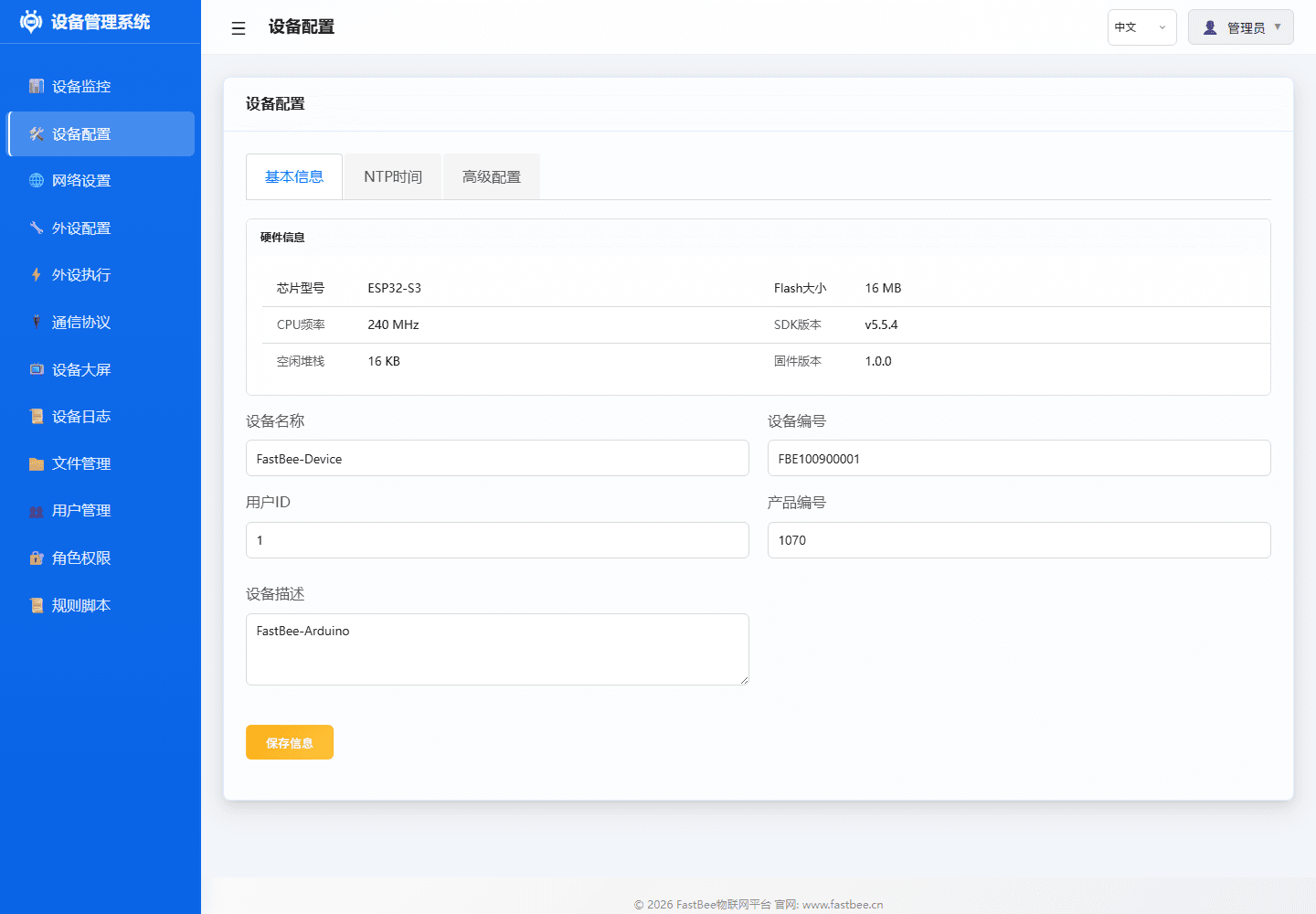
The basic configuration on the page is used to maintain device identity and time sync; field protection items related to peripheral add/delete/edit are centralized in "Advanced Configuration".
Usage
- Enter Web interface → Device Configuration
- Modify required configuration items
- Click Save to apply changes
- Some configuration changes require device restart to take effect
Parameters
| Configuration | Description | Default |
|---|---|---|
| Device Name | Device display name, used for MQTT and Web identification | FastBee-Device |
| Device ID | Device unique identifier (not modifiable) | Auto-generated |
| NTP Server | Time sync server address | http://iot.fastbee.cn/prod-api/iot/tool/ntp |
| Timezone | Timezone offset (hours) | 8 (UTC+8) |
| Log Level | System log output level | INFO |
| Auto Restart | Auto restart when memory insufficient | Enabled |
| Restart Threshold | Minimum memory triggering auto restart (bytes) | 30000 |
| Development Features | Controls peripheral config, peripheral execution, Modbus sub-device add/delete/edit/mapping entries | Enabled |
Advanced Configuration: Development Features
The "Advanced Configuration" page in Device Configuration provides a "Development Features" toggle, enabled by default. Disabling or re-enabling requires entering the current logged-in user's password to prevent field misoperations.
When disabled:
- Add, edit, delete, enable/disable buttons in peripheral configuration are unavailable.
- Add, edit, delete, enable/disable buttons in peripheral execution are unavailable; execute once remains available.
- Add, delete, edit, register mapping of Modbus RTU sub-devices and collection tasks, and Modbus RTU configuration save are unavailable.
- Device monitoring, sensor reading, Modbus real-time control, network configuration and general device information viewing are not affected.
The backend API also validates this state. Even if bypassing the Web page and directly calling peripheral, peripheral execution or Modbus RTU configuration write APIs, it will return 403 when development features are disabled.
Configuration Examples
Change Device Name
The device name will be part of the MQTT client ID, and displayed in the Web interface title bar.
NTP Time Configuration
After the device connects to the network, it automatically syncs time, used for Cron scheduled tasks and log timestamps.
Common NTP servers:
http://iot.fastbee.cn/prod-api/iot/tool/ntp— FastBee official (default)cn.pool.ntp.org— Global NTP pool (backup)
Troubleshooting
| Issue | Possible Cause | Solution |
|---|---|---|
| Incorrect time | NTP sync failed | Check network connectivity and NTP server address |
| Configuration not saved | Flash write failed | Check LittleFS file system space |
| Restart loop | Configuration error | Use AP mode to restore default configuration |
Configuration Import/Export Complete Guide
Location: Web interface → Device Configuration → Advanced Configuration → Configuration Import/Export
Supported Configuration Types
| Type | File | Description |
|---|---|---|
| Full Config Package | fastbee-config-*.json | Backup package containing multiple configuration files |
| Device Info | device.json | Device ID, name, cached time, NTP and other basic info |
| Network Config | network.json | STA/AP, static IP, custom local domain, and reconnection strategy |
| Peripheral Config | peripherals.json | Local GPIO, UART, I2C, sensors, displays and other peripherals |
| Peripheral Execution | periph_exec.json | Local automation rules, trigger conditions, action lists |
| Communication Protocol | protocol.json | MQTT, Modbus RTU, sub-devices, mapping tasks |
| Authentication Config | users.json | Administrator account configuration |
Note: The unified release baseline enables FASTBEE_ENABLE_CONFIG_TRANSFER=1 and disables the optional file APIs (FASTBEE_ENABLE_FILE_MANAGER=0); there is no standalone file page. Four-megabyte single-app environments also disable OTA. The system uses authenticated administration for configuration APIs.
Recommended Usage
Daily backup recommends prioritizing export by type, especially:
- Peripheral execution rules
- Peripheral configuration
- Communication protocol
This way when restoring, only the target module is overwritten, which is lower risk and easier to migrate between devices.
Full device migration then select "Full Config Package". After importing the full config package, it's recommended to restart the device so that peripheral initialization, protocol startup and rule scheduling all load cleanly from the new configuration.
Why Inline Import of Large Files is No Longer Used
The ESP32 Web server temporarily occupies RAM when parsing forms. Larger configuration files uploaded inline at once via /api/config/transfer/import are prone to triggering memory insufficiency.
The current version uses chunked upload + streaming parsing to avoid excessive single-time memory usage.
Import/Export Steps
Export Configuration
- Enter Device Configuration → Advanced Configuration → Configuration Import/Export
- Select export type:
- Full Config Package: Export all configuration files
- Export by Type: Select specific configuration type (recommended)
- Click Export, browser automatically downloads JSON file
- Save as local backup
Import Configuration
- Enter Device Configuration → Advanced Configuration → Configuration Import/Export
- Select import type:
- Full Config Package: Import complete backup
- Import by Type: Select specific configuration type
- Click Choose File, upload JSON file
- System validates configuration format
- Click Import, configuration written to LittleFS
- Restart device for configuration to take effect
Configuration Migration Best Practices
- Backup before migration: Export current device configuration
- Migrate by module: Prioritize migrating peripheral config, execution rules, protocol config
- Validate configuration: After import, check if peripherals initialize properly
- Restart device: Ensure all modules load from new configuration
- Test functionality: Verify automation rules and communication protocols work properly
Troubleshooting
| Issue | Possible Cause | Solution |
|---|---|---|
| Import failed | Configuration format error | Check if JSON format is correct |
| Peripherals not working after import | Pin conflict | Check if pin assignments conflict |
| Rules not executing | Trigger configuration error | Check trigger type and parameters |
| Some imported items are unavailable | Target environment does not compile the feature | Import only compatible modules or use the matching hardware environment |