

Kafka Integration
1. Integrating MQTT Data into KAFKA
Kafka is a distributed event streaming middleware that enables real-time data transmission between business systems and applications.
Kafka can serve as a bridge for edge IoT communication. Kafka is divided into producers and consumers, and establishing clients requires a stable network connection. In the IoT field, data generated by devices and applications is transmitted using the lightweight MQTT protocol. Kafka integration allows users to seamlessly flow MQTT data into or out of Kafka. MQTT data streams are brought into Kafka topics, and MQTT and Kafka topics can be mapped to each other, ensuring real-time processing, storage, and analysis. Data in Kafka topics can be consumed by MQTT devices, enabling timely processing.
A simple implementation of the MQTT and Kafka data integration flow is shown below
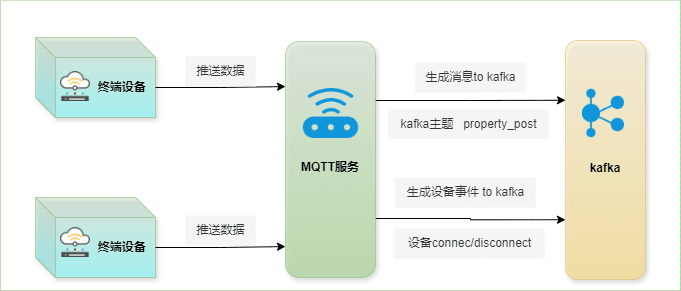
2. Implementation Process and Principles
Integrating Kafka data into MQTT is a feature that can be achieved through configuration. Of course, we need to install the KAFKA service first, so that a bridge can be built between MQTT-based IoT data and Kafka's powerful data processing capabilities. Through the built-in rule engine component, the integration simplifies the data flow and processing between the two platforms without complex coding.
The figure below is the best-practice architecture diagram for data integration between MQTT and KAFKA
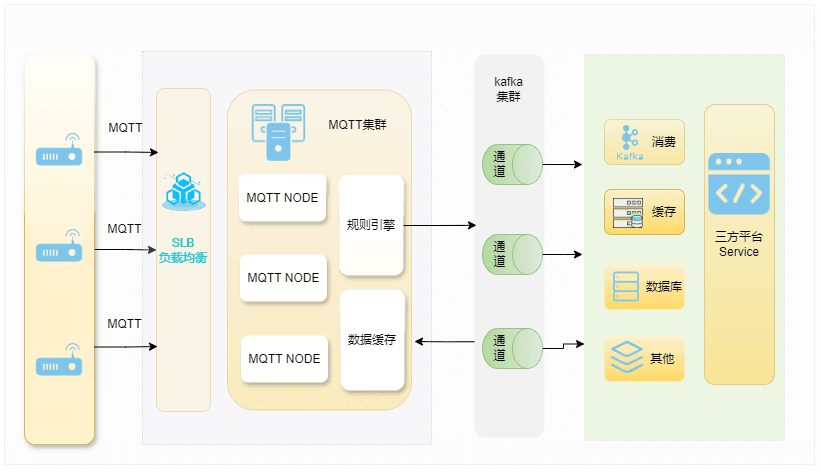
Kafka consumption and production require creating actions separately, implementing the rule engine sending messages to the Kafka consumer. Taking action execution as an example, the forwarding process is briefly described as follows:
- Message sending and receiving: The MQTT device terminal successfully connects to the MQTT server via the MQTT protocol and periodically publishes messages containing status data over MQTT. When MQTT receives these messages, it triggers event matching in its rule engine.
- Data flow: During rule engine data processing, MQTT messages can be processed according to topic matching rules. When a message arrives and passes through the rule engine, the rule engine evaluates the processing rules defined in advance for that message. If any rule specifies message payload transformations, those transformations are applied.
- Forwarding to Kafka: The rules defined in the rule engine trigger the execution of the action that forwards the message to Kafka. The MQTT topic is mapped to a predefined Kafka topic, and all processed messages and data are written to the Kafka topic.
After MQTT data is fed into Kafka, it can be used flexibly:
- Integrate with Kafka clients to consume real-time data streams from specific topics, enabling customized business processing.
- By using Kafka Connect components, you can choose from various connectors to output data to external databases.
3. Demo: Integrating MQTT Messages into Kafka
Installing the KAFKA Service
Refer to chapter 20, Kafka Installation
Integrating MQTT Message Reporting into KAFKA
Creating a KAFKA Producer Connector
Before creating an action, you need to create a Kafka producer connector so that MQTT and Kafka can establish a connection
Enter the MQTT console and click
Integration->ConnectorsIn the upper right corner of the page, click
Create. On the connector selection page, selectKafka serviceConfigure the Kafka parameters
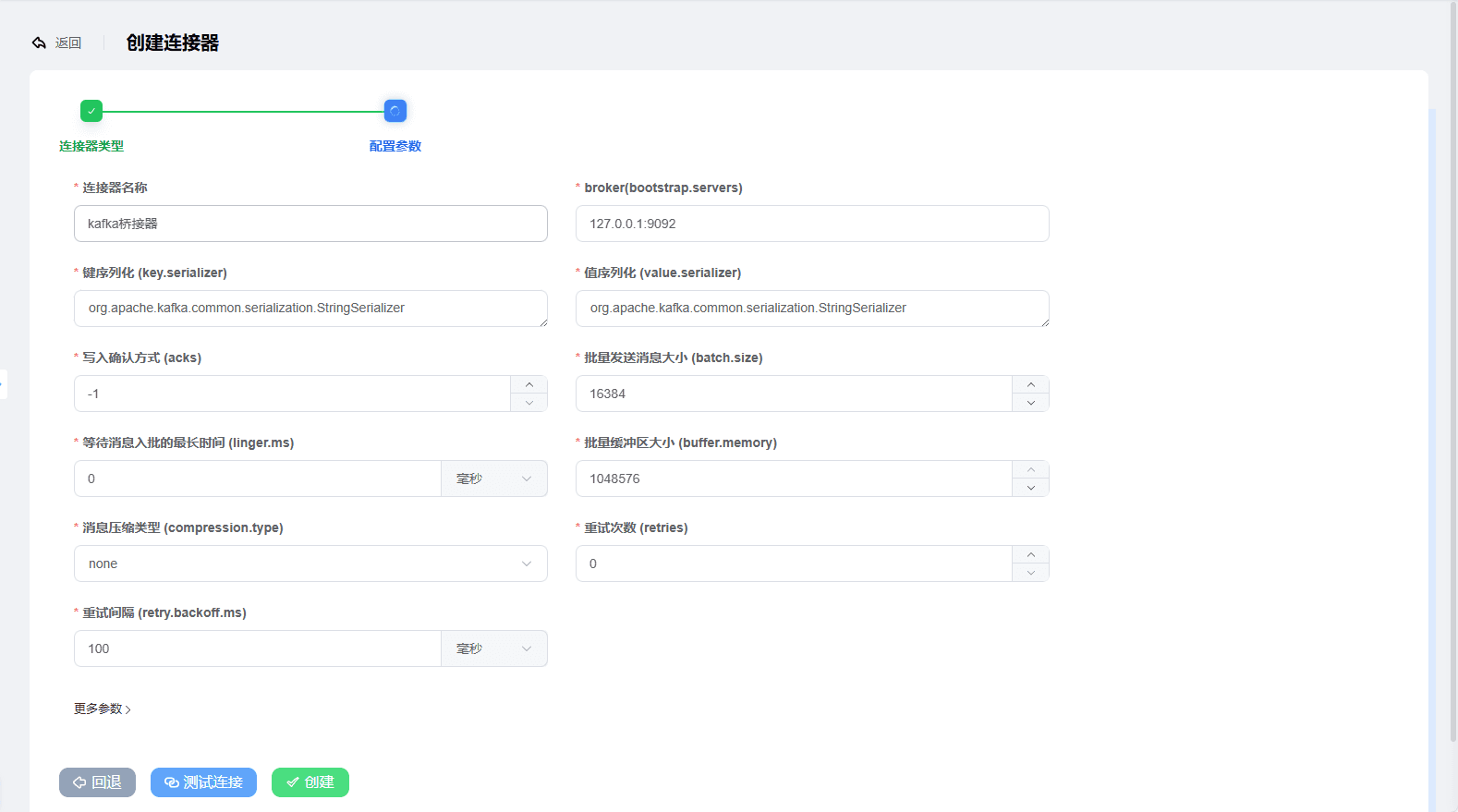
jsbroker(bootstrap.servers): 127.0.0.1:9092 Key serializer (key.serializer): org.apache.kafka.common.serialization.StringSerializer Value serializer (value.serializer): org.apache.kafka.common.serialization.StringSerializer Write acknowledgment (acks): -1 Batch message size (batch.size): 16384 Maximum wait time for messages to join a batch (linger.ms): 0 Message buffer memory size (buffer.memory): 33554432 Message compression type (compression.type): none Message retry count (retries): 0 Retry interval (retry.backoff.ms): 100 (milliseconds)- For the broker list, enter
IP:9092. Note that the IP here is the IP address of the current service - Keep the other options at their default values, or modify them as needed
- Click the
Testbutton to verify whether the Kafka parameters are configured correctly - Click the
Createbutton to finish creating the connector
As shown in the figure below, after creation the connector automatically connects to Kafka. Next, we use the connector to create an action
- For the broker list, enter
Creating an MQTT Data Reporting to KAFKA Rule
This section demonstrates messages from MQTT topics
/${productId}/${clientId}/property/post or
/${clientId}/property/post
and other device reporting topics ending with property/post, processed through an action, which sends the processed data to the Kafka
property_post topic, plus a test of the rule
In the MQTT console, click
Integration -> Actions, then click theCreatebuttonSelect
KAFKA-Bridgeand clickNextto continue configuring- Enter the action name
- Select the Kafka connector created above
- Topic: here we fill in
property_post - key: leave it empty here
In the MQTT console, click
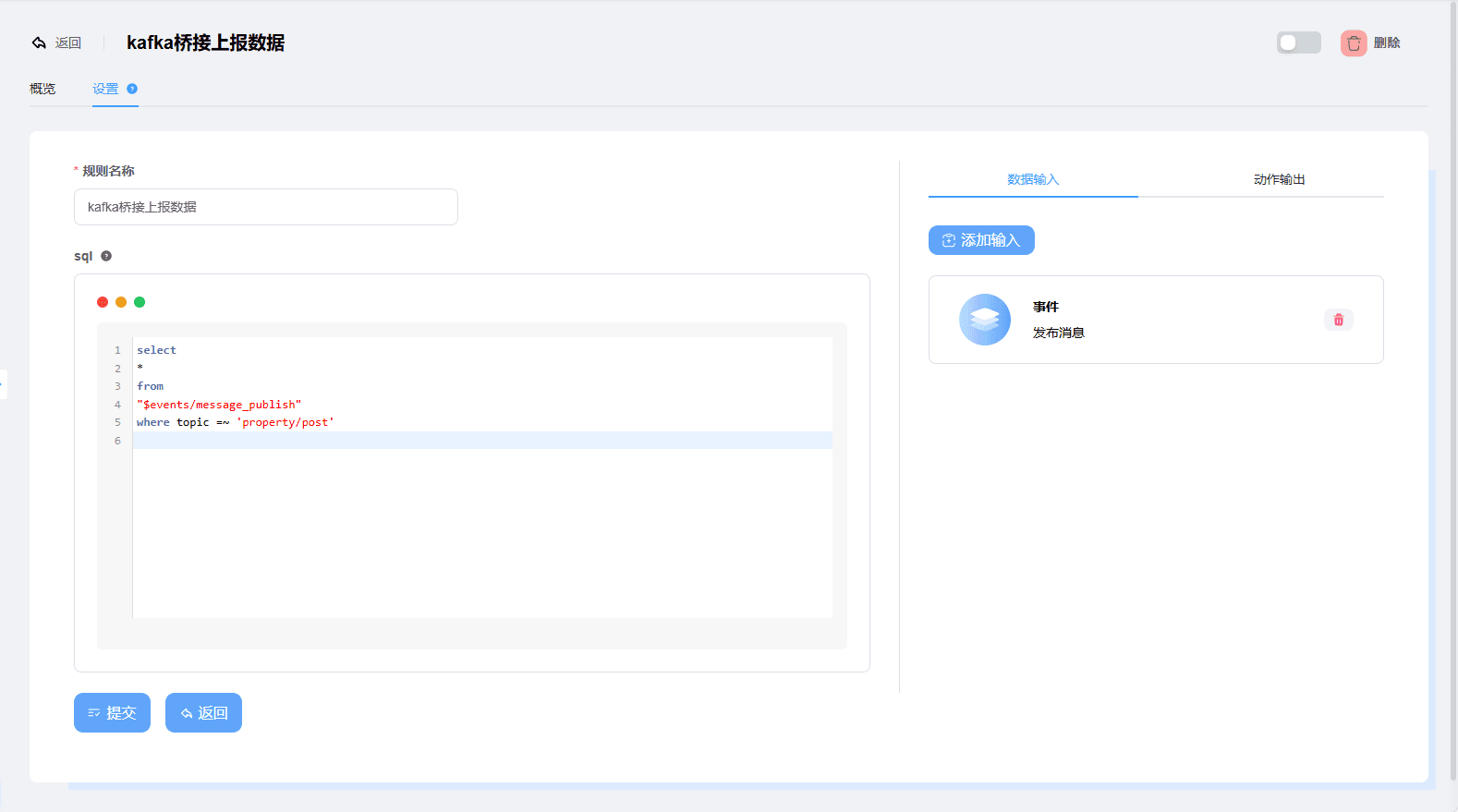
Integration -> Rule Engine, then click theCreatebutton in the upper right corner of the pageClick
Data Inputto select an event; here select theMessage Publishedevent, thencomplete the statement in the SQL editorsqlselect * from "$events/message_publish" where topic =~ 'property/post'The operator
=~means: compares whether the topic can match the topic filter. It can only be used for topic matchingClick Action Output, select the action created in step 2, and click the
Submitbutton to finish creating the rule engine rule, as shown in the figure below
Creating a KAFKA Consumer Instance
Below is a Kafka consumer that pulls the content of the property_post topic
import org.apache.kafka.clients.consumer.ConsumerConfig;
import org.apache.kafka.clients.consumer.ConsumerRecord;
import org.apache.kafka.clients.consumer.ConsumerRecords;
import org.apache.kafka.clients.consumer.KafkaConsumer;
import java.time.Duration;
import java.util.Arrays;
import java.util.Properties;

public class KafkaConsumerExample {

    public static void main(String[] args) {
        // Configure consumer properties
        Properties props = new Properties();
        // Kafka cluster addresses, separated by commas; modify the actual IP addresses as needed
        props.put(ConsumerConfig.BOOTSTRAP_SERVERS_CONFIG, "localhost:9092");
        // Consumer group ID; consumers in the same group consume topic partitions together
        props.put(ConsumerConfig.GROUP_ID_CONFIG, "test-consumer-group");
        // Auto-commit offset interval in milliseconds, set to 1000 ms (1 second) here
        props.put(ConsumerConfig.AUTO_COMMIT_INTERVAL_MS_CONFIG, "1000");
        // Auto-commit offset configuration; true enables auto commit
        props.put(ConsumerConfig.ENABLE_AUTO_COMMIT_CONFIG, "true");
        // Key deserializer class, using string deserialization here
        props.put(ConsumerConfig.KEY_DESERIALIZER_CLASS_CONFIG, "org.apache.kafka.common.serialization.StringDeserializer");
        // Value deserializer class, also using string deserialization
        props.put(ConsumerConfig.VALUE_DESERIALIZER_CLASS_CONFIG, "org.apache.kafka.common.serialization.StringDeserializer");

        // Create the Kafka consumer instance
        KafkaConsumer<String, String> consumer = null;
        try {
            consumer = new KafkaConsumer<>(props);
            // Subscribe to the Kafka producer's topic
            consumer.subscribe(Arrays.asList("property_post"));

            // Loop to pull and process messages
            while (true) {
                ConsumerRecords<String, String> records = consumer.poll(Duration.ofMillis(100));
                for (ConsumerRecord<String, String> record : records) {
                    System.out.printf("offset = %d, key = %s, value = %s%n", record.offset(), record.key(), record.value());
                }
            }
        } catch (Exception e) {
            e.printStackTrace();
        } finally {
            // Close the consumer and release resources
            if (consumer!= null) {
                try {
                    consumer.close();
                } catch (Exception e) {
                    e.printStackTrace();
                }
            }
        }
    }
}Here we do not use the example above for the demo; instead, we use the Kafka consumer instance built in the business system
/**
     * Device-initiated message reporting - Kafka consumption
     * Kafka topic: property_post
     * Kafka consumer id: device_property_group
     * The Kafka consumer configuration containerFactory is configured with a KafkaListenerContainerFactory instance,
     * which is configured with n consumer instances factory.setConcurrency(n); this is similar to starting n threads to consume
     * Adjust this appropriately based on the data concurrency and the actual server specifications, i.e., production tuning
     * @param data message string
     */
    @KafkaListener(topics = KafkaConstant.PROPERTY_POST, groupId = KafkaConstant.DEVICE_PROPERTY_GROUP,
            containerFactory = "KafkaListenerContainerFactory")
    public void listen(String data) {
        try {
            DeviceReportBo reportBo = JSONObject.parseObject(data, DeviceReportBo.class);
            log.debug("Consumer instance [{}] device-initiated reported data: {}", consumerInstanceId, reportBo);
        } catch (Exception e) {
            log.error("Consumer instance [{}] device-initiated reporting exception: {}", consumerInstanceId, e.getMessage());
        }
}Next, we use MQTTX to simulate client reporting
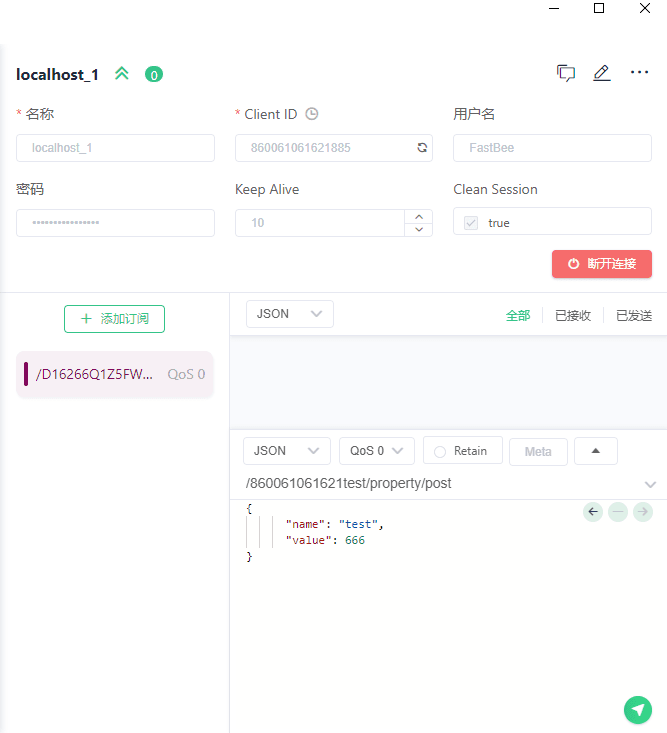
Create a new MQTTX client and fill in the connection parameters; here we create a client with client id:
860061061621testIn the send area, fill in the topic
/860061061621test/property/postIn the content send area, fill in the content, demonstrated in
JSONformatjson{ "name": "test", "value": 666 }
As shown in the figure below
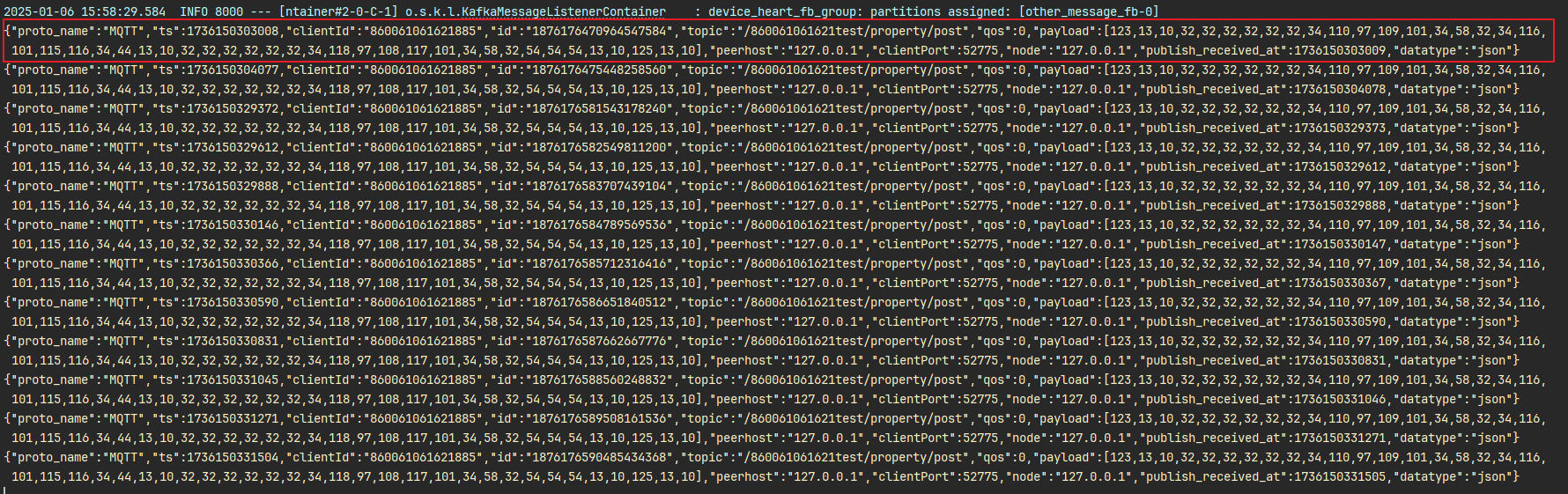
Click send, and let's look at the log output on the Kafka consumer side
The content is as follows
{
"proto_name": "MQTT",
"ts": 1736150303008,
"clientId": "860061061621test",
"id": "1876176470964547584",
"topic": "/860061061621test/property/post",
"qos": 0,
"payload": [123,13,10,32,32,32,32,32,32,34,110,97,109,101,34,58,32,34,116,101,115,116,34,44,13,10,32,32,32,32,32,32,34,118,97,108,117,101,34,58,32,54,54,54,13,10,125,13,10 ]
"peerhost": "127.0.0.1",
"clientPort": 52775,
"node": "127.0.0.1",
"publish_received_at": 1736150303009,
"datatype": "json"
}The console output is as follows
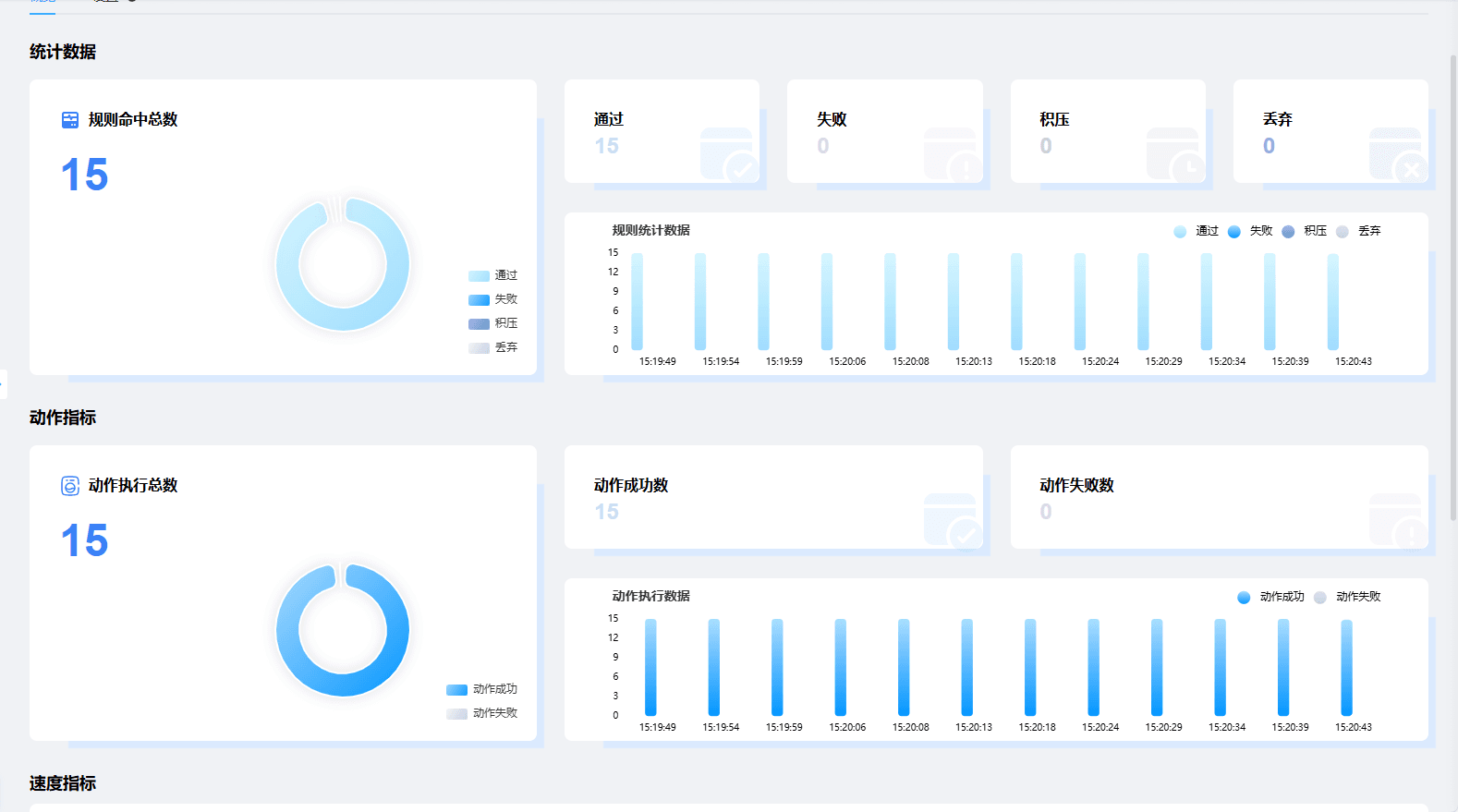
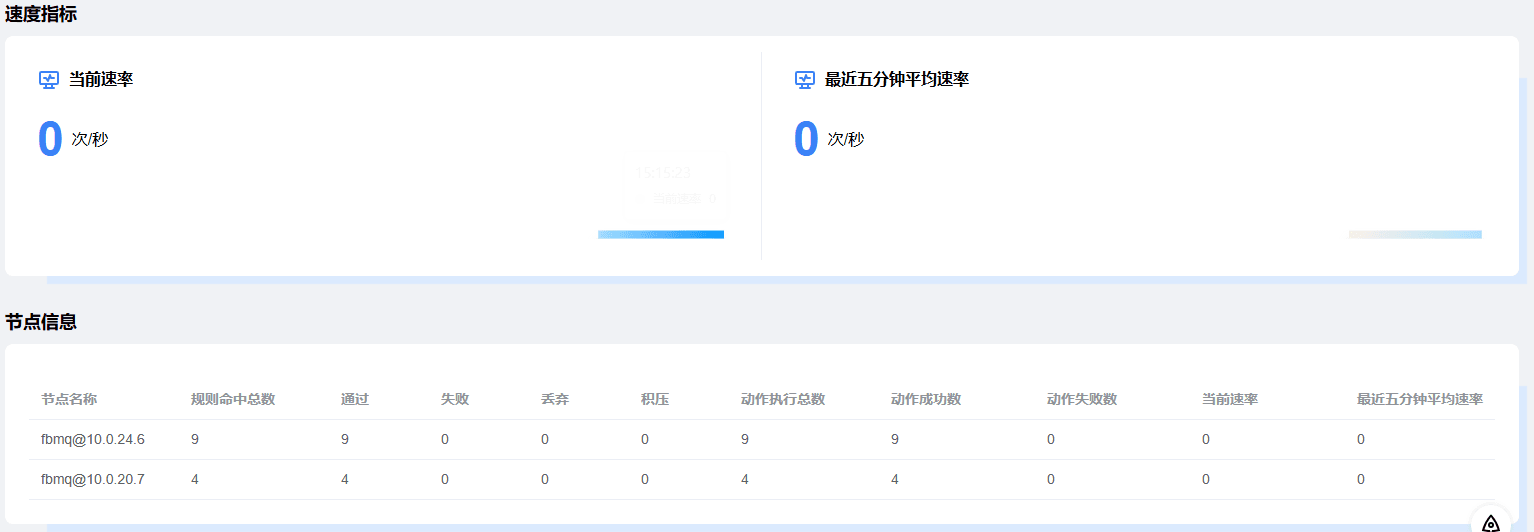
On the visual page, we can click the corresponding rule details -> Overview to view the data bridging situation
At this point, the simple demo of integrating MQTT data into Kafka is complete
Demo: Integrating Client Status Reporting into KAFKA
Creating a Client Status KAFKA Rule
In the MQTT console, click
Integration -> Actions, then click theCreatebuttonSelect
KAFKA-Bridgeand clickNextto continue configuring- Enter the action name
- Select the Kafka connector created above
- Topic: here we fill in
property_post_status, to distinguish it from the Kafka topic for reported data - key: leave it empty here
Create a new rule, and for Data Input select the events
Connection Established,Connection DisconnectedThe SQL editor automatically generates the SQL rule
sqlselect * from "$events/client_connected", "$events/client_disconnected"Click
Action Output, select the action created in step 2, and clickSubmitto finish.Use the simulated device created with MQTTX above to test going online and offline
Business Platform Kafka Consumer Instance Listener
@KafkaListener(topics = KafkaConstant.DEVICE_STATUS_FB, groupId = KafkaConstant.DEVICE_MESSAGE_FB_GROUP,
containerFactory = "statusListenerContainerFactory", batch = "true")
public void deviceStatusListen(String data) {
System.out.println(JSONObject.toJSONString(data));
log.debug("Consumer instance [{}] device online/offline message: {}", consumerInstanceId, data);
}Data received when the device goes online
{
"proto_name": "MQTT",
"node": "127.0.0.1",
"clientId": "860061061621test",
"ip_address": "127.0.0.1",
"port": 54703,
"ts": 1736152769586,
"keepalive": 10,
"clean_start": true,
"status": true
}Data received when the device goes offline
{
"proto_name": "MQTT",
"node": "127.0.0.1",
"clientId": "860061061621test",
"ip_address": "127.0.0.1",
"port": 0,
"ts": 1736152772566,
"offline_reason": "kicked",
"status": false
}On the visual page, we can click the corresponding rule details -> Overview to view the data bridging situation
Integrating Command Delivery into KAFKA Push to MQTT
Creating a Kafka Consumer Converter
- Enter the MQTT Dashboard, click Integration -> Converters, and click Create in the upper right corner of the page
- On the Create Converter page, select Kafka Service, then click Next.
- Configure the Kafka parameters
- Converter name
- broker: fill in the Kafka server IP address, e.g.
localhost:9092 - Consumer instance count: the number of Kafka consumer instances, default is 10 consumer instances
- Try not to change the other parameters
- Test the connection to check whether the parameters are correct. Click
Create.
Creating a Device Downlink
Enter the MQTT Dashboard, click Integration -> Transform Configuration, and click Create in the upper right corner of the page
Configure the transform parameters
- Name: the transform configuration name
- Topic: this is the MQTT topic and supports field mapping. Here we fill in
/${productId}/${clientId}/function/getwhere $ is a placeholder - QoS: the message quality of the issued command
- Whether to retain the message: the MQTT retained message feature
- The Kafka topic is automatically generated based on the MQTT topic. According to step 2, the corresponding Kafka topic here is
function_get
Enter the MQTT Dashboard, click Integration -> Device Downlink, and click Create in the upper right corner of the page
Select
KAFKA-Serviceand configure the parametersConverter: select the converter created above
Transform configuration: select the transform configuration created in step 2
In the business system, we create a Kafka producer and expose an API endpoint to test device downlink
Kafka producer demo code
public Promise<Void> transmit(ProducerVO vo) {
final Promise<Void> promise = coreGroup.next().newPromise();
try {
ProducerRecord<String,Object> record;
if (Objects.isNull(vo.getKey())) {
producerRecord = new ProducerRecord<>(vo.getTopic(), vo.getMessage());
} else {
producerRecord = new ProducerRecord<>(vo.getTopic(), vo.getKey(), vo.getMessage());
}
producer.send(producerRecord, (data, e) -> {
if (e!= null) {
promise.setFailure(e);
} else {
promise.setSuccess(null);
}
});
} catch (Exception e) {
promise.setFailure(e);
}
return promise;
}The Exposed Demo API
@GetMapping("/command")
public String sendCommand(String type) {
String command = "{\"test\": \"" + "666" + "\"}";
ProducerVO producer = new ProducerVO();
JSONObject jb = new JSONObject();
jb.put("clientId","860061061621test");
jb.put("productId","1");
producer.setKey(JSON.toJSONString(jsonObject));
producer.setTopic("function_get_fb");
byte[] bytes = command.getBytes();
producer.setData(bytes);
producerTemplate.transmit(producer);
return "success";
}Create a new MQTTX simulated client and subscribe to the topic /1/860061061621test/function/get
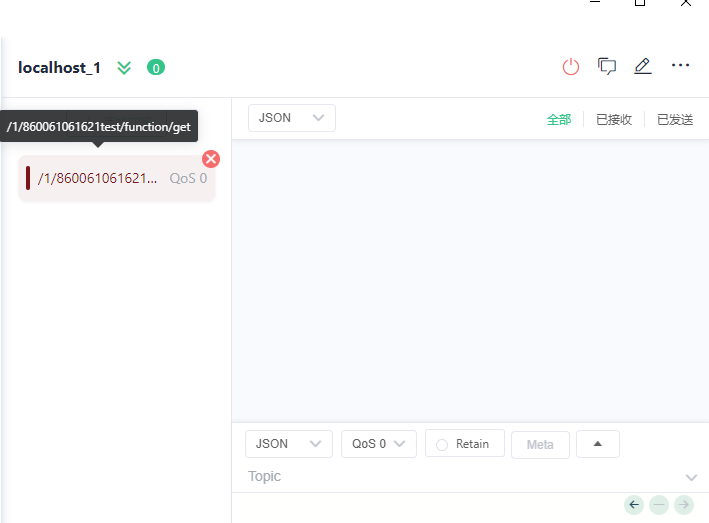
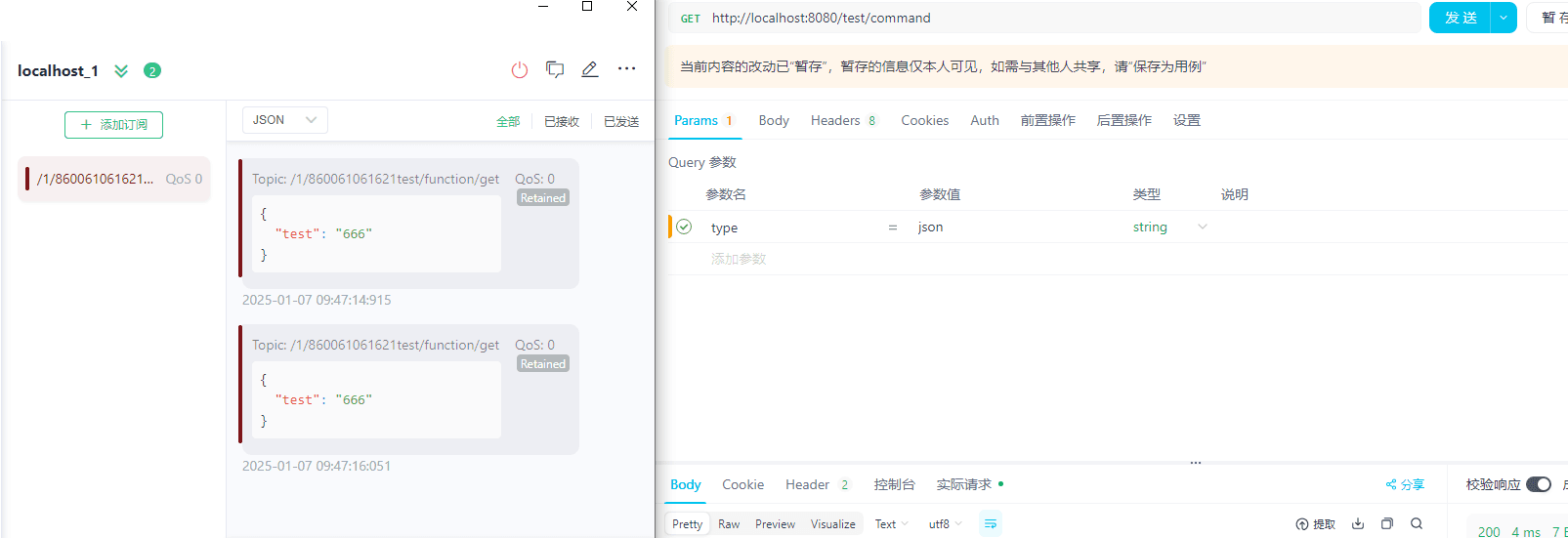
We call the API to demonstrate device delivery. In the figure below, we click the API to send, and we can see that the MQTT client receives the delivered command
/860061061621test/property/post
{
      "name": "test",
      "value": 666
}
We can look at the device downlink statistics to see whether it succeeded
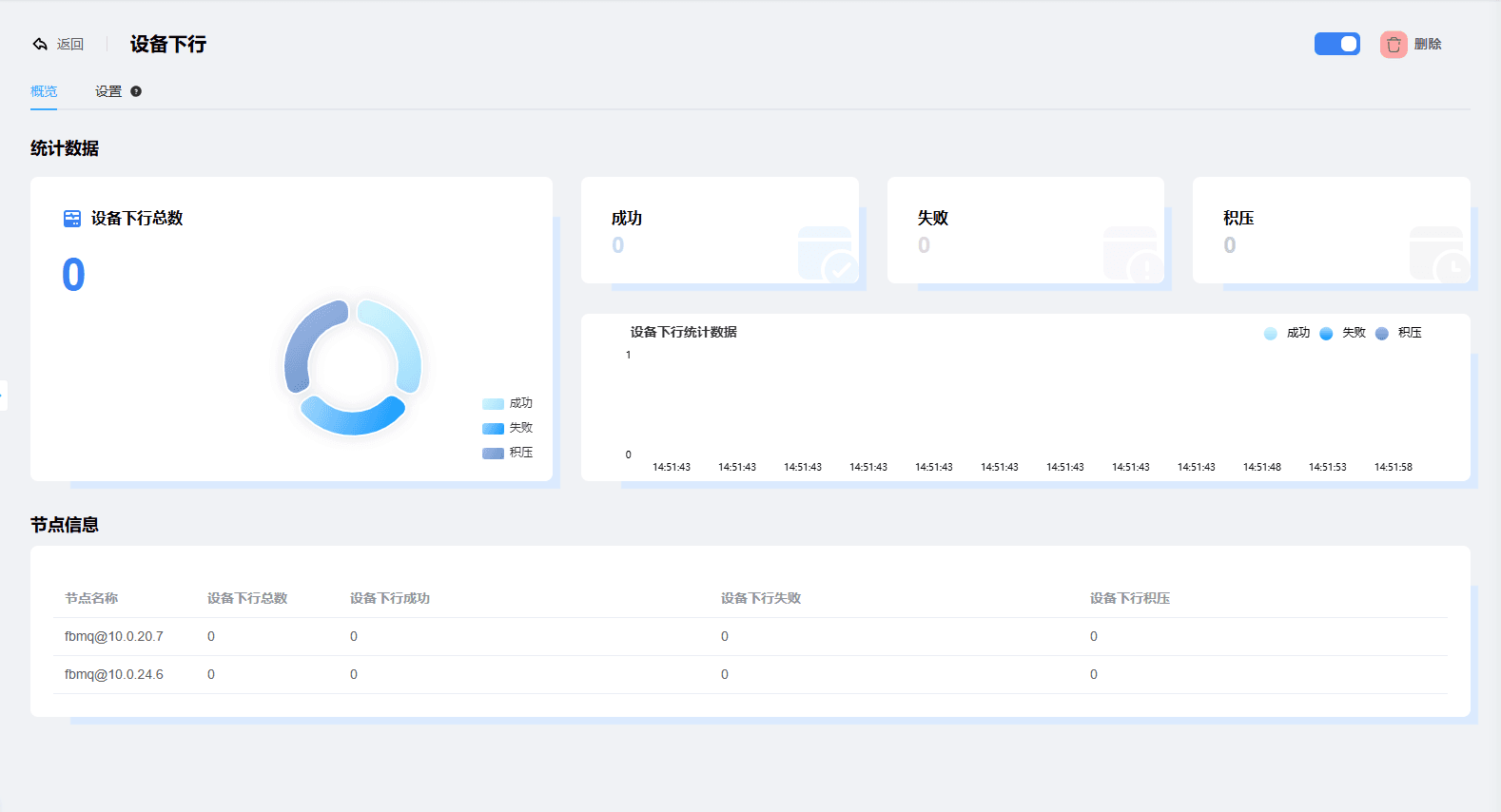
At this point, we have demonstrated integrating data from MQTT into Kafka, with the business system pulling data from Kafka for processing, and we have also demonstrated the business system issuing commands, which are mapped and forwarded through Kafka to MQTT for delivery to the corresponding device.