

JSON Array and UDP Wireless Terminal Access
This page is organized from an existing operations manual as an online operations reference. Operations marked as expected or not executed in the original must still be verified against the actual environment. This guide is a supplementary reference with applicability limits; the missing-item status in the original manual remains in place.
Complete device reporting, downlink actual receipt, FMQX demo reply, independent state, actual history, and stop/recovery.
Before starting: you have product, device, model, publish, control, and history permissions; the local application, single-node FMQ, and FMQX Web are available; and the connection parameters for this device have been obtained
Before You Start
This guide suits wireless terminals that use UDP datagrams, each carrying the device number and a data array. Complete creation, publish, ten distinguishable samples, downlink actual receipt, FMQX demo reply, independent state, history refresh, and stop/recovery. The account needs product, device, model, publish, control, and history permissions.
FMQX Web plays the demo terminal. After it auto-replies to a command, the operator manually and independently reports the state; it does not prove physical actuator action. For UDP, Connected means the local endpoint is open; once the device carries its identity in each report, FMQ registers the return address.
In this guide, FMQX sends from local port 15022 to FMQ at 127.0.0.1:8889 on the same machine; downlink returns to this source endpoint. Across machines, use the reachable address provided by the administrator, and the firewall and address mapping must allow return packets. After recovery or a source address change, report first, then control.
1. Create Independent Resources
Create a new independent product, generate two fields from the object sample first, then save this guide's formal protocol. Reuse existing resources for re-acceptance.
Wizard object samplejson
{

  "FastBee_temperature": 20,

  "FastBee_setpoint": 30

}Generate two integer ℃ fields first, then switch to the formal JSON array/UDP.
1. Select New Product
Location: IoT*→Device Access→*Access Source Steps: Select New Product and fill in the name of this guide; for re-acceptance, directly reuse the retained product.
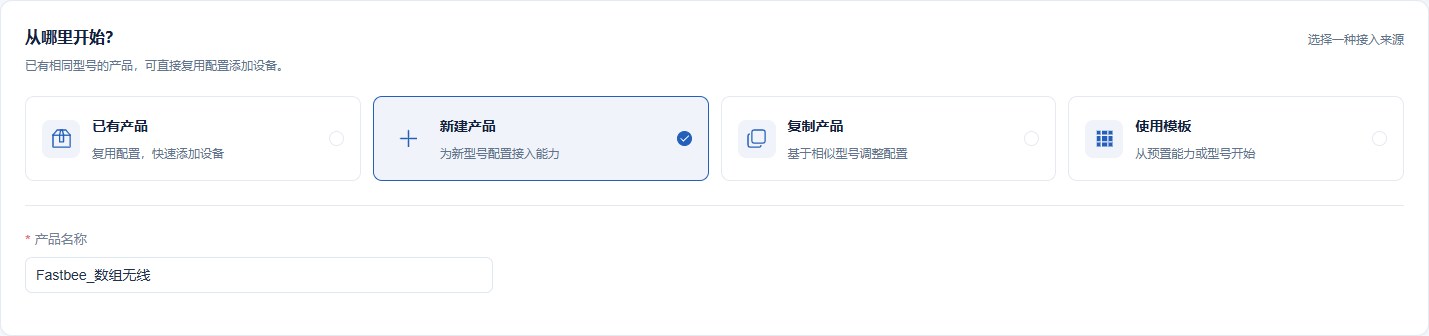
This image retakes the creation entry; creation was not submitted repeatedly, and subsequent devices and history follow the resources of this guide.
Screenshot Key Points
| Field / Control | Description |
|---|---|
| Access Source | This guide selects New Product; re-verification directly reuses the retained resource. Required · Fill in: New Product |
| Product/Device Name | The name is concise, making this guide's resources easy to locate. Required · Fill in: FastBee_数组无线 |
2. Generate Two Fields from the Object Sample
Location: Device Access*→*Collect Data Steps: Create a new independent product, expand the object sample, and parse it.

Parse the object first; this guide's formal JSON array/UDP is changed in the product details.
Screenshot Key Points
| Field / Control | Description |
|---|---|
| Access Source | This guide selects New Product; re-verification directly reuses the retained resource. Required · Fill in: New Product |
| Product/Device Name | The name is concise, making this guide's resources easy to locate. Required · Fill in: FastBee_数组无线 |
| Wizard Object Sample | First parse two fields from the object, then switch to the formal JSON array/UDP. Required · Fill in: {"FastBee_temperature":20,"FastBee_setpoint":30} |
3. Check Fields, Types, and Units
Location: Device Access*→*Collection Fields Steps: Check the two identifiers, integer type, and ℃.
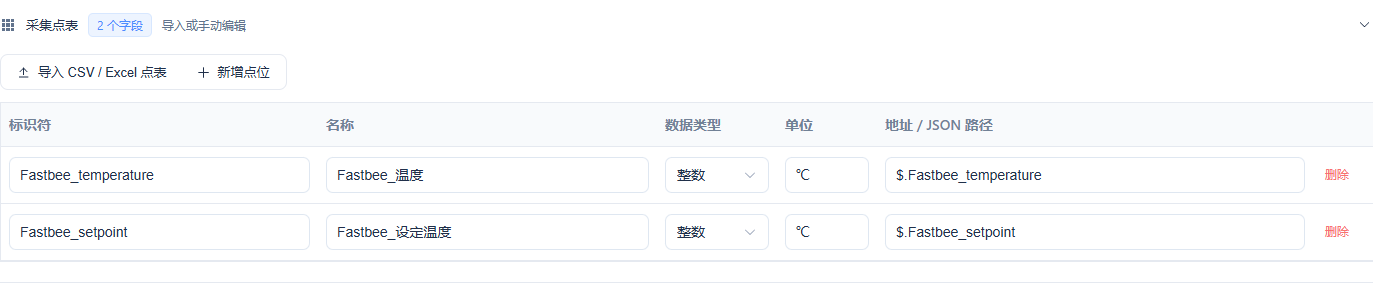
The object path generates the fields first; the device array element ids still match the model identifiers.
Screenshot Key Points
| Field / Control | Description |
|---|---|
| Fields, Types, Units, and Paths | The object sample generates two integer ℃ fields with verbatim identifiers. Required · Fill in: FastBee_temperature; FastBee_setpoint; integer; ℃ |
4. Fill in the Independent Device Number
Location: Device Access*→*Add Device Steps: Fill in this guide's device number and name.

Every UDP datagram uses the same clientId.
Screenshot Key Points
| Field / Control | Description |
|---|---|
| Device Identifier | The clientId of every UDP message matches this number; the session id is not used as a substitute. Required · Fill in: FastBee_ArrayUDP_Tutorial_01 |
| Product/Device Name | The name is concise, making this guide's resources easy to locate. Required · Fill in: FastBee_数组无线 |
5. Check the Initial Access Overview
Location: Device Access*→*Confirm Steps: Check 1 device, 2 fields and then create.

The initial JSON/MQTT is genuinely retained; change to the formal JSON array/UDP next.
Screenshot Key Points
| Field / Control | Description |
|---|---|
| Initial Access Overview | The wizard starts with JSON/MQTT; 1 device, 2 fields; the formal format is modified afterward. Required · Fill in: 1 device, 2 fields |
2. Configure the Formal Protocol and Publish
6. Save the Formal JSON Array and UDP
Location: Product Management*→*Product Information Steps: Select JSON Array, UDP, and WIFI, then save.
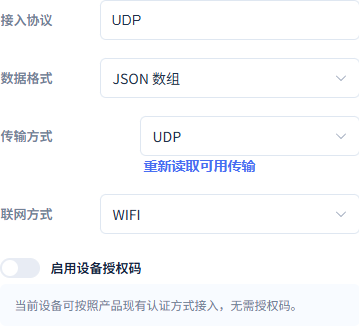
The device sends and receives via UDP datagrams; no MQTT topics are filled in.
Screenshot Key Points
| Field / Control | Description |
|---|---|
| Data Format | JSON array is formally adopted. Required · Fill in: JSON Array |
| Transport | Select UDP; each datagram carries the device identity and no MQTT topics are used. Required · Fill in: UDP |
| Network Type | WIFI in this guide; the UDP address and port still need separate configuration. Required · Fill in: WIFI |
7. Save the Writable Setpoint and History
Location: Product Management*→Function Definition→*Setpoint Steps: Add Setpoint, uncheck read-only, enable history, then click Modify.
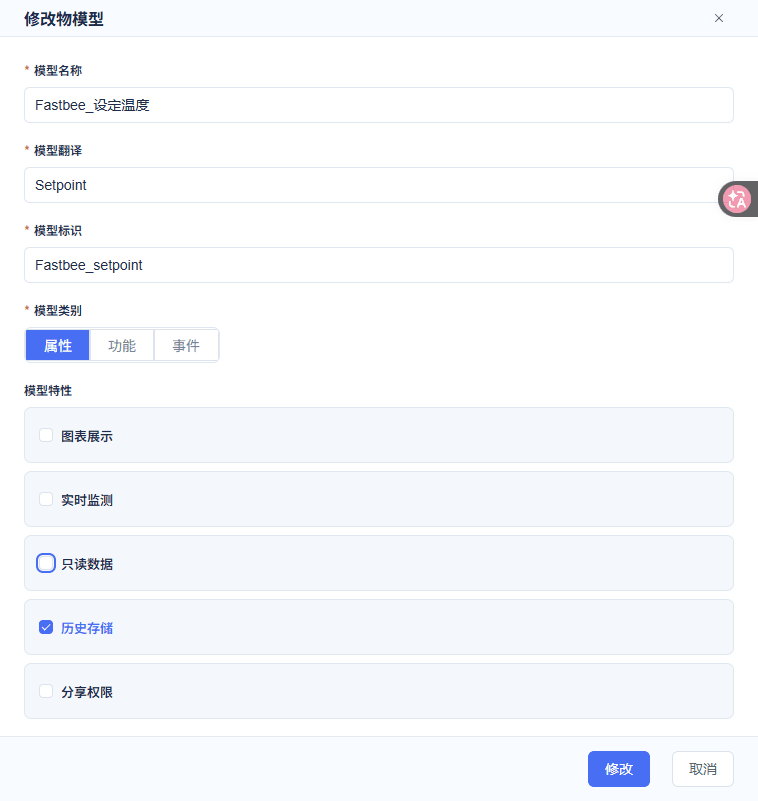
Setpoint 16~35℃, step 1, writable with history saved.
Screenshot Key Points
| Field / Control | Description |
|---|---|
| Model Translation | Complete the English names for temperature and setpoint. Required · Fill in: Temperature/Setpoint |
| Model Identifier | The ids of the data array elements match the model identifiers verbatim. Required · Fill in: FastBee_temperature/FastBee_setpoint |
| Model Category | Both fields are properties. Required · Fill in: Property |
| Read-only Data | Temperature checked, setpoint unchecked. Required · Fill in: Temperature read-only; setpoint writable |
| History Storage | Enabled for both properties. Required · Fill in: Checked |
| Chart Display/Real-time Monitoring | Temperature on, setpoint off. Required · Fill in: Temperature on; setpoint off |
| Share Permission | Kept disabled in this guide. Required · Fill in: Unchecked |
| Data Type/Range/Unit/Step | Integer; temperature -40~100℃, setpoint 16~35℃, step 1. Required · Fill in: Integer; ℃; step 1 |
| Modify | Save after completing the required items. Required · Fill in: Modify |
8. Save the Read-only Temperature and History
Location: Product Management*→Function Definition→*Temperature Steps: Add Temperature, keep read-only and history, then click Modify.
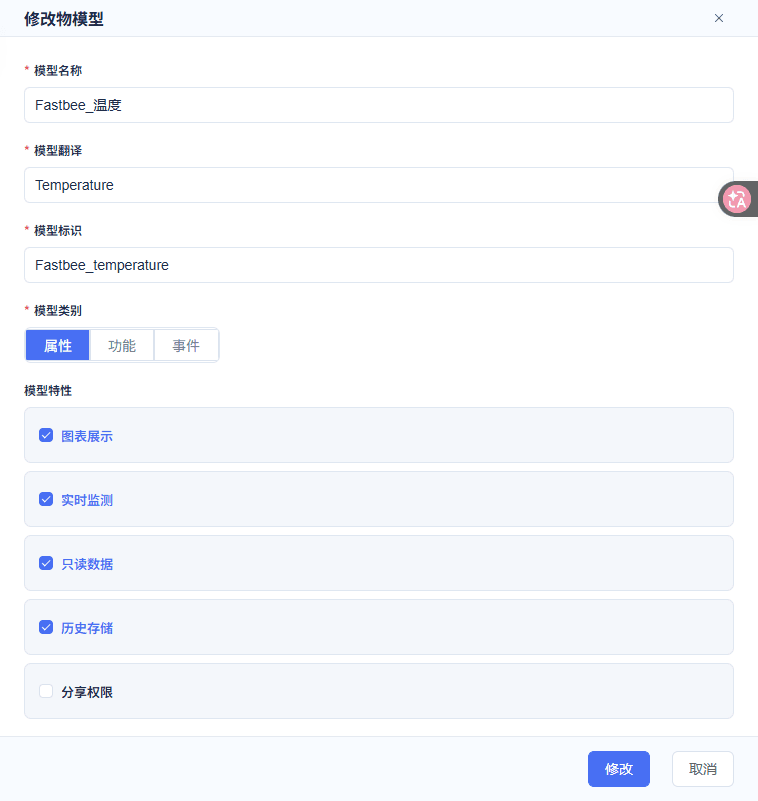
Temperature -40~100℃, chart and real-time monitoring enabled.
Screenshot Key Points
| Field / Control | Description |
|---|---|
| Model Translation | Complete the English names for temperature and setpoint. Required · Fill in: Temperature/Setpoint |
| Read-only Data | Temperature checked, setpoint unchecked. Required · Fill in: Temperature read-only; setpoint writable |
| History Storage | Enabled for both properties. Required · Fill in: Checked |
| Chart Display/Real-time Monitoring | Temperature on, setpoint off. Required · Fill in: Temperature on; setpoint off |
| Share Permission | Kept disabled in this guide. Required · Fill in: Unchecked |
| Data Type/Range/Unit/Step | Integer; temperature -40~100℃, setpoint 16~35℃, step 1. Required · Fill in: Integer; ℃; step 1 |
| Modify | Save after completing the required items. Required · Fill in: Modify |
9. Confirm Publishing the Product
Location: Product Management*→*Publish Confirmation Steps: Check the saved result and click Confirm.
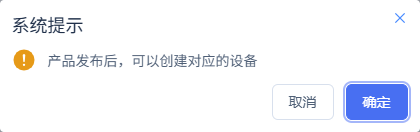
After submitting the publish, keep checking the actual access receipt.
Screenshot Key Points
| Field / Control | Description |
|---|---|
| Publish/Confirm | Publish after saving the model and formal format; check the receipt after the confirmation popup. Required · Fill in: Confirm Publish |
10. Confirm the Node Has Applied
Location: Product Management*→*Access Configuration Sync Steps: Expand the node results.
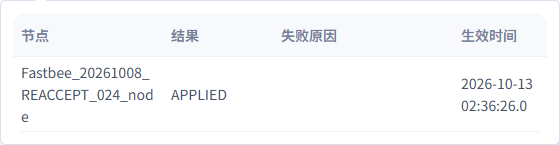
APPLIED, success 1, failure 0; real send/receive is still required.
Screenshot Key Points
| Field / Control | Description |
|---|---|
| Access Configuration Sync | Check that the actual node has applied and the failure reason is empty. Required · Fill in: APPLIED; success 1, failure 0 |
Temperature read-only -40~100℃, setpoint writable 16~35℃, step 1. History is enabled for both fields; complete the real uplink/downlink after APPLIED.
3. Open the UDP Endpoint
Formal FMQX configurationjson
{

  "schemaVersion": 3,

  "groups": [

    {

      "id": "FastBee_tutorial_FastBee_ArrayUDP_Tutorial_01",

      "name": "FastBee_数组UDP教程",

      "sortOrder": 55,

      "isSystem": false

    }

  ],

  "sessions": [

    {

      "id": "FastBee_import_FastBee_ArrayUDP_Tutorial_01",

      "groupId": "FastBee_tutorial_FastBee_ArrayUDP_Tutorial_01",

      "name": "FastBee_数组无线",

      "protocol": "UDP",

      "transport": "UDP",

      "host": "127.0.0.1",

      "port": 8889,

      "clientId": "FastBee_ArrayUDP_Tutorial_01",

      "autoReconnect": false,

      "tcpLineMode": false,

      "udpLocalPort": 15022,

      "udpTargetAddress": "127.0.0.1",

      "udpTargetPort": 8889,

      "jsonDevice": {

        "format": "JSON_ARRAY",

        "responseRoute": "",

        "initialState": {

          "FastBee_temperature": 29,

          "FastBee_setpoint": 30

        }

      }

    }

  ]

}This guide's v2 uses udpLocalPort 15022, udpTargetAddress, and udpTargetPort 8889; the first wrong configuration is retained in internal materials and is not the formal configuration.
11. Import This Guide's v2 Session
Location: FMQX Web*→*Configuration File Steps: Select Import Configuration and import the formal JSON below.
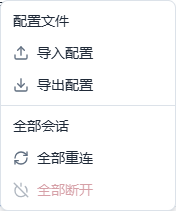
Use this guide's independent UDP session.
Screenshot Key Points
| Field / Control | Description |
|---|---|
| Import Configuration | Use this guide's v2 independent group and session; the original wrong configuration stays in internal materials. Required · Fill in: FastBee_连接配置_v2.json |
12. Check the Local and Remote Port Directions
Location: FMQX Web*→*Connection Configuration Steps: Check local 15022 and remote 127.0.0.1:8889, keep broadcast off, and save.
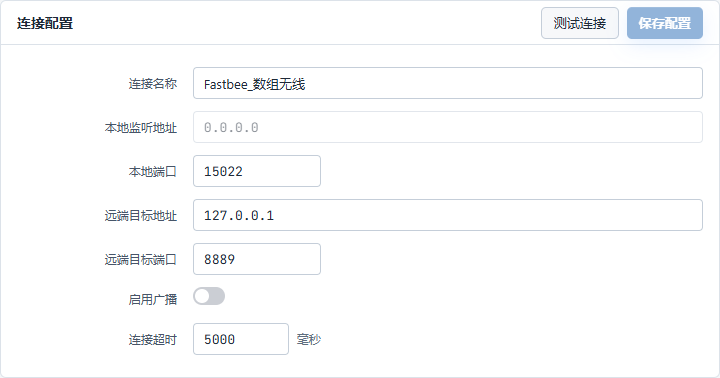
15022 belongs to FMQX; 8889 belongs to FMQ; the two cannot be swapped.
Screenshot Key Points
| Field / Control | Description |
|---|---|
| Local Listen Address | The local NIC address bound by FMQX; 0.0.0.0 means the available interfaces of this machine. Required · Fill in: 0.0.0.0 |
| Local Port | FMQX's send source port and the port receiving downlink; must not be occupied. Required · Fill in: 15022 |
| Remote Target Address | The address of the machine where the FMQ UDP listen resides. The same machine in this guide. Required · Fill in: 127.0.0.1 |
| Remote Target Port | FMQ UDP listen port; its purpose differs from the local port. Required · Fill in: 8889 |
| Enable Broadcast | This guide explicitly unicasts to FMQ. Required · Fill in: Off |
| Connection Timeout | In milliseconds; it does not mean UDP has completed a server-side handshake. Required · Fill in: 5000 ms |
| Auto Reconnect | Disabled in this guide; manual stop/recovery is used. Required · Fill in: Off |
| Test Connection/Save Configuration | After saving the endpoint, the real uplink/downlink still must be completed. Required · Fill in: Test Connection; Save Configuration |
13. Open the Local UDP Endpoint
Location: FMQX Web*→*Array Wireless Steps: Click Connect, and confirm Connected and remote 8889.

Connected only means the endpoint is open; runtime recognition and the downlink address can only be confirmed after reporting.
Screenshot Key Points
| Field / Control | Description |
|---|---|
| Connect/Disconnect | Connect means the FMQX local UDP endpoint is open; report to register the return address. Required · Fill in: Connected/Disconnected |
4. Send Ten Different Samples
One complete UDP datagramjson
{

  "clientId": "FastBee_ArrayUDP_Tutorial_01",

  "data": [

    {

      "id": "FastBee_temperature",

      "value": 20

    },

    {

      "id": "FastBee_setpoint",

      "value": 30

    }

  ]

}Temperature goes 20~29 message by message, setpoint stays 30; every datagram carries the clientId, and the array element ids keep the model identifiers.
14. Prepare the First Complete Report
Location: FMQX Web*→*Send Data Steps: Fill in the complete message as shown, check the identity, fields, and target address, then send.
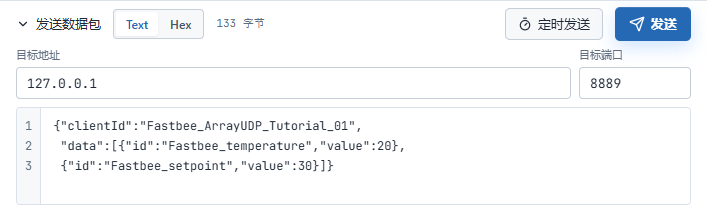
This image retakes the complete send form and did not resend old samples; the actual send and processing results are in the separate records that follow.
Screenshot Key Points
| Field / Control | Description |
|---|---|
| clientId Device Identity | Every datagram carries the number; do not provide the identity only in the first message. Required · Fill in: FastBee_ArrayUDP_Tutorial_01 |
| data Array | Fixed ids correspond to the Thing Model; value carries integers. Required · Fill in: data=[{id,value},{id,value}] |
| Remote Target Address | The address of the machine where the FMQ UDP listen resides. The same machine in this guide. Required · Fill in: 127.0.0.1 |
| Remote Target Port | FMQ UDP listen port; its purpose differs from the local port. Required · Fill in: 8889 |
| Text/Send | Send one complete UTF-8 JSON datagram each time. Required · Fill in: Text; Send |
15. Send Ten Different Datagrams
Location: FMQX Web*→*Send Packets Steps: Send temperatures 20~29 with setpoint 30 one by one as Text, each with the complete clientId and data array.
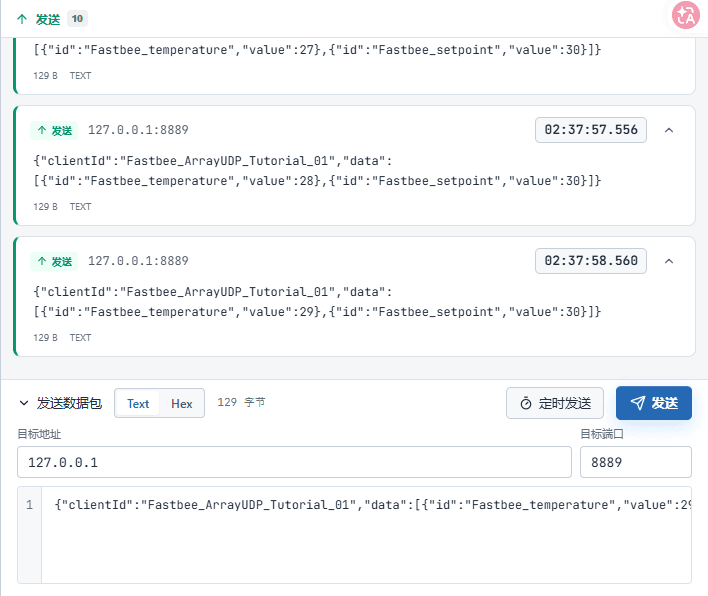
Ten messages from 02:37:49 to 02:37:58; each waits for the platform to receive it independently.
Screenshot Key Points
| Field / Control | Description |
|---|---|
| clientId Device Identity | Every datagram carries the number; do not provide the identity only in the first message. Required · Fill in: FastBee_ArrayUDP_Tutorial_01 |
| data Array | Fixed ids correspond to the Thing Model; value carries integers. Required · Fill in: data=[{id,value},{id,value}] |
| Remote Target Address | The address of the machine where the FMQ UDP listen resides. The same machine in this guide. Required · Fill in: 127.0.0.1 |
| Remote Target Port | FMQ UDP listen port; its purpose differs from the local port. Required · Fill in: 8889 |
| Text/Send | Send one complete UTF-8 JSON datagram each time. Required · Fill in: Text; Send |
Send one complete Text message each time and wait for the platform to receive it one by one. The measured window was 02:37:49.521~02:37:58.561: ten messages with temperatures 20~29 and setpoint 30; do not copy the MQTT bare array or topics.
5. Deliver 32 and Report Back Independently
16. Deliver Setpoint 32 from the Platform
Location: Device Details*→*Running Status Steps: Adjust the setpoint from the current 30 to 32 and click Send.

This image shows the operation entry; the command's actual receipt and reply are checked separately in the next two images.
Screenshot Key Points
| Field / Control | Description |
|---|---|
| Setpoint Slider/Send | Deliver 32 first, and deliver 34 after stop/recovery. Required · Fill in: 32/34 |
17. Adjust the Control Target to 32
Location: Device Details*→*Running Status Steps: Move the setpoint slider to 32, check the overlay target, and click Send on the right.

At the time of retaking, the current value was already 34; the overlay 32 is the target to be sent. This retake did not click Send again.
Screenshot Key Points
| Field / Control | Description |
|---|---|
| Setpoint Slider/Send | Deliver 32 first, and deliver 34 after stop/recovery. Required · Fill in: 32/34 |
18. Confirm the 32 Command Was Actually Received
Location: FMQX Web*→*Receive Records Steps: Check the target 32, the params array, and the command id.

Actually received 143 bytes at 02:38:06.119.
Screenshot Key Points
| Field / Control | Description |
|---|---|
| Actual Receive Record | Check the command id, params array, and 32/34 targets. Required · Fill in: 143 bytes; 32/34 |
19. Check the 32 Demo Reply
Location: FMQX Web*→*Send Records Steps: Check the same id, code 200, data 32, and count 1.
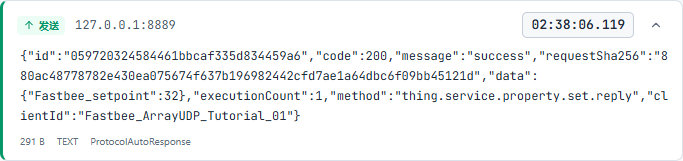
FMQX demo reply; the manual independent property state is still required, and it does not prove physical action.
Screenshot Key Points
| Field / Control | Description |
|---|---|
| FMQX Demo Auto-reply | Check the same id, code 200, data object, request summary, and demo count. Required · Fill in: executionCount 1/2 |
Independent 29/32 state after executionjson
{

  "clientId": "FastBee_ArrayUDP_Tutorial_01",

  "data": [

    {

      "id": "FastBee_temperature",

      "value": 29

    },

    {

      "id": "FastBee_setpoint",

      "value": 32

    }

  ]

}After replying with the data object, manually send the complete identity envelope and data array; do not treat the reply as a property report.
20. Independently Report 29 and 32
Location: FMQX Web*→*Send Data Steps: After the demo reply, send a separate complete property message: temperature 29, setpoint 32.
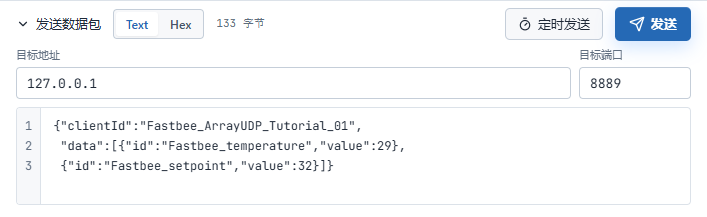
This image retakes the independent property state send box and did not send again; the actual state time and result follow the subsequent platform and history records.
Screenshot Key Points
| Field / Control | Description |
|---|---|
| clientId Device Identity | Every datagram carries the number; do not provide the identity only in the first message. Required · Fill in: FastBee_ArrayUDP_Tutorial_01 |
| data Array | Fixed ids correspond to the Thing Model; value carries integers. Required · Fill in: data=[{id,value},{id,value}] |
| Remote Target Address | The address of the machine where the FMQ UDP listen resides. The same machine in this guide. Required · Fill in: 127.0.0.1 |
| Remote Target Port | FMQ UDP listen port; its purpose differs from the local port. Required · Fill in: 8889 |
| Text/Send | Send one complete UTF-8 JSON datagram each time. Required · Fill in: Text; Send |
21. Confirm Current 32 After the Independent Report
**Location:**FMQX Send Data / Device Running Status Steps: Manually send the 29/32 envelope, then refresh the platform Current Value.

The independent property went inbound at 02:38:06.965; current 32, and the actual history has the same value.
Screenshot Key Points
| Field / Control | Description |
|---|---|
| clientId Device Identity | Every datagram carries the number; do not provide the identity only in the first message. Required · Fill in: FastBee_ArrayUDP_Tutorial_01 |
| data Array | Fixed ids correspond to the Thing Model; value carries integers. Required · Fill in: data=[{id,value},{id,value}] |
| Current Value | Refresh and check after independent property reporting; do not substitute a pending target. Required · Fill in: 32; final 34 |
| Text/Send | Send one complete UTF-8 JSON datagram each time. Required · Fill in: Text; Send |
6. Verify 34 After Stop and Recovery
22. Stop UDP Send/Receive
Location: FMQX Web*→*Array Wireless Steps: Stop sending and disconnect the local endpoint.

Gray Disconnected means the FMQX endpoint is closed; do not demand a TCP-style offline event from this.
Screenshot Key Points
| Field / Control | Description |
|---|---|
| Connect/Disconnect | Connect means the FMQX local UDP endpoint is open; report to register the return address. Required · Fill in: Connected/Disconnected |
23. Recover and Report First to Register the Return Address
Location: FMQX Web*→*Array Wireless Steps: Reopen with 15022 reused, and send the complete 29/32 envelope first.

At 02:38:13.588, the recovered property updates the UDP return address, and then the new control is sent.
Screenshot Key Points
| Field / Control | Description |
|---|---|
| clientId Device Identity | Every datagram carries the number; do not provide the identity only in the first message. Required · Fill in: FastBee_ArrayUDP_Tutorial_01 |
| Connect/Disconnect | Connect means the FMQX local UDP endpoint is open; report to register the return address. Required · Fill in: Connected/Disconnected |
| Text/Send | Send one complete UTF-8 JSON datagram each time. Required · Fill in: Text; Send |
Report 29/32 first after recoveryjson
{

  "clientId": "FastBee_ArrayUDP_Tutorial_01",

  "data": [

    {

      "id": "FastBee_temperature",

      "value": 29

    },

    {

      "id": "FastBee_setpoint",

      "value": 32

    }

  ]

}Let FMQ re-register this endpoint's return address first, then deliver 34 from the platform.
24. Confirm the Recovered 34 Was Actually Received
Location: FMQX Web*→*Receive Records Steps: The platform delivers 34; check the new id and params array 34.

The new command was actually received at 02:38:13.920; downlink is reachable after recovery.
Screenshot Key Points
| Field / Control | Description |
|---|---|
| Actual Receive Record | Check the command id, params array, and 32/34 targets. Required · Fill in: 143 bytes; 32/34 |
| Setpoint Slider/Send | Deliver 32 first, and deliver 34 after stop/recovery. Required · Fill in: 32/34 |
25. Check the 34 Demo Reply Count 2
Location: FMQX Web*→*Send Records Steps: Check the same id, code 200, data 34, and count 2.
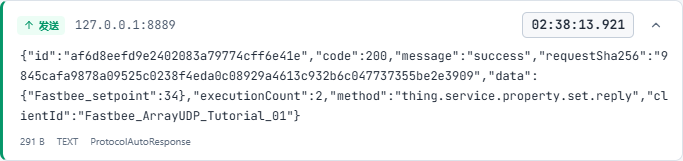
Replied at 02:38:13.921; the platform shows executionConfirmed=false.
Screenshot Key Points
| Field / Control | Description |
|---|---|
| FMQX Demo Auto-reply | Check the same id, code 200, data object, request summary, and demo count. Required · Fill in: executionCount 1/2 |
Independent 29/34 state after recoveryjson
{

  "clientId": "FastBee_ArrayUDP_Tutorial_01",

  "data": [

    {

      "id": "FastBee_temperature",

      "value": 29

    },

    {

      "id": "FastBee_setpoint",

      "value": 34

    }

  ]

}After the FMQX demo reply, send independently and manually, then refresh the real-time value and history.
26. Independently Report 29 and 34
Location: FMQX Web*→*Send Data Steps: After the post-recovery demo reply, send a separate complete property message with temperature 29 and setpoint 34.
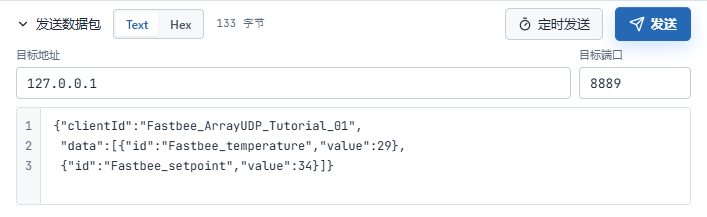
This image retakes the independent property state send box and did not send again; the actual state time and result follow the subsequent platform and history records.
Screenshot Key Points
| Field / Control | Description |
|---|---|
| clientId Device Identity | Every datagram carries the number; do not provide the identity only in the first message. Required · Fill in: FastBee_ArrayUDP_Tutorial_01 |
| data Array | Fixed ids correspond to the Thing Model; value carries integers. Required · Fill in: data=[{id,value},{id,value}] |
| Remote Target Address | The address of the machine where the FMQ UDP listen resides. The same machine in this guide. Required · Fill in: 127.0.0.1 |
| Remote Target Port | FMQ UDP listen port; its purpose differs from the local port. Required · Fill in: 8889 |
| Text/Send | Send one complete UTF-8 JSON datagram each time. Required · Fill in: Text; Send |
27. Confirm Current 34 After the Independent Report
**Location:**FMQX Send Data / Device Running Status Steps: Manually send the complete 29/34 datagram, then refresh and check.

Independent state at 02:38:14.603; final temperature 29, setpoint 34.
Screenshot Key Points
| Field / Control | Description |
|---|---|
| clientId Device Identity | Every datagram carries the number; do not provide the identity only in the first message. Required · Fill in: FastBee_ArrayUDP_Tutorial_01 |
| data Array | Fixed ids correspond to the Thing Model; value carries integers. Required · Fill in: data=[{id,value},{id,value}] |
| Current Value | Refresh and check after independent property reporting; do not substitute a pending target. Required · Fill in: 32; final 34 |
| Text/Send | Send one complete UTF-8 JSON datagram each time. Required · Fill in: Text; Send |
7. Query History and Refresh
28. Set the Ten-sample Query
Location: Data Center*→*Historical Data Steps: Select this device, temperature, and 2026-10-13 02:37:48~02:38:00.

The date input is horizontally truncated; fill in the complete values per the adjacent parameters.
Screenshot Key Points
| Field / Control | Description |
|---|---|
| Device and Field | Select the temperature or setpoint of this guide's array wireless. Required · Fill in: FastBee_数组无线; temperature/setpoint |
| Date and Start/End Time | Date 2026-10-13; temperature 02:37:48~02:38:00, setpoint 02:38:00~02:38:23. Required · Fill in: 2026-10-13; 02:37:48~02:38:00 / 02:38:00~02:38:23 |
| Advanced Filter/Query/Refresh | After refreshing, reselect the same device, field, and time, and wait for loading to finish. Required · Fill in: Query, refresh, and re-query |
29. Check 20 to 29 Line by Line
Location: Data Center*→*Historical Data Steps: Wait for the query to complete and check the ten values and times.
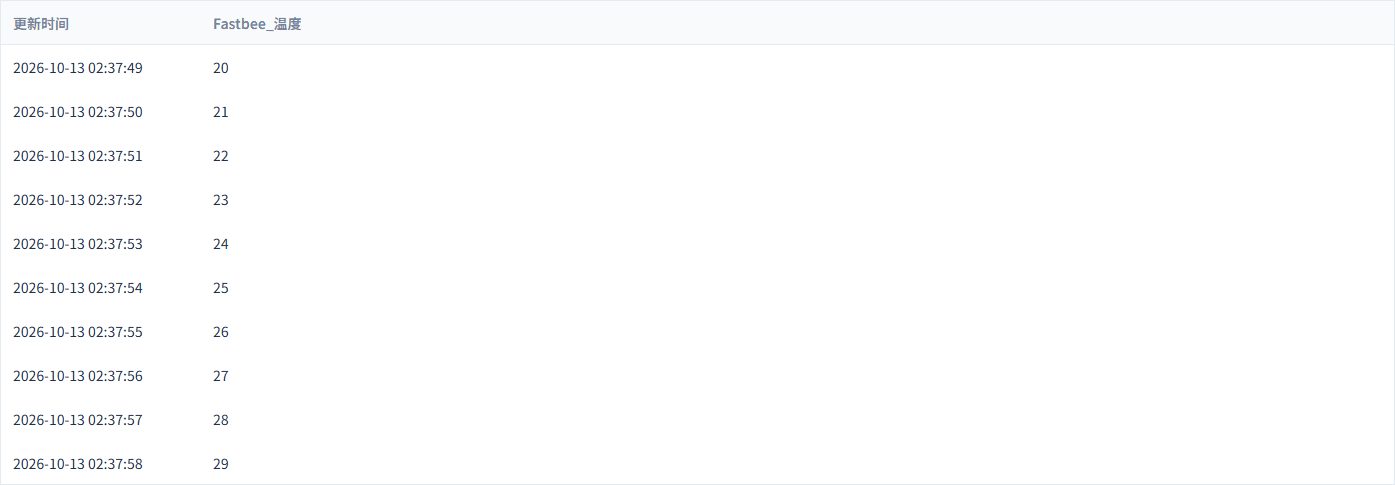
20~29 are complete; each entry in the actual storage is unique with the same value.
Screenshot Key Points
| Field / Control | Description |
|---|---|
| Advanced Filter/Query/Refresh | After refreshing, reselect the same device, field, and time, and wait for loading to finish. Required · Fill in: Query, refresh, and re-query |
30. Query the Setpoint State
Location: Data Center*→*Historical Data Steps: Switch to setpoint temperature, 02:38:00~02:38:23.

Covers the independent 32, the recovered 32, and the final 34.
Screenshot Key Points
| Field / Control | Description |
|---|---|
| Device and Field | Select the temperature or setpoint of this guide's array wireless. Required · Fill in: FastBee_数组无线; temperature/setpoint |
| Date and Start/End Time | Date 2026-10-13; temperature 02:37:48~02:38:00, setpoint 02:38:00~02:38:23. Required · Fill in: 2026-10-13; 02:37:48~02:38:00 / 02:38:00~02:38:23 |
| Advanced Filter/Query/Refresh | After refreshing, reselect the same device, field, and time, and wait for loading to finish. Required · Fill in: Query, refresh, and re-query |
31. Re-query 32 to 34 After Refresh
Location: Data Center*→*Historical Data Steps: Refresh, reselect the same conditions, and check 32→32→34.

02:38:06 is 32, the recovery at 02:38:13 is still 32, and 02:38:14 is 34 — three independent messages.
Screenshot Key Points
| Field / Control | Description |
|---|---|
| Advanced Filter/Query/Refresh | After refreshing, reselect the same device, field, and time, and wait for loading to finish. Required · Fill in: Query, refresh, and re-query |
The three setpoint history entries 32→32→34 come from the post-execution state, the recovery report, and the new 34 state. Each message is uniquely associated with the actual history; repeated values do not mean duplicate storage. After refreshing, reselect the same device, field, and complete time, and wait for loading to finish.
8. Finish and Re-accept
Stop sending and disconnect this guide's session; retain the product, device, model, and history. For re-acceptance, record a new time window, send ten different samples, and check the new downlink actual receipt, demo reply, independent state, and history; verify one more round after stop/recovery, then finish and disconnect.
32. Finish Send/Receive and Retain Resources
Location: FMQX Web*→*This Guide's Session Steps: Stop sending and disconnect; retain business resources and history.

This guide's real session is disconnected; the product, device, configuration, and history are retained for re-acceptance.
Screenshot Key Points
| Field / Control | Description |
|---|---|
| Stop and Retain | Stop sending/receiving and close the local endpoint when finished; retain the device, session, and history. Required · Fill in: Disconnected; last 29/34 |
| Connect/Disconnect | Connect means the FMQX local UDP endpoint is open; report to register the return address. Required · Fill in: Connected/Disconnected |
Field and Parameter Reference
Device Access Wizard
| Field / Control | Fill-in Instructions |
|---|---|
| Access Source | This guide selects New Product; re-verification directly reuses the retained resource. Required · Fill in: New ProductNew Product: this guide creates an independent resource; this guide creates an independent resource. Existing Product: re-verification uses the retained product; re-verification uses the retained product. |
| Product/Device Name | The name is concise, making this guide's resources easy to locate. Required · Fill in: FastBee_数组无线 |
| Wizard Object Sample | First parse two fields from the object, then switch to the formal JSON array/UDP. Required · Fill in: {"FastBee_temperature":20,"FastBee_setpoint":30} |
| Fields, Types, Units, and Paths | The object sample generates two integer ℃ fields with verbatim identifiers. Required · Fill in: FastBee_temperature; FastBee_setpoint; integer; ℃ |
| Device Identifier | The clientId of every UDP message matches this number; the session id is not used as a substitute. Required · Fill in: FastBee_ArrayUDP_Tutorial_01 |
| Initial Access Overview | The wizard starts with JSON/MQTT; 1 device, 2 fields; the formal format is modified afterward. Required · Fill in: 1 device, 2 fields |
Protocol and Publish Effectiveness
| Field / Control | Fill-in Instructions |
|---|---|
| Data Format | JSON array is formally adopted. Required · Fill in: JSON ArrayPublish after modification. |
| Transport | Select UDP; each datagram carries the device identity and no MQTT topics are used. Required · Fill in: UDPPublish after modification. UDP: this guide's datagram send/receive; this guide's datagram send/receive. TCP: another guide's streaming connection scenario; another guide's streaming connection scenario. MQTT: another guide's topic message scenario; another guide's topic message scenario. |
| Network Type | WIFI in this guide; the UDP address and port still need separate configuration. Required · Fill in: WIFIPublish after modification. |
| Publish/Confirm | Publish after saving the model and formal format; check the receipt after the confirmation popup. Publish after modification. |
| Access Configuration Sync | Check that the actual node has applied and the failure reason is empty. Required · Fill in: APPLIED; success 1, failure 0Publish after modification. |
Function Definition
| Field / Control | Fill-in Instructions |
|---|---|
| Model Translation | Complete the English names for temperature and setpoint. Required · Fill in: Temperature/SetpointPublish after modification. |
| Model Identifier | The ids of the data array elements match the model identifiers verbatim. Required · Fill in: FastBee_temperature/FastBee_setpointPublish after modification. |
| Model Category | Both fields are properties. Required · Fill in: PropertyPublish after modification. Property: this guide's reading and setpoint; this guide's reading and setpoint. Function: not added in this guide; not added in this guide. Event: not added in this guide; not added in this guide. |
| Read-only Data | Temperature checked, setpoint unchecked. Required · Fill in: Temperature read-only; setpoint writablePublish after modification. Checked: display only; display only. Unchecked: controllable per permission; controllable per permission. |
| History Storage | Enabled for both properties. Required · Fill in: CheckedPublish after modification. Checked: saves property history; saves property history. Unchecked: does not meet this guide's acceptance; does not meet this guide's acceptance. |
| Chart Display/Real-time Monitoring | Temperature on, setpoint off. Required · Fill in: Temperature on; setpoint offPublish after modification. Checked: adopted for temperature; adopted for temperature. Unchecked: adopted for setpoint; adopted for setpoint. |
| Share Permission | Kept disabled in this guide. Required · Fill in: UncheckedPublish after modification. Unchecked: access authorized per account; access authorized per account. Checked: sharing requires an additional permission review; sharing requires an additional permission review. |
| Data Type/Range/Unit/Step | Integer; temperature -40~100℃, setpoint 16~35℃, step 1. Required · Fill in: Integer; ℃; step 1Publish after modification. |
| Modify | Save after completing the required items. Publish after modification. |
FMQX Web Connection
| Field / Control | Fill-in Instructions |
|---|---|
| Import Configuration | Use this guide's v2 independent group and session; the original wrong configuration stays in internal materials. Reconnect after modification. |
| Local Listen Address | The local NIC address bound by FMQX; 0.0.0.0 means the available interfaces of this machine. Required · Fill in: 0.0.0.0Reconnect after modification. |
| Local Port | FMQX's send source port and the port receiving downlink; must not be occupied. Required · Fill in: 15022Reconnect after modification. |
| Remote Target Address | The address of the machine where the FMQ UDP listen resides. The same machine in this guide. Required · Fill in: 127.0.0.1Reconnect after modification. |
| Remote Target Port | FMQ UDP listen port; its purpose differs from the local port. Required · Fill in: 8889Reconnect after modification. |
| Enable Broadcast | This guide explicitly unicasts to FMQ. Required · Fill in: OffReconnect after modification. Off: adopted in this guide; adopted in this guide. On: broadcast devices verified separately; broadcast devices verified separately. |
| Connection Timeout | In milliseconds; it does not mean UDP has completed a server-side handshake. Required · Fill in: 5000 msReconnect after modification. |
| Auto Reconnect | Disabled in this guide; manual stop/recovery is used. Required · Fill in: OffReconnect after modification. Off: manually verified recovery; manually verified recovery. On: requires separate verification; requires separate verification. |
| Test Connection/Save Configuration | After saving the endpoint, the real uplink/downlink still must be completed. Reconnect after modification. |
| Connect/Disconnect | Connect means the FMQX local UDP endpoint is open; report to register the return address. Reconnect after modification. |
Device Reporting and Demo Reply
| Field / Control | Fill-in Instructions |
|---|---|
| clientId Device Identity | Every datagram carries the number; do not provide the identity only in the first message. Required · Fill in: FastBee_ArrayUDP_Tutorial_01 |
| data Array | Fixed ids correspond to the Thing Model; value carries integers. Required · Fill in: data=[{id,value},{id,value}] |
| Text/Send | Send one complete UTF-8 JSON datagram each time. |
| Actual Receive Record | Check the command id, params array, and 32/34 targets. Required · Fill in: 143 bytes; 32/34 |
| FMQX Demo Auto-reply | Check the same id, code 200, data object, request summary, and demo count. Required · Fill in: executionCount 1/2 |
Device Running Status
| Field / Control | Fill-in Instructions |
|---|---|
| Setpoint Slider/Send | Deliver 32 first, and deliver 34 after stop/recovery. |
| Current Value | Refresh and check after independent property reporting; do not substitute a pending target. Required · Fill in: 32; final 34 |
Historical Data
| Field / Control | Fill-in Instructions |
|---|---|
| Device and Field | Select the temperature or setpoint of this guide's array wireless. Required · Fill in: FastBee_数组无线; temperature/setpoint |
| Date and Start/End Time | Date 2026-10-13; temperature 02:37:48~02:38:00, setpoint 02:38:00~02:38:23. Required · Fill in: 2026-10-13; 02:37:48~02:38:00 / 02:38:00~02:38:23 |
| Advanced Filter/Query/Refresh | After refreshing, reselect the same device, field, and time, and wait for loading to finish. |
Stop and Recovery
| Field / Control | Fill-in Instructions |
|---|---|
| Stop and Retain | Stop sending/receiving and close the local endpoint when finished; retain the device, session, and history. Required · Fill in: Disconnected; last 29/34 |
Where to Check First When Problems Occur
| Symptom | Possible Cause | Where to Check First | How to Recover |
|---|---|---|---|
| Connected but no data on the platform | An open endpoint does not prove the server has received, or the format and identity do not match. | Remote 8889, per-datagram clientId, data array, APPLIED. | Fix the complete message, send one by one in a new window, and check the actual values. |
| Reporting succeeds but no downlink is received | The source endpoint changed, no new report has registered, or return packets are blocked by the network. | Whether local 15022 is open, the time of the most recent report, and the return packet path. | Report independently first, then deliver a new in-range target. |
| Fields do not update | The array element ids were mistakenly written as sample serial numbers, or an MQTT bare array was used. | The outer clientId envelope, fixed model ids, and integer values. | Fix per the complete example and send one datagram. |
| Reply succeeded but the current value did not change | The independent property state was not sent. | Whether a data array was reported after the reply data object. | Report the state manually and query the real-time value and history. |
| No TCP-style offline on the platform after disconnection | UDP has no TCP connection-closure event; all registration events in this guide are online. | The FMQX endpoint status and the platform offline policy. | Verify recovery per stop, reopen, report first, then control. |
| Values missing after refreshing history | The device, field, or complete time window does not match. | Temperature 02:37:48~02:38:00, setpoint 02:38:00~02:38:23. | Reselect the conditions and wait for loading to complete; record a new window during re-verification. |