


Modbus TCP Register Terminal Access
This article is compiled from an existing operation manual into an online operation reference. Operations marked as expected or not executed in the original text must still be verified against the actual environment.
Reading holding registers, remote single-register write, independent read-back, and history and recovery.
Before you start: you are logged in with permissions for products, devices, models, publishing, control, and history queries; the local application, single-node FMQ, and FMQX Web are available, and the device address and the official point table have been confirmed.
Before You Start
For a first-time connection, follow the configuration sections; when the same product and device already exist, reuse the retained configuration and start from reporting and send/receive verification. The configuration screenshots and recovery examples keep the original operation time points; re-verify them separately for the current run.
This article uses one register terminal to complete Modbus TCP direct connection, reading holding registers, a platform-issued single-register write, independent read-back, history refresh, and recovery after a pause. It suits devices that support native Modbus TCP and can listen on a TCP port.
The FastBee platform handles products, devices, control, and history queries; FMQ is the device access service; FMQX Web acts as the demo slave in this article. It receives real Modbus requests and changes its internal registers; it cannot replace physical actions or on-site device safety acceptance.
You need a logged-in account with permissions for products, devices, Thing Model editing, publishing, control, and history queries. Prepare the official point table, the reachable device IP and port, the station number, and writable addresses. Create a standalone product for the demo, so that pausing a shared product of the same model does not affect other devices.
Functional relationship diagram
Configuration and send/receive directions; not a runtime screenshot.
Replace These Parameters Before Copying the Templates
The code in this article uses generic template names; the screenshots keep the actual historical resources. Complete the following checks before saving anything as a UTF-8 file or sending any message.
register_0and similar are point-table template identifiers; the identifier in the platform point table, the mappings, and the FMQX Thing Model must match item by item. Addresses, station numbers, and read/write attributes follow the official on-site point table.- The host, port, and listening direction in the connection file must be changed to the actual addresses of the current environment; 127.0.0.1 means the local machine running FMQX. When MQTT is involved, also verify the product number, username, subscription topics, and responseRoute; enter passwords only on the connection page, never in the file.
- Group, session, and subscription ids are internal references of the import file; if you rename anything, the groupId must match the corresponding group id. Verify before importing, and do not create duplicate connections with the same name on retained sessions.
- The code blocks are customer templates rewritten from existing password-free assets or original code; this version of the template has not been proven to import successfully. Historical screenshots, send times, and business pass scope still follow the records of each step; do not treat template names as the actual resource names in the old evidence.
Verify the Connection Direction and Point Table First
The connection direction is FMQ actively connecting to the device; the device side listens, in this example on 127.0.0.1:15020 with station number 1. After the device moves to another computer, enter the device IP that FMQ can reach; do not mistakenly enter the FMQ server IP as the device listening IP.
FC03 means reading holding registers, and FC06 means writing a single holding register. Addresses are zero-based: reference number 40001 corresponds to address 0, and 40101 corresponds to address 100. In this article, addresses 0-9 are used for collection and address 100 is used for the write setpoint.
All points use UINT16, quantity 1, byte order BE, word order BE, scale 1, offset 0, and a 5000 ms polling interval. The UINT16 range is 0-65535, and this article has no unit; when connecting a real device, the manufacturer's point table determines the type, unit, and scale — do not arbitrarily interpret the integers in this article as temperatures.
Full UTF-8 collection point table for this article csv
identifier,name,datatype,unit,registerarea,wiredatatype,byteorder,wordorder,functioncode,addressbase,startaddress,quantity,scale,offset,intervalms

register_0,采集点1,integer,,HOLDING_REGISTER,UINT16,BE,BE,3,0,0,1,1,0,5000

register_1,采集点2,integer,,HOLDING_REGISTER,UINT16,BE,BE,3,0,1,1,1,0,5000

register_2,采集点3,integer,,HOLDING_REGISTER,UINT16,BE,BE,3,0,2,1,1,0,5000

register_3,采集点4,integer,,HOLDING_REGISTER,UINT16,BE,BE,3,0,3,1,1,0,5000

register_4,采集点5,integer,,HOLDING_REGISTER,UINT16,BE,BE,3,0,4,1,1,0,5000

register_5,采集点6,integer,,HOLDING_REGISTER,UINT16,BE,BE,3,0,5,1,1,0,5000

register_6,采集点7,integer,,HOLDING_REGISTER,UINT16,BE,BE,3,0,6,1,1,0,5000

register_7,采集点8,integer,,HOLDING_REGISTER,UINT16,BE,BE,3,0,7,1,1,0,5000

register_8,采集点9,integer,,HOLDING_REGISTER,UINT16,BE,BE,3,0,8,1,1,0,5000

register_9,采集点10,integer,,HOLDING_REGISTER,UINT16,BE,BE,3,0,9,1,1,0,5000

register_100,写入设定,integer,,HOLDING_REGISTER,UINT16,BE,BE,3,0,100,1,1,0,5000After saving as CSV, import it into the collection fields of the access wizard; verify the 11 fields and the zero-based addresses. Replaceable customer template names are used here; check them against the replacement list in this section before importing or sending.
1. Create the Product and Device
1. Start from Creating a New Product
Location: IoT*→Device Access→*Where to Start Steps: select New Product and fill in Product Name as FastBee_寄存器终端. When re-verifying with existing resources from this article, go directly into the product.
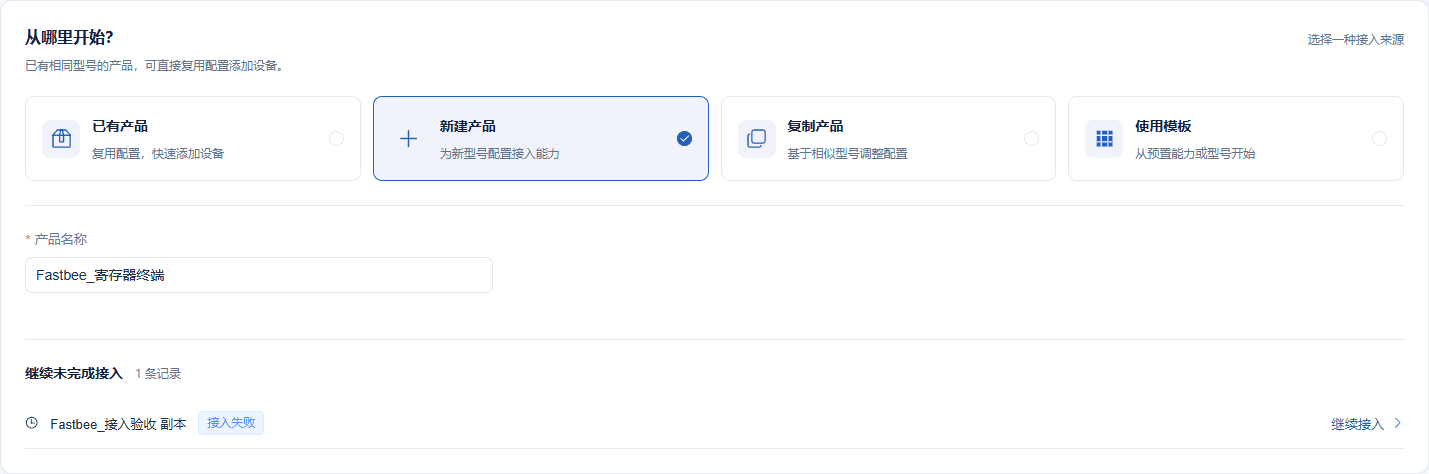
New Product is selected; the other unfinished records below do not belong to this article — do not click to continue connecting them.
Screenshot Key Points
| Field / Control | Description |
|---|---|
| Access Source | For a new model, choose New Product; an existing product of the same model can be reused — do not create duplicates. Required · Enter: 新建产品 (New Product) |
| Product Name | A name for this type of register device. Required · Enter: FastBee_寄存器终端 |
2. Select Native Modbus TCP
Location: Device Access Wizard*→*Product and Protocol Steps: under Protocol, select Modbus TCP, and confirm the transport is TCP.

This article is Modbus TCP where FMQ actively connects to the device — not JSON/TCP or RTU passthrough.
Screenshot Key Points
| Field / Control | Description |
|---|---|
| Protocol | This article selects native Modbus TCP direct connection. Required · Enter: Modbus TCP |
| Transport | This scenario uses a TCP connection, determined by the protocol. Required · Enter: TCP |
3. Fill in the Device Listening Address and Station Number
Location: Device Access Wizard*→*Add Device Steps: fill in the device identifier for this article, with Device IP Address as 127.0.0.1, port 15020, and slave address 1.
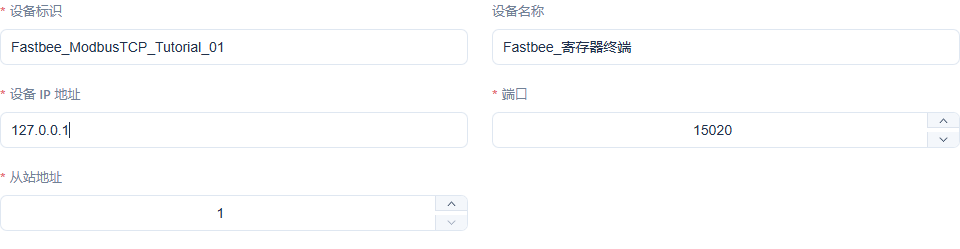
This address is provided by the device; enter 127.0.0.1 only when the device and FMQ are on the same computer.
Screenshot Key Points
| Field / Control | Description |
|---|---|
| Device Identifier | The platform device number; select this device when binding — the number is not additionally written into Modbus messages. Required · Enter: FastBee_ModbusTCP_Tutorial_01 |
| Device Name | The business name that identifies the current terminal in lists. Required · Enter: FastBee_寄存器终端 |
| Device IP Address | The address of the device that FMQ actively connects to. In this example the device and FMQ are on the same machine. Required · Enter: 127.0.0.1 |
| Port | The listening port on the device side, consistent with the FMQX configuration. Required · Enter: 15020 |
| Slave Address | The station number within the same device connection, also called Unit ID. Required · Enter: 1 |
4. Verify the Collection Fields and Access Summary
Location: Device Access Wizard*→*Access Confirmation Steps: verify that the access summary shows this article's product, Modbus TCP, 1 device, and 11 collection fields.

This is the access summary; the 11 properties correspond to point-table addresses 0-9 and 100. The field count is not a substitute for ten distinguishable samples.
Screenshot Key Points
| Field / Control | Description |
|---|---|
| Collection Fields | Import the UTF-8 point table below, and check the 11 fields and zero-based addresses. Required · Enter: addresses 0-9 and 100, 11 in total |
| Device Identifier | The platform device number; select this device when binding — the number is not additionally written into Modbus messages. Required · Enter: FastBee_ModbusTCP_Tutorial_01 |
| Protocol | This article selects native Modbus TCP direct connection. Required · Enter: Modbus TCP |
2. Verify Binding, Polling, and Mapping
5. Verify the Station Number Binding of This Device
Location: Product Management*→Register Terminal→Protocol Settings→*Device Binding Steps: verify that the bound device identifier matches this article, the Unit ID is 1, and it stays enabled.

The screenshot shows the current real binding; this article stops polling by unpublishing, and does not treat turning off the binding switch as a successful stop path.
Screenshot Key Points
| Field / Control | Description |
|---|---|
| Bound Device | Select this article's device, so the point table does not land on another terminal with the same name. Required · Enter: FastBee_寄存器终端 |
| Unit ID | The bound station number must match the slave. Required · Enter: 1 |
| Enabled | The binding, polling ranges, and point mapping of this article stay enabled. Required · Enter: On |
6. Verify the FC03 Polling Ranges
Location: Product Management*→Register Terminal→Protocol Settings→*Polling Ranges Steps: verify field by field: holding register, function code 3, zero-based addresses, and quantity 1, with polling interval 5000 ms.
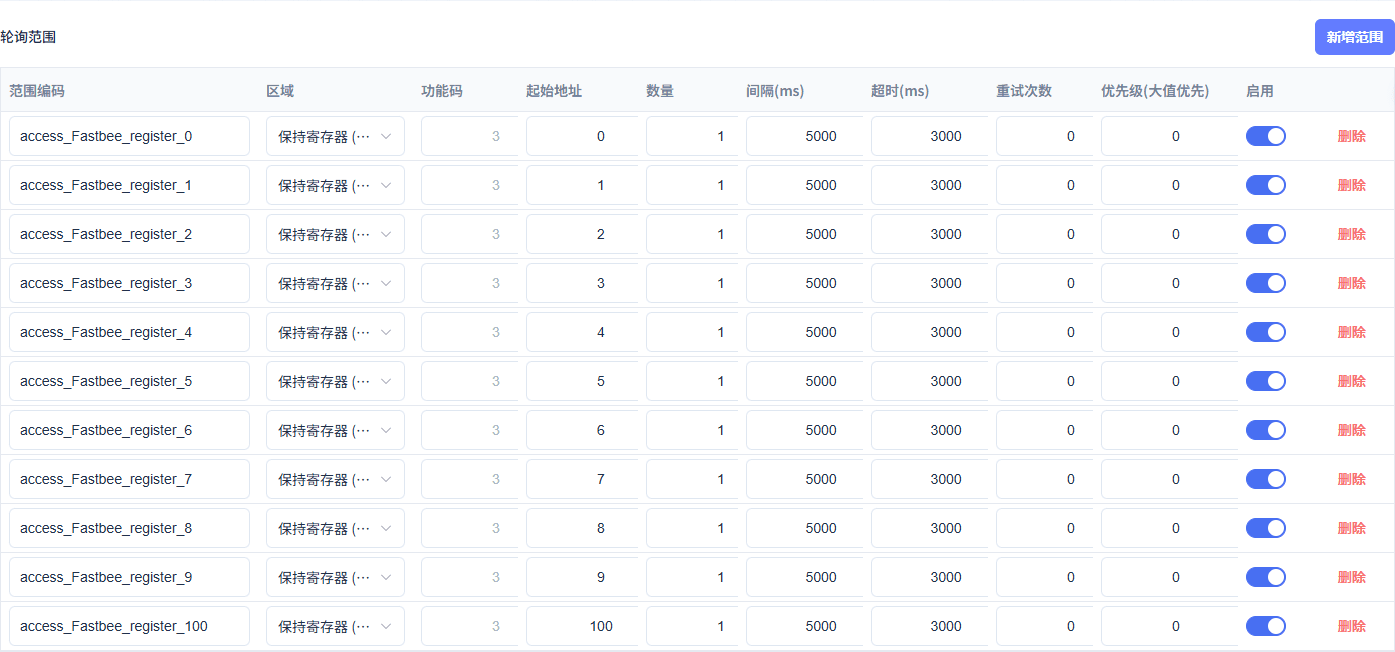
The example row shows address 0, followed by quantity 1, interval 5000, timeout 3000, retries 0, priority 0; the other points follow the full point table. The current narrow image lacks column headers; a header area capture is pending.
Screenshot Key Points
| Field / Control | Description |
|---|---|
| Register Area | This article uses holding registers throughout. Required · Enter: HOLDING_REGISTER |
| Read Function Code | FC03 means reading holding registers. Required · Enter: 3 (FC03) |
| Start Address / Zero-based Address | Address 0 corresponds to reference number 40001, and address 100 corresponds to 40101; do not enter 40001 directly as a zero-based address. Required · Enter: 0-9; write setpoint 100 |
| Quantity | Each UINT16 occupies one 16-bit register. Required · Enter: 1 |
| Polling Interval | Each point is read about every 5 seconds, in milliseconds. Required · Enter: 5000 |
| Timeout | This article waits at most 3000 ms for a device response. Required · Enter: 3000 |
| Max Retries | This article is configured with 0 and does not automatically add retry rounds. Required · Enter: 0 |
| Priority | All read ranges in this article use the same priority. Required · Enter: 0 |
7. Verify the Integer Mapping of Address 100
Location: Product Management*→Register Terminal→Protocol Settings→*Point Mapping Steps: verify write setpoint address 100, type UINT16, byte order and word order both BE, scale 1, offset 0.
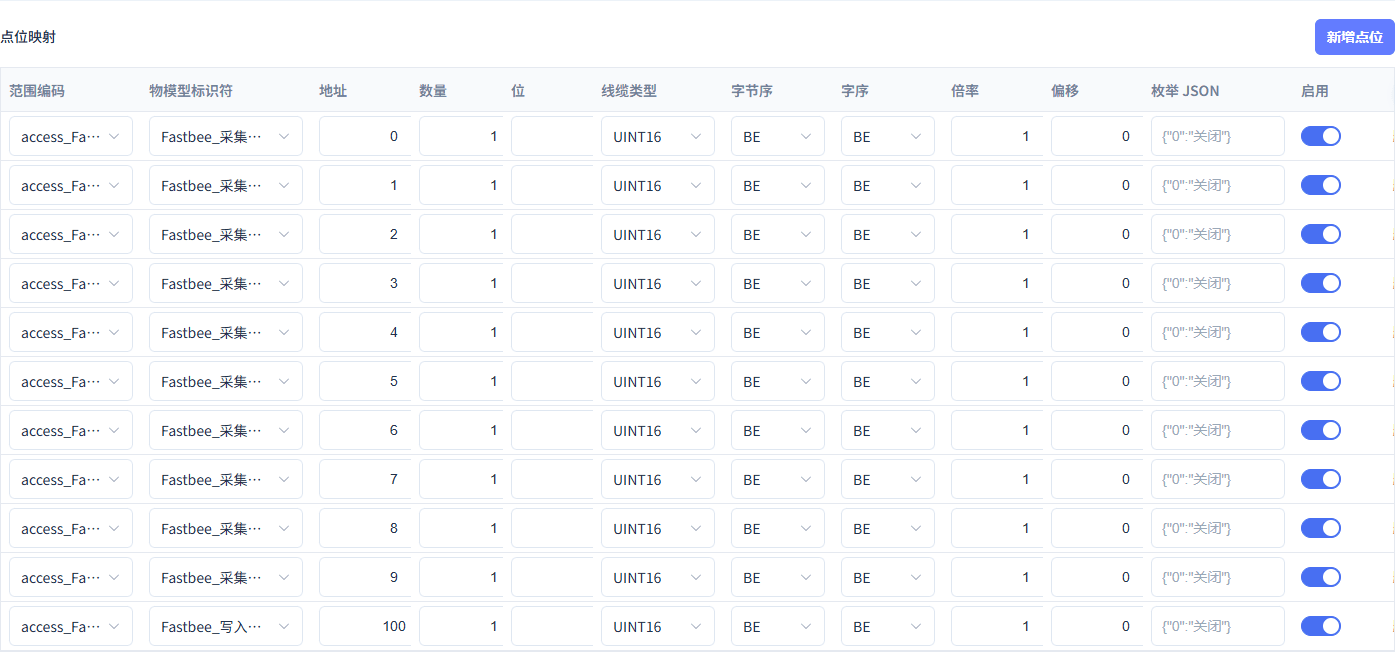
The actual saved values are UINT16/BE/BE, with enum mapping left empty; do not carry over old BIG_ENDIAN fill-in values. The current row lacks column headers; a capture is pending.
Screenshot Key Points
| Field / Control | Description |
|---|---|
| Start Address / Zero-based Address | Address 0 corresponds to reference number 40001, and address 100 corresponds to 40101; do not enter 40001 directly as a zero-based address. Required · Enter: 0-9; write setpoint 100 |
| Quantity | Each UINT16 occupies one 16-bit register. Required · Enter: 1 |
| Register Data Type | UINT16 is an unsigned 16-bit integer, 0-65535. Required · Enter: UINT16 |
| Byte Order | Enter BE on the platform; BigEndian in the FMQX import configuration expresses the same direction. Required · Enter: BE |
| Word Order | UINT16 in this article occupies only one word; keep BE, consistent with the point table. Required · Enter: BE |
| Scale | Displayed value = raw register value x scale + offset; this article does not scale. Required · Enter: 1 |
| Offset | This article adds no fixed offset. Required · Enter: 0 |
| Enum Mapping | This article uses plain integers and does not configure enum mapping. Optional · Enter: leave empty |
Binding associates this terminal through the platform device identifier, while the Modbus requests themselves use the station number and register addresses. Addresses must not be interchanged; after saving, publish again and continue only after the access side takes effect.
3. Start the FMQX Demo Slave
Import the JSON below into the direct-connection tutorial group in FMQX Web and select the register terminal. When re-verifying with an existing saved session, reuse it directly to avoid duplicate sessions with the same name. Auto-reconnect is off in this configuration.
Full FMQX Web slave configuration json
{

  "schemaVersion": 3,

  "groups": [

    {

      "id": "tutorial_modbus_tcp_group",

      "name": "直连教程",

      "sortOrder": 52,

      "isSystem": false

    }

  ],

  "sessions": [

    {

      "id": "tutorial_modbus_tcp_01",

      "groupId": "tutorial_modbus_tcp_group",

      "name": "寄存器终端",

      "protocol": "ModbusTCP",

      "transport": "TCP",

      "host": "127.0.0.1",

      "port": 15020,

      "unitId": 1,

      "autoReconnect": false,

      "modbusThingModels": [

        {

          "modelName": "采集点1",

          "identifier": "register_0",

          "type": 1,

          "dataType": "Integer",

          "isReadonly": true,

          "initialValue": 101,

          "mapping": {

            "dataArea": "HoldingRegisters",

            "address": 0,

            "length": 1,

            "wireFormat": "UInt16",

            "byteOrder": "BigEndian",

            "wordOrder": "HighWordFirst",

            "scale": 1,

            "offset": 0

          }

        },

        {

          "modelName": "采集点2",

          "identifier": "register_1",

          "type": 1,

          "dataType": "Integer",

          "isReadonly": true,

          "initialValue": 102,

          "mapping": {

            "dataArea": "HoldingRegisters",

            "address": 1,

            "length": 1,

            "wireFormat": "UInt16",

            "byteOrder": "BigEndian",

            "wordOrder": "HighWordFirst",

            "scale": 1,

            "offset": 0

          }

        },

        {

          "modelName": "采集点3",

          "identifier": "register_2",

          "type": 1,

          "dataType": "Integer",

          "isReadonly": true,

          "initialValue": 103,

          "mapping": {

            "dataArea": "HoldingRegisters",

            "address": 2,

            "length": 1,

            "wireFormat": "UInt16",

            "byteOrder": "BigEndian",

            "wordOrder": "HighWordFirst",

            "scale": 1,

            "offset": 0

          }

        },

        {

          "modelName": "采集点4",

          "identifier": "register_3",

          "type": 1,

          "dataType": "Integer",

          "isReadonly": true,

          "initialValue": 104,

          "mapping": {

            "dataArea": "HoldingRegisters",

            "address": 3,

            "length": 1,

            "wireFormat": "UInt16",

            "byteOrder": "BigEndian",

            "wordOrder": "HighWordFirst",

            "scale": 1,

            "offset": 0

          }

        },

        {

          "modelName": "采集点5",

          "identifier": "register_4",

          "type": 1,

          "dataType": "Integer",

          "isReadonly": true,

          "initialValue": 105,

          "mapping": {

            "dataArea": "HoldingRegisters",

            "address": 4,

            "length": 1,

            "wireFormat": "UInt16",

            "byteOrder": "BigEndian",

            "wordOrder": "HighWordFirst",

            "scale": 1,

            "offset": 0

          }

        },

        {

          "modelName": "采集点6",

          "identifier": "register_5",

          "type": 1,

          "dataType": "Integer",

          "isReadonly": true,

          "initialValue": 106,

          "mapping": {

            "dataArea": "HoldingRegisters",

            "address": 5,

            "length": 1,

            "wireFormat": "UInt16",

            "byteOrder": "BigEndian",

            "wordOrder": "HighWordFirst",

            "scale": 1,

            "offset": 0

          }

        },

        {

          "modelName": "采集点7",

          "identifier": "register_6",

          "type": 1,

          "dataType": "Integer",

          "isReadonly": true,

          "initialValue": 107,

          "mapping": {

            "dataArea": "HoldingRegisters",

            "address": 6,

            "length": 1,

            "wireFormat": "UInt16",

            "byteOrder": "BigEndian",

            "wordOrder": "HighWordFirst",

            "scale": 1,

            "offset": 0

          }

        },

        {

          "modelName": "采集点8",

          "identifier": "register_7",

          "type": 1,

          "dataType": "Integer",

          "isReadonly": true,

          "initialValue": 108,

          "mapping": {

            "dataArea": "HoldingRegisters",

            "address": 7,

            "length": 1,

            "wireFormat": "UInt16",

            "byteOrder": "BigEndian",

            "wordOrder": "HighWordFirst",

            "scale": 1,

            "offset": 0

          }

        },

        {

          "modelName": "采集点9",

          "identifier": "register_8",

          "type": 1,

          "dataType": "Integer",

          "isReadonly": true,

          "initialValue": 109,

          "mapping": {

            "dataArea": "HoldingRegisters",

            "address": 8,

            "length": 1,

            "wireFormat": "UInt16",

            "byteOrder": "BigEndian",

            "wordOrder": "HighWordFirst",

            "scale": 1,

            "offset": 0

          }

        },

        {

          "modelName": "采集点10",

          "identifier": "register_9",

          "type": 1,

          "dataType": "Integer",

          "isReadonly": true,

          "initialValue": 110,

          "mapping": {

            "dataArea": "HoldingRegisters",

            "address": 9,

            "length": 1,

            "wireFormat": "UInt16",

            "byteOrder": "BigEndian",

            "wordOrder": "HighWordFirst",

            "scale": 1,

            "offset": 0

          }

        },

        {

          "modelName": "写入设定",

          "identifier": "register_100",

          "type": 1,

          "dataType": "Integer",

          "isReadonly": false,

          "initialValue": 0,

          "mapping": {

            "dataArea": "HoldingRegisters",

            "address": 100,

            "length": 1,

            "wireFormat": "UInt16",

            "byteOrder": "BigEndian",

            "wordOrder": "HighWordFirst",

            "scale": 1,

            "offset": 0

          }

        }

      ]

    }

  ]

}Save as a UTF-8 JSON file and import it; this example is a demo slave, and its listening address must correspond to the platform device address. Replaceable customer template names are used here; check them against the replacement list in this section before importing or sending.
8. Start the Demo Slave in FMQX
Location: FMQX Web*→Direct-connection Tutorial→*Register Terminal Steps: import the configuration below, click Connect to start slave listening, and confirm Connected.

The FMQX demo slave listens on 127.0.0.1:15020 with station number 1; FMQ actively connects from outside. A top banner covers some buttons on the right; an unobstructed capture is pending.
Screenshot Key Points
| Field / Control | Description |
|---|---|
| Import Configuration | Import the UTF-8 JSON below into FMQX Web and save it to the direct-connection tutorial group. Required · Enter: Modbus TCP slave, 11 properties |
| Connect / Disconnect | FMQX plays the slave device in this scenario; the Connect button starts listening and FMQ actively connects. Required · Enter: 127.0.0.1:15020; Unit ID 1 |
4. Read Ten Distinguishable Samples
Values 201 to 210 below are from the original full ten-sample operation; the most recent independent re-verification used 91 to 100, with the device and history retained. Re-verification requires a new time window; the number of registers must not be treated as the number of samples.
9. Write the First Demo Sample to Address 0
Location: FMQX Web*→Thing Model Parameters→*Address 0 Steps: edit the current value of address 0 to 201, click the check mark next to the input box, and wait at least one 5-second polling cycle.
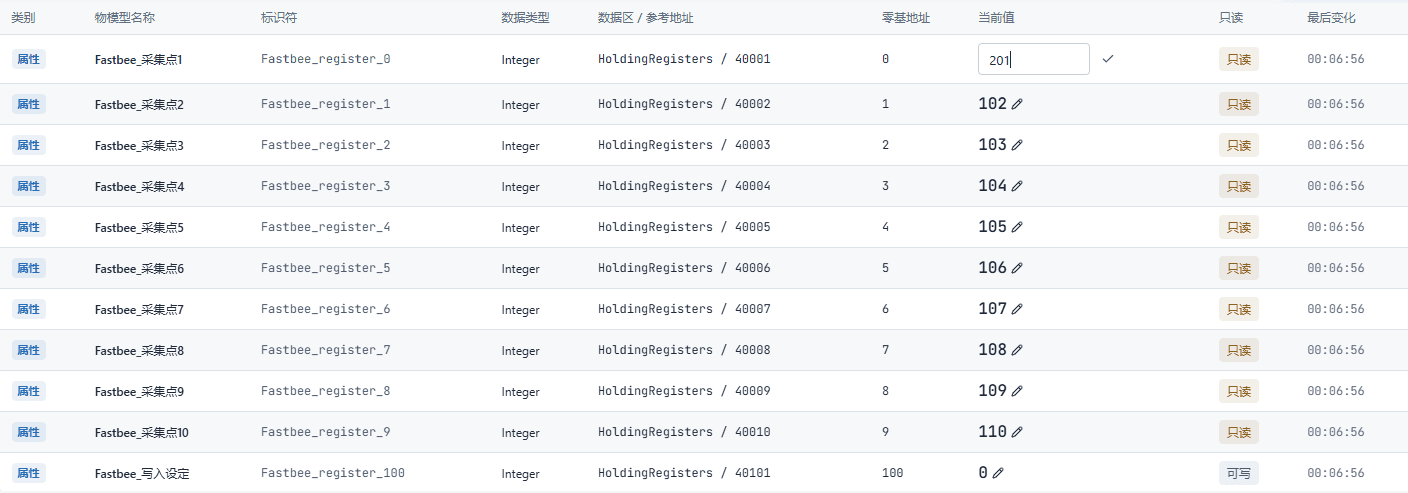
This modifies a register inside the FMQX demo device, which FMQ then reads; it is not changing the live value directly from the platform.
Screenshot Key Points
| Field / Control | Description |
|---|---|
| Current Value Editing | Edit the in-device register value on the address 0 row, click the check mark to save, and wait for FMQ polling. Required · Enter: 201-210 in sequence |
| Start Address / Zero-based Address | Address 0 corresponds to reference number 40001, and address 100 corresponds to 40101; do not enter 40001 directly as a zero-based address. Required · Enter: 0-9; write setpoint 100 |
| Polling Interval | Each point is read about every 5 seconds, in milliseconds. Required · Enter: 5000 |
10. Produce Ten Different Samples in Sequence
Location: FMQX Web*→*Thing Model Parameters Steps: save 202-210 in sequence using the same method; each time wait until the platform has read the previous value before continuing.
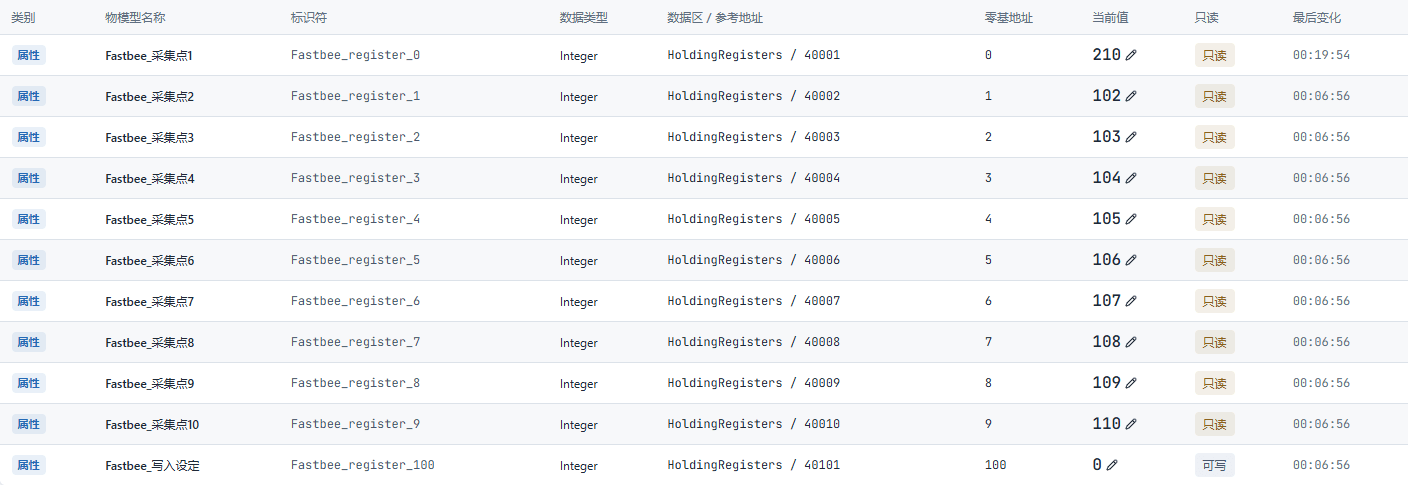
Address 0 ends at 210; the other collection points stay at 102-110. The ten samples come from successive changes at the same address — not from counting ten fields as ten data records.
Screenshot Key Points
| Field / Control | Description |
|---|---|
| Current Value Editing | Edit the in-device register value on the address 0 row, click the check mark to save, and wait for FMQ polling. Required · Enter: 201-210 in sequence |
| Polling Interval | Each point is read about every 5 seconds, in milliseconds. Required · Enter: 5000 |
| Address 0 Sampled Current Value | Verify the actual value of address 0 after each save; it should be 210 after this step. Required · Enter: 202-210, ending at 210 · Example: address 0 ends at 210 |
Change address 0 to 201-210 in sequence, waiting at least one polling cycle after each save and verifying the platform's current value; if you go too fast, an intermediate value may be overwritten by the next one before it is read. Addresses 1-9 stay at 102-110.
It is normal for the same value to be read again by a later poll. A one-time check should use the independent record of each read; do not misjudge different polls of the same value as duplicates. Finally verify the ten values on the history page — do not use the field count in place of the sample count.
5. Configure the Writable Property and Publish
11. Withdraw Publishing to Edit the Write Property
Location: Product Management*→Register Terminal→*Unpublish Steps: confirm that this is this article's standalone product, click Unpublish, and choose OK in the prompt.
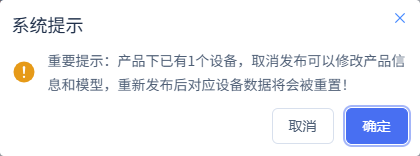
The prompt states that this affects the product's devices and the corresponding cached data after re-publishing; historical stored records are not deleted within this article's scope. Arrange an impact window before operating on a shared product.
Screenshot Key Points
| Field / Control | Description |
|---|---|
| Unpublish | Stops the running configuration of this product, or allows editing the Thing Model; affects all devices of this product. Required · Enter: this article's standalone product |
12. Configure Address 100 as Writable and Verify the Save
Location: Product Management*→Register Terminal→Function Definition→*Write Setpoint Steps: fill in Model Translation as RegisterSetpoint, uncheck Read-only Data, enable history storage, complete the form, and save.
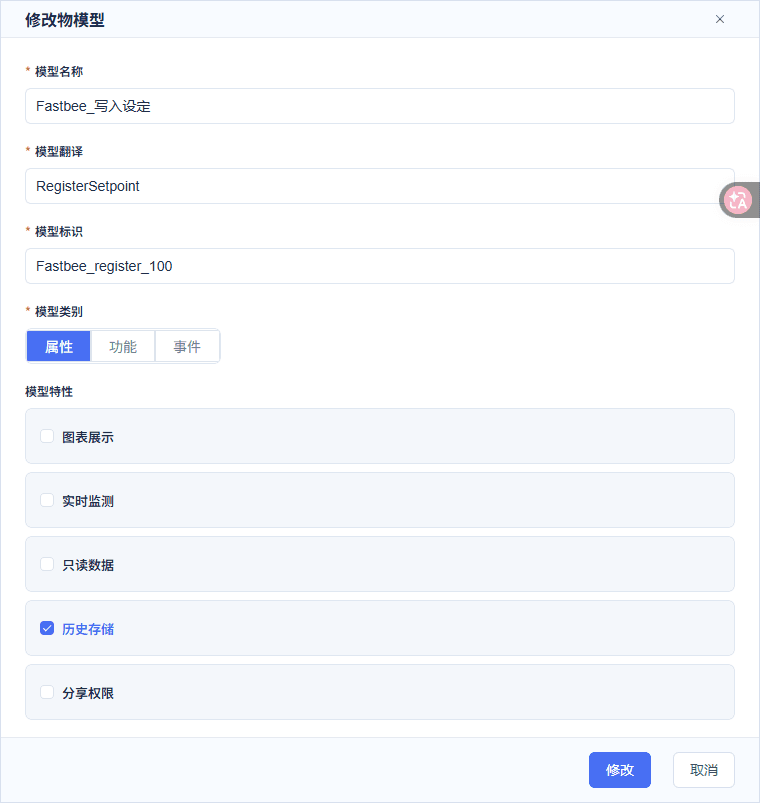
The model translation must be non-empty for submission to proceed; write setpoint has read-only off and history on, with integer range 0-65535, step 1, and empty unit. Reopen after saving to verify.
Screenshot Key Points
| Field / Control | Description |
|---|---|
| Model Translation | A required English name; leaving it empty blocks saving. Required · Enter: RegisterSetpoint |
| Model Identifier | The write setpoint must use the same identifier as the point mapping of address 100. Required · Enter: FastBee_register_100 |
| Model Category | The current register value is a property. Required · Enter: Property |
| Read-only Data | Collection points 0-9 are read-only; write setpoint has read-only unchecked. Required · Enter: write setpoint unchecked |
| History Storage | When enabled, subsequently collected actual values are written to history. Required · Enter: checked |
| Chart Display / Real-time Monitor | Write setpoint has both unchecked in this article, keeping the running-status control entry. Required · Enter: both unchecked |
| Share Permission | This article does not open sharing; use it according to the current tenant's permissions. Required · Enter: unchecked |
| Integer Range and Step | UINT16 setpoint range 0-65535, step 1, unit left empty. Required · Enter: 0-65535; step 1 |
13. Publish the Saved Point Table and Thing Model
Location: Product Management*→Register Terminal→*Publish Product Steps: after verifying the parameters, click Publish Product and choose OK in the confirmation box.
Saving and publishing are two separate actions; this image only shows confirming the publish — continue verifying the access-side effect in the next step.
Screenshot Key Points
| Field / Control | Description |
|---|---|
| Publish Product | Re-publish after saving the configuration; saving alone does not mean it has taken effect. Required · Enter: confirm publish |
14. Confirm the Access Configuration Has Actually Taken Effect
Location: Product Management*→Register Terminal→*Access Config Sync Steps: expand the sync result and confirm that the target node shows APPLIED with an empty failure reason.
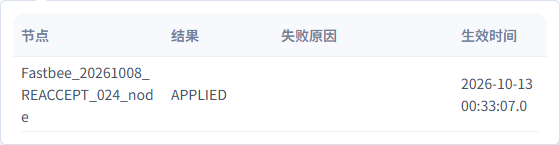
This full publish has been applied on the access node; device reads, downlink, and history verification still need to continue.
Screenshot Key Points
| Field / Control | Description |
|---|---|
| Access Config Sync Result | APPLIED means the target access node has applied this configuration. Required · Enter: APPLIED |
The write setpoint's model translation is RegisterSetpoint, and its identifier corresponds to address 100. Read-only is off and history is on; chart display and real-time monitor are both off in this example — these display options interact with read-only, so reopen and verify after saving. The integer range is 0-65535, step 1, unit left empty.
When the model translation is empty, the frontend blocks saving; seeing the dialog close or having clicked a button cannot replace a successful save. Complete the save, reopen to verify, publish, and confirm APPLIED before sending the write.
6. Pause and Resume Send/Receive
15. Pause This Round of Send/Receive and Keep the Resources
Location: Product Management / FMQX Web*→*Register Terminal Steps: first unpublish and confirm the access side has stopped, then click Disconnect in FMQX and confirm Disconnected.

This image corresponds to the pause phase before recovery; the product, device, point table, and history are retained. Saving with the binding alone turned off did not succeed.
Screenshot Key Points
| Field / Control | Description |
|---|---|
| Retention and Re-acceptance | End with unpublishing and disconnecting FMQX; keep the product, device, point table, session, and history. Required · Enter: finally unpublished; slave disconnected |
| Unpublish | Stops the running configuration of this product, or allows editing the Thing Model; affects all devices of this product. Required · Enter: this article's standalone product |
| Connect / Disconnect | FMQX plays the slave device in this scenario; the Connect button starts listening and FMQ actively connects. Required · Enter: 127.0.0.1:15020; Unit ID 1 |
16. Resume Product Publishing
Location: Product Management*→Register Terminal→*Publish Product Steps: click Publish Product again and confirm; continue after the sync result shows APPLIED.
Resuming publishing re-enables the running configuration of this standalone device; do not consider recovery successful just from seeing the confirmation box.
Screenshot Key Points
| Field / Control | Description |
|---|---|
| Access Config Sync Result | APPLIED means the target access node has applied this configuration. Required · Enter: APPLIED |
| Publish Product | Re-publish after saving the configuration; saving alone does not mean it has taken effect. Required · Enter: confirm publish |
17. Resume FMQX Slave Listening
Location: FMQX Web*→Direct-connection Tutorial→*Register Terminal Steps: select the retained session, click Connect, confirm Connected, and wait for FC03 to read again.

Resume with the same station number, IP, and port; the connection direction remains FMQ actively connecting to the FMQX slave.
Screenshot Key Points
| Field / Control | Description |
|---|---|
| Retention and Re-acceptance | End with unpublishing and disconnecting FMQX; keep the product, device, point table, session, and history. Required · Enter: finally unpublished; slave disconnected |
| Connect / Disconnect | FMQX plays the slave device in this scenario; the Connect button starts listening and FMQ actively connects. Required · Enter: 127.0.0.1:15020; Unit ID 1 |
The pause in this article is done by unpublishing the standalone product and disconnecting FMQX, then re-publishing to APPLIED and resuming listening. Two demo slaves cannot be started on the same port. Keep the address and station number consistent; after recovery, continue reading before sending new commands.
In the current version, turning off this device's binding alone and saving is rejected; it must not be written up as a successful pause operation. Unpublishing affects all devices of the product, which is why this example uses a standalone product.
7. Write 43 and Confirm Independent Read-back
The figures in this section are from the original full write-43-and-independent-read-back operation. The most recent run followed the same path with a write of 45, also verified by a real FC06 request, the device echo, a subsequent independent FC03, and actual history; the two runs used different time windows.
18. Formally Write 43 via Running Status
Location: Device Management*→Register Terminal→Running Status→*Device Control Steps: focus the write setpoint slider, fine-tune with the arrow keys to tooltip value 43, verify immediately, and click the paper plane.

In the image the platform's current value is still 42 while the slider's pending value is 43; rely on the tooltip before sending. Periodic polling may overwrite the pending value — do not guess the value from the slider's approximate position.
Screenshot Key Points
| Field / Control | Description |
|---|---|
| Write Setpoint Slider | Focus the slider first and fine-tune with the arrow keys; before sending, verify the tooltip shows 43, then click the paper plane to send. Required · Enter: 43 |
| Integer Range and Step | UINT16 setpoint range 0-65535, step 1, unit left empty. Required · Enter: 0-65535; step 1 |
19. Confirm the Demo Device Actually Accepted the Write
Location: FMQX Web*→Thing Model Parameters→*Address 100 Steps: find zero-based address 100 and confirm current value 43 and a new last-change time.

The FMQX demo slave's address 100 changed to 43 at 00:56:22 via an FC06 single-register write; this step verifies the real device-side state.
Screenshot Key Points
| Field / Control | Description |
|---|---|
| Device Register Current Value | After the downlink, check the actual value of address 100 and its last-change time. Required · Enter: 43 |
| Start Address / Zero-based Address | Address 0 corresponds to reference number 40001, and address 100 corresponds to 40101; do not enter 40001 directly as a zero-based address. Required · Enter: 0-9; write setpoint 100 |
| Unit ID | The bound station number must match the slave. Required · Enter: 1 |
20. Wait for an Independent FC03 Read-back to the Platform
Location: Device Management*→Register Terminal→*Running Status Steps: wait for a subsequent poll, refresh the details, and confirm the current value is 43.

The current 43 comes from a subsequent FC03 read, not merely from the dispatch prompt; the actual first read-back occurred at 00:56:25.
Screenshot Key Points
| Field / Control | Description |
|---|---|
| Platform Current Value | The current value comes from a subsequent independent FC03 read; it cannot be replaced by the slider's pending value or a dispatched prompt. Required · Enter: 43 |
| Polling Interval | Each point is read about every 5 seconds, in milliseconds. Required · Enter: 5000 |
The formal control mainline of this example is writing 43: before sending, the platform's current value was 42 and the slider tooltip was 43; the FMQX address 100 then changed to 43; the access service's next FC03 round read back 43, and the platform's current value updated accordingly.
Do not conclude the device executed just from seeing "dispatched". Verify in order: the device's actual register, the subsequent independent read-back, the platform's current value, and the history. When the slider range is wide, focus it first and fine-tune with the arrow keys, and check the tooltip value again before sending; polling refreshes may overwrite a slider value that has not been sent yet.
8. Query History and Refresh to Confirm
21. Select the Device Field and History Time Range
Location: Data Center*→*Historical Data Steps: select this article's device and Write Setpoint, set a time range covering before and after the command, and click Query.

To view the write-42 transition, select 00:43:45-00:44:15; for the formal write of 43, select 00:56:15-00:56:40.
Screenshot Key Points
| Field / Control | Description |
|---|---|
| History Device and Field | Select this article's device and Write Setpoint, avoiding other devices with the same name. Required · Enter: this article's device / Write Setpoint |
| History Time Range | Choose according to device input and command times; this article's records occurred on 2026-10-13. Required · Enter: 00:43:45-00:44:15; 00:56:15-00:56:40 |
| Query / Refresh | After refreshing, reselect the same device, field, and time range, then query again. Required · Enter: 43 still visible after querying |
22. Refresh and Re-query the Actual History After Writing 43
Location: Data Center*→*Historical Data Steps: after refreshing, reselect the same device, field, and 43 time window, click Query, and verify 42->43.

It is still 42 at 00:56:20 and becomes 43 from 00:56:25; the records persist after a refresh and re-query. The earlier write of 42 also has an independent read-back and history; the formal control main example uses the 43 in this section.
Screenshot Key Points
| Field / Control | Description |
|---|---|
| History Time Range | Choose according to device input and command times; this article's records occurred on 2026-10-13. Required · Enter: 00:43:45-00:44:15; 00:56:15-00:56:40 |
| Platform Current Value | The current value comes from a subsequent independent FC03 read; it cannot be replaced by the slider's pending value or a dispatched prompt. Required · Enter: 43 |
| Query / Refresh | After refreshing, reselect the same device, field, and time range, then query again. Required · Enter: 43 still visible after querying |
The history selects this article's device and Write Setpoint: still 42 at 00:56:20, and 43 starting from 00:56:25. After refreshing the page, reselect the same field and time range and query once more; the records should still exist.
The independent read-back of the earlier write of 42 is at 00:44:00; querying 00:43:45-00:44:15 shows the transition from 30 to 42. That segment is a historical transition — the write preparation operations follow this article's 43 procedure. To view the ten samples, switch to Collection Point 1 and select 00:17-00:21.
Re-acceptance adds more history; verify against the new start and end times. Actual storage keeps one record per read, and the page displays per second; the number of UI rows cannot replace a message-by-message check.
9. Finish and Re-accept
23. End Send/Receive and Keep the Device and History
Location: Product Management / FMQX Web*→Register Terminal→*Statistics Steps: first withdraw the product publish to stop polling, then stop FMQX slave listening and confirm Disconnected.

End send/receive and keep the device and history
Screenshot Key Points
| Field / Control | Description |
|---|---|
| Retention and Re-acceptance | End with unpublishing and disconnecting FMQX; keep the product, device, point table, session, and history. Required · Enter: finally unpublished; slave disconnected |
| Unpublish | Stops the running configuration of this product, or allows editing the Thing Model; affects all devices of this product. Required · Enter: this article's standalone product |
| Connect / Disconnect | FMQX plays the slave device in this scenario; the Connect button starts listening and FMQ actively connects. Required · Enter: 127.0.0.1:15020; Unit ID 1 |
When finished, unpublish this article's standalone product, wait for the access configuration to stop taking effect, then disconnect the FMQX slave. Keep the product, device, Thing Model, point table, group session, and all history; do not delete or clear data.
At the end of this article the product is unpublished and FMQX is disconnected. For re-acceptance, first resume publishing and confirm APPLIED, then connect the saved slave session, and write a new value only after confirming FC03 is reading again. Do not assume the connection is still running just because the page still shows 43.
Record a new start time, produce at least ten different values at address 0 in sequence, send a new target within the allowed range, verify the device register, the independent read-back, the live value, and the history, refresh and re-query, and do one more pause-and-resume. Finish by unpublishing and disconnecting again, keeping the resources for re-verification.
Field and Parameter Reference
Device Access Wizard
| Field / Control | How to Fill |
|---|---|
| Access Source | For a new model, choose New Product; an existing product of the same model can be reused — do not create duplicates. Required · Enter: 新建产品 (New Product)Existing Product: reuse the same-model configuration to add a device; reuse the same-model configuration to add a device. New Product: create this article's standalone model; create this article's standalone model. Copy Product: copy from a similar product and adjust; copy from a similar product and adjust. Use Template: start from an existing template; start from an existing template. |
| Product Name | A name for this type of register device. Required · Enter: FastBee_寄存器终端 |
| Protocol | This article selects native Modbus TCP direct connection. Required · Enter: Modbus TCPModbus TCP: the runtime service actively connects to the device and polls according to the point table; the runtime service actively connects to the device and polls according to the point table. |
| Transport | This scenario uses a TCP connection, determined by the protocol. Required · Enter: TCP |
| Device Identifier | The platform device number; select this device when binding — the number is not additionally written into Modbus messages. Required · Enter: FastBee_ModbusTCP_Tutorial_01 |
| Device Name | The business name that identifies the current terminal in lists. Required · Enter: FastBee_寄存器终端 |
| Device IP Address | The address of the device that FMQ actively connects to. In this example the device and FMQ are on the same machine. Required · Enter: 127.0.0.1 |
| Port | The listening port on the device side, consistent with the FMQX configuration. Required · Enter: 15020 |
| Slave Address | The station number within the same device connection, also called Unit ID. Required · Enter: 1 |
| Collection Fields | Import the UTF-8 point table below, and check the 11 fields and zero-based addresses. Required · Enter: addresses 0-9 and 100, 11 in total |
Modbus Protocol Settings
| Field / Control | How to Fill |
|---|---|
| Bound Device | Select this article's device, so the point table does not land on another terminal with the same name. Required · Enter: FastBee_寄存器终端Publishing is required after changes.This article's register terminal: use this device whose device identifier matches; use this device whose device identifier matches. |
| Unit ID | The bound station number must match the slave. Required · Enter: 1Publishing is required after changes. |
| Enabled | The binding, polling ranges, and point mapping of this article stay enabled. Required · Enter: OnPublishing is required after changes.On: participates in this device's running configuration; participates in this device's running configuration. Off: in this article, saving with the binding turned off alone was rejected; use unpublishing for the stop process; in this article, saving with the binding turned off alone was rejected; use unpublishing for the stop process. |
| Register Area | This article uses holding registers throughout. Required · Enter: HOLDING_REGISTERPublishing is required after changes.HOLDING_REGISTER: holds 16-bit registers, read with FC03; holds 16-bit registers, read with FC03. |
| Read Function Code | FC03 means reading holding registers. Required · Enter: 3 (FC03)Publishing is required after changes. |
| Start Address / Zero-based Address | Address 0 corresponds to reference number 40001, and address 100 corresponds to 40101; do not enter 40001 directly as a zero-based address. Required · Enter: 0-9; write setpoint 100Publishing is required after changes. |
| Quantity | Each UINT16 occupies one 16-bit register. Required · Enter: 1Publishing is required after changes. |
| Polling Interval | Each point is read about every 5 seconds, in milliseconds. Required · Enter: 5000Publishing is required after changes. |
| Timeout | This article waits at most 3000 ms for a device response. Required · Enter: 3000Publishing is required after changes. |
| Max Retries | This article is configured with 0 and does not automatically add retry rounds. Required · Enter: 0Publishing is required after changes. |
| Priority | All read ranges in this article use the same priority. Required · Enter: 0Publishing is required after changes. |
| Register Data Type | UINT16 is an unsigned 16-bit integer, 0-65535. Required · Enter: UINT16Publishing is required after changes.UINT16: a non-negative integer occupying one register; a non-negative integer occupying one register. |
| Byte Order | Enter BE on the platform; BigEndian in the FMQX import configuration expresses the same direction. Required · Enter: BEPublishing is required after changes.BE: high byte first; high byte first. LE: low byte first — choose only when the manufacturer's point table explicitly requires it; low byte first — choose only when the manufacturer's point table explicitly requires it. |
| Word Order | UINT16 in this article occupies only one word; keep BE, consistent with the point table. Required · Enter: BEPublishing is required after changes.BE: high word first; this article keeps this for single registers; high word first; this article keeps this for single registers. LE: low word first — for multi-register values, choose according to the manufacturer's documentation; low word first — for multi-register values, choose according to the manufacturer's documentation. |
| Scale | Displayed value = raw register value x scale + offset; this article does not scale. Required · Enter: 1Publishing is required after changes. |
| Offset | This article adds no fixed offset. Required · Enter: 0Publishing is required after changes. |
| Enum Mapping | This article uses plain integers and does not configure enum mapping. Optional · Enter: leave emptyPublishing is required after changes. |
Product Function Definition
| Field / Control | How to Fill |
|---|---|
| Model Translation | A required English name; leaving it empty blocks saving. Required · Enter: RegisterSetpointPublishing is required after changes. |
| Model Identifier | The write setpoint must use the same identifier as the point mapping of address 100. Required · Enter: FastBee_register_100Publishing is required after changes. |
| Model Category | The current register value is a property. Required · Enter: PropertyPublishing is required after changes.Property: stores the device's current reading or a writable setpoint; stores the device's current reading or a writable setpoint. Function: a standalone function invocation, not used in this article; a standalone function invocation, not used in this article. Event: a device-initiated event, not used in this article; a device-initiated event, not used in this article. |
| Read-only Data | Collection points 0-9 are read-only; write setpoint has read-only unchecked. Required · Enter: write setpoint uncheckedPublishing is required after changes.Checked: display only, no write control in this article; display only, no write control in this article. Unchecked: allows sending write commands according to permissions; allows sending write commands according to permissions. |
| History Storage | When enabled, subsequently collected actual values are written to history. Required · Enter: checkedPublishing is required after changes.Checked: saves subsequent collection history; saves subsequent collection history. Unchecked: subsequent history cannot be verified as in this article; subsequent history cannot be verified as in this article. |
| Chart Display / Real-time Monitor | Write setpoint has both unchecked in this article, keeping the running-status control entry. Required · Enter: both uncheckedPublishing is required after changes.Checked: the display mode interacts with the read-only setting, so read-only needs re-checking; the display mode interacts with the read-only setting, so read-only needs re-checking. Unchecked: the display mode used by the write setpoint in this article; the display mode used by the write setpoint in this article. |
| Share Permission | This article does not open sharing; use it according to the current tenant's permissions. Required · Enter: uncheckedPublishing is required after changes.Checked: whether to open sharing is decided by the tenant's business; whether to open sharing is decided by the tenant's business. Unchecked: keeps this article's current permission scope; keeps this article's current permission scope. |
| Integer Range and Step | UINT16 setpoint range 0-65535, step 1, unit left empty. Required · Enter: 0-65535; step 1Publishing is required after changes. |
Publish and Take Effect
| Field / Control | How to Fill |
|---|---|
| Unpublish | Stops the running configuration of this product, or allows editing the Thing Model; affects all devices of this product. |
| Publish Product | Re-publish after saving the configuration; saving alone does not mean it has taken effect. |
| Access Config Sync Result | APPLIED means the target access node has applied this configuration. Required · Enter: APPLIED |
FMQX Web Slave
| Field / Control | How to Fill |
|---|---|
| Import Configuration | Import the UTF-8 JSON below into FMQX Web and save it to the direct-connection tutorial group. Reconnecting is required after changes. |
| Connect / Disconnect | FMQX plays the slave device in this scenario; the Connect button starts listening and FMQ actively connects. Reconnecting is required after changes. |
| Current Value Editing | Edit the in-device register value on the address 0 row, click the check mark to save, and wait for FMQ polling. Required · Enter: 201-210 in sequenceReconnecting is required after changes. |
| Device Register Current Value | After the downlink, check the actual value of address 100 and its last-change time. Required · Enter: 43Reconnecting is required after changes. |
| Address 0 Sampled Current Value | Verify the actual value of address 0 after each save; it should be 210 after this step. Required · Enter: 202-210, ending at 210Reconnecting is required after changes. |
Device Running Status
| Field / Control | How to Fill |
|---|---|
| Write Setpoint Slider | Focus the slider first and fine-tune with the arrow keys; before sending, verify the tooltip shows 43, then click the paper plane to send. Required · Enter: 43 |
| Platform Current Value | The current value comes from a subsequent independent FC03 read; it cannot be replaced by the slider's pending value or a dispatched prompt. Required · Enter: 43 |
Platform Historical Data
| Field / Control | How to Fill |
|---|---|
| History Device and Field | Select this article's device and Write Setpoint, avoiding other devices with the same name. Required · Enter: this article's device / Write Setpoint |
| History Time Range | Choose according to device input and command times; this article's records occurred on 2026-10-13. Required · Enter: 00:43:45-00:44:15; 00:56:15-00:56:40 |
| Query / Refresh | After refreshing, reselect the same device, field, and time range, then query again. |
Pause, Resume, and Retention
| Field / Control | How to Fill |
|---|---|
| Retention and Re-acceptance | End with unpublishing and disconnecting FMQX; keep the product, device, point table, session, and history. Required · Enter: finally unpublished; slave disconnected |
Where to Check First When Problems Occur
| Symptom | Possible Cause | Where to Check First | How to Recover |
|---|---|---|---|
| Device cannot connect or FC03 always times out | Connection direction, device IP/port, listening, or station number mismatch. | The device listens as the slave and FMQ actively connects; check 15020, station number 1, and the applicable scope of the local address. | Fix, save, and publish; after confirming APPLIED and slave listening, read one point first. |
| Values shifted by one or reading the wrong register | Treating reference number 40001 as a zero-based address, or binding the wrong device. | Reference number 40001 -> 0, 40101 -> 100; verify the device identifier and Unit ID. | Stop writing, correct the addresses per the manufacturer's point table, and re-publish. |
| Abnormal values, wrong scale or unit | Type, byte order, word order, scale, or offset inconsistent with the device point table. | This example uses UINT16, BE/BE, scale 1, offset 0, no unit; the platform byte-order saved value uses BE. | Correct per the official point table; read a known value first before enabling writes. |
| Changed read-only or range but it was not saved | A required field such as model translation is empty, or it was not published after saving. | Write setpoint translation non-empty, read-only off, history on; reopen the form to verify the saved values. | Fill in fields such as RegisterSetpoint, save, publish, and confirm APPLIED. |
| Meant to send 43 from the slider but an old value was sent | Dragging across a wide range is imprecise, or polling overwrote the pending value. | Distinguish the platform current value from the slider tooltip; verify 43 again before sending. | Focus the slider and fine-tune with the arrow keys; send immediately after confirming, and do not click the paper plane repeatedly. |
| Dispatched or echo correct, but unsure whether the device executed | A dispatch prompt and an FC06 echo are insufficient to prove the device's final state. | Look at the actual value of FMQX address 100, then wait for an independent FC03 read-back, and verify the live value and history. | If no read-back, stop repeated sending, keep the timing and current state, and check the device's responses. |
| Command generator or old raw-send prompts about migration | Both old debug entries are currently unavailable and return "not supported". | This article uses the formal service slider control in device running status, without relying on the old generator or raw send. | Return to the running-status control area, send per the 43 procedure, and read back independently. |
| Saving failed after turning off the only device binding | In this article, that save path was rejected by configuration validation. | Do not treat turning off the binding as having taken effect; check the actual access sync result. | For this standalone product, unpublish and disconnect the slave; to recover, re-publish and reconnect. |
| Only a few of the ten values are visible | Values were changed faster than the 5-second poll, so later values overwrote earlier ones before they were read. | After saving each value, wait for the platform to read it before changing to the next; select Collection Point 1 in history. | Re-test one by one with new distinguishable values, keeping the original history. |
| Live value shows 43 but history or post-refresh query finds nothing | Wrong history switch, device, field, date, or query window. | Write setpoint history is on, date 2026-10-13, time covering 00:56:25 and after. | Fix the conditions and query again; newly enabled history only guarantees subsequent collection and does not backfill old records. |
| Old values still visible after finishing, seemingly polling has not stopped | The platform keeps the last current value and history; displaying an old value does not mean send/receive is running. | Check the unpublish sync result, the FMQX disconnected state, and whether the update time keeps changing. | If recovery is truly needed, re-publish to APPLIED before reconnecting; do not delete history to clean up the page. |