


Resource Center
The Resource Center manages assets and components used in 2D SCADA and 3D scenes. Find the right asset type, reference it in a project, and preview the result. Uploading an asset does not automatically add it to a project.
1. Before You Start
| Item | Details |
|---|---|
| Entry point | Visualization → SCADA Management → Resource Center |
| Permissions | View resources. Uploading, maintenance, and deletion require the corresponding permissions. |
| What to check | What the resource is for, its category, and which projects reference it |
2. Choose a Resource Type
| Tab | What it contains | Maintenance entry |
|---|---|---|
| Image Assets | Backgrounds, icons, and device images | Upload Image |
| Chart Components | Charts that can be reused in SCADA | New Chart |
| Business Components | Reusable business display components | New Component |
| 3D Models | Models that 3D scenes can reference | Upload Model |
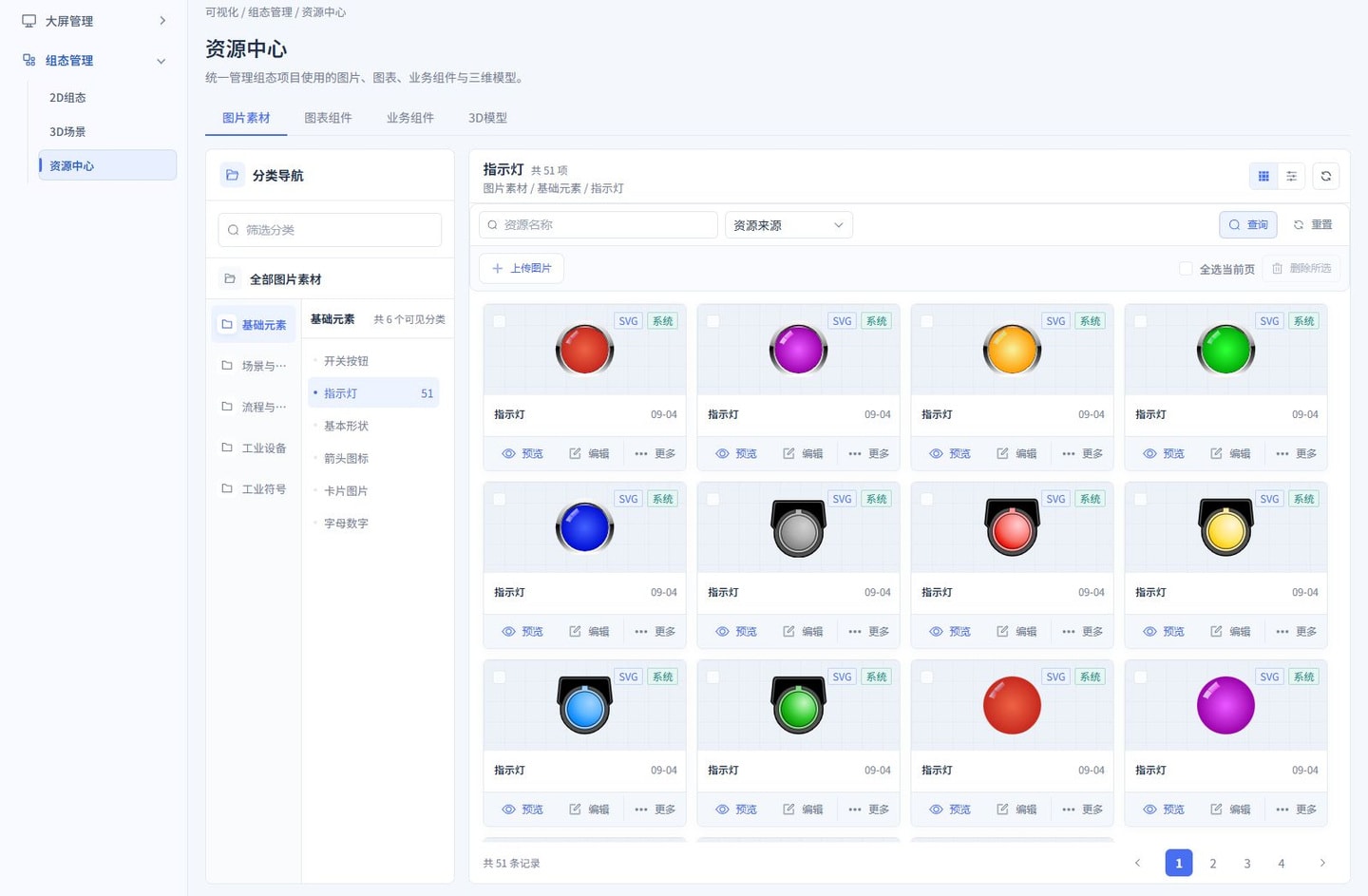
Find an asset using the screenshot: Open Image Assets and select Basic Elements → Indicator Lights in the category navigation. Check the category path, result count, and pagination on the right. If an asset is not visible, clear Resource Name and Resource Source filters before checking other pages. Preview the asset to verify its shape and color before using it so stopped and running indicators are not confused.
3. Find, Reference, and Check a Resource
- Open the relevant tab. In Image Assets, filter categories on the left and search by Resource Name or Resource Source on the right. Switch between card and list views as needed.
- Reference the resource from your own SCADA project. For 2D images, use the Image Library, and for charts, use the relevant component category. For 3D models, use the scene editor's resource panel or Add Model.
- Preview the target project and check that the resource appears. If you cannot find a new asset, refresh and check the category, source, and account access. If labels appear but the model does not, check the model's loading status.
Before Replacing or Deleting
Check which projects still reference the resource. Verify a replacement in a test project first to avoid affecting existing SCADA views.
4. Using Each Resource Type
4.1. Image Assets
The Image Library uploads and manages images for use in the editor. Common assets include buttons, indicator lights, industrial equipment, pipes, electrical symbols, buildings, and backgrounds. Find an asset by category before placing it in a project. After replacing an image, check its dimensions, transparent background, and state meaning so an image that previously meant stopped is not mistakenly used to indicate running.
4.2. Chart Components
Chart components reuse existing chart definitions. Choose a line chart, bar chart, pie chart, or gauge as the business requires, then configure data requests and field mappings in SCADA. A single chart definition can serve multiple views, but each project's API URLs, devices, and parameters still need separate confirmation.
For custom charts, distinguish style definitions from runtime data. Verify the format with a known sample before connecting actual data. Do not adopt code variable names or filter function signatures from earlier documentation as the development conventions for current components.
4.3. Business Components
Business components reuse components with business display or interaction logic. Before referencing one, check its parameters, data sources, and resource dependencies. A component appearing on screen does not mean its APIs, control permissions, and device relationships are fully configured. Custom development should follow the current V3 component implementation rather than copy older Vue or Element UI example code.
4.4. 3D Models
Model resources display external three-dimensional objects in views or scenes. The Resource Center provides model categories and an upload entry. Check the current upload page and processing results for supported file formats, conversion status, and companion file requirements. For models with external textures, also confirm that the texture resources are accessible. Even after a successful upload, preview the model in the target editor.
A model component on a 2D canvas is a display component within a flat canvas. A 3D scene also includes scene units, node transforms, an initial camera, labels, device panels, and events. These are different editing modes; do not apply a model component's configuration directly to an entire 3D scene.
5. Maintenance and Troubleshooting
| Symptom or action | What to check |
|---|---|
| Project is unchanged after an upload | Whether the new resource has been referenced in the target project, saved, and previewed again. |
| Image or model fails to load | Whether the file exists, its path and permissions are correct, companion textures are complete, and cross-origin settings and static resource services work properly. |
| Loading takes too long | File size, texture dimensions, the number of resources on the page, and target device performance. |
| Replace a shared resource | Verify it in a test project first, then check layout, parameter, and data compatibility in other projects that reference it. |
| Delete a resource | Confirm references and an alternative first so delivered projects do not lose images or models. |
Continue with 2D Project and Resource Management or 3D Scenes and Digital Twins.