
Events, Animation, and Control
Events determine what a user's action triggers. Animations communicate a view or device state. Enable device control only when you have permission and a writable variable or callable operation for the actual device.
1. Before You Start
| Item | Details |
|---|---|
| Entry point | 2D SCADA → Edit → Select a Component → Data |
| Permissions | Inspect component settings. Real commands also require device control permission. |
| What to check | Whether the goal is a view interaction, a status display, or a device command |
2. Inspect Events and Animations
- Expand Events under Data. The text component in Cold Chain Warehouse shows Click and Edit Click Event. Editing is unavailable while Click is disabled. When configuring your own view, choose an action and target supported by the component.
- Expand Animation (One Active) to see visibility, rotation, blinking, sliding, and brightness. Start with one animation that conveys the state, then check normal, abnormal, and no-data cases.
- First test preview interactions that do not write to devices, such as selecting an object and checking whether its details appear. Changes in text, color, or animation verify only the presentation layer.
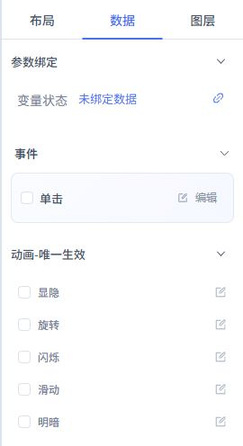
Follow the screenshot: Events and Animation (One Active) are separate configuration sections. Click is unchecked for the example text, so the adjacent Edit control is disabled. In your own project, start with one observable state, such as rotation for a running fan, and check running, stopped, and no-report conditions separately rather than relying on a single playback.
3. Configure Events and Status Animations
Events respond to user actions, while animations express state. Common interaction targets include opening a business page, displaying details, and operating writable variables. Before choosing an action, determine whether its target is the interface or a device. Use the action settings actually provided by the selected component.
- Select the component, enable Click under Data → Events, and open the event editor.
- Choose an action supported by the component and verify the target page, object, or variable. Use stable business URLs for navigation, not temporary test links as delivery entry points.
- Test actions that do not send commands first, then verify control on an authorized device. Avoid combining unclear device operations into the same click action.
For animations, select the variable and condition first, then check the visual effect. Common uses include:
| Animation | Suitable for | What to check |
|---|---|---|
| Visibility | Hiding or showing devices and messages based on a condition | In the current runtime implementation, the component is hidden when the condition is true. Use known variable values to verify both visible and hidden results. |
| Rotation | A running fan or motor | The trigger condition and rotation speed, and whether the stopped state is correct |
| Blinking | Abnormal states or alerts | Enable it only for states that need attention; avoid continuous blinking across the entire view. |
| Sliding | Conveying or movement processes | Start and end positions, cycle duration, and movement range |
| Brightness | Running versus stopped, or active versus inactive states | Keep the meaning of brightness consistent with text labels; do not rely on color alone. |
The interface section is named Animation (One Active), but the name alone does not establish that all animations are mutually exclusive. Animations may currently share variables and conditions, and multiple effects may run in combination. Verify the complete configuration rather than assuming that each effect has an independent set of trigger conditions. If the component provides state images or conditional fills, also check the condition values and image and color mappings, particularly the distinction between Boolean values, enums, and device online or offline status.
Display filtering scripts should be limited to format conversion and visual processing. Click event scripts, however, may enter the device control path, so do not treat all scripts as read-only display logic. Before configuring a script, verify its inputs, return values, target variables, and command-sending behavior. Authorize and verify control scripts through the device control workflow. Prefer the Rule Engine or backend services for critical business rules. Handle null, offline, and abnormal values defensively, and do not put passwords or long-lived credentials in scripts.
4. Verify Device Control
Operation Boundary
Use only an explicitly authorized test device. Check the target, writable property or service, parameters, and device safety state. Do not send trial commands from a production view or a display link, or to a device with unknown linkage.
Verify in order: initiate the action, check the platform's command result, then confirm the device acknowledgment or new report. Acceptance by the platform, successful device execution, and view refresh are distinct results. Do not conclude the device acted as expected until all are checked. In the Cold Chain Warehouse preview, keep controls inactive when no operation variable is bound.
Before going live, check at least three cases: the device is online, the device is offline, and the device returns a failure. Hazardous operations should have clear wording and a confirmation mechanism. Display users must not automatically gain control permissions just because they can open the page.
5. FAQ
| Symptom | Troubleshooting direction |
|---|---|
| Clicking has no effect | Check whether another element covers the component, whether the event is enabled, and whether the target exists. Editing locks prevent accidental position changes; they do not mean that runtime clicks are disabled. |
| The command succeeds, but the state does not change | Check whether the device executed the command and reported back, and whether the bound property reads the new report. |
| The animation never stops or never plays | Check whether the variable, condition, and condition value match, and whether a static sample value is still in use. |
| Incorrect visibility | Check the default state, group hierarchy, and whether multiple interaction actions override one another. |