

OPC UA Node Device Access
This article is compiled from an existing operation manual into an online operation reference. Operations marked as expected or not executed in the original text must still be verified against the actual environment.
Complete node configuration, ten temperature subscriptions, two setpoint Writes with independent Reads, method diagnostics, stop and recovery, and history verification.
Before you start: you have permissions for products, devices, models, OPC UA configuration, publishing, control, and history queries; FMQ can reach the device server; for the local demo, start the FMQX Web OPC UA device server first; the real Endpoint, namespace, node table, types, and security identity parameters have been provided by the device manufacturer or administrator.
Access Goal and Connection Direction
FastBee configures the product, device, and node mappings; FMQ acts as the OPC UA client, connecting to the device server, subscribing to temperature changes, and writing setpoints. FMQX Web provides the device server in the local demo.
The device server's full Endpoint is opc.tcp://127.0.0.1:14892/FastBee/. 127.0.0.1 only applies when FMQ and the device demo service are on the same machine; on site, use the reachable address and full path provided by the device manufacturer.
The local example uses None and Anonymous. The real security policy, certificate trust, and identity method are provided by the device administrator; the parameters on both ends must match.
NodeId is the device node address, ns=2 is this server's namespace index, and s= indicates a string identifier. Both temperature and setpoint are Double; temperature is read-only and the setpoint is writable, and both have history enabled.
First make ten temperature changes 31-40, then write 5 and 6 respectively; send a separate Read to verify each time. Method diagnostics change 6 to 73.5. After a manual stop and recovery, update the temperature to 41 and write 7, then verify the independent read and history again.
The platform's "sent" only means the request was submitted. The device page's "read device current status" refreshes the local state; an independent Read must be initiated separately from the platform diagnostics page.
Platform configuration, client, and device server
Functional relationship diagram; actual operations follow the step-by-step screenshots.
The first-time configuration example uses temperature, setpoint, and demo-device as template names. When reusing an existing server, the NodeId must take the full real value from the device's official node table; do not rename the retained server nodes after the template names. The Endpoint address, port, path, security scheme, and types on both ends should match, and periods and capacities are verified against actual capabilities.
Replace These Parameters Before Copying the Templates
The code in this article uses generic template names; the screenshots keep the actual historical resources. Complete the following checks before saving anything as a UTF-8 file or sending any message.
- The host, port, and listening direction in the connection file must be changed to the actual addresses of the current environment; 127.0.0.1 means the local machine running FMQX. When MQTT is involved, also verify the product number, username, subscription topics, and responseRoute; enter passwords only on the connection page, never in the file.
- Group, session, and subscription ids are internal references of the import file; if you rename anything, the groupId must match the corresponding group id. Verify before importing, and do not create duplicate connections with the same name on retained sessions.
- The code blocks are customer templates rewritten from existing password-free assets or original code; this version of the template has not been proven to import successfully. Historical screenshots, send times, and business pass scope still follow the records of each step; do not treat template names as the actual resource names in the old evidence.
1. Create the Product, Device, and Properties
At initial creation, a JSON sample is used to generate the two properties; after filing, switch to OPC_UA_TCP and the OPC UA built-in protocol. The JSON/MQTT shown during initial creation does not represent the final protocol.
1. Choose to create a new node product
Location: IoT*→*Device Access Steps: choose New Product, fill in the Product Name, and enter the collection point configuration.
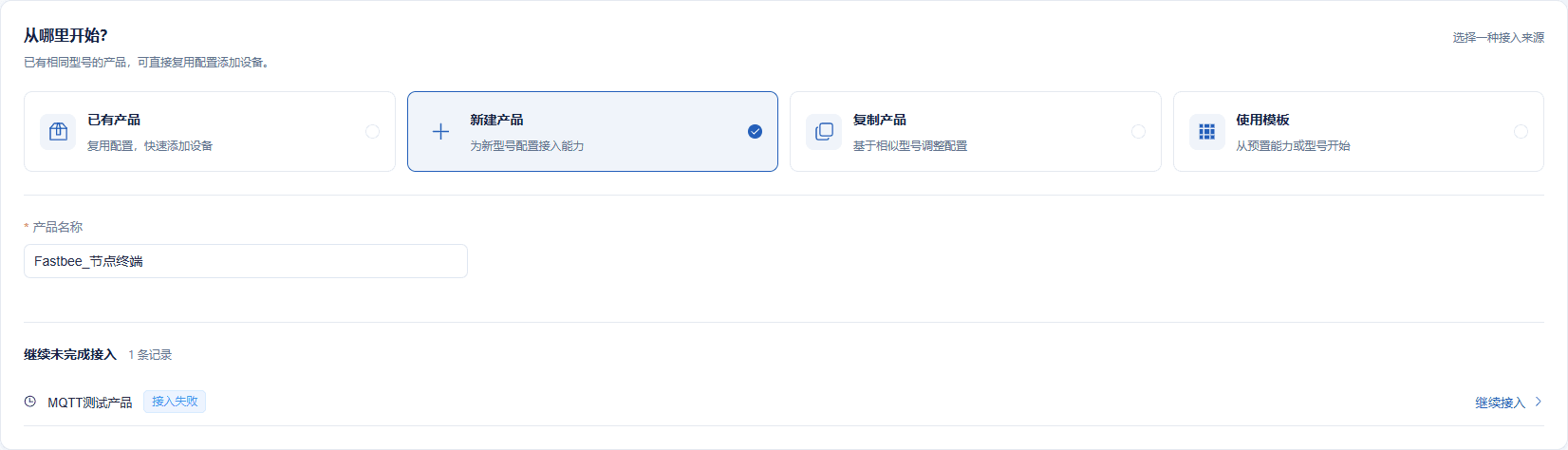
This article creates the node terminal product separately; an existing product can be reused after verifying its model.
Screenshot Key Points
| Field / Control | Description |
|---|---|
| Access Source | Create a new product for this article's node device on first use; an existing product of the same model can be reused. Required · Enter: 新建产品 (New Product) |
| Product Name | Used to find this product on the platform. Required · Enter: 节点终端 (Node Terminal) |
Modeling JSON template for two decimal properties json
{"temperature":20.1,"setpoint":30.1}This sample only generates the model properties; the NodeIds of existing devices must still come from the real node table. Replaceable customer template names are used here; check them against the replacement list in this section before importing or sending.
2. Generate two properties from the sample
Location: Device Access*→*Collection Point Configuration Steps: paste the two-decimal-field sample and click Parse and Preview.

The JSON sample only generates the two properties, temperature and setpoint; verify the fields in the next step.
Screenshot Key Points
| Field / Control | Description |
|---|---|
| JSON Modeling Sample | Generates only two decimal properties; it cannot replace the OPC UA node addresses or the runtime protocol. Required · Enter: {"temperature":20.1,"setpoint":30.1} |
| Parse and Preview | After generating the fields, check the count, identifiers, and data types. Required · Enter: two fields |
3. Verify the temperature and setpoint fields
Location: Device Access*→*Collection Point Table Steps: verify the identifiers of the two rows, select Decimal for Data Type, and fill in ℃ for Unit.

Both identifiers must later match the nodes and the Write target.
Screenshot Key Points
| Field / Control | Description |
|---|---|
| Field Identifier | The platform uses it to map node data to properties; case must match exactly. Required · Enter: temperature / setpoint |
| Field Name | The Chinese name shown to platform users. Required · Enter: 温度 / 设定值 (Temperature / Setpoint) |
| Data Type | This article selects Decimal for both, corresponding to the device's Double; the other options are for illustration only and were not verified in this article. Required · Enter: Decimal |
| Unit | Used for display only; this article selects degrees Celsius and does not automatically convert device values. Optional · Enter: ℃ |
| JSON Path at Modeling Time | The field paths of the initial sample; the final OPC UA runtime uses NodeId mapping. Required · Enter: $.temperature / $.setpoint |
4. Fill in the device number and name
Location: Device Access*→*Device Information Steps: fill in this article's Device Identifier and Device Name; subsequent binding reuses the same number.

The device number is this article's standalone identity; do not use another device's number.
Screenshot Key Points
| Field / Control | Description |
|---|---|
| Device Identity | The device number stays consistent across the platform, binding, nodes, and commands. Required · Enter: demo-device |
| Device Name | Distinguishes this article's device to connect and query. Optional · Enter: 节点终端 (Node Terminal) |
5. Verify the initial creation content and save
Location: Device Access*→*Confirm Access Configuration Steps: after verifying 1 device and 2 fields, complete the filing; the JSON/MQTT here belongs to the initial sample — the protocol is switched next.

The initial creation confirmation cannot replace the final OPC UA protocol and runtime publishing.
Screenshot Key Points
| Field / Control | Description |
|---|---|
| Initial Creation Confirmation | JSON/MQTT appearing during initial creation only indicates the sample generation stage; the protocol must be switched to the final OPC UA protocol next. Required · Enter: one device, two collection fields |
6. Switch to the final OPC UA protocol
Location: Product Management*→Product Details→*Device Access Steps: set the final Access Protocol and data format to OPC_UA_TCP and OPC UA Built-in Protocol, and save the draft.
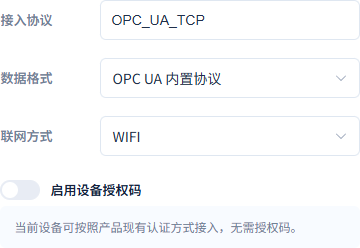
Final device runtime uses OPC UA, not the JSON/MQTT from the initial sample.
Screenshot Key Points
| Field / Control | Description |
|---|---|
| Access Protocol | FMQ connects to the OPC UA server as a client; the runtime capability label is OPC_UA_TCP. Required · Enter: OPC_UA_TCP |
| Data Format | The final choice is the OPC UA built-in protocol. Required · Enter: OPC UA 内置协议 (OPC UA Built-in Protocol) |
| Network Mode | A label for the device's network form; actual reachability still depends on the server address and network. Required · Enter: WIFI |
| Enable Device Auth Code | Off in this article; OPC UA session security is determined by the Endpoint security policy and authentication configuration. Optional · Enter: Off |
7. Complete the setpoint model identity
Location: Product Details*→Function Definition→*Setpoint Steps: fill in Model Translation as Setpoint, and verify the model identifier matches the Setpoint node.
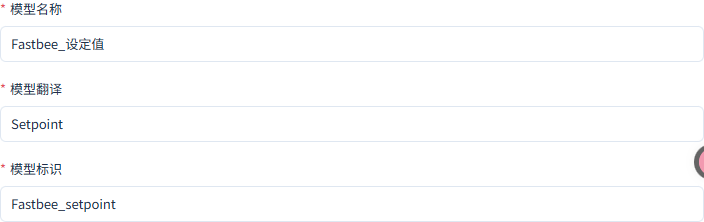
The model translation cannot be empty; the setpoint identifier matches the downlink target.
Screenshot Key Points
| Field / Control | Description |
|---|---|
| Model Name | The Chinese display name of the setpoint. Required · Enter: 设定值 (Setpoint) |
| Model Translation | A required English name; enter Setpoint for the setpoint. Required · Enter: Setpoint |
| Model Identifier | Must match the setpoint node and the Write target. Required · Enter: setpoint |
8. Set property permissions and enable history
Location: Product Details*→Function Definition→*Model Features Steps: uncheck read-only for the setpoint and check History Storage; keep temperature read-only with history enabled, then save.
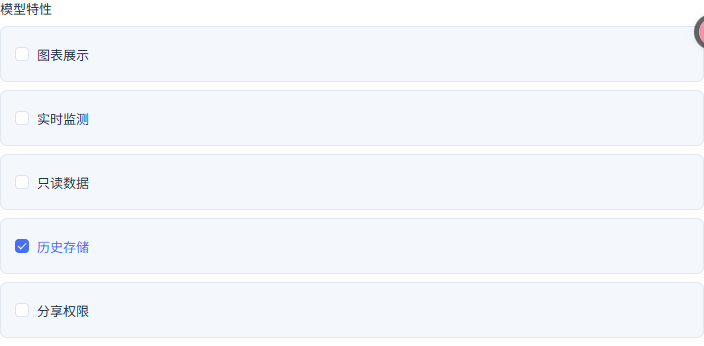
This figure is the setpoint: read-only unchecked, history checked.
Screenshot Key Points
| Field / Control | Description |
|---|---|
| Read-only Data | The writable control only appears when read-only is unchecked for the setpoint; temperature stays read-only. Required · Enter: temperature read-only; setpoint not read-only |
| History Storage | Enabled for both; after subscription values change, they can be queried in Historical Data. Required · Enter: checked |
| Chart Display | Controls whether this property participates in the product's configured chart display; not checked in this article. Optional · Enter: unchecked |
| Real-time Monitor | Controls the model's real-time monitor display option; not checked in this article. Optional · Enter: unchecked |
| Share Permission | This article does not open extra sharing; it does not affect the current tenant's permission-based use. Optional · Enter: unchecked |
2. Configure the Endpoint, Binding, and Nodes
The device number and clientId stay consistent across binding, nodes, and command mapping. What is saved is a product draft; it still needs to be published, with the runtime node application result verified afterwards.
9. Enter the OPC UA connection configuration
Location: IoT*→*OPC UA Configuration Steps: select this article's product and click Add in the Endpoint area.
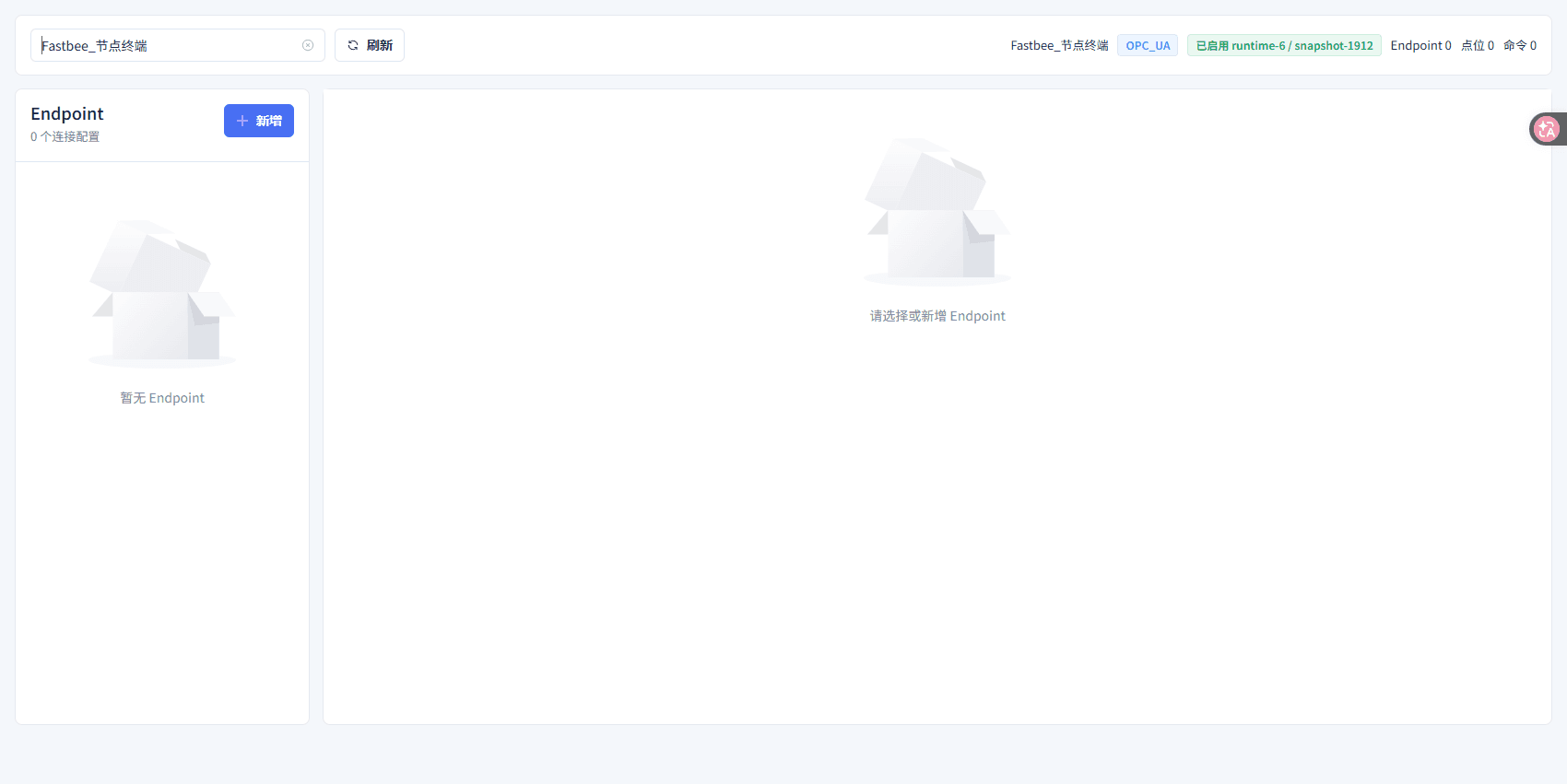
An empty Endpoint on first use is normal; the old runtime label at the top right is not this article's final application result.
Screenshot Key Points
| Field / Control | Description |
|---|---|
| Endpoint Name | Give this group of server connection parameters an easily recognizable name. Required · Enter: 节点连接 (Node Connection) |
10. Fill in the full Endpoint parameters
Location: OPC UA Configuration*→*Endpoint Steps: fill in the device's full Endpoint URL and the local security parameters, verify the periods and timeouts on the right, and click Save Endpoint.
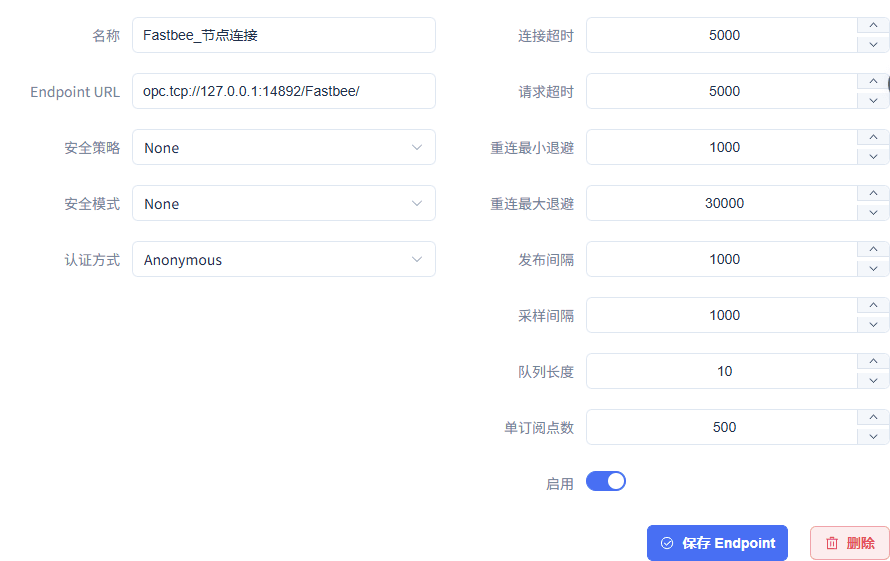
The full endpoint is opc.tcp://127.0.0.1:14892/FastBee/; the path must not be omitted and the platform web address must not be used.
Screenshot Key Points
| Field / Control | Description |
|---|---|
| Endpoint and Connection Direction | Enter the device server endpoint, which FMQ connects to; not the platform web address. Required · Enter: opc.tcp://127.0.0.1:14892/FastBee/ |
| Security Policy | Select the security policy actually supported by the server. Required · Enter: None |
| Security Mode | Consistent with the message security mode allowed by the device server. Required · Enter: None |
| Authentication Method | Choose the identity verification per the device server's authorization scheme. Required · Enter: Anonymous |
| Connection Timeout | The maximum wait for establishing the server connection, in milliseconds. Required · Enter: 5000 ms |
| Request Timeout | The maximum wait for requests such as read and write, in milliseconds. Required · Enter: 5000 ms |
| Reconnect Min Backoff | The initial wait after a connection failure, in milliseconds. Required · Enter: 1000 ms |
| Reconnect Max Backoff | The upper bound of the wait interval across consecutive retries, in milliseconds. Required · Enter: 30000 ms |
| Publishing Interval | The expected period for the subscription to deliver changes to the client, in milliseconds. Required · Enter: 1000 ms |
| Sampling Interval | The sampling period requested from the server, in milliseconds; the actual value is negotiated by the server. Required · Enter: 1000 ms |
| Queue Length | The queue length for retained changes per monitored item. Required · Enter: 10 |
| Monitored Items per Subscription | The maximum number of monitored items per subscription. Required · Enter: 500 |
| Enable Endpoint | Allows this server connection to be established after publishing. Required · Enter: On |
11. Bind the Endpoint to this article's device
Location: OPC UA Configuration*→Device Binding→*Add Binding Steps: select this article's device ID, fill in the same number for Device Number and clientId, enable it, and save.
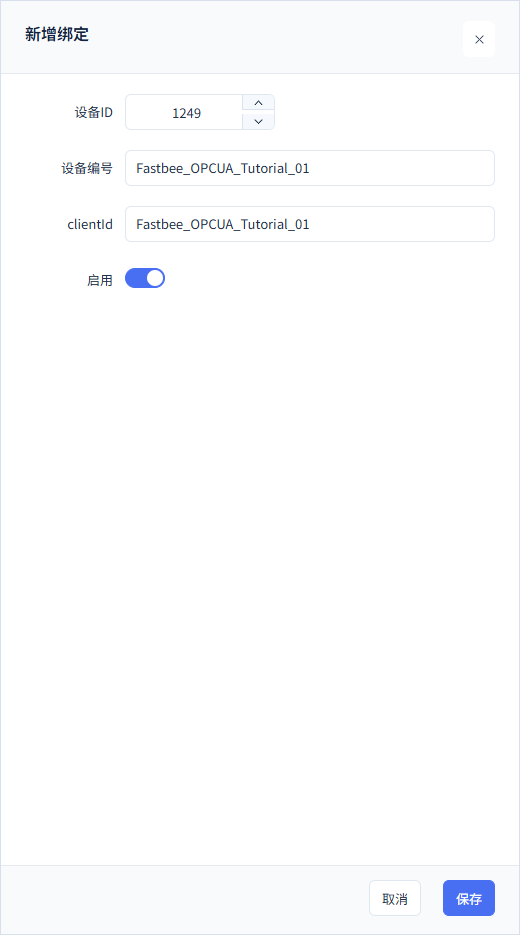
Bind only this article's device; the field identity stays consistent in the subsequent nodes and commands.
Screenshot Key Points
| Field / Control | Description |
|---|---|
| Device ID | Select this article's device already created on the platform; do not enter another device's primary key. Required · Enter: this article's device |
| Device Number | Consistent with the number filed for the device. Required · Enter: demo-device |
| clientId | Consistent with this article's binding and node identities; do not enter another session number. Required · Enter: demo-device |
| Enable Binding | Allows the current Endpoint to carry this article's device. Required · Enter: On |
| Save Binding | After saving, the table should show this article's number and clientId with status enabled. Required · Enter: one enabled binding |
12. Confirm the binding is enabled
Location: OPC UA Configuration*→*Device Binding Steps: confirm that Device Number and clientId in the table match and the status is Enabled.

The saved result shows this article's binding; this step does not mean the device is connected.
Screenshot Key Points
| Field / Control | Description |
|---|---|
| Device Number | Consistent with the number filed for the device. Required · Enter: demo-device |
| clientId | Consistent with this article's binding and node identities; do not enter another session number. Required · Enter: demo-device |
| Enable Binding | Allows the current Endpoint to carry this article's device. Required · Enter: On |
13. Configure the read-only temperature subscription node
Location: OPC UA Configuration*→Points→*Add Point Steps: fill in the temperature NodeId as ns=2;s=temperature, select Double, enable the subscription, keep it not writable, and save.
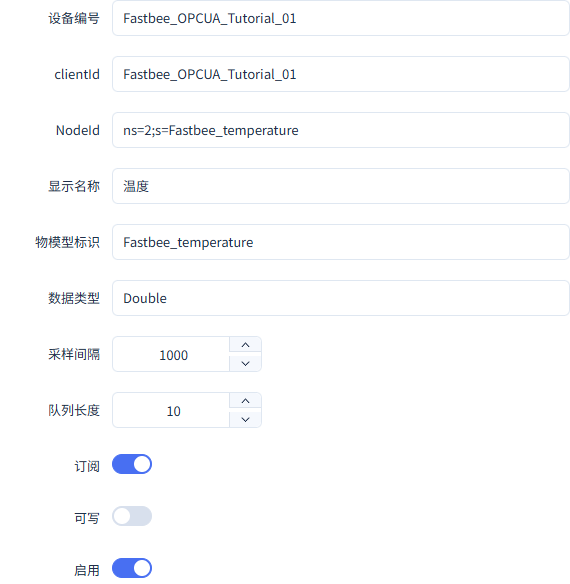
Temperature is mapped to FastBee_temperature, with subscription on and writable off.
Screenshot Key Points
| Field / Control | Description |
|---|---|
| NodeId Namespace and Type | The NodeId must come from the device server's node table, including the namespace index and identifier form. Required · Enter: ns=2;s=temperature / ns=2;s=setpoint; Double |
| Display Name | A readable name for the node; it may differ from the product property display name — mapping follows the identifier. Required · Enter: 温度 / 设定温度 (Temperature / Setpoint Temperature) |
| Thing Model Identifier | Must point to a property already created in the current product. Required · Enter: temperature / setpoint |
| Node Data Type | Both nodes in this article use and were verified with Double; other node types were not verified in this article. Required · Enter: Double |
| Node Sampling Interval | This article's nodes use 1000 ms; do not treat each poll as a new business sample. Required · Enter: 1000 ms |
| Node Queue Length | This article keeps 10 changes per node. Required · Enter: 10 |
| Subscription | Enabled for both; device value changes are reported to the platform automatically. Required · Enter: On |
| Writable | Enabled only for the setpoint, off for temperature; the Thing Model must also be non-read-only and the device side must allow writes. Required · Enter: temperature off; setpoint on |
| Enable Node | Allows collecting or controlling this node after publishing. Required · Enter: On |
| Save Node | Save the temperature and setpoint mappings separately, then check the table. Required · Enter: two enabled nodes |
14. Configure the writable setpoint node
Location: OPC UA Configuration*→Points→*Add Point Steps: fill in the setpoint NodeId as ns=2;s=setpoint, keep Double and the subscription consistent, enable Writable, and save.
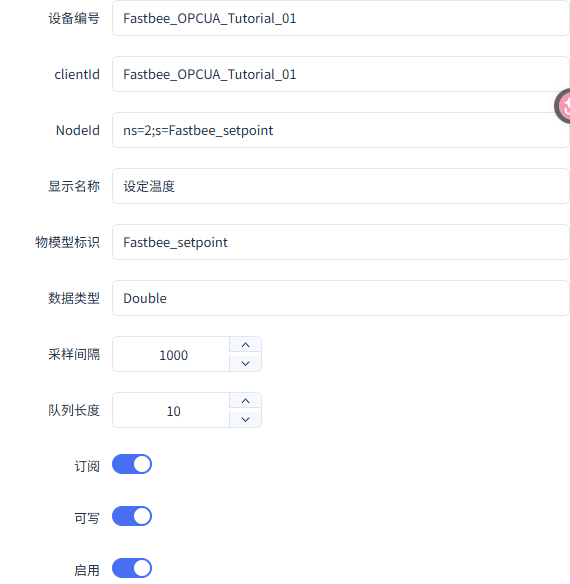
The setpoint simultaneously meets three conditions: model not read-only, node writable, and device-side write allowed.
Screenshot Key Points
| Field / Control | Description |
|---|---|
| NodeId Namespace and Type | The NodeId must come from the device server's node table, including the namespace index and identifier form. Required · Enter: ns=2;s=temperature / ns=2;s=setpoint; Double |
| Thing Model Identifier | Must point to a property already created in the current product. Required · Enter: temperature / setpoint |
| Node Data Type | Both nodes in this article use and were verified with Double; other node types were not verified in this article. Required · Enter: Double |
| Node Sampling Interval | This article's nodes use 1000 ms; do not treat each poll as a new business sample. Required · Enter: 1000 ms |
| Node Queue Length | This article keeps 10 changes per node. Required · Enter: 10 |
| Subscription | Enabled for both; device value changes are reported to the platform automatically. Required · Enter: On |
| Writable | Enabled only for the setpoint, off for temperature; the Thing Model must also be non-read-only and the device side must allow writes. Required · Enter: temperature off; setpoint on |
| Enable Node | Allows collecting or controlling this node after publishing. Required · Enter: On |
15. Configure the Write command mapping
Location: OPC UA Configuration*→Commands→*Add Command Steps: fill in the Thing Model target with the setpoint identifier, fill in Alink Method as thing.service.property.set, select Write as the action, and save.
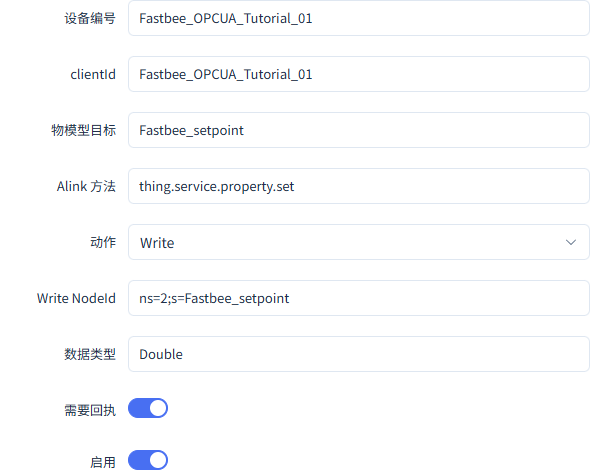
Only when the target, method name, and Write NodeId all match can platform property control be routed to the device node.
Screenshot Key Points
| Field / Control | Description |
|---|---|
| Thing Model Target | Must be the setpoint property identifier; a Chinese name cannot replace the target identifier. Required · Enter: setpoint |
| Alink Method | Platform property downlink uses the method name actually matched in this article. Required · Enter: thing.service.property.set |
| Action | This article selects Write to write the node directly; Call is for device methods and needs separate verification. Required · Enter: Write |
| Write NodeId | Exactly the same as the setpoint node address. Required · Enter: ns=2;s=setpoint |
| Write Data Type | This article's setpoint Write uses Double, consistent with the device node; other Write types were not verified in this article. Required · Enter: Double |
| Require Reply | When enabled, verify the corresponding service reply; also verify the device's actual value and an independent Read. Required · Enter: On |
| Enable Command | Allows the runtime side to process this mapping. Required · Enter: On |
16. Configure the FMQX device server
Location: FMQX Web*→OPC UA→*Connection Parameters Steps: fill in the local listening address port 14892 and the endpoint path, add two Double nodes, allow client writes only for the setpoint, and Save to Local.
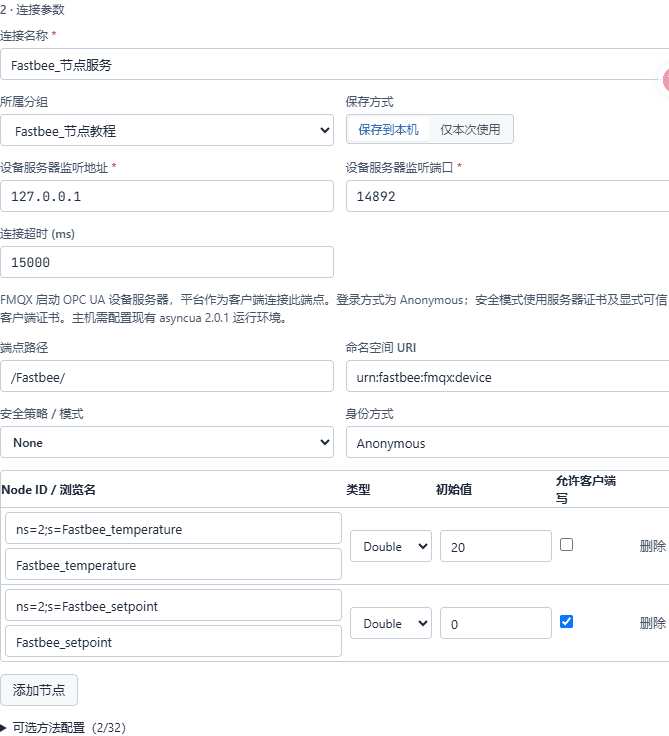
The device side saves initial values temperature 20 and setpoint 0; a restart restores these initial values.
Screenshot Key Points
| Field / Control | Description |
|---|---|
| Connection Name and Group | Helps locate this article's device server; do not create duplicate sessions on the same port. Required · Enter: 节点服务 / 节点教程 (Node Service / Node Tutorial) |
| Save Method | Saving to local makes re-verification easier next time; this-time-only use does not keep the configuration. Required · Enter: 保存到本机 (Save to Local) |
| Device Server Listening Address | The local demo listens only on the loopback address, and FMQ connects to it as a client. Required · Enter: 127.0.0.1 |
| Device Server Listening Port | Same as the device port in the platform Endpoint; do not enter the platform's 5174 web port. Required · Enter: 14892 |
| Connection Timeout | The connection timeout on the FMQX device server configuration page, in milliseconds. Required · Enter: 15000 ms |
| Endpoint Path | The platform Endpoint URL must end with the same path. Required · Enter: /FastBee/ |
| Namespace URI | The namespace identifier used by the device server; both nodes correspond to ns=2 in the current service. Required · Enter: urn:fastbee:fmqx:device |
| Device Security Policy and Identity | The local demo allows None and Anonymous; on site, configure per the administrator's security scheme. Required · Enter: None / Anonymous |
| Nodes and Initial Values | Temperature 20, setpoint 0; a server restart restores the saved initial values. Required · Enter: Double; temperature 20, setpoint 0 |
| Allow Client Write | Checked only for the setpoint; not checked for temperature. Required · Enter: temperature no; setpoint yes |
3. Verify the Device Server and Method Definition
The following current-parameter figures are used to verify the original session configuration. After checking, cancel editing and connect with the original configuration; no repeated filing is needed for another demo.
17. Verify the current server listening address
Location: FMQX Web*→OPC UA→*Connection Parameters Steps: verify the local Device Server Listening Address and port; for real devices, use the device's own reachable address.

The local demo listens on 127.0.0.1:14892.
Screenshot Key Points
| Field / Control | Description |
|---|---|
| Device Server Listening Address | The local demo listens only on the loopback address, and FMQ connects to it as a client. Required · Enter: 127.0.0.1 |
| Device Server Listening Port | Same as the device port in the platform Endpoint; do not enter the platform's 5174 web port. Required · Enter: 14892 |
| Listening Address | Used to complete "Verify the current server listening address". Required · Enter: 127.0.0.1 |
| Listening Port | Used to complete "Verify the current server listening address". Required · Enter: 14892 |
18. Verify the endpoint path and identity method
Location: FMQX Web*→OPC UA→*Connection Parameters Steps: verify the path, namespace, and Security Policy / Mode, keeping the identity method consistent on both ends.

Path /FastBee/; the local example uses None and Anonymous.
Screenshot Key Points
| Field / Control | Description |
|---|---|
| Endpoint Path | The platform Endpoint URL must end with the same path. Required · Enter: /FastBee/ |
| Namespace URI | The namespace identifier used by the device server; both nodes correspond to ns=2 in the current service. Required · Enter: urn:fastbee:fmqx:device |
| Device Security Policy and Identity | The local demo allows None and Anonymous; on site, configure per the administrator's security scheme. Required · Enter: None / Anonymous |
| Security Policy / Identity | Used to complete "Verify the endpoint path and identity method". Required · Enter: None / Anonymous |
19. Verify the two nodes and write permissions
Location: FMQX Web*→OPC UA→*Node Configuration Steps: verify the two Double nodes: temperature does not allow client write, and only the setpoint allows client writes.
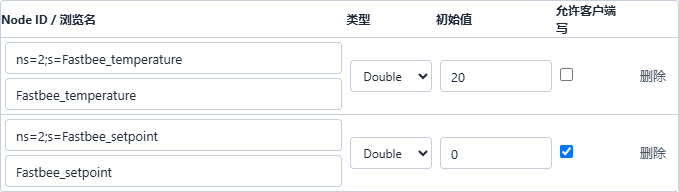
Temperature initial value 20 and read-only; setpoint initial value 0 and writable.
Screenshot Key Points
| Field / Control | Description |
|---|---|
| Nodes and Initial Values | Temperature 20, setpoint 0; a server restart restores the saved initial values. Required · Enter: Double; temperature 20, setpoint 0 |
| Allow Client Write | Checked only for the setpoint; not checked for temperature. Required · Enter: temperature no; setpoint yes |
| Temperature Node | Used to complete "Verify the two nodes and write permissions". Required · Enter: ns=2;s=temperature |
| Setpoint Node | Used to complete "Verify the two nodes and write permissions". Required · Enter: ns=2;s=setpoint |
| Data Type | Used to complete "Verify the two nodes and write permissions". Required · Enter: Double |
20. Verify the SetOnce method definition
Location: FMQX Web*→OPC UA→*Optional Method Configuration Steps: expand the method configuration, and verify the method node, the writable target node, and the SetOnce operation.
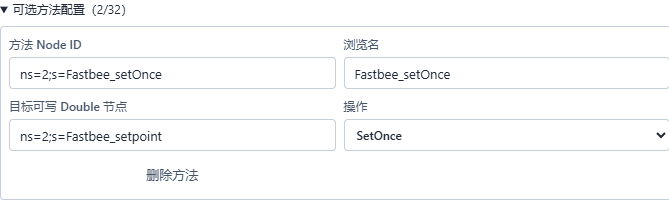
This method uses the setpoint node as the writable Double target.
Screenshot Key Points
| Field / Control | Description |
|---|---|
| SetOnce Diagnostic Call | Invoke by object, method, and ordered inputs, then verify via device execution and an independent Read. Required · Enter: fill in per the implementation plan · Example: [this request identifier, 73.5] |
| Method NodeId | Used to complete "Verify the SetOnce method definition". Required · Enter: ns=2;s=FastBee_setOnce |
| Target Node | Used to complete "Verify the SetOnce method definition". Required · Enter: ns=2;s=setpoint |
| Operation | Used to complete "Verify the SetOnce method definition". Required · Enter: SetOnce |
4. Start the Device Server and Publish
21. Start the device server
Location: FMQX Web*→OPC UA→*Communication Steps: connect this article's session and confirm the Server Status is running.
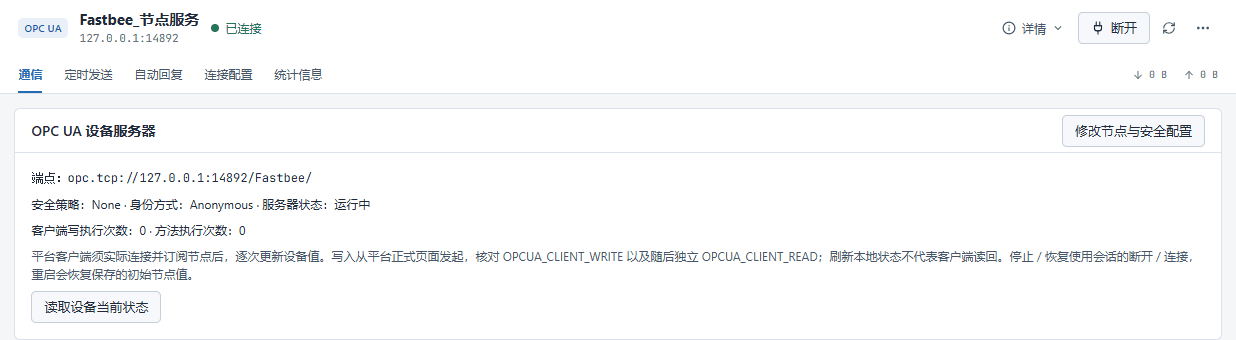
The device server is running; the full Endpoint is opc.tcp://127.0.0.1:14892/FastBee/.
Screenshot Key Points
| Field / Control | Description |
|---|---|
| Device Server Connect and Disconnect | Connecting an FMQX session starts the OPC UA server; disconnecting stops the service. Required · Enter: fill in per the implementation plan · Example: manually connect / disconnect the same session |
22. Publish the current access configuration
Location: Product Management*→*Product Details Steps: after verifying the product, click publish and click OK in the confirmation box.
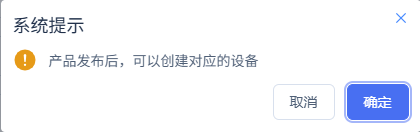
Product publish submitted; continue to check the runtime node application result.
Screenshot Key Points
| Field / Control | Description |
|---|---|
| Publish and Node Application Result | After publishing, check that the current node shows APPLIED; after unpublishing at the end, check the node result again. Required · Enter: fill in per the implementation plan · Example: APPLIED |
23. Confirm the node has applied the current configuration
Location: Product Details*→*Sync Details Steps: open Sync Details, and verify the current node's APPLIED and the effective time.
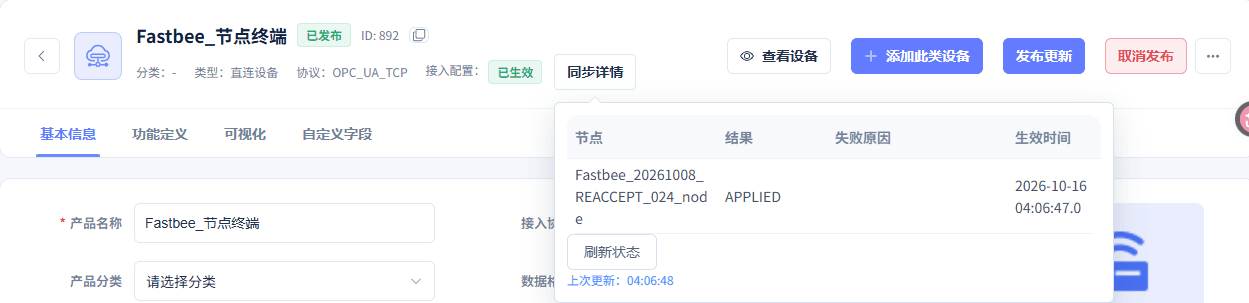
The current publish has been applied; the effective time is 2026-10-16 04:06:47.
Screenshot Key Points
| Field / Control | Description |
|---|---|
| Publish and Node Application Result | After publishing, check that the current node shows APPLIED; after unpublishing at the end, check the node result again. Required · Enter: fill in per the implementation plan · Example: APPLIED |
5. Report Ten Temperatures and Query History
Change the temperature one by one and wait for the platform to receive it before updating the next value. History queries use full date-times; the screenshots in this run show Beijing time.
24. Update the first temperature sample
Location: FMQX Web*→OPC UA→*Node Point Table Steps: fill in 31 on the temperature node, click Update Device Value, and wait for the platform to receive the change.

The device temperature node's actual value is 31.
Screenshot Key Points
| Field / Control | Description |
|---|---|
| Temperature Node Update | Change the temperature on the device side one by one; the platform updates the current value and history via the subscription. Required · Enter: fill in per the implementation plan · Example: 31-40; 41 after recovery |
| This Temperature | Used to complete "Update the first temperature sample". Required · Enter: 31 |
25. View the first point value change record
Location: FMQX Web*→OPC UA→*SDK Service Receipts Steps: expand the local point value change record for temperature 31, and verify the before/after values and the actual time.

The device temperature changed from 20 to 31; record time 04:06:49.
Screenshot Key Points
| Field / Control | Description |
|---|---|
| Device SDK Service Receipts | On the real device service page, expand Write, Read, or method records, and verify times and before/after values. Required · Enter: fill in per the implementation plan · Example: local / SDK service receipts |
26. Update the remaining nine temperatures in sequence
Location: FMQX Web*→OPC UA→*Node Point Table Steps: send 32 to 40 in sequence, each time waiting for the platform to receive the change before updating the next value.

The tenth temperature sample is 40.
Screenshot Key Points
| Field / Control | Description |
|---|---|
| Temperature Node Update | Change the temperature on the device side one by one; the platform updates the current value and history via the subscription. Required · Enter: fill in per the implementation plan · Example: 31-40; 41 after recovery |
| Temperature Sequence | Used to complete "Update the remaining nine temperatures in sequence". Required · Enter: 32, 33, 34, 35, 36, 37, 38, 39, 40 |
27. Verify the tenth point value change record
Location: FMQX Web*→OPC UA→*SDK Service Receipts Steps: expand the record for temperature 40, and verify the previous value 39, the new value 40, and the time.

The tenth temperature change is from 39 to 40; record time 04:07:02.
Screenshot Key Points
| Field / Control | Description |
|---|---|
| Device SDK Service Receipts | On the real device service page, expand Write, Read, or method records, and verify times and before/after values. Required · Enter: fill in per the implementation plan · Example: local / SDK service receipts |
28. Fill in the time range for the ten temperatures
Location: Data Center*→*Historical Data Steps: fill in the full start and end date-times and click OK.
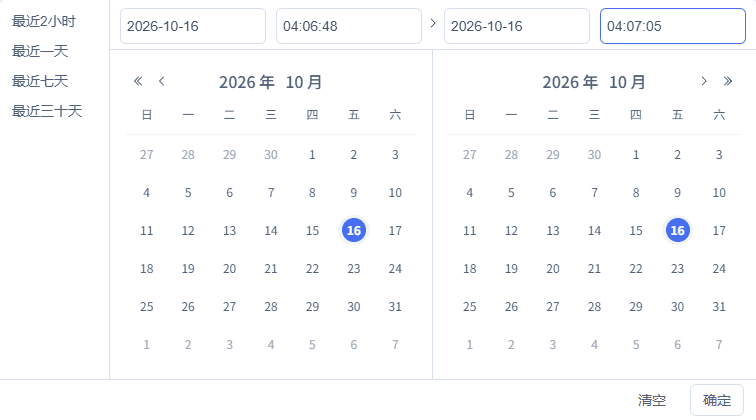
The query window for this run is 2026-10-16 04:06:48 to 2026-10-16 04:07:05.
Screenshot Key Points
| Field / Control | Description |
|---|---|
| Device, Field, and Full Time | Query only the corresponding field of this device, fill in the full date-time, and refresh under the same conditions. Required · Enter: fill in per the implementation plan · Example: 2026-10-16 04:07:12-04:07:24 |
| Start Time | Used to complete "Fill in the time range for the ten temperatures". Required · Enter: 2026-10-16 04:06:48 |
| End Time | Used to complete "Fill in the time range for the ten temperatures". Required · Enter: 2026-10-16 04:07:05 |
29. Filter the field for the ten temperatures
Location: Data Center*→*Historical Data Steps: select this device and the Temperature field, keep the time range, and click Query.

The device, the temperature field, and this run's operation time match.
Screenshot Key Points
| Field / Control | Description |
|---|---|
| Device, Field, and Full Time | Query only the corresponding field of this device, fill in the full date-time, and refresh under the same conditions. Required · Enter: fill in per the implementation plan · Example: 2026-10-16 04:07:12-04:07:24 |
| Field | Used to complete "Filter the field for the ten temperatures". Required · Enter: 温度 (Temperature) |
30. Refresh the history of the ten temperatures
Location: Historical Data*→*Query Results Steps: keep the same device, field, and time, and click refresh at the top right of the result area.

The 10 corresponding rows still display after refresh.
Screenshot Key Points
| Field / Control | Description |
|---|---|
| Device, Field, and Full Time | Query only the corresponding field of this device, fill in the full date-time, and refresh under the same conditions. Required · Enter: fill in per the implementation plan · Example: 2026-10-16 04:07:12-04:07:24 |
31. Verify the records of the ten temperatures
Location: Historical Data*→*Query Results Steps: verify the actual values and update times row by row, corresponding to device changes or write read-backs.
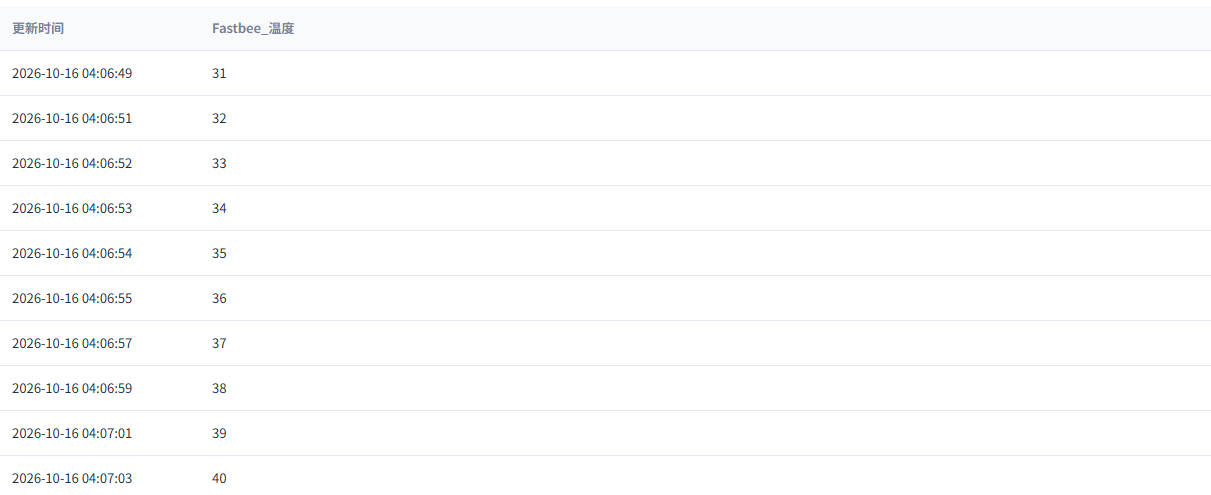
The actual history is 31-40, ten rows in total.
Screenshot Key Points
| Field / Control | Description |
|---|---|
| Device, Field, and Full Time | Query only the corresponding field of this device, fill in the full date-time, and refresh under the same conditions. Required · Enter: fill in per the implementation plan · Example: 2026-10-16 04:07:12-04:07:24 |
6. First Write of 5 and Independent Read-back
Judge the pending slider and the current value separately. After sending once, confirm on the device side; do not manually modify the setpoint to fake a write result.
32. Submit setpoint 5 for the first time
Location: Device Details*→Running Status→*Device Control Steps: select 5 in the setpoint pending control and click send once; judge the current value and the pending value separately.
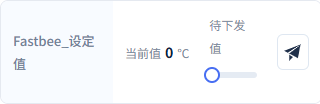
This figure is the control entry and the current value is still 0; the actual target is verified by subsequent device execution and an independent read.
Screenshot Key Points
| Field / Control | Description |
|---|---|
| Setpoint Control and Current Value | The pending control edits the target; the current value shows the device report; after sending once, verify with a separate read-back. Required · Enter: fill in per the implementation plan · Example: 5, 6; 7 after recovery |
| This Downlink Target | Used to complete "Submit setpoint 5 for the first time". Required · Enter: 5 |
| Current Value Before Sending | Used to complete "Submit setpoint 5 for the first time". Required · Enter: 0 |
33. Verify the first device actual value
Location: FMQX Web*→OPC UA→*Node Point Table Steps: only read the setpoint's actual current value; keep this platform write's result.

The device setpoint is actually 5.
Screenshot Key Points
| Field / Control | Description |
|---|---|
| Setpoint Control and Current Value | The pending control edits the target; the current value shows the device report; after sending once, verify with a separate read-back. Required · Enter: fill in per the implementation plan · Example: 5, 6; 7 after recovery |
34. Expand the first Write receipt
Location: FMQX Web*→OPC UA→*SDK Service Receipts Steps: expand the corresponding client Write event, and verify the previous value, new value, execution count, and time.

This client Write changed the setpoint from 0 to 5.
Screenshot Key Points
| Field / Control | Description |
|---|---|
| Device SDK Service Receipts | On the real device service page, expand Write, Read, or method records, and verify times and before/after values. Required · Enter: fill in per the implementation plan · Example: local / SDK service receipts |
35. Initiate an independent Read after the write
Location: OPC UA Configuration*→Diagnostics→*Read Steps: fill in the setpoint NodeId and click Read; this is a separately initiated client read.

The Read target is ns=2;s=FastBee_setpoint.
Screenshot Key Points
| Field / Control | Description |
|---|---|
| Independent Read | Send a separate client Read to the setpoint node, and verify GOOD, status code 0, and the actual returned value. Required · Enter: fill in per the implementation plan · Example: ns=2;s=setpoint |
| Read Node | Used to complete "Initiate an independent Read after the write". Required · Enter: ns=2;s=setpoint |
36. Verify the first independent Read result
Location: OPC UA Configuration*→Diagnostics→*Result Steps: after reading, verify the returned value, GOOD quality, and status code 0.
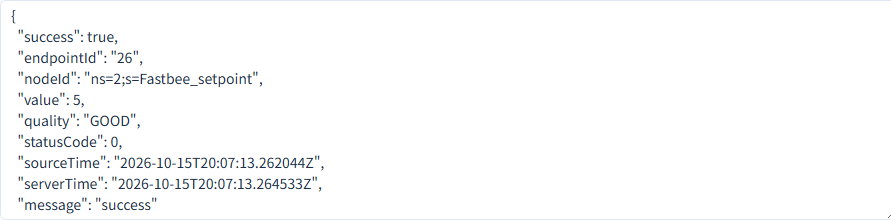
The independent read returns 5, quality GOOD, status code 0.
Screenshot Key Points
| Field / Control | Description |
|---|---|
| Independent Read | Send a separate client Read to the setpoint node, and verify GOOD, status code 0, and the actual returned value. Required · Enter: fill in per the implementation plan · Example: ns=2;s=setpoint |
37. Verify the first Read device record
Location: FMQX Web*→OPC UA→*SDK Service Receipts Steps: expand the client Read record just initiated separately, and confirm its time is later than this Write.

The device's actual independent Read value is 5, consistent with this Write.
Screenshot Key Points
| Field / Control | Description |
|---|---|
| Device SDK Service Receipts | On the real device service page, expand Write, Read, or method records, and verify times and before/after values. Required · Enter: fill in per the implementation plan · Example: local / SDK service receipts |
38. Fill in the time range for the first write of 5
Location: Data Center*→*Historical Data Steps: fill in the full start and end date-times and click OK.
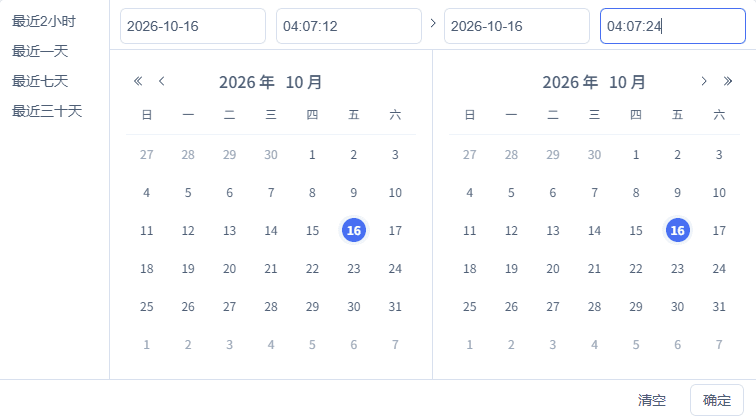
The query window for this run is 2026-10-16 04:07:12 to 2026-10-16 04:07:24.
Screenshot Key Points
| Field / Control | Description |
|---|---|
| Device, Field, and Full Time | Query only the corresponding field of this device, fill in the full date-time, and refresh under the same conditions. Required · Enter: fill in per the implementation plan · Example: 2026-10-16 04:07:12-04:07:24 |
| Start Time | Used to complete "Fill in the time range for the first write of 5". Required · Enter: 2026-10-16 04:07:12 |
| End Time | Used to complete "Fill in the time range for the first write of 5". Required · Enter: 2026-10-16 04:07:24 |
39. Filter the field for the first write of 5
Location: Data Center*→*Historical Data Steps: select this device and the Setpoint field, keep the time range, and click Query.

The device, the setpoint field, and this run's operation time match.
Screenshot Key Points
| Field / Control | Description |
|---|---|
| Device, Field, and Full Time | Query only the corresponding field of this device, fill in the full date-time, and refresh under the same conditions. Required · Enter: fill in per the implementation plan · Example: 2026-10-16 04:07:12-04:07:24 |
| Field | Used to complete "Filter the field for the first write of 5". Required · Enter: 设定值 (Setpoint) |
40. Refresh the history of the first write of 5
Location: Historical Data*→*Query Results Steps: keep the same device, field, and time, and click refresh at the top right of the result area.

The 1 corresponding row still displays after refresh.
Screenshot Key Points
| Field / Control | Description |
|---|---|
| Device, Field, and Full Time | Query only the corresponding field of this device, fill in the full date-time, and refresh under the same conditions. Required · Enter: fill in per the implementation plan · Example: 2026-10-16 04:07:12-04:07:24 |
41. Verify the record of the first write of 5
Location: Historical Data*→*Query Results Steps: verify the actual values and update times row by row, corresponding to device changes or write read-backs.

The actual history is 5, one row at 04:07:13.
Screenshot Key Points
| Field / Control | Description |
|---|---|
| Device, Field, and Full Time | Query only the corresponding field of this device, fill in the full date-time, and refresh under the same conditions. Required · Enter: fill in per the implementation plan · Example: 2026-10-16 04:07:12-04:07:24 |
7. Second Write of 6 and Independent Read-back
Reuse the same node, select the new target 6 and send once, then repeat the independent Read. Each Write and Read is matched by its own time.
42. Submit setpoint 6 for the second time
Location: Device Details*→Running Status→*Device Control Steps: select 6 in the setpoint pending control and click send once; judge the current value and the pending value separately.
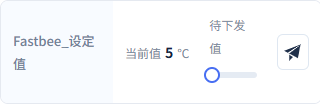
This figure is the control entry and the current value is still 5; the actual target is verified by subsequent device execution and an independent read.
Screenshot Key Points
| Field / Control | Description |
|---|---|
| Setpoint Control and Current Value | The pending control edits the target; the current value shows the device report; after sending once, verify with a separate read-back. Required · Enter: fill in per the implementation plan · Example: 5, 6; 7 after recovery |
| This Downlink Target | Used to complete "Submit setpoint 6 for the second time". Required · Enter: 6 |
| Current Value Before Sending | Used to complete "Submit setpoint 6 for the second time". Required · Enter: 5 |
43. Verify the second device actual value
Location: FMQX Web*→OPC UA→*Node Point Table Steps: only read the setpoint's actual current value; keep this platform write's result.

The device setpoint is actually 6.
Screenshot Key Points
| Field / Control | Description |
|---|---|
| Setpoint Control and Current Value | The pending control edits the target; the current value shows the device report; after sending once, verify with a separate read-back. Required · Enter: fill in per the implementation plan · Example: 5, 6; 7 after recovery |
44. Expand the second Write receipt
Location: FMQX Web*→OPC UA→*SDK Service Receipts Steps: expand the corresponding client Write event, and verify the previous value, new value, execution count, and time.

This client Write changed the setpoint from 5 to 6.
Screenshot Key Points
| Field / Control | Description |
|---|---|
| Device SDK Service Receipts | On the real device service page, expand Write, Read, or method records, and verify times and before/after values. Required · Enter: fill in per the implementation plan · Example: local / SDK service receipts |
45. Verify the second independent Read result
Location: OPC UA Configuration*→Diagnostics→*Result Steps: fill in the same setpoint NodeId in Read again and click read, then verify the returned value, GOOD quality, and status code 0.
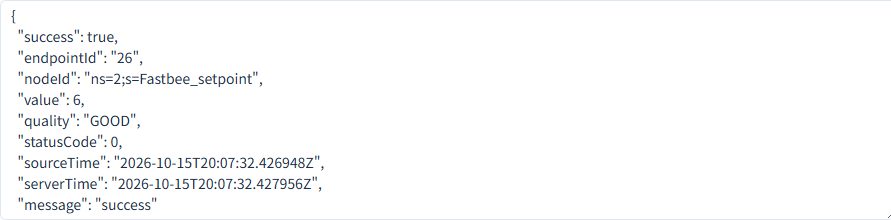
The independent read returns 6, quality GOOD, status code 0.
Screenshot Key Points
| Field / Control | Description |
|---|---|
| Independent Read | Send a separate client Read to the setpoint node, and verify GOOD, status code 0, and the actual returned value. Required · Enter: fill in per the implementation plan · Example: ns=2;s=setpoint |
46. Verify the second Read device record
Location: FMQX Web*→OPC UA→*SDK Service Receipts Steps: expand the client Read record just initiated separately, and confirm its time is later than this Write.

The device's actual independent Read value is 6, consistent with this Write.
Screenshot Key Points
| Field / Control | Description |
|---|---|
| Device SDK Service Receipts | On the real device service page, expand Write, Read, or method records, and verify times and before/after values. Required · Enter: fill in per the implementation plan · Example: local / SDK service receipts |
47. Verify the second platform current value
Location: Device Details*→*Running Status Steps: wait for the subscription update, refresh, and read the setpoint's current value.
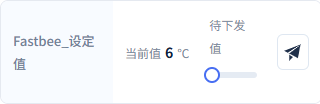
The platform current value is 6.
Screenshot Key Points
| Field / Control | Description |
|---|---|
| Setpoint Control and Current Value | The pending control edits the target; the current value shows the device report; after sending once, verify with a separate read-back. Required · Enter: fill in per the implementation plan · Example: 5, 6; 7 after recovery |
48. Fill in the time range for the second write of 6
Location: Data Center*→*Historical Data Steps: fill in the full start and end date-times and click OK.
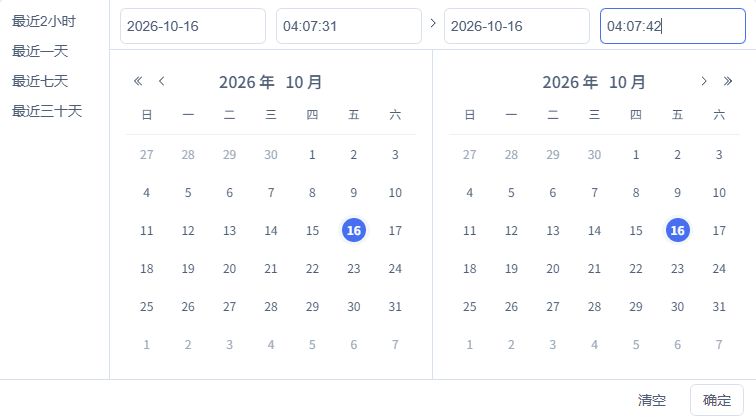
The query window for this run is 2026-10-16 04:07:31 to 2026-10-16 04:07:42.
Screenshot Key Points
| Field / Control | Description |
|---|---|
| Device, Field, and Full Time | Query only the corresponding field of this device, fill in the full date-time, and refresh under the same conditions. Required · Enter: fill in per the implementation plan · Example: 2026-10-16 04:07:12-04:07:24 |
| Start Time | Used to complete "Fill in the time range for the second write of 6". Required · Enter: 2026-10-16 04:07:31 |
| End Time | Used to complete "Fill in the time range for the second write of 6". Required · Enter: 2026-10-16 04:07:42 |
49. Filter the field for the second write of 6
Location: Data Center*→*Historical Data Steps: select this device and the Setpoint field, keep the time range, and click Query.

The device, the setpoint field, and this run's operation time match.
Screenshot Key Points
| Field / Control | Description |
|---|---|
| Device, Field, and Full Time | Query only the corresponding field of this device, fill in the full date-time, and refresh under the same conditions. Required · Enter: fill in per the implementation plan · Example: 2026-10-16 04:07:12-04:07:24 |
| Field | Used to complete "Filter the field for the second write of 6". Required · Enter: 设定值 (Setpoint) |
50. Refresh the history of the second write of 6
Location: Historical Data*→*Query Results Steps: keep the same device, field, and time, and click refresh at the top right of the result area.

The 1 corresponding row still displays after refresh.
Screenshot Key Points
| Field / Control | Description |
|---|---|
| Device, Field, and Full Time | Query only the corresponding field of this device, fill in the full date-time, and refresh under the same conditions. Required · Enter: fill in per the implementation plan · Example: 2026-10-16 04:07:12-04:07:24 |
51. Verify the record of the second write of 6
Location: Historical Data*→*Query Results Steps: verify the actual values and update times row by row, corresponding to device changes or write read-backs.

The actual history is 6, one row at 04:07:32.
Screenshot Key Points
| Field / Control | Description |
|---|---|
| Device, Field, and Full Time | Query only the corresponding field of this device, fill in the full date-time, and refresh under the same conditions. Required · Enter: fill in per the implementation plan · Example: 2026-10-16 04:07:12-04:07:24 |
8. Method Diagnostics and Result Verification
Call is a standalone diagnostic invocation entry. This SetOnce example fills in, in order: the object node, the method node, and two ordered inputs — the request identifier and the Double target 73.5. After the method actually executes, read the setpoint again and query history.
The device event page is explicitly labeled SDK Service Receipts. Expanding a record shows the method, before/after values, and count; verify by time and this request identifier.
52. Invoke the SetOnce demo method
Location: OPC UA Configuration*→Diagnostics→*Call Steps: fill in the object node, method node, and the ordered input array with 73.5 as the second item, and click Invoke once.
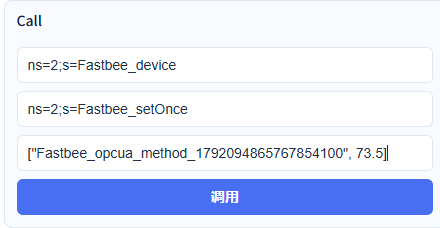
The diagnostic call's object is FastBee_device, the method is FastBee_setOnce, and the input target is 73.5.
Screenshot Key Points
| Field / Control | Description |
|---|---|
| SetOnce Diagnostic Call | Invoke by object, method, and ordered inputs, then verify via device execution and an independent Read. Required · Enter: fill in per the implementation plan · Example: [this request identifier, 73.5] |
| Object NodeId | Used to complete "Invoke the SetOnce demo method". Required · Enter: ns=2;s=FastBee_device |
| Method NodeId | Used to complete "Invoke the SetOnce demo method". Required · Enter: ns=2;s=FastBee_setOnce |
| Input Order | Used to complete "Invoke the SetOnce demo method". Required · Enter: [this request identifier, 73.5] |
53. Check the Call service feedback
Location: OPC UA Configuration*→Diagnostics→*Result Steps: verify the success flag, the method node, and the parameter status codes; continue to the device side to verify the actual result.
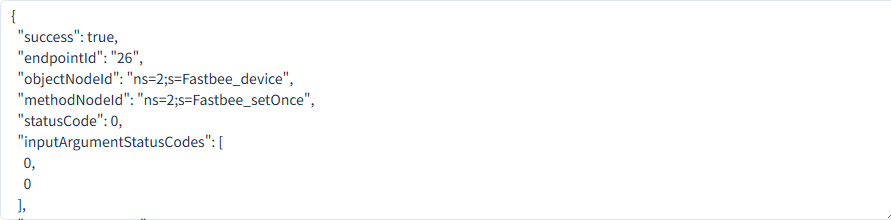
The Call feedback success is true, status code 0, and both input parameter status codes are 0.
Screenshot Key Points
| Field / Control | Description |
|---|---|
| SetOnce Diagnostic Call | Invoke by object, method, and ordered inputs, then verify via device execution and an independent Read. Required · Enter: fill in per the implementation plan · Example: [this request identifier, 73.5] |
54. Verify the method actually executed
Location: FMQX Web*→OPC UA→*SDK Service Receipts Steps: expand the corresponding method record, and verify the request identifier, before/after values, and execution count.

SetOnce actually changed 6 to 73.5; method execution count 1.
Screenshot Key Points
| Field / Control | Description |
|---|---|
| Device SDK Service Receipts | On the real device service page, expand Write, Read, or method records, and verify times and before/after values. Required · Enter: fill in per the implementation plan · Example: local / SDK service receipts |
55. Initiate another independent Read after the method
Location: OPC UA Configuration*→Diagnostics→*Read Steps: send a separate Read to the setpoint NodeId, and verify the returned value and quality.
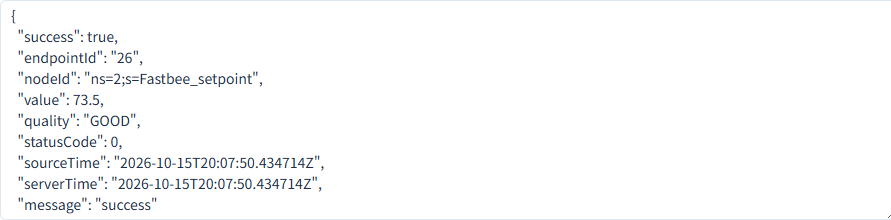
The independent Read returns 73.5, quality GOOD, status code 0.
Screenshot Key Points
| Field / Control | Description |
|---|---|
| Independent Read | Send a separate client Read to the setpoint node, and verify GOOD, status code 0, and the actual returned value. Required · Enter: fill in per the implementation plan · Example: ns=2;s=setpoint |
56. Verify the device Read record after the method
Location: FMQX Web*→OPC UA→*SDK Service Receipts Steps: expand the client Read after the method, and confirm the setpoint is 73.5 and the time is after the method.

The independent Read at 04:07:53 returns 73.5.
Screenshot Key Points
| Field / Control | Description |
|---|---|
| Device SDK Service Receipts | On the real device service page, expand Write, Read, or method records, and verify times and before/after values. Required · Enter: fill in per the implementation plan · Example: local / SDK service receipts |
57. Fill in the time range for the method result 73.5
Location: Data Center*→*Historical Data Steps: fill in the full start and end date-times and click OK.
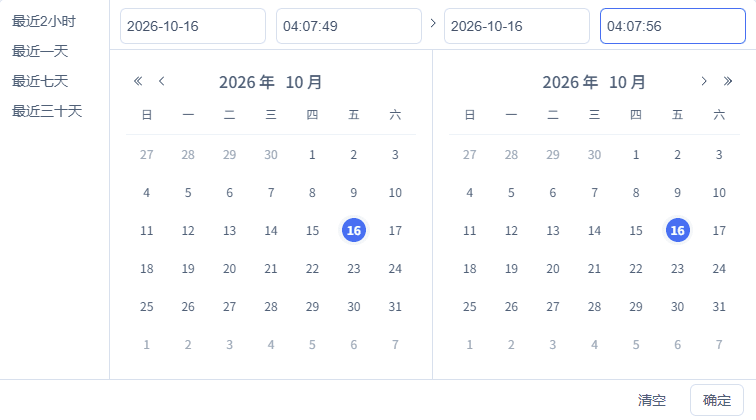
The query window for this run is 2026-10-16 04:07:49 to 2026-10-16 04:07:56.
Screenshot Key Points
| Field / Control | Description |
|---|---|
| Device, Field, and Full Time | Query only the corresponding field of this device, fill in the full date-time, and refresh under the same conditions. Required · Enter: fill in per the implementation plan · Example: 2026-10-16 04:07:12-04:07:24 |
| Start Time | Used to complete "Fill in the time range for the method result 73.5". Required · Enter: 2026-10-16 04:07:49 |
| End Time | Used to complete "Fill in the time range for the method result 73.5". Required · Enter: 2026-10-16 04:07:56 |
58. Filter the field for the method result 73.5
Location: Data Center*→*Historical Data Steps: select this device and the Setpoint field, keep the time range, and click Query.

The device, the setpoint field, and this run's operation time match.
Screenshot Key Points
| Field / Control | Description |
|---|---|
| Device, Field, and Full Time | Query only the corresponding field of this device, fill in the full date-time, and refresh under the same conditions. Required · Enter: fill in per the implementation plan · Example: 2026-10-16 04:07:12-04:07:24 |
| Field | Used to complete "Filter the field for the method result 73.5". Required · Enter: 设定值 (Setpoint) |
59. Refresh the history of the method result 73.5
Location: Historical Data*→*Query Results Steps: keep the same device, field, and time, and click refresh at the top right of the result area.

The 1 corresponding row still displays after refresh.
Screenshot Key Points
| Field / Control | Description |
|---|---|
| Device, Field, and Full Time | Query only the corresponding field of this device, fill in the full date-time, and refresh under the same conditions. Required · Enter: fill in per the implementation plan · Example: 2026-10-16 04:07:12-04:07:24 |
60. Verify the record of the method result 73.5
Location: Historical Data*→*Query Results Steps: verify the actual values and update times row by row, corresponding to device changes or write read-backs.

The actual history is 73.5, one row at 04:07:50.
Screenshot Key Points
| Field / Control | Description |
|---|---|
| Device, Field, and Full Time | Query only the corresponding field of this device, fill in the full date-time, and refresh under the same conditions. Required · Enter: fill in per the implementation plan · Example: 2026-10-16 04:07:12-04:07:24 |
9. Manual Stop and Recovery with New Write and Read
After stopping, manually connect on the same session and re-publish the current product. A device service restart restores the saved initial values 20 and 0; first verify the new temperature 41, then write the new target 7.
61. Stop this article's device server
Location: FMQX Web*→OPC UA→*Session Title Steps: click disconnect, and confirm the same session shows Disconnected.

The same device server session has stopped, and the connect button is visible.
Screenshot Key Points
| Field / Control | Description |
|---|---|
| Device Server Connect and Disconnect | Connecting an FMQX session starts the OPC UA server; disconnecting stops the service. Required · Enter: fill in per the implementation plan · Example: manually connect / disconnect the same session |
62. Re-publish after manual recovery
**Location:**FMQX Web, Product Details Steps: manually connect on the original session; go back to Product Details to publish the update, and click OK in the confirmation box.
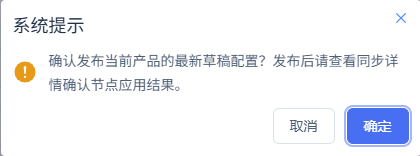
After reconnecting, submit the current configuration and continue verifying the new application time.
Screenshot Key Points
| Field / Control | Description |
|---|---|
| Publish and Node Application Result | After publishing, check that the current node shows APPLIED; after unpublishing at the end, check the node result again. Required · Enter: fill in per the implementation plan · Example: APPLIED |
63. Verify the node application after recovery
Location: Product Details*→*Sync Details Steps: refresh the sync status, and confirm the current node's APPLIED and the new effective time.
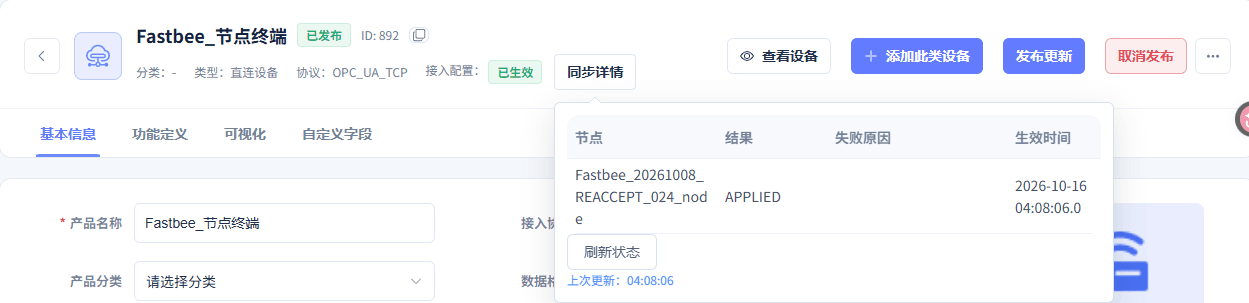
The recovery publish took effect at 2026-10-16 04:08:06.
Screenshot Key Points
| Field / Control | Description |
|---|---|
| Publish and Node Application Result | After publishing, check that the current node shows APPLIED; after unpublishing at the end, check the node result again. Required · Enter: fill in per the implementation plan · Example: APPLIED |
64. Update temperature 41 after recovery
Location: FMQX Web*→OPC UA→*Node Point Table Steps: fill in 41 on the temperature node, click Update Device Value, and wait for the platform's subscription update.

After recovery, the device temperature's actual value is 41.
Screenshot Key Points
| Field / Control | Description |
|---|---|
| Temperature Node Update | Change the temperature on the device side one by one; the platform updates the current value and history via the subscription. Required · Enter: fill in per the implementation plan · Example: 31-40; 41 after recovery |
| This Temperature | Used to complete "Update temperature 41 after recovery". Required · Enter: 41 |
65. Verify the new temperature record after recovery
Location: FMQX Web*→OPC UA→*SDK Service Receipts Steps: expand the new temperature change, and verify the post-restart initial value 20 changed to 41.

The new temperature record after recovery is 20->41, at 04:08:08.
Screenshot Key Points
| Field / Control | Description |
|---|---|
| Device SDK Service Receipts | On the real device service page, expand Write, Read, or method records, and verify times and before/after values. Required · Enter: fill in per the implementation plan · Example: local / SDK service receipts |
66. Submit setpoint 7 after recovery
Location: Device Details*→Running Status→*Device Control Steps: select 7 in the setpoint pending control and click send once; judge the current value and the pending value separately.
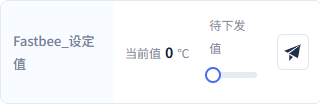
This figure is the control entry and the current value is still 0; the actual target is verified by subsequent device execution and an independent read.
Screenshot Key Points
| Field / Control | Description |
|---|---|
| Setpoint Control and Current Value | The pending control edits the target; the current value shows the device report; after sending once, verify with a separate read-back. Required · Enter: fill in per the implementation plan · Example: 5, 6; 7 after recovery |
| This Downlink Target | Used to complete "Submit setpoint 7 after recovery". Required · Enter: 7 |
| Current Value Before Sending | Used to complete "Submit setpoint 7 after recovery". Required · Enter: 0 |
67. Verify the device actual value after recovery
Location: FMQX Web*→OPC UA→*Node Point Table Steps: only read the setpoint's actual current value; keep this platform write's result.

The device setpoint is actually 7.
Screenshot Key Points
| Field / Control | Description |
|---|---|
| Setpoint Control and Current Value | The pending control edits the target; the current value shows the device report; after sending once, verify with a separate read-back. Required · Enter: fill in per the implementation plan · Example: 5, 6; 7 after recovery |
68. Expand the Write receipt after recovery
Location: FMQX Web*→OPC UA→*SDK Service Receipts Steps: expand the corresponding client Write event, and verify the previous value, new value, execution count, and time.

This client Write changed the setpoint from 0 to 7.
Screenshot Key Points
| Field / Control | Description |
|---|---|
| Device SDK Service Receipts | On the real device service page, expand Write, Read, or method records, and verify times and before/after values. Required · Enter: fill in per the implementation plan · Example: local / SDK service receipts |
69. Verify the independent Read result after recovery
Location: OPC UA Configuration*→Diagnostics→*Result Steps: fill in the same setpoint NodeId in Read again and click read, then verify the returned value, GOOD quality, and status code 0.
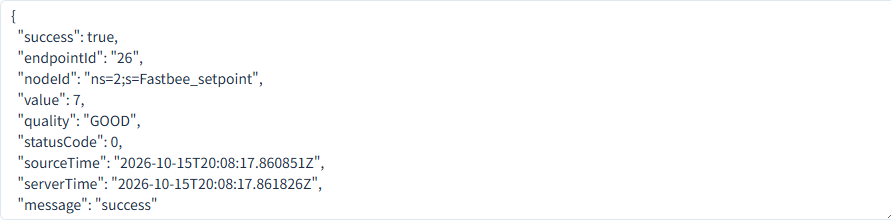
The independent read returns 7, quality GOOD, status code 0.
Screenshot Key Points
| Field / Control | Description |
|---|---|
| Independent Read | Send a separate client Read to the setpoint node, and verify GOOD, status code 0, and the actual returned value. Required · Enter: fill in per the implementation plan · Example: ns=2;s=setpoint |
70. Verify the Read device record after recovery
Location: FMQX Web*→OPC UA→*SDK Service Receipts Steps: expand the client Read record just initiated separately, and confirm its time is later than this Write.

The device's actual independent Read value is 7, consistent with this Write.
Screenshot Key Points
| Field / Control | Description |
|---|---|
| Device SDK Service Receipts | On the real device service page, expand Write, Read, or method records, and verify times and before/after values. Required · Enter: fill in per the implementation plan · Example: local / SDK service receipts |
71. Verify the platform current value after recovery
Location: Device Details*→*Running Status Steps: wait for the subscription update, refresh, and read the setpoint's current value.
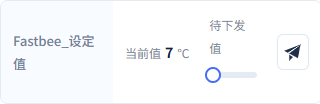
The platform current value is 7.
Screenshot Key Points
| Field / Control | Description |
|---|---|
| Setpoint Control and Current Value | The pending control edits the target; the current value shows the device report; after sending once, verify with a separate read-back. Required · Enter: fill in per the implementation plan · Example: 5, 6; 7 after recovery |
72. Fill in the time range for the write of 7 after recovery
Location: Data Center*→*Historical Data Steps: fill in the full start and end date-times and click OK.
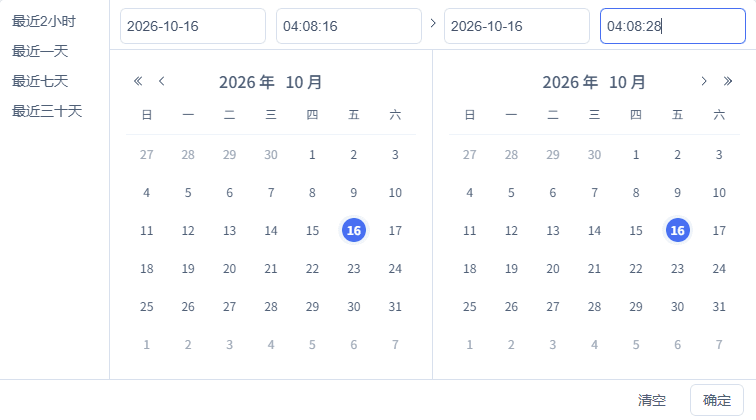
The query window for this run is 2026-10-16 04:08:16 to 2026-10-16 04:08:28.
Screenshot Key Points
| Field / Control | Description |
|---|---|
| Device, Field, and Full Time | Query only the corresponding field of this device, fill in the full date-time, and refresh under the same conditions. Required · Enter: fill in per the implementation plan · Example: 2026-10-16 04:07:12-04:07:24 |
| Start Time | Used to complete "Fill in the time range for the write of 7 after recovery". Required · Enter: 2026-10-16 04:08:16 |
| End Time | Used to complete "Fill in the time range for the write of 7 after recovery". Required · Enter: 2026-10-16 04:08:28 |
73. Filter the field for the write of 7 after recovery
Location: Data Center*→*Historical Data Steps: select this device and the Setpoint field, keep the time range, and click Query.

The device, the setpoint field, and this run's operation time match.
Screenshot Key Points
| Field / Control | Description |
|---|---|
| Device, Field, and Full Time | Query only the corresponding field of this device, fill in the full date-time, and refresh under the same conditions. Required · Enter: fill in per the implementation plan · Example: 2026-10-16 04:07:12-04:07:24 |
| Field | Used to complete "Filter the field for the write of 7 after recovery". Required · Enter: 设定值 (Setpoint) |
74. Refresh the history of the write of 7 after recovery
Location: Historical Data*→*Query Results Steps: keep the same device, field, and time, and click refresh at the top right of the result area.

The 1 corresponding row still displays after refresh.
Screenshot Key Points
| Field / Control | Description |
|---|---|
| Device, Field, and Full Time | Query only the corresponding field of this device, fill in the full date-time, and refresh under the same conditions. Required · Enter: fill in per the implementation plan · Example: 2026-10-16 04:07:12-04:07:24 |
75. Verify the record of the write of 7 after recovery
Location: Historical Data*→*Query Results Steps: verify the actual values and update times row by row, corresponding to device changes or write read-backs.

The actual history is 7, one row at 04:08:18.
Screenshot Key Points
| Field / Control | Description |
|---|---|
| Device, Field, and Full Time | Query only the corresponding field of this device, fill in the full date-time, and refresh under the same conditions. Required · Enter: fill in per the implementation plan · Example: 2026-10-16 04:07:12-04:07:24 |
10. Stop and Retain Configuration and History
At the end, disconnect the original device session with auto-reconnect, scheduled sending, and auto-reply kept off, unpublish this product, and verify the application result. The product, device, Endpoint, nodes, command mapping, and history remain retained.
The final platform temperature 41 and setpoint 7 are the last reported values. To run again, connect the original session, publish the original product, and re-verify with new temperatures, target values, and a full time window.
76. Stop this article's subscription and keep the filing
Location: Product Management*→*Product Details Steps: after completing verification, disconnect the original device session; unpublish this product, read the prompt, and click OK.
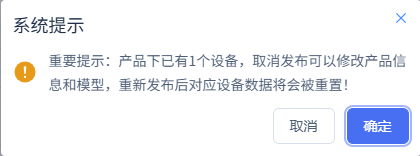
Unpublishing is only used to end this article's run; note the page's data reset prompt before re-publishing.
Screenshot Key Points
| Field / Control | Description |
|---|---|
| Publish and Node Application Result | After publishing, check that the current node shows APPLIED; after unpublishing at the end, check the node result again. Required · Enter: fill in per the implementation plan · Example: APPLIED |
77. Confirm the unpublish has been applied
Location: Product Details*→*Sync Details Steps: verify the product is unpublished, and that the node application result of the final unpublish is APPLIED.
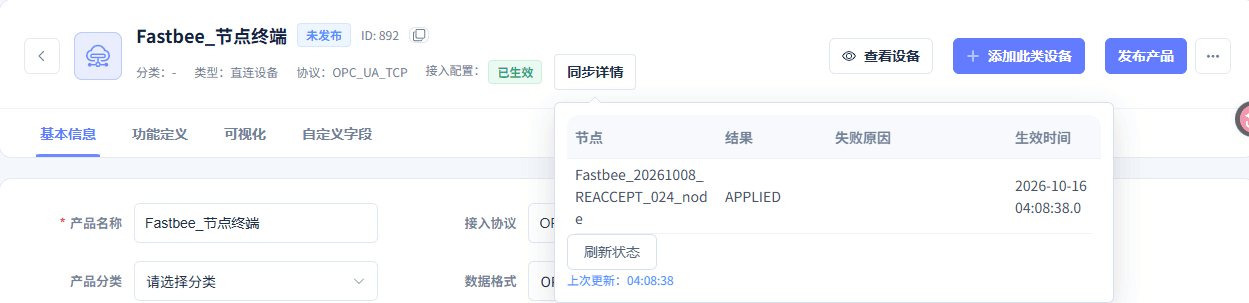
The unpublish was applied at 2026-10-16 04:08:38.
Screenshot Key Points
| Field / Control | Description |
|---|---|
| Publish and Node Application Result | After publishing, check that the current node shows APPLIED; after unpublishing at the end, check the node result again. Required · Enter: fill in per the implementation plan · Example: APPLIED |
78. Verify the values retained after stopping
Location: Device Details*→*Running Status Steps: only view the setpoint and temperature dashboards; keep the device, configuration, and history for further verification.
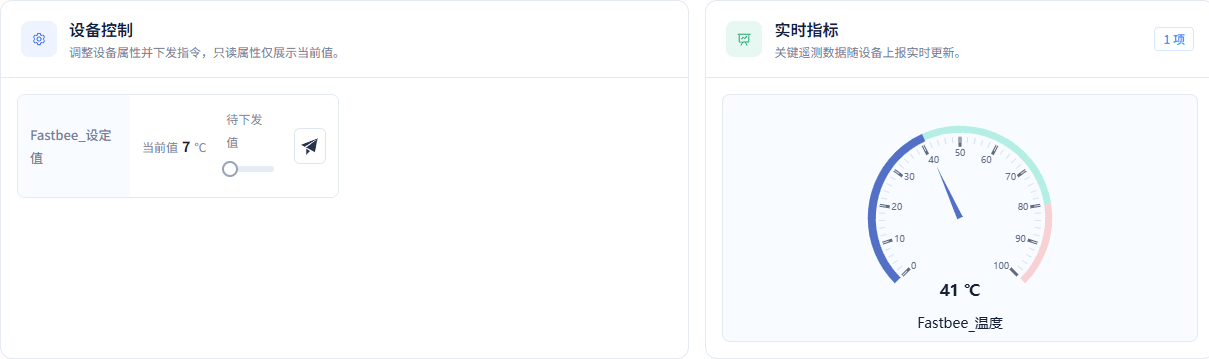
After stopping, the platform retains setpoint 7 and temperature 41; these are the last reported values.
Screenshot Key Points
| Field / Control | Description |
|---|---|
| Setpoint Control and Current Value | The pending control edits the target; the current value shows the device report; after sending once, verify with a separate read-back. Required · Enter: fill in per the implementation plan · Example: 5, 6; 7 after recovery |
| Temperature Node Update | Change the temperature on the device side one by one; the platform updates the current value and history via the subscription. Required · Enter: fill in per the implementation plan · Example: 31-40; 41 after recovery |
Parameter Sources and How to Fill Them
Product and Device Filing
| Field / Control | How to Fill |
|---|---|
| Access Source | Create a new product for this article's node device on first use; an existing product of the same model can be reused. Required · Enter: 新建产品 (New Product)Chosen or named by the user; property identifiers and types come from this article's modeling sample and subsequent node mapping.Existing Product: reuse the current tenant's existing product and model; reuse the current tenant's existing product and model. New Product: create a standalone product for the new model; create a standalone product for the new model. Copy Product: copy from an existing product and verify the configuration; copy from an existing product and verify the configuration. Use Template: create from a configured template and verify item by item; create from a configured template and verify item by item. |
| Product Name | Used to find this product on the platform. Required · Enter: 节点终端 (Node Terminal)Chosen or named by the user; property identifiers and types come from this article's modeling sample and subsequent node mapping. |
| JSON Modeling Sample | Generates only two decimal properties; it cannot replace the OPC UA node addresses or the runtime protocol. Required · Enter: {"temperature":20.1,"setpoint":30.1}Chosen or named by the user; property identifiers and types come from this article's modeling sample and subsequent node mapping. |
| Parse and Preview | After generating the fields, check the count, identifiers, and data types. Chosen or named by the user; property identifiers and types come from this article's modeling sample and subsequent node mapping. |
| Field Identifier | The platform uses it to map node data to properties; case must match exactly. Required · Enter: temperature / setpointChosen or named by the user; property identifiers and types come from this article's modeling sample and subsequent node mapping. |
| Field Name | The Chinese name shown to platform users. Required · Enter: 温度 / 设定值 (Temperature / Setpoint)Chosen or named by the user; property identifiers and types come from this article's modeling sample and subsequent node mapping. |
| Data Type | This article selects Decimal for both, corresponding to the device's Double; the other options are for illustration only and were not verified in this article. Required · Enter: DecimalChosen or named by the user; property identifiers and types come from this article's modeling sample and subsequent node mapping.Integer: a numeric value without decimals; not verified in this article; a numeric value without decimals; not verified in this article. Decimal: used for this article's temperature and setpoint, verified against the device's Double; used for this article's temperature and setpoint, verified against the device's Double. Boolean: a true/false switch state; not verified in this article; a true/false switch state; not verified in this article. Text: string content; not verified in this article; string content; not verified in this article. |
| Unit | Used for display only; this article selects degrees Celsius and does not automatically convert device values. Optional · Enter: ℃Chosen or named by the user; property identifiers and types come from this article's modeling sample and subsequent node mapping. |
| JSON Path at Modeling Time | The field paths of the initial sample; the final OPC UA runtime uses NodeId mapping. Required · Enter: $.temperature / $.setpointChosen or named by the user; property identifiers and types come from this article's modeling sample and subsequent node mapping. |
| Device Identity | The device number stays consistent across the platform, binding, nodes, and commands. Required · Enter: demo-deviceChosen or named by the user; property identifiers and types come from this article's modeling sample and subsequent node mapping. |
| Device Name | Distinguishes this article's device to connect and query. Optional · Enter: 节点终端 (Node Terminal)Chosen or named by the user; property identifiers and types come from this article's modeling sample and subsequent node mapping. |
| Initial Creation Confirmation | JSON/MQTT appearing during initial creation only indicates the sample generation stage; the protocol must be switched to the final OPC UA protocol next. Chosen or named by the user; property identifiers and types come from this article's modeling sample and subsequent node mapping. |
Function Definition and Property Permissions
| Field / Control | How to Fill |
|---|---|
| Model Name | The Chinese display name of the setpoint. Required · Enter: 设定值 (Setpoint)From the current product Thing Model; the setpoint name, identifier, read/write permission, and history switch are maintained here. Publishing is required after changes. |
| Model Translation | A required English name; enter Setpoint for the setpoint. Required · Enter: SetpointFrom the current product Thing Model; the setpoint name, identifier, read/write permission, and history switch are maintained here. Publishing is required after changes. |
| Model Identifier | Must match the setpoint node and the Write target. Required · Enter: setpointFrom the current product Thing Model; the setpoint name, identifier, read/write permission, and history switch are maintained here. Publishing is required after changes. |
| Chart Display | Controls whether this property participates in the product's configured chart display; not checked in this article. Optional · Enter: uncheckedFrom the current product Thing Model; the setpoint name, identifier, read/write permission, and history switch are maintained here. Publishing is required after changes. |
| Real-time Monitor | Controls the model's real-time monitor display option; not checked in this article. Optional · Enter: uncheckedFrom the current product Thing Model; the setpoint name, identifier, read/write permission, and history switch are maintained here. Publishing is required after changes. |
| Read-only Data | The writable control only appears when read-only is unchecked for the setpoint; temperature stays read-only. Required · Enter: temperature read-only; setpoint not read-onlyFrom the current product Thing Model; the setpoint name, identifier, read/write permission, and history switch are maintained here. Publishing is required after changes. |
| History Storage | Enabled for both; after subscription values change, they can be queried in Historical Data. Required · Enter: checkedFrom the current product Thing Model; the setpoint name, identifier, read/write permission, and history switch are maintained here. Publishing is required after changes. |
| Share Permission | This article does not open extra sharing; it does not affect the current tenant's permission-based use. Optional · Enter: uncheckedFrom the current product Thing Model; the setpoint name, identifier, read/write permission, and history switch are maintained here. Publishing is required after changes. |
Final Access Protocol
| Field / Control | How to Fill |
|---|---|
| Access Protocol | FMQ connects to the OPC UA server as a client; the runtime capability label is OPC_UA_TCP. Required · Enter: OPC_UA_TCPFrom the device's actual protocol and the product access configuration; OPC UA authentication is verified separately in the Endpoint. Publishing is required after changes. |
| Data Format | The final choice is the OPC UA built-in protocol. Required · Enter: OPC UA 内置协议 (OPC UA Built-in Protocol)From the device's actual protocol and the product access configuration; OPC UA authentication is verified separately in the Endpoint. Publishing is required after changes.OPC UA Built-in Protocol: collect and write according to the Endpoint and node mapping; collect and write according to the Endpoint and node mapping. |
| Network Mode | A label for the device's network form; actual reachability still depends on the server address and network. Required · Enter: WIFIFrom the device's actual protocol and the product access configuration; OPC UA authentication is verified separately in the Endpoint. Publishing is required after changes. |
| Enable Device Auth Code | Off in this article; OPC UA session security is determined by the Endpoint security policy and authentication configuration. Optional · Enter: OffFrom the device's actual protocol and the product access configuration; OPC UA authentication is verified separately in the Endpoint. Publishing is required after changes. |
OPC UA Endpoint Connection Parameters
| Field / Control | How to Fill |
|---|---|
| Endpoint Name | Give this group of server connection parameters an easily recognizable name. Required · Enter: 节点连接 (Node Connection)The Endpoint, security scheme, and supported capabilities are provided by the device server administrator; periods and capacities come from the current access configuration. Publishing is required after changes. |
| Endpoint and Connection Direction | Enter the device server endpoint, which FMQ connects to; not the platform web address. Required · Enter: opc.tcp://127.0.0.1:14892/FastBee/The Endpoint, security scheme, and supported capabilities are provided by the device server administrator; periods and capacities come from the current access configuration. Publishing is required after changes. |
| Security Policy | Select the security policy actually supported by the server. Required · Enter: NoneThe Endpoint, security scheme, and supported capabilities are provided by the device server administrator; periods and capacities come from the current access configuration. Publishing is required after changes.None: no message security protection, for local demo only; no message security protection, for local demo only. Basic256Sha256: uses the corresponding encryption policy and requires certificate trust configuration on both server and client; uses the corresponding encryption policy and requires certificate trust configuration on both server and client. |
| Security Mode | Consistent with the message security mode allowed by the device server. Required · Enter: NoneThe Endpoint, security scheme, and supported capabilities are provided by the device server administrator; periods and capacities come from the current access configuration. Publishing is required after changes.None: messages are not signed or encrypted, for local demo only; messages are not signed or encrypted, for local demo only. Sign: signs messages; signs messages. SignAndEncrypt: signs and encrypts messages; signs and encrypts messages. |
| Authentication Method | Choose the identity verification per the device server's authorization scheme. Required · Enter: AnonymousThe Endpoint, security scheme, and supported capabilities are provided by the device server administrator; periods and capacities come from the current access configuration. Publishing is required after changes.Anonymous: anonymous identity, used only when the server explicitly allows it; anonymous identity, used only when the server explicitly allows it. Username: authenticate with the username and password provided by the administrator; authenticate with the username and password provided by the administrator. Certificate: authenticate with the certificate identity configured by the administrator; authenticate with the certificate identity configured by the administrator. |
| Connection Timeout | The maximum wait for establishing the server connection, in milliseconds. Required · Enter: 5000 msPublishing is required after changes. |
| Request Timeout | The maximum wait for requests such as read and write, in milliseconds. Required · Enter: 5000 msPublishing is required after changes. |
| Reconnect Min Backoff | The initial wait after a connection failure, in milliseconds. Required · Enter: 1000 msPublishing is required after changes. |
| Reconnect Max Backoff | The upper bound of the wait interval across consecutive retries, in milliseconds. Required · Enter: 30000 msPublishing is required after changes. |
| Publishing Interval | The expected period for the subscription to deliver changes to the client, in milliseconds. Required · Enter: 1000 msPublishing is required after changes. |
| Sampling Interval | The sampling period requested from the server, in milliseconds; the actual value is negotiated by the server. Required · Enter: 1000 msPublishing is required after changes. |
| Queue Length | The queue length for retained changes per monitored item. Required · Enter: 10Publishing is required after changes. |
| Monitored Items per Subscription | The maximum number of monitored items per subscription. Required · Enter: 500Publishing is required after changes. |
| Enable Endpoint | Allows this server connection to be established after publishing. Required · Enter: OnThe Endpoint, security scheme, and supported capabilities are provided by the device server administrator; periods and capacities come from the current access configuration. Publishing is required after changes. |
Device Binding
| Field / Control | How to Fill |
|---|---|
| Device ID | Select this article's device already created on the platform; do not enter another device's primary key. Required · Enter: this article's deviceThe device ID and number come from the platform device details; each item matches the binding record of this Endpoint. Publishing is required after changes. |
| Device Number | Consistent with the number filed for the device. Required · Enter: demo-deviceThe device ID and number come from the platform device details; each item matches the binding record of this Endpoint. Publishing is required after changes. |
| clientId | Consistent with this article's binding and node identities; do not enter another session number. Required · Enter: demo-deviceThe device ID and number come from the platform device details; each item matches the binding record of this Endpoint. Publishing is required after changes. |
| Enable Binding | Allows the current Endpoint to carry this article's device. Required · Enter: OnThe device ID and number come from the platform device details; each item matches the binding record of this Endpoint. Publishing is required after changes. |
| Save Binding | After saving, the table should show this article's number and clientId with status enabled. The device ID and number come from the platform device details; each item matches the binding record of this Endpoint. Publishing is required after changes. |
Node Mapping and Subscription
| Field / Control | How to Fill |
|---|---|
| NodeId Namespace and Type | The NodeId must come from the device server's node table, including the namespace index and identifier form. Required · Enter: ns=2;s=temperature / ns=2;s=setpoint; DoubleThe full NodeIds, data types, and write permissions come from the device server's official node table. Publishing is required after changes. |
| Display Name | A readable name for the node; it may differ from the product property display name — mapping follows the identifier. Required · Enter: 温度 / 设定温度 (Temperature / Setpoint Temperature)The full NodeIds, data types, and write permissions come from the device server's official node table. Publishing is required after changes. |
| Thing Model Identifier | Must point to a property already created in the current product. Required · Enter: temperature / setpointThe full NodeIds, data types, and write permissions come from the device server's official node table. Publishing is required after changes. |
| Node Data Type | Both nodes in this article use and were verified with Double; other node types were not verified in this article. Required · Enter: DoubleThe full NodeIds, data types, and write permissions come from the device server's official node table. Publishing is required after changes. |
| Node Sampling Interval | This article's nodes use 1000 ms; do not treat each poll as a new business sample. Required · Enter: 1000 msPublishing is required after changes. |
| Node Queue Length | This article keeps 10 changes per node. Required · Enter: 10Publishing is required after changes. |
| Subscription | Enabled for both; device value changes are reported to the platform automatically. Required · Enter: OnThe full NodeIds, data types, and write permissions come from the device server's official node table. Publishing is required after changes. |
| Writable | Enabled only for the setpoint, off for temperature; the Thing Model must also be non-read-only and the device side must allow writes. Required · Enter: temperature off; setpoint onThe full NodeIds, data types, and write permissions come from the device server's official node table. Publishing is required after changes. |
| Enable Node | Allows collecting or controlling this node after publishing. Required · Enter: OnThe full NodeIds, data types, and write permissions come from the device server's official node table. Publishing is required after changes. |
| Save Node | Save the temperature and setpoint mappings separately, then check the table. The full NodeIds, data types, and write permissions come from the device server's official node table. Publishing is required after changes. |
Write Command Mapping
| Field / Control | How to Fill |
|---|---|
| Thing Model Target | Must be the setpoint property identifier; a Chinese name cannot replace the target identifier. Required · Enter: setpointThe method name comes from the platform property control protocol; the Write target and type correspond verbatim to the setpoint node table. Publishing is required after changes. |
| Alink Method | Platform property downlink uses the method name actually matched in this article. Required · Enter: thing.service.property.setThe method name comes from the platform property control protocol; the Write target and type correspond verbatim to the setpoint node table. Publishing is required after changes. |
| Action | This article selects Write to write the node directly; Call is for device methods and needs separate verification. Required · Enter: WriteThe method name comes from the platform property control protocol; the Write target and type correspond verbatim to the setpoint node table. Publishing is required after changes.Write: writes the specified node value; actually verified in this article; writes the specified node value; actually verified in this article. Call: invokes a device method, requiring the object, method node, and ordered input parameters; this article keeps the Write mapping, and method operations go through the diagnostics entry; invokes a device method, requiring the object, method node, and ordered input parameters; this article keeps the Write mapping, and method operations go through the diagnostics entry. |
| Write NodeId | Exactly the same as the setpoint node address. Required · Enter: ns=2;s=setpointThe method name comes from the platform property control protocol; the Write target and type correspond verbatim to the setpoint node table. Publishing is required after changes. |
| Write Data Type | This article's setpoint Write uses Double, consistent with the device node; other Write types were not verified in this article. Required · Enter: DoubleThe method name comes from the platform property control protocol; the Write target and type correspond verbatim to the setpoint node table. Publishing is required after changes. |
| Require Reply | When enabled, verify the corresponding service reply; also verify the device's actual value and an independent Read. Required · Enter: OnThe method name comes from the platform property control protocol; the Write target and type correspond verbatim to the setpoint node table. Publishing is required after changes. |
| Enable Command | Allows the runtime side to process this mapping. Required · Enter: OnThe method name comes from the platform property control protocol; the Write target and type correspond verbatim to the setpoint node table. Publishing is required after changes. |
FMQX Web Device Server
| Field / Control | How to Fill |
|---|---|
| Connection Name and Group | Helps locate this article's device server; do not create duplicate sessions on the same port. Required · Enter: 节点服务 / 节点教程 (Node Service / Node Tutorial)From the current FMQX server configuration; the listening address, port, path, and node definitions must correspond to the platform. Reconnecting is required after changes. |
| Save Method | Saving to local makes re-verification easier next time; this-time-only use does not keep the configuration. Required · Enter: 保存到本机 (Save to Local)From the current FMQX server configuration; the listening address, port, path, and node definitions must correspond to the platform. Reconnecting is required after changes.Save to Local: keeps the connection and initial node parameters; keeps the connection and initial node parameters. This Time Only: used only for this session; used only for this session. |
| Device Server Listening Address | The local demo listens only on the loopback address, and FMQ connects to it as a client. Required · Enter: 127.0.0.1From the current FMQX server configuration; the listening address, port, path, and node definitions must correspond to the platform. Reconnecting is required after changes. |
| Device Server Listening Port | Same as the device port in the platform Endpoint; do not enter the platform's 5174 web port. Required · Enter: 14892From the current FMQX server configuration; the listening address, port, path, and node definitions must correspond to the platform. Reconnecting is required after changes. |
| Connection Timeout | The connection timeout on the FMQX device server configuration page, in milliseconds. Required · Enter: 15000 msReconnecting is required after changes. |
| Endpoint Path | The platform Endpoint URL must end with the same path. Required · Enter: /FastBee/From the current FMQX server configuration; the listening address, port, path, and node definitions must correspond to the platform. Reconnecting is required after changes. |
| Namespace URI | The namespace identifier used by the device server; both nodes correspond to ns=2 in the current service. Required · Enter: urn:fastbee:fmqx:deviceFrom the current FMQX server configuration; the listening address, port, path, and node definitions must correspond to the platform. Reconnecting is required after changes. |
| Device Security Policy and Identity | The local demo allows None and Anonymous; on site, configure per the administrator's security scheme. Required · Enter: None / AnonymousFrom the current FMQX server configuration; the listening address, port, path, and node definitions must correspond to the platform. Reconnecting is required after changes. |
| Nodes and Initial Values | Temperature 20, setpoint 0; a server restart restores the saved initial values. Required · Enter: Double; temperature 20, setpoint 0From the current FMQX server configuration; the listening address, port, path, and node definitions must correspond to the platform. Reconnecting is required after changes. |
| Allow Client Write | Checked only for the setpoint; not checked for temperature. Required · Enter: temperature no; setpoint yesFrom the current FMQX server configuration; the listening address, port, path, and node definitions must correspond to the platform. Reconnecting is required after changes. |
Current Read/Write, Diagnostics, and History
| Field / Control | How to Fill |
|---|---|
| Setpoint Control and Current Value | The pending control edits the target; the current value shows the device report; after sending once, verify with a separate read-back. Required · Enter: 5, 6; 7 after recovery |
| Temperature Node Update | Change the temperature on the device side one by one; the platform updates the current value and history via the subscription. Required · Enter: 31-40; 41 after recovery |
| Device SDK Service Receipts | On the real device service page, expand Write, Read, or method records, and verify times and before/after values. Required · Enter: local / SDK service receipts |
| Independent Read | Send a separate client Read to the setpoint node, and verify GOOD, status code 0, and the actual returned value. Required · Enter: ns=2;s=setpoint |
| SetOnce Diagnostic Call | Invoke by object, method, and ordered inputs, then verify via device execution and an independent Read. Required · Enter: [this request identifier, 73.5] |
| Device, Field, and Full Time | Query only the corresponding field of this device, fill in the full date-time, and refresh under the same conditions. Required · Enter: 2026-10-16 04:07:12-04:07:24 |
| Device Server Connect and Disconnect | Connecting an FMQX session starts the OPC UA server; disconnecting stops the service. Required · Enter: manually connect / disconnect the same session |
| Publish and Node Application Result | After publishing, check that the current node shows APPLIED; after unpublishing at the end, check the node result again. Required · Enter: APPLIED |