
Device Binding, Properties, and Data
A device in the Device Binding list is associated with the project. For a component to display a live value, the right variable must be bound and the device must have reported it.
1. Before You Start
| Item | Details |
|---|---|
| Entry point | 2D SCADA → Edit → Device Binding |
| Permissions | View the target device and its data. Binding requires project edit permission. |
| What to prepare | An authorized test device, a Thing Model property known to report data, and its value and unit |
2. Trace Data from the Device to the Component
- Click Device Binding in the designer toolbar. Search for a bound device by device number. In a standalone project, use Add in this dialog when another device is needed. For a Product or Scene SCADA project, first verify the associated product or scene.
- Select a component on the canvas and open Data → Parameter Binding. Check Variable Status. No Data Bound means the component has no binding. For a numeric display or another component that needs device data, select the variable source in its settings.
- Preview the view and compare it with the latest report in device details. Check the device, property identifier, value, unit, and timestamp. Verify one known value before scaling to more devices or components.
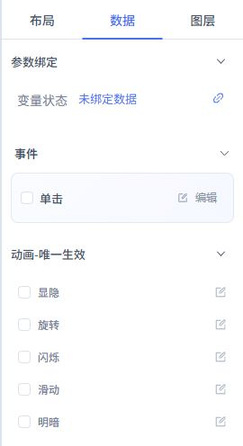
Verify with one report: Suppose an authorized test device last reported 22.5 ℃. Note the property identifier and report time in device details, then bind a numeric display component to that same property. Once the preview shows 22.5 ℃, wait for the next normal report and confirm that the reading follows the same device. One coincidental match does not prove the binding is correct. The text component in the screenshot shows No Data Bound and only illustrates the panel.
Interpreting Case Values
Average Warehouse Temperature in Cold Chain Warehouse is display text. Select it to see No Data Bound. The sample value on the canvas is not a live binding result.
3. Variable Binding Configuration
Parameter binding determines the source of the data a component displays. After binding devices to the project, you still need to select the device and variable for each component. Matching property names are not a substitute for the device number and Thing Model identifier.
| Check | Details |
|---|---|
| Variable source | Whether the product, device, or scene context matches the project type |
| Device and slave device | Verify the target device, especially in Standalone SCADA. When a slave device is involved, also verify its parent relationship. |
| Variable identifier | Must match the property identifier in the Thing Model; do not use the display name in place of the identifier. |
| Data type | Numeric, Boolean, enum, string, or array data must match the format the component expects. |
| Display format | Verify decimal places, units, enum labels, and the meaning of colors. |
| Refresh and time | Confirm that data comes from a new report or an actual request, rather than a previously retained value. |
| No-data state | Define what is displayed when the device is offline, has not reported yet, returns a null value, or a request fails. |
For example, before displaying temperature in a numeric component, confirm that the target property has been reported in device details, then bind it to the component and check the value and unit. When using a status switch to display an operating state, distinguish device online status from the business property value: an online device does not mean a pump is running, and the value 0 does not mean there is no data.
Chart components may use API requests rather than a single variable binding. Verify the API response structure first, then process time, category, and numeric fields as required by the chart. Do not pass the entire response object directly as chart data.
4. Troubleshoot Data
| Symptom | Check |
|---|---|
| Device not found | Current tenant, project business type, device number, and access scope |
| Device bound, but component has no value | Binding support, variable status, property identifier, and device reports |
| Value never changes | Whether it is still a sample value and whether the latest report timestamp is changing |
| Unexpected value or unit | Whether the Thing Model unit, precision, component format, and source agree |
For control, continue with Events, Animation, and Control.