
Rule Engine Scenario Guide
Complete resource binding, parameter configuration, simulation, and publish verification for the 18 built-in scenarios, chapter by chapter.
How to Read
First confirm the entry point, permissions, and target objects, then follow the numbered steps. Every step includes the expected result; detailed fields and options are collected in expandable reference tables.
About the Screenshots
The screenshots come from the original operation manual. The public edition hides real node addresses, connection addresses, and credentials; the statuses, times, and data shown in the examples do not represent the current production environment.
Before You Start
| Item | Description |
|---|---|
| What you can do | Complete resource binding, parameter configuration, simulation, and pre-publish checks chapter by chapter per the built-in scenarios. |
| Where to enter | Rule Engine → Scene Linkage |
| Required permissions | Rule configuration and publish permissions. |
| Estimated time | 180 minutes |
Temperature Over-limit Alarm Notification
When the temperature reported by a device this time is greater than 35, raise a Minor Issue alarm for the trigger device and notify on-duty staff.
Before you start: a product with a temperature property, or one device under that product; the temperature field, e.g. temperature; an enabled alarm definition; an enabled notification template and its corresponding notification channel; at least one recipient suitable for the notification channel.
Flow description: 1. Property report temperature; 2. Condition: current event temperature greater than 35; 3. Sequential execution; 4. Raise alarm (trigger device, Minor Issue); 5. Send notification (template determines the channel).
- Select the scenario: enter "Rule Engine" and click "Scenario Library" at the top. Under "Alarms and Recovery", select "Temperature Over-limit Alarm Notification", view the flow thumbnail, and click "Next".
- Bind trigger resources: in "Bind Resources", select the "Trigger Product". When you need to monitor only one device, select it in "Trigger Device (Optional)"; to monitor any device in the product, leave it blank. In "Trigger or Judgment Field", select the temperature property.
- Set the temperature threshold: enter "Adjust Parameters". Fill in 35 for "Judgment Value · temperature". After entering the canvas, click the condition node to double-check: the source is "Current Event" and the operator is "Greater Than".
- Configure the alarm action: click the "Raise Alarm" node on the canvas. In "Alarm Definition", select this tenant's temperature-anomaly alarm definition. Select "Minor Issue" for alarm severity and "Trigger Device" for related object.
- Configure the notification action: click the "Send Notification" node. Select a notification template and confirm that "Notification Channel" shows the read-only value determined by the template. Select on-duty users in "Recipients". If the template contains title, content, sender account, or attachment variables, choose a fixed value or "Event or Upstream Field" per variable.
- Simulate, save, and publish: click "Simulation Test" and select "Temperature Over-limit Alarm Notification: Hit Path". Confirm the condition hits at temperature 36 and both the alarm and notification show action previews. Click "Save Draft", then click "Publish", and wait for the top bar to show "Active".
Temperature over limit: input: current event: temperature=36. Expected: the condition shows satisfied; Raise Alarm and Send Notification both show action previews. Where to check: the condition node, alarm node, and notification node in the simulation results.
Threshold boundary: input: current event: temperature=35. Expected: the condition is not satisfied; neither action enters the matched path. Where to check: the matched path in the simulation results.
This chapter proves configuration and simulation previews. Real alarms after publishing, notification service acceptance, and final delivery must be verified separately through the current runtime version's execution records, alarm records, and notification receipts.
- The notification template's title, content, sender account, and attachment variables are subject to what the template actually declares.
- A successful alarm action does not mean the notification has been delivered to recipients.
- A standalone recovery template cannot close alarms raised by this rule; to configure automatic recovery, add a recovery branch inside this rule.
1. View the Scenario Flow
Location: Rule Engine → Scene Linkage
Open and check the page area corresponding to viewing the scenario flow.
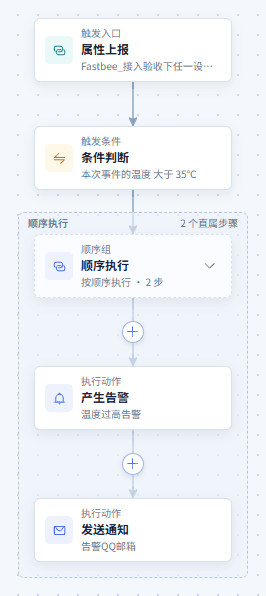
Figure: Temperature Over-limit Alarm Notification: view the scenario flow
2. Configure the Trigger Node
Location: Rule Engine → Scene Linkage
Open and check the page area corresponding to configuring the trigger node.
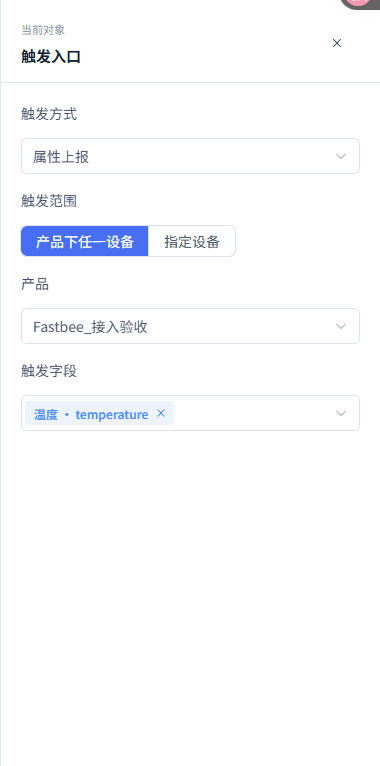
Figure: Temperature Over-limit Alarm Notification: configure the trigger node
3. Configure the Condition Node (Full Form)
Location: Rule Engine → Scene Linkage
Switch to the full form and set the field, source, operator, and comparison value in the "Conditions to Satisfy" area; it shares the same rule with the canvas.

Figure: Temperature Over-limit Alarm Notification: configure the condition node (full form)
4. Configure the Action Node
Location: Rule Engine → Scene Linkage
Open and check the page area corresponding to configuring the action node.
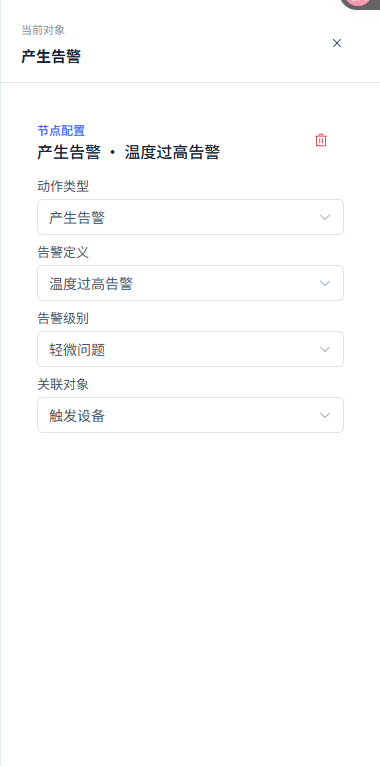
Figure: Temperature Over-limit Alarm Notification: configure the action node
5. Configure the Notification Template and Recipients
Location: Rule Engine → Scene Linkage
Open and check the page area corresponding to configuring the notification template and recipients.
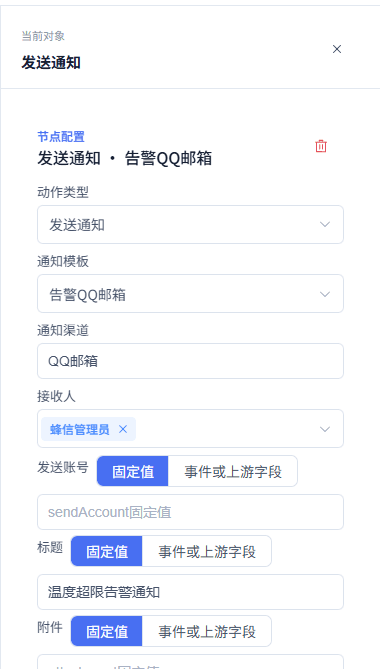
Figure: Temperature Over-limit Alarm Notification: configure the notification template and recipients
6. Run the Simulation
Location: Rule Engine → Scene Linkage
Open and check the page area corresponding to running the simulation.
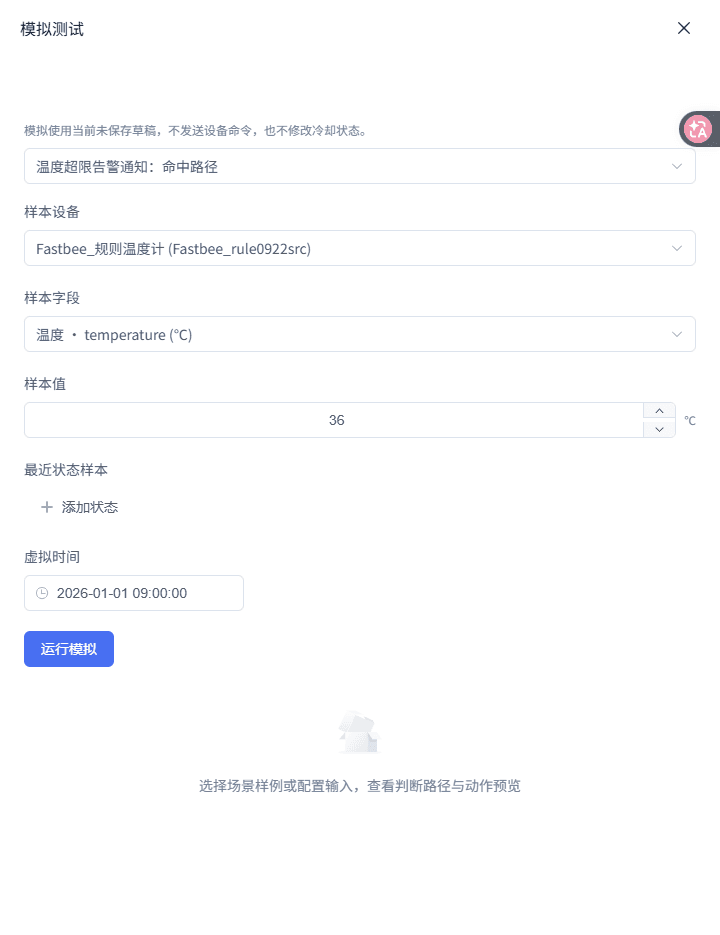
Figure: Temperature Over-limit Alarm Notification: run the simulation
7. View the Simulation Results
Location: Rule Engine → Scene Linkage
View the current sample's matched path and action previews.

Figure: Temperature Over-limit Alarm Notification: view the simulation results
1. Select the Scenario
| Option | Purpose and Usage Advice | Effect and Recovery |
|---|---|---|
| Required Scenario | Fill in or select "Scenario". The template has already created the temperature event condition, alarm action, and notification action; how to choose: the template has already created the temperature event condition, alarm action, and notification action; where the value comes from: current tenant resources, thing models, or sample values given by this scenario; suggested: Temperature Over-limit Alarm Notification. | Used to complete "Select the Scenario"; Impact · Scope: current rule draft; takes effect: requires publish; when wrong: the template carries no real product, device, alarm, or notification resources; recovery: fix per the page's validation hints and save again. |
2. Bind Trigger Resources
| Option | Purpose and Usage Advice | Effect and Recovery |
|---|---|---|
| Required Trigger Method | Fill in or select "Trigger Method". This template only starts judging when a device reports a property this time; how to choose: this template only starts judging when a device reports a property this time; where the value comes from: current tenant resources, thing models, or sample values given by this scenario; suggested: Property Report. | Used to complete "Bind Trigger Resources"; Impact · Scope: current rule draft; takes effect: requires publish; when wrong: do not choose "State Satisfaction Change" — this scenario's threshold comes from this report's value; recovery: fix per the page's validation hints and save again. |
| Required Trigger Field | Fill in or select "Trigger Field". Conditions and notification variables can reference this field; how to choose: conditions and notification variables can reference this field; where the value comes from: current tenant resources, thing models, or sample values given by this scenario; suggested: temperature (or the actual temperature property). | Used to complete "Bind Trigger Resources"; Impact · Scope: current rule draft; takes effect: requires publish; when wrong: after switching the product or device you must reconfirm the field still belongs to its thing model; recovery: fix per the page's validation hints and save again. |
3. Set the Temperature Threshold
| Option | Purpose and Usage Advice | Effect and Recovery |
|---|---|---|
| Required Condition Source | Fill in or select "Condition Source". What is judged is the temperature report that triggered this rule; how to choose: what is judged is the temperature report that triggered this rule; where the value comes from: current tenant resources, thing models, or sample values given by this scenario; suggested: Current Event. | Used to complete "Set the Temperature Threshold"; Impact · Scope: current rule draft; takes effect: requires publish; when wrong: changing to "Latest State" changes the scenario semantics and may use a historical value; recovery: fix per the page's validation hints and save again. |
| Required Comparison Value | Fill in or select "Comparison Value". Temperature 36 will hit, 35 will not; how to choose: temperature 36 will hit, 35 will not; where the value comes from: current tenant resources, thing models, or sample values given by this scenario; suggested: 35. | Used to complete "Set the Temperature Threshold"; Impact · Scope: current rule draft; takes effect: requires publish; when wrong: input units follow the thing-model definition — do not enter text like "35℃" into a numeric field; recovery: fix per the page's validation hints and save again. |
4. Configure the Alarm Action
| Option | Purpose and Usage Advice | Effect and Recovery |
|---|---|---|
| Required Alarm Definition | Fill in or select "Alarm Definition". Defines the alarm's business category and display information; how to choose: defines the alarm's business category and display information; where the value comes from: current tenant resources, thing models, or sample values given by this scenario; suggested: temperature-anomaly alarm definition. | Used to complete "Configure the Alarm Action"; Impact · Scope: current rule draft; takes effect: requires publish; when wrong: the current recovery implementation does not match by alarm definition or published version — cross-rule clearing cannot be achieved by merely selecting the same definition; recovery: fix per the page's validation hints and save again. |
| Required Alarm Severity | Fill in or select "Alarm Severity". The template's default level for general temperature over-limit; how to choose: the template's default level for general temperature over-limit; where the value comes from: current tenant resources, thing models, or sample values given by this scenario; suggested: Minor Issue (2). | Used to complete "Configure the Alarm Action"; Impact · Scope: current rule draft; takes effect: requires publish; when wrong: levels 1, 2, 3 are Reminder, Minor Issue, Critical Warning respectively — do not use legacy string values; recovery: fix per the page's validation hints and save again. |
| Required Related Object | Fill in or select "Related Object". Each reporting device raises its own alarm; how to choose: each reporting device raises its own alarm; where the value comes from: current tenant resources, thing models, or sample values given by this scenario; suggested: Trigger Device. | Used to complete "Configure the Alarm Action"; Impact · Scope: current rule draft; takes effect: requires publish; when wrong: changing to Specified Device attaches all trigger devices' alarms to the selected device; recovery: fix per the page's validation hints and save again. |
5. Configure the Notification Action
| Option | Purpose and Usage Advice | Effect and Recovery |
|---|---|---|
| Required Notification Template | Fill in or select "Notification Template". The template fixes the notification channel and declared variables; how to choose: the template fixes the notification channel and declared variables; where the value comes from: current tenant resources, thing models, or sample values given by this scenario; suggested: a configured temperature alarm template. | Used to complete "Configure the Notification Action"; Impact · Scope: current rule draft; takes effect: requires publish; when wrong: the notification channel cannot be selected separately in the rule apart from the template; recovery: fix per the page's validation hints and save again. |
| Required Recipients | Fill in or select "Recipients". SMS, email, and voice channels filter recipients by mailbox or phone number; how to choose: SMS, email, and voice channels filter recipients by mailbox or phone number; where the value comes from: current tenant resources, thing models, or sample values given by this scenario; suggested: at least one on-duty user suitable for the channel. | Used to complete "Configure the Notification Action"; Impact · Scope: current rule draft; takes effect: requires publish; when wrong: robot channels do not require user recipients — do not fill in unsuitable users just to pass validation; recovery: fix per the page's validation hints and save again. |
| Required Title / Content | Fill in or select "Title / Content". Lets on-duty staff know the alarm cause; how to choose: lets on-duty staff know the alarm cause; where the value comes from: current tenant resources, thing models, or sample values given by this scenario; suggested: e.g. "Temperature Over-limit" / "Device temperature over limit, please check on site". | Used to complete "Configure the Notification Action"; Impact · Scope: current rule draft; takes effect: requires publish; when wrong: when a dynamic value is needed, switch to "Event or Upstream Field" binding — only fields available to the current node can be selected; recovery: fix per the page's validation hints and save again. |
6. Simulate, Save, and Publish
| Option | Purpose and Usage Advice | Effect and Recovery |
|---|---|---|
| Required Simulation Input | Fill in or select "Simulation Input". Greater than 35 should take the full satisfied path; how to choose: greater than 35 should take the full satisfied path; where the value comes from: current tenant resources, thing models, or sample values given by this scenario; suggested: temperature=36. | Used to complete "Simulate, Save, and Publish"; Impact · Scope: current rule draft; takes effect: requires publish; when wrong: simulation neither creates formal alarms nor sends notifications; recovery: fix per the page's validation hints and save again. |
| Required Counterexample Input | Fill in or select "Counterexample Input". Verifies the boundary value does not hit "greater than 35"; how to choose: verifies the boundary value does not hit "greater than 35"; where the value comes from: current tenant resources, thing models, or sample values given by this scenario; suggested: temperature=35. | Used to complete "Simulate, Save, and Publish"; Impact · Scope: current rule draft; takes effect: requires publish; when wrong: no alarm or notification preview should be expected when the condition is unsatisfied; recovery: fix per the page's validation hints and save again. |
Temperature-Humidity Combined Alarm
When this temperature report is greater than 35 and the device's latest humidity state is greater than 80, raise a critical alarm and notify on-duty staff.
Before you start: one device with both temperature and humidity properties, or devices in the same product scope; the temperature and humidity thing-model fields; an enabled temperature-humidity anomaly alarm definition; a notification template, template channel, and suitable recipients.
Flow description: 1. Property report temperature; 2. All satisfied: current event temperature greater than 35; latest state humidity greater than 80; 3. Sequential execution; 4. Raise alarm (trigger device, Critical Warning); 5. Send notification.
- Select the combined scenario: Rule Engine → Scenario Library → Alarms and Recovery. Select "Temperature-Humidity Combined Alarm" and confirm in the thumbnail that the two conditions converge into the same alarm action. Click "Next".
- Bind the product, device, and temperature field: select the trigger product; select a trigger device only when you need a fixed device. Select temperature in "Trigger or Judgment Field". Confirm the trigger method stays "Property Report".
- Set the temperature condition: enter "Adjust Parameters" and fill in 35 as the judgment value for temperature. Select the condition node on the canvas and confirm the condition group is "All Satisfied", with the temperature sub-condition's source as "Current Event" and operator as "Greater Than".
- Bind and set the humidity latest state: in "Judgment Conditions" of resource binding, select the humidity source device; when not selected, the trigger device is used by default. Select humidity as the condition field. Enter the parameters page and fill in 80 as the humidity judgment value.
- Set the alarm and notification: select the "Raise Alarm" action, choose the temperature-humidity anomaly alarm definition, and select "Trigger Device" as the related object. Select "Critical Warning" for alarm severity. Select the "Send Notification" action, choose the template and recipients, and fill or bind the template's title and content variables.
- Simulate the combination and counterexamples: run the template sample: current temperature=36, latest humidity=85. Then change humidity to 80 and temperature to 35 respectively and run again. After confirming, save the draft, publish, and wait for "Active".
Both temperature and humidity abnormal: input: event temperature=36; latest state humidity=85. Expected: both conditions satisfied; the critical alarm and notification show action previews. Where to check: the two condition nodes and the action nodes in the simulation results.
High temperature only: input: event temperature=36; latest state humidity=80. Expected: the humidity condition is not satisfied and the combined condition does not hit. Where to check: the simulation matched path.
Humidity state missing: input: event temperature=36; no humidity latest state provided. Expected: the humidity condition shows undeterminable and the alarm path cannot be taken. Where to check: the humidity condition in the simulation results.
Simulation only verifies conditions and action previews. A real combined alarm needs an actually valid humidity state, and real notification requires additionally checking the notification receipt.
- "Latest State" can select the trigger device or a specified device; for cross-device judgment the state device must be explicitly selected.
- A missing or expired state is not "condition unsatisfied".
- A standalone alarm-clearing rule cannot close alarms created by this rule even with the same alarm definition and same device; the recovery branch must be placed inside this rule.
8. View the Scenario Flow
Location: Rule Engine → Scene Linkage
Open and check the page area corresponding to viewing the scenario flow.
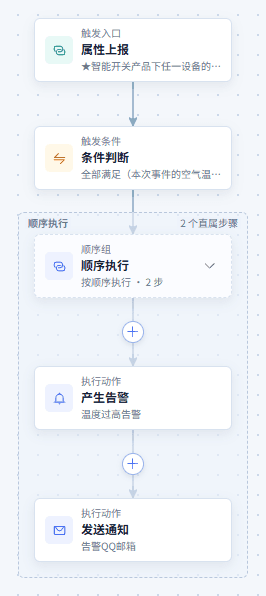
Figure: Temperature-Humidity Combined Alarm: view the scenario flow
9. Configure the Trigger Node
Location: Rule Engine → Scene Linkage
Open and check the page area corresponding to configuring the trigger node.
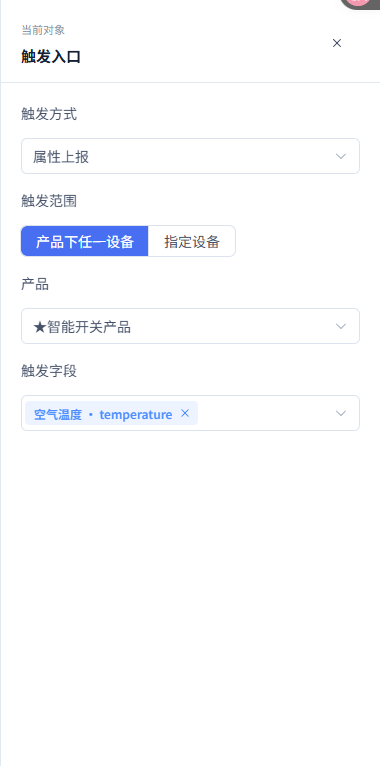
Figure: Temperature-Humidity Combined Alarm: configure the trigger node
10. Configure the Condition Node (Full Form)
Location: Rule Engine → Scene Linkage
Switch to the full form and set the field, source, operator, and comparison value in the "Conditions to Satisfy" area; it shares the same rule with the canvas.
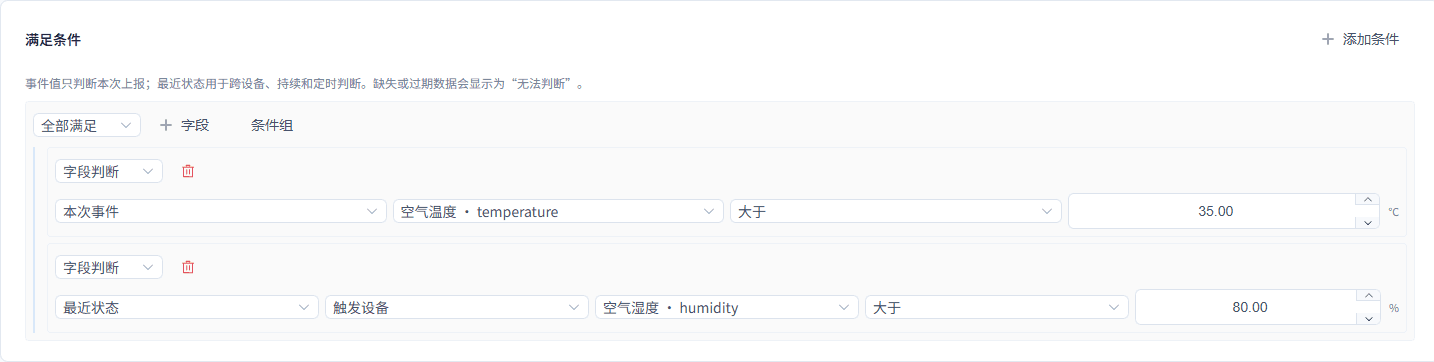
Figure: Temperature-Humidity Combined Alarm: configure the condition node (full form)
11. Configure the Notification Template and Recipients
Location: Rule Engine → Scene Linkage
Open and check the page area corresponding to configuring the notification template and recipients.
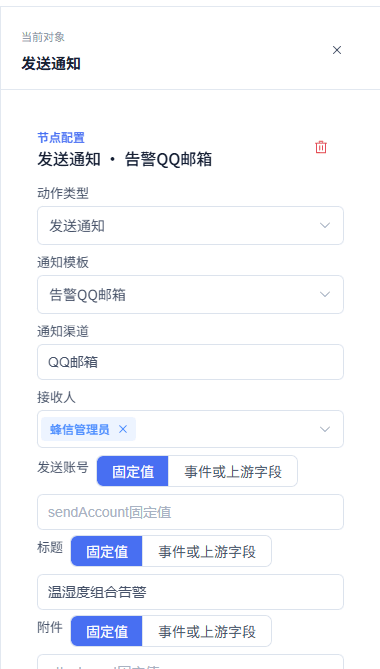
Figure: Temperature-Humidity Combined Alarm: configure the notification template and recipients
12. Configure the Action Node
Location: Rule Engine → Scene Linkage
Open and check the page area corresponding to configuring the action node.
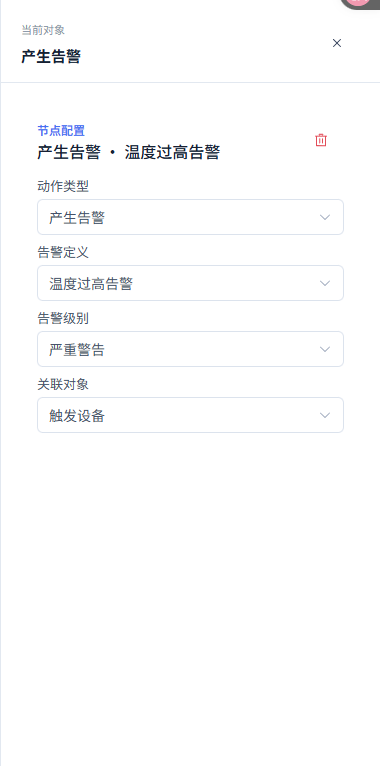
Figure: Temperature-Humidity Combined Alarm: configure the action node
13. Run the Simulation
Location: Rule Engine → Scene Linkage
Open and check the page area corresponding to running the simulation.
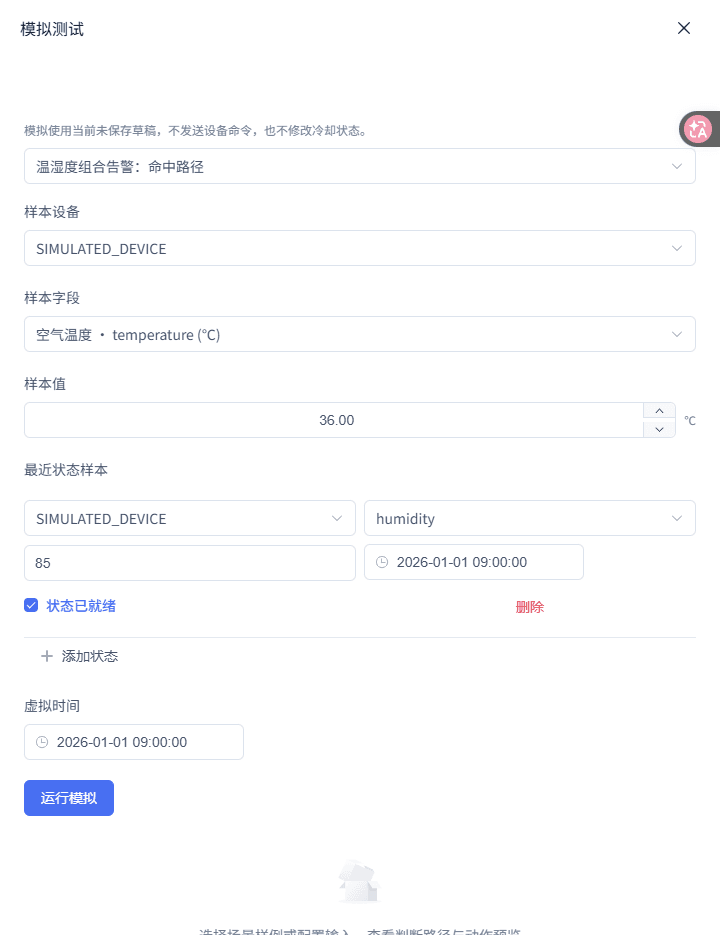
Figure: Temperature-Humidity Combined Alarm: run the simulation
14. View the Simulation Results
Location: Rule Engine → Scene Linkage
View the current sample's matched path and action previews.

Figure: Temperature-Humidity Combined Alarm: view the simulation results
1. Select the Combined Scenario
| Option | Purpose and Usage Advice | Effect and Recovery |
|---|---|---|
| Required Scenario | Fill in or select "Scenario". The template presets an "All Satisfied" condition group; how to choose: the template presets an "All Satisfied" condition group; where the value comes from: current tenant resources, thing models, or sample values given by this scenario; suggested: Temperature-Humidity Combined Alarm. | Used to complete "Select the Combined Scenario"; Impact · Scope: current rule draft; takes effect: requires publish; when wrong: Any Satisfied would misjudge high temperature alone or high humidity alone as a combined anomaly; recovery: fix per the page's validation hints and save again. |
2. Bind the Product, Device, and Temperature Field
| Option | Purpose and Usage Advice | Effect and Recovery |
|---|---|---|
| Required Trigger Field | Fill in or select "Trigger Field". Temperature is the current event source; how to choose: temperature is the current event source; where the value comes from: current tenant resources, thing models, or sample values given by this scenario; suggested: temperature. | Used to complete "Bind the Product, Device, and Temperature Field"; Impact · Scope: current rule draft; takes effect: requires publish; when wrong: do not make humidity the current event field while keeping the original temperature condition; recovery: fix per the page's validation hints and save again. |
| Required Trigger Scope | Fill in or select "Trigger Scope". Determines which devices participate in the rule; how to choose: determines which devices participate in the rule; where the value comes from: current tenant resources, thing models, or sample values given by this scenario; suggested: Any Device under Product or Specified Device. | Used to complete "Bind the Product, Device, and Temperature Field"; Impact · Scope: current rule draft; takes effect: requires publish; when wrong: with a product scope, each device is judged by its own latest humidity state; recovery: fix per the page's validation hints and save again. |
3. Set the Temperature Condition
| Option | Purpose and Usage Advice | Effect and Recovery |
|---|---|---|
| Required Temperature Threshold | Fill in or select "Temperature Threshold". Temperature 36 is the template's hit sample; how to choose: temperature 36 is the template's hit sample; where the value comes from: current tenant resources, thing models, or sample values given by this scenario; suggested: 35. | Used to complete "Set the Temperature Condition"; Impact · Scope: current rule draft; takes effect: requires publish; when wrong: the boundary value 35 does not satisfy "greater than"; recovery: fix per the page's validation hints and save again. |
4. Bind and Set the Humidity Latest State
| Option | Purpose and Usage Advice | Effect and Recovery |
|---|---|---|
| Required Condition Source | Fill in or select "Condition Source". Humidity is not part of this temperature event's payload, but the device's saved latest state; how to choose: humidity is not part of this temperature event's payload, but the device's saved latest state; where the value comes from: current tenant resources, thing models, or sample values given by this scenario; suggested: Latest State. | Used to complete "Bind and Set the Humidity Latest State"; Impact · Scope: current rule draft; takes effect: requires publish; when wrong: when the latest state does not exist, is expired, or cannot be read, it shows "Undeterminable" and cannot be treated as "unsatisfied"; recovery: fix per the page's validation hints and save again. |
| Required Humidity Threshold | Fill in or select "Humidity Threshold". Humidity 85 satisfies together with temperature 36; how to choose: humidity 85 satisfies together with temperature 36; where the value comes from: current tenant resources, thing models, or sample values given by this scenario; suggested: 80. | Used to complete "Bind and Set the Humidity Latest State"; Impact · Scope: current rule draft; takes effect: requires publish; when wrong: the humidity field's unit and data type must match the threshold; recovery: fix per the page's validation hints and save again. |
5. Set the Alarm and Notification
| Option | Purpose and Usage Advice | Effect and Recovery |
|---|---|---|
| Required Alarm Severity | Fill in or select "Alarm Severity". The template treats a combined anomaly as a higher-severity alarm; how to choose: the template treats a combined anomaly as a higher-severity alarm; where the value comes from: current tenant resources, thing models, or sample values given by this scenario; suggested: Critical Warning (3). | Used to complete "Set the Alarm and Notification"; Impact · Scope: current rule draft; takes effect: requires publish; when wrong: do not fill the alarm severity into a notification title variable; recovery: fix per the page's validation hints and save again. |
| Required Content Variable | Fill in or select "Content Variable". The notification content can state both anomalies; how to choose: the notification content can state both anomalies; where the value comes from: current tenant resources, thing models, or sample values given by this scenario; suggested: e.g. bind temperature to current event .temperature, and fill a fixed note for humidity or bind an available state field. | Used to complete "Set the Alarm and Notification"; Impact · Scope: current rule draft; takes effect: requires publish; when wrong: only fields provided by the control can be bound — do not handwrite a nonexistent field path; recovery: fix per the page's validation hints and save again. |
6. Simulate the Combination and Counterexamples
| Option | Purpose and Usage Advice | Effect and Recovery |
|---|---|---|
| Required Hit Sample | Fill in or select "Hit Sample". Both conditions satisfied; how to choose: both conditions satisfied; where the value comes from: current tenant resources, thing models, or sample values given by this scenario; suggested: temperature=36; latest humidity=85. | Used to complete "Simulate the Combination and Counterexamples"; Impact · Scope: current rule draft; takes effect: requires publish; when wrong: the humidity state must carry a valid observation time to avoid being judged unknown for exceeding the latest state validity period; recovery: fix per the page's validation hints and save again. |
| Required Counterexample | Fill in or select "Counterexample". With humidity not greater than 80, the whole ALL condition is unsatisfied; how to choose: with humidity not greater than 80, the whole ALL condition is unsatisfied; where the value comes from: current tenant resources, thing models, or sample values given by this scenario; suggested: temperature=36; latest humidity=80. | Used to complete "Simulate the Combination and Counterexamples"; Impact · Scope: current rule draft; takes effect: requires publish; when wrong: the alarm should not execute just because one condition is satisfied; recovery: fix per the page's validation hints and save again. |
Sustained High-Temperature Alarm
After the device's latest temperature state stays greater than 35 for 300 seconds, raise a Minor Issue alarm and notify on-duty staff.
Before you start: a product or device with a temperature state; the temperature field and its valid observation time; an enabled high-temperature alarm definition; a notification template, channel, and recipients.
Flow description: 1. State Satisfaction Change: continuously satisfied for 300 seconds; 2. Latest state temperature greater than 35; 3. Runtime scheduled re-check; 4. Sequential execution; 5. Raise alarm (trigger device, Minor Issue); 6. Send notification.
- Create from the sustained high-temperature template: select "Sustained High-Temperature Alarm" in the Scenario Library. Enter Bind Resources and select the temperature product, an optional trigger device, and the temperature field.
- Configure the sustained trigger: select the trigger node. Choose "State Satisfaction Change" as the trigger method. Choose "Continuously Satisfied" as the trigger condition and fill in 300 seconds as the duration.
- Set the latest-state condition and validity period: click the condition node and confirm the source is "Latest State", the device is the trigger device, the field is temperature, and the operator is "Greater Than". Fill in 35 as the comparison value. Open "Rule Settings" and set "Latest State Validity Period" to 300 seconds.
- Configure the alarm definition: select the Raise Alarm action. Choose the high-temperature alarm definition, select "Trigger Device" as the related object. Select "Minor Issue" for alarm severity.
The same configuration screens are shown in the "Temperature Over-limit Alarm Notification" chapter; continue completing this scenario per the field tables above.
- Configure the notification: select the Send Notification action and choose a notification template. Confirm the channel is automatically shown by the template. Select recipients and fill in variables such as title and content per the template; the content can describe "sustained high temperature for 5 minutes".
- Simulate and understand the runtime re-check: in Simulation Test, run "Sustained High Temperature: Current Latest State Sample". Confirm that when temperature=36 and the latest state's observation time is valid, the satisfied path and action previews are shown. Save and publish; when viewing execution records, confirm that re-judgment still uses the latest state after expiry.
Current state is high temperature: input: latest state temperature=36, observedAt within the latest state validity period. Expected: simulation shows the high-temperature condition satisfied with action previews. Where to check: the condition and action nodes in the simulation results.
State expired: input: temperature=36, but observedAt is earlier than the 300-second latest state validity period. Expected: the condition shows undeterminable — not treated as unsatisfied or continuously satisfied. Where to check: the condition node in the simulation results.
Recovery at expiry re-check: input: at the runtime re-check, the latest temperature=35. Expected: the sustained candidate does not enter the alarm action. Where to check: execution tracing of the published rule.
Simulation can verify the current state judgment and action previews; a real sustained alarm requires waiting for the scheduled re-check in a normal runtime environment and confirming in execution records and alarm records.
- Sustained conditions rely on runtime scheduled re-checks, not a frontend timer.
- Missing, expired, or future-dated states must remain "Undeterminable".
- Simulation can only show the current state path — it cannot serve as complete sustained history or real alarm evidence.
- A standalone recovery rule cannot close alarms raised by this rule; when recovery is needed, configure it in a later branch of this rule.
15. View the Scenario Flow
Location: Rule Engine → Scene Linkage
Open and check the page area corresponding to viewing the scenario flow.
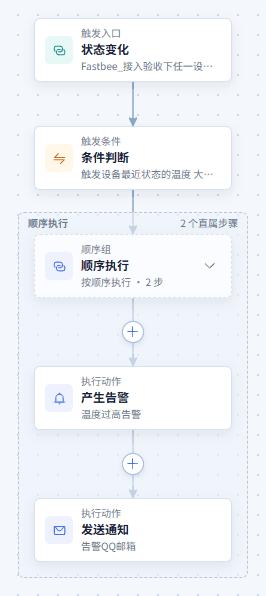
Figure: Sustained High-Temperature Alarm: view the scenario flow
16. Configure the Trigger Node
Location: Rule Engine → Scene Linkage
Open and check the page area corresponding to configuring the trigger node.
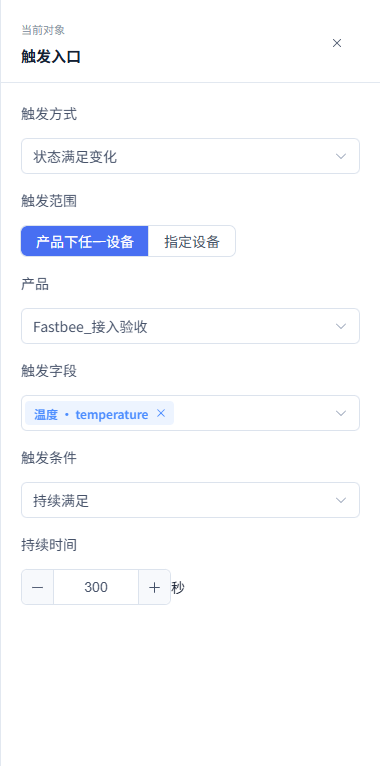
Figure: Sustained High-Temperature Alarm: configure the trigger node
17. Configure the Condition Node (Full Form)
Location: Rule Engine → Scene Linkage
Switch to the full form and set the field, source, operator, and comparison value in the "Conditions to Satisfy" area; it shares the same rule with the canvas.

Figure: Sustained High-Temperature Alarm: configure the condition node (full form)
18. Configure the Notification Template and Recipients
Location: Rule Engine → Scene Linkage
Open and check the page area corresponding to configuring the notification template and recipients.
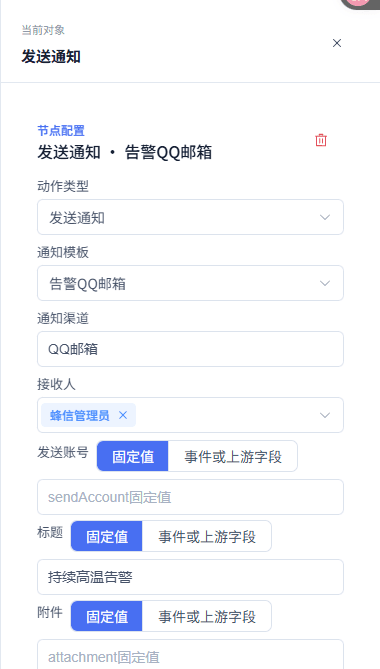
Figure: Sustained High-Temperature Alarm: configure the notification template and recipients
19. Run the Simulation
Location: Rule Engine → Scene Linkage
Open and check the page area corresponding to running the simulation.
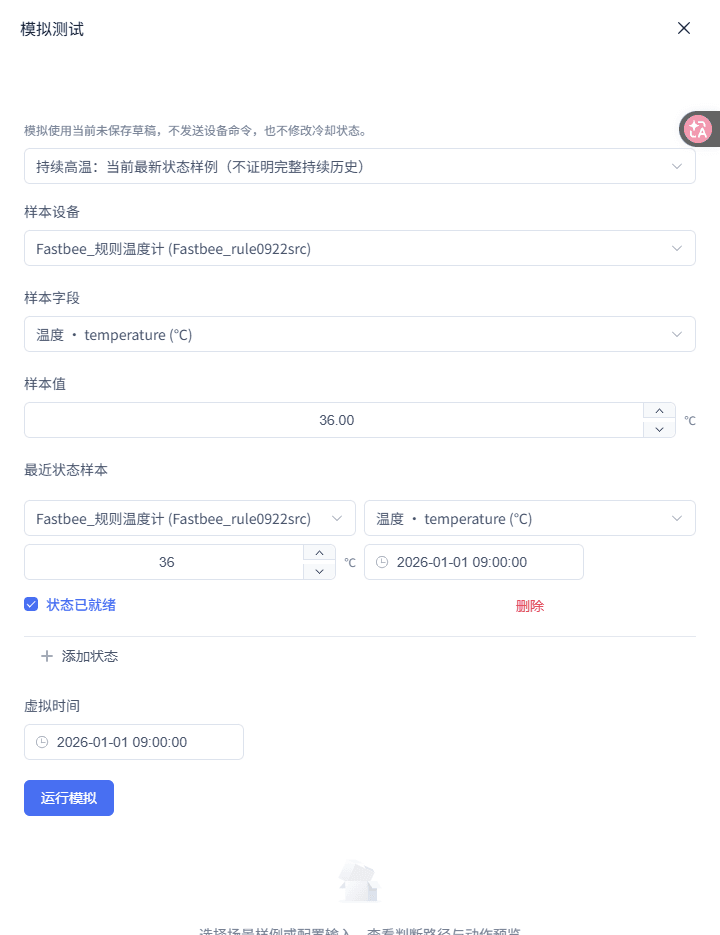
Figure: Sustained High-Temperature Alarm: run the simulation
20. View the Simulation Results
Location: Rule Engine → Scene Linkage
View the current sample's matched path and action previews.

Figure: Sustained High-Temperature Alarm: view the simulation results
1. Create from the Sustained High-Temperature Template
| Option | Purpose and Usage Advice | Effect and Recovery |
|---|---|---|
| Required Scenario | Fill in or select "Scenario". The template presets STATE_CHANGE, continuously satisfied, and a latest-state condition; how to choose: the template presets STATE_CHANGE, continuously satisfied, and a latest-state condition; where the value comes from: current tenant resources, thing models, or sample values given by this scenario; suggested: Sustained High-Temperature Alarm. | Used to complete "Create from the Sustained High-Temperature Template"; Impact · Scope: current rule draft; takes effect: requires publish; when wrong: this is not a scenario where a single temperature report over the threshold raises an alarm; recovery: fix per the page's validation hints and save again. |
2. Configure the Sustained Trigger
| Option | Purpose and Usage Advice | Effect and Recovery |
|---|---|---|
| Required Trigger Method | Fill in or select "Trigger Method". The rule judges from the saved latest state; how to choose: the rule judges from the saved latest state; where the value comes from: current tenant resources, thing models, or sample values given by this scenario; suggested: State Satisfaction Change (STATE_CHANGE). | Used to complete "Configure the Sustained Trigger"; Impact · Scope: current rule draft; takes effect: requires publish; when wrong: with this trigger method the condition source is limited to latest state and cannot be switched to current event; recovery: fix per the page's validation hints and save again. |
| Required Duration | Fill in or select "Duration". High temperature must persist for five consecutive minutes before entering the alarm action; how to choose: high temperature must persist for five consecutive minutes before entering the alarm action; where the value comes from: current tenant resources, thing models, or sample values given by this scenario; suggested: 300 seconds. | Used to complete "Configure the Sustained Trigger"; Impact · Scope: current rule draft; takes effect: requires publish; when wrong: the duration is not an action delay — the runtime re-checks the state at expiry; recovery: fix per the page's validation hints and save again. |
3. Set the Latest-State Condition and Validity Period
| Option | Purpose and Usage Advice | Effect and Recovery |
|---|---|---|
| Required Temperature Threshold | Fill in or select "Temperature Threshold". The candidate is maintained only while the latest state temperature exceeds this value; how to choose: the candidate is maintained only while the latest state temperature exceeds this value; where the value comes from: current tenant resources, thing models, or sample values given by this scenario; suggested: 35. | Used to complete "Set the Latest-State Condition and Validity Period"; Impact · Scope: current rule draft; takes effect: requires publish; when wrong: when temperature drops to 35, "greater than" is unsatisfied and the sustained timer should be canceled or restarted; recovery: fix per the page's validation hints and save again. |
| Required Latest State Validity Period | Fill in or select "Latest State Validity Period". Avoids using stale state as the basis for sustained high temperature; how to choose: avoids using stale state as the basis for sustained high temperature; where the value comes from: current tenant resources, thing models, or sample values given by this scenario; suggested: 300 seconds. | Used to complete "Set the Latest-State Condition and Validity Period"; Impact · Scope: current rule draft; takes effect: requires publish; when wrong: missing or expired state shows "Undeterminable" and must never be converted to "unsatisfied"; recovery: fix per the page's validation hints and save again. |
4. Configure the Alarm Definition
| Option | Purpose and Usage Advice | Effect and Recovery |
|---|---|---|
| Required Alarm Definition | Fill in or select "Alarm Definition". Defines the high-temperature alarm's business category and display information; how to choose: defines the high-temperature alarm's business category and display information; where the value comes from: current tenant resources, thing models, or sample values given by this scenario; suggested: high-temperature alarm definition. | Used to complete "Configure the Alarm Definition"; Impact · Scope: current rule draft; takes effect: requires publish; when wrong: the recovery action's runtime query does not match by alarm definition — when recovery is needed, it must be placed in a branch of this rule; recovery: fix per the page's validation hints and save again. |
| Required Alarm Severity | Fill in or select "Alarm Severity". The template's default level; how to choose: the template's default level; where the value comes from: current tenant resources, thing models, or sample values given by this scenario; suggested: Minor Issue (2). | Used to complete "Configure the Alarm Definition"; Impact · Scope: current rule draft; takes effect: requires publish; when wrong: alarm definition and alarm severity are different fields — both must be configured; recovery: fix per the page's validation hints and save again. |
5. Configure the Notification
| Option | Purpose and Usage Advice | Effect and Recovery |
|---|---|---|
| Required Notification Template | Fill in or select "Notification Template". The template determines the channel and variables; how to choose: the template determines the channel and variables; where the value comes from: current tenant resources, thing models, or sample values given by this scenario; suggested: sustained high-temperature notification template. | Used to complete "Configure the Notification"; Impact · Scope: current rule draft; takes effect: requires publish; when wrong: when the notification channel is invalid, replace the template — do not hand-forge a channel; recovery: fix per the page's validation hints and save again. |
| Required Recipients | Fill in or select "Recipients". Gives the notification action an actual receiving target; how to choose: gives the notification action an actual receiving target; where the value comes from: current tenant resources, thing models, or sample values given by this scenario; suggested: suitable on-duty users. | Used to complete "Configure the Notification"; Impact · Scope: current rule draft; takes effect: requires publish; when wrong: robot-type channels are handled per template capability and do not force a user recipient; recovery: fix per the page's validation hints and save again. |
6. Simulate and Understand the Runtime Re-check
| Option | Purpose and Usage Advice | Effect and Recovery |
|---|---|---|
| Required Simulation State | Fill in or select "Simulation State". Shows the current latest state meets the high-temperature condition; how to choose: shows the current latest state meets the high-temperature condition; where the value comes from: current tenant resources, thing models, or sample values given by this scenario; suggested: temperature=36; observedAt is a valid time near the virtual time. | Used to complete "Simulate and Understand the Runtime Re-check"; Impact · Scope: current rule draft; takes effect: requires publish; when wrong: this sample does not prove the real environment has kept 300 seconds of continuous history; recovery: fix per the page's validation hints and save again. |
| Required Re-check Counterexample | Fill in or select "Re-check Counterexample". Verifies the candidate does not treat an unknown or recovered state as continuously satisfied; how to choose: verifies the candidate does not treat an unknown or recovered state as continuously satisfied; where the value comes from: current tenant resources, thing models, or sample values given by this scenario; suggested: state missing, expired, or temperature=35 before or at expiry. | Used to complete "Simulate and Understand the Runtime Re-check"; Impact · Scope: current rule draft; takes effect: requires publish; when wrong: no alarm is raised when the runtime scheduled re-check does not pass; recovery: fix per the page's validation hints and save again. |
Temperature Recovery Alarm Clearing
Shows how to configure a temperature-recovery branch. The standalone template can preview the recovery action when temperature is less than or equal to 30, but it cannot close high-temperature alarms raised by another rule; to achieve real automatic clearing, the recovery branch must be added to the same rule that raises the high-temperature alarm.
Before you start: the product or device and the temperature field used by the high-temperature alarm rule; the high-temperature alarm rule itself (the recovery branch must be added inside that rule); a recovery notification template, channel, and recipients.
Flow description: 1. The same rule's property report temperature (must not be blocked by the high-temperature outer condition); 2. IF branch one: temperature greater than 35 → raise alarm; 3. IF branch two: temperature less than or equal to 30 → recover this rule's own active alarms for that device → send a recovery notification.
- First understand the standalone template's boundary: you can open "Temperature Recovery Alarm Clearing" in the Scenario Library to view its recovery threshold and action preview. Do not save and publish that template as another recovery rule to close alarms raised by the "Temperature Over-limit Alarm Notification" rule. When real automatic clearing is needed, go back and edit the original high-temperature alarm rule.
- Manually add a recovery branch in the original high-temperature alarm rule: open the high-temperature rule that already has "Raise Alarm" configured and switch to the flow canvas. Keep property report temperature as the entry, but do not let the rule's outermost "temperature greater than 35" condition intercept recovery reports; change the entry condition to always enterable, or remove that outer threshold condition. Insert a "Conditional Branch (IF)" into the original sequential flow. Configure the first branch as current event temperature greater than 35, and place the original "Raise Alarm" and alarm notification actions inside. Configure the second branch as current event temperature less than or equal to 30, add a "Recover Alarm" action, and add a recovery notification as needed. Save, validate, simulate, and publish this same rule; there is no "one-click merge" button here.
- Set the recovery threshold: enter Adjust Parameters and set the judgment value of temperature to 30. In the condition node, confirm the source is "Current Event" and the operator is "Less Than or Equal".
- Configure the Recover Alarm action: in the original high-temperature rule's recovery IF branch, click the "Recover Alarm" action. Select "Trigger Device" as the related object. If the page still requires selecting an alarm definition, select the one used by the high-temperature action to keep business display consistent, but do not treat it as a runtime cross-rule matching condition.
- Configure the recovery notification: click the Send Notification action and select the recovery notification template. Confirm the channel is determined by the template and select recipients. Fill in "Temperature Recovered" and available temperature-field bindings for variables such as title and content.
- Simulate, publish, and verify the association: in the edited same rule, simulate temperature=28 and confirm the recovery branch and notification show action previews. Then simulate temperature=31 and confirm neither threshold branch is satisfied; simulate temperature=36 and confirm the alarm-raising branch hits. Save and publish; for real verification, first let this same rule and same device raise an active alarm, then report a recovery value and check the execution records and alarm records.
Recovery temperature: input: current event temperature=28. Expected: the condition is satisfied; Recover Alarm and the notification show action previews. Where to check: the action nodes in the simulation results.
Still not recovered: input: current event temperature=31. Expected: the condition is unsatisfied and the recovery action is not entered. Where to check: the simulation matched path.
Simulation of the standalone template and the same-rule branch only shows recovery action previews. Real clearing is determined by the change of active alarms of the same ruleId and same device; the original simulation diagram cannot prove cross-rule recovery success.
- A standalone recovery rule does not clear alarms raised by another rule; an IF recovery branch must be added inside the alarm-raising rule.
- Do not use a global temperature > 35 condition to intercept recovery events with temperature ≤ 30.
- When no active alarm exists for the same rule and same device, a successful recovery action must not be mistaken for having closed some historical alarm.
- A recovery notification is the notification service's processing result and cannot be equated with having been read.
21. View the Scenario Flow
Location: Rule Engine → Scene Linkage
Open and check the page area corresponding to viewing the scenario flow.
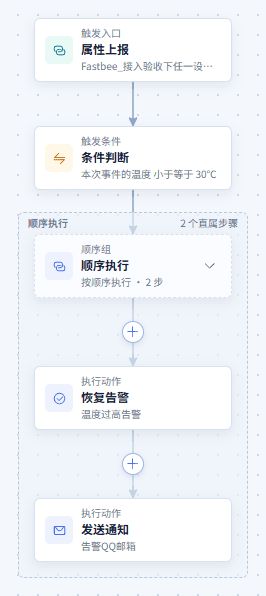
Figure: Temperature Recovery Alarm Clearing: view the scenario flow
22. Configure the Condition Node (Full Form)
Location: Rule Engine → Scene Linkage
Switch to the full form and set the field, source, operator, and comparison value in the "Conditions to Satisfy" area; it shares the same rule with the canvas.

Figure: Temperature Recovery Alarm Clearing: configure the condition node (full form)
23. Configure the Action Node
Location: Rule Engine → Scene Linkage
Open and check the page area corresponding to configuring the action node.
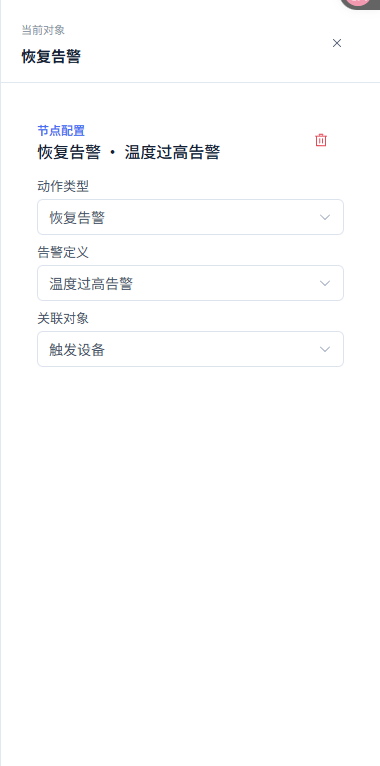
Figure: Temperature Recovery Alarm Clearing: configure the action node
24. Configure the Notification Template and Recipients
Location: Rule Engine → Scene Linkage
Open and check the page area corresponding to configuring the notification template and recipients.
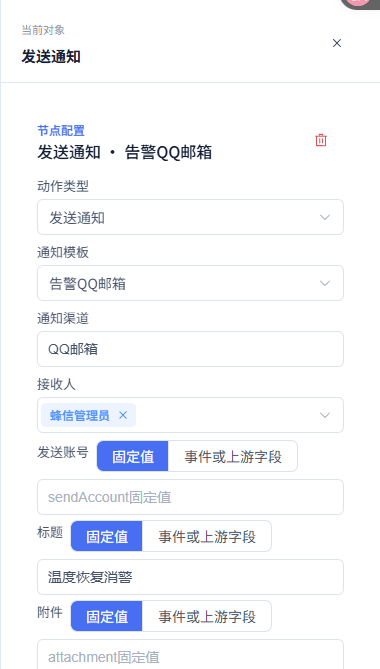
Figure: Temperature Recovery Alarm Clearing: configure the notification template and recipients
25. Run the Simulation
Location: Rule Engine → Scene Linkage
Open and check the page area corresponding to running the simulation.
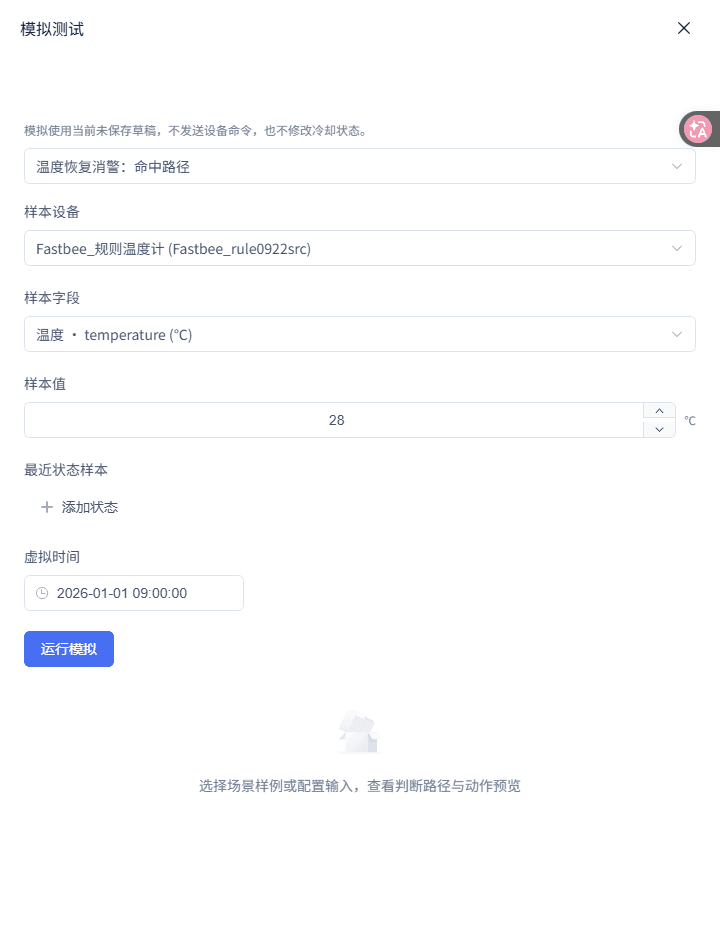
Figure: Temperature Recovery Alarm Clearing: run the simulation
26. View the Simulation Results
Location: Rule Engine → Scene Linkage
View the current sample's matched path and action previews.

Figure: Temperature Recovery Alarm Clearing: view the simulation results
1. First Understand the Standalone Template's Boundary
| Option | Purpose and Usage Advice | Effect and Recovery |
|---|---|---|
| Required Recovery Matching Scope | Fill in or select "Recovery Matching Scope". When no alarm-record primary key is specified, the recovery action only looks up active alarms created by this rule itself for that device; how to choose: when no alarm-record primary key is specified, the recovery action only looks up active alarms created by this rule itself for that device; where the value comes from: current tenant resources, thing models, or sample values given by this scenario; suggested: same ruleId + same trigger device + active status. | Used to complete "First Understand the Standalone Template's Boundary"; Impact · Scope: current rule draft; takes effect: requires publish; when wrong: it does not subdivide by alarm definition or published version and processes at most 1000 entries; alarms created by a different rule with the same definition and same device are not closed; recovery: fix per the page's validation hints and save again. |
2. Manually Add a Recovery Branch in the Original High-Temperature Alarm Rule
| Option | Purpose and Usage Advice | Effect and Recovery |
|---|---|---|
| Required Entry Condition | Fill in or select "Entry Condition". The same rule must receive both high-temperature and recovery-temperature events for the recovery branch to have a chance to run; how to choose: the same rule must receive both high-temperature and recovery-temperature events for the recovery branch to have a chance to run; where the value comes from: current tenant resources, thing models, or sample values given by this scenario; suggested: property report temperature; do not use the high-temperature threshold as a global blocking condition. | Used to complete "Manually Add a Recovery Branch in the Original High-Temperature Alarm Rule"; Impact · Scope: current rule draft; takes effect: requires publish; when wrong: if the outermost still limits to temperature > 35, temperature ≤ 30 never enters the IF recovery branch at all; recovery: fix per the page's validation hints and save again. |
| Required Recovery Action Position | Fill in or select "Recovery Action Position". At runtime, the rule's own active alarms are queried by ruleId and device; how to choose: at runtime, the rule's own active alarms are queried by ruleId and device; where the value comes from: current tenant resources, thing models, or sample values given by this scenario; suggested: inside the same ruleId that raises the high-temperature alarm. | Used to complete "Manually Add a Recovery Branch in the Original High-Temperature Alarm Rule"; Impact · Scope: current rule draft; takes effect: requires publish; when wrong: copying out another rule, creating a new rule from the standalone template, or merely selecting the same alarm definition cannot establish a cross-rule recovery relationship; recovery: fix per the page's validation hints and save again. |
3. Set the Recovery Threshold
| Option | Purpose and Usage Advice | Effect and Recovery |
|---|---|---|
| Required Comparison Value | Fill in or select "Comparison Value". Both temperature 30 and 28 should take the recovery path; how to choose: both temperature 30 and 28 should take the recovery path; where the value comes from: current tenant resources, thing models, or sample values given by this scenario; suggested: 30. | Used to complete "Set the Recovery Threshold"; Impact · Scope: current rule draft; takes effect: requires publish; when wrong: do not use high-temperature alarm operators such as "greater than"; no automatic clearing should happen between 35 and 30; recovery: fix per the page's validation hints and save again. |
4. Configure the Recover Alarm Action
| Option | Purpose and Usage Advice | Effect and Recovery |
|---|---|---|
| Required Actual Recovery Matching | Fill in or select "Actual Recovery Matching". This is the actual query condition used by the recovery action when no alarm-record primary key is specified; how to choose: this is the actual query condition used by the recovery action when no alarm-record primary key is specified; where the value comes from: current tenant resources, thing models, or sample values given by this scenario; suggested: same ruleId + trigger device + status=active. | Used to complete "Configure the Recover Alarm Action"; Impact · Scope: current rule draft; takes effect: requires publish; when wrong: the scope is not narrowed by alarm definition, alarm severity, or published version; at most 1000 active alarms of the same rule and same device are processed; recovery: fix per the page's validation hints and save again. |
| Required Related Object | Fill in or select "Related Object". Consistent with the target object when the alarm was raised; how to choose: consistent with the target object when the alarm was raised; where the value comes from: current tenant resources, thing models, or sample values given by this scenario; suggested: Trigger Device. | Used to complete "Configure the Recover Alarm Action"; Impact · Scope: current rule draft; takes effect: requires publish; when wrong: if the alarm was raised with a specified device, the recovery event must also point to that same device; recovery: fix per the page's validation hints and save again. |
5. Configure the Recovery Notification
| Option | Purpose and Usage Advice | Effect and Recovery |
|---|---|---|
| Required Notification Template | Fill in or select "Notification Template". Lets on-duty staff know the fault state has recovered; how to choose: lets on-duty staff know the fault state has recovered; where the value comes from: current tenant resources, thing models, or sample values given by this scenario; suggested: temperature recovery notification template. | Used to complete "Configure the Recovery Notification"; Impact · Scope: current rule draft; takes effect: requires publish; when wrong: the notification template and the alarm definition are not the same resource — both must be selected separately; recovery: fix per the page's validation hints and save again. |
| Required Content Variable | Fill in or select "Content Variable". Expresses the recovery conclusion and the current value; how to choose: expresses the recovery conclusion and the current value; where the value comes from: current tenant resources, thing models, or sample values given by this scenario; suggested: e.g. "Current temperature has recovered to the safe range". | Used to complete "Configure the Recovery Notification"; Impact · Scope: current rule draft; takes effect: requires publish; when wrong: it should not claim the device's physical fault has been eliminated unless the business has separately confirmed it; recovery: fix per the page's validation hints and save again. |
6. Simulate, Publish, and Verify the Association
| Option | Purpose and Usage Advice | Effect and Recovery |
|---|---|---|
| Required Hit Sample | Fill in or select "Hit Sample". Less than or equal to 30 should enter the recovery IF branch; how to choose: less than or equal to 30 should enter the recovery IF branch; where the value comes from: current tenant resources, thing models, or sample values given by this scenario; suggested: temperature=28. | Used to complete "Simulate, Publish, and Verify the Association"; Impact · Scope: current rule draft; takes effect: requires publish; when wrong: simulation does not really close existing alarms and cannot serve as evidence of cross-rule recovery success; recovery: fix per the page's validation hints and save again. |
| Required Association Verification Premise | Fill in or select "Association Verification Premise". The recovery action only acts on active alarms within this rule's own device scope; how to choose: the recovery action only acts on active alarms within this rule's own device scope; where the value comes from: current tenant resources, thing models, or sample values given by this scenario; suggested: an active alarm exists for the same rule + same device. | Used to complete "Simulate, Publish, and Verify the Association"; Impact · Scope: current rule draft; takes effect: requires publish; when wrong: with no active alarm, the rule path can execute but has nothing to close; recovery: fix per the page's validation hints and save again. |
Device Offline Alarm
When the device's latest online status changes to offline (built-in status=4), raise a critical alarm and notify on-duty staff.
Before you start: the product or device whose online status needs monitoring; an enabled device-offline alarm definition; a notification template, channel, and recipients.
Flow description: 1. State Satisfaction Change (STATE_CHANGE); 2. Latest state: device online status status equals 4 (offline); 3. Sequential execution; 4. Raise alarm (trigger device, Critical Warning); 5. Send notification.
- Select the offline scenario: in the Scenario Library's Alarms and Recovery category, select "Device Offline Alarm". Enter resource binding and select the product to monitor; select a trigger device when you need to fix one device.
- Set the state-change trigger: select the trigger node. Confirm the trigger method is "State Satisfaction Change". Confirm the template's default trigger condition is "Every Time Satisfied"; change it to "Becomes Satisfied" per business policy only when you need execution solely on transition to offline.
- Configure the built-in offline status condition: click the condition node. Select "Latest State" as the source and "Trigger Device" as the state device. Select "Device Online Status · status" as the field, "Equal" as the operator, and "Offline" as the comparison value.
- Configure the offline alarm: click the Raise Alarm action and select the "Device Offline" alarm definition. Select "Critical Warning" for alarm severity. Keep "Trigger Device" as the related object.
- Configure the offline notification: select the Send Notification action and choose the offline alarm notification template. Confirm the read-only notification channel and select suitable recipients. Fill in the variables actually declared by the template, such as title, content, sender account, and attachments.
- Simulate states and publish: run the template sample with input status=4. Then input status=3 as a counterexample. After confirming, save and publish, and wait until the runtime status shows "Active"; after a real state change, view the state value and alarm action in the execution records.
Offline: input: latest state: status=4. Expected: the condition is satisfied; the critical alarm and notification show action previews. Where to check: the state condition and action nodes in the simulation results.
Online counterexample: input: latest state: status=3. Expected: the condition is unsatisfied and the offline alarm action does not execute. Where to check: the simulation matched path.
State missing: input: no latest status provided. Expected: the condition shows undeterminable and no offline alarm can be raised. Where to check: the state condition in the simulation results.
Simulation verifies the status condition and action previews. A real offline alarm must be triggered by a state change in the normal runtime environment, with evidence taken separately from execution records and alarm records.
- The built-in status enum is fixed at 3=online, 4=offline.
- status is a read-only state and cannot be the target of a control action.
- A standalone online-clearing rule cannot close alarms created by this rule even with the same alarm definition and device; the recovery branch must be placed inside this rule.
27. View the Scenario Flow
Location: Rule Engine → Scene Linkage
Open and check the page area corresponding to viewing the scenario flow.
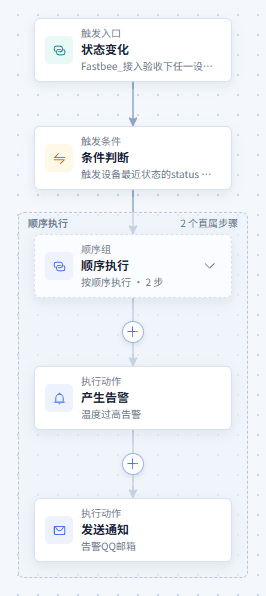
Figure: Device Offline Alarm: view the scenario flow
28. Configure the Trigger Node
Location: Rule Engine → Scene Linkage
Open and check the page area corresponding to configuring the trigger node.
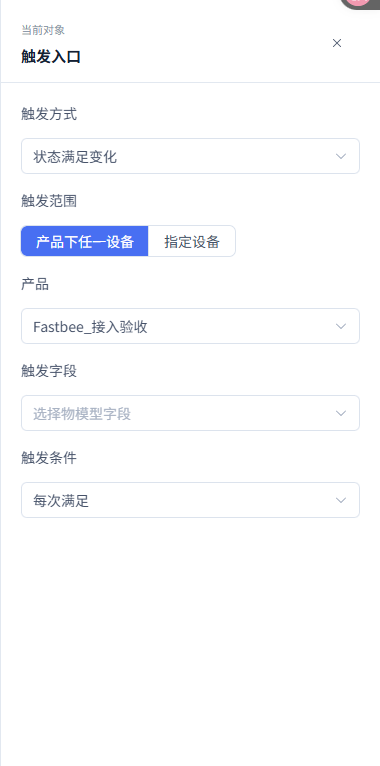
Figure: Device Offline Alarm: configure the trigger node
29. Configure the Condition Node (Full Form)
Location: Rule Engine → Scene Linkage
Switch to the full form and set the field, source, operator, and comparison value in the "Conditions to Satisfy" area; it shares the same rule with the canvas.

Figure: Device Offline Alarm: configure the condition node (full form)
30. Configure the Action Node
Location: Rule Engine → Scene Linkage
Open and check the page area corresponding to configuring the action node.
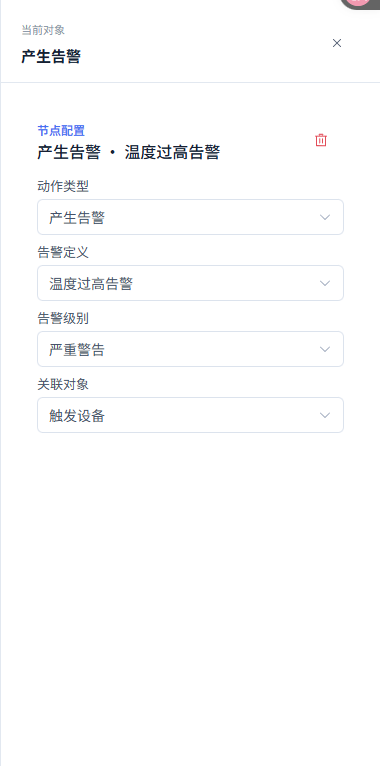
Figure: Device Offline Alarm: configure the action node
31. Configure the Notification Template and Recipients
Location: Rule Engine → Scene Linkage
Open and check the page area corresponding to configuring the notification template and recipients.
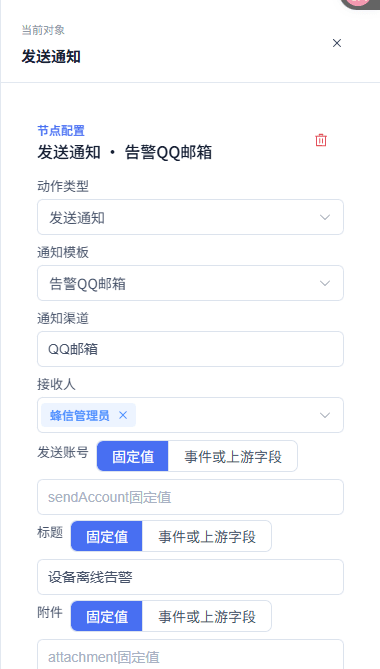
Figure: Device Offline Alarm: configure the notification template and recipients
32. Run the Simulation
Location: Rule Engine → Scene Linkage
Open and check the page area corresponding to running the simulation.
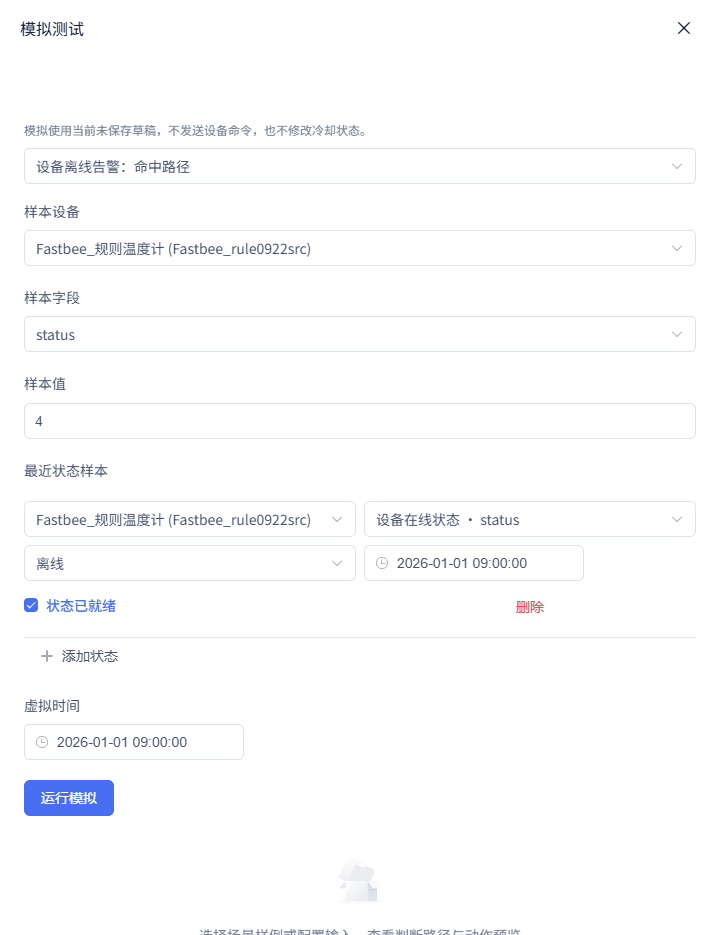
Figure: Device Offline Alarm: run the simulation
33. View the Simulation Results
Location: Rule Engine → Scene Linkage
View the current sample's matched path and action previews.

Figure: Device Offline Alarm: view the simulation results
1. Select the Offline Scenario
| Option | Purpose and Usage Advice | Effect and Recovery |
|---|---|---|
| Required Scenario | Fill in or select "Scenario". The template presets state change and the built-in online-status judgment; how to choose: the template presets state change and the built-in online-status judgment; where the value comes from: current tenant resources, thing models, or sample values given by this scenario; suggested: Device Offline Alarm. | Used to complete "Select the Offline Scenario"; Impact · Scope: current rule draft; takes effect: requires publish; when wrong: no extra status field needs to be created in the product thing model; recovery: fix per the page's validation hints and save again. |
2. Set the State-Change Trigger
| Option | Purpose and Usage Advice | Effect and Recovery |
|---|---|---|
| Required Trigger Method | Fill in or select "Trigger Method". After a device state is submitted, the latest-state judgment is triggered; how to choose: after a device state is submitted, the latest-state judgment is triggered; where the value comes from: current tenant resources, thing models, or sample values given by this scenario; suggested: State Satisfaction Change (STATE_CHANGE). | Used to complete "Set the State-Change Trigger"; Impact · Scope: current rule draft; takes effect: requires publish; when wrong: do not choose Property Report — online status is a system built-in read-only state; recovery: fix per the page's validation hints and save again. |
| Required Trigger Condition | Fill in or select "Trigger Condition". Consistent with the template and canvas's current default behavior; how to choose: consistent with the template and canvas's current default behavior; where the value comes from: current tenant resources, thing models, or sample values given by this scenario; suggested: Every Time Satisfied (template default). | Used to complete "Set the State-Change Trigger"; Impact · Scope: current rule draft; takes effect: requires publish; when wrong: "Becomes Satisfied" is an optional deduplication business policy — after changing it, verify per the actual alarm strategy whether state re-evaluation is missed; recovery: fix per the page's validation hints and save again. |
3. Configure the Built-in Offline Status Condition
| Option | Purpose and Usage Advice | Effect and Recovery |
|---|---|---|
| Required Field | Fill in or select "Field". This is a built-in read-only enum state provided by the editor; how to choose: this is a built-in read-only enum state provided by the editor; where the value comes from: current tenant resources, thing models, or sample values given by this scenario; suggested: status (device online status). | Used to complete "Configure the Built-in Offline Status Condition"; Impact · Scope: current rule draft; takes effect: requires publish; when wrong: it is not a writable device control field, and you should not manually create a same-named thing model; recovery: fix per the page's validation hints and save again. |
| Required Comparison Value | Fill in or select "Comparison Value". In the built-in enum, 3=online, 4=offline; how to choose: in the built-in enum, 3=online, 4=offline; where the value comes from: current tenant resources, thing models, or sample values given by this scenario; suggested: 4 (offline). | Used to complete "Configure the Built-in Offline Status Condition"; Impact · Scope: current rule draft; takes effect: requires publish; when wrong: 1=not activated, 2=disabled — do not mistake them for offline; recovery: fix per the page's validation hints and save again. |
| Required Condition Source | Fill in or select "Condition Source". STATE_CHANGE only allows judging with the latest state; how to choose: STATE_CHANGE only allows judging with the latest state; where the value comes from: current tenant resources, thing models, or sample values given by this scenario; suggested: Latest State. | Used to complete "Configure the Built-in Offline Status Condition"; Impact · Scope: current rule draft; takes effect: requires publish; when wrong: a missing or expired state should show undeterminable, not be treated as unsatisfied; recovery: fix per the page's validation hints and save again. |
4. Configure the Offline Alarm
| Option | Purpose and Usage Advice | Effect and Recovery |
|---|---|---|
| Required Alarm Definition | Fill in or select "Alarm Definition". Defines the offline alarm's business category and display information; how to choose: defines the offline alarm's business category and display information; where the value comes from: current tenant resources, thing models, or sample values given by this scenario; suggested: device offline alarm definition. | Used to complete "Configure the Offline Alarm"; Impact · Scope: current rule draft; takes effect: requires publish; when wrong: a standalone online-clearing rule does not gain cross-rule recovery capability by selecting the same definition; recovery: fix per the page's validation hints and save again. |
| Required Alarm Severity | Fill in or select "Alarm Severity". The template lists offline as a critical impact; how to choose: the template lists offline as a critical impact; where the value comes from: current tenant resources, thing models, or sample values given by this scenario; suggested: Critical Warning (3). | Used to complete "Configure the Offline Alarm"; Impact · Scope: current rule draft; takes effect: requires publish; when wrong: the severity value is saved with the action — changing the notification does not change the alarm severity; recovery: fix per the page's validation hints and save again. |
5. Configure the Offline Notification
| Option | Purpose and Usage Advice | Effect and Recovery |
|---|---|---|
| Required Title | Fill in or select "Title". Lets recipients distinguish offline from ordinary property alarms; how to choose: lets recipients distinguish offline from ordinary property alarms; where the value comes from: current tenant resources, thing models, or sample values given by this scenario; suggested: e.g. "Device Offline Alarm". | Used to complete "Configure the Offline Notification"; Impact · Scope: current rule draft; takes effect: requires publish; when wrong: the field must be a template-declared variable — undeclared variables are not added automatically; recovery: fix per the page's validation hints and save again. |
| Required Content | Fill in or select "Content". States the business meaning of status=4; how to choose: states the business meaning of status=4; where the value comes from: current tenant resources, thing models, or sample values given by this scenario; suggested: e.g. "Device status has changed to offline". | Used to complete "Configure the Offline Notification"; Impact · Scope: current rule draft; takes effect: requires publish; when wrong: neither the notification preview nor service acceptance means the device reconnected successfully; recovery: fix per the page's validation hints and save again. |
6. Simulate States and Publish
| Option | Purpose and Usage Advice | Effect and Recovery |
|---|---|---|
| Required Offline Sample | Fill in or select "Offline Sample". Should hit the offline alarm path; how to choose: should hit the offline alarm path; where the value comes from: current tenant resources, thing models, or sample values given by this scenario; suggested: latest state status=4. | Used to complete "Simulate States and Publish"; Impact · Scope: current rule draft; takes effect: requires publish; when wrong: simulation neither changes device online status nor raises formal alarms; recovery: fix per the page's validation hints and save again. |
| Required Online Counterexample | Fill in or select "Online Counterexample". Verifies that coming online does not wrongly raise an offline alarm; how to choose: verifies that coming online does not wrongly raise an offline alarm; where the value comes from: current tenant resources, thing models, or sample values given by this scenario; suggested: latest state status=3. | Used to complete "Simulate States and Publish"; Impact · Scope: current rule draft; takes effect: requires publish; when wrong: status=3 is online, not a missing state field; recovery: fix per the page's validation hints and save again. |
Device Online Alarm Clearing
Shows how to configure an online-recovery branch. The standalone template can preview the recovery action at status=3, but it cannot close alarms raised by another offline rule; real automatic clearing requires adding the recovery branch to the same rule that raises the offline alarm.
Before you start: the product or device scope used by the offline alarm rule; the offline alarm rule itself (the recovery branch must be added inside that rule).
Flow description: 1. The same rule's State Satisfaction Change entry (must receive both online and offline changes); 2. IF branch one: status=4 (offline) → raise alarm; 3. IF branch two: status=3 (online) → recover this rule's own active alarms for that device.
- First understand the standalone template's boundary: you can open "Device Online Alarm Clearing" in the Scenario Library to view the status=3 recovery action preview. Do not publish it as another rule to close the "Device Offline Alarm" rule's alarms. When real automatic clearing is needed, open and edit the original offline alarm rule.
- Manually add an online-recovery branch in the original offline alarm rule: open the offline rule that already has "Raise Alarm" configured and switch to the flow canvas. Keep the "State Satisfaction Change" entry, but do not make status=4 the rule's outermost condition; the entry must allow both status=3 and status=4 events to enter. Change the outermost state condition to always enterable, or remove that outer status=4 judgment. Insert a "Conditional Branch (IF)" into the original sequential flow. The first branch uses latest state status equal to 4 and keeps the original Raise Alarm and notification actions. The second branch uses latest state status equal to 3 with a "Recover Alarm" action added; add a recovery notification as needed. Save, validate, simulate, and publish this same rule; the page has no "one-click merge" operation.
- Set the State Satisfaction Change trigger: in the original offline rule's trigger node, confirm the trigger method is "State Satisfaction Change". Choose an entry policy that can receive any state change, and let the IF branches distinguish online from offline. Do not use an entry restriction that only lets status=4 in.
The same configuration screens are shown in the "Device Offline Alarm" chapter; continue completing this scenario per the field tables above.
- Set the built-in online status judgment: click the condition node, select "Latest State" as the source and "Trigger Device" as the state device. Select "Device Online Status · status" as the field, "Equal" as the operator, and "Online" as the comparison value.
- Configure the recovery action's actual matching: in the original offline rule's status=3 IF branch, click the "Recover Alarm" action. Select "Trigger Device" as the related object. If the page requires an alarm definition, select the alarm-raising action's definition to keep business display consistent, but do not understand it as a runtime cross-rule matching condition.
- Simulate, save, and verify for real: in the edited same offline rule, simulate status=3 and confirm the recovery IF branch shows an action preview. Then simulate status=4 and confirm the alarm-raising IF branch hits. Save the draft, publish, and wait for Active; for real verification, first let this same rule and same device raise an active offline alarm, then let the state change to online, and check the execution records and alarm records.
Device online: input: latest state: status=3. Expected: the state condition is satisfied and Recover Alarm shows an action preview. Where to check: the condition and Recover Alarm nodes in the simulation results.
Still offline: input: latest state: status=4. Expected: the condition is unsatisfied and the recovery path is not entered. Where to check: the simulation matched path.
This chapter's original simulation diagrams can only verify the status=3 condition and recovery action preview. Real closing is determined by the change of active alarms of the same ruleId and same device — simulation or a cross-rule scenario cannot serve as recovery success evidence.
- status=3 means online, status=4 means offline.
- A standalone recovery template cannot close alarms raised by the offline rule; add an IF recovery branch inside the same offline rule.
- Do not let an outer status=4 condition block status=3 online events.
- The template has no notification action; after adding a notification in the same rule, the template, channel, and recipients must be bound separately.
34. View the Scenario Flow
Location: Rule Engine → Scene Linkage
Open and check the page area corresponding to viewing the scenario flow.
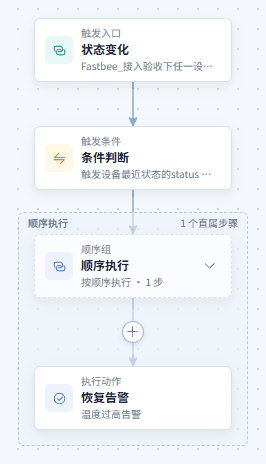
Figure: Device Online Alarm Clearing: view the scenario flow
35. Configure the Action Node
Location: Rule Engine → Scene Linkage
Open and check the page area corresponding to configuring the action node.
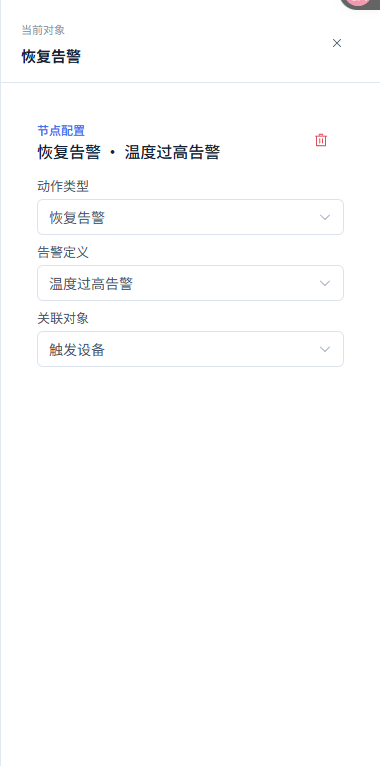
Figure: Device Online Alarm Clearing: configure the action node
36. Run the Simulation
Location: Rule Engine → Scene Linkage
Open and check the page area corresponding to running the simulation.
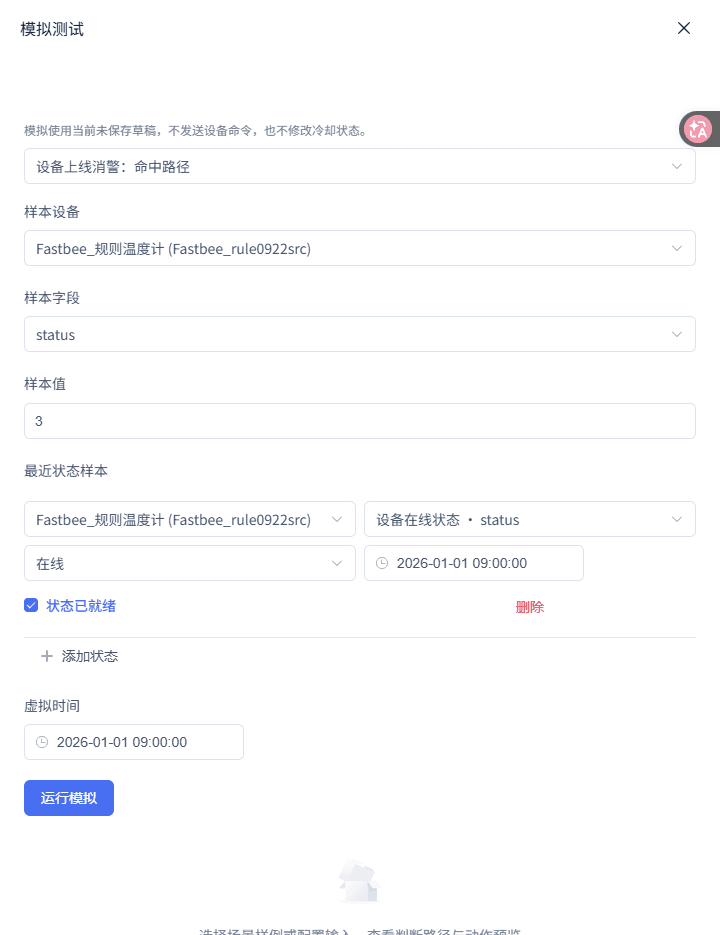
Figure: Device Online Alarm Clearing: run the simulation
37. View the Simulation Results
Location: Rule Engine → Scene Linkage
View the current sample's matched path and action previews.

Figure: Device Online Alarm Clearing: view the simulation results
38. Configure the Condition Node (Full Form)
Location: Rule Engine → Scene Linkage
Switch to the full form and set the field, source, operator, and comparison value in the "Conditions to Satisfy" area; it shares the same rule with the canvas.

Figure: Device Online Alarm Clearing: configure the condition node (full form)
1. First Understand the Standalone Template's Boundary
| Option | Purpose and Usage Advice | Effect and Recovery |
|---|---|---|
| Required Recovery Matching Scope | Fill in or select "Recovery Matching Scope". When no alarm-record primary key is specified, the recovery action only queries active rule alarms of this rule itself and that device; how to choose: when no alarm-record primary key is specified, the recovery action only queries active rule alarms of this rule itself and that device; where the value comes from: current tenant resources, thing models, or sample values given by this scenario; suggested: same ruleId + same trigger device + active status. | Used to complete "First Understand the Standalone Template's Boundary"; Impact · Scope: current rule draft; takes effect: requires publish; when wrong: it does not subdivide by alarm definition or published version and processes at most 1000 entries; offline alarms raised by other rules on the same device are not closed; recovery: fix per the page's validation hints and save again. |
2. Manually Add an Online-Recovery Branch in the Original Offline Alarm Rule
| Option | Purpose and Usage Advice | Effect and Recovery |
|---|---|---|
| Required State-Change Entry | Fill in or select "State-Change Entry". The same rule must handle both alarm-raising status=4 and recovery status=3; how to choose: the same rule must handle both alarm-raising status=4 and recovery status=3; where the value comes from: current tenant resources, thing models, or sample values given by this scenario; suggested: receive any online or offline change. | Used to complete "Manually Add an Online-Recovery Branch in the Original Offline Alarm Rule"; Impact · Scope: current rule draft; takes effect: requires publish; when wrong: an outer status=4 condition blocks status=3 events, so the recovery IF branch never executes; recovery: fix per the page's validation hints and save again. |
| Required Recovery Action Position | Fill in or select "Recovery Action Position". At runtime, active alarms are queried using ruleId and trigger device; how to choose: at runtime, active alarms are queried using ruleId and trigger device; where the value comes from: current tenant resources, thing models, or sample values given by this scenario; suggested: inside the same ruleId that raises the offline alarm. | Used to complete "Manually Add an Online-Recovery Branch in the Original Offline Alarm Rule"; Impact · Scope: current rule draft; takes effect: requires publish; when wrong: creating another rule, copying a rule, or merely selecting the same alarm definition cannot establish a cross-rule recovery relationship; recovery: fix per the page's validation hints and save again. |
3. Set the State Satisfaction Change Trigger
| Option | Purpose and Usage Advice | Effect and Recovery |
|---|---|---|
| Required Trigger Condition | Fill in or select "Trigger Condition". The recovery branch depends on online changes also reaching the IF judgment; how to choose: the recovery branch depends on online changes also reaching the IF judgment; where the value comes from: current tenant resources, thing models, or sample values given by this scenario; suggested: let both status=3 and status=4 enter the rule. | Used to complete "Set the State Satisfaction Change Trigger"; Impact · Scope: current rule draft; takes effect: requires publish; when wrong: making only "offline" the entry condition or outer condition blocks status=3 recovery events before the branch; recovery: fix per the page's validation hints and save again. |
4. Set the Built-in Online Status Judgment
| Option | Purpose and Usage Advice | Effect and Recovery |
|---|---|---|
| Required Field | Fill in or select "Field". Built into the editor and read-only; how to choose: built into the editor and read-only; where the value comes from: current tenant resources, thing models, or sample values given by this scenario; suggested: status (device online status). | Used to complete "Set the Built-in Online Status Judgment"; Impact · Scope: current rule draft; takes effect: requires publish; when wrong: do not look for a same-named writable field in ordinary thing-model lists; recovery: fix per the page's validation hints and save again. |
| Required Comparison Value | Fill in or select "Comparison Value". Among built-in states, 3=online, 4=offline; how to choose: among built-in states, 3=online, 4=offline; where the value comes from: current tenant resources, thing models, or sample values given by this scenario; suggested: 3 (online). | Used to complete "Set the Built-in Online Status Judgment"; Impact · Scope: current rule draft; takes effect: requires publish; when wrong: do not use status=4 for online clearing — that conflicts with offline alarm-raising; recovery: fix per the page's validation hints and save again. |
5. Configure the Recovery Action's Actual Matching
| Option | Purpose and Usage Advice | Effect and Recovery |
|---|---|---|
| Required Actual Recovery Matching | Fill in or select "Actual Recovery Matching". When no alarm-record primary key is specified, this is the condition by which the recovery action queries active rule alarms; how to choose: when no alarm-record primary key is specified, this is the condition by which the recovery action queries active rule alarms; where the value comes from: current tenant resources, thing models, or sample values given by this scenario; suggested: same ruleId + trigger device + status=active. | Used to complete "Configure the Recovery Action's Actual Matching"; Impact · Scope: current rule draft; takes effect: requires publish; when wrong: it is not filtered by alarm definition, alarm severity, or version — at most 1000 active alarms of the same rule and same device are processed; recovery: fix per the page's validation hints and save again. |
| Required Related Object | Fill in or select "Related Object". Ensures the device with status=3 recovers this rule's own alarms; how to choose: ensures the device with status=3 recovers this rule's own alarms; where the value comes from: current tenant resources, thing models, or sample values given by this scenario; suggested: Trigger Device. | Used to complete "Configure the Recovery Action's Actual Matching"; Impact · Scope: current rule draft; takes effect: requires publish; when wrong: do not change it to specify another device; recovery: fix per the page's validation hints and save again. |
6. Simulate, Save, and Verify for Real
| Option | Purpose and Usage Advice | Effect and Recovery |
|---|---|---|
| Required Online Sample | Fill in or select "Online Sample". Should enter the recovery IF branch; how to choose: should enter the recovery IF branch; where the value comes from: current tenant resources, thing models, or sample values given by this scenario; suggested: latest state status=3. | Used to complete "Simulate, Save, and Verify for Real"; Impact · Scope: current rule draft; takes effect: requires publish; when wrong: simulation neither creates nor closes formal alarms and cannot serve as evidence of cross-rule recovery success; recovery: fix per the page's validation hints and save again. |
| Required Real Verification Premise | Fill in or select "Real Verification Premise". The recovery action can only close this rule's own active objects; how to choose: the recovery action can only close this rule's own active objects; where the value comes from: current tenant resources, thing models, or sample values given by this scenario; suggested: an active offline alarm exists for the same rule and same device. | Used to complete "Simulate, Save, and Verify for Real"; Impact · Scope: current rule draft; takes effect: requires publish; when wrong: finding no active alarm does not mean the state judgment is wrong; recovery: fix per the page's validation hints and save again. |
Temperature-Triggered Device Control
When the temperature reported by FastBee_规则温度计 is higher than 35, deliver set temperature 26 to FastBee_规则执行器.
Before you start: trigger device: FastBee_规则温度计; target device: FastBee_规则执行器; trigger field: temperature; control field: Set Temperature, fixed value 26.
Flow description: 1. Property report trigger: temperature of FastBee_规则温度计; 2. Entry condition: current event temperature greater than 35; 3. Sequential execution; 4. Control device: Set Temperature = 26 of specified device FastBee_规则执行器.
- Create from scenario: in the Scenario Library of new rule creation, select "Temperature-Triggered Device Control" and enter the Bind Resources page.
- Limit the trigger scope: select Property Report in "Trigger". Select the actual product, choose FastBee_规则温度计 for the device scope, and select temperature among the fields.
- Set the entry condition: click the condition node on the canvas. Select "Current Event", choose temperature as the field, and "Greater Than" as the operator.
- Configure the control action: click the "Control Device" node. Select "Specified Device" as the control object and choose FastBee_规则执行器. Select Set Temperature as the control field and choose "Fixed Value".
- Check the flow and save: confirm the canvas order is thermometer trigger, condition, sequential group, actuator control action. Keep the default cooldown in rule settings or adjust per business, then save the draft.
- Simulate, save, publish, and actual effect: open simulation, first input temperature 30, then temperature 46. After confirming the action preview targets the actuator, complete the publish pre-check and publish. After publishing, open the execution records: in this real demonstration, temperature 46 is greater than 35, the rule executed completely and delivered set temperature 26 to the actuator; temperature 30 created no execution record. When viewing the command receipt, only confirm "command dispatched, no device execution result yet" (DISPATCHED); this status must not be written as the device having completed physical execution.
Below threshold: input: FastBee_规则温度计 property report temperature=30. Expected: not matched; no control action preview. Where to check: the entry match result in the simulation results and the canvas control node.
Above threshold: input: FastBee_规则温度计 property report temperature=46. Expected: matched and completed; preview 1 control action targeting FastBee_规则执行器 with set temperature 26. Where to check: the simulation action preview; after publishing, verify against the corresponding runtime version in the execution records.
This real demonstration verified that temperature=30 created no execution record and temperature=46 executed the rule and delivered set temperature 26 to the actuator. The execution receipt is DISPATCHED (command dispatched, no device execution result yet), so it does not prove the device completed physical execution; temperature=35 serves only as the simulated threshold boundary.
- When both the trigger device and the control object use "Trigger Device", it must not be understood as cross-device control.
- Real device execution still needs device receipt confirmation; simulation only proves the rule path and action parameters.
39. View the Scenario Flow
Location: Rule Engine → Scene Linkage
Open and check the page area corresponding to viewing the scenario flow.
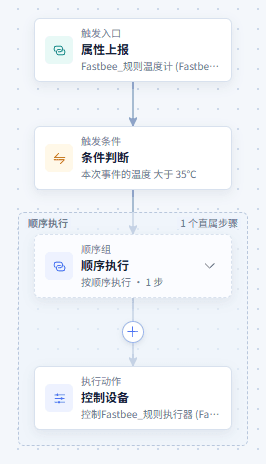
Figure: Temperature-Triggered Device Control: view the scenario flow
40. Configure the Trigger Node
Location: Rule Engine → Scene Linkage
Open and check the page area corresponding to configuring the trigger node.
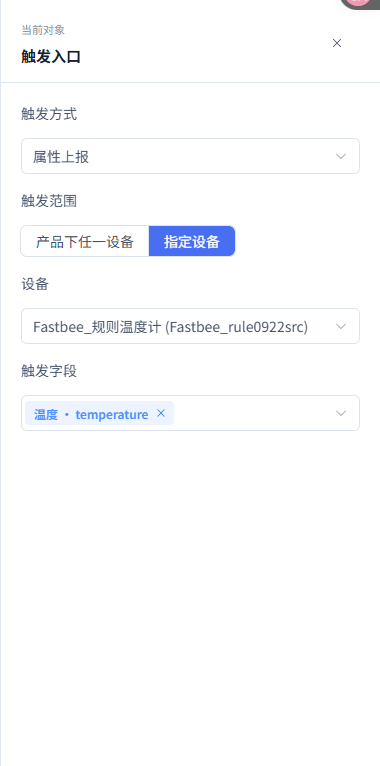
Figure: Temperature-Triggered Device Control: configure the trigger node
41. Configure the Condition Node (Full Form)
Location: Rule Engine → Scene Linkage
Switch to the full form and set the field, source, operator, and comparison value in the "Conditions to Satisfy" area; it shares the same rule with the canvas.

Figure: Temperature-Triggered Device Control: configure the condition node (full form)
42. Configure the Action Node
Location: Rule Engine → Scene Linkage
Open and check the page area corresponding to configuring the action node.
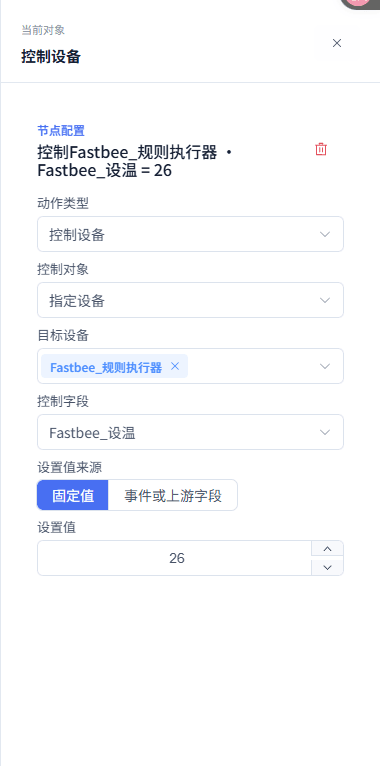
Figure: Temperature-Triggered Device Control: configure the action node
43. Read the Execution Path
Location: Rule Engine → Scene Linkage
Open and check the page area corresponding to reading the execution path.
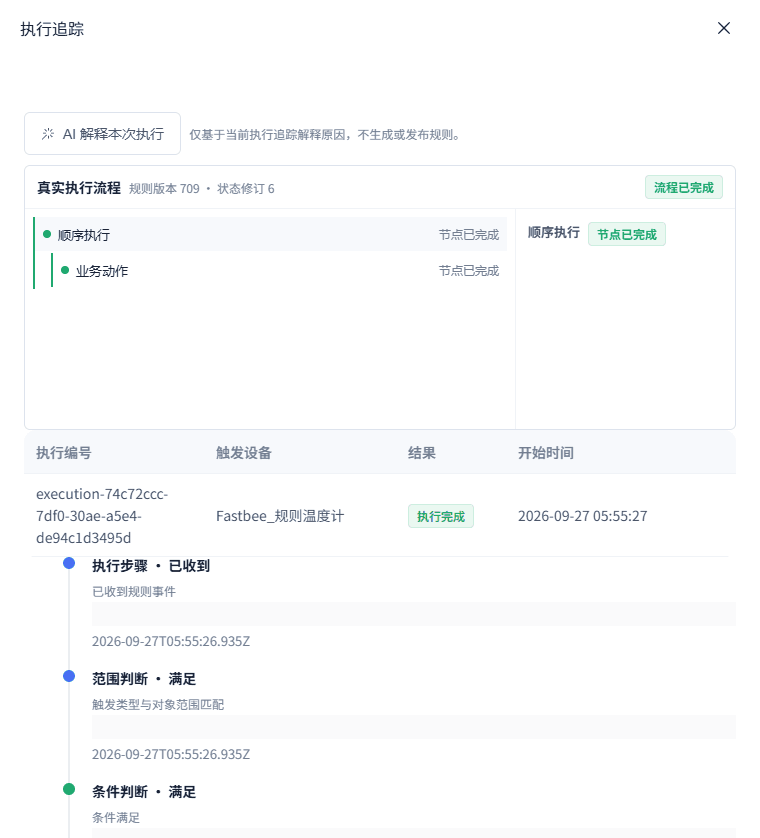
Figure: Temperature-Triggered Device Control: read the execution path
44. Confirm the Action Receipt Boundary
Location: Rule Engine → Scene Linkage
Open and check the page area corresponding to confirming the action receipt boundary.
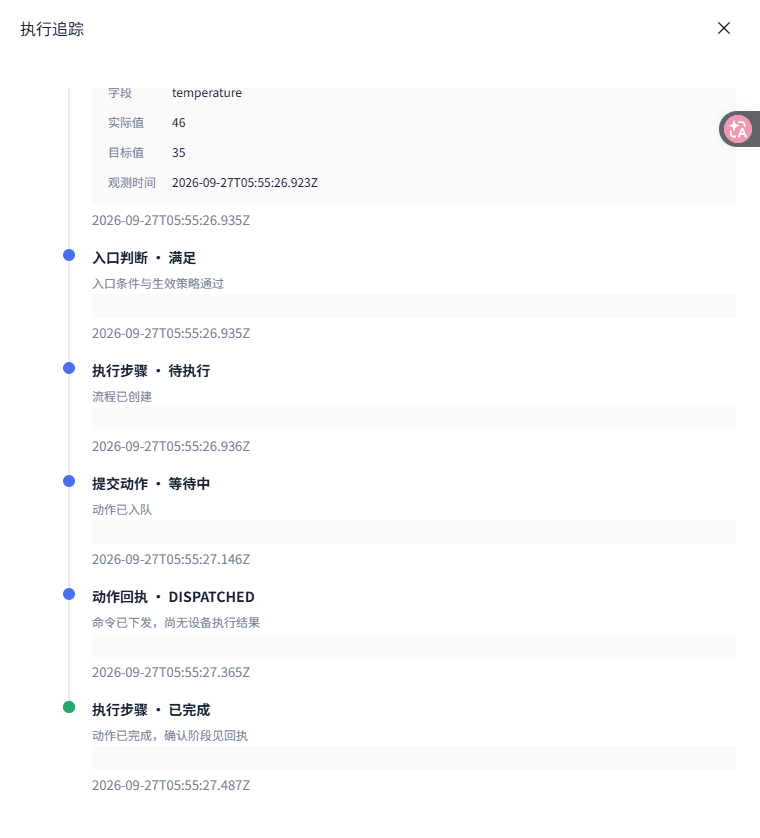
Figure: Temperature-Triggered Device Control: confirm the action receipt boundary
45. Run the Simulation
Location: Rule Engine → Scene Linkage
Open and check the page area corresponding to running the simulation.
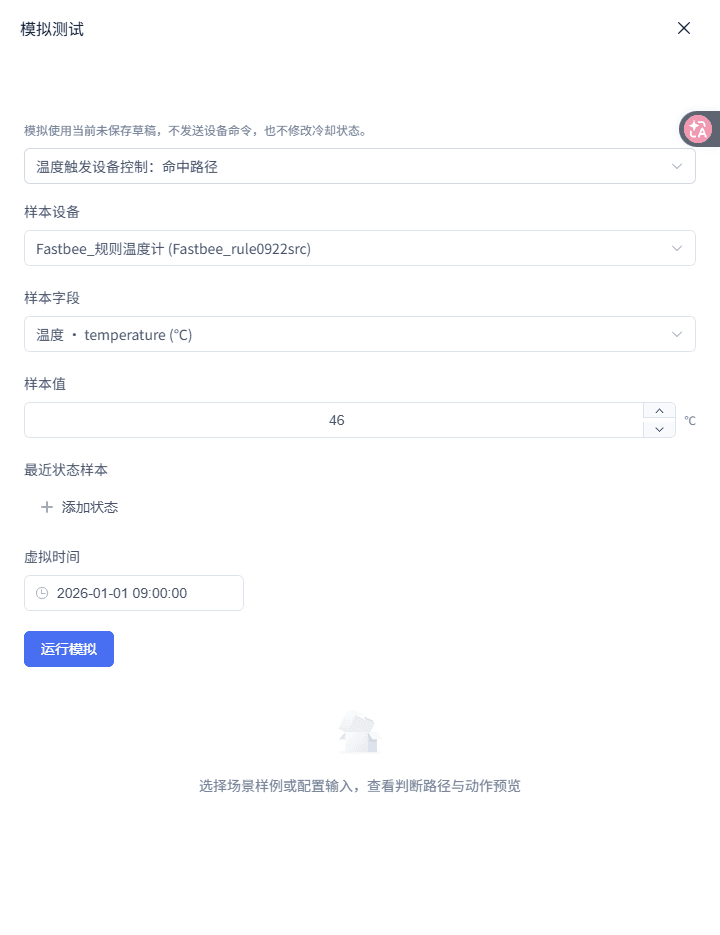
Figure: Temperature-Triggered Device Control: run the simulation
46. View the Simulation Results
Location: Rule Engine → Scene Linkage
View the current sample's matched path and action previews.

Figure: Temperature-Triggered Device Control: view the simulation results
1. Create from Scenario
| Option | Purpose and Usage Advice | Effect and Recovery |
|---|---|---|
| Required Scenario Selection | Fill in or select "Scenario Selection". Choose the built-in scenario consistent with this tutorial; how to choose: choose the built-in scenario consistent with this tutorial; where the value comes from: current tenant resources, thing models, or sample values given by this scenario; suggested: Temperature-Triggered Device Control. | Used to complete "Create from Scenario"; Impact · Scope: current rule draft; takes effect: requires publish; when wrong: choosing another scenario generates a different flow and options; recovery: fix per the page's validation hints and save again. |
2. Limit the Trigger Scope
| Option | Purpose and Usage Advice | Effect and Recovery |
|---|---|---|
| Required Trigger Field | Fill in or select "Trigger Field". Only the thermometer's temperature reports are processed; how to choose: only the thermometer's temperature reports are processed; where the value comes from: current tenant resources, thing models, or sample values given by this scenario; suggested: temperature. | Used to complete "Limit the Trigger Scope"; Impact · Scope: current rule draft; takes effect: requires publish; when wrong: do not fill the control field "Set Temperature" into the trigger field; recovery: fix per the page's validation hints and save again. |
3. Set the Entry Condition
| Option | Purpose and Usage Advice | Effect and Recovery |
|---|---|---|
| Required Expected Value | Fill in or select "Expected Value". Only above 35 enters the control flow; how to choose: only above 35 enters the control flow; where the value comes from: current tenant resources, thing models, or sample values given by this scenario; suggested: 35. | Used to complete "Set the Entry Condition"; Impact · Scope: current rule draft; takes effect: requires publish; when wrong: equal to 35 does not hit; do not replace Current Event here with latest state; recovery: fix per the page's validation hints and save again. |
4. Configure the Control Action
| Option | Purpose and Usage Advice | Effect and Recovery |
|---|---|---|
| Required Set Value | Fill in or select "Set Value". This actual demonstration delivers this value to the actuator; how to choose: this actual demonstration delivers this value to the actuator; where the value comes from: current tenant resources, thing models, or sample values given by this scenario; suggested: 26. | Used to complete "Configure the Control Action"; Impact · Scope: current rule draft; takes effect: requires publish; when wrong: only writable properties or functions of the target device can be selected — when "Set Temperature" is absent from the field list, check the thing model first; recovery: fix per the page's validation hints and save again. |
5. Check the Flow and Save
| Option | Purpose and Usage Advice | Effect and Recovery |
|---|---|---|
| Required Control Object | Fill in or select "Control Object". This scenario is thermometer-triggered with the actuator responding; how to choose: this scenario is thermometer-triggered with the actuator responding; where the value comes from: current tenant resources, thing models, or sample values given by this scenario; suggested: Specified Device: FastBee_规则执行器. | Used to complete "Check the Flow and Save"; Impact · Scope: current rule draft; takes effect: requires publish; when wrong: mistakenly selecting "Trigger Device" sends the command back to the thermometer; recovery: fix per the page's validation hints and save again. |
6. Simulate, Save, Publish, and Actual Effect
| Option | Purpose and Usage Advice | Effect and Recovery |
|---|---|---|
| Required Simulation Input | Fill in or select "Simulation Input". Cover miss and hit in simulation respectively; in the real-run evidence, 30 created no execution record and 46 delivered set temperature 26; how to choose: cover miss and hit in simulation respectively; in the real-run evidence, 30 created no execution record and 46 delivered set temperature 26; where the value comes from: current tenant resources, thing models, or sample values given by this scenario; suggested: temperature=30 / 46. | Used to complete "Simulate, Save, Publish, and Actual Effect"; Impact · Scope: current rule draft; takes effect: requires publish; when wrong: a simulation action preview is not equivalent to the device having received the control command; DISPATCHED is not equivalent to device execution completed either; recovery: fix per the page's validation hints and save again. |
Cross-Device Linkage of Device Status
Determined by the temperature value of FastBee_规则温度计, write Set Temperature to FastBee_规则执行器.
Before you start: trigger device: FastBee_规则温度计; target device: FastBee_规则执行器; demonstration fields: temperature, Set Temperature.
Flow description: 1. Property report trigger: temperature; 2. Entry condition: current event temperature equal to 1; 3. Sequential execution; 4. Control device: Set Temperature = 26 of specified device FastBee_规则执行器.
- Create from the template: select "Cross-Device Linkage of Device Status". Complete the trigger device and target device selection respectively on the resource binding page.
- Bind the trigger device: select Property Report in the trigger configuration. Select temperature as the field and FastBee_规则温度计 as the device scope.
The same configuration screens are shown in the "Temperature Over-limit Alarm Notification" chapter; continue completing this scenario per the field tables above.
- Configure the event condition: click the condition node and select "Current Event" as the source. Select temperature and set equal to 1.
- Specify the target device: click the control action. Select "Specified Device" as the control object and choose FastBee_规则执行器.
- Set the control field: select Set Temperature in "Control Field". Choose a fixed value, fill in 26, and save the draft.
- Simulate and publish: simulate input temperature=1, then temperature=0. Publish after checking the target device is FastBee_规则执行器.
Cross-device control hit: input: FastBee_规则温度计 reports temperature=1. Expected: matched and completed; a control action preview is produced targeting FastBee_规则执行器 with Set Temperature=26. Where to check: the control object, control field, and set value in the simulation action details.
Condition unsatisfied: input: FastBee_规则温度计 reports temperature=0. Expected: not matched; no action preview. Where to check: the condition result in the simulation results.
This demonstration verified the rule path, the set-temperature command delivered to the actuator, and the device reception record; the physical execution result still needs device receipt confirmation.
- This batch of demonstrations maps a state-type condition to "temperature equal to 1" — it should not be called the built-in online status.
- Do not judge cross-device success by action type alone; the target device must be checked.
47. View the Scenario Flow
Location: Rule Engine → Scene Linkage
Open and check the page area corresponding to viewing the scenario flow.
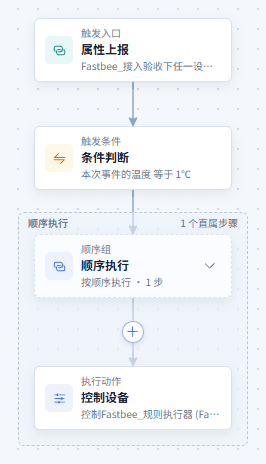
Figure: Cross-Device Linkage of Device Status: view the scenario flow
48. Configure the Condition Node (Full Form)
Location: Rule Engine → Scene Linkage
Switch to the full form and set the field, source, operator, and comparison value in the "Conditions to Satisfy" area; it shares the same rule with the canvas.

Figure: Cross-Device Linkage of Device Status: configure the condition node (full form)
49. Configure the Action Node
Location: Rule Engine → Scene Linkage
Open and check the page area corresponding to configuring the action node.
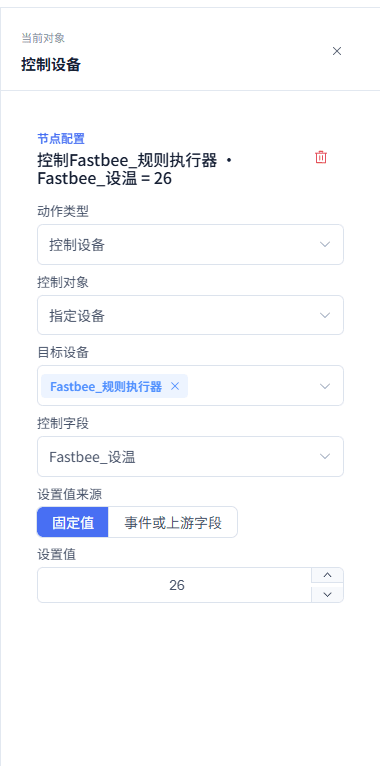
Figure: Cross-Device Linkage of Device Status: configure the action node
50. Run the Simulation
Location: Rule Engine → Scene Linkage
Open and check the page area corresponding to running the simulation.
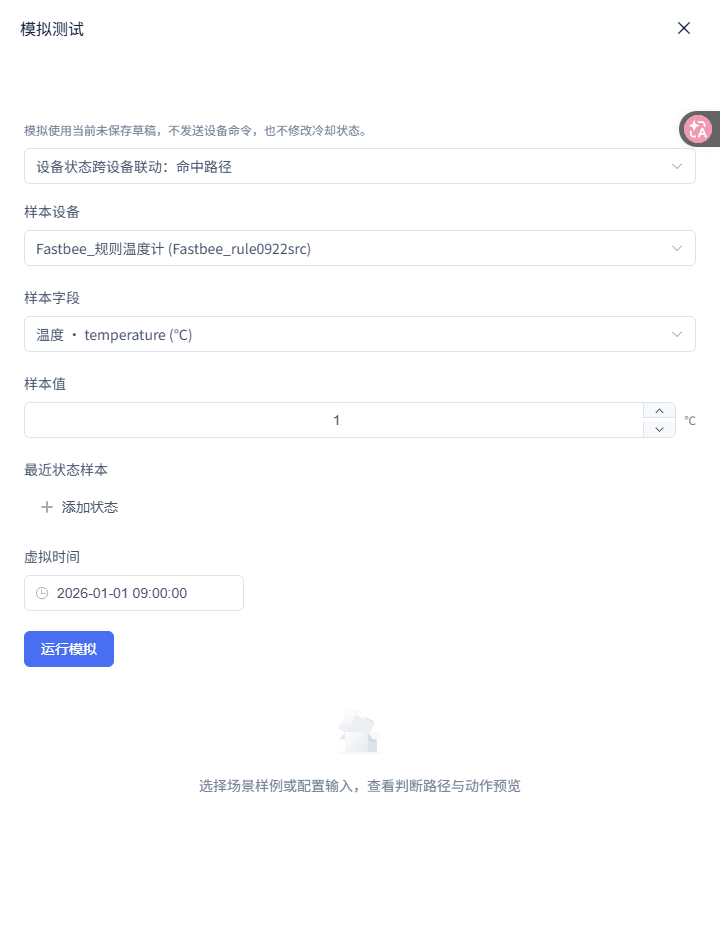
Figure: Cross-Device Linkage of Device Status: run the simulation
51. View the Simulation Results
Location: Rule Engine → Scene Linkage
View the current sample's matched path and action previews.

Figure: Cross-Device Linkage of Device Status: view the simulation results
1. Create from the Template
| Option | Purpose and Usage Advice | Effect and Recovery |
|---|---|---|
| Required Scenario Selection | Fill in or select "Scenario Selection". Choose the built-in scenario consistent with this tutorial; how to choose: choose the built-in scenario consistent with this tutorial; where the value comes from: current tenant resources, thing models, or sample values given by this scenario; suggested: Cross-Device Linkage of Device Status. | Used to complete "Create from the Template"; Impact · Scope: current rule draft; takes effect: requires publish; when wrong: choosing another scenario generates a different flow and options; recovery: fix per the page's validation hints and save again. |
2. Bind the Trigger Device
| Option | Purpose and Usage Advice | Effect and Recovery |
|---|---|---|
| Required Trigger Device | Fill in or select "Trigger Device". The event source must be separate from the controlled device; how to choose: the event source must be separate from the controlled device; where the value comes from: current tenant resources, thing models, or sample values given by this scenario; suggested: FastBee_规则温度计. | Used to complete "Bind the Trigger Device"; Impact · Scope: current rule draft; takes effect: requires publish; when wrong: selecting only the product lets other devices' same-field reports also enter the judgment; recovery: fix per the page's validation hints and save again. |
3. Configure the Event Condition
| Option | Purpose and Usage Advice | Effect and Recovery |
|---|---|---|
| Required Condition | Fill in or select "Condition". This batch of demonstrations uses the temperature field to express the linkage condition; how to choose: this batch of demonstrations uses the temperature field to express the linkage condition; where the value comes from: current tenant resources, thing models, or sample values given by this scenario; suggested: current event temperature equal to 1. | Used to complete "Configure the Event Condition"; Impact · Scope: current rule draft; takes effect: requires publish; when wrong: this is not the built-in online status — this node actually reads this report's temperature; recovery: fix per the page's validation hints and save again. |
4. Specify the Target Device
| Option | Purpose and Usage Advice | Effect and Recovery |
|---|---|---|
| Required Target Device | Fill in or select "Target Device". Cross-device linkage must explicitly specify the target; how to choose: cross-device linkage must explicitly specify the target; where the value comes from: current tenant resources, thing models, or sample values given by this scenario; suggested: FastBee_规则执行器. | Used to complete "Specify the Target Device"; Impact · Scope: current rule draft; takes effect: requires publish; when wrong: "Trigger Device" cannot be selected, otherwise the rule degrades into same-device control; recovery: fix per the page's validation hints and save again. |
5. Set the Control Field
| Option | Purpose and Usage Advice | Effect and Recovery |
|---|---|---|
| Required Set Value | Fill in or select "Set Value". The action parameter actually delivered in this demonstration; how to choose: the action parameter actually delivered in this demonstration; where the value comes from: current tenant resources, thing models, or sample values given by this scenario; suggested: 26. | Used to complete "Set the Control Field"; Impact · Scope: current rule draft; takes effect: requires publish; when wrong: the target device's product must provide this writable field — unwritable fields do not appear in the dropdown options; recovery: fix per the page's validation hints and save again. |
6. Simulate and Publish
| Option | Purpose and Usage Advice | Effect and Recovery |
|---|---|---|
| Required Negative Example | Fill in or select "Negative Example". Confirms the target device is not wrongly controlled; how to choose: confirms the target device is not wrongly controlled; where the value comes from: current tenant resources, thing models, or sample values given by this scenario; suggested: temperature=0. | Used to complete "Simulate and Publish"; Impact · Scope: current rule draft; takes effect: requires publish; when wrong: looking at the action type alone is insufficient to prove the target is correct — the target device in the action parameters must be checked; recovery: fix per the page's validation hints and save again. |
Multi-Device Joint Status Judgment
Only when both the current temperature of FastBee_规则温度计 and the latest temperature of FastBee_规则执行器 are satisfied is set temperature 26 delivered to the actuator.
Before you start: trigger device: FastBee_规则温度计; judgment device: FastBee_规则执行器; target device: FastBee_规则执行器; demonstration fields: temperature, Set Temperature.
Flow description: 1. Property report trigger: the thermometer's temperature; 2. All satisfied: current event temperature=1; 3. All satisfied: latest state, the actuator's temperature=1; 4. Sequential execution; 5. Control the specified device actuator: Set Temperature=26.
- Select the scenario: select "Multi-Device Joint Status Judgment" and enter Bind Resources.
- Configure the event entry: select FastBee_规则温度计 and the temperature field in the trigger. Click the first condition and select "Current Event" as the source.
The same configuration screens are shown in the "Temperature Over-limit Alarm Notification" chapter; continue completing this scenario per the field tables above.
- Configure the second device's state: click the second condition and select "Latest State" as the source. Select FastBee_规则执行器 in the device selection, then select temperature.
- Confirm the All Satisfied relationship: confirm the condition group type is "All Satisfied". Check the latest state validity period in rule settings.
- Configure the target control: select "Specified Device" for the control action. Select FastBee_规则执行器, Set Temperature, and fixed value 26.
- Simulate three state outcomes: input the thermometer's current temperature=1 and provide the actuator's latest temperature=1. Then change the actuator's latest temperature to 0. Finally delete the actuator's state or use an expired time.
Both devices satisfied: input: thermometer current temperature=1; actuator latest temperature=1 and not expired. Expected: matched and completed; one control action preview. Where to check: the simulation condition results and control action parameters.
Second device unsatisfied: input: thermometer current temperature=1; actuator latest temperature=0. Expected: not matched. Where to check: the simulation results.
Second device state missing or expired: input: thermometer current temperature=1; actuator has no state or state older than 300 seconds. Expected: undeterminable; no action preview. Where to check: the simulation results and the state condition node.
The real API simulation covered success, second-device value unsatisfied, missing state, and expired state; it only proves the rule computation, not that device control landed.
- "Current Event" and "Latest State" are different data sources and are configured separately in the condition editor.
- State source fields can only be selected from the thing-model fields of the selected judgment device.
52. View the Scenario Flow
Location: Rule Engine → Scene Linkage
Open and check the page area corresponding to viewing the scenario flow.
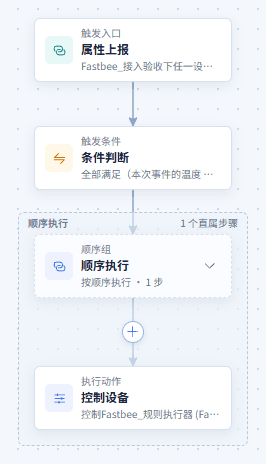
Figure: Multi-Device Joint Status Judgment: view the scenario flow
53. Configure the Condition Node (Full Form)
Location: Rule Engine → Scene Linkage
Switch to the full form and set the field, source, operator, and comparison value in the "Conditions to Satisfy" area; it shares the same rule with the canvas.
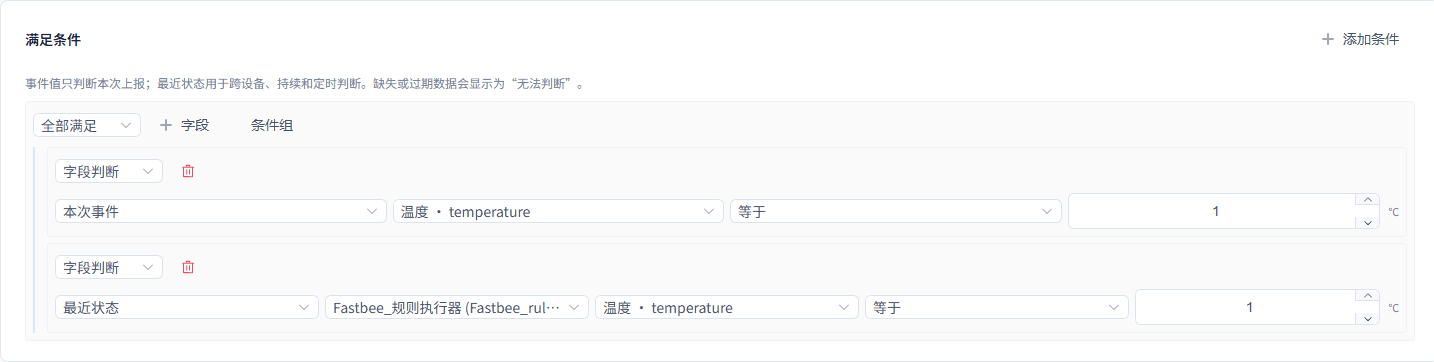
Figure: Multi-Device Joint Status Judgment: configure the condition node (full form)
54. Configure the Action Node
Location: Rule Engine → Scene Linkage
Open and check the page area corresponding to configuring the action node.
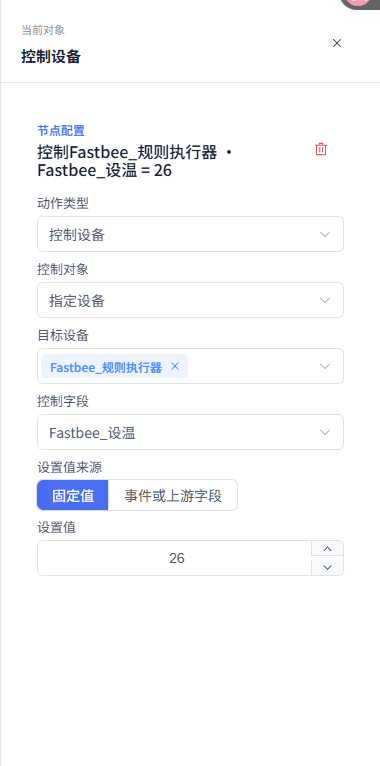
Figure: Multi-Device Joint Status Judgment: configure the action node
55. Run the Simulation
Location: Rule Engine → Scene Linkage
Open and check the page area corresponding to running the simulation.
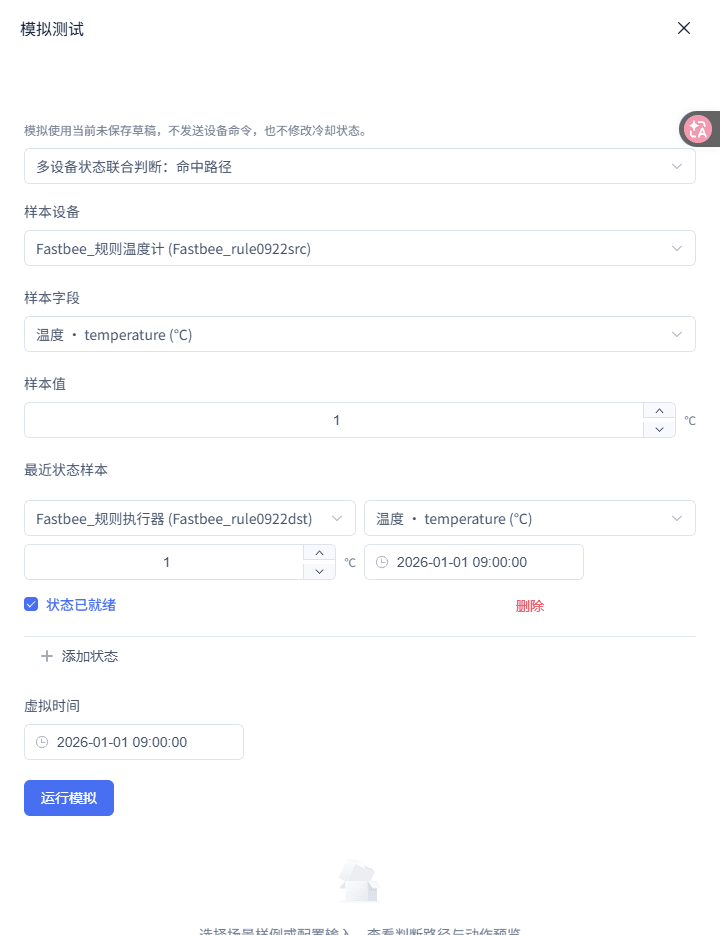
Figure: Multi-Device Joint Status Judgment: run the simulation
56. View the Simulation Results
Location: Rule Engine → Scene Linkage
View the current sample's matched path and action previews.

Figure: Multi-Device Joint Status Judgment: view the simulation results
1. Select the Scenario
| Option | Purpose and Usage Advice | Effect and Recovery |
|---|---|---|
| Required Scenario Selection | Fill in or select "Scenario Selection". Choose the built-in scenario consistent with this tutorial; how to choose: choose the built-in scenario consistent with this tutorial; where the value comes from: current tenant resources, thing models, or sample values given by this scenario; suggested: Multi-Device Joint Status Judgment. | Used to complete "Select the Scenario"; Impact · Scope: current rule draft; takes effect: requires publish; when wrong: choosing another scenario generates a different flow and options; recovery: fix per the page's validation hints and save again. |
2. Configure the Event Entry
| Option | Purpose and Usage Advice | Effect and Recovery |
|---|---|---|
| Required Event Condition | Fill in or select "Event Condition". This is the first item of the All Satisfied condition; how to choose: this is the first item of the All Satisfied condition; where the value comes from: current tenant resources, thing models, or sample values given by this scenario; suggested: temperature equal to 1. | Used to complete "Configure the Event Entry"; Impact · Scope: current rule draft; takes effect: requires publish; when wrong: the demonstration uses a temperature condition, not the built-in online status; an event condition only reads this report; recovery: fix per the page's validation hints and save again. |
3. Configure the Second Device's State
| Option | Purpose and Usage Advice | Effect and Recovery |
|---|---|---|
| Required State Condition | Fill in or select "State Condition". Which device the state comes from must be explicit; how to choose: which device the state comes from must be explicit; where the value comes from: current tenant resources, thing models, or sample values given by this scenario; suggested: FastBee_规则执行器's temperature equal to 1. | Used to complete "Configure the Second Device's State"; Impact · Scope: current rule draft; takes effect: requires publish; when wrong: keeping the default "Trigger Device" reads both conditions as the same device; recovery: fix per the page's validation hints and save again. |
4. Confirm the All Satisfied Relationship
| Option | Purpose and Usage Advice | Effect and Recovery |
|---|---|---|
| Required Latest State Validity Period | Fill in or select "Latest State Validity Period". States older than this time cannot be used for judgment; how to choose: states older than this time cannot be used for judgment; where the value comes from: current tenant resources, thing models, or sample values given by this scenario; suggested: 300 seconds. | Used to complete "Confirm the All Satisfied Relationship"; Impact · Scope: current rule draft; takes effect: requires publish; when wrong: a missing or expired state is "Undeterminable" and cannot be treated as condition unsatisfied; recovery: fix per the page's validation hints and save again. |
5. Configure the Target Control
| Option | Purpose and Usage Advice | Effect and Recovery |
|---|---|---|
| Required Target Field | Fill in or select "Target Field". In this demonstration both the judgment device and the action target are the actuator; how to choose: in this demonstration both the judgment device and the action target are the actuator; where the value comes from: current tenant resources, thing models, or sample values given by this scenario; suggested: Set Temperature=26. | Used to complete "Configure the Target Control"; Impact · Scope: current rule draft; takes effect: requires publish; when wrong: the two are not implicitly associated and must be selected separately; recovery: fix per the page's validation hints and save again. |
6. Simulate Three State Outcomes
| Option | Purpose and Usage Advice | Effect and Recovery |
|---|---|---|
| Required State Samples | Fill in or select "State Samples". Cover satisfied, unsatisfied, and undeterminable; how to choose: cover satisfied, unsatisfied, and undeterminable; where the value comes from: current tenant resources, thing models, or sample values given by this scenario; suggested: actuator temperature=1 / 0 / missing. | Used to complete "Simulate Three State Outcomes"; Impact · Scope: current rule draft; takes effect: requires publish; when wrong: when missing or expired it should show "Undeterminable"; recovery: fix per the page's validation hints and save again. |
Notification After Multi-Device Parallel Control
After the entry matches, two control actions are generated in parallel, followed sequentially by one notification action.
Before you start: trigger device: FastBee_规则温度计; field: temperature; both control actions in the screenshots point to FastBee_规则执行器, field Set Temperature, value 26; an authorized notification template, notification channel, and recipients.
Flow description: 1. Property report trigger: temperature; 2. No entry condition; 3. Sequential execution; 4. Parallel execution: control action A + control action B; 5. Send notification.
- Create and review the default structure: select "Notification After Multi-Device Parallel Control". Select the parallel group on the canvas; the right side shows only two direct step summaries.
- Configure the trigger scope: select FastBee_规则温度计's property report and temperature. When you need to limit devices, select the thermometer in the trigger scope.
- Configure parallel control A: click the first control step in the parallel group. Select "Specified Device", the target device, the writable field, and the set value.
The same configuration screens are shown in the "Cross-Device Linkage of Device Status" chapter; continue completing this scenario per the field tables above.
- Configure parallel control B: click the second control step and independently select another target device and control field. Return to the parallel group and check the two step summaries.
- Configure the notification: click the notification action and select a notification template. The notification channel is determined by the template; select authorized users in "Recipients".
- Simulate and publish: simulate a temperature report and view the three action previews. After publishing, check the two control nodes and the notification node respectively in the execution records.
Parallel control and notification: input: a temperature property report within product 138's scope. Expected: MATCHED, SUCCEEDED; the action previews are two DEVICE_COMMAND and one NOTIFY. Where to check: the action list in the simulation results, plus the two parallel control nodes and the notification node on the canvas.
Wrong product scope: input: a temperature property report with a mismatched product scope. Expected: NOT_MATCHED, reason TRIGGER_NOT_MATCHED; no action preview. Where to check: the trigger match status in the simulation results.
Target device missing: input: clear the target device of both control actions and click Validate. Expected: two "Select Control Device" items appear respectively; complete them one by one, then simulate again. Where to check: the pending items at the bottom.
These screenshots and simulation prove the flow structure of two control nodes and one notification node; both control actions in the screenshots point to the same actuator, so two-device parallel execution is not proven; notification delivery still needs separate verification.
- "Parallel control then notification" expresses a flow structure; simulation does not prove both remote commands returned successfully.
- Notification recipients are filtered by template authorization; without permission, only a no-send simulation configuration check can be completed.
57. View the Scenario Flow
Location: Rule Engine → Scene Linkage
Open and check the page area corresponding to viewing the scenario flow.
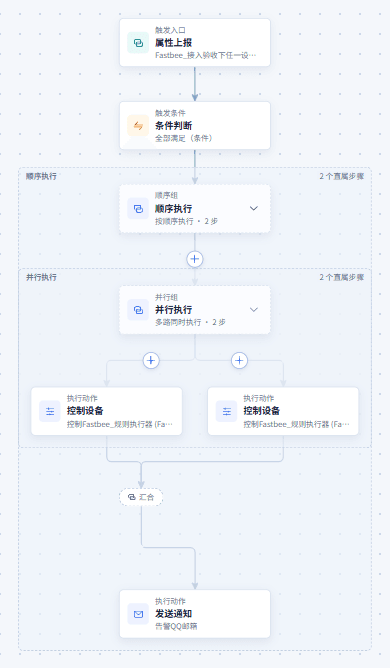
Figure: Notification After Multi-Device Parallel Control: view the scenario flow
58. View Part of the Execution Branches (Panned Down from the Flow Overview)
Location: Rule Engine → Scene Linkage
Open and check the page area corresponding to viewing part of the execution branches (panned down from the flow overview).
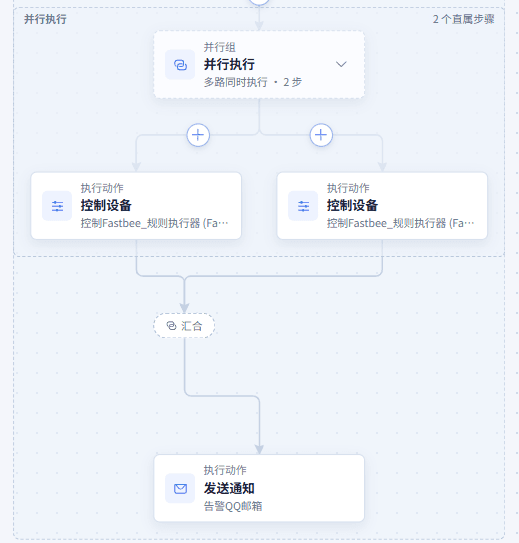
Figure: Notification After Multi-Device Parallel Control: view part of the execution branches (panned down from the flow overview)
59. Configure the Trigger Node
Location: Rule Engine → Scene Linkage
Open and check the page area corresponding to configuring the trigger node.
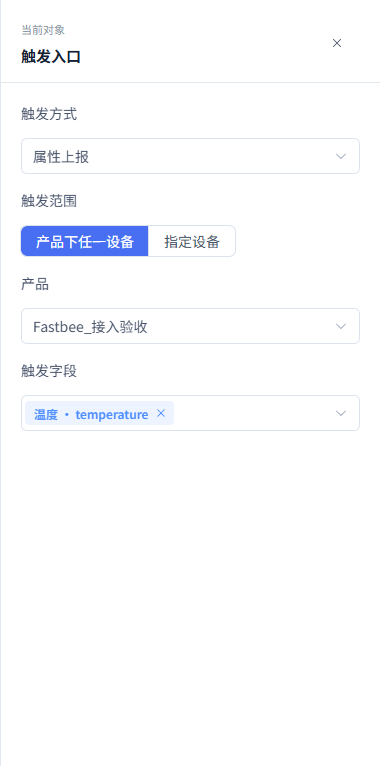
Figure: Notification After Multi-Device Parallel Control: configure the trigger node
60. Configure the Notification Template and Recipients
Location: Rule Engine → Scene Linkage
Open and check the page area corresponding to configuring the notification template and recipients.
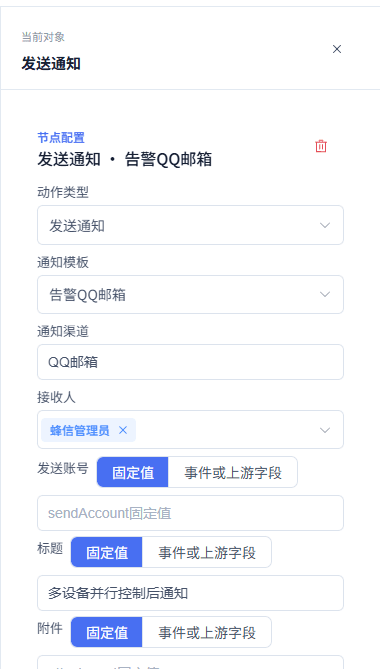
Figure: Notification After Multi-Device Parallel Control: configure the notification template and recipients
61. Run the Simulation
Location: Rule Engine → Scene Linkage
Open and check the page area corresponding to running the simulation.
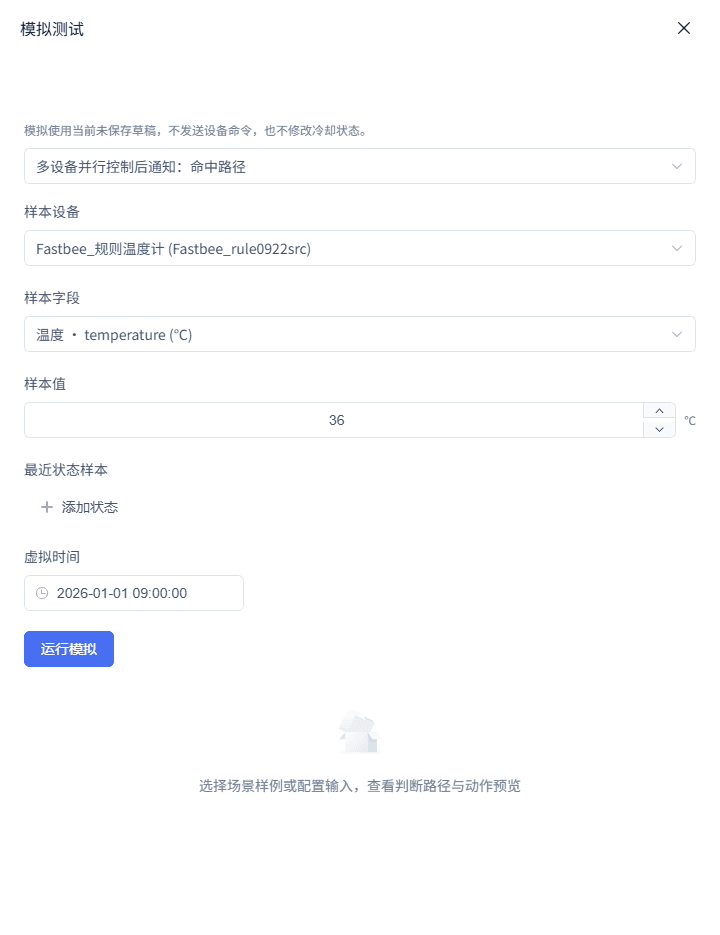
Figure: Notification After Multi-Device Parallel Control: run the simulation
62. View the Simulation Results
Location: Rule Engine → Scene Linkage
View the current sample's matched path and action previews.

Figure: Notification After Multi-Device Parallel Control: view the simulation results
1. Create and Review the Default Structure
| Option | Purpose and Usage Advice | Effect and Recovery |
|---|---|---|
| Required Execution Mode | Fill in or select "Execution Mode". The two control actions are in the same PARALLEL group; how to choose: the two control actions are in the same PARALLEL group; where the value comes from: current tenant resources, thing models, or sample values given by this scenario; suggested: Parallel Execution. | Used to complete "Create and Review the Default Structure"; Impact · Scope: current rule draft; takes effect: requires publish; when wrong: do not mistake the two actions expanded from a parallel group as automatically corresponding to two different devices; recovery: fix per the page's validation hints and save again. |
2. Configure the Trigger Scope
| Option | Purpose and Usage Advice | Effect and Recovery |
|---|---|---|
| Required Entry Condition | Fill in or select "Entry Condition". Execution continues after the trigger scope matches; how to choose: execution continues after the trigger scope matches; where the value comes from: current tenant resources, thing models, or sample values given by this scenario; suggested: none. | Used to complete "Configure the Trigger Scope"; Impact · Scope: current rule draft; takes effect: requires publish; when wrong: no action is produced when the scope does not match; recovery: fix per the page's validation hints and save again. |
3. Configure Parallel Control A
| Option | Purpose and Usage Advice | Effect and Recovery |
|---|---|---|
| Required Screenshot Action A | Fill in or select "Screenshot Action A". Both the screenshot and this demonstration are one control to the actuator; how to choose: both the screenshot and this demonstration are one control to the actuator; where the value comes from: current tenant resources, thing models, or sample values given by this scenario; suggested: FastBee_规则执行器 / Set Temperature / 26. | Used to complete "Configure Parallel Control A"; Impact · Scope: current rule draft; takes effect: requires publish; when wrong: when the business needs to control two devices, two different targets must be selected; recovery: fix per the page's validation hints and save again. |
4. Configure Parallel Control B
| Option | Purpose and Usage Advice | Effect and Recovery |
|---|---|---|
| Required Screenshot Action B | Fill in or select "Screenshot Action B". This screenshot demonstrates two controls of the same device, not proof of two devices; how to choose: this screenshot demonstrates two controls of the same device, not proof of two devices; where the value comes from: current tenant resources, thing models, or sample values given by this scenario; suggested: FastBee_规则执行器 / Set Temperature / 26. | Used to complete "Configure Parallel Control B"; Impact · Scope: current rule draft; takes effect: requires publish; when wrong: do not interpret the screenshot's two identical targets as having demonstrated two-device parallel control; recovery: fix per the page's validation hints and save again. |
5. Configure the Notification
| Option | Purpose and Usage Advice | Effect and Recovery |
|---|---|---|
| Required Notification Variables | Fill in or select "Notification Variables". Used for the notification content preview; how to choose: used for the notification content preview; where the value comes from: current tenant resources, thing models, or sample values given by this scenario; suggested: fill per the selected notification template. | Used to complete "Configure the Notification"; Impact · Scope: current rule draft; takes effect: requires publish; when wrong: when no recipient is selectable, only simulation can be verified — delivery cannot be assumed; recovery: fix per the page's validation hints and save again. |
6. Simulate and Publish
| Option | Purpose and Usage Advice | Effect and Recovery |
|---|---|---|
| Required Expected Actions | Fill in or select "Expected Actions". The first two belong to the parallel group; the notification is after the outer sequential group; how to choose: the first two belong to the parallel group; the notification is after the outer sequential group; where the value comes from: current tenant resources, thing models, or sample values given by this scenario; suggested: two control actions, one notification. | Used to complete "Simulate and Publish"; Impact · Scope: current rule draft; takes effect: requires publish; when wrong: the action-type list cannot prove the identity of the two parallel branches — check with the canvas nodes; recovery: fix per the page's validation hints and save again. |
Tiered Threshold Alarm
When temperature is greater than 35, the flow is entered; when the latest state temperature is greater than 45, a critical alarm is raised, otherwise a minor alarm is raised, and a notification is sent after the two defined branches.
Before you start: trigger field: temperature; latest state field: temperature (trigger device); available alarm definitions, notification template, notification channel, and recipients.
Flow description: 1. Property report trigger: temperature; 2. Entry condition: current event temperature>35; 3. Sequential execution; 4. IF: latest state temperature>45; 5. Satisfied branch: raise alarm, level 3; 6. Unsatisfied branch: raise alarm, level 2; 7. Send notification.
- Create the scenario: select "Tiered Threshold Alarm". Complete the alarm definition and notification template resource bindings.
- Configure the entry threshold: select the product and temperature in the trigger. In the entry condition, select "Current Event" and set temperature greater than 35.
- Configure the IF's state condition: click the IF node on the canvas. Select "Latest State" as the condition source, temperature as the field, greater than 45.
- Configure the critical alarm branch: in the IF's "When Satisfied", click the sequential group, then click the alarm action. Select the alarm definition, select Trigger Device as the related object, and select "Critical Warning" for alarm severity.
- Configure the minor alarm branch and notification: in the "When Not Satisfied" branch, configure the same alarm definition and "Minor Issue". Configure the notification template, recipients, and variables after the IF.
- Simulate high, medium, low, and unknown states: for the high tier input event temperature=46 and latest state temperature=46. For the medium tier input 36 for both event and latest state. For the low tier input event temperature=35. Then test a latest state that is missing or beyond the state validity period.
Critical alarm: input: event temperature=46; latest state temperature=46. Expected: SUCCEEDED; IF trace CONDITION=TRUE; critical alarm level 3 with notification preview. Where to check: the IF node trace on the simulation canvas and the alarm action parameters.
Minor alarm: input: event temperature=36; latest state temperature=36. Expected: SUCCEEDED; IF trace CONDITION=FALSE; minor alarm level 2 with notification preview. Where to check: the IF node trace and the else branch's alarm action parameters.
Below entry or state unknown: input: event temperature=35; or event 36 but latest state missing/expired. Expected: the former NOT_MATCHED; the latter entry MATCHED but IF is CONDITION_UNKNOWN/FAILED with no action preview. Where to check: the simulation results, IF node trace.
The real API simulation verified the high tier TRUE, medium tier FALSE, below-entry, and missing/expired IF states; the notification has only a simulation preview — external delivery was not verified.
- The branch cannot be inferred from the ALARM_OPEN/NOTIFY action types, because both branches get the same types.
- Failure when the latest state is missing or expired is a data-preparation problem, not a normal threshold hit.
63. View the Scenario Flow
Location: Rule Engine → Scene Linkage
Open and check the page area corresponding to viewing the scenario flow.
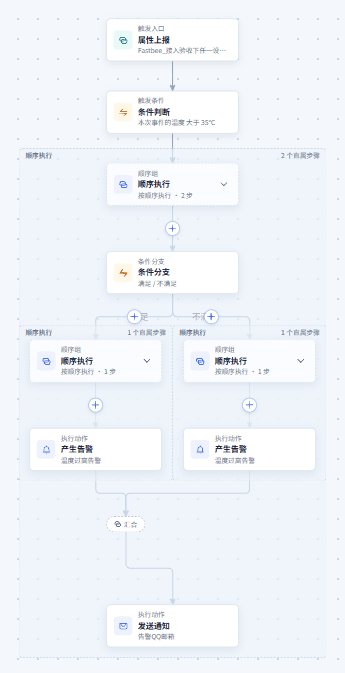
Figure: Tiered Threshold Alarm: view the scenario flow
64. View Part of the Execution Branches (Panned Down from the Flow Overview)
Location: Rule Engine → Scene Linkage
Open and check the page area corresponding to viewing part of the execution branches (panned down from the flow overview).
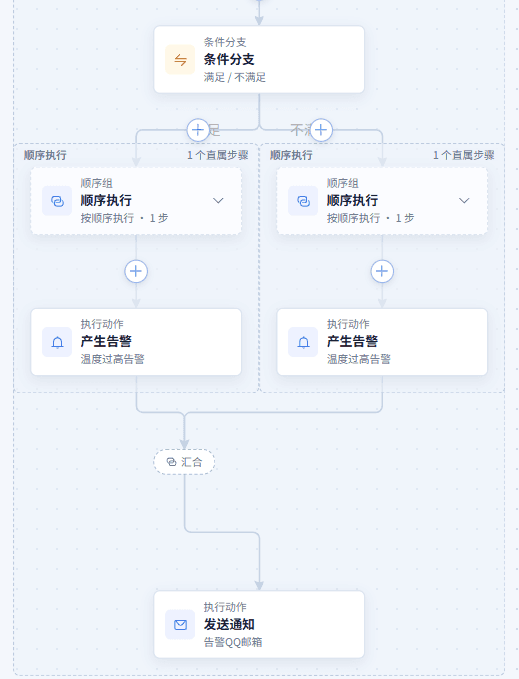
Figure: Tiered Threshold Alarm: view part of the execution branches (panned down from the flow overview)
65. Configure the Condition Node (Full Form)
Location: Rule Engine → Scene Linkage
Switch to the full form and set the field, source, operator, and comparison value in the "Conditions to Satisfy" area; it shares the same rule with the canvas.

Figure: Tiered Threshold Alarm: configure the condition node (full form)
66. Configure the Conditional Branch
Location: Rule Engine → Scene Linkage
Open and check the page area corresponding to configuring the conditional branch.

Figure: Tiered Threshold Alarm: configure the conditional branch
67. Run the Simulation
Location: Rule Engine → Scene Linkage
Open and check the page area corresponding to running the simulation.
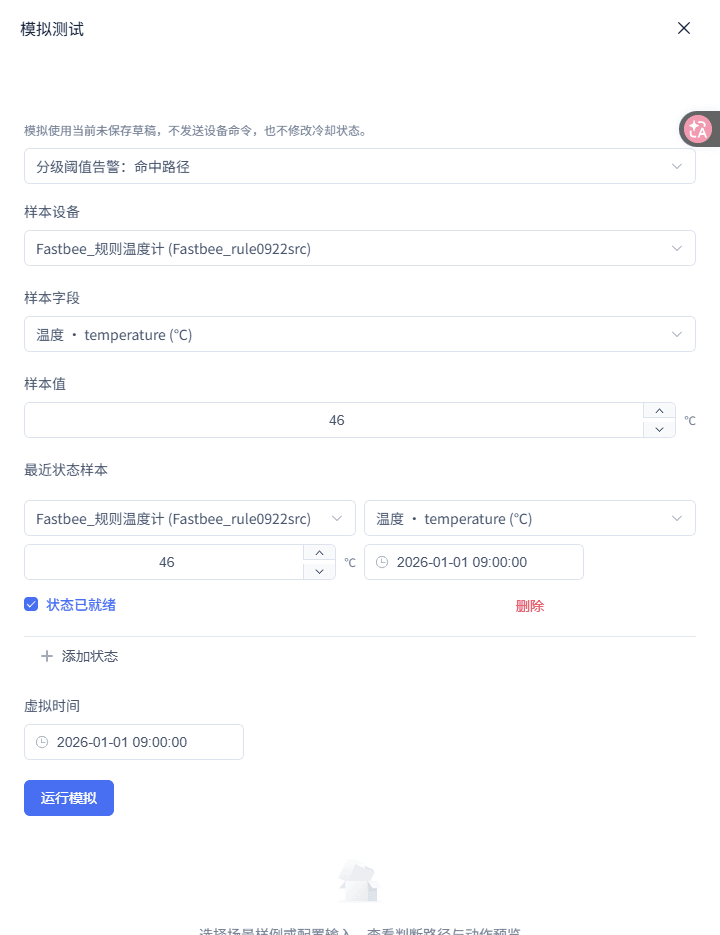
Figure: Tiered Threshold Alarm: run the simulation
68. View the Simulation Results
Location: Rule Engine → Scene Linkage
View the current sample's matched path and action previews.

Figure: Tiered Threshold Alarm: view the simulation results
69. Configure the Action Node
Location: Rule Engine → Scene Linkage
Open and check the page area corresponding to configuring the action node.
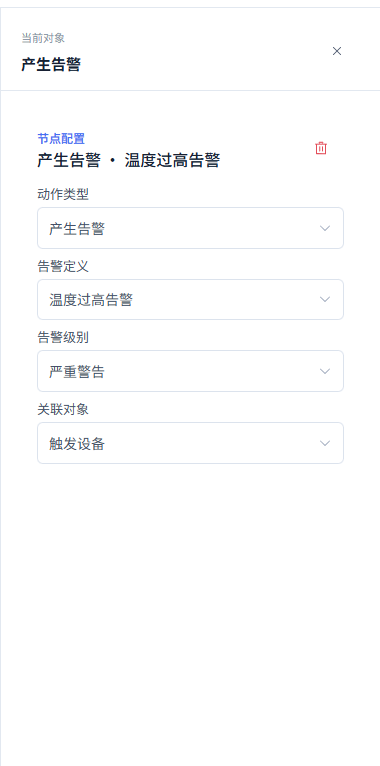
Figure: Tiered Threshold Alarm: configure the action node
70. Configure the Notification Template and Recipients
Location: Rule Engine → Scene Linkage
Open and check the page area corresponding to configuring the notification template and recipients.
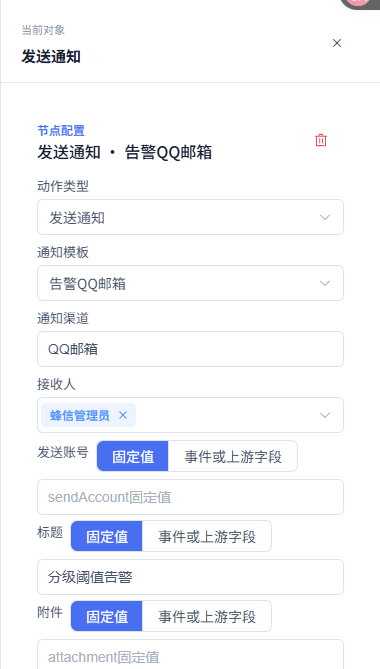
Figure: Tiered Threshold Alarm: configure the notification template and recipients
1. Create the Scenario
| Option | Purpose and Usage Advice | Effect and Recovery |
|---|---|---|
| Required Scenario Selection | Fill in or select "Scenario Selection". Choose the built-in scenario consistent with this tutorial; how to choose: choose the built-in scenario consistent with this tutorial; where the value comes from: current tenant resources, thing models, or sample values given by this scenario; suggested: Tiered Threshold Alarm. | Used to complete "Create the Scenario"; Impact · Scope: current rule draft; takes effect: requires publish; when wrong: choosing another scenario generates a different flow and options; recovery: fix per the page's validation hints and save again. |
2. Configure the Entry Threshold
| Option | Purpose and Usage Advice | Effect and Recovery |
|---|---|---|
| Required Entry Threshold | Fill in or select "Entry Threshold". At or below this value, the IF is not entered; how to choose: at or below this value, the IF is not entered; where the value comes from: current tenant resources, thing models, or sample values given by this scenario; suggested: 35. | Used to complete "Configure the Entry Threshold"; Impact · Scope: current rule draft; takes effect: requires publish; when wrong: this step reads the event value, not the latest state; recovery: fix per the page's validation hints and save again. |
3. Configure the IF's State Condition
| Option | Purpose and Usage Advice | Effect and Recovery |
|---|---|---|
| Required Critical Threshold | Fill in or select "Critical Threshold". Used to decide the critical or minor alarm branch; how to choose: used to decide the critical or minor alarm branch; where the value comes from: current tenant resources, thing models, or sample values given by this scenario; suggested: 45. | Used to complete "Configure the IF's State Condition"; Impact · Scope: current rule draft; takes effect: requires publish; when wrong: the IF's own condition trace should be tracked — do not judge which branch was taken by action type just because both branches are alarm actions; recovery: fix per the page's validation hints and save again. |
4. Configure the Critical Alarm Branch
| Option | Purpose and Usage Advice | Effect and Recovery |
|---|---|---|
| Required Alarm Severity | Fill in or select "Alarm Severity". The template's thenBranch alertLevel is 3; how to choose: the template's thenBranch alertLevel is 3; where the value comes from: current tenant resources, thing models, or sample values given by this scenario; suggested: 3. | Used to complete "Configure the Critical Alarm Branch"; Impact · Scope: current rule draft; takes effect: requires publish; when wrong: do not change only the severity while the alarm definition is unconfigured; recovery: fix per the page's validation hints and save again. |
5. Configure the Minor Alarm Branch and Notification
| Option | Purpose and Usage Advice | Effect and Recovery |
|---|---|---|
| Required Minor Alarm Severity | Fill in or select "Minor Alarm Severity". The template's elseBranch alertLevel is 2; how to choose: the template's elseBranch alertLevel is 2; where the value comes from: current tenant resources, thing models, or sample values given by this scenario; suggested: 2. | Used to complete "Configure the Minor Alarm Branch and Notification"; Impact · Scope: current rule draft; takes effect: requires publish; when wrong: both branches have ALARM_OPEN and a following NOTIFY — distinguish them via the IF node trace and alertLevel; recovery: fix per the page's validation hints and save again. |
6. Simulate High, Medium, Low, and Unknown States
| Option | Purpose and Usage Advice | Effect and Recovery |
|---|---|---|
| Required State Validity Period | Fill in or select "State Validity Period". States beyond the validity period cannot participate in judgment; how to choose: states beyond the validity period cannot participate in judgment; where the value comes from: current tenant resources, thing models, or sample values given by this scenario; suggested: 300 seconds. | Used to complete "Simulate High, Medium, Low, and Unknown States"; Impact · Scope: current rule draft; takes effect: requires publish; when wrong: a missing or expired IF shows as undeterminable and should not take the minor alarm branch; recovery: fix per the page's validation hints and save again. |
Branching by AI Analysis Result
A device event triggers AI analysis, and the AI returns a structured severity; a notification is sent only when severity=high.
Before you start: an event product and event field; an available AI assistant; an authorized notification template, notification channel, and recipients.
Flow description: 1. Event report trigger: rule event; 2. No entry condition; 3. Sequential execution; 4. AI analysis: structured output severity (text); 5. IF: completed upstream output result.severity equals high; 6. Satisfied branch: send notification; unsatisfied branch is empty.
- Create the event scenario: select "Branching by AI Analysis Result". In the trigger configuration, select Event Report, the product, and the rule event field shown on the page.
- Select the AI assistant: click the AI Analysis node. Select the available PLATFORM_MANAGEMENT_ASSISTANT in "AI Assistant". Fill in the analysis task.
- Configure the structured output: select "Structured Result" as the output form. Add the result field severity and select "Text" as the type.
- Understand the selectable scope of AI inputs: in the AI input mapping, choose either a fixed value or "Event or Upstream Field". This template's AI action is at the head of the flow, so available bindings come from the trigger event; there is no completed action output to choose from.
- Configure the IF output reference: click the IF node after the AI. Select "Completed Upstream Output" as the source. Select the AI node's result.severity and set equal to high.
- Configure the notification and simulate: in the IF's "When Satisfied" branch, configure the notification template, recipients, and variables. Simulate structured output severity=high, then severity=low. After publishing, check the AI node and IF node traces in the execution records.
High-risk notification: input: rule event=fault; simulated AI output {result:{severity:'high'}}. Expected: completed; IF trace true; action previews are AI and notification. Where to check: the AI node, IF node, and notification action on the simulation canvas.
Low-risk, no notification: input: rule event=fault; simulated AI output {result:{severity:'low'}}. Expected: completed; IF trace false; the action preview is only AI. Where to check: the IF node trace and action previews.
The second round of API simulation verified that high takes the notification branch, low does not, and the IF node traces; no real AI was called and successful notification delivery was not proven.
- Evidence for the high/low decision should be read from the IF node's CONDITION TRUE/FALSE trace — not merely from the presence of an AI action.
- AI structured simulation is a specified output sample and does not mean the real AI service reached the same conclusion.
71. View the Scenario Flow
Location: Rule Engine → Scene Linkage
Open and check the page area corresponding to viewing the scenario flow.
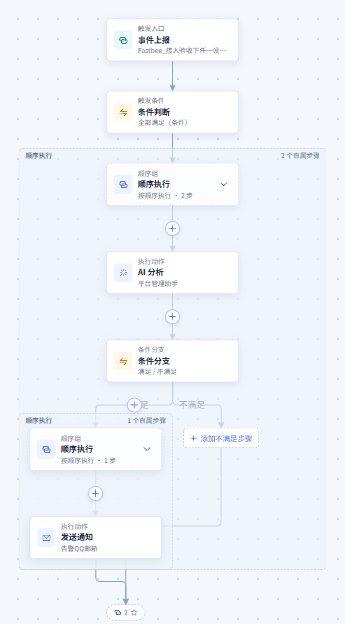
Figure: Branching by AI Analysis Result: view the scenario flow
72. View Part of the Execution Branches (Panned Down from the Flow Overview)
Location: Rule Engine → Scene Linkage
Open and check the page area corresponding to viewing part of the execution branches (panned down from the flow overview).
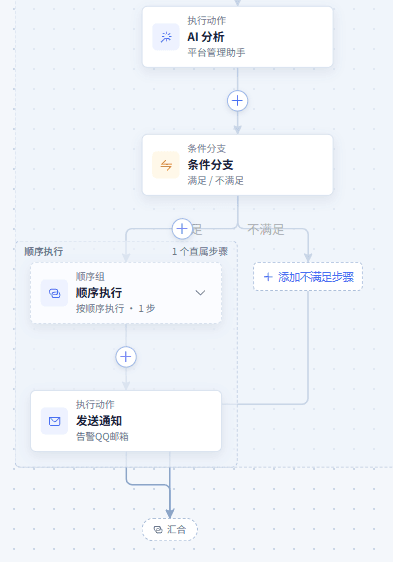
Figure: Branching by AI Analysis Result: view part of the execution branches (panned down from the flow overview)
73. Configure the Conditional Branch
Location: Rule Engine → Scene Linkage
Open and check the page area corresponding to configuring the conditional branch.

Figure: Branching by AI Analysis Result: configure the conditional branch
74. Run the Simulation
Location: Rule Engine → Scene Linkage
Open and check the page area corresponding to running the simulation.
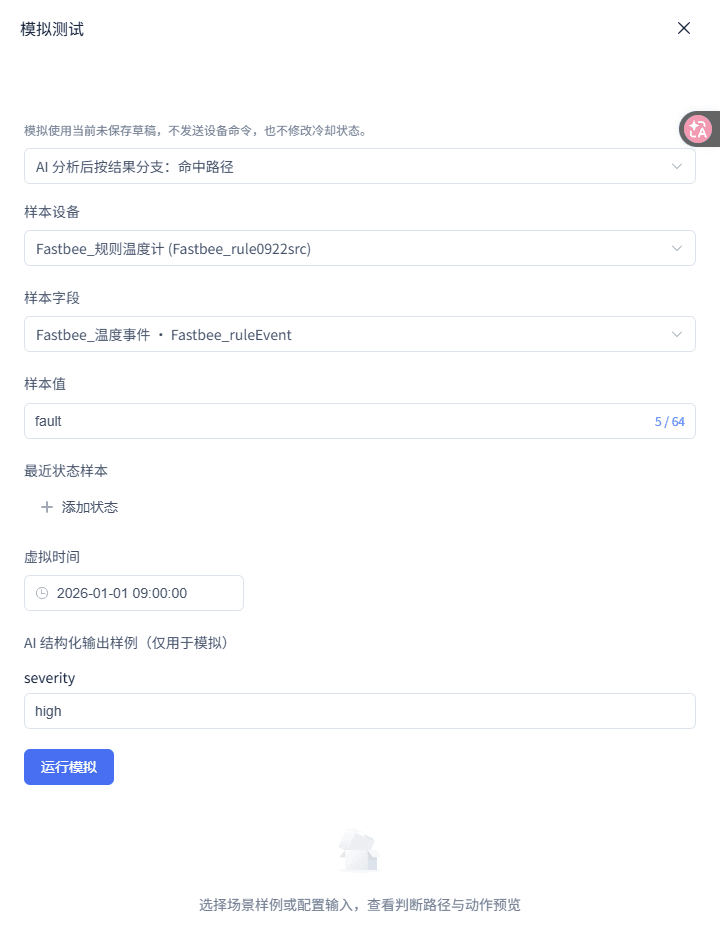
Figure: Branching by AI Analysis Result: run the simulation
75. View the Simulation Results
Location: Rule Engine → Scene Linkage
View the current sample's matched path and action previews.

Figure: Branching by AI Analysis Result: view the simulation results
76. Configure the Trigger Node
Location: Rule Engine → Scene Linkage
Open and check the page area corresponding to configuring the trigger node.
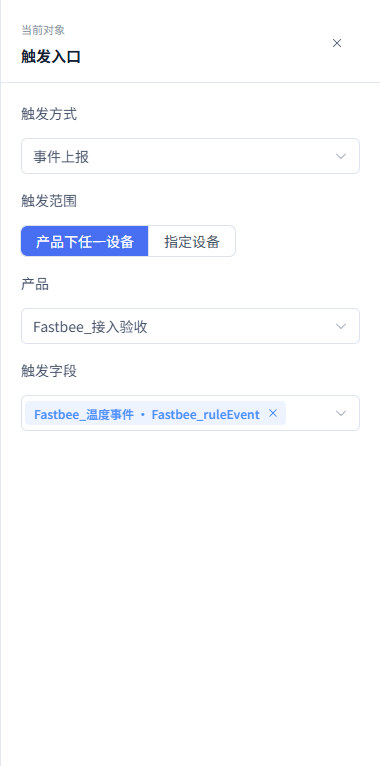
Figure: Branching by AI Analysis Result: configure the trigger node
77. Configure the Action Node
Location: Rule Engine → Scene Linkage
Open and check the page area corresponding to configuring the action node.
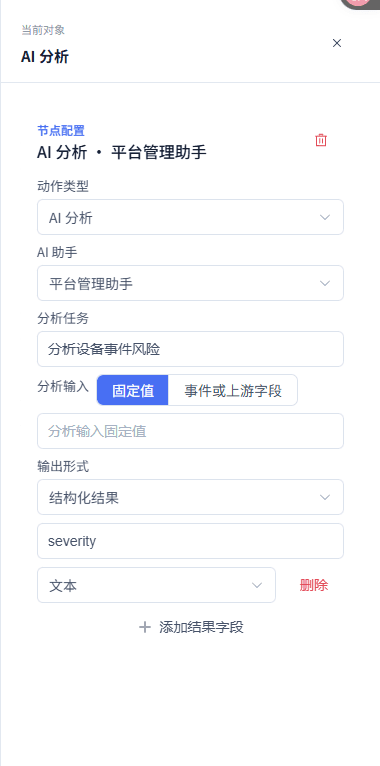
Figure: Branching by AI Analysis Result: configure the action node
78. Configure the Notification Template and Recipients
Location: Rule Engine → Scene Linkage
Open and check the page area corresponding to configuring the notification template and recipients.
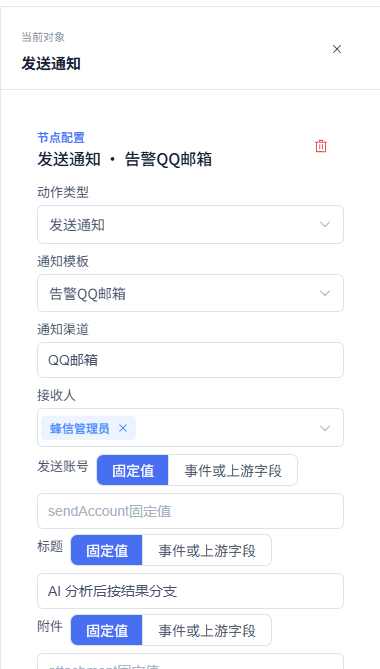
Figure: Branching by AI Analysis Result: configure the notification template and recipients
1. Create the Event Scenario
| Option | Purpose and Usage Advice | Effect and Recovery |
|---|---|---|
| Required Event Field | Fill in or select "Event Field". The current scenario enters the flow with this event; how to choose: the current scenario enters the flow with this event; where the value comes from: current tenant resources, thing models, or sample values given by this scenario; suggested: rule event. | Used to complete "Create the Event Scenario"; Impact · Scope: current rule draft; takes effect: requires publish; when wrong: property report and event report differ — a property field cannot be used as this template's event entry; recovery: fix per the page's validation hints and save again. |
2. Select the AI Assistant
| Option | Purpose and Usage Advice | Effect and Recovery |
|---|---|---|
| Required Analysis Task | Fill in or select "Analysis Task". The template's actual question parameter; how to choose: the template's actual question parameter; where the value comes from: current tenant resources, thing models, or sample values given by this scenario; suggested: analyze device event risk. | Used to complete "Select the AI Assistant"; Impact · Scope: current rule draft; takes effect: requires publish; when wrong: an assistant shown as unavailable cannot be used for saving — resolve its availability cause first; recovery: fix per the page's validation hints and save again. |
3. Configure the Structured Output
| Option | Purpose and Usage Advice | Effect and Recovery |
|---|---|---|
| Required Output Schema | Fill in or select "Output Schema". Later IFs can only reference outputs declared and completed by the AI node; how to choose: later IFs can only reference outputs declared and completed by the AI node; where the value comes from: current tenant resources, thing models, or sample values given by this scenario; suggested: severity: string. | Used to complete "Configure the Structured Output"; Impact · Scope: current rule draft; takes effect: requires publish; when wrong: without declaring severity, the IF's upstream output options will not offer result.severity; recovery: fix per the page's validation hints and save again. |
4. Understand the Selectable Scope of AI Inputs
| Option | Purpose and Usage Advice | Effect and Recovery |
|---|---|---|
| Required Referenceable Fields | Fill in or select "Referenceable Fields". The interface filters by the upstream results actually available to the current node; how to choose: the interface filters by the upstream results actually available to the current node; where the value comes from: current tenant resources, thing models, or sample values given by this scenario; suggested: trigger event fields; and outputs of nodes completed before the current node. | Used to complete "Understand the Selectable Scope of AI Inputs"; Impact · Scope: current rule draft; takes effect: requires publish; when wrong: the AI node's input cannot reference the severity it has not yet produced itself; recovery: fix per the page's validation hints and save again. |
5. Configure the IF Output Reference
| Option | Purpose and Usage Advice | Effect and Recovery |
|---|---|---|
| Required Output Reference | Fill in or select "Output Reference". The output selection records the AI node ID and field path; how to choose: the output selection records the AI node ID and field path; where the value comes from: current tenant resources, thing models, or sample values given by this scenario; suggested: AI node .result.severity == high. | Used to complete "Configure the IF Output Reference"; Impact · Scope: current rule draft; takes effect: requires publish; when wrong: do not hand-pick a same-named field — it must be selected from the selectable completed upstream outputs to avoid referencing a nonexistent node; recovery: fix per the page's validation hints and save again. |
6. Configure the Notification and Simulate
| Option | Purpose and Usage Advice | Effect and Recovery |
|---|---|---|
| Required Low-Risk Branch | Fill in or select "Low-Risk Branch". The template has no elseBranch — low risk keeps only the AI action and sends no notification; how to choose: the template has no elseBranch — low risk keeps only the AI action and sends no notification; where the value comes from: current tenant resources, thing models, or sample values given by this scenario; suggested: severity=low. | Used to complete "Configure the Notification and Simulate"; Impact · Scope: current rule draft; takes effect: requires publish; when wrong: when the recipient is outside the authorized scope, only simulation can be verified; a notification preview does not mean remote delivery succeeded; recovery: fix per the page's validation hints and save again. |
Daily Scheduled Device Control
Every day at 09:00 (Asia/Shanghai), deliver set temperature 26 to FastBee_规则执行器.
Before you start: target device: FastBee_规则执行器; control field: Set Temperature (writable), fixed value 26; rule configuration, publish, and execution-record viewing permissions.
Flow description: 1. Scheduled Check (daily 09:00 / Asia/Shanghai); 2. Sequential execution; 3. Control device (specified device).
- Create from the template: after entering the Rule Engine, open the Scenario Library and select "Daily Scheduled Device Control". Click "Next" to enter Bind Resources, click "Next" again to enter Adjust Parameters, and after completing the configuration click "Enter Canvas".
- Set the scheduled trigger: click the trigger entry on the canvas and configure on the right. Set the trigger method to "Scheduled Check" and the execution frequency to "Daily".
- Preview the schedule and bind the target: click "Preview Next Five Runs" and confirm the returned times match 09:00. Select "Specified Device" in the trigger scope and choose the target device; or keep the product scope but still select a specific device at the action node.
- Configure the control action: click the "Control Device" action on the canvas. Select "Specified Device" as the control object and FastBee_规则执行器 as the target device. Select Set Temperature as the control field, choose Fixed Value as the set-value source, and fill in 26.
- Simulate and save: click Simulation Test, select the template sample, and run. Check in the results that the scheduled trigger matched and the control node shows an action preview. Click Save Draft and confirm there are no pending items.
- Publish and verify the schedule: click Publish and confirm in the confirmation window. Wait until the runtime version shows "Active". After 09:00, open the execution records and select the record of the corresponding runtime version to view the trace.
09:00 schedule preview: input: execution frequency=daily; execution time=09:00; timezone=Asia/Shanghai; target=FastBee_规则执行器; Set Temperature=26. Expected: the next-five preview shows 09:00 every following day; simulation shows a control preview setting temperature 26 on the actuator. Where to check: the trigger node's next-five preview, the simulation result canvas.
Validation blocks when target device missing: input: clear the control action's target device and click Validate. Expected: the pending items show "Select Control Device"; it recovers after reselecting FastBee_规则执行器. Where to check: the pending items at the bottom — clicking locates the action node.
This chapter explains configuration, simulation, and where to check execution records; it does not describe the platform's dispatched status as the device's physical execution success.
- Publishing is blocked by validation when no target device or product is selected.
- Simulation results are not evidence of actual device control.
79. View the Scenario Flow
Location: Rule Engine → Scene Linkage
Open and check the page area corresponding to viewing the scenario flow.
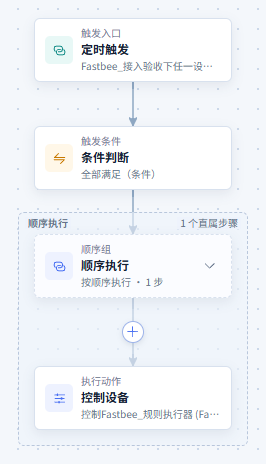
Figure: Daily Scheduled Device Control: view the scenario flow
80. Configure the Trigger Node
Location: Rule Engine → Scene Linkage
Open and check the page area corresponding to configuring the trigger node.
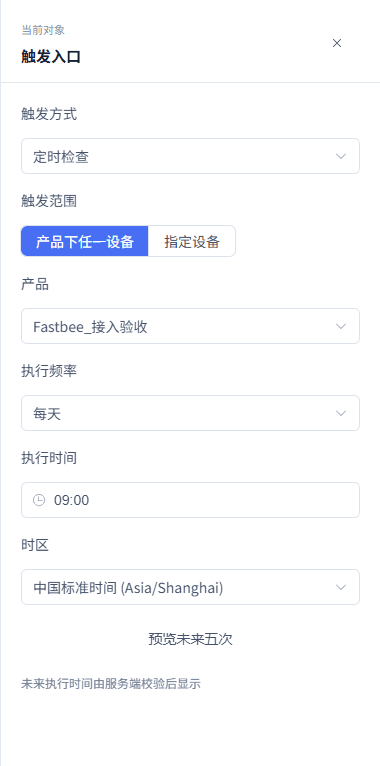
Figure: Daily Scheduled Device Control: configure the trigger node
81. Configure the Action Node
Location: Rule Engine → Scene Linkage
Open and check the page area corresponding to configuring the action node.
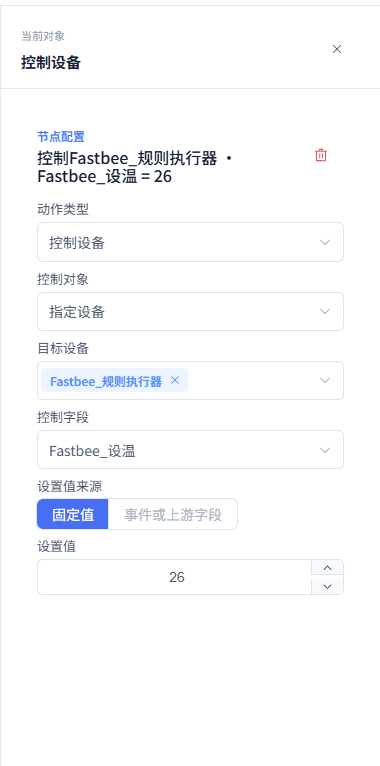
Figure: Daily Scheduled Device Control: configure the action node
82. Run the Simulation
Location: Rule Engine → Scene Linkage
Open and check the page area corresponding to running the simulation.
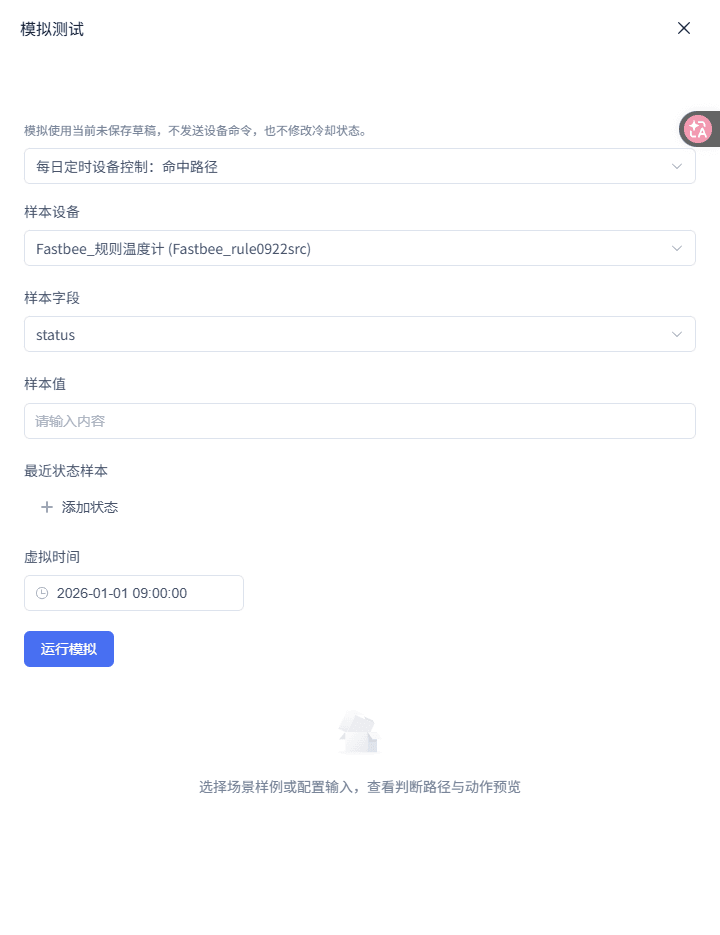
Figure: Daily Scheduled Device Control: run the simulation
83. View the Simulation Results
Location: Rule Engine → Scene Linkage
View the current sample's matched path and action previews.

Figure: Daily Scheduled Device Control: view the simulation results
1. Create from the Template
| Option | Purpose and Usage Advice | Effect and Recovery |
|---|---|---|
| Required Scenario | Fill in or select "Scenario". The template has already created the scheduled trigger and the specified-device control action; how to choose: the template has already created the scheduled trigger and the specified-device control action; where the value comes from: current tenant resources, thing models, or sample values given by this scenario; suggested: Daily Scheduled Device Control. | Used to complete "Create from the Template"; Impact · Scope: current rule draft; takes effect: requires publish; when wrong: the template carries no real device — binding is required later; recovery: fix per the page's validation hints and save again. |
2. Set the Scheduled Trigger
| Option | Purpose and Usage Advice | Effect and Recovery |
|---|---|---|
| Required Execution Time | Fill in or select "Execution Time". The template's default time, convenient for execution at a fixed moment every day; how to choose: the template's default time, convenient for execution at a fixed moment every day; where the value comes from: current tenant resources, thing models, or sample values given by this scenario; suggested: 09:00. | Used to complete "Set the Scheduled Trigger"; Impact · Scope: current rule draft; takes effect: requires publish; when wrong: the time is in HH:mm format — do not enter a date; recovery: fix per the page's validation hints and save again. |
| Required Timezone | Fill in or select "Timezone". Ensures the schedule is computed in China Standard Time; how to choose: ensures the schedule is computed in China Standard Time; where the value comes from: current tenant resources, thing models, or sample values given by this scenario; suggested: Asia/Shanghai. | Used to complete "Set the Scheduled Trigger"; Impact · Scope: current rule draft; takes effect: requires publish; when wrong: using UTC shifts the actual execution moment; recovery: fix per the page's validation hints and save again. |
3. Preview the Schedule and Bind the Target
| Option | Purpose and Usage Advice | Effect and Recovery |
|---|---|---|
| Required Target Device | Fill in or select "Target Device". Save validation of scheduled control requires a specified device or product; how to choose: save validation of scheduled control requires a specified device or product; where the value comes from: current tenant resources, thing models, or sample values given by this scenario; suggested: the device actually to be controlled. | Used to complete "Preview the Schedule and Bind the Target"; Impact · Scope: current rule draft; takes effect: requires publish; when wrong: do not rely on a nonexistent "trigger device", because a scheduled trigger has no reporting device; recovery: fix per the page's validation hints and save again. |
4. Configure the Control Action
| Option | Purpose and Usage Advice | Effect and Recovery |
|---|---|---|
| Required Control Field | Fill in or select "Control Field". This demonstration delivers this writable field to the actuator; how to choose: this demonstration delivers this writable field to the actuator; where the value comes from: current tenant resources, thing models, or sample values given by this scenario; suggested: Set Temperature. | Used to complete "Configure the Control Action"; Impact · Scope: current rule draft; takes effect: requires publish; when wrong: read-only properties do not appear among the selectable fields; recovery: fix per the page's validation hints and save again. |
| Required Set Value | Fill in or select "Set Value". A scheduled task has no current event value to bind; how to choose: a scheduled task has no current event value to bind; where the value comes from: current tenant resources, thing models, or sample values given by this scenario; suggested: 26. | Used to complete "Configure the Control Action"; Impact · Scope: current rule draft; takes effect: requires publish; when wrong: do not select an event or upstream field; recovery: fix per the page's validation hints and save again. |
5. Simulate and Save
| Option | Purpose and Usage Advice | Effect and Recovery |
|---|---|---|
| Required Simulation Event Type | Fill in or select "Simulation Event Type". The template sample is generated per the scheduled trigger; how to choose: the template sample is generated per the scheduled trigger; where the value comes from: current tenant resources, thing models, or sample values given by this scenario; suggested: schedule. | Used to complete "Simulate and Save"; Impact · Scope: current rule draft; takes effect: requires publish; when wrong: simulation only previews and does not deliver to the device; recovery: fix per the page's validation hints and save again. |
6. Publish and Verify the Schedule
| Option | Purpose and Usage Advice | Effect and Recovery |
|---|---|---|
| Required Execution Record Filtering | Fill in or select "Execution Record Filtering". Avoids mistaking historical-version records for the current rule; how to choose: avoids mistaking historical-version records for the current rule; where the value comes from: current tenant resources, thing models, or sample values given by this scenario; suggested: runtime version and start time. | Used to complete "Publish and Verify the Schedule"; Impact · Scope: current rule draft; takes effect: requires publish; when wrong: action status DISPATCHED only means platform dispatch — actual device receipt must be checked separately from device receipts; recovery: fix per the page's validation hints and save again. |
Weekly Scheduled Control
Every week at 09:00 (Asia/Shanghai) on the selected days, deliver set temperature 26 to FastBee_规则执行器.
Before you start: target device: FastBee_规则执行器; control field: Set Temperature; fixed value: 26; rule publish and execution-record permissions.
Flow description: 1. Scheduled Check (weekly / Monday / 09:00); 2. Sequential execution; 3. Control device (specified device).
- Select the template: select "Weekly Scheduled Control" in the Scenario Library. Click "Next", "Next" in turn, complete resources and parameters, then click "Enter Canvas".
The same configuration screens are shown in the "Daily Scheduled Device Control" chapter; continue completing this scenario per the field tables above.
- Set the weekly schedule: select the trigger node and choose "Scheduled Check" as the trigger method. Select "Weekly" as the execution frequency.
- Select execution days: select "Monday" in the "Execution Days" multi-select. When multiple days are needed, also select Tuesday through Sunday.
- Select the device and field: in the Control Device action, select "Specified Device" as the control object. Select FastBee_规则执行器 as the target device, Set Temperature as the control field, and fill in 26 as the fixed set value.
- Preview and simulate: click "Preview Next Five Runs" and check that all fall on 09:00 of the selected execution days. Click Simulation Test and run the template sample.
- Save, publish, trace: save the draft and publish, and wait until the status becomes "Active". After the next selected weekly schedule executes, open the trace in the execution records by start time.
Monday schedule preview: input: weekly; Monday; 09:00; Asia/Shanghai; actuator Set Temperature=26. Expected: the next-five preview lists only Monday 09:00; the simulation preview sets 26 on the actuator. Where to check: the trigger node preview, the simulation results.
Validation blocks when target device missing: input: clear the control action's target device and click Validate. Expected: the pending items show "Select Control Device"; it recovers after reselecting FastBee_规则执行器. Where to check: the pending items at the bottom — clicking locates the action node.
The schedule preview, version activation, and platform execution tracing can be verified; the actual device effect needs device receipt confirmation.
- Execution days are multi-select — after changing them, the next five runs must be reviewed again.
- An unpublished draft does not enter the runtime schedule.
84. Configure the Trigger Node
Location: Rule Engine → Scene Linkage
Open and check the page area corresponding to configuring the trigger node.
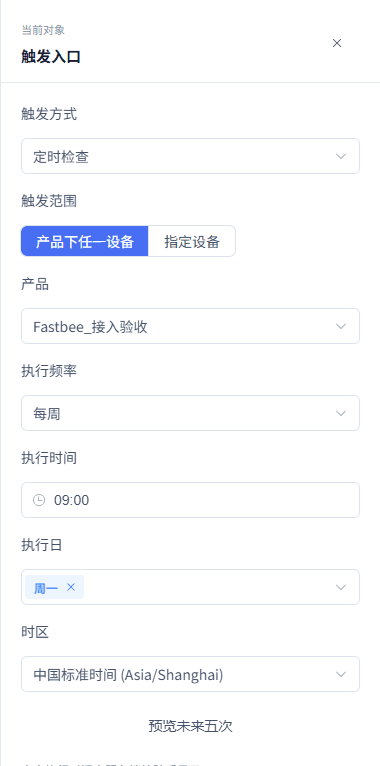
Figure: Weekly Scheduled Control: configure the trigger node
85. Configure the Action Node
Location: Rule Engine → Scene Linkage
Open and check the page area corresponding to configuring the action node.
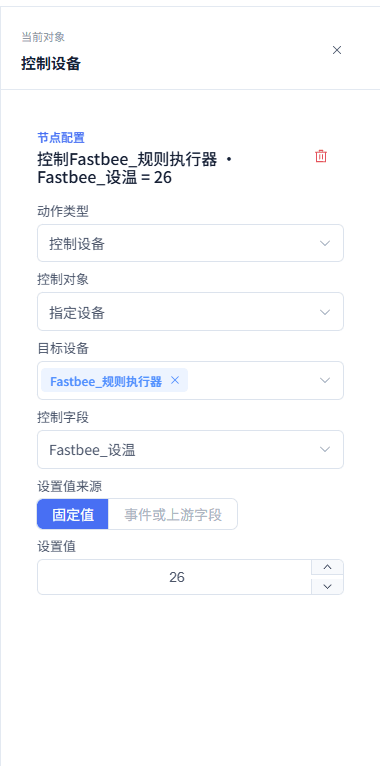
Figure: Weekly Scheduled Control: configure the action node
86. Run the Simulation
Location: Rule Engine → Scene Linkage
Open and check the page area corresponding to running the simulation.
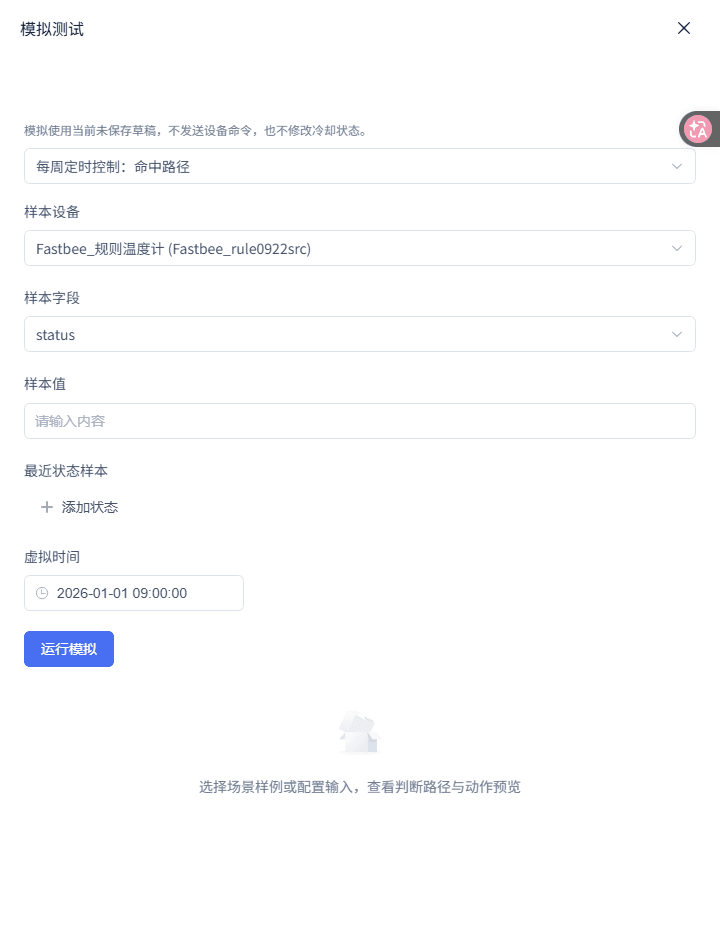
Figure: Weekly Scheduled Control: run the simulation
87. View the Simulation Results
Location: Rule Engine → Scene Linkage
View the current sample's matched path and action previews.

Figure: Weekly Scheduled Control: view the simulation results
1. Select the Template
| Option | Purpose and Usage Advice | Effect and Recovery |
|---|---|---|
| Required Scenario | Fill in or select "Scenario". The template presets the weekly schedule and the device control node; how to choose: the template presets the weekly schedule and the device control node; where the value comes from: current tenant resources, thing models, or sample values given by this scenario; suggested: Weekly Scheduled Control. | Used to complete "Select the Template"; Impact · Scope: current rule draft; takes effect: requires publish; when wrong: real resources still need to be filled in before entering the canvas; recovery: fix per the page's validation hints and save again. |
2. Set the Weekly Schedule
| Option | Purpose and Usage Advice | Effect and Recovery |
|---|---|---|
| Required Execution Time | Fill in or select "Execution Time". The template's default time; how to choose: the template's default time; where the value comes from: current tenant resources, thing models, or sample values given by this scenario; suggested: 09:00. | Used to complete "Set the Weekly Schedule"; Impact · Scope: current rule draft; takes effect: requires publish; when wrong: do not write the time into the Cron input box; recovery: fix per the page's validation hints and save again. |
| Required Timezone | Fill in or select "Timezone". Schedules in China Standard Time; how to choose: schedules in China Standard Time; where the value comes from: current tenant resources, thing models, or sample values given by this scenario; suggested: Asia/Shanghai. | Used to complete "Set the Weekly Schedule"; Impact · Scope: current rule draft; takes effect: requires publish; when wrong: after changing the timezone, the preview must be reviewed again; recovery: fix per the page's validation hints and save again. |
3. Select Execution Days
| Option | Purpose and Usage Advice | Effect and Recovery |
|---|---|---|
| Required Execution Days | Fill in or select "Execution Days". The template defaults to Monday; how to choose: the template defaults to Monday; where the value comes from: current tenant resources, thing models, or sample values given by this scenario; suggested: MON (Monday). | Used to complete "Select Execution Days"; Impact · Scope: current rule draft; takes effect: requires publish; when wrong: a weekly schedule is incomplete without an execution day selected; recovery: fix per the page's validation hints and save again. |
4. Select the Device and Field
| Option | Purpose and Usage Advice | Effect and Recovery |
|---|---|---|
| Required Target Device | Fill in or select "Target Device". A scheduled task has no trigger device context; how to choose: a scheduled task has no trigger device context; where the value comes from: current tenant resources, thing models, or sample values given by this scenario; suggested: FastBee_规则执行器. | Used to complete "Select the Device and Field"; Impact · Scope: current rule draft; takes effect: requires publish; when wrong: do not select "Trigger Device"; recovery: fix per the page's validation hints and save again. |
| Required Control Field and Set Value | Fill in or select "Control Field and Set Value". The action can only write to a writable property or function; how to choose: the action can only write to a writable property or function; where the value comes from: current tenant resources, thing models, or sample values given by this scenario; suggested: Set Temperature = 26. | Used to complete "Select the Device and Field"; Impact · Scope: current rule draft; takes effect: requires publish; when wrong: after switching the product or device, the field must be reselected; recovery: fix per the page's validation hints and save again. |
5. Preview and Simulate
| Option | Purpose and Usage Advice | Effect and Recovery |
|---|---|---|
| Required Sample Event Type | Fill in or select "Sample Event Type". Verifies the workflow path; how to choose: verifies the workflow path; where the value comes from: current tenant resources, thing models, or sample values given by this scenario; suggested: schedule. | Used to complete "Preview and Simulate"; Impact · Scope: current rule draft; takes effect: requires publish; when wrong: simulation does not wait for the real weekly schedule time; recovery: fix per the page's validation hints and save again. |
6. Save, Publish, Trace
| Option | Purpose and Usage Advice | Effect and Recovery |
|---|---|---|
| Required Trace Node | Fill in or select "Trace Node". Checks the runtime version and action status; how to choose: checks the runtime version and action status; where the value comes from: current tenant resources, thing models, or sample values given by this scenario; suggested: Control Device. | Used to complete "Save, Publish, Trace"; Impact · Scope: current rule draft; takes effect: requires publish; when wrong: DISPATCHED is not a device-side receipt; recovery: fix per the page's validation hints and save again. |
Scheduled Status Inspection
Every day at 09:00, read the specified device's latest state; send a notification when the state equals 4, and show missing or expired states as undeterminable.
Before you start: state source device: FastBee_规则温度计; built-in device status: 4=offline, 3=online; a notification template, its corresponding notification channel, and at least one recipient; rule publish and execution-record permissions.
Flow description: 1. Scheduled Check (daily 09:00 / Asia/Shanghai); 2. Latest state: specified device .status = 4; 3. Sequential execution; 4. Send notification.
- Create the inspection rule: select "Scheduled Status Inspection" in the Scenario Library. Click "Next", "Next", then "Enter Canvas". Confirm on the canvas that the trigger node, state condition, and Send Notification action already exist.
- Configure the time and timezone: select the trigger node and set it to Scheduled Check, Daily. Fill in the execution time and select the timezone.
- Bind the latest state source: click the state condition node. Select "Latest State" as the condition source and FastBee_规则温度计 as the state device. Select "Device Online Status · status" as the field, "Equal" as the operator, and "Offline" (internal value 4) as the comparison value.
- Set the latest state validity period: open Rule Settings. In "Latest State Validity Period" under "Advanced Policies and Diagnosis", fill in the maximum allowed age of latest state.
- Configure the notification: click the Send Notification action. Select a notification template and confirm the read-only notification channel matches the template. Select recipients; if the template has variables, fill them with fixed values or state-field mappings.
- Simulate by three states: open Simulation Test and fill in virtual time 2026-01-01T09:00:00+08:00. Fill in the following state samples respectively and run.
- Verify the real schedule after publishing: save the draft and publish, and wait for "Active". After the next real 09:00 schedule, open the execution records and check the state source, observation time, condition result, and notification node status.
Abnormal state: input: virtualTime=2026-01-01T09:00:00+08:00; status=4; observedAt=08:59. Expected: the condition is satisfied and the notification shows an action preview. Where to check: the condition node and notification node in the simulation results.
Normal state: input: status=3; observedAt=08:59. Expected: the condition is unsatisfied and the notification is skipped. Where to check: the simulation matched path.
Expired state: input: status=4; observedAt=08:54; latest state validity period=300 seconds. Expected: the condition shows undeterminable and the notification does not enter the satisfied path. Where to check: the condition node in the simulation results.
Simulation can verify the judgment path; the real 09:00 schedule, notification service acceptance, and final delivery are different layers and should be checked separately in execution records and receipts.
- The latest state's observedAt must fall within the latest state validity period.
- The notification requires publishing and checking the receipt — simulation does not send it.
88. View the Scenario Flow
Location: Rule Engine → Scene Linkage
Open and check the page area corresponding to viewing the scenario flow.
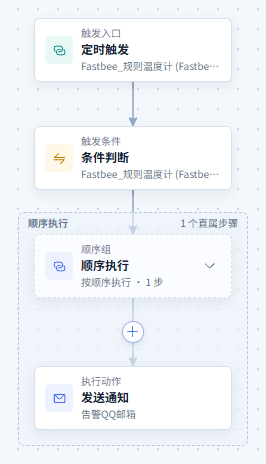
Figure: Scheduled Status Inspection: view the scenario flow
89. Configure the Trigger Node
Location: Rule Engine → Scene Linkage
Open and check the page area corresponding to configuring the trigger node.
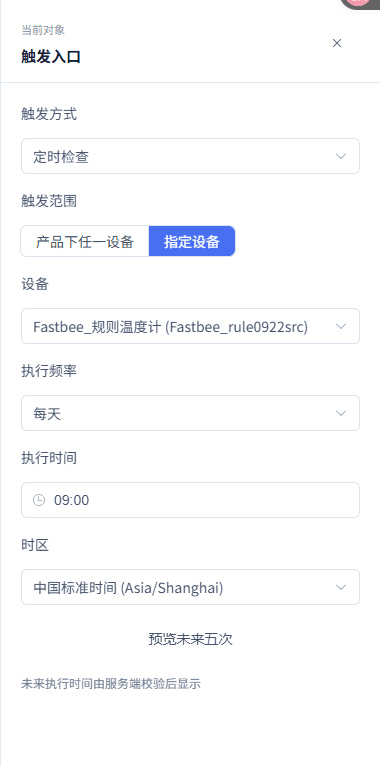
Figure: Scheduled Status Inspection: configure the trigger node
90. Configure the Condition Node (Full Form)
Location: Rule Engine → Scene Linkage
Switch to the full form and set the field, source, operator, and comparison value in the "Conditions to Satisfy" area; it shares the same rule with the canvas.

Figure: Scheduled Status Inspection: configure the condition node (full form)
91. Configure the Action Node
Location: Rule Engine → Scene Linkage
Open and check the page area corresponding to configuring the action node.
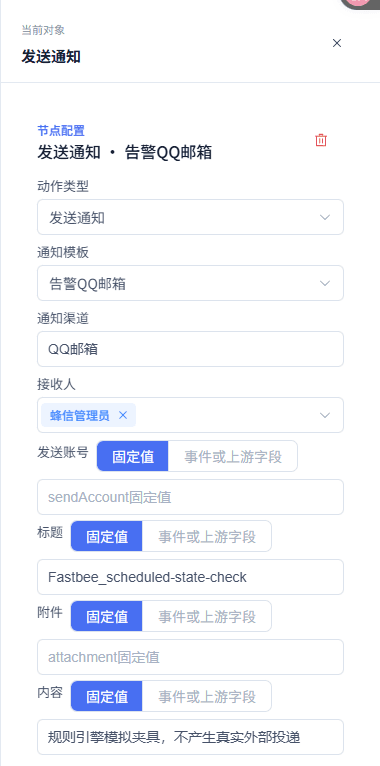
Figure: Scheduled Status Inspection: configure the action node
92. Run the Simulation
Location: Rule Engine → Scene Linkage
Open and check the page area corresponding to running the simulation.
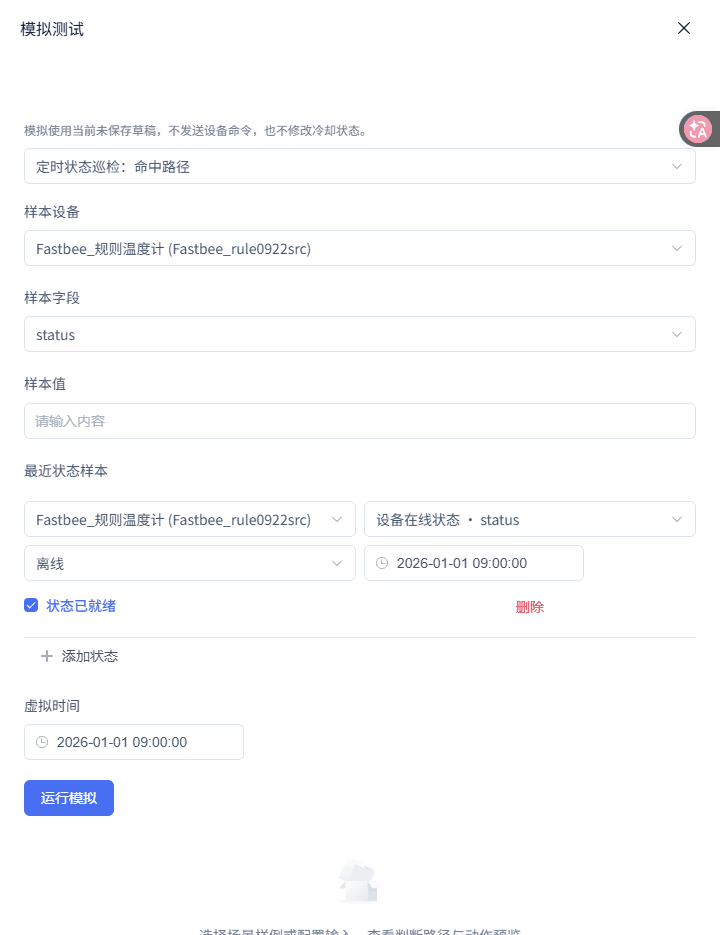
Figure: Scheduled Status Inspection: run the simulation
93. View the Simulation Results
Location: Rule Engine → Scene Linkage
View the current sample's matched path and action previews.

Figure: Scheduled Status Inspection: view the simulation results
1. Create the Inspection Rule
| Option | Purpose and Usage Advice | Effect and Recovery |
|---|---|---|
| Required State Condition | Fill in or select "State Condition". The template's abnormal-state judgment; how to choose: the template's abnormal-state judgment; where the value comes from: current tenant resources, thing models, or sample values given by this scenario; suggested: device status = 4 (offline). | Used to complete "Create the Inspection Rule"; Impact · Scope: current rule draft; takes effect: requires publish; when wrong: a scheduled rule's state condition must have an independent state device; recovery: fix per the page's validation hints and save again. |
2. Configure the Time and Timezone
| Option | Purpose and Usage Advice | Effect and Recovery |
|---|---|---|
| Required Execution Time | Fill in or select "Execution Time". The template's default inspection time; how to choose: the template's default inspection time; where the value comes from: current tenant resources, thing models, or sample values given by this scenario; suggested: 09:00. | Used to complete "Configure the Time and Timezone"; Impact · Scope: current rule draft; takes effect: requires publish; when wrong: click Next Five to confirm the schedule accepted by the server; recovery: fix per the page's validation hints and save again. |
| Required Timezone | Fill in or select "Timezone". Ensures inspection runs in the business timezone; how to choose: ensures inspection runs in the business timezone; where the value comes from: current tenant resources, thing models, or sample values given by this scenario; suggested: Asia/Shanghai. | Used to complete "Configure the Time and Timezone"; Impact · Scope: current rule draft; takes effect: requires publish; when wrong: the device's local clock cannot substitute for the rule timezone; recovery: fix per the page's validation hints and save again. |
3. Bind the Latest State Source
| Option | Purpose and Usage Advice | Effect and Recovery |
|---|---|---|
| Required State Device | Fill in or select "State Device". A scheduled trigger has no current device event, and save validation requires an explicit selection; how to choose: a scheduled trigger has no current device event, and save validation requires an explicit selection; where the value comes from: current tenant resources, thing models, or sample values given by this scenario; suggested: FastBee_规则温度计. | Used to complete "Bind the Latest State Source"; Impact · Scope: current rule draft; takes effect: requires publish; when wrong: an empty state device prompts "Select a device for scheduled judgment"; recovery: fix per the page's validation hints and save again. |
| Required Device Status | Fill in or select "Device Status". This is the platform's built-in online status, not an ordinary thing-model field; how to choose: this is the platform's built-in online status, not an ordinary thing-model field; where the value comes from: current tenant resources, thing models, or sample values given by this scenario; suggested: 4 (offline). | Used to complete "Bind the Latest State Source"; Impact · Scope: current rule draft; takes effect: requires publish; when wrong: device status cannot be mistakenly replaced by an ordinary thing-model field such as temperature; recovery: fix per the page's validation hints and save again. |
4. Set the Latest State Validity Period
| Option | Purpose and Usage Advice | Effect and Recovery |
|---|---|---|
| Required Latest State Validity Period | Fill in or select "Latest State Validity Period". The default policy is 300 seconds — beyond the validity, old data cannot be treated as the current state; how to choose: the default policy is 300 seconds — beyond the validity, old data cannot be treated as the current state; where the value comes from: current tenant resources, thing models, or sample values given by this scenario; suggested: 300 seconds. | Used to complete "Set the Latest State Validity Period"; Impact · Scope: current rule draft; takes effect: requires publish; when wrong: an expired state should show "Undeterminable" — do not treat it as "unsatisfied"; recovery: fix per the page's validation hints and save again. |
5. Configure the Notification
| Option | Purpose and Usage Advice | Effect and Recovery |
|---|---|---|
| Required Notification Template | Fill in or select "Notification Template". The template determines the available notification channel and variables; how to choose: the template determines the available notification channel and variables; where the value comes from: current tenant resources, thing models, or sample values given by this scenario; suggested: a configured anomaly notification template. | Used to complete "Configure the Notification"; Impact · Scope: current rule draft; takes effect: requires publish; when wrong: saving is impossible when the template is unavailable or the channel mismatches; recovery: fix per the page's validation hints and save again. |
| Required Recipients | Fill in or select "Recipients". Save validation of the notification action requires recipients; how to choose: save validation of the notification action requires recipients; where the value comes from: current tenant resources, thing models, or sample values given by this scenario; suggested: at least one actual receiving user. | Used to complete "Configure the Notification"; Impact · Scope: current rule draft; takes effect: requires publish; when wrong: do not treat the notification channel as a manually fillable field; recovery: fix per the page's validation hints and save again. |
6. Simulate by Three States
| Option | Purpose and Usage Advice | Effect and Recovery |
|---|---|---|
| Required Offline Sample | Fill in or select "Offline Sample". Should hit the notification path; how to choose: should hit the notification path; where the value comes from: current tenant resources, thing models, or sample values given by this scenario; suggested: thermometer device status=4; observedAt=2026-01-01T08:59:00+08:00. | Used to complete "Simulate by Three States"; Impact · Scope: current rule draft; takes effect: requires publish; when wrong: the selected state device and the built-in device status must be used; recovery: fix per the page's validation hints and save again. |
| Required Online Sample | Fill in or select "Online Sample". Should show the condition unsatisfied with the notification skipped; how to choose: should show the condition unsatisfied with the notification skipped; where the value comes from: current tenant resources, thing models, or sample values given by this scenario; suggested: device status=3; observedAt=2026-01-01T08:59:00+08:00. | Used to complete "Simulate by Three States"; Impact · Scope: current rule draft; takes effect: requires publish; when wrong: no notification preview should be expected; recovery: fix per the page's validation hints and save again. |
| Required Expired Sample | Fill in or select "Expired Sample". Beyond 300 seconds it should show undeterminable; how to choose: beyond 300 seconds it should show undeterminable; where the value comes from: current tenant resources, thing models, or sample values given by this scenario; suggested: device status=4; observedAt=2026-01-01T08:54:00+08:00. | Used to complete "Simulate by Three States"; Impact · Scope: current rule draft; takes effect: requires publish; when wrong: undeterminable is not unsatisfied; recovery: fix per the page's validation hints and save again. |
7. Verify the Real Schedule After Publishing
| Option | Purpose and Usage Advice | Effect and Recovery |
|---|---|---|
| Required Execution Records | Fill in or select "Execution Records". Simulation does not trigger the real schedule; how to choose: simulation does not trigger the real schedule; where the value comes from: current tenant resources, thing models, or sample values given by this scenario; suggested: the current runtime version's 09:00 record. | Used to complete "Verify the Real Schedule After Publishing"; Impact · Scope: current rule draft; takes effect: requires publish; when wrong: notification service acceptance does not equal delivery to recipients; recovery: fix per the page's validation hints and save again. |
Re-judgment After Delay
After a temperature report exceeds 35, wait 300 seconds, then read the latest temperature to decide whether to notify.
Before you start: a device that can report temperature; a notification template, channel, and recipients.
Flow description: 1. Property report temperature > 35; 2. Delay 300 seconds; 3. Conditional branch: latest state temperature > 35; 4. Send notification when satisfied.
- Select the template: select "Re-judgment After Delay" in the Scenario Library. Click "Next", "Next", then "Enter Canvas". Confirm on the canvas that the delay is followed by a conditional branch with a Send Notification inside the satisfied branch.
- Bind the trigger device and field: select the trigger node and choose Property Report as the trigger method. Select the product or a specified device, and select the temperature field.
The same configuration screens are shown in the "Notification After Multi-Device Parallel Control" chapter; continue completing this scenario per the field tables above.
- Set the first threshold: click the condition node at the top of the canvas. Select Current Event as the source, Greater Than as the operator, and fill in 35 as the comparison value.
The same configuration screens are shown in the "Tiered Threshold Alarm" chapter; continue completing this scenario per the field tables above.
- Set the delay: click the delay node. Fill in 300 for the delay seconds.
- Configure the re-check branch and notification: click the conditional branch and select its judgment condition. Select Latest State as the source, the current temperature device as the device, temperature as the field, and fill in 35 as the comparison value. Click Send Notification on the satisfied side and select the template and the channel-associated recipients.
- Simulate and publish: for simulation, set virtual time to 2026-01-01 09:00:00 and this temperature to 36; fill in latest state temperature 36 with observation time 09:05:00, representing a state sample available at the five-minute re-check. Confirm the path is initial condition satisfied → delay → re-check satisfied → notification preview. Save, publish, and after it becomes Active, verify the delay status with real reports and execution tracing.
Still high temperature: input: event temperature=36; latest state temperature=36, observedAt=09:05. Expected: notification action preview. Where to check: the simulation canvas branch and the notification node.
Recovered: input: event temperature=36; latest state temperature=30. Expected: the re-check condition is unsatisfied and the notification does not execute. Where to check: the simulation branch path.
Re-check state missing: input: event temperature=36; no latest state provided. Expected: the IF after the delay shows undeterminable and fails; no notification is sent. Where to check: the conditional branch node in the simulation results.
Simulation shows paths and action previews; real delay completion and notification results are determined by the published version's execution tracing and service receipts.
- The condition after the delay must use latest state.
- An else branch with no action should be omitted.
94. View the Scenario Flow
Location: Rule Engine → Scene Linkage
Open and check the page area corresponding to viewing the scenario flow.
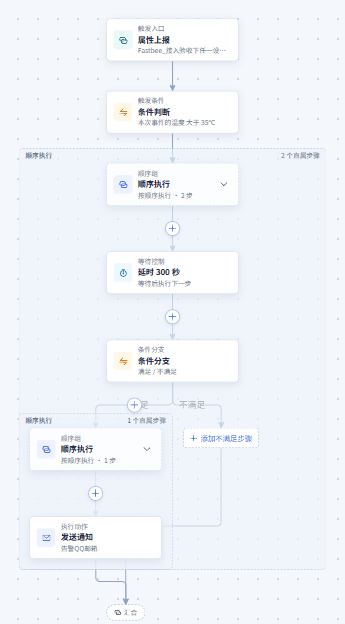
Figure: Re-judgment After Delay: view the scenario flow
95. View Part of the Execution Branches (Panned Down from the Flow Overview)
Location: Rule Engine → Scene Linkage
Open and check the page area corresponding to viewing part of the execution branches (panned down from the flow overview).
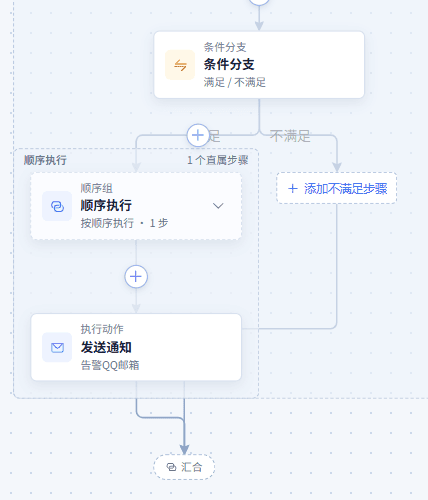
Figure: Re-judgment After Delay: view part of the execution branches (panned down from the flow overview)
96. Configure the Delay
Location: Rule Engine → Scene Linkage
Open and check the page area corresponding to configuring the delay.
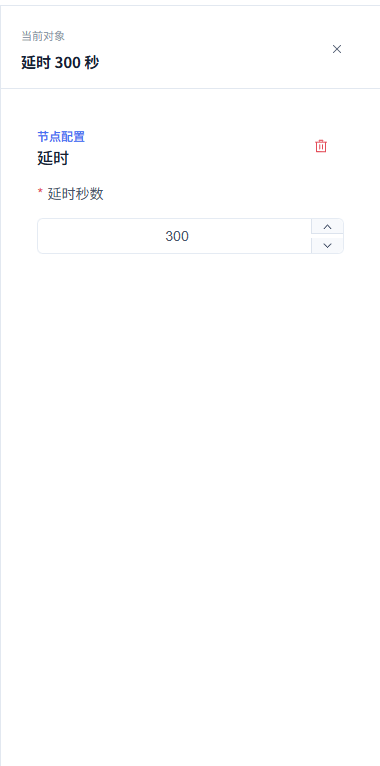
Figure: Re-judgment After Delay: configure the delay
97. Configure the Conditional Branch
Location: Rule Engine → Scene Linkage
Open and check the page area corresponding to configuring the conditional branch.

Figure: Re-judgment After Delay: configure the conditional branch
98. Run the Simulation
Location: Rule Engine → Scene Linkage
Open and check the page area corresponding to running the simulation.
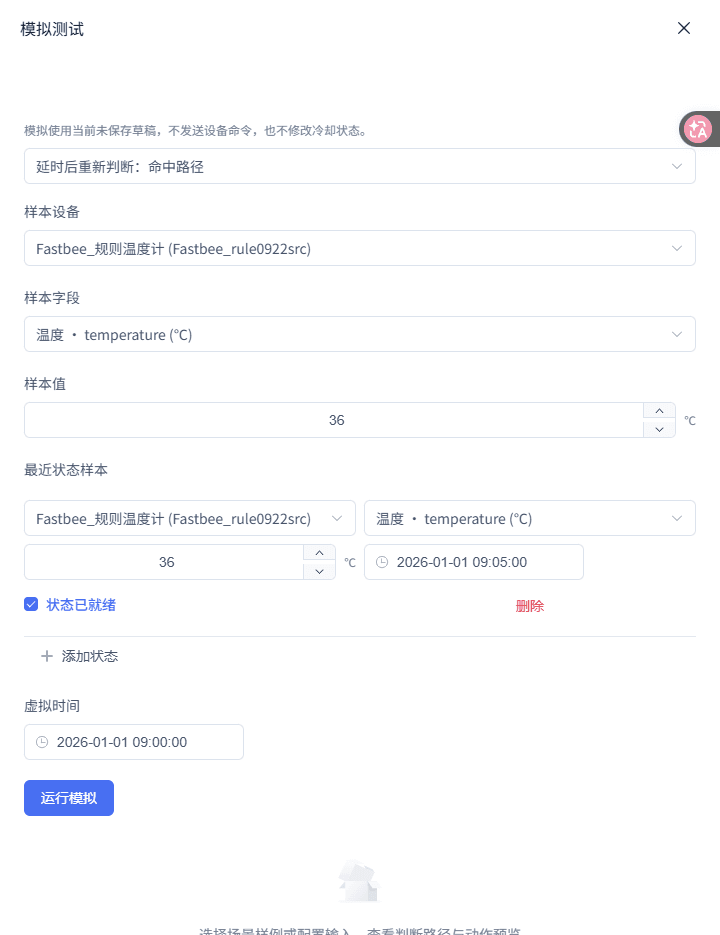
Figure: Re-judgment After Delay: run the simulation
99. View the Simulation Results
Location: Rule Engine → Scene Linkage
View the current sample's matched path and action previews.

Figure: Re-judgment After Delay: view the simulation results
100. Configure the Action Node
Location: Rule Engine → Scene Linkage
Open and check the page area corresponding to configuring the action node.
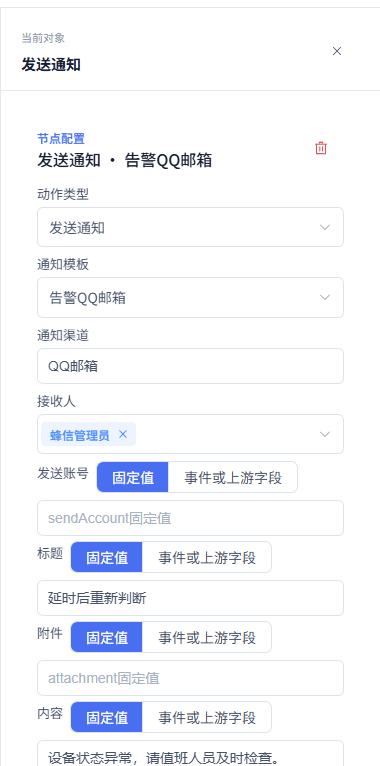
Figure: Re-judgment After Delay: configure the action node
1. Select the Template
| Option | Purpose and Usage Advice | Effect and Recovery |
|---|---|---|
| Required Initial Condition | Fill in or select "Initial Condition". Decides whether to enter the delay; how to choose: decides whether to enter the delay; where the value comes from: current tenant resources, thing models, or sample values given by this scenario; suggested: current event temperature > 35. | Used to complete "Select the Template"; Impact · Scope: current rule draft; takes effect: requires publish; when wrong: it is not the same data source as the latest-state condition after the delay; recovery: fix per the page's validation hints and save again. |
2. Bind the Trigger Device and Field
| Option | Purpose and Usage Advice | Effect and Recovery |
|---|---|---|
| Required Trigger Field | Fill in or select "Trigger Field". The template's event condition references temperature; how to choose: the template's event condition references temperature; where the value comes from: current tenant resources, thing models, or sample values given by this scenario; suggested: temperature. | Used to complete "Bind the Trigger Device and Field"; Impact · Scope: current rule draft; takes effect: requires publish; when wrong: after changing the field, both condition nodes must be updated in sync; recovery: fix per the page's validation hints and save again. |
3. Set the First Threshold
| Option | Purpose and Usage Advice | Effect and Recovery |
|---|---|---|
| Required Comparison Value | Fill in or select "Comparison Value". Temperature 36 will enter the delay; how to choose: temperature 36 will enter the delay; where the value comes from: current tenant resources, thing models, or sample values given by this scenario; suggested: 35. | Used to complete "Set the First Threshold"; Impact · Scope: current rule draft; takes effect: requires publish; when wrong: do not select latest state here; recovery: fix per the page's validation hints and save again. |
4. Set the Delay
| Option | Purpose and Usage Advice | Effect and Recovery |
|---|---|---|
| Required Delay Seconds | Fill in or select "Delay Seconds". The template by default waits five minutes before re-checking; how to choose: the template by default waits five minutes before re-checking; where the value comes from: current tenant resources, thing models, or sample values given by this scenario; suggested: 300. | Used to complete "Set the Delay"; Impact · Scope: current rule draft; takes effect: requires publish; when wrong: zero seconds skips the wait, and negative numbers cannot be saved; recovery: fix per the page's validation hints and save again. |
5. Configure the Re-check Branch and Notification
| Option | Purpose and Usage Advice | Effect and Recovery |
|---|---|---|
| Required Re-check Source | Fill in or select "Re-check Source". Avoids using the old event value from five minutes ago; how to choose: avoids using the old event value from five minutes ago; where the value comes from: current tenant resources, thing models, or sample values given by this scenario; suggested: Latest State. | Used to complete "Configure the Re-check Branch and Notification"; Impact · Scope: current rule draft; takes effect: requires publish; when wrong: a missing or expired state shows undeterminable; recovery: fix per the page's validation hints and save again. |
| Required Notification Recipients | Fill in or select "Notification Recipients". Sent only when satisfied; how to choose: sent only when satisfied; where the value comes from: current tenant resources, thing models, or sample values given by this scenario; suggested: at least one user. | Used to complete "Configure the Re-check Branch and Notification"; Impact · Scope: current rule draft; takes effect: requires publish; when wrong: the unsatisfied branch needs no empty sequential group created; recovery: fix per the page's validation hints and save again. |
6. Simulate and Publish
| Option | Purpose and Usage Advice | Effect and Recovery |
|---|---|---|
| Required Virtual Time | Fill in or select "Virtual Time". This is the initial trigger moment; after the simulated 300-second delay completes, the re-check state is read at 09:05:00; how to choose: this is the initial trigger moment; after the simulated 300-second delay completes, the re-check state is read at 09:05:00; where the value comes from: current tenant resources, thing models, or sample values given by this scenario; suggested: 2026-01-01 09:00:00 (China Standard Time). | Used to complete "Simulate and Publish"; Impact · Scope: current rule draft; takes effect: requires publish; when wrong: the simulated delay completion is not equivalent to the real wait having ended; recovery: fix per the page's validation hints and save again. |
Device Event Notification
After a device reports an event, send a notification to the specified users using a notification template.
Before you start: a product or specified device that can report events; trigger event field: FastBee_ruleEvent; a notification template, channel, and recipients.
Flow description: 1. Event report FastBee_ruleEvent; 2. Sequential execution; 3. Send notification.
- Select the template: select "Device Event Notification" in the Scenario Library. Click "Next", "Next", complete resources and parameters, then click "Enter Canvas". Confirm the canvas sends a notification directly after the event report.
- Configure the event trigger: select the trigger node and choose "Event Report" as the trigger method. Select the product or a specified device, and select FastBee_ruleEvent in the trigger fields.
The same configuration screens are shown in the "Branching by AI Analysis Result" chapter; continue completing this scenario per the field tables above.
- Select the notification template: click the Send Notification action. Select a configured template in the notification template dropdown.
- Select recipients and variables: confirm the notification channel is the read-only value determined by the template. Select at least one user among the recipients. For template variables, choose a fixed value or "Event or Upstream Field", mapping the variable to FastBee_ruleEvent of the current event.
- Simulate the event: open Simulation Test, input the event field FastBee_ruleEvent with value fault. Run the simulation and confirm the notification node shows an action preview.
- Publish and trace: save the draft and publish, and wait for Active. After the device actually reports the event, open the current runtime version's trace in the execution records and check the event value and notification node status.
Fault event preview: input: FastBee_ruleEvent=fault. Expected: the event trigger matches; the notification shows an action preview and the variable mapping. Where to check: the notification node in the simulation results.
Wrong trigger type: input: property report temperature=36 instead of an event report. Expected: no match; no notification preview produced. Where to check: the trigger match status in the simulation results.
Simulation only shows the notification preview; the real notification result must be checked in execution tracing and notification service receipts.
- The event field and the notification variable binding must match.
- Real device events are processed only after publishing.
101. View the Scenario Flow
Location: Rule Engine → Scene Linkage
Open and check the page area corresponding to viewing the scenario flow.
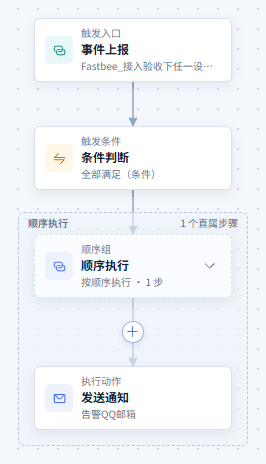
Figure: Device Event Notification: view the scenario flow
102. Configure the Action Node
Location: Rule Engine → Scene Linkage
Open and check the page area corresponding to configuring the action node.
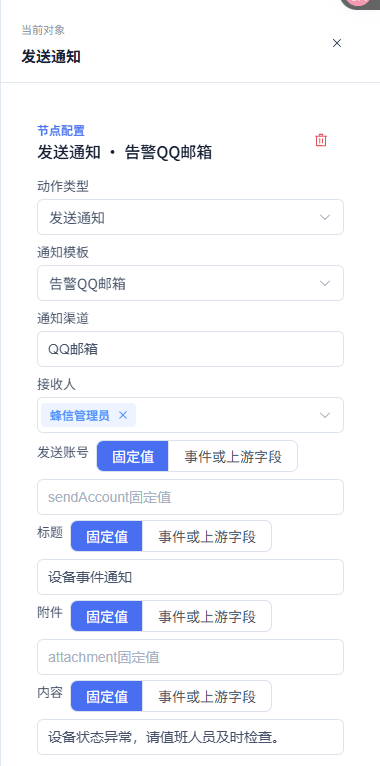
Figure: Device Event Notification: configure the action node
103. Run the Simulation
Location: Rule Engine → Scene Linkage
Open and check the page area corresponding to running the simulation.
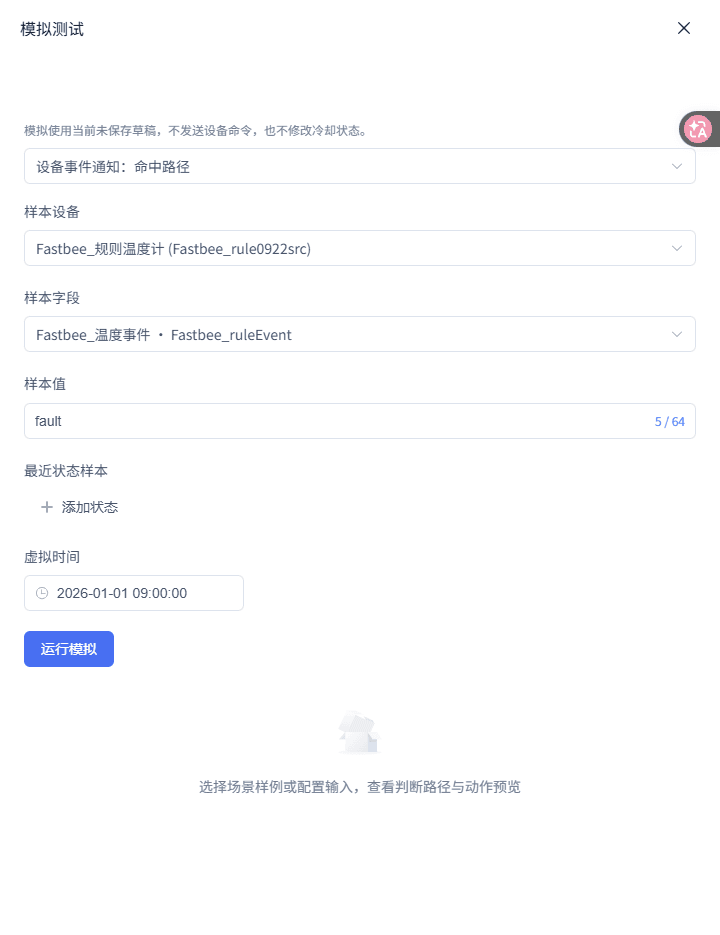
Figure: Device Event Notification: run the simulation
104. View the Simulation Results
Location: Rule Engine → Scene Linkage
View the current sample's matched path and action previews.

Figure: Device Event Notification: view the simulation results
1. Select the Template
| Option | Purpose and Usage Advice | Effect and Recovery |
|---|---|---|
| Required Scenario | Fill in or select "Scenario". The template adds no extra condition; how to choose: the template adds no extra condition; where the value comes from: current tenant resources, thing models, or sample values given by this scenario; suggested: Device Event Notification. | Used to complete "Select the Template"; Impact · Scope: current rule draft; takes effect: requires publish; when wrong: the receivable event fields must be limited at the trigger node; recovery: fix per the page's validation hints and save again. |
2. Configure the Event Trigger
| Option | Purpose and Usage Advice | Effect and Recovery |
|---|---|---|
| Required Trigger Field | Fill in or select "Trigger Field". This scenario definition triggers on this event field; how to choose: this scenario definition triggers on this event field; where the value comes from: current tenant resources, thing models, or sample values given by this scenario; suggested: FastBee_ruleEvent. | Used to complete "Configure the Event Trigger"; Impact · Scope: current rule draft; takes effect: requires publish; when wrong: the request-body key eventCode must not be mistakenly filled in as the trigger field; recovery: fix per the page's validation hints and save again. |
3. Select the Notification Template
| Option | Purpose and Usage Advice | Effect and Recovery |
|---|---|---|
| Required Notification Template | Fill in or select "Notification Template". The template determines the notification content, channel, and mappable variables; how to choose: the template determines the notification content, channel, and mappable variables; where the value comes from: current tenant resources, thing models, or sample values given by this scenario; suggested: an actual event notification template. | Used to complete "Select the Notification Template"; Impact · Scope: current rule draft; takes effect: requires publish; when wrong: an unavailable template cannot complete publishing; recovery: fix per the page's validation hints and save again. |
4. Select Recipients and Variables
| Option | Purpose and Usage Advice | Effect and Recovery |
|---|---|---|
| Required Recipients | Fill in or select "Recipients". The notification action must have receiving targets; how to choose: the notification action must have receiving targets; where the value comes from: current tenant resources, thing models, or sample values given by this scenario; suggested: actual on-duty users. | Used to complete "Select Recipients and Variables"; Impact · Scope: current rule draft; takes effect: requires publish; when wrong: the notification channel cannot be manually modified apart from the template; recovery: fix per the page's validation hints and save again. |
| Required Variable Binding | Fill in or select "Variable Binding". Brings the event content into the template; how to choose: brings the event content into the template; where the value comes from: current tenant resources, thing models, or sample values given by this scenario; suggested: notification variable → current event .FastBee_ruleEvent. | Used to complete "Select Recipients and Variables"; Impact · Scope: current rule draft; takes effect: requires publish; when wrong: the field must come from the upstream results available to the current node; recovery: fix per the page's validation hints and save again. |
5. Simulate the Event
| Option | Purpose and Usage Advice | Effect and Recovery |
|---|---|---|
| Required FastBee_ruleEvent | Fill in or select "FastBee_ruleEvent". This event sample; how to choose: this event sample; where the value comes from: current tenant resources, thing models, or sample values given by this scenario; suggested: fault. | Used to complete "Simulate the Event"; Impact · Scope: current rule draft; takes effect: requires publish; when wrong: simulation does not send real notifications; recovery: fix per the page's validation hints and save again. |
6. Publish and Trace
| Option | Purpose and Usage Advice | Effect and Recovery |
|---|---|---|
| Required Notification Node Status | Fill in or select "Notification Node Status". Distinguishes rule execution from notification service processing; how to choose: distinguishes rule execution from notification service processing; where the value comes from: current tenant resources, thing models, or sample values given by this scenario; suggested: service accepted or the failure reason. | Used to complete "Publish and Trace"; Impact · Scope: current rule draft; takes effect: requires publish; when wrong: service acceptance does not equal the recipient having read it; recovery: fix per the page's validation hints and save again. |
Event-Invoked Webhook
When the device event FastBee_ruleEvent is reported, map it to the eventCode key of the controlled HTTPS Webhook request body.
Before you start: a product or specified device that can report events; a controlled HTTPS Webhook connector created and enabled in advance by an administrator; connector usage and rule publish permissions.
Flow description: 1. Event report FastBee_ruleEvent; 2. Sequential execution; 3. Webhook connector; 4. body.eventCode ← current event .FastBee_ruleEvent.
- Prepare the connector: before entering the rule editor, have an administrator create and enable a controlled HTTPS Webhook connector in the connector management interface. Back in the Rule Engine, the connector should appear in the Webhook action's dropdown list.
- Select the template and configure the trigger: select "Event-Invoked Webhook" in the Scenario Library. Click "Next", "Next", then "Enter Canvas". Select the trigger node, choose Event Report as the trigger method, and select the product or device and the FastBee_ruleEvent field.
- Select the connector: click the Webhook action on the canvas. In the "Webhook Connector" dropdown, select the pre-created HTTPS connector.
- Configure request fields: keep the request field eventCode in the request-body mapping. In "Select Event or Upstream Field" on the right, select FastBee_ruleEvent of the current event. When extra fields are needed, click "Add Request Field", fill in the field name, then select an available event or upstream field; click delete on unused rows.
- Simulate the send preview: simulate input FastBee_ruleEvent=fault and run. Confirm the Webhook node shows the request-body preview with eventCode=fault and the matched path.
- Publish and runtime verification: save the draft and publish, and wait for Active. After the device reports a real event, open the current runtime version in the execution records and check the Webhook node status, request preview, and failure reason.
Webhook request preview: input: FastBee_ruleEvent=fault; body.eventCode bound to current event .FastBee_ruleEvent. Expected: the simulation result shows an action preview with eventCode=fault in the request body. Where to check: the Webhook node in the simulation results.
Connector missing: input: do not select a Webhook connector. Expected: validation reports a missing Webhook connector; saving or publishing is impossible. Where to check: the pending items and the Webhook action node.
This chapter's screenshots and demonstration only cover the rule side's connector selection, field mapping, and preview boundaries; remote HTTP arrival and business processing must be proven separately through connector receipts and the target system's logs.
- The rule page only binds existing connectors and does not expose or enter connector secrets.
- Simulation does not mean the remote call succeeded.
105. Configure the Action Node
Location: Rule Engine → Scene Linkage
Open and check the page area corresponding to configuring the action node.
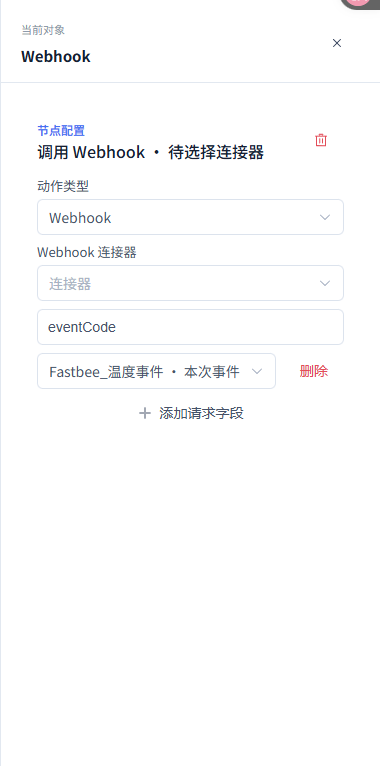
Figure: Event-Invoked Webhook: configure the action node
106. View the Scenario Flow
Location: Rule Engine → Scene Linkage
Open and check the page area corresponding to viewing the scenario flow.
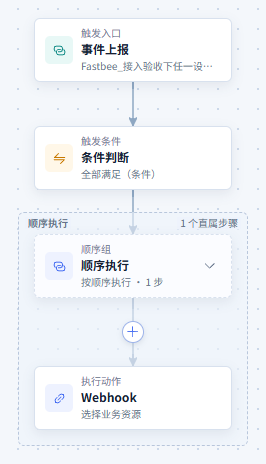
Figure: Event-Invoked Webhook: view the scenario flow
107. Run the Simulation
Location: Rule Engine → Scene Linkage
Open and check the page area corresponding to running the simulation.
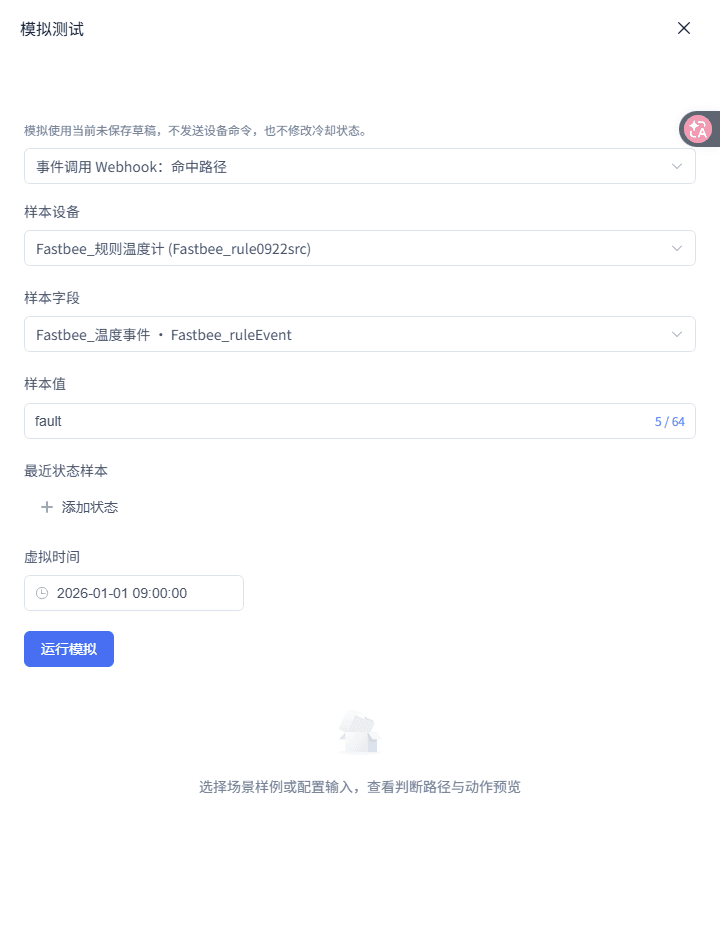
Figure: Event-Invoked Webhook: run the simulation
108. View the Simulation Results
Location: Rule Engine → Scene Linkage
View the current sample's matched path and action previews.

Figure: Event-Invoked Webhook: view the simulation results
1. Prepare the Connector
| Option | Purpose and Usage Advice | Effect and Recovery |
|---|---|---|
| Required Webhook Connector | Fill in or select "Webhook Connector". The action panel only selects existing connectors; how to choose: the action panel only selects existing connectors; where the value comes from: current tenant resources, thing models, or sample values given by this scenario; suggested: an enabled HTTPS connector. | Used to complete "Prepare the Connector"; Impact · Scope: current rule draft; takes effect: requires publish; when wrong: this scenario does not create URLs, secrets, or connectors in the rule editor; recovery: fix per the page's validation hints and save again. |
2. Select the Template and Configure the Trigger
| Option | Purpose and Usage Advice | Effect and Recovery |
|---|---|---|
| Required Trigger Field | Fill in or select "Trigger Field". This is the trigger source; the request-body key can be separately named eventCode; how to choose: this is the trigger source; the request-body key can be separately named eventCode; where the value comes from: current tenant resources, thing models, or sample values given by this scenario; suggested: FastBee_ruleEvent. | Used to complete "Select the Template and Configure the Trigger"; Impact · Scope: current rule draft; takes effect: requires publish; when wrong: the request-body key eventCode must not be mistakenly filled in as the trigger field; recovery: fix per the page's validation hints and save again. |
3. Select the Connector
| Option | Purpose and Usage Advice | Effect and Recovery |
|---|---|---|
| Required Connector | Fill in or select "Connector". Determines the target configuration to which requests are sent after publishing; how to choose: determines the target configuration to which requests are sent after publishing; where the value comes from: current tenant resources, thing models, or sample values given by this scenario; suggested: an actually enabled controlled HTTPS connector. | Used to complete "Select the Connector"; Impact · Scope: current rule draft; takes effect: requires publish; when wrong: connectors marked unavailable cannot be selected; recovery: fix per the page's validation hints and save again. |
4. Configure Request Fields
| Option | Purpose and Usage Advice | Effect and Recovery |
|---|---|---|
| Required Request Field | Fill in or select "Request Field". The template defaults to body.eventCode; how to choose: the template defaults to body.eventCode; where the value comes from: current tenant resources, thing models, or sample values given by this scenario; suggested: eventCode. | Used to complete "Configure Request Fields"; Impact · Scope: current rule draft; takes effect: requires publish; when wrong: after a field name changes, the binding updates with the field path and cannot be left empty; recovery: fix per the page's validation hints and save again. |
| Required Field Source | Fill in or select "Field Source". Writes the real event value into the request body; how to choose: writes the real event value into the request body; where the value comes from: current tenant resources, thing models, or sample values given by this scenario; suggested: current event .FastBee_ruleEvent. | Used to complete "Configure Request Fields"; Impact · Scope: current rule draft; takes effect: requires publish; when wrong: only fields actually available to the current node can be referenced; recovery: fix per the page's validation hints and save again. |
5. Simulate the Send Preview
| Option | Purpose and Usage Advice | Effect and Recovery |
|---|---|---|
| Required FastBee_ruleEvent | Fill in or select "FastBee_ruleEvent". This event sample value; how to choose: this event sample value; where the value comes from: current tenant resources, thing models, or sample values given by this scenario; suggested: fault. | Used to complete "Simulate the Send Preview"; Impact · Scope: current rule draft; takes effect: requires publish; when wrong: the preview does not initiate a remote HTTP request; recovery: fix per the page's validation hints and save again. |
6. Publish and Runtime Verification
| Option | Purpose and Usage Advice | Effect and Recovery |
|---|---|---|
| Required Execution Tracing | Fill in or select "Execution Tracing". Used to check whether the rule entered the invocation step; how to choose: used to check whether the rule entered the invocation step; where the value comes from: current tenant resources, thing models, or sample values given by this scenario; suggested: Webhook node. | Used to complete "Publish and Runtime Verification"; Impact · Scope: current rule draft; takes effect: requires publish; when wrong: node dispatched or service accepted does not equal successful processing by the remote business system; recovery: fix per the page's validation hints and save again. |
Production Operation Notice
Screenshots and examples illustrate operation locations and judgment methods, and do not represent current production status. When publishing, starting/stopping, rebinding, retrying, or deleting is involved, first confirm the target environment, scope of impact, and recovery plan, and have authorized personnel perform the operation.
FastBee (蜂信物联) · Professional Edition Web Operation Manual