


FMQ Integration Connectors
Understand the responsibilities of connectors and tasks first, then complete the bidirectional RabbitMQ connection configuration; consult other protocol parameters and troubleshooting methods as needed.
How to Read
Confirm the entry point, permissions, and target object first, then follow the numbered steps. Each step includes the expected result; detailed fields and options are collected in expandable reference tables.
About the Screenshots
The screenshots come from the original operation manual. The public edition hides real node addresses, connection addresses, and credentials; the statuses, times, and data in the examples do not represent the current production environment.
Before You Start
| Item | Description |
|---|---|
| What you can do | Configure connections between FMQ and external systems, providing connection resources for message push and command downlink tasks. |
| Entry point | Integration → Connectors |
| Required permissions | Connector view, configuration, and test permissions, plus the external system integration materials. |
| Estimated time | 30 minutes |
Connector Overview
A connector is the connection component FMQ uses to integrate with external systems. It centrally holds the server address, account, authentication, and communication parameters, so that later tasks do not have to fill in the same set of integration materials repeatedly.
For example, when temperature sensor data needs to be sent to a business system that uses RabbitMQ, first create a RabbitMQ connector, then let a message push task decide which temperature data to send. When the external system needs to deliver a switch command, a command downlink task uses a separate set of downlink parameters to receive the command and hand it to the platform for processing.
A connector prepares the communication conditions; it does not mean business messages have started flowing. Whether to send data, which source to subscribe to, and which device a command goes to are decided by the message push and command downlink tasks respectively.
Composition and Choices
Decide the direction by capability first: to only send data to an external system, choose Message Push; to only receive external commands, choose Command Downlink; when both are needed, choose bidirectional. Bidirectional does not mean one set of parameters applies to both sides; it means two independent sets of parameters under the same connection type.
Then match the other system by connection type: for Kafka look at the Broker and the produce/consume plan; for RabbitMQ look at exchanges, queues, and routing keys; for RocketMQ look at the NameServer, groups, and Topics; for MQTT look at the Broker and Topics; for WebHook or HTTP look at the call direction, entry point, and authentication.
Choose a recommended mode first, then fill in the environment materials. A mode sets tunable parameters such as reliability, batching, confirmation, and recovery; the host, port, account, password, vhost, queue, and Topic must still be obtained from the integration partner — do not treat the page examples as production values.
Connector Composition and Operations
| Field | Purpose | Where the Value Comes From | How to Choose | Wrong-Input Symptom and Recovery | Effective Conditions |
|---|---|---|---|---|---|
| Required Connector Name | Names the connection resource for task selection and operations locating; should distinguish production from test environments; applies to the current connector, and task enablement and business results must be confirmed separately. | Determined by the current business purpose, the external system integration materials, and the platform pages. | Name the connection resource for task selection and operations locating; should distinguish production from test environments. Recommended: fill in per the integration documents · Default: — · Example: FastBee_双向连接 | Configuration changes may affect tasks that reference it; keep the original configuration, fix it, and retest. | Scope: the current connector and the tasks referencing it · Publish: not required · Restart: not required · Reconnect: not required |
| Required Capability | Message Push sends data from the platform outward; Command Downlink receives external commands. One or both capabilities can be enabled, each with at most one set of parameters; applies to the current connector, and task enablement and business results must be confirmed separately. | Determined by the current business purpose, the external system integration materials, and the platform pages. | Message Push sends data from the platform outward; Command Downlink receives external commands. One or both capabilities can be enabled, each with at most one set of parameters. Recommended: fill in per the integration documents · Default: — · Example: —Message Push: the platform sends to an external system; shows Producer or publish parameters for message push tasks to reference. Command Downlink: external commands enter the platform; shows Consumer, subscription, or entry parameters for downlink tasks to reference. | Configuration changes may affect tasks that reference it; keep the original configuration, fix it, and retest. | Scope: the current connector and the tasks referencing it · Publish: not required · Restart: not required · Reconnect: not required |
| Required Connection Type | Choose according to the protocol the external system actually uses. One connector uses one type, and the parameters of the two capabilities are maintained separately; applies to the current connector, and task enablement and business results must be confirmed separately. | Determined by the current business purpose, the external system integration materials, and the platform pages. | Choose according to the protocol the external system actually uses. One connector uses one type, and the parameters of the two capabilities are maintained separately. Recommended: fill in per the integration documents · Default: — · Example: —Kafka: choose when the other side already uses Kafka and the Topic and consumption method are agreed; shows the uplink and downlink configurations of this type separately. RabbitMQ: choose RabbitMQ when the other side organizes messages with exchanges, routing keys, and queues; shows the uplink and downlink configurations of this type separately. RocketMQ: choose when the other side already uses RocketMQ and provides the NameServer, group name, and Topic plan; shows the uplink and downlink configurations of this type separately. MQTT: choose when the other side provides an MQTT Broker and both sides publish and subscribe by Topic; shows the uplink and downlink configurations of this type separately. WebHook: the uplink is the platform calling the other side's callback address; the downlink is the other side calling the platform entry. First be clear about who calls whom; shows the uplink and downlink configurations of this type separately. HTTP: choose when the external system actively calls a platform interface to deliver commands; currently downlink-only capability; only a downlink entry is supported. | Switching the type re-initializes both sets of parameters; choose the type first, then the mode, and fill in the environment values last. | Scope: the current connector and the tasks referencing it · Publish: not required · Restart: not required · Reconnect: not required |
| Current Channel | Click the Message Push or Command Downlink card below to switch the parameters being edited; this is different from whether the capability above is enabled; applies to the current connector, and task enablement and business results must be confirmed separately. | Determined by the current business purpose, the external system integration materials, and the platform pages. | Click the Message Push or Command Downlink card below to switch the parameters being edited; this is different from whether the capability above is enabled. Recommended: fill in per the integration documents · Default: — · Example: — | Configuration changes may affect tasks that reference it; keep the original configuration, fix it, and retest. | Scope: the current connector and the tasks referencing it · Publish: not required · Restart: not required · Reconnect: not required |
| Recommended Mode | A set of parameter presets adapted to scenarios; choose the mode first, then fill in the address and authentication. It is not middleware installation or a performance guarantee; applies to the current connector, and task enablement and business results must be confirmed separately. | Determined by the current business purpose, the external system integration materials, and the platform pages. | A set of parameter presets adapted to scenarios; choose the mode first, then fill in the address and authentication. It is not middleware installation or a performance guarantee. Recommended: fill in per the integration documents · Default: — · Example: — | Re-applying a mode overwrites the current channel's known parameters; re-verify the address, authentication, and channel name, then test. | Scope: the current connector and the tasks referencing it · Publish: not required · Restart: not required · Reconnect: not required |
| Connection Status | The status must be understood together with the last check time. "Ready" means the required fields are complete; "Connected" means the corresponding check passed, which is not equivalent to business receive success; applies to the current connector, and task enablement and business results must be confirmed separately. | Data from the most recent connection check and the platform load. | Look at the check time first, then verify the concrete feedback; retest after parameter changes. Recommended: fill in per the integration documents · Default: — · Example: — | Configuration changes may affect tasks that reference it; keep the original configuration, fix it, and retest. | Scope: the current connector and the tasks referencing it · Publish: not required · Restart: not required · Reconnect: not required |
| Referencing Tasks | Shows which tasks use the current resource. Verify the impact scope before changing; deletion is possible only after references are removed; applies to the current connector, and task enablement and business results must be confirmed separately. | Platform associated-task statistics. | Even without references, verify the purpose first; when references exist, contact the task owner first. Recommended: fill in per the integration documents · Default: — · Example: — | Configuration changes may affect tasks that reference it; keep the original configuration, fix it, and retest. | Scope: the current connector and the tasks referencing it · Publish: not required · Restart: not required · Reconnect: not required |
| Parameter Validation / Test All Channels | A unidirectional connector checks the current capability; a bidirectional one checks the two capabilities separately, and each result must be verified item by item. The save button being clickable does not mean the test passed; applies to the current connector, and task enablement and business results must be confirmed separately. | Determined by the current business purpose, the external system integration materials, and the platform pages. | A unidirectional connector checks the current capability; a bidirectional one checks the two capabilities separately, and each result must be verified item by item. The save button being clickable does not mean the test passed. Recommended: fill in per the integration documents · Default: — · Example: — | RabbitMQ may declare and bind resources; RocketMQ downlink may consume messages; a WebHook push calls the external interface; test only on approved isolated resources, read the results within protocol boundaries, and fix the same connection configuration after a failure. | Scope: the current connector and the tasks referencing it · Publish: not required · Restart: not required · Reconnect: not required |
| Save Connector | Saves the configuration as a connection resource tasks can reference. Bidirectional involves two saves; you cannot infer from a single prompt that a task is already running; applies to the current connector, and task enablement and business results must be confirmed separately. | Determined by the current business purpose, the external system integration materials, and the platform pages. | Saves the configuration as a connection resource tasks can reference. Bidirectional involves two saves; you cannot infer from a single prompt that a task is already running. Recommended: fill in per the integration documents · Default: — · Example: — | After creation or parameter changes the check status may reset; a partial save failure of a bidirectional connector must be verified separately for each side; check the already-saved resources first, then run the post-save capability test, avoiding duplicate creation. | Scope: the current connector and the tasks referencing it · Publish: not required · Restart: not required · Reconnect: not required |
| Modification and Task Restart | After runtime parameters change, the related enabled tasks must be restarted to read the new configuration; disabled tasks should not start automatically; applies to the current connector, and task enablement and business results must be confirmed separately. | Determined by the current business purpose, the external system integration materials, and the platform pages. | After runtime parameters change, the related enabled tasks must be restarted to read the new configuration; disabled tasks should not start automatically. Recommended: fill in per the integration documents · Default: — · Example: — | Message processing may be briefly affected during restart; schedule a maintenance window, check the tasks that failed to restart one by one, and restore the original configuration. | Scope: the current connector and the tasks referencing it · Publish: not required · Restart: required · Reconnect: not required |
| Additional Parameters / Remove / Advanced Configuration | Additional Parameters adds optional items to the form; Remove deletes the current optional item; the advanced JSON modifies only the current channel; applies to the current connector, and task enablement and business results must be confirmed separately. | Determined by the current business purpose, the external system integration materials, and the platform pages. | Additional Parameters adds optional items to the form; Remove deletes the current optional item; the advanced JSON modifies only the current channel. Recommended: fill in per the integration documents · Default: — · Example: — | Wrong JSON or deleting a necessary constraint may make testing impossible or change behavior; keep the original parameters and fix the JSON; after restoring the recommended ones, re-verify the environment values. | Scope: the current connector and the tasks referencing it · Publish: not required · Restart: not required · Reconnect: not required |
| Search, Filter, and Refresh | Search by name, type, capability, or error text, then filter by conditions such as abnormal or unreferenced; refresh reloads the list; applies to the current connector, and task enablement and business results must be confirmed separately. | Determined by the current business purpose, the external system integration materials, and the platform pages. | Search by name, type, capability, or error text, then filter by conditions such as abnormal or unreferenced; refresh reloads the list. Recommended: fill in per the integration documents · Default: — · Example: — | Configuration changes may affect tasks that reference it; keep the original configuration, fix it, and retest. | Scope: the current page query conditions · Publish: not required · Restart: not required · Reconnect: not required |
| Copy Connector | Prepares an independent connection resource from an existing configuration; change the name and target before saving. Copying does not mean the new target is already connected; applies to the current connector, and task enablement and business results must be confirmed separately. | Determined by the current business purpose, the external system integration materials, and the platform pages. | Prepares an independent connection resource from an existing configuration; change the name and target before saving. Copying does not mean the new target is already connected. Recommended: fill in per the integration documents · Default: — · Example: — | Configuration changes may affect tasks that reference it; verify the new name, both sets of parameters, and the authentication, retest, and do not overwrite the original connector. | Scope: the current connector and the tasks referencing it · Publish: not required · Restart: not required · Reconnect: not required |
| Delete Connector | Only delete a resource that is clearly no longer used and has no task references. It is not a substitute for pausing message tasks; applies to the current connector, and task enablement and business results must be confirmed separately. | Determined by the current business purpose, the external system integration materials, and the platform pages. | Only delete a resource that is clearly no longer used and has no task references. It is not a substitute for pausing message tasks. Recommended: fill in per the integration documents · Default: — · Example: — | After deletion it can no longer be bound; for a bidirectional resource verify both directions have been handled; when references exist, cancel the deletion and remove the references first; recovering from a mistaken deletion requires rebuilding and re-validating the connection configuration. | Scope: the current connector and the tasks referencing it · Publish: not required · Restart: not required · Reconnect: not required |
Bidirectional RabbitMQ Walkthrough
This walkthrough only completes the connector-level bidirectional configuration, parameter validation, saving, and post-save retest. It does not include task enablement, business message sending/receiving, or device actual execution verification.
- Shared materials: the host, AMQP port, account, password, and vhost reachable from the FMQ server.
- Uplink materials: the exchange and the publish routing convention matching the message push task.
- Downlink materials: the consume queue, associated exchange, binding routing key, and resource maintenance permissions.
- Auto-declaring exchanges, queues, or bindings may change MQ resources; confirm with the administrator whether it is allowed first.
1. Open the Connector List
Location: Integration → Connectors
Open Integration → Connectors and first check the names, statuses, and referencing tasks.
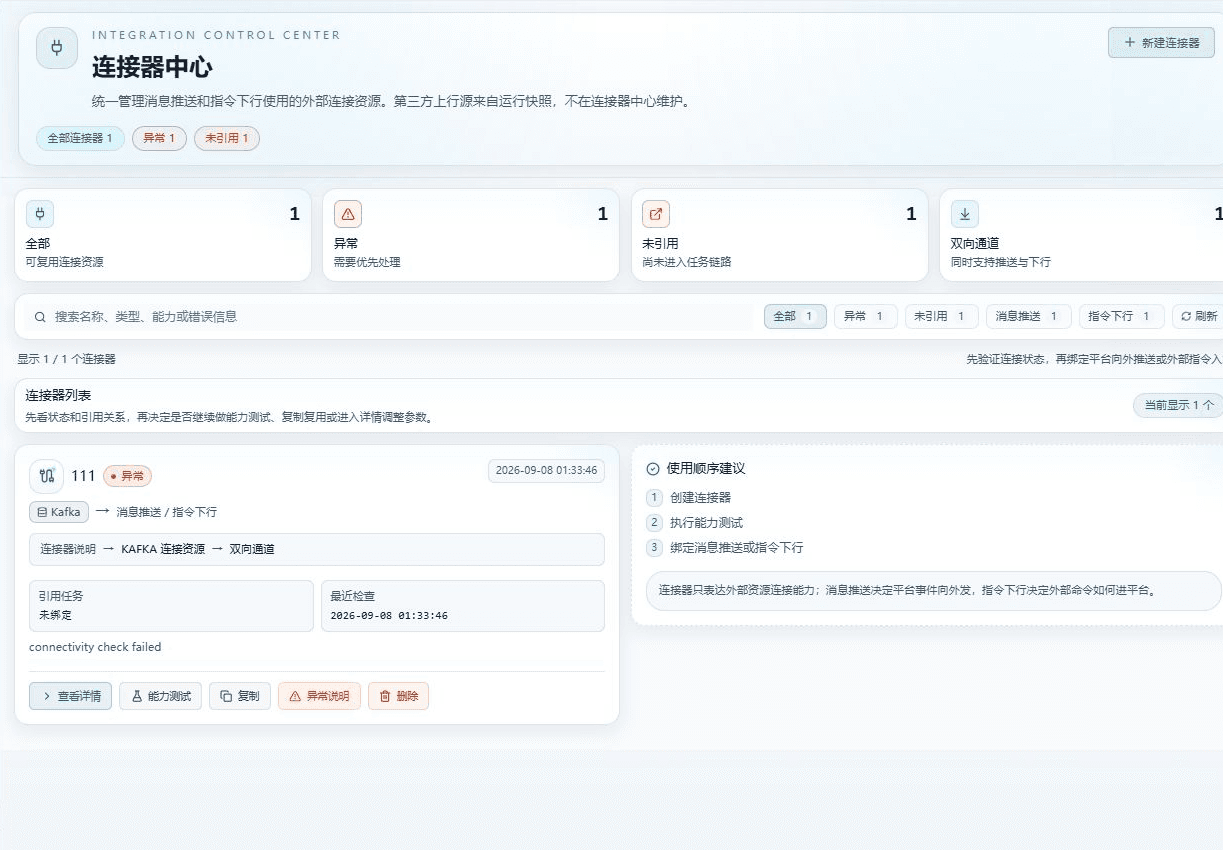
Figure: entered the connector center; start creating after confirming the names, statuses, and reference relationships.
2. Create a Connector and Fill in the Name
Location: Integration → Connectors
Click New Connector and fill in a name that states the purpose and environment.
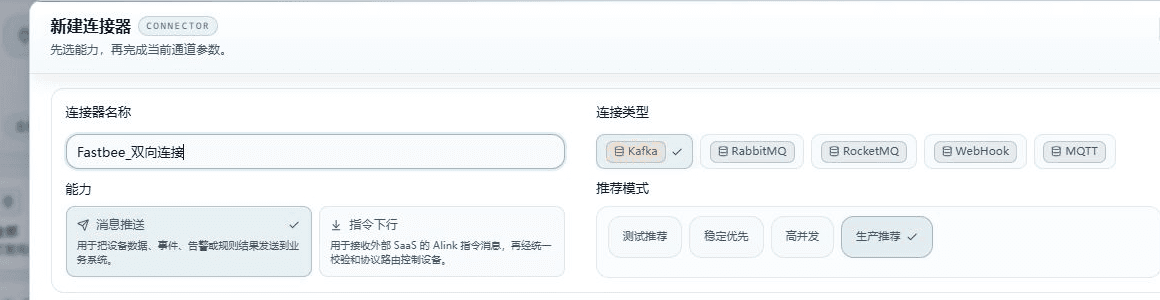
Figure: the connector name FastBee_双向连接 is filled in in the creation window, not yet saved.
Field Descriptions
| Field / Control | Description |
|---|---|
| Connector Name | Names the connection resource for task selection and operations locating; should distinguish production from test environments; applies to the current connector, and task enablement and business results must be confirmed separately. Required · Source: determined by the current business purpose, the external system integration materials, and the platform pages. Choice: name the connection resource for task selection and operations locating; should distinguish production from test environments. Recommended: fill in per the integration documents · Example: FastBee_双向连接 |
3. Select Bidirectional Capabilities and the RabbitMQ Type
Location: Integration → Connectors
Enable both Message Push and Command Downlink, and select RabbitMQ as the connection type.
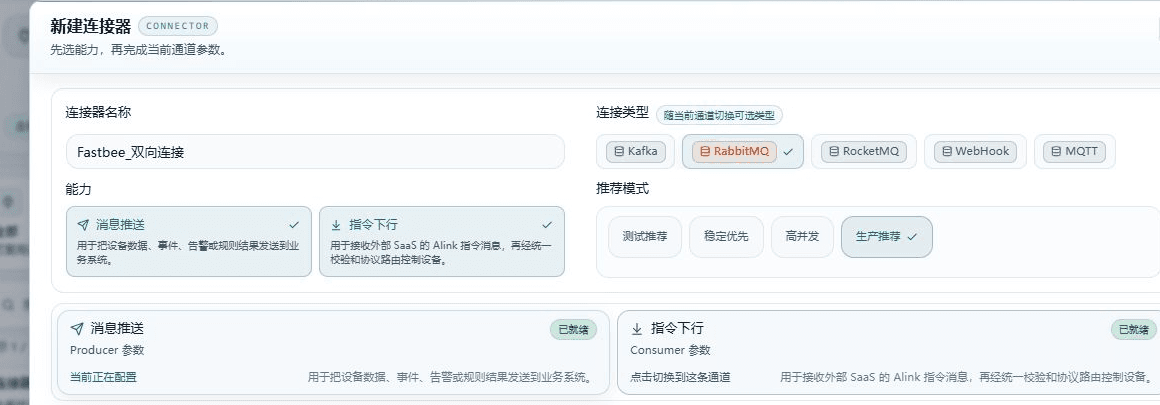
Figure: the connection type is RabbitMQ, with both Message Push and Command Downlink enabled, each keeping independent parameters.
Field Descriptions
| Field / Control | Description |
|---|---|
| Capability | Message Push sends data from the platform outward; Command Downlink receives external commands. One or both capabilities can be enabled, each with at most one set of parameters; applies to the current connector, and task enablement and business results must be confirmed separately. Required · Source: determined by the current business purpose, the external system integration materials, and the platform pages. Choice: Message Push sends data from the platform outward; Command Downlink receives external commands. One or both capabilities can be enabled, each with at most one set of parameters. Recommended: fill in per the integration documents · Example: fill in per the actual environment |
| Connection Type | Choose according to the protocol the external system actually uses. One connector uses one type, and the parameters of the two capabilities are maintained separately; applies to the current connector, and task enablement and business results must be confirmed separately. Required · Source: determined by the current business purpose, the external system integration materials, and the platform pages. Choice: choose according to the protocol the external system actually uses. One connector uses one type, and the parameters of the two capabilities are maintained separately. Recommended: fill in per the integration documents · Example: fill in per the actual environment |
4. Configure the RabbitMQ Parameters for Message Push
Location: Integration → Connectors
In the Message Push channel, first select Production Recommended, then fill in the host, port, account, password, vhost, exchange, and publish routing convention.
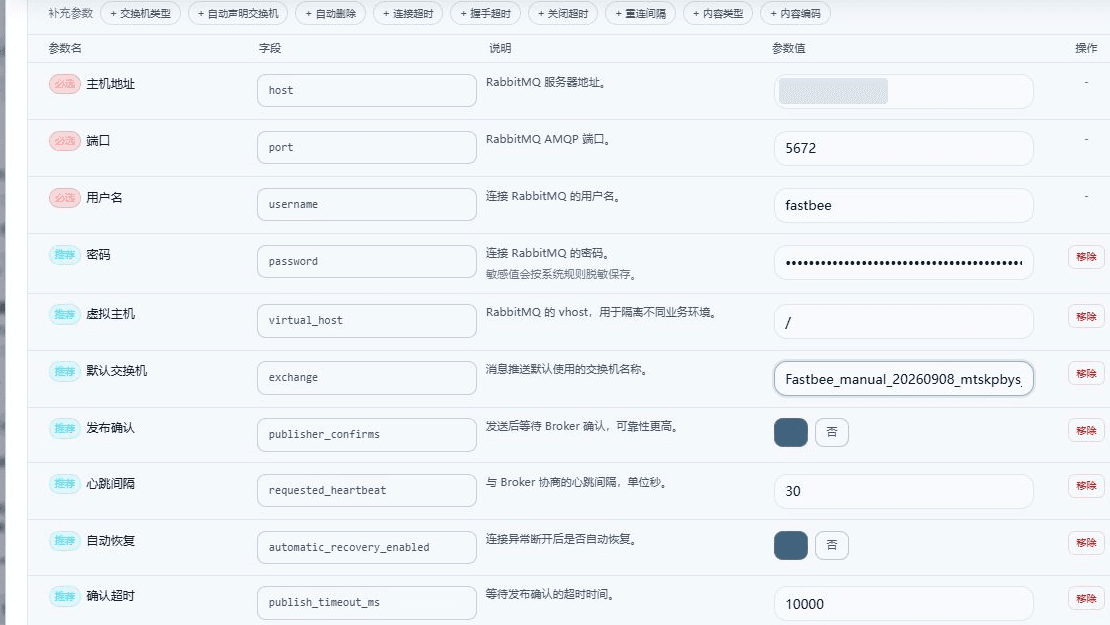
Figure: the Message Push parameters are filled in: using this deployment's RabbitMQ connection information and this batch's independent uplink exchange, with the password kept hidden.
Field Descriptions
| Field / Control | Description |
|---|---|
| Host Address | The RabbitMQ server address; this value is used by message push tasks; running tasks must reload the change. Required · Source: external system deployment and the integration checklist; the client instance name is specified by the implementer per environment and purpose. Choice: take the address from the integration partner's deployment checklist; it must be reachable from the FMQ server. The local address in the screenshot is only an example; do not mistake the address of the computer running the browser for the server address. Recommended: fill in per the integration documents · Example: 127.0.0.1 |
| Port | The RabbitMQ AMQP port; this value is used by message push tasks; running tasks must reload the change. Required · Source: external system deployment and the integration checklist; the client instance name is specified by the implementer per environment and purpose. Choice: obtain the AMQP data port from the administrator, commonly 5672; the 15672 commonly used by the management UI must not be filled in here. Subject to the actual deployment; when the connection is refused, verify the port and firewall first. Recommended: fill in per the integration documents · Example: 5672 |
| Username | The username for connecting to RabbitMQ; this value is used by message push tasks; running tasks must reload the change. Required · Source: external system deployment and the integration checklist; the client instance name is specified by the implementer per environment and purpose. Choice: obtain a dedicated business account from the RabbitMQ administrator and confirm the corresponding vhost permissions. Do not directly reuse the example guest; remote login or insufficient permissions will fail. Recommended: fill in per the integration documents · Example: guest |
| Password | The password for connecting to RabbitMQ; this value is used by message push tasks; running tasks must reload the change. Optional · Source: provided by the integration administrator through controlled channels; the actual value does not enter the manual or logs. Choice: matches the current username, provided by the administrator through controlled channels. The form marking it as recommended does not mean the Broker allows an empty password; when saving or reusing, do not treat the mask as a new password. Recommended: fill in per the integration documents · Example: filled in through controlled channels |
| Virtual Host | The RabbitMQ vhost, used to isolate different business environments; this value is used by message push tasks; running tasks must reload the change. Optional · Source: external system deployment and the integration checklist; the client instance name is specified by the implementer per environment and purpose. Choice: check this business's vhost in the RabbitMQ management console; it is like an independent workspace inside the same Broker. When the two ends use the wrong vhost, even an identically named queue is not the same channel; the account must also have permission on that vhost. Recommended: fill in per the integration documents · Example: / |
| Default Exchange | The exchange name Message Push uses by default; this value is used by message push tasks; running tasks must reload the change. Optional · Source: external system deployment and the integration checklist; the client instance name is specified by the implementer per environment and purpose. Choice: confirm the exchange name and type with the MQ administrator. An exchange forwards messages and a queue stores them; having an exchange does not guarantee the target queue is bound. The uplink routing key usually still has to be configured in the message push task; the connector does not decide which business data is sent. Recommended: fill in per the integration documents · Example: fmq.push.exchange |
| Publish Confirmation | Waits for the Broker's confirmation after sending, which is more reliable; this value is used by message push tasks; running tasks must reload the change. Optional · Source: start from this type's recommended mode, then adjust per actual load, interface agreements, and runtime metrics. Choice: when enabled, waits for the Broker's confirmation of accepting the publish; prefer enabling it for important uplink messages. It is not a processing receipt from the external business system, and alone it cannot prove routing to the target queue. Recommended: On (true) · Example: On (true) |
5. Fill in the Downlink Connection Information and Consume Queue
Location: Integration → Connectors
Switch to the Command Downlink channel, first select Production Recommended, then fill in the host, port, account, password, vhost, and Consume Queue respectively. Even when both sides share the same Broker, verify each side's connection parameters.
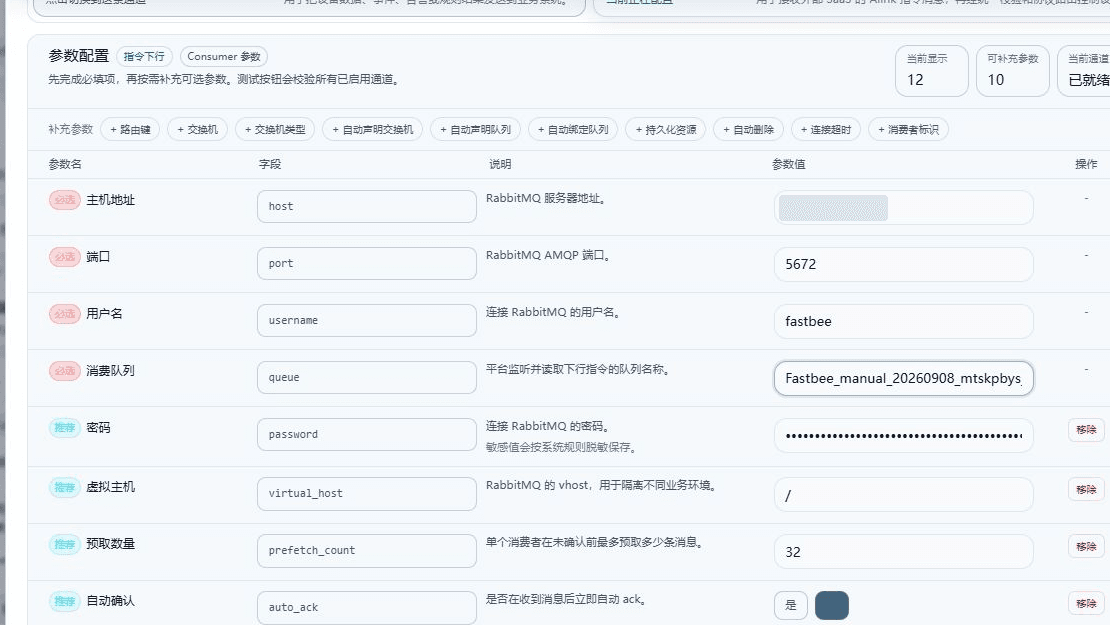
Figure: Command Downlink fills in the connection materials and this batch's consume queue independently; the password is hidden, and the queue is different from the uplink exchange.
Field Descriptions
| Field / Control | Description |
|---|---|
| Host Address | The RabbitMQ server address; this value is used by command downlink tasks; running tasks must reload the change. Required · Source: external system deployment and the integration checklist; the client instance name is specified by the implementer per environment and purpose. Choice: take the address from the integration partner's deployment checklist; it must be reachable from the FMQ server. The local address in the screenshot is only an example; do not mistake the address of the computer running the browser for the server address. Recommended: fill in per the integration documents · Example: 127.0.0.1 |
| Port | The RabbitMQ AMQP port; this value is used by command downlink tasks; running tasks must reload the change. Required · Source: external system deployment and the integration checklist; the client instance name is specified by the implementer per environment and purpose. Choice: obtain the AMQP data port from the administrator, commonly 5672; the 15672 commonly used by the management UI must not be filled in here. Subject to the actual deployment; when the connection is refused, verify the port and firewall first. Recommended: fill in per the integration documents · Example: 5672 |
| Username | The username for connecting to RabbitMQ; this value is used by command downlink tasks; running tasks must reload the change. Required · Source: external system deployment and the integration checklist; the client instance name is specified by the implementer per environment and purpose. Choice: obtain a dedicated business account from the RabbitMQ administrator and confirm the corresponding vhost permissions. Do not directly reuse the example guest; remote login or insufficient permissions will fail. Recommended: fill in per the integration documents · Example: guest |
| Password | The password for connecting to RabbitMQ; this value is used by command downlink tasks; running tasks must reload the change. Optional · Source: provided by the integration administrator through controlled channels; the actual value does not enter the manual or logs. Choice: matches the current username, provided by the administrator through controlled channels. The form marking it as recommended does not mean the Broker allows an empty password; when saving or reusing, do not treat the mask as a new password. Recommended: fill in per the integration documents · Example: filled in through controlled channels |
| Virtual Host | The RabbitMQ vhost, used to isolate different business environments; this value is used by command downlink tasks; running tasks must reload the change. Optional · Source: external system deployment and the integration checklist; the client instance name is specified by the implementer per environment and purpose. Choice: check this business's vhost in the RabbitMQ management console; it is like an independent workspace inside the same Broker. When the two ends use the wrong vhost, even an identically named queue is not the same channel; the account must also have permission on that vhost. Recommended: fill in per the integration documents · Example: / |
| Consume Queue | The queue name the platform listens to and reads downlink commands from; this value is used by command downlink tasks; running tasks must reload the change. Required · Source: external system deployment and the integration checklist; the client instance name is specified by the implementer per environment and purpose. Choice: obtain from the RabbitMQ management console the consume queue the external system actually delivers to. It is not an exchange; multiple consumers on the same queue share the messages, so use an independent queue for joint debugging to avoid taking over production commands. Recommended: fill in per the integration documents · Example: fmq.dispatch.queue |
6. Configure the Downlink Exchange and Queue Binding
Location: Integration → Connectors
In Additional Parameters, add Exchange, Routing Key, and Auto-bind Queue, and fill in this round's independent downlink exchange and the agreed routing key. When creating isolated test resources for the first time, enable auto-declare and auto-bind according to the approved plan.
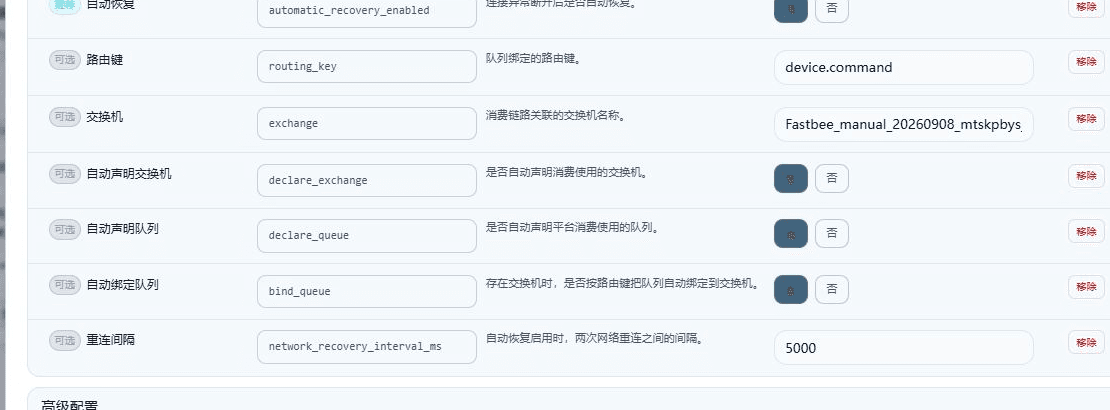
Figure: the downlink exchange, routing key, and auto-declare and auto-bind options are configured, and the operation scope is limited to this batch's independent queue.
Field Descriptions
| Field / Control | Description |
|---|---|
| Exchange | The exchange name associated with the consumption chain; this value is used by command downlink tasks; running tasks must reload the change. Optional · Source: external system deployment and the integration checklist; the client instance name is specified by the implementer per environment and purpose. Choice: confirm the exchange name and type with the MQ administrator. An exchange forwards messages and a queue stores them; having an exchange does not guarantee the target queue is bound. Recommended: fill in per the integration documents · Example: fmq.dispatch.exchange |
| Routing Key | The routing key the queue is bound with; this value is used by command downlink tasks; running tasks must reload the change. Optional · Source: external system deployment and the integration checklist; the client instance name is specified by the implementer per environment and purpose. Choice: consistent with the external publisher and the exchange binding rule; for example device.command by agreement. With a spelling or type matching error, the connection is normal but the queue may still receive no messages. Recommended: fill in per the integration documents · Example: device.command |
| Auto-bind Queue | When an exchange exists, whether to automatically bind the queue to the exchange by routing key; this value is used by command downlink tasks; running tasks must reload the change. Optional · Source: start from this type's recommended mode, then adjust per actual load, interface agreements, and runtime metrics. Choice: when enabled, binds the consume queue by exchange and routing key, which requires bind permission. It can be turned off when the administrator maintains the binding, but confirm the relationship already exists first. Recommended: On (true) · Example: On (true) |
| Auto-declare Exchange | Whether to automatically declare the exchange used for consumption; this value is used by command downlink tasks; running tasks must reload the change. Optional · Source: start from this type's recommended mode, then adjust per actual load, interface agreements, and runtime metrics. Choice: when enabled, declaring the exchange during validation or at runtime is allowed, which requires create permission; when off, the exchange must already exist. Confirm with the administrator before reusing production resources; do not change an existing resource's type on your own. Recommended: On (true) · Example: On (true) |
| Auto-declare Queue | Whether to automatically declare the queue the platform consumes from; this value is used by command downlink tasks; running tasks must reload the change. Optional · Source: start from this type's recommended mode, then adjust per actual load, interface agreements, and runtime metrics. Choice: when enabled, creating the queue is allowed, which requires resource permission; when off, the queue must exist beforehand. When an existing queue's attributes do not match, ask the administrator to verify; do not delete the queue to clear the error. Recommended: On (true) · Example: On (true) |
7. Verify Both Channels Are Ready
Location: Integration → Connectors
In the same window, review the Message Push and Command Downlink cards separately and confirm both show Ready.
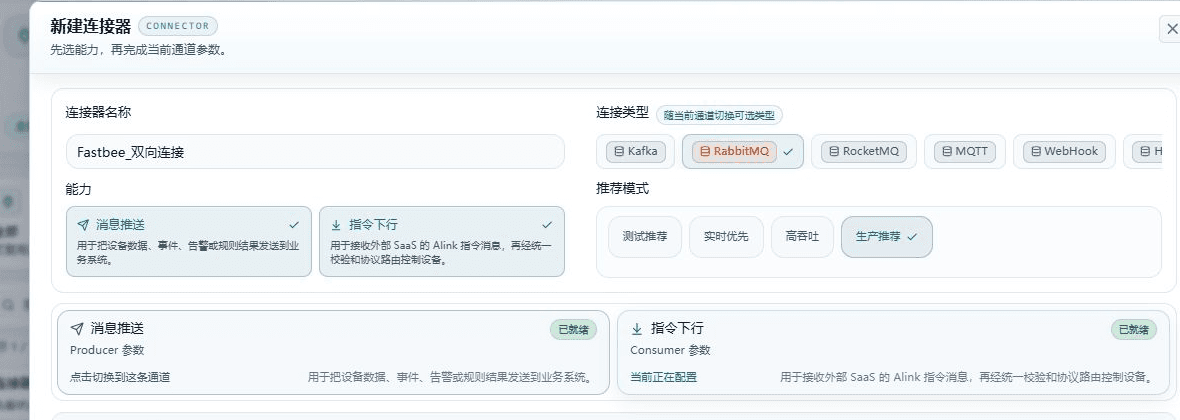
Figure: both Message Push and Command Downlink show Ready; this only means the required parameters are complete, and testing is still needed next.
8. Test All Channels
Location: Integration → Connectors
Click Test All Channels and wait for Message Push and Command Downlink to return their results separately.
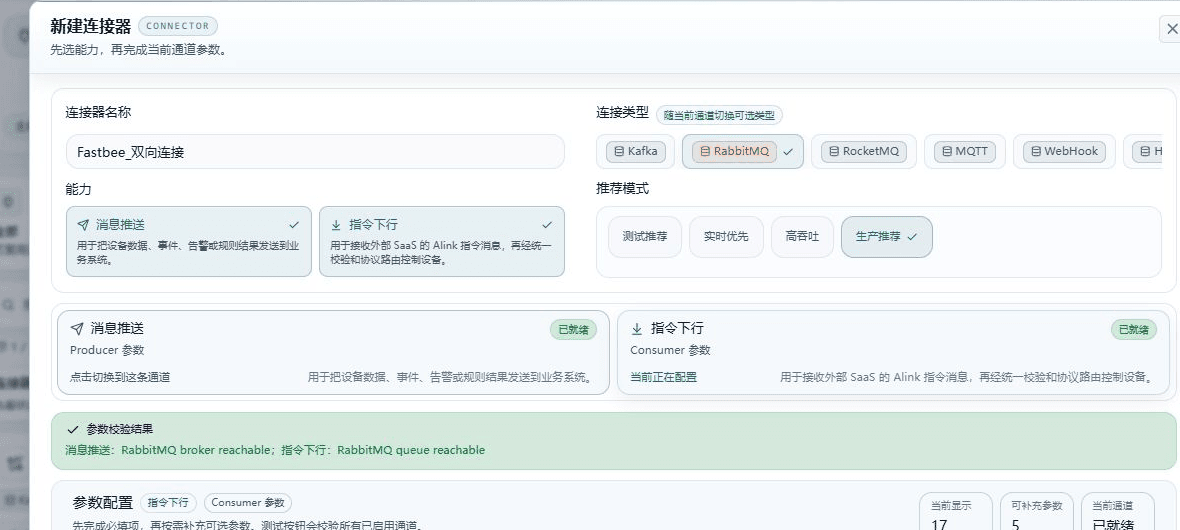
Figure: Test All Channels passed: Message Push returns RabbitMQ broker reachable, and Command Downlink returns RabbitMQ queue reachable.
9. Save the Bidirectional Connector
Location: Integration → Connectors
After confirming both validation results are still valid, click Save Connector.

Figure: both channels have passed the checks and the save button is available; submit the save with the verified parameters unchanged.
Field Descriptions
| Field / Control | Description |
|---|---|
| Connector Name | Names the connection resource for task selection and operations locating; should distinguish production from test environments; applies to the current connector, and task enablement and business results must be confirmed separately. Required · Source: determined by the current business purpose, the external system integration materials, and the platform pages. Choice: name the connection resource for task selection and operations locating; should distinguish production from test environments. Recommended: fill in per the integration documents · Example: FastBee_双向连接 |
| Capability | Message Push sends data from the platform outward; Command Downlink receives external commands. One or both capabilities can be enabled, each with at most one set of parameters; applies to the current connector, and task enablement and business results must be confirmed separately. Required · Source: determined by the current business purpose, the external system integration materials, and the platform pages. Choice: Message Push sends data from the platform outward; Command Downlink receives external commands. One or both capabilities can be enabled, each with at most one set of parameters. Recommended: fill in per the integration documents · Example: fill in per the actual environment |
10. Check the Bidirectional Capabilities After Saving
Location: Integration → Connectors
Return to the list or details and verify the connector name, Message Push capability, Command Downlink capability, and reference count.
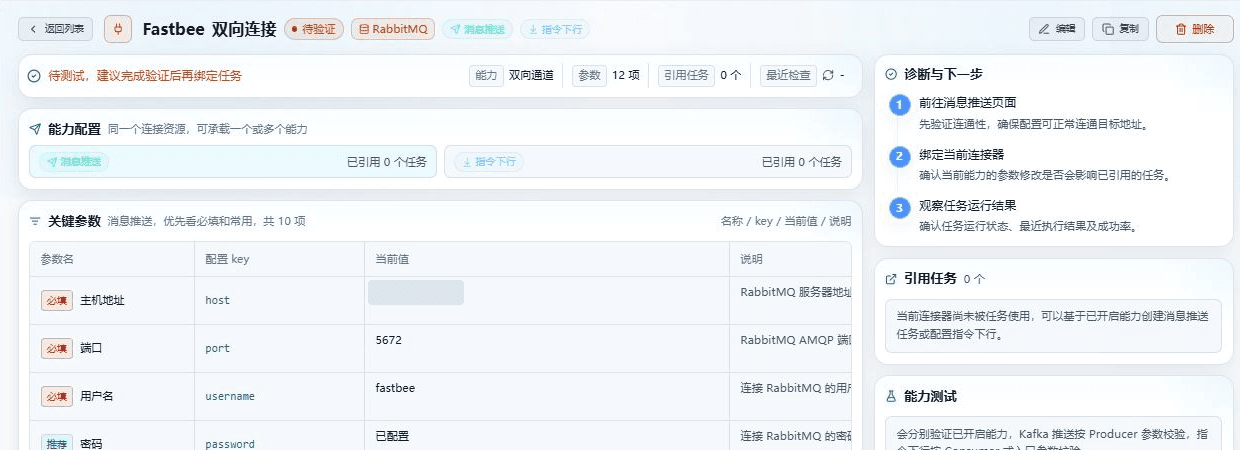
Figure: after saving, the details show the RabbitMQ bidirectional capability with 0 referencing tasks; the status is to-be-verified, and the saved resource needs another capability test.
11. Retest After Saving
Location: Integration → Connectors
Open the details of the bidirectional connector just saved, click Capability Test, and review the results of both directions.
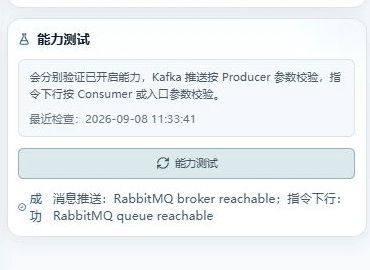
Figure: the post-save capability test passes again, with Message Push and Command Downlink returning success separately; the last check time has been updated.
Message Push Parameter Reference
Kafka: choose when the other side already uses Kafka and the Topic and consumption method are agreed.
Obtain the Broker address from the administrator first, then choose a mode and fill in the producer parameters. Topic and Message Key are not filled in here; they are configured in the message push task or rule action; do not substitute the downlink consumer group for the client ID.
Parameter validation boundary: validation checks integer parameters and queries the Kafka cluster information; even when it passes, no business data has been sent to the target Topic, and it does not prove write permission on that Topic or successful consumption by the other side.
RabbitMQ: choose RabbitMQ when the other side organizes messages with exchanges, routing keys, and queues.
Fill in the host, AMQP port, account, and vhost given by the MQ administrator, then decide the default exchange and publish confirmation. Messages go from the platform to the exchange, and the external system receives them from its bound queue.
Parameter validation boundary: validation may connect to the Broker and declare or passively check the exchange; with the related options on, it may modify resources. Broker reachability does not mean the other side's queue received data; the uplink also requires verifying the task routing key and the receiving end.
RocketMQ: choose when the other side already uses RocketMQ and provides the NameServer, group name, and Topic plan.
Fill in the NameServer and producer group, then choose the send timeout and retry scheme. The target Topic is decided at the business task; the producer group name is not equivalent to a Topic.
Parameter validation boundary: the current test starts a producer; Topic routing is checked only when a test Topic is also present. Without a test Topic, even a nameserver reachable prompt cannot prove the target Topic routing and message delivery succeeded.
MQTT: choose when the other side provides an MQTT Broker and both sides publish and subscribe by Topic.
Select the external Broker mode and fill in the unique clientId, Broker address, port, and authentication. This clientId represents the platform's publishing side, not a device; the publish Topic is configured in the business task.
Parameter validation boundary: a successful external Broker connection probe does not mean publish permission on the target Topic is normal, let alone that a subscriber received the message. Name the uplink and downlink clients independently to avoid kicking off existing connections.
WebHook: the uplink is the platform calling the other side's callback address; the downlink is the other side calling the platform entry. First be clear about who calls whom.
Obtain the complete URL, request method, and timeout from the integration partner's interface documentation. Before clicking Test Connection, confirm the interface allows test calls; if necessary, have the other side provide a dedicated test address.
Parameter validation boundary: Test Connection really sends a request; for non-GET cases an empty JSON object is used for testing. An accepted HTTP response does not mean the other side finished business processing, and the interface may have side effects.
UI Reference
Message Push / Kafka
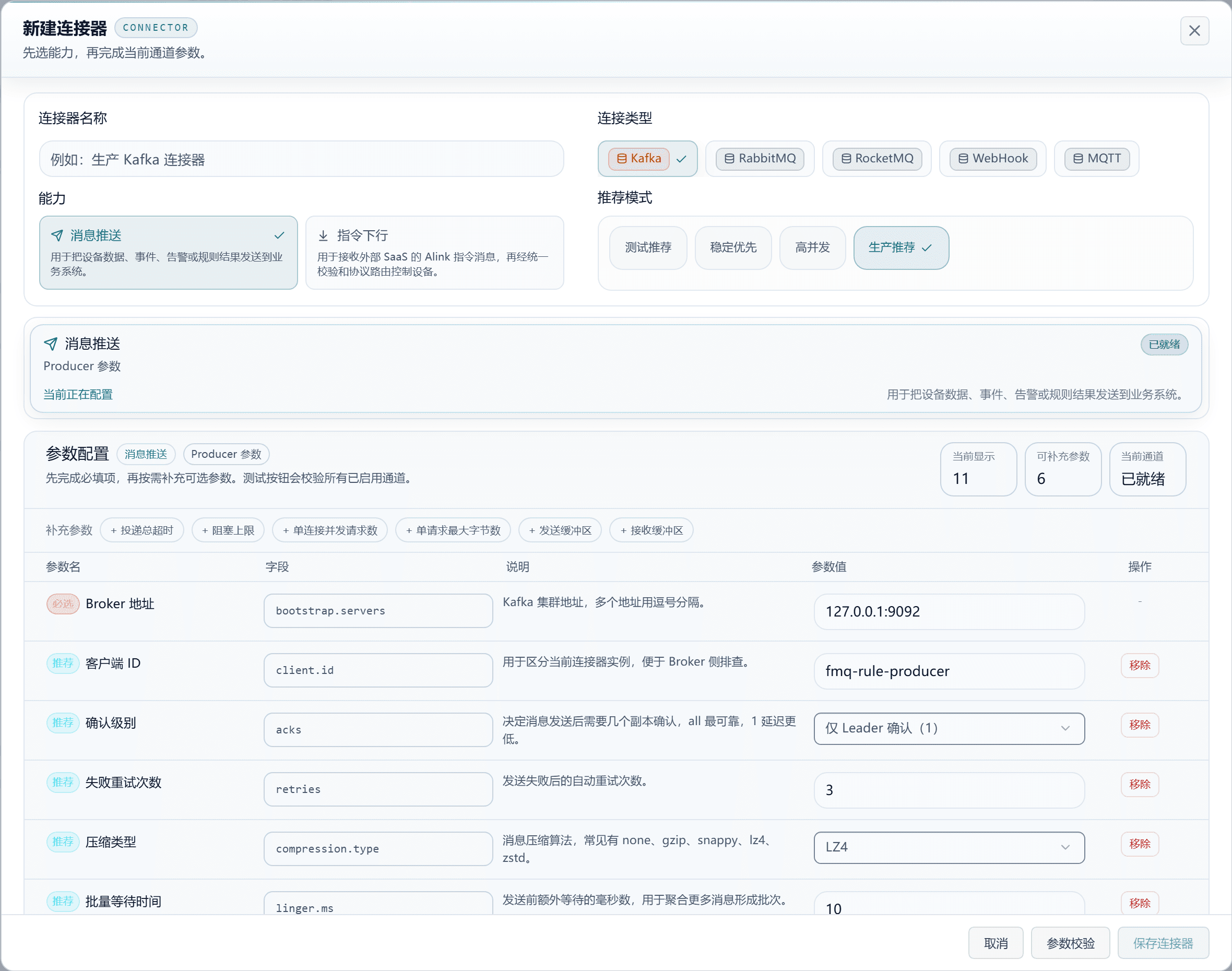
Figure: a page screenshot from a previous daytime-mode session, used for locating fields, not as proof of this configuration or connectivity success. For the remaining fields of the long form, scroll down on the page; the full explanation is in this section.
Message Push / RabbitMQ
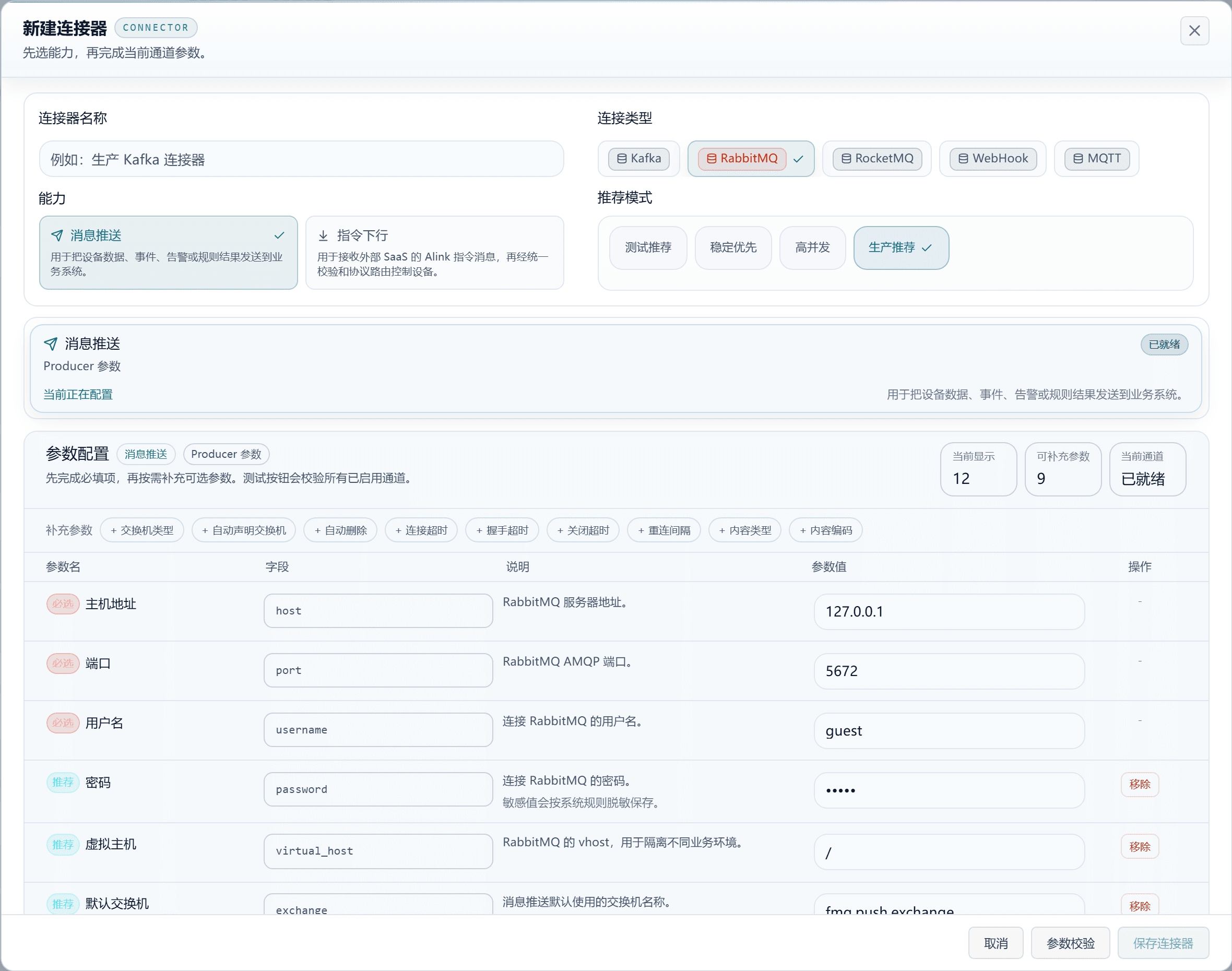
Figure: a page screenshot from a previous daytime-mode session, used for locating fields, not as proof of this configuration or connectivity success. For the remaining fields of the long form, scroll down on the page; the full explanation is in this section.
Message Push / RocketMQ
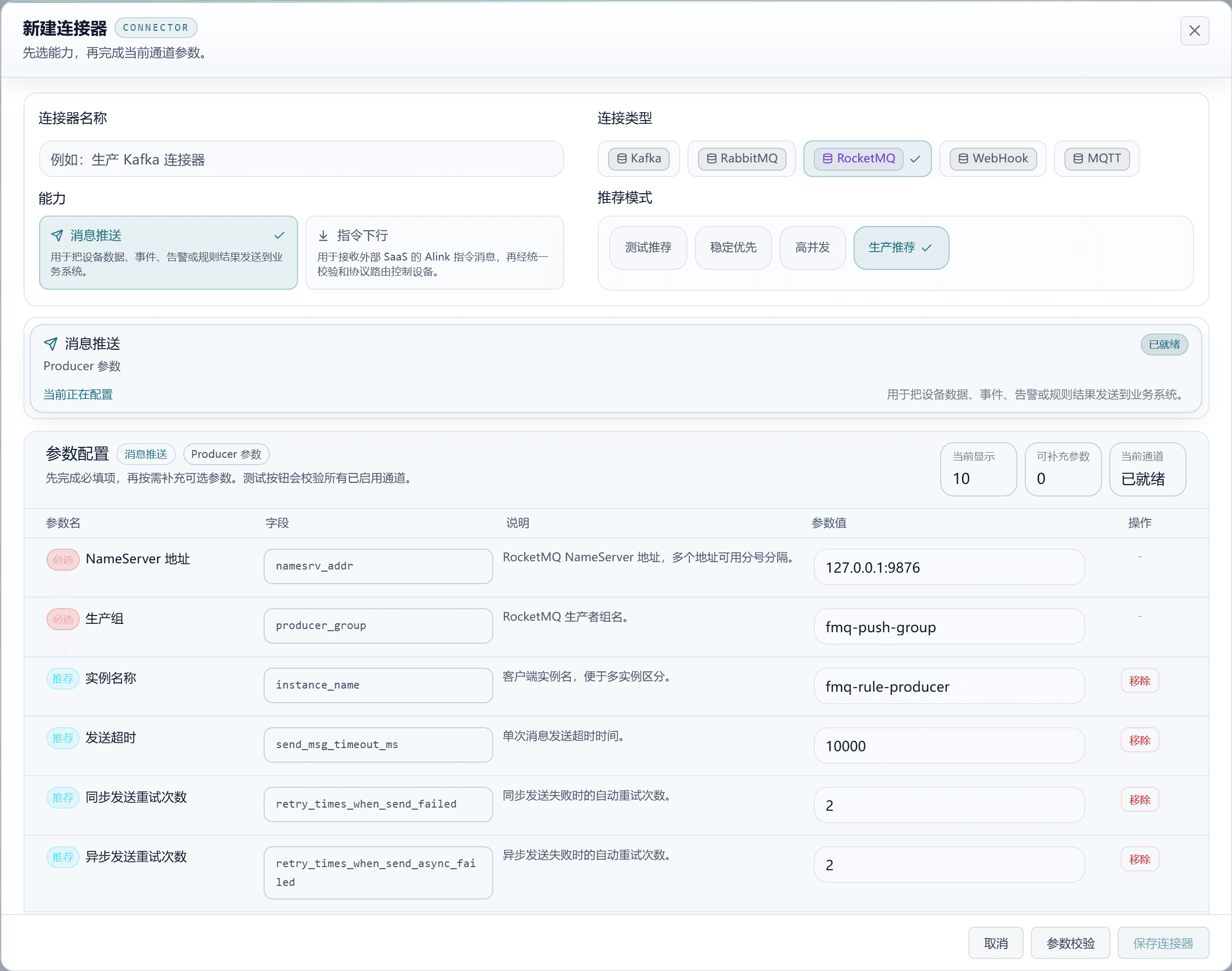
Figure: a page screenshot from a previous daytime-mode session, used for locating fields, not as proof of this configuration or connectivity success. For the remaining fields of the long form, scroll down on the page; the full explanation is in this section.
Message Push / MQTT
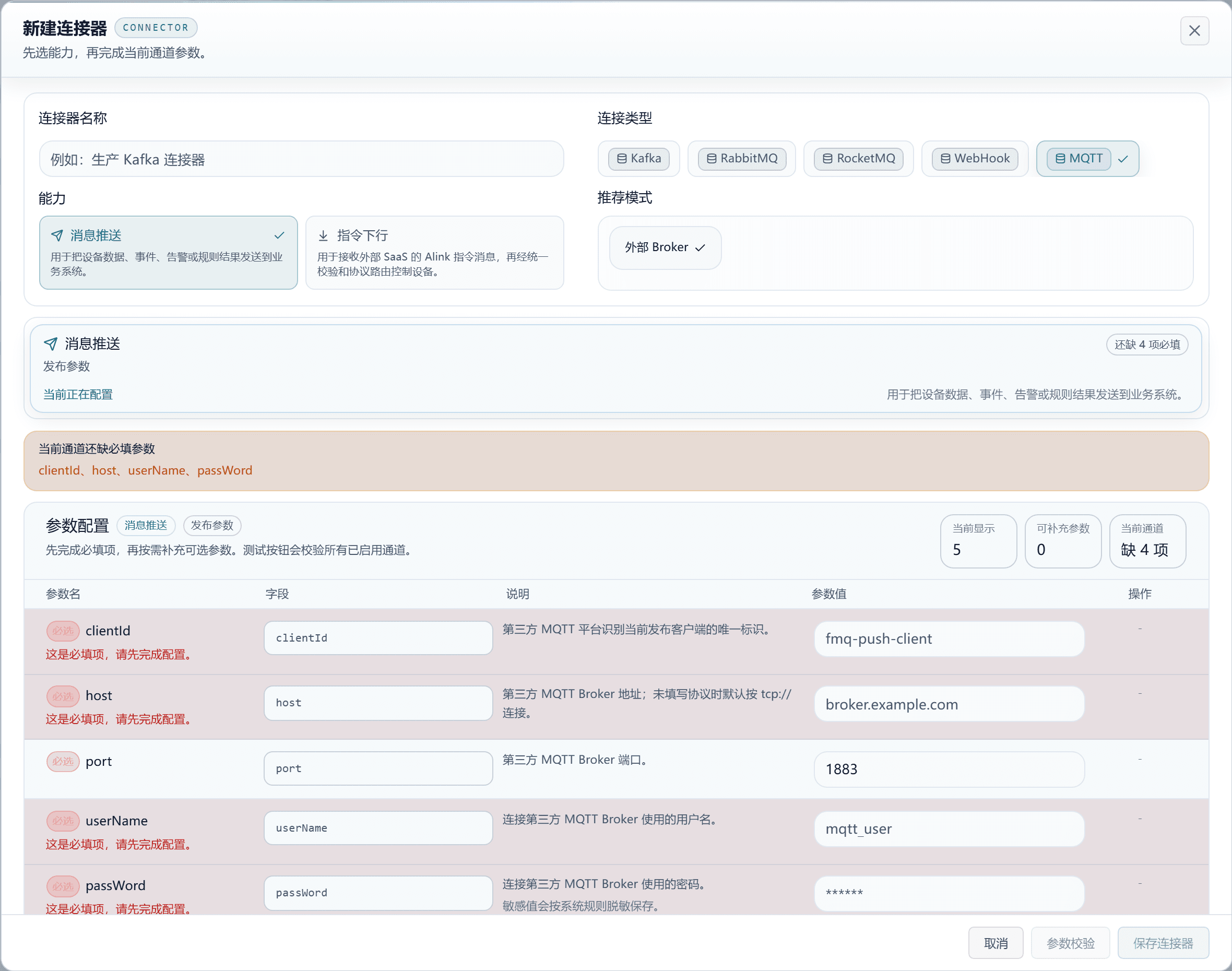
Figure: a page screenshot from a previous daytime-mode session, used for locating fields, not as proof of this configuration or connectivity success. For the remaining fields of the long form, scroll down on the page; the full explanation is in this section.
Message Push / WebHook
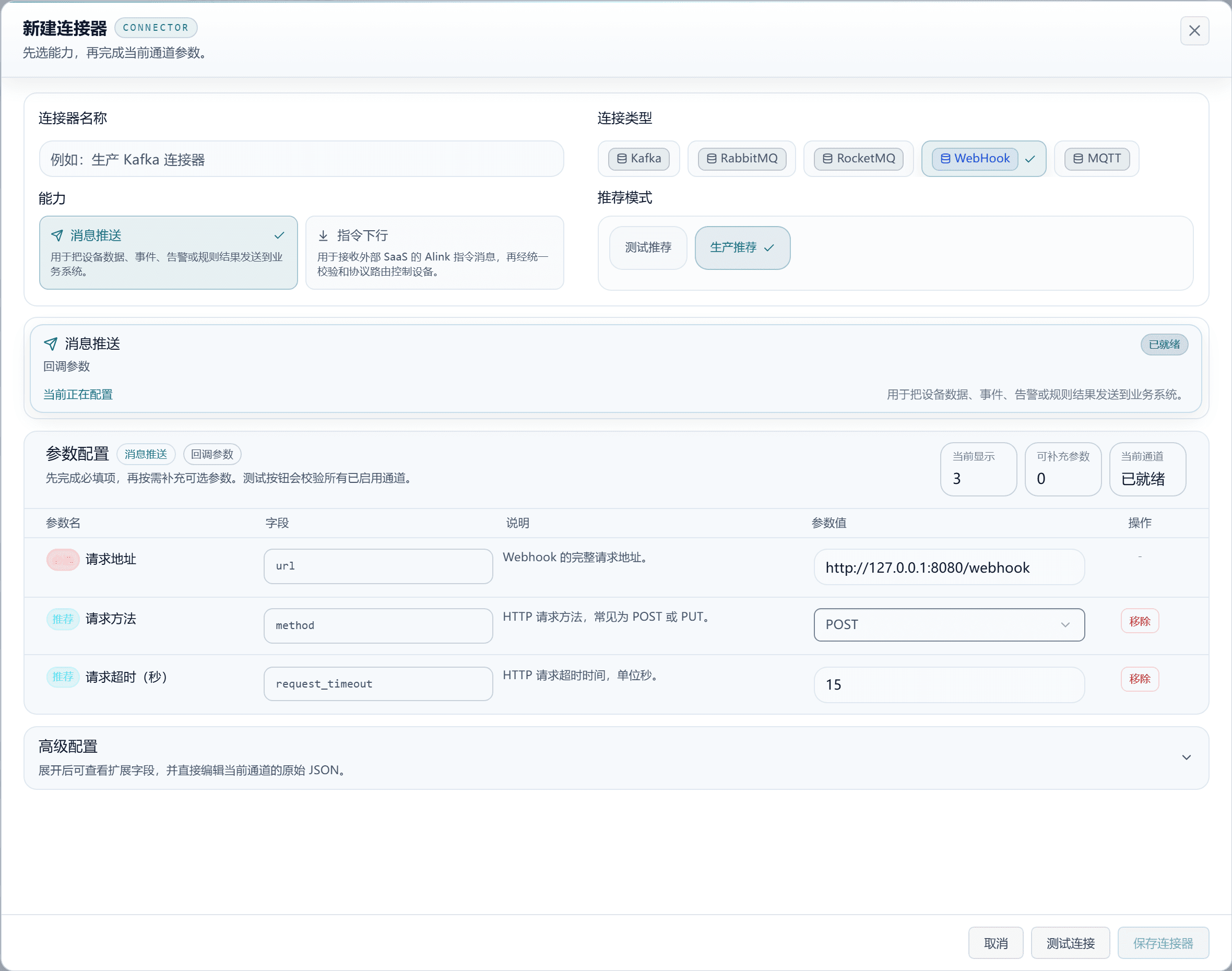
Figure: a page screenshot from a previous daytime-mode session, used for locating fields, not as proof of this configuration or connectivity success. For the remaining fields of the long form, scroll down on the page; the full explanation is in this section.
Message Push · Kafka
| Field | Purpose | Where the Value Comes From | How to Choose | Wrong-Input Symptom and Recovery | Effective Conditions |
|---|---|---|---|---|---|
| Recommended Mode | Selects a set of parameter presets for Message Push; fill in the real environment information after choosing; applies to the current connector, and task enablement and business results must be confirmed separately. | The recommended modes the platform provides for this type. | Test Recommended: suits local joint debugging and functional verification, reducing wait time so results are seen quickly.; Stability First: prioritizes delivery reliability, suiting alarms, audits, and key business notifications.; High Concurrency: suits large volumes of logs or telemetry pushes, prioritizing batch send efficiency.; Production Recommended: balances reliability, throughput, and maintenance cost, suiting use as a general production default. Recommended: Production Recommended · Default: — · Example: —Test Recommended: suits local joint debugging and functional verification, reducing wait time so results are seen quickly; overwrites this channel's preset parameters, and the connection information must be re-verified afterwards. Stability First: prioritizes delivery reliability, suiting alarms, audits, and key business notifications; overwrites this channel's preset parameters, and the connection information must be re-verified afterwards. High Concurrency: suits large volumes of logs or telemetry pushes, prioritizing batch send efficiency; overwrites this channel's preset parameters, and the connection information must be re-verified afterwards. Production Recommended: balances reliability, throughput, and maintenance cost, suiting use as a general production default; overwrites this channel's preset parameters, and the connection information must be re-verified afterwards. | Configuration changes may affect tasks that reference it; keep the original configuration, fix it, and retest. | Scope: the current connector and the tasks referencing it · Publish: not required · Restart: not required · Reconnect: not required |
| Required Broker Address | The Kafka cluster address; multiple addresses are separated by commas; this value is used by message push tasks; running tasks must reload the change. | External system deployment and the integration checklist; the client instance name is specified by the implementer per environment and purpose. | Ask the Kafka administrator for the host:port list reachable by clients, with multiple items separated by English commas. 127.0.0.1 refers to the server FMQ runs on, not the operator's computer; when it cannot connect, check the port and the address published by the cluster first. Recommended: fill in per the integration documents · Default: 127.0.0.1:9092 · Example: 127.0.0.1:9092 | Ask the Kafka administrator for the host:port list reachable by clients, with multiple items separated by English commas. 127.0.0.1 refers to the server FMQ runs on, not the operator's computer; when it cannot connect, check the port and the address published by the cluster first; correct it per the above source and conditions, re-validate, and then check the associated tasks. | Scope: the current connector and the tasks referencing it · Publish: not required · Restart: required · Reconnect: required |
| Client ID | Distinguishes the current connector instance, making Broker-side troubleshooting easier; this value is used by message push tasks; running tasks must reload the change. | External system deployment and the integration checklist; the client instance name is specified by the implementer per environment and purpose. | Used to identify this connection in the Broker logs; it is not a device ID and does not decide where messages go. Named by the implementer per purpose; do not use it in place of a consumer group. Recommended: fill in per the integration documents · Default: fmq-rule-producer · Example: fmq-rule-producer | Used to identify this connection in the Broker logs; it is not a device ID and does not decide where messages go. Named by the implementer per purpose; do not use it in place of a consumer group; correct it per the above source and conditions, re-validate, and then check the associated tasks. | Scope: the current connector and the tasks referencing it · Publish: not required · Restart: required · Reconnect: required |
| Acknowledgment Level | Decides how many replica confirmations are needed after a message is sent; all is the most reliable, 1 has lower latency; this value is used by message push tasks; running tasks must reload the change. | Start from this type's recommended mode, then adjust per actual load, interface agreements, and runtime metrics. | all waits for all current in-sync replicas; 1 waits only for the leader replica; 0 waits for nothing. For important messages choose Stability First, and do not treat an acknowledgment as the business system having processed the message. Recommended: 1 · Default: 1 · Example: 1 / all / 0Leader only (1): waits for the leader replica's confirmation; loss is still possible when a replica fails; after changing, treat this field as Leader only (1). All replicas (all): waits for all current in-sync replicas; still not a business processing receipt; after changing, treat this field as All replicas (all). No acknowledgment (0): does not wait for confirmation, so the send result cannot tell whether the Broker received it; after changing, treat this field as No acknowledgment (0). | all waits for all current in-sync replicas; 1 waits only for the leader replica; 0 waits for nothing. For important messages choose Stability First, and do not treat an acknowledgment as the business system having processed the message; correct it per the above source and conditions, re-validate, and then check the associated tasks. | Scope: the current connector and the tasks referencing it · Publish: not required · Restart: required · Reconnect: required |
| Failure Retry Count | The number of automatic retries after a send failure; this value is used by message push tasks; running tasks must reload the change. | Start from this type's recommended mode, then adjust per actual load, interface agreements, and runtime metrics. | Start with the recommended mode value. Raising it increases retry chances for transient faults but also lengthens failure waiting; do not use unlimited retries to mask a wrong address, and the receiving end needs deduplication. Recommended: 3 · Default: 3 · Example: 3 | Start with the recommended mode value. Raising it increases retry chances for transient faults but also lengthens failure waiting; do not use unlimited retries to mask a wrong address, and the receiving end needs deduplication; correct it per the above source and conditions, re-validate, and then check the associated tasks. | Scope: the current connector and the tasks referencing it · Publish: not required · Restart: required · Reconnect: required |
| Compression Type | The message compression algorithm, commonly none, gzip, snappy, lz4, zstd; this value is used by message push tasks; running tasks must reload the change. | Start from this type's recommended mode, then adjust per actual load, interface agreements, and runtime metrics. | Choose an algorithm after both clients and the Broker support it. none means no compression; gzip usually costs more CPU; snappy and lz4 are common trade-offs between throughput and latency; zstd needs deployment compatibility confirmed. Recommended: lz4 · Default: lz4 · Example: lz4None (none): no compression, simple for small-scale joint debugging; after changing, treat this field as None (none). Gzip: GZIP compression, watch the CPU consumption; after changing, treat this field as Gzip. Snappy: Snappy compression, a common trade-off between speed and compression; after changing, treat this field as Snappy. LZ4: LZ4 compression, common in low-overhead scenarios; after changing, treat this field as LZ4. Zstd: Zstandard compression, confirm deployment support first; after changing, treat this field as Zstd. | Choose an algorithm after both clients and the Broker support it. none means no compression; gzip usually costs more CPU; snappy and lz4 are common trade-offs between throughput and latency; zstd needs deployment compatibility confirmed; correct it per the above source and conditions, re-validate, and then check the associated tasks. | Scope: the current connector and the tasks referencing it · Publish: not required · Restart: required · Reconnect: required |
| Batch Wait Time | The extra milliseconds to wait before sending, used to aggregate more messages into a batch; this value is used by message push tasks; running tasks must reload the change. | Start from this type's recommended mode, then adjust per actual load, interface agreements, and runtime metrics. | In milliseconds. Use a smaller value for low-latency scenarios; a moderate increase merges more messages, but each message may wait a little longer. Start with the recommended mode and adjust with latency metrics. Recommended: 10 · Default: 10 · Example: 10 | In milliseconds. Use a smaller value for low-latency scenarios; a moderate increase merges more messages, but each message may wait a little longer. Start with the recommended mode and adjust with latency metrics; correct it per the above source and conditions, re-validate, and then check the associated tasks. | Scope: the current connector and the tasks referencing it · Publish: not required · Restart: required · Reconnect: required |
| Batch Size | The buffer size of a single batch of messages; larger means higher throughput but possibly more latency; this value is used by message push tasks; running tasks must reload the change. | Start from this type's recommended mode, then adjust per actual load, interface agreements, and runtime metrics. | In bytes, not a message count. Before raising it, look at the actual message size and memory budget; low traffic generally does not need an increase. Recommended: 131072 · Default: 131072 · Example: 131072 | In bytes, not a message count. Before raising it, look at the actual message size and memory budget; low traffic generally does not need an increase; correct it per the above source and conditions, re-validate, and then check the associated tasks. | Scope: the current connector and the tasks referencing it · Publish: not required · Restart: required · Reconnect: required |
| Total Buffer Size | The total memory the producer can use to buffer pending messages; this value is used by message push tasks; running tasks must reload the change. | Start from this type's recommended mode, then adjust per actual load, interface agreements, and runtime metrics. | In bytes; the budget for buffering messages to be sent. When the backlog keeps growing, check the Broker and consumption capacity first instead of only adding memory; when exhausted, sends may wait or fail. Recommended: 67108864 · Default: 67108864 · Example: 67108864 | In bytes; the budget for buffering messages to be sent. When the backlog keeps growing, check the Broker and consumption capacity first instead of only adding memory; when exhausted, sends may wait or fail; correct it per the above source and conditions, re-validate, and then check the associated tasks. | Scope: the current connector and the tasks referencing it · Publish: not required · Restart: required · Reconnect: required |
| Required Key Serializer | The serialization class for message Keys, defaulting to Kafka's common StringSerializer; this value is used by message push tasks; running tasks must reload the change. | Start from this type's recommended mode, then adjust per actual load, interface agreements, and runtime metrics. | The class name that converts a message Key into Kafka byte data. Keep StringSerializer for text Keys; the Key content is not filled in here, and a wrong class name may cause the task to fail at startup. Recommended: org.apache.kafka.common.serialization.StringSerializer · Default: org.apache.kafka.common.serialization.StringSerializer · Example: org.apache.kafka.common.serialization.StringSerializer | The class name that converts a message Key into Kafka byte data. Keep StringSerializer for text Keys; the Key content is not filled in here, and a wrong class name may cause the task to fail at startup; correct it per the above source and conditions, re-validate, and then check the associated tasks. | Scope: the current connector and the tasks referencing it · Publish: not required · Restart: required · Reconnect: required |
| Required Value Serializer | The serialization class for message Values, defaulting to Kafka's common StringSerializer; this value is used by message push tasks; running tasks must reload the change. | Start from this type's recommended mode, then adjust per actual load, interface agreements, and runtime metrics. | The class name that converts a message body into byte data. JSON text usually keeps StringSerializer; a change must match the other side's encoding, otherwise sending may fail or produce garbled text. Recommended: org.apache.kafka.common.serialization.StringSerializer · Default: org.apache.kafka.common.serialization.StringSerializer · Example: org.apache.kafka.common.serialization.StringSerializer | The class name that converts a message body into byte data. JSON text usually keeps StringSerializer; a change must match the other side's encoding, otherwise sending may fail or produce garbled text; correct it per the above source and conditions, re-validate, and then check the associated tasks. | Scope: the current connector and the tasks referencing it · Publish: not required · Restart: required · Reconnect: required |
Message Push · Kafka
| Field | Purpose | Where the Value Comes From | How to Choose | Wrong-Input Symptom and Recovery | Effective Conditions |
|---|---|---|---|---|---|
| Request Timeout | The timeout for a single request waiting for the Broker's response, in milliseconds; this value is used by message push tasks; running tasks must reload the change. | Start from this type's recommended mode, then adjust per actual load, interface agreements, and runtime metrics. | In milliseconds; take the recommended value, then adjust per the network and Broker response. Too short falsely reports timeouts; too long delays fault discovery; troubleshoot slow requests first. Recommended: 15000 · Default: 15000 · Example: 15000 | In milliseconds; take the recommended value, then adjust per the network and Broker response. Too short falsely reports timeouts; too long delays fault discovery; troubleshoot slow requests first; correct it per the above source and conditions, re-validate, and then check the associated tasks. | Scope: the current connector and the tasks referencing it · Publish: not required · Restart: required · Reconnect: required |
| Total Delivery Timeout | The maximum total time from a message entering the buffer to delivery failure; this value is used by message push tasks; running tasks must reload the change. | Start from this type's recommended mode, then adjust per actual load, interface agreements, and runtime metrics. | In milliseconds, covering the total time of batch waiting, requests, and retries. It must cover the request timeout and batch wait; too short makes sends fail before retries take effect. Recommended: 30000 · Default: 30000 · Example: 30000 | In milliseconds, covering the total time of batch waiting, requests, and retries. It must cover the request timeout and batch wait; too short makes sends fail before retries take effect; correct it per the above source and conditions, re-validate, and then check the associated tasks. | Scope: the current connector and the tasks referencing it · Publish: not required · Restart: required · Reconnect: required |
| Blocking Limit | How long the caller may block at most when the buffer is exhausted or metadata is unavailable; this value is used by message push tasks; running tasks must reload the change. | Start from this type's recommended mode, then adjust per actual load, interface agreements, and runtime metrics. | In milliseconds; limits how long the sender waits due to buffer or metadata problems. On timeout, check cluster reachability and buffer backlog first; do not simply increase it without limit. Recommended: 60000 · Default: 60000 · Example: 60000 | In milliseconds; limits how long the sender waits due to buffer or metadata problems. On timeout, check cluster reachability and buffer backlog first; do not simply increase it without limit; correct it per the above source and conditions, re-validate, and then check the associated tasks. | Scope: the current connector and the tasks referencing it · Publish: not required · Restart: required · Reconnect: required |
| In-flight Requests per Connection | The maximum number of requests simultaneously in flight on the same connection; this value is used by message push tasks; running tasks must reload the change. | Start from this type's recommended mode, then adjust per actual load, interface agreements, and runtime metrics. | Used for concurrent sending; bigger is not necessarily better. When message ordering matters, keep the stable scheme and evaluate it together with the retry and idempotence strategies. Recommended: 5 · Default: 5 · Example: 5 | Used for concurrent sending; bigger is not necessarily better. When message ordering matters, keep the stable scheme and evaluate it together with the retry and idempotence strategies; correct it per the above source and conditions, re-validate, and then check the associated tasks. | Scope: the current connector and the tasks referencing it · Publish: not required · Restart: required · Reconnect: required |
| Max Bytes per Request | The maximum bytes a single request may send; this value is used by message push tasks; running tasks must reload the change. | Start from this type's recommended mode, then adjust per actual load, interface agreements, and runtime metrics. | In bytes; must be coordinated with the message limit the Broker allows. When a message is too large, trim or split the payload first instead of only tuning the client. Recommended: 10485760 · Default: 10485760 · Example: 10485760 | In bytes; must be coordinated with the message limit the Broker allows. When a message is too large, trim or split the payload first instead of only tuning the client; correct it per the above source and conditions, re-validate, and then check the associated tasks. | Scope: the current connector and the tasks referencing it · Publish: not required · Restart: required · Reconnect: required |
| Send Buffer | The underlying Socket send buffer size; this value is used by message push tasks; running tasks must reload the change. | Start from this type's recommended mode, then adjust per actual load, interface agreements, and runtime metrics. | In bytes; left to operations to tune per network throughput. Ordinary joint debugging keeps the default; it is not for setting the message body size. Recommended: 131072 · Default: 131072 · Example: 131072 | In bytes; left to operations to tune per network throughput. Ordinary joint debugging keeps the default; it is not for setting the message body size; correct it per the above source and conditions, re-validate, and then check the associated tasks. | Scope: the current connector and the tasks referencing it · Publish: not required · Restart: required · Reconnect: required |
| Receive Buffer | The underlying Socket receive buffer size; this value is used by message push tasks; running tasks must reload the change. | Start from this type's recommended mode, then adjust per actual load, interface agreements, and runtime metrics. | In bytes; the network receive buffer. Keep the default without a clear network bottleneck; before raising it, calculate the total memory across connections. Recommended: 65536 · Default: 65536 · Example: 65536 | In bytes; the network receive buffer. Keep the default without a clear network bottleneck; before raising it, calculate the total memory across connections; correct it per the above source and conditions, re-validate, and then check the associated tasks. | Scope: the current connector and the tasks referencing it · Publish: not required · Restart: required · Reconnect: required |
Message Push · RabbitMQ
| Field | Purpose | Where the Value Comes From | How to Choose | Wrong-Input Symptom and Recovery | Effective Conditions |
|---|---|---|---|---|---|
| Recommended Mode | Selects a set of parameter presets for Message Push; fill in the real environment information after choosing; applies to the current connector, and task enablement and business results must be confirmed separately. | The recommended modes the platform provides for this type. | Test Recommended: suits joint debugging environments, minimizing wait time while keeping necessary connection protection.; Stability First: prioritizes message delivery reliability, suiting key notifications and audit streams.; High Concurrency: reduces confirmation waiting, better suiting high-frequency lightweight push scenarios.; Production Recommended: balances automatic recovery, publish confirmation, and operational steadiness, suiting use as the production default. Recommended: Production Recommended · Default: — · Example: —Test Recommended: suits joint debugging environments, minimizing wait time while keeping necessary connection protection; overwrites this channel's preset parameters, and the connection information must be re-verified afterwards. Stability First: prioritizes message delivery reliability, suiting key notifications and audit streams; overwrites this channel's preset parameters, and the connection information must be re-verified afterwards. High Concurrency: reduces confirmation waiting, better suiting high-frequency lightweight push scenarios; overwrites this channel's preset parameters, and the connection information must be re-verified afterwards. Production Recommended: balances automatic recovery, publish confirmation, and operational steadiness, suiting use as the production default; overwrites this channel's preset parameters, and the connection information must be re-verified afterwards. | Configuration changes may affect tasks that reference it; keep the original configuration, fix it, and retest. | Scope: the current connector and the tasks referencing it · Publish: not required · Restart: not required · Reconnect: not required |
| Required Host Address | The RabbitMQ server address; this value is used by message push tasks; running tasks must reload the change. | External system deployment and the integration checklist; the client instance name is specified by the implementer per environment and purpose. | Take the address from the integration partner's deployment checklist; it must be reachable from the FMQ server. The local address in the screenshot is only an example; do not mistake the address of the computer running the browser for the server address. Recommended: fill in per the integration documents · Default: 127.0.0.1 · Example: 127.0.0.1 | Take the address from the integration partner's deployment checklist; it must be reachable from the FMQ server. The local address in the screenshot is only an example; do not mistake the address of the computer running the browser for the server address; correct it per the above source and conditions, re-validate, and then check the associated tasks. | Scope: the current connector and the tasks referencing it · Publish: not required · Restart: required · Reconnect: required |
| Required Port | The RabbitMQ AMQP port; this value is used by message push tasks; running tasks must reload the change. | External system deployment and the integration checklist; the client instance name is specified by the implementer per environment and purpose. | Obtain the AMQP data port from the administrator, commonly 5672; the 15672 commonly used by the management UI must not be filled in here. Subject to the actual deployment; when the connection is refused, verify the port and firewall first. Recommended: fill in per the integration documents · Default: 5672 · Example: 5672 | Obtain the AMQP data port from the administrator, commonly 5672; the 15672 commonly used by the management UI must not be filled in here. Subject to the actual deployment; when the connection is refused, verify the port and firewall first; correct it per the above source and conditions, re-validate, and then check the associated tasks. | Scope: the current connector and the tasks referencing it · Publish: not required · Restart: required · Reconnect: required |
| Required Username | The username for connecting to RabbitMQ; this value is used by message push tasks; running tasks must reload the change. | External system deployment and the integration checklist; the client instance name is specified by the implementer per environment and purpose. | Obtain a dedicated business account from the RabbitMQ administrator and confirm the corresponding vhost permissions. Do not directly reuse the example guest; remote login or insufficient permissions will fail. Recommended: fill in per the integration documents · Default: guest · Example: guest | Obtain a dedicated business account from the RabbitMQ administrator and confirm the corresponding vhost permissions. Do not directly reuse the example guest; remote login or insufficient permissions will fail; correct it per the above source and conditions, re-validate, and then check the associated tasks. | Scope: the current connector and the tasks referencing it · Publish: not required · Restart: required · Reconnect: required |
| Password | The password for connecting to RabbitMQ; this value is used by message push tasks; running tasks must reload the change. | Provided by the integration administrator through controlled channels; the actual value does not enter the manual or logs. | Matches the current username, provided by the administrator through controlled channels. The form marking it as recommended does not mean the Broker allows an empty password; when saving or reusing, do not treat the mask as a new password. Recommended: fill in per the integration documents · Default: sensitive value not shown · Example: filled in through controlled channels | Matches the current username, provided by the administrator through controlled channels. The form marking it as recommended does not mean the Broker allows an empty password; when saving or reusing, do not treat the mask as a new password; correct it per the above source and conditions, re-validate, and then check the associated tasks. | Scope: the current connector and the tasks referencing it · Publish: not required · Restart: required · Reconnect: required |
| Virtual Host | The RabbitMQ vhost, used to isolate different business environments; this value is used by message push tasks; running tasks must reload the change. | External system deployment and the integration checklist; the client instance name is specified by the implementer per environment and purpose. | Check this business's vhost in the RabbitMQ management console; it is like an independent workspace inside the same Broker. When the two ends use the wrong vhost, even an identically named queue is not the same channel; the account must also have permission on that vhost. Recommended: fill in per the integration documents · Default: / · Example: / | Check this business's vhost in the RabbitMQ management console; it is like an independent workspace inside the same Broker. When the two ends use the wrong vhost, even an identically named queue is not the same channel; the account must also have permission on that vhost; correct it per the above source and conditions, re-validate, and then check the associated tasks. | Scope: the current connector and the tasks referencing it · Publish: not required · Restart: required · Reconnect: required |
| Default Exchange | The exchange name Message Push uses by default; this value is used by message push tasks; running tasks must reload the change. | External system deployment and the integration checklist; the client instance name is specified by the implementer per environment and purpose. | Confirm the exchange name and type with the MQ administrator. An exchange forwards messages and a queue stores them; having an exchange does not guarantee the target queue is bound. The uplink routing key usually still has to be configured in the message push task; the connector does not decide which business data is sent. Recommended: fill in per the integration documents · Default: fmq.push.exchange · Example: fmq.push.exchange | Confirm the exchange name and type with the MQ administrator. An exchange forwards messages and a queue stores them; having an exchange does not guarantee the target queue is bound. The uplink routing key usually still has to be configured in the message push task; the connector does not decide which business data is sent; correct it per the above source and conditions, re-validate, and then check the associated tasks. | Scope: the current connector and the tasks referencing it · Publish: not required · Restart: required · Reconnect: required |
| Publish Confirmation | Waits for the Broker's confirmation after sending, which is more reliable; this value is used by message push tasks; running tasks must reload the change. | Start from this type's recommended mode, then adjust per actual load, interface agreements, and runtime metrics. | When enabled, waits for the Broker's confirmation of accepting the publish; prefer enabling it for important uplink messages. It is not a processing receipt from the external business system, and alone it cannot prove routing to the target queue. Recommended: On (true) · Default: On (true) · Example: On (true) | When enabled, waits for the Broker's confirmation of accepting the publish; prefer enabling it for important uplink messages. It is not a processing receipt from the external business system, and alone it cannot prove routing to the target queue; correct it per the above source and conditions, re-validate, and then check the associated tasks. | Scope: the current connector and the tasks referencing it · Publish: not required · Restart: required · Reconnect: required |
| Heartbeat Interval | The heartbeat interval negotiated with the Broker, in seconds; this value is used by message push tasks; running tasks must reload the change. | Start from this type's recommended mode, then adjust per actual load, interface agreements, and runtime metrics. | In seconds; used to detect whether the connection is still alive. Keep the recommended value first; with frequent disconnections, check the network and Broker load instead of blindly turning off heartbeats. Recommended: 30 · Default: 30 · Example: 30 | In seconds; used to detect whether the connection is still alive. Keep the recommended value first; with frequent disconnections, check the network and Broker load instead of blindly turning off heartbeats; correct it per the above source and conditions, re-validate, and then check the associated tasks. | Scope: the current connector and the tasks referencing it · Publish: not required · Restart: required · Reconnect: required |
| Automatic Recovery | Whether to automatically recover after an abnormal connection drop; this value is used by message push tasks; running tasks must reload the change. | Start from this type's recommended mode, then adjust per actual load, interface agreements, and runtime metrics. | When enabled, tries to recover the connection after a network anomaly. Usually kept on, but wrong credentials and deleted resources still need manual fixing; automatic recovery is not a promise of no data loss. Recommended: On (true) · Default: On (true) · Example: On (true) | When enabled, tries to recover the connection after a network anomaly. Usually kept on, but wrong credentials and deleted resources still need manual fixing; automatic recovery is not a promise of no data loss; correct it per the above source and conditions, re-validate, and then check the associated tasks. | Scope: the current connector and the tasks referencing it · Publish: not required · Restart: required · Reconnect: required |
| Confirmation Timeout | The timeout for waiting for publish confirmation; this value is used by message push tasks; running tasks must reload the change. | Start from this type's recommended mode, then adjust per actual load, interface agreements, and runtime metrics. | In milliseconds; especially important when publish confirmation is enabled. Too short treats slow responses as failures; after a timeout, check the Broker's acceptance first to avoid repeated pushes causing duplicate processing. Recommended: 10000 · Default: 10000 · Example: 10000 | In milliseconds; especially important when publish confirmation is enabled. Too short treats slow responses as failures; after a timeout, check the Broker's acceptance first to avoid repeated pushes causing duplicate processing; correct it per the above source and conditions, re-validate, and then check the associated tasks. | Scope: the current connector and the tasks referencing it · Publish: not required · Restart: required · Reconnect: required |
Message Push · RabbitMQ
| Field | Purpose | Where the Value Comes From | How to Choose | Wrong-Input Symptom and Recovery | Effective Conditions |
|---|---|---|---|---|---|
| Exchange Type | The exchange type, commonly direct, topic, fanout, headers; this value is used by message push tasks; running tasks must reload the change. | Start from this type's recommended mode, then adjust per actual load, interface agreements, and runtime metrics. | Must match the existing exchange. direct matches by the complete routing key, topic matches by topic pattern, fanout broadcasts to bound queues, headers matches by header attributes. Choosing the wrong type for an existing resource makes declaration fail. Recommended: topic · Default: topic · Example: topicTopic: matches routing keys by topic pattern; after changing, treat this field as Topic. Direct: complete routing key matching; after changing, treat this field as Direct. Fanout: delivers to all bound queues without filtering by routing key; after changing, treat this field as Fanout. Headers: matches by message headers; header attributes and binding parameters must be agreed separately; after changing, treat this field as Headers. | Must match the existing exchange. direct matches by the complete routing key, topic matches by topic pattern, fanout broadcasts to bound queues, headers matches by header attributes. Choosing the wrong type for an existing resource makes declaration fail; correct it per the above source and conditions, re-validate, and then check the associated tasks. | Scope: the current connector and the tasks referencing it · Publish: not required · Restart: required · Reconnect: required |
| Auto-declare Exchange | Whether to automatically declare the exchange before sending, suitable for first deployment; this value is used by message push tasks; running tasks must reload the change. | Start from this type's recommended mode, then adjust per actual load, interface agreements, and runtime metrics. | When enabled, declaring the exchange during validation or at runtime is allowed, which requires create permission; when off, the exchange must already exist. Confirm with the administrator before reusing production resources; do not change an existing resource's type on your own. Recommended: On (true) · Default: On (true) · Example: On (true) | When enabled, declaring the exchange during validation or at runtime is allowed, which requires create permission; when off, the exchange must already exist. Confirm with the administrator before reusing production resources; do not change an existing resource's type on your own; correct it per the above source and conditions, re-validate, and then check the associated tasks. | Scope: the current connector and the tasks referencing it · Publish: not required · Restart: required · Reconnect: required |
| Durable Exchange | Whether the exchange is durable; this value is used by message push tasks; running tasks must reload the change. | Start from this type's recommended mode, then adjust per actual load, interface agreements, and runtime metrics. | What is persisted is the resource definition of the exchange or queue, not proof that every message is reliably stored. Must match the existing resource's attributes; when inconsistent, verify first — never delete a business queue to rebuild it. Recommended: On (true) · Default: On (true) · Example: On (true) | What is persisted is the resource definition of the exchange or queue, not proof that every message is reliably stored. Must match the existing resource's attributes; when inconsistent, verify first — never delete a business queue to rebuild it; correct it per the above source and conditions, re-validate, and then check the associated tasks. | Scope: the current connector and the tasks referencing it · Publish: not required · Restart: required · Reconnect: required |
| Auto Delete | Whether the exchange is automatically deleted when it has no bindings; this value is used by message push tasks; running tasks must reload the change. | Start from this type's recommended mode, then adjust per actual load, interface agreements, and runtime metrics. | Long-lived production channels usually turn it off. When enabled, the resource disappears once the Broker's auto-delete condition is met; consider it only for temporary joint debugging, never for business queues that must be kept long-term. Recommended: Off (false) · Default: Off (false) · Example: Off (false) | Long-lived production channels usually turn it off. When enabled, the resource disappears once the Broker's auto-delete condition is met; consider it only for temporary joint debugging, never for business queues that must be kept long-term; correct it per the above source and conditions, re-validate, and then check the associated tasks. | Scope: the current connector and the tasks referencing it · Publish: not required · Restart: required · Reconnect: required |
| Connection Timeout | The timeout for establishing a connection, in milliseconds; this value is used by message push tasks; running tasks must reload the change. | Start from this type's recommended mode, then adjust per actual load, interface agreements, and runtime metrics. | In milliseconds; the upper limit of connection waiting. On failure, check the address, port, firewall, and permissions first; consider adjusting the duration only after the network works. Recommended: 15000 · Default: 15000 · Example: 15000 | In milliseconds; the upper limit of connection waiting. On failure, check the address, port, firewall, and permissions first; consider adjusting the duration only after the network works; correct it per the above source and conditions, re-validate, and then check the associated tasks. | Scope: the current connector and the tasks referencing it · Publish: not required · Restart: required · Reconnect: required |
| Handshake Timeout | The timeout of the AMQP handshake phase; this value is used by message push tasks; running tasks must reload the change. | Start from this type's recommended mode, then adjust per actual load, interface agreements, and runtime metrics. | In milliseconds; the upper limit of waiting in the AMQP handshake phase. On abnormality, confirm you are connecting to the AMQP service rather than the management port, and check the service load. Recommended: 10000 · Default: 10000 · Example: 10000 | In milliseconds; the upper limit of waiting in the AMQP handshake phase. On abnormality, confirm you are connecting to the AMQP service rather than the management port, and check the service load; correct it per the above source and conditions, re-validate, and then check the associated tasks. | Scope: the current connector and the tasks referencing it · Publish: not required · Restart: required · Reconnect: required |
| Shutdown Timeout | The timeout for waiting for resource release when the connection closes; this value is used by message push tasks; running tasks must reload the change. | Start from this type's recommended mode, then adjust per actual load, interface agreements, and runtime metrics. | In milliseconds; used to wait for resource release when closing a connection. Keep the default first; too short may make closing incomplete, too long slows down task stopping. Recommended: 10000 · Default: 10000 · Example: 10000 | In milliseconds; used to wait for resource release when closing a connection. Keep the default first; too short may make closing incomplete, too long slows down task stopping; correct it per the above source and conditions, re-validate, and then check the associated tasks. | Scope: the current connector and the tasks referencing it · Publish: not required · Restart: required · Reconnect: required |
| Reconnect Interval | When automatic recovery is enabled, the interval between two network reconnections; this value is used by message push tasks; running tasks must reload the change. | Start from this type's recommended mode, then adjust per actual load, interface agreements, and runtime metrics. | In milliseconds; meaningful only when automatic recovery is enabled. Too short keeps hammering a faulty Broker; too long delays recovery; use Production Recommended first. Recommended: 5000 · Default: 5000 · Example: 5000 | In milliseconds; meaningful only when automatic recovery is enabled. Too short keeps hammering a faulty Broker; too long delays recovery; use Production Recommended first; correct it per the above source and conditions, re-validate, and then check the associated tasks. | Scope: the current connector and the tasks referencing it · Publish: not required · Restart: required · Reconnect: required |
| Content Type | The content-type property of sent messages; this value is used by message push tasks; running tasks must reload the change. | Start from this type's recommended mode, then adjust per actual load, interface agreements, and runtime metrics. | Describes what format the body is, for example application/json. It should match the agreement with the receiver; this property does not automatically convert the body into JSON. Recommended: application/json · Default: application/json · Example: application/json | Describes what format the body is, for example application/json. It should match the agreement with the receiver; this property does not automatically convert the body into JSON; correct it per the above source and conditions, re-validate, and then check the associated tasks. | Scope: the current connector and the tasks referencing it · Publish: not required · Restart: required · Reconnect: required |
| Content Encoding | The content encoding of sent messages; this value is used by message push tasks; running tasks must reload the change. | Start from this type's recommended mode, then adjust per actual load, interface agreements, and runtime metrics. | Fill in the character encoding per the receiving end's agreement, for example UTF-8. It is not a compression switch; inconsistent encoding may cause garbled Chinese text. Recommended: UTF-8 · Default: UTF-8 · Example: UTF-8 | Fill in the character encoding per the receiving end's agreement, for example UTF-8. It is not a compression switch; inconsistent encoding may cause garbled Chinese text; correct it per the above source and conditions, re-validate, and then check the associated tasks. | Scope: the current connector and the tasks referencing it · Publish: not required · Restart: required · Reconnect: required |
| Delivery Mode | 1 means non-persistent, 2 means persistent messages; this value is used by message push tasks; running tasks must reload the change. | Start from this type's recommended mode, then adjust per actual load, interface agreements, and runtime metrics. | 2 is persistent messages, 1 is non-persistent. Important messages usually choose 2, combined with durable queues and publish confirmation; changing this value alone cannot guarantee no loss across the whole chain. Recommended: 2 · Default: 2 · Example: 2Persistent (2): persistent messages, still requiring durable queues and a confirmation strategy; after changing, treat this field as Persistent (2). Non-persistent (1): non-persistent messages, suitable for disposable temporary data; after changing, treat this field as Non-persistent (1). | 2 is persistent messages, 1 is non-persistent. Important messages usually choose 2, combined with durable queues and publish confirmation; changing this value alone cannot guarantee no loss across the whole chain; correct it per the above source and conditions, re-validate, and then check the associated tasks. | Scope: the current connector and the tasks referencing it · Publish: not required · Restart: required · Reconnect: required |
Message Push · RocketMQ
| Field | Purpose | Where the Value Comes From | How to Choose | Wrong-Input Symptom and Recovery | Effective Conditions |
|---|---|---|---|---|---|
| Recommended Mode | Selects a set of parameter presets for Message Push; fill in the real environment information after choosing; applies to the current connector, and task enablement and business results must be confirmed separately. | The recommended modes the platform provides for this type. | Test Recommended: suits joint debugging environments, reducing wait time while keeping basic retry capability.; Stability First: prioritizes the delivery of key messages, strengthening sync and async send retry protection.; High Concurrency: suits large-batch message pushes, prioritizing compression and batch transfer efficiency.; Production Recommended: balances send timeout, retries, and the compression threshold, suiting use as the production default. Recommended: Production Recommended · Default: — · Example: —Test Recommended: suits joint debugging environments, reducing wait time while keeping basic retry capability; overwrites this channel's preset parameters, and the connection information must be re-verified afterwards. Stability First: prioritizes the delivery of key messages, strengthening sync and async send retry protection; overwrites this channel's preset parameters, and the connection information must be re-verified afterwards. High Concurrency: suits large-batch message pushes, prioritizing compression and batch transfer efficiency; overwrites this channel's preset parameters, and the connection information must be re-verified afterwards. Production Recommended: balances send timeout, retries, and the compression threshold, suiting use as the production default; overwrites this channel's preset parameters, and the connection information must be re-verified afterwards. | Configuration changes may affect tasks that reference it; keep the original configuration, fix it, and retest. | Scope: the current connector and the tasks referencing it · Publish: not required · Restart: not required · Reconnect: not required |
| Required NameServer Address | The RocketMQ NameServer address; multiple addresses can be separated by semicolons; this value is used by message push tasks; running tasks must reload the change. | External system deployment and the integration checklist; the client instance name is specified by the implementer per environment and purpose. | Ask the RocketMQ administrator for the NameServer address; the multi-address format follows the page hint. It is not a Broker address; when routes cannot be fetched, check the address and network first. Recommended: fill in per the integration documents · Default: 127.0.0.1:9876 · Example: 127.0.0.1:9876 | Ask the RocketMQ administrator for the NameServer address; the multi-address format follows the page hint. It is not a Broker address; when routes cannot be fetched, check the address and network first; correct it per the above source and conditions, re-validate, and then check the associated tasks. | Scope: the current connector and the tasks referencing it · Publish: not required · Restart: required · Reconnect: required |
| Required Producer Group | The RocketMQ producer group name; this value is used by message push tasks; running tasks must reload the change. | External system deployment and the integration checklist; the client instance name is specified by the implementer per environment and purpose. | Agree the producer group name with the RocketMQ administrator; it identifies the sender and is not the target Topic. Do not occupy another application's group name. Recommended: fill in per the integration documents · Default: fmq-push-group · Example: fmq-push-group | Agree the producer group name with the RocketMQ administrator; it identifies the sender and is not the target Topic. Do not occupy another application's group name; correct it per the above source and conditions, re-validate, and then check the associated tasks. | Scope: the current connector and the tasks referencing it · Publish: not required · Restart: required · Reconnect: required |
| Instance Name | The client instance name, making multi-instance distinction easier; this value is used by message push tasks; running tasks must reload the change. | External system deployment and the integration checklist; the client instance name is specified by the implementer per environment and purpose. | Named by the implementer for the current environment and instance, making log locating easier. Multiple instances should avoid mistakenly sharing the same identity; the name itself does not change the Topic. Recommended: fill in per the integration documents · Default: fmq-rule-producer · Example: fmq-rule-producer | Named by the implementer for the current environment and instance, making log locating easier. Multiple instances should avoid mistakenly sharing the same identity; the name itself does not change the Topic; correct it per the above source and conditions, re-validate, and then check the associated tasks. | Scope: the current connector and the tasks referencing it · Publish: not required · Restart: required · Reconnect: required |
| Send Timeout | The timeout of a single message send; this value is used by message push tasks; running tasks must reload the change. | Start from this type's recommended mode, then adjust per actual load, interface agreements, and runtime metrics. | In milliseconds. Keep the recommended value first; after a timeout, check the NameServer, Broker routing, and load first instead of only increasing the wait. Recommended: 10000 · Default: 10000 · Example: 10000 | In milliseconds. Keep the recommended value first; after a timeout, check the NameServer, Broker routing, and load first instead of only increasing the wait; correct it per the above source and conditions, re-validate, and then check the associated tasks. | Scope: the current connector and the tasks referencing it · Publish: not required · Restart: required · Reconnect: required |
| Sync Send Retry Count | The number of automatic retries when a synchronous send fails; this value is used by message push tasks; running tasks must reload the change. | Start from this type's recommended mode, then adjust per actual load, interface agreements, and runtime metrics. | The retry count for synchronous send failures; use the recommended value first. Retries may bring duplicate messages; the receiving end must deduplicate by message identifier. Recommended: 2 · Default: 2 · Example: 2 | The retry count for synchronous send failures; use the recommended value first. Retries may bring duplicate messages; the receiving end must deduplicate by message identifier; correct it per the above source and conditions, re-validate, and then check the associated tasks. | Scope: the current connector and the tasks referencing it · Publish: not required · Restart: required · Reconnect: required |
| Async Send Retry Count | The number of automatic retries when an asynchronous send fails; this value is used by message push tasks; running tasks must reload the change. | Start from this type's recommended mode, then adjust per actual load, interface agreements, and runtime metrics. | Only affects failure retries of the asynchronous send method; it does not decide whether the task uses asynchronous sending. Keep the recommended value first; do not treat it as a unified retry switch for all sends. Recommended: 2 · Default: 2 · Example: 2 | Only affects failure retries of the asynchronous send method; it does not decide whether the task uses asynchronous sending. Keep the recommended value first; do not treat it as a unified retry switch for all sends; correct it per the above source and conditions, re-validate, and then check the associated tasks. | Scope: the current connector and the tasks referencing it · Publish: not required · Restart: required · Reconnect: required |
| Switch Broker on Failure | Whether to try switching to the next Broker after a send failure; this value is used by message push tasks; running tasks must reload the change. | Start from this type's recommended mode, then adjust per actual load, interface agreements, and runtime metrics. | Allows trying another Broker on send failure or storage abnormality; meaningful only when the deployment has usable routes, and not a substitute for fixing cluster faults. Recommended: On (true) · Default: On (true) · Example: On (true) | Allows trying another Broker on send failure or storage abnormality; meaningful only when the deployment has usable routes, and not a substitute for fixing cluster faults; correct it per the above source and conditions, re-validate, and then check the associated tasks. | Scope: the current connector and the tasks referencing it · Publish: not required · Restart: required · Reconnect: required |
| Enable VIP Channel | Whether to enable the VIP channel, usually off in internal network environments; this value is used by message push tasks; running tasks must reload the change. | Start from this type's recommended mode, then adjust per actual load, interface agreements, and runtime metrics. | Keep it off without an explicit requirement from the administrator. Before enabling, confirm the corresponding Broker port, firewall, and deployment support, otherwise you may connect to the wrong port. Recommended: Off (false) · Default: Off (false) · Example: Off (false) | Keep it off without an explicit requirement from the administrator. Before enabling, confirm the corresponding Broker port, firewall, and deployment support, otherwise you may connect to the wrong port; correct it per the above source and conditions, re-validate, and then check the associated tasks. | Scope: the current connector and the tasks referencing it · Publish: not required · Restart: required · Reconnect: required |
Message Push · RocketMQ
| Field | Purpose | Where the Value Comes From | How to Choose | Wrong-Input Symptom and Recovery | Effective Conditions |
|---|---|---|---|---|---|
| Compression Threshold | Messages whose body exceeds this size are compressed automatically; this value is used by message push tasks; running tasks must reload the change. | Start from this type's recommended mode, then adjust per actual load, interface agreements, and runtime metrics. | In bytes; the body is compressed only after exceeding the threshold. Adjust per message size and CPU budget; ordinary joint debugging uses the recommended value. Recommended: 4096 · Default: 4096 · Example: 4096 | In bytes; the body is compressed only after exceeding the threshold. Adjust per message size and CPU budget; ordinary joint debugging uses the recommended value; correct it per the above source and conditions, re-validate, and then check the associated tasks. | Scope: the current connector and the tasks referencing it · Publish: not required · Restart: required · Reconnect: required |
| Max Message Size | The maximum bytes of a single message allowed to be sent; this value is used by message push tasks; running tasks must reload the change. | Start from this type's recommended mode, then adjust per actual load, interface agreements, and runtime metrics. | In bytes; must be coordinated with the Broker's limit. Split or trim oversized messages first; do not just change the client to exceed the server-side limit. Recommended: 4194304 · Default: 4194304 · Example: 4194304 | In bytes; must be coordinated with the Broker's limit. Split or trim oversized messages first; do not just change the client to exceed the server-side limit; correct it per the above source and conditions, re-validate, and then check the associated tasks. | Scope: the current connector and the tasks referencing it · Publish: not required · Restart: required · Reconnect: required |
Message Push · MQTT
| Field | Purpose | Where the Value Comes From | How to Choose | Wrong-Input Symptom and Recovery | Effective Conditions |
|---|---|---|---|---|---|
| Recommended Mode | Selects a set of parameter presets for Message Push; fill in the real environment information after choosing; applies to the current connector, and task enablement and business results must be confirmed separately. | The recommended modes the platform provides for this type. | External Broker: reuses the same set of MQTT client connection parameters to publish messages to a third-party platform. Recommended: External Broker · Default: — · Example: —External Broker: reuses the same set of MQTT client connection parameters to publish messages to a third-party platform; overwrites this channel's preset parameters, and the connection information must be re-verified afterwards. | Configuration changes may affect tasks that reference it; keep the original configuration, fix it, and retest. | Scope: the current connector and the tasks referencing it · Publish: not required · Restart: not required · Reconnect: not required |
| Required clientId | The unique identifier by which the third-party MQTT platform recognizes the current publishing client; this value is used by message push tasks; running tasks must reload the change. | External system deployment and the integration checklist; the client instance name is specified by the implementer per environment and purpose. | This is the client ID FMQ uses to connect to the external MQTT Broker, not the ID of the controlled device. Name it separately by environment and direction, avoiding duplication with online clients that would kick each other offline. Recommended: fill in per the integration documents · Default: — · Example: fmq-push-client | This is the client ID FMQ uses to connect to the external MQTT Broker, not the ID of the controlled device. Name it separately by environment and direction, avoiding duplication with online clients that would kick each other offline; correct it per the above source and conditions, re-validate, and then check the associated tasks. | Scope: the current connector and the tasks referencing it · Publish: not required · Restart: required · Reconnect: required |
| Required host | The third-party MQTT Broker address; when no protocol is filled in, tcp:// is used by default; this value is used by message push tasks; running tasks must reload the change. | External system deployment and the integration checklist; the client instance name is specified by the implementer per environment and purpose. | Take the address from the integration partner's deployment checklist; it must be reachable from the FMQ server. The local address in the screenshot is only an example; do not mistake the address of the computer running the browser for the server address. Recommended: fill in per the integration documents · Default: — · Example: broker.example.com | Take the address from the integration partner's deployment checklist; it must be reachable from the FMQ server. The local address in the screenshot is only an example; do not mistake the address of the computer running the browser for the server address; correct it per the above source and conditions, re-validate, and then check the associated tasks. | Scope: the current connector and the tasks referencing it · Publish: not required · Restart: required · Reconnect: required |
| Required port | The third-party MQTT Broker port; this value is used by message push tasks; running tasks must reload the change. | External system deployment and the integration checklist; the client instance name is specified by the implementer per environment and purpose. | Obtain the data port from the external MQTT Broker administrator, commonly 1883; an encrypted entry must match the protocol. Do not fill in the management web port. Recommended: fill in per the integration documents · Default: 1883 · Example: 1883 | Obtain the data port from the external MQTT Broker administrator, commonly 1883; an encrypted entry must match the protocol. Do not fill in the management web port; correct it per the above source and conditions, re-validate, and then check the associated tasks. | Scope: the current connector and the tasks referencing it · Publish: not required · Restart: required · Reconnect: required |
| Required userName | The username used to connect to the third-party MQTT Broker; this value is used by message push tasks; running tasks must reload the change. | External system deployment and the integration checklist; the client instance name is specified by the implementer per environment and purpose. | The current Message Push form lists the username as required; you must obtain a business account from the external Broker administrator and must not leave it empty just because the Broker allows anonymous access; also confirm publish permission on the target Topic. Recommended: fill in per the integration documents · Default: — · Example: mqtt_user | The current Message Push form lists the username as required; you must obtain a business account from the external Broker administrator and must not leave it empty just because the Broker allows anonymous access; also confirm publish permission on the target Topic; correct it per the above source and conditions, re-validate, and then check the associated tasks. | Scope: the current connector and the tasks referencing it · Publish: not required · Restart: required · Reconnect: required |
| Required passWord | The password used to connect to the third-party MQTT Broker; this value is used by message push tasks; running tasks must reload the change. | Provided by the integration administrator through controlled channels; the actual value does not enter the manual or logs. | The current Message Push form lists the password as required, provided securely by the external Broker administrator. The asterisk hint in the figure does not mean it has been filled in; do not disclose the actual value or treat the mask as the password. Recommended: fill in per the integration documents · Default: sensitive value not shown · Example: filled in through controlled channels | The current Message Push form lists the password as required, provided securely by the external Broker administrator. The asterisk hint in the figure does not mean it has been filled in; do not disclose the actual value or treat the mask as the password; correct it per the above source and conditions, re-validate, and then check the associated tasks. | Scope: the current connector and the tasks referencing it · Publish: not required · Restart: required · Reconnect: required |
Message Push · WebHook
| Field | Purpose | Where the Value Comes From | How to Choose | Wrong-Input Symptom and Recovery | Effective Conditions |
|---|---|---|---|---|---|
| Recommended Mode | Selects a set of parameter presets for Message Push; fill in the real environment information after choosing; applies to the current connector, and task enablement and business results must be confirmed separately. | The recommended modes the platform provides for this type. | Test Recommended: suits local joint debugging, quickly verifying whether the callback address is usable.; Production Recommended: suits formal environments, keeping a reasonable timeout to avoid callbacks blocking too long. Recommended: Production Recommended · Default: — · Example: —Test Recommended: suits local joint debugging, quickly verifying whether the callback address is usable; overwrites this channel's preset parameters, and the connection information must be re-verified afterwards. Production Recommended: suits formal environments, keeping a reasonable timeout to avoid callbacks blocking too long; overwrites this channel's preset parameters, and the connection information must be re-verified afterwards. | Configuration changes may affect tasks that reference it; keep the original configuration, fix it, and retest. | Scope: the current connector and the tasks referencing it · Publish: not required · Restart: not required · Reconnect: not required |
| Required Request URL | The complete request address of the webhook; this value is used by message push tasks; running tasks must reload the change. | External system deployment and the integration checklist; the client instance name is specified by the implementer per environment and purpose. | Provided by the receiver as a complete request address including protocol and path. Use an approved test interface first; clicking Test Connection really calls the other side, so it must not point at an interface that charges fees or directly controls devices. Recommended: fill in per the integration documents · Default: http://127.0.0.1:8080/webhook · Example: http://127.0.0.1:8080/webhook | Provided by the receiver as a complete request address including protocol and path. Use an approved test interface first; clicking Test Connection really calls the other side, so it must not point at an interface that charges fees or directly controls devices; correct it per the above source and conditions, re-validate, and then check the associated tasks. | Scope: the current connector and the tasks referencing it · Publish: not required · Restart: required · Reconnect: required |
| Request Method | The HTTP request method, commonly POST or PUT; this value is used by message push tasks; running tasks must reload the change. | Start from this type's recommended mode, then adjust per actual load, interface agreements, and runtime metrics. | Choose POST, PUT, or PATCH strictly per the other side's interface documentation; a wrong choice commonly results in method-not-allowed or business rejection. Do not probe the interface protocol by trying every option. Recommended: POST · Default: POST · Example: POSTPOST: submits data per the interface documentation; tests also really call it; after changing, treat this field as POST. PUT: submits or replaces a resource per the interface documentation; cannot be treated as a side-effect-free check; after changing, treat this field as PUT. PATCH: partially updates per the interface documentation; a safe test target is required; after changing, treat this field as PATCH. | Choose POST, PUT, or PATCH strictly per the other side's interface documentation; a wrong choice commonly results in method-not-allowed or business rejection. Do not probe the interface protocol by trying every option; correct it per the above source and conditions, re-validate, and then check the associated tasks. | Scope: the current connector and the tasks referencing it · Publish: not required · Restart: required · Reconnect: required |
| Request Timeout (seconds) | The HTTP request timeout, in seconds; this value is used by message push tasks; running tasks must reload the change. | Start from this type's recommended mode, then adjust per actual load, interface agreements, and runtime metrics. | The unit here is seconds, not the milliseconds of other MQ fields. Fill it in per the interface response agreement; on timeout, check the receiving end's logs and the network first. Recommended: 15 · Default: 15 · Example: 15 | The unit here is seconds, not the milliseconds of other MQ fields. Fill it in per the interface response agreement; on timeout, check the receiving end's logs and the network first; correct it per the above source and conditions, re-validate, and then check the associated tasks. | Scope: the current connector and the tasks referencing it · Publish: not required · Restart: required · Reconnect: required |
Command Downlink Parameter Reference
Kafka: choose when the other side already uses Kafka and the Topic and consumption method are agreed.
Fill in the Broker, an independent consumer group, and the concurrency strategy. A Producer sends messages and a Consumer reads them; the two sets of configuration must not be copied from each other. The subscription source also has to be configured in the command downlink task.
Parameter validation boundary: validation checks that the consumer group is non-empty and that the cluster is accessible, but it does not mean anything has been subscribed to, consumed, or delivered to a device. For joint debugging, do not reuse a consumer group that is processing production messages.
RabbitMQ: choose RabbitMQ when the other side organizes messages with exchanges, routing keys, and queues.
Fill in the consume queue the external system delivers to separately, and verify the vhost, exchange, and binding routing key. Prefer keeping the Production Recommended manual acknowledgment, then choose the prefetch count by processing capacity.
Parameter validation boundary: validation checks the queue and, per the switches, declares the exchange, declares the queue, or binds. It does not prove that commands in the queue have been received by a device; obtain approval to use these resources first.
RocketMQ: choose when the other side already uses RocketMQ and provides the NameServer, group name, and Topic plan.
Use an isolated test Topic and consumer group first, and fill in the subscription Topic, Tag, consumption start point, and thread count. Do not run parameter tests directly on a channel that has a backlog of production commands.
Parameter validation boundary: important — the current validation briefly starts a real consumer and may consume and acknowledge messages; it is not a pure read-only check. A successful route check still does not prove the device received the command; for first joint debugging, the administrator should prepare isolated resources.
MQTT: choose when the other side provides an MQTT Broker and both sides publish and subscribe by Topic.
Fill in the external Broker and subscription Topic, using an independent Client ID; keep the access mode as the subscription entry. The external system publishes Alink commands to the agreed Topic, and the platform then hands them to the downlink task for processing.
Parameter validation boundary: in the figure the downlink is ready but the uplink is still missing required fields, so Test All Channels cannot run; when only the downlink is needed, cancel the uplink capability, and when bidirectional is needed, complete the other channel. Validation only checks that the Topic is filled in and probes the Broker connection; it does not prove subscription permission, message format, or device routing works.
WebHook: the uplink is the platform calling the other side's callback address; the downlink is the other side calling the platform entry. First be clear about who calls whom.
Configure the platform entry path and Token, and hand them to the external system through controlled channels; do not fill in the uplink callback URL here. The entry also has to be enabled in the command downlink task and the actual task address determined.
Parameter validation boundary: this only checks that the authentication parameters are prepared; it does not initiate a call on behalf of the external system, nor prove the public entry, reverse proxy, or device delivery chain works.
HTTP: choose when the external system actively calls a platform interface to deliver commands; currently downlink-only capability.
Enable only Command Downlink, select HTTP, keep the entry path form, and fill in the controlled Token. The implementer provides the reachable entry containing the actual task identifier, and the external system calls it per agreement.
Parameter validation boundary: both HTTP downlink and WebHook downlink enter the unified chain through Token authentication. Passing the parameter check only proves the entry parameters exist, not that external calls or device execution work; do not take the literal {id} as the final address.
UI Reference
Command Downlink / Kafka
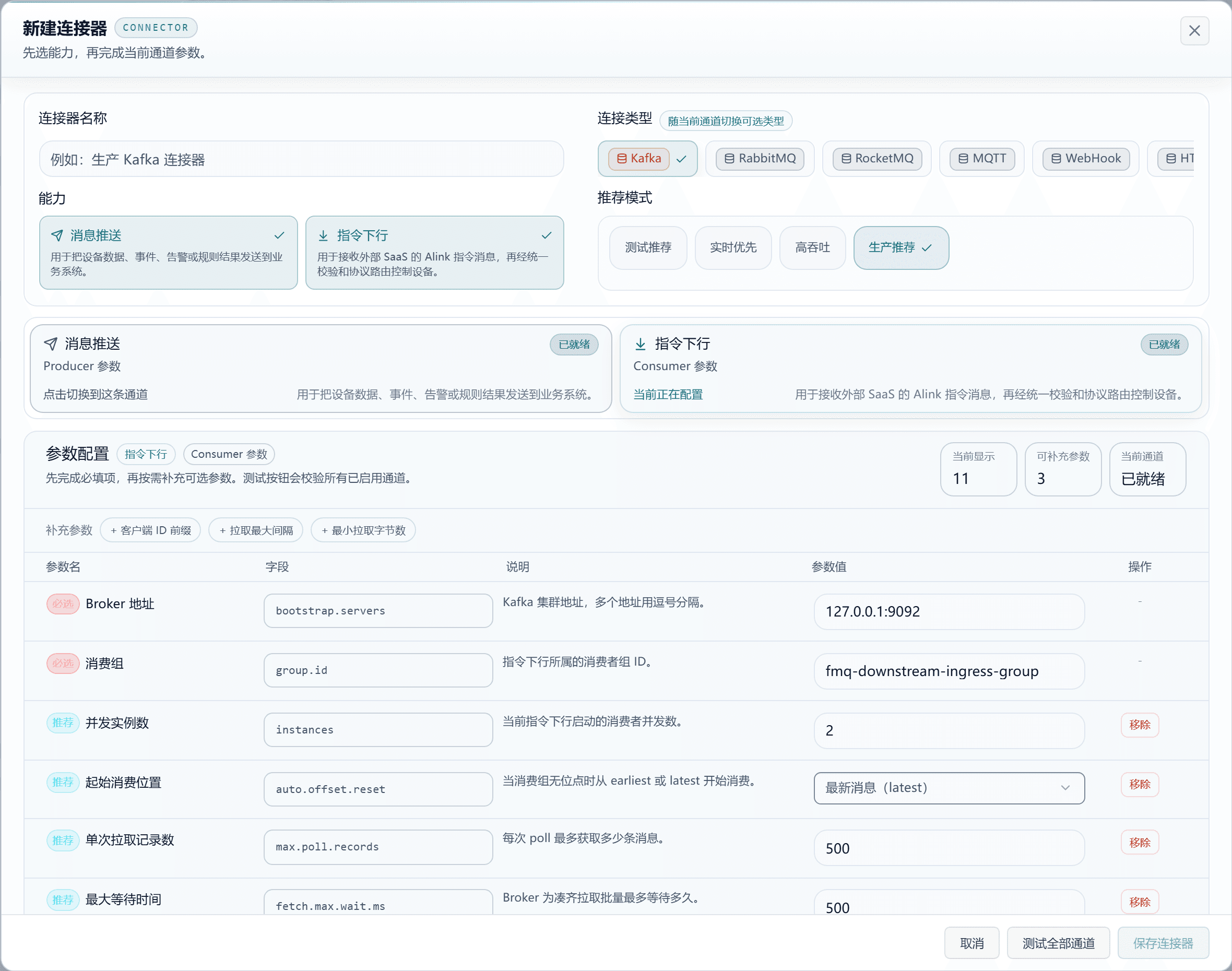
Figure: a page screenshot from a previous daytime-mode session, used for locating fields, not as proof of this configuration or connectivity success. For the remaining fields of the long form, scroll down on the page; the full explanation is in this section.
Command Downlink / RabbitMQ
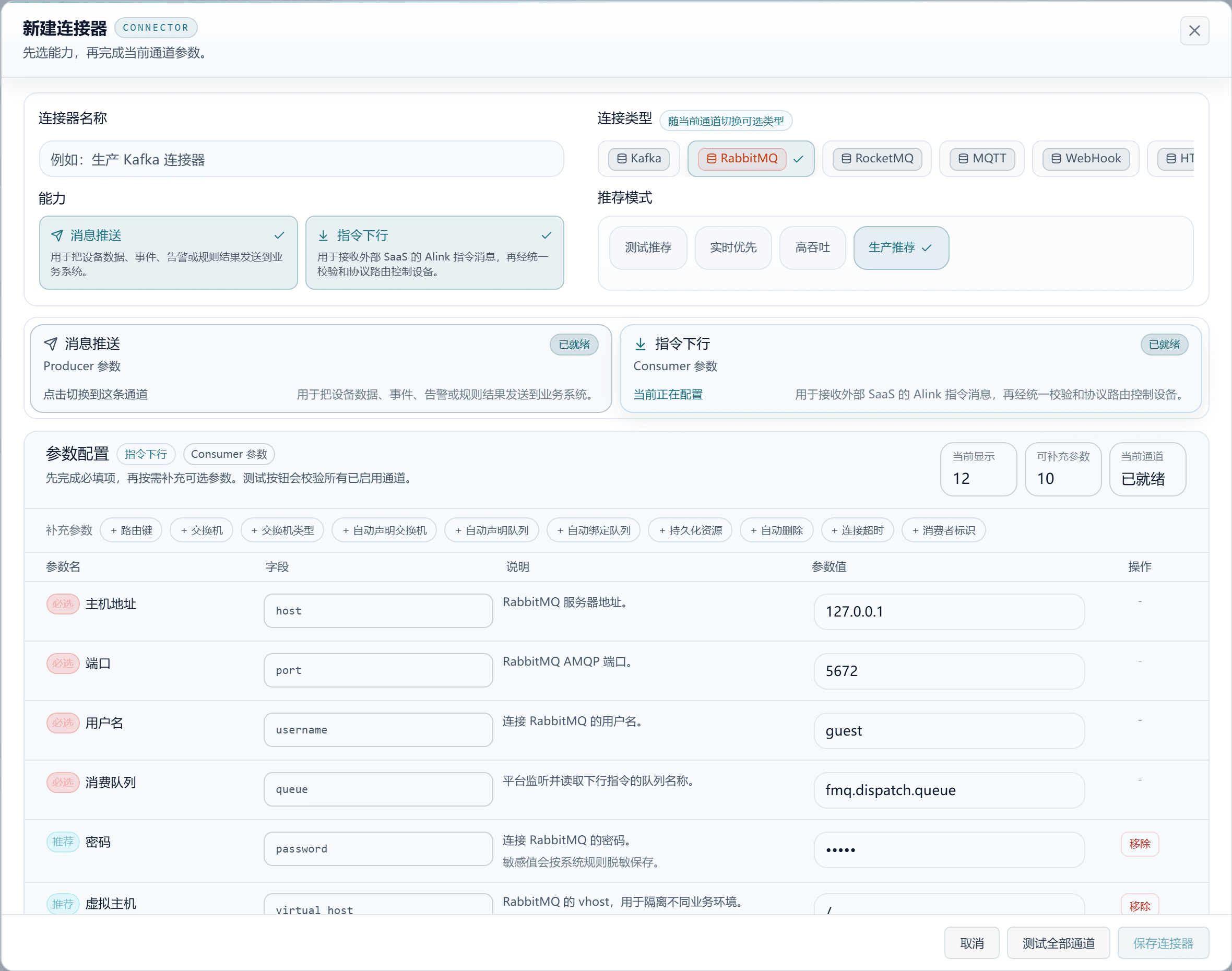
Figure: a page screenshot from a previous daytime-mode session, used for locating fields, not as proof of this configuration or connectivity success. For the remaining fields of the long form, scroll down on the page; the full explanation is in this section.
Command Downlink / RocketMQ
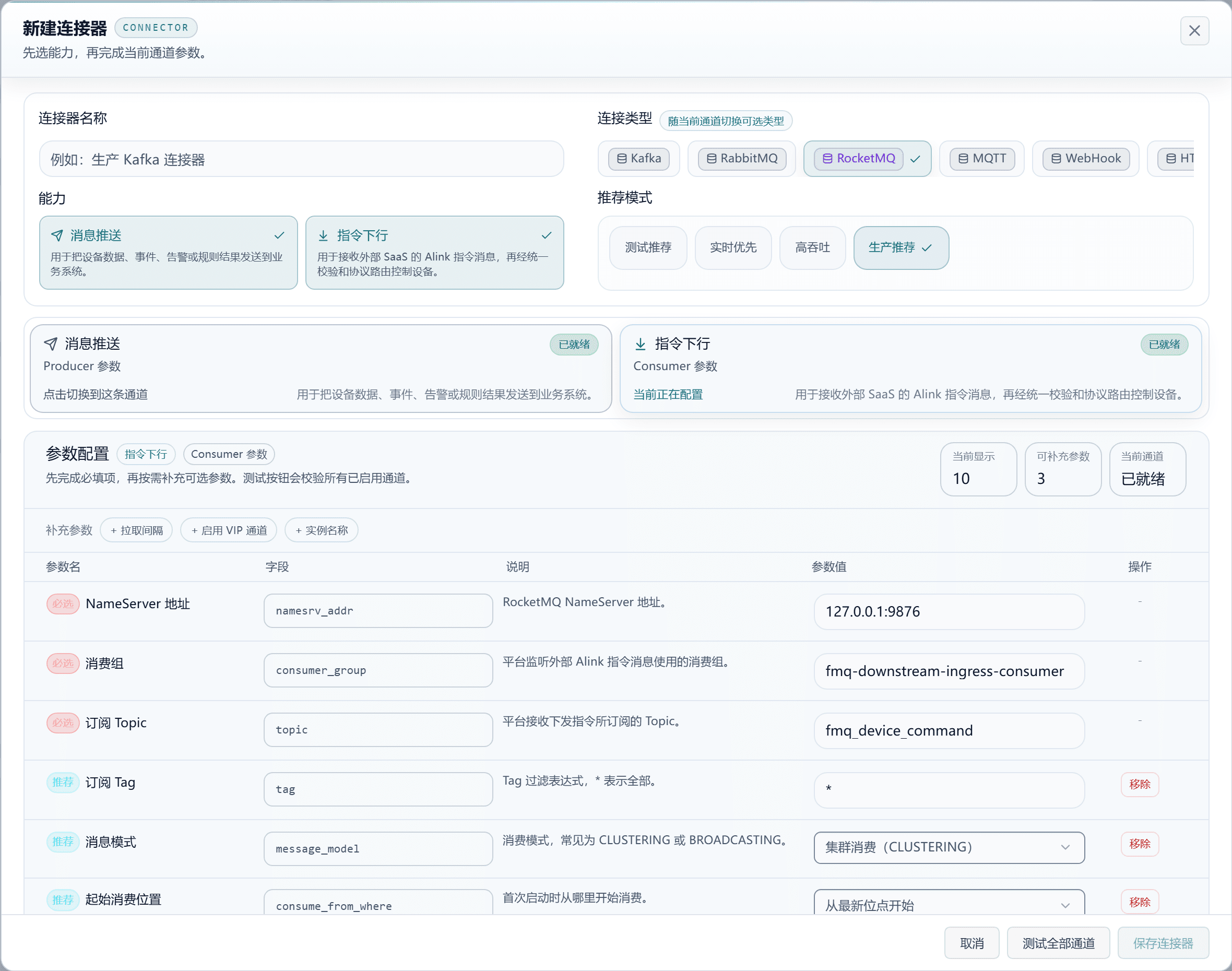
Figure: a page screenshot from a previous daytime-mode session, used for locating fields, not as proof of this configuration or connectivity success. For the remaining fields of the long form, scroll down on the page; the full explanation is in this section.
Command Downlink / MQTT
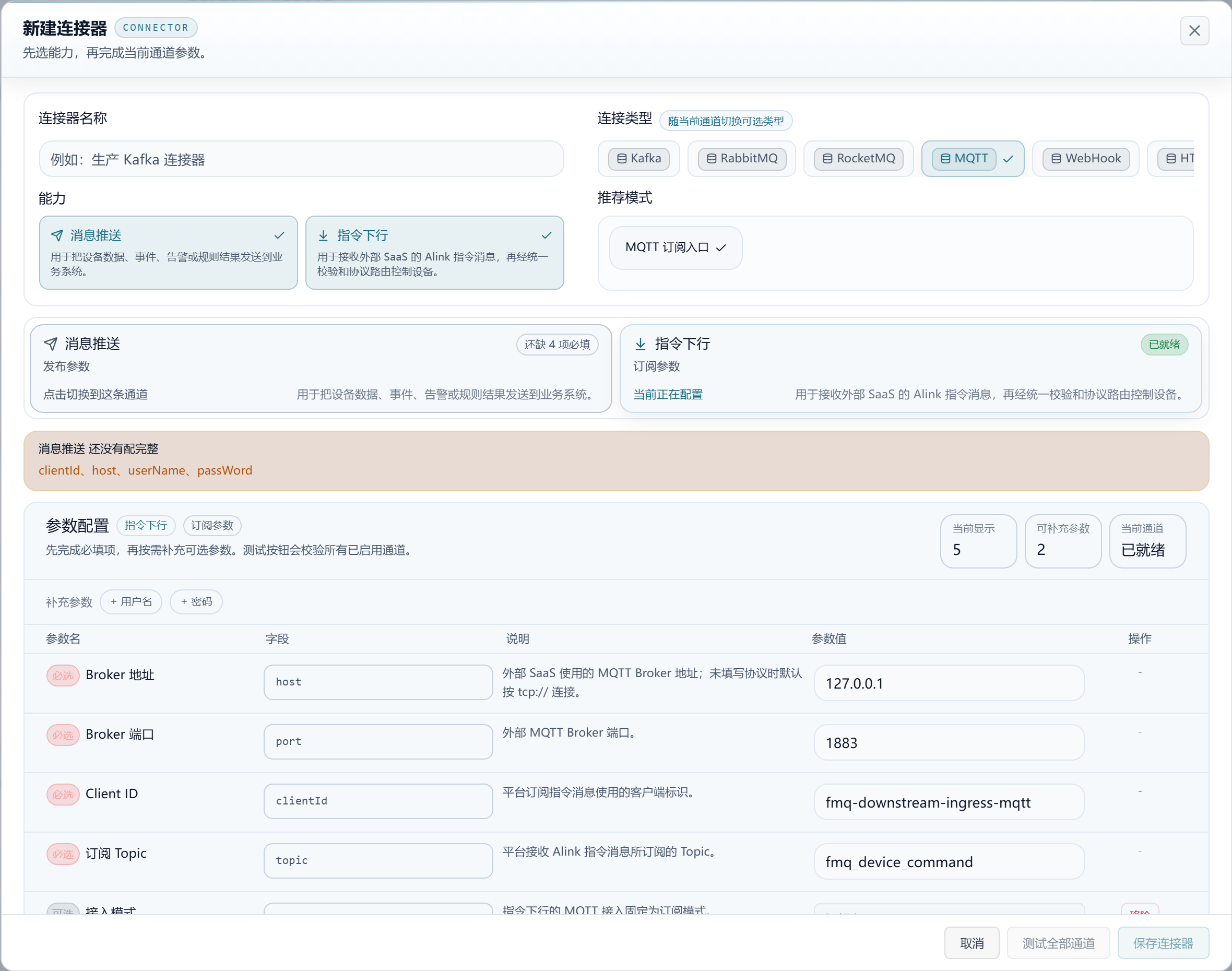
Figure: a page screenshot from a previous daytime-mode session, used for locating fields, not as proof of this configuration or connectivity success. For the remaining fields of the long form, scroll down on the page; the full explanation is in this section.
Command Downlink / WebHook
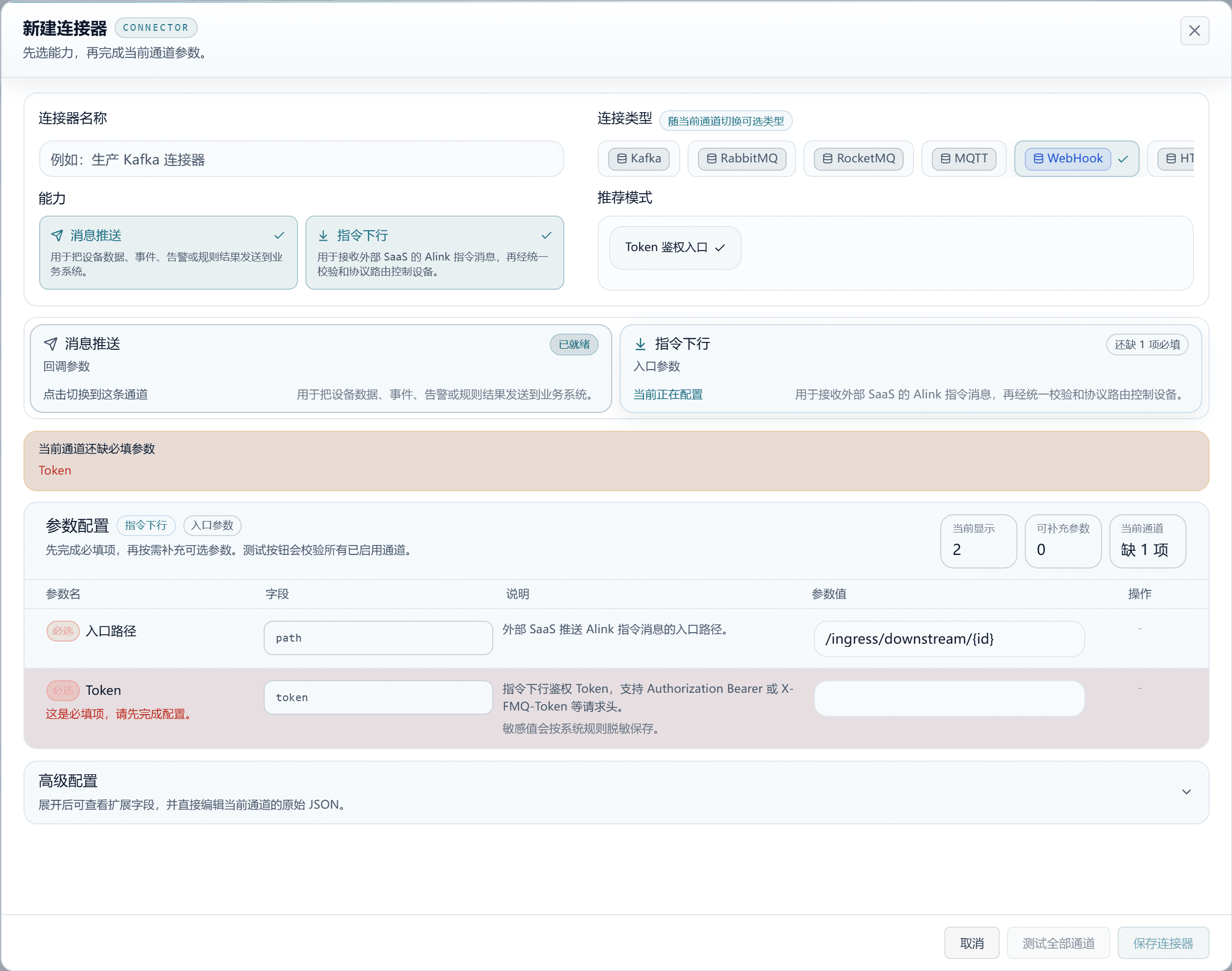
Figure: a page screenshot from a previous daytime-mode session, used for locating fields, not as proof of this configuration or connectivity success. For the remaining fields of the long form, scroll down on the page; the full explanation is in this section.
Command Downlink / HTTP
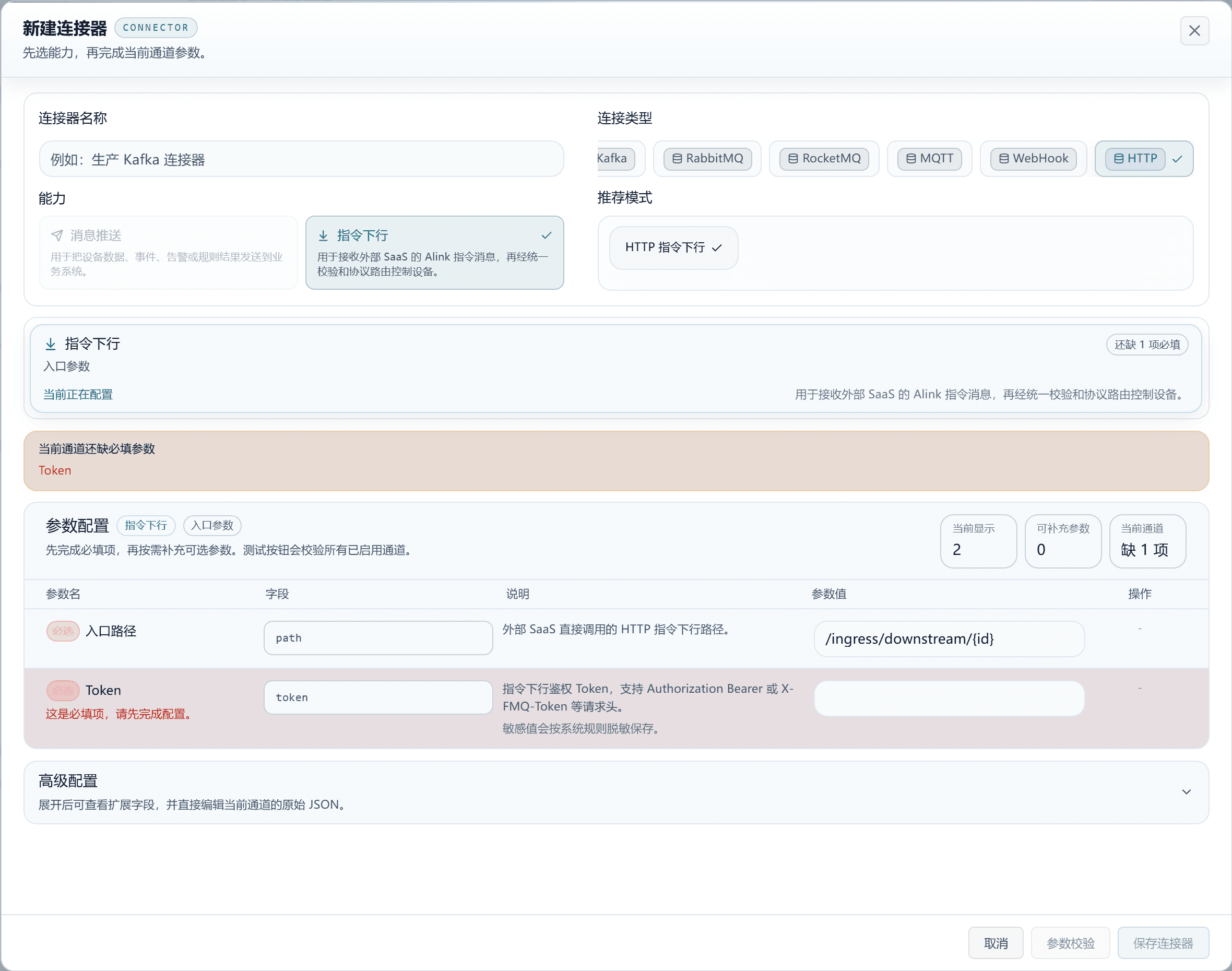
Figure: a page screenshot from a previous daytime-mode session, used for locating fields, not as proof of this configuration or connectivity success. For the remaining fields of the long form, scroll down on the page; the full explanation is in this section.
Command Downlink · Kafka
| Field | Purpose | Where the Value Comes From | How to Choose | Wrong-Input Symptom and Recovery | Effective Conditions |
|---|---|---|---|---|---|
| Recommended Mode | Selects a set of parameter presets for Command Downlink; fill in the real environment information after choosing; applies to the current connector, and task enablement and business results must be confirmed separately. | The recommended modes the platform provides for this type. | Test Recommended: suits local joint debugging, prioritizing shorter fetch wait time to quickly consume and verify messages.; Real-time First: prioritizes lowering the processing latency after commands reach the platform, suiting real-time control.; High Throughput: suits batch command or replay scenarios, raising the per-fetch count and concurrency.; Production Recommended: balances stability and throughput, suiting use as the default consumption configuration for production. Recommended: Production Recommended · Default: — · Example: —Test Recommended: suits local joint debugging, prioritizing shorter fetch wait time to quickly consume and verify messages; overwrites this channel's preset parameters, and the connection information must be re-verified afterwards. Real-time First: prioritizes lowering the processing latency after commands reach the platform, suiting real-time control; overwrites this channel's preset parameters, and the connection information must be re-verified afterwards. High Throughput: suits batch command or replay scenarios, raising the per-fetch count and concurrency; overwrites this channel's preset parameters, and the connection information must be re-verified afterwards. Production Recommended: balances stability and throughput, suiting use as the default consumption configuration for production; overwrites this channel's preset parameters, and the connection information must be re-verified afterwards. | Configuration changes may affect tasks that reference it; keep the original configuration, fix it, and retest. | Scope: the current connector and the tasks referencing it · Publish: not required · Restart: not required · Reconnect: not required |
| Required Broker Address | The Kafka cluster address; multiple addresses are separated by commas; this value is used by command downlink tasks; running tasks must reload the change. | External system deployment and the integration checklist; the client instance name is specified by the implementer per environment and purpose. | Ask the Kafka administrator for the host:port list reachable by clients, with multiple items separated by English commas. 127.0.0.1 refers to the server FMQ runs on, not the operator's computer; when it cannot connect, check the port and the address published by the cluster first. Recommended: fill in per the integration documents · Default: 127.0.0.1:9092 · Example: 127.0.0.1:9092 | Ask the Kafka administrator for the host:port list reachable by clients, with multiple items separated by English commas. 127.0.0.1 refers to the server FMQ runs on, not the operator's computer; when it cannot connect, check the port and the address published by the cluster first; correct it per the above source and conditions, re-validate, and then check the associated tasks. | Scope: the current connector and the tasks referencing it · Publish: not required · Restart: required · Reconnect: required |
| Required Consumer Group | The consumer group ID the command downlink belongs to; this value is used by command downlink tasks; running tasks must reload the change. | External system deployment and the integration checklist; the client instance name is specified by the implementer per environment and purpose. | Agree the consumer group with the Kafka administrator. The same group usually shares messages, while different groups each read a copy; reusing a production group may take commands away from other applications, so use an independent group for joint debugging. Recommended: fill in per the integration documents · Default: fmq-downstream-ingress-group · Example: fmq-downstream-ingress-group | Agree the consumer group with the Kafka administrator. The same group usually shares messages, while different groups each read a copy; reusing a production group may take commands away from other applications, so use an independent group for joint debugging; correct it per the above source and conditions, re-validate, and then check the associated tasks. | Scope: the current connector and the tasks referencing it · Publish: not required · Restart: required · Reconnect: required |
| Concurrent Instance Count | The number of consumer concurrency the current command downlink starts; this value is used by command downlink tasks; running tasks must reload the change. | Start from this type's recommended mode, then adjust per actual load, interface agreements, and runtime metrics. | It is the consumer concurrency, not the number of Broker nodes. Set it by the partition count and processing capacity; when it exceeds the assignable partitions, some instances sit idle; verify with low concurrency first. Recommended: 2 · Default: 1 · Example: 1 | It is the consumer concurrency, not the number of Broker nodes. Set it by the partition count and processing capacity; when it exceeds the assignable partitions, some instances sit idle; verify with low concurrency first; correct it per the above source and conditions, re-validate, and then check the associated tasks. | Scope: the current connector and the tasks referencing it · Publish: not required · Restart: required · Reconnect: required |
| Initial Consume Position | When the consumer group has no offset, consume from earliest or latest; this value is used by command downlink tasks; running tasks must reload the change. | Start from this type's recommended mode, then adjust per actual load, interface agreements, and runtime metrics. | Decides where to read from only when this consumer group has no valid offset; an existing offset is not replayed automatically by switching this option. latest avoids old commands; earliest is for an explicitly needed historical replay. Recommended: latest · Default: latest · Example: latestLatest messages (latest): with no valid offset, starts from new messages, reducing the risk of executing historical commands; after changing, treat this field as Latest messages (latest). Earliest messages (earliest): with no valid offset, starts from the earliest retained data, which may replay old commands; after changing, treat this field as Earliest messages (earliest). | Decides where to read from only when this consumer group has no valid offset; an existing offset is not replayed automatically by switching this option. latest avoids old commands; earliest is for an explicitly needed historical replay; correct it per the above source and conditions, re-validate, and then check the associated tasks. | Scope: the current connector and the tasks referencing it · Publish: not required · Restart: required · Reconnect: required |
| Records per Fetch | The maximum number of messages fetched per poll; this value is used by command downlink tasks; running tasks must reload the change. | Start from this type's recommended mode, then adjust per actual load, interface agreements, and runtime metrics. | The maximum number of messages fetched each time. After raising it, processing must finish within the maximum fetch interval; slow business should prefer smaller batches. Recommended: 500 · Default: 500 · Example: 500 | The maximum number of messages fetched each time. After raising it, processing must finish within the maximum fetch interval; slow business should prefer smaller batches; correct it per the above source and conditions, re-validate, and then check the associated tasks. | Scope: the current connector and the tasks referencing it · Publish: not required · Restart: required · Reconnect: required |
| Max Wait Time | How long the Broker waits at most to fill a fetch batch; this value is used by command downlink tasks; running tasks must reload the change. | Start from this type's recommended mode, then adjust per actual load, interface agreements, and runtime metrics. | In milliseconds; understand it together with the minimum fetch bytes. Real-time commands use a smaller wait; batch scenarios may increase it moderately. Recommended: 500 · Default: 500 · Example: 500 | In milliseconds; understand it together with the minimum fetch bytes. Real-time commands use a smaller wait; batch scenarios may increase it moderately; correct it per the above source and conditions, re-validate, and then check the associated tasks. | Scope: the current connector and the tasks referencing it · Publish: not required · Restart: required · Reconnect: required |
| Session Timeout | The time window within which the Broker judges a consumer lost; this value is used by command downlink tasks; running tasks must reload the change. | Start from this type's recommended mode, then adjust per actual load, interface agreements, and runtime metrics. | In milliseconds; must fall within the range the Broker allows. Too short may falsely judge the consumer offline and repeatedly reassign partitions; check runtime jitter first. Recommended: 45000 · Default: 45000 · Example: 45000 | In milliseconds; must fall within the range the Broker allows. Too short may falsely judge the consumer offline and repeatedly reassign partitions; check runtime jitter first; correct it per the above source and conditions, re-validate, and then check the associated tasks. | Scope: the current connector and the tasks referencing it · Publish: not required · Restart: required · Reconnect: required |
| Heartbeat Interval | The interval at which the consumer sends heartbeats to the Broker; this value is used by command downlink tasks; running tasks must reload the change. | Start from this type's recommended mode, then adjust per actual load, interface agreements, and runtime metrics. | In milliseconds; should be smaller than the session timeout with margin. Do not set the heartbeat interval longer than the lost-judgment time. Recommended: 15000 · Default: 15000 · Example: 15000 | In milliseconds; should be smaller than the session timeout with margin. Do not set the heartbeat interval longer than the lost-judgment time; correct it per the above source and conditions, re-validate, and then check the associated tasks. | Scope: the current connector and the tasks referencing it · Publish: not required · Restart: required · Reconnect: required |
| Request Timeout | The timeout of the consumer's requests to the Broker; this value is used by command downlink tasks; running tasks must reload the change. | Start from this type's recommended mode, then adjust per actual load, interface agreements, and runtime metrics. | In milliseconds; take the recommended value, then adjust per the network and Broker response. Too short falsely reports timeouts; too long delays fault discovery; troubleshoot slow requests first. Recommended: 30000 · Default: 30000 · Example: 30000 | In milliseconds; take the recommended value, then adjust per the network and Broker response. Too short falsely reports timeouts; too long delays fault discovery; troubleshoot slow requests first; correct it per the above source and conditions, re-validate, and then check the associated tasks. | Scope: the current connector and the tasks referencing it · Publish: not required · Restart: required · Reconnect: required |
| Required Key Deserializer | The deserialization class for message Keys, defaulting to Kafka's common StringDeserializer; this value is used by command downlink tasks; running tasks must reload the change. | Start from this type's recommended mode, then adjust per actual load, interface agreements, and runtime metrics. | The class name that converts Kafka Key bytes into a platform object; text usually keeps StringDeserializer. Mismatching the sender causes parsing failure. Recommended: org.apache.kafka.common.serialization.StringDeserializer · Default: org.apache.kafka.common.serialization.StringDeserializer · Example: org.apache.kafka.common.serialization.StringDeserializer | The class name that converts Kafka Key bytes into a platform object; text usually keeps StringDeserializer. Mismatching the sender causes parsing failure; correct it per the above source and conditions, re-validate, and then check the associated tasks. | Scope: the current connector and the tasks referencing it · Publish: not required · Restart: required · Reconnect: required |
| Required Value Deserializer | The deserialization class for message Values, defaulting to Kafka's common StringDeserializer; this value is used by command downlink tasks; running tasks must reload the change. | Start from this type's recommended mode, then adjust per actual load, interface agreements, and runtime metrics. | The class name that converts the Kafka body back into text; JSON text usually keeps StringDeserializer; it only decodes and does not replace Alink command validation. Recommended: org.apache.kafka.common.serialization.StringDeserializer · Default: org.apache.kafka.common.serialization.StringDeserializer · Example: org.apache.kafka.common.serialization.StringDeserializer | The class name that converts the Kafka body back into text; JSON text usually keeps StringDeserializer; it only decodes and does not replace Alink command validation; correct it per the above source and conditions, re-validate, and then check the associated tasks. | Scope: the current connector and the tasks referencing it · Publish: not required · Restart: required · Reconnect: required |
Command Downlink · Kafka
| Field | Purpose | Where the Value Comes From | How to Choose | Wrong-Input Symptom and Recovery | Effective Conditions |
|---|---|---|---|---|---|
| Client ID Prefix | Used to generate the consumer client.id prefix; the runtime automatically appends a unique suffix; this value is used by command downlink tasks; running tasks must reload the change. | External system deployment and the integration checklist; the client instance name is specified by the implementer per environment and purpose. | Used to identify this connection in the Broker logs; it is not a device ID and does not decide where messages go. Named by the implementer per purpose; do not use it in place of a consumer group. Recommended: fill in per the integration documents · Default: fmq-downstream-ingress-consumer · Example: fmq-downstream-ingress-consumer | Used to identify this connection in the Broker logs; it is not a device ID and does not decide where messages go. Named by the implementer per purpose; do not use it in place of a consumer group; correct it per the above source and conditions, re-validate, and then check the associated tasks. | Scope: the current connector and the tasks referencing it · Publish: not required · Restart: required · Reconnect: required |
| Max Fetch Interval | The longest interval allowed between two polls; this value is used by command downlink tasks; running tasks must reload the change. | Start from this type's recommended mode, then adjust per actual load, interface agreements, and runtime metrics. | In milliseconds; must cover the time of one batch processing. Exceeding the limit may cause partition reassignment; prefer optimizing slow processing or reducing the batch. Recommended: 300000 · Default: 300000 · Example: 300000 | In milliseconds; must cover the time of one batch processing. Exceeding the limit may cause partition reassignment; prefer optimizing slow processing or reducing the batch; correct it per the above source and conditions, re-validate, and then check the associated tasks. | Scope: the current connector and the tasks referencing it · Publish: not required · Restart: required · Reconnect: required |
| Min Fetch Bytes | How many bytes the Broker accumulates at least before returning messages; this value is used by command downlink tasks; running tasks must reload the change. | Start from this type's recommended mode, then adjust per actual load, interface agreements, and runtime metrics. | In bytes; raising it reduces small-batch requests but may make low-traffic commands wait. Real-time scenarios use Real-time First. Recommended: 1 · Default: 1 · Example: 1 | In bytes; raising it reduces small-batch requests but may make low-traffic commands wait. Real-time scenarios use Real-time First; correct it per the above source and conditions, re-validate, and then check the associated tasks. | Scope: the current connector and the tasks referencing it · Publish: not required · Restart: required · Reconnect: required |
Command Downlink · RabbitMQ
| Field | Purpose | Where the Value Comes From | How to Choose | Wrong-Input Symptom and Recovery | Effective Conditions |
|---|---|---|---|---|---|
| Recommended Mode | Selects a set of parameter presets for Command Downlink; fill in the real environment information after choosing; applies to the current connector, and task enablement and business results must be confirmed separately. | The recommended modes the platform provides for this type. | Test Recommended: suits joint debugging environments, making it easy to quickly verify the consumption chain and ACK behavior.; Real-time First: lowers the per-batch buffer, shortening a single command's wait time.; High Throughput: suits high-frequency lightweight command consumption, raising the prefetch window and batch processing capacity.; Production Recommended: balances recovery capability, manual acknowledgment, and failure requeue, suiting use as the production default. Recommended: Production Recommended · Default: — · Example: —Test Recommended: suits joint debugging environments, making it easy to quickly verify the consumption chain and ACK behavior; overwrites this channel's preset parameters, and the connection information must be re-verified afterwards. Real-time First: lowers the per-batch buffer, shortening a single command's wait time; overwrites this channel's preset parameters, and the connection information must be re-verified afterwards. High Throughput: suits high-frequency lightweight command consumption, raising the prefetch window and batch processing capacity; overwrites this channel's preset parameters, and the connection information must be re-verified afterwards. Production Recommended: balances recovery capability, manual acknowledgment, and failure requeue, suiting use as the production default; overwrites this channel's preset parameters, and the connection information must be re-verified afterwards. | Configuration changes may affect tasks that reference it; keep the original configuration, fix it, and retest. | Scope: the current connector and the tasks referencing it · Publish: not required · Restart: not required · Reconnect: not required |
| Required Host Address | The RabbitMQ server address; this value is used by command downlink tasks; running tasks must reload the change. | External system deployment and the integration checklist; the client instance name is specified by the implementer per environment and purpose. | Take the address from the integration partner's deployment checklist; it must be reachable from the FMQ server. The local address in the screenshot is only an example; do not mistake the address of the computer running the browser for the server address. Recommended: fill in per the integration documents · Default: 127.0.0.1 · Example: 127.0.0.1 | Take the address from the integration partner's deployment checklist; it must be reachable from the FMQ server. The local address in the screenshot is only an example; do not mistake the address of the computer running the browser for the server address; correct it per the above source and conditions, re-validate, and then check the associated tasks. | Scope: the current connector and the tasks referencing it · Publish: not required · Restart: required · Reconnect: required |
| Required Port | The RabbitMQ AMQP port; this value is used by command downlink tasks; running tasks must reload the change. | External system deployment and the integration checklist; the client instance name is specified by the implementer per environment and purpose. | Obtain the AMQP data port from the administrator, commonly 5672; the 15672 commonly used by the management UI must not be filled in here. Subject to the actual deployment; when the connection is refused, verify the port and firewall first. Recommended: fill in per the integration documents · Default: 5672 · Example: 5672 | Obtain the AMQP data port from the administrator, commonly 5672; the 15672 commonly used by the management UI must not be filled in here. Subject to the actual deployment; when the connection is refused, verify the port and firewall first; correct it per the above source and conditions, re-validate, and then check the associated tasks. | Scope: the current connector and the tasks referencing it · Publish: not required · Restart: required · Reconnect: required |
| Required Username | The username for connecting to RabbitMQ; this value is used by command downlink tasks; running tasks must reload the change. | External system deployment and the integration checklist; the client instance name is specified by the implementer per environment and purpose. | Obtain a dedicated business account from the RabbitMQ administrator and confirm the corresponding vhost permissions. Do not directly reuse the example guest; remote login or insufficient permissions will fail. Recommended: fill in per the integration documents · Default: guest · Example: guest | Obtain a dedicated business account from the RabbitMQ administrator and confirm the corresponding vhost permissions. Do not directly reuse the example guest; remote login or insufficient permissions will fail; correct it per the above source and conditions, re-validate, and then check the associated tasks. | Scope: the current connector and the tasks referencing it · Publish: not required · Restart: required · Reconnect: required |
| Required Consume Queue | The queue name the platform listens to and reads downlink commands from; this value is used by command downlink tasks; running tasks must reload the change. | External system deployment and the integration checklist; the client instance name is specified by the implementer per environment and purpose. | Obtain from the RabbitMQ management console the consume queue the external system actually delivers to. It is not an exchange; multiple consumers on the same queue share the messages, so use an independent queue for joint debugging to avoid taking over production commands. Recommended: fill in per the integration documents · Default: fmq.dispatch.queue · Example: fmq.dispatch.queue | Obtain from the RabbitMQ management console the consume queue the external system actually delivers to. It is not an exchange; multiple consumers on the same queue share the messages, so use an independent queue for joint debugging to avoid taking over production commands; correct it per the above source and conditions, re-validate, and then check the associated tasks. | Scope: the current connector and the tasks referencing it · Publish: not required · Restart: required · Reconnect: required |
| Password | The password for connecting to RabbitMQ; this value is used by command downlink tasks; running tasks must reload the change. | Provided by the integration administrator through controlled channels; the actual value does not enter the manual or logs. | Matches the current username, provided by the administrator through controlled channels. The form marking it as recommended does not mean the Broker allows an empty password; when saving or reusing, do not treat the mask as a new password. Recommended: fill in per the integration documents · Default: sensitive value not shown · Example: filled in through controlled channels | Matches the current username, provided by the administrator through controlled channels. The form marking it as recommended does not mean the Broker allows an empty password; when saving or reusing, do not treat the mask as a new password; correct it per the above source and conditions, re-validate, and then check the associated tasks. | Scope: the current connector and the tasks referencing it · Publish: not required · Restart: required · Reconnect: required |
| Virtual Host | The RabbitMQ vhost, used to isolate different business environments; this value is used by command downlink tasks; running tasks must reload the change. | External system deployment and the integration checklist; the client instance name is specified by the implementer per environment and purpose. | Check this business's vhost in the RabbitMQ management console; it is like an independent workspace inside the same Broker. When the two ends use the wrong vhost, even an identically named queue is not the same channel; the account must also have permission on that vhost. Recommended: fill in per the integration documents · Default: / · Example: / | Check this business's vhost in the RabbitMQ management console; it is like an independent workspace inside the same Broker. When the two ends use the wrong vhost, even an identically named queue is not the same channel; the account must also have permission on that vhost; correct it per the above source and conditions, re-validate, and then check the associated tasks. | Scope: the current connector and the tasks referencing it · Publish: not required · Restart: required · Reconnect: required |
| Prefetch Count | The maximum number of messages a single consumer prefetches before acknowledgment; this value is used by command downlink tasks; running tasks must reload the change. | Start from this type's recommended mode, then adjust per actual load, interface agreements, and runtime metrics. | The maximum count prefetched before acknowledgment. Decrease it for slow devices or strict one-by-one processing; increase it gradually only for high throughput; too large easily piles up in consumer memory. Recommended: 32 · Default: 32 · Example: 32 | The maximum count prefetched before acknowledgment. Decrease it for slow devices or strict one-by-one processing; increase it gradually only for high throughput; too large easily piles up in consumer memory; correct it per the above source and conditions, re-validate, and then check the associated tasks. | Scope: the current connector and the tasks referencing it · Publish: not required · Restart: required · Reconnect: required |
| Auto Acknowledgment | Whether to ack immediately upon receiving a message; this value is used by command downlink tasks; running tasks must reload the change. | Start from this type's recommended mode, then adjust per actual load, interface agreements, and runtime metrics. | When enabled, messages are acknowledged on receipt, and later processing failures may not be retried; production usually turns it off. Manual acknowledgment does not automatically mean the device executed successfully either; the device result is still needed. Recommended: Off (false) · Default: Off (false) · Example: Off (false) | When enabled, messages are acknowledged on receipt, and later processing failures may not be retried; production usually turns it off. Manual acknowledgment does not automatically mean the device executed successfully either; the device result is still needed; correct it per the above source and conditions, re-validate, and then check the associated tasks. | Scope: the current connector and the tasks referencing it · Publish: not required · Restart: required · Reconnect: required |
| Requeue on Failure | Whether a message that failed processing is requeued for another consumption; this value is used by command downlink tasks; running tasks must reload the change. | Start from this type's recommended mode, then adjust per actual load, interface agreements, and runtime metrics. | When enabled, failed messages are requeued, which requires idempotence. A persistently failing bad message may loop repeatedly; troubleshoot the message and business errors first instead of letting it retry forever. Recommended: On (true) · Default: On (true) · Example: On (true) | When enabled, failed messages are requeued, which requires idempotence. A persistently failing bad message may loop repeatedly; troubleshoot the message and business errors first instead of letting it retry forever; correct it per the above source and conditions, re-validate, and then check the associated tasks. | Scope: the current connector and the tasks referencing it · Publish: not required · Restart: required · Reconnect: required |
| Heartbeat Interval | The heartbeat interval negotiated with the Broker, in seconds; this value is used by command downlink tasks; running tasks must reload the change. | Start from this type's recommended mode, then adjust per actual load, interface agreements, and runtime metrics. | In seconds; used to detect whether the connection is still alive. Keep the recommended value first; with frequent disconnections, check the network and Broker load instead of blindly turning off heartbeats. Recommended: 30 · Default: 30 · Example: 30 | In seconds; used to detect whether the connection is still alive. Keep the recommended value first; with frequent disconnections, check the network and Broker load instead of blindly turning off heartbeats; correct it per the above source and conditions, re-validate, and then check the associated tasks. | Scope: the current connector and the tasks referencing it · Publish: not required · Restart: required · Reconnect: required |
| Automatic Recovery | Whether to automatically recover after an abnormal connection drop; this value is used by command downlink tasks; running tasks must reload the change. | Start from this type's recommended mode, then adjust per actual load, interface agreements, and runtime metrics. | When enabled, tries to recover the connection after a network anomaly. Usually kept on, but wrong credentials and deleted resources still need manual fixing; automatic recovery is not a promise of no data loss. Recommended: On (true) · Default: On (true) · Example: On (true) | When enabled, tries to recover the connection after a network anomaly. Usually kept on, but wrong credentials and deleted resources still need manual fixing; automatic recovery is not a promise of no data loss; correct it per the above source and conditions, re-validate, and then check the associated tasks. | Scope: the current connector and the tasks referencing it · Publish: not required · Restart: required · Reconnect: required |
Command Downlink · RabbitMQ
| Field | Purpose | Where the Value Comes From | How to Choose | Wrong-Input Symptom and Recovery | Effective Conditions |
|---|---|---|---|---|---|
| Routing Key | The routing key the queue is bound with; this value is used by command downlink tasks; running tasks must reload the change. | External system deployment and the integration checklist; the client instance name is specified by the implementer per environment and purpose. | Consistent with the external publisher and the exchange binding rule; for example device.command by agreement. With a spelling or type matching error, the connection is normal but the queue may still receive no messages. Recommended: fill in per the integration documents · Default: device.command · Example: device.command | Consistent with the external publisher and the exchange binding rule; for example device.command by agreement. With a spelling or type matching error, the connection is normal but the queue may still receive no messages; correct it per the above source and conditions, re-validate, and then check the associated tasks. | Scope: the current connector and the tasks referencing it · Publish: not required · Restart: required · Reconnect: required |
| Exchange | The exchange name associated with the consumption chain; this value is used by command downlink tasks; running tasks must reload the change. | External system deployment and the integration checklist; the client instance name is specified by the implementer per environment and purpose. | Confirm the exchange name and type with the MQ administrator. An exchange forwards messages and a queue stores them; having an exchange does not guarantee the target queue is bound. Recommended: fill in per the integration documents · Default: fmq.dispatch.exchange · Example: fmq.dispatch.exchange | Confirm the exchange name and type with the MQ administrator. An exchange forwards messages and a queue stores them; having an exchange does not guarantee the target queue is bound; correct it per the above source and conditions, re-validate, and then check the associated tasks. | Scope: the current connector and the tasks referencing it · Publish: not required · Restart: required · Reconnect: required |
| Exchange Type | The exchange type, commonly direct, topic, fanout, headers; this value is used by command downlink tasks; running tasks must reload the change. | Start from this type's recommended mode, then adjust per actual load, interface agreements, and runtime metrics. | Must match the existing exchange. direct matches by the complete routing key, topic matches by topic pattern, fanout broadcasts to bound queues, headers matches by header attributes. Choosing the wrong type for an existing resource makes declaration fail. Recommended: topic · Default: topic · Example: topicTopic: matches routing keys by topic pattern; after changing, treat this field as Topic. Direct: complete routing key matching; after changing, treat this field as Direct. Fanout: delivers to all bound queues without filtering by routing key; after changing, treat this field as Fanout. Headers: matches by message headers; header attributes and binding parameters must be agreed separately; after changing, treat this field as Headers. | Must match the existing exchange. direct matches by the complete routing key, topic matches by topic pattern, fanout broadcasts to bound queues, headers matches by header attributes. Choosing the wrong type for an existing resource makes declaration fail; correct it per the above source and conditions, re-validate, and then check the associated tasks. | Scope: the current connector and the tasks referencing it · Publish: not required · Restart: required · Reconnect: required |
| Auto-declare Exchange | Whether to automatically declare the exchange used for consumption; this value is used by command downlink tasks; running tasks must reload the change. | Start from this type's recommended mode, then adjust per actual load, interface agreements, and runtime metrics. | When enabled, declaring the exchange during validation or at runtime is allowed, which requires create permission; when off, the exchange must already exist. Confirm with the administrator before reusing production resources; do not change an existing resource's type on your own. Recommended: On (true) · Default: On (true) · Example: On (true) | When enabled, declaring the exchange during validation or at runtime is allowed, which requires create permission; when off, the exchange must already exist. Confirm with the administrator before reusing production resources; do not change an existing resource's type on your own; correct it per the above source and conditions, re-validate, and then check the associated tasks. | Scope: the current connector and the tasks referencing it · Publish: not required · Restart: required · Reconnect: required |
| Auto-declare Queue | Whether to automatically declare the queue the platform consumes from; this value is used by command downlink tasks; running tasks must reload the change. | Start from this type's recommended mode, then adjust per actual load, interface agreements, and runtime metrics. | When enabled, creating the queue is allowed, which requires resource permission; when off, the queue must exist beforehand. When an existing queue's attributes do not match, ask the administrator to verify; do not delete the queue to clear the error. Recommended: On (true) · Default: On (true) · Example: On (true) | When enabled, creating the queue is allowed, which requires resource permission; when off, the queue must exist beforehand. When an existing queue's attributes do not match, ask the administrator to verify; do not delete the queue to clear the error; correct it per the above source and conditions, re-validate, and then check the associated tasks. | Scope: the current connector and the tasks referencing it · Publish: not required · Restart: required · Reconnect: required |
| Auto-bind Queue | When an exchange exists, whether to automatically bind the queue to the exchange by routing key; this value is used by command downlink tasks; running tasks must reload the change. | Start from this type's recommended mode, then adjust per actual load, interface agreements, and runtime metrics. | When enabled, binds the consume queue by exchange and routing key, which requires bind permission. It can be turned off when the administrator maintains the binding, but confirm the relationship already exists first. Recommended: On (true) · Default: On (true) · Example: On (true) | When enabled, binds the consume queue by exchange and routing key, which requires bind permission. It can be turned off when the administrator maintains the binding, but confirm the relationship already exists first; correct it per the above source and conditions, re-validate, and then check the associated tasks. | Scope: the current connector and the tasks referencing it · Publish: not required · Restart: required · Reconnect: required |
| Durable Resources | Whether the queue or exchange is durable; this value is used by command downlink tasks; running tasks must reload the change. | Start from this type's recommended mode, then adjust per actual load, interface agreements, and runtime metrics. | What is persisted is the resource definition of the exchange or queue, not proof that every message is reliably stored. Must match the existing resource's attributes; when inconsistent, verify first — never delete a business queue to rebuild it. Recommended: On (true) · Default: On (true) · Example: On (true) | What is persisted is the resource definition of the exchange or queue, not proof that every message is reliably stored. Must match the existing resource's attributes; when inconsistent, verify first — never delete a business queue to rebuild it; correct it per the above source and conditions, re-validate, and then check the associated tasks. | Scope: the current connector and the tasks referencing it · Publish: not required · Restart: required · Reconnect: required |
| Auto Delete | Whether the resource is automatically deleted when it has no consumers; this value is used by command downlink tasks; running tasks must reload the change. | Start from this type's recommended mode, then adjust per actual load, interface agreements, and runtime metrics. | Long-lived production channels usually turn it off. When enabled, the resource disappears once the Broker's auto-delete condition is met; consider it only for temporary joint debugging, never for business queues that must be kept long-term. Recommended: Off (false) · Default: Off (false) · Example: Off (false) | Long-lived production channels usually turn it off. When enabled, the resource disappears once the Broker's auto-delete condition is met; consider it only for temporary joint debugging, never for business queues that must be kept long-term; correct it per the above source and conditions, re-validate, and then check the associated tasks. | Scope: the current connector and the tasks referencing it · Publish: not required · Restart: required · Reconnect: required |
| Connection Timeout | The timeout for establishing a connection; this value is used by command downlink tasks; running tasks must reload the change. | Start from this type's recommended mode, then adjust per actual load, interface agreements, and runtime metrics. | In milliseconds; the upper limit of connection waiting. On failure, check the address, port, firewall, and permissions first; consider adjusting the duration only after the network works. Recommended: 15000 · Default: 15000 · Example: 15000 | In milliseconds; the upper limit of connection waiting. On failure, check the address, port, firewall, and permissions first; consider adjusting the duration only after the network works; correct it per the above source and conditions, re-validate, and then check the associated tasks. | Scope: the current connector and the tasks referencing it · Publish: not required · Restart: required · Reconnect: required |
| Reconnect Interval | When automatic recovery is enabled, the interval between two network reconnections; this value is used by command downlink tasks; running tasks must reload the change. | Start from this type's recommended mode, then adjust per actual load, interface agreements, and runtime metrics. | In milliseconds; meaningful only when automatic recovery is enabled. Too short keeps hammering a faulty Broker; too long delays recovery; use Production Recommended first. Recommended: 5000 · Default: 5000 · Example: 5000 | In milliseconds; meaningful only when automatic recovery is enabled. Too short keeps hammering a faulty Broker; too long delays recovery; use Production Recommended first; correct it per the above source and conditions, re-validate, and then check the associated tasks. | Scope: the current connector and the tasks referencing it · Publish: not required · Restart: required · Reconnect: required |
| Consumer Identifier | The display name of the consumer side, making locating easier; this value is used by command downlink tasks; running tasks must reload the change. | External system deployment and the integration checklist; the client instance name is specified by the implementer per environment and purpose. | This is the consumer name shown in RabbitMQ, named by the implementer per purpose and used for troubleshooting; it is not a queue name or device ID. Recommended: fill in per the integration documents · Default: fmq-downstream-ingress-consumer · Example: fmq-downstream-ingress-consumer | This is the consumer name shown in RabbitMQ, named by the implementer per purpose and used for troubleshooting; it is not a queue name or device ID; correct it per the above source and conditions, re-validate, and then check the associated tasks. | Scope: the current connector and the tasks referencing it · Publish: not required · Restart: required · Reconnect: required |
Command Downlink · RocketMQ
| Field | Purpose | Where the Value Comes From | How to Choose | Wrong-Input Symptom and Recovery | Effective Conditions |
|---|---|---|---|---|---|
| Recommended Mode | Selects a set of parameter presets for Command Downlink; fill in the real environment information after choosing; applies to the current connector, and task enablement and business results must be confirmed separately. | The recommended modes the platform provides for this type. | Test Recommended: suits joint debugging environments, keeping a lightweight thread count and basic batch fetching.; Real-time First: prioritizes lowering command consumption latency, reducing the per-batch processing scale.; High Throughput: suits batch commands or historical replay, raising the fetch batch and thread pool scale.; Production Recommended: balances stability and consumption efficiency, suiting use as the production default. Recommended: Production Recommended · Default: — · Example: —Test Recommended: suits joint debugging environments, keeping a lightweight thread count and basic batch fetching; overwrites this channel's preset parameters, and the connection information must be re-verified afterwards. Real-time First: prioritizes lowering command consumption latency, reducing the per-batch processing scale; overwrites this channel's preset parameters, and the connection information must be re-verified afterwards. High Throughput: suits batch commands or historical replay, raising the fetch batch and thread pool scale; overwrites this channel's preset parameters, and the connection information must be re-verified afterwards. Production Recommended: balances stability and consumption efficiency, suiting use as the production default; overwrites this channel's preset parameters, and the connection information must be re-verified afterwards. | Configuration changes may affect tasks that reference it; keep the original configuration, fix it, and retest. | Scope: the current connector and the tasks referencing it · Publish: not required · Restart: not required · Reconnect: not required |
| Required NameServer Address | The RocketMQ NameServer address; this value is used by command downlink tasks; running tasks must reload the change. | External system deployment and the integration checklist; the client instance name is specified by the implementer per environment and purpose. | Ask the RocketMQ administrator for the NameServer address; the multi-address format follows the page hint. It is not a Broker address; when routes cannot be fetched, check the address and network first. Recommended: fill in per the integration documents · Default: 127.0.0.1:9876 · Example: 127.0.0.1:9876 | Ask the RocketMQ administrator for the NameServer address; the multi-address format follows the page hint. It is not a Broker address; when routes cannot be fetched, check the address and network first; correct it per the above source and conditions, re-validate, and then check the associated tasks. | Scope: the current connector and the tasks referencing it · Publish: not required · Restart: required · Reconnect: required |
| Required Consumer Group | The consumer group the platform uses to listen to external Alink command messages; this value is used by command downlink tasks; running tasks must reload the change. | External system deployment and the integration checklist; the client instance name is specified by the implementer per environment and purpose. | Agree an independent consumer group with the RocketMQ administrator. Testing starts a consumer, so do not directly reuse a group and Topic that have pending production commands. Recommended: fill in per the integration documents · Default: fmq-downstream-ingress-consumer · Example: fmq-downstream-ingress-consumer | Agree an independent consumer group with the RocketMQ administrator. Testing starts a consumer, so do not directly reuse a group and Topic that have pending production commands; correct it per the above source and conditions, re-validate, and then check the associated tasks. | Scope: the current connector and the tasks referencing it · Publish: not required · Restart: required · Reconnect: required |
| Required Subscription Topic | The Topic the platform subscribes to for delivered commands; this value is used by command downlink tasks; running tasks must reload the change. | External system deployment and the integration checklist; the client instance name is specified by the implementer per environment and purpose. | The subscription topic is confirmed by the external sender and the middleware administrator. It must match where the external side actually publishes; receiving a topic message still requires validation of the Alink content and the device target. Recommended: fill in per the integration documents · Default: fmq_device_command · Example: fmq_device_command | The subscription topic is confirmed by the external sender and the middleware administrator. It must match where the external side actually publishes; receiving a topic message still requires validation of the Alink content and the device target; correct it per the above source and conditions, re-validate, and then check the associated tasks. | Scope: the current connector and the tasks referencing it · Publish: not required · Restart: required · Reconnect: required |
| Subscription Tag | The Tag filter expression; * means all; this value is used by command downlink tasks; running tasks must reload the change. | External system deployment and the integration checklist; the client instance name is specified by the implementer per environment and purpose. | Used to filter messages inside the RocketMQ Topic; an asterisk means all. Limit the command category per agreement; a mistake causes the situation where messages exist but nothing is received. Recommended: fill in per the integration documents · Default: * · Example: * | Used to filter messages inside the RocketMQ Topic; an asterisk means all. Limit the command category per agreement; a mistake causes the situation where messages exist but nothing is received; correct it per the above source and conditions, re-validate, and then check the associated tasks. | Scope: the current connector and the tasks referencing it · Publish: not required · Restart: required · Reconnect: required |
| Message Mode | The consumption mode, commonly CLUSTERING or BROADCASTING; this value is used by command downlink tasks; running tasks must reload the change. | Start from this type's recommended mode, then adjust per actual load, interface agreements, and runtime metrics. | CLUSTERING shares processing within the same group; BROADCASTING makes every consumer process a copy. Control commands usually avoid broadcasting, unless multi-instance processing is explicitly needed and deduplication is in place. Recommended: CLUSTERING · Default: CLUSTERING · Example: CLUSTERINGClustering consumption (CLUSTERING): consumers in the same group share the messages, usually used for platform clusters; after changing, treat this field as Clustering consumption (CLUSTERING). Broadcast consumption (BROADCASTING): every consumer processes a copy, carrying duplicate-control risk; after changing, treat this field as Broadcast consumption (BROADCASTING). | CLUSTERING shares processing within the same group; BROADCASTING makes every consumer process a copy. Control commands usually avoid broadcasting, unless multi-instance processing is explicitly needed and deduplication is in place; correct it per the above source and conditions, re-validate, and then check the associated tasks. | Scope: the current connector and the tasks referencing it · Publish: not required · Restart: required · Reconnect: required |
| Initial Consume Position | Where to start consuming at first startup; this value is used by command downlink tasks; running tasks must reload the change. | Start from this type's recommended mode, then adjust per actual load, interface agreements, and runtime metrics. | Mainly decides where a new consumer group or one without a valid offset starts. Historical commands may be expired or produce duplicate actions; without a replay plan, keep starting from the latest. Recommended: CONSUME_FROM_LAST_OFFSET · Default: CONSUME_FROM_LAST_OFFSET · Example: CONSUME_FROM_LAST_OFFSETStart from the latest offset: a new group usually starts from the latest position; after changing, treat this field as Start from the latest offset. Start from the earliest offset: a new group starts from the earliest retained position, used with caution for control commands; after changing, treat this field as Start from the earliest offset. Start from a specified time: reads from a specified time; the current form offers no time input, so the matching configuration must be confirmed with the administrator first, and beginners should not select it directly; after changing, treat this field as Start from a specified time. | Mainly decides where a new consumer group or one without a valid offset starts. Historical commands may be expired or produce duplicate actions; without a replay plan, keep starting from the latest; correct it per the above source and conditions, re-validate, and then check the associated tasks. | Scope: the current connector and the tasks referencing it · Publish: not required · Restart: required · Reconnect: required |
| Min Consume Threads | The minimum thread count of the consumption thread pool; this value is used by command downlink tasks; running tasks must reload the change. | Start from this type's recommended mode, then adjust per actual load, interface agreements, and runtime metrics. | The minimum thread count should not be greater than the maximum. Verify with low concurrency first, then raise it per processing latency and device tolerance. Recommended: 4 · Default: 4 · Example: 4 | The minimum thread count should not be greater than the maximum. Verify with low concurrency first, then raise it per processing latency and device tolerance; correct it per the above source and conditions, re-validate, and then check the associated tasks. | Scope: the current connector and the tasks referencing it · Publish: not required · Restart: required · Reconnect: required |
| Max Consume Threads | The maximum thread count of the consumption thread pool; this value is used by command downlink tasks; running tasks must reload the change. | Start from this type's recommended mode, then adjust per actual load, interface agreements, and runtime metrics. | Caps concurrent processing; bigger is not faster. Too high may overwhelm devices or downstream systems; check it together with CPU and backlog. Recommended: 16 · Default: 16 · Example: 16 | Caps concurrent processing; bigger is not faster. Too high may overwhelm devices or downstream systems; check it together with CPU and backlog; correct it per the above source and conditions, re-validate, and then check the associated tasks. | Scope: the current connector and the tasks referencing it · Publish: not required · Restart: required · Reconnect: required |
| Fetch Batch Size | The batch size of messages fetched from the Broker each time; this value is used by command downlink tasks; running tasks must reload the change. | Start from this type's recommended mode, then adjust per actual load, interface agreements, and runtime metrics. | The number of messages fetched from the Broker each time, different from the number processed per callback. Confirm memory and downstream processing capacity before increasing it. Recommended: 32 · Default: 32 · Example: 32 | The number of messages fetched from the Broker each time, different from the number processed per callback. Confirm memory and downstream processing capacity before increasing it; correct it per the above source and conditions, re-validate, and then check the associated tasks. | Scope: the current connector and the tasks referencing it · Publish: not required · Restart: required · Reconnect: required |
Command Downlink · RocketMQ
| Field | Purpose | Where the Value Comes From | How to Choose | Wrong-Input Symptom and Recovery | Effective Conditions |
|---|---|---|---|---|---|
| Messages per Batch | The maximum number of messages processed per callback; this value is used by command downlink tasks; running tasks must reload the change. | Start from this type's recommended mode, then adjust per actual load, interface agreements, and runtime metrics. | How many messages one callback processes. The larger the batch, the larger the impact scope of a single failure may be; use small batches first for real-time or higher-risk commands. Recommended: 4 · Default: 1 · Example: 1 | How many messages one callback processes. The larger the batch, the larger the impact scope of a single failure may be; use small batches first for real-time or higher-risk commands; correct it per the above source and conditions, re-validate, and then check the associated tasks. | Scope: the current connector and the tasks referencing it · Publish: not required · Restart: required · Reconnect: required |
| Fetch Interval | The wait interval between two fetches; 0 means fetch as soon as possible; this value is used by command downlink tasks; running tasks must reload the change. | Start from this type's recommended mode, then adjust per actual load, interface agreements, and runtime metrics. | In milliseconds; 0 means fetch as soon as possible. Increasing it lowers the request frequency but adds waiting; choose per the latency goal. Recommended: 0 · Default: 0 · Example: 0 | In milliseconds; 0 means fetch as soon as possible. Increasing it lowers the request frequency but adds waiting; choose per the latency goal; correct it per the above source and conditions, re-validate, and then check the associated tasks. | Scope: the current connector and the tasks referencing it · Publish: not required · Restart: required · Reconnect: required |
| Enable VIP Channel | Whether to enable the VIP channel; this value is used by command downlink tasks; running tasks must reload the change. | Start from this type's recommended mode, then adjust per actual load, interface agreements, and runtime metrics. | Keep it off without an explicit requirement from the administrator. Before enabling, confirm the corresponding Broker port, firewall, and deployment support, otherwise you may connect to the wrong port. Recommended: Off (false) · Default: Off (false) · Example: Off (false) | Keep it off without an explicit requirement from the administrator. Before enabling, confirm the corresponding Broker port, firewall, and deployment support, otherwise you may connect to the wrong port; correct it per the above source and conditions, re-validate, and then check the associated tasks. | Scope: the current connector and the tasks referencing it · Publish: not required · Restart: required · Reconnect: required |
| Instance Name | The client instance name, making multi-instance distinction easier; this value is used by command downlink tasks; running tasks must reload the change. | External system deployment and the integration checklist; the client instance name is specified by the implementer per environment and purpose. | Named by the implementer for the current environment and instance, making log locating easier. Multiple instances should avoid mistakenly sharing the same identity; the name itself does not change the Topic. Recommended: fill in per the integration documents · Default: fmq-downstream-ingress-consumer · Example: fmq-downstream-ingress-consumer | Named by the implementer for the current environment and instance, making log locating easier. Multiple instances should avoid mistakenly sharing the same identity; the name itself does not change the Topic; correct it per the above source and conditions, re-validate, and then check the associated tasks. | Scope: the current connector and the tasks referencing it · Publish: not required · Restart: required · Reconnect: required |
Command Downlink · MQTT
| Field | Purpose | Where the Value Comes From | How to Choose | Wrong-Input Symptom and Recovery | Effective Conditions |
|---|---|---|---|---|---|
| Recommended Mode | Selects a set of parameter presets for Command Downlink; fill in the real environment information after choosing; applies to the current connector, and task enablement and business results must be confirmed separately. | The recommended modes the platform provides for this type. | MQTT Subscription Entry: the platform, as an MQTT client, subscribes to the Alink command messages published by the external SaaS. Recommended: MQTT Subscription Entry · Default: — · Example: —MQTT Subscription Entry: the platform, as an MQTT client, subscribes to the Alink command messages published by the external SaaS; overwrites this channel's preset parameters, and the connection information must be re-verified afterwards. | Configuration changes may affect tasks that reference it; keep the original configuration, fix it, and retest. | Scope: the current connector and the tasks referencing it · Publish: not required · Restart: not required · Reconnect: not required |
| Required Broker Address | The MQTT Broker address used by the external SaaS; when no protocol is filled in, tcp:// is used by default; this value is used by command downlink tasks; running tasks must reload the change. | External system deployment and the integration checklist; the client instance name is specified by the implementer per environment and purpose. | Take the address from the integration partner's deployment checklist; it must be reachable from the FMQ server. The local address in the screenshot is only an example; do not mistake the address of the computer running the browser for the server address. Recommended: fill in per the integration documents · Default: 127.0.0.1 · Example: 127.0.0.1 | Take the address from the integration partner's deployment checklist; it must be reachable from the FMQ server. The local address in the screenshot is only an example; do not mistake the address of the computer running the browser for the server address; correct it per the above source and conditions, re-validate, and then check the associated tasks. | Scope: the current connector and the tasks referencing it · Publish: not required · Restart: required · Reconnect: required |
| Required Broker Port | The external MQTT Broker port; this value is used by command downlink tasks; running tasks must reload the change. | External system deployment and the integration checklist; the client instance name is specified by the implementer per environment and purpose. | Obtain the data port from the external MQTT Broker administrator, commonly 1883; an encrypted entry must match the protocol. Do not fill in the management web port. Recommended: fill in per the integration documents · Default: 1883 · Example: 1883 | Obtain the data port from the external MQTT Broker administrator, commonly 1883; an encrypted entry must match the protocol. Do not fill in the management web port; correct it per the above source and conditions, re-validate, and then check the associated tasks. | Scope: the current connector and the tasks referencing it · Publish: not required · Restart: required · Reconnect: required |
| Required Client ID | The client identifier the platform uses to subscribe to command messages; this value is used by command downlink tasks; running tasks must reload the change. | External system deployment and the integration checklist; the client instance name is specified by the implementer per environment and purpose. | This is the client ID FMQ uses to connect to the external MQTT Broker, not the ID of the controlled device. Name it separately by environment and direction, avoiding duplication with online clients that would kick each other offline. Recommended: fill in per the integration documents · Default: fmq-downstream-ingress-mqtt · Example: fmq-downstream-ingress-mqtt | This is the client ID FMQ uses to connect to the external MQTT Broker, not the ID of the controlled device. Name it separately by environment and direction, avoiding duplication with online clients that would kick each other offline; correct it per the above source and conditions, re-validate, and then check the associated tasks. | Scope: the current connector and the tasks referencing it · Publish: not required · Restart: required · Reconnect: required |
| Required Subscription Topic | The Topic the platform subscribes to for Alink command messages; this value is used by command downlink tasks; running tasks must reload the change. | External system deployment and the integration checklist; the client instance name is specified by the implementer per environment and purpose. | The subscription topic is confirmed by the external sender and the middleware administrator. It must match where the external side actually publishes; receiving a topic message still requires validation of the Alink content and the device target. Recommended: fill in per the integration documents · Default: fmq_device_command · Example: fmq_device_command | The subscription topic is confirmed by the external sender and the middleware administrator. It must match where the external side actually publishes; receiving a topic message still requires validation of the Alink content and the device target; correct it per the above source and conditions, re-validate, and then check the associated tasks. | Scope: the current connector and the tasks referencing it · Publish: not required · Restart: required · Reconnect: required |
Command Downlink · MQTT
| Field | Purpose | Where the Value Comes From | How to Choose | Wrong-Input Symptom and Recovery | Effective Conditions |
|---|---|---|---|---|---|
| Access Mode | The MQTT access for command downlink is fixed to subscription mode; this value is used by command downlink tasks; running tasks must reload the change. | Start from this type's recommended mode, then adjust per actual load, interface agreements, and runtime metrics. | Only subscribe (subscription entry) is available here; keep it; it is not a switch between uplink and downlink. Recommended: subscribe · Default: subscribe · Example: subscribeSubscription Entry: the platform, as a client, subscribes to external commands; keep this fixed option; after changing, treat this field as Subscription Entry. | Only subscribe (subscription entry) is available here; keep it; it is not a switch between uplink and downlink; correct it per the above source and conditions, re-validate, and then check the associated tasks. | Scope: the current connector and the tasks referencing it · Publish: not required · Restart: required · Reconnect: required |
| Username | The username used to connect to the external MQTT Broker; this value is used by command downlink tasks; running tasks must reload the change. | External system deployment and the integration checklist; the client instance name is specified by the implementer per environment and purpose. | Provided by the external MQTT Broker administrator; confirm publish or subscribe permission. It may be left empty only when anonymous access is allowed; being able to log in does not mean any Topic is accessible. Recommended: fill in per the integration documents · Default: — · Example: — | Provided by the external MQTT Broker administrator; confirm publish or subscribe permission. It may be left empty only when anonymous access is allowed; being able to log in does not mean any Topic is accessible; correct it per the above source and conditions, re-validate, and then check the associated tasks. | Scope: the current connector and the tasks referencing it · Publish: not required · Restart: required · Reconnect: required |
| Password | The password used to connect to the external MQTT Broker; this value is used by command downlink tasks; running tasks must reload the change. | Provided by the integration administrator through controlled channels; the actual value does not enter the manual or logs. | Provided securely by the external MQTT Broker administrator, matching the username. Do not record it in the manual or message bodies; a filled-in username does not mean the password can be omitted. Recommended: fill in per the integration documents · Default: sensitive value not shown · Example: filled in through controlled channels | Provided securely by the external MQTT Broker administrator, matching the username. Do not record it in the manual or message bodies; a filled-in username does not mean the password can be omitted; correct it per the above source and conditions, re-validate, and then check the associated tasks. | Scope: the current connector and the tasks referencing it · Publish: not required · Restart: required · Reconnect: required |
Command Downlink · WebHook
| Field | Purpose | Where the Value Comes From | How to Choose | Wrong-Input Symptom and Recovery | Effective Conditions |
|---|---|---|---|---|---|
| Recommended Mode | Selects a set of parameter presets for Command Downlink; fill in the real environment information after choosing; applies to the current connector, and task enablement and business results must be confirmed separately. | The recommended modes the platform provides for this type. | Token-authenticated Entry: an external SaaS pushes Alink command messages with a Token, suiting WebHook callback integration. Recommended: Token-authenticated Entry · Default: — · Example: —Token-authenticated Entry: an external SaaS pushes Alink command messages with a Token, suiting WebHook callback integration; overwrites this channel's preset parameters, and the connection information must be re-verified afterwards. | Configuration changes may affect tasks that reference it; keep the original configuration, fix it, and retest. | Scope: the current connector and the tasks referencing it · Publish: not required · Restart: not required · Reconnect: not required |
| Required Entry Path | The entry path to which the external SaaS pushes Alink command messages; this value is used by command downlink tasks; running tasks must reload the change. | External system deployment and the integration checklist; the client instance name is specified by the implementer per environment and purpose. | Keep the platform entry form first; the implementer hands the actual entry address of the created task to the external system. Do not treat the literal {id} or a self-filled path as a published route; task enablement, network reachability, and authentication are required. Recommended: fill in per the integration documents · Default: /ingress/downstream/{id} · Example: /ingress/downstream/ | Keep the platform entry form first; the implementer hands the actual entry address of the created task to the external system. Do not treat the literal {id} or a self-filled path as a published route; task enablement, network reachability, and authentication are required; correct it per the above source and conditions, re-validate, and then check the associated tasks. | Scope: the current connector and the tasks referencing it · Publish: not required · Restart: required · Reconnect: required |
| Required Token | The command downlink authentication Token, supporting headers such as Authorization Bearer or X-FMQ-Token; this value is used by command downlink tasks; running tasks must reload the change. | Provided by the integration administrator through controlled channels; the actual value does not enter the manual or logs. | The authentication value is agreed by both sides through controlled channels and carried in a supported request header with each call; it must not be written into URLs, screenshots, or public documents. Passing the configuration check only means it is non-empty, not that the other side carries it correctly. Recommended: fill in per the integration documents · Default: sensitive value not shown · Example: filled in through controlled channels | The authentication value is agreed by both sides through controlled channels and carried in a supported request header with each call; it must not be written into URLs, screenshots, or public documents. Passing the configuration check only means it is non-empty, not that the other side carries it correctly; correct it per the above source and conditions, re-validate, and then check the associated tasks. | Scope: the current connector and the tasks referencing it · Publish: not required · Restart: required · Reconnect: required |
Command Downlink · HTTP
| Field | Purpose | Where the Value Comes From | How to Choose | Wrong-Input Symptom and Recovery | Effective Conditions |
|---|---|---|---|---|---|
| Recommended Mode | Selects a set of parameter presets for Command Downlink; fill in the real environment information after choosing; applies to the current connector, and task enablement and business results must be confirmed separately. | The recommended modes the platform provides for this type. | HTTP Command Downlink: an external SaaS directly calls the platform's HTTP entry, entering the unified command downlink chain after Token authentication. Recommended: HTTP Command Downlink · Default: — · Example: —HTTP Command Downlink: an external SaaS directly calls the platform's HTTP entry, entering the unified command downlink chain after Token authentication; overwrites this channel's preset parameters, and the connection information must be re-verified afterwards. | Configuration changes may affect tasks that reference it; keep the original configuration, fix it, and retest. | Scope: the current connector and the tasks referencing it · Publish: not required · Restart: not required · Reconnect: not required |
| Required Entry Path | The HTTP command downlink path the external SaaS calls directly; this value is used by command downlink tasks; running tasks must reload the change. | External system deployment and the integration checklist; the client instance name is specified by the implementer per environment and purpose. | Keep the platform entry form first; the implementer hands the actual entry address of the created task to the external system. Do not treat the literal {id} or a self-filled path as a published route; task enablement, network reachability, and authentication are required. Recommended: fill in per the integration documents · Default: /ingress/downstream/{id} · Example: /ingress/downstream/ | Keep the platform entry form first; the implementer hands the actual entry address of the created task to the external system. Do not treat the literal {id} or a self-filled path as a published route; task enablement, network reachability, and authentication are required; correct it per the above source and conditions, re-validate, and then check the associated tasks. | Scope: the current connector and the tasks referencing it · Publish: not required · Restart: required · Reconnect: required |
| Required Token | The command downlink authentication Token, supporting headers such as Authorization Bearer or X-FMQ-Token; this value is used by command downlink tasks; running tasks must reload the change. | Provided by the integration administrator through controlled channels; the actual value does not enter the manual or logs. | The authentication value is agreed by both sides through controlled channels and carried in a supported request header with each call; it must not be written into URLs, screenshots, or public documents. Passing the configuration check only means it is non-empty, not that the other side carries it correctly. Recommended: fill in per the integration documents · Default: sensitive value not shown · Example: filled in through controlled channels | The authentication value is agreed by both sides through controlled channels and carried in a supported request header with each call; it must not be written into URLs, screenshots, or public documents. Passing the configuration check only means it is non-empty, not that the other side carries it correctly; correct it per the above source and conditions, re-validate, and then check the associated tasks. | Scope: the current connector and the tasks referencing it · Publish: not required · Restart: required · Reconnect: required |
Parameter Validation and Troubleshooting
Parameter validation is the gate before saving. It proves that within this check's scope the protocol is reachable, the field formats are usable, or the resources are checkable; it cannot replace the send confirmation of a message push task, the consumption confirmation of the external system, or the execution confirmation of a device.
RabbitMQ downlink validation may create or bind resources when the auto-declare and auto-bind switches are on; RocketMQ downlink validation may briefly start a consumer and consume messages; a WebHook push test really calls the other side's interface. Use approved isolated resources first.
12. Demonstrate a Controlled Connection Failure
Location: Integration → Connectors
Confirm this test connector has no tasks bound, and open the edit window. Only in the unsaved uplink draft, change the AMQP port to an approved invalid port, then click Test All Channels; do not save the wrong configuration.
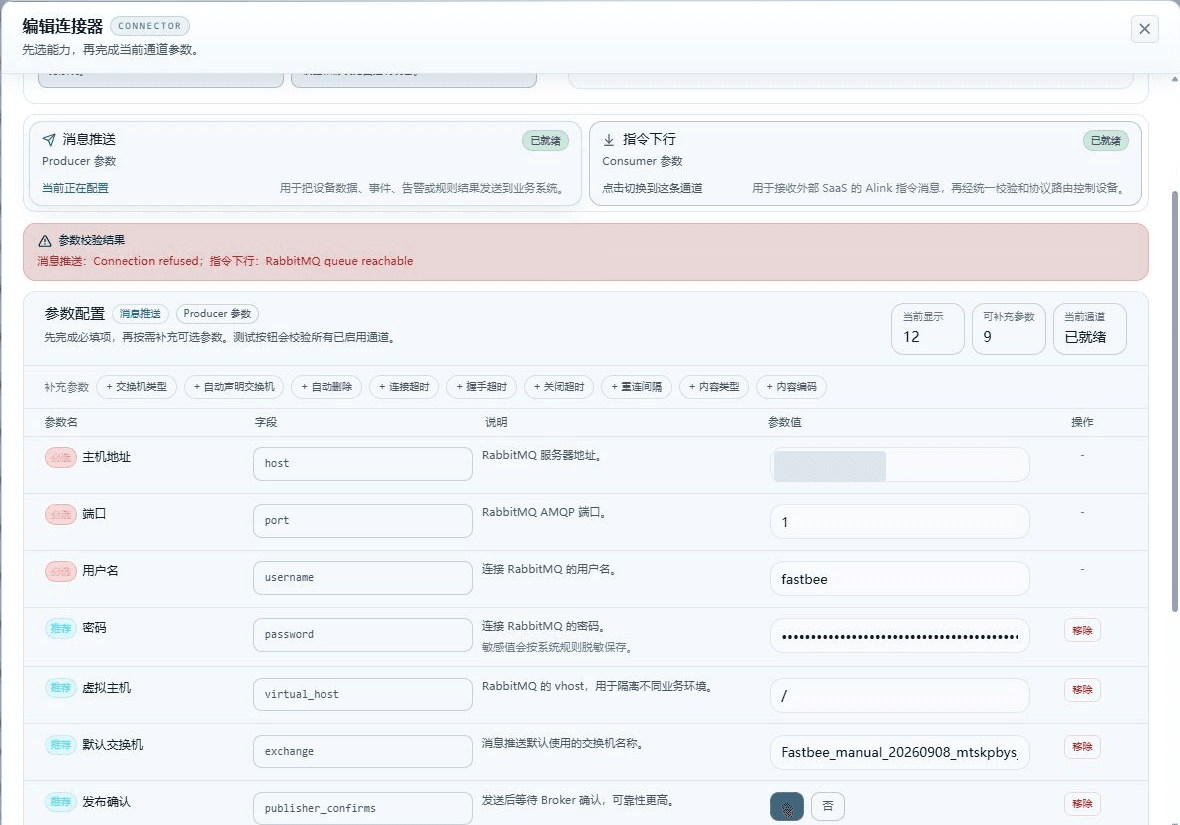
Figure: after changing the port to 1 in the unsaved uplink draft, Message Push returns Connection refused; Command Downlink still passes, and the wrong configuration is not saved.
Field Descriptions
| Field / Control | Description |
|---|---|
| Port | The RabbitMQ AMQP port; this value is used by message push tasks; running tasks must reload the change. Required · Source: external system deployment and the integration checklist; the client instance name is specified by the implementer per environment and purpose. Choice: obtain the AMQP data port from the administrator, commonly 5672; the 15672 commonly used by the management UI must not be filled in here. Subject to the actual deployment; when the connection is refused, verify the port and firewall first. Recommended: fill in per the integration documents · Example: 5672 |
13. Change Back to the Original Port and Re-verify the Configuration
Location: Integration → Connectors
In the same RabbitMQ draft, change the uplink port just modified back to the original port provided by the administrator, and confirm the host, account, vhost, and exchange have not been touched.
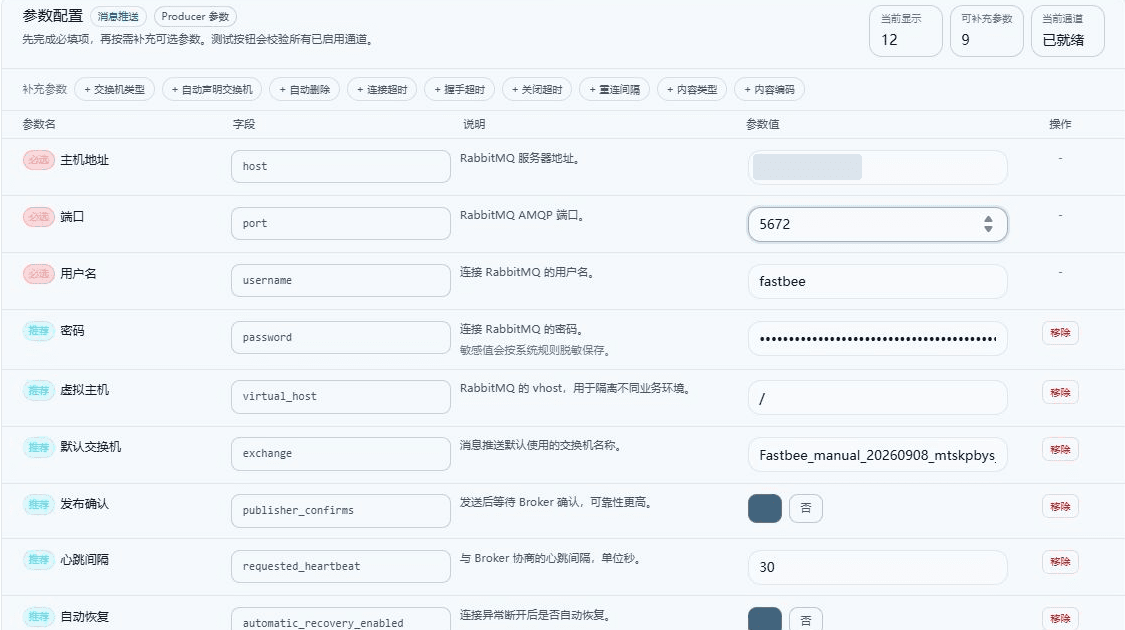
Figure: the port of the same RabbitMQ uplink draft has been changed back to 5672, keeping the original host, authentication, and exchange; retesting is still needed.
Field Descriptions
| Field / Control | Description |
|---|---|
| Port | The RabbitMQ AMQP port; this value is used by message push tasks; running tasks must reload the change. Required · Source: external system deployment and the integration checklist; the client instance name is specified by the implementer per environment and purpose. Choice: obtain the AMQP data port from the administrator, commonly 5672; the 15672 commonly used by the management UI must not be filled in here. Subject to the actual deployment; when the connection is refused, verify the port and firewall first. Recommended: fill in per the integration documents · Example: 5672 |
| Host Address | The RabbitMQ server address; this value is used by message push tasks; running tasks must reload the change. Required · Source: external system deployment and the integration checklist; the client instance name is specified by the implementer per environment and purpose. Choice: take the address from the integration partner's deployment checklist; it must be reachable from the FMQ server. The local address in the screenshot is only an example; do not mistake the address of the computer running the browser for the server address. Recommended: fill in per the integration documents · Example: 127.0.0.1 |
| Virtual Host | The RabbitMQ vhost, used to isolate different business environments; this value is used by message push tasks; running tasks must reload the change. Optional · Source: external system deployment and the integration checklist; the client instance name is specified by the implementer per environment and purpose. Choice: check this business's vhost in the RabbitMQ management console; it is like an independent workspace inside the same Broker. When the two ends use the wrong vhost, even an identically named queue is not the same channel; the account must also have permission on that vhost. Recommended: fill in per the integration documents · Example: / |
14. Retest and Confirm the Fault Is Cleared
Location: Integration → Connectors
Click Test All Channels again and confirm Message Push and Command Downlink each return success.
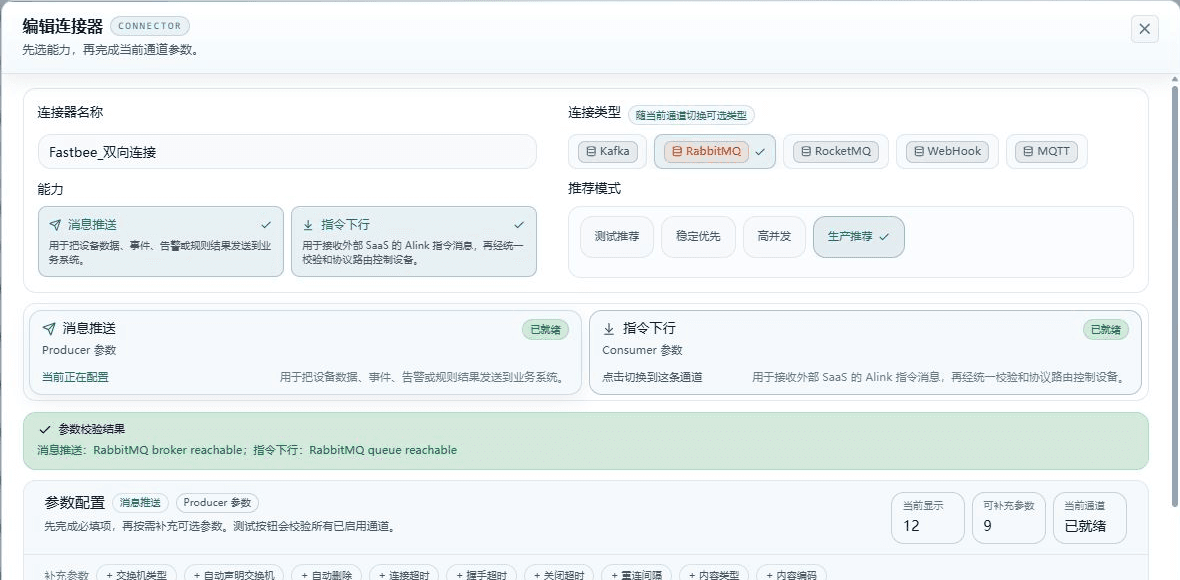
Figure: after restoring 5672 and verifying the saved configuration, test again; both channels show success, and the wrong draft was not saved.
Reference Table
| Symptom | Possible Cause | What to Check First | How to Recover |
|---|---|---|---|
| Shows Ready, but the test fails | Complete required fields do not mean the Broker or interface is reachable. | First see whether the uplink or downlink failed, then verify that direction's address and port. | Modify only the failed channel and retest. |
| Connection timeout or refused | Wrong address, AMQP port, firewall, or service status. | From the FMQ server, verify the network and data port to the Broker. | Change back to the address and port provided by the administrator and retest. |
| Authentication or vhost permission failure | The account, password, or vhost does not match. | Confirm the business account and vhost permissions with the RabbitMQ administrator. | Update the credentials of the current direction; do not record passwords in the manual or logs. |
| Uplink passes, downlink fails | The downlink queue, binding, or consumption parameters are configured incorrectly on their own. | Verify the consume queue, exchange, routing key, and auto-declare/auto-bind permissions. | Fix the downlink parameters, then test all channels. |
| Downlink passes, uplink fails | The uplink exchange, publish parameters, or Broker connection is wrong. | Verify the uplink exchange, vhost, account, and publish confirmation settings. | Fix the uplink parameters, then retest. |
| RabbitMQ resource declaration or binding errors | The existing resource type or attributes do not match the current switches. | Confirm who maintains the resource, and the exchange, queue, and durability attributes. | Turn off unauthorized auto-declare/auto-bind, or have the administrator adjust the resource. |
| Kafka or RocketMQ validation passed but the business has no messages | Validation did not cover sending to, consuming from, or device routing of the target Topic. | Go to the corresponding task to verify the Topic, routing, and task status. | After enabling the task, use isolated test messages to verify external receipt and device actual receipt separately. |
| Post-save retest fails | Parameters were modified, credentials updated, or Broker resources changed. | Compare the parameters before and after saving and check recent changes. | Fix within the same connection type and same direction, then retest; do not switch protocols to evade the fault. |
Daily Maintenance
Search, filter, and refresh in the list help you find connectors faster and view the latest page status; they are query aids and do not verify external system connectivity. Copy Connector suits reusing the field structure under the same type and a similar environment; after copying, still replace the address, account, and resource names item by item.
Before editing a connector already referenced by tasks, confirm the impact scope first. After runtime parameters change, restart the previously enabled tasks as prompted by the page; previously disabled tasks stay disabled — do not enable them on your own just to update parameters. After creation or runtime parameter changes, run the capability test again. All task references must be removed before deletion.
Production Operation Notice
The screenshots and examples illustrate operation locations and judgment methods; they do not represent the current production state. When publishing, enabling/disabling, rebinding, retrying, or deleting is involved, confirm the target environment, impact scope, and recovery plan first, and have authorized personnel execute it.
Fengxin IoT (FastBee) · FMQ Operation Manual