

JT/T 808 and TCP Vehicle Terminal Access
This article is compiled from an existing operations manual into an online operations reference. Operations marked as expected or not executed in the original text must still be verified against the actual environment.
Complete JT808 location reporting, two native location queries, platform values, actual history, and a normal stop-and-recovery.
Before you start: you have product, device, model, publish, control, and history permissions; the local application, single-node FMQ, and FMQX Web are available; this device's connection parameters have been obtained
Before You Start
This article uses JT808 2013 over TCP to access a vehicle terminal, completing location reporting, native location query, and platform current-value and history queries.
Latitude and longitude are filled in as raw integers in millionths of a degree; the raw speed integer is converted at 0.1 km/h. This round uses speeds 30~39, and 40 after recovery.
A location query reads the terminal's current location; the example uses the FMQX Web demo terminal.
Replace These Parameters Before Copying the Templates
The code in this article uses generic template names; the screenshots retain the actual historical resources. Complete the following checks before saving as a UTF-8 file or sending any message.
- The host, port, and listening direction in the connection file must be changed to the actual address of the current environment; 127.0.0.1 means the local machine running FMQX. When MQTT is involved, also verify the product number, username, subscription topic, and responseRoute; enter the password only on the connection page, securely.
- Group, session, and subscription ids are internal references of the import file; if you rename them, groupId must match the corresponding group id. Verify before importing, and do not create a same-named connection again on a retained session.
- The code blocks are customer templates rewritten from existing password-free assets or original code; it has not been proven that this version of the template imports successfully. Historical screenshots, send times, and business pass scope are still governed by the records of each step; do not treat template names as the actual resource names in the old evidence.
1. First-Time Configuration and Reused Resources
The first-time configuration of 2026-10-13, its mappings, and the import source are reused. This round reuses the existing product, device, Thing Model, and FMQX session; nothing was recreated, no model was re-saved, and nothing was re-imported.
The first JSON sample was only used to generate the three model items. The initial JSON paths and the later JT808 location field mappings are verified separately.
1. First-Time Configuration: Generate the Location Thing Model from the Sample
Location: Device Access Wizard*→*JSON Sample Steps: Use the three fields and values in the screenshot to parse and generate the location model. This step retains the first-time configuration record; the model was not regenerated in this round.

This step only generates the model and does not represent the final access protocol.
Key Points in the Screenshot
| Field / Control | Notes |
|---|---|
| Sample Fields | The first screenshot generated the three model items with 30.01/120.01/31.01; they were not rebuilt in this round. Formal operation uses the later JT808 native mappings and integer messages. Required · Enter: Per the implementation plan · Example: First modeling: 30.01 / 120.01 / 31.01 |
| Modeling JSON Sample | The latitude, longitude, and speed in the first screenshot were only used to generate the three model items; this round's reported values are filled in the later chapters. Required · Enter: 30.01 / 120.01 / 31.01 |
2. First-Time Configuration: Verify the Three Fields and Units
Location: Device Access Wizard*→*Collection Points Steps: Keep latitude, longitude, and speed; verify the field identifiers and units. This step retains the first-time configuration record; this round reuses the saved resources.
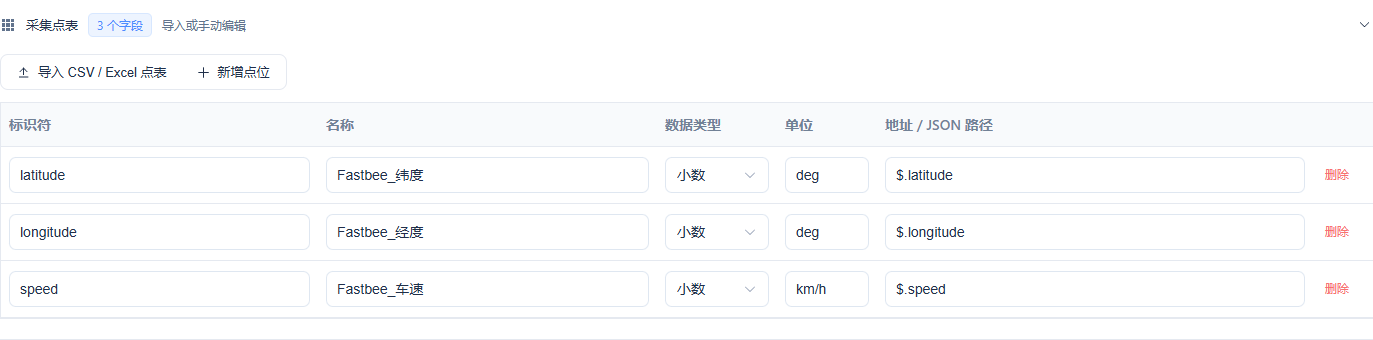
The three models correspond item by item to the native fields.
Key Points in the Screenshot
| Field / Control | Notes |
|---|---|
| Property Mapping | The native decoded fields map to latitude, longitude, and speed respectively; units match the Thing Model. Required · Enter: latitude / longitude / speed |
| Field Units | Latitude and longitude are in degrees; speed is in kilometers per hour. Required · Enter: deg / deg / km/h |
3. First-Time Configuration: Enter the Unique Device Identity
Location: Device Access Wizard*→*Device Information Steps: Fill in the this article's vehicle terminal name and a unique Device Number. This step retains the first-time configuration record; this round reuses the saved resources.

This device is used for this article's data and regression.
Key Points in the Screenshot
| Field / Control | Notes |
|---|---|
| Device Number | This article's dedicated device is used for re-verification; the device number matches the binding, and the terminal phone number is filled in separately. Required · Enter: This article's vehicle terminal |
4. First-Time Configuration: Save the Final JT808 Protocol
Location: Product Management*→*Basic Information Steps: Set the Access Protocol to TCP, the data format to JT808 2013, and save. This step retains the first-time configuration record; this round reuses the saved resources.
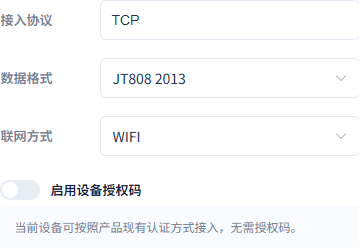
The final native protocol has been saved.
Key Points in the Screenshot
| Field / Control | Notes |
|---|---|
| Access Protocol | The terminal actively connects to the FMQ TCP listener. Required · Enter: TCP |
| Data Format | This article uses native JT808 2013; do not keep using the JSON from the initial creation wizard. Required · Enter: JT808 2013 |
5. First-Time Configuration: Create the Location Query Function
Location: Product*→*Feature Definition Steps: Add a string-type Location Query function and save. This step retains the first-time configuration record; this round reuses the saved resources.
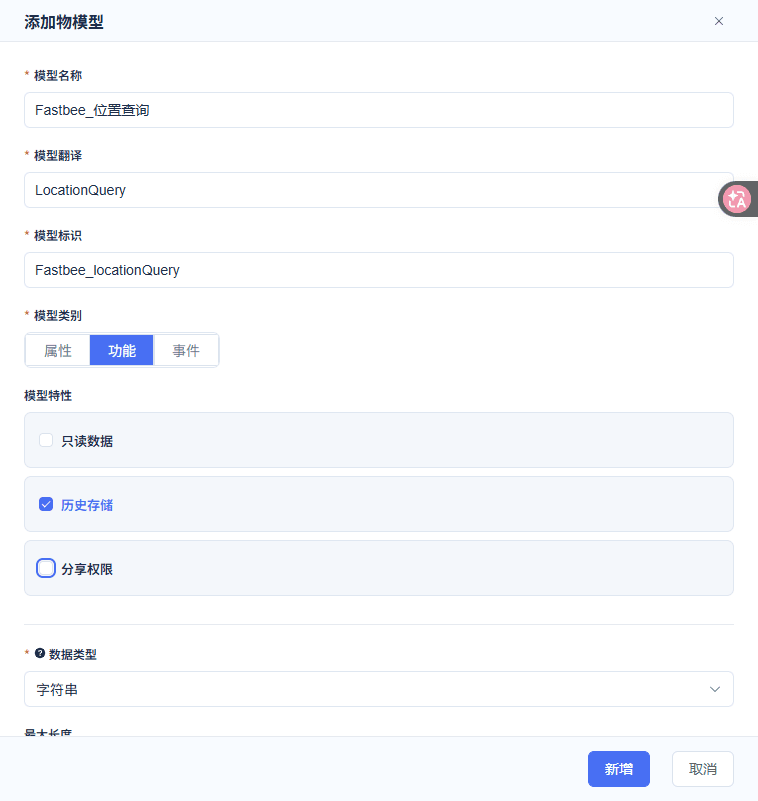
This function is used for the native downlink location query.
Key Points in the Screenshot
| Field / Control | Notes |
|---|---|
| Location Query | Create a string function that maps to the native location query command. Required · Enter: LOCATION_QUERY |
6. First-Time Configuration: Bind the Terminal Phone Number
Location: Product*→Device Protocol Configuration→*Device Binding Steps: Select this device, fill in Terminal Phone Number 013800138886, and enable the binding. This step retains the first-time configuration record; this round reuses the saved resources.
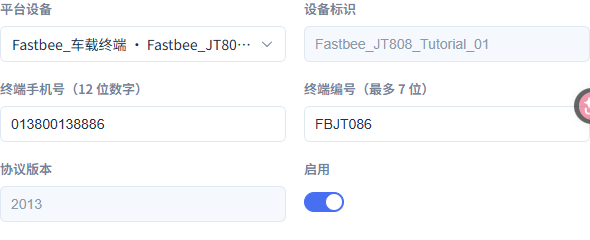
The device number and the terminal phone number are two different identity fields.
Key Points in the Screenshot
| Field / Control | Notes |
|---|---|
| Device Binding | This device number is bound to the terminal phone number and must match FMQX. Required · Enter: 013800138886 |
| Terminal Phone Number | This article's 12-digit terminal identity; it must be identical to the platform's native binding. Required · Enter: 013800138886 |
7. First-Time Configuration: Map Latitude, Longitude, and Speed
Location: Device Protocol Configuration*→*Property Mapping Steps: Map latitude, longitude, and speed to their corresponding models respectively, and verify the units. This step retains the first-time configuration record; this round reuses the saved resources.

The three decoded fields are mapped correctly.
Key Points in the Screenshot
| Field / Control | Notes |
|---|---|
| Property Mapping | The native decoded fields map to latitude, longitude, and speed respectively; units match the Thing Model. Required · Enter: latitude / longitude / speed |
| Field Units | Latitude and longitude are in degrees; speed is in kilometers per hour. Required · Enter: deg / deg / km/h |
8. First-Time Configuration: Save the Native Location Query Mapping
Location: Device Protocol Configuration*→*Command Mapping Steps: Map LOCATION_QUERY to this article's Location Query function and save the draft. This step retains the first-time configuration record; this round reuses the saved resources.

The platform invoking this function generates a JT808 native query.
Key Points in the Screenshot
| Field / Control | Notes |
|---|---|
| Command Mapping | LOCATION_QUERY maps to this article's Location Query function; no custom JSON is sent to replace the native frame. Required · Enter: LOCATION_QUERY → Location Query |
Complete connection and point JSON template (no password) json
{

  "schemaVersion": 3,

  "groups": [

    {

      "id": "tutorial_JT808_Tutorial_01",

      "name": "车载教程",

      "sortOrder": 70,

      "isSystem": false

    }

  ],

  "sessions": [

    {

      "id": "import_JT808_Tutorial_01",

      "name": "车载终端",

      "groupId": "tutorial_JT808_Tutorial_01",

      "protocol": "JT808",

      "transport": "TCP",

      "host": "127.0.0.1",

      "port": 8888,

      "terminalPhone": "013800138886",

      "terminalId": "FBJT086",

      "jtVersion": "2013",

      "autoReconnect": false

    }

  ]

}Check against the replacement list, save it as connection-config.json, and select Import Configuration in FMQX Web; this text rewrite does not mean the template has actually been imported. Replaceable customer template names are used here; check against the replacement list in this section before importing or sending.
9. First-Time Configuration: Import the Demo Terminal Session
Location: FMQX Web*→*Configuration File Steps: Check the complete JSON of this section against the replacement list, save it as a UTF-8 file connection-config.json, and select Import Configuration under More Actions in FMQX Web. The original step screenshot retains the original batch operation.
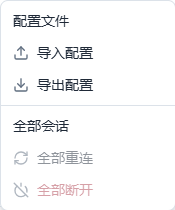
Use this article's dedicated session.
Key Points in the Screenshot
| Field / Control | Notes |
|---|---|
| Import Session | Import this article's JT808 demo session from the configuration file; re-verification continues to use the original session. Required · Enter: connection-config.json |
2. Publish and Confirm the Running Configuration
10. Confirm Publishing This Article's Product
Location: Product Details*→*Basic Information Steps: Verify the product name and number, and click Confirm in the publish confirmation box.
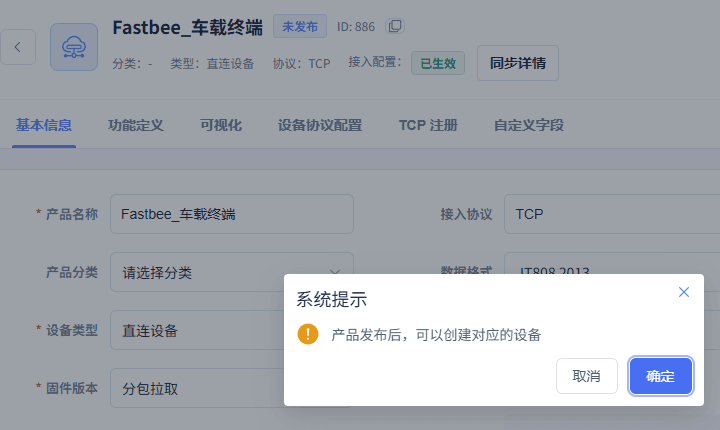
This article's product 886 identity and the complete publish confirmation box.
11. Confirm This Round's Running Configuration Has Been Applied
Location: Product Details*→*Sync Details Steps: Open the sync details and confirm the target node shows APPLIED.
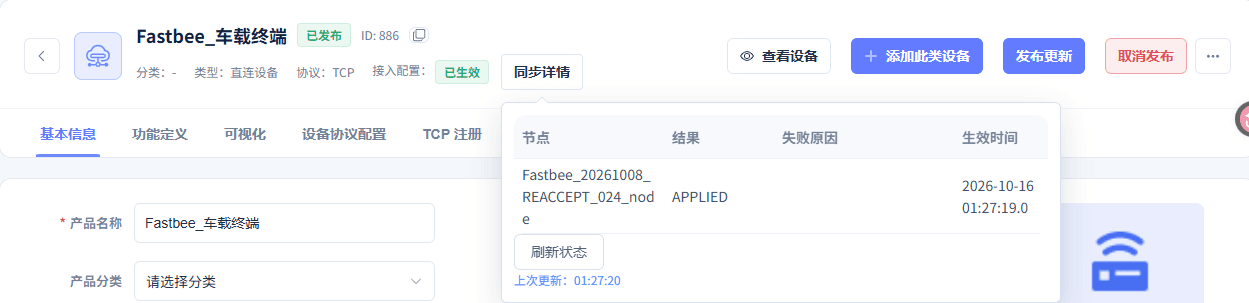
This article's node has applied the current configuration
3. Verify Parameters and Connect with Authentication
The parameter picture is a secure read-only supplementary capture; the authentication field was temporarily cleared in an unsaved editor for the screenshot and then cancelled. Formal operation completes authentication with the information provided by the registration response.
12. Read-Only Verification of Platform and Terminal Parameters
Location: FMQX Web*→This Article's Session→*Connection Parameters Steps: Verify the host, port, phone number, and Terminal ID, plus the heartbeat, Response Timeout, and switches.
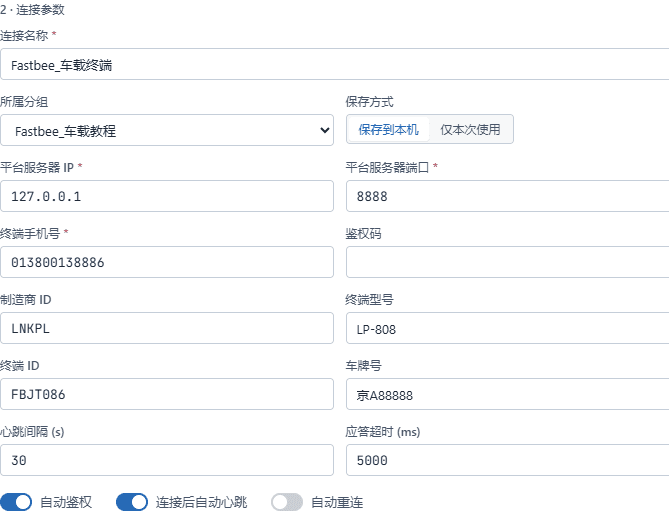
Fill in the platform address, port, and terminal phone number; the authentication code is obtained from the registration response
Key Points in the Screenshot
| Field / Control | Notes |
|---|---|
| Platform Server IP | A reachable FMQ address provided by the platform administrator; the local-machine demo uses the loopback address. Required · Enter: Per the implementation plan · Example: 127.0.0.1 |
| Platform Server Port | Fill in the FMQ TCP listening port, not the management page port. Required · Enter: Per the implementation plan · Example: 8888 |
| Terminal Phone Number | This article's 12-digit terminal identity; it must be identical to the platform's native binding. Required · Enter: 013800138886 |
| Terminal ID | The manufacturer provides the terminal ID; this article's is a demo identity. Required · Enter: FBJT086 |
| Server | Used to complete "Read-Only Verification of Platform and Terminal Parameters". Required · Enter: 127.0.0.1:8888 |
| Heartbeat Interval | Used to complete "Read-Only Verification of Platform and Terminal Parameters". Required · Enter: 30 seconds |
| Response Timeout | Used to complete "Read-Only Verification of Platform and Terminal Parameters". Required · Enter: 5000 ms |
13. Connect This Article's TCP Channel
Location: FMQX Web*→*This Article's Session Steps: Verify the session name, click Connect, and wait for Connected.

TCP connected; continue with registration and authentication
Key Points in the Screenshot
| Field / Control | Notes |
|---|---|
| Platform Server IP | A reachable FMQ address provided by the platform administrator; the local-machine demo uses the loopback address. Required · Enter: Per the implementation plan · Example: 127.0.0.1 |
| Platform Server Port | Fill in the FMQ TCP listening port, not the management page port. Required · Enter: Per the implementation plan · Example: 8888 |
14. Complete Terminal Registration and Authentication
Location: FMQX Web*→Messaging→*Registration and Authentication Steps: After connecting, execute terminal registration and wait for authentication; verify the success states in the flow.
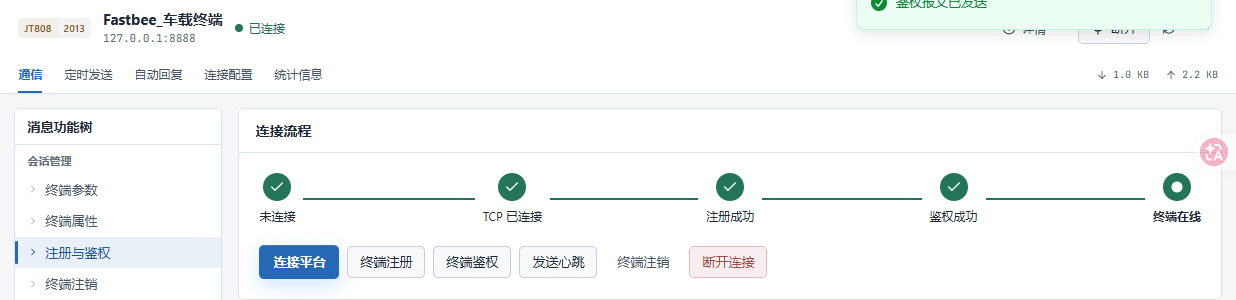
This article's terminal connection identity, actual traffic, and the registration-authentication connection flow.
4. Report Ten Groups of Locations in Sequence
15. Report the First Group of Location
Location: FMQX Web*→Messaging→*Location Information Report Steps: Fill in the following raw integers and report once in that message tool.
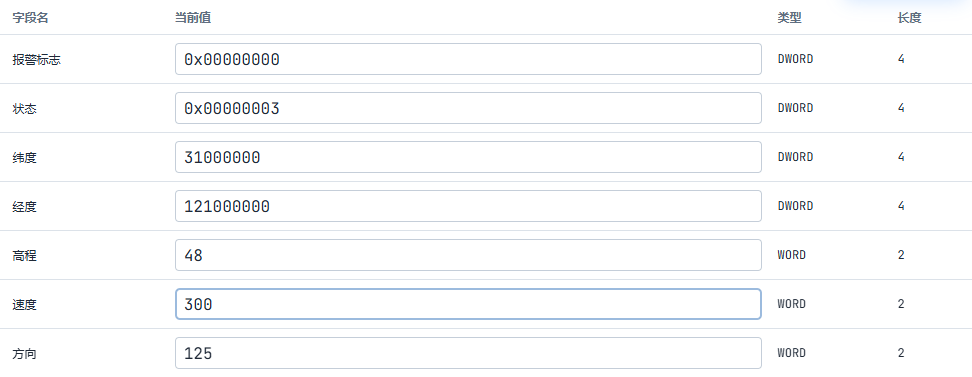
The location message uses the current latitude, longitude, and speed
Key Points in the Screenshot
| Field / Control | Notes |
|---|---|
| Raw Latitude Value | A raw integer converted at one millionth of a degree; increased by 1000 each time over ten reports, and 31010000 after recovery. Required · Enter: 31000000 |
| Raw Longitude Value | A raw integer converted at one millionth of a degree; increased by 1000 each time over ten reports, and 121010000 after recovery. Required · Enter: 121000000 |
| Raw Speed Value | Raw speed converted at 0.1 km/h; raw 300~390 over ten reports, +10 each time, and 400 after recovery. Required · Enter: 300 |
16. Report Ten Different Groups of Locations in Sequence
Location: FMQX Web*→Messaging→*Location Information Report Steps: In the same session, increase latitude and longitude by 1000 and speed by 10 each time, report each group once, up to the tenth group.
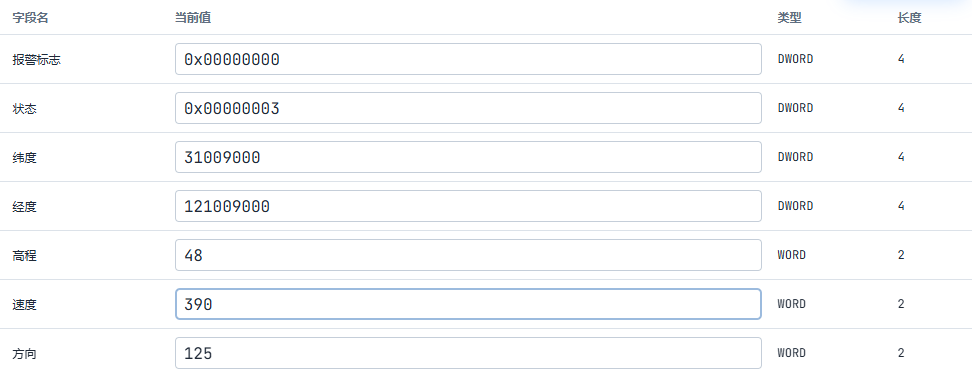
The location message uses the current latitude, longitude, and speed
Key Points in the Screenshot
| Field / Control | Notes |
|---|---|
| Raw Latitude Value | A raw integer converted at one millionth of a degree; increased by 1000 each time over ten reports, and 31010000 after recovery. Required · Enter: Per the implementation plan · Example: 31000000 → 31; 31009000 → 31.009; 31010000 → 31.01 |
| Raw Longitude Value | A raw integer converted at one millionth of a degree; increased by 1000 each time over ten reports, and 121010000 after recovery. Required · Enter: Per the implementation plan · Example: 121000000 → 121; 121009000 → 121.009; 121010000 → 121.01 |
| Raw Speed Value | Raw speed converted at 0.1 km/h; raw 300~390 over ten reports, +10 each time, and 400 after recovery. Required · Enter: Per the implementation plan · Example: 300 → 30; 390 → 39; 400 → 40 |
| Tenth-Group Raw Latitude Value | Used to complete "Report Ten Different Groups of Locations in Sequence". Required · Enter: 31009000 |
| Tenth-Group Raw Longitude Value | Used to complete "Report Ten Different Groups of Locations in Sequence". Required · Enter: 121009000 |
| Tenth-Group Raw Speed Value | Used to complete "Report Ten Different Groups of Locations in Sequence". Required · Enter: 390 |
17. Verify the Platform's Actual Tenth-Group Location
Location: Device Details*→Running Status→*Real-Time Metrics Steps: Read the values of the three metric cards item by item.
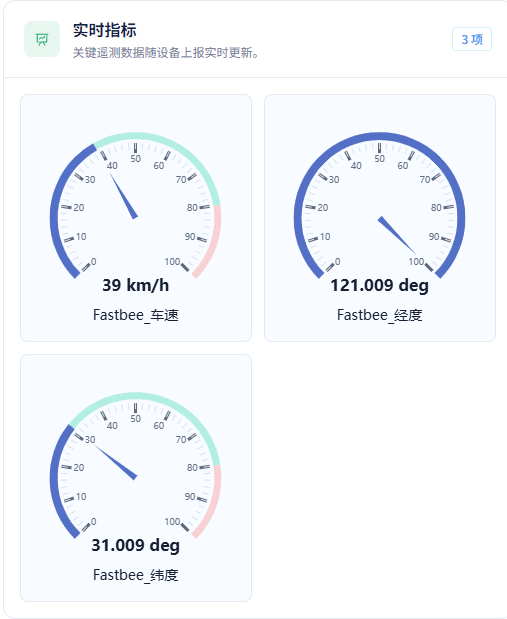
The platform shows the tenth group's location and vehicle speed
Key Points in the Screenshot
| Field / Control | Notes |
|---|---|
| Platform Current Value | Read the platform's text values; the tenth group is 31.009/121.009/39, and after recovery 31.01/121.01/40. The dashboard's default scale cannot substitute for business values. Required · Enter: Per the implementation plan · Example: 31.009 / 121.009 / 39; after recovery 31.01 / 121.01 / 40 |
5. First Native Location Query
18. Send One Location Query from the Platform
Location: Device Details*→Running Status→*Location Query Steps: Locate the Location Query string function, click the send icon once, then go to the device side to verify receipt.

Send a native location query from the platform
19. Verify the First Received 0x8201
Location: FMQX Web*→*Communication Records Steps: View this receive record and verify the message type and the complete raw frame.

The device receives the 0x8201 query
Key Points in the Screenshot
| Field / Control | Notes |
|---|---|
| Device Frame Receipt and Reply | After receiving 0x8201, reply with 0x0201; the reply carries this query's sequence number and the current location. Required · Enter: Per the implementation plan · Example: 0x8201 → 0x0201 |
20. Verify the First Independent 0x0201 Response
Location: FMQX Web*→*Communication Records Steps: View the subsequently sent native location response and verify the response sequence number and the current location.

The device sends the 0x0201 native location reply
Key Points in the Screenshot
| Field / Control | Notes |
|---|---|
| Device Frame Receipt and Reply | After receiving 0x8201, reply with 0x0201; the reply carries this query's sequence number and the current location. Required · Enter: Per the implementation plan · Example: 0x8201 → 0x0201 |
6. Recover and Report After a Normal Stop
In this round, the operator disconnected normally, reconnected, and registered/authenticated; no network fault was injected.
21. Stop This Article's Connection Normally
Location: FMQX Web*→*This Article's Session Steps: After completing the first query, click Disconnect and verify it shows Disconnected.

First normal disconnect of this article's terminal, retaining the real traffic context.
22. Reconnect and Complete Registration and Authentication
Location: FMQX Web*→*Registration and Authentication Steps: Reconnect the same session, register and wait for authentication, and verify the three success states.
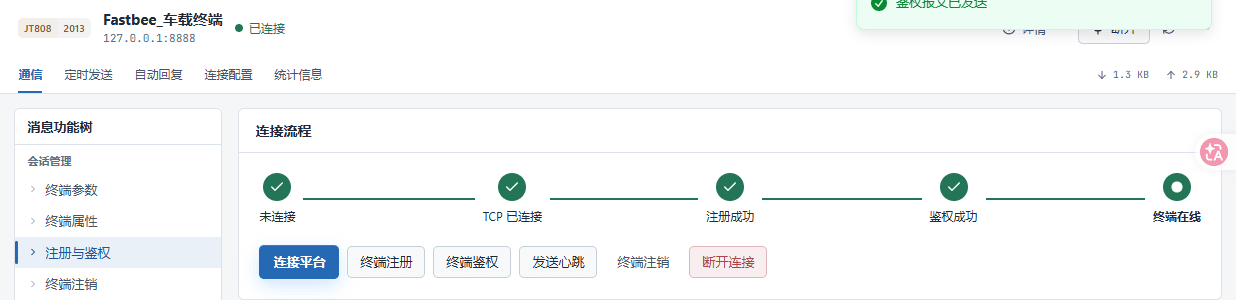
After a normal reconnect: this article's identity, actual traffic, and the repeated registration-authentication flow.
23. Independently Report a New Location After Recovery
Location: FMQX Web*→*Location Information Report and Communication Records Steps: Fill in the recovery values and report once; view this independently sent location information report.

Send 0x0200 after reconnecting: latitude 31.01, longitude 121.01, speed 40
Key Points in the Screenshot
| Field / Control | Notes |
|---|---|
| Raw Latitude Value | A raw integer converted at one millionth of a degree; increased by 1000 each time over ten reports, and 31010000 after recovery. Required · Enter: 31010000 |
| Raw Longitude Value | A raw integer converted at one millionth of a degree; increased by 1000 each time over ten reports, and 121010000 after recovery. Required · Enter: 121010000 |
| Raw Speed Value | Raw speed converted at 0.1 km/h; raw 300~390 over ten reports, +10 each time, and 400 after recovery. Required · Enter: 400 |
7. Query Again After Recovery and Verify the Three Values
24. Query Again and Confirm the New 0x8201
Location: Device Details*→Location Query; FMQX Web→*Communication Records Steps: Send once more through the Location Query entry above, and verify the newly received frame in the device communication records.

The device receives the 0x8201 query
Key Points in the Screenshot
| Field / Control | Notes |
|---|---|
| Device Frame Receipt and Reply | After receiving 0x8201, reply with 0x0201; the reply carries this query's sequence number and the current location. Required · Enter: Per the implementation plan · Example: 0x8201 → 0x0201 |
25. Verify the Independent 0x0201 Response After Recovery
Location: FMQX Web*→*Communication Records Steps: Verify the message type, response sequence number, and recovery location of this sent response.

The device sends the 0x0201 native location reply
Key Points in the Screenshot
| Field / Control | Notes |
|---|---|
| Device Frame Receipt and Reply | After receiving 0x8201, reply with 0x0201; the reply carries this query's sequence number and the current location. Required · Enter: Per the implementation plan · Example: 0x8201 → 0x0201 |
26. Verify the Platform's Actual Three Values After Recovery
Location: Device Details*→Running Status→*Real-Time Metrics Steps: After the second query, read the three metric cards item by item.
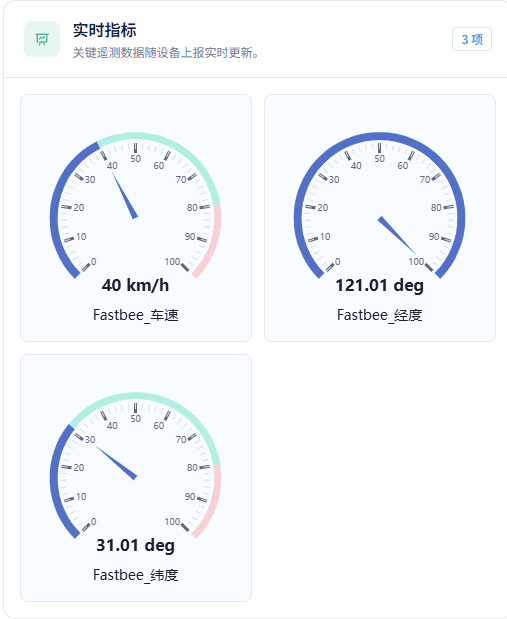
After recovery, the new location and speed 40 are shown
Key Points in the Screenshot
| Field / Control | Notes |
|---|---|
| Platform Current Value | Read the platform's text values; the tenth group is 31.009/121.009/39, and after recovery 31.01/121.01/40. The dashboard's default scale cannot substitute for business values. Required · Enter: Per the implementation plan · Example: 31.009 / 121.009 / 39; after recovery 31.01 / 121.01 / 40 |
8. Stop Operation and Retain Resources
27. End Sending/Receiving and Retain the Connection Configuration
Location: FMQX Web*→*This Article's Session Steps: Click Disconnect, keeping scheduled sending and automatic replies stopped.

Final normal disconnect of this article's terminal, retaining the real traffic context.
28. Confirm Unpublishing This Article
Location: Product Details*→*Unpublish Steps: Read the prompt that republishing may reset device data, and click Confirm to unpublish this article.
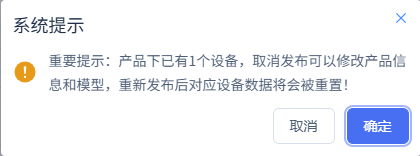
Stop this article's polling and retain the configuration and history
29. Confirm the Stop Configuration Has Been Applied
Location: Product Details*→*Sync Details Steps: Confirm the product is unpublished, open the sync details, and verify this round's application result.
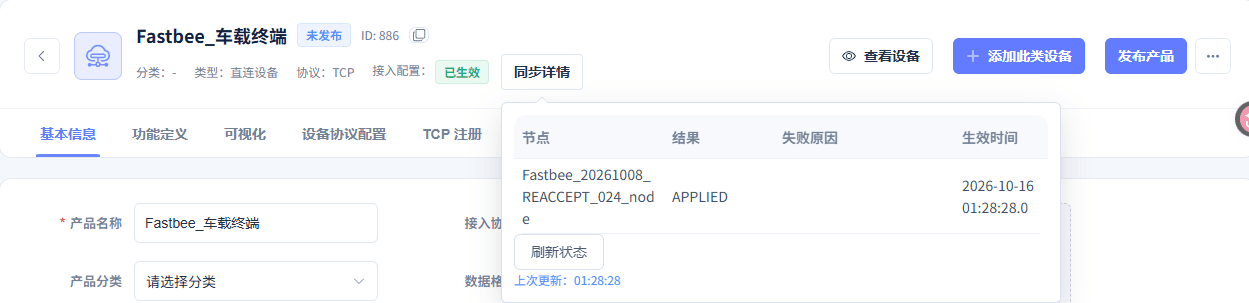
This article's node has applied the current configuration
9. Filter, Refresh, and Verify the Actual History
The second window is the query-and-recovery speed history, not a written setpoint. Verify by time that 39, 40, 40 come from the first query, the recovery report, and the second query respectively.
30. Fill in the Complete Time Range of the Ten Reported Speeds
Location: Data Center*→*Historical Data Steps: Fill in the complete start and end date-times covering this run's ten reported speeds.
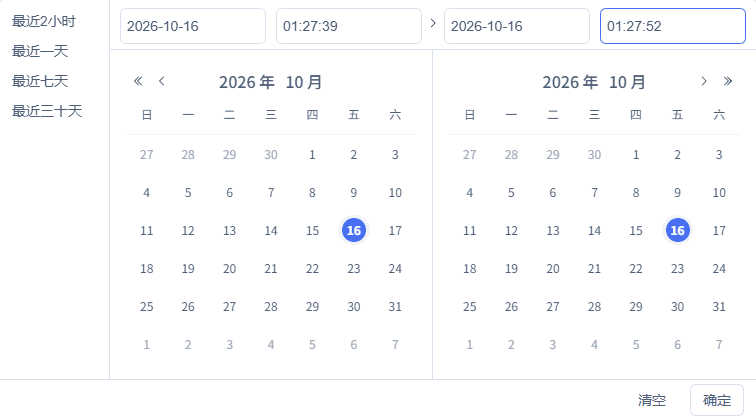
Complete date and start/end times: 2026-10-16 01:27:39 to 2026-10-16 01:27:52
Key Points in the Screenshot
| Field / Control | Notes |
|---|---|
| History Query Conditions | This article's device and vehicle speed; the ten-report window and the query-and-recovery window are queried separately. Required · Enter: Per the implementation plan · Example: 2026-10-16 01:27:39~01:27:52; 2026-10-16 01:27:59~01:28:18 |
| Start Time | Used to complete "Fill in the Complete Time Range of the Ten Reported Speeds". Required · Enter: 2026-10-16 01:27:39 |
| End Time | Used to complete "Fill in the Complete Time Range of the Ten Reported Speeds". Required · Enter: 2026-10-16 01:27:52 |
31. Filter This Article's Device and Vehicle Speed
Location: Data Center*→*Historical Data Steps: Select this article's vehicle terminal and the Vehicle Speed field, verify the conditions, and click Query.

Query after verifying this article's device, property, and time range
Key Points in the Screenshot
| Field / Control | Notes |
|---|---|
| History Query Conditions | This article's device and vehicle speed; the ten-report window and the query-and-recovery window are queried separately. Required · Enter: Per the implementation plan · Example: 2026-10-16 01:27:39~01:27:52; 2026-10-16 01:27:59~01:28:18 |
| Field | Used to complete "Filter This Article's Device and Vehicle Speed". Required · Enter: Vehicle Speed |
32. Refresh and Query the Ten-Report Speed History
Location: Data Center*→*Historical Data Steps: Keep the same device, field, and time conditions, and click the refresh button at the top right of the result area.

Refresh and re-query this article's history
33. Verify the Actual History of the Ten Reported Speeds
Location: Data Center*→Historical Data→*Query Results Steps: Verify the ten speeds row by row in time order.
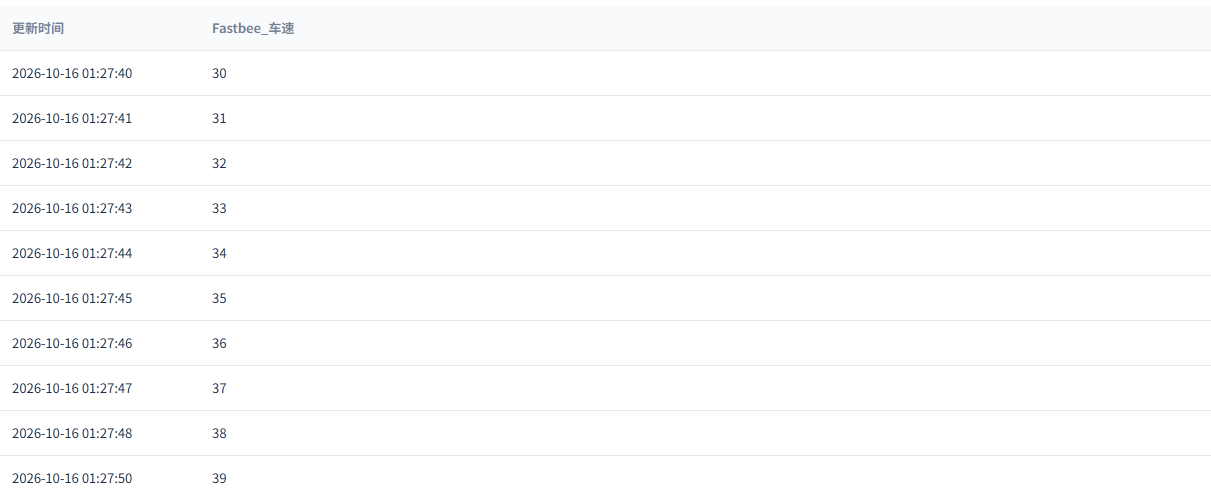
After refresh, verify this article's actual history records
Key Points in the Screenshot
| Field / Control | Notes |
|---|---|
| Speed History of This Round | The ten reports are 30~39 by time; the query-and-recovery window is 39, 40, 40 and is not a written setpoint. Required · Enter: Per the implementation plan · Example: 30, 31, 32, 33, 34, 35, 36, 37, 38, 39; 39, 40, 40 |
34. Fill in the Complete Time Range of the Query-and-Recovery Speeds
Location: Data Center*→*Historical Data Steps: Fill in the complete start and end date-times covering this run's query-and-recovery speeds.
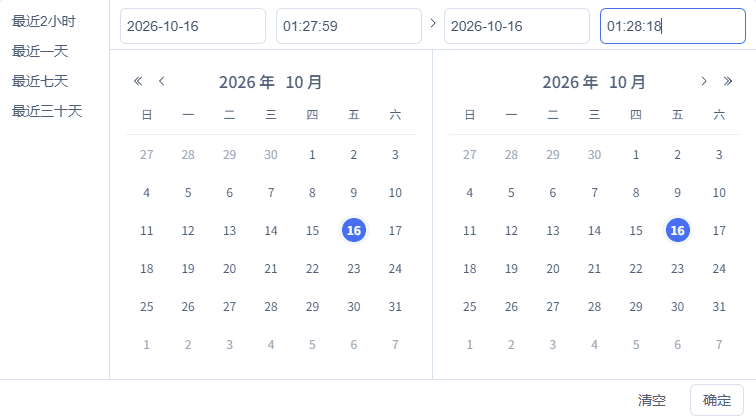
Complete date and start/end times: 2026-10-16 01:27:59 to 2026-10-16 01:28:18
Key Points in the Screenshot
| Field / Control | Notes |
|---|---|
| History Query Conditions | This article's device and vehicle speed; the ten-report window and the query-and-recovery window are queried separately. Required · Enter: Per the implementation plan · Example: 2026-10-16 01:27:39~01:27:52; 2026-10-16 01:27:59~01:28:18 |
| Start Time | Used to complete "Fill in the Complete Time Range of the Query-and-Recovery Speeds". Required · Enter: 2026-10-16 01:27:59 |
| End Time | Used to complete "Fill in the Complete Time Range of the Query-and-Recovery Speeds". Required · Enter: 2026-10-16 01:28:18 |
35. Filter This Article's Device and Vehicle Speed
Location: Data Center*→*Historical Data Steps: Select this article's vehicle terminal and the Vehicle Speed field, verify the conditions, and click Query.

Query after verifying this article's device, property, and time range
Key Points in the Screenshot
| Field / Control | Notes |
|---|---|
| History Query Conditions | This article's device and vehicle speed; the ten-report window and the query-and-recovery window are queried separately. Required · Enter: Per the implementation plan · Example: 2026-10-16 01:27:39~01:27:52; 2026-10-16 01:27:59~01:28:18 |
| Field | Used to complete "Filter This Article's Device and Vehicle Speed". Required · Enter: Vehicle Speed |
36. Refresh and Query the Query-and-Recovery Speed History
Location: Data Center*→*Historical Data Steps: Keep the same device, field, and time conditions, and click the refresh button at the top right of the result area.

Refresh and re-query this article's history
37. Verify the Actual History of the Query-and-Recovery Speeds
Location: Data Center*→Historical Data→*Query Results Steps: Verify the three rows of speeds corresponding to the first query, the independent recovery report, and the second query.

After refresh, verify this article's actual history records
Key Points in the Screenshot
| Field / Control | Notes |
|---|---|
| Speed History of This Round | The ten reports are 30~39 by time; the query-and-recovery window is 39, 40, 40 and is not a written setpoint. Required · Enter: Per the implementation plan · Example: 30, 31, 32, 33, 34, 35, 36, 37, 38, 39; 39, 40, 40 |
Where Parameters Come From and How to Fill Them
Device Access Wizard
| Field / Control | How to Fill |
|---|---|
| Sample Fields | The first screenshot generated the three model items with 30.01/120.01/31.01; they were not rebuilt in this round. Formal operation uses the later JT808 native mappings and integer messages. Required · Enter: First modeling: 30.01 / 120.01 / 31.01 |
| Device Number | This article's dedicated device is used for re-verification; the device number matches the binding, and the terminal phone number is filled in separately. Required · Enter: This article's vehicle terminal |
Protocol and Publish Effectiveness
| Field / Control | How to Fill |
|---|---|
| Access Protocol | The terminal actively connects to the FMQ TCP listener. Required · Enter: TCPMust be published after modification.TCP: the terminal actively connects to the FMQ TCP listener; the terminal actively connects to the FMQ TCP listener. |
| Data Format | This article uses native JT808 2013; do not keep using the JSON from the initial creation wizard. Required · Enter: JT808 2013Must be published after modification.JT808 2013: this article uses native JT808 2013; do not keep using the JSON from the initial creation wizard; this article uses native JT808 2013; do not keep using the JSON from the initial creation wizard. |
| Device Binding | This device number is bound to the terminal phone number and must match FMQX. Required · Enter: 013800138886Must be published after modification. |
| Property Mapping | The native decoded fields map to latitude, longitude, and speed respectively; units match the Thing Model. Required · Enter: latitude / longitude / speedMust be published after modification. |
| Command Mapping | LOCATION_QUERY maps to this article's Location Query function; no custom JSON is sent to replace the native frame. Required · Enter: LOCATION_QUERY → Location QueryMust be published after modification. |
| Publish and Apply | Publish after saving the draft, and confirm the node is APPLIED in the sync details. Must be published after modification. |
Feature Definition
| Field / Control | How to Fill |
|---|---|
| Location Query | Create a string function that maps to the native location query command. Required · Enter: LOCATION_QUERYMust be published after modification. |
| Field Units | Latitude and longitude are in degrees; speed is in kilometers per hour. Required · Enter: deg / deg / km/hMust be published after modification. |
FMQX Web Connection
| Field / Control | How to Fill |
|---|---|
| Import Session | Import this article's JT808 demo session from the configuration file; re-verification continues to use the original session. Must reconnect after modification. |
| Platform Server IP | A reachable FMQ address provided by the platform administrator; the local-machine demo uses the loopback address. Required · Enter: 127.0.0.1Must reconnect after modification. |
| Platform Server Port | Fill in the FMQ TCP listening port, not the management page port. Required · Enter: 8888Must reconnect after modification. |
| Terminal Phone Number | This article's 12-digit terminal identity; it must be identical to the platform's native binding. Required · Enter: 013800138886Must reconnect after modification. |
| Terminal ID | The manufacturer provides the terminal ID; this article's is a demo identity. Required · Enter: FBJT086Must reconnect after modification. |
| Registration and Authentication | After successful registration, authenticate with the information provided by that registration response; verify registration success, authentication success, and terminal online in the flow; do not copy fixed example codes. Must reconnect after modification. |
Device Reporting and Demo Replies
| Field / Control | How to Fill |
|---|---|
| Raw Latitude Value | A raw integer converted at one millionth of a degree; increased by 1000 each time over ten reports, and 31010000 after recovery. Required · Enter: 31000000 → 31; 31009000 → 31.009; 31010000 → 31.01 |
| Raw Longitude Value | A raw integer converted at one millionth of a degree; increased by 1000 each time over ten reports, and 121010000 after recovery. Required · Enter: 121000000 → 121; 121009000 → 121.009; 121010000 → 121.01 |
| Raw Speed Value | Raw speed converted at 0.1 km/h; raw 300~390 over ten reports, +10 each time, and 400 after recovery. Required · Enter: 300 → 30; 390 → 39; 400 → 40 |
| Report 0x0200 Once | Click once after each modification; wait for the platform to update before sending the next group. |
Device Running Status
| Field / Control | How to Fill |
|---|---|
| Platform Current Value | Read the platform's text values; the tenth group is 31.009/121.009/39, and after recovery 31.01/121.01/40. The dashboard's default scale cannot substitute for business values. Required · Enter: 31.009 / 121.009 / 39; after recovery 31.01 / 121.01 / 40 |
| Send Location Query | Issue one native query from the platform function and wait for the device's actual reply. |
| Device Frame Receipt and Reply | After receiving 0x8201, reply with 0x0201; the reply carries this query's sequence number and the current location. Required · Enter: 0x8201 → 0x0201 |
Stop and Recovery
| Field / Control | How to Fill |
|---|---|
| Recovery After Stop | The operator disconnects normally and reconnects, re-registers/authenticates, and performs the second query after independently reporting the recovery location. |
| Finish and Retain | Finally disconnect and unpublish, retaining the configuration and the queried history; evaluate the page's data reset prompt before republishing. |
Historical Data
| Field / Control | How to Fill |
|---|---|
| History Query Conditions | This article's device and vehicle speed; the ten-report window and the query-and-recovery window are queried separately. Required · Enter: 2026-10-16 01:27:39~01:27:52; 2026-10-16 01:27:59~01:28:18 |
| Speed History of This Round | The ten reports are 30~39 by time; the query-and-recovery window is 39, 40, 40 and is not a written setpoint. Required · Enter: 30, 31, 32, 33, 34, 35, 36, 37, 38, 39; 39, 40, 40 |
| Query After Refresh | Keep the same device, field, and complete time conditions, and click refresh in the result area to re-query. |
Current Connection Parameters, Send/Receive, and History Verification
| Field / Control | How to Fill |
|---|---|
| Connect the Current Session | Use this article's original session to connect over TCP, then complete registration and authentication. Must reconnect after modification. |
| Normal Disconnect | The operator stops normally; scheduled tasks and automatic replies remain stopped at the end. Must reconnect after modification. |
| Raw Frames and Response Sequence Numbers | Verify the 0x0200 independent report, the 0x8201 request, and the 0x0201 response separately. |
| Current Complete Time Range | The ten samples and the query-and-recovery use separate windows. |
| Heartbeat Interval | Uses seconds in the connection configuration. |
| Response Timeout | The milliseconds to wait for a response. |
| Auto Authentication | Authentication is completed automatically after registration; enabled for this round's saved session. |
| Auto Heartbeat After Connect | Automatically sends heartbeats after the connection is established. |
| Auto Reconnect | This round was recovered manually by the operator; auto reconnect is off. |
| Connection Name | Used to identify this article's saved session. |
| Owning Group | The group this article's session belongs to. |
| Save Method | The secure-parameter supplementary picture was verified in an unsaved editor and then cancelled, without re-saving. |
| Authentication Code | Provided by this registration response; the actual value is not disclosed in the manual. In the secure supplementary picture, the optional box was temporarily cleared and then cancelled. |
| Manufacturer ID | The demo terminal's manufacturer identifier; on site, follow the device documentation. |
| Terminal Model | The demo terminal's model; on site, follow the device documentation. |
| License Plate Number | A sample plate in the demo session; on site, fill it in per the terminal registration data. |
Where to Check First When Problems Occur
| Symptom | Possible Cause | Where to Check First | How to Recover |
|---|---|---|---|
| TCP cannot connect | The host, port, or service scope does not match | Verify the TCP address provided by the platform and this article's applied state | Keep it stopped, fix, then connect with the same identity. |
| Connected but not online | The terminal phone number binding or registration/authentication is incomplete | Verify this article's phone number, the JT808 version, and the flow states | Register again and authenticate with the information provided by this registration response. |
| Location or speed does not match | The raw integer conversion or the location field mapping does not match | Compare the current raw fields with the platform's text values | Fix the fields, then report only once and wait for the update. |
| The query status has a record but no confirmed reply | The device's native send/receive and the response sequence number have not been verified yet | Check that the response sequence numbers of 0x8201 and the independent 0x0201 match | Wait for this response and refresh history; avoid resending repeatedly. |