

Preview, Publish, and Run
The main 2D SCADA editor actions are Save, Preview, and Share. Publishing here means delivering a view that the intended users can access. Do not assume it uses the dashboard Publish button or status.
1. Before You Start
| Item | Details |
|---|---|
| Entry point | 2D SCADA → Project Card → Preview, or open the editor for Save, Preview, and Share |
| Permissions | View the project. Project maintainers handle saving and external sharing. |
| Reference case | Cold Chain Warehouse previews warehouse areas, temperature monitoring points, and object details. Its readings are sample snapshots. |
2. Preview the View
- Click Preview on the project card. Wait for the view and its models or images to load. If area labels appear while the model is loading, the view is not complete yet.
- Check the canvas ratio, layer visibility, component text, and units on the target display. Select a display object and verify its details. Do not click controls that send device commands.
- Distinguish static snapshots from live data. For a live view, select a bound test point and compare its value and timestamp with the latest device report.
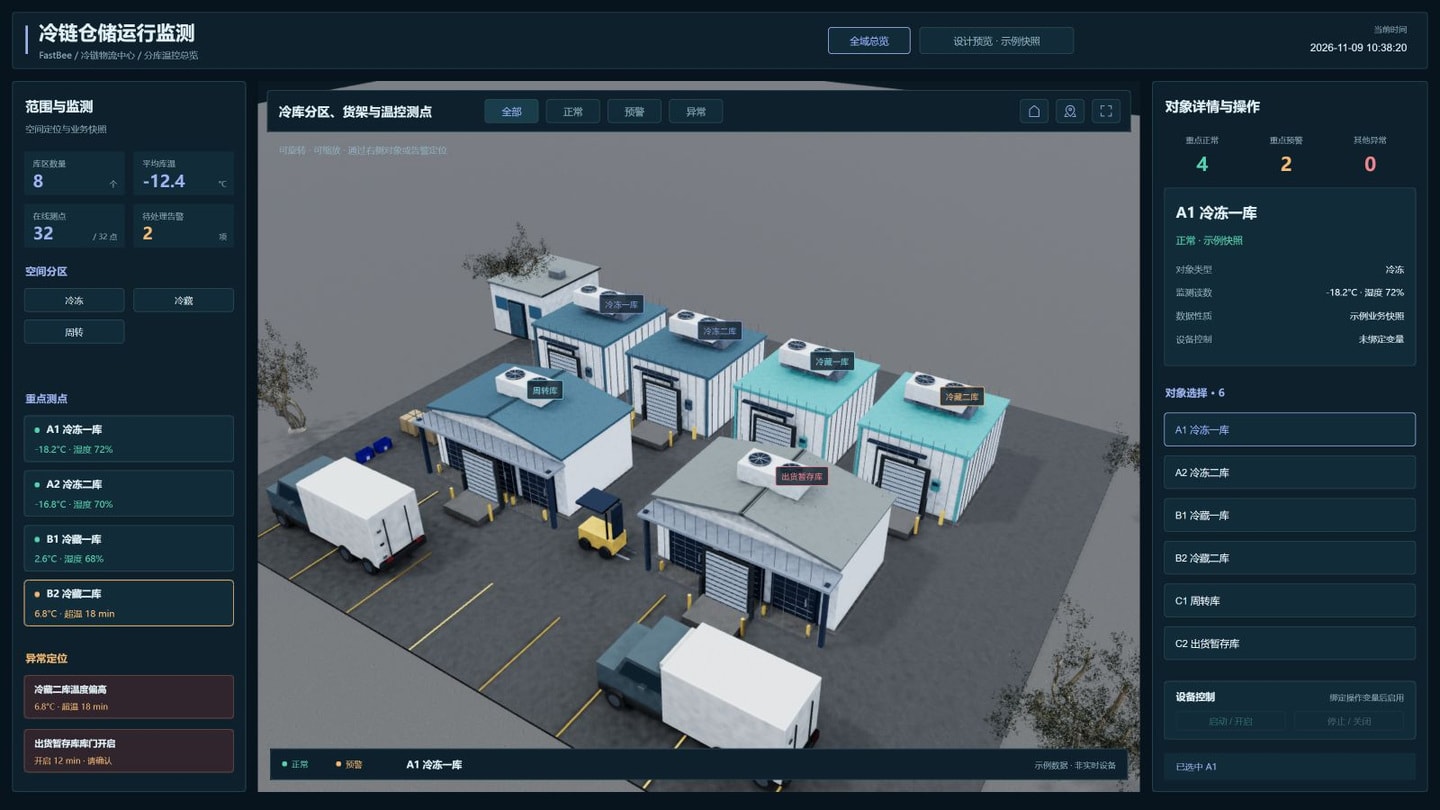
Verify against the screenshot: Check the monitored points and exceptions on the left, the warehouse model in the center, and the selected object under Object Details and Actions on the right. After switching warehouse areas, check that the detail title and selection indicator at the bottom refer to the same object. The control buttons shown have no bound action variable and should remain unavailable. The sample-data notice at the bottom means the view cannot verify a real temperature.
3. Save, Preview, and Share
| Action | Purpose | What to check afterward |
|---|---|---|
| Save | Retain the current canvas, components, and data configuration | Changes are still present after reopening the project. |
| Preview | Check the runtime view, data updates, and interactions | The view is complete, variables are correct, and offline and null values have explicit states. |
| Share | Provide an entry point for the intended viewers | Set the access scope using the sharing page's options, then verify access as the intended user. |
Before publishing or sharing, test with a regular user account to confirm that permission isolation works as expected. For Product SCADA, also confirm that the device context being viewed is correct. Do not treat the device view currently visible to an administrator as the runtime result for other devices.
If the sharing entry point offers settings such as a password or disabling sharing, verify them on an authorized test project: the correct identity can access the view, incorrect or unauthorized identities cannot, and disabling sharing invalidates the old entry point as expected. A QR code or a copyable link is not, by itself, proof of anonymous access.
4. Check Delivery and Operation
| Check | Expected result |
|---|---|
| Saved configuration | Changes persist after reopening the project. The current editor view is not proof of a save. |
| Sharing scope | A maintainer checks the available Share options and tests with the intended account. Do not assume anonymous access. |
| Runtime environment | The target display loads assets, reaches the data source, and only allows authorized viewing or control. |
| Offline and null values | Offline devices, missing reports, and failed requests must not appear as normal operation. Valid values such as 0 and false must not be treated as empty. |
| Mobile | The page has no overlaps or overflow, and text and controls remain usable. |
| Resource loading | Images, charts, and embedded models load correctly in the target environment without relying on the designer's local session. |
| Delivery failure | Check the project, identity, and data source first. A maintainer should confirm changes to external links or permissions. |
Verification Boundary
A working preview does not establish that other accounts can access it or that commands can be sent. Verify actual sharing and device control separately.