
Project and Resource Management
Find a project in the 2D SCADA list, confirm its business type and related object, then open the designer. Images, charts, business components, and 3D models are managed in the Resource Center.
1. Before You Start
| Item | Details |
|---|---|
| Entry point | Visualization → SCADA Management → 2D SCADA |
| Permissions | View projects; opening the designer requires edit permission, and maintaining resources requires the appropriate permissions |
| Reference case | Cold Chain Warehouse is a standalone SCADA project for exploring the project and its designer |
2. Find a Project
- Search by project name or number, or filter by Business Type. Use List View to compare fields and Card View to see covers.
- Verify the name, type, associated object, and save status. Click Edit to open the designer or Preview to check the display.
- Use New SCADA Project for a new project or Import to reuse a file. Check the file's source and version before importing. Review device and asset references afterward rather than retaining resources from the original environment.
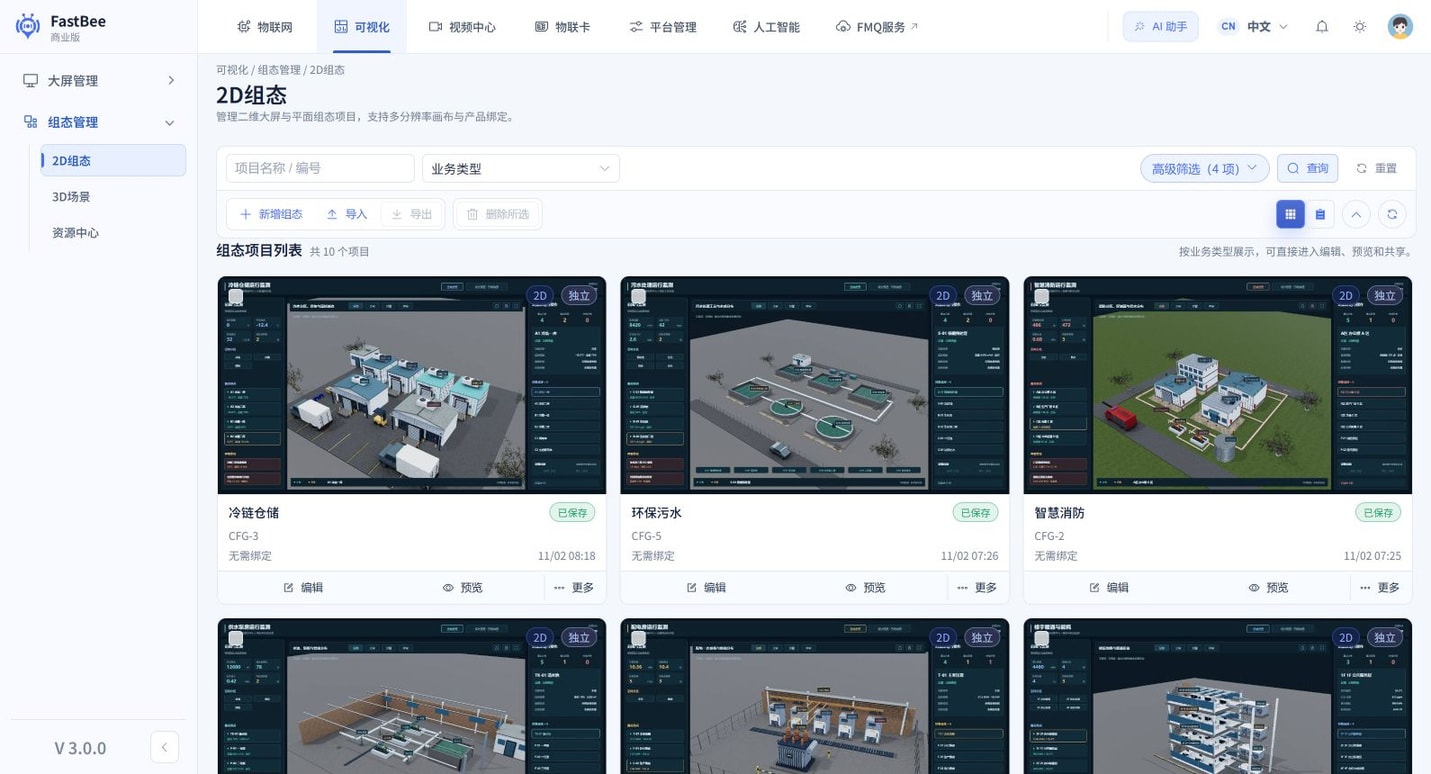
Follow the screenshot: Enter Cold Chain Warehouse in Project Name / Number and select Search. When the list loads, check the card name, number CFG-3, and the 2D and Standalone labels before selecting Edit or Preview on that card. Saved only indicates that the project was saved; No Binding Required does not mean the case data comes from a device.
2.1. Choose a Business Type
SCADA uses the tools and components provided by the editor to configure monitoring views, without writing a new program for every business view. FastBee supports Product SCADA, Scene SCADA, and Standalone SCADA. Before choosing a type, identify the business object the view needs to serve.
| Type | When to use it |
|---|---|
| Product SCADA | Reuse one design across devices of the same product. Readings come from the device being viewed. |
| Scene SCADA | Organize monitoring by scene. Available variables depend on that scene. |
| Standalone SCADA | Build a dedicated view that can organize several devices in one project. A No Binding Required label does not mean the components receive live data. |
Product SCADA is a view designed for a product. Multiple devices under the same product can share one design. Bound variables come from the product's Thing Model, while actual values come from reports by the device currently being viewed. Verify the display with one device first, then check other devices of the same product to avoid drawing a separate view for each device.
Scene SCADA organizes the view around a scene, with available variables determined by that scene. Use it to bring the devices and data points in a business scene onto one monitoring view. When switching scenes, verify the associated object and variable scope again.
Standalone SCADA suits business views that span multiple products and devices. First organize the devices the project is allowed to access, then bind data points from different devices or slave devices to components. Not being tied to a single product does not mean that data sources need no configuration.
3. Inspect Cases and Resources
- Open Cases in the designer toolbar. Select a case in the SCADA Case Library to inspect its preview and resolution. Use This Case applies the design; use it only in a new project or one you are allowed to change.
- Go to Visualization → SCADA Management → Resource Center. Find resources under Image Assets, Chart Components, Business Components, or 3D Models. Before replacing an asset, check which projects still reference it.
- Return to the designer and find the asset in the Image Library or the relevant component category. Images and components should appear in the preview. If one is missing, check that it exists and that your account can access it.
4. Build from a Blank Project
- Prepare a product, a Thing Model, and a test device that has already reported data. Decide the view's business type and access scope.
- Click New SCADA Project, enter a clear business name, and choose the associated object, for example
水泵房-设备面板or温室大棚-监控画面. - Open Edit, set the canvas dimensions and background, and place titles, sections, and static shapes before adding numeric displays, status indicators, and control components.
- Bind one or two core variables and verify the actual device data. Extend the view to more data points only after confirming the results.
- Configure the required click events and status animations, save and preview the view, and check shared access as the intended user.
After importing a file or applying a case, verify device numbers, Thing Model identifiers, asset references, and interaction targets again. Copying a view does not make the original environment's devices, permissions, and data sources available in the current environment.
For resource types and reference checks, see the Resource Center. Next: Canvas, Components, and Layout.