Commercial License Configuration
Page Guide
Commercial License Steps
- Obtain the private key from the private repository and configure it in Maven.
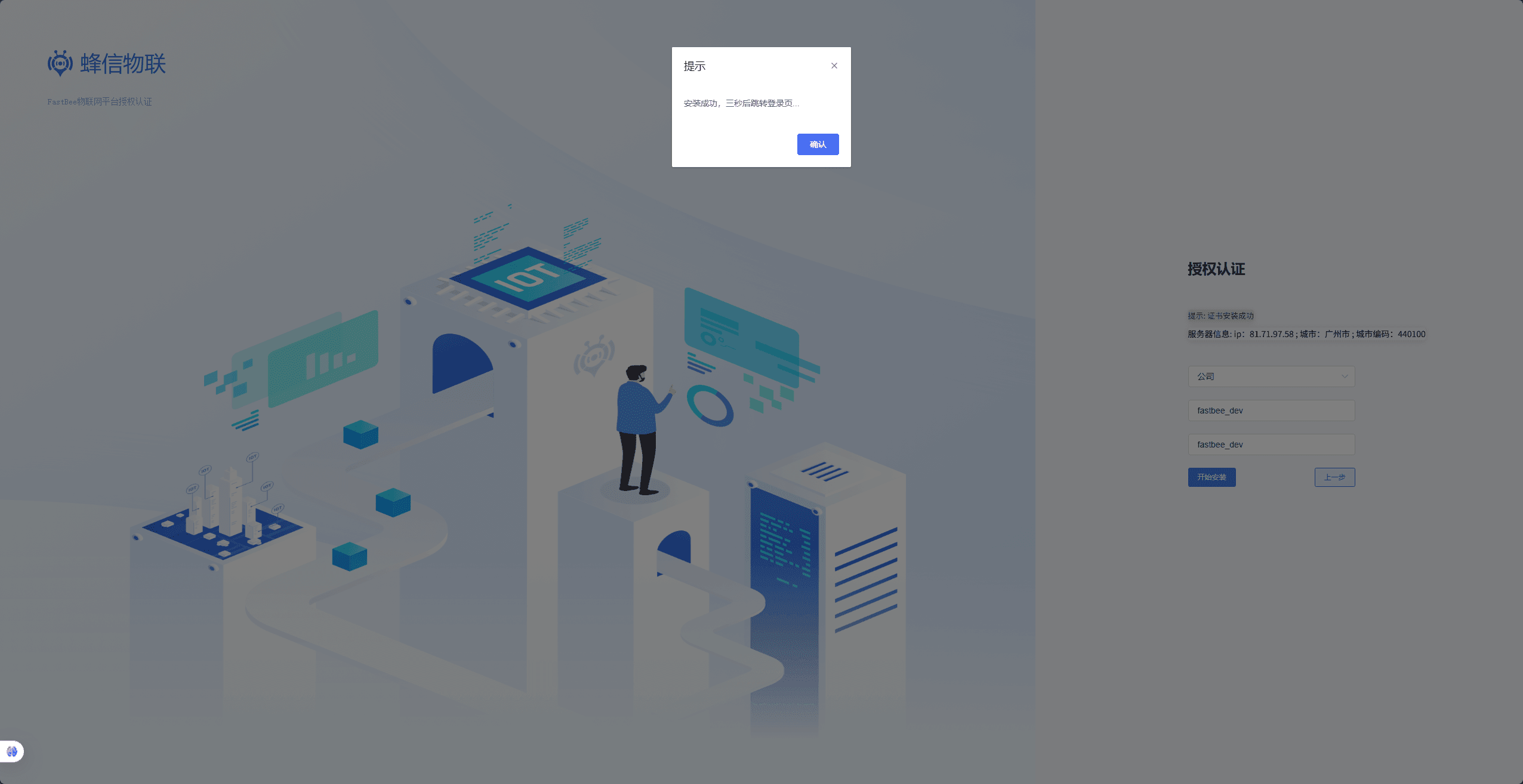
- Contact customer service to obtain the certificate, then install and configure the license certificate in the frontend.
1. Configure The Maven Repository Private Key
1.1. Obtain The GitLab Private Token
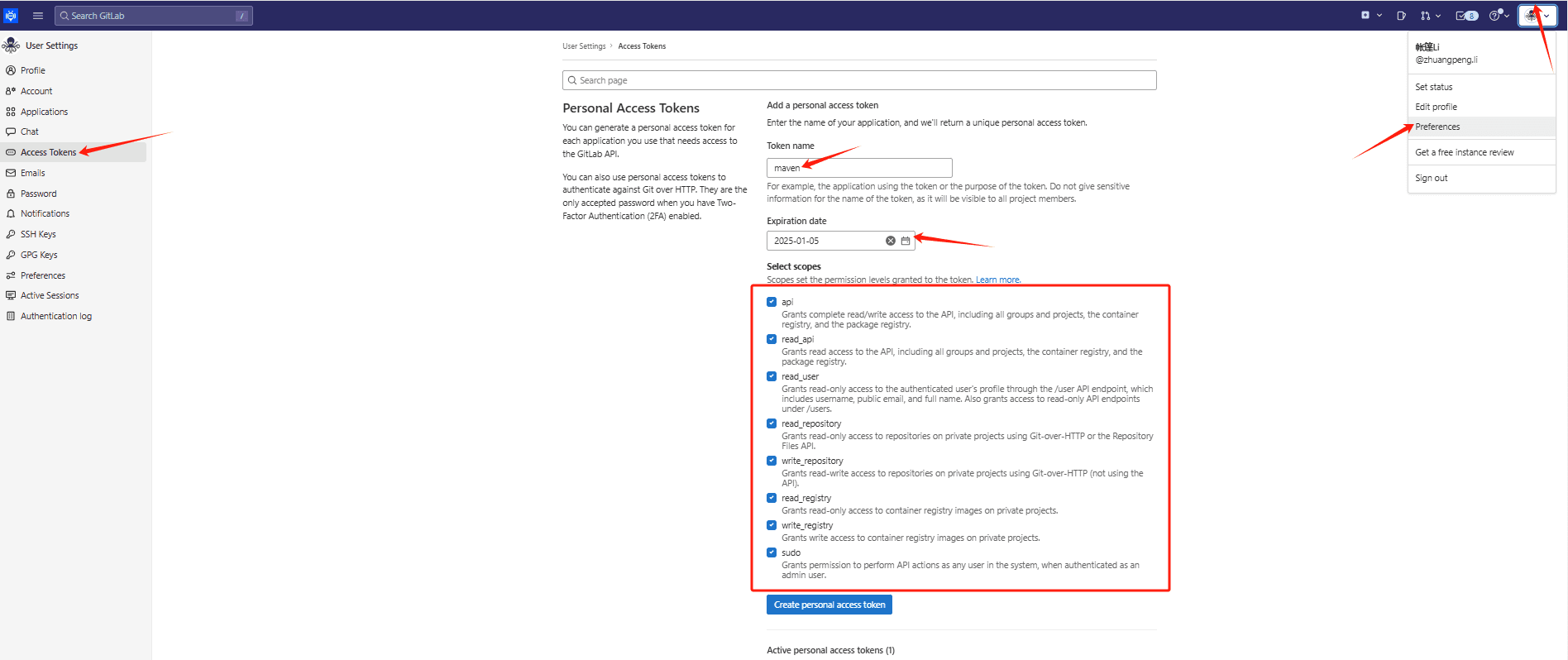
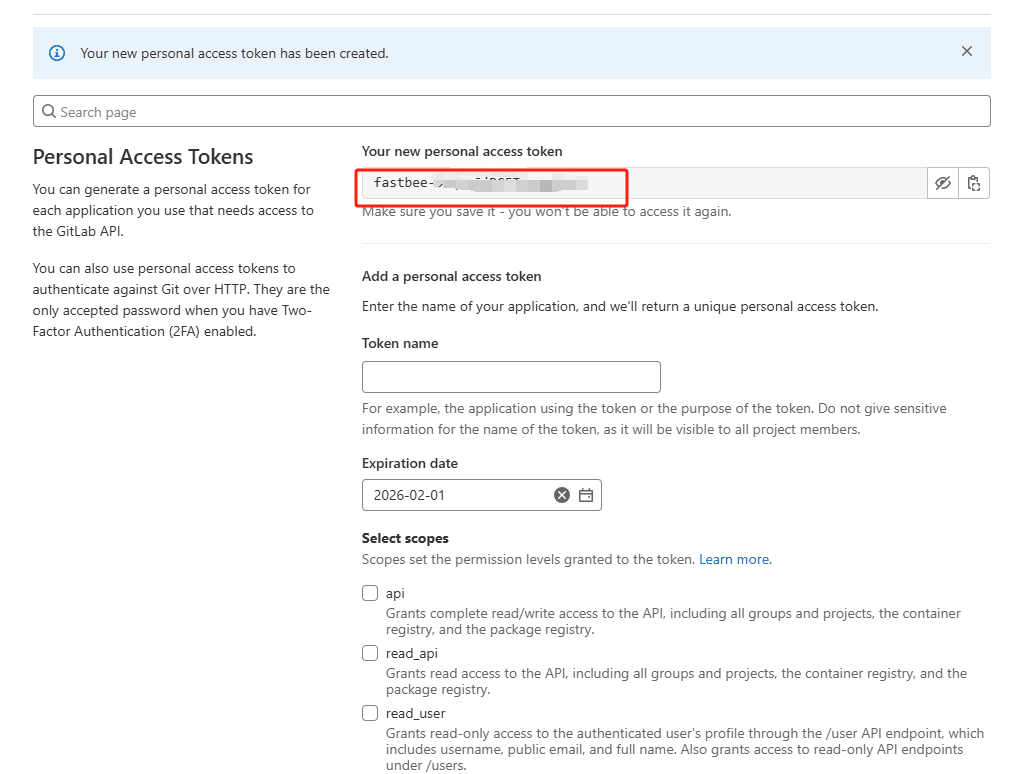
Log in to the private repository, click the avatar -> Preferences -> Access Tokens -> fill in the name and expiration time, select all permissions -> click the Create button. Set a longer expiration time to keep it valid for a long time.
1.2. Configure The Private Key In Maven
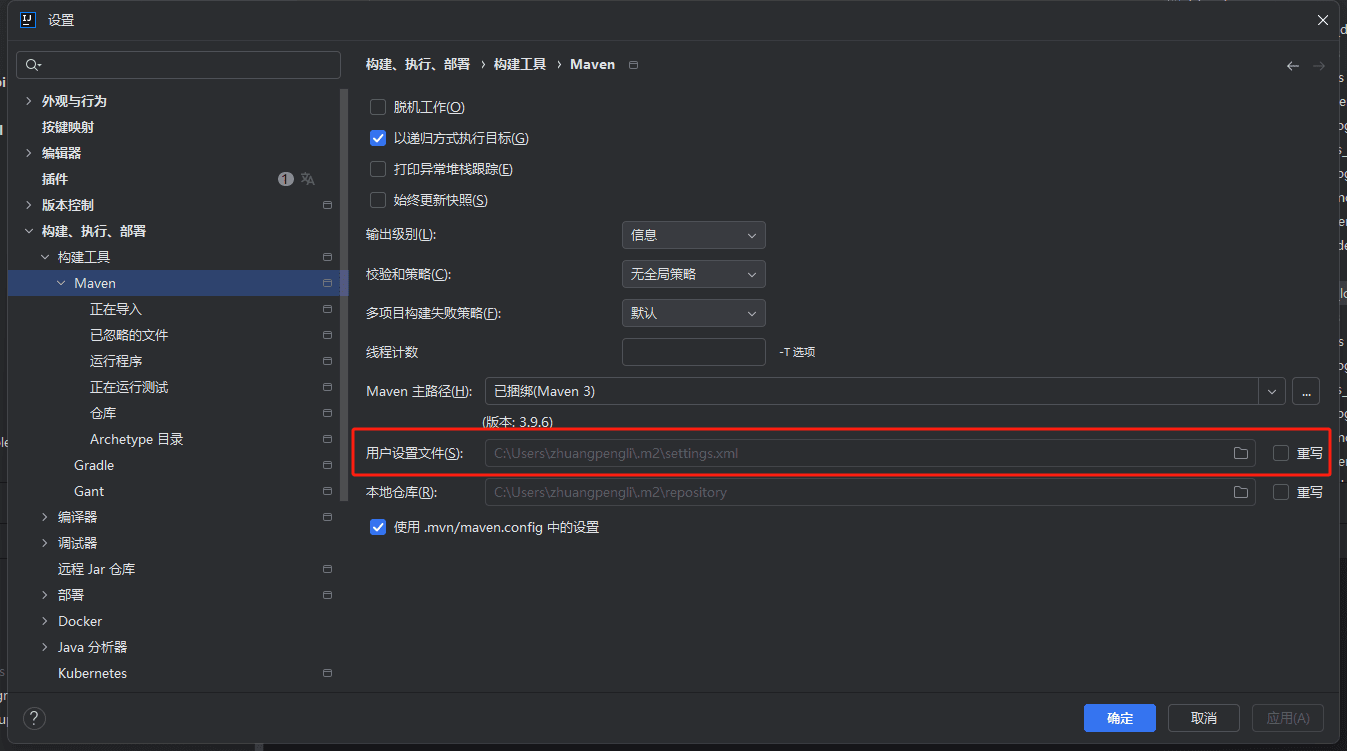
Note: If pulling with your own installed Maven fails, switch to the Maven bundled with IDEA.
- Open the Maven settings.xml file.
The default IDEA configuration file is located at IntelliJ IDEA 2024.1\plugins\maven\lib\maven3\conf, or under your own specified Maven installation directory.
- Fill in the Maven private key configuration. Only the value part needs to be modified and must start with fastbee-; be careful not to pick the wrong one. Keep the name part as default.
  <servers>
    <server>
      <id>gitlab-maven</id>
      <configuration>
        <httpHeaders>
          <property>
            <name>Private-Token</name>
            <value>fastbee-xxxxxx</value>
          </property>
        </httpHeaders>
      </configuration>
    </server>
</servers>Note
- After the Maven private key is filled in successfully, check whether other mirror sources are configured in the settings.xml file. If so, comment them out, otherwise pulling from the FastBee private repository may fail.
- If pulling from the private repository still fails after configuration, copy the configured settings.xml file, create a new Maven repository, reconfigure Maven in IDEA, and then pull again.
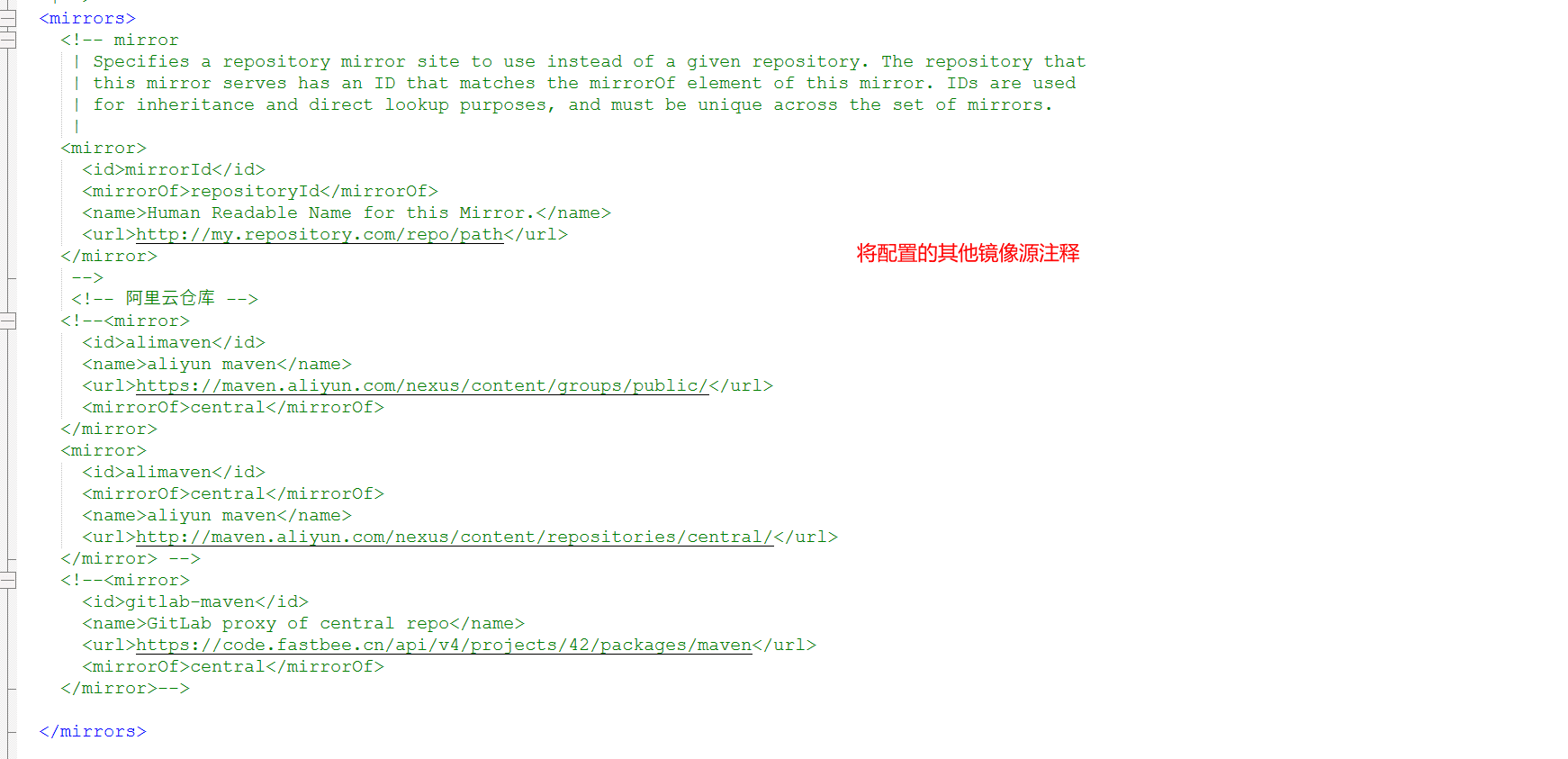
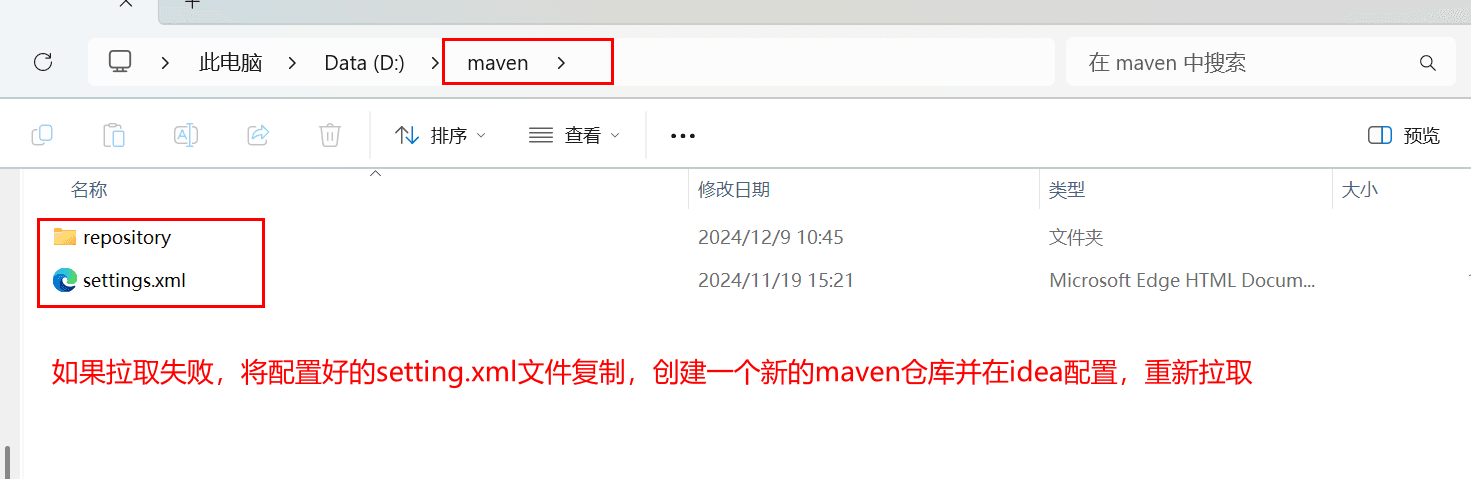
If pulling from the private repository still fails with the above configuration, download the jar package of the corresponding version from the code repository address, manually copy it to the local repository, and refresh with the Maven bundled with IDEA.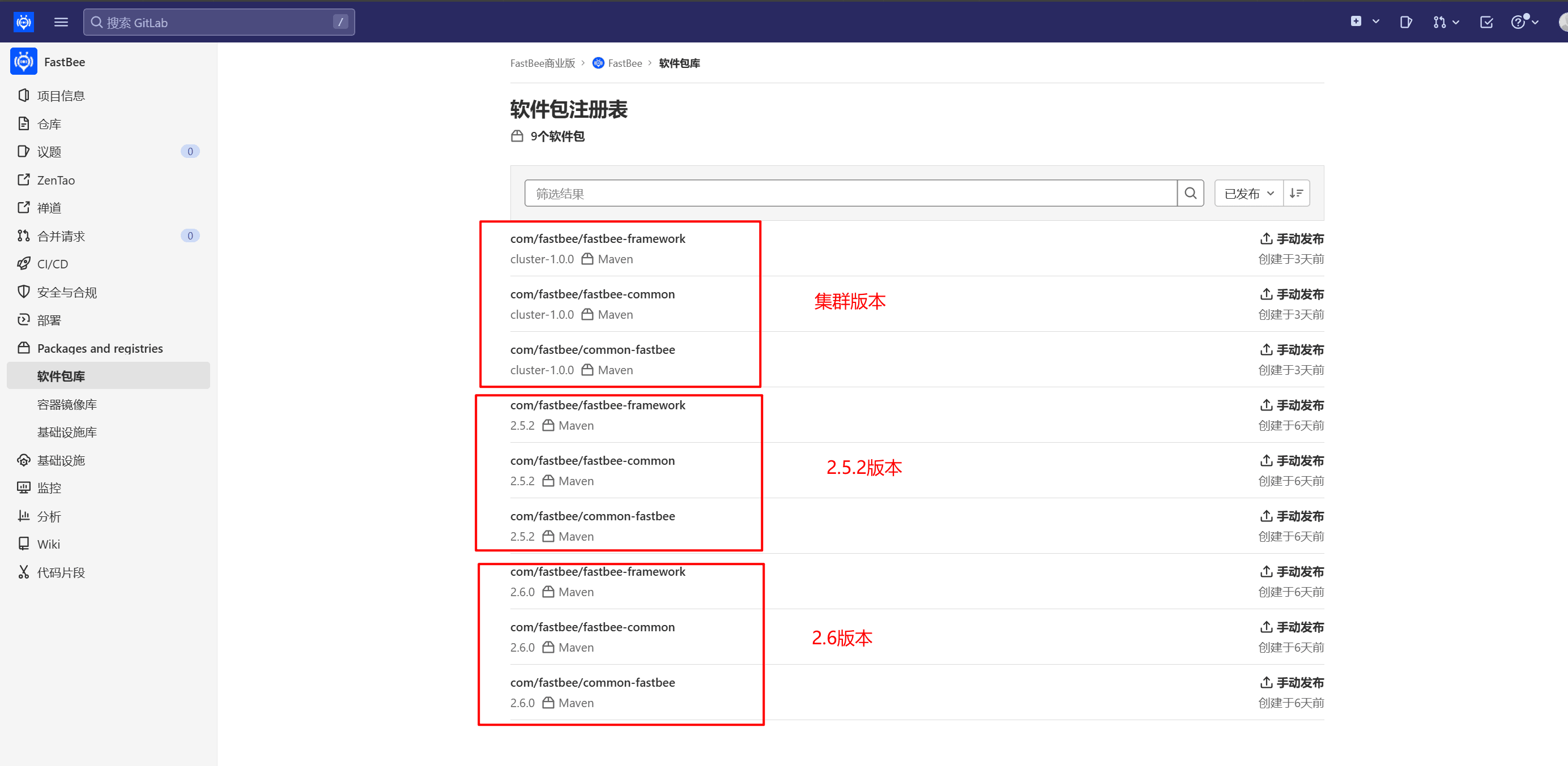
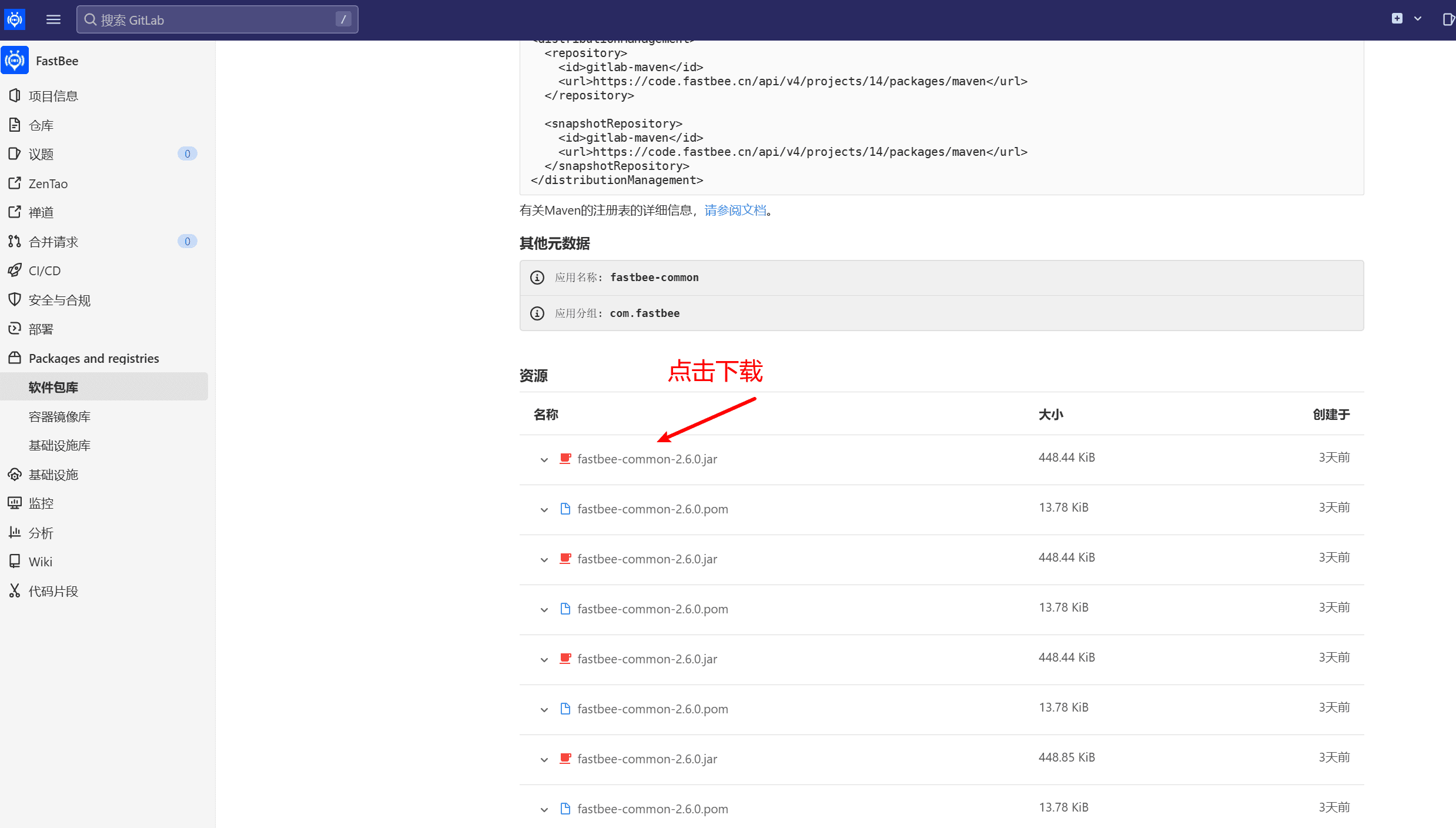
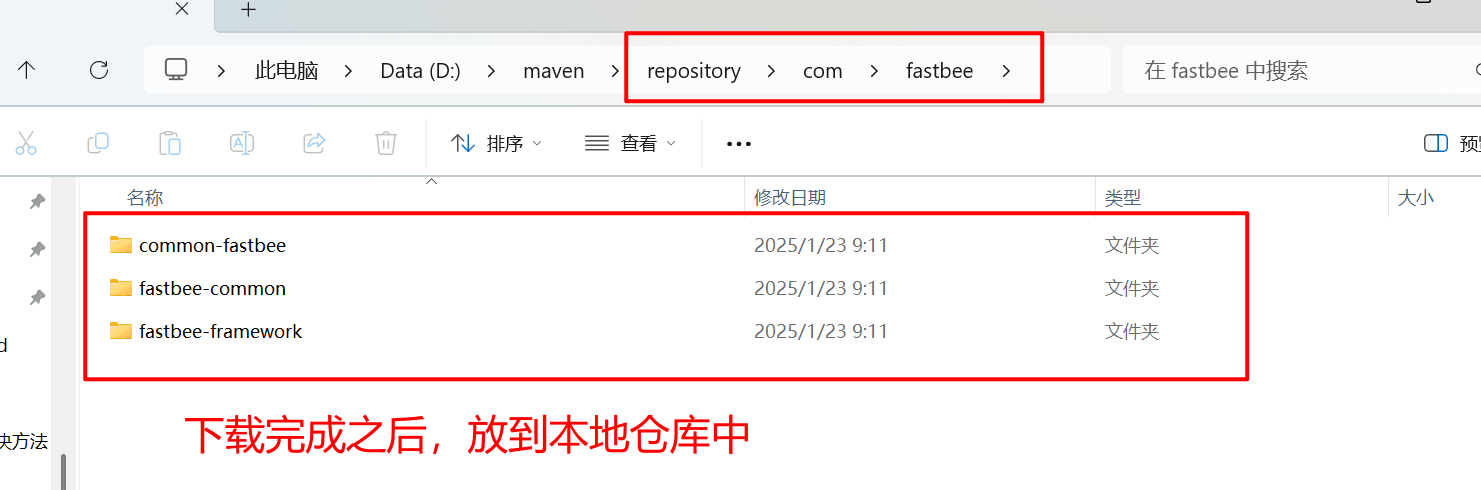
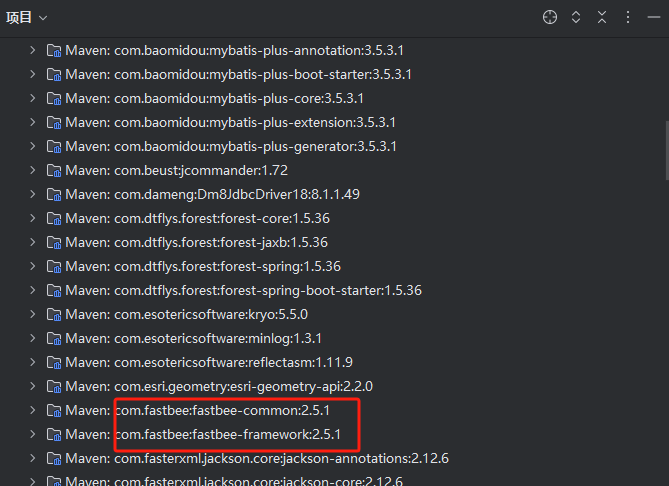
- Common library imported successfully
2. License Certificate Installation
2.1. Install And Configure The License Certificate


2.2. Local Run And Packaging Configuration
提示
The certificate name must be configured in the yml file.
For local runs, the default certificate path is in the classpath of the project path. For docker-compose deployment to a server, keep the default prod configuration.
license:
  subject: you_license_name
  licensePath: classpath:license.lic
publicKeysStorePath: classpath:publicCerts.keystorelicense:
subject: you_license_name
licensePath: /license/license.lic
publicKeysStorePath: /license/publicCerts.keystore2.3. Notes For Upgrading From Old Versions
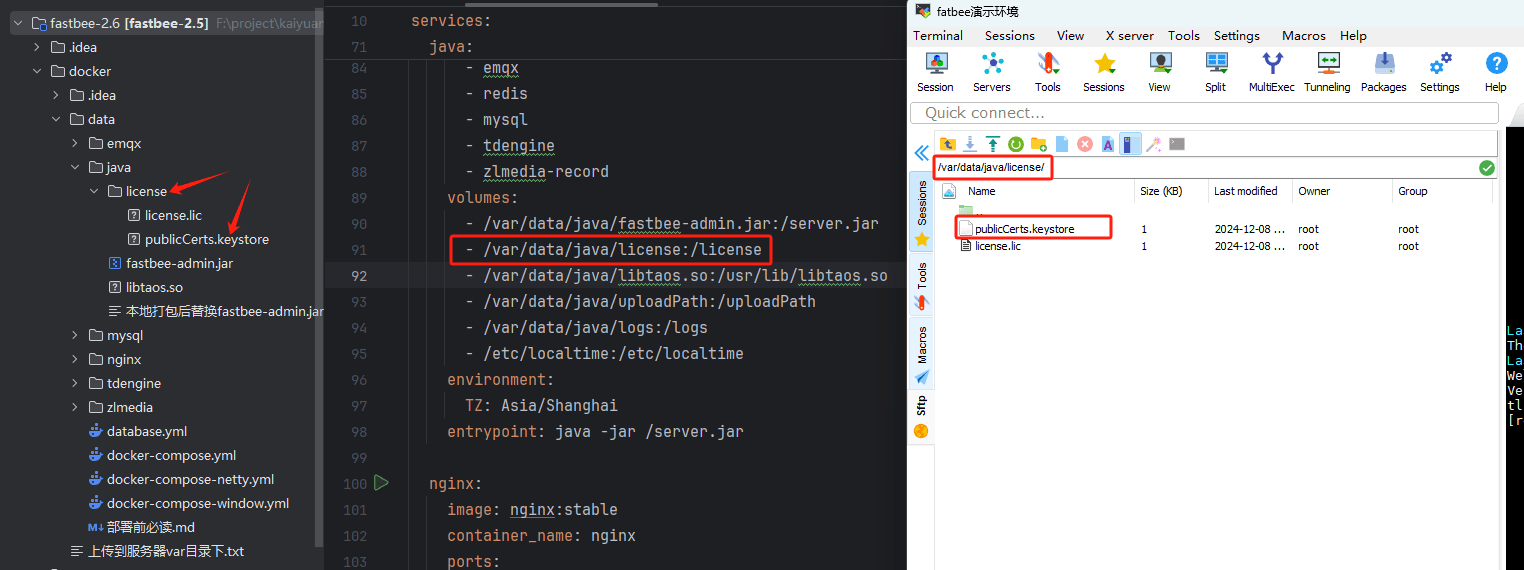
For systems deployed with Docker Compose, add the certificate directory mapping to the script, and upload the public key and certificate from the project's docker directory to the corresponding directory on the server.