

Alert Configuration
1. Alert Configuration
1.1 Overview
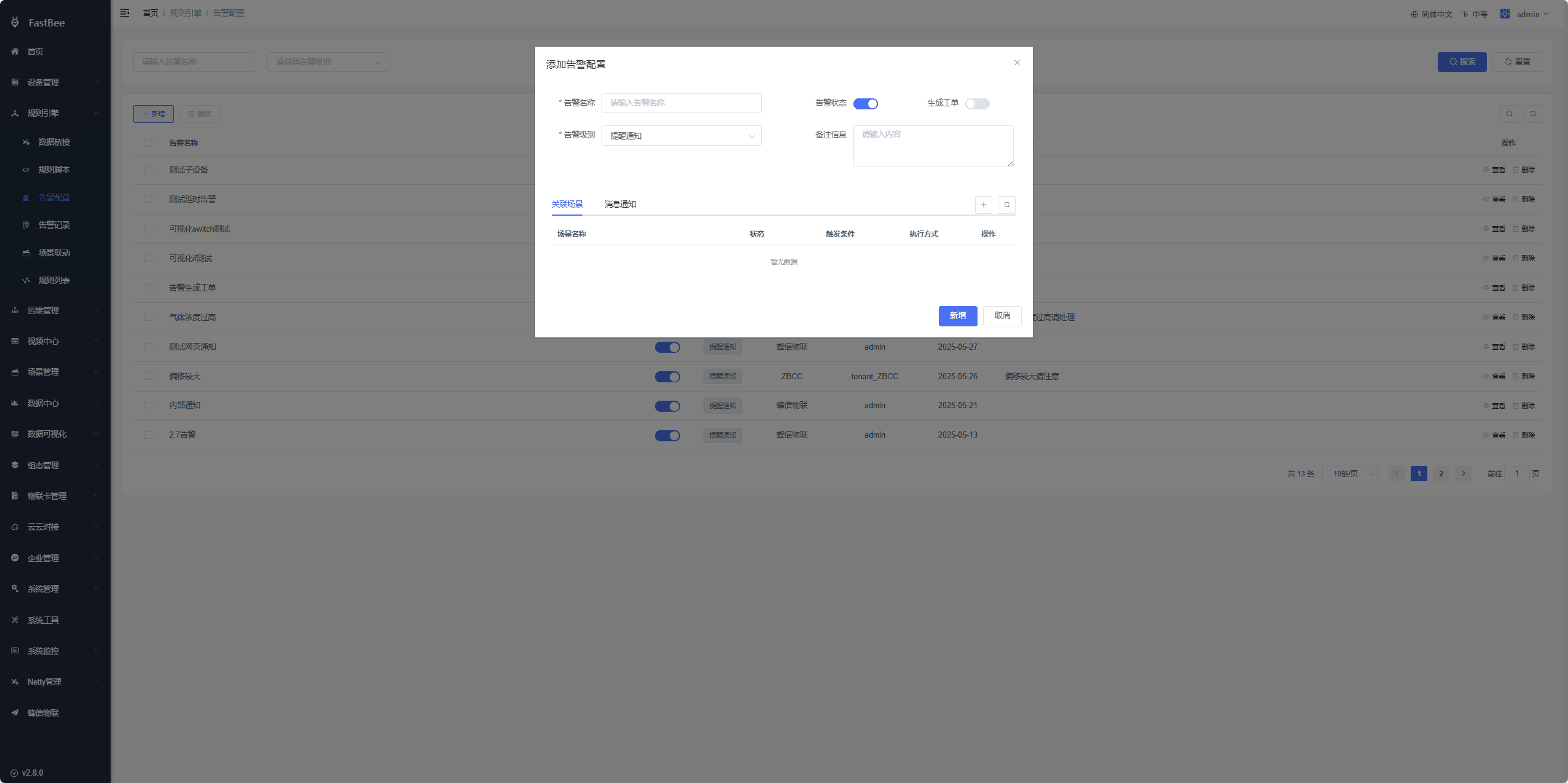
Preset the alert content generated by device alerts, and use it together with Scene Linkage and Message Notification. When the data reported by a device meets the conditions preset in the scene linkage, an alert log is automatically triggered and a message notification is sent.
1.2 Alert Configuration Items
- Alert Name: required, a custom alert name
- Alert Level: required, 1 = Reminder notification, 2 = Minor issue, 3 = Critical warning; choose according to the actual situation. The data comes from the dictionary type iot_alert_level, which you can adjust yourself
- Alert Status: required, whether to enable; enabled by default
- Generate Work Order: required, whether to enable; disabled by default. When enabled, work orders are generated automatically. For work order usage, refer to the Work Order Management documentation
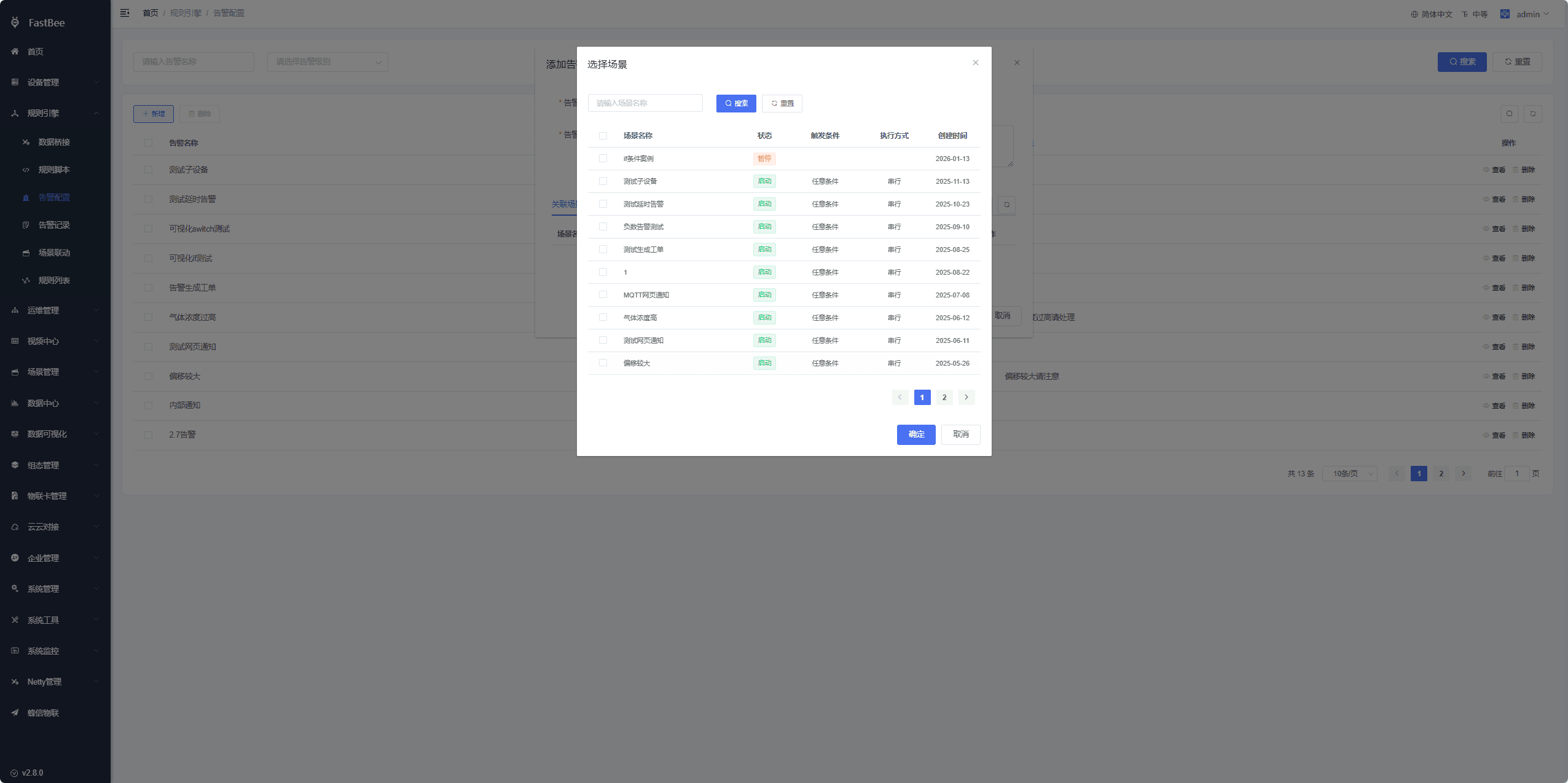
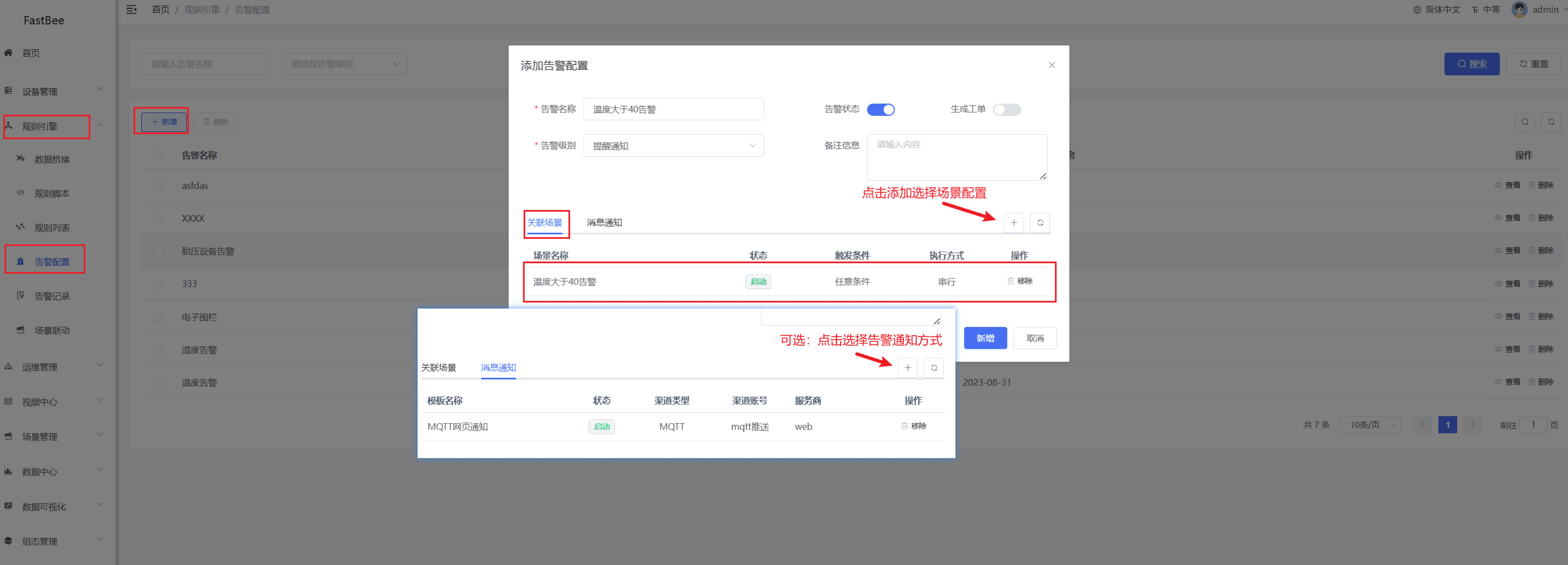
- Associated Scene: required. You can associate scene linkages whose execution action has Alarm execution checked; when the scene linkage is triggered, the current alert is triggered at the same time
- Message Notification: optional. Associate the corresponding message notification; when the alert is triggered, the message notification is triggered at the same time
- Remarks: optional
1.3 Associated Scene
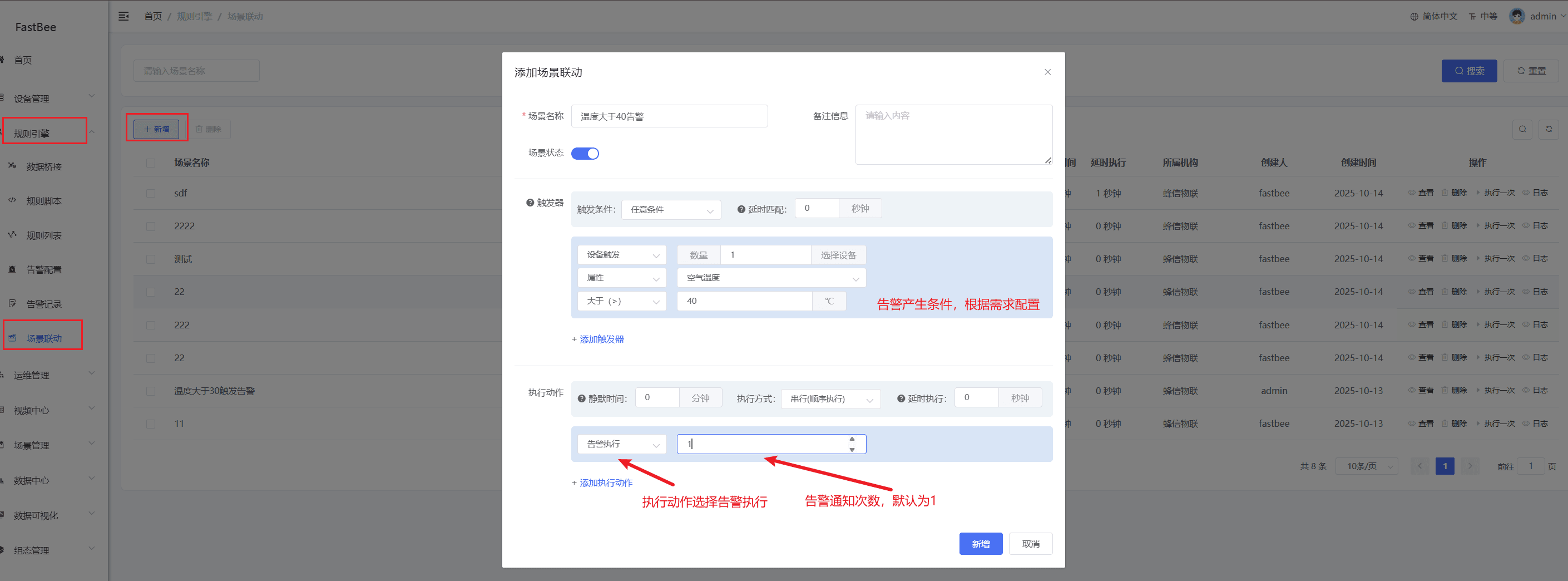
First configure a scene linkage under the Rule Engine - Scene Linkage menu, and configure Alarm execution as the execution action of the scene linkage. For configuration, refer to the Scene Linkage documentation.
提示
The count to the right of Scene Linkage - Execution Action - Alarm execution is the threshold for unhandled alert records. Message notifications are only sent when the number of unhandled alert records is below that count.
1.4 Alert Notification Users
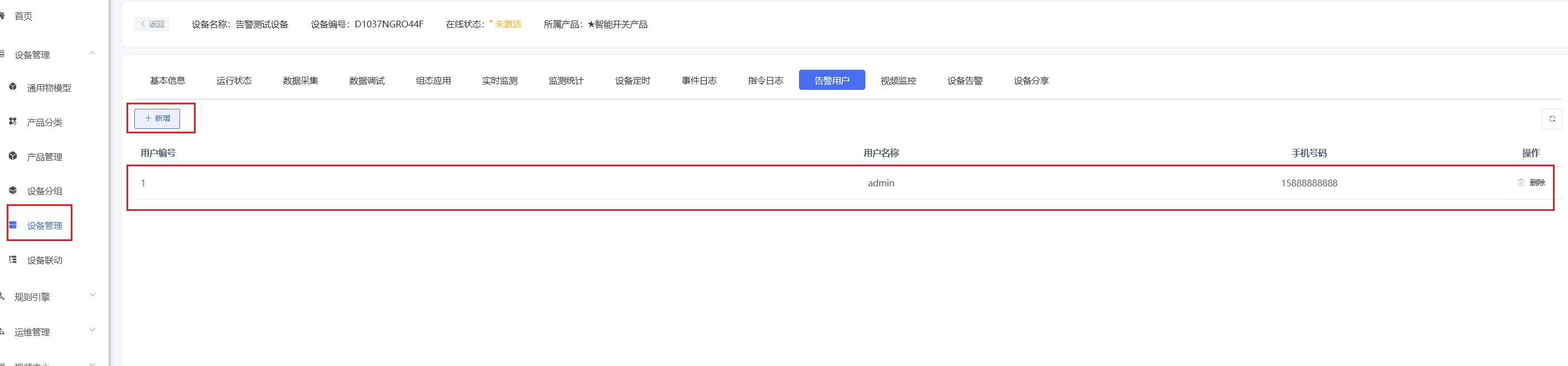
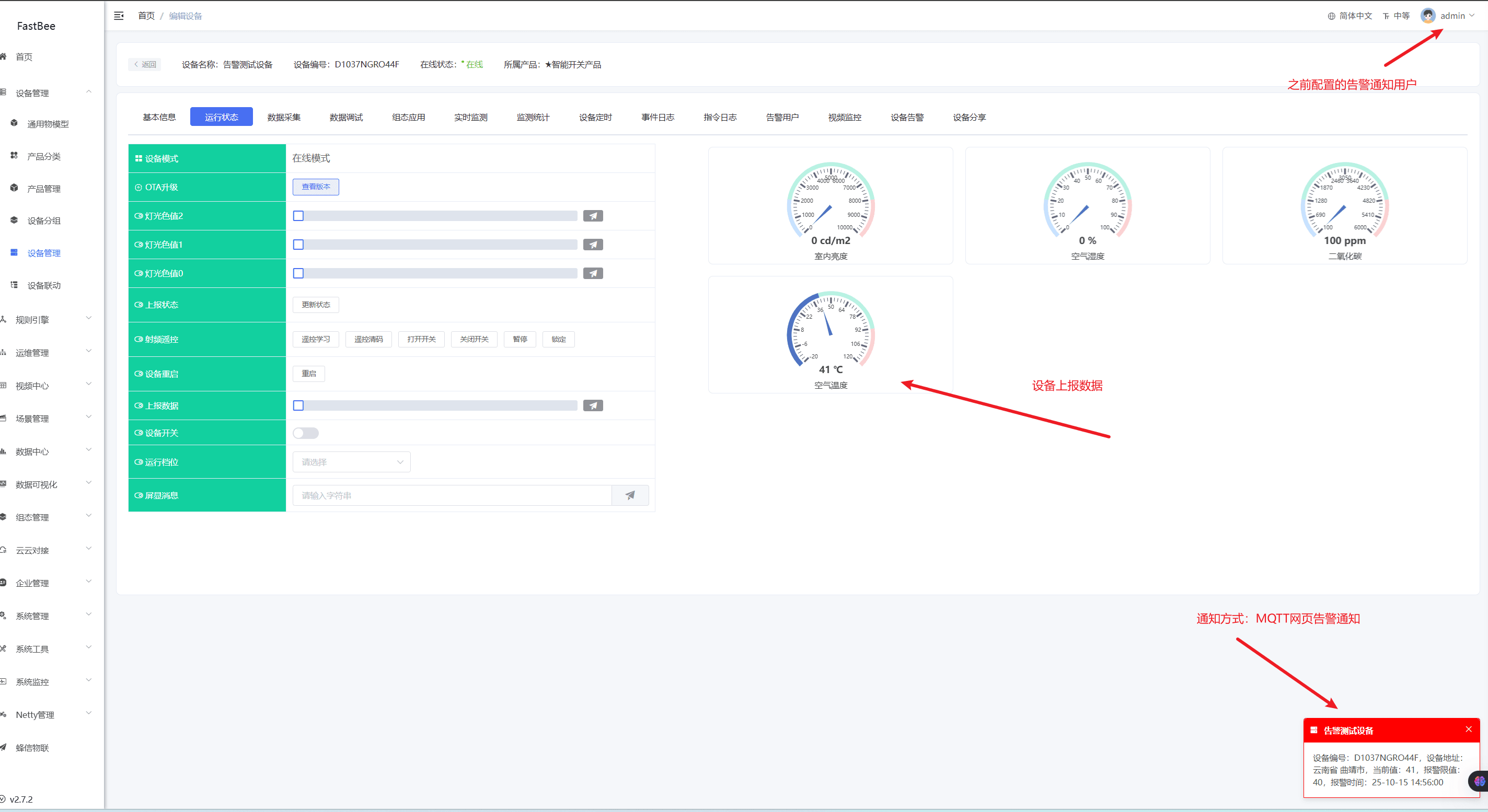
Configure under Device Management - Device Details - Alert Users; select the users who need to be notified of device alerts.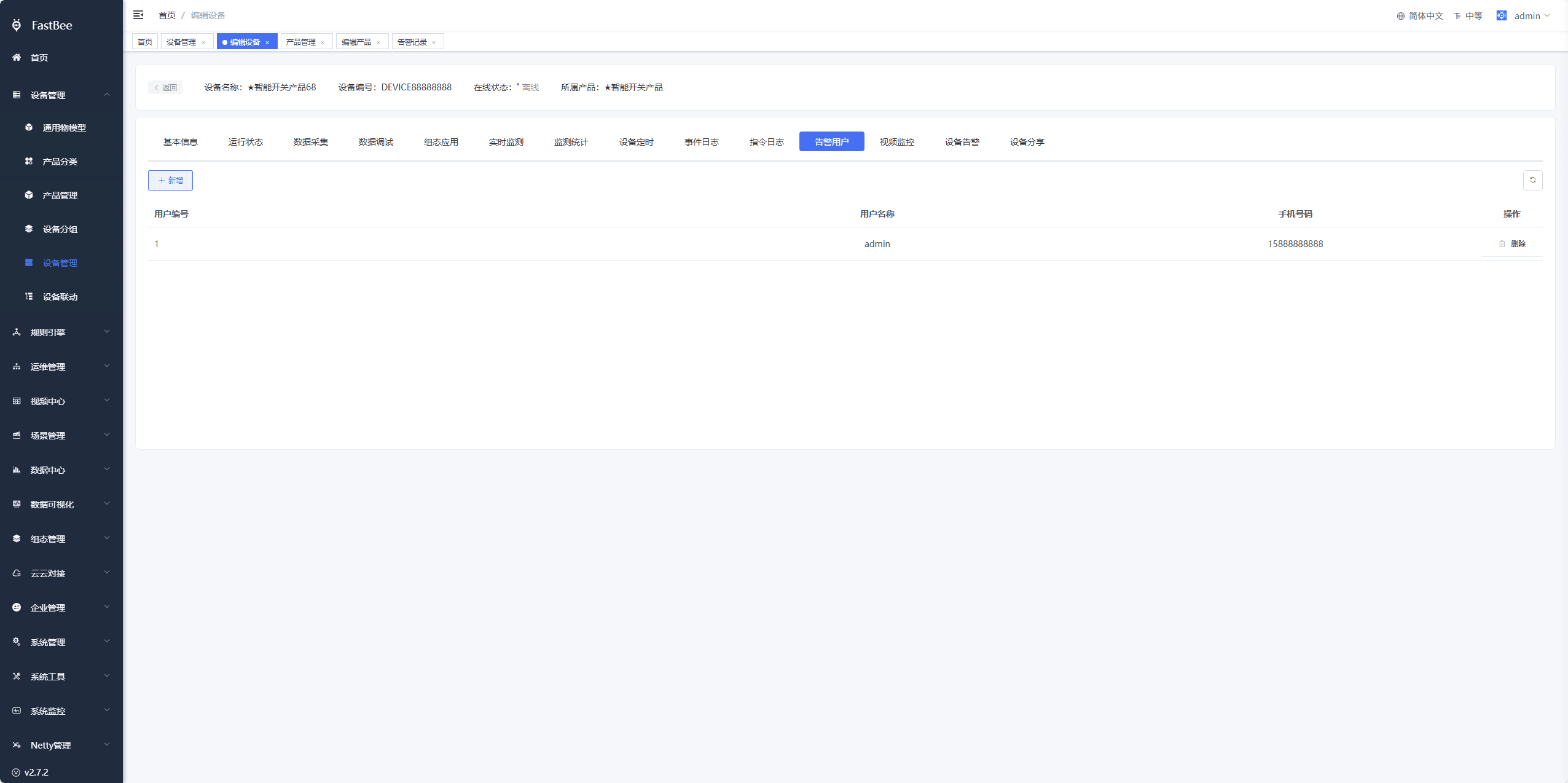
1.5 Associated Message Notification
First configure message notifications under Operations Management - Notification Channels and Notification Templates; refer to the Message Notification documentation. After configuration, associate the message notification in the alert configuration.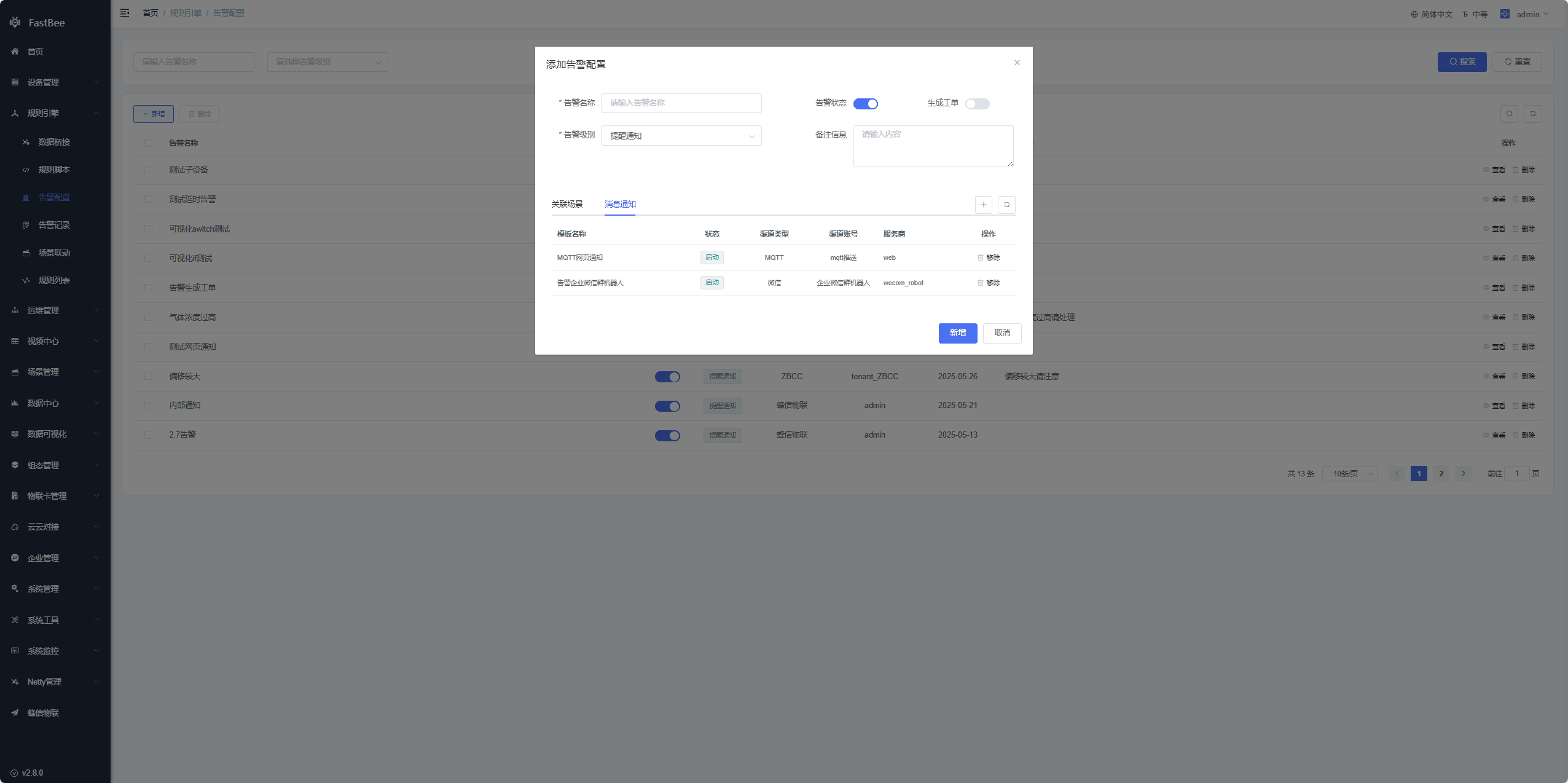
2. Alert Test
Add a scene linkage
Add an alert configuration, and associate the scene and message notification
Add alert users to the device
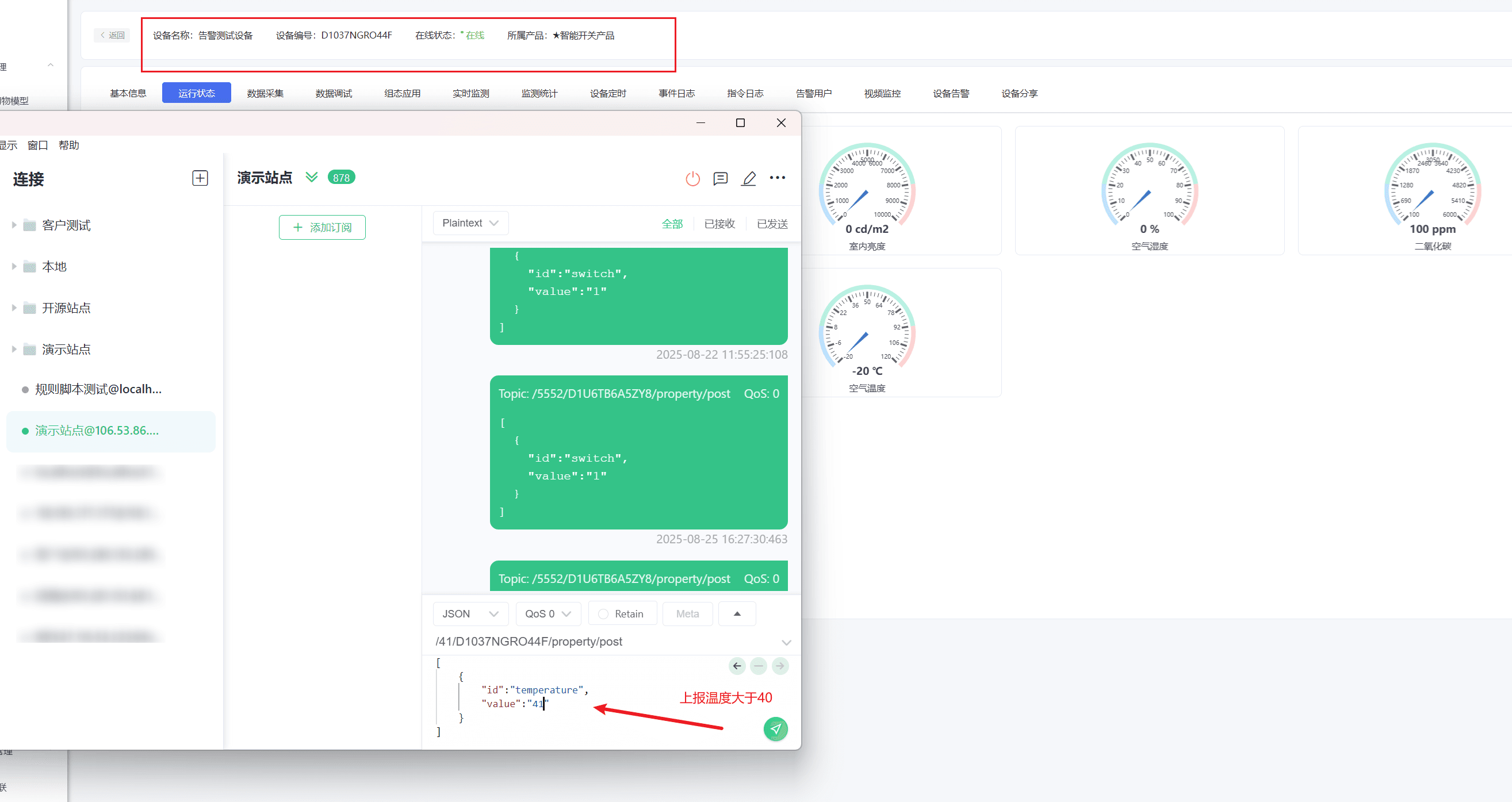
Use MQTTX to simulate device reporting for testing
3. Alert Records
Alert records can be viewed under Device Details - Device Alerts or Rule Engine - Alert Records.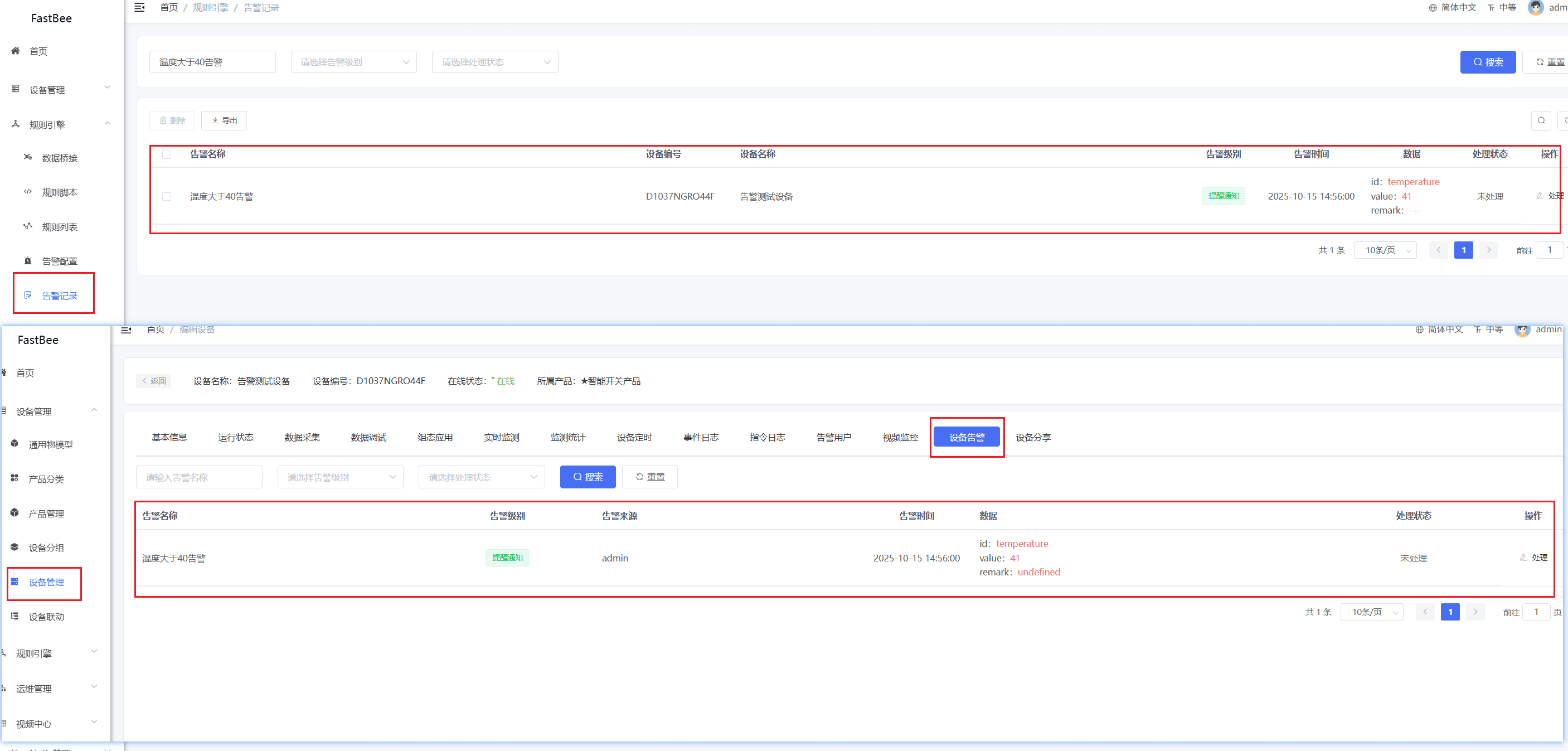
4. Result Verification
After the alert configuration is complete, it is recommended to verify in the following order:
| Acceptance Item | Expected Behavior |
|---|---|
| Scene triggering | After the device reports data that meets the conditions, the associated scene can execute |
| Alert generation | The corresponding alert appears in the alert records |
| Notification delivery | The associated notification channel receives the message |
| Work order generation | When Generate Work Order is enabled, a new work order appears in Work Order Management |
| Alert users | The alert users configured in the device details can receive notifications |
| Recovery handling | After the alert is handled or recovered, the status changes correctly |
5. FAQ
No alert after the device reports data
Check whether the Thing Model identifier, scene trigger conditions, scene status, alert configuration status, and the reported device value meet the conditions.
Alert generated but no notification
Check whether a message notification is associated, whether the notification channel is enabled, whether the template variables are correct, and whether alert notification users are configured.
Too many duplicate alerts
Check the alarm execution count configuration in the scene linkage, the alert recovery conditions, the device reporting frequency, and the rule debounce strategy.
Notification received but no work order
Check whether Generate Work Order is enabled in the alert configuration, and whether the work order type and contact are complete.
6. Secondary Development Entry Points
| Type | Path or API | Description |
|---|---|---|
| Frontend pages | vue3/src/views/iot/alert | Alert configuration and records pages |
| Backend API | /iot/alert | Alert configuration, records, and handling APIs |
| Scene API | /scene/model, /scene/modelData | Scene trigger source |
| Notification API | /notify, /notify/channel, /notify/template | Alert notification |
| Work order API | /iot/workOrder | Work orders generated by alerts |