

vue running
1. Opening the Frontend Project
The Visual Studio Code development tool is recommended. The frontend and backend of the FastBee IoT platform live in one repository: the backend is the springboot directory and the frontend is the vue directory. Just open the vue frontend directory in your development tool.
2. Modifying the Configuration
Modify the .env.development file in the root directory. The backend API defaults to port 8080; in the MQTT message server, the TCP protocol port defaults to 8081 and the WS protocol port defaults to 8083; WSS accesses port 8083 through the nginx proxy.
# Backend API address
VUE_APP_SERVER_API_URL = 'http://localhost:8080'

# MQTT message server connection address
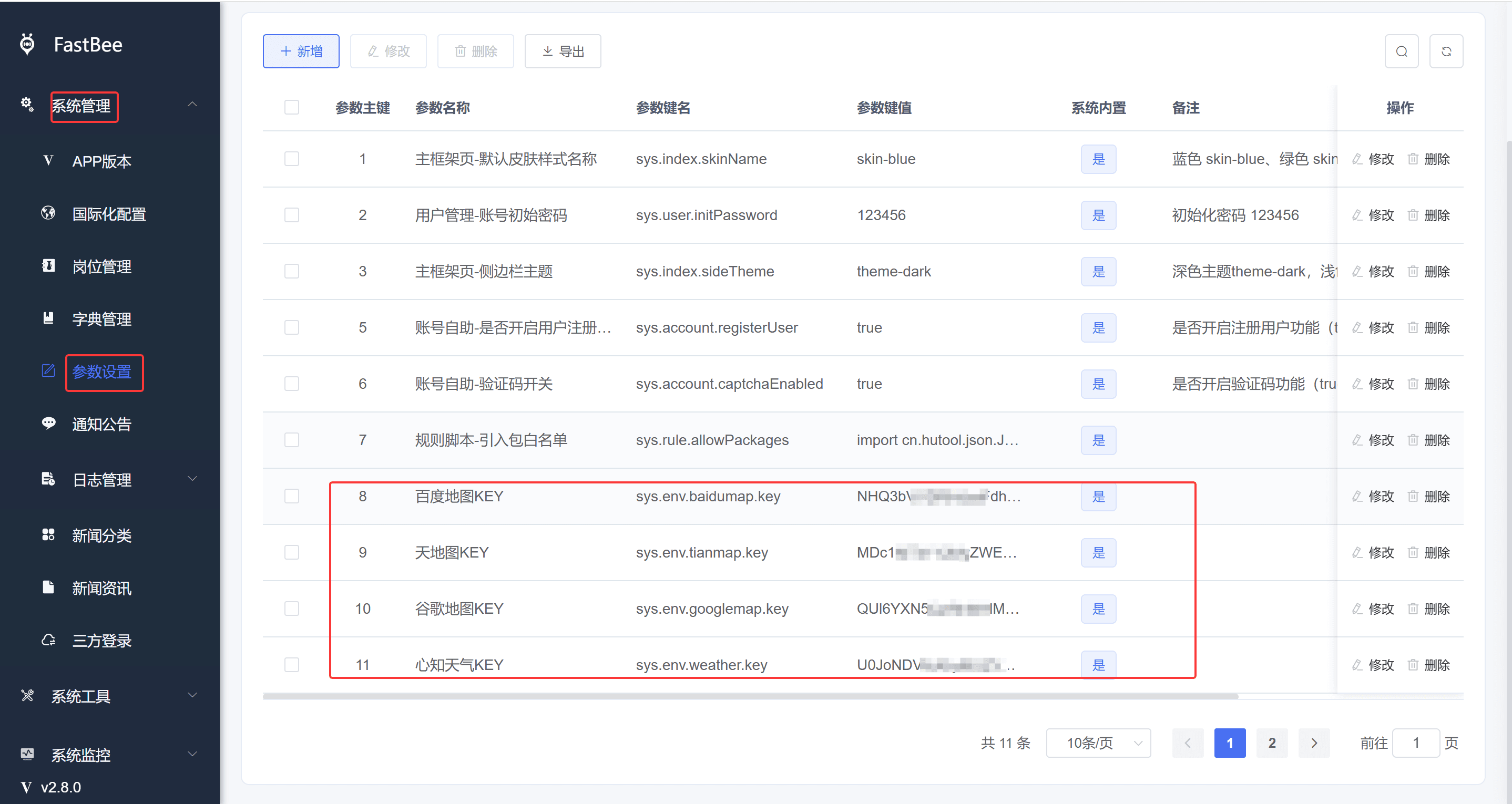
VUE_APP_MQTT_SERVER_URL = 'ws://localhost:8083/mqtt'Tianditu (China national map), Baidu Maps, Google Maps, and Seniverse Weather can be filled in under System Management - Parameter Configuration. Refer to the image below (keep the parameter keys consistent with the image).
Note
- Apply for the Tianditu AK at Tianditu Resource Development (Chinese).
- Apply for the Baidu Maps AK at the Baidu Maps Open Platform (Chinese).
- Apply for the Google Maps AK at Google Maps Platform.
- Apply for the Seniverse Weather KEY at the Seniverse website (Chinese).
3. Installing Dependencies
After finishing the configuration, start installing dependencies. You can solve slow npm installation by re-specifying the registry. Run either of the following commands to install dependencies:
npm install
npm install --registry=https://registry.npmmirror.comNote
- It is strongly recommended not to install directly with cnpm, as it causes all kinds of strange bugs
- If you get an error when running with Node.js V16 or above, run the following command and then run again
- Windows:
$env:NODE_OPTIONS="--openssl-legacy-provider" - macOS/Linux:
export NODE_OPTIONS=--openssl-legacy-provider
- Windows:
4. Running
After the dependencies are installed successfully, run the following command to start the project locally
npm run devOpen a browser and enter http://localhost:80 with the default account/password admin/admin123. If the login page displays correctly, you can log in successfully, and the menus and pages display normally, the environment setup is complete.
5. VSCode Helper Plugins
- i18n Ally: improves developers' efficiency in translating multiple languages through visual operations
- JavaScript (ES6) code snippets: helps developers quickly write ES6 (ECMAScript 2015) code snippets
- Prettier - Code formatter: unifies code formatting to ensure consistent appearance, including indentation, line breaks, quotes, etc.
- Vuter: provides code highlighting and syntax support for Vue single-file components
- ESLint: monitors JavaScript code quality and helps developers improve their coding skills
- vscode-icons: provides a rich and easily recognizable set of file and folder icons, beautifying the code editing environment and improving code readability and visual appeal
Note: choose according to your own development habits.