

Scene Management
Page Guide
1. Overview
Scene Management is equivalent to device grouping. It brings together gateways, direct devices, individual sub-devices, or newly created input-type and calculated-type variables, so you can uniformly view the running status of all devices in a scene. Different organizations can create their own scenes, and a parent organization can view the scenes of its subordinate organizations;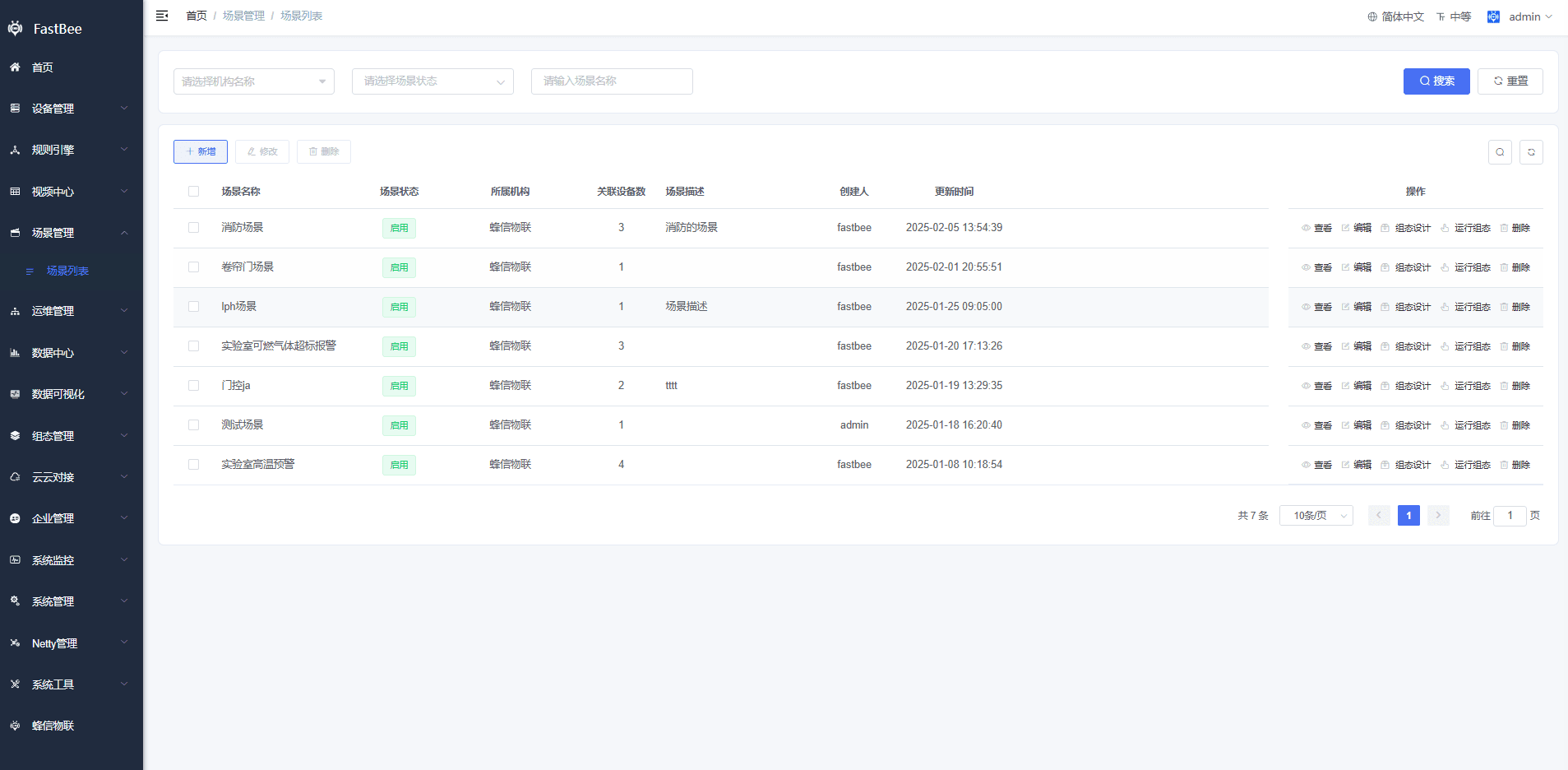
2. Data Sources
2.1. Device Configuration
The left side lists bound devices — you can bind multiple devices; the variable list on the right corresponds to the Thing Model of each device, and each variable can be enabled or disabled.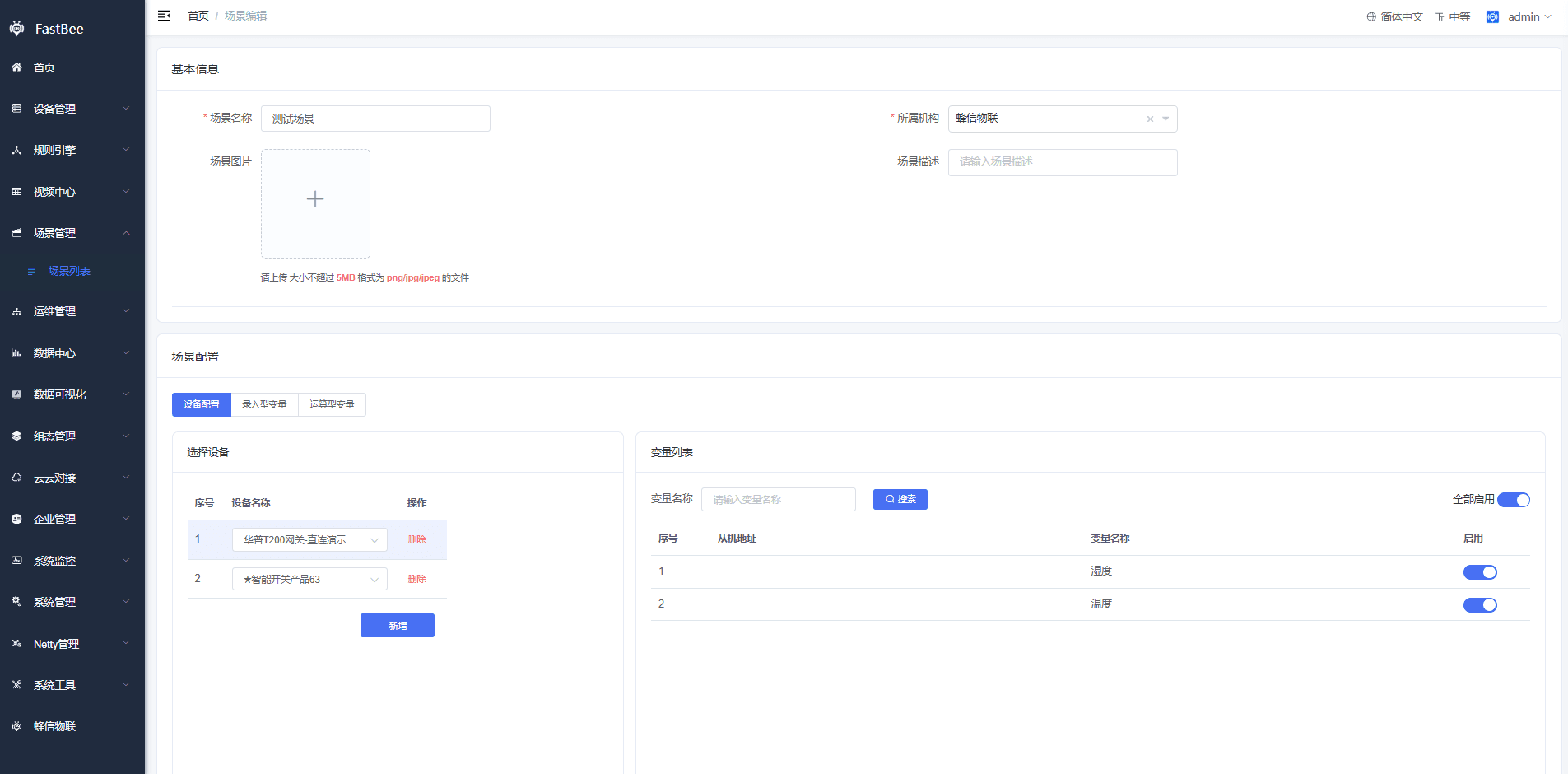
2.2. Input-type Variables
An input-type variable represents an external condition that changes. For example, if a device collects electricity consumption data and you need to calculate the electricity bill, the input variable can be the electricity unit price. As shown in the figure, click to add an input-type variable for use in later calculations.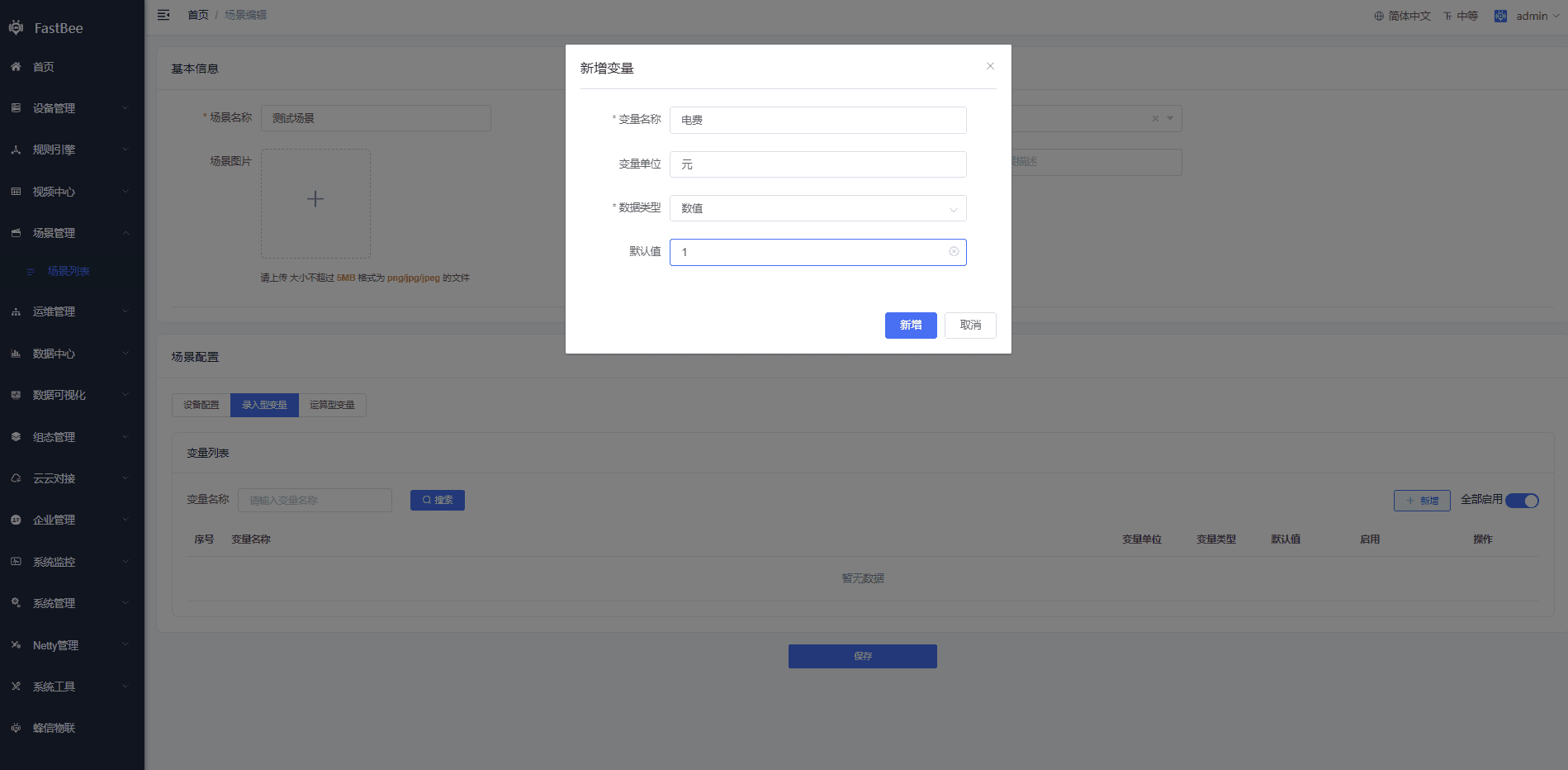
提示
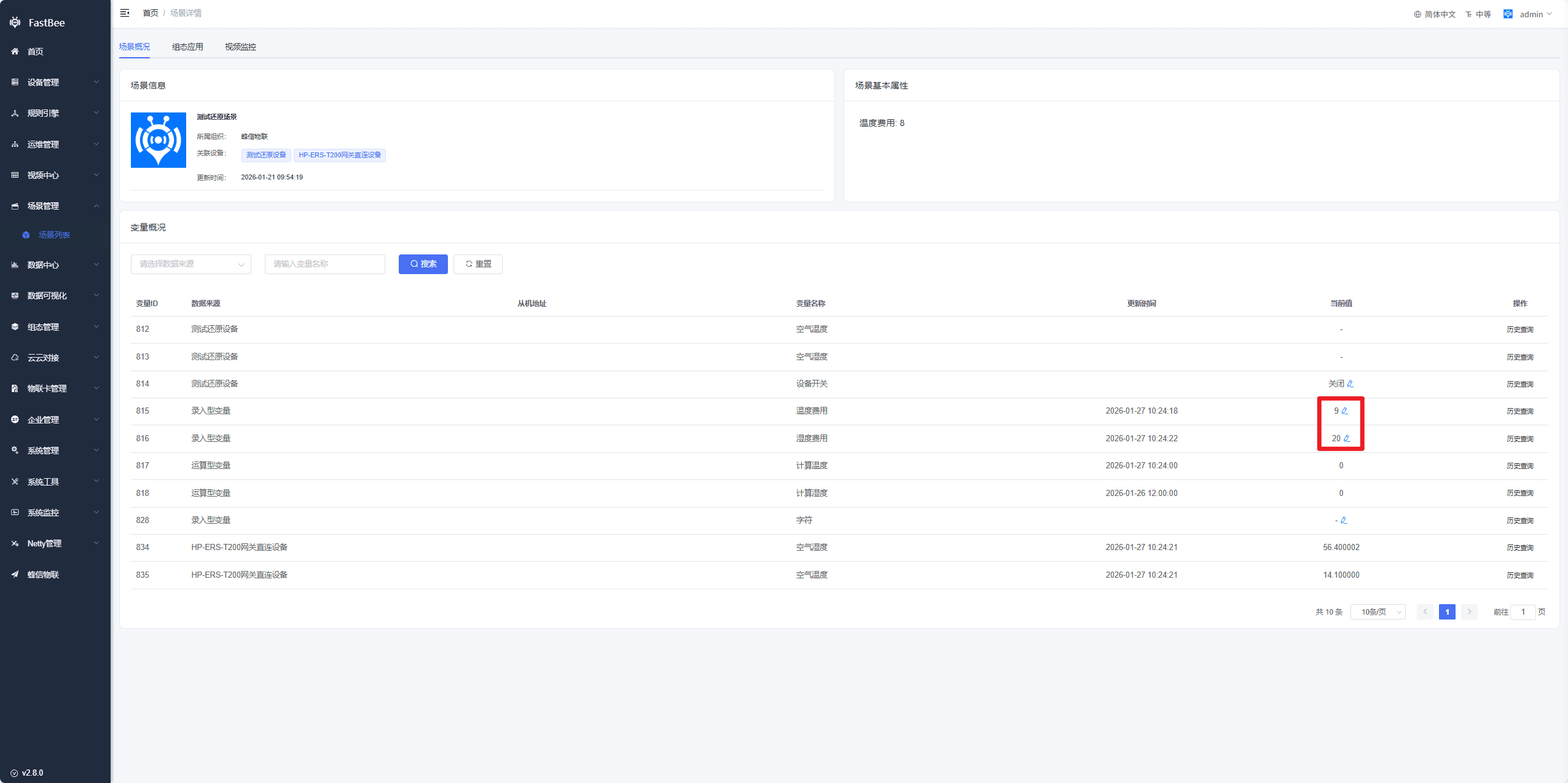
Note: input-type variables can be modified by issuing changes from the platform side. After modification, the modified value is used in calculations; otherwise the default value is used.
2.3. Calculated-type Variables
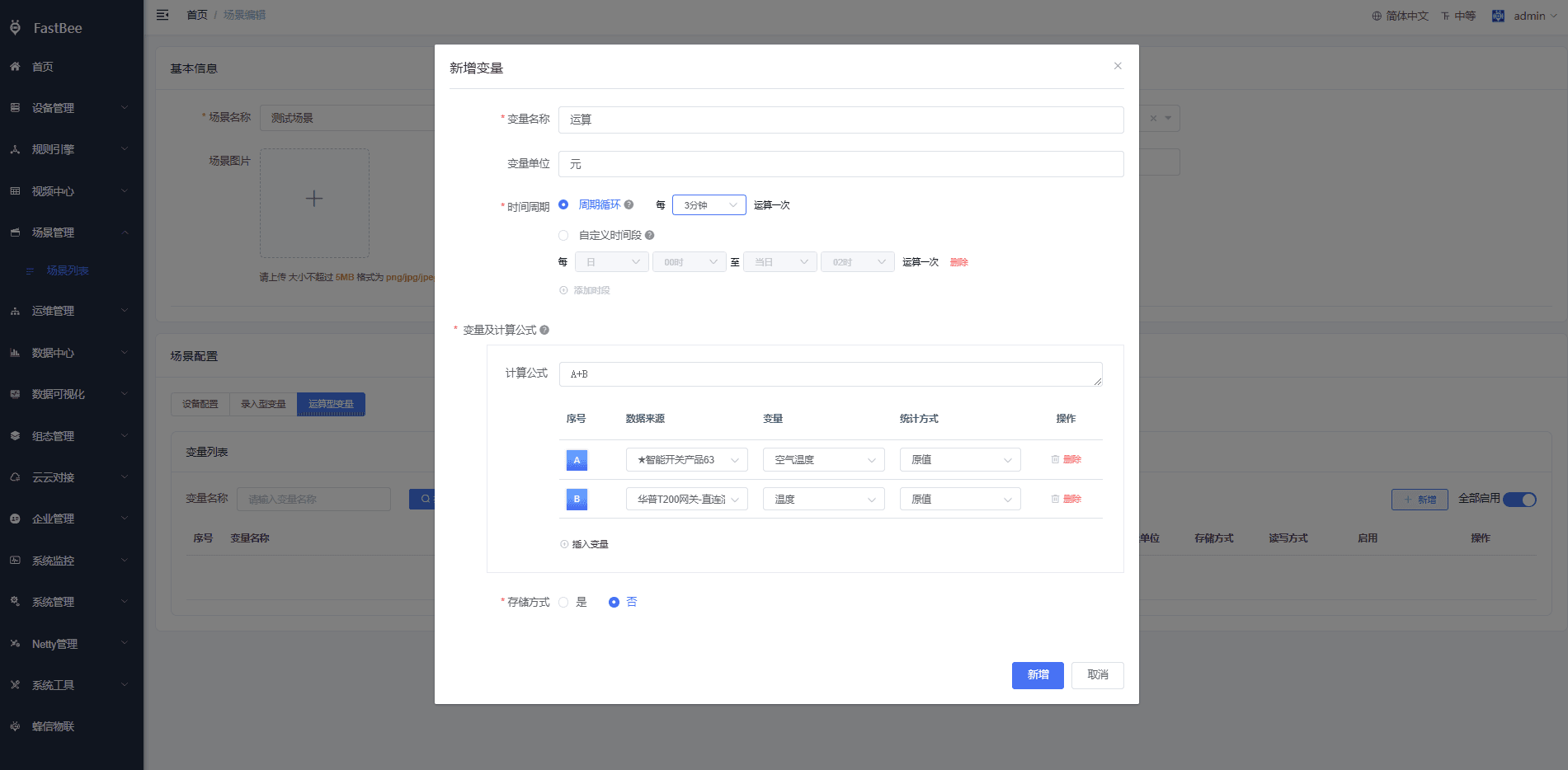
A calculated-type variable substitutes device configuration variables, input-type variables, and other calculated-type variables into a calculation formula, and computes the final result at a specified point in time. Calculation can be enabled or disabled; the variable is only computed after being enabled.
Time Period
Cyclic period: compute at a specified point in time — every N minutes, hourly, at a given hour each day, on a given weekday and hour each week, or on a given day and hour each month. For example, if "daily" is selected, the time range is the previous day.
Custom time range: choose appropriate start and end times as needed; the end point in time is used for computation;
提示
Note: this is generally used together with a statistics method other than "raw value". For example, if variable A uses the cumulative value method, the sum of all historical values of the variable within the selected time range is computed; other statistics methods work similarly.
Variables and Calculation Formula
Variables: each selected variable is represented by a sequential uppercase letter, which is then substituted into the calculation formula;
Calculation formula: supports single or multiple variables, and simple or complex formulas that follow the four arithmetic operations; For example: to compute an electricity bill, select the input-type variable Electricity Price (A) and the device configuration variable Electricity (B), with the formula A*B; the bill is then computed at the specified point in time;
Statistics Method
Raw value: the device's most recently reported value is used in the calculation;
Cumulative value: all historical values of the variable within the time period are summed and substituted into the formula;
Average value: the average of all historical values of the variable within the time period is calculated and substituted into the formula;
Maximum value: the maximum of all historical values of the variable within the time period is calculated and substituted into the formula;
Minimum value: the minimum of all historical values of the variable within the time period is calculated and substituted into the formula;Storage Method
If checked, each calculation result is stored in the database, providing historical data; if unchecked, no historical data is stored — only the latest calculated value is kept in the cache;
3. Viewing Variables
In the scene list, click the View button to uniformly view all enabled variables in the scene. When a variable has new data reported, it is displayed in real time; you can also click the Issue button to send commands to the device;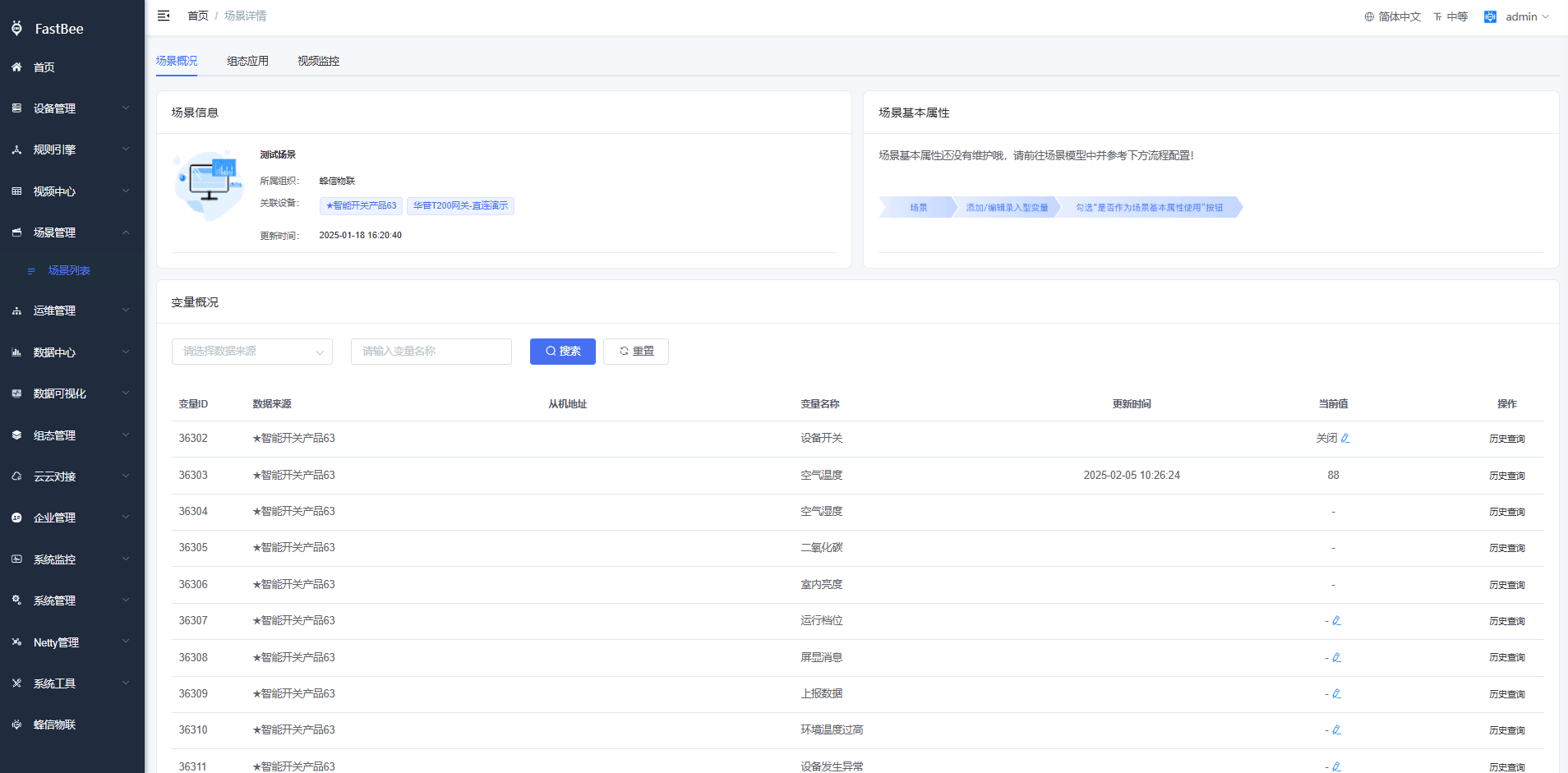
4. Configuration (HMI) Design
You can create a configuration under Configuration Management - Scene Configuration and bind it to a scene, or click Configuration Design in the scene list. If the scene is not bound to a configuration, you are redirected to Scene Configuration to create a new configuration page; if already bound, you are redirected to the configuration design page. One configuration is uniquely bound to one scene;
After a scene is bound to a configuration, you can click Configuration Run in the scene list to view it, or click Configuration Application in the scene details;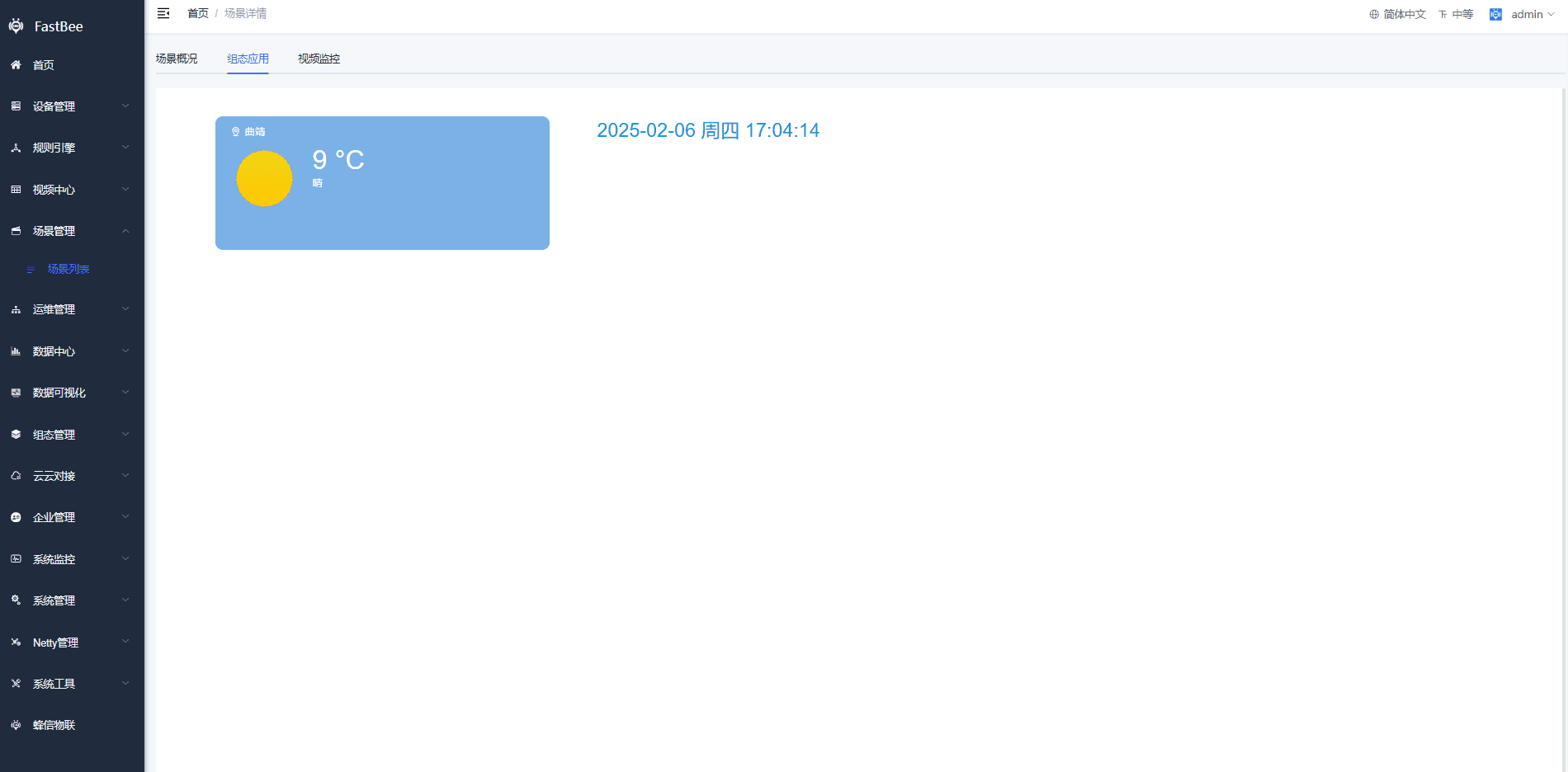
5. Video Surveillance
In Video Center - Channel Management, click the device binding button to associate a scene. One scene can be associated with multiple video channels; after associating, click Video Surveillance in the scene details to view all associated videos;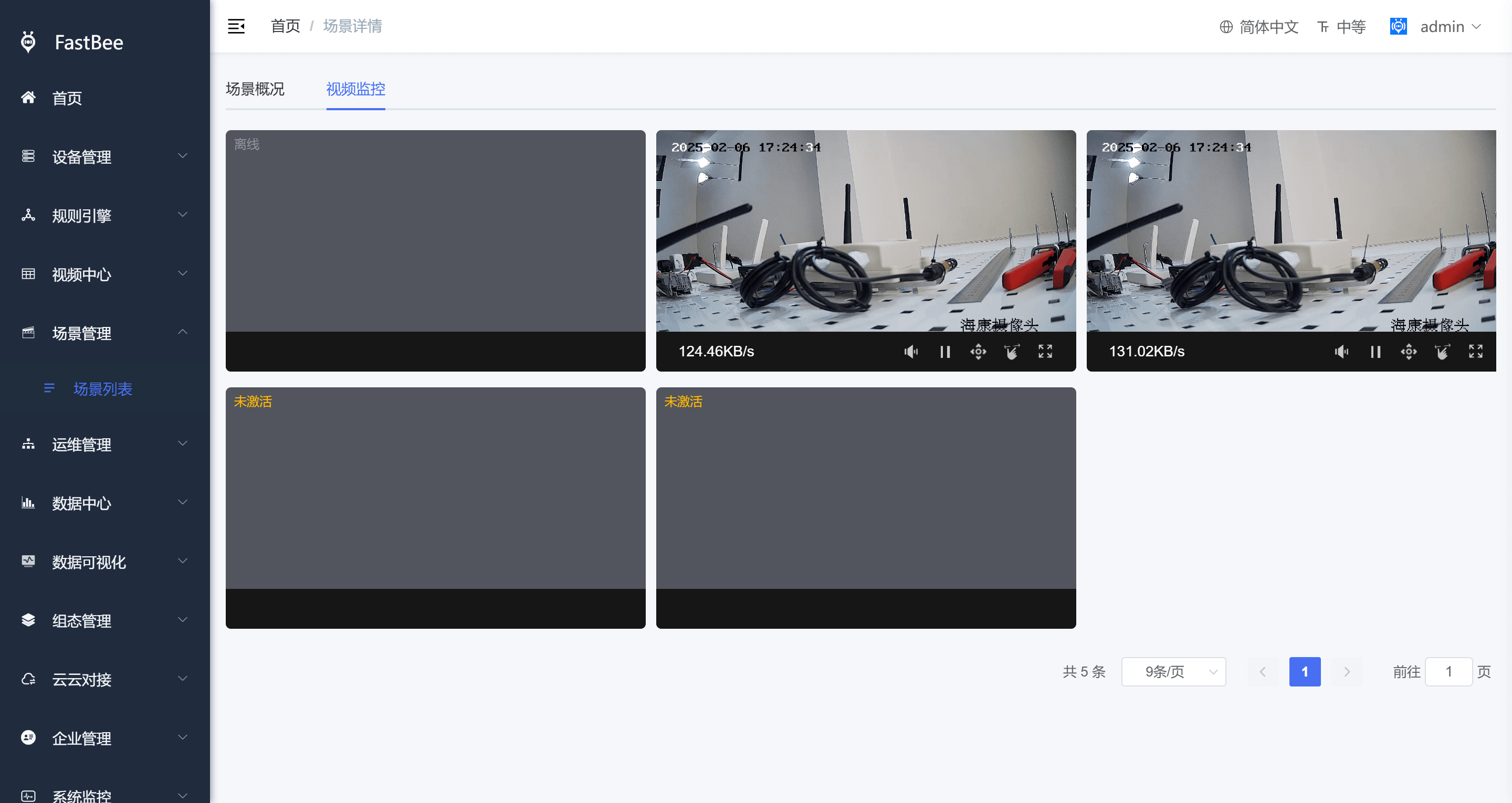
6. Scene Acceptance Checklist
| Acceptance Item | Expected Behavior |
|---|---|
| Device binding | Bound devices and variables are visible in the scene |
| Variable enablement | Only enabled variables are shown |
| Input variables | Can be modified manually and participate in subsequent calculations |
| Calculated variables | Correct calculation results are produced when the period arrives |
| Historical storage | History can be queried after storage is checked |
| Command issuing | Writable variables can be issued to real devices |
| Configuration association | The scene configuration can read the current scene's variables |
| Video association | After associating video channels, they can be viewed in the scene |
FAQ
Scene variables are not refreshing
Check whether the device is online, whether the variables are enabled, whether the device is reporting, and whether the devices bound to the scene are correct.
Calculation results are incorrect
Check the variable statistics method, time period, formula, input variable values, data types, and whether historical data is missing.
Scene configuration has no data
Check whether the configuration is bound to the current scene, whether the variable source is set to scene variables, and whether the scene variables are enabled.
Subordinate organizations cannot see the scene
Check the organization relationship, data permissions, role permissions, and the organization of the scene creator.
Secondary Development Entry Points
| Type | Path or API | Description |
|---|---|---|
| Frontend page | vue3/src/views/scene/list | Scene list, details, editing |
| Backend API | /scene/model | Scene model |
| Backend API | /scene/modelData | Scene variable data |
| Backend API | /scene/modelDevice | Scene device binding |
| Backend API | /scene/modelTag | Scene tags |
| Configuration page | vue3/src/views/dragEditor | Scene configuration design and runtime |