

Device Management
Page Guide
Entry Points and Recommended Flow
- Go to Device Management → Device Management, and choose manual creation, batch import, or wait for devices to auto-register, depending on the product.
- After a device is created, check its authentication info, device number, parent product, location mode, device shadow, and disabled status.
- After the device comes online, open its details page and verify each tab in turn: Basic Information, Running Status, Data Collection, Data Debugging, Event Log, and Command Log.
- Handle device assignment, reclaiming, sharing, and QR-code binding only when tenant isolation, per-user visibility, or end-user binding is required.
Device Management Overview
After creating and releasing a product, you can add devices to the product on this page.
This document helps you understand device-related features.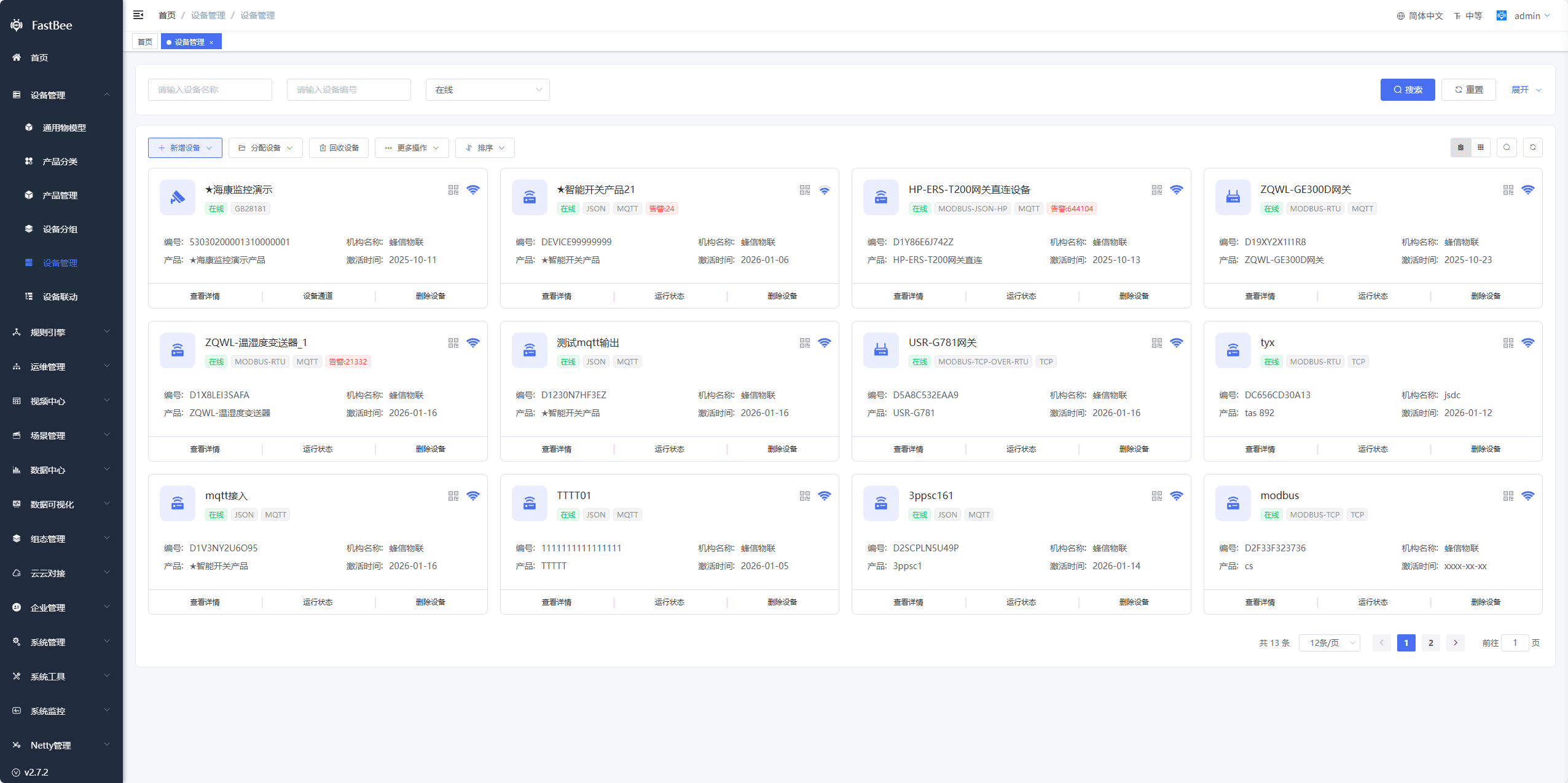
1. Overview
A device is a concrete instance of a product. Each device entity on the cloud platform represents a device you use in a real-world scenario. Through the cloud platform you can view device status information in real time. A device can be a gateway, a temperature and humidity sensor, an instrument, and so on.
2. Device Configuration Options
| Option | Description |
|---|---|
| Device Name | Required, the device name |
| Product | Required, a selection button; choose the corresponding product |
| Device Number | Required, customizable (the device number must be longer than 9 characters), or click the "Generate" button to generate it automatically |
| Firmware Version | Required, defaults to 1 |
| Device Shadow | Toggle; whether to enable shadow mode If enabled, commands can be delivered in shadow mode while the device is offline, and the cloud platform delivers the commands to the device when it comes online |
| Disable Device | Toggle; whether to disable the device. A disabled device cannot connect to the platform |
| Remark | Optional, input box |
| Location Mode | Radio buttons; changes the location mode of a single device. Inherits the product location mode by default |
| Longitude | Device longitude; can be entered manually only when the location mode is "Custom Location". Other modes do not support input |
| Latitude | Device latitude; can be entered manually only when the location mode is "Custom Location". Other modes do not support input |
| Address | Address of the device; can be entered manually only when the location mode is "Custom Location". Other modes do not support input |
| Access Address | Read-only; the access IP used when the device connects |
| Activation Time | Read-only; the time when the device first connected to the system |
| Device Signal | Read-only; the device signal strength |
| Other Information | Auth Info: the information the device uses to connect to the cloud platform. QR Code: the QR code of the device; end users can scan it to bind and use the device |
| Map Display | The location marker of the device on the map |
| ICCID | The device uses an IoT SIM card; this is the ICCID of the card. The ICCID must be reported via the /info/post topic. For details, see MQTT Protocol Device Access |
3. Device List
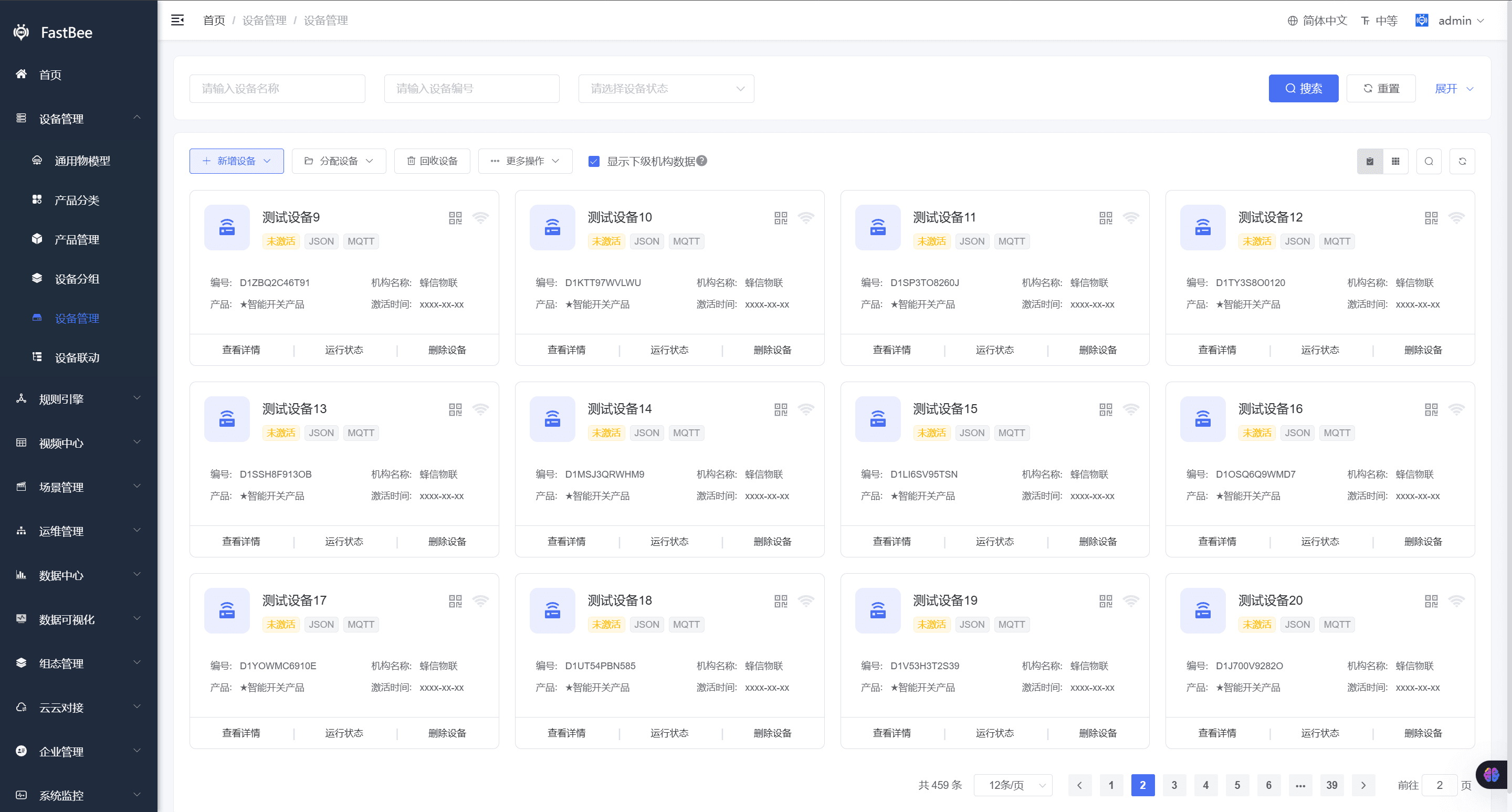
3.1. Add Device
- Manual add: click the "+ Add Device" button, choose the "Manual Add" button, and the Add Device window opens
提示
Note: if the product device type is Gateway Device and the communication protocol is ModbusRtu, Modbus-to-Json Parsing Protocol - Huapu, ModbusTcp, or JSON Gateway Parsing Protocol, and sub-products are configured on the product side, a sub-product list is shown. Each sub-product can have multiple sub-devices configured. For details, see Gateway and Sub-device Documentation
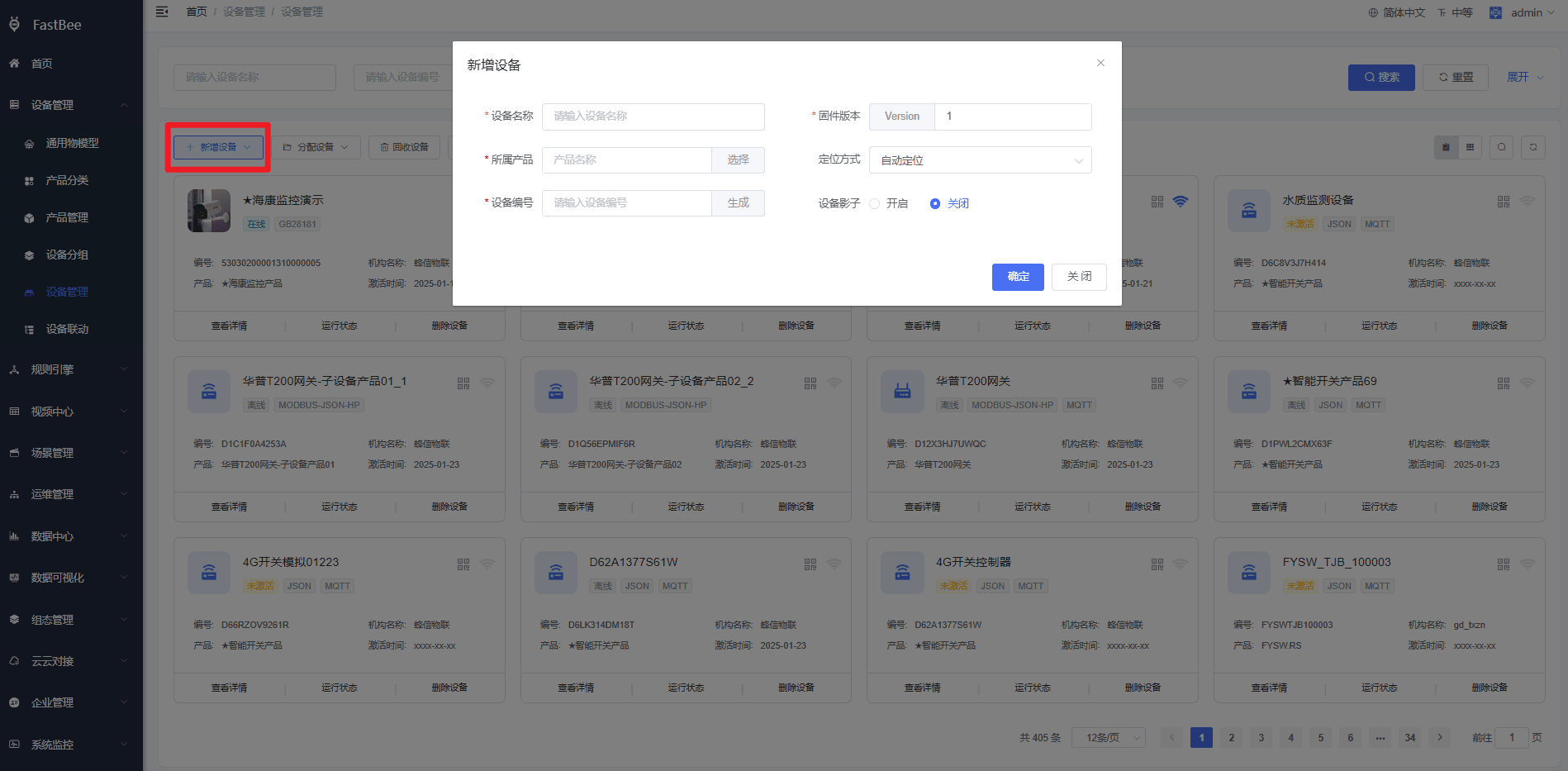
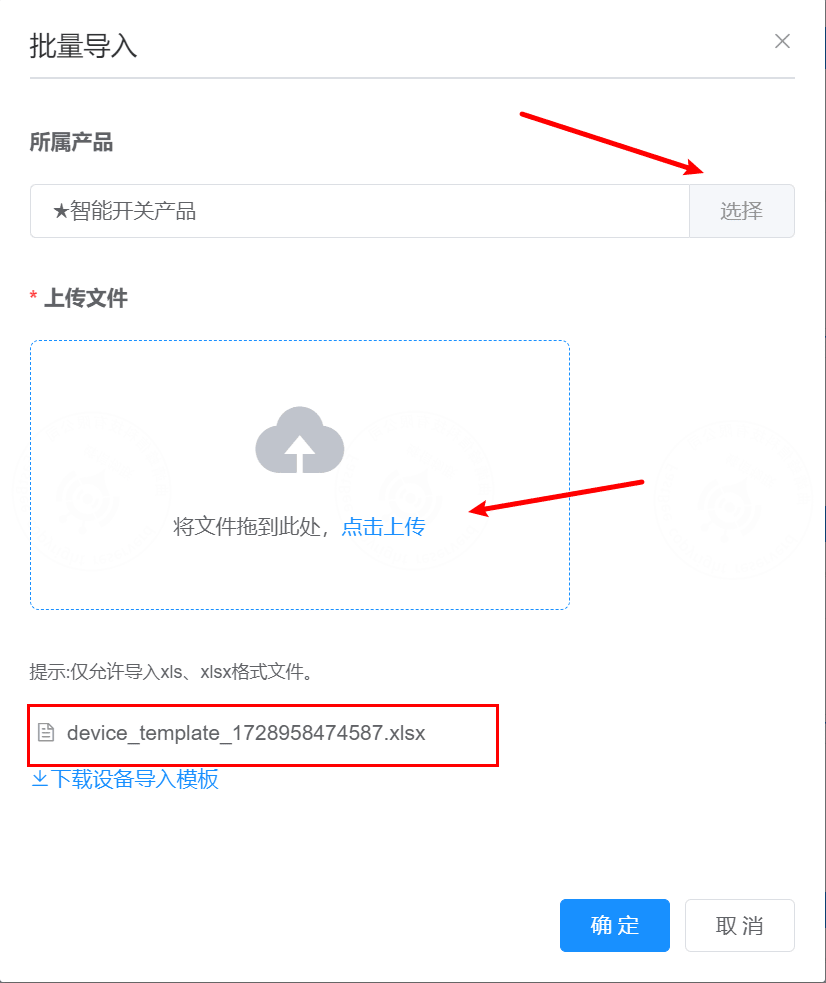
- Batch import: open the batch import page and select the corresponding product. You can first download the device import template file, edit the import file, then click Upload to upload the template, and finally click OK to import
提示
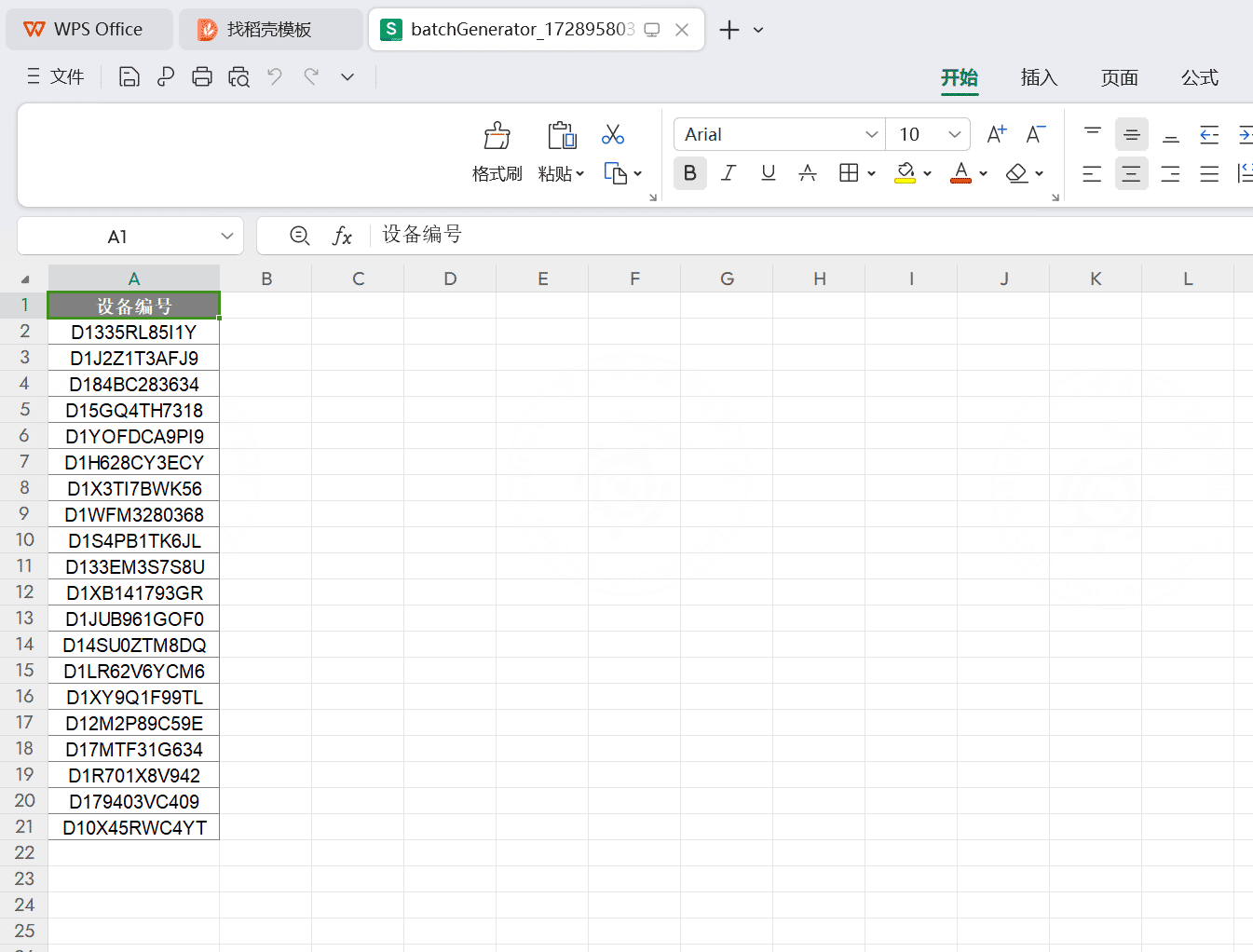
Note: if you want to use platform-generated device numbers, use the More Actions - Generate Device Numbers button to generate device numbers in batches and edit them into the import file
Import success screen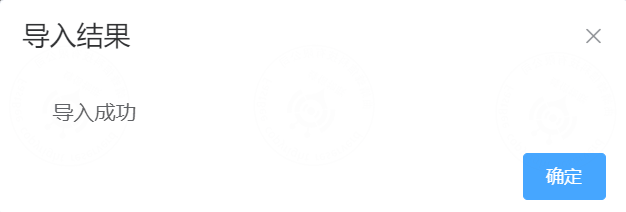
3.2. Assign Devices
Before using this feature, you can first read the Multi-tenant Operation Documentation to get familiar with organizations, data permission division, and related operations
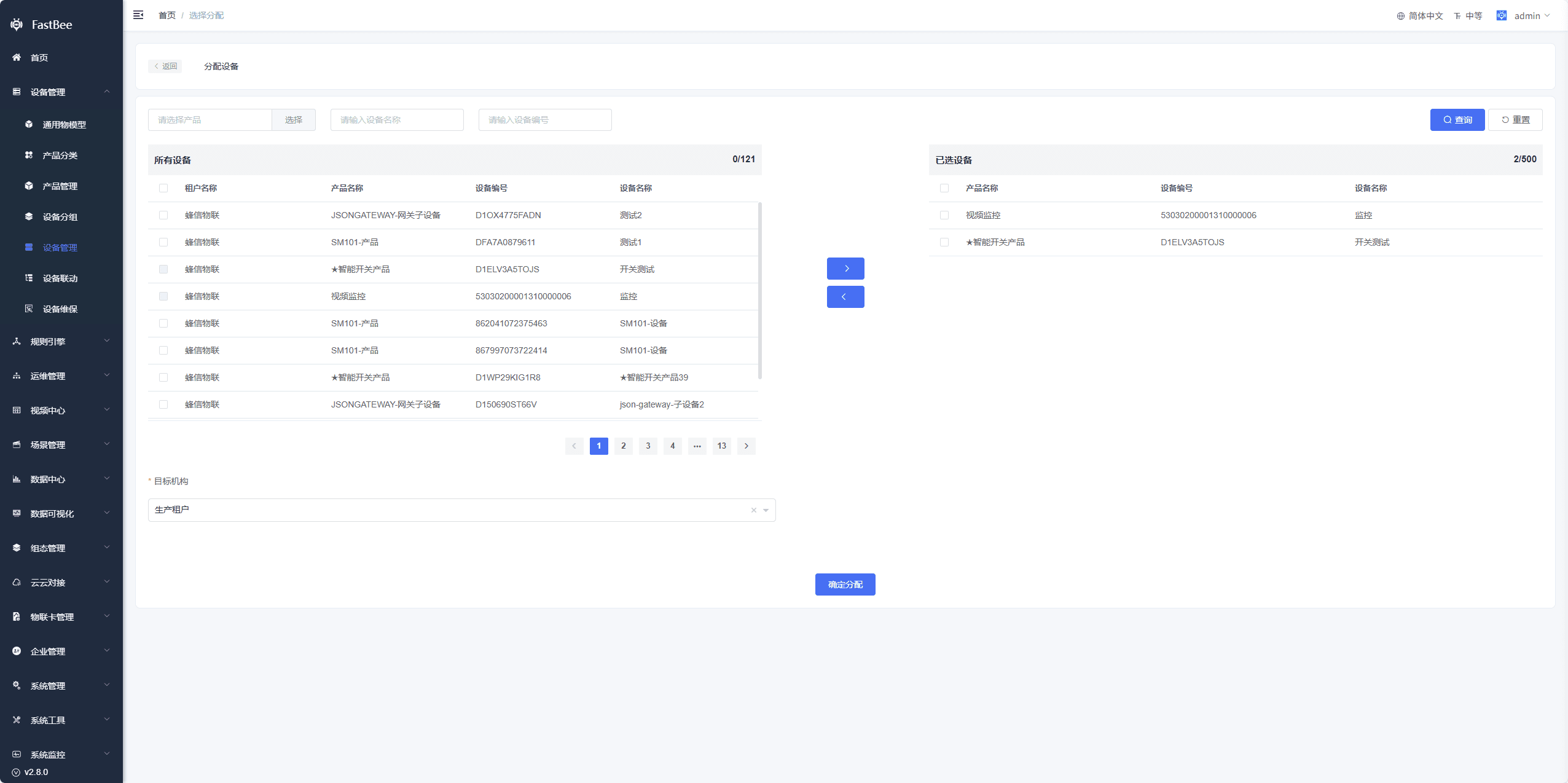
- Select and assign: supports assigning devices to other organizations; a parent organization can assign devices of a child organization to other organizations;
提示
Note: if a device in an organization has already been assigned to a user of the current organization (whose role data permission is Own Data Only), assigning the device to another organization also removes that user's ownership of the device
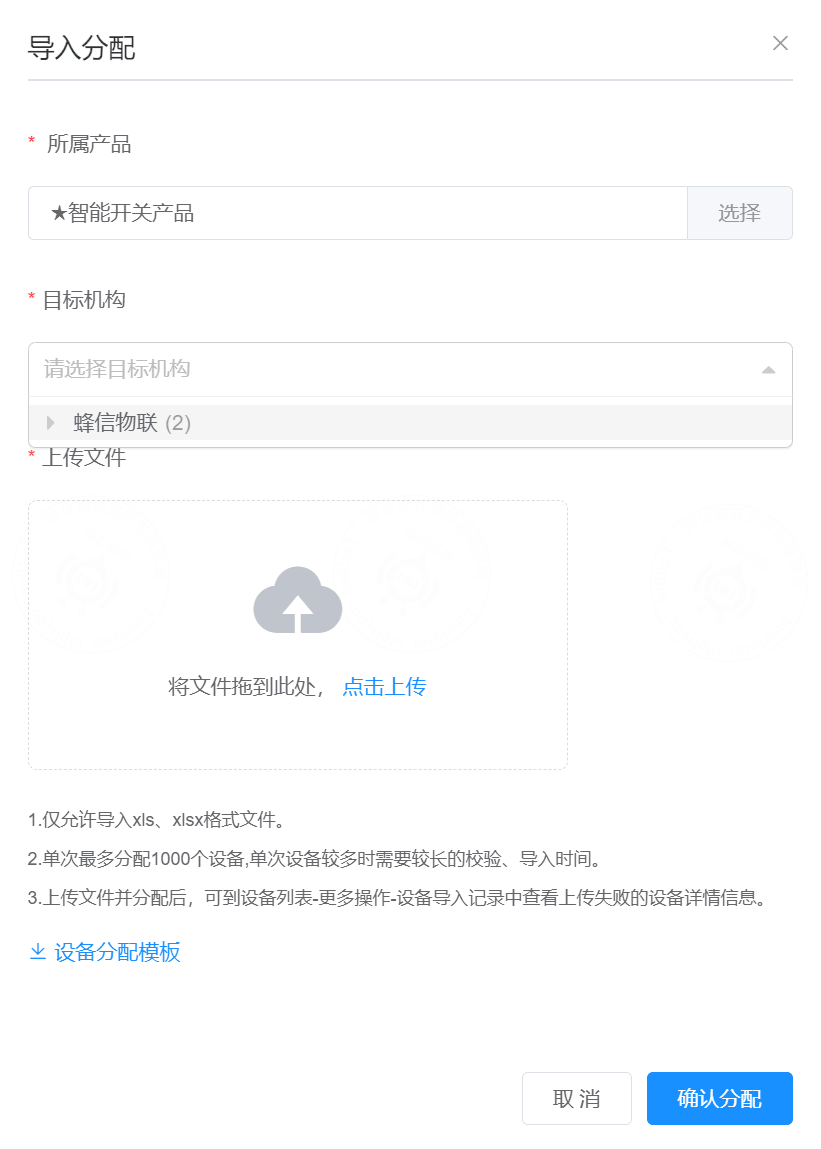
- Import and assign: click the Assign Devices - Import and Assign button, first download the device import template, fill the device names and device numbers into the template, click Upload, select the parent product, and finally click OK to import
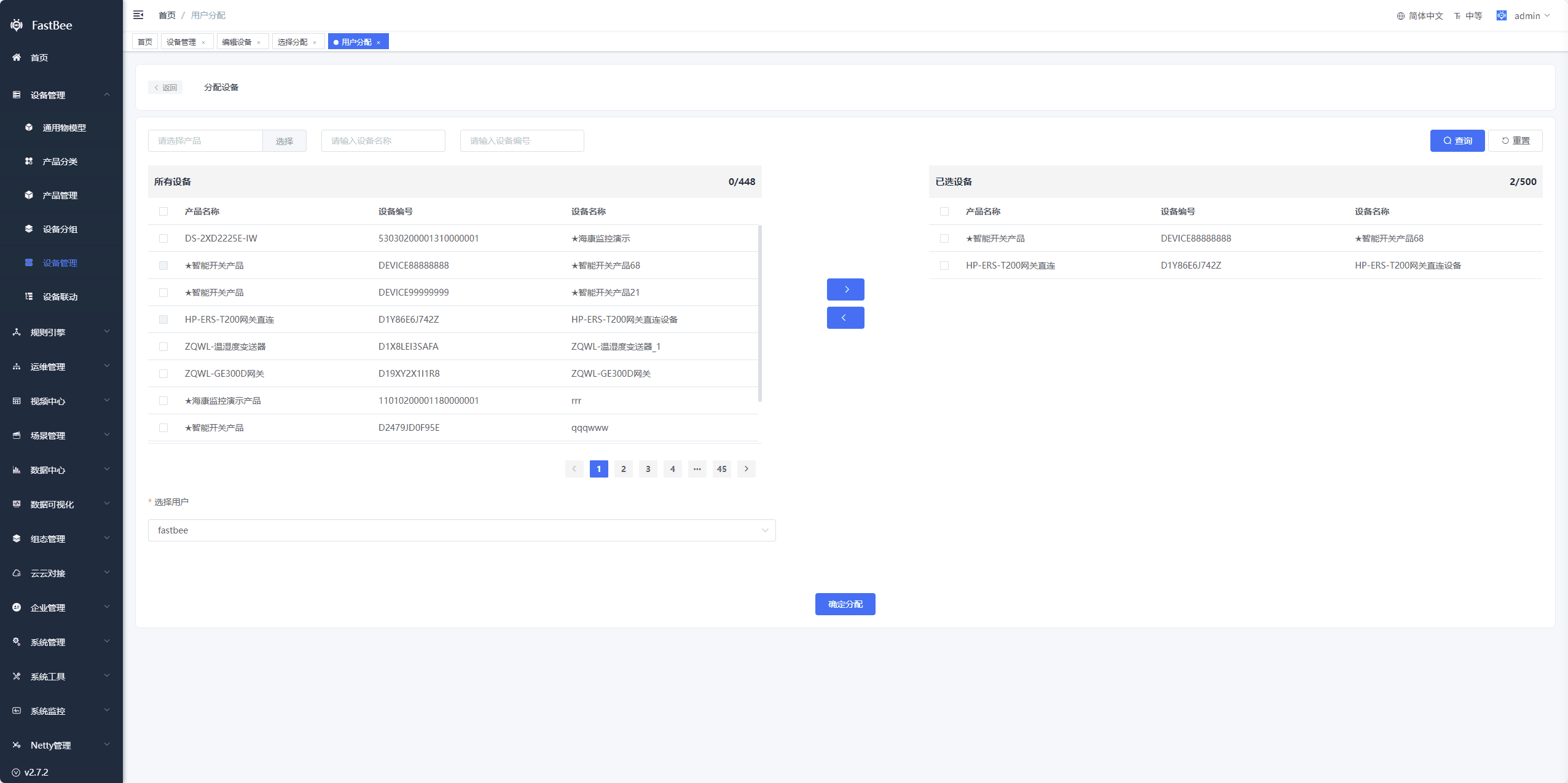
- User assignment: assigns devices between different users within the same organization. Typically used when a specific user should only see part of the devices, but the user's role data permission must be Own Data Only
3.3. Reclaim Devices
Reclaims devices from child organizations into the organization of the current operating user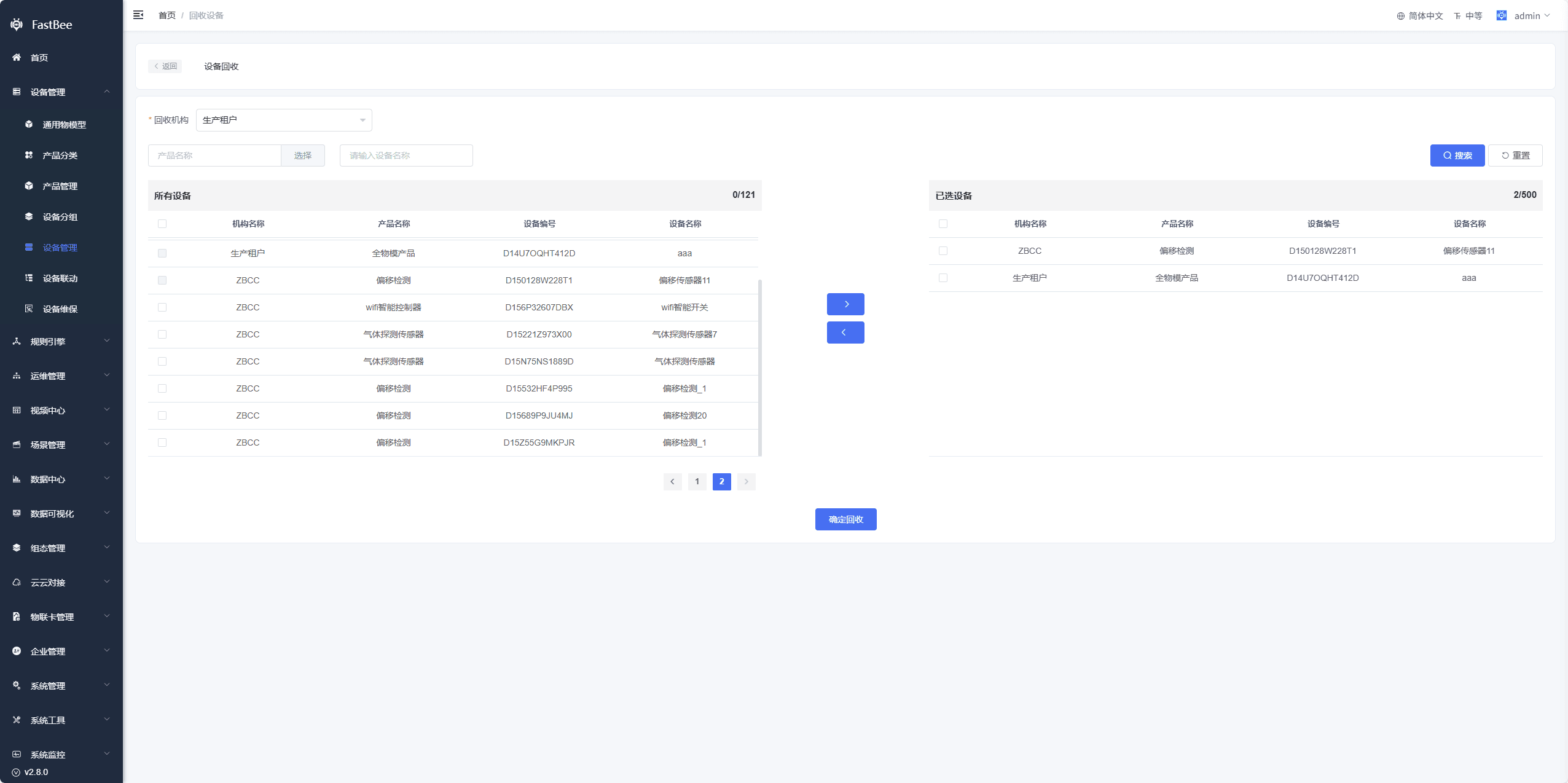
3.4. More Actions
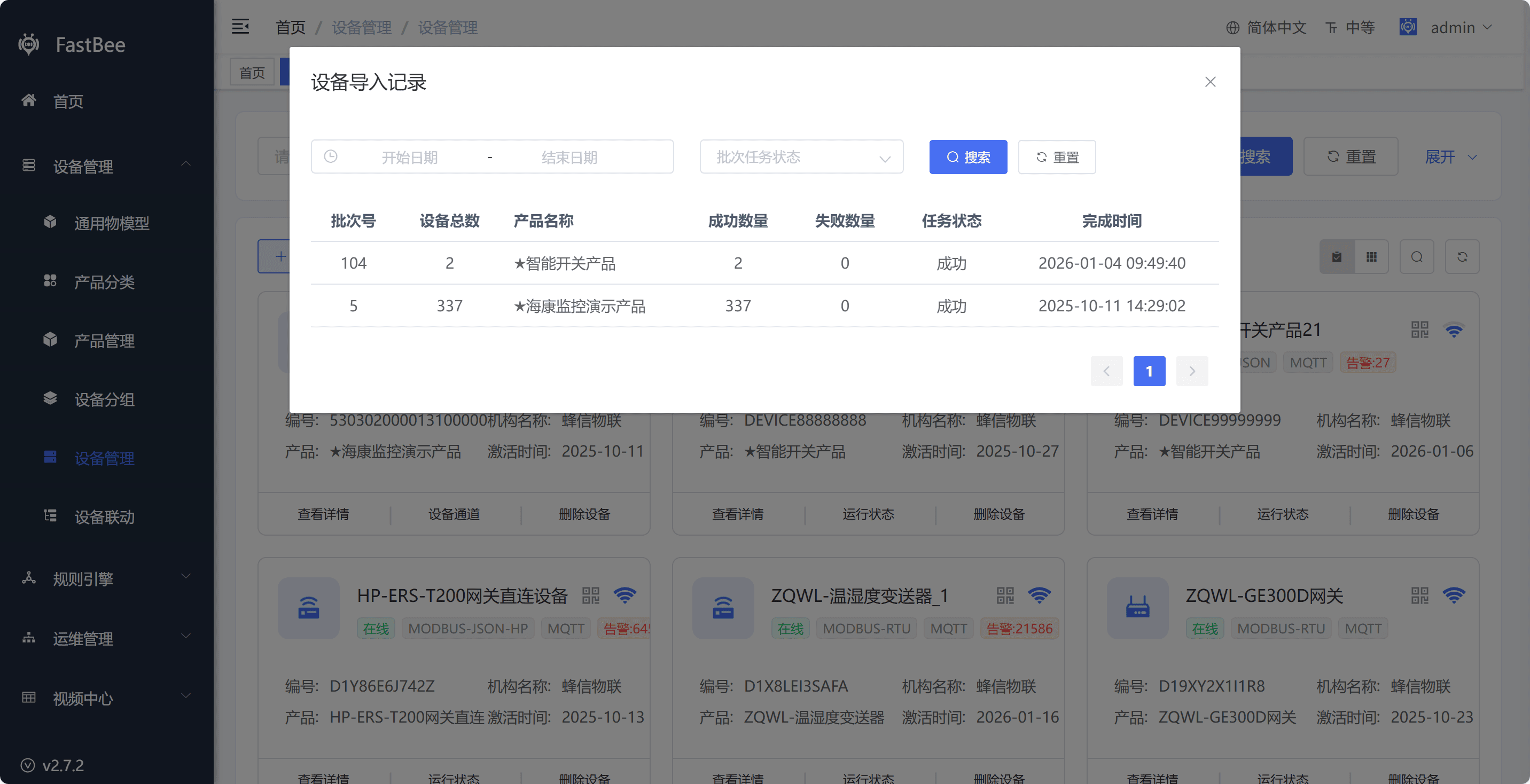
- Import records: shows records of how many devices were imported for different products
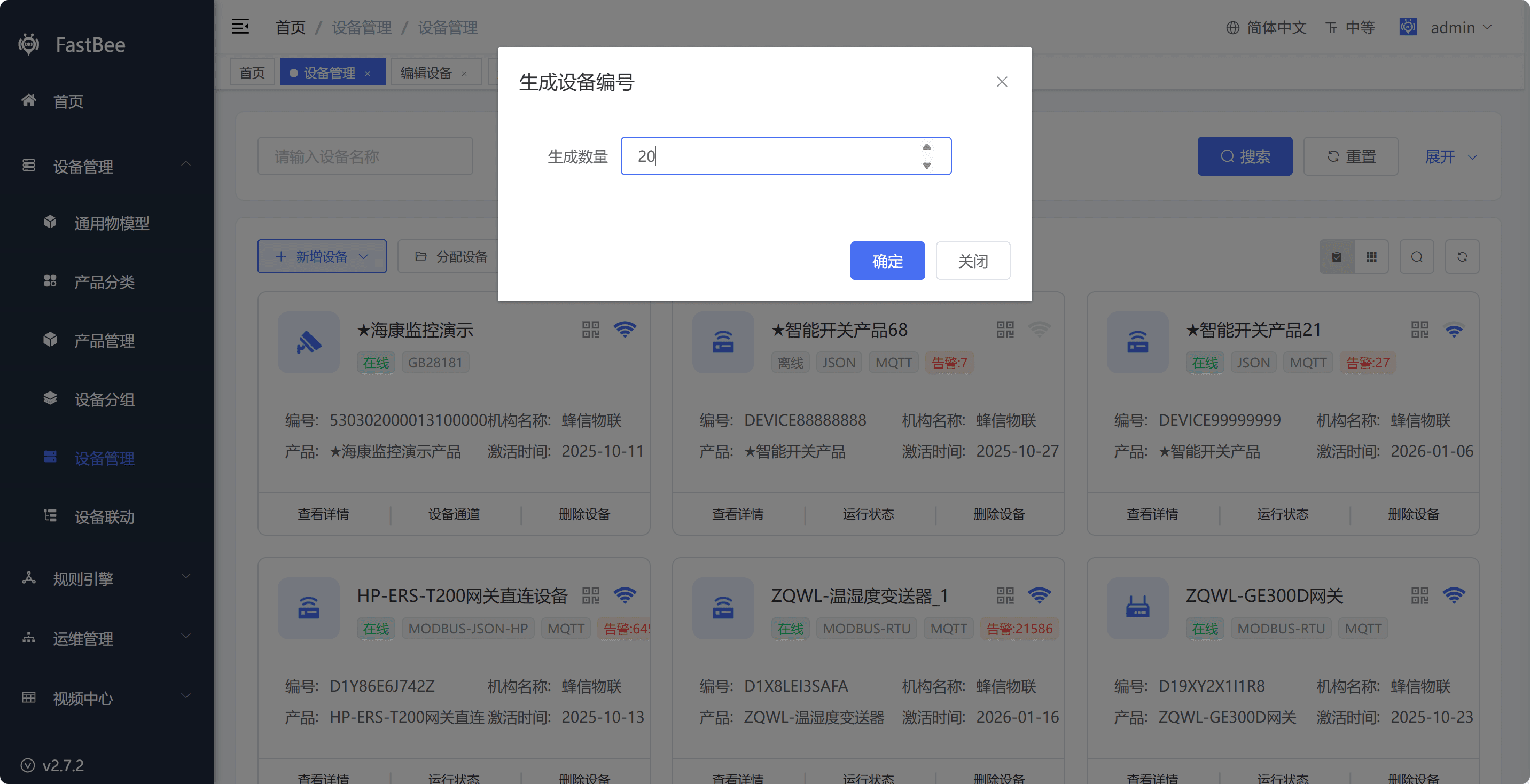
- Generate device numbers: enter the quantity to generate, click OK, and download the device number generation template
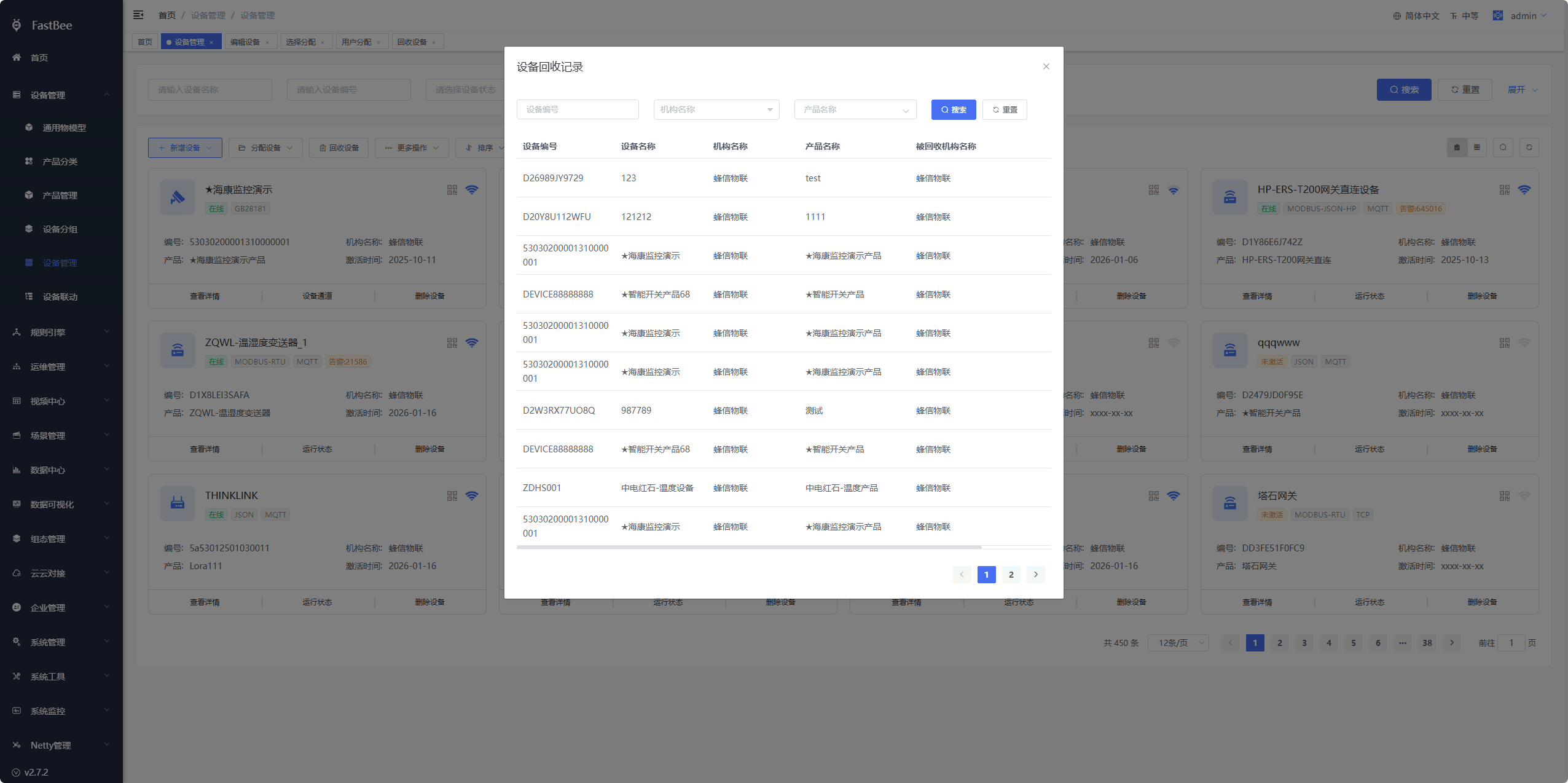
- Device reclaim records: shows device reclaim records
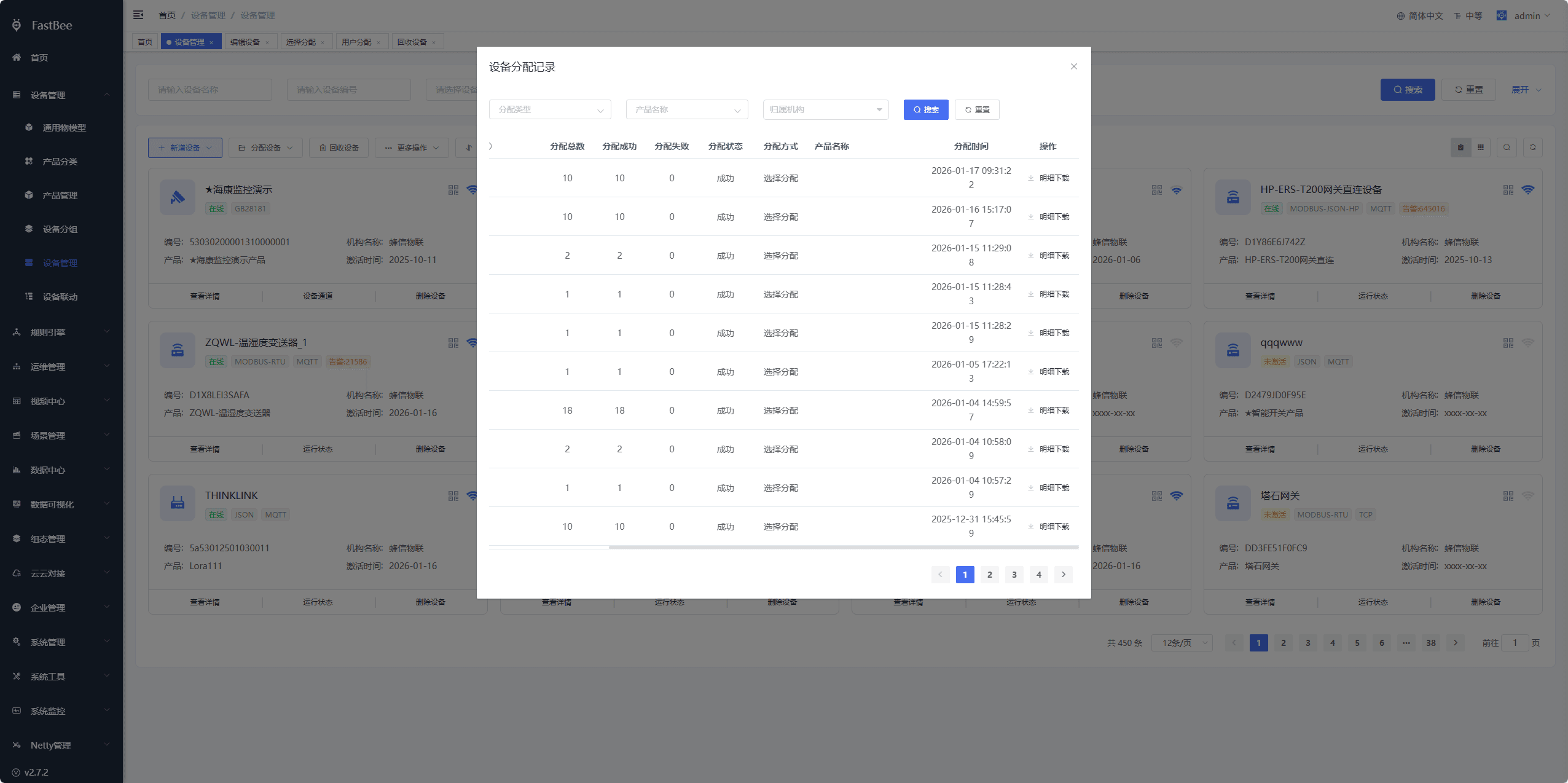
- Device assignment records: shows device assignment records. You can also download the details to view the specific devices assigned under a product
3.5. Sorting
Supports ascending and descending order by time or name
3.6. View Switching
Supports switching between card view and list view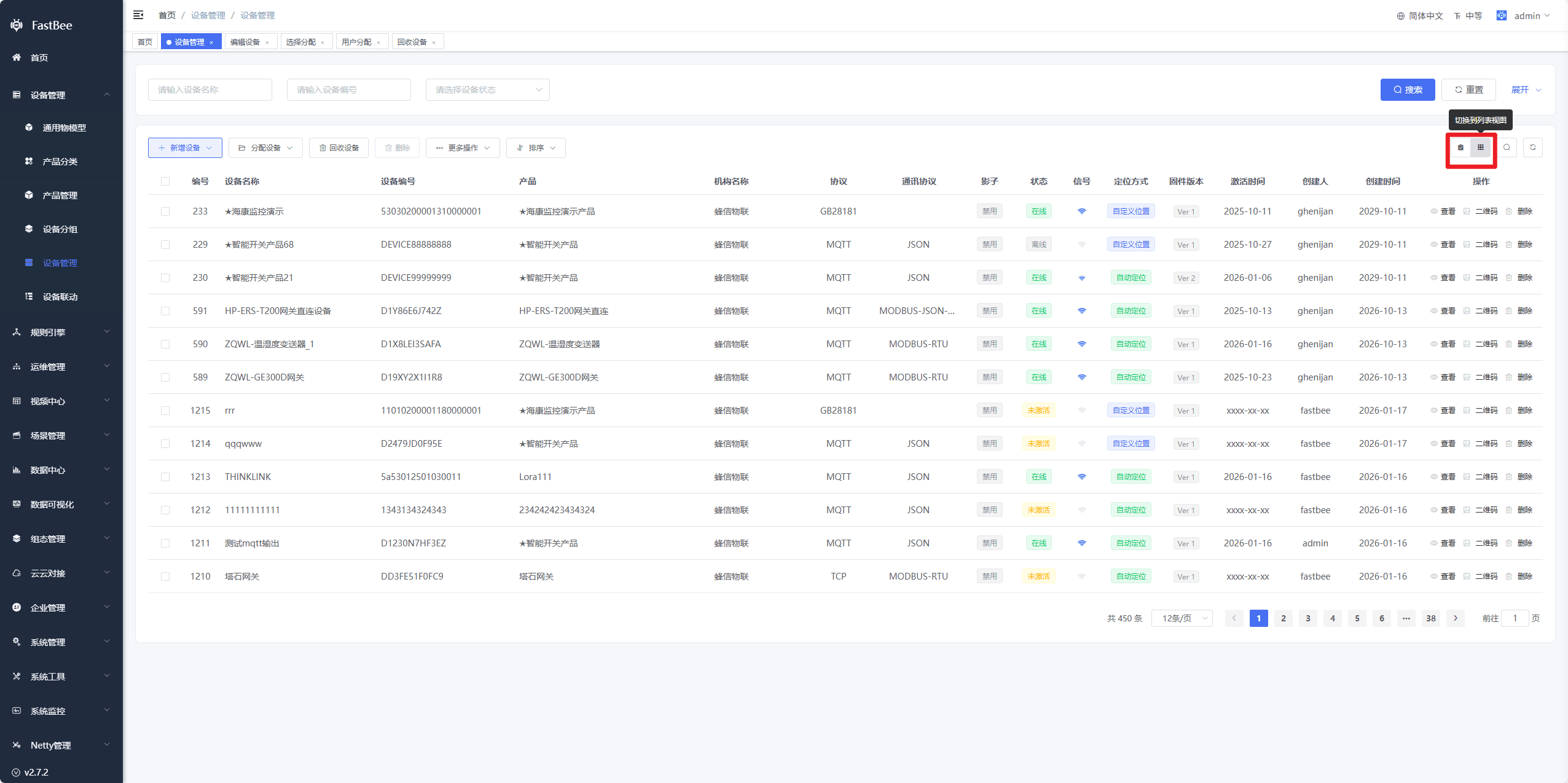
4. Device Details (Non-Monitoring Devices)
4.1. Basic Information
Shows the basic information of the device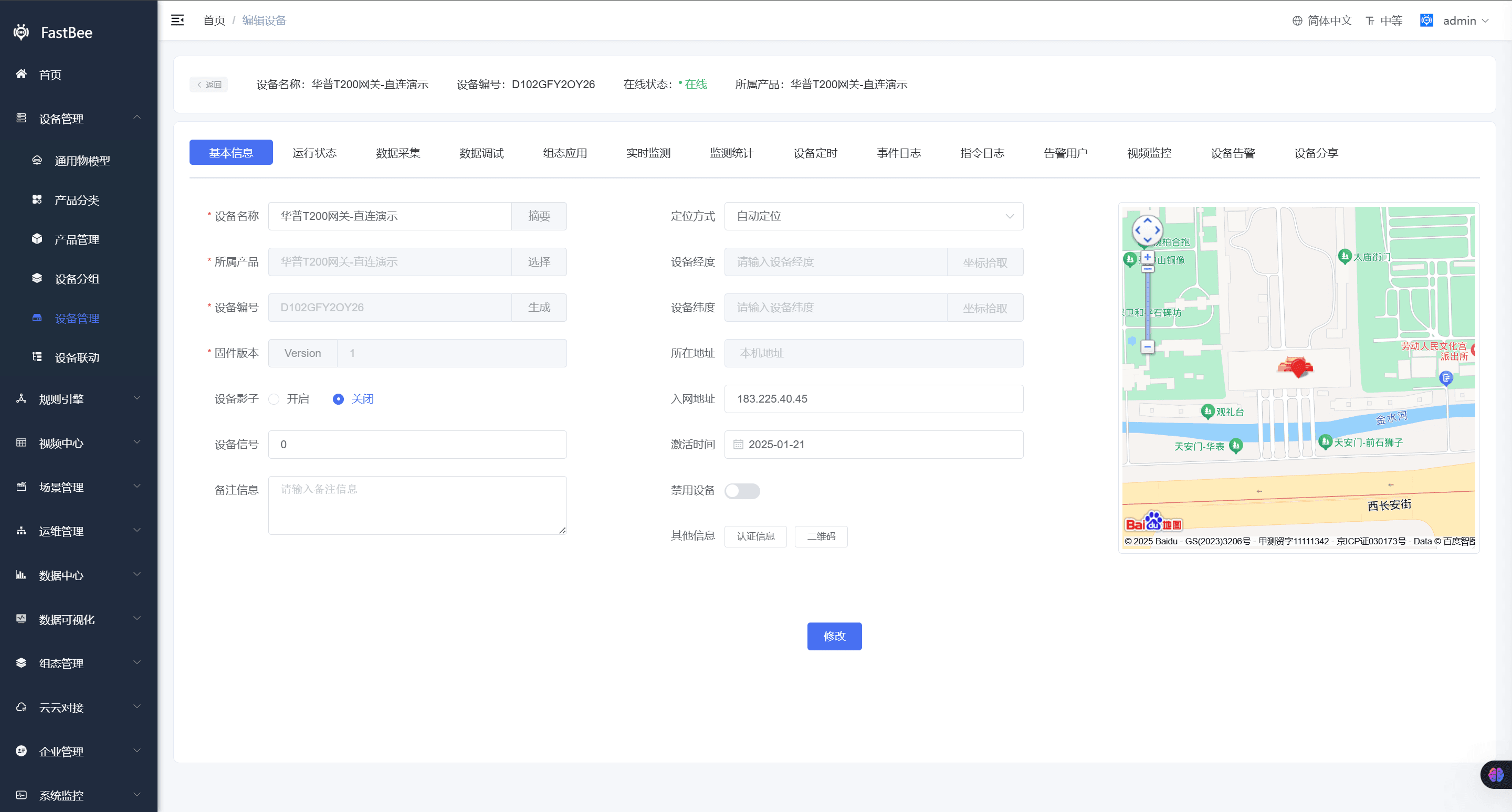
4.2. Running Status
Shows the running status of the device Thing Model. Commands can be delivered directly on this page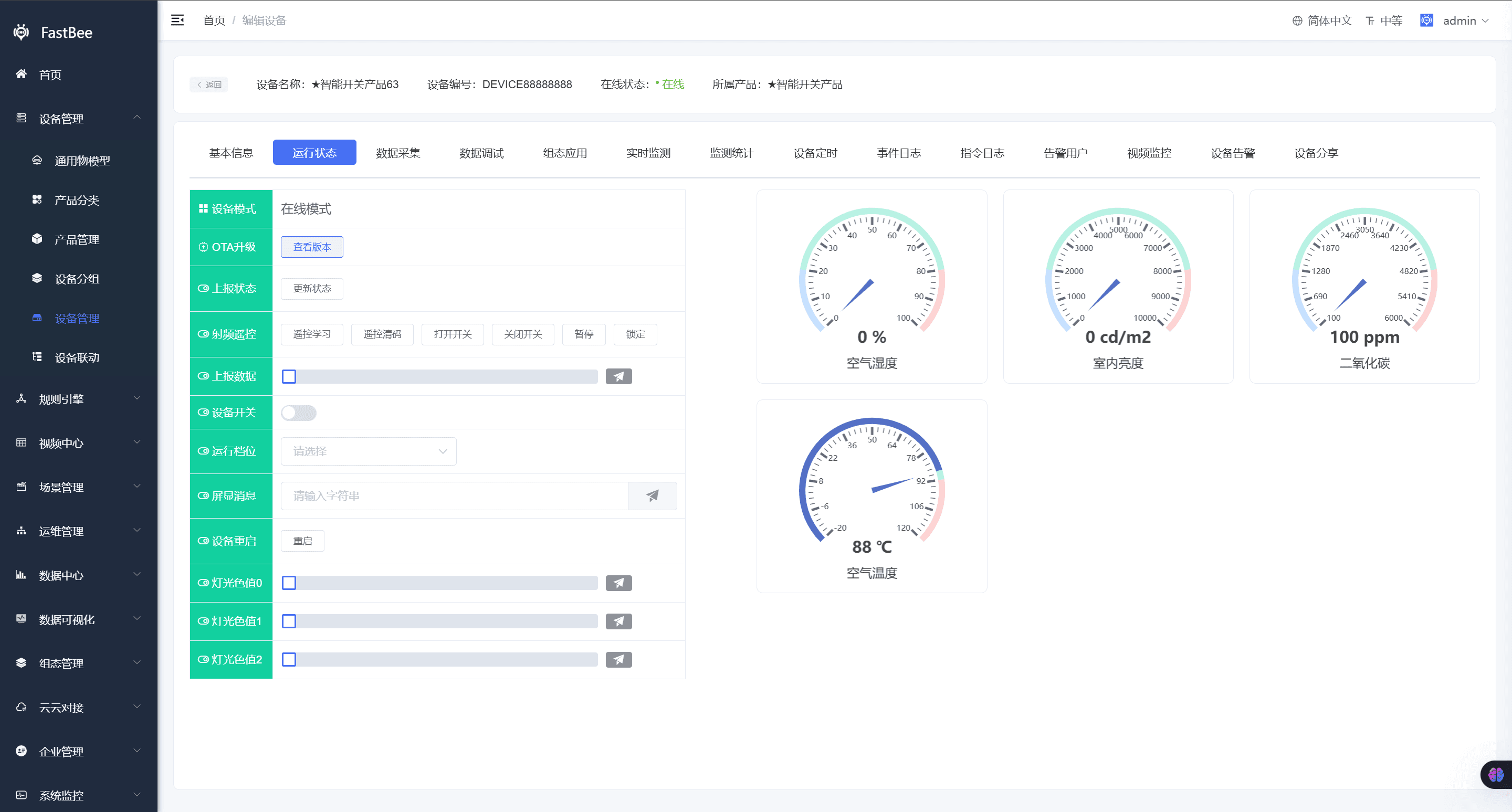
4.3. Data Collection
Shows the list page of the device Thing Model, including buttons for active collection (used by Modbus devices), command delivery, and historical data query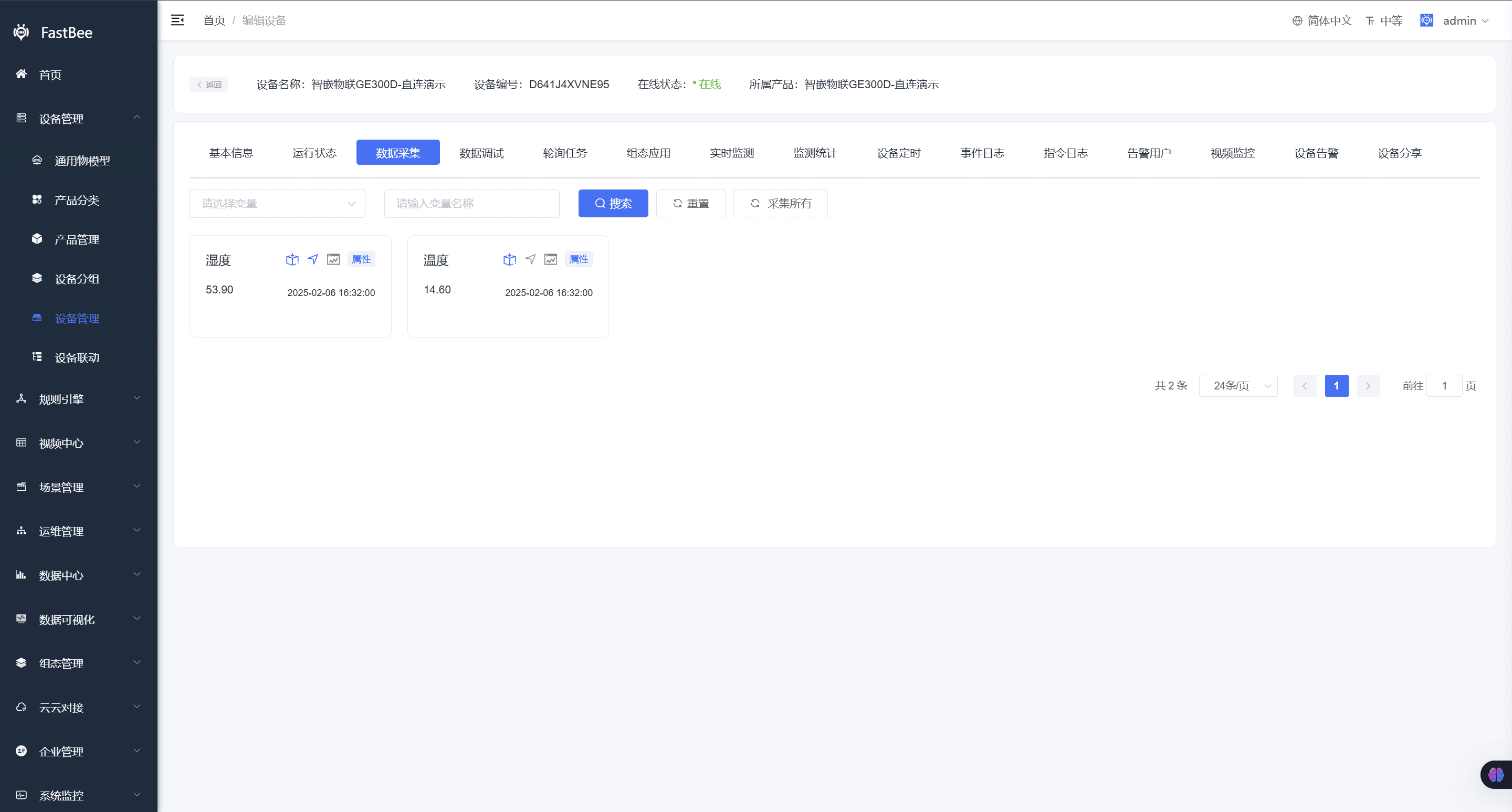
4.4. Data Debugging
Generates commands through configuration and supports delivering commands to the device. The JSON parsing protocol supports configuring multiple Thing Models for delivery at the same time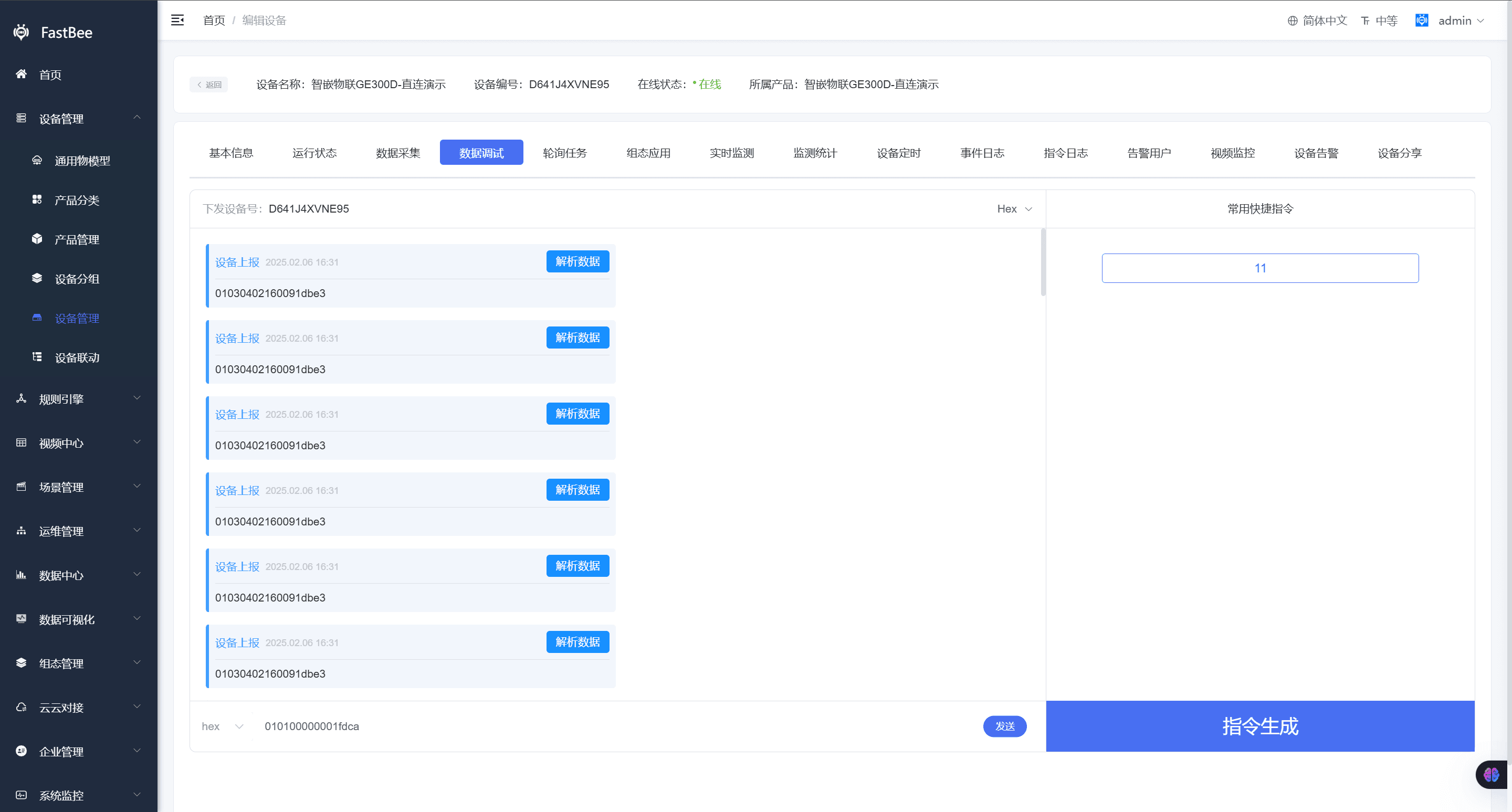
4.5. Sub-devices
When the product is of the gateway device type, some communication protocols support sub-device configuration. Sub-devices can be bound or added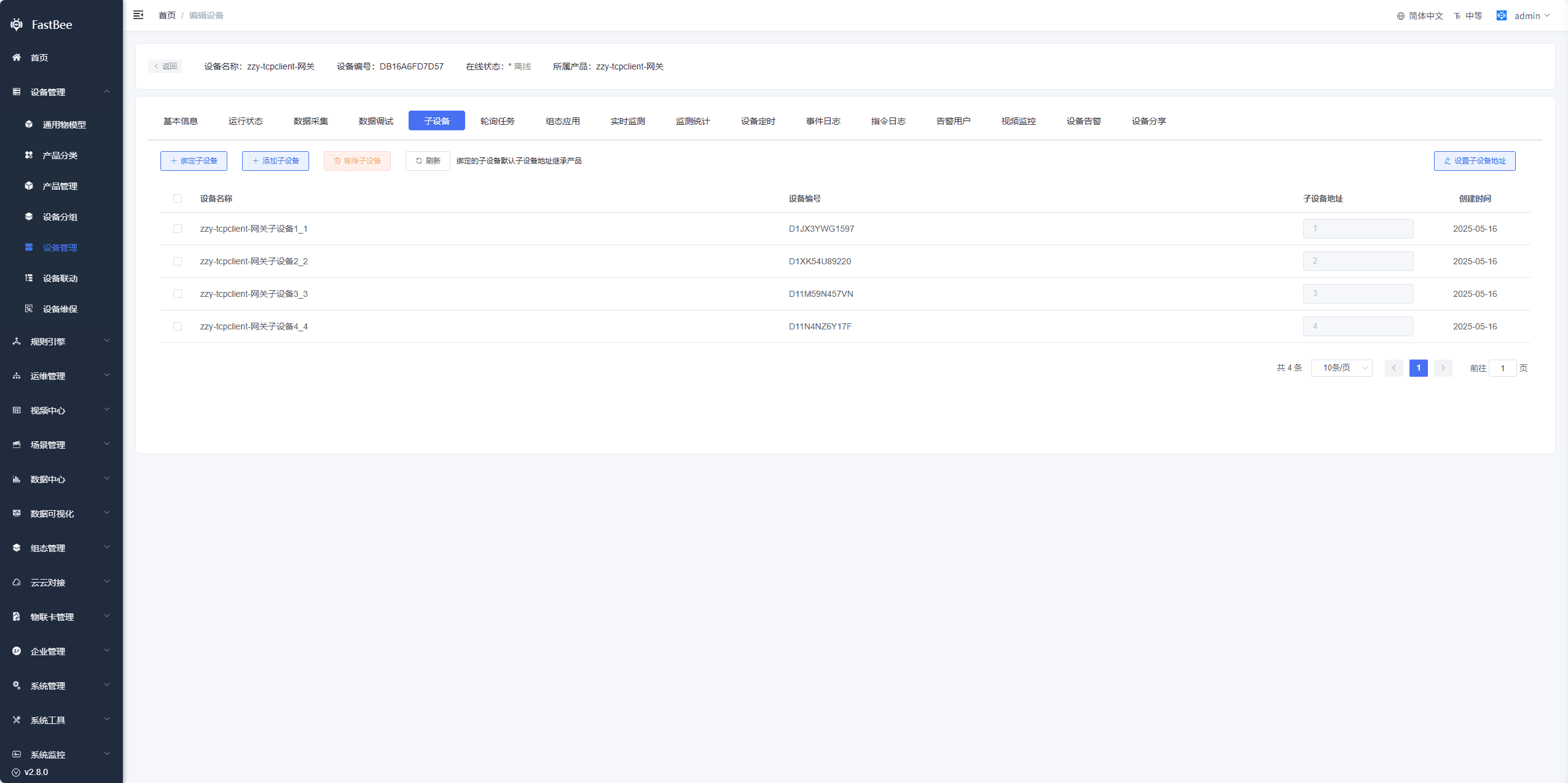
4.6. Polling Tasks
Modbus-related protocols require polling tasks to actively collect data. In Product Modbus Configuration - Gateway/Sub-device Configuration - Collection Mode, Cloud Polling must be checked. Newly created devices inherit this setting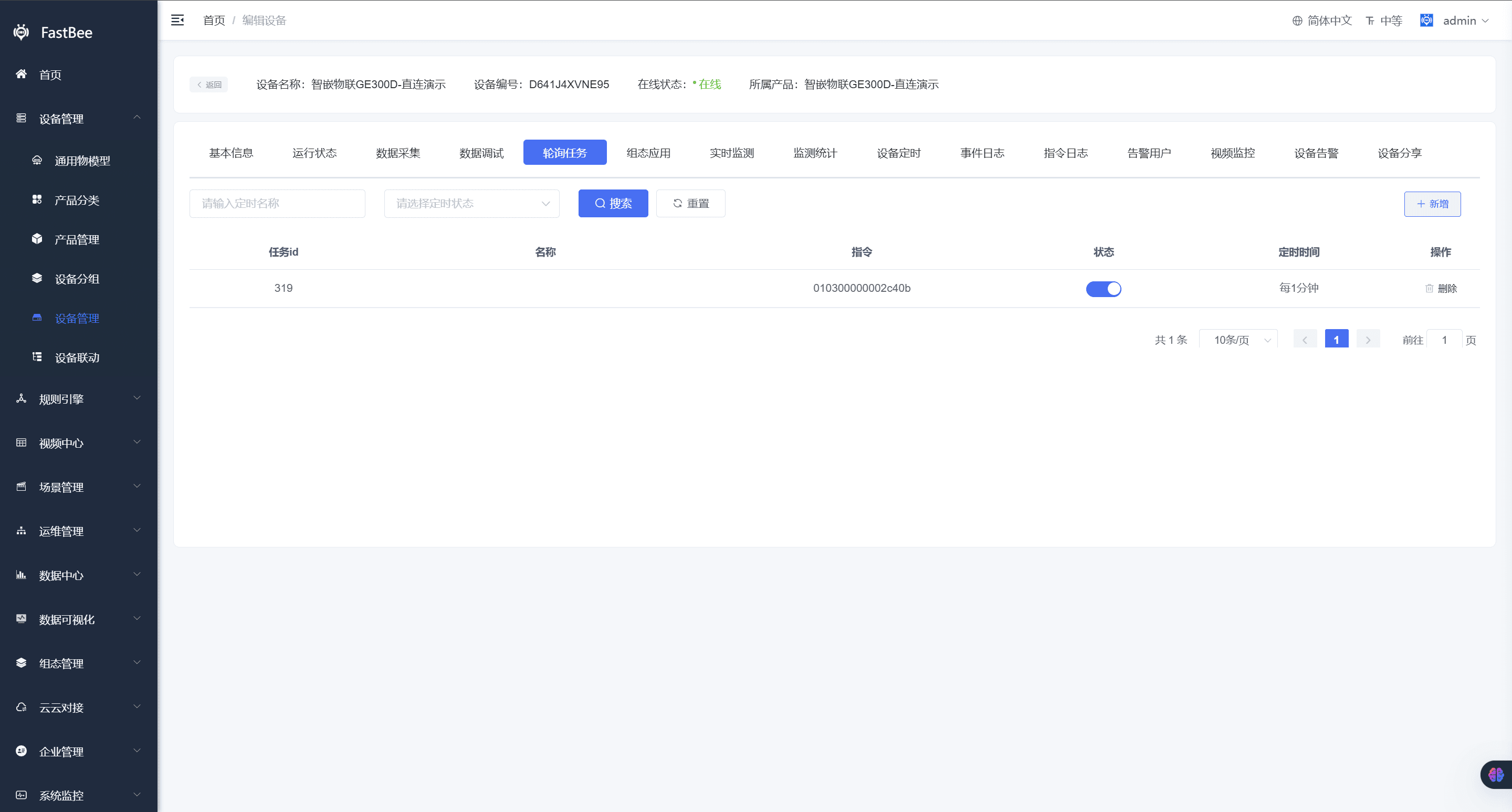
4.7. Command Delivery
Only available when the product communication protocol is ModbusTcp. Commands can be configured here and delivered by clicking the deliver button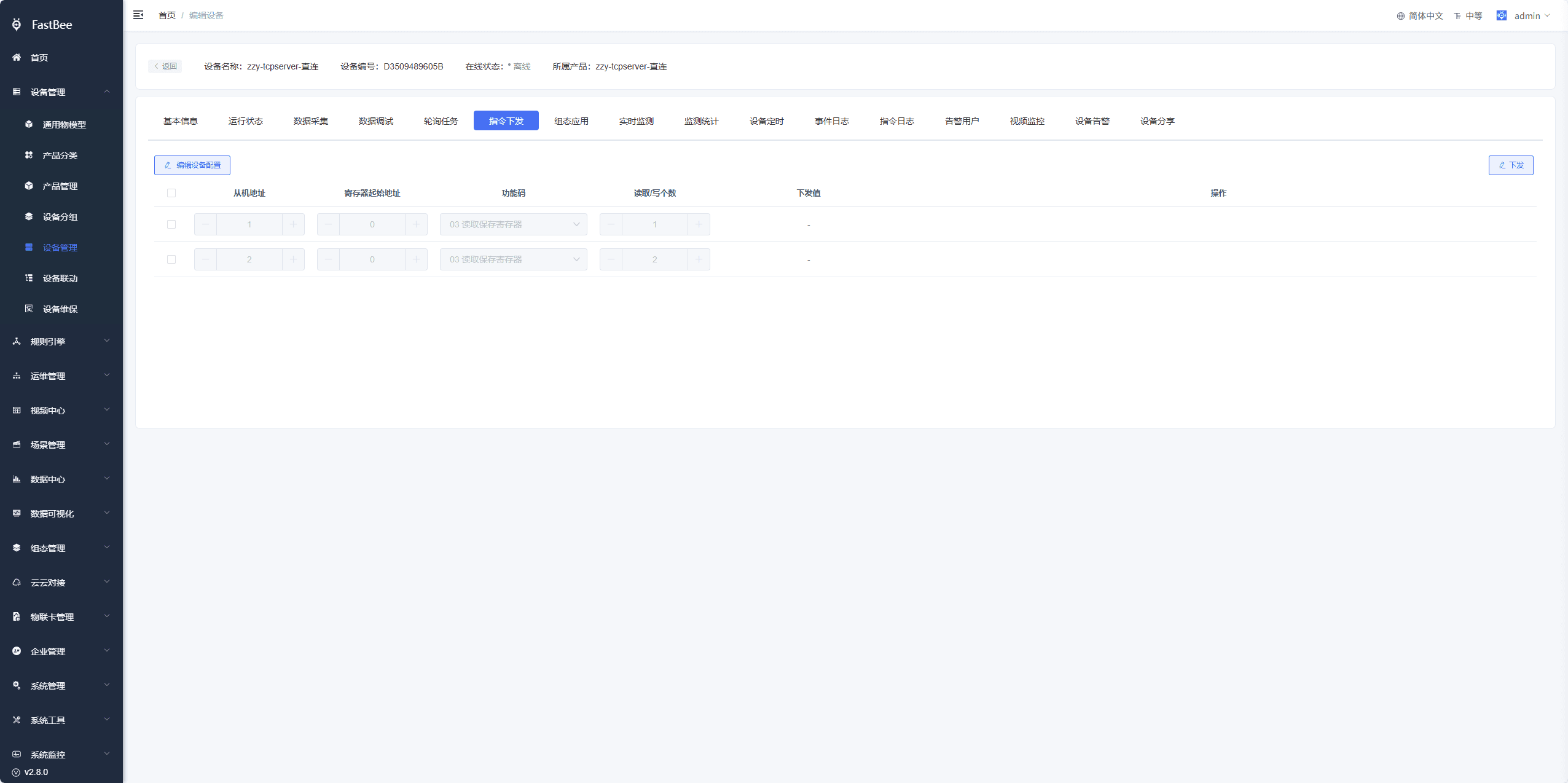
4.8. SCADA Application
If a SCADA page is configured on the product side, Device - SCADA Application shows the corresponding page, where you can view and control the current device in real time 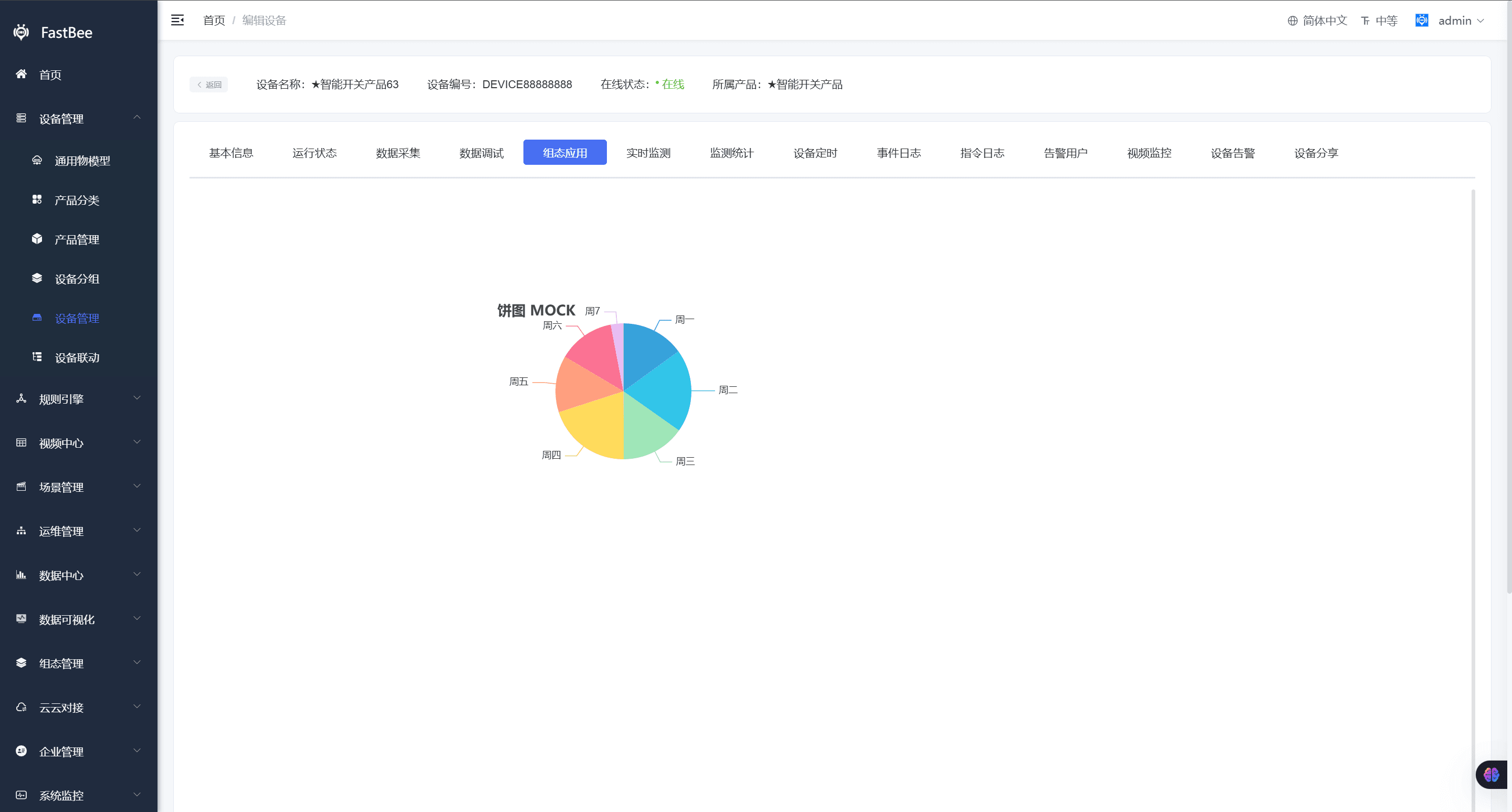
4.9. Real-time Monitoring
Requires device support. Monitoring data is reported via the /monitor/post topic. For details, see MQTT Protocol Device Access 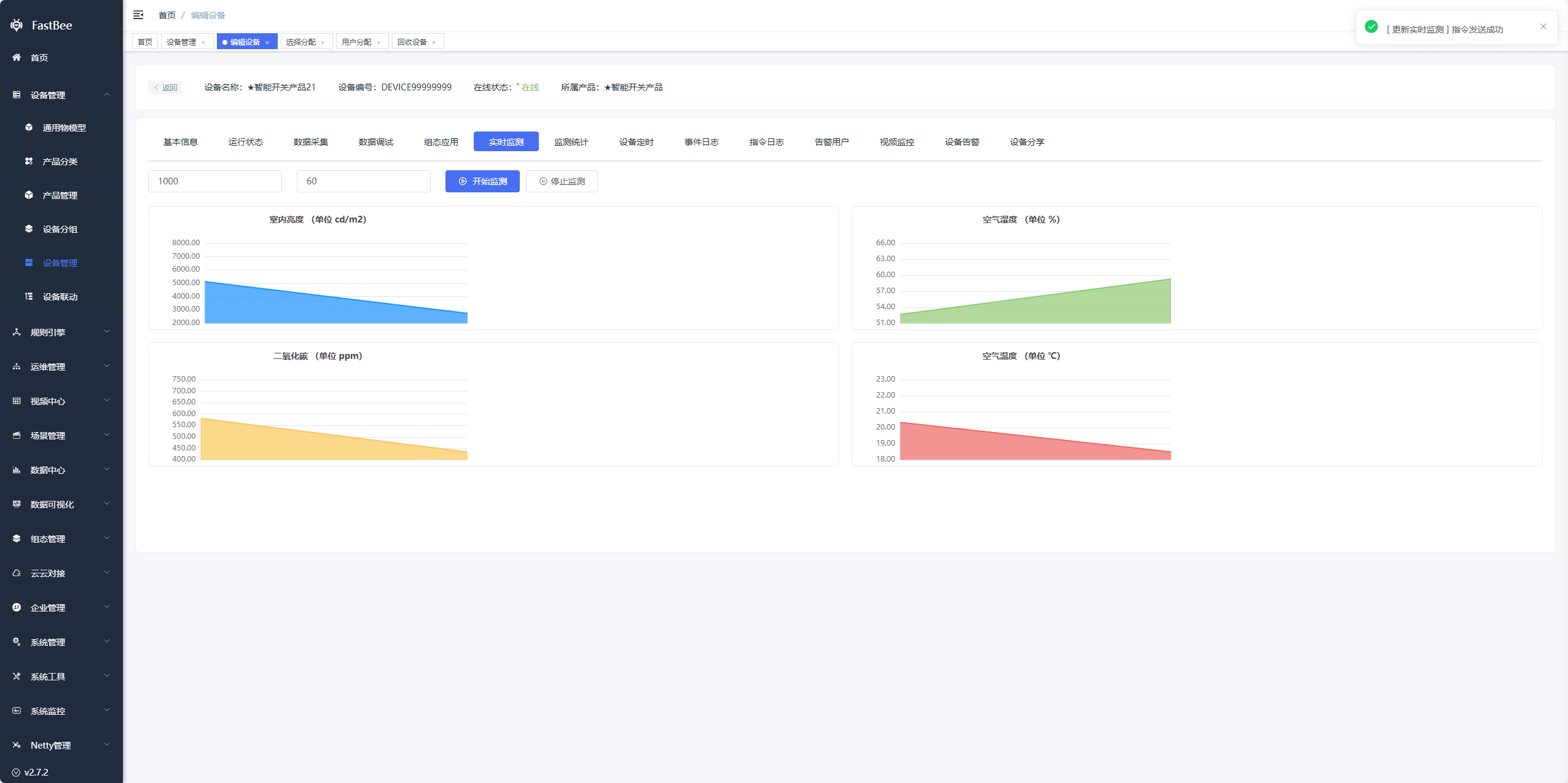
4.10. Monitoring Statistics
Shows historical data of real-time monitoring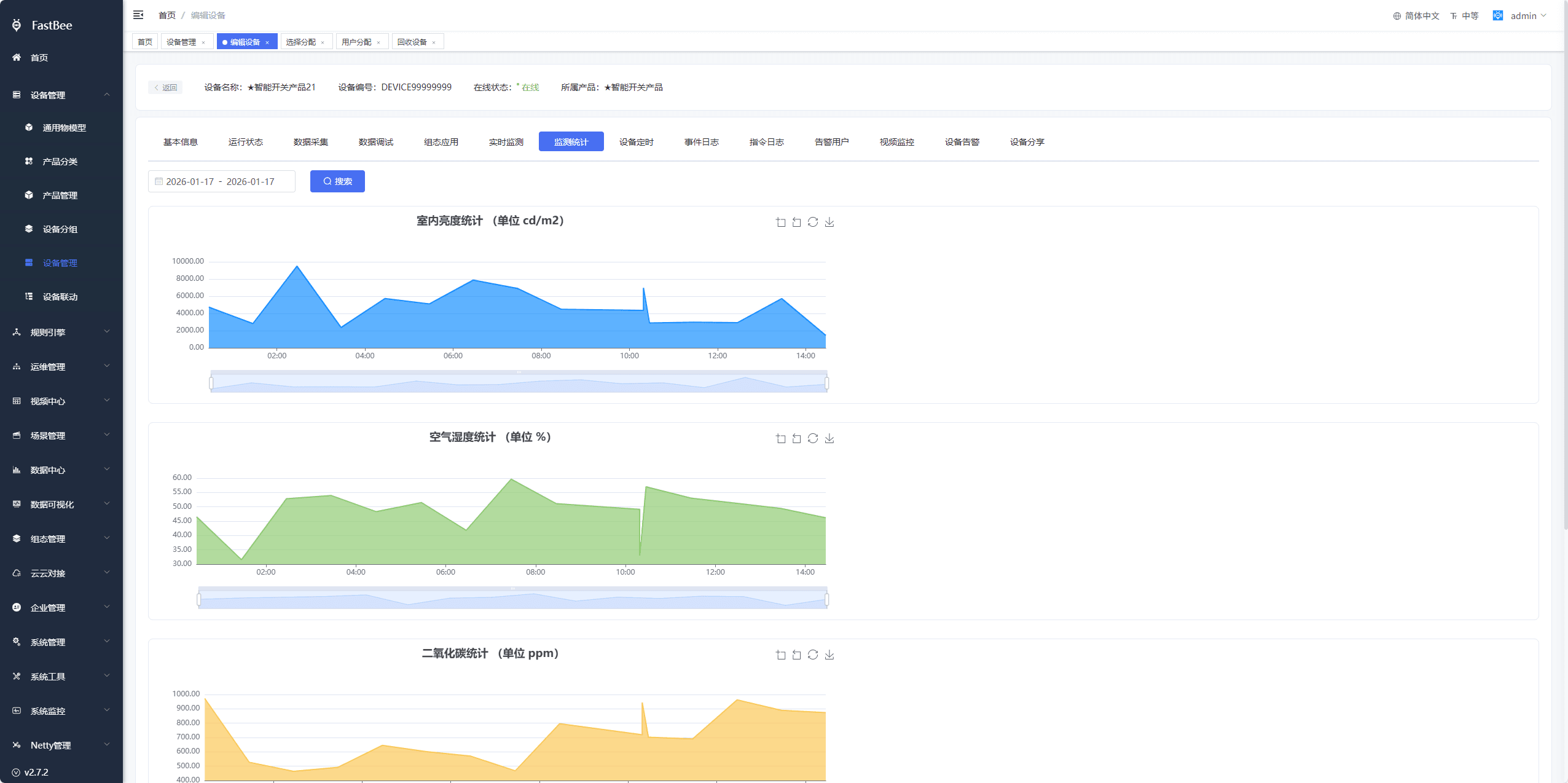
4.11. Device Timing
Configures scheduled tasks that deliver commands to the device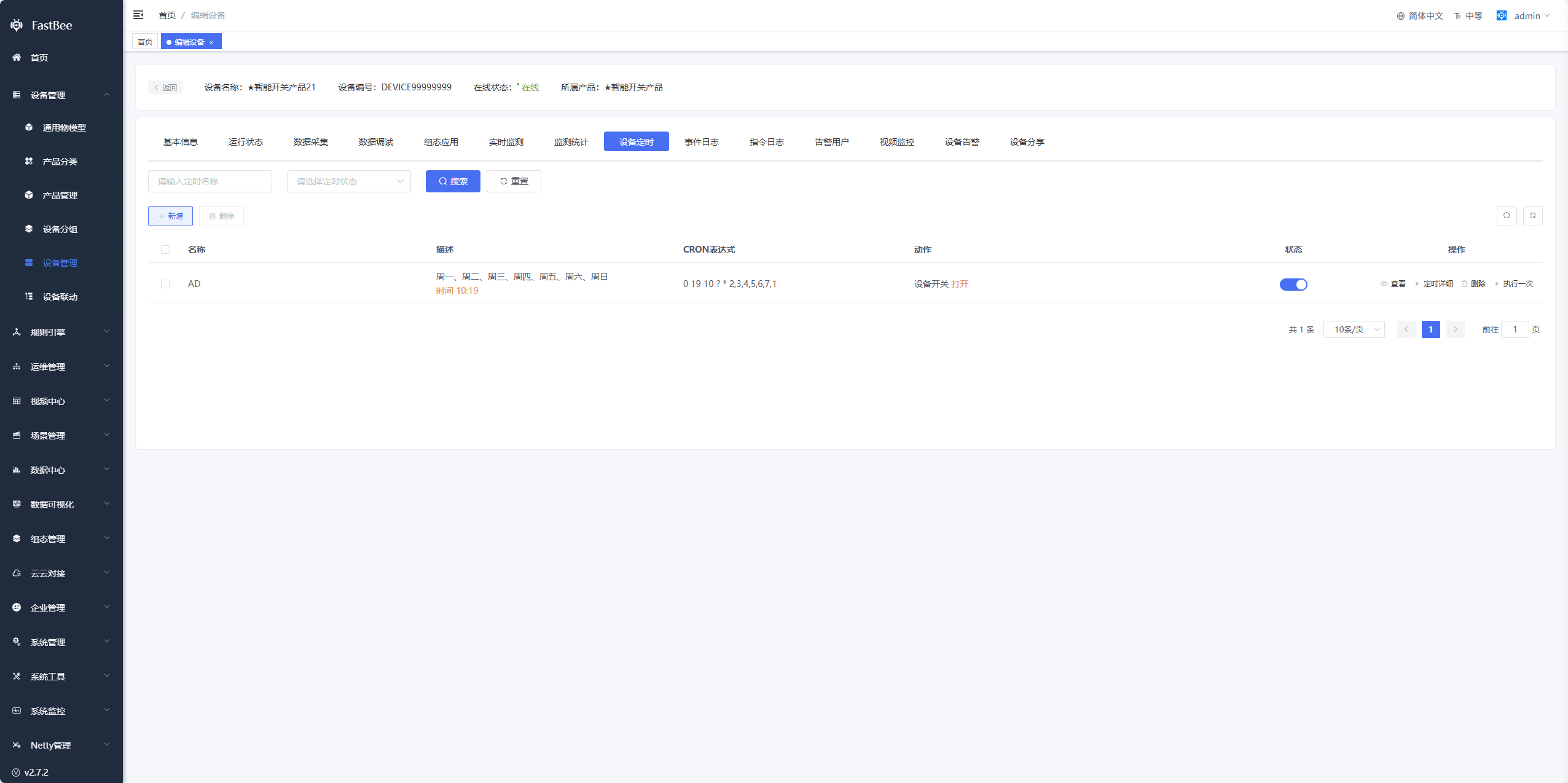
4.12. Event Log
Shows historical data of event-type Thing Models and device online/offline events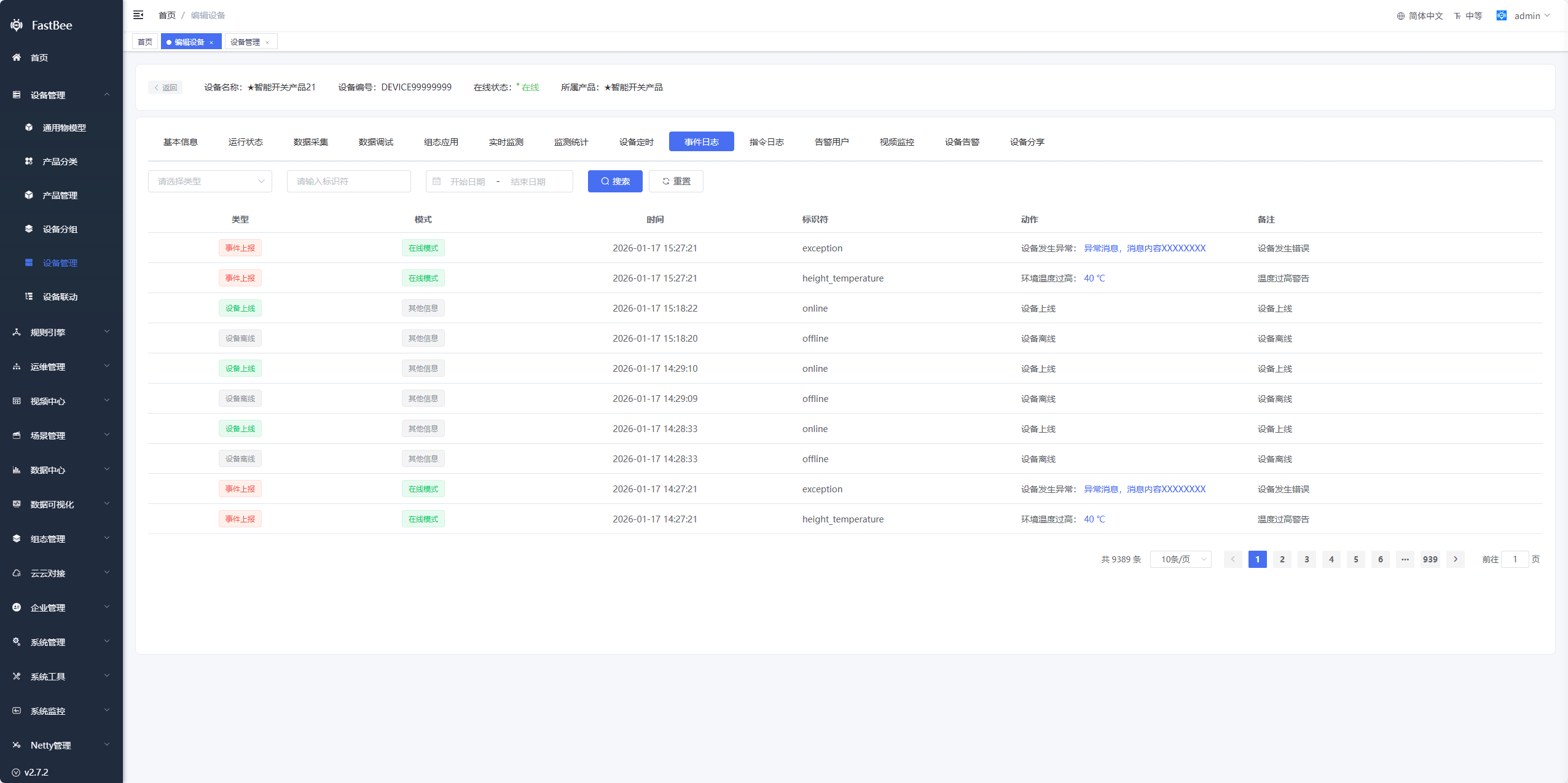
4.13. Command Log
Shows historical data of reported and delivered property- and function-type Thing Models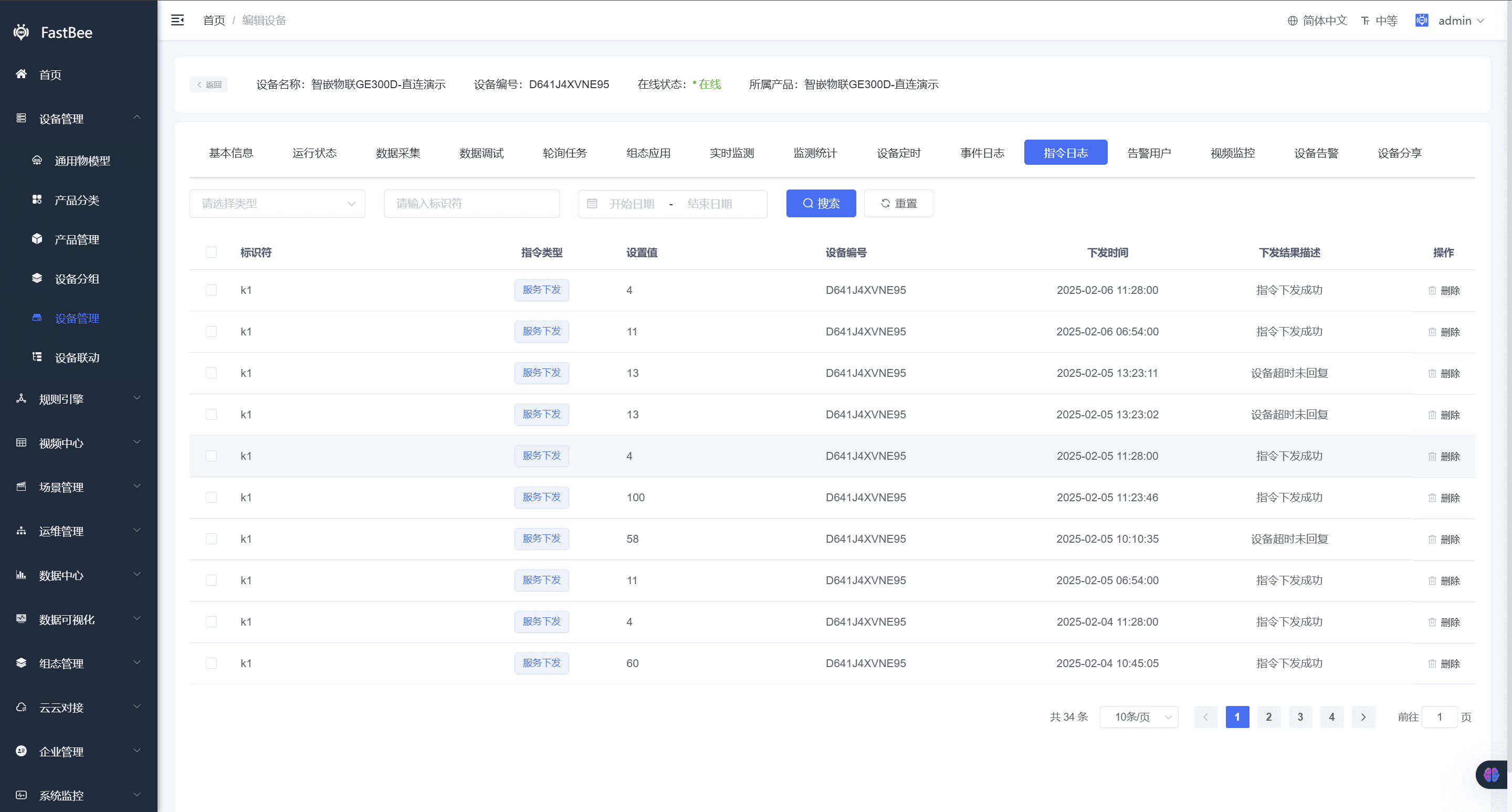
4.14. Alert Users
Configures the users to be notified of device alerts. When a device alert is triggered, a message is sent to the users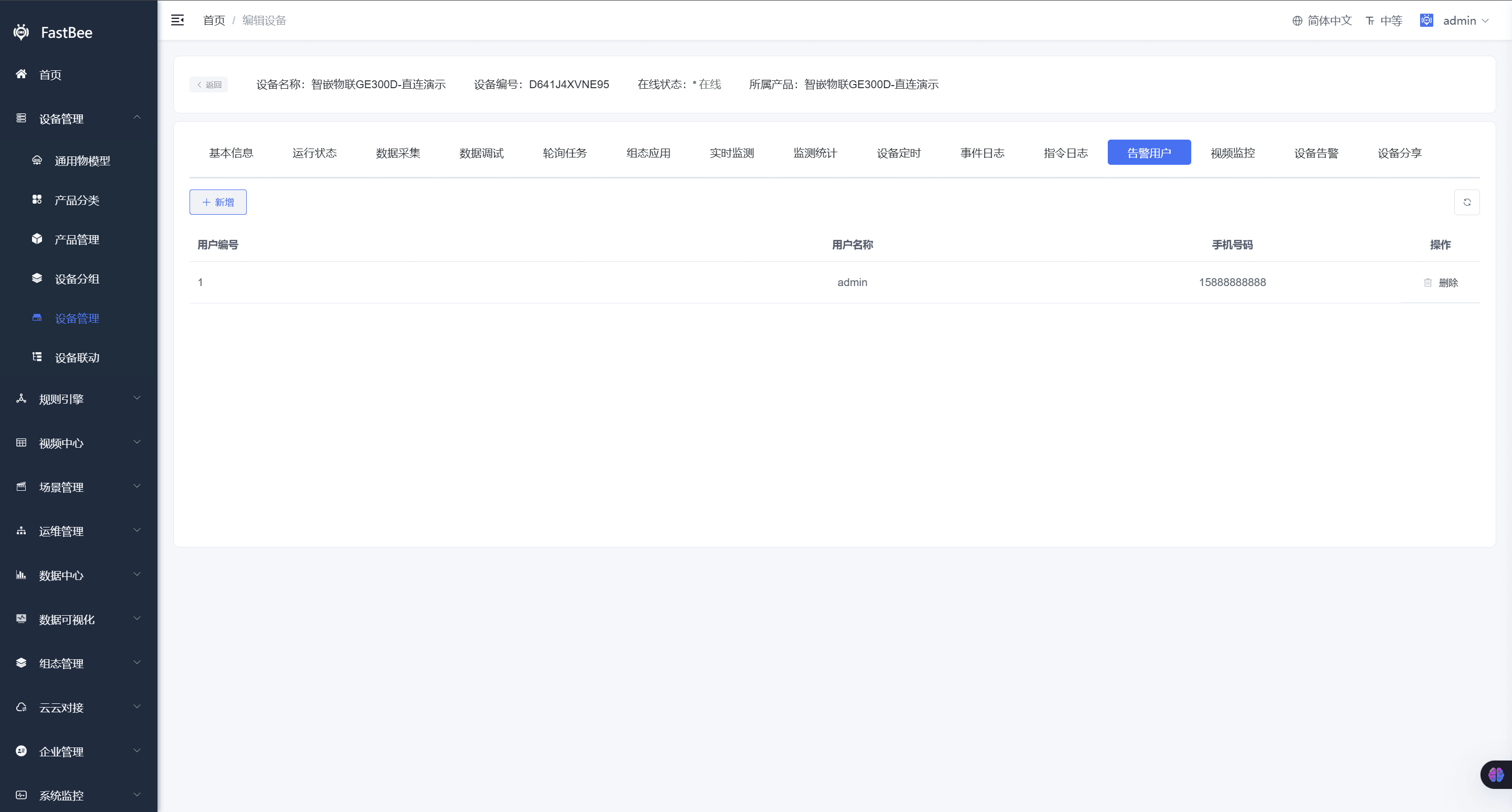
4.15. Video Monitoring
A non-monitoring device can be bound to a monitoring device, which is viewed here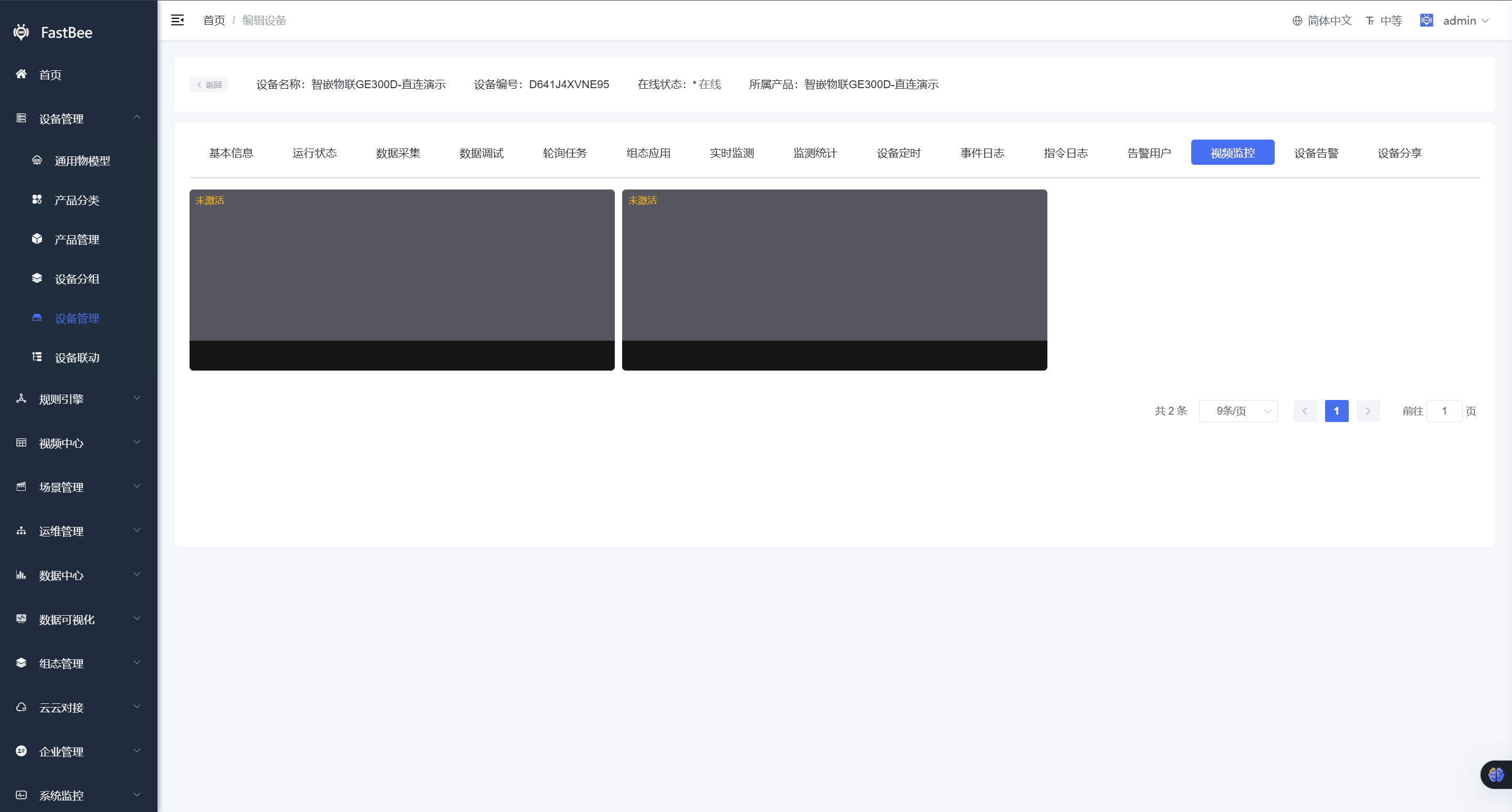
4.16. Device Alerts
Shows logs generated by device alerts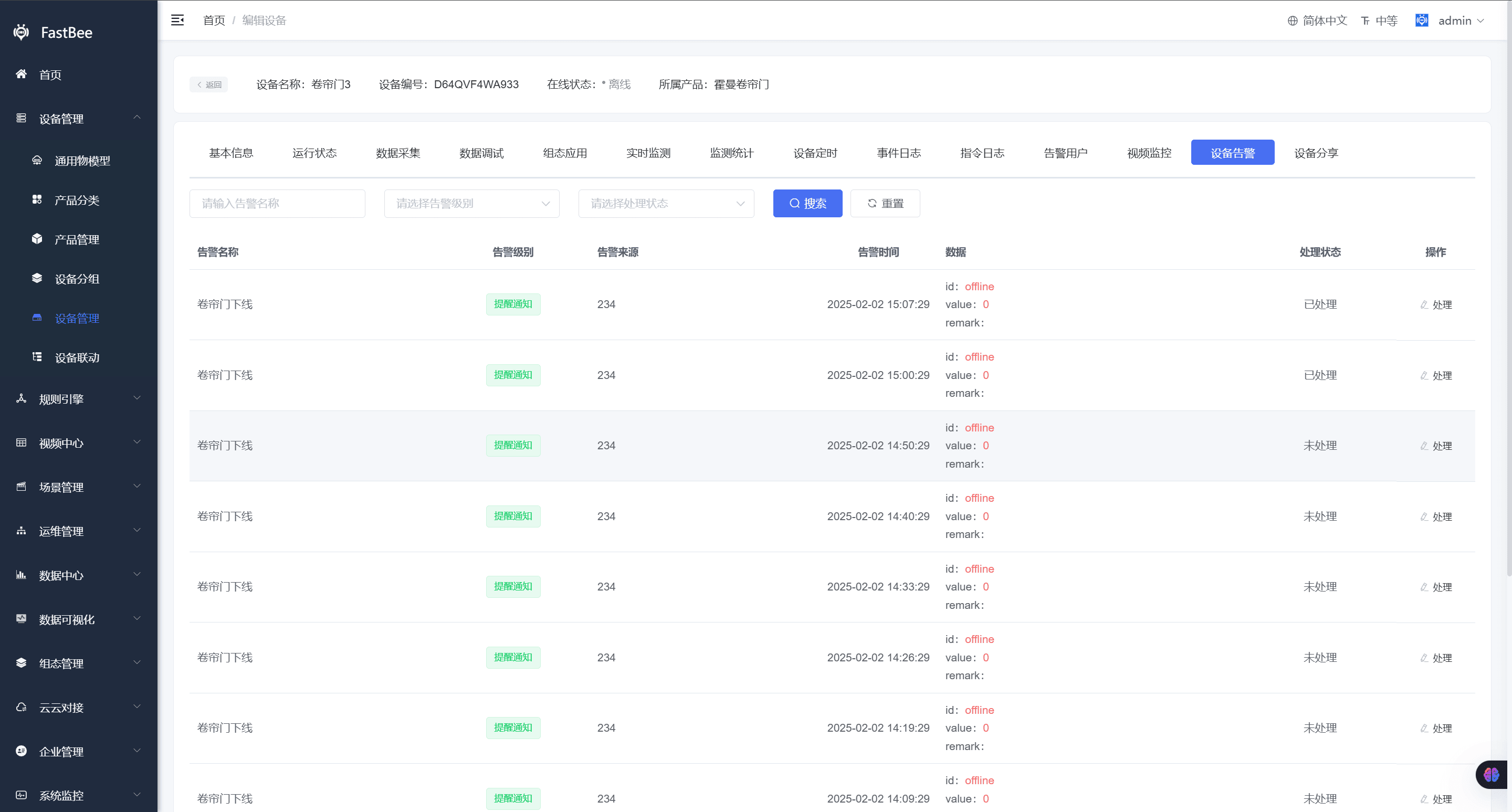
4.17. Device Sharing
Shows binding and sharing information between the device and end users. End users can bind the device and can also share it with other end users
5. Device Details (Monitoring Devices)
5.1. Basic Information
Shows the basic information of the monitoring device 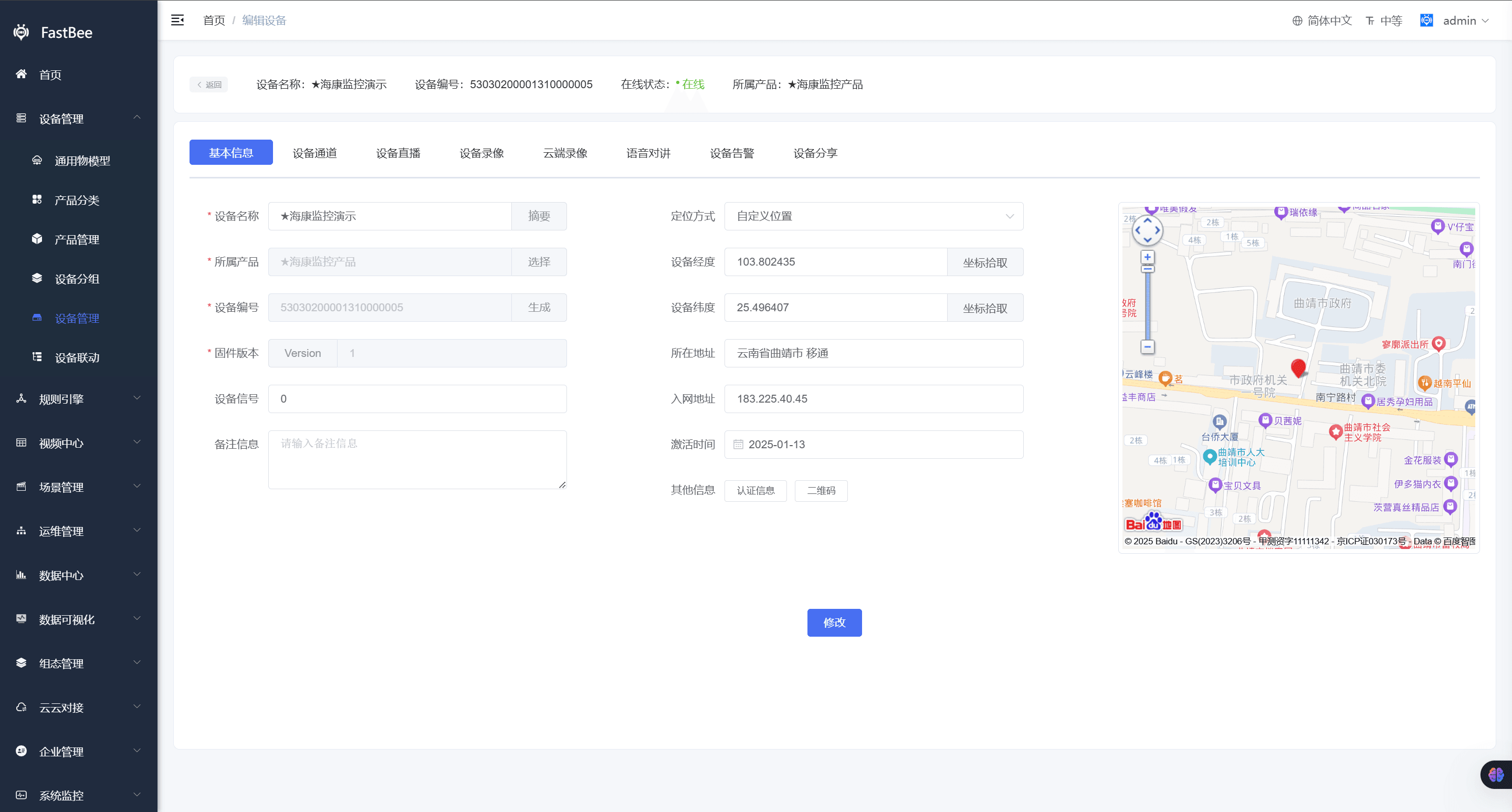
5.2. Device Channels
Shows the channels of the monitoring device. Click the View Live button to watch the live stream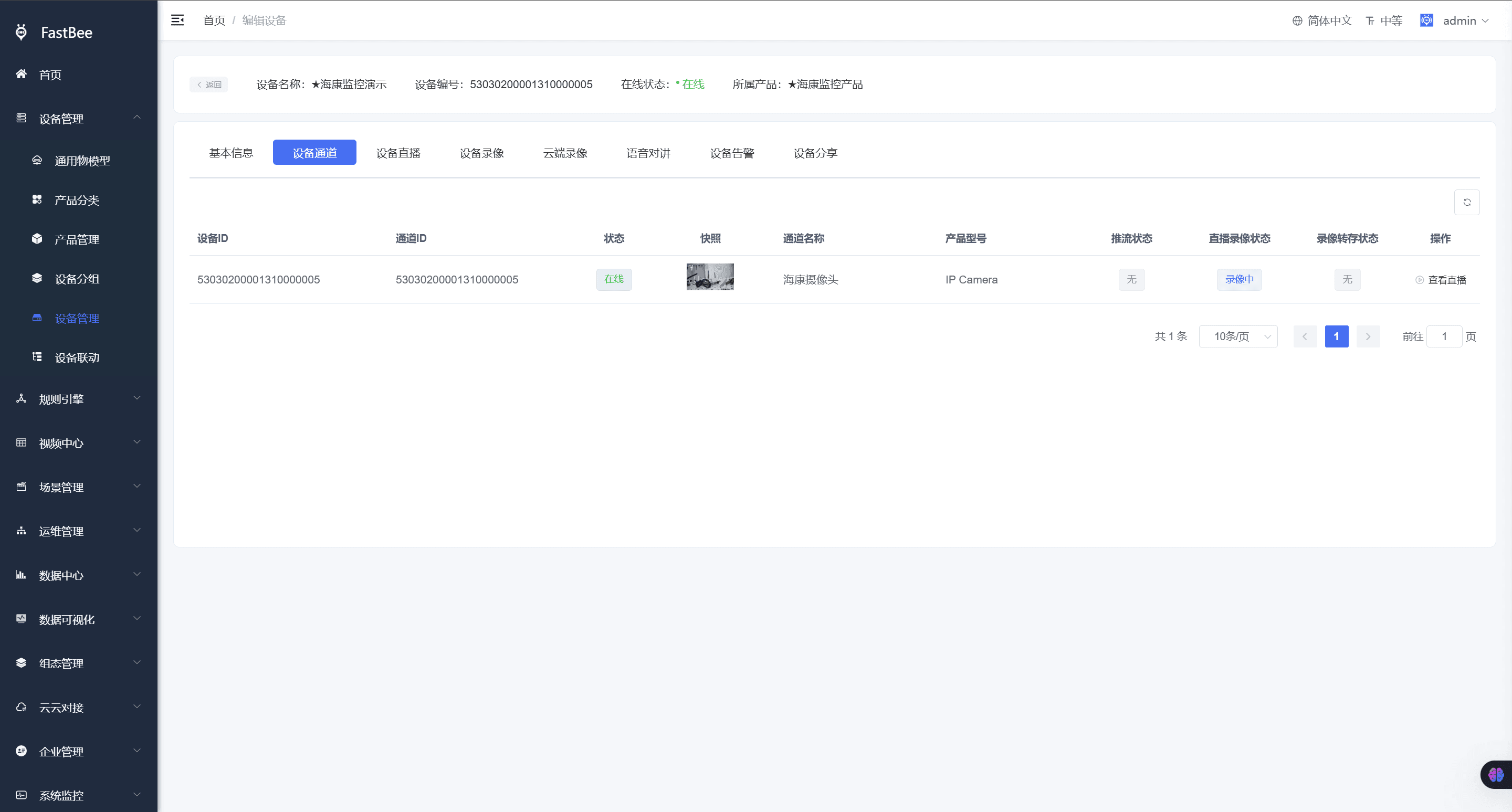
5.3. Device Live View
Shows the live view of the monitoring device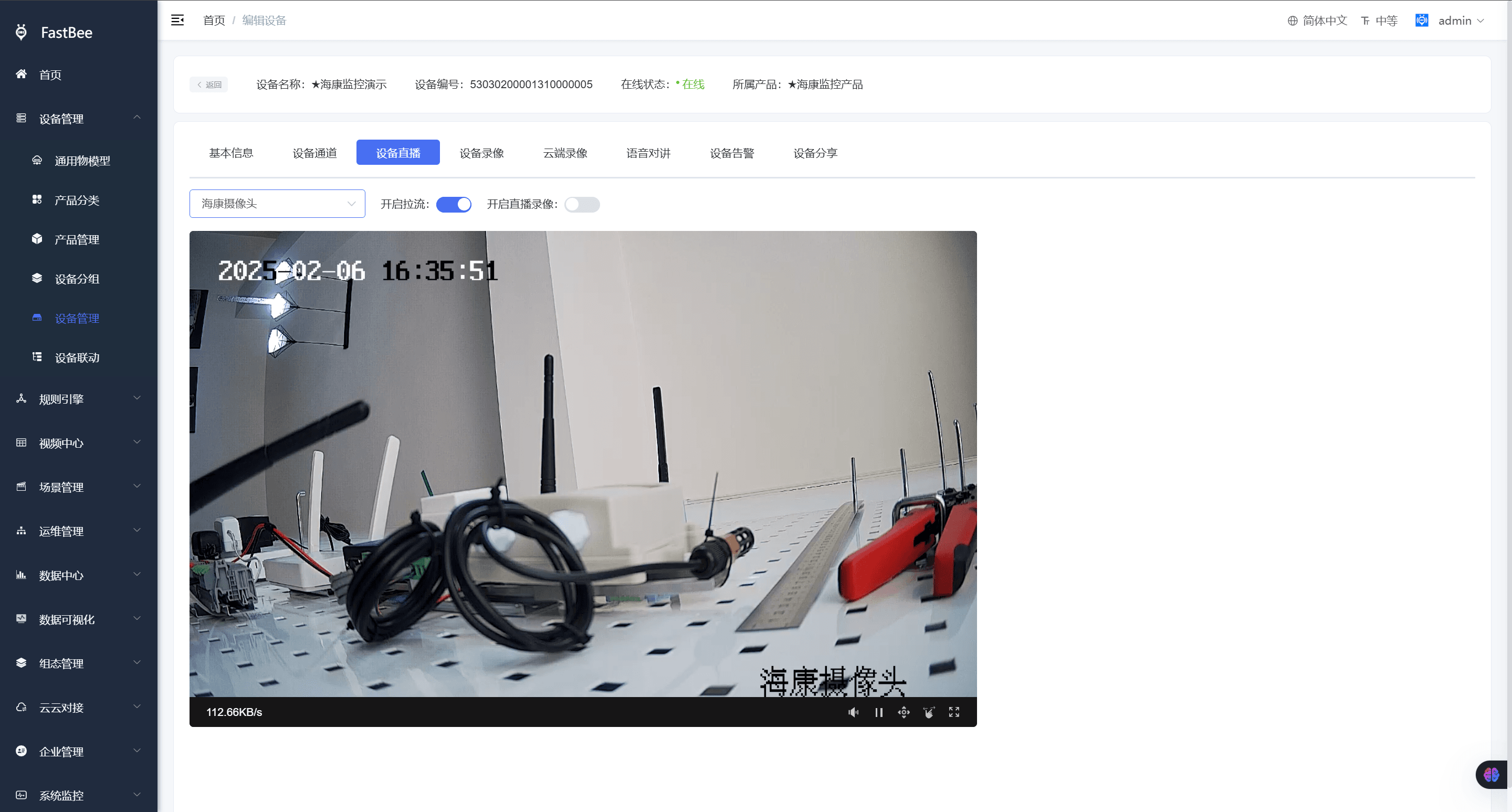
5.4. Device Playback
Shows the recordings of the monitoring device 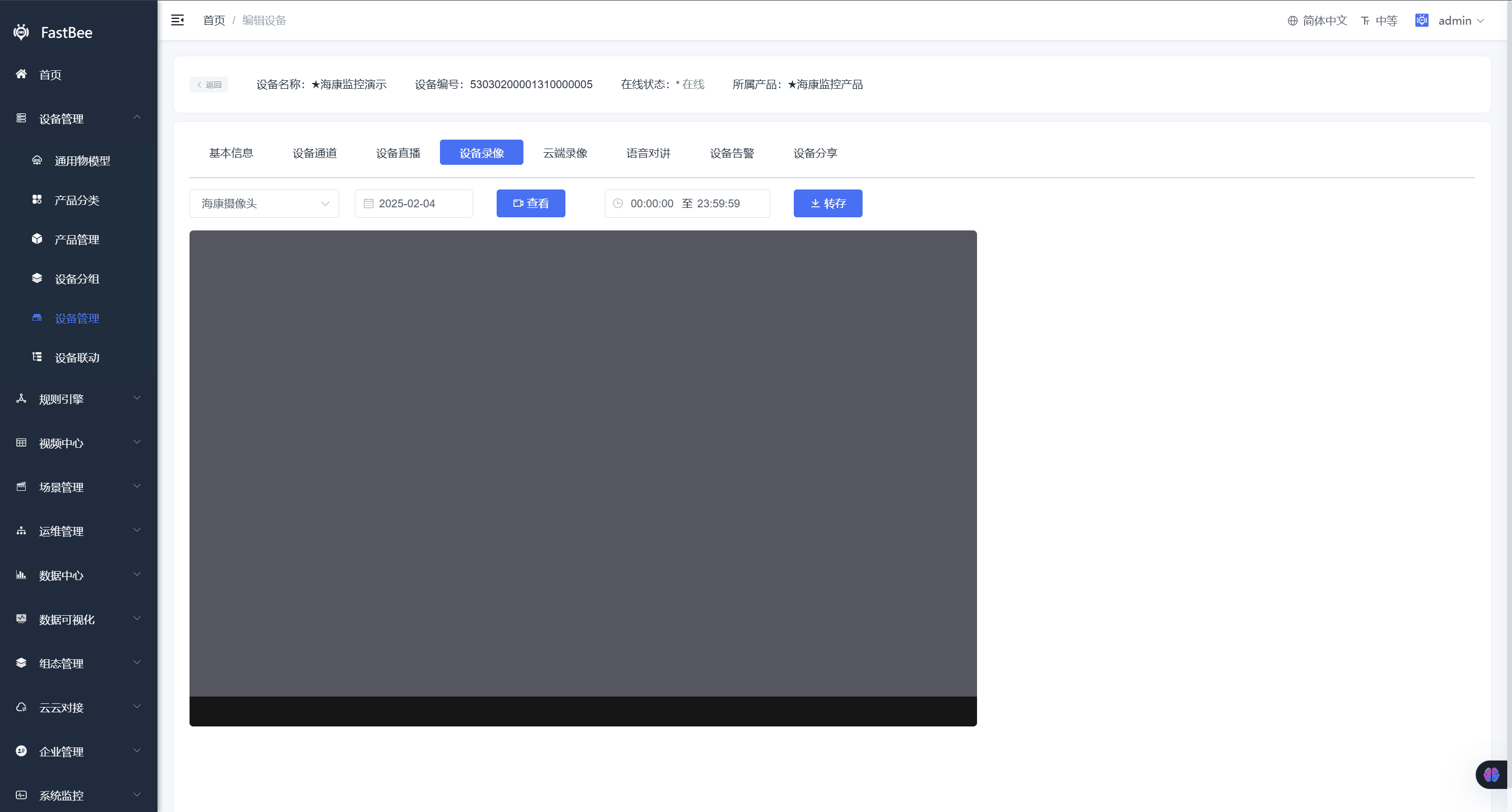
5.5. Cloud Playback
Monitoring device recordings can be stored in cloud OSS and viewed here 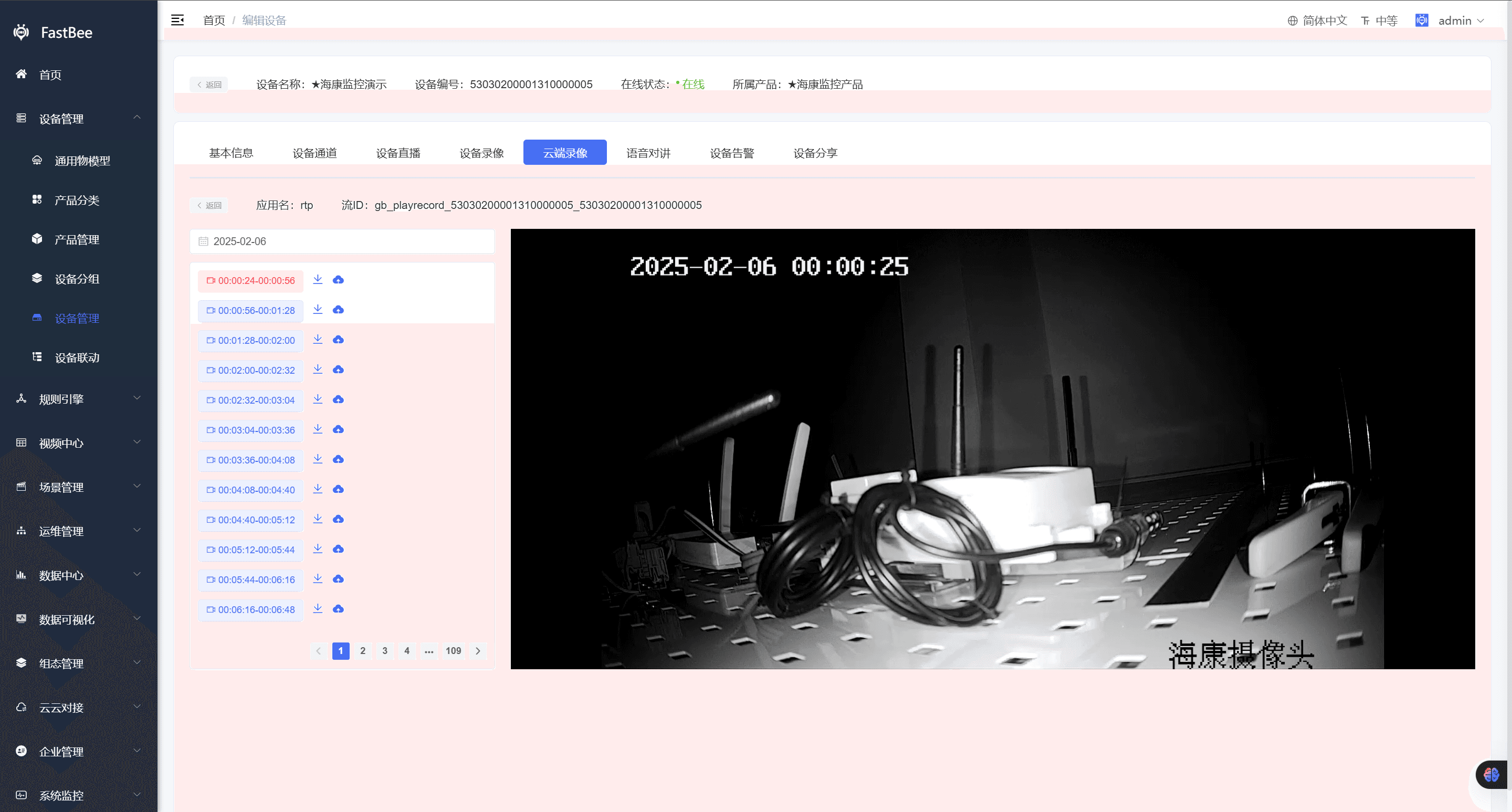
5.6. Voice Intercom
The monitoring device must support voice intercom; the feature is used here 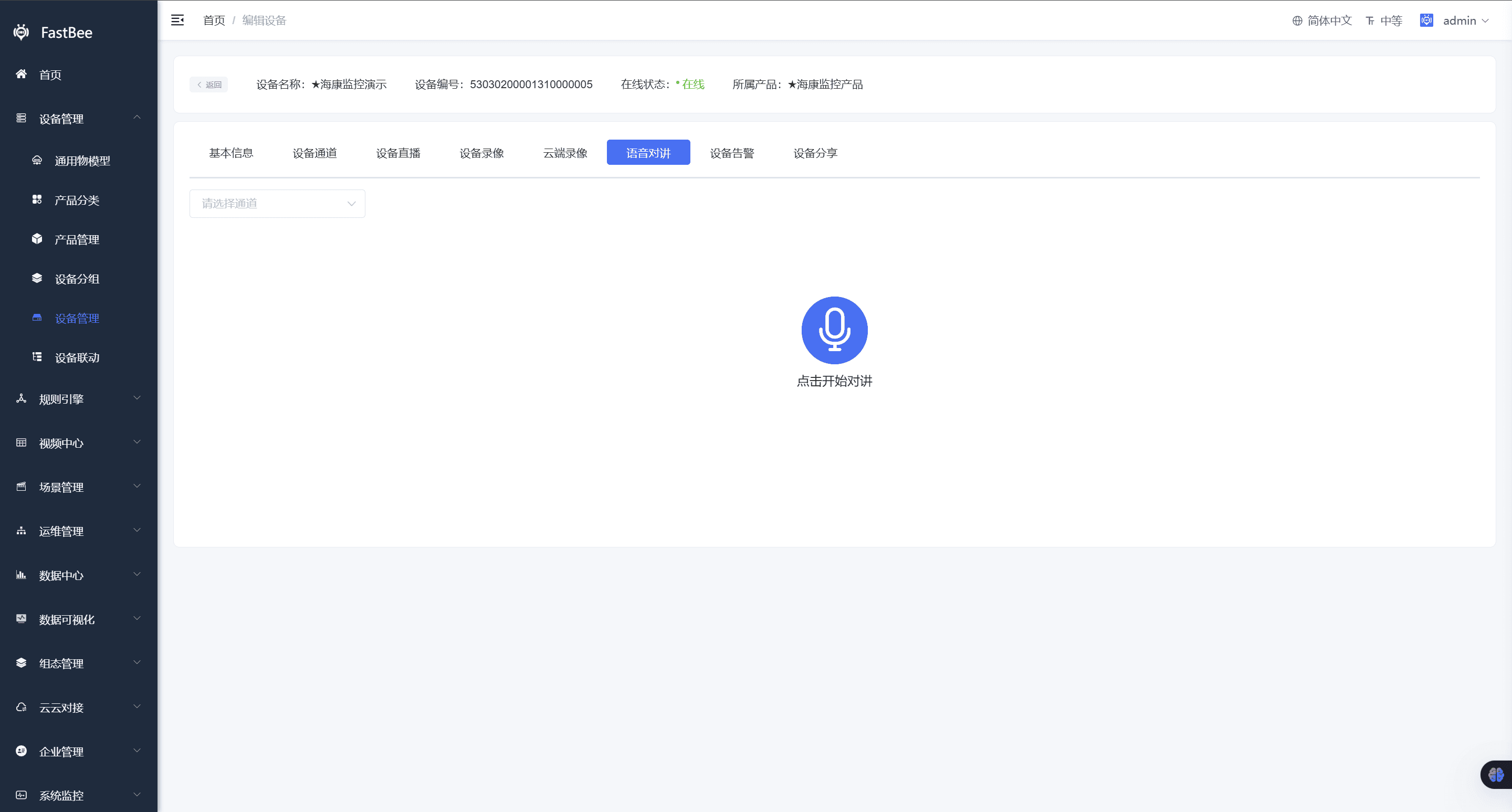
6. Device Online Acceptance
After a device is added or auto-registered, it is recommended to check whether it is truly connected in the following order:
| Acceptance Item | Expected Behavior | Troubleshooting Entry |
|---|---|---|
| Device status | The device shows online, or its last-online time updates | Device details, device logs |
| Authentication info | Device number, product ID, account, and password match the device side | Basic Information on the device details page |
| Running status | Thing Model properties show the latest values | Running Status, Data Collection |
| Command delivery | The device receives commands delivered by the platform and returns results | Data Debugging, Command Log |
| Event log | Online, offline, and event reports are recorded | Event Log |
| Alert users | The correct users are notified when an alert is triggered | Alert Users, alert records |
| Sharing relationship | End users can view the shared device | Device Sharing |
FAQ
Device does not come online after manual creation
Check whether the product has been released, whether the device number on the device side matches the platform, whether the authentication password and authorization code are correct, and whether the MQTT/TCP/HTTP ports are open.
Incorrect device ownership after auto-registration
Check the user ID, tenant, and organization relationship in the authentication parameters. For batches of devices, it is recommended to plan user IDs uniformly, then assign devices or bind them to end users by QR code.
Running Status does not show the Thing Model
Check whether the product has a Thing Model, whether the product has been released, whether the device inherits the product model, and whether the current role has permission to the device details tabs.
Device does not act after command delivery
Check whether the device subscribes to the delivery topic, whether the Thing Model is writable, whether the device side implements the handling logic for the corresponding id, and whether the device is online.
Device still shows online after being disabled
Disabling blocks subsequent connections, but refreshing the status of existing connections may be delayed. You can disconnect the device and re-authenticate to verify.
Secondary Development Entry Points
| Type | Path or API | Description |
|---|---|---|
| Vue3 page | vue3/src/views/iot/device | Device list, details, running status, assignment, and sharing |
| Vue3 API | vue3/src/api/iot | Encapsulation of device-related requests |
| Backend API | /iot/device | Device management API |
| Backend API | /iot/deviceUser | Device-user binding and sharing |
| Backend API | /iot/record, /iot/message | Device logs, messages, and events |
| Backend API | /iot/tool/mqtt/auth | MQTT authentication and Webhook |
| Data module | springboot/fastbee-iot-data | Device running data and time-series data processing |