Mobile device panel
Feature overview
FastBee provides an out-of-the-box draggable running-status panel for mobile devices. After users log in to the mobile app, they can view one or more associated devices. Tapping a device opens the device detail page, also called the device panel.
Each device type has its own device panel. Devices of the same product type share the same panel, so you do not need to edit a panel for every device.
The panel shown in the mobile running-status page is determined by the product that the device belongs to. By editing the product application configuration, you can show different device panels to users.
Feature location
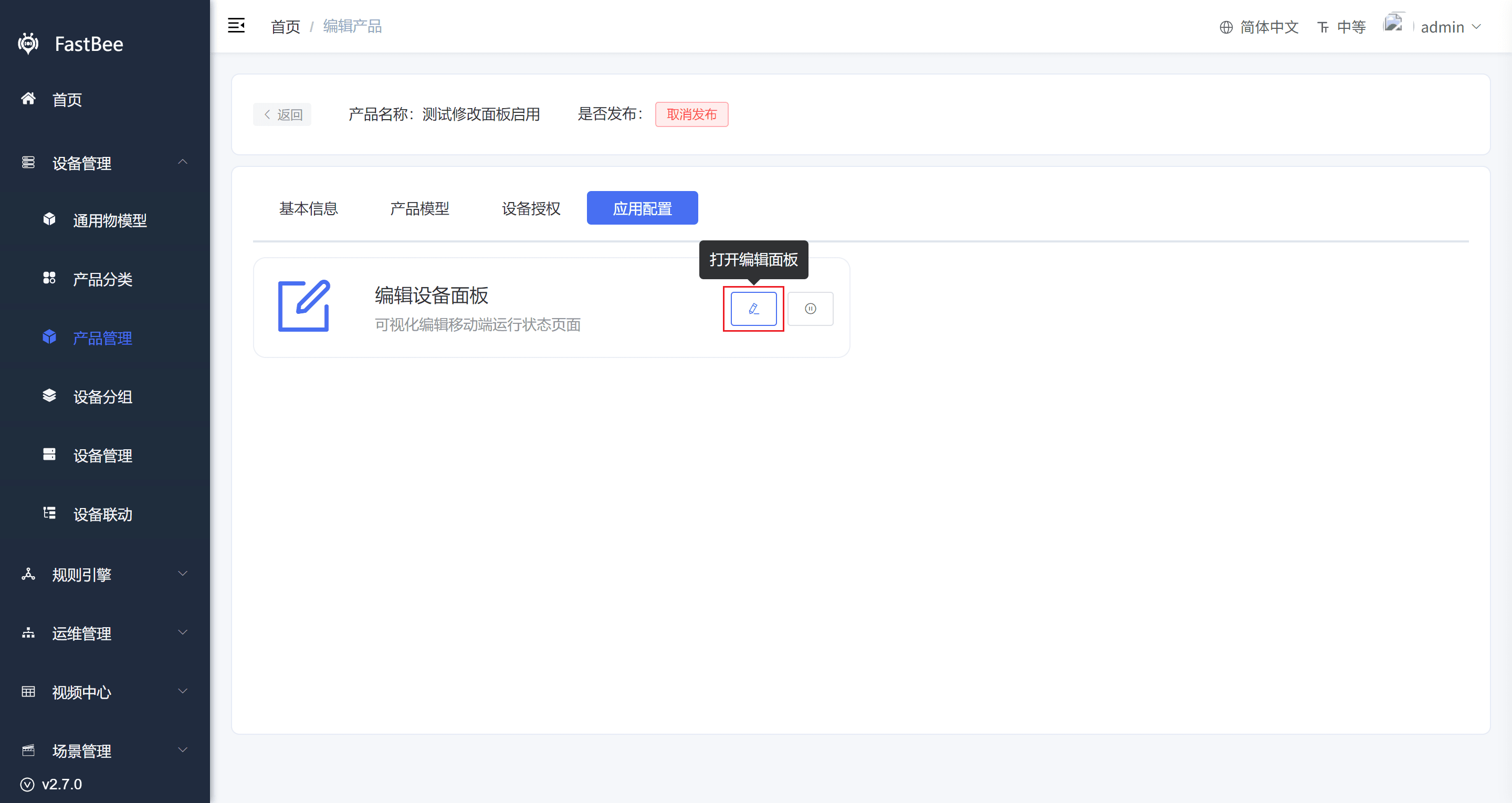
Device panels are editable. Open Product Management, enter any product detail page, then open Application Configuration to find the device panel editor entry.
1. Edit panel
Click Open editing panel to enter the device panel editor.
2. Enable panel
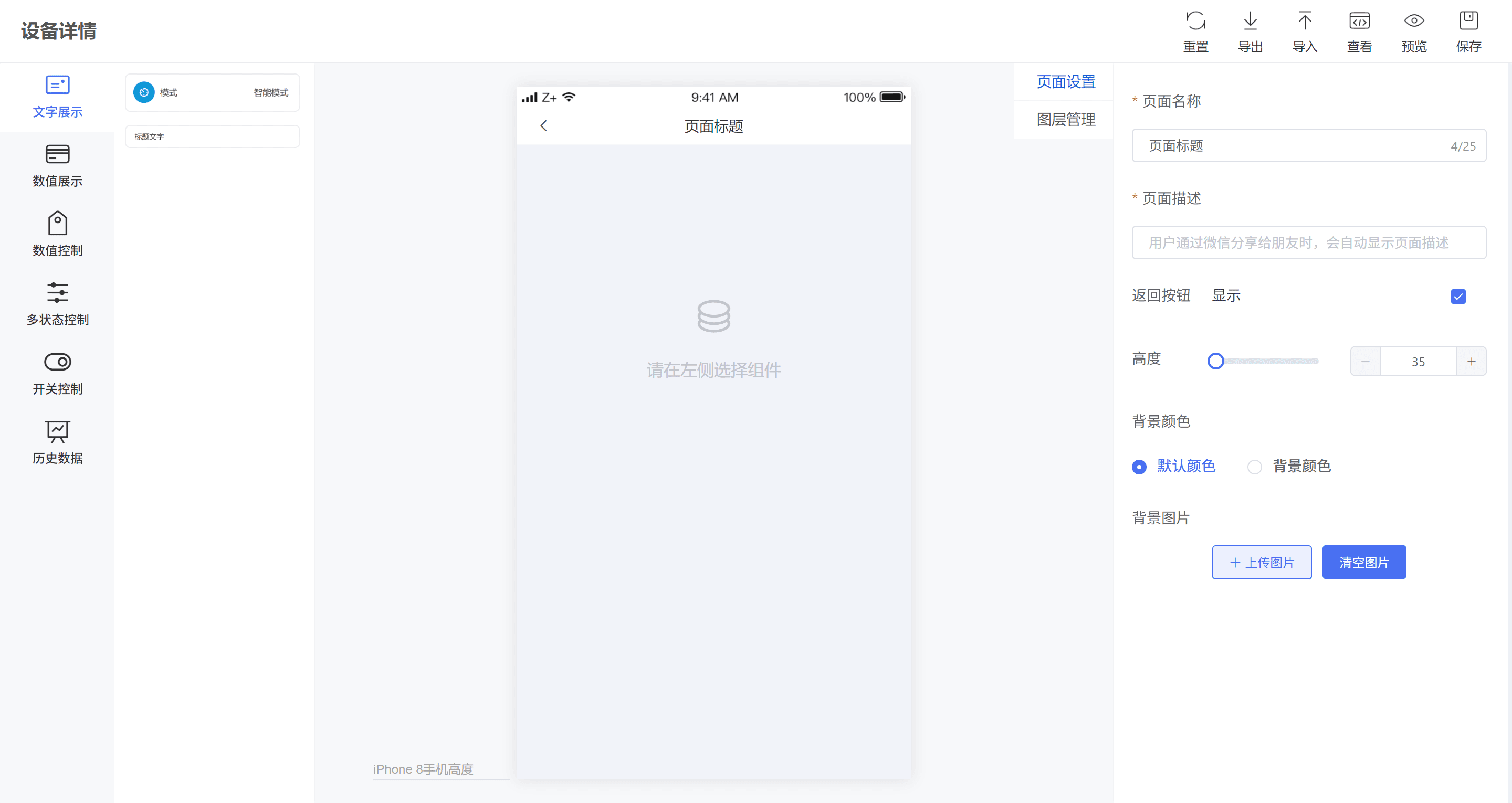
Click Enable to use the content generated by the editor as the device panel. When it is disabled, the system default running-status panel is displayed.
Drag-and-drop editor
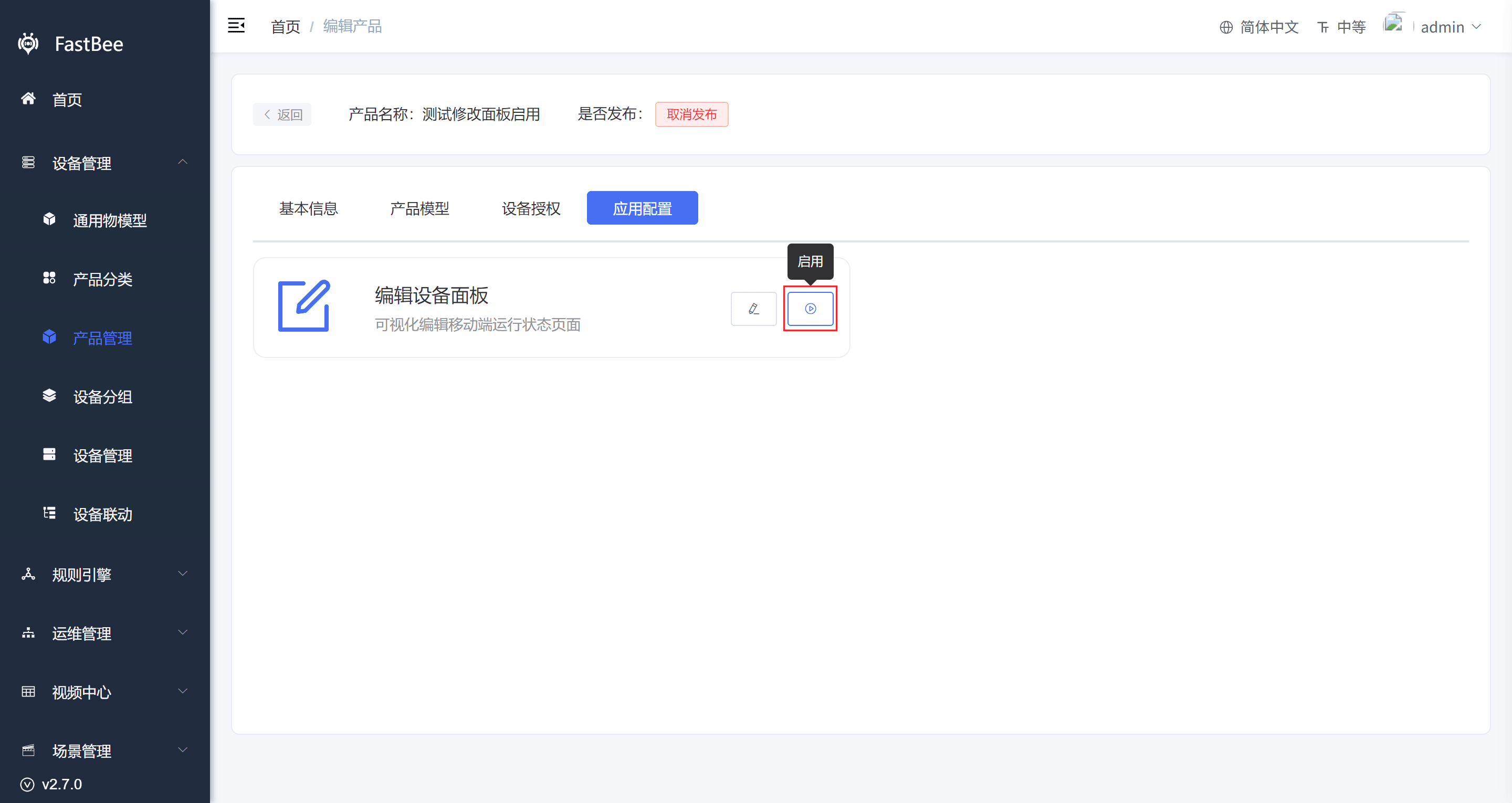
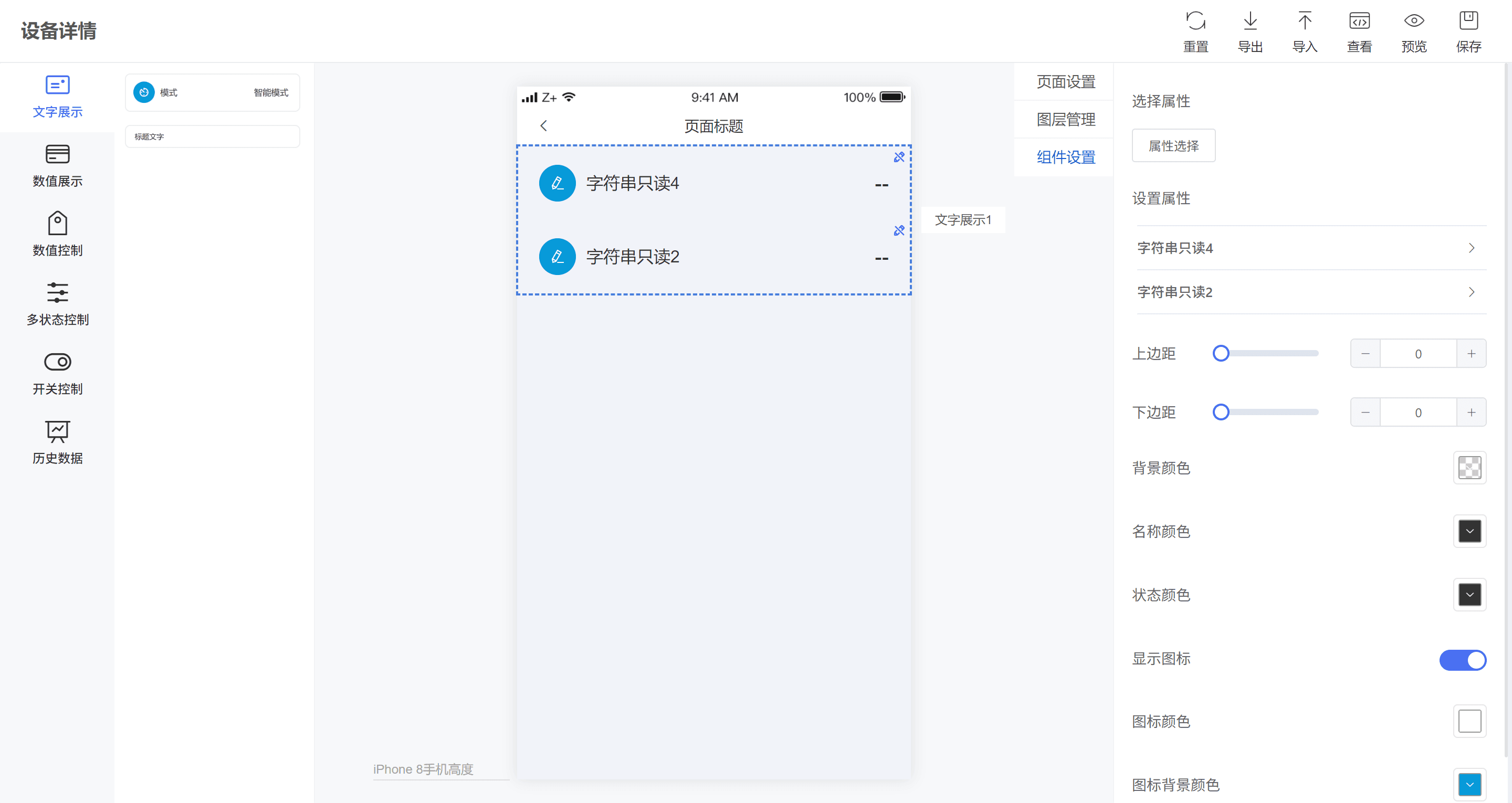
The editor consists of the top toolbar, left component list, center editing canvas, and right component configuration panel.
1. Toolbar
The toolbar is in the upper-right corner of the visual editor. It provides reset, import, export, view JSON, preview, and save actions.

| Action | Description |
|---|---|
| Reset | Clear all settings. |
| Import | Import a JSON file to generate a visual page. |
| Export | Export the designed page as a JSON file. |
| View | View the JSON data of the current design. |
| Preview | Preview how the current page looks on mobile. |
| Save | Save the data and upload it to the cloud. |
2. Component list
Different components serve different purposes and correspond to different data types.
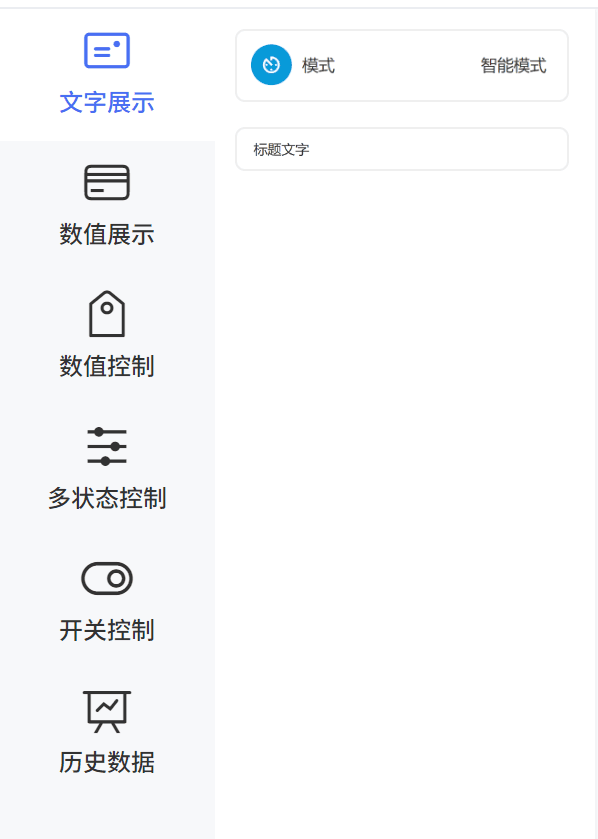
| Component | Data type | Read-only | Chart |
|---|---|---|---|
| Title | - | - | - |
| Text display | String | - | No |
| Numeric display | Decimal, integer | Read-only data | No |
| Numeric control | Decimal, integer | Writable data | No |
| Multi-state control | Enum | - | No |
| Switch control | Boolean | - | No |
| Historical data | Decimal, integer | Read-only data | Yes |
3. Editing canvas
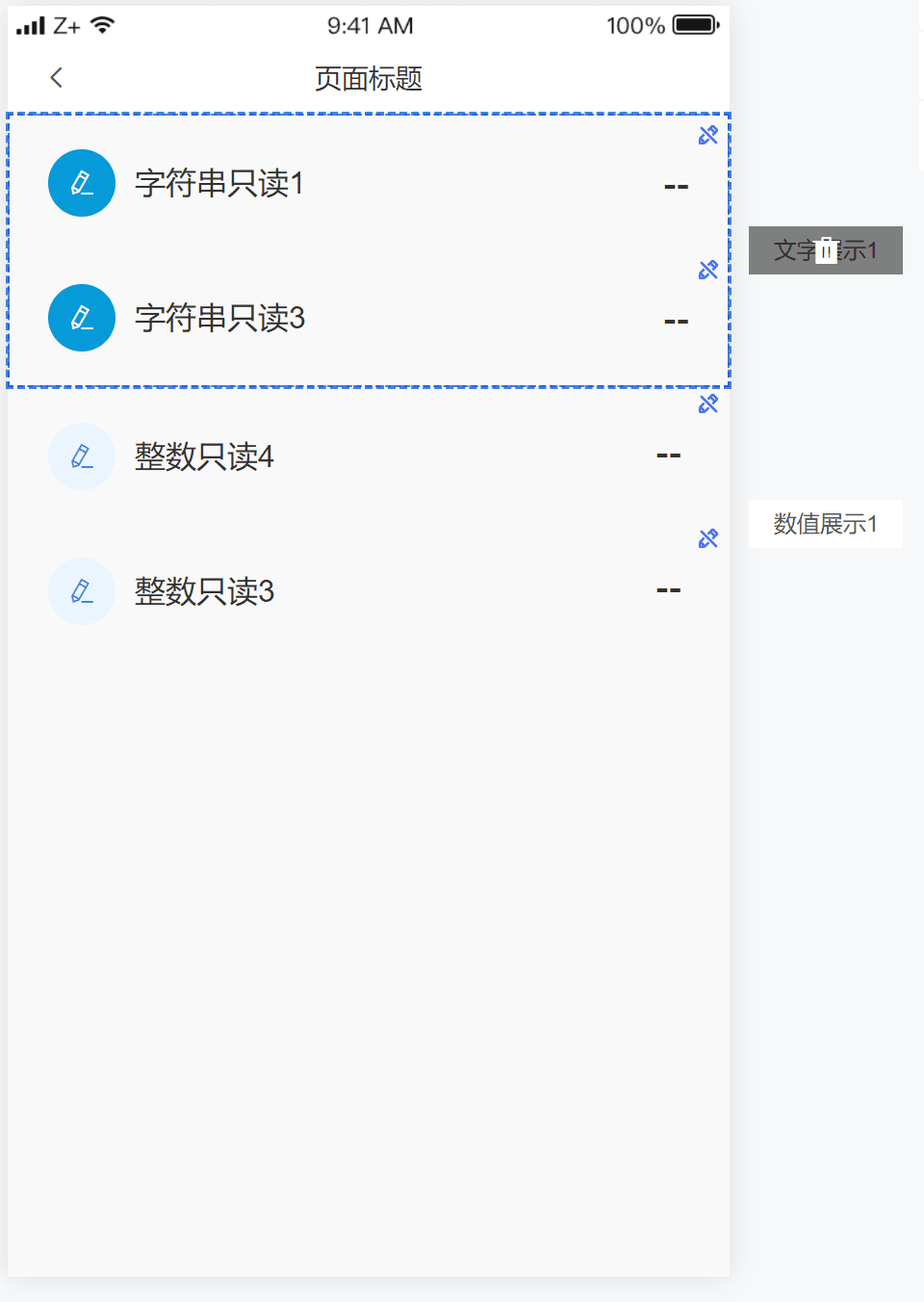
The editing canvas is the main area for designing the device panel. Drag components from the component list into the canvas and arrange them freely.
You can select a component with the left mouse button and click the delete icon to remove it. You can also scroll the mouse wheel to zoom the canvas.
4. Component configuration
The right panel is used for page settings, layer management, component styles, and component property configuration.
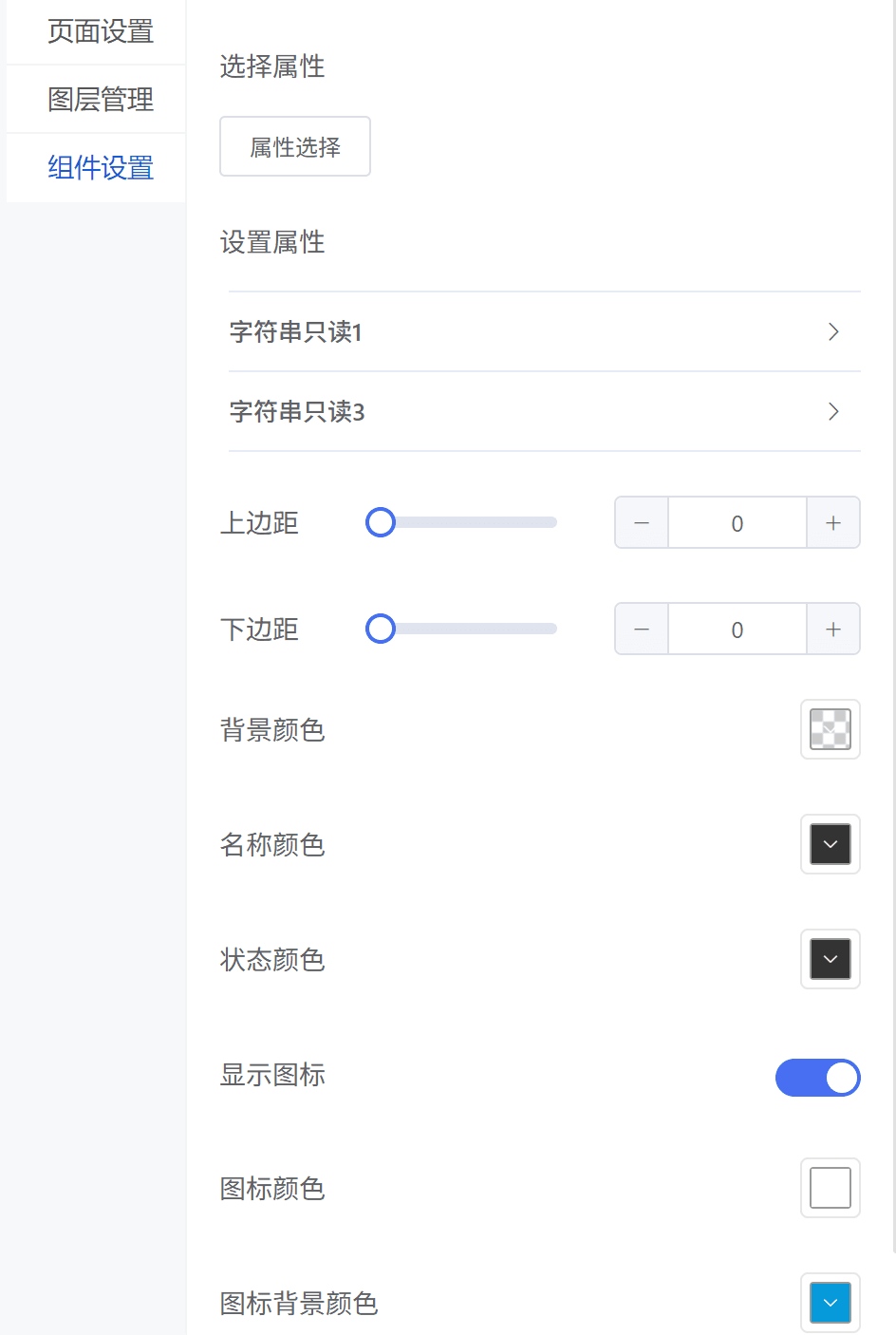
- Page settings: configure the running-status page background color and background image.
- Layer management: manage the order of multiple components by dragging.
- Component settings: select component properties and configure style parameters.
Operation flow
- Open the product detail page, select Application Configuration, click Enable, then click Open editing panel.
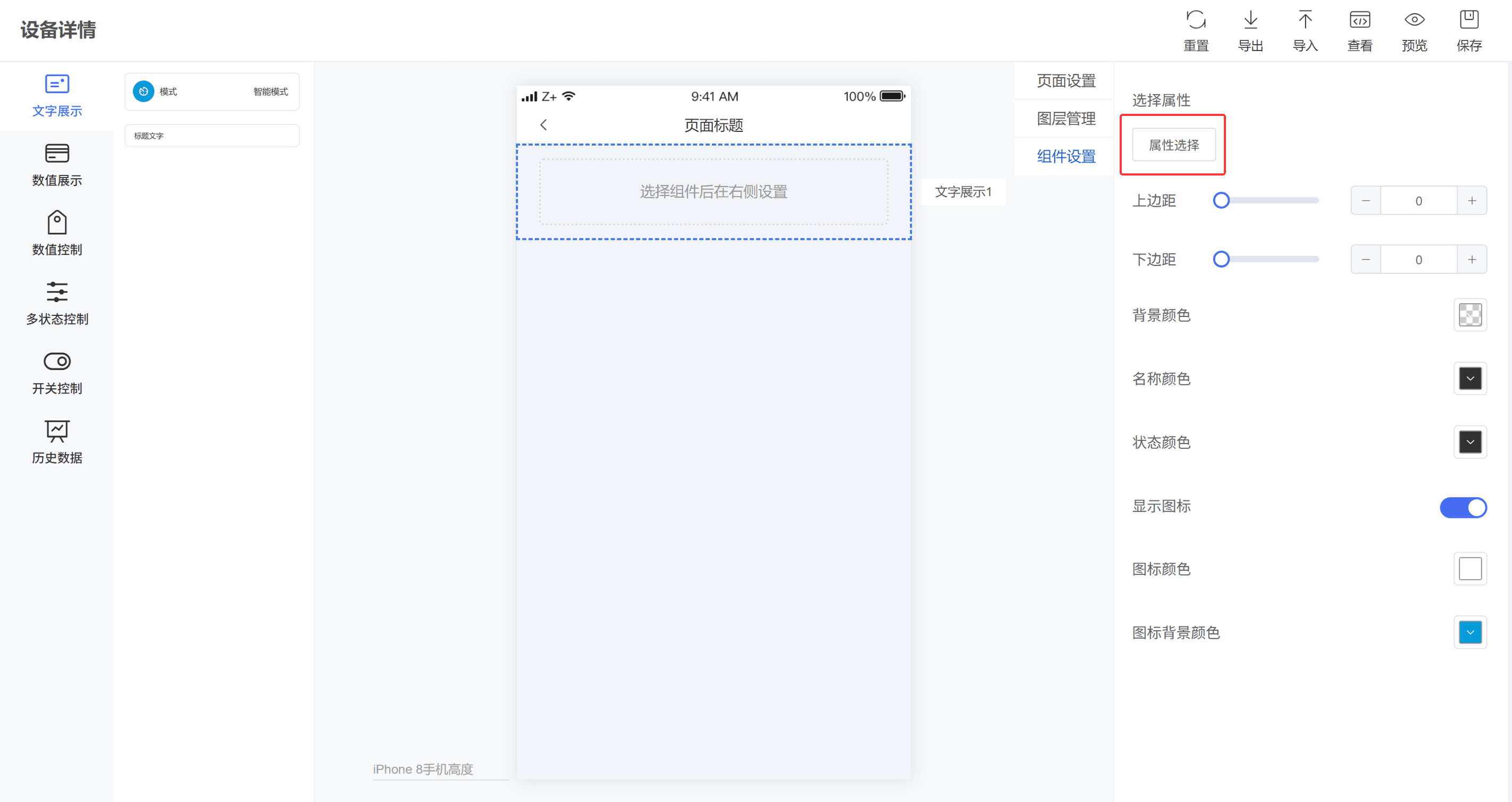
- Drag a component from the left component list into the editing canvas. The example below uses the text display component. After the component is added, the canvas prompts you to configure it on the right panel.
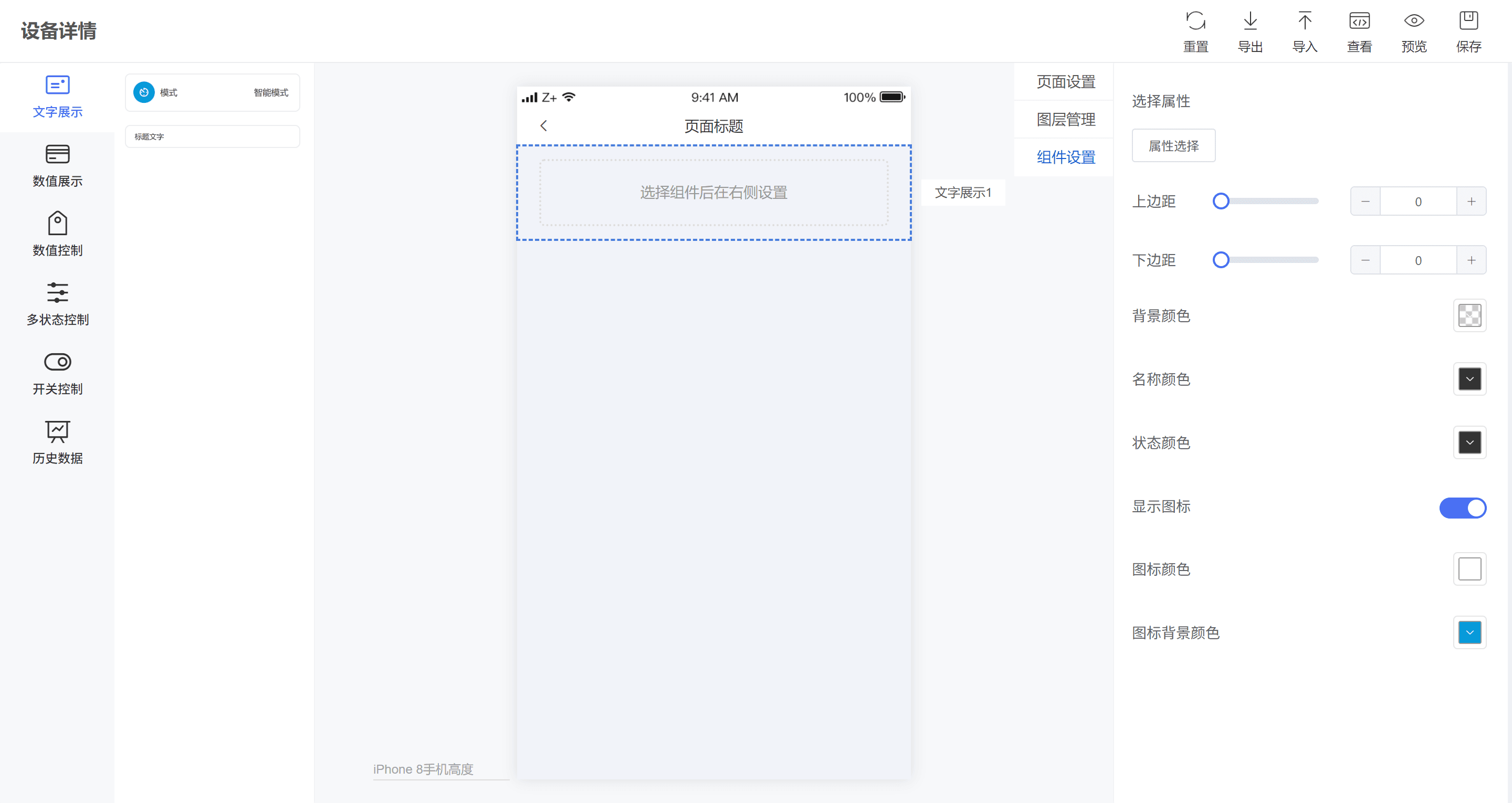
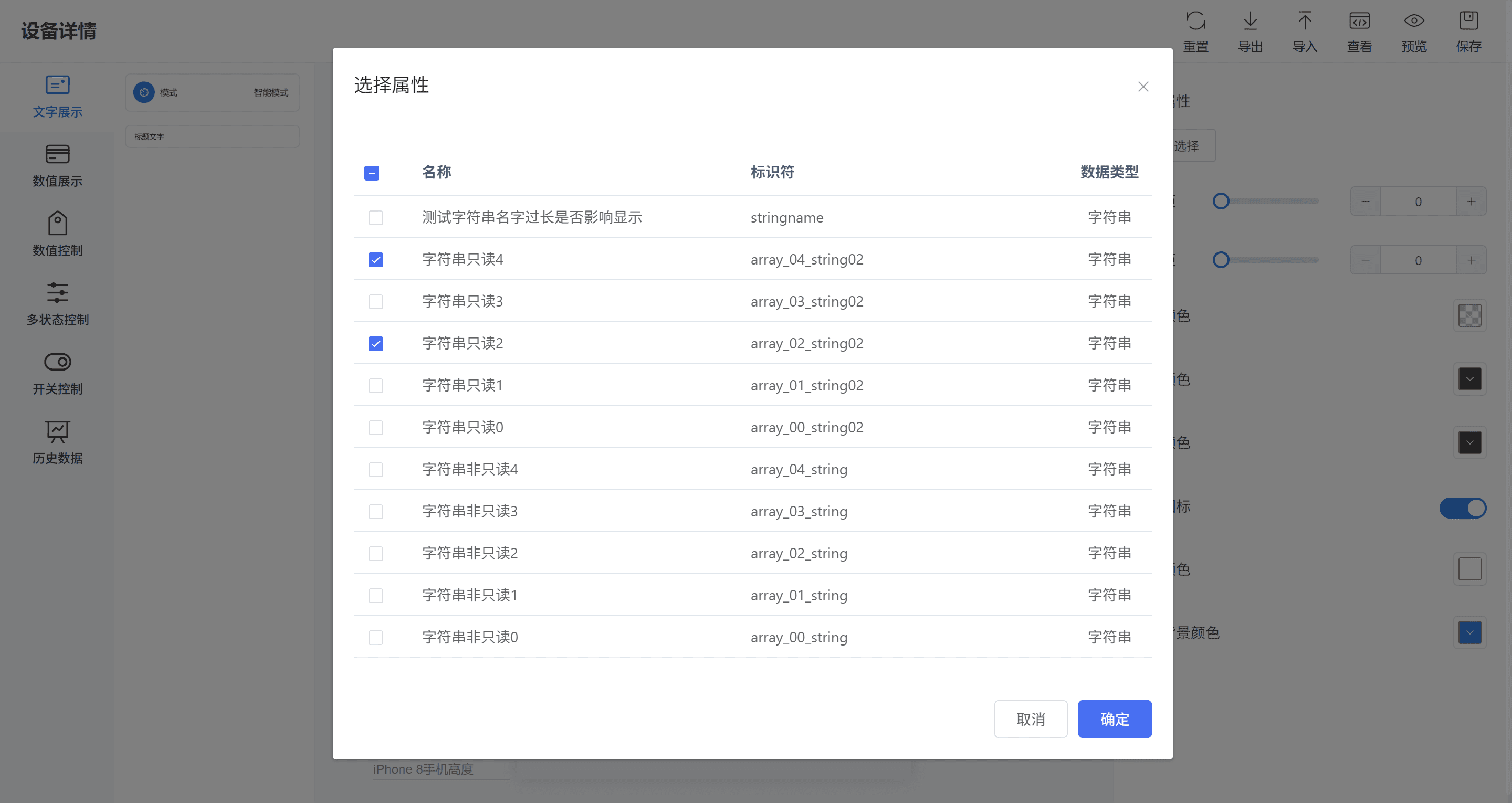
- Click Property selection, select the target property, then confirm. The selected property is displayed on the canvas.
- After the design is complete, export the page as a JSON file or preview the mobile style. After confirming the result, click Save in the upper-right corner to save the data to the cloud.
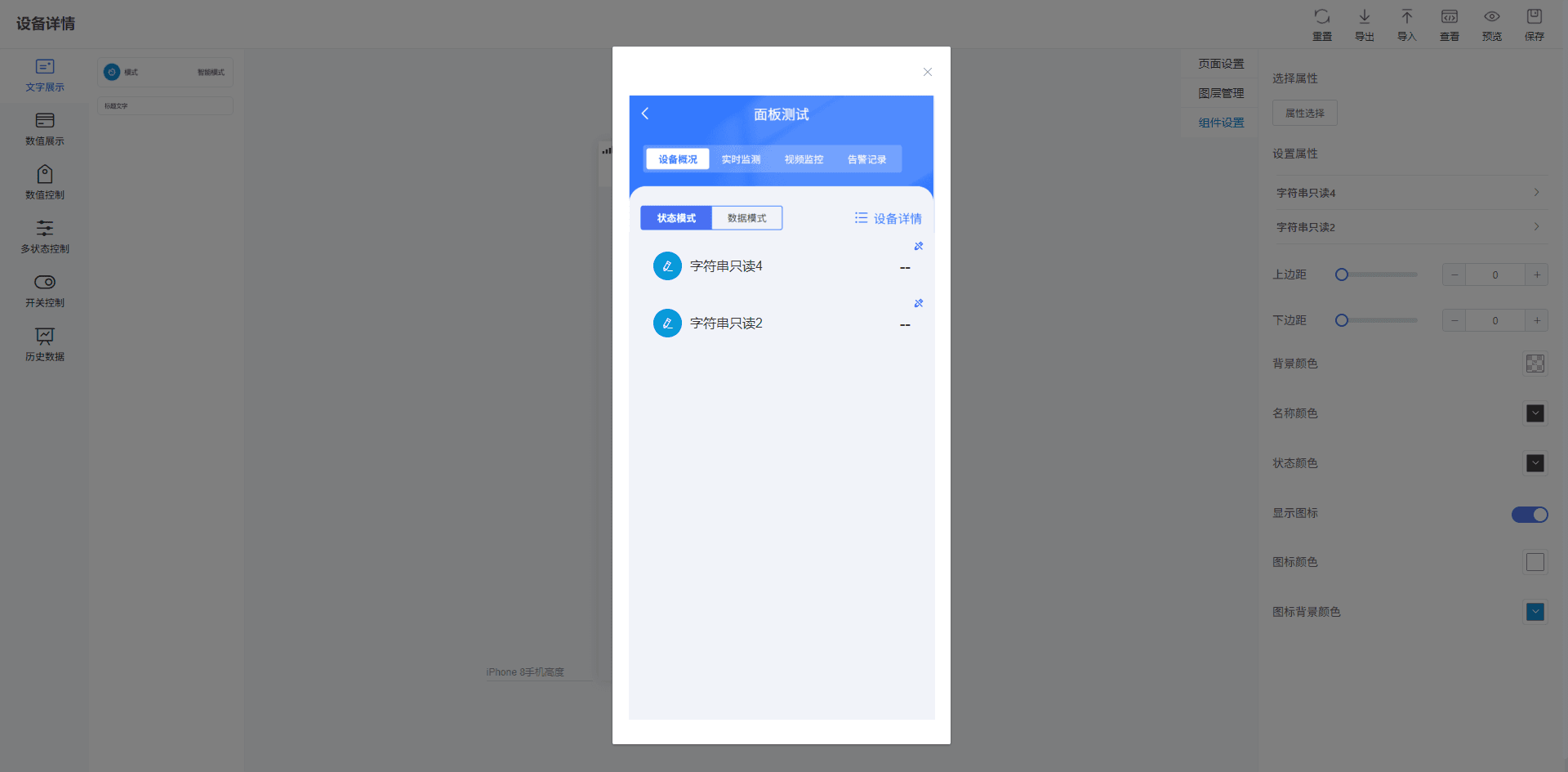
- Open the mobile app after saving, select a device under the corresponding product, and view the designed running-status page.