

Getting Started
Page Guide
- The product is published, and the thing model identifiers are unique and consistent with the device-side code.
- The device number, product number, MQTT account, and password have been correctly written into the SDK or simulator.
- After the device comes online, check the logs and real-time data first, then verify the command delivery result.
The IoT platform provides services such as connecting devices to the cloud, device message reporting, cloud subscription to device messages, and cloud command delivery to devices. Using a street light device connected to the IoT platform as an example, this document introduces how a device connects to the IoT platform and how to control the device switch from the IoT platform, helping you quickly understand the basic capabilities of the IoT platform.
Usage Flow
- Create a product
- Import or create a product thing model, then publish the product
- Create a device (optional; you can also configure the device information directly in the SDK — after the device is authenticated successfully, the system automatically generates the corresponding device entity)
- Download the SDK, configure the device information, implement the specific functions, and flash the code to the device
- After the device is powered on, it connects to the system and is automatically activated
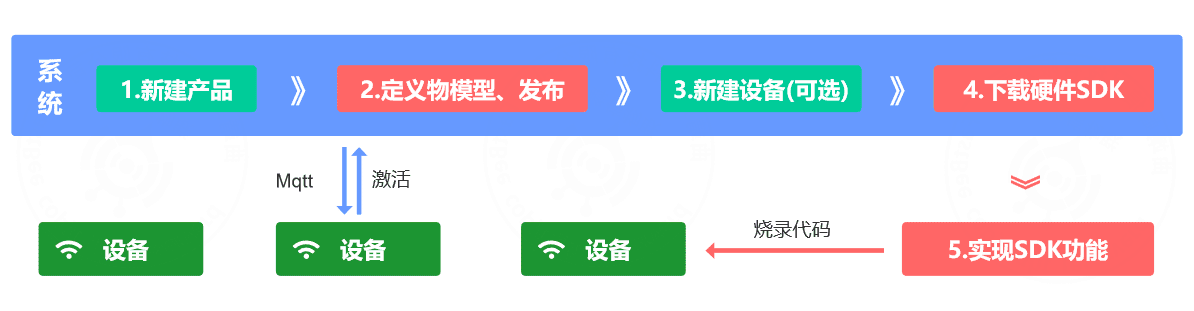
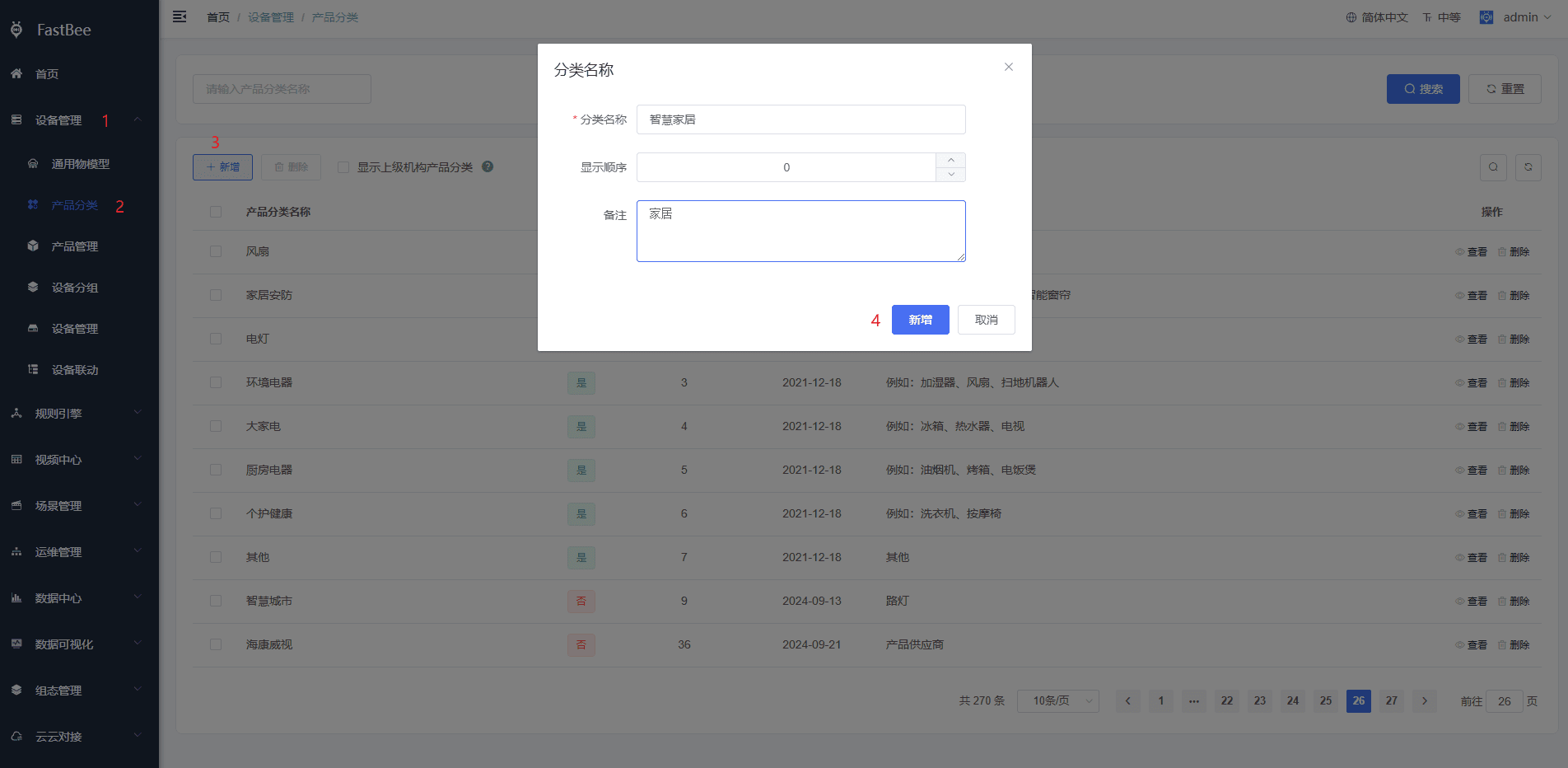
1. Create a Product Category
If the system's default product categories cannot identify your product, you can add a new category.
- In the left navigation bar, select Device Management > Product Category, and click Add.
- On the Create Product Category page, configure the parameters and click Add.
2. Create a Product
To connect devices using the IoT platform, you first need to create a product in the Product Management module of the IoT platform.
- In the left navigation bar, select Device Management > Product Management, and click Add.
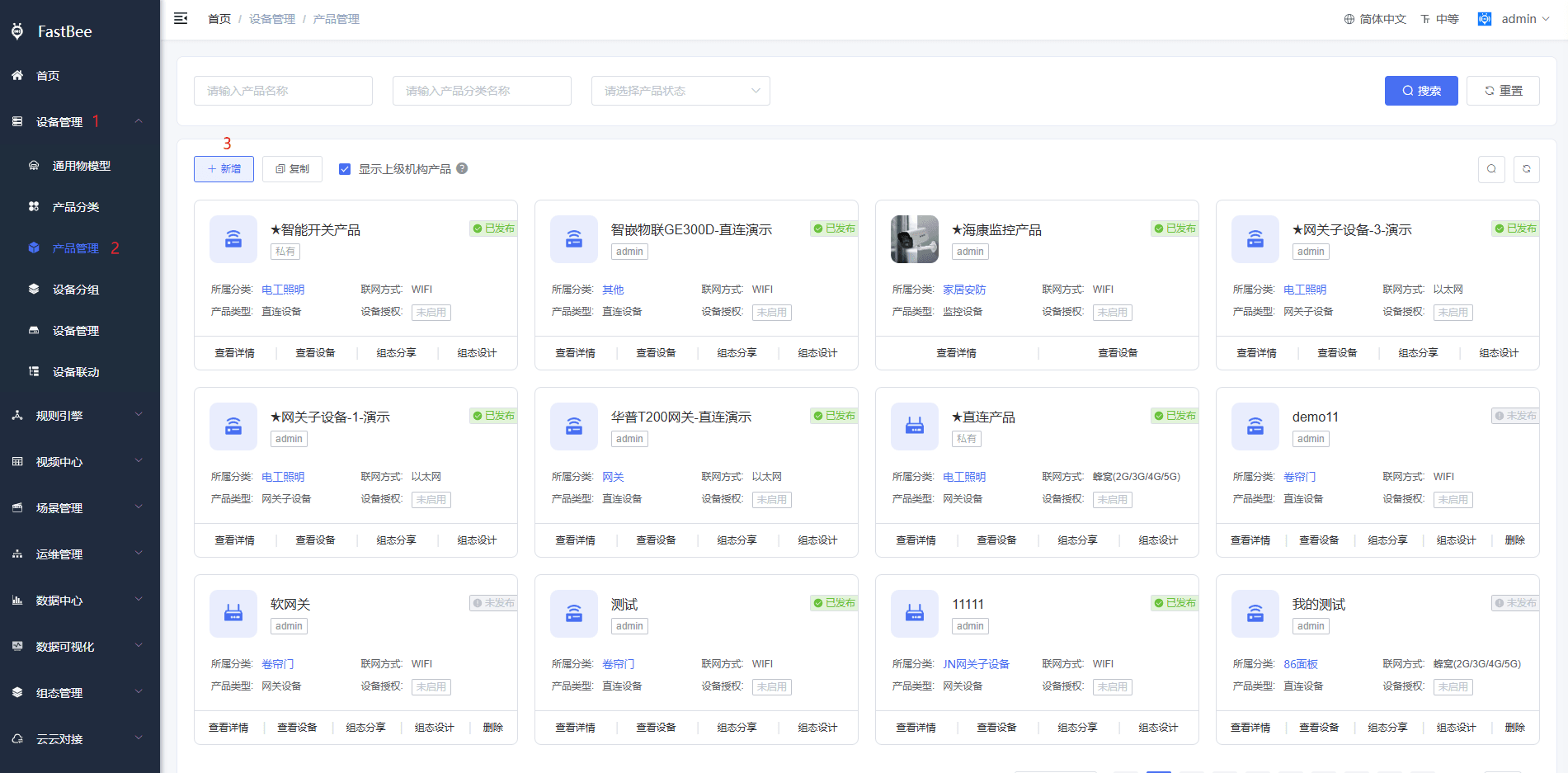
- On the Create Product page, configure the parameters and click Add.
The product name in this example is Smart Switch, and the other parameters use default values, as shown below.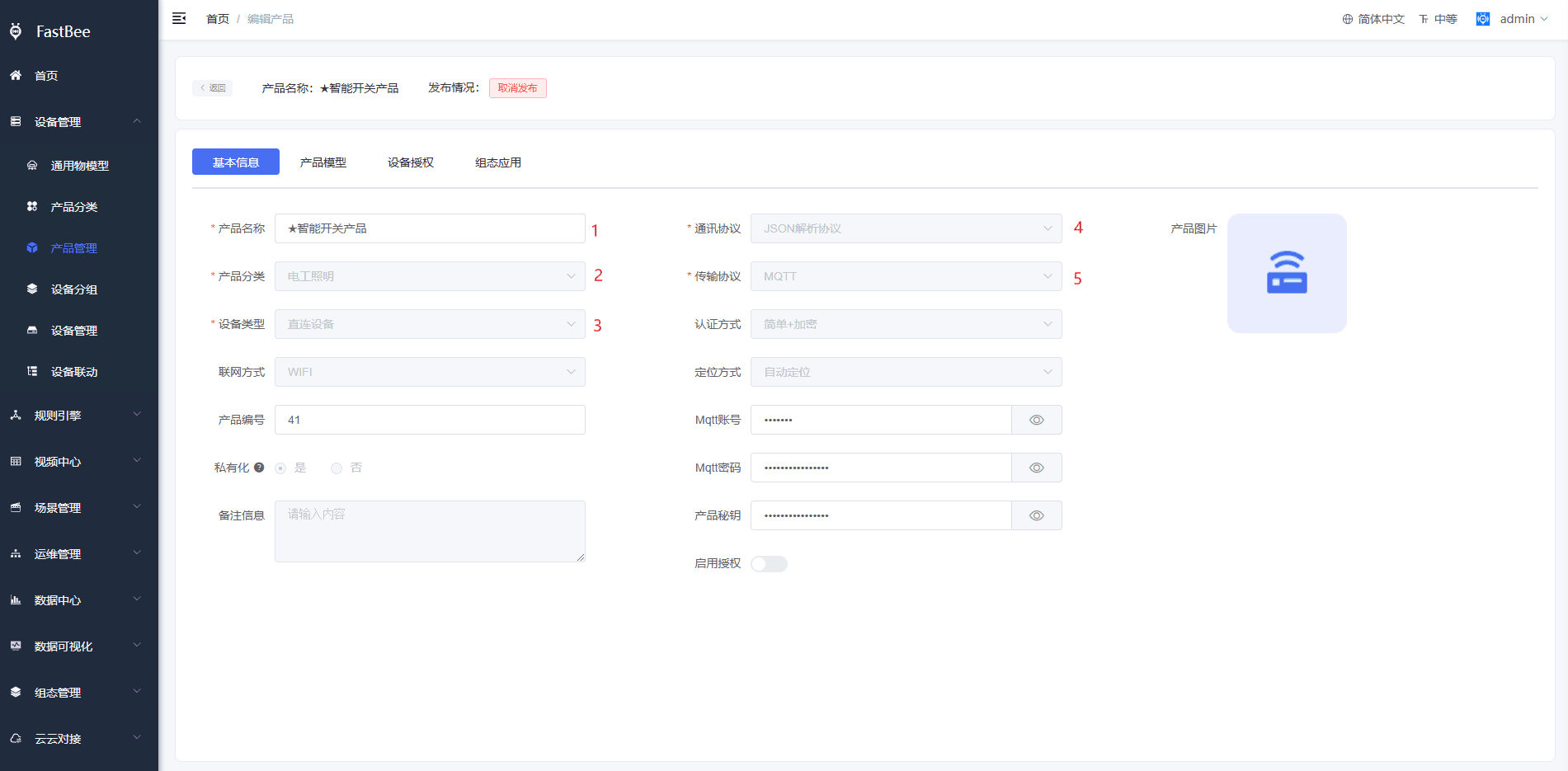
3. Define the Thing Model
The platform supports defining a thing model for a product, abstracting the actual product into a data model composed of properties, functions, and events, which facilitates IoT platform management and data interaction. After the product is created, you can define a thing model for it, and devices under the product will automatically inherit the thing model content.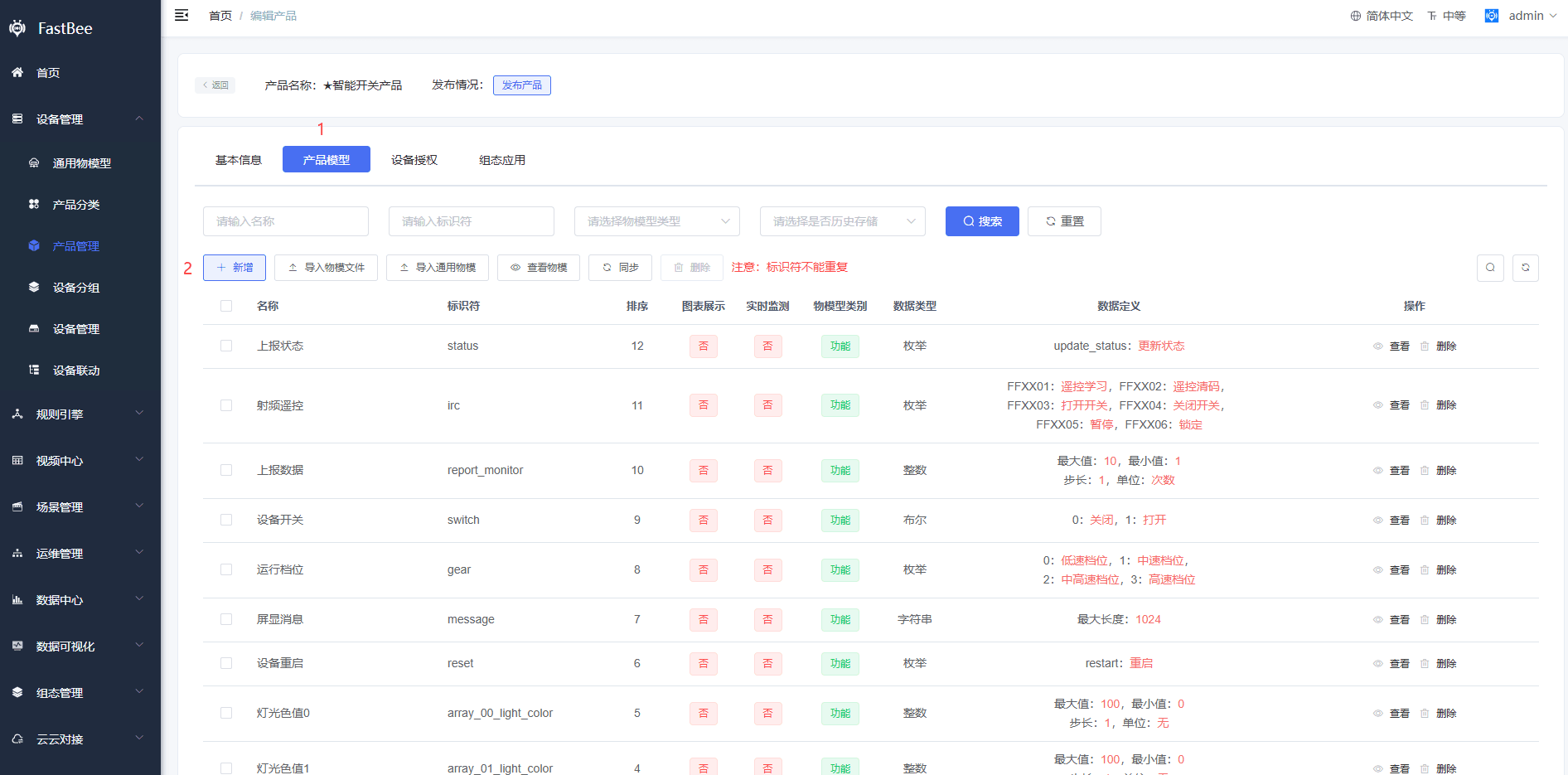
警告
Prerequisite for defining a thing model — the product has been created. For details, refer to Create Product and Device.
- On the Product Thing Model page, click Add.
- On the Model Definition page, configure the thing model, then click Confirm.
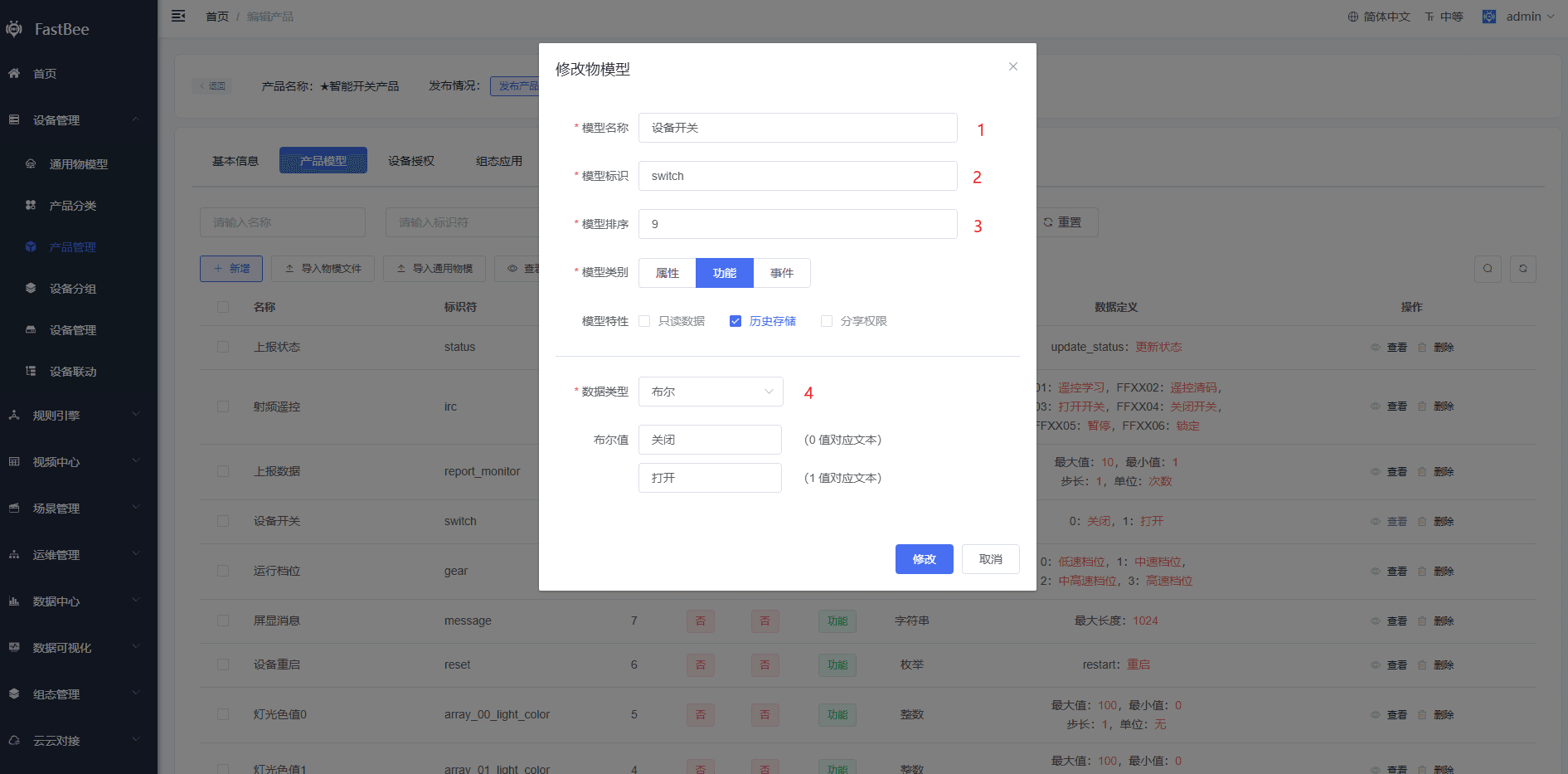
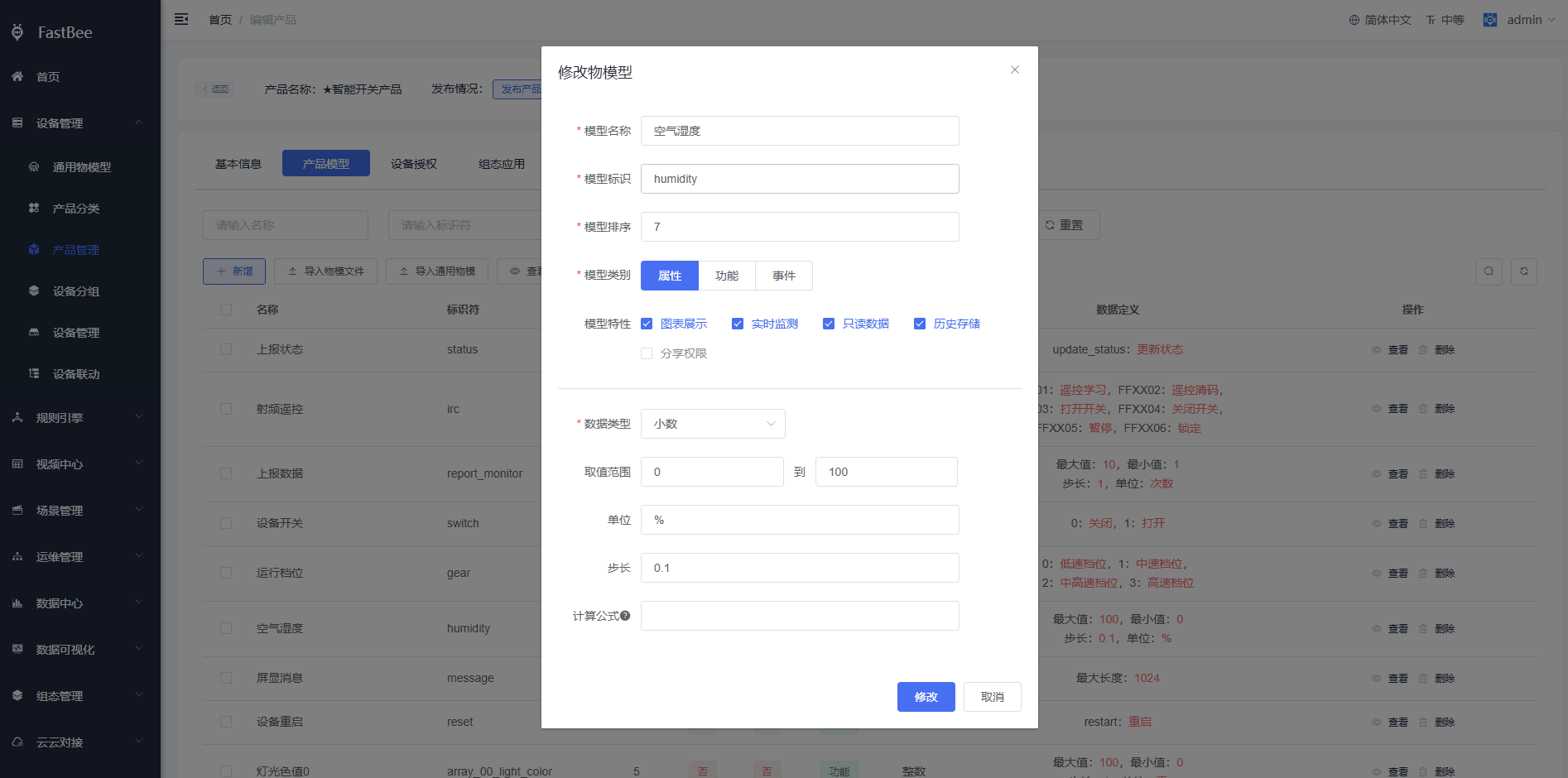
Set the switch function and operating current property of the street light product as shown below
- Switch function
- Air humidity property
- After confirming everything is correct, click Publish Product.
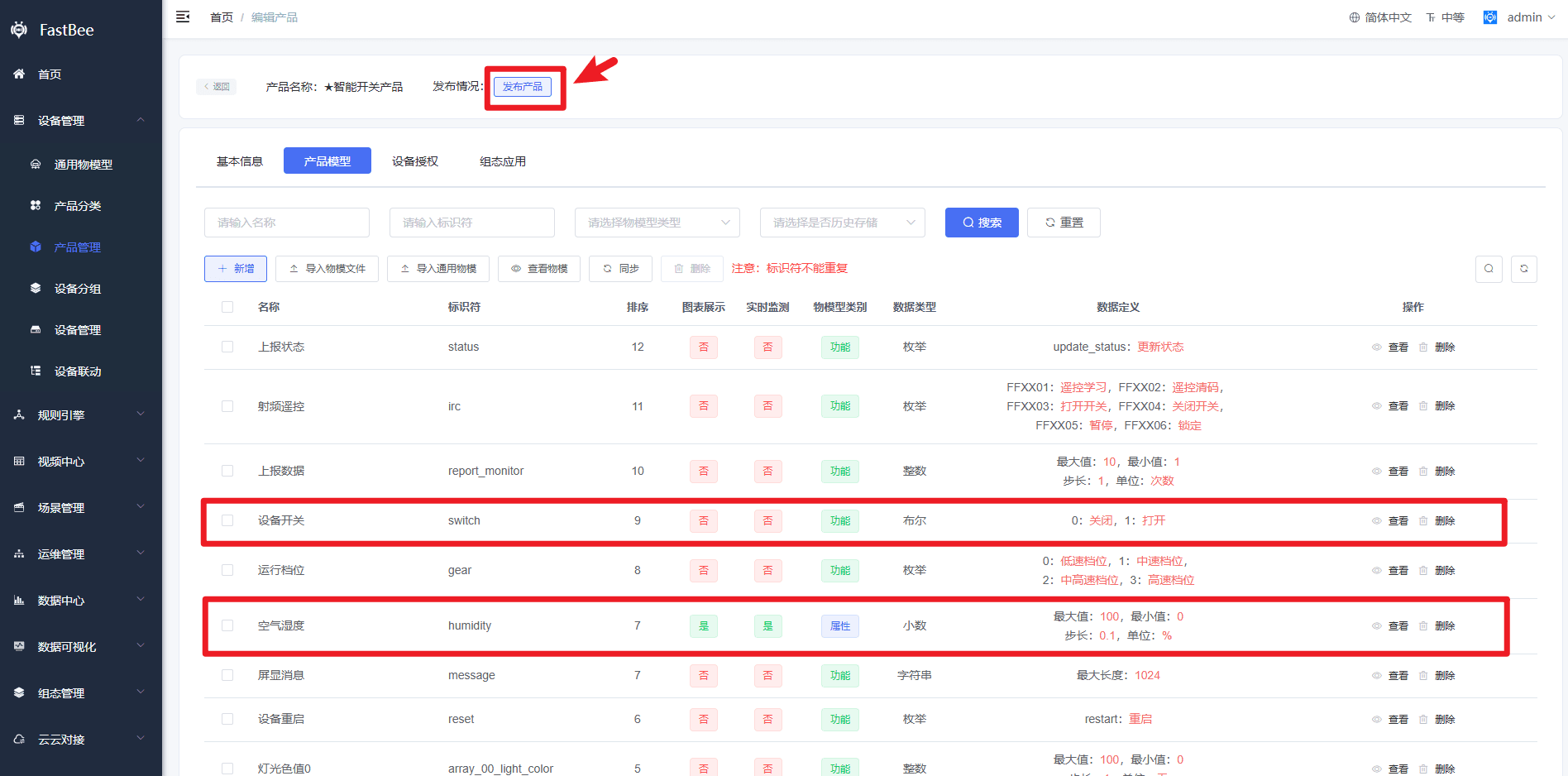 After the product is published, you can search and view it on the Product Management page.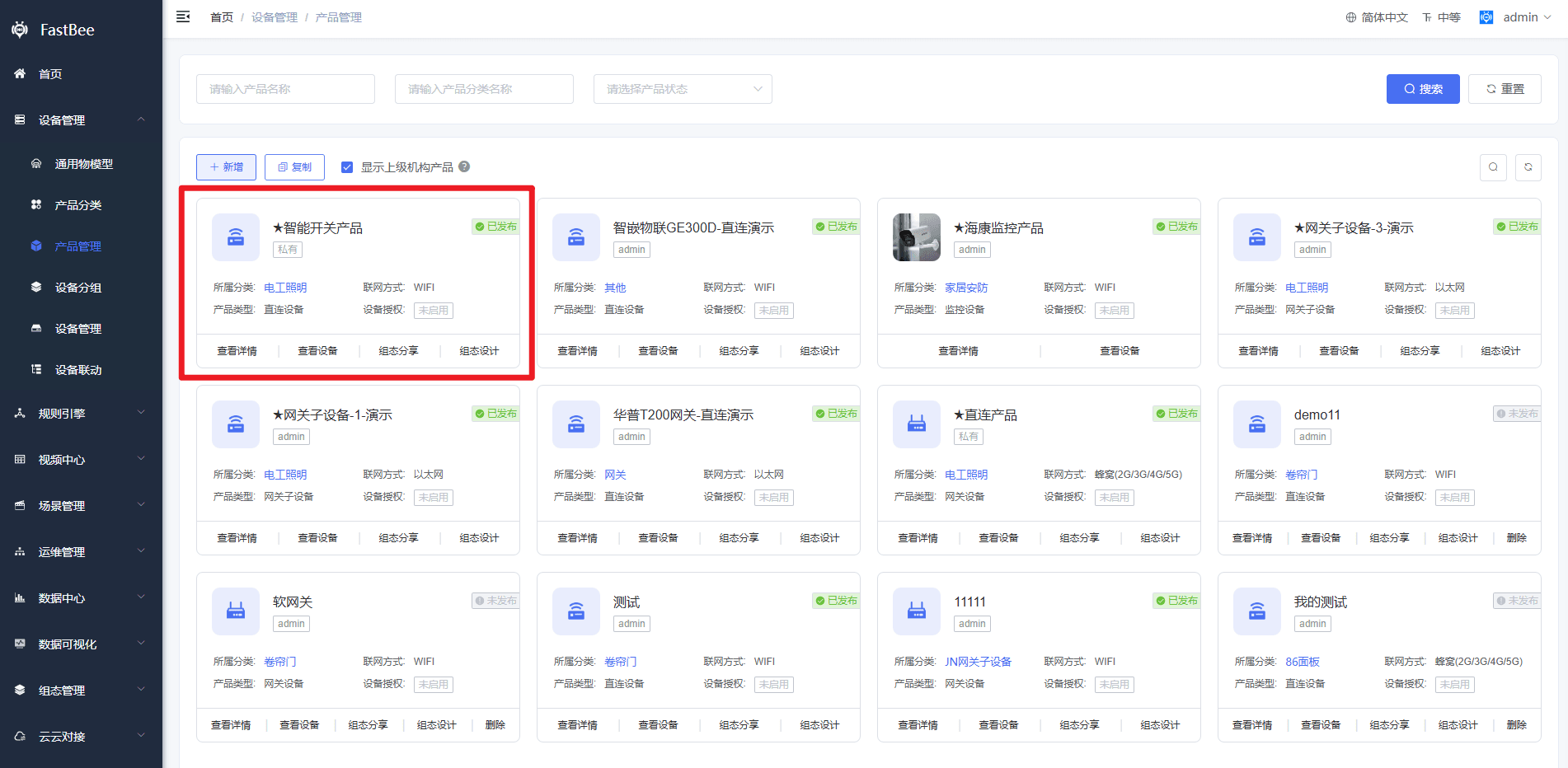
警告
- The identifiers of the product thing model must be unique
- The product must be published before devices can be created/connected.
- The video thing model is under development, and video backhaul business customization is not supported for now.
4. Connect a Device
After the product is published successfully, devices can be connected.
This document simulates the development of a street light device to implement communication between the device and the IoT platform. The steps are as follows:
- In the left navigation bar, select Device Management > Device Management, and click Add.
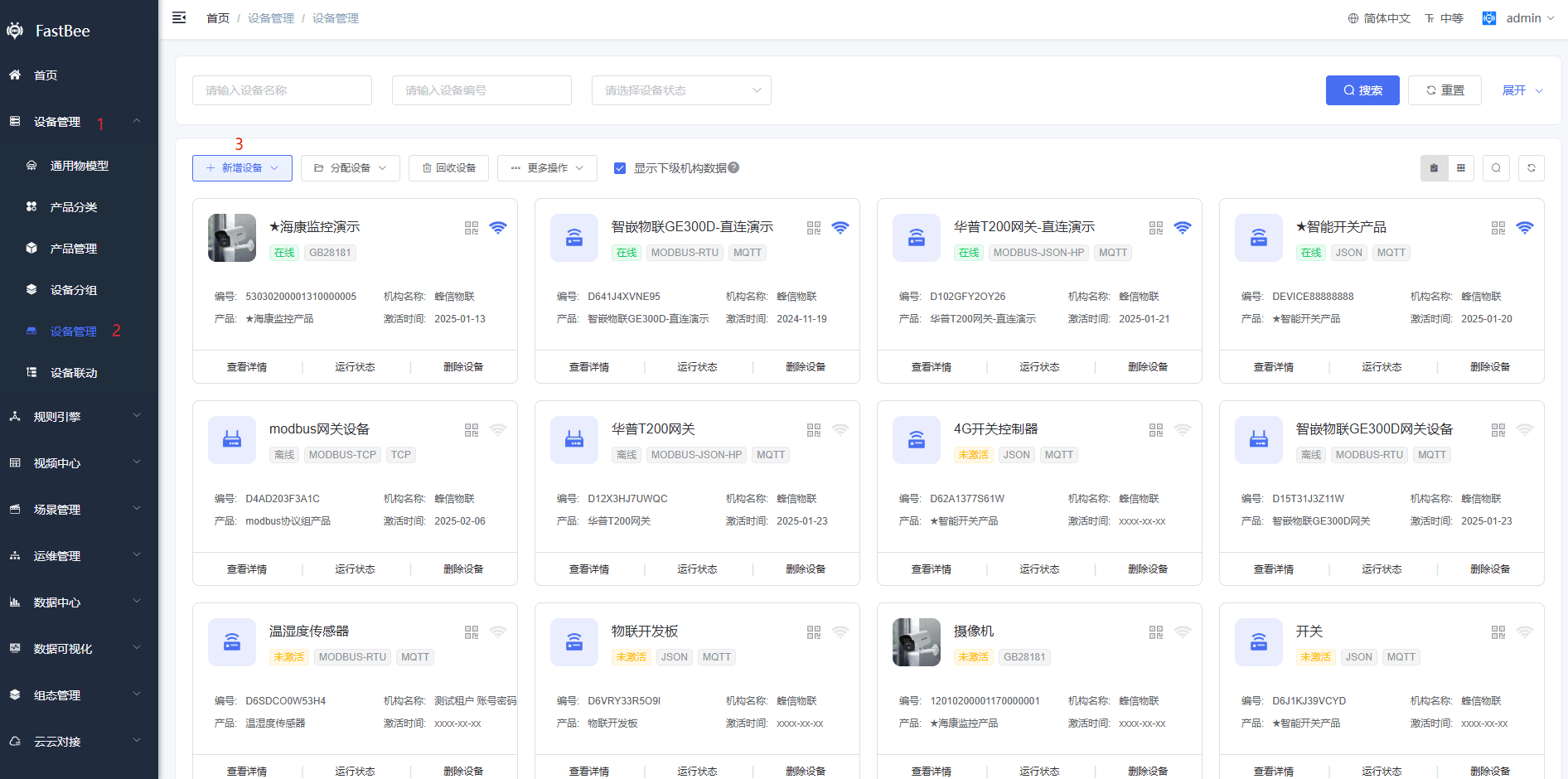
- On the Create Device page, configure the parameters and click Add.
For the product, select the product just created (the Smart Switch product).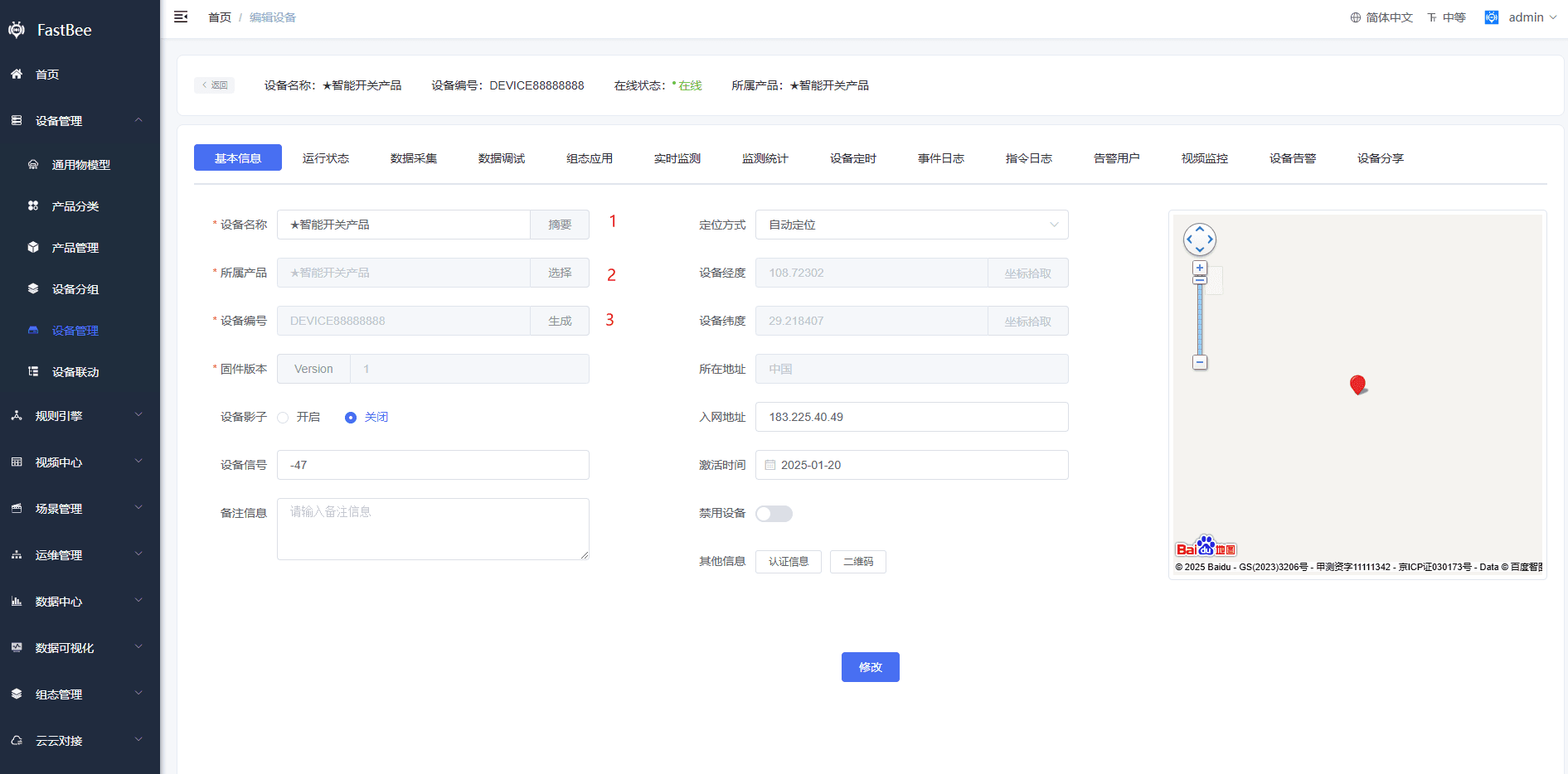
警告
- Creating a device is an optional step. When adding devices in batches, you can develop the firmware first; after successful authentication, the system automatically creates a corresponding device entity, which is more suitable for mass device production.
- When customizing the device number, the device number cannot contain special symbols;
- The positioning method defaults to automatic positioning, which can only be accurate to the city level;
- When the device shadow is enabled, the system can still control the device while it is offline, but the device will not process it and will respond immediately after coming online.
5. Firmware Development
This document takes WeMOS D1 R1 (8266 WiFi module) firmware development as an example to implement the following functions:
- Device authentication
- Device MQTT interaction
- Network provisioning for WiFi devices
The detailed steps are as follows:
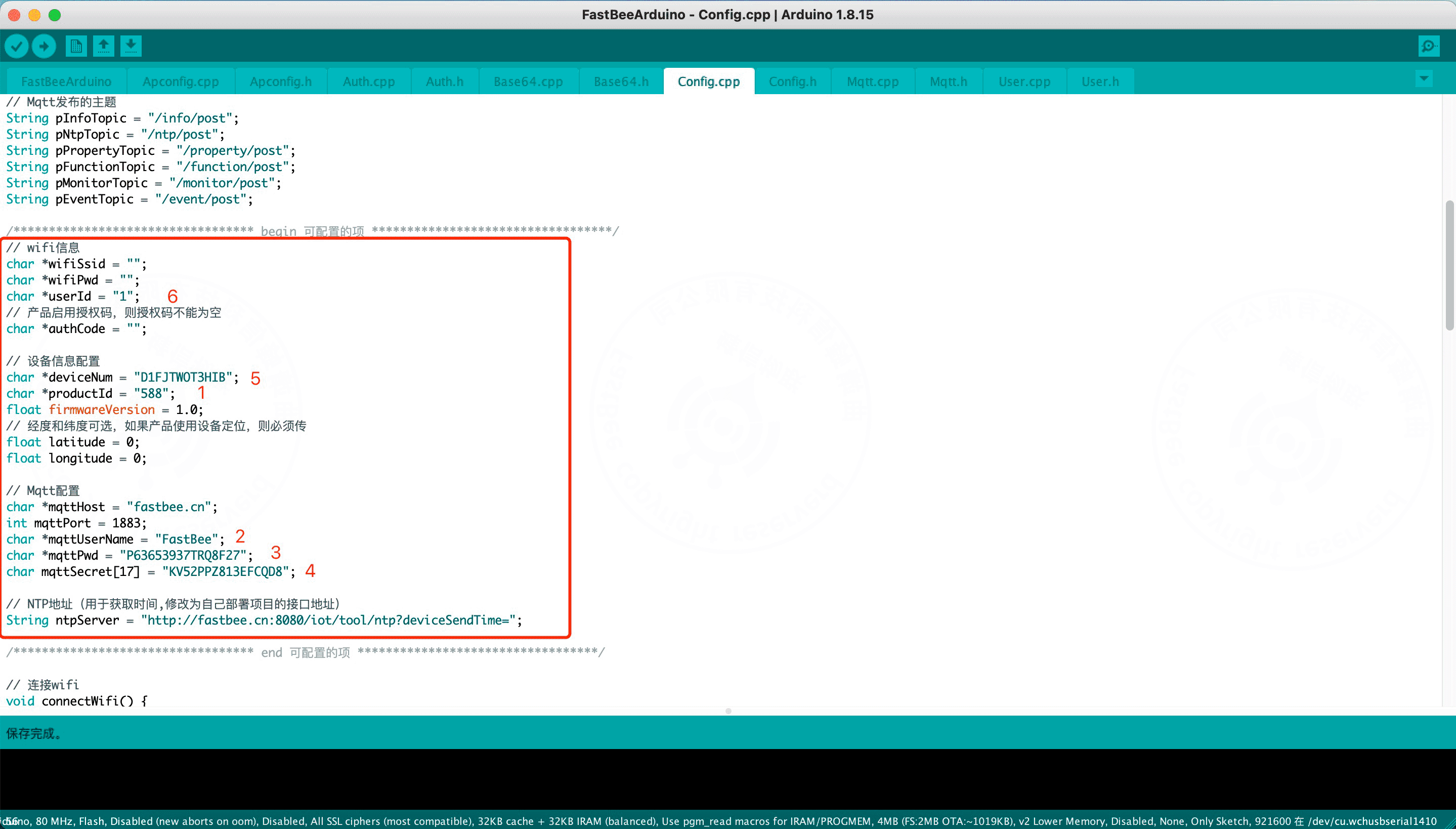
- Collect the data: extract the fields marked in red 1-6, which need to be written into the SDK.
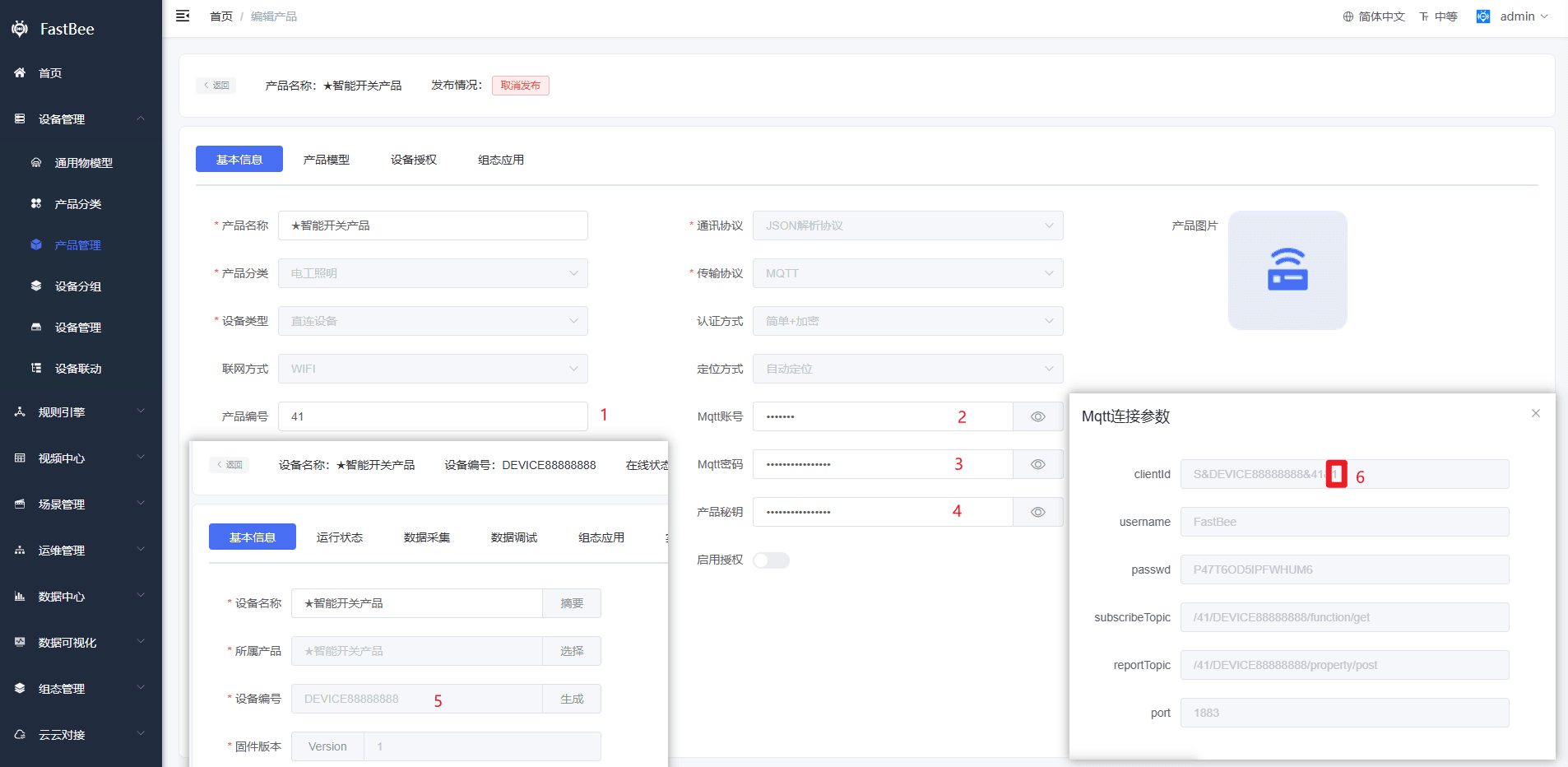
- Open the Arduino (fastbee) source code in Arduino IDE: Hardware SDK Source Code
警告
Arduino IDE requires the esp8266 (By ESP8266 Community v3.0.2) library to be installed. For the steps, refer to CSDN - Cui Anbing - Blog Park (Chinese)
- Modify the Config.cpp file according to the data collected in the first step, as shown below:
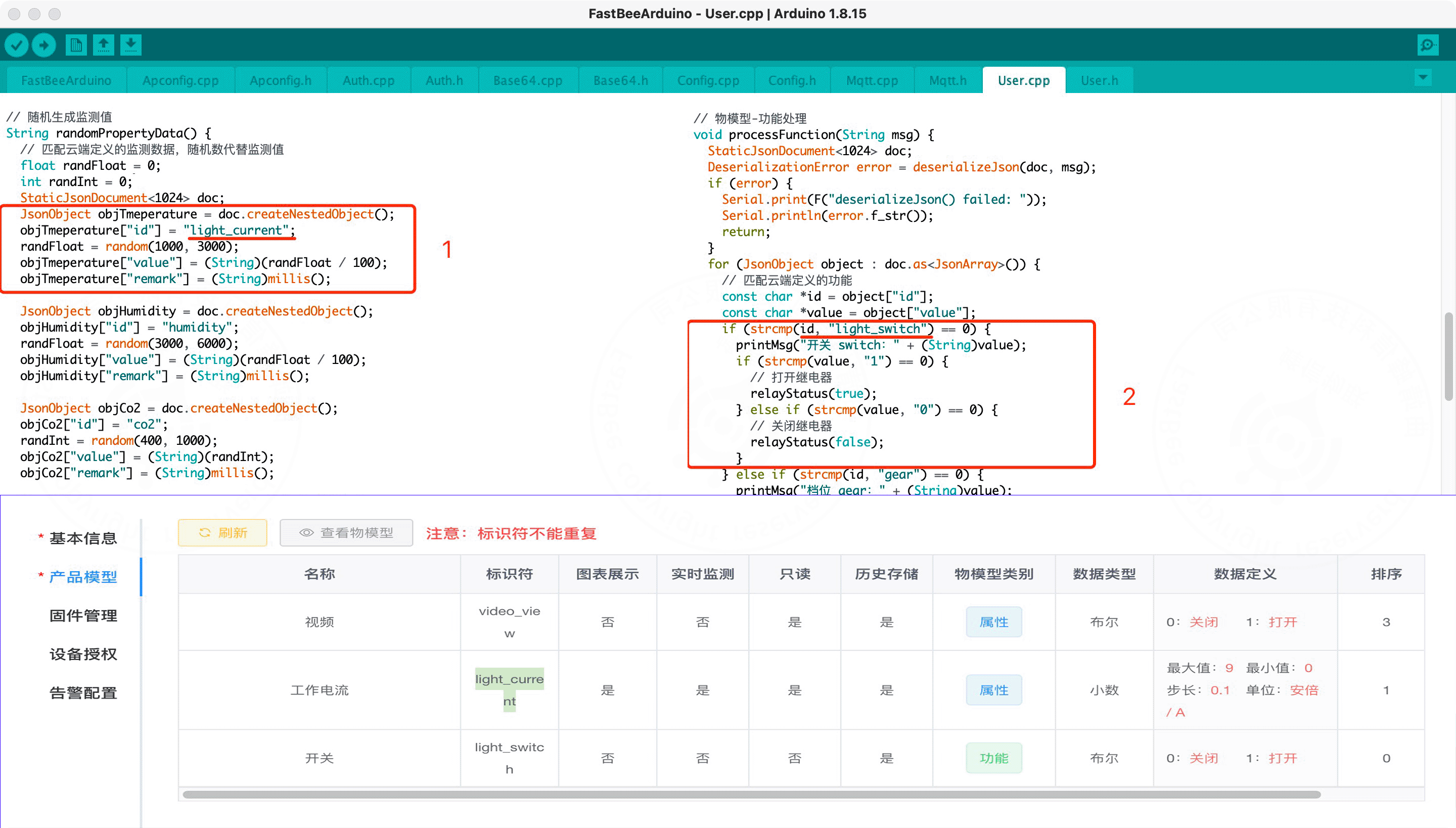
- Modify the User.cpp file according to your custom thing model data, as shown below:
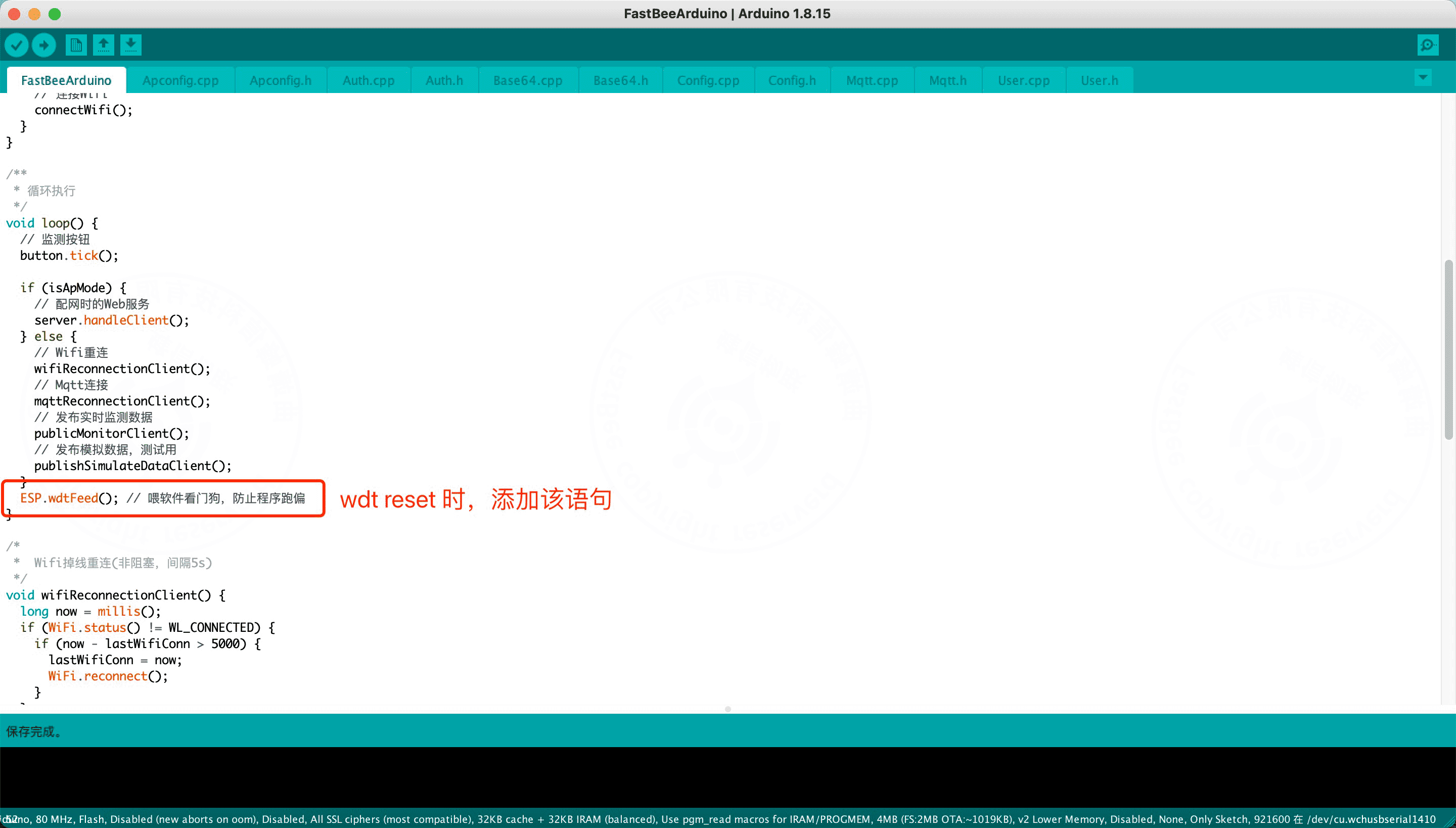
警告
When a wdt reset is observed on the serial port, you can add a "feed the dog" software statement at the end of the main program LOOP loop, as follows:
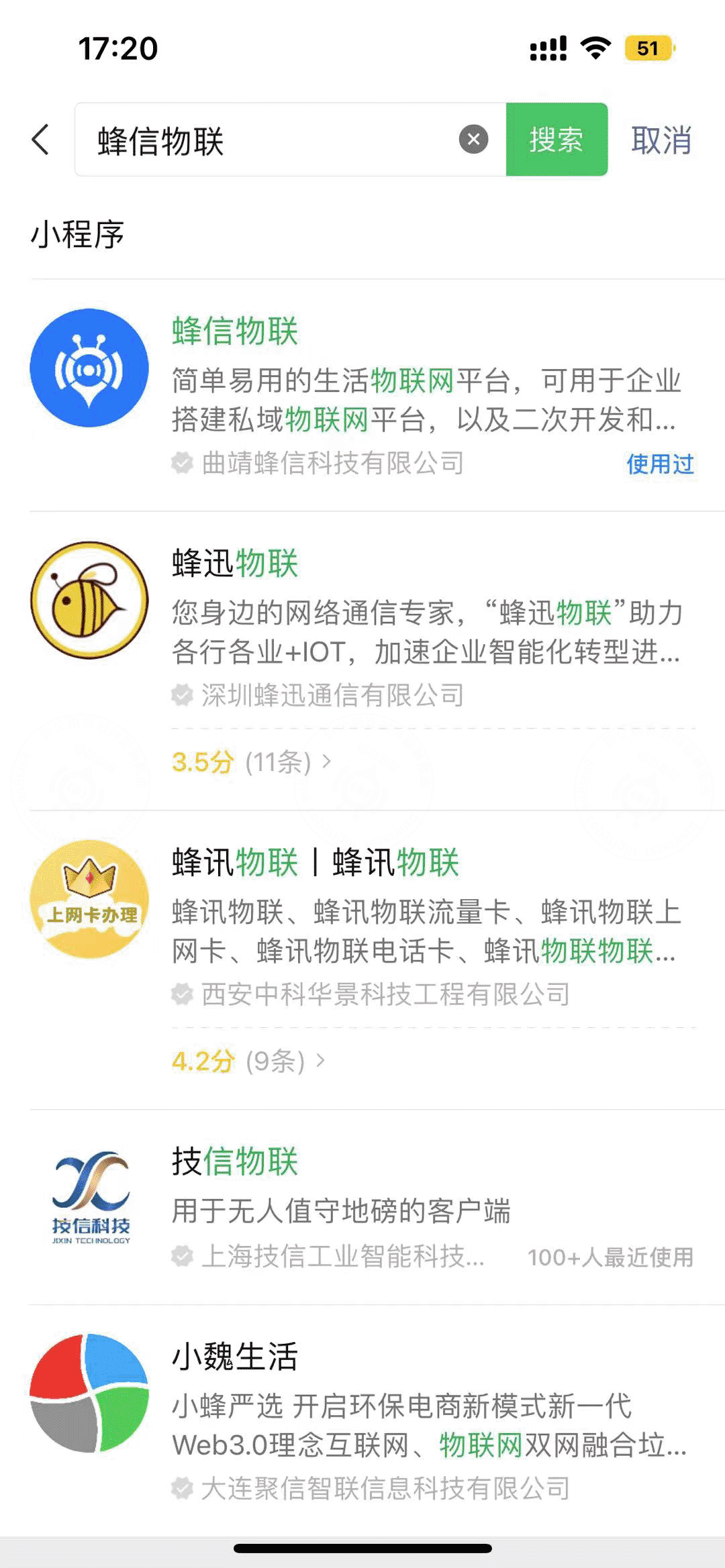
- On your phone, search for and add the "FastBee IoT" mini program in WeChat, as shown below:
- Click the "+" sign in the upper right corner of the mini program to add a device, as shown below:
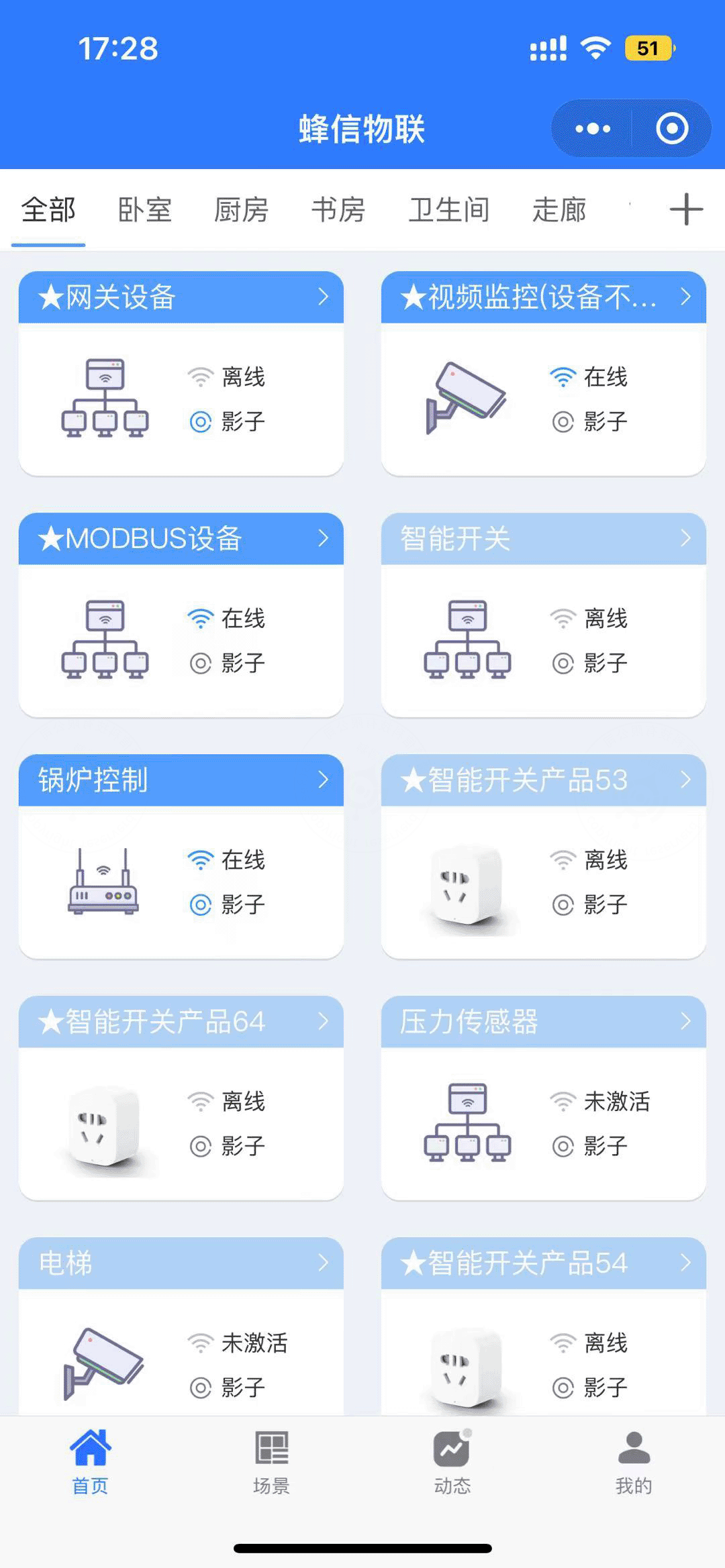
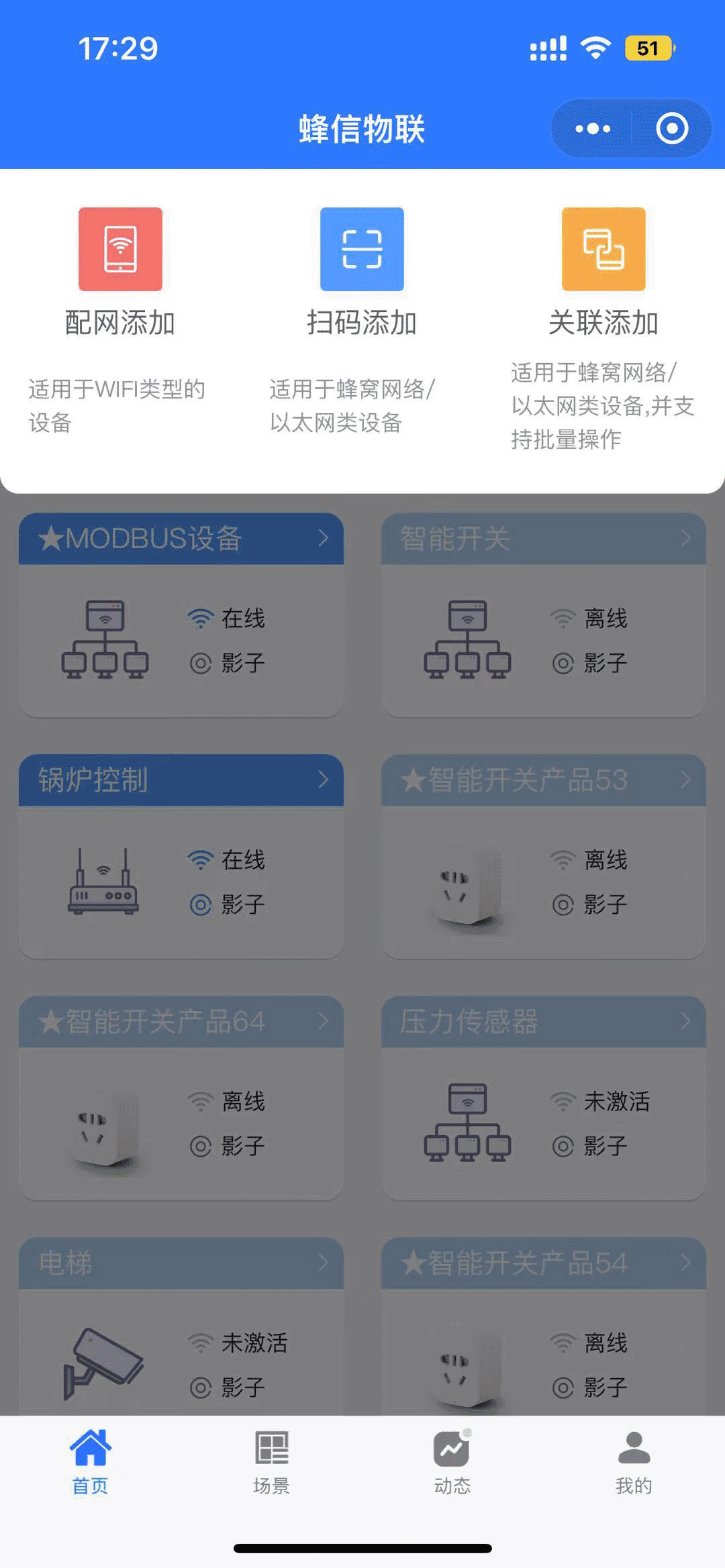
- Select the "Add via Network Provisioning" method to add a device, as shown below:
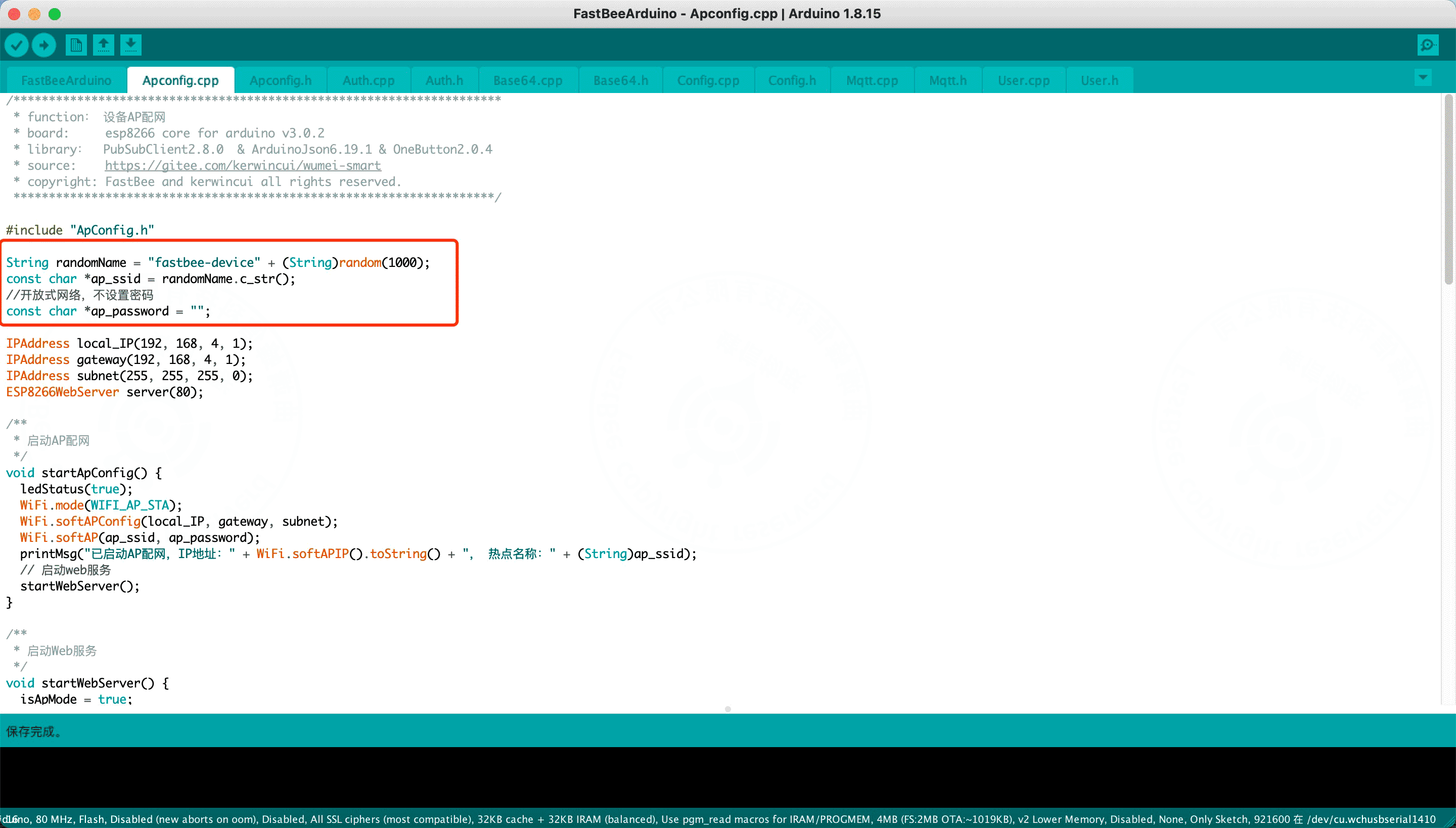
- Fill in the WiFi name and password for the device to access the Internet, press the reset button on the development board, and the device enters network provisioning mode. Select the device hotspot starting with "fastbee-device" (the 8266 module is in AP mode at this point; the firmware defines the device hotspot name as "fastbee-device" + a random number, as shown below).
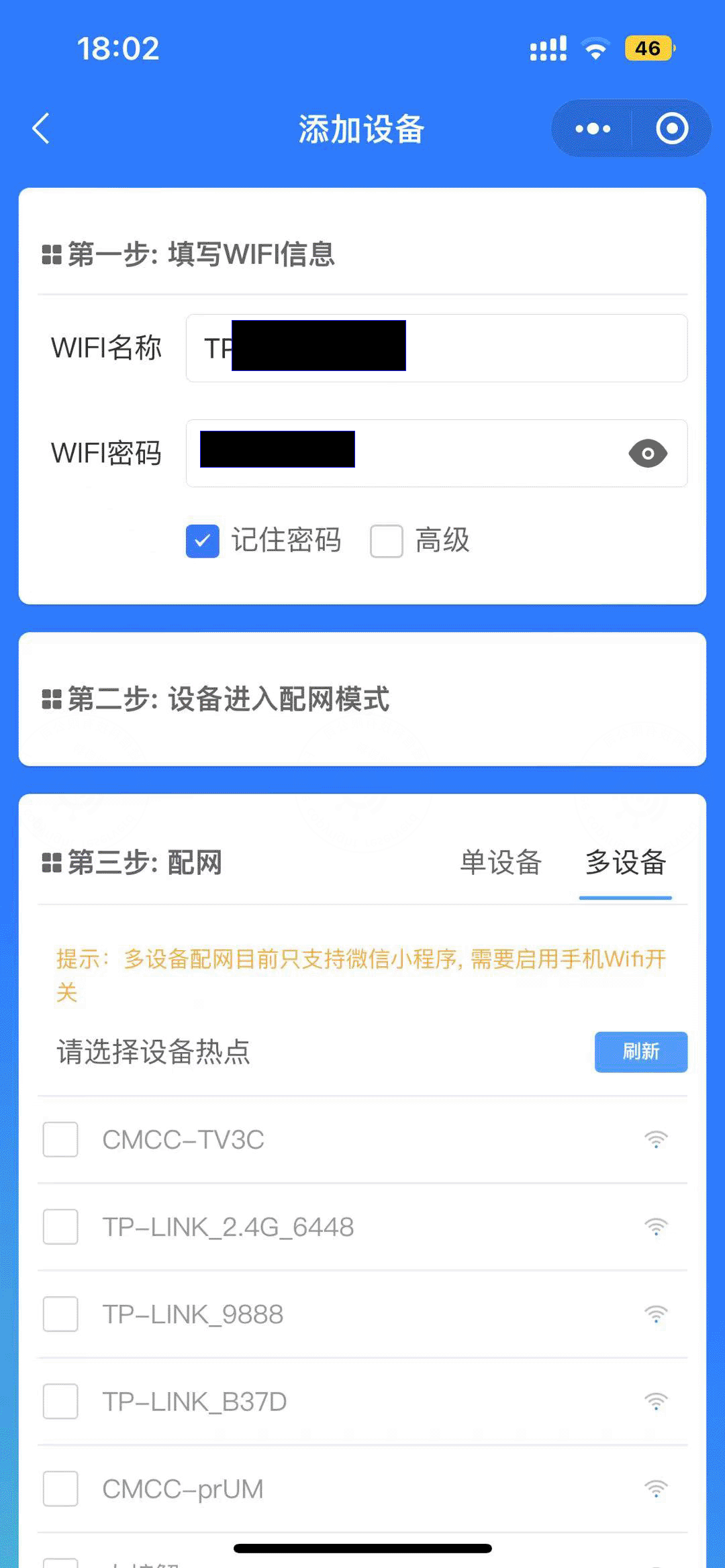
- Finally, click Start Provisioning
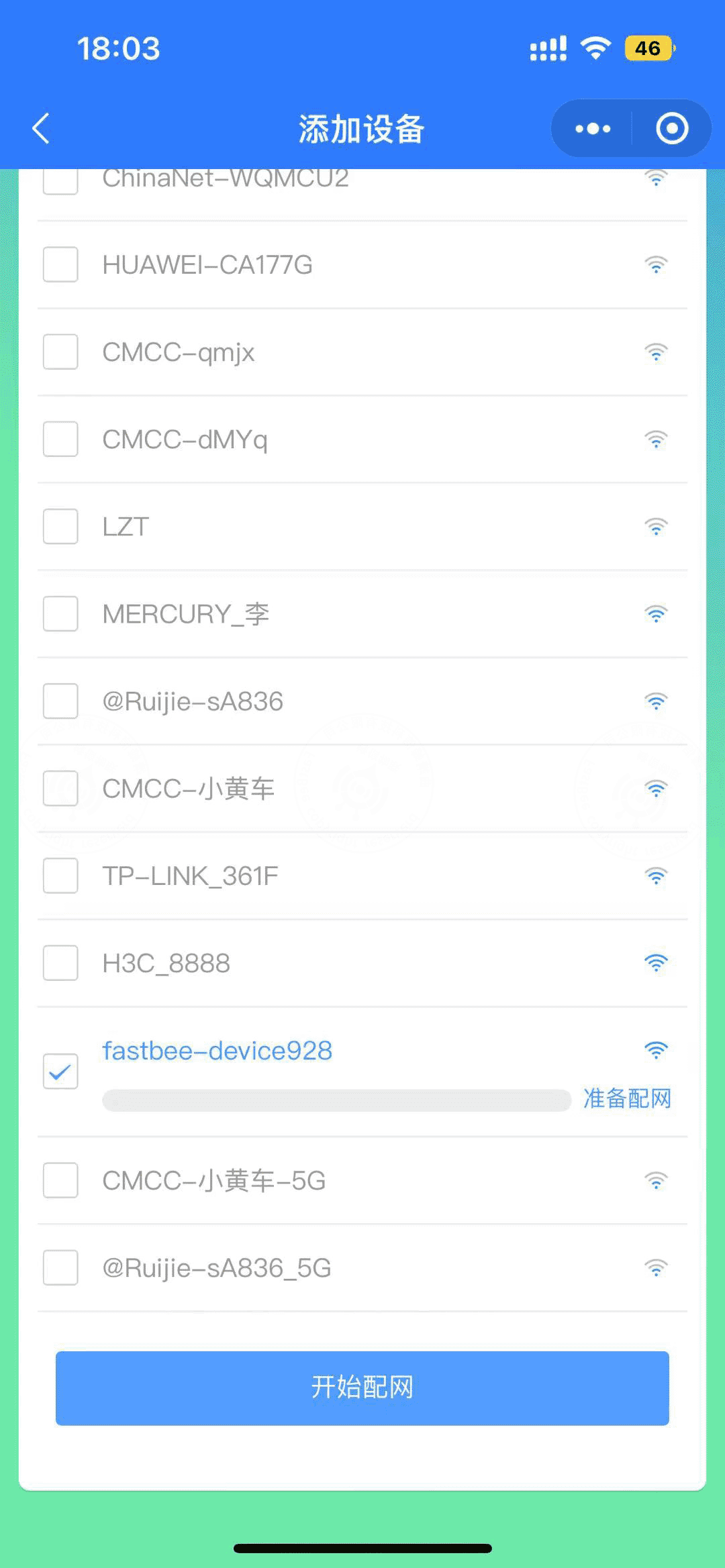
After provisioning succeeds, return to the device list page of the "FastBee IoT" mini program. You can see that the device is activated successfully and is online.
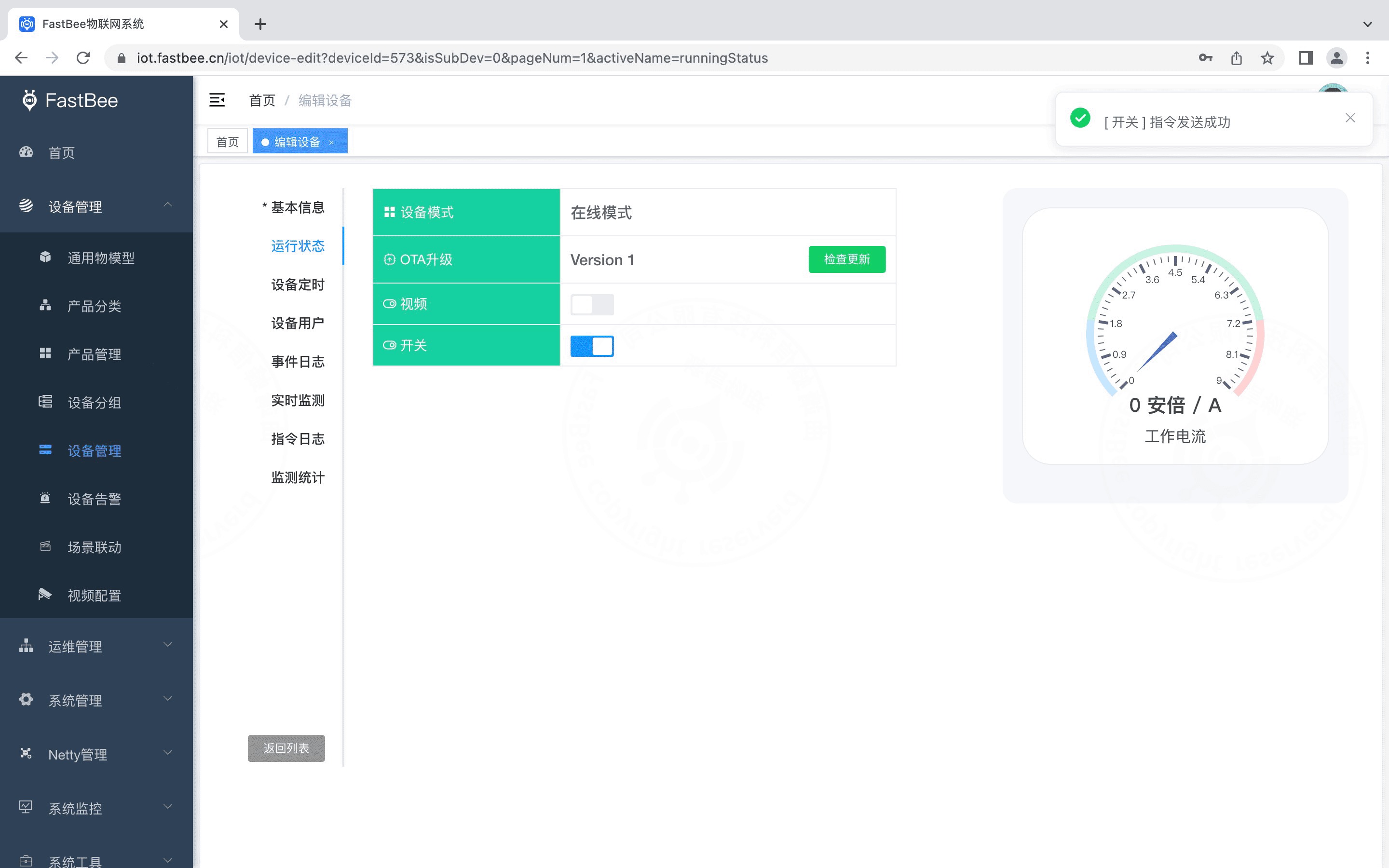
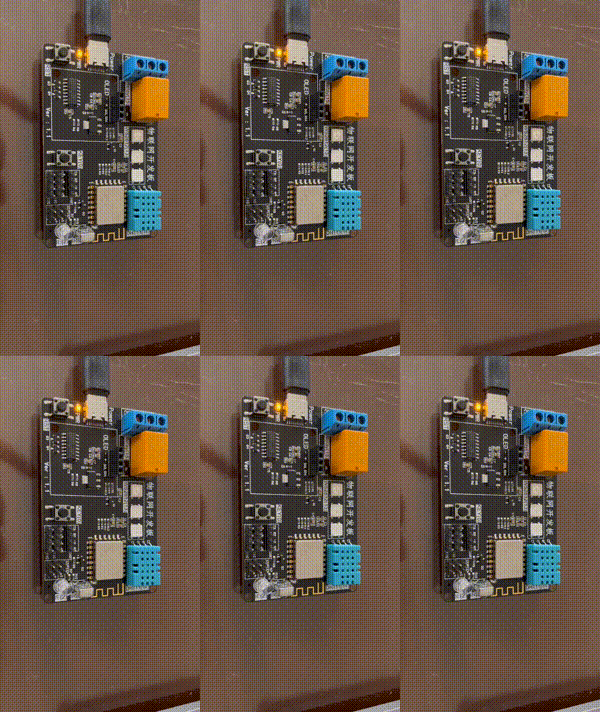
Turn on the "Switch" button, and you can see the relay indicator flashing once, indicating that the connection is successful.
FAQ
Do I have to publish the product before connecting devices?
Yes. Devices can only be created or connected after the product is published, and the thing model identifiers must be unique and consistent with the configuration in the device-side SDK.
Is creating a device a required step?
No. Creating a device is optional: when adding devices in batches, you can develop the firmware first, and after successful authentication the system automatically creates the corresponding device entity, which is better suited for mass device production.
Can I still send control commands while a device is offline?
Yes, as long as the device shadow is enabled. With it enabled, the system can still control the device while it is offline; the device does not process the command immediately but responds as soon as it comes online.
What hardware and environment does firmware development require?
The example uses a WeMOS D1 R1 (ESP8266 WiFi module) board with the FastBee Arduino SDK, and Arduino IDE requires the esp8266 (By ESP8266 Community v3.0.2) library. Network provisioning is done through the "FastBee IoT" WeChat mini program.