

General Thing Model
Page Guide
Entry Points and Recommended Flow
- First sort out device properties, executable functions, events, and tags from the device protocol or hardware documentation.
- Go to Device Management → General Thing Model to build reusable models, or add models directly in Product Model on the product details page.
- For each identifier, confirm the data type, unit, read/write mode, historical storage, chart display, and sharing permission.
- After the product is released and devices are connected, verify that the model works through Running Status, Data Collection, Event Log, rule scenes, and SCADA variables.
Thing Model in Detail
1. Overview
A Thing Model is the digital description of a product and defines the product's functionality. It abstracts and summarizes the functions of products of different brands and categories into a "standard Thing Model", so that all parties can describe, control, and understand product functionality in a unified language. A Thing Model consists of a number of "parameters". Depending on the type of functionality they describe, parameters are divided into properties, functions, and events.
2. Feature Description
A Thing Model is the cloud-side digital representation of an entity in the physical world (such as a sensor device, a fire-protection device, a park, or a factory). The three dimensions of property, function, and event respectively describe what the entity is, what it can do, what information it can provide externally, and what additional information can be customized. Defining these three dimensions of the Thing Model completes the definition of the product's functionality.
| Type | Description |
|---|---|
| Property | Used to describe the concrete runtime information and status of a device. For example, the current ambient temperature read by an environmental monitoring device, the switch state of a smart light, or the wind-speed level of an electric fan. Properties can be of three types: read, write, and report, meaning they support reading, setting, and device reporting. When the data source of a property is a "rule", the property is called a rule property. |
| Function | Refers to commands or methods of the device that can be invoked externally. Input and output parameters can be set in a service invocation. Input parameters are the parameters used when the service executes, and output parameters are the results after execution. Compared with properties, a service can implement more complex business logic with a single command, such as executing a specific task. |
| Event | Information that the device actively reports to the cloud at runtime, generally including information that needs to be perceived and handled externally, alarms, and faults. An event can contain multiple output parameters. For example, a notification after a task completes; the temperature and time when a device fails; the running status when a device alarms. Events can be subscribed to and pushed. |
3. Data Types Supported by Thing Models
| Parameter | Description | Example |
|---|---|---|
| int | Integer | 100 |
| double | Decimal | 100.45 |
| boolean | Boolean. Uses 0 (false) or 1 (true) to define the boolean value | 1 means yes, 0 means no |
| enum | Enumeration. Defines the parameter value and parameter description of each enum item. | [{key:1,value:1}] |
| string | String | Hello! FastBee platform |
| array | Array. The element type, element count, and element identifier of the array must be declared. All elements in the same array must be of the same type. | [1, 2, 3, 4, 5, 6] |
| Object | Object | [{id:"Object",name:"Object",datatype:{type:"object",params:[{key1:value1}]}}] |
提示
Note: when adding or importing a general Thing Model in Product Details - Product Model, a Thing Model that is an array or object is automatically split into multiple non-array, non-object Thing Models
4. Operation Steps
1. Log in to the FastBee IoT platform
2. In the left navigation bar, select Device Management -> General Thing Model, and click the Add button to create a general Thing Model
3. In the left navigation bar, select Device Management -> Product Management, and go to Product Details -> Product Model. The product must be **unpublished** before it can be edited
4. Then click the "Add" or "Import General Thing Model" button and design the Thing Model reasonably according to the actual device
4.1. Thing Model Definition
When connecting a device, first design the properties, functions, and events of the Thing Model of the product the device belongs to, based on the device and its access documentation (message specification)
Properties are used to define metric data such as voltage, temperature, etc. Properties should all be simple data types
Functions are used to define the executable actions a device has
Events are used to define information such as actions, alarms, or faults that occur under specific conditions
4.2. Add a Thing Model
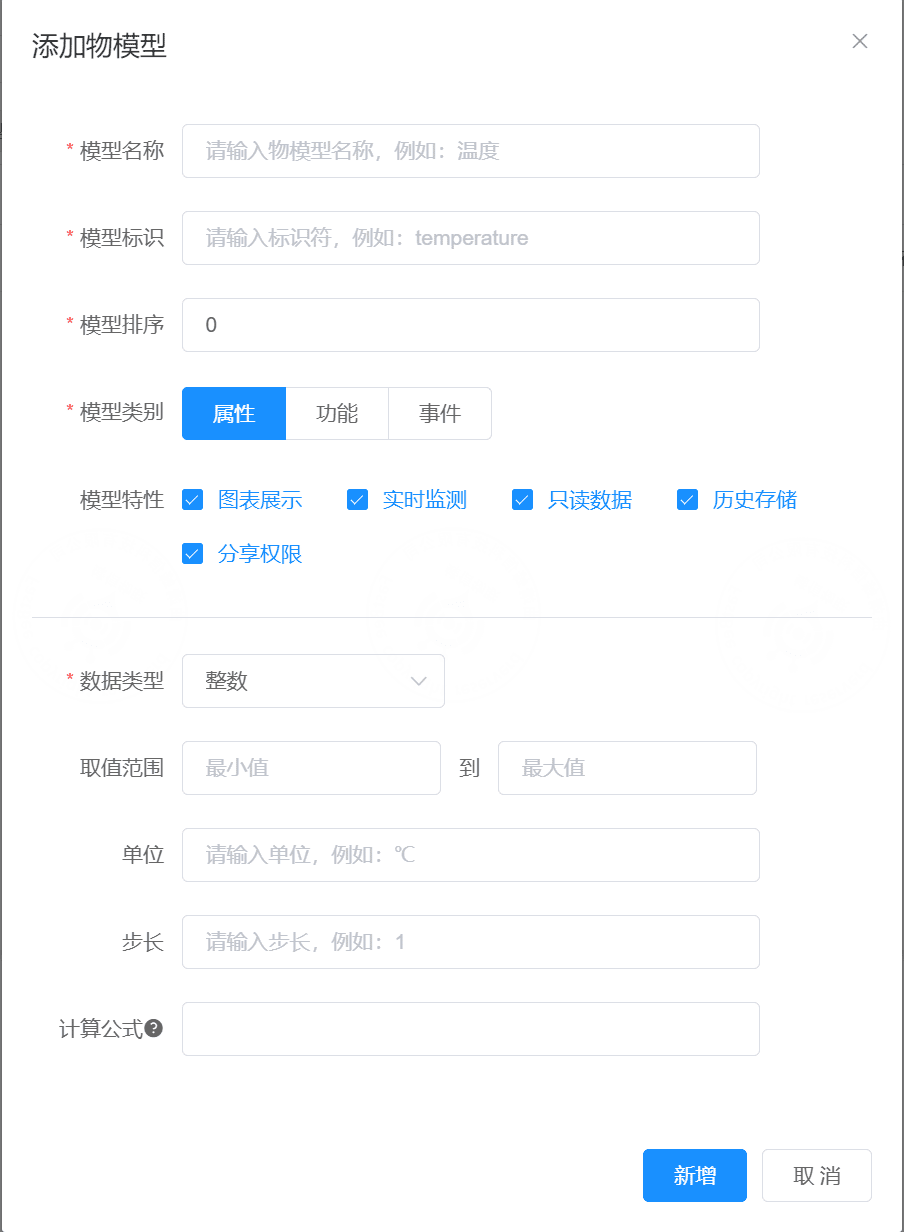
| Option | Description |
|---|---|
| Model Name | Required, the name of the Thing Model |
| Model Identifier | Required, the identifier recognized by the backend (note: identifiers of different Thing Models under the same product must be unique) |
| Model Sort | Required, the display order of the Thing Model |
| Model Category | Required: property, function, or event |
| Model Features | Checkboxes Property: chart display, real-time monitoring, read-only data, historical storage, sharing permission; Function: read-only data, historical storage, sharing permission; Event: read-only by default, historical storage, sharing permission |
| Data Type | Single-select dropdown: integer, decimal, boolean, enum, string, array, object |
| Value Range | Shown only for integer and decimal; the value interval, minimum and maximum |
| Unit | Shown only for integer and decimal, e.g. yuan, ℃ |
| Step | Shown only for integer and decimal; the value interval. The step is the increment or decrement interval when the device reports or the platform delivers a value. |
| Formula | Shown only for integer and decimal; addition, subtraction, multiplication, and division |
| Boolean Value | Shown for the boolean type; the text corresponding to 0 and 1 (On or Off) |
| Display Mode | Shown only for the enum type, single-select dropdown |
| Enum Items | [{key:1,value:1}] |
| Max Length | Shown only for the string type; the maximum length of the string |
| Array Type | Shown only for the array type, single-select: integer, decimal, string, object |
| Element Count | Shown only for the array type; the number of array elements |
| Element Identifier | Shown only for the array type; the sequence identifier of each element, configurable as needed, e.g. sub-device 1, 3, 5 |
| Object Parameters | Shown only for the array--object type; add concrete object parameters to the array |
Description of each model feature:
- Chart display: when checked, the value is displayed as a chart; only integer and decimal are supported
- Real-time monitoring: requires device support; Thing Model data is reported via the real-time monitoring topic /{productId}/{deviceNum}/monitor/post; only integer and decimal are supported
- Read-only data: when checked, commands cannot be delivered
- Historical storage: every piece of data reported by the device is stored in a relational database or a time-series database
- Sharing permission: only when checked can end users share this Thing Model with other end users
5. Configure the Thing Model
5.1. Configure the Thing Model
- The device model is configured in three categories: properties, functions, and events
- Note: the history of property- and event-type Thing Models is stored in the iot_device_log table, and the history of function-type Thing Models is stored in the iot_function_log table
5.2. Model Data Structure
Data structure:
    {
    "properties":[...properties],
    "functions":[...functions],
    "events":[...events],
    "tags":[...tags]
}Properties
Used to define device properties, describing the concrete runtime information and status of the device.
For example: device temperature, co2, etc. The platform can actively deliver commands to obtain device properties, and the device can also report properties in messages.
Data Structure
    {
  "properties": [
    {
      "id": "co2",
      "name": "Carbon Dioxide",
      "isChart": 1,
      "isMonitor": 1,
      "isHistory": 1,
      "isSharePerm": 0,
      "isReadonly": 1,
      "datatype": {
        "max": 6000,
        "min": 100,
        "step": 1,
        "type": "integer",
        "unit": "ppm"
      }
    },
    {
      "id": "temperature",
      "name": "Air Temperature",
      "isChart": 1,
      "isMonitor": 1,
      "isHistory": 1,
      "isSharePerm": 0,
      "isReadonly": 1,
      "datatype": {
        "max": 120,
        "min": -20,
        "step": 0.1,
        "type": "decimal",
        "unit": "℃"
      }
    }
  ]
}Functions
Defines device functions based on the commands or methods the device exposes for external invocation. The platform can actively invoke device functions. For example: device gear level, switch operations, etc.
Data structure:
    {
  "functions": [
    {
      "id": "status",
      "name": "Report Status",
      "isHistory": 0,
      "isSharePerm": 0,
      "isReadonly": 0,
      "datatype": {
        "type": "enum",
        "showWay": "button",
        "enumList": [
          {
            "text": "Update Status",
            "value": "update_status"
          }
        ]
      }
    },
    {
      "id": "irc",
      "name": "RF Remote Control",
      "isHistory": 1,
      "isSharePerm": 0,
      "isReadonly": 0,
      "datatype": {
        "type": "enum",
        "showWay": "button",
        "enumList": [
          {
            "text": "Remote Learning",
            "value": "FFXX01"
          },
          {
            "text": "Clear Remote Codes",
            "value": "FFXX02"
          },
          {
            "text": "Turn On Switch",
            "value": "FFXX03"
          },
          {
            "text": "Turn Off Switch",
            "value": "FFXX04"
          },
          {
            "text": "Pause",
            "value": "FFXX05"
          },
          {
            "text": "Lock",
            "value": "FFXX06"
          }
        ]
      }
    },
    {
      "id": "report_monitor",
      "name": "Report Data",
      "isHistory": 0,
      "isSharePerm": 0,
      "isReadonly": 0,
      "datatype": {
        "max": 10,
        "min": 1,
        "step": 1,
        "type": "integer",
        "unit": "times"
      }
    },
    {
      "id": "switch",
      "name": "Device Switch",
      "isHistory": 1,
      "isSharePerm": 0,
      "isReadonly": 0,
      "datatype": {
        "type": "bool",
        "trueText": "On",
        "falseText": "Off"
      }
    },
    {
      "id": "gear",
      "name": "Gear Level",
      "isHistory": 1,
      "isSharePerm": 0,
      "isReadonly": 0,
      "datatype": {
        "type": "enum",
        "showWay": "select",
        "enumList": [
          {
            "text": "Low Gear",
            "value": "0"
          },
          {
            "text": "Medium Gear",
            "value": "1"
          },
          {
            "text": "Medium-High Gear",
            "value": "2"
          },
          {
            "text": "High Gear",
            "value": "3"
          }
        ]
      }
    },
    {
      "id": "message",
      "name": "Screen Message",
      "isHistory": 1,
      "isSharePerm": 0,
      "isReadonly": 0,
      "datatype": {
        "type": "string",
        "maxLength": 1024
      }
    },
    {
      "id": "reset",
      "name": "Device Restart",
      "isHistory": 1,
      "isSharePerm": 0,
      "isReadonly": 0,
      "datatype": {
        "type": "enum",
        "showWay": "button",
        "enumList": [
          {
            "text": "Restart",
            "value": "restart"
          }
        ]
      }
    },
    {
      "id": "array_01_light_color",
      "name": "Light Color Value 1",
      "isHistory": 1,
      "isSharePerm": 0,
      "isReadonly": 0,
      "datatype": {
        "max": 100,
        "min": 0,
        "step": 1,
        "type": "integer",
      }
    }
  ]
}Events
Used as extra device properties for adding extension fields. For example: ambient temperature too high, device exception, etc.
Data structure:
    {
  "functions": [],
  "events": [
    {
      "id": "height_temperature",
      "name": "Ambient Temperature Too High",
      "isHistory": 1,
      "isSharePerm": 0,
      "isReadonly": 0,
      "datatype": {
        "max": 100,
        "min": 0,
        "step": 0.1,
        "type": "decimal",
        "unit": "℃"
      }
    },
    {
      "id": "exception",
      "name": "Device Exception",
      "isHistory": 1,
      "isSharePerm": 0,
      "isReadonly": 0,
      "datatype": {
        "type": "string",
        "maxLength": 1024
      }
    }
  ]
}6. Relationship Between General Thing Models and Products
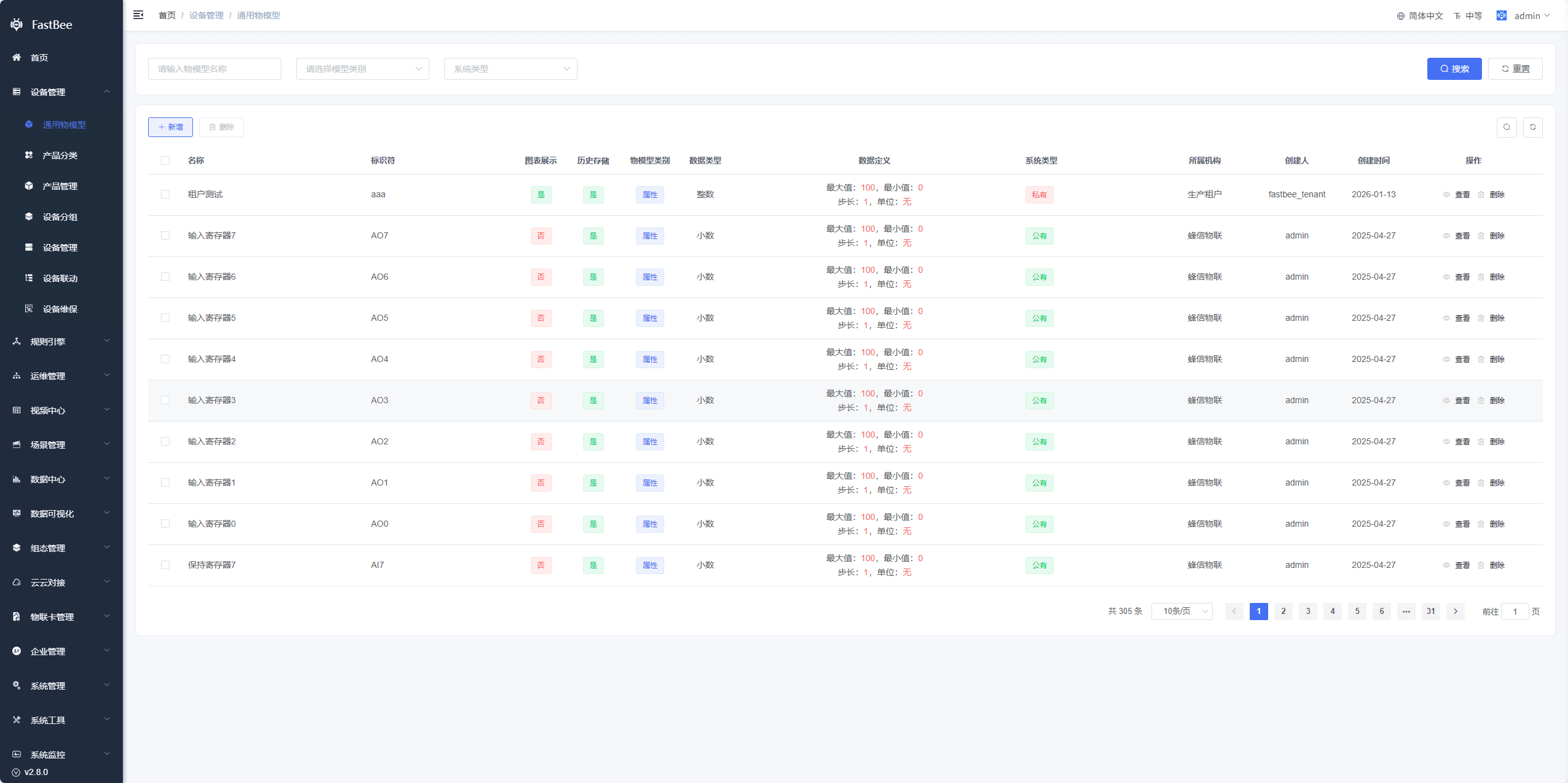
After a general Thing Model is created, different products can all import and use it;
7. Relationship Between Product and Device Thing Models
A product has Thing Model configuration. Multiple devices can be added to one product, and each device inherits all the Thing Model configuration of the product.
8. Multi-tenancy
- General Thing Models created by the admin account are system-public, without tenant isolation, and visible to all accounts;
- General Thing Models created by non-admin accounts are private, with tenant isolation and user isolation, displayed according to data permission division;
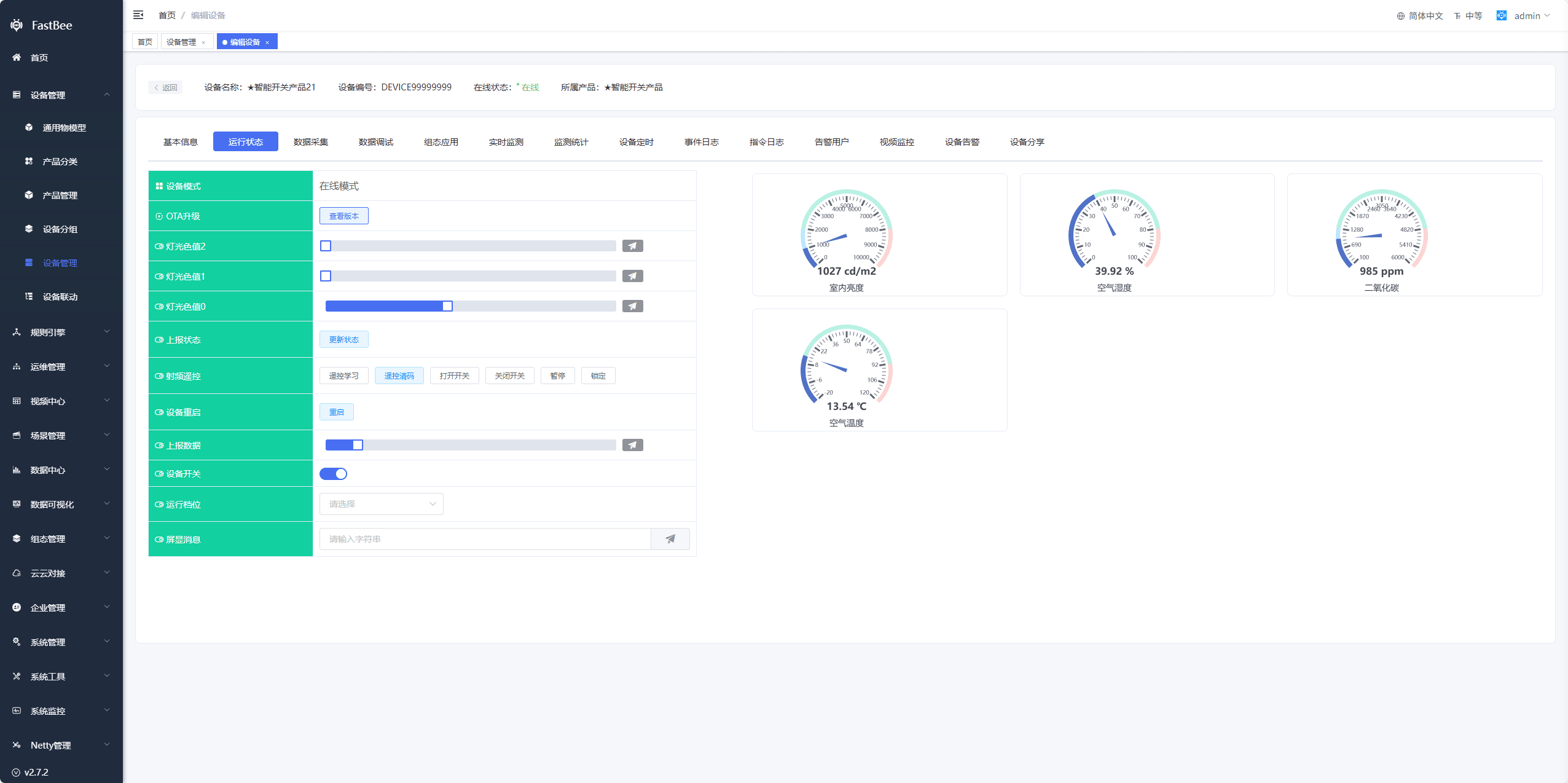
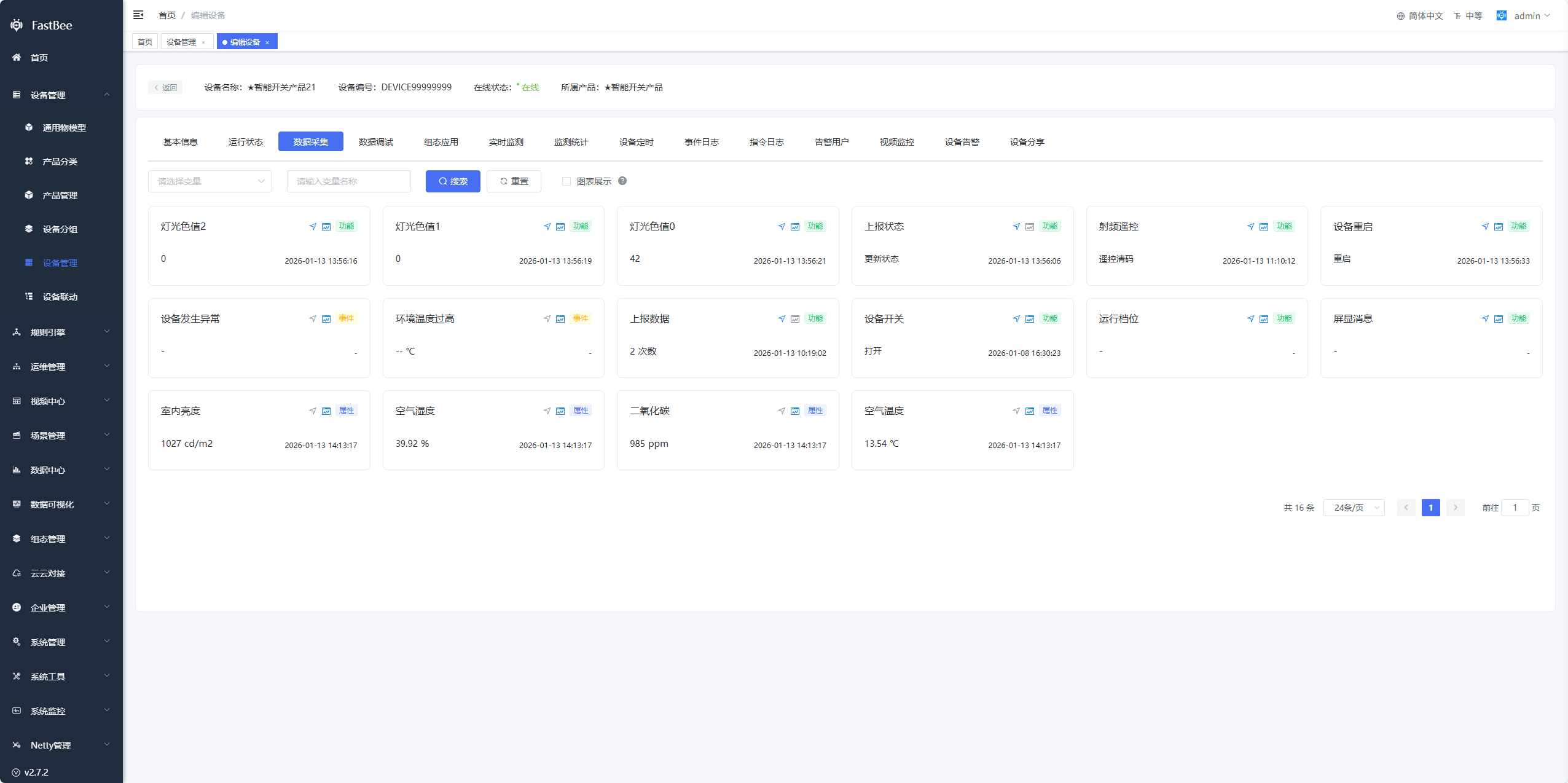
9. Model Application UI
- The frontend dynamically displays the device running status or device operation UI based on the model definition
- The server can obtain the device model through unified APIs and perform related operations, such as parameter validation when sending device messages, and type conversion when receiving device messages
- The PC side shows the Running Status and Data Collection pages by default
- The mobile side shows the Status mode and Data mode by default
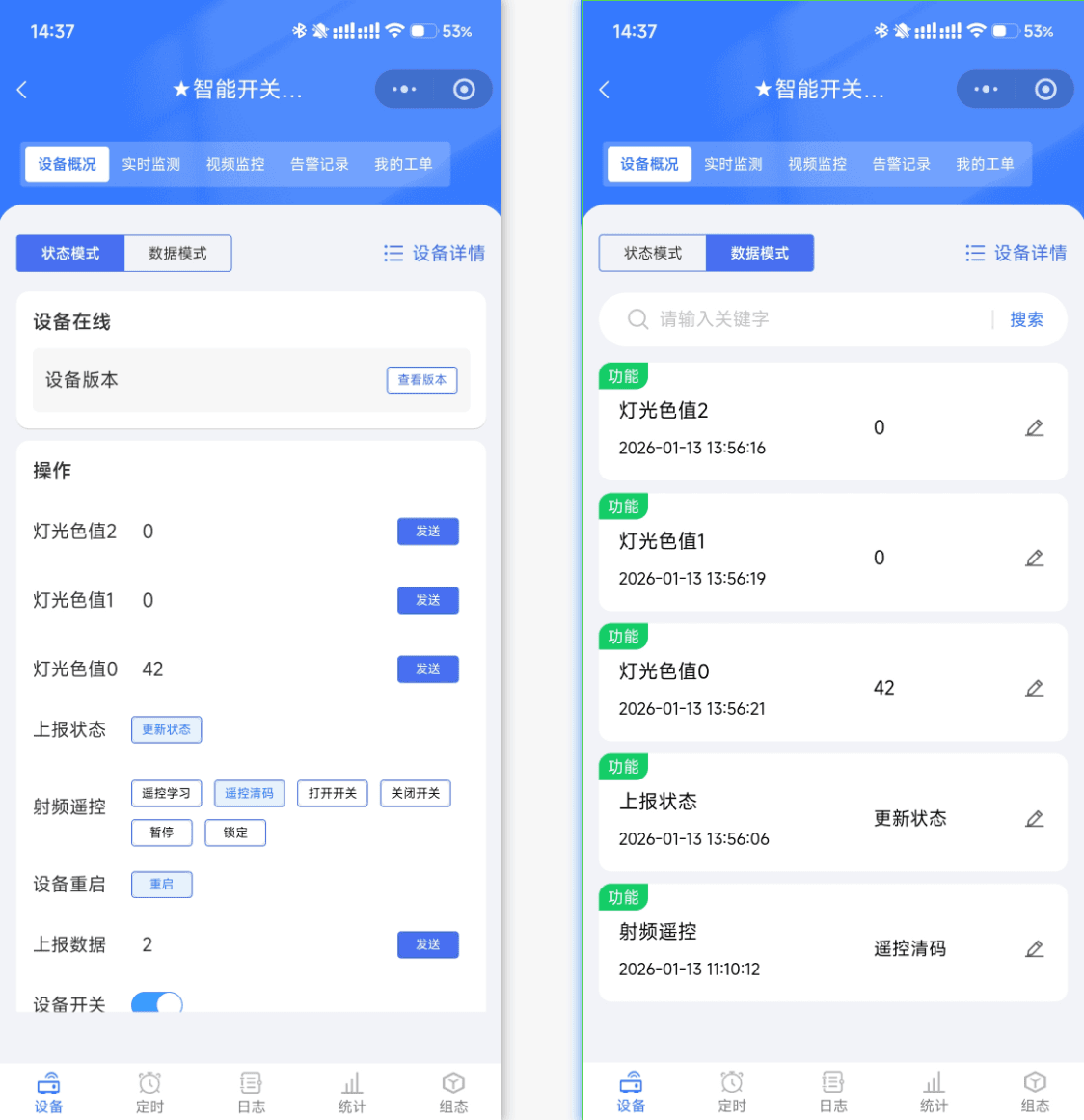
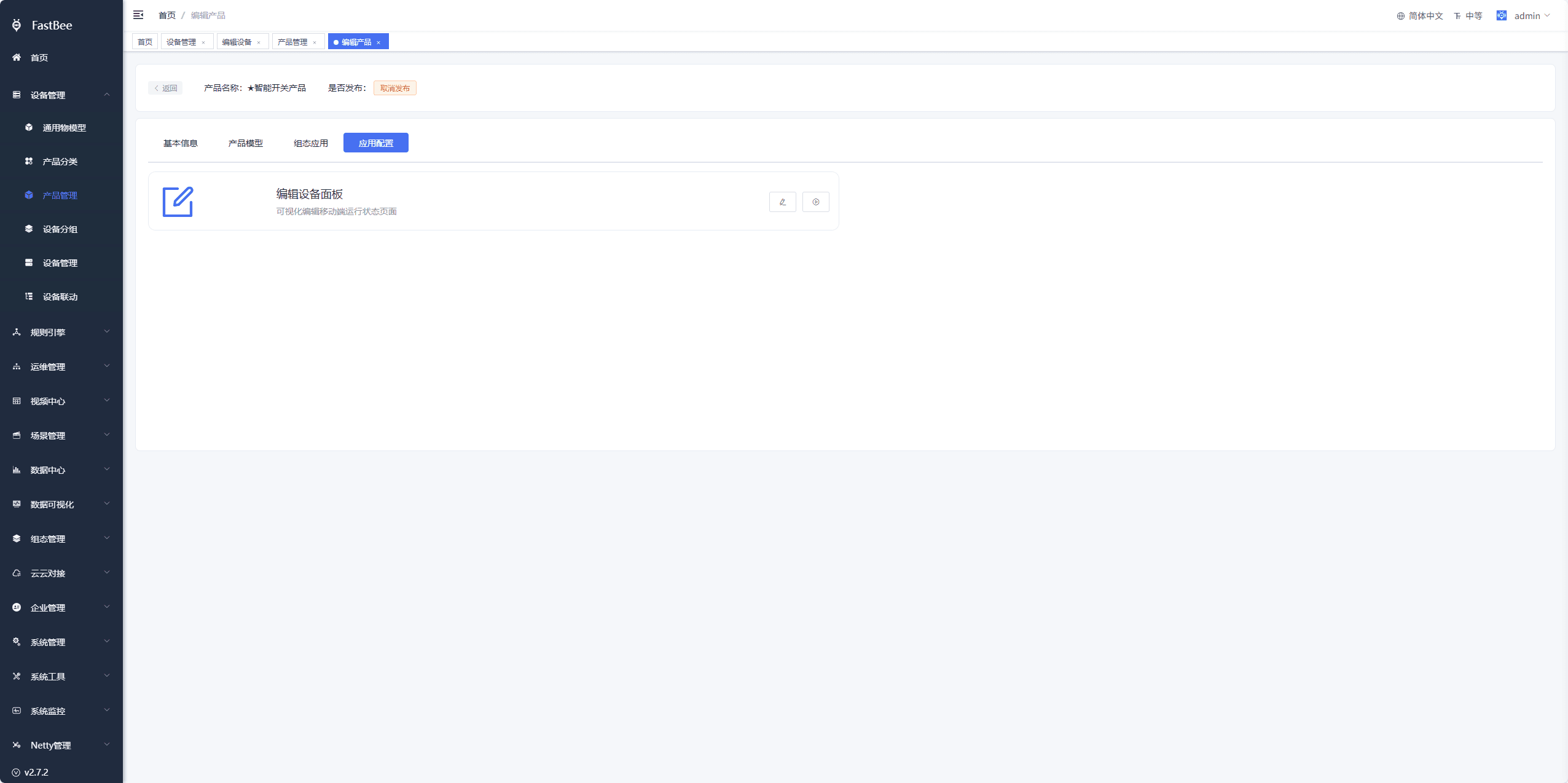
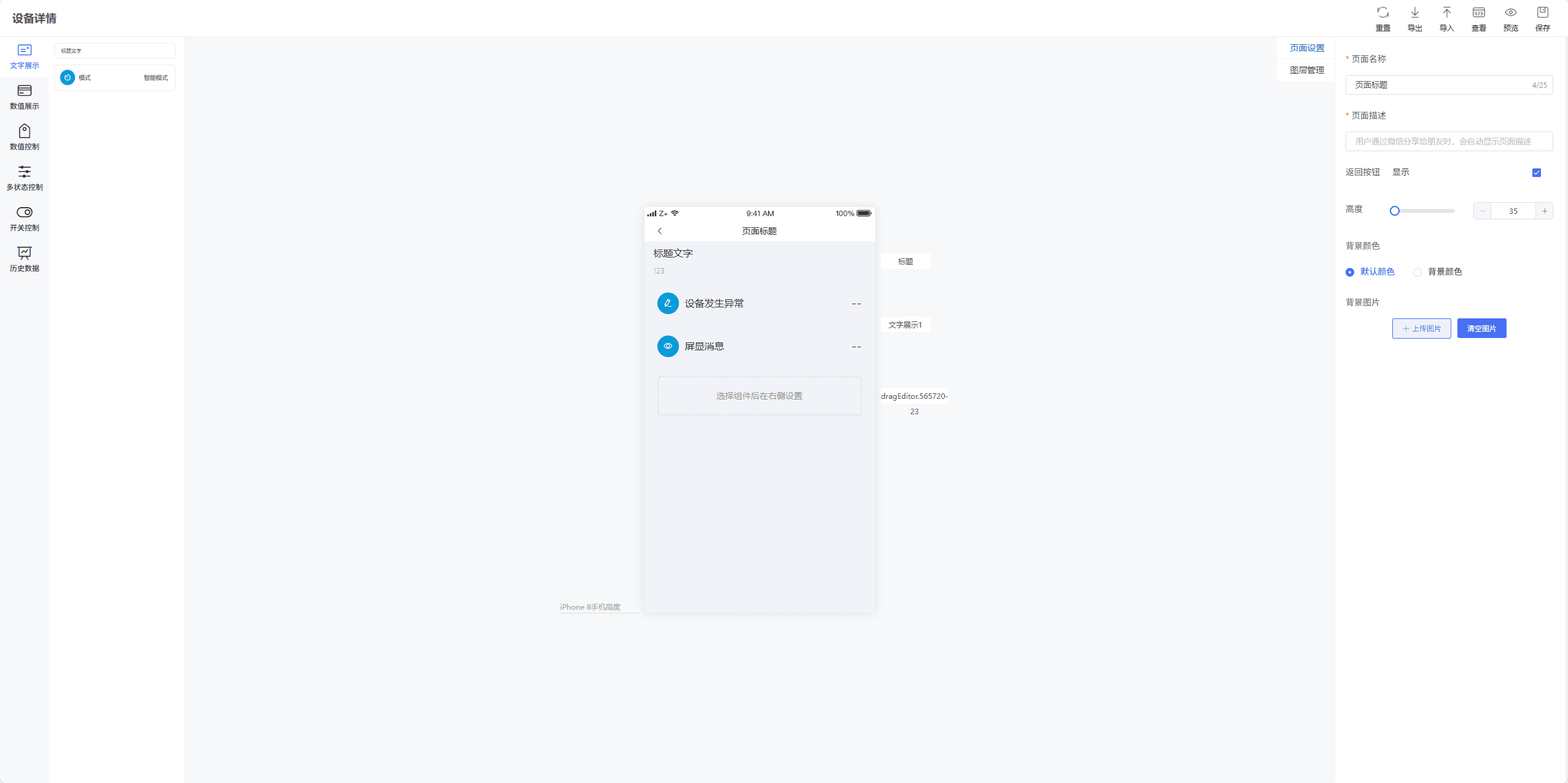
- The mobile Status Mode UI supports customization. Click Configure in the product application configuration, customize the UI as needed in the configuration screen, and click Enable when done
10. Thing Model Design Guidelines
The Thing Model determines the usability of subsequent device reporting, platform display, rule triggering, alerts, SCADA, and the data center. The following guidelines are recommended when designing models:
| Rule | Recommendation |
|---|---|
| Identifier | Use English letters, digits, and underscores; avoid Chinese characters, spaces, and special symbols |
| Naming | Should express business meaning, e.g. temperature, switch, voltage |
| Data type | Choose according to the real data; do not use strings for all numeric values |
| Unit | It is recommended to configure units for numeric values such as temperature, voltage, current, and flow |
| Read/write mode | Set values that can only be reported by the device to read-only, and values the platform can control to read-write |
| Historical storage | Enable history only for data that needs trends, reports, or alert analysis |
| Enum values | Keep enum keys and values stable; do not frequently change values used by devices already online |
| Arrays and objects | Plan indexes and sub-field naming in advance to avoid later changes affecting parsing |
Reporting and Display Acceptance
| Acceptance Item | Expected Behavior |
|---|---|
| Property reporting | The latest property values are visible in the device running status |
| Function delivery | The device receives commands delivered by the platform and returns results |
| Event reporting | Corresponding records appear in the event log |
| Historical data | After history is enabled, historical values can be queried in the data center |
| Rule triggering | The corresponding variables can be selected in rules or scenes |
| SCADA binding | The corresponding Thing Models can be selected in the SCADA variable list |
| Mobile display | Status Mode or Data Mode displays correctly |
FAQ
Report succeeds but Running Status shows nothing
Check whether the reported id matches the identifier, whether the product has been released, whether the device uses this product, and whether the data type can be converted by the platform.
Device still displays according to the old model after the Thing Model is modified
Check whether the product has been re-released, whether the device details have been refreshed, and whether frontend caches have been cleared. For devices already online, confirm whether they inherit the latest model.
Array or object data cannot be parsed correctly
Check the array index prefix, the naming of object sub-fields, and whether the data is passed according to the string convention. See the array and object description in the MQTT documentation.
Variables cannot be selected in rules
Check whether the Thing Model is enabled, whether the product has been released, and whether the product and device bound to the scene or rule are correct.
Secondary Development Entry Points
| Type | Path or API | Description |
|---|---|---|
| Vue3 page | vue3/src/views/iot/product | Entry for product Thing Model configuration |
| Vue3 API | vue3/src/api/iot | Thing Model-related requests |
| Backend API | /iot/model | Thing Model management API |
| Backend API | /iot/template | General Thing Model templates |
| Data module | springboot/fastbee-iot-data | Thing Model data storage and query |
| Protocol module | springboot/fastbee-protocol | Parsing and conversion of reported data |