

Rule editor
Page Guide
Feature overview
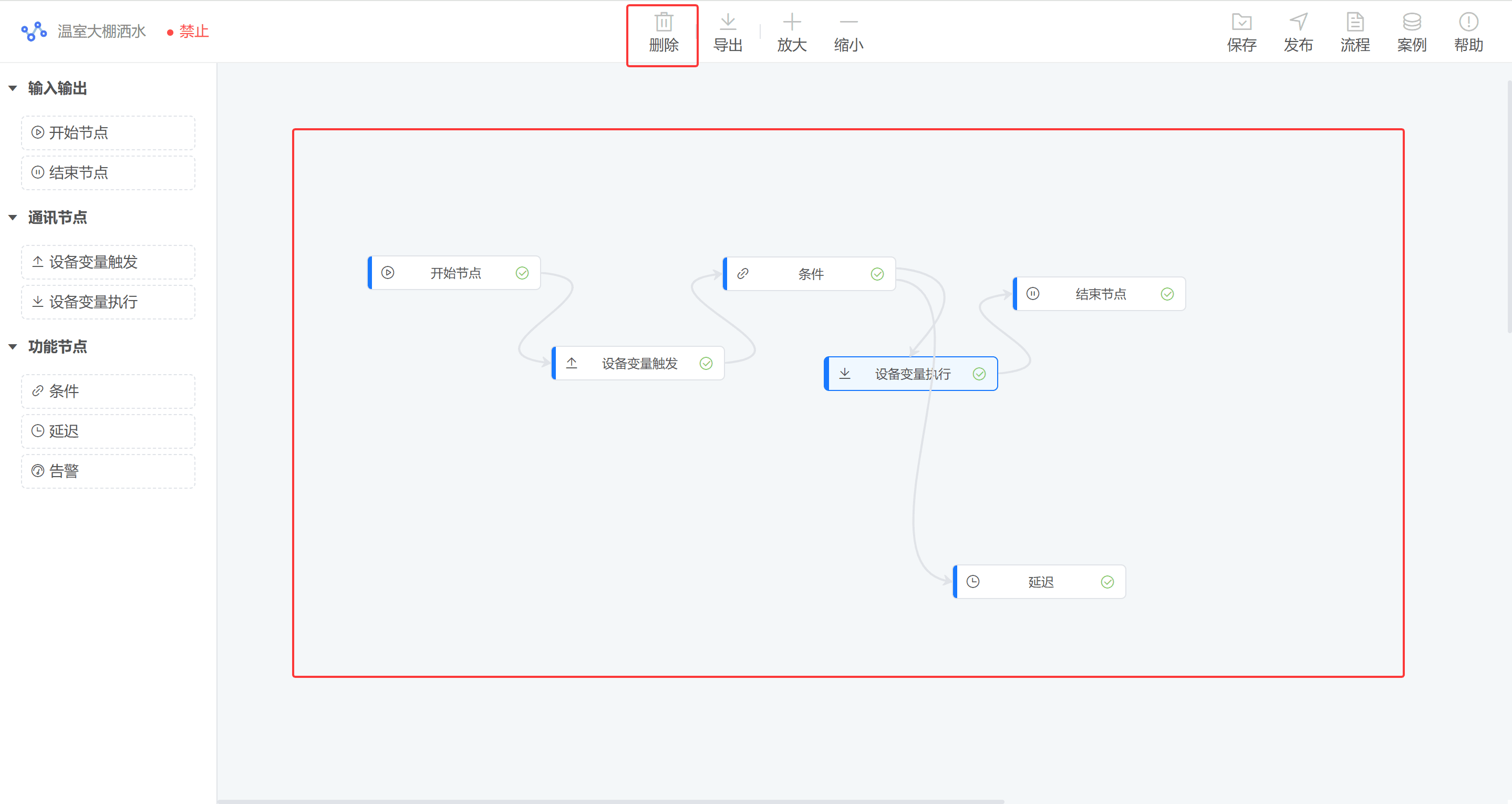
The rule-engine editor consists of a top toolbar, left node list, center editing area, and right component configuration panel.
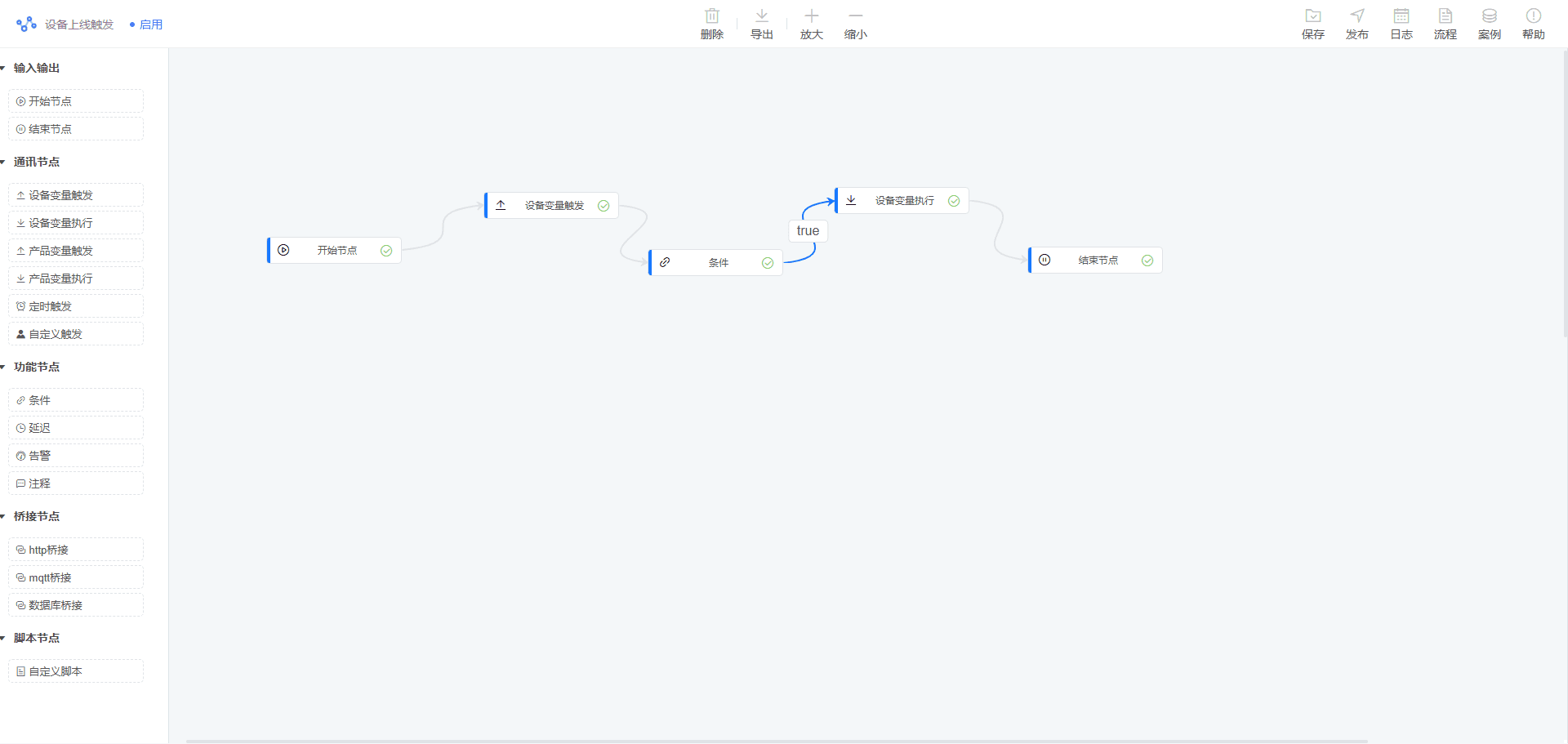
1. Toolbar
The toolbar contains common actions such as delete, export, zoom in, zoom out, save, publish, flow data, examples, and help.
| Action | Description |
|---|---|
| Save | Saves frontend rule data. After saving, the rule engine record is disabled by default. |
| Publish | Activates the rule engine record. |
| Flow | Displays the data format of current nodes and edges. |
| Examples | Provides classic examples for reference. |
| Help | Shows editor usage instructions. |
2. Node list
The node list includes input/output nodes, communication nodes, and function nodes. More node types can be added later.
2.1 Start node
The start node only marks the beginning of a flow. It cannot be connected as a target and does not accept multiple incoming edges.
2.2 End node
The end node only marks the end of a flow and does not actively connect to other nodes.
2.3 Condition node
Before using a condition node, configure a device-variable trigger node first. The variables selected in the trigger node are used to generate the condition expression.
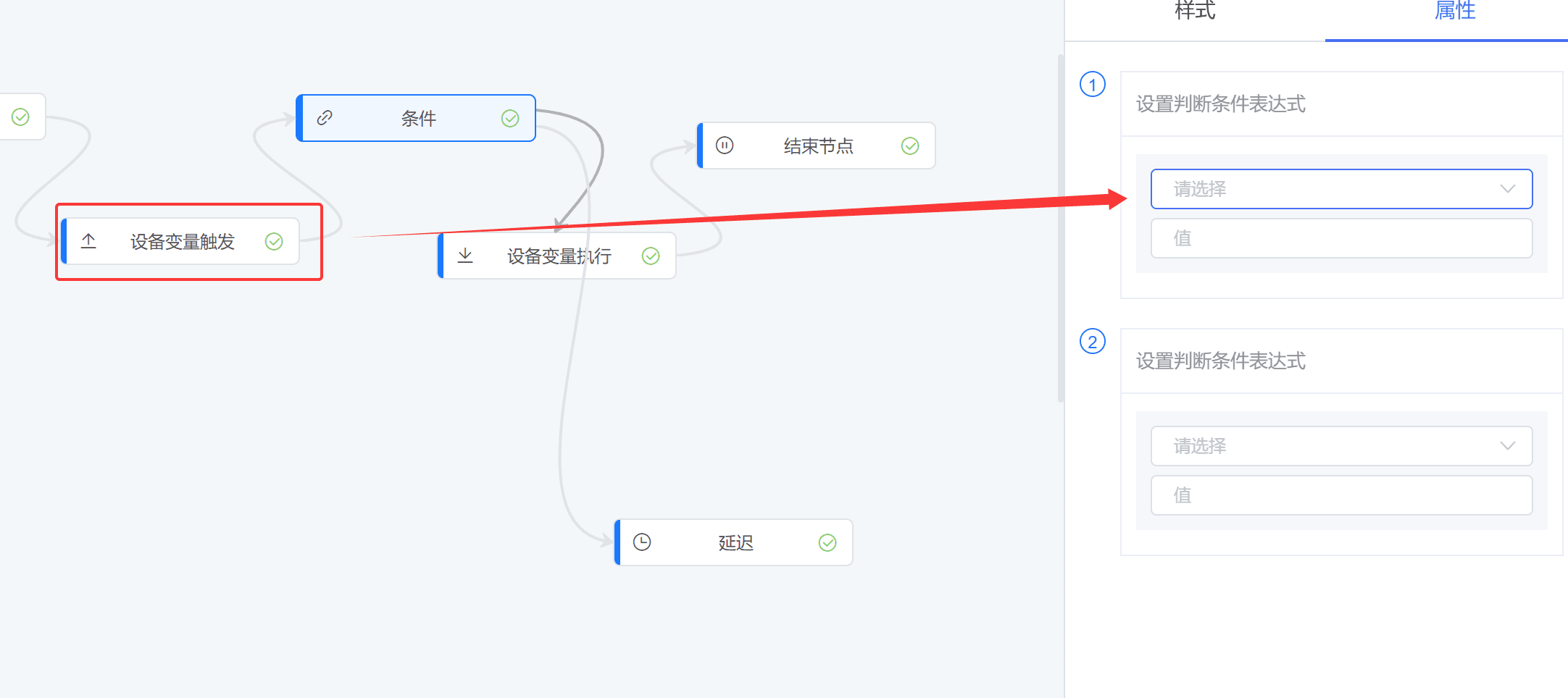
The number of target nodes connected to a condition node determines how many expressions can be configured.
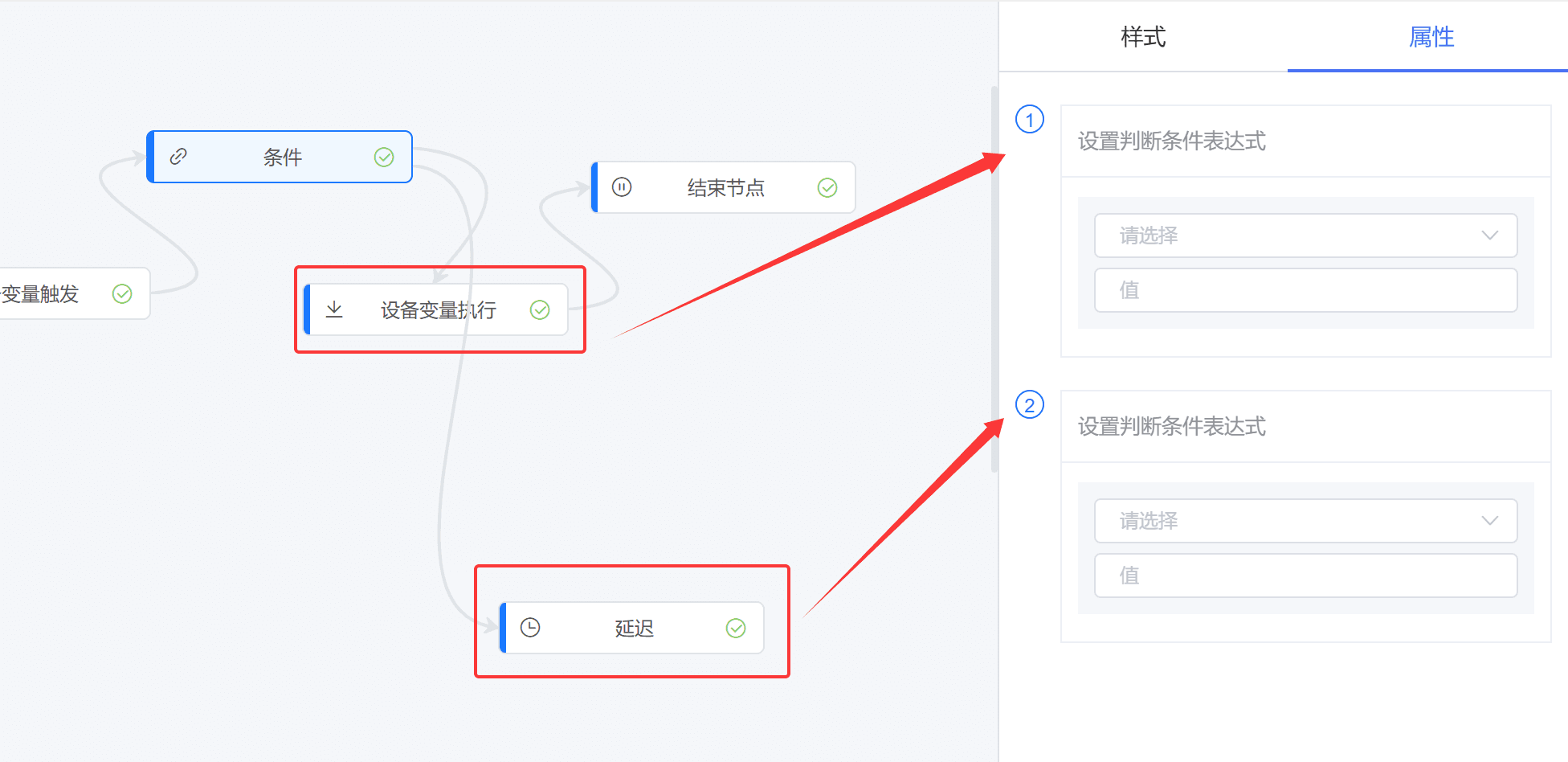
Only target nodes connected to the condition node can configure trigger conditions.
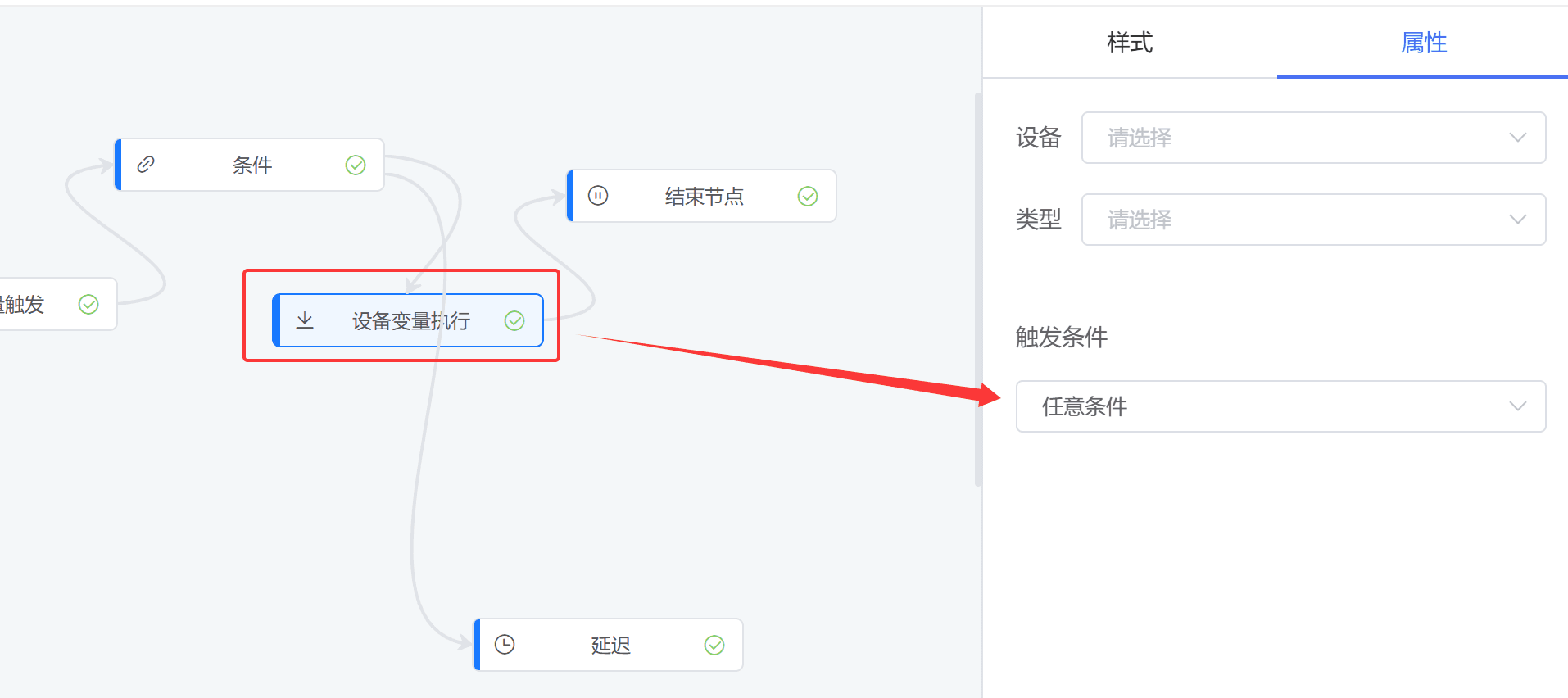
3. Editing area
The editing area is the main node canvas. You can drag nodes, connect nodes, and arrange the business rule flow.
You can select a node or edge with the left mouse button and press Delete to remove it.
4. Component configuration
The right component configuration panel contains style and property settings. Click a node or edge to configure it. Different component nodes expose different property settings.
4.1 Edge
An edge can have a name. The name is only a label and has no execution meaning.
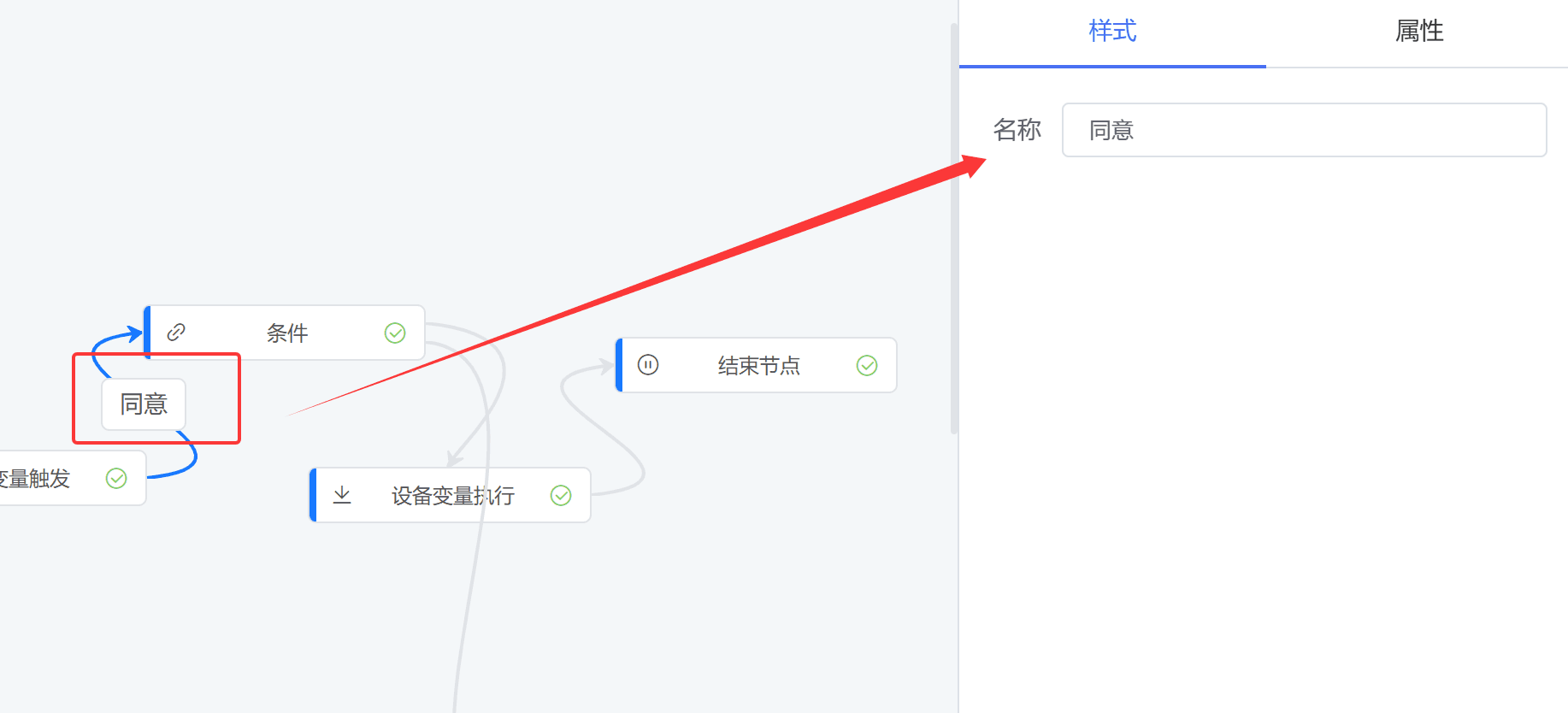
You can also configure the edge type and value.
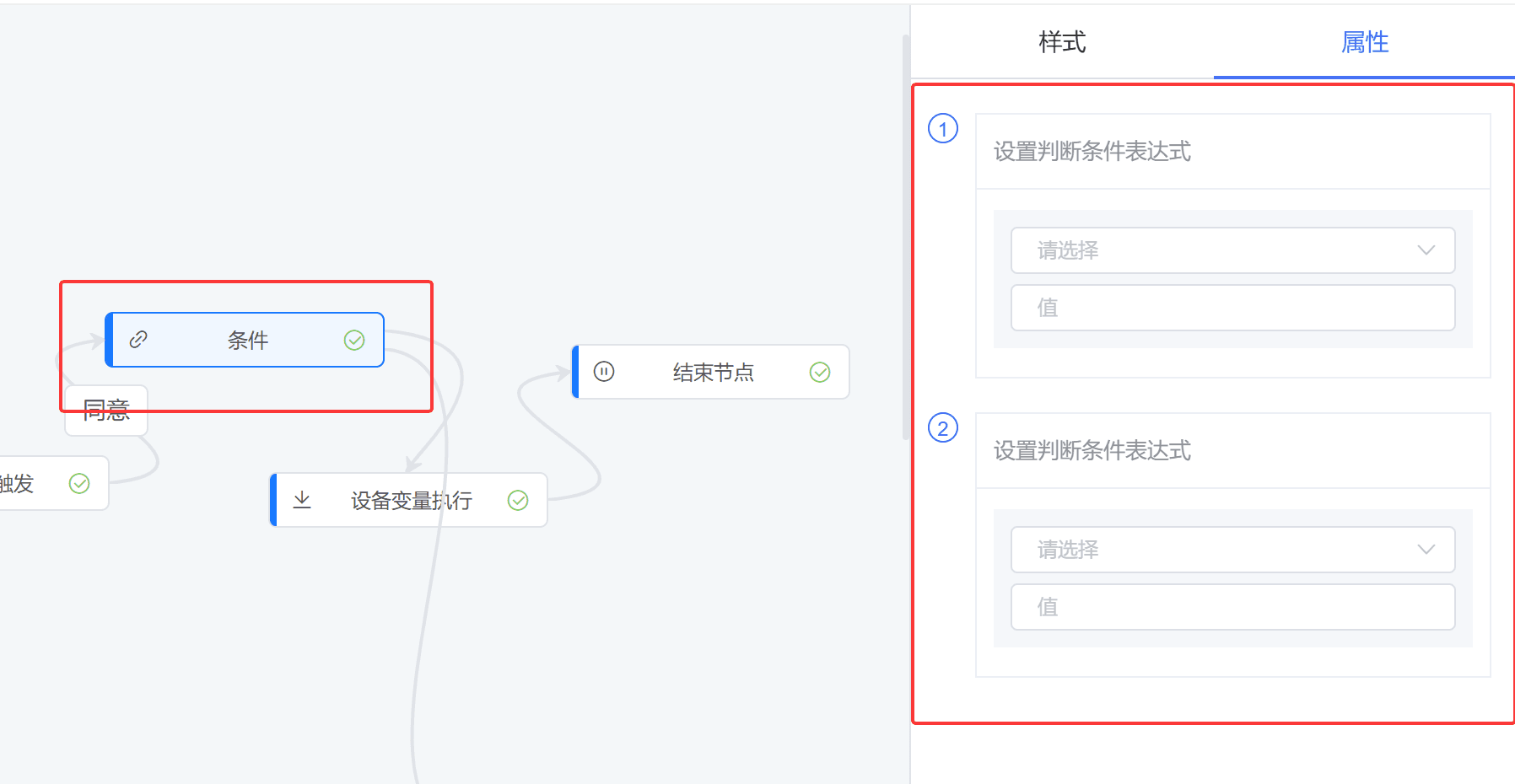
Edge types:
- Normal path: default path.
- Selection path: used when a condition node has more than two outgoing edges.
- True path: used when a condition node has two outgoing edges.
- False path: used when a condition node has two outgoing edges.
4.2 Node
Different nodes display different property settings. Configure them according to the required function.
FAQ
1. Why is the rule not triggered?
Check whether device data reaches the platform, whether the trigger node is bound to the correct product and variables, and whether the rule is enabled.
2. Why is the condition judgment incorrect?
Check the variable data type. Do not compare numbers as strings; use the keys defined in the Thing Model for enums and booleans.
3. What if the script node reports an error?
Check whether the context object fields exist, whether null values are handled, and whether the script passed validation before saving.
4. Why does the bridge target not receive data?
Check the bridge configuration, network connectivity, authentication parameters, request method, target service logs, and retry policy.