


3D Preview, Delivery, and Operation
Preview checks the model, labels, and object interactions. Saving retains project changes. A Saved badge does not mean the scene is delivered or connected to device data.
1. Before You Start
| Item | Details |
|---|---|
| Entry point | Visualization → SCADA Management → 3D Scenes → Project Card → Preview. Preview is also in the editor toolbar. |
| Permissions | View or edit the project. Check access separately with the intended viewer account before delivery. |
| Reference case | Campus Spatial Monitoring demonstrates models and labels but has no real devices bound. |
2. Wait for the Model and Check the View
- Open Preview from the project card. Wait for the model loading message to disappear and check that buildings, roads, area labels, and data points all appear. Labels alone do not mean the model loaded.
- Check that the initial view frames the campus, then change the viewing angle to check that labels match buildings. For read-only highlighting or details, select the intended object and verify that the response belongs to it.
- If Resource Not Found appears on the first attempt, refresh and wait. If it persists, check project access, model availability, and the target device's network and browser separately. An empty list or failed preview does not establish that a project was deleted.
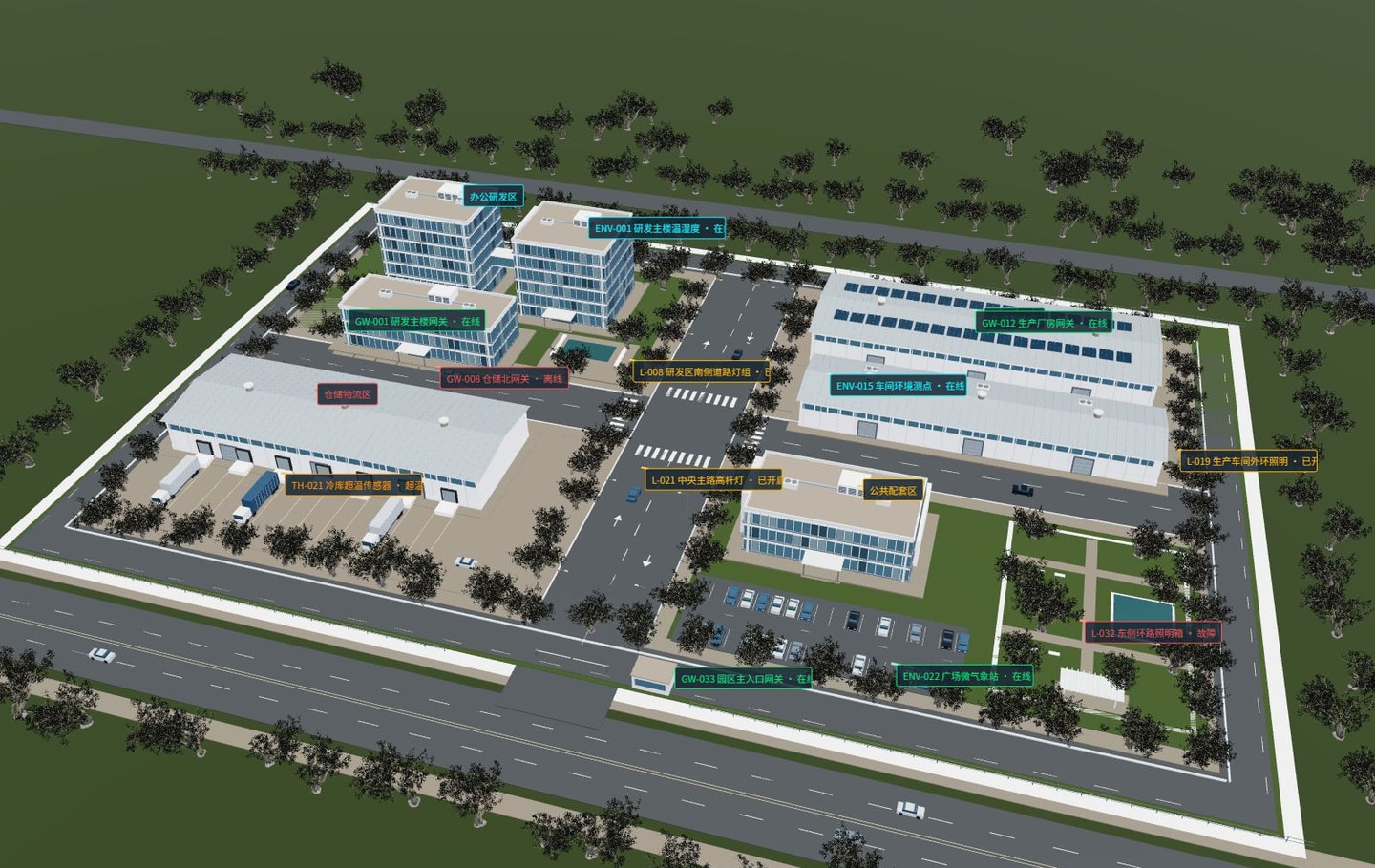
Verify against the screenshot: Wait until buildings, roads, textures, and area labels all appear. In the overview, check that Office and R&D Area, Warehousing and Logistics Area, and Public Facilities are placed on the correct models. If only text appears, troubleshoot model loading first. If the models are complete but labels are displaced, check node and label positions in the editor. The online, offline, and alert labels shown are for demonstration only.
3. Check Delivery and Operation
| Check | Expected result |
|---|---|
| Save | Reopening the project shows the saved scene and configuration after an authorized edit. |
| Access | The intended viewer can open the scene and its assets on the target display. Do not substitute an administrator session. |
| Display | The initial view, models, labels, and read-only interactions work as expected. |
| Live data | The target device, property, reading, and timestamp match device details. |
| Control | Verify commands and device reports only in an authorized environment. Do not send trial commands from a demo. |
For external access or embedding, check the capabilities and permissions of the actual deployment rather than following the dashboard publishing process. Complete the read-only preview checks first, then verify data and control separately.
4. Resource Loading and Runtime Performance
| Symptom | What to investigate |
|---|---|
| Labels appear, but the model does not | Whether the model is still loading, its resource reference exists, and its files are accessible. |
| Model appears, but textures are missing | Companion texture paths, letter case, access permissions, and cross-origin configuration. |
| Preview is sluggish | Model complexity, texture dimensions, the number of nodes and animations, and the target device's graphics capabilities. |
| Readings remain stale after refresh | Whether the data is only a sample or a static metric, the device has sent a new report, and the binding is correct. |
Uploading a resource, referencing a model in a scene, and binding device properties are three separate steps. Verify one model that loads correctly and one known monitoring point before adding objects and animations. Do not make the display more complex to troubleshoot data problems. Optimize large models and textures before reusing them, and confirm runtime behavior on the actual delivery device.