
3D Events, Animation, and Control
Events define what happens when a user clicks an object. Animations affect how the object is displayed. Highlighting, rotation, or opening a dashboard is visual feedback, not proof that a device executed a command.
1. Before You Start
| Item | Details |
|---|---|
| Entry point | 3D Scenes → Edit → Select a Node → Events or Animation |
| Permissions | Inspect node settings. Make changes in your own project, and obtain separate authorization for device control. |
| Reference case | The Offices and R&D node in Campus Spatial Monitoring has an existing click event you can inspect without editing it. |
2. Inspect Triggers and Actions
- Select Offices and R&D in the object list and open Events. Expand Select Current Object. The trigger is Click, and its action is Panel Highlight. It identifies the current object without controlling a device.
- In your own project, use Add Event and Add Action. Check whether the event is enabled, its trigger, the action type, and its parameters. Multiple actions in an event run in list order.
- To open device details in preview, first enable and configure the node's dashboard, then configure Open Device Dashboard under Events. Configuring metrics alone or adding the open action alone is not sufficient.
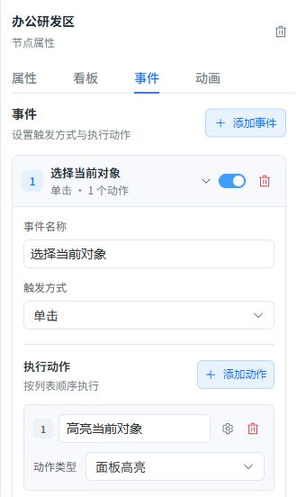
Follow the screenshot: Expand Select Current Object, check the event switch, then verify the Click trigger and the Panel Highlight action below it. When selecting Office and R&D Area in preview, check only the object's highlight; it does not indicate a device state change. To open a panel instead, check that the target node's panel is enabled and the action points to it.
3. Inspect Animation
On the same node, open Animation and check Enable Animation and Animation Type. Continuous Rotation suits a fan, Blink can signal an abnormal state, and Back-and-Forth Translation can show movement. Depending on the type, check settings such as axis and speed. Preview one node first and make sure the animation does not obscure labels. Animation settings are saved with the project.
4. Verify Control Results
Test Only Authorized Devices
Use Add Operation on the device dashboard to configure an action. Before choosing a value and sending it from preview, verify the device, property, parameters, and on-site safety. Do not send trial commands from a shared demo.
Check the platform's command result, wait for the device acknowledgment or a new report, and then confirm that the view updates. A working preview, triggered event, or playing animation does not establish successful execution.