
3D Device Binding, Properties, and Data
A 3D model node, its device, and its property are configured at different levels. Confirm that the project can access the device, then check which property the node uses. A label that says Online or shows a reading does not prove that live data is connected.
1. Before You Start
| Item | Details |
|---|---|
| Entry point | 3D Scenes → Edit → Bind Device |
| Permissions | View the project, device, and Thing Model. Binding requires edit permission. |
| What to prepare | An available test device, a property that has reported, and a known value, unit, and report time |
2. Check the Project, Node, and Dashboard
- Open Bind Device in the toolbar and search Bound Devices by device number. Campus Spatial Monitoring has no bound devices. Use it to learn the layout, not to test live readings.
- Select the node in the left panel and check Properties → Device Binding → Bound Property. To connect data in your own project, first confirm the device is bound to the project, then use Select Property to locate the target property. If No Property Bound appears, do not treat the label as a live reading.
- On the Dashboard tab, check its title and metrics. Add Metric selects a property from a device already bound to the project and fills in its name, identifier, and unit. Add Static Metric is for fixed content. To open a dashboard on click, see 3D Events, Animation, and Control.
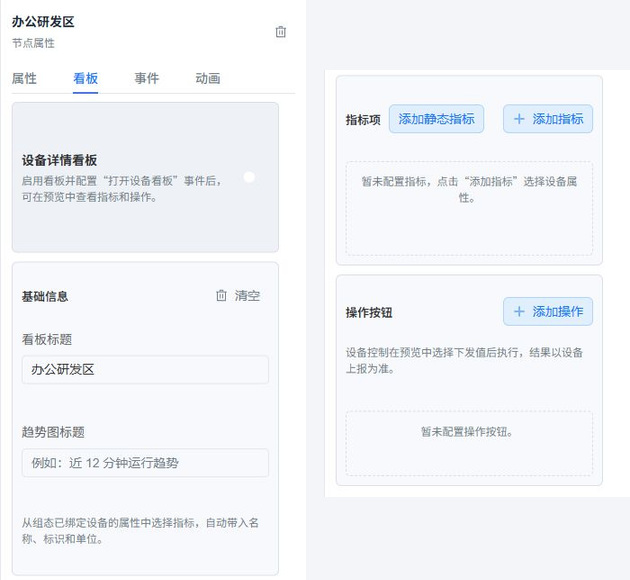
Configure the panel using the screenshot: The same panel is shown in two parts: the Device Details Panel switch and Basic Information are on the left, and Metrics and Action Buttons are on the right. To display a live property, confirm the device is bound to the project, then select the correct property with Add Metric. Add Static Metric is suitable for explanatory text, not for verifying reports. For a view-only delivery, leave the action list empty and verify the event that opens the panel and the displayed result in preview.
3. Verify Preview Readings
| Symptom | What to check first |
|---|---|
| Scene labels appear but the dashboard has no metrics | Is the dashboard enabled, and are metrics and an Open Device Dashboard event configured? |
| A device is bound, but a node has no value | Which device and property is the node bound to, and has the device reported? |
| A value appears but never changes with the device | Is it a static metric, a demo label, or a reading from the wrong property? |
| The value differs from device details | Compare the device number, property identifier, unit, and latest report time. |
Verify the complete data path with one known point before using it across multiple nodes. Demo labels are useful for checking the display but cannot establish a device acknowledgment or a real alert.